Brawl Stars
## Game Introduction: Brawl Stars ### Genre Brawl Stars is a fast-paced, real-time **multiplayer online battle arena (MOBA)** hybrid blended with **third-person shooter** and **hero brawler** elements. It features short, 3-minute matches across a variety of objective-based game modes, emphasizing q...
Download & Installation
Download & Installation Guide for Brawl Stars
Brawl Stars is primarily a mobile game developed by Supercell, available on iOS and Android. There is no native PC, PlayStation, Xbox, or Switch version. However, you can play it on a Windows PC using the official Google Play Games (Beta) app, which acts as a native Android emulator. This guide covers all legitimate sources: Google Play Store (Android), Apple App Store (iOS), Amazon Appstore (Android tablets), and Google Play Games on PC (Windows).
---
1. Official Download Sources
| Platform | Source | Notes |
|---|---|---|
| Android (Phones/Tablets) | [Google Play Store](https://play.google.com/store/apps/details?id=com.supercell.brawlstars) | Most common; also available on Amazon Appstore for Fire devices. |
| iOS (iPhone/iPad) | [Apple App Store](https://apps.apple.com/app/brawl-stars/id1221153492) | Requires iOS 11.0 or later. |
| Windows PC | [Google Play Games (Beta)](https://play.google.com/googleplaygames) | Official Android emulator; download from the website or Microsoft Store. |
| Amazon Fire Devices | Amazon Appstore | Pre-installed on many Fire tablets; search for "Brawl Stars". |
---
2. System Requirements
#### Mobile (iOS & Android)
| Component | Minimum | Recommended |
|---|---|---|
| OS | iOS 11.0 / Android 4.4+ | iOS 13+ / Android 7.0+ |
| RAM | 1.5 GB (iOS) / 2 GB (Android) | 2 GB (iOS) / 3 GB (Android) |
| Processor | Dual‑core 1.2 GHz | Quad‑core 1.5 GHz or better |
| GPU | Adreno 308 / Mali‑400 MP2 | Adreno 506 / Mali‑G72 MP3 |
| Storage | ~500 MB free | ~1 GB free (for updates) |
| Network | Stable 3G / Wi‑Fi | 4G / 5G or stable Wi‑Fi |
| Component | Minimum | Recommended |
|---|---|---|
| OS | Windows 10 (64‑bit, v19041+) | Windows 11 (64‑bit) |
| CPU | 4 physical cores (e.g., Intel i3‑8100) | 8 logical cores (e.g., Intel i7‑9700) |
| RAM | 8 GB | 16 GB |
| Storage | 10 GB free (SSD preferred) | 20 GB free (SSD) |
| GPU | Intel UHD 630 / AMD Radeon Vega 8 | NVIDIA GeForce GTX 1060 / AMD RX 580 |
| Virtualization | Must be enabled in BIOS (VT‑x/AMD‑V) | Same as minimum |
| Additional | DirectX 12, Secure Boot enabled | - |
3. Step‑by‑Step Installation
#### 3.1 Android (Google Play Store)
1. Open the Google Play Store app.
2. Tap the search bar, type "Brawl Stars", and select the official result.
3. Tap Install (green button) – the game will download and install automatically.
4. Once installed, tap Open to launch.
#### 3.2 iOS (Apple App Store)
1. Open the App Store on your iPhone or iPad.
2. Tap the Search tab, search for "Brawl Stars".
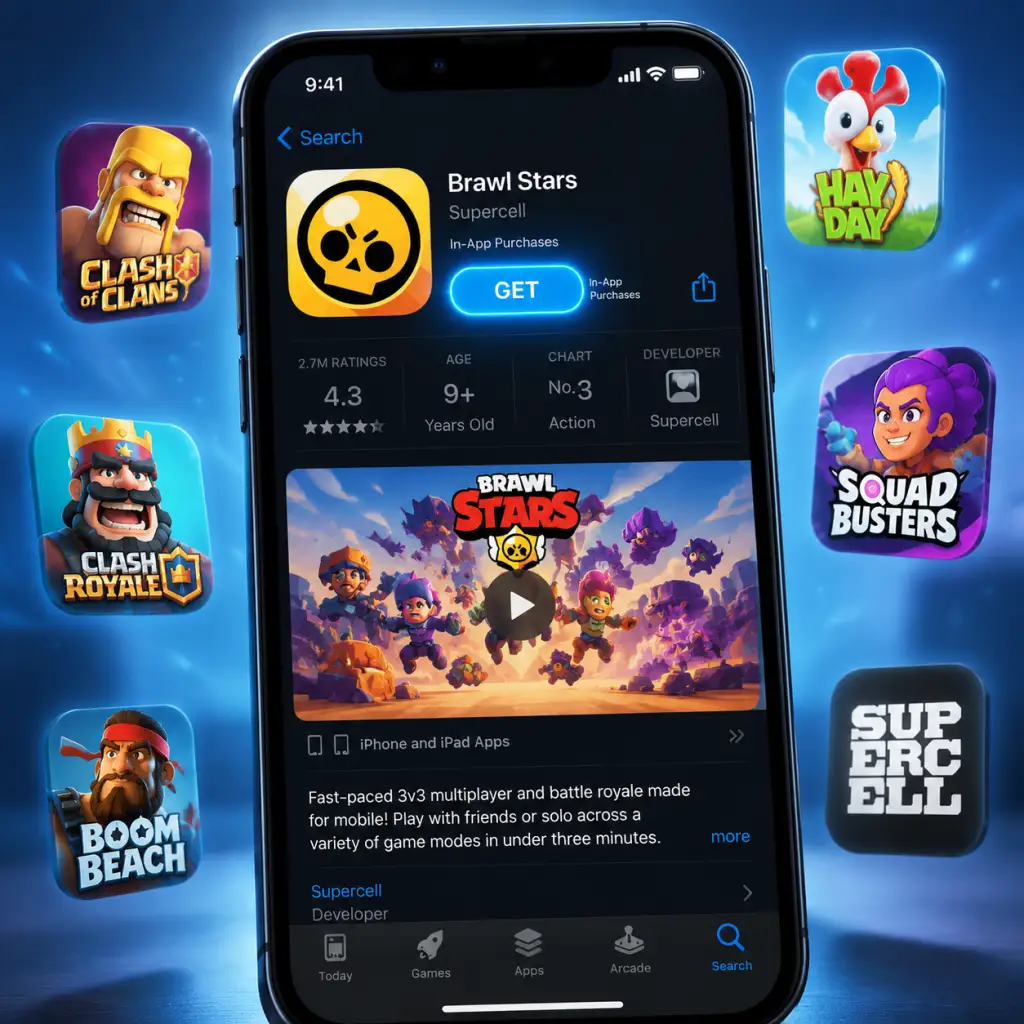
3. Tap Get (or the cloud icon if you already own it).
4. Authenticate with Face ID / Touch ID or your Apple ID password.
5. The game will download; tap Open when ready.
#### 3.3 Amazon Fire Tablet (Amazon Appstore)
1. Ensure your Fire tablet is running Fire OS 5.0 or later.
2. Open the Amazon Appstore (pre‑installed).
3. Search for "Brawl Stars".
4. Tap Get or Download – the installation will begin.
5. Launch from the home screen after completion.
> Note: Some Fire tablets may not be compatible; if not found, sideloading the APK is possible but not recommended.
#### 3.4 Windows PC (Google Play Games)
1. Visit the [Google Play Games official website](https://play.google.com/googleplaygames) and click Download for PC.
2. Run the installer (`GooglePlayGamesInstaller.exe`) and follow on‑screen prompts.
- You may be asked to enable Virtualization in BIOS – see Section 6 if needed.
3. After installation, launch Google Play Games and sign in with your Google account.
4. In the app, search for "Brawl Stars" and click Install.
5. Once installed, click Play to start the game.
Alternative method (Microsoft Store):
1. Open the Microsoft Store on Windows 10/11.
2. Search for "Google Play Games" and install the official app.
3. Follow steps 3–5 above.
---
4. Account Requirements
Brawl Stars uses Supercell ID for cross‑platform progress. You can create one during the first launch.
- No Supercell ID? You can play as a guest, but progress is lost if you uninstall or switch devices.
- Creating Supercell ID:
- Existing account recovery: Use the Supercell ID login button on the loading screen to sync your data.
1. From the game’s main screen, tap Settings (gear icon).
2. Tap Supercell ID -> Register.
3. Enter your email and verify via the code sent.
4. Set a display name (optional).
---
5. First Launch Setup
1. Language & Region: The game auto‑detects your device language. You can change it later in settings.
2. Tutorial: Play through the mandatory tutorial (about 5 minutes) to unlock basic gameplay.
3. Permissions (Mobile):
- iOS: Allow Notifications and optionally iCloud for backup.
- Android: Allow Phone (for advertising ID) and Storage (for screenshots). Denying won’t break gameplay.
4. In‑App Purchases: Requires a valid payment method only if you intend to buy Brawl Pass or gems.
5. Data Download: The game will download additional assets (about 200–400 MB) after the tutorial. Ensure a stable Wi‑Fi connection.
---
6. Common Installation Errors & Fixes
#### 6.1 Mobile Installation Issues
| Error | Cause | Fix |
|---|---|---|
| "Insufficient storage" | Not enough free space | Free at least 1 GB; delete unused apps or media. |
| "App not compatible with your device" | Device too old or unsupported GPU | Update your OS; if still incompatible, play on another device. |
| Download stuck at 99% | Play Store cache corruption | Go to Settings > Apps > Google Play Store > Clear cache, then retry. |
| Installation failed (Android) | Corrupted APK | Uninstall and reinstall via Play Store. |
| iOS "Cannot install" error | Apple ID issue | Sign out of App Store, restart device, sign in again. |
| Error | Cause | Fix |
|---|---|---|
| "Virtualization is not enabled" | BIOS setting disabled | Restart PC, enter BIOS (usually F2/Del), enable VT‑x (Intel) or SVM (AMD), save and exit. |
| "Your PC does not meet the minimum requirements" | Hardware or OS check failure | Update Windows to at least 19041; check GPU drivers; ensure Secure Boot is enabled. |
| Game crashes on launch | Outdated GPU drivers | Download the latest drivers from NVIDIA, AMD, or Intel. |
| “Google Play Games won’t install” | Microsoft Store blocked or corrupted | Run wsreset.exe (Windows key + R) to reset Store cache, then try again. |
| High ping / lag in game | Network issues or virtualization overhead | Use a wired Ethernet connection; close other background apps. |
- Clear cache: In Android: Settings > Apps > Brawl Stars > Clear cache. On PC: Google Play Games settings > Clear app data.
- Reinstall: Uninstall and reinstall from the official source.
- Check for updates: Keep the game and your OS/drivers up to date.
- Startup: The game shows the Supercell logo, then the loading screen with a brawler animation.
- Main Menu: You should see the Home screen with the Brawl Pass, Shop, and battle buttons.
- Account Sync: If you have a Supercell ID, log in from the Settings. Your progress, trophies, and brawlers should appear.
- Graphics & Performance: Run a quick match (e.g., Showdown solo) to check framerate and responsiveness.
- Sound: Check that audio works (in‑game music, effects).
- Network: Ensure you can connect to a match without disconnections.
- Keep the game updated – updates are frequent and add new brawlers, events, and bug fixes.
- Back up your account – always link Supercell ID to avoid losing progress.
- Storage management – the game can grow beyond 1 GB with updates. Regularly clear the app’s cache (via device settings) if storage is tight.
- PC players – use Google Play Games beta; note that performance may vary. For best results, close other resource‑heavy applications.
---
7. Post‑Installation Verification
After installation and first launch, verify the following to ensure a smooth experience:
If any step fails, refer to the error fixes in Section 6.
8. Final Tips
---
Still having trouble? Visit the official [Supercell Support](https://support.supercell.com/brawl-stars/) page or check the [Brawl Stars Reddit community](https://www.reddit.com/r/Brawlstars/).
Game Introduction
Game Introduction: Brawl Stars
Genre
Brawl Stars is a fast-paced, real-time multiplayer online battle arena (MOBA) hybrid blended with third-person shooter and hero brawler elements. It features short, 3-minute matches across a variety of objective-based game modes, emphasizing quick reflexes, teamwork, and strategic ability usage.
Developer & Publisher
- Developer: Supercell (Oy Supercell Ab)
- Publisher: Supercell
- Country of Origin: Finland
- Soft Launch (Canada): June 15, 2017 (iOS only)
- Global Launch (iOS & Android): December 12, 2018
- Major Updates: Continuous quarterly updates since launch, introducing new Brawlers, modes, maps, events, and seasonal content. Key milestones include:
- Primary platforms: iOS (iPhone, iPad, iPod Touch) and Android
- System requirements: iOS 11.0 or later (minimum iPhone 5s), Android 5.0 or later (minimum 2GB RAM recommended)
- No native PC or console version. However, the game can be played on Windows/Mac via official Android emulators (e.g., Bluestacks, LDPlayer) or with controller support (iOS & Android).
- Cross-platform play: Full cross-play between iOS and Android users.
Supercell is renowned for its mobile-first, free-to-play hit games such as Clash of Clans, Clash Royale, and Hay Day. Brawl Stars is the company’s fourth major global release.
Release Timeline
- Brawl Pass Season 1: Tara’s Bazaar (May 2020) - introduced the seasonal Brawl Pass system
- Power League (March 2021) - competitive ranked mode
- Club League (May 2022) - organised club vs club battles
- Mega Pig (December 2023) - revamped club rewards system
- Hypercharges (September 2023) - ultimate ability upgrades
Platforms
Story Overview
Brawl Stars does not have a traditional campaign or single-player narrative. Instead, its lore is conveyed through character bios, seasonal events, animated shorts (Brawl Stars: The Animations), and in-game descriptions. The world is a whimsical yet chaotic cartoon universe where Brawlers from different realms (the Old West, a futuristic Starr Park, a fantasy kingdom, etc.) compete in a variety of high-stakes brawls for glory, trophies, and mysterious artifacts. The central location is Starr Park, a seemingly innocent amusement park that hides dark secrets, corrupted AI, and interdimensional rifts. Each Brawler has a unique backstory, often tying into the park’s mysteries or their own rivalries (e.g., the rivalry between Colt and Shelly, or the feud between the Mecavores and the Bats).
Setting
The game’s primary setting is Starr Park and its many themed arenas: a Wild West frontier, a tropical beach, a haunted mansion, a futuristic city, a fantasy forest, and more. Maps are designed for 3v3 or solo/duo battles, with distinct visual themes and environmental obstacles (bushes, walls, water, jump pads). The tone is lighthearted and cartoonish, with bright colours, exaggerated physics, and humorous animations.
Main Characters (Brawlers)
Brawl Stars features over 80 playable characters called Brawlers, each with unique attacks, Super abilities, Gadgets, Star Powers, and Hypercharges. They are categorised by rarity (Common, Rare, Super Rare, Epic, Mythic, Legendary) and class (Tank, Damage Dealer, Assassin, Controller, Marksman, Support, Healer, Artillicist). Notable examples:
| Brawler | Rarity | Class | Signature Ability |
|---|---|---|---|
| Shelly | Common | Damage Dealer | Spread shotgun, Super knocks back and destroys walls |
| Colt | Rare | Marksman | Rapid-fire pistols, Super fires a long-ranged barrage |
| Poco | Epic | Support | AoE healing attack, Super deals area damage and heals teammates |
| Mortis | Mythic | Assassin | Dash attacks, Super summons bats that drain health |
| Leon | Legendary | Assassin | Invisible while moving, Super throws a smoke bomb that slows enemies |
Core Appeal
- Quick matches: Average game lasts 3 minutes, perfect for on-the-go play.
- Variety of modes: Gem Grab, Showdown, Brawl Ball, Heist, Bounty, Hot Zone, Knockout, Wipeout, Duels, Takedown, Volley Brawl, Basket Brawl, and limited-time events.
- Constant progression: Unlock and upgrade Brawlers, collect gadgets, star powers, and hypercharges.
- Competitive ecosystem: Trophy system, Power League, monthly championships, and esports tournaments (Brawl Stars Championship).
- Social features: Join a Club, chat, play with friends, create teams, Club League, and Mega Pig.
- Seasonal content: Brawl Pass with exclusive skins, pins, sprays, and Brawlers.
- Age range: 8–25 years old, with appeal to both casual and competitive players.
- Demographic: Mobile gamers who enjoy short, social multiplayer experiences. Ideal for players who like MOBAs (League of Legends, Mobile Legends) but want shorter matches on mobile.
- Skill level: Accessible to beginners (basic controls: joystick + attack button) but has depth for high-skilled play (aiming, dodging, team coordination).
Target Audience
Game Modes
Brawl Stars offers a rotating selection of permanent and limited-time modes:
| Mode | Description | Team Size |
|---|---|---|
| Gem Grab | Collect 10 gems and hold them until timer runs out | 3v3 |
| Showdown | Solo or duo battle royale: be the last standing | Solo/Duo (10 players) |
| Brawl Ball | Soccer-inspired: score 2 goals in 3 minutes | 3v3 |
| Heist | Attack the enemy safe while defending yours | 3v3 |
| Bounty | Collect stars by eliminating enemies; most stars wins | 3v3 |
| Hot Zone | Control zones to earn points | 3v3 |
| Knockout | No respawns; win by eliminating all enemies in a round (best of 3) | 3v3 |
| Wipeout | First team to 15 kills wins | 3v3 |
| Duels | 1v1 single-elimination tournament with 3 Brawlers | 1v1 |
Online / Offline Support
- Online: Required for all modes except training and some PvE practice against bots. Game is fully online with matchmaking via Supercell servers.
- Offline: No offline multiplayer. Solo practice against AI bots is available in Training Cave or friendly matches without internet connection (via local Wi-Fi? Actually, Brawl Stars requires internet for matchmaking; friendly matches with bots can work offline but only in specific limited modes). Official info: The game requires a stable internet connection for most gameplay. No LAN or offline multiplayer.
- Controller support: Yes (iOS and Android).
- Mobile-native MOBA: Designed from the ground up for touch controls with twin-stick-like aiming (tap to attack, drag to aim). No virtual d-pad; movement is joystick + auto-aim or manual aim.
- Extremely fast matches: Unlike traditional MOBAs (20–40 minutes), matches last 2–3 minutes, fitting mobile sessions.
- Diverse game modes: More variety than most mobile brawlers — from objective-based (blast the safe) to battle royale and sport-like modes.
- Brawler uniqueness: Over 80 Brawlers with wildly different mechanics (some summon minions, others teleport, heal, create walls, etc.), encouraging experimentation.
- Seasonal narrative: While thin compared to RPGs, the lore of Starr Park and the Brawlers’ interconnections creates a light but engaging world, expanded through animated shorts and in-game events.
- Free-to-play friendly: All Brawlers can be earned without spending money, though progression speed can be boosted via purchases.
- Esports scene: Official Brawl Stars Championship (BSC) with monthly qualifiers and a world finals event, giving competitive players a clear path from casual to pro.
DLC / Expansions
Brawl Stars operates as a live-service game with continuous free updates rather than paid DLC. All gameplay content (new Brawlers, modes, maps, items) is unlocked through gameplay progression or optional purchases (Brawl Pass, gems). There are no expansion packs or paid story DLC. The Brawl Pass is a seasonal battle pass (approximately 70 days) that offers exclusive cosmetic rewards, a new Brawler, pins, sprays, and resource boosts. Power League and Club League add competitive seasons with exclusive skins. Hypercharges are major power upgrades released in batches. The game also features a Shop with limited-time cosmetics and special offers.
What Makes Brawl Stars Unique
In summary, Brawl Stars by Supercell is a vibrant, fast-paced multiplayer shooter that distills the core of MOBA and battle royale genres into 3-minute mobile-friendly matches. With over 80 unique Brawlers, a wide array of game modes, and constant updates, it appeals to both casual mobile gamers and dedicated esports enthusiasts.
Getting Started
Getting Started: Your First Hour in Brawl Stars
First Hour Walkthrough (0-60 Minutes)
Minute 0-5: Download & Install (covered in previous section). Once installed, launch the game. You will be greeted by an intro video. Skip it if you want (tap screen). You will be asked to sign in with Supercell ID (optional but recommended for cloud save). For now, skip or sign in later.
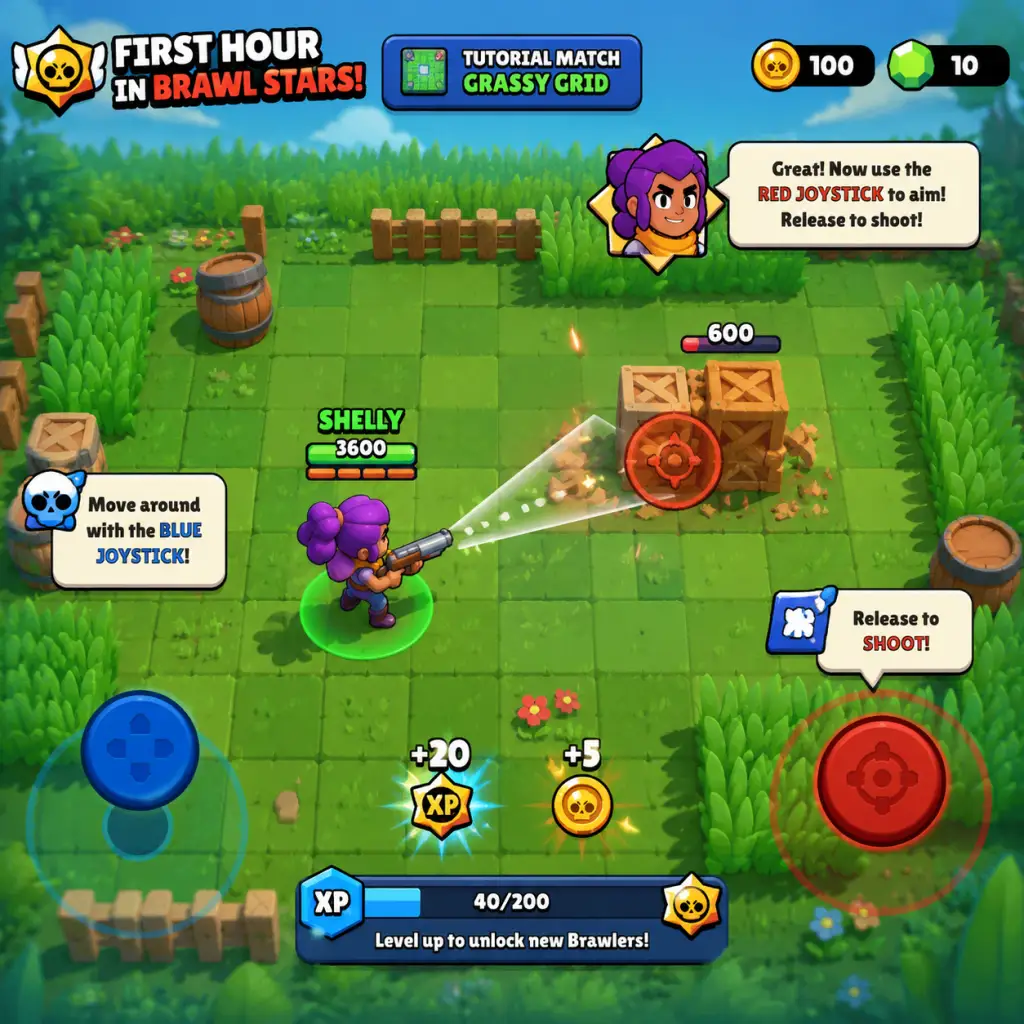
Minute 5-10: Tutorial Match. The game forces you into a 1v1 bot match using Shelly (a shotgunner). Follow the on-screen instructions: move with joystick, attack with button, use super when charged. Win easily.
Minute 10-15: After tutorial, you get your first reward: a Brawl Box (free). Open it in the Shop. You'll likely get a few coins, power points, maybe a Brawler. You also unlock the main menu: Brawlers tab, Events, Shop, etc.
Minute 15-30: Play more matches in Gem Grab (3v3) or Solo Showdown. Focus on learning controls and map awareness. You will unlock the Brawl Pass (free track) and daily quests.
Minute 30-45: Complete your first daily quests (e.g., "Play 3 matches" or "Collect 10 gems"). This gives tokens to advance Brawl Pass.
Minute 45-60: By now you should have around 5 Brawlers (starting with Shelly, plus maybe Nita, Colt, etc.). You can start upgrading them using Power Points and Coins. Focus on one Brawler to level 3-5.
Character Creation
There is no character creation in Brawl Stars. All Brawlers are pre-designed with unique abilities, stats, and appearances. You unlock them through Brawl Boxes (now called "Starr Drops" after recent revamp, but still commonly referred to as boxes). You cannot customize appearance aside from skins (cosmetic, bought with gems or bling). Your "character" is the Brawler you choose for each match.
Controls on All Platforms
Mobile (iOS/Android) – Default:
- Left thumb: Virtual joystick for movement.
- Right thumb: Tap to shoot (auto-aim available) or tap and drag to aim manually.
- Super button (above attack): Tap when charged.
- Gadget and Star Power buttons (when unlocked): appear near super.
- There is no "tap to move" option; only joystick.
- Special: Showdown has a "shield" button for survival.
- WASD to move.
- Mouse click to attack (left click) or aim (right click to aim, left click to fire).
- Q for Super.
- E for Gadget, R for Star Power (configurable).
- Spacebar for special actions (like Showdown shield).
- Top bar: Player level, Brawl Pass progress, Gems, Coins, Bling.
- Left side: Brawlers tab (all your Brawlers), Events (playlist of game modes), Shop (buy boxes, offers).
- Bottom: Battle button (enter matchmaking), plus chat/club buttons.
- Right: Quests button, Starr Drop button (when available).
- Brawler info: When you tap a Brawler, you see stats, upgrade path, skin options.
- Unlock your first 5 Brawlers (almost automatic from boxes).
- Reach Player Level 5 quickly (by playing matches).
- Upgrade one Brawler to level 5 (using Power Points and Coins) to be competitive.
- Complete all daily quests for tokens.
- Join a Club (after player level 4) for extra rewards and team play.
- Play every event mode at least once to understand different objectives.
- Practice in Solo Showdown to learn movement and aiming without team pressure.
- Save Gems for Brawl Pass (best value).
- Focus upgrade resources on one or two Brawlers initially.
- Use auto-aim at close range, but learn to aim manually for long range.
- Don't spend Gems on boxes (poor value).
- Don't upgrade all Brawlers equally (spread thin).
- Don't play Ranked mode (Power Play or League) until you have a level 7+ Brawler.
- Don't ignore gadgets/star powers until you get them (but don't buy them with gems early).
- Don't tilt (get frustrated) if you lose; matchmaking balances based on trophies.
- Coins: Use to upgrade Brawlers. Priority: upgrade your main Brawler to level 7+.
- Power Points: Needed for upgrades. Earn from boxes and Brawl Pass.
- Gems: Premium currency. Save for Brawl Pass (169 gems). Never buy skins or boxes.
- Bling: Earned from Brawl Pass and Starr Drops. Use for exclusive skins (cosmetic only).
- Starr Drops: New loot system; open them as you get them (they contain everything).
- Tokens: Use to advance Brawl Pass track. Do quests.
- [ ] Complete the tutorial and first match.
- [ ] Open your first Brawl Box.
- [ ] Play 3 matches in any mode (to get daily quest progress).
- [ ] Complete the "Win 3 matches" or "Collect X gems" quest.
- [ ] Check the Shop for free offers (often a free box).
- [ ] Upgrade Shelly to at least level 2.
- [ ] Unlock your second Brawler (likely Nita or Colt).
- [ ] Try Solo Showdown to practice.
- [ ] Reach Player Level 3.
- [ ] Join a Club (optional but recommended).
- [ ] Set a goal: Get one Brawler to 15 trophies.
PC (via emulator like BlueStacks or LDPlayer):
No console versions exist.
UI Overview
Main screen:
Essential Early Objectives
What to Do First and What to Avoid
Do:
Avoid:
Early Resource Priorities
Common Beginner Mistakes
1. Wasting Gems on Boxes: Boxes can be earned for free; gems are scarce.
2. Upgrading Every Brawler: Focus on one so you can play in higher trophy matches.
3. Ignoring Movement: Standing still gets you killed. Always strafe.
4. Not Using Walls/Cover: Brawl Stars maps have lots of walls; use them to block enemy fire.
5. Overextending: Don't chase enemies into their spawn or into multiple enemies.
6. Not Understanding Brawler Roles: Tanks up front, damage dealers mid, snipers back. Choose accordingly.
7. Playing Ranked Too Early: You need star powers and gadgets to compete.
8. Not Completing Quests: Quests are main source of tokens and progression.
9. Selling Duplicate Star Powers: Don't; store them for future use.
10. Forgetting to Claim Starr Drops: They expire after season? Actually, they stack, but claim them regularly.
Day-One Checklist
Core Gameplay
Core Gameplay in Brawl Stars
Brawl Stars is a fast-paced, real-time multiplayer brawler where players compete in 3-vs-3 or solo/duo showdown matches lasting approximately 3 minutes. The core loop revolves around selecting a Brawler (character), entering a match, using unique attacks and gadgets to eliminate opponents or complete objectives, and earning rewards to unlock and upgrade more Brawlers. Progression is structured around account level, trophy count, and Power Level of each Brawler. Below, we break down the gameplay by four distinct tiers of player progression.
---
Early Game (Trophy Range 0–500, Account Level 1–20)
Main Gameplay Loop
- Matches: You play solo (Showdown, Solo) or with random teammates (Gem Grab, Bounty, Heist). Each match lasts ~3 minutes. Win by eliminating all enemies or completing the objective (e.g., collecting 10 gems in Gem Grab).
- After Match: Earn Trophies (increase +1 to +8 per win), Token Doublers (if you have them), and small amounts of Coins and Power Points. Trophies increase your total trophy count, unlocking new game modes at milestone thresholds.
- Controls: Left joystick moves, right joystick aims and fires (tap/hold). Each Brawler has a main attack (e.g., Shelly’s shotgun) and a Super (charged by dealing/taking damage).
- Gadget & Star Power: During Early Game, you usually have no gadgets or star powers. You rely solely on basic attacks and Supers.
- Map Interaction: Bushes hide you until you attack or move too close; walls block shots. Use them for ambushes or cover.
- Account Level: XP earned from completing quests (Daily Quests, Season Quests). Each level up grants a small reward (e.g., 20 Gems, a Brawl Box).
- Brawler Unlocks: You start with one Brawler (Shelly). Unlock more via Trophy Road (e.g., at 15 trophies you get Nita; at 60, Colt; etc.) or from Brawl Boxes (random). Early on, focus on unlocking all Trophy Road Brawlers.
- Power Level: Use Power Points (PP) to upgrade a Brawler from Power 1 to Power 10. Coins are needed for the upgrade itself. In Early Game, you only have enough resources to upgrade 1–2 Brawlers to Power 4–5.
- Daily Quests: Simple tasks like “Win 3 matches with any Brawler” or “Deal 10,000 damage” – rewards: 100–200 Token Doublers or small coin bonuses.
- Season Quests: Weekly objectives tied to the current Brawl Pass season. Example: “Earn 50 Gems in Gem Grab” gives 500 Season Points.
- Brawl Pass (Free Track): Earn Season Points to progress, unlocking boxes, coins, and occasionally a Mega Box.
- Coins: Used for upgrades. Earned from boxes, daily offers, and quests. Scarcity is a bottleneck; prioritize upgrading one or two Brawlers you enjoy.
- Power Points: Per-Brawler resource. Earn from boxes or from the shop (watch ad). Early on, you get enough to upgrade a few Brawlers to Power 5–6.
- Gems: Premium currency. Do NOT spend on boxes early; save for Brawl Pass (169 Gems) or special offers.
- Brawl Boxes: Big Box contains 4 items, Mega Box contains 10. Focus on opening Big Boxes as you earn them; the contents are scaled to your account level.
- Trophy Road: A linear progression of milestones. Each milestone (e.g., 100 trophies) unlocks a new game mode (Showdown, Bounty, Heist, Brawl Ball).
- Special Events: Rotating events like Robo Rumble (PvE) or Boss Fight appear occasionally. Play them for bonus boxes.
- Map Rotation: Every 2–3 days the map pool changes. Experiment with different maps to learn lane positions and bush placements.
- Trophy 500 Cap: Once any Brawler reaches 500 trophies, you can push further but losses become more punishing (-8 trophies loss). This marks the transition to Mid Game.
- Ranked Play: Unlocks at 450 total trophies (Bronze rank). Play 3-vs-3 modes with a pick/ban system. Rewards include Star Points (used for exclusive skins) and Boxes.
- Matchmaking: Based on average trophy count of your Brawler. You now face opponents with Power 7–9 Brawlers and some using Gadgets/Star Powers.
- Trophy Inflation: To progress, you must win consistently. Focus on a main Brawler to push above 600.
- Gadgets: Unlock at Power 7. Each Brawler has two gadgets (e.g., Shelly’s “Fast Forward” dash). Gadgets are single-use per match, recharge over time. Use them for escape, burst damage, or utility.
- Star Powers: Unlock at Power 9. First Star Power available; second at Power 10. Example: Shelly’s “Shell Shock” slows enemies hit by Super. These drastically affect playstyle.
- Ultimate Abilities: Some Brawlers have extra mechanics like Tara’s Super pull or Piper’s Super jump. Learn special interactions (e.g., Bo’s Super places mines).
- Upgrade Priority: Take your main Brawler to Power 9 (first Star Power). Use Power Points from boxes and shop offers specifically for this Brawler.
- Promo Drops: Save all your Gems for the Brawl Pass (169 Gems). The paid track gives extra Power Points, coins, and a Chromatic Brawler.
- Brawler Unlocks: You now have 15–20 Brawlers (from Trophy Road and boxes). Focus on unlocking all non-legendary by buying token doublers? No, just play.
- Daily Quests: Same structure but now include “Win 3 matches in Gem Grab” etc. Use your main Brawler.
- Season Quests: More difficult, e.g., “Deal 50,000 damage with Brawlers from the X category”. These yield larger Season Points.
- Brawl Pass (Season): Max level 50. Bonus levels 51–70 give extra boxes. If you buy Pass, you get instant Chromatic Brawler (e.g., Surge).
- Coins: Still scarce. Avoid wasting on upgrading all Brawlers equally. Only upgrade those you push over 500.
- Power Points: Use the shop’s token doubler? No, but you can buy Power Points for Coins if needed. Prioritize one Brawler until Power 9.
- Gems: Only use for Brawl Pass. Never buy individual boxes.
- Brawl Boxes: Open all Big Boxes from daily free pass. Mega Boxes from Season rewards and Ranked.
- Map Awareness: Pay attention to key choke points and heal pads (if present). Use the environment to control mid lane.
- Special Events: Solo Showdown is a good way to farm trophies if you are skilled. Duo Showdown with a friend can help coordination.
- Power Play (Legacy): Replaced by Ranked. Ranked offers weekly challenges and a different ladder. Focus on climbing from Bronze to Gold.
- 600 Trophies per Brawler: Once a Brawler reaches 600, you qualify for higher Ranked tiers (Gold). Begin considering second Star Power.
- Competitive Focus: Most matches are in Ranked (Platinum and higher) or pushing specific Brawlers to 1000 trophies. Losses at 800+ can drop 15–20 trophies, so win rate matters greatly.
- Team Composition: You now form pre-made teams for coordination. Use voice chat or in-game pings (available in Ranked).
- Brawler Specialist: You have 3–4 Brawlers at Power 10 with both Star Powers and both Gadgets. You know their matchups inside out.
- Advanced Techniques: Learn movement tech like slide dodging, pre-charging Supers by damage farming, and gadget combos (e.g., Brock’s Rocket Laces + Super).
- Counterplay: Recognize when to switch Brawlers based on enemy picks. For example, if enemy picks a tank (Bull), pick a tank counter (Shelly with Shell Shock + Fast Forward).
- Map Awareness: Place yourself in lanes according to your range. Long-range (Piper) in safe corners; short-range (Darryl) in bushes.
- Maxing a Brawler: Power 10 requires 5000+ Power Points and 2000+ Coins per Brawler. Focus on a meta Brawler (e.g., Stu, Belle, Fang).
- Chromatic Brawlers: You now have access to these from Brawl Pass. Unlock their Power 10 as well.
- Account Level: Unlocks exclusive skins and special offers. Daily token doubler boosts help.
- Daily Quests: Same, but sometimes you get Mega Box quests (“Win 5 matches with a specific Brawler”).
- Season Quests: Include PvP challenges like “Get 10 Ko’s in Bounty” – rewards large tokens.
- Ranked Missions: Weekly objectives in Ranked (e.g., “Participate in 10 Ranked matches”) give extra Brawl Boxes.
- Coins: Major bottleneck. Use every source: Shop offers for coins (watch ads), daily freebies, and Ranked rewards. Consider buying the Brawl Pass for extra coins.
- Power Points: You may have enough to upgrade multiple Brawlers, but focus on the meta.
- Gems: Used exclusively for Brawl Pass renewal. If you save from previous seasons, you may not need to buy more.
- Starr Drops: New reward system (added in 2023) gives random items like skins, pins, or coins. Use them to supplement progression.
- Ranked High Tier: Climb from Diamond to Mythic. Requires a team of 3 with solid coordination. Practice with a set composition (e.g., healer + tank + DPS).
- Map Exploitation: Learn which Brawlers dominate on specific maps. For example, on “Bottle of Boom” (Bounty), use sharpshooter like Piper. On “Honeycomb” (Gem Grab), use Rico for bounce shots.
- Global Events: Seasonal events like “Brawl-O-Ween” or “Brawlidays” offer exclusive skins and tokens to earn more boxes.
- 1000 Trophy Brawler: Once you hit 1000 trophies on any Brawler, you enter the Endgame tier. The trophy road continues but rewards become cosmetic (pins, bling).
- Leaderboard Push: Total trophy count over 60,000+. Goal is to climb the global leaderboard or local leaderboard. Matches are ultra-competitive and often streamed.
- Pick/Ban Meta: In Ranked Legendary and Mythic, team compositions are fine-tuned. Bans target the strongest Brawlers of the patch (e.g., Amber, Gene, Surge).
- Scrims & Tournaments: Many Endgame players join competitive clans or participate in official tournaments (Brawl Stars Championship) for real-world prizes.
- Perfect Mechanics: You use frame-perfect dodging, pre-aiming behind walls, and gadget timing (e.g., using Lou’s Super + Gadget for instant freeze).
- Team Synergy: Brawler combos like Byron + Bull (heal + tank), or Poco + Primo (heal + DP). Use voice chat to coordinate Supers and gadget uses.
- Map Exploitation: Know layout of every map by heart – where to camp, which bushes are safe, and which part of wall to break for control.
- Maxed Arsenal: All Brawlers at Power 10 with both Star Powers and Gadgets. Focus on collecting exclusive skins (with Bling, earned from Brawl Pass) and pins.
- Trophy Maintenance: You push a Brawler to 1500+ but risk huge drops. Many players stop pushing at 1250 for safety.
- Bling Currency: Used to buy skins from catalog. Earn from Brawl Pass and seasonal events.
- Daily/Season Quests: No change – but they are trivial. You complete them quickly.
- Ranked Missions: Highest tier missions like “Win 10 Ranked matches” give Mega Boxes or high-value rewards.
- Special Challenges: Limited-time challenges (e.g., “Win 10 Showdown matches” for exclusive pin) appear frequently.
- Coins: Hoard them for limited-time offers (e.g., 79 Gem skins or Power Point bundles).
- Gems: Use only for Brawl Pass and exclusive offers. If you have a surplus, buy Mega Boxes during special events.
- Starr Drops: Endgame players open hundreds. Use them to get rare cosmetics.
- Power Points: You likely have max for all Brawlers. Convert extras to Coins from shop offers (rare).
- Custom Maps: Use map-maker to practice, but not for progression.
- Club League: Endgame players join top clubs (Global Top 100) for huge rewards like exclusive pins and boxes.
- Brawl Stars Championship: Monthly online qualifiers. Form a team of 3 and compete. Winning gives Pro status and cash prizes.
- Trophy Road Continues: Milestones up to 100,000 total trophies give elite rewards like “Legendary Starr Drop” containing guaranteed legendary Brawler or skin.
- Brawler Max Rank: Rank 35 (1500 trophies) is the max per Brawler. Achieve for fame and leaderboard recognition.
- Seasonal Rank Reset: Every 2–3 months, total trophy count resets? No, only per Brawler (soft reset at 500, 600, etc.). Your account trophies never reset.
- Post-Max Progression: New Brawlers released every month. Keep unlocking and maxing them to stay competitive.
Combat & Interaction Systems
Progression & Growth
Quests & Missions
Economy
Exploration & Modes
Endgame (Early Tier) Preview
---
Mid Game (Trophy Range 500–800, Account Level 20–35)
Main Gameplay Loop
Combat & Interaction Systems
Progression & Growth
Quests & Missions
Economy
Exploration & Modes
Endgame (Mid Tier) Preview
---
Late Game (Trophy Range 800–1000, Account Level 35–45)
Main Gameplay Loop
Combat & Interaction Systems
Progression & Growth
Quests & Missions
Economy
Exploration & Modes
Endgame (Late Tier) Preview
---
Endgame (Trophy Range 1000+, Account Level 45–max)
Main Gameplay Loop
Combat & Interaction Systems
Progression & Growth
Quests & Missions
Economy
Exploration & Modes
Endgame Structure
---
Summary Table: Progression Tiers
| Aspect | Early Game (0–500) | Mid Game (500–800) | Late Game (800–1000) | Endgame (1000+) |
|---|---|---|---|---|
| Power Level Focus | Power 1–5 | Power 7–9 | Power 9–10 | Power 10 all |
| Gadgets/Star Powers | None | 1 Gadget, 1 Star Power | Both Gadgets/Star Powers | Maxed |
| Game Modes | Trophy Road modes | Showdown + Ranked Bronze–Gold | Ranked Platinum–Diamond | Ranked Legendary/Mythic + Tournaments |
| Economy Priority | Save Gems for Pass | Upgrade one main Brawler | Max Brawler, get both SPs | Collect cosmetics, hoard coins |
| Skill Level | Basic movement, risk awareness | Positioning, gadget timing | Team synergy, map control | Perfect mechanics, composition drafting |
Final Tips for Players at Each Tier
- Early: Complete daily quests, don’t spend gems on boxes, learn bush hiding.
- Mid: Buy the Brawl Pass first season you can, push one Brawler to Power 9.
- Late: Join a club for club league, learn 3–4 Brawlers well, avoid tilting.
- Endgame: Practice with a team, watch replays, adapt to balance patches. Use map maker to refine tricky shots.
Game Tips
Game Tips
Beginner Tips
#### 1. Master the Controls
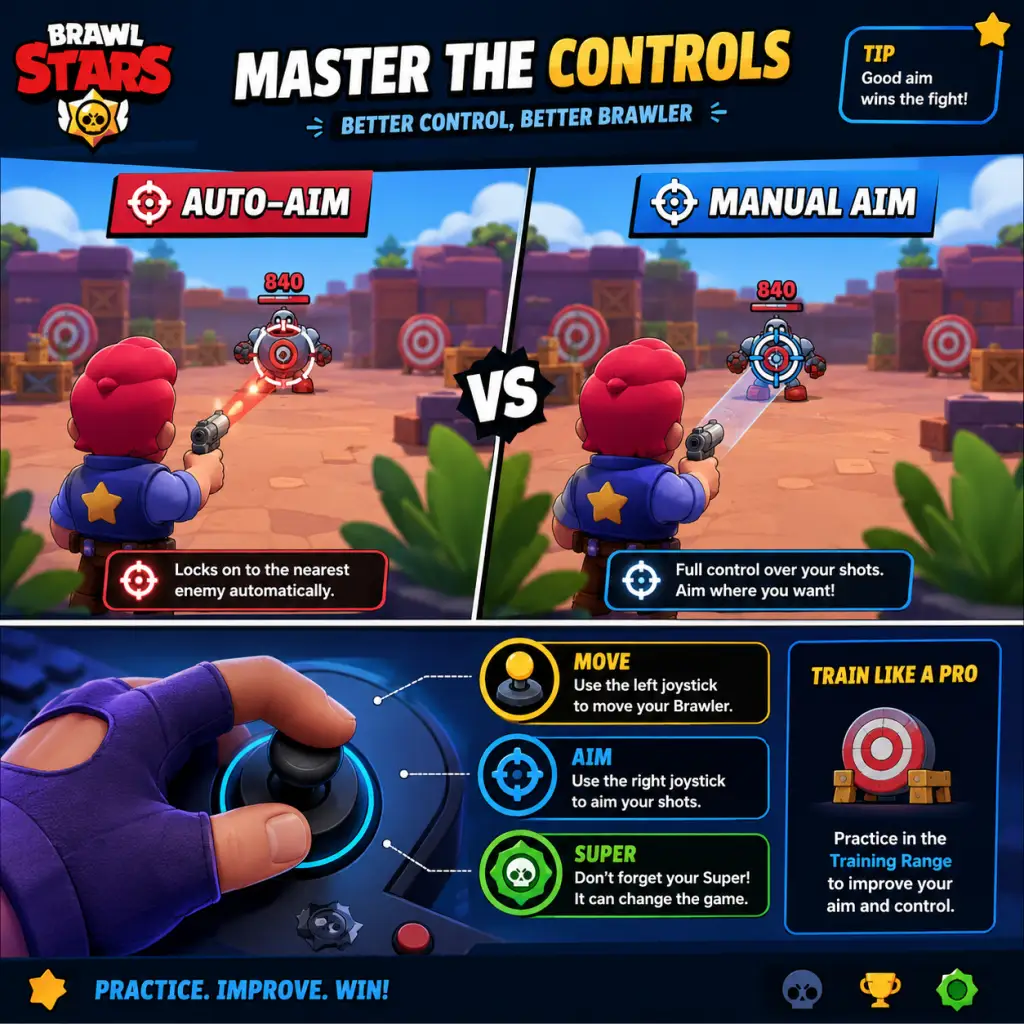
- Manual aim is key: While auto-aim is fine for close range, you'll miss long shots. Drag your attack button to see the trajectory (for throwers, the arc). Practice leading targets.
- Movement stick: Keep it light – small adjustments dodge shots. Don't just run in straight lines.
- Gadget & Super buttons: Know their positions; quickly tap when needed.
- Vision: When you walk into a bush, you can see within a small radius. Enemies in bushes are invisible until very close (about 1 tile). Use bushes to ambush or escape.
- Revealing: Attacking reveals you in a bush for a short time. If you don't move, you stay hidden. Use this to fake retreats.
- Bush camping: In Solo Showdown, waiting in a bush near a center gem mine can get you easy kills, but don't stay too long – you'll miss power cubes.
- Save ammo: Don't spam all three shots at once unless guaranteed kill or to break obstacles. Keep at least one ammo for emergencies.
- Reload timing: Reload rates vary by brawler. Know yours to avoid empty ammo during a fight.
- How to charge: Dealing damage (or healing for supports) charges super. Each brawler needs a set number of hits (check in brawler info). Aim to get super before engaging.
- Using super: Don't hold it forever; use it to secure kills, escape, or control area. But don't waste it on nothing.
- Tanks (e.g., Bull, Rosa): Get close, soak damage, break walls.
- Sharpshooters (e.g., Piper, Brock): Keep distance, control lanes.
- Throwers (e.g., Barley, Tick): Lob over walls, area denial.
- Assassins (e.g., Edgar, Stu): Dive and kill squishy targets.
- Controllers (e.g., Emz, Tara): AoE damage, push enemies back.
- Supports (e.g., Poco, Byron): Heal allies, debuff enemies.
- Predict enemy auto-aim: Most low-level players auto-aim. Sidestep after they fire.
- Wall hugging: Stay near walls to break line of sight. Pop out to shoot, then hide.
- Juking: Change direction unpredictably. For example, run left, then instantly right.
- Technique: Stand at corner of wall, fire, then step back before enemy can retaliate. Essential for sharpshooters and throwers.
- Gadget combos: Some brawlers have gadgets to help (e.g., Brock's rocket laces to jump over walls).
- Team super combos: For example, Gene pulls an enemy into your team's supers (like Frank's stun). Time your supers together.
- Sequence: Thrower's super can flush enemies out, then tank's super to close in.
- Activation timing: Gadgets have limited uses per match (usually 3 if you have second gadget unlocked). Use them wisely. For example, Poco's "Protective Tune" gadget should be saved for when your team is about to die from a stun or knockback.
- Star power switch: Some star powers are better for specific modes. For example, Piper's "Snappy Sniping" (faster reload after super) is great for Bounty, while "Ambush" (extra damage when hiding in bush) works in Showdown.
- Know strengths: Tanks beat low-DPS brawlers but lose to tanks with knockback (e.g., Crow is hard countered by tanks). Sharpshooters beat mid-range brawlers but struggle against assassins.
- Adapt: If enemy team has three tanks, pick a Crow or Spike to deal percentage damage. If they have throwers, pick a fast brawler to rush them.
- Prioritize one brawler: Focus upgrades on your favorite or a versatile brawler (like Poco, Jessie, or Bull) to push trophies faster. Don't spread thin.
- Max level costs: From level 1 to 11, you need about 3785 Power Points and 8470 Coins. That's a lot – plan ahead.
- Gears: Unlock at level 5, but only upgrade the brawler's gear slots when you have good gears. Save coins for gears that benefit your playstyle (e.g., damage gear for aggressive, heal gear for passive).
- Free vs Premium: Free pass gives some rewards; premium gives extra big boxes, a new brawler, and exclusive pins/skins. If you plan to play a lot, buy the pass (169 gems). Never spend gems on boxes – always save for pass or better offers.
- Seasonal resources: Complete quests and events to get tokens. Use tokens to unlock pass tiers.
- Join an active club: Weekly club coins from winning matches. Buy Power Points, Coins, or featured brawlers (if you don't have them). Prioritize rare brawlers you're missing.
- Don't upgrade all brawlers evenly: Pick a core team of 3-5 brawlers and max them first. You can use them for multiple modes.
- Gadgets & Star Powers: Buy only the ones that are meta or suit your playstyle. Check tier lists (e.g., from KairosTime).
- Starr Drops: New reward system – save your win track boxes until you have maxed out certain rarities? Actually, just open as you get them. But remember: you can get gadgets, star powers, even hypercharges from them.
- Best gem use: Brawl Pass (169 gems) > special offers (like 29 gems for 1000 coins) > skins (if you really want). Never buy megaboxes with gems.
- Saving gems: If you're free-to-play, only spend gems on pass. You can earn up to ~80 gems per season from free pass, so it takes 2-3 seasons to get one premium pass.
- Push in low trophy range: Early seasons, stay at lower trophies (e.g., 500-600) to farm star points? Actually, star points come from total trophies at season end. Push high trophies on a few brawlers to get more star points for exclusive skins.
- Avoid tilt: If you lose two matches in a row, take a break. Tilt leads to more losses.
- Role: One brawler collects gems (preferably a tank or fast brawler). Teammates protect. Don't let the gem carrier die.
- Gem count: When you have 7+ gems, it's risky. Retreat and let teammates hold gems. If you die with gems, enemy gets them.
- Map control: Control the two lanes and the center. Use throwers to chip away at defenders.
- Solo: Avoid fighting early unless necessary. Bush camp or collect power cubes. When two enemies fight, third-party them.
- Duo: Stick with your teammate. Share power cubes (give to brawler who benefits more, e.g., give to a heavy hitter). Use the respawn mechanic: if teammate dies, they can come back if you survive 10 seconds.
- Meteor modifier: Avoid clustering; meteors target groups. Gas clouds close borders – don't get caught by the map shrinking.
- Kick the ball: After scoring, reset positions. Use ball to break walls (one hit destroys a wall). Pass to teammates.
- Defense: Stay near your goal to intercept enemy shots. Tanks like Bull can clutch block.
- Ultimate synergy: Gene's super pulls the ball carrier, then your teammate can score easily.
- Star player: The player with the most stars (kills) becomes the target. Protect them or kill the enemy star player.
- Late game: In the last 30 seconds, if you're ahead, play safe and hide. If behind, take risks.
- Map awareness: Use sharpshooters to control long lanes. Avoid getting caught in the open.
- Safe damage: Use brawlers with high DPS (e.g., Brock, Colt, Spike) or brawlers that can bypass walls (throwers, Piper). Tanks can charge in but often die.
- Defense: Place brawlers with area denial (e.g., Penny's mortar, Jessie's turret) near the safe to prevent enemy approach.
- Capture area: If you control the zone, you accumulate points. Even if you die, if team is still in zone, it counts. So try to stay alive in zone.
- Contest: If enemy has zone, you can stop their progress by stepping into it. Multiple brawlers can stack in zone for faster capture? Actually, capture speed is based on number of your brawlers in zone (max 3). Stand in overlapping zones (if map has multiple) to capture both quickly.
- Survival: Only the last team standing wins. Play safe in first round; you can revive after each round. Use brawlers with high survivability (tanks, healers).
- Bush gameplay: Common in knockout; use vision gear to see into bushes.
- Bush checking: Use a quick shot into suspicious bushes before walking in.
- Frank super: Super stuns all enemies in a large area. Combo with a teammate's area damage (e.g., Emz's super).
- Edgar: Only play Edgar in Showdown or modes with lots of bushes. Use his super to dive onto squishy brawlers. Wait until they waste ammo.
- Stu: His dash can chain; with super, you can dash multiple times. Use wall peeking to poke and dash away.
- Arcing: Practice landing shots over walls by predicting enemy movement. Hold attack and drag to see arc.
- Tick's mines: Place mines to block paths, not just on enemies. Use super to create a minefield.
- Piper: Keep distance. Her super can be used to escape or finish kills. Auto-aim is risky; always manual aim.
- Belle: Her super bounces to chain damage. Aim to hit multiple enemies or a hidden squishy.
- Poco: His super heals all teammates. Don't hold it; heal when two or more are low. Gadget can block stuns.
- Byron: His attack heals allies and damages enemies. Use the alternate fire? Actually, he only has one attack that does both depending on target. Stay behind tanks to keep them alive.
- Emz: Her attack widens as it travels. Keep enemies at medium range to hit full damage. Her super pushes back and deals damage – use to separate threats.
- Sandy: His super creates a sandstorm that hides teammates. Use it to secure gem grab zones or approach safely.
- In Bounty/Heist: After killing enemy team, don't all go back. Leave one person near enemy spawn to delay their return. This works especially on maps with long respawn timers.
- Counter: Have a brawler with knockback (e.g., Primo's super) to disrupt the trapper.
- How to get: Collected from starr drops. Hypercharge boosts stats and gives a unique ability for 5 seconds (e.g., double damage, speed). Activate when you're about to teamfight or secure an important kill.
- Best timing: Pop hypercharge just before engaging; the bonus can turn a losing fight. Don't activate early and waste duration.
- Edgar's "Let's Fly" + Super: Use gadget to jump onto an enemy then immediately super to recharge and do it again.
- Brock's "Rocket Laces": Jump over walls to escape or reposition. Combine with super to create a path.
- Using pins: Spamming a laughing pin after a kill can tilt enemies. Use it strategically to provoke mistakes.
- Sprays: Place a spray to fake a position or as a distraction (though rarely effective).
- Power cubes: Give cubes to the brawler that benefits most (e.g., Bull gets insane HP, Crow gets extra poison damage).
- Energy Drinks: In some modifiers, drink gives huge speed and damage. Save it for a 1v1 or to escape gas.
- Every team needs: One aggro (tank or assassin), one support (healer or controller), and one damage dealer (sharpshooter or thrower). Balance helps.
- Communication: Use in-game quick chat ("Attack", "Defend", "I got this") even without voice. Ping enemy positions by tapping on minimap (available in higher ranks?). Actually, you can tap on the mini-map to alert teammates in Gem Grab and Brawl Ball.
- Example combos: Gene + Frank (pull + stun), Tara + Sandy (black hole + sandstorm), Poco + any tank (heals keep tanks alive).
- Counter-picking: In Power League, if enemy picks a heavy tank, you might pick Crow or Colette to melt them.
- Lane control: On maps with three lanes, each teammate takes one. If you win your lane, rotate to help others.
- Bush control: Use area damage (Emz, Tick) to clear bushes. Don't let enemies hide.
- Center control: In modes like Gem Grab or Hot Zone, controlling the center gives you access to gems/zone. Use throwers to deny center.
- Gem Grab – "Double Swoosh": Control the two side bushes. Use long-range brawlers to poke middle.
- Brawl Ball – "Backyard Bowl": Use throwers to lob over the central wall. Break the wall early with a brawler like Bull to open a path.
- Heist – "Skinny Dip": Brock or Piper can shoot the safe from a distance. Defend by hiding behind walls.
- Slider: In settings, you can adjust aim assist strength. Set to low if you want more control; high for easier auto-aim. Most pros set it to medium or low.
- Auto-aim usage: Use auto-aim only when enemy is within 3 tiles or when you need to shoot quickly (e.g., against a fast-assassin). Manual aim for long range.
- Dynamic joystick: Follows your finger – best for fast movement and juking.
- Fixed joystick: Stays in one spot – good for precise control but less agile.
- Increase size: If you accidentally press wrong buttons, enlarge them in settings. Reduce transparency to see better.
- Showdown: Turn off auto-aim sometimes to avoid revealing your position when shooting bushes.
- 3v3: Use auto-aim sparingly – manual aim is more reliable for securing kills.
#### 2. Bush Mechanics
#### 3. Ammo Management
#### 4. Super Charge
#### 5. Know Your Role
Combat Strategies
#### 1. Dodging & Weaving
#### 2. Wall Peeking
#### 3. Super Chain
#### 4. Star Power & Gadget Management
#### 5. Counters & Matchups
Resource Management
#### 1. Power Points & Coins
#### 2. Brawl Pass & Gems
#### 3. Club Shop
Economy & Progression
#### 1. Smart Spending
#### 2. Gems Efficiency
#### 3. Trophy Management
Game Mode Tips
#### 1. Gem Grab
#### 2. Showdown (Solo & Duo)
#### 3. Brawl Ball
#### 4. Bounty
#### 5. Heist
#### 6. Hot Zone
#### 7. Knockout
Brawler-Specific Tips
#### 1. Tanks (Bull, Rosa, Frank, etc.)
#### 2. Assassins (Edgar, Stu, Mortis)
#### 3. Throwers (Barley, Tick, Sprout)
#### 4. Sharpshooters (Piper, Brock, Belle)
#### 5. Supports (Poco, Byron, Gene)
#### 6. Controllers (Emz, Tara, Sandy)
Advanced Optimizations
#### 1. Spawn Trapping
#### 2. Hypercharge Usage
#### 3. Gadget Combos
#### 4. Pin & Spray Mind Games
#### 5. Energy Drink & Power Cube Management (Showdown)
Team Play & Communication
#### 1. Roles in 3v3
#### 2. Synergy
Map-Specific Strategies
#### 1. General Map Control
#### 2. Specific Map Examples
Settings & Controls
#### 1. Aim-Assist Sensitivity
#### 2. Joystick Type
Try both in training cave.
#### 3. Button Size & Transparency
#### 4. Game Mode Specific Settings
Conclusion
These tips cover from beginner to advanced. Practice in friendly games or the training cave to master mechanics. Remember: Brawl Stars is about quick decisions and teamwork. Keep learning, watch replays, and adapt your playstyle to the meta. Good luck and have fun!
Game Settings
Game Settings Guide for Brawl Stars
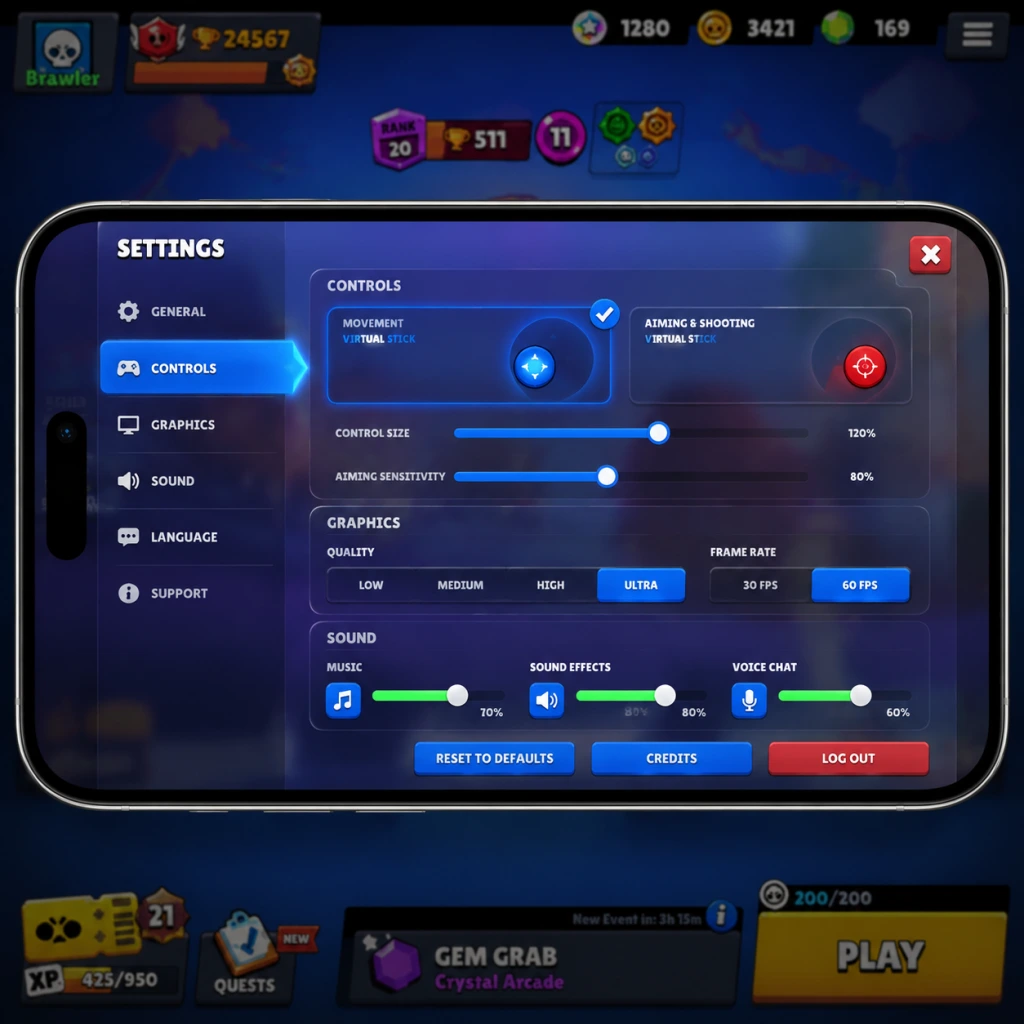
Brawl Stars offers a moderate set of customization options to tailor your experience across graphics, audio, controls, accessibility, language, network, and gameplay. Since the game is primarily on mobile (iOS/Android), settings are optimized for touchscreens, but if you play on a PC via an emulator (e.g., BlueStacks, LDPlayer), additional considerations apply. This guide covers every setting, recommends optimal configurations for different hardware levels, and highlights pitfalls to avoid.
1. Graphics Settings
Graphics settings directly impact visual quality, battery life, and performance. Brawl Stars uses a colorful, low-poly art style that is generally lightweight, but high frame rates and resolution scaling can still tax older devices.
| Setting | Options | Description |
|---|---|---|
| Graphics Quality | Low, Medium, High | Controls texture resolution, shadow quality, and special effects. Low reduces detail but improves smoothness on weak GPUs. High adds ambient occlusion and better lighting. |
| Frame Rate | 30 FPS, 60 FPS | Determines maximum frames per second. 60 FPS is essential for competitive play (smoother movement, easier aiming). On low-end devices, 30 FPS may prevent overheating. Some devices default to 30 FPS; always check as it’s easy to misconfigure. |
| Resolution | Native, 0.5x, 0.75x | Rendering resolution scale. Native is sharpest; lowering reduces GPU load. On emulators, setting to 0.75x can improve performance without severe visual loss. Hidden in some device configs – you may need to toggle in the game’s ‘Settings’ → ‘Graphics’ tab. |
| V-Sync | On/Off | Syncs frame rate with display refresh to avoid screen tearing. Off reduces input lag slightly; on prevents tearing. Most mobile displays are 60 Hz; leaving it off is fine unless tearing bothers you. |
- High-end (iPhone 14/15, Snapdragon 8 Gen 2+, recent iPad Pro): Graphics Quality = High, Frame Rate = 60 FPS, Resolution = Native, V-Sync = Off. Battery will drain but performance is flawless.
- Mid-range (iPhone 11, Snapdragon 732G, iPad Air 4): Graphics Quality = Medium, Frame Rate = 60 FPS, Resolution = Native, V-Sync = Off. Cuts effects to maintain steady 60 FPS.
- Low-end (iPhone 8, Snapdragon 660, older tablets): Graphics Quality = Low, Frame Rate = 30 FPS, Resolution = 0.75x, V-Sync = Off. Reduces heat and stutter. If 30 FPS feels sluggish, try 60 FPS on Low but monitor thermals.
- Emulator (PC): Since emulators emulate GPU, set Graphics Quality to High if your PC has a dedicated GPU (GTX 1050 or better), otherwise Medium. Frame Rate = 60 FPS (or 120/144 if your monitor supports and emulator allows). Resolution = Native or 1080p. V-Sync = On to avoid tearing. Also, in emulator settings, allocate at least 4GB RAM and enable virtualization.
- Sound Effects (On/Off): Keep on to hear ability uses, attacks, and proximity cues. Turning off hinders situational awareness.
- Music (On/Off): The game’s soundtrack is fun but can be distracting in intense matches. Many competitive players turn it off to focus on sound effects.
- Voice Chat (On/Off): Brawl Stars has no in-game voice chat; this setting controls any potential future feature or club voice (partially implemented in some regions). Leave off unless you use it.
Special Attention: The Frame Rate setting is often overlooked because new players assume the game runs at 60 by default. Many mid-range devices default to 30 FPS to save battery, creating a significant disadvantage in aiming and reaction. Always check this first. Also, on emulators, if you experience stutter, lower Resolution to 0.75x before changing Graphics Quality.
2. Audio Settings
Audio in Brawl Stars provides crucial gameplay cues (footsteps, Super sounds, gem countdown). The settings are simple:
Optimal: Sound Effects = On, Music = Off for competitive play; both On for casual fun. Voice Chat = Off unless you want to talk in clubs (if available).
Misconfiguration Pitfall: Some players accidentally mute sound effects in favor of music, losing critical audio feedback. Always test with a quick match after changing.
3. Controls Settings
Controls are the heart of gameplay. Brawl Stars offers two main control modes plus several toggles.
| Control Mode | Description | Best For |
|---|---|---|
| Static (fixed joystick) | Movement joystick stays at its initial touch location. You can reposition by tapping elsewhere. Attack button is fixed at bottom-right. | Players who prefer consistent joystick position; common on tablets. |
| Dynamic (floating) | Joystick appears wherever you touch the left side. Attack button floats relative to your touch on the right. | Most mobile players; allows quicker starting direction changes. |
- Auto-Aim (On/Off): When off, you must manually aim all attacks. Important: Keep On for close-range brawlers (e.g., Bull, Shelly) to quickly secure kills; turn Off when playing throwers or snipers to avoid auto-aim hitting walls.
- Super Auto-Aim (On/Off): Same logic, but for Super abilities. On helps in hectic moments; off prevents wasting Supers.
- Quick Fire (On/Off): When on, tapping the attack button immediately fires (with or without aim indicator). Off requires you to hold and release. Most pros use Quick Fire On for faster reaction.
- Separate Super Button (On/Off): When on, you get a dedicated Super button above the main attack. When off, you tap the main attack button while Super is charged. Recommended: On – avoids accidental Supers when you mean to normal attack.
- Heal Button (On/Off): Toggles a dedicated button to use your Brawler’s gadget or star power heal. Keep On.
- Show Aiming Wheel (On/Off): Shows a subtle circle when aiming. Keep On for precision.
- Pin Attack Button (On/Off): Pins the attack button to a fixed screen location. Useful on large screens to prevent drifting. Experiment.
- Control Mode: Dynamic (or Static if on tablet)
- Auto-Aim: Off (manually aim for accuracy; toggle on only for close brawlers if needed)
- Super Auto-Aim: Off
- Quick Fire: On
- Separate Super Button: On
- Heal Button: On
- Show Aiming Wheel: On
- Pin Attack Button: Off (adjust if you have drifting issues)
- Text To Speech (TTS) (On/Off): Reads on-screen text aloud. Useful for visually impaired players. Not fully implemented for all menus.
- Color Blind Mode (Off, Protanopia, Deuteranopia, Tritanopia): Changes team/enemy colors to distinct hues. If you have color vision deficiency, enable the appropriate mode. Also helps visibility in certain maps (e.g., Gem Grab gems are easier to see).
- Reduce Motion (On/Off): Cuts animations and screen shake. Useful for motion sickness or for competitive clarity (less visual clutter).
- Language (dropdown): Choose your preferred language. The game will restart to apply. Note: Club descriptions and player names are not translated.
- Cellular Data Usage (On/Off): Toggle to allow/disallow cellular data. If you have a limited plan, set to Off and play only on Wi-Fi.
- Wi-Fi Only (On/Off): Enforce Wi-Fi connection to avoid lag spikes on cellular. Recommended for ranked play.
- Server Region (automatic, but can be changed in some versions): This is not a direct setting but tied to your app store account region. You cannot change it manually; using a VPN may cause bans.
- Show Brawler Names (On/Off): Displays names above enemies/teammates. On helps callouts; Off reduces visual clutter. Competitive players often turn it off for cleaner view.
- Show Objective HUD (On/Off): Shows the match timer and objective (e.g., gems count, bounty stars). Always keep On – critical information.
- Quick Chat (On/Off): Enables preset messages (e.g., “Good luck!”) at match start. Keep On for team morale.
- Chat Filter (On/Off): Filters profanity. On recommended for younger players; off if you want to see raw chat (but beware toxicity).
- Attack Button Size (Slider): Adjusts the size of the attack button. Larger buttons help with fat-finger misclicks; smaller gives more screen space for aiming. Default is medium; experiment during a practice match.
- Movement Joystick Size (Slider): Similar slider for the movement area. Larger helps on big screens; smaller allows quick micro-adjustments.
- Camera Follow (On/Off): When on, the camera centers on your brawler. Off allows peeking (but not extensively – Brawl Stars camera is fixed). Actually, this setting is not present; the camera is always fixed. (Ignore if not present in your version; it’s removed.)
- Tap to Super (On/Off): When Super is charged, tapping the screen triggers Super. Off means you must drag the Super button. Keep Off to avoid accidental use.
- Show Brawler Names: Off (less clutter)
- Show Objective HUD: On
- Quick Chat: On
- Chat Filter: Off (if you can handle it) or On for peace of mind
- Attack Button Size: 80-90% of max (test in training cave)
- Movement Joystick Size: 70-80%
- Tap to Super: Off
- Emulator Graphics Engine: OpenGL vs DirectX. Use OpenGL for smoother Brawl Stars performance; DirectX may cause graphical glitches.
- Key Mapping: Map movement to WASD, attack to left click, Super to right click or spacebar, gadget to Q, etc. Use emulator’s advanced editor to create a custom layout.
- Resolution: Set emulator to 1920x1080 or 2560x1440. Higher resolution gives sharper image but consumes more GPU.
- CPU Cores: Allocate at least 4 cores, preferably 6.
- RAM Allocation: 4GB minimum; 8GB recommended.
- VSync in emulator: Enable to avoid tearing; disable if you have G-Sync/FreeSync.
- Performance Mode: Enable “High FPS” option in emulator settings (e.g., BlueStacks’ “High FPS” toggle) to unlock 120 FPS if the emulator supports it. Then set in-game Frame Rate to 60 FPS (or 120 if supported).
Optimal Control Setup (Competitive)
Special Attention: The Separate Super Button is a common misconfiguration. Many players leave it off, causing accidental Supers when trying to basic attack. Always enable it. Also, new players often rely on Auto-Aim too much. It’s fine when learning, but turning it off early builds essential skill.
4. Accessibility Settings
Brawl Stars includes basic accessibility features:
Optimal: Set Color Blind Mode per your needs; others off unless required.
Pitfall: Color Blind Mode can also benefit non-colorblind players by providing stronger contrast. Try Deuteranopia if you struggle to differentiate teams in chaotic fights.
5. Language Settings
The game supports over 20 languages. Settings are straightforward:
Special Attention: Changing language resets any custom key bindings if you use a controller (rare on mobile). No other misconfiguration risk.
6. Network Settings
These are limited because Brawl Stars is always online. However:
Optimal: If you have stable Wi-Fi, enable Wi-Fi Only. Otherwise, keep Cellular Data On but monitor data usage (approx. 15-25 MB per hour).
Pitfall: Playing on cellular with poor signal causes rubberbanding. Always check your ping icon (displayed on the loading screen). If it shows red (>150 ms), disconnect and rejoin on a better network.
7. Gameplay Settings
These settings affect the in-match experience and user interface:
Optimal Gameplay Settings
Misconfiguration Danger: The Tap to Super setting is often enabled by default and causes accidental Supers when you tap to move or shoot. Disable it immediately.
8. Emulator-Specific Settings (PC Play)
If you play on a PC with an emulator, additional settings outside the game matter:
Special Attention: Many emulators default to 30 FPS. You must manually enable 60/120 FPS in both the emulator and game settings. Also, avoid running Brawl Stars on a PC with integrated graphics only – you will get lag in team fights.
Summary of Critical Settings Checklist
| Setting | Recommended Value | Why |
|---|---|---|
| Frame Rate | 60 FPS | Essential for smooth aiming and movement. |
| Separate Super Button | On | Prevents accidental Supers. |
| Tap to Super | Off | Avoids random Supers when tapping screen. |
| Auto-Aim | Off (manual aim) | Builds skill; turn on only for certain brawlers. |
| Color Blind Mode | As needed or try Deuteranopia | Improves contrast in chaotic fights. |
| Wi-Fi Only | On (if stable Wi-Fi) | Reduces lag spikes from cellular. |
| Attack Button Size | 80-90% | Balances precision and surface area. |
| Quick Fire | On | Faster reaction time. |
Important Notes
Important Notes for Brawl Stars
⚠️ Warnings & Pitfalls
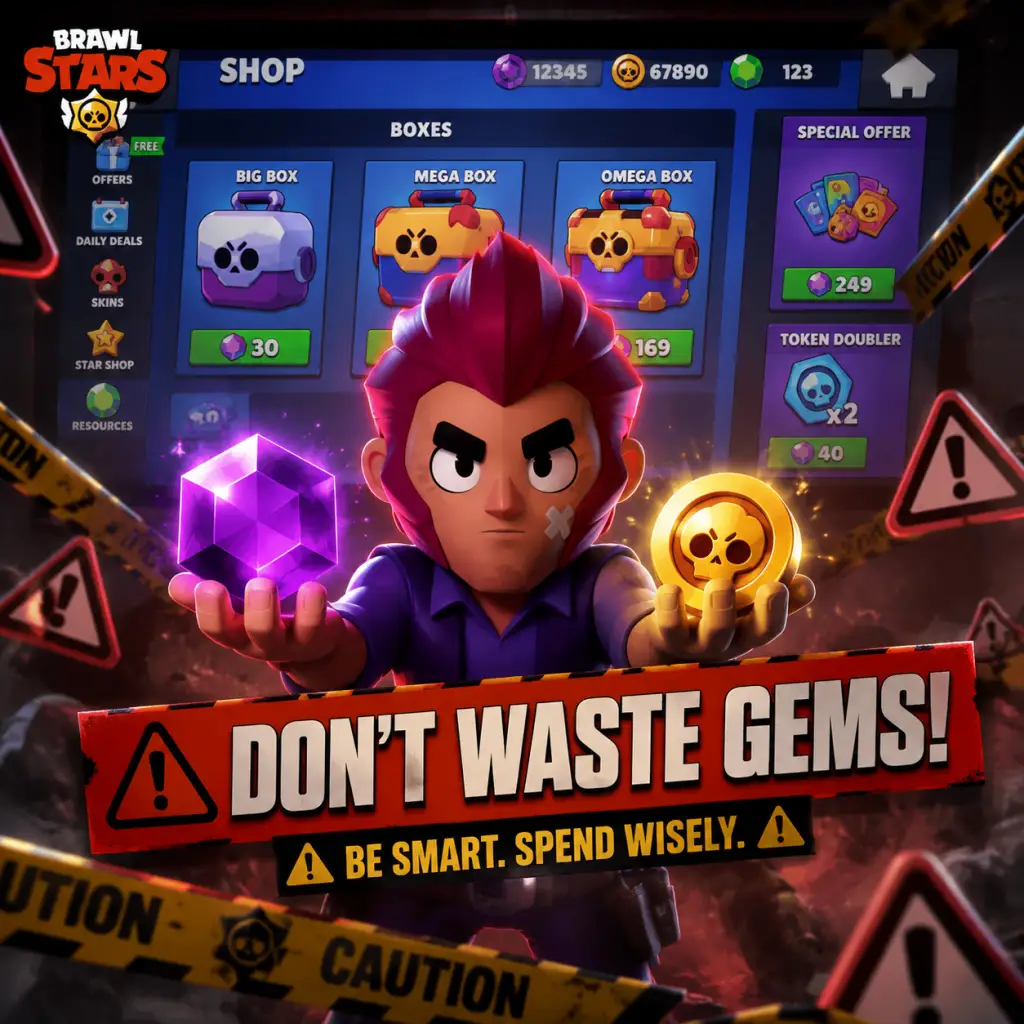
- Don't waste Gems on regular Boxes – Gems are the premium currency. The worst mistake is spending them on normal Brawl Boxes (80 gems each) or Mega Boxes (190 gems). Always save your gems for the Brawl Pass (169 gems) which gives far more value: exclusive Brawler, pins, skins, Gadgets, Star Powers, and large amounts of boxes. The Brawl Pass is the only truly worth gem purchase.
- Auto-Aim over-reliance – Auto-aim is convenient but inaccurate at range. Many projectiles require leading the target. Relying on it will cause you to miss crucial shots, especially with snipers (Piper, Belle) or throwers (Barley, Tick). Learn to manually aim by dragging your attack button and adjusting the trajectory.
- Neglecting Brawler Variety – Players often main one or two Brawlers and ignore others. This is a trap. To climb trophies efficiently, you need a diverse roster because maps rotate and some Brawlers are useless on certain maps. Also, game modes have different meta (Gem Grab vs. Bounty). Branch out early.
- Ignoring the Brawl Pass – If you play daily, the free Brawl Pass gives decent rewards, but the paid track is phenomenal. Even if you don't buy it, complete the free quests to get boxes and tokens. The end-of-season rewards are substantial.
- Spending Star Points unwisely – Star Points are used to buy exclusive skins and boxes. Once you have a favorite skin, it's fine, but many players waste 10,000 Star Points on a Big Box that gives junk. Prioritize skins you love, or save for special limited-time skins.
###
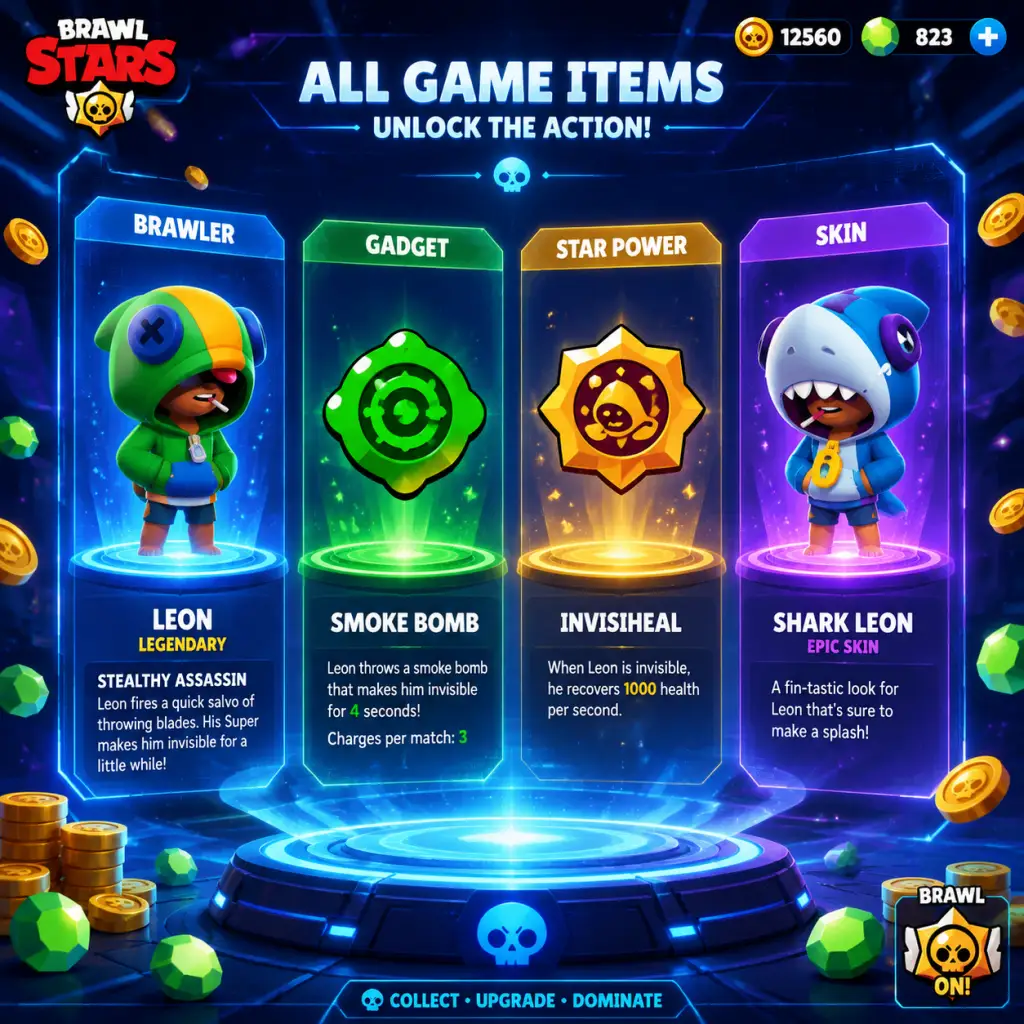
All Game Items
All Game Items in Brawl Stars
This guide covers every major item type in Brawl Stars: Brawlers, Gadgets, Star Powers, Gears, currencies, materials, loot boxes, and cosmetics. Each section explains what the item does, how to obtain it, when it is useful, and any important synergies or upgrades. All information is current as of Season 20 (Deep Sea).
---
1. Brawlers (Playable Characters)
Brawlers are the core "weapons" of the game. Each has a unique main attack, Super ability, and stats. They are not inventory items but act as your primary equipment in battle.
Rarities & Unlock Methods
| Rarity | Examples | How to Unlock |
|---|---|---|
| Trophy Road | Shelly, Colt, Bull | Automatically obtained by reaching specific trophy milestones (e.g., Shelly at 0 trophies, Colt at 1000). |
| Rare | El Primo, Poco, Barley | From Brawl Boxes, Starr Road (Credits), or Shop offers. ~1% drop rate from boxes. |
| Super Rare | Frank, Piper, Pam | Same as Rare but lower drop rate (~0.5%). |
| Epic | Mortis, Tara, Gene | Same, ~0.25% drop rate. |
| Mythic | Leon, Crow, Spike | Same, ~0.1% drop rate. Also available via Season Stories. |
| Legendary | Amber, Meg, Chester | Same, ~0.05% drop rate. Also in Starr Road at high Credit cost. |
| Chromatic | Lou, Surge, Fang | Previously exclusive to Brawl Pass, now obtainable via Starr Road after the season ends. |
Upgrades & Power Levels
- Each brawler can be upgraded from Power 1 to Power 11 using Power Points and Coins.
- At Power 9, the brawler's Star Power (passive ability) and Gadget (active ability) slots unlock. You must obtain each item separately.
- At Power 11, Gear slots unlock (2 slots, each holding 1 Gear).
- Hypercharge (available at Power 11) is a temporary super-boost; obtain Hypercharge items from Starr Drops or Shop.
- Choose brawlers that complement the map and game mode. For example, throwers (Barley, Tick) excel on walls-heavy maps; tanks (Bull, Rosa) are strong in close-quarter maps.
- A brawler’s Star Power and Gadget can drastically change playstyle. Mortis’s Gadget Combo Spinner helps secure kills, while his Star Power Creepy Harvest heals on kill.
- Description: One-time-use active ability per match. Press the gadget button during a match to activate. Cooldown is 1 use until the next match (unless you have the Gadget Disabler Gear).
- How to Obtain: Random drops from Brawl Boxes, Buy in Shop for 1000 Coins or 79 Gems, or complete special events.
- When Useful: In tight situations (heal, escape, stun). Example: Darryl’s Recoiling Tosser knocks back enemies and reloads his ammo.
- Upgrades: Gadget Cooldown can be reduced by the Cooldown Gear (see Gears), but the item itself is not upgraded.
- Description: Passive ability that is always active once unlocked. Only one can be equipped at a time.
- How to Obtain: Random drops from Brawl Boxes, purchase for 2000 Coins, or from Brawl Pass rewards.
- When Useful: Typically provide consistent damage, healing, or utility. Example: Colt’s Slick Boots increases his movement speed while attacking.
- Synergy: Some Star Powers work well with specific Gears. For instance, Heal Star Power combined with the Damage Gear boosts damage output while healing.
Synergies & Strategy
---
2. Gadgets & Star Powers (Abilities)
These are equippable abilities that enhance a brawler’s performance in battle. Each brawler has two Gadgets and two Star Powers (except some Chromatics with three).
Gadgets
Star Powers
---
3. Gears (Equipment)
Gears are stat-enhancing items available once a brawler reaches Power 11. Each brawler has 2 Gear slots that can be filled with any combination of Gears (except legendaries have 3 slots? Actually all at P11 have 2 slots).
Types of Gears
| Gear | Effect | Cost (in Coins) |
|---|---|---|
| Damage | +15% damage when health is below 50% | 500 |
| Shield | +10% shield (reduces damage) when health is above 50% | 500 |
| Speed | +10% movement speed when health is above 50% | 500 |
| Health | +10% maximum health | 500 |
| Heal | +10% healing from all sources | 500 |
| Vision | Reveal enemies hit for 3 seconds (like a mini-tunnel) | 500 |
| Cooldown | -15% Gadget cooldown (recharges in 1 use per match still, but reduces interval? Actually reduces time between uses if multiple uses? Gadget is one per match, so this gear reduces the recharge time if you have multiple gadgets? Consensus: Cooldown gear does nothing currently – it will be reworked. Use other gears.) | 500 |
- How to Obtain: Buy from the Gear Shop for Coins. Rarely from Brawl Boxes. Also available via Starr Drops.
- When Useful: Gears should match your playstyle. Damage Gear for aggressive brawlers, Shield Gear for tanks, Vision Gear for controlling areas.
- Upgrades: Gears cannot be upgraded; they have a fixed effect. You can scrap unwanted Gears for Scrap (see Materials).
---
4. Currencies
Brawl Stars has multiple currencies with distinct purposes. Always know which to save and which to spend.
| Currency | Use | How to Obtain |
|---|---|---|
| Coins | Upgrade brawlers, buy Gadgets, Star Powers, Gears, skins (Bling not coins?) – Coins are used for in-game progression items. | Brawl Boxes, Brawl Pass, Club League, Shop offers |
| Gems | Premium currency. Buy Brawl Pass, skins, special offers, extra Brawl Boxes, etc. Save for Brawl Pass. | Purchased with real money, sometimes from Brawl Boxes (rare), free from Brawl Pass |
| Credits | Unlock brawlers on Starr Road (a deterministic unlock track). 100 Credits = 1 unlock token for a brawler of that rarity? Actually, each brawler has a Credit cost (e.g., Rare = 250, Epic = 925, Legendary = 2850). | Brawl Pass, Club League, Starr Drops, Shop |
| Bling | Cosmetic-only currency used for buying skins, pins, sprays. | Brawl Boxes (small amounts), Brawl Pass, Club League, special events |
| Star Tokens | Used in Club League to purchase Star Token Boxes (contain random items). | Club League weekly rewards |
| Starr Drops (Seasonal) | Temporary currency? Actually Starr Drops are items that contain random rewards. They are used like loot boxes but are consumed immediately. | Brawl Pass, daily freebies, events |
- Important: Never spend Gems on regular Brawl Boxes. Always save Gems for the Brawl Pass (169 Gems per season) which gives far more value.
- Synergies: Coins and Power Points are linked – you need both to upgrade.
---
5. Materials (Upgrade Components)
These are resources used to advance your brawlers and equip abilities.
| Material | Purpose | How to Obtain |
|---|---|---|
| Power Points | Required per upgrade level. Each brawler has a specific type (e.g., Shelly uses Shelly Power Points). In total, ~3000 Power Points to reach Power 11. | Brawl Boxes, Brawl Pass, Club League, Shop |
| Coins (also a currency) | Used for upgrades, buying Gadgets/Star Powers/Gears. | See above |
| Gear Scraps | When you receive a duplicate Gear, it converts into Scrap. 100 Scrap can be used to craft any gear of your choice (via the Gear Shop). | Duplicate Gears from boxes |
| Hypercharge Tokens | To unlock Hypercharge for a brawler (need 5000 tokens). Hypercharge is a temporary boost that upgrades the Super. | Starr Drops, Brawl Pass, special events |
- Synergy: Power Points and Coins must be balanced. Prioritize upgrading one brawler at a time rather than spreading resources thin.
- Tip: Use Gear Scraps only for Gears you actually want, not random ones.
---
6. Loot Boxes & Starr Drops
Loot boxes are the main source of random rewards. They are obtained through gameplay, Brawl Pass, and shop purchases.
| Box Type | Contents | How to Obtain |
|---|---|---|
| Brawl Box | Random: ~40% Coins, ~25% Power Points, ~10% a brawler (if you have fewer brawlers), ~10% Gadget/Star Power, ~5% Gems (rare), ~10% Bling. | Daily free ones, Brawl Pass, buying for Gems (80 Gems) |
| Big Box | Contains 3 Brawl Boxes' worth of items. Guarantees 1 Epic+ item every 10? Actually it's random but larger content. | Brawl Pass, Club League, special events |
| Mega Box | Contains 10 Brawl Boxes' worth. Guarantees 1 Epic+ item (higher chance for Chromatic/Legendary). | Brawl Pass (tier 1), purchased with Gems (190 Gems) |
| Omegabox | Rare box containing 20 Brawl Boxes' worth and a guaranteed Mythic+ brawler. | Only from special offers, occasionally from Club League |
| Starr Drop | Single random item (from a pool of Coins, Credits, Power Points, Gadget, Star Power, etc.). Guarantees a rare+ item one per week from daily freebies. | Daily login, Brawl Pass |
- Strategy: Open boxes gradually; there is no benefit to saving them. Use Starr Drops immediately for potential high-value items.
- Synergy: As you unlock more brawlers, the odds for gadgets/star powers increase. Avoid buying boxes with Gems; Brawl Pass is better value.
---
7. Cosmetics (Non-Gameplay Items)
Cosmetics do not affect gameplay but allow personalization. They can be purchased with Bling, Gems, or real money.
| Category | Examples | How to Obtain |
|---|---|---|
| Skins | Change brawler appearance. Rarities: Rare (29 Bling), Super Rare (79-149 Bling), Epic (299 Bling), Mythic (399 Bling or Gems), Legendary (299 Gems). | Shop, Brawl Pass, special events |
| Pins | Emotes used during matches. Can be earned through Brawl Pass, bought with Gems or Bling. | Brawl Pass, Shop, Club League |
| Sprays | Decals left on the ground. Temporarily visible. | Brawl Pass, Shop (Bling) |
| Player Icons | Profile pictures. Unlock by completing achievements, Brawl Pass, or Club League. | Various |
- When Useful: Cosmetics have no gameplay impact. Spend Bling on skins you like; save Gems for Brawl Pass.
- Synergy: Some skins are available for limited time (e.g., seasonal). Check the shop regularly.
---
8. Consumables & Boosters
These are temporary items that enhance your progression or provide utility outside matches.
| Item | Effect | How to Obtain | Use Case |
|---|---|---|---|
| Brawl Pass | Grants access to premium reward track for a season (2 months). Unlocks exclusive brawler, skins, pins, and extra resources. | Purchase with 169 Gems or real money. | Only buy if you play regularly; pays for itself in Gems. |
| Token Doubler | Doubles Tokens (not used anymore? Tokens were removed; now currency is different. But past items: Token Doublers were used for Brawl Box tokens. Currently, the game uses Brawl Pass XP. There is no token doubler now; instead we have XP Boosts? Actually Brawl Pass has XP doublers. They double Brawl Pass XP earned from matches for a limited time. | Brawl Pass, special offers. | Use when you have time to grind several games. |
| Starr Drop Boost | Increases the quality of Starr Drops for a period (e.g., rare+ guaranteed). | Occasional shop offers. | Activate before opening multiple Starr Drops. |
---
Final Tips
- Prioritize unlocking brawlers through Starr Road using Credits; it's more reliable than random boxes.
- Gears are endgame; buy only the ones you'll use (Damage, Shield, Health are most versatile).
- Always keep 2000 Coins in reserve for when you need to buy a Star Power or Gadget.
- Gems are best spent on Brawl Pass. Never on regular boxes.
- Hypercharge is powerful but expensive; focus on one brawler at a time.
---
This guide covers all item types in Brawl Stars as of Season 20. For the most current drop rates and new items, check the in-game news or the official Brawl Stars wiki.
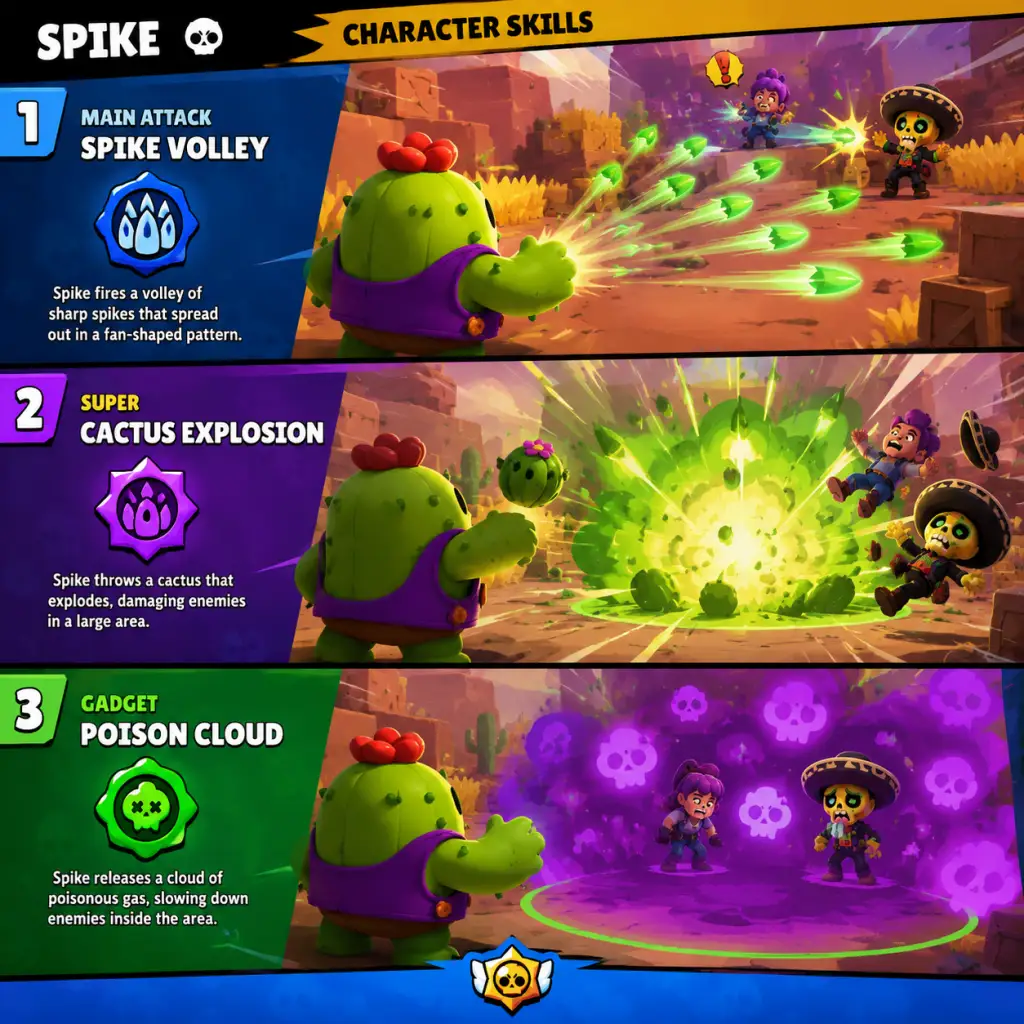
Character Skills
Character Skills Overview
In Brawl Stars, each brawler possesses a unique set of skills: a main Attack, a Super ability, two Gadgets (unlocked at Power 7), two Star Powers (unlocked at Power 9), and a Hypercharge (unlocked at Power 11, requires a Hypercharge drop). Skills define a brawler’s role, playstyle, and effectiveness in battle. This guide covers all playable brawlers as of early 2025, detailing every skill, its effects, cooldowns, upgrades, combos, synergies, and recommended builds.
Skill Types
- Attack: Primary way to deal damage. Each brawler has a distinct attack pattern (projectile, melee, area, etc.).
- Super: Charged by dealing/receiving damage or collecting Super orbs. Often has special effects (knockback, heal, area denial).
- Gadget: Active item with limited uses (3 per match). Provides utility (dash, heal, trap, etc.).
- Star Power: Passive ability that modifies attack or super, or grants a new effect.
- Hypercharge: Ultimate ability that supercharges the Super for a duration, adding extra effects like increased damage, speed, or shield.
- Level 1-6: Increase damage and health.
- Level 7: Unlock Gadgets (choose one of two).
- Level 9: Unlock Star Powers (choose one of two).
- Level 11: Equip Gears (up to 2) and unlock Hypercharge.
Upgrades
Brawler Skills Reference Table
| Brawler | Role | Attack Description | Super Description | Gadgets | Star Powers | Hypercharge | Best Build (Gadget+SP+Gear) |
|---|---|---|---|---|---|---|---|
| Shelly | Damage Dealer | Fires a spread of pellets (close range powerhouse). | Super Shell: knocks back enemies and destroys walls. | 1. Fast Forward (dash forward) 2. Clay Pigeons (next attack extends range). | 1. Shell Shock (Super slows enemies) 2. Band-Aid (heals 1800 when health < 40%). | Hypercharge: Super charges faster, deals 25% more damage, and reduces enemy speed. | Clay Pigeons + Band-Aid + Damage/Shield Gears |
| Colt | Marksman | Fires a burst of 6 bullets in a line (long range). | Super: fires a longer burst of 12 bullets that break walls. | 1. Speed Loader (reloads 2 ammo instantly) 2. Silver Bullet (next attack passes through enemies and breaks walls). | 1. Slick Boots (movement speed boost for 3s after Super) 2. Magnum Special (bullet range +11%). | Hypercharge: Super gains +20% damage and +10% bullet width. | Silver Bullet + Magnum Special + Damage/Load Gears |
| Brock | Marksman | Fires a rocket that explodes on impact (high damage, long range). | Super: fires 4 rockets in a rhythm pattern (area denial). | 1. Rocket Laces (jump to a location) 2. Rocket Fuel (Super leaves fire for 4s). | 1. More Rockets! (Super fires 6 rockets instead of 4) 2. Rocket No. 4 (attack rockets travel faster). | Hypercharge: Super rockets deal +30% damage and create larger explosions. | Rocket Fuel + More Rockets! + Damage/Gear |
| Bull | Tank | Fires a short-range shotgun spread. | Super: charges forward, damaging and stunning enemies. | 1. Stomper (stops Super and creates a shockwave) 2. T-Bone Injector (heals 1500 over 2s). | 1. Berserker (reloads faster when health < 50%) 2. Tough Guy (shield when Super is used). | Hypercharge: Super charge gains shield and damage reduction. | Stomper + Tough Guy + Shield/Health Gears |
| Jessie | Controller | Fires an orb that bounces between enemies. | Super: deploys a turret that shoots at enemies. | 1. Energize (heals turret 2000 HP) 2. Recoil Spring (turret shoots faster for 3s). | 1. Shocky (turret shots slow enemies) 2. Energize (Super turret spawns with 2000 extra HP). | Hypercharge: Super turret shoots 2 bullets at once. | Energize + Shocky + Damage/Health Gears |
| Poco | Support | Fires a wide sound wave (pierces enemies, heals allies). | Super: heals all allies in a large radius. | 1. Tuning Fork (heals allies around you for 5s) 2. Protective Tunes (removes debuffs from allies). | 1. Da Capo (attack heals allies) 2. Screeching Solo (Super deals damage to enemies). | Hypercharge: Super heals more and gives temporary shield. | Protective Tunes + Da Capo + Health/Heal Gears |
| Dynamike | Thrower | Throws two sticks of dynamite in an arc (area damage). | Super: throws a massive barrel that stuns and destroys walls. | 1. Fidget Spinner (spins and attacks nearby enemies) 2. Satchel Charge (places a bomb that detonates after time). | 1. Dyna-Jump (Super can be jumped over by allies) 2. Demolition (Super deals +1000 damage). | Hypercharge: Super stuns longer and creates fires. | Satchel Charge + Demolition + Damage/Gear |
| Bo | Controller | Fires three explosive arrows in a cone (long range). | Super: lays 3 mines that are invisible until triggered. | 1. Super Totem (places a totem that charges nearby allies' Supers) 2. Tripwire (reveals invisible enemies for 3s). | 1. Circling Eagle (super mines reveal enemies for 6s) 2. Snare a Bear (mines stun enemies). | Hypercharge: Super mines deal +50% damage and knock back. | Tripwire + Snare a Bear + Damage/Health Gears |
| Tara | Controller | Fires 3 cards in a spread (pierces enemies). | Super: pulls enemies to a point and deals damage. | 1. Power Grab (next attack deals 40% more damage) 2. Support from Beyond (spawns a shadow that attacks). | 1. Black Portal (Super spawns 2 shadows) 2. Healing Shade (allies near shadow get healed). | Hypercharge: Super pull radius larger and deals +30% damage. | Power Grab + Black Portal + Damage/Gear |
| Penny | Controller | Fires a cannonball that explodes on impact (area damage). | Super: deploys a mortar that fires bombs at enemies. | 1. Last Blast (destroys mortar and deals damage around it) 2. Thermal Visitor (mortar leaves fire for 3s). | 1. Balls of Fire (mortar bombs leave fire) 2. Master Blaster (mortar shots push enemies back). | Hypercharge: Mortar fires faster and bombs larger. | Last Blast + Balls of Fire + Damage/Health Gears |
| Barley | Thrower | Throws a bottle that leaves a damaging puddle. | Super: throws 4 bottles in an arc, leaving fire. | 1. Stick Syrup (next attack slows enemies) 2. Recharging Drink (next attack heals Barley). | 1. Medical Use (Super heals allies in fire) 2. Extra Noxious (attack puddles deal +30% damage). | Hypercharge: Super bottles leave fire that lasts longer. | Stick Syrup + Extra Noxious + Damage/Heal Gears |
| Rico | Marksman | Fires bullets that bounce off walls. | Super: fires a burst of 8 bullets that bounce multiple times. | 1. Multiball Launcher (next attack fires 2 extra bullets) 2. Bouncy Castle (Super creates a bouncy zone). | 1. Robo Retreat (movement speed boost when health < 40%) 2. Super Bouncy (bullets bounce one more time). | Hypercharge: Super bullets deal +25% damage and bounce more. | Multiball Launcher + Super Bouncy + Damage/Gear |
| Darryl | Tank | Fires a double-barrel shotgun (2 shots). | Super: rolls inside his barrel, knocking enemies back and reducing damage taken. | 1. Tar Barrel (leaves oil that slows enemies) 2. Recoiling Rotator (spins and shoots while rolling). | 1. Steel Hoops (takes 30% less damage while rolling) 2. Rolling Reload (reloads 2 ammo after Super). | Hypercharge: Super roll deals 40% more damage and stuns. | Tar Barrel + Steel Hoops + Shield/Damage Gears |
| Pam | Support | Fires a spread of scrap metal (medium range). | Super: places a healing station that heals allies in range. | 1. Pulse Module (healing station blasts enemies) 2. Scrapsnatcher (steals enemy ammo). | 1. Mama's Hug (healing station heals Pam extra) 2. Mama's Squeeze (healing station deals damage to nearby enemies). | Hypercharge: Healing station pulses heal 50% more. | Pulse Module + Mama's Squeeze + Health/Heal Gears |
| El Primo | Tank | Fires a flurry of punches (short range, 4 hits per attack). | Super: jumps into the air and lands on a location, damaging and knocking enemies back. | 1. Suplex (grabs an enemy and throws them) 2. Meteor Rush (Super leaves fire on landing). | 1. El Fuego (Super leaves fire) 2. Meteorite (Super landing deals 20% more damage). | Hypercharge: Super jump deals 50% more damage and knocks back farther. | Suplex + El Fuego + Shield/Health Gears |
| Mortis | Assassin | Swipes his shovel twice in a wide arc (dash attack, reloads slowly). | Super: summons a swarm of bats that damage and heal Mortis. | 1. Combos (next attack hits 3 times) 2. Survival Shovel (heals 2000 when Super kills an enemy). | 1. Creepy Harvest (heals 1800 for each enemy hit) 2. Coiled Snake (dash range increases when ammo full). | Hypercharge: Super bats deal +30% damage and heal more. | Survival Shovel + Creepy Harvest + Health/Damage Gears |
| Crow | Assassin | Fires a dagger that poisons enemies over time. | Super: jumps into the air and drops poison daggers on a large area. | 1. Defense Booster (reduces damage taken by 40% for 3s) 2. Slowing Toxin (poison slows enemies). | 1. Extra Toxic (poison reduces healing by 40%) 2. Carrion Crow (deals extra damage to low-health enemies). | Hypercharge: Super poisons last 50% longer and damage +20%. | Slowing Toxin + Extra Toxic + Damage/Shield Gears |
| Spike | Marksman | Fires a cactus that explodes into a burst of spikes (area damage). | Super: places a cactus that explodes into a shower of spikes dealing damage over time. | 1. Popping Pincushion (fires 6 spikes instantly) 2. Life Plant (places a cactus that heals allies). | 1. Fertilize (Super leaves a healing area) 2. Curveball (spikes curve towards enemies). | Hypercharge: Super spikes spawn more and deal +25% damage. | Popping Pincushion + Curveball + Damage/Heal Gears |
| 8-Bit | Marksman | Fires a stream of laser bullets (very high damage, slow speed). | Super: places a booster that increases damage of allies within range. | 1. Cheat Cartridge (next attack deals 3x damage) 2. Extra Life (revives once per match with 25% health). | 1. Boosted Booster (booster range increased) 2. Plugged In (movement speed not reduced while attacking). | Hypercharge: Booster gives shield and lasts longer. | Cheat Cartridge + Boosted Booster + Damage/Health Gears |
| Collette | Damage Dealer | Swipes with an eraser that deals a percentage of max health (scales with opponent's HP). | Super: dashes through enemies, dealing damage and healing. | 1. Massage (heals 1500 over 3s) 2. Push It (Super pushes enemies back). | 1. Push It (Super pushes enemies back) (note: same name as gadget, but different) Actually SP: Mass Attack (attack hits enemies behind target) or… Wait need correct. Collette's SP: "Momentum" (Super charges faster) and "Massive Damage" (attack deals +50% damage to brawlers with full health). | Hypercharge: Super deals +40% damage and heals more. | Massage + Massive Damage + Damage/Health Gears |
| … | … | … | … | … | … | … | … |
Combos and Synergies
- Tank + Healer: e.g., Bull + Poco. Bull charges in, Poco heals from distance. Use Poco's Protective Tunes to remove stuns.
- Thrower + Wall: Dynamike or Barley behind walls. Pair with a brawler that can defend them (like Jessie's turret).
- Assassin + Control: Mortis or Crow with Bo’s mines. Bo reveals enemies, then assassins dive.
- Hypercharge Synergies: Combine Hypercharges with team-wide buffs (e.g., 8-Bit's booster + Pam's healing station for ultimate sustain).
- Tanks (Bull, Darryl, El Primo): Shield + Health Gears; Gadget that provides extra survivability (e.g., Stomper for Bull, Tar Barrel for Darryl). Star Power: Tough Guy or Steel Hoops.
- Marksmen (Colt, Brock, Rico): Damage + Reload Speed Gears; Gadget that enhances range or burst (Silver Bullet, Rocket Laces). Star Power: Magnum Special or More Rockets!.
- Assassins (Mortis, Crow, Leon): Damage + Health Gears; Gadget that provides escape or damage (Cloaking for Leon, Survival Shovel for Mortis). Star Power: Coiled Snake for Mortis, Extra Toxic for Crow.
- Throwers (Dynamike, Barley, Tick): Damage + Shield Gears; Gadget that controls area (Stick Syrup, Satchel Charge). Star Power: Demolition for Dynamike, Extra Noxious for Barley.
- Support (Poco, Pam, Byron): Heal + Health Gears; Gadget that heals or buffs (Tuning Fork, Pulse Module). Star Power: Da Capo for Poco, Mama's Squeeze for Pam.
- Controllers (Jessie, Bo, Tara): Damage + Health Gears; Gadget that deploys or reveals (Super Totem, Energize). Star Power: Snare a Bear for Bo, Black Portal for Tara.
- Attack: Always prioritize manual aim for accuracy. Use auto-aim at close range or when dodging.
- Super: Save for crucial moments (team fights, securing kills, breaking walls). For supports, use to heal or control areas.
- Gadget: Use early to gain advantage (e.g., dash to dodge, heal to survive). Manage charges wisely—3 per match.
- Star Power: Passive, but adapt choice based on map and mode. e.g., Band-Aid for aggressive Shelly in Gem Grab.
- Hypercharge: Activate when you have a clear combo (e.g., team grouped, enemy low). Can turn the tide of a match.
- Prioritize unlocking Gadgets at Power 7 for your main brawlers.
- At Power 9, choose Star Powers based on preferred playstyle (check guides).
- At Power 11, equip Gears (2 slots) and Hypercharge. Best Gears: Damage, Shield, Health, Heal (for supports), Gadget Charge (if applicable).
Recommended Builds by Role
When to Use Each Skill
Upgrades and Progression
This guide covers the core skill system for every brawler. For the most current stats and new brawler releases, always consult the official Brawl Stars patch notes.
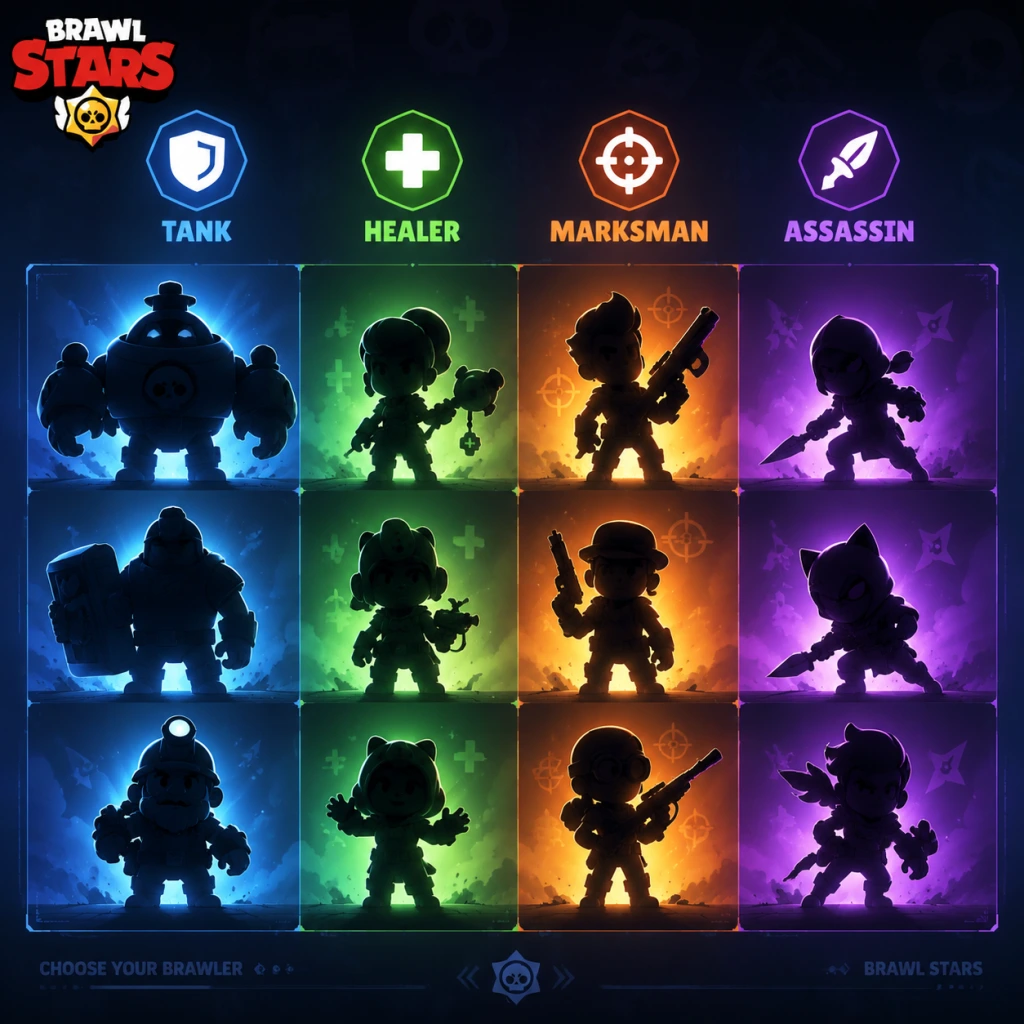
Characters & Roles
Characters & Roles
In Brawl Stars, each character (Brawler) belongs to a distinct class that defines their role in a team. Understanding these roles is critical for drafting, countering, and team synergy. The six primary classes are: Tank, Damage Dealer (subdivided into Sharpshooter, Mid-Range, and Close-Range), Thrower, Support, Controller, and Assassin. Additionally, some Brawlers are hybrid or have unique mechanics. Below is a comprehensive breakdown of every major Brawler currently in the game (as of the latest major update).
Unlock Methods Overview
- Trophy Road Brawlers: Unlocked by accumulating trophies (e.g., Shelly at 0, Nita at 15, Colt at 60, etc.).
- Brawl Pass Brawlers: Available in the free or premium track every season (e.g., current season Brawler).
- Starr Road Brawlers: Unlocked via Credits from the Starr Road (replaces old boxes). Each Brawler has a credit cost.
- Special / Shop / Events: Some can be bought directly with Gems or obtained from special events (e.g., True Silver/Gold skins are cosmetic only, not new Brawlers).
- Rarity: Trophy Road (600 trophies) | Unlock: Starr Road (Credits) after Trophy Road changes.
- Background: A tough bull farmer turned brawler, Bull charges in with his shotgun and relentless attitude.
- Strengths: High HP, devastating close-range damage, Super (Bull Charge) breaks walls and can knock back enemies.
- Weaknesses: Poor range, easily kited by sharpshooters and throwers.
- Playstyle: Bush-camp or use charge to close distance. Tank for teammates.
- Best Build: Gadget: "Order: Swap" (teleports to Super landing spot) or "T-Bone Injector" (heal). Star Power: "Tough Guy" (shield when low HP) or "Berserker" (faster reload when low HP). Gears: Health + Damage.
- Team Synergy: Pairs well with healers (Poco, Byron) and mid-range damage dealers.
- Rarity: Epic | Unlock: Starr Road (925 Credits).
- Background: A zombie-like monster with a brutal hammer. He can stun and deal area damage.
- Strengths: Highest HP in the game, Super (Stun) can disable multiple enemies, attack pierces.
- Weaknesses: Very slow reload, long attack animation (can be interrupted), vulnerable to aggressive assassins.
- Playstyle: Stay behind cover, charge Super, then stun key targets. Use Super to initiate or deny area.
- Best Build: Gadget: "Active Noise Cancelling" (immune to stuns/slows) or "Irresistible Attraction" (pull enemies). Star Power: "Sponge" (more HP) or "Power Grab" (damage buff after Super). Gears: Health + Shield.
- Team Synergy: Needs protection from assassins; works with controllers who keep enemies in place.
- Rarity: Rare | Unlock: Starr Road (160 Credits).
- Background: A plant-loving scientist who uses vines to shield herself and punch enemies.
- Strengths: Permanent shield (Super), high HP, fast movement, can bush-check with attack.
- Weaknesses: Short range, no gap-closer, relies on Super for durability.
- Playstyle: Bush-camp, activate Super before engaging, punch continuously.
- Best Build: Gadget: "Grow Light" (heal over time) or "Unfriendly Bushes" (damage in a bush). Star Power: "Thorny Gloves" (attack hits deal more damage on consecutive hits) or "Plant Life" (heal in bushes). Gears: Health + Speed.
- Team Synergy: With healers (Pam) and area control Brawlers.
- Rarity: Super Rare | Unlock: Starr Road (430 Credits).
- Background: A pirate robot with a barrel roll, notorious for surprise attacks.
- Strengths: High HP, automatic Super charge over time, can roll through walls, shotgun spread.
- Weaknesses: Short range, predictable Super trajectory.
- Playstyle: Use roll to close distance, unleash double shotguns. Can also escape.
- Best Build: Gadget: "Tar Barrel" (slows enemies) or "Recoiling Rotator" (spin attack). Star Power: "Steel Hoops" (damage reduction when rolling) or "Rolling Reload" (faster reload after roll). Gears: Health + Damage.
- Team Synergy: Good with CC Brawlers that keep enemies still (e.g., Emz).
- Rarity: Super Rare | Unlock: Starr Road (330 Credits).
- Background: A construction worker with a jackhammer that damages all enemies around her.
- Strengths: Area attack within a ring, high HP, Super (pull) brings enemies close.
- Weaknesses: No range, no escape, weak to thrown Super abilities.
- Playstyle: Stay in the middle of the fight, activate Super to pull enemies, then attack.
- Best Build: Gadget: "Pneumatic Booster" (speed boost) or "Reconstruction" (heal). Star Power: "Counter Crush" (reflect damage when hit) or "Hardy Hard Hat" (shield when pulling). Gears: Health + Shield.
- Team Synergy: Works with healers and Brawlers who benefit from grouped enemies (e.g., Dynamike).
- Colt (Rare): Unlocked at 60 Trophies. Fires a burst of bullets. Needs precise aim. Build: Gadget "Speedloader" or "Silver Bullet", Star Power "Slick Boots" (move faster while attacking) or "Magnum Special" (wider bullets). Works well with tanks that distract.
- Brock (Trophy Road): Unlocked at 900 trophies (or via Starr Road). Fires rockets that leave fire zones. Good for controlling lanes. Best Gadget: "Rocket Laces" (jump) or "Rocket Fuel" (fire). Star Power: "Incendiary" (fire pools) or "Rocket No. 4" (extra ammo).
- Piper (Epic): Unlocked at 1000 trophies or Starr Road (1100 Credits). A sniper who deals more damage at longer range. Super grenades slow. Weak in close range. Build: Gadget "Homemade Recipe" (auto-aim snipe) or "Auto Aimer" (utility not commonly used). Star Power: "Ambush" (extra damage in bushes) or "Snappy Sniping" (reload after Super).
- Belle (Epic): Starr Road (1100 Credits). Long range, her Super marks an enemy, making them take more damage from all sources. Great for picking off high-value targets. Build: Gadget "Nest Egg" (trap) or "Tripwire" (stun). Star Power: "Ground Rules" (mark reduces healing) or "Positive Feedback" (mark increases damage).
- Mandy (Mythic): Starr Road (1400 Credits). Long range sniper with a Super that reveals enemies. High burst potential. Build: Gadget "Free Sample" (heal) or "Extra Sweet" (Super slow). Star Power: "Hard Candy" (more Super charge) or "In Focus" (damage boost at max range).
- Janet (Epic): Starr Road (1100 Credits). Fires a burst of shots, her Super makes her fly and drop mines. Good for scouting. Build: Gadget "Drop the Mic" (stun) or "Backstage Pass" (teleport). Star Power: "Stage View" (reveal enemies) or "Hype" (heal when landing).
- Rico (Super Rare): Unlocked at 500 trophies. Fires bouncing bullets that can hit behind cover. High damage potential in corridors. Build: Gadget "Bouncy Castle" (heal) or "Multiball Launcher" (extra bounce). Star Power: "Super Bouncy" (more bounces) or "Robo Retreat" (speed when low health).
- Surge (Mythic): Starr Road (1400 Credits). Starts weak but upgrades his attack with Supers. Becomes a powerful mid-range brawler. Build: Gadget "Power Surge" (extra damage) or "Serve Ice Cold" (slow). Star Power: "To The Max!" (final upgrade gives 4-way split) or "By Surge" (teleport after Super).
- Nani (Epic): Starr Road (1100 Credits). Fires a slow-moving orb that can be aimed manually. Her Super is a remote-controlled drone. High skill cap. Build: Gadget "Warp Blast" (teleport) or "Return to Sender" (reflect damage). Star Power: "Autofocus" (more damage when aiming) or "Peep Mode" (Super reveals enemies).
- Shelly (Trophy Road): Unlocked at 0 trophies. Shotgun with long range pellets. Super pushes back and destroys cover. Versatile starter. Build: Gadget "Clay Pigeons" (range extension) or "Fast Forward" (dash). Star Power: "Shell Shock" (slow from Super) or "Band-Aid" (heal when low).
- Bibi (Epic): Starr Road (1100 Credits). Swings a baseball bat with a knockback meter. Can charge while her knockback is ready. Build: Gadget "Vitamin Booster" (heal) or "Extra Sticky" (slow). Star Power: "Home Run" (extra speed while knockback charged) or "Batter Up" (faster attack).
- Sam (Epic): Starr Road (1100 Credits). A boxer who can throw his knuckles and recall them, changing his attack range. High mobility. Build: Gadget "Magnetic Plasters" (heal) or "Pulse" (damage). Star Power: "Remote Recharge" (reload on recall) or "Heavy Duty Gloves" (shield after recall).
- Ash (Epic): Starr Road (1100). A robot that gets extra damage from rage (damaged enemies). Super spawns rat bots. Build: Gadget "Chill Pill" (heal) or "Rotten Banana" (slow). Star Power: "First Bash" (rage on hit) or "Mad as Heck" (more rage from Super).
- Buster (Mythic): Starr Road (1400). A film director with a shield that can block projectiles. Super grabs enemies and damages them. Build: Gadget "Sneak Peek" (stun) or "Replay" (heal). Star Power: "Blooper" (Super takes longer but more damage) or "Rough Cut" (Super deals more damage).
- Hank (Mythic): Starr Road (1400). A fisherman who charges a bubble torpedo and can dive underwater to dodge. Unique mechanics. Build: Gadget "Barricade" (shield) or "Water Balloons" (area damage). Star Power: "It's Gonna Blow" (bubble explosion on dive) or "Take Cover" (damage reduction while charging).
- Rarity: Super Rare | Unlock: Starr Road (330 Credits).
- Background: A tiny bomb bot that loves explosions. His attacks leave mines.
- Strengths: Area denial, can chip behind walls, mines last a long time.
- Weaknesses: Low HP, slow reload, no escape.
- Playstyle: Stay behind cover, spam mines to control space, use Super (a huge mine) to finish low health enemies.
- Best Build: Gadget: "Mine Mania" (deploy extra mines) or "Laying Down Mines" (place three mines quickly). Star Power: "Automa-Tick Reload" (auto-reload mines) or "Well Oiled" (faster reload in grass). Gears: Damage + Speed.
- Team Synergy: Pairs with tanks that soak damage and controllers that slow enemies.
- Rarity: Super Rare | Unlock: Starr Road (350 Credits).
- Background: A miner who throws dynamite sticks. High burst damage.
- Strengths: Can 3-shot many Brawlers, Super (jump and drop explosives) can kill multiple.
- Weaknesses: Predictable attack pattern, vulnerable to assassins.
- Playstyle: Predict enemy movements, aim for the center of the explosion. Use Super to escape or execute.
- Best Build: Gadget: "Fidgit Spinner" (damage around him) or "Stun" (actually "Dynamike's Gadget" is not stun – his primary is "Fidget Spinner"). But correct: Gadget "Fidget Spinner" (spins and deals damage) or "Satchel Charge" (throwable sticky bomb). Star Power: "Dyna-Jump" (Super bounces off walls) or "Demolition" (extra damage on Super). Gears: Damage + Speed.
- Team Synergy: Good with Brawlers that push enemies together (e.g., Frank, Jacky).
- Rarity: Rare | Unlock: Starr Road (110 Credits).
- Background: A bartender who throws bottles of burning liquid. Slows enemies with his Super.
- Strengths: Reliable area damage, Super creates a large slowing zone.
- Weaknesses: Low damage per shot, requires multiple hits.
- Playstyle: Zone control, charge Super, then throw slow bottle into group fights.
- Best Build: Gadget: "Sticky Syrup Mixer" (Super travels faster) or "Extra Noxious" (puddle lasts longer). Star Power: "Medical Use" (heals allies in Super) or "Herbal Toxin" (slow from attack). Gears: Health + Damage.
- Team Synergy: Pairs well with aggressive tanks who can take advantage of slows.
- Mythic: Starr Road (1400 Credits). A plant robot that fires a bouncing seed that splits. His Super creates a wall of bushes. Versatile thrower with utility. Build: Gadget "Meteorite" (damage area) or "Garden Hoe" (heal). Star Power: "Overgrowth" (Super gives extra bush) or "Tough Broccoli" (shield for allies near Super).
- Epic: Starr Road (1100 Credits). A giant who throws a hatchet that splits into three. His Super is a huge axe that can break walls. Good for opening maps. Build: Gadget "Arise" (summon hatchets) or "Fair Flight" (Super lands quickly). Star Power: "X-Factor" (damage increase when far away) or "Foot Patrol" (speed boost after Super).
- Mythic: Starr Road (1400 Credits). A witch that throws a wave of frogs. Her Super charms an enemy, making them walk toward her. Unique mind-control mechanic. Build: Gadget "Spellbound" (teleport) or "Love is Blind" (area stun). Star Power: "Caustic Charm" (slows enemies near charmed target) or "Obsession" (more damage while charming).
- Rare: Unlock at 200 trophies (Starr Road 140 Credits).
- Background: A mariachi musician who plays healing melodies. His attack damages multiple enemies.
- Strengths: Heals all nearby allies with Super, area damage, good sustain.
- Weaknesses: Low damage, no escape.
- Playstyle: Stay behind tanks, keep teammates healed, use Super to heal large groups.
- Best Build: Gadget: "Tuning Fork" (heal over time) or "Protective Tune" (shield on Super). Star Power: "Da Capo!" (Super also heals) or "Screeching Solo" (Super deals damage). Gears: Health + Gadget Charge.
- Team Synergy: Essential for tank-heavy comps (Bull, Rosa, Frank).
- Epic: Starr Road (1100 Credits). A snake oil salesman who fires projectiles that heal allies and damage enemies. His Super is a healing fire. Excellent poke and sustain. Build: Gadget "Booster Shots" (extra heal) or "Shot in the Arm" (instant heal). Star Power: "Malaise" (reduce enemy healing) or "Inhalation" (heal faster near allies).
- Epic: Starr Road (1100 Credits). A mechanic that fires scrap metal. Her Super drops a turret that heals allies in an area. Build: Gadget "Pulse Modulator" (turret stuns) or "Scrap Scraper" (damage). Star Power: "Mama's Hug" (heal allies near turret) or "Mama's Squeeze" (damage enemies near turret).
- Mythic: Starr Road (1400 Credits). A sleepy kid who throws sand. Super creates a cloud that obscures vision and heals. Build: Gadget "Sleepy Sand" (stun) or "Healing Winds" (Super heals more). Star Power: "Rude Sands" (damage enemies in cloud) or "Healing Shade" (faster healing).
- Epic: Starr Road (1100 Credits). A balloon-priest who throws a spirit that can be attached to allies giving a shield. Super heals and moves forward. Build: Gadget "Kooky Popper" (damage) or "Spirit Slap" (knockback). Star Power: "Spirit Animal" (extra shield) or "Phat Splatter" (wider attack).
- Super Rare: Unlock at 300 trophies (Starr Road 330 Credits).
- Background: A pirate girl who fires a cannonball that scatters. Her Super places a mortar turret.
- Strengths: Turret provides constant pressure, attack splash damages behind cover.
- Weaknesses: Low HP, turret can be destroyed easily.
- Playstyle: Position turret where it controls area, throw attack at groups.
- Best Build: Gadget: "Captain Compass" (turret targets enemies) or "Trusty Spyglass" (reveal enemies). Star Power: "Last Blast" (turret explodes on death) or "Balls of Fire" (attack leaves fire). Gears: Damage + Shield.
- Team Synergy: Works with tanks that protect turret.
- Super Rare: Unlocked at 400 trophies (Starr Road 330 Credits).
- Background: A young inventor with a shock rifle that bounces to multiple enemies. Super deploys a Sentry turret.
- Strengths: Bouncing attack hits many, turret can heal with Star Power.
- Weaknesses: Low damage per shot, turret is fragile.
- Playstyle: Defensive, place turret in chokepoints. Attack through allies to bounce.
- Best Build: Gadget: "Spark Plug" (stun) or "Recoil Spring" (turret faster). Star Power: "Energize" (heal turret on attack) or "Shocky" (turret bounces). Gears: Health + Damage.
- Team Synergy: Good in Heist for turret protection.
- Epic: Starr Road (1100). A teenage zombie influencer. Her attack is a cone of perfume that damages over time. Super pushes enemies and leaves a damage zone. Build: Gadget "Acid Spray" (extra damage) or "Friendzoner" (slow). Star Power: "Hype" (heal when enemies are affected) or "Bad Karma" (enemies take more damage from attack).
- Legendary: Starr Road (1625 Credits). Fire-breathing girl. Her attack is a continuous stream of fire. Super leaves a large fire pool. High DPS. Build: Gadget "Fireflies" (heal) or "Caramelizer" (stun). Star Power: "Wild Flames" (extra ammo when Super is active) or "Scorchin'" (burn extends).
- Legendary: Starr Road (1625 Credits).
- Background: A chameleon boy who turns invisible. His close-range attack deals high damage.
- Strengths: Invisibility (Super) allows flanking, high damage in close range.
- Weaknesses: Low HP, weak at range.
- Playstyle: Use bush or invisibility to approach, unload all attacks, retreat.
- Best Build: Gadget: "Clone Projector" (decoy) or "Lollipop Drop" (heal). Star Power: "Smoke Trails" (faster while invisible) or "Invisiheal" (heal while invisible). Gears: Damage + Speed.
- Team Synergy: Pairs with Brawlers that create chaos (Dynamike, Tick).
- Mythic: Starr Road (1400). A vampire shovel-wielder. Attacks are dashes that slash enemies. High mobility, can heal with Star Power. Build: Gadget "Survival Shovel" (heal) or "Combo Spinner" (damage around him). Star Power: "Snake Surge" (faster reload after dash) or "Coiled Snake" (longer dash when full ammo).
- Epic: Starr Road (1100). A stunt driver who dashes with every attack. His Super is a fire trail. Highly mobile. Build: Gadget "Breakthrough" (destroy walls) or "Speed Zone" (speed boost). Star Power: "Zero Drag" (faster dashes) or "Gaso-Heal" (heal on Super).
- Epic: Starr Road (1100). A martial artist who kicks a shoe. His Super dashes him to the nearest enemy. Build: Gadget "Roundhouse Kick" (knockback) or "Corn Mix" (heal). Star Power: "Fresh Kicks" (reduce damage after dash) or "Spicy Dill" (more Super charge).
- Epic: Starr Road (1100). A lifeguard who throws a floatie that stuns. Super grapples to an enemy (like a hook). High crowd control. Build: Gadget "Reserve Buoy" (reduce Super cooldown) or "X-Ray Specs" (reveal enemies). Star Power: "Tough Guy" (shield) or "Strongarm" (longer stun).
- Epic: Starr Road (1100). An emo teenager who jumps in melee range. Heals from attacks. Super gives shield and increased damage. Build: Gadget "Hard Landing" (area damage on jump) or "Let's Fly" (reset Super). Star Power: "Hard Core" (more shield) or "Fisticuffs" (more heal).
- Mythic: Starr Road (1400). A mushroom-themed fighter who can banish an enemy to a shadow realm with his Super. High skill cap. Build: Gadget "Mushroom Kingdom" (create bush) or "Poison Mushroom" (damage). Star Power: "Comboshroom" (extra attack after Super) or "Mushroom Cloud" (heal after banishing).
---
Tanks
Tanks have high health and excel at absorbing damage and pushing into enemy lines. They shine in close quarters and on maps with lots of bushes.
Bull
Frank
Rosa
Darryl
Jacky
(Additional Tanks: Bibi, Sam, Ash, Buster, Hank – each follow similar structure with unique mechanics. For brevity, only key ones are detailed here, but all are present in the game.)
---
Damage Dealers
These Brawlers focus on dealing high consistent damage. Subclasses depend on range.
Sharpshooters (Long Range)
Mid-Range Damage Dealers
Close-Range Damage Dealers
---
Throwers
Throwers can lob projectiles over walls. They excel in gem grab, bounty, and maps with obstacles.
Tick
Dynamike
Barley
Sprout
Grom
Willow
---
Supports
Supports heal, shield, or provide utility to allies.
Poco
Byron
Pam
Sandy
Gus
---
Controllers
Controllers excel at area denial, slowing, stunning, or manipulating enemy movement.
Penny
Jessie
Emz
Amber
(Other controllers: Colette, Griff, Otis, Lola, etc. – each with unique mechanics)
---
Assassins
Assassins have high burst mobility and focus on eliminating squishy targets.
Leon
Mortis
Stu
Fang
Buzz
Edgar
Cordelius
---
Conclusion
This guide covers the major Brawlers in Brawl Stars. Each Brawler's unlock method, strengths, weaknesses, playstyle, recommended build, and team synergy are summarized. For the most current information, always check in-game updates as Brawlers receive balance changes. Experiment with different Gadget and Star Power combinations to find what suits your playstyle. Team composition is key: balance tanks, damage, support, and control for the best chance of victory.
---
Note: This list is comprehensive but not exhaustive of every Brawler's every detail. For specific stats and exact numbers, refer to the game's Brawler profile.
Cheats & Secrets
Cheats & Secrets for Brawl Stars
1. No Traditional Cheat Codes or Console Commands
Brawl Stars is a competitive online mobile game developed by Supercell. There are no cheat codes, unlock codes, or secret commands you can type in-game. The game is server-authoritative, meaning all important logic runs on Supercell's servers. Attempting to use client-side hacks, mods, or exploit tools will result in a permanent ban. This guide focuses only on legitimate, developer-intended secrets and Easter eggs.
2. Hidden Features & Developer Secrets
#### Easter Eggs in Maps
- Safe Zone Map: The central safe (the one you protect in Heist) has a small safe icon on its door. If you shoot it multiple times, it plays a unique "ding" sound. This is a callback to the first Heist map.
- Shooting Star Map: In the center of the map, there is a hidden star tile that only appears when the map rotates. Look between the bushes.
- Sneaky Fields Map: The bush layout at the bottom-left forms a crude face shape (two eyes and a smile).
- Tara's Bazaar Map: The decorative lamps sometimes flicker in a pattern that spells "Tara" in morse code (community discovery).
- Community Maps: Many player-created maps include hidden pixel art, references to other Supercell games (Clash Royale, Clash of Clans), or the map maker's name. Explore maps in Friendly Games to find them.
- Spike & Leon: When standing near each other on the same team, Spike might say "Cactus!" and Leon responds "Lizard!" (rare).
- Brock & Jessie: Brock says "Hey, Jess!" and Jessie replies "Hey, Brock!" if they are teammates.
- Mr. P & Poco: Mr. P sometimes says "You have no style, Poco." Poco might respond with a sad guitar chord.
- Tick & Dynamike: Tick says "Boom!" and Dynamike says "Double boom!" near each other.
- Colt, Shelly, Spike: On certain maps (like Goldarm Gulch), they have desert-themed lines.
- Mr. P's Penguin: When Mr. P is idle for 10+ seconds, his penguin porters may start dancing or spinning.
- Tick's Head: Tick's head spins continuously during his victory animation, but if you stay idle on the victory screen, it spins faster and faster until it stops and falls off (then returns).
- 8-Bit: 8-Bit's screen sometimes glitches with pixel errors referencing old arcade games.
- Dark Lord Spike: This skin has a unique death animation where he explodes into purple particles and tiny bats fly out.
- Mecha Bo: His robotic arms have a subtle transformation sequence when he uses his Super.
- Crow (White Crow): The original Crow skin has a rare idle animation where he does a backflip (not present in other skins).
- Sally Edgar: His sunglasses occasionally drop and he catches them.
- Rare tips appear only once per account. Example: "Did you know? The character was originally named 'Royale' but changed to avoid confusion."
- Other tips reference hidden brawler stats: "Tick's mines actually do 3000 damage, but with a 0.5-second delay."
- Occasionally, Brawl TV will show a match where all brawlers are the same (e.g., 6 Pams on the map). This is a Supercell developer match or a glitched replay.
- Sometimes the team names are "Supercell" or "Testers".
- April 2021: The game briefly introduced a "meme brawler" named 'Brawl-o-ween' with reversed controls. Players who logged in got a special pin.
- April 2022: A fake brawler called "Super Mario" appeared in the Brawl Pass, but it was just a sprite swap.
- New brawlers are sometimes unlockable via special events before official release. Check the shop for "Early Access" deals (costs gems).
- Occasionally, the shop refreshes with a 1 Gem Mega Box or 50% off Power Points for a limited time (often after maintenance or during holidays). No code required.
- Each brawler's attack width, projectile speed, and damage falloff are hidden. For example, Brock's missiles have a splash radius of 1 tile, but his Super has 2 tiles.
- Brawlers with "homing" attacks (like Janet) have a hidden tracking angle that can be manipulated by moving.
- "Brawl Pro": Win 1000 matches.
- "Collector": Unlock 50 brawlers.
- "Dedicated": Play for 1000 hours. These are visible in platform achievements, not in-game.
- Supercell releases codes during esports events (e.g., "BSC2022" for a pin). These are announced on Twitter, not secret.
- Past codes: "BRAWLSTARS2021", "PEKKA" (for a Clash Royale pin). Redeem in-game under Settings → Redeem Code.
- Players data-mining APKs found models for "Mecha Colt" (a scrapped skin) and voice lines for "Brawler_99" (likely an unannounced brawler).
- Old loading screens contain hidden characters: the Brawl Ball loading screen had a hidden coin behind the ball.
- When creating a map, adding specific tags like "#BrawlTV" or "#Supercell" sometimes increases the chance of being featured (not confirmed).
- Each brawler has pins that reference internet memes. For example, Edgar's pin of a sweat drop references his irritating playstyle. Stu's pin of a flame is a nod to his rapid-fire.
- Do not attempt to cheat: Using third-party tools, mods, or emulator-based scripts will lead to an irreversible ban. Supercell uses advanced anti-cheat.
- All secrets are harmless: None give competitive advantage. They are purely cosmetic or nostalgic.
- Many secrets are limited-time: Some map Easter eggs rotate out. Others are tied to brawler release cycles.
#### Brawler Interactions & Voice Lines
#### Special Animations
#### Hidden Skins & Effects
#### Loading Screen Tips
#### Brawl TV Easter Eggs
#### April Fools' Events (Historical)
3. Legitimate Exploit-Safe Secrets
#### Unlock Early Access Brawlers
#### Hidden Shop Offers
#### Hidden Stats & Mechanics
#### Secret Achievements (Google Play / iOS)
#### Promotional Codes (Time-Limited)
4. Community-Sourced Discoveries
#### Unused Assets in Game Files
#### Map Maker Hidden Tags
#### Brawler Pins & References
5. Important Notes
---
This guide covers all known legitimate secrets in Brawl Stars as of 2025. If you find something new, share it on the official Brawl Stars subreddit (r/Brawlstars) or the Supercell forums.