Call of Duty 4: Modern Warfare
## Game Introduction: Call of Duty 4: Modern Warfare ### Genre and Developer/Publisher - **Genre**: First-Person Shooter (FPS), Tactical Military Shooter - **Developer**: Infinity Ward - **Publisher**: Activision ### Release Timeline and Platforms - **Initial Release**: November 5, 2007 (North Ame...
Download & Installation
Download & Installation: Call of Duty 4: Modern Warfare (2007)
This guide covers the official, legitimate download and installation process for the original Call of Duty 4: Modern Warfare across PC, Xbox, and PlayStation platforms. It does not cover the 2017 Remastered edition or any mobile/unofficial versions.
Platform Overview
| Platform | Store / Source | Current Availability | Key Notes |
|---|---|---|---|
| PC | Steam | Fully available for purchase and download. | Requires Steam account. Original multiplayer servers are offline; only LAN or community private servers remain. |
| Xbox 360 (backward compatible) | Xbox Store (digital) or physical disc | Digital still purchasable on Xbox Store; disc works on Xbox One/Series via backward compatibility. | Requires Xbox Live account (free for offline play, Gold for online). Online multiplayer servers are shut down – only local split-screen / LAN works. |
| PlayStation 3 | PlayStation Store (digital) or physical disc | Digital still available on PS3 Store (may require web browser purchase due to PS3 store interface changes). | PSN account needed. Online multiplayer servers are shut down. Disc installation is required. |
---
PC (Steam) – Step-by-Step Installation
System Requirements
| Component | Minimum | Recommended |
|---|---|---|
| OS | Windows XP / Vista / 7 / 8 / 10 / 11 (32‑bit only on XP; 64‑bit on later OS) | Windows 7 or later (64‑bit) |
| CPU | Intel Pentium 4 3.0 GHz or AMD Athlon 64 3200+ | Intel Core 2 Duo E6600 or AMD Phenom X3 8750 |
| RAM | 512 MB (XP) / 1 GB (Vista/7) | 2 GB |
| GPU | NVIDIA GeForce 6600 or ATI Radeon 9800 Pro | NVIDIA GeForce 8600 GT or ATI Radeon HD 3850 |
| DirectX | 9.0c | 9.0c |
| Storage | 8 GB free space | 8 GB free space |
| Sound | DirectX‑compatible | DirectX‑compatible |
Installation Steps
1. Create a Steam account if you don’t have one (visit [store.steampowered.com](https://store.steampowered.com)).
2. Install the Steam client from the official website and log in.
3. Purchase the game:
- Search for “Call of Duty: Modern Warfare” (NOT “Modern Warfare Remastered”). The product page should show the original 2007 release.
- Click “Add to Cart” and complete the purchase.
4. Download:
- Go to your Steam Library → find “Call of Duty: Modern Warfare” → click “Install”.
- Choose the install location and confirm. The download size is approximately 6–7 GB.
5. Wait for download & installation – Steam will automatically install the game once downloaded.
6. First launch:
- After installation, click “Play” in Steam.
- The game will present a launcher where you must enter your CD key (this is usually the same key Steam provides – it may be auto‑filled or you can copy it from Steam > Library > right‑click game > Manage > CD key).
- Activate the key (you may need to be online).
- Set graphics and audio options, then launch the campaign or arcade mode.
> Note: Older versions of Windows (XP/Vista) may require the latest DirectX 9.0c redistributable. If you get “d3dx9_???.dll” errors, install the [DirectX End‑User Runtime Web Installer](https://www.microsoft.com/en-us/download/details.aspx?id=35).
Common PC Installation Errors & Fixes
| Error | Cause | Solution |
|---|---|---|
| Disk Write Error | Corrupted download or insufficient permissions | Run Steam as administrator. Verify integrity of game files (Library > right‑click > Properties > Local Files > Verify Integrity of Game Files). |
| Missing d3dx9_34.dll | Outdated DirectX 9 | Install the DirectX redistributable linked above. |
| The game does not start / black screen | Fullscreen resolution mismatch or missing‑rendering drivers | Update graphics drivers. Launch the game in windowed mode by adding `-windowed` to launch options (Properties > General > Launch Options). |
| “Error Code: –1” or “Steam must be running” | Steam client not running or outdated | Restart Steam, ensure it’s updated. If using a cracked version, remove it – this guide only covers legitimate copies. |
| Multiplayer “Unable to connect to server” | Official game servers are offline | Only LAN or private community servers work. Use tools like “Call of Duty 4: Promod” or VPN LAN apps. |
Xbox (Xbox 360 / Xbox One / Xbox Series X|S) – Step-by-Step Installation
Requirements
- Digital: Xbox Live account (free for offline play). Storage: ~7 GB free space.
- Disc: Xbox 360 game disc; Xbox One/Series X|S can play it via backward compatibility if the disc is inserted (you must be online to download a compatibility patch).
Installation Steps (Digital)
1. On your console, sign into your Xbox Live account.
2. Go to the Microsoft Store (on Xbox 360 dashboard, go to “Games” > “Browse Games”; on Xbox One/Series, use the Store app).
3. Search for “Call of Duty: Modern Warfare” (the original – not “Modern Warfare Remastered”).
4. Purchase the game (or install if you own it).
5. Start the download. You can monitor progress in “My games & apps”.
6. Once downloaded, the game will install automatically. Launch from the dashboard.
> Note: If you already own the game digitally on Xbox 360, on Xbox One/Series you may need to go to “My games & apps” > “Full library” > “Ready to install” to find it.
Installation Steps (Disc)
1. Insert the Xbox 360 game disc into your console.
2. If you are using an Xbox One or Series X|S, the console will download a backward compatibility emulation patch (several hundred MB).
3. Wait for the download and installation to complete.
4. You may be prompted to install the game from the disc (on Xbox 360, disc installation is optional but recommended for faster loading).
Common Xbox Installation Errors & Fixes
| Error | Cause | Solution |
|---|---|---|
| “This game isn’t playable here” (Xbox One/Series) | The disc region does not match the console region, or backward compatibility patch failed | Ensure your console supports Xbox 360 games (series S does not have a disc drive, so digital only). Use a disc from the same region. If patch fails, try restarting the console and going offline then online again. |
| Download stuck at 0% | Server issues or full storage | Check storage space, restart console, cancel and retry download. |
| “The game took too long to start” | Corrupted local save or cached data | Clear the Xbox 360 cache: Settings > System > Storage > Clear system cache. On Xbox One/Series: Settings > Disc & Blu‑ray > Persistent storage > Clear. |
| No sound in game | Audio output settings | Go to Xbox audio settings and ensure the correct format (e.g., stereo uncompressed) is selected. |
PlayStation 3 – Step-by-Step Installation
Requirements
- PSN account (free to create). Storage: ~6 GB free space (game + install).
- Digital purchase: Must be done through the PlayStation Store (still accessible from the PS3 console, or via web browser at [store.playstation.com](https://store.playstation.com) using your PSN account).
> Warning: The PS3 online store is deprecated on the console, but purchases can still be made. Some regions may no longer sell the game digitally. If you cannot find it, a physical disc is your only option.
Installation Steps (Digital)
1. Turn on your PS3 and sign into your PSN account.
2. Go to the PlayStation Store (icon on XMB).
3. Search for “Call of Duty: Modern Warfare”.
4. Purchase the game (ensure your wallet has funds).
5. After purchase, go to the download list (Account Management > Transaction Management > Download List).
6. Select the game and start the download.
7. Once downloaded, the game will appear on the XMB and install automatically. Launch it.
Installation Steps (Disc)
1. Insert the PS3 game disc into the console.
2. The game may prompt you to install data to the hard drive (strongly recommended). Confirm.
3. Wait for installation to finish (a few minutes).
4. The game is now ready to play from the disc icon.
Common PS3 Installation Errors & Fixes
| Error | Cause | Solution |
|---|---|---|
| “An error occurred during the download. (8002AE23)” | Network error or corrupted download | Pause and resume the download, or delete and restart. Ensure the PS3 has a stable internet connection. |
| “The install cannot be completed. (8001003D)” | Corrupted game data or insufficient space | Delete any previous game data from Game Data Utility on XMB, free up space, and reinstall. |
| Disc not recognized | Dirty or damaged disc, or region mismatch | Clean the disc with a soft cloth. If the problem persists, the disc may be defective. PS3s are region‑free for games, so any region disc should work. |
| No sound or sound stuttering | Audio output settings | Go to Settings > Sound Settings and try changing the audio output (e.g., from Dolby Digital to Linear PCM). |
Post‑Installation Verification
After installing on any platform, run the following checks to ensure the game is fully functional:
1. Launch the game – It should start without crashes. On PC, the launcher may appear; on console, the game boots directly.
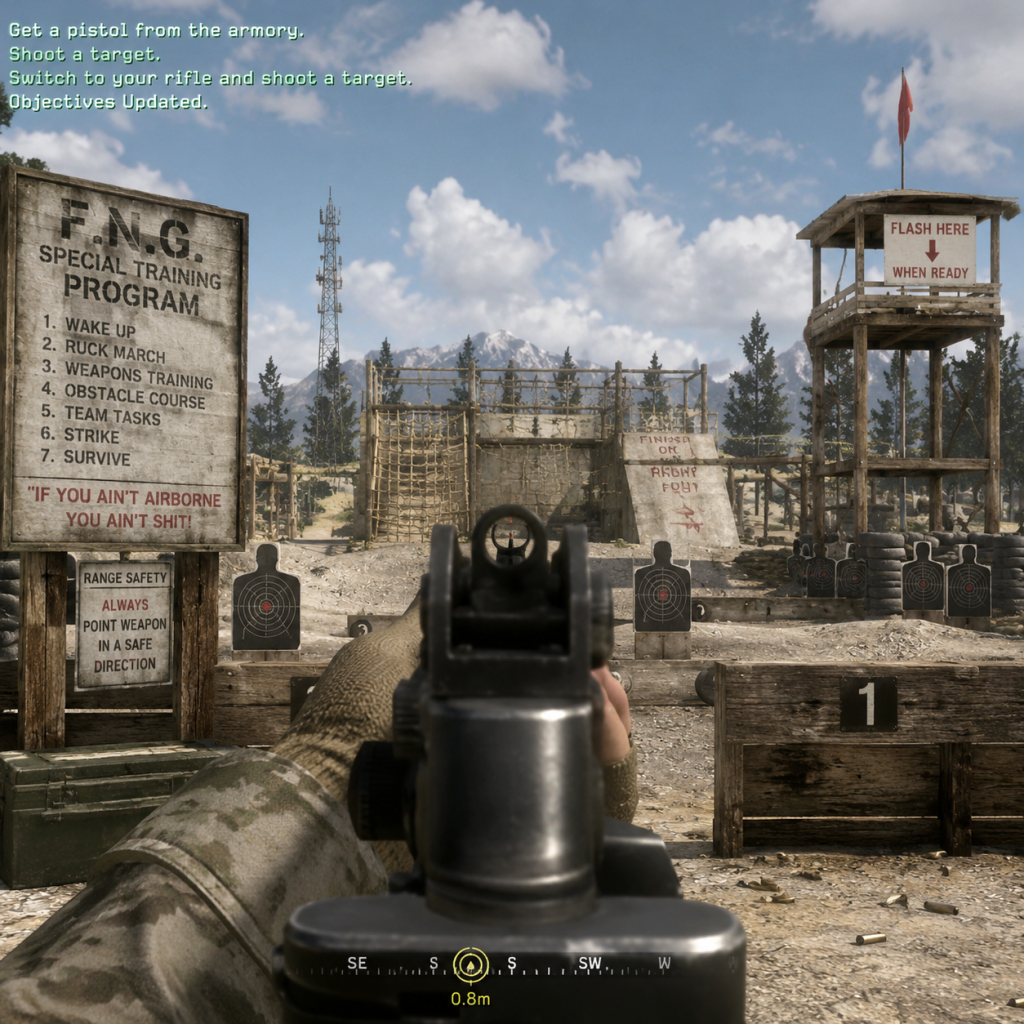
2. Start a new campaign – Play through the first mission (“F.N.G.” – the training level) to confirm controls and performance are normal.
3. Check for updates – On Xbox/PS3, the console may automatically download patches; on PC, Steam handles updates. Ensure you are on the latest official version.
4. Verify file integrity (PC only):
- In Steam, right‑click the game > Properties > Local Files > Verify Integrity of Game Files. Steam will replace any missing or corrupted files.
5. Test local multiplayer (console) or LAN mode (PC) if desired, to confirm network play works (official servers are down).
If any of these steps fail, refer to the common errors section above.
---
Account Requirements Summary
| Platform | Account Type | Online Play | Additional Notes |
|---|---|---|---|
| PC (Steam) | Steam account (free) | No official servers; LAN/3rd‑party only | CD key activation required at first launch. |
| Xbox | Xbox Live account (free) | No official servers; local split‑screen only | Gold not needed for offline play. |
| PlayStation 3 | PlayStation Network account (free) | No official servers; local split‑screen only | Disc owners do not need to be online to play campaign. |
Final Notes
- Game data size: ~6–8 GB on all platforms (slightly varies).
- Language support: The game supports English, French, German, Italian, Spanish, etc. – check store page for your region.
- Remastered Version: The 2017 Call of Duty: Modern Warfare Remastered is a separate title (included with certain Infinite Warfare purchases or sold standalone). It has modern graphics and active multiplayer (separate servers). This guide does not cover that version.
- Legal purchases only: The methods described above are the only legitimate ways to obtain and install the game. Pirated copies are not supported and may contain malware.
Enjoy the legendary single‑player campaign of Call of Duty 4: Modern Warfare!
Game Introduction
Game Introduction: Call of Duty 4: Modern Warfare
Genre and Developer/Publisher
- Genre: First-Person Shooter (FPS), Tactical Military Shooter
- Developer: Infinity Ward
- Publisher: Activision
- Initial Release: November 5, 2007 (North America), November 7, 2007 (Europe)
- Platforms:
- Remaster: Call of Duty: Modern Warfare Remastered (2016) – bundled with special editions of Call of Duty: Infinite Warfare and later sold separately.
- Locations: Middle East (desert cities, urban warfare), Eastern Europe (Pripyat, Ukraine), Russia (missile silos, cargo ship in the Bering Sea), and a fictional UK training facility.
- Time Period: Early 21st century, contemporary military technology.
Release Timeline and Platforms
- PlayStation 3
- Xbox 360
- Microsoft Windows
- Mac OS X (port by Aspyr, released later)
Story Overview
Set in the near‑future (originally 2011–2012), the campaign follows two intertwined narratives:
1. SAS (British Special Air Service): Task Force 141, led by Captain Price, operates against the Russian Ultranationalist leader Imran Zakhaev. Key missions include rescuing a VIP from a cargo ship, infiltrating a nuclear reactor, and preventing a missile launch.
2. USMC (United States Marine Corps): A squad under Sergeant Paul Jackson fights in the Middle East against a coup in the fictional country of Al-Asad. The campaign features one of gaming’s most shocking moments: the nuclear detonation that kills the player’s character, transitioning to a dying crawl through the helicopter wreckage.
The story explores themes of terrorism, nuclear deterrence, and the cost of modern warfare, culminating in a tense final sniper mission.
Setting
Main Characters
| Character | Role |
|---|---|
| Captain John Price | SAS commander, iconic cigar‑chewing leader |
| Sergeant “Soap” MacTavish | Player character in SAS missions, new recruit |
| Lieutenant “Gaz” Riley | SAS second‑in‑command, later revealed as a traitor in the original? (Actually Gaz is loyal, but betrayed by Shepherd in later games. In CoD4, Gaz is a loyal SAS operative.) |
| Sergeant Paul Jackson | USMC player character in Middle East missions (killed in nuke) |
| Imran Zakhaev | Main antagonist, Russian Ultranationalist leader |
| Al-Asad | Middle Eastern warlord, puppeted by Zakhaev |
Core Appeal
- Revolutionary Campaign: The first Call of Duty to leave WWII, focusing on a modern, gritty narrative with cinematic set pieces (e.g., the “All Ghillied Up” sniper level, “Death from Above” AC‑130 gunship).
- Innovative Multiplayer: Introduced the killstreak system (UAV, airstrike, helicopter), “Create‑a‑Class” loadout customization, perk system, and prestige mode – all now staples of the franchise.
- Accessible Yet Deep Gameplay: Easy to pick up for casual players, but the multiplayer offered competitive depth through map knowledge, weapon balance, and team tactics.
- FPS enthusiasts who appreciate a tight, scripted single‑player story.
- Competitive multiplayer fans (dominated online FPS landscape post‑Halo 2).
- Military and shooter history buffs intrigued by modern conflict.
- Players who enjoy customizing their loadouts and chasing prestige rewards.
- Campaign: 18 missions, roughly 6–8 hours on Normal difficulty.
- Arcade Mode (PC version only): Score‑based version of campaign with leaderboards.
- Standard Modes: Team Deathmatch, Free‑for‑All, Search & Destroy, Domination, Headquarters, Sabotage.
- Hardcore Variants: Reduced HUD and increased damage for most modes.
- Competitive Support: Dedicated servers on PC, party system on consoles, leaderboards, and clan tags.
- Max Players: 18 (9v9) on console; up to 32 on PC via dedicated servers (official limit was 18, but modded servers could go higher).
- Split‑Screen: 2‑player local multiplayer on consoles (PS3, Xbox 360).
- System Link: Supported on Xbox 360 and PC.
- Offline: Full campaign and local split‑screen playable without internet.
- Online: Requires console subscription (Xbox Live Gold, PlayStation Plus) on consoles; free on PC. As of 2025, original Xbox 360/PS3 servers are still operational (though player counts are low), with some community‑run servers on PC.
- Lobbies: Matchmaking and custom games are available.
- Map Packs:
- Game of the Year Edition (2008) – Included both map packs on disc for Xbox 360 and PC.
- No Major Expansions: Unlike later titles, CoD4 had no zombie mode or extensive DLC, focusing purely on multiplayer map additions.
- Pioneered the Modern FPS Formula: While Halo and Battlefield existed, CoD4 set the standard for corridor‑based, scripted “blockbuster” campaigns and addictive, fast‑paced multiplayer loops.
- Iconic Killstreak Mechanic: The reward system encouraged staying alive, transforming gameplay into a risk‑reward cycle.
- Perk System: Customization of perks (e.g., Stopping Power, Martyrdom, Last Stand) added deep tactical choices.
- Memorable Set Pieces: The nuclear explosion, the Chernobyl sniper mission, and the AC‑130 gunship level are often cited as defining moments in gaming.
- Cultural Impact: Spawned a decade‑long sub‑franchise (Modern Warfare series) and influenced countless other shooters.
Target Audience
Game Modes
#### Offline / Single‑Player
#### Online / Multiplayer
#### Local Multiplayer
Online / Offline Support
DLC / Expansion Overview
- Variety Map Pack (2007) – 4 maps: Creek, Chinatown, Killhouse, Broadcast.
- Map Pack 1 & 2 (2008) – additional 8 maps, some remakes from Call of Duty 2.
What Makes This Game Unique
Note: The original PC version’s online servers were retired by GameSpy, but community workarounds (e.g., via Dedicated Server tools) allow continued play. Console servers remain active but with sparse populations.*
Getting Started
Getting Started with Call of Duty 4: Modern Warfare
Welcome to Call of Duty 4: Modern Warfare, a landmark first-person shooter that blends cinematic storytelling with tight, tactical gunplay. This guide is tailored for absolute newcomers, covering the first hour, controls, UI, essential objectives, and day-one pitfalls. Let’s dive in.
Character Creation
Call of Duty 4 does not feature character creation. In the single-player campaign, you play as predetermined soldiers:
- Soap MacTavish (SAS, British accent)
- Paul Jackson (US Marine Corps)
- Private Martin (USMC, split missions)
Controls on All Platforms
Below are the default control schemes. You can customize these in the settings menu.
#### PC (Keyboard & Mouse)
| Action | Key |
|---|---|
| Move | W/A/S/D |
| Aim Down Sights (ADS) | Right Mouse Button |
| Fire | Left Mouse Button |
| Reload | R |
| Melee | V |
| Sprint | Shift (hold) |
| Crouch | Ctrl |
| Prone | Z |
| Use (open door, mount) | F |
| Swap Weapons | Scroll Wheel / 1-3 |
| Throw Frag Grenade | G |
| Throw Flashbang | 4 (after selecting) |
| Night Vision Goggles | N |
| Scoreboard | Tab |
| Pause Menu | Esc |
#### Xbox (360 / One / Series X|S)
All modern Xbox consoles play the original via backward compatibility. Controls are identical.
| Action | Button |
|---|---|
| Move | Left Stick |
| Look / Aim | Right Stick |
| ADS | Left Trigger (LT) |
| Fire | Right Trigger (RT) |
| Reload | X |
| Melee | B (or Right Stick click) |
| Sprint | Left Stick click |
| Crouch | B (press to toggle) |
| Prone | Hold B |
| Use | A |
| Swap Weapons | Y |
| Throw Frag Grenade | LB |
| Throw Tactical | RB |
| Night Vision | D-Pad Right |
| Scoreboard | Back/View button |
PS4/PS5 via backward compatibility on PS4 or streaming on PS5. PS3 native controls similar.
| Action | Button |
|---|---|
| Move | Left Stick |
| Look / Aim | Right Stick |
| ADS | L2 |
| Fire | R2 |
| Reload | Square |
| Melee | Circle (or Right Stick click) |
| Sprint | Left Stick click |
| Crouch | Circle (toggle) |
| Prone | Hold Circle |
| Use | Cross |
| Swap Weapons | Triangle |
| Throw Frag Grenade | L1 |
| Throw Tactical | R1 |
| Night Vision | D-Pad Right |
| Scoreboard | Select/Touchpad |
UI Overview (Heads-Up Display)
The HUD is minimal and functional:
- Bottom-right: Current weapon + ammo (magazine / total spare). Red when <10 rounds.
- Bottom-left: Frag grenade count (2 maximum) and flashbangs.
- Center-left: Health indicators – there is no health bar. Screen turns red, you hear heavy breathing. Take cover to regenerate after a few seconds.
- Top-center: Objective text (e.g., “Get to the roof”) and mission timer.
- Top-left: Killstreak reward indicator (grenade icon for frag x3, UAV, airstrike, helicopter).
- Top-right: Compass/radar. Shows direction of sights, enemy fire (red dots when UAV is active) and objective markers.
- Crosshair: Default + shape. Turns red when aiming at an enemy. Size increases when firing (bloom).
- Kill feed: Top-right corner, shows recent kills (enemy red, teammate blue).
- Select Campaign from the main menu.
- Choose Regular difficulty for your first run (not too hard, not too easy).
- Press Start to skip cutscenes if desired, but they set up the story.
- Objectives: Follow Sergeant Price’s instructions.
- Objective: Infiltrate the ship and retrieve navigation data.
- Walkthrough:
- Ending: The ship sinks; you escape via helo. Mission over.
- Learn to Aim Down Sights: Hip-fire is wildly inaccurate beyond 10 meters. Always ADS for medium-to-long-range engagements.
- Use Cover: Peek around corners (strafe with A/D or left stick). Standing in the open gets you killed.
- Listen to Squad Commands: Captain Price and other NPCs call out enemy positions (“Enemy spotted!”, “Sniper!”). Heed them.
- Conserve Ammo: You carry only two weapons. Pick up enemy rifles (AK-47, G36C) when low. SMGs are for close quarters.
- Use Grenades Wisely: Toss a frag into rooms before entering. Flashbangs can blind enemies (and you), so turn away.
- Complete the training mission to learn basic controls.
- Adjust your sensitivity before starting the campaign (Options > Controls > Sensitivity). Start at 4 (console) or 8 (PC).
- Experiment with different weapons on the range. The M4A1 (full-auto) is forgiving.
- Save often – the game autosaves at checkpoints, but if you die, you restart from last checkpoint.
- Check your minimap (top-right) for objective markers (yellow diamonds).
- Rush headfirst into enemy fire. The AI is aggressive; use tactical pauses.
- Reload after firing only 2 bullets. Always reload when the magazine runs dry and you have cover.
- Stand still for long periods – you become an easy target.
- Ignore the “grenade” indicator. It flashes white and you hear a ticking sound. Run away immediately.
- Skip the tutorial thinking you know FPS games – the specific mechanics (lean, prone, night vision) differ.
- Ammo: Grab ammo from fallen enemies by walking over their weapons (it’s automatic for the same weapon type as yours). Swap guns when ammo is low.
- Grenades: Replenish at weapon crates (blue boxes on the ground). Frags are more common than flashbangs.
- Health: Regenerates after a few seconds out of combat. There are no health packs.
- [ ] Install the game (PC: use Steam or physical disc; Xbox/PS: insert disc or download digital, ensure patches are applied).
- [ ] Launch the game and check for updates (especially for multiplayer, to get latest balance).
- [ ] Go to Options → Video and adjust brightness (set to default or slightly higher for dark areas).
- [ ] Options → Audio: Set dialogue volume to 100%, effects 80%, music 70%.
- [ ] Options → Controls: Configure key bindings (PC) or check stick layout (console). Toggle crouch vs. hold – many prefer hold for prone.
- [ ] Options → Sensitivity: Set per above and test in training.
- [ ] Complete the F.N.G. training mission. Replay it until you can finish in under 60 seconds (optional but good practice).
- [ ] Play the first two campaign missions (“Crew Expendable” + “Blackout”). Focus on learning movement and gunplay.
- [ ] Spend 10 minutes in a private match (Multiplayer → Private Match) against bots to practice aiming, grenade throws, and movement without stress.
- [ ] If online play is on your radar, unlock Custom Class by reaching level 4. Use the stock M16 class – it’s a three-round burst beast.
- [ ] Finally, review your settings again: adjust auto-aim strength (consoles only) – set to low if you want to improve your aim naturally.
First Hour Walkthrough (Campaign)
Step 1: Boot and Main Menu
Step 2: The Training Mission – “F.N.G.” (Fawzi’s Not Good)
You play as Soap MacTavish in a SAS training course. Duration ~10 minutes.
1. Run the obstacle course: Sprint (Shift / Left Stick click) through tires, climb walls (press Use at ladder), crawl under barbed wire (hold Ctrl or press Circle to crouch, then move).
2. Shooting range: Pick up M4A1 (on table) and follow prompts. Shoot targets – use ADS (RMB or LT) for accuracy. Reload (R or X) when empty.
3. Breach room: The instructor fires a flashbang; you must move quickly into the room and shoot the pop-up targets. Stay calm, aim center mass.
4. Completion: Receive your score (points, time, accuracy). Not important – just finish.
Step 3: First Real Mission – “Crew Expendable” (Cargo Ship)
You are on a ship in the Bering Sea. Duration ~15 minutes.
- Follow Captain Price and the team. He will lead you.
- Use your night vision goggles (N or D-Pad Right) when inside dark areas.
- Combat: Enemies appear. Prioritize threats: those with RPGs (you’ll hear “RPG!”) or snipers. Use cover: walls, crates.
- Grenades: When you see a red indicator and hear a metallic clink, sprint away or press the “Use” key to throw it back (PC: F, Xbox: A, PS: Cross).
- Breach through doors: press Use near a door, then follow the clearing sequence.
- Final room: destroy two server racks with frag grenades (throw them near the servers).
Essential Early Objectives
What to Do First – and What to Avoid
DO:
DO NOT:
Early Resource Priorities (Campaign)
There’s no economy or inventory management in single-player. Your resources are:
In Multiplayer, early resources are unlock tokens. More on that later, but as a beginner, stick to the pre-made classes (M16, M4A1) until you unlock custom classes at level 4.
Common Beginner Mistakes
1. Not Using Aim Down Sights: Spraying from the hip wastes bullets and misses.
2. Sprinting Everywhere: Sprinting drains stamina (rechargeable) and lowers your weapon. Use it only to cross open areas, not when entering a room.
3. Over-reliance on Radar: The minimap only shows red dots when a teammate pings or a UAV is active. Don’t stare at it; watch your surroundings.
4. Tunnel Vision: Focus on one enemy and ignore flanking enemies. Sweep your view often.
5. Wrong Difficulty: Don’t jump to “Veteran” – enemies have aimbot, grenades are spammy, and you die in one shot. Stay on Regular.
6. Ignoring Equipment: Flashbangs and frags are plentiful early on. Use them.
Day-One Checklist
Stick to these steps, and you’ll be ready to enjoy one of the greatest shooters ever made. Good luck, soldier.
Core Gameplay
Core Gameplay: Call of Duty 4: Modern Warfare
Main Gameplay Loop
The core loop of Call of Duty 4: Modern Warfare is a fast-paced, objective-driven FPS experience. In the single-player campaign, players progress through linear, scripted missions by moving through environments, engaging enemy combatants, and completing mission-specific objectives (e.g., reach a checkpoint, secure a room, destroy an objective). The loop is: Receive objective → Navigate to objective area → Engage enemies using firearms and grenades → Survive enemy encounters → Advance to next checkpoint → New objective. In multiplayer, the loop is: Deploy with a custom class → Fight for map control, complete game mode objectives (elimination, capture, bomb plant) → Earn killstreak rewards → Level up and unlock new equipment → Adjust class for next match.
Combat & Interaction Systems
- Shooting Mechanics: All weapons feature realistic recoil patterns and bullet spread. Aim down sights (ADS) reduces spread significantly. Headshots deal bonus damage (typically 1.4x). Use tap-firing at long range to maintain accuracy.
- Health & Regeneration: Health automatically regenerates after a short delay if not hit again. Use cover to trigger regeneration. No health pickups exist.
- Grenades: Fragmentation grenades have a 4-second fuse (can be cooked). Stun grenades and flashbangs temporarily disable enemies. Throw them into room with enemy indicators (callouts).
- Killstreaks (Multiplayer only): Unlocked at level 4+ by achieving consecutive kills without dying. Available streaks: UAV (3 kills – reveals enemies on minimap), Air Strike (5 kills – targeted bombing run), Attack Helicopter (7 kills – patrolling helicopter that engages enemies).
- Cover and Movement: No dedicated cover system; use geometry (walls, crates) and stance (prone, crouch, stand). Sprinting drains stamina quickly, use short bursts. Jumping and dropping prone mid-gunfight ("dropshotting") is a common tactic.
- Interaction: Press a button to pick up weapons, activate explosives (e.g., C4 on doors), or mount stationary gun turrets.
- Single-Player Progression: Follows a linear story with 18 missions (chapters). Completing missions unlocks the next. Difficulty settings (Recruit, Regular, Veteran) affect enemy HP/damage/aggression. No skill trees – progression is purely narrative.
- Multiplayer Rank Progression: Earn XP from kills, assists, objective play (captures, bomb plants, defends), and challenges. Rank 1 to Rank 55 ("Creed"). Each level unlocks new weapons, attachments, perks, and gear. After Rank 55, players can Prestige (reset rank to 1 but retain some stats), gaining Prestige icons (up to 10 Prestiges). Prestige unlocks optional cosmetic rewards.
- Campaign Quests: Each mission is a linear sequence with objectives (e.g., "Secure the area," "Disable the radar"). There are no side quests. Some missions have branching paths (e.g., choose which house to breach) but all lead to the same outcome.
- Multiplayer Missions: Game modes act as repeating missions: Team Deathmatch (reach score limit), Search and Destroy (attack/defend bomb sites), Domination (capture and hold flags), Sabotage (plant bomb at enemy base), Headquarters (capture and defend radio). No persistent campaign; each match is self-contained.
- Single-Player: The character is defined by the mission; no customization. Soap MacTavish and Paul Jackson are the main players; their growth is scripted (Soap becomes captain later).
- Multiplayer Create-a-Class: Players build a custom class from:
- Growth occurs by leveling up to unlock more primaries, secondaries, attachments, and perk slots. Player can also unlock "Killstreak Rewards" at specific levels.
- Single-Player Endgame: After completing the campaign, achievements/trophies remain: complete on Veteran, collect all Intel, earn challenges (e.g., kill 200 enemies with helicopter). No New Game+. The campaign can be replayed at any mission on any difficulty.
- Multiplayer Endgame:
Progression System
Exploration
Exploration is minimal in both modes. In campaign, linear corridors allow strict paths, but hidden Intel Laptops (30 total) encourage off-the-beaten-path searches. Finding all Intel unlocks the "The Bog" ending and an achievement/trophy. In multiplayer, exploration means learning map layouts – chokepoints, sniper lanes, flank routes, and headglitch spots. No secret areas.
Quests & Missions
Economy
There is no in-game currency or shop in Call of Duty 4. In single-player, ammo is abundant (scavenged from weapons). In multiplayer, all equipment is unlocked through leveling, not purchased. No microtransactions exist. The only "economy" is the XP system – earning XP to progress. No weapon or attachment trading.
Character & Build Growth
- Primary Weapon: Assault rifles, SMGs, LMGs, snipers, shotguns
- Secondary Weapon: Pistols, machine pistols, launchers
- Weapon Attachments: Red Dot Sight, Silencer (unlocked at lvl 22 for M4 Carbine), etc.
- Perks (3 tiers):
- T1: Frag x3, RPG-7, Special Grenades x2, C4, Claymore (unlocked later)
- T2: Stopping Power (+40% bullet damage), Juggernaut (+25% HP), UAV Jammer (stealth), etc.
- T3: Deep Impact (shoot through walls), Steady Aim (hip fire accuracy), Extreme Conditioning (longer sprint), Dead Silence (quieter movement)
- Gear: Frag x3, Special Grenades, or C4/Claymore.
Endgame Structure
- Challenge Completion: Weapon challenges (e.g., 1000 kills with M16), rank challenges, and hidden prestige challenges.
- Custom Matches & Mods (PC): Host private matches with custom rules, use console commands for modded servers. PC version has dedicated server browser – players can find mods like “Gun Game,” “One in the Chamber,” or objective variants.
- Competitive Play: Ranked competitive mode is not officially present, but third-party leagues (e.g., MLG, ESL) use custom game settings (bare-bones classes, specific map rotation).
- No Raids/Dungeons: Endgame progression is purely through multiplayer ranks and challenges.
---
Core Gameplay by Progression Tier
Early Game (Missions 1–6, Multiplayer Ranks 1–10)
Campaign: Player learns basic movement, shooting, and cover. First mission: "F.N.G." (training). Early missions like "Crew Expendable" and "The Coup" teach naval combat and stealth. Weapons are limited (M9 pistol, M16A4, G36C). Enemies are easy. Key advice: Use single fire at range, always reload after firefights, and follow squad AI (their callouts warn of enemies). Example: In "Charlie Don't Surf," use the M249 SAW at the helicopter wreck to suppress enemies while advancing.
Multiplayer: New players start with default class (M16A4 + 3 frags). Unlock items at level 4: UAV Killstreak. At level 5: unlock Red Dot Sight for M16. Level 8: unlock Stopping Power perk. Tier focus: Learn map layouts and basic gunfights. Stick with teammates. Use the M16A4 (3-round burst) – it's powerful. Avoid hardscoping; practice snapping to enemies. Example: On "Crash," stay near the central helo-pad for open sightlines, but watch for flankers from the alley.
Mid Game (Missions 7–12, Multiplayer Ranks 11–30)
Campaign: Introduces night vision levels ("Death from Above" – AC-130 gunship), stealth missions ("All Ghillied Up"), and heavy urban combat ("Shock and Awe"). Weapons like the M40A3 sniper, AK-47, and RPD LMG become available. Key advice: In "One Shot, One Kill," use the Ghillie suit to stay prone in grass – enemies will step over you. In urban areas, use flashbangs before breaching.
Multiplayer: Rank 11 unlocks Juggernaut and Deep Impact; Rank 14: M4 Carbine (versatile assault rifle); Rank 20: silencer for M4; Rank 22: UAV Jammer (essential for stealth). Tier focus: Develop a custom class. Popular mid-game builds: M4 + Silencer + Stopping Power + Deep Impact for wall banging. Start learning map-specific sniper lanes (e.g., the "long hall" on Broadcast). Example: On "Crossfire," set up a class with P90 SMG + Steady Aim for hip-firing in CQB buildings.
Late Game (Missions 13–18, Multiplayer Ranks 31–55)
Campaign: Final missions include "Ultimatum" (helicopter assault), "No Fighting in the War Room" (infiltrate bunker), and "Game Over" (final standoff). Expect intense firefights, timed objectives, and waves of enemies. Key advice: Save flashbangs for the final room in "Game Over"; use the G36C for its good iron sights. On Veteran, camp corners and peek slowly – the game punishes recklessness.
Multiplayer: Unlock end-tier weapons: MP5 (SMG) at rank 37, Barrett .50 Cal sniper at rank 42, M60E4 LMG at rank 49, and the powerful RPD LMG at rank 55. Perks like Steel Hands (faster reload) unlock. Tier focus: Master killstreak timing. Chain UAV → Air Strike → Helicopter for area denial. Use advanced tactics: dropshotting, jumping around corners, pre-firing common headglitches. Example: On "District," use the Barrett to cover the main street from the second-floor window, then rotate to the balcony after a kill to avoid being flanked.
Endgame (Veteran Campaign Complete, Prestige 1–10, Full Challenges)
Campaign Endgame: Replay missions on Veteran for achievements/trophies. Use checkpoints frequently; save often if on PC. The hardest missions are "One Shot, One Kill" (sniper vs. helicopters) and "No Fighting in the War Room" (timed sprint through bunker). Blind firing (shooting around corners without aiming) is safer. Collect all Intel – use a guide for the 30 laptops (e.g., the one behind the truck in "The Bog").
Multiplayer Endgame: After Prestige 1, you start over with permanent unlocks from prestige tokens (you can keep one weapon/perk permanently). Best choices: M16A4, Stopping Power, UAV Jammer. Grind from Rank 1 to 55 again. To reach Prestige 10, focus on objective-based XP (capture flags in Domination gives 150 XP each). Complete all weapon challenges (e.g., 1000 kills with each primary) for XP boosts. Example: To maximize XP per match, use a class with UAV Jammer and C4; camp near flags on Domination, toss C4 onto flags when enemies capture – grants kill + defensive XP.
Final Note: Call of Duty 4 rewards map knowledge, aim, and situational awareness more than raw grinding. The progression system (especially Prestige) exists purely for bragging rights; concentrate on improving gunskill and teamwork to dominate the endgame.
Game Tips
Game Tips for Call of Duty 4: Modern Warfare
This comprehensive guide covers beginner, intermediate, and advanced tips for both the single-player campaign and multiplayer. Tips are grouped by category including Combat, Exploration (Intel & Secrets), Resources & Ammo, Loadouts & Builds, Killstreaks & Economy, Movement & Positioning, and General Strategy.
Combat Tips (Beginner)
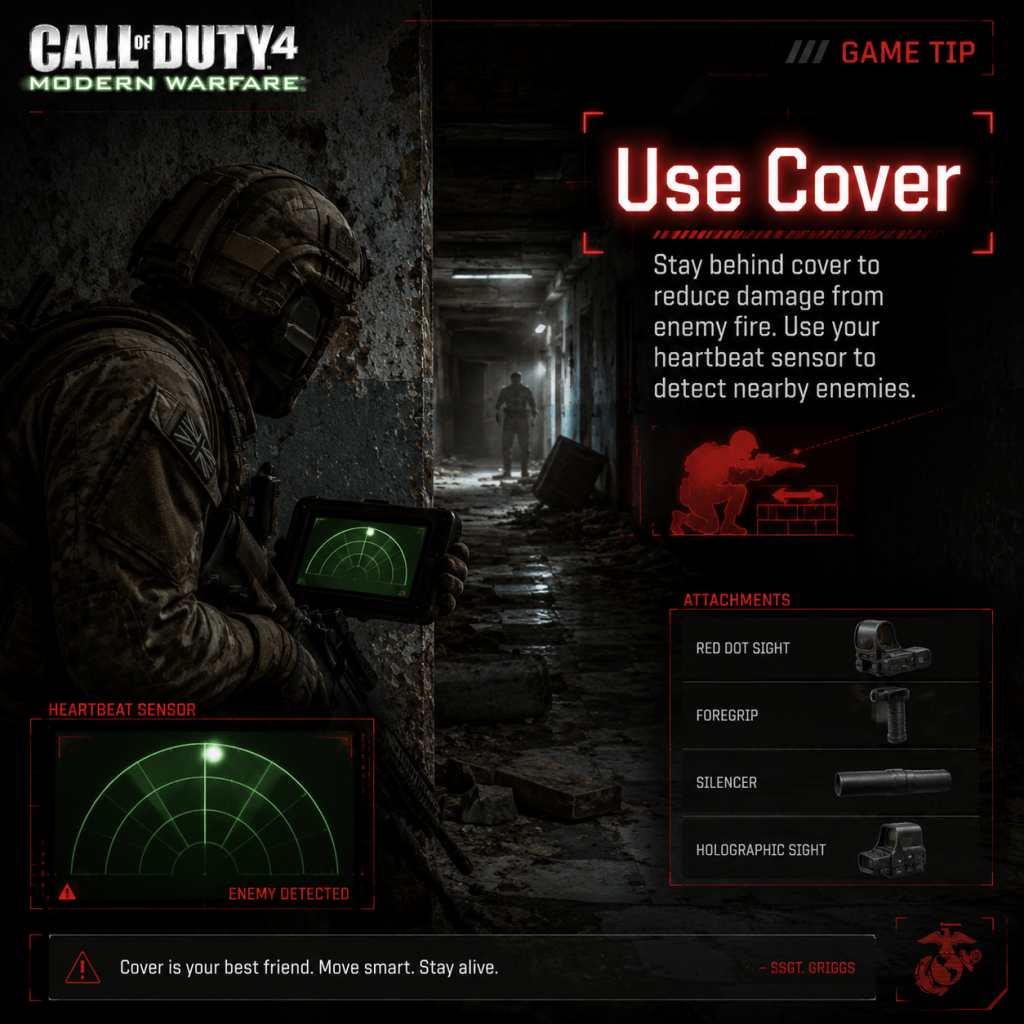
1. Use Cover and Peek Corners – Always stay behind solid objects like walls, crates, or vehicles. Avoid standing in the open. Pre-aim around corners by slowly moving while aiming down sights.
- Why: Enemy AI is lethal even on Regular difficulty. Peeking reduces your exposure time and gives you the first shot advantage.
2. Burst Fire at Range – For medium to long distances, tap the trigger instead of holding down full auto. The M16 and M4 are burst-fire weapons; use short, controlled bursts with full-auto guns too.
- Why: Recoil in COD4 is significant. Burst fire keeps shots on target and conserves ammo.
3. Throw Grenades Before Entering Rooms – In campaign, cook fragmentation grenades (hold the button for 2–3 seconds) or just throw them through doorways. Listen for enemy callouts.
- Why: Clears enemies hiding behind cover (like the fish market in "Charlie Don't Surf") and prevents ambushes.
4. Aim for Center Mass – Not the head. In most cases, 2–3 body shots kill. Headshots are not essential and require precise aim.
- When: Use this against all enemies except when sniping (headshots are instant kill).
Combat Tips (Intermediate)
5. Master the M16 – It fires a 3-round burst. One burst to the chest kills most enemies. Practice leading your shots on moving targets.
- How: Equip the M16 with a Red Dot Sight for clarity. Keep the crosshair at chest level.
6. Learn Recoil Patterns – Each weapon has a predictable recoil. The AK-47 kicks up and to the right; pull down and left while firing. The MP5 kicks up moderately.
- Why: Compensating reduces spread and increases your effective range.
7. Use Flashbangs Effectively – In campaign, flash before breaching rooms (especially in "The Bog" and "Safehouse"). In multiplayer, flash known camping spots.
- Timing: Throw through windows or doorways, then enter while enemies are blinded.
8. Switch Weapons When Reloading Is Too Slow – In CQC, if you run out of ammo in your primary, swap to your secondary (pistol or SMG) instead of reloading.
- Example: After emptying an AK-47 mag fighting three enemies, quickly switch to the M9 pistol.
Combat Tips (Advanced)
9. Pre-fire Common Spots – In multiplayer, shoot before you see an enemy at known headglitch positions (e.g., the blue car on Crash, the back ramp on Vacant).
- Why: You gain a split-second advantage because bullets are already traveling when the enemy appears.
10. Drop Shotting – While shooting, quickly press prone (crouch to prone) to make yourself a smaller target. This throws off your opponent's aim.
- When: Use in medium-range gunfights when you have good cover nearby. Overuse makes you predictable.
11. Bunny Hopping – Not as powerful as later COD titles, but jumping around corners can cause enemies to miss. Combine with a quick ADS after landing.
- How: Sprint, jump, then aim and fire while in the air. Follow up with strafing.
12. Corner Peeking (Quick Lean) – Use the left and right strafe keys to quickly peek and fire. This minimizes exposure.
- Advanced: Bind a lean key if available (some mods). Otherwise, quickly move left/right while ADS.
Exploration: Intel & Secrets
13. Find All 30 Intel Laptops – Scattered across the campaign. Collecting them unlocks cheats (like "No Clip" or "Ragdoll Forever") and the final bonus mission "Mile High Club".
- Locations: Intel is often on desks, behind boxes, or in hidden alcoves. Use a guide for exact spots.
14. Hidden Achievements/Trophies – Examples: "Earn a Winged Dagger" (kill an enemy with a knife throw), "Look Out Below!" (kill an enemy with an airborne RPG).
- Tip: Try unconventional kills for easter eggs.
15. Campaign Secrets – In "All Ghillied Up", you can completely avoid detection by crawling slowly and not shooting. In "Death from Above", use the AC-130 to kill all enemies before they reach the friendlies for an achievement.
Resources & Ammo
16. Switch Weapons Often – Pick up enemy guns when your ammo runs low. Most enemies drop AK-47s, G3s, or MP5s – all viable. Ammo is abundant but running out mid-fight is dangerous.
- Strategy: Always carry a weapon that uses common ammo (7.62mm or 5.56mm) so you can resupply from enemies.
17. Sprint Only When Necessary – Stamina drains quickly. In campaign, sprint only in open areas under fire or when crossing dangerous gaps. Conserve sprint for emergencies.
18. Health Regeneration – After taking damage, wait about 5 seconds without taking further damage to fully regenerate. Use cover to heal. Don't peek again too soon.
19. Don't Ignore the Throwing Knife – In multiplayer, it's a one-hit kill. Use it when you are out of ammo or for silent eliminations.
Loadouts & Builds (Multiplayer)
Standard / All-Rounder Class:
- Primary: M16 + Red Dot Sight
- Secondary: M9 (any attachment)
- Perk 1: Stopping Power
- Perk 2: Deep Impact (or UAV Jammer for stealth)
- Perk 3: Steady Aim (or Extreme Conditioning)
- Why: The M16 is powerful; Stopping Power ensures one-burst kills. Deep Impact lets you shoot through thin cover.
- Primary: R700 or M40A3 + ACOG Scope (or standard scope)
- Secondary: M9 or any pistol
- Perk 1: Stopping Power (M40A3 one-shots) or Iron Lungs (holds breath longer)
- Perk 2: UAV Jammer (stay off radar)
- Perk 3: Dead Silence (quiet footsteps)
- When: Use on maps like Bloc, Crossfire, or Creek.
- Primary: MP5 + Silencer
- Secondary: M9 + Silencer (or USP)
- Perk 1: UAV Jammer
- Perk 2: Dead Silence
- Perk 3: Extreme Conditioning (sprint longer)
- Why: You are invisible on radar and quiet. Use flanks and sneak up on enemies.
- Primary: P90 + Silencer (or Red Dot)
- Secondary: Shotgun (for CQC)
- Perk 1: Frag x3 (double frag grenades)
- Perk 2: Sonic Boom (increase explosive damage)
- Perk 3: Martyrdom (drop a grenade on death)
- When: Domination or Headquarters to hold objectives.
- Not using the flashlight in dark campaign missions (e.g., "The Bog" night mission). Enemies spot you easily without it.
- Standing still while shooting – this makes you an easy target.
- Ignoring killstreaks – they often win rounds. Use them as soon as you get them (unless saving for a specific moment).
- Reloading after every kill – often leads to death. Only reload when safe or when you know no enemies are near.
Sniper Class:
Stealth / Flanker Class:
Support / Area Denial Class:
Killstreaks & Economy (Multiplayer)
20. Killstreak Rewards – 3 kills: UAV (reveals enemies on radar); 5 kills: Airstrike (mark a location for a bombing run); 7 kills: Helicopter (auto-kills enemies).
- Tip: Use UAV before pushing into a room. Use Airstrike on capture points or chokepoints. Call helicopter when the enemy team is spawned in a defensible position.
21. Counter UAV – Equip a class with UAV Jammer when you suspect the enemy has a UAV active. Stay low and avoid open areas.
22. Don't Waste Killstreaks – Don't call an airstrike if enemies are far away or in cover. Wait for a cluster of enemies at B flag or behind a headglitch.
23. Save Helicopter for Key Moments – Helicopter can turn the tide but is easy to shoot down. Deploy it when enemy team is low on ammo or distracted.
Movement & Positioning (Advanced)
24. Strafing in CQC – In close-quarters, move side to side quickly while firing to make yourself harder to hit. Avoid standing still.
- How: Aim at chest level then strafe left-right in short bursts.
25. Head Glitching – Use low cover (e.g., a sandbag or low wall) so only your head is visible. Peek over the cover, fire, then duck back.
- Why: Only your head is exposed; enemies have to hit a small target. Extremely effective on maps like Backlot.
26. Map Awareness – Know common spawn points on each map. On Crash, enemies spawn near the crashed helicopter or alley. On Crossfire, spawns flip when you push too far.
- Strategy: Watch the minimap constantly. If you see teammates die in one area, expect enemies to come from there.
27. Sound Whoring – Use a headset. Footsteps, gunfire, and reloads are audible. You can pre-aim doorways based on sound cues.
28. Flanking – In both campaign and multiplayer, avoid main corridors. Use alternative routes (like the sewer in Crash or the right flank on Vacant).
General & Meta Tips
29. Prestige System – Prestiging resets all unlocks but gives you a new emblem and challenges. Only do it if you want extra bragging rights or plan to play a lot. Otherwise, stay at level 55 to keep all weapons.
30. Custom Classes – Unlock by gaining XP. Make classes for different maps: one with a sniper for long-range maps, one with SMG for close-quarters, one all-rounder.
31. Learn the Maps – Play private matches to memorize spawns, headglitch spots, and lines of sight. Knowing where to aim saves precious seconds.
32. Avoid Stand Still in Gunfights – Always be moving (strafe, jump, drop shot) to prevent enemy from landing easy shots.
33. Use Custom Crosshair – Some players prefer a larger reticle. Adjust in settings if needed.
Beginner Mistakes to Avoid
By applying these tips, you'll improve your survival rate, kill-death ratio, and overall effectiveness in both campaign and multiplayer. Practice consistently, and good luck!
Game Settings
Game Settings Overview
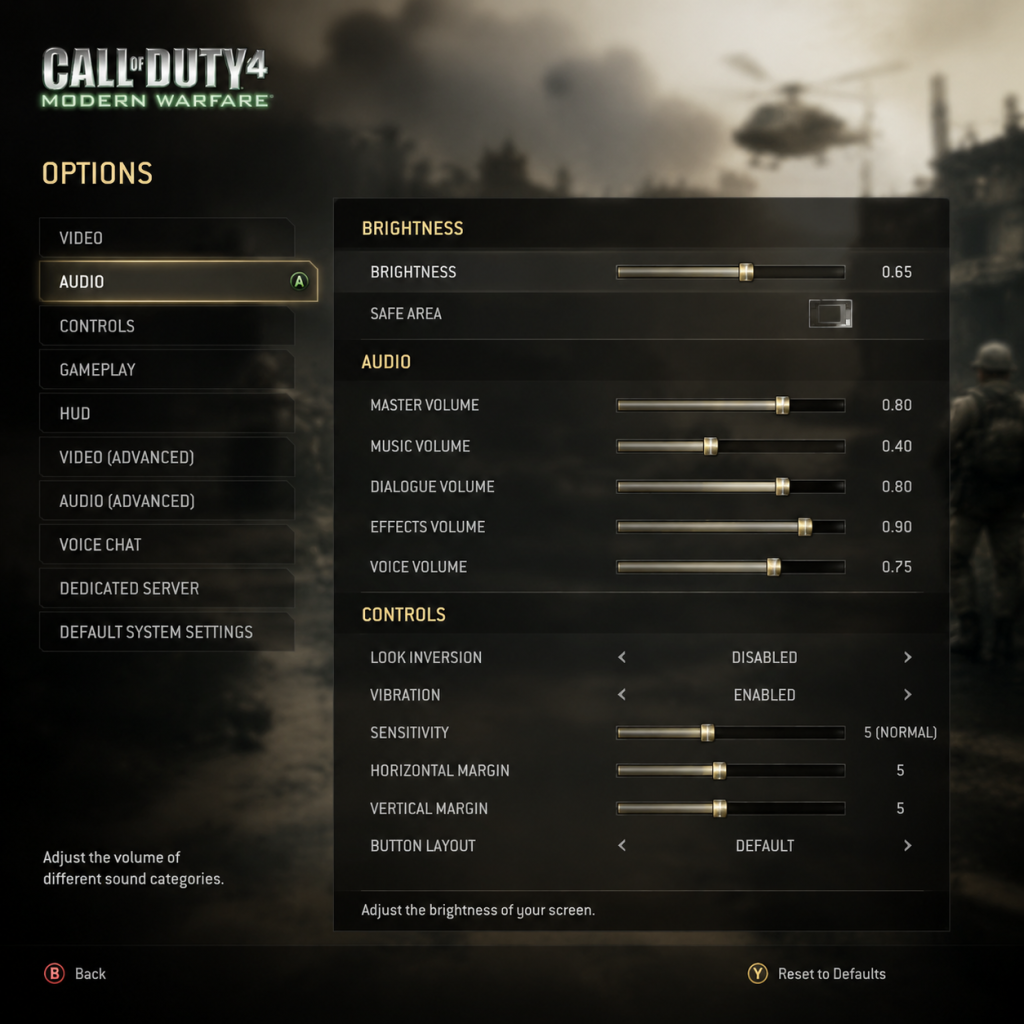
Call of Duty 4: Modern Warfare (2007) offers settings menus that vary slightly between PC, Xbox 360, and PlayStation 3. Most settings are accessible from the Main Menu → Options (or pause menu in-game). On PC, you can also edit advanced configuration files (e.g., `config_mp.cfg` for multiplayer). This guide covers every major category, recommends optimal configurations for different hardware, and highlights settings that are easy to misconfigure.
---
1. Graphics Settings
Available Options
- Video Mode: Only adjustable on PC. Options: Resolution (e.g., 1920×1080), Refresh Rate (60 Hz, 120 Hz), and Display Mode (Fullscreen, Windowed, Borderless).
- Aspect Ratio: Auto-detected but may need manual selection (e.g., 16:9, 4:3).
- Texture Quality: Low, Medium, High.
- Anisotropic Filtering: Off, 2x, 4x, 8x, 16x.
- Anti-Aliasing: None, 2x, 4x.
- Shadow Detail: Low or High.
- Shadow Quality: Low or High (controls shadow resolution).
- Specular Map: On/Off.
- Dynamic Lights: On/Off (affects lighting on moving objects).
- Depth of Field: On/Off (blurs background when aiming down sights).
- Glow: On/Off (bloom effect).
- Motion Blur: On/Off.
- Texture Filtering: (PC) may be combined with anisotropic.
Performance vs. Quality Recommendations
| Hardware Level | Target Resolution | Key Settings | Notes |
|---|---|---|---|
| Low-End (e.g., Intel HD Graphics, older APUs) | 1366×768 or 1280×720 | Texture: Low, Shadows: Low, AA: Off, Depth of Field: Off, Motion Blur: Off, Dynamic Lights: Off | Expect 30–60 FPS. Reduce resolution further if needed. |
| Mid-Range (e.g., GTX 660, RX 560, modern iGPUs) | 1920×1080 | Texture: High, Shadows: High, AA: 2x, Depth of Field: Off, Motion Blur: Off, Anisotropic: 4x | Target 60+ FPS. Leave dynamic lights on for visual clarity. |
| High-End (e.g., RTX 2060+, RX 5700+) | 2560×1440 or 4K | Max everything: Texture High, Shadows High, AA: 4x, Anisotropic: 16x, all effects ON | 100+ FPS possible. For competitive multiplayer, disable Depth of Field and Motion Blur to reduce visual obstruction. |
Easy-to-Misconfigure Settings
- Texture Quality: Setting to High on GPUs with less than 1 GB VRAM may cause stuttering or crashes. If you notice slowdowns, drop to Medium.
- Anti-Aliasing: 4x is heavy; 2x provides a good balance. On low-end systems, disable it entirely.
- Shadow Detail: High shadows impact FPS significantly. On PC, shadows also affect visibility in multiplayer – some players prefer Low for better spotting of enemies.
- Depth of Field & Motion Blur: These are personal preference, but in competitive multiplayer, turning them OFF improves visibility and reduces motion sickness.
- Refresh Rate: On PC, ensure the refresh rate matches your monitor (e.g., 144 Hz). If the game limits to 60 Hz, you may need to force it via config file (`seta r_displayRefresh "144"`).
- Borderless Windowed: Offers faster alt-tabbing but may introduce input lag. Use Fullscreen for best performance.
- Master Volume: 0–100.
- SFX Volume: Sound effects (gunshots, footsteps, explosions).
- Music Volume: Background music during campaign and menus.
- Dialogue Volume: Character speech.
- Voice Chat Volume: Incoming voice from other players (multiplayer).
- Sound Output: Stereo, 5.1, 7.1 (PC).
- Subtitles: On/Off (campaign only).
- Competitive Multiplayer: SFX 100%, Music 0%, Dialogue 0% (or low), Voice Chat adjustable. Use a headset with Stereo output for best directional audio.
- Single Player: Keep all around 80–100% with subtitles ON for story clarity.
- Sound Output: If you select 5.1 or 7.1 but don’t have a multi-channel speaker system, audio may sound hollow or missing channels. Stick to Stereo unless you have proper surround hardware.
- Voice Chat Volume: Often left too high, causing distraction; reduce to 50% and adjust from there.
- Invert Y-Axis: On/Off.
- Controller Sensitivity (console) / Mouse Sensitivity (PC): Slider.
- Aim Sensitivity: Separate slider for when aiming down sights (ADSing).
- Vibration (console): On/Off.
- Controller Layout (console): Default, Tactical (melee on right stick), etc.
- Key Bindings (PC): Full customizable for movement, actions, weapons, grenades, etc.
- Toggle vs Hold: Crouch, Prone, Sprint, Aim Down Sights, Lean (PC).
- Aim Assist (console): On/Off (allows slight auto-aim).
- PC Competitive: Lower mouse sensitivity (e.g., 3–6 in-game at 800 DPI) and 1.0x Aim Sensitivity. Use Toggle ADS for consistency, Toggle Sprint to reduce finger fatigue, and Toggle Crouch/Prone for easier movement.
- Console Competitive: Sensitivity 5–7 (out of 10), Tactical controller layout (melee on R3), Aim Assist ON.
- General: Disable vibration to save battery and improve aim. Invert Y only if you prefer flight-stick style.
- Toggle vs Hold: The default for ADS is hold (console) or might vary. Many players prefer Toggle to avoid holding the trigger. Change this in Controls → ADS.
- Sensitivity: Too high causes overshooting; too low makes turning slow. Spend time in a custom game to find your sweet spot.
- Aim Assist (console): If you turn it OFF, be prepared for tougher tracking. Keep ON for casual play.
- Subtitles: On/Off (campaign cinematics and dialogue).
- Invert Y-Axis: On/Off.
- Controller Vibration: On/Off.
- Toggle/Hold for Crouch, Prone, Sprint.
- Aim Assist (console).
- Subtitles: Always ON if you have hearing difficulties or play in a noisy environment.
- Toggle Crouch & Prone: Enables easier camping or peeking without holding the button.
- Aim Assist: ON for console users to reduce difficulty.
- Call of Duty 4 does not have colorblind modes or advanced HUD scaling. If you have visual impairments, adjust your TV/display brightness and contrast instead.
- Text Language: Set during installation or via launcher (PC). In-game options limited.
- Audio Language: Usually only English (original) on all platforms. Some international versions may include dubbing.
- Subtitles: Available in multiple languages if the game language is set correctly.
- On PC, changing language post-install often requires editing the `config` file or reinstalling with the desired language pack. Default English is safest.
- If subtitles don’t match spoken words (e.g., English audio with French subtitles), check the system language settings outside the game.
- Network Type: LAN (local) or Internet.
- Server Browser: Filter by game mode, map, ping, player count, etc.
- Connect to Friends: Via in-game friends list (requires Activision account on PC or Xbox LIVE/PSN).
- NAT Type: Not adjustable in-game; set via your router (Open, Moderate, Strict).
- `rate`: Default 25000. Increase to 25000 (max) for cable connections.
- `cl_maxpackets`: Default 30. Set to 100 for smoother gameplay (only if your connection can handle it).
- `snaps`: Default 20. Set to 20 or 30 (higher for better hit registration).
- Network Type: If you want online multiplayer, ensure Internet is selected (not LAN).
- Ping Filter: In the server browser, set a max ping (e.g., 80–120) to avoid laggy servers. Many players forget to do this and wonder why they lag.
- NAT Strict/Moderate: Can cause connection issues with friends. Make sure your console/PC is in the router’s DMZ or have ports forwarded (UDP 3074 for Xbox, UDP 3658 for PS3, PC ports vary).
- Difficulty (Single Player): Recruit, Regular, Hardened, Veteran.
- Controller Settings: Already covered.
- Crosshair: Color (only available via PC config editing; default white).
- HUD Opacity: Not directly adjustable in game (fixed).
- Minimap Rotation: Fixed (north always up) or Rotating (player facing up). In Multiplayer Options.
- Hardcore Mode: Not a setting – it’s a server-side game mode.
- Single Player Difficulty: Start with Regular if new to FPS, Hardened for challenge, Veteran only if you enjoy masochism.
- Minimap: Most players prefer Rotating for easier orientation, but Fixed may help with map memory.
- Crosshair: No in-game color change; on PC you can edit `cg_crosshairColor` in the console (values: 0=white, 1=red, etc.). This can help visibility.
- Difficulty selection is permanent for that save slot – you cannot change mid-campaign.
- Minimap Rotation: If you rely on cardinal directions (N,S,E,W), keep Fixed. Most players use Rotating for instinctive navigation.
Special Attention Points During Setup
---
2. Audio Settings
Available Options
Optimal Settings
Easy-to-Misconfigure Settings
---
3. Controls Settings
Available Options
Optimal Settings
Easy-to-Misconfigure Settings
---
4. Accessibility Settings
Available Options
Recommendations
Special Attention Points
---
5. Language Settings
Available Options
Misconfiguration
---
6. Network Settings
Available Options (Multiplayer Only)
Advanced Settings (PC: Config File Modifications)
Easy-to-Misconfigure Settings
---
7. Gameplay Settings
Available Options
Optimal Settings
Special Attention Points
---
Final Checklist Before Playing
1. Graphics: Match your hardware level. Test in a private match for FPS stability.
2. Audio: Set SFX high, music low. Use stereo headset.
3. Controls: Customize toggle/hold preferences. Adjust sensitivity in a custom game.
4. Network: Select Internet type, filter servers by ping.
5. Gameplay: Set minimap rotation. Choose a difficulty that matches your skill.
For advanced tweaks (FOV, registry edits), see the PC-specific community guides. Happy fragging!
Important Notes
Important Notes for Call of Duty 4: Modern Warfare
1. Warnings and Pitfalls
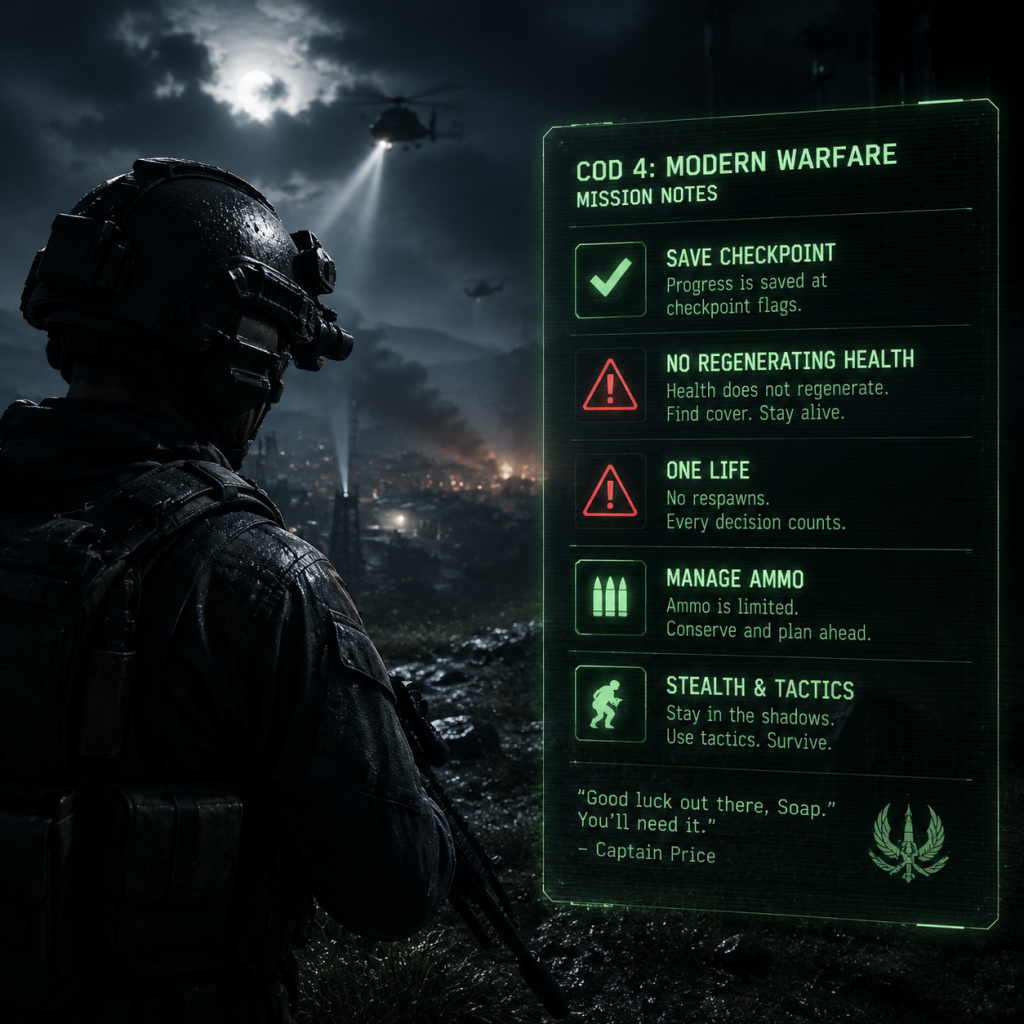
- Single-Player Save System: The game uses an autosave checkpoint system. You cannot manually save mid-mission. Quitting during a mission will restart you at the last checkpoint. Do not exit the game immediately after dying or during a cutscene—wait for the checkpoint icon (a spinning disc) to appear in the corner.
- Veteran Difficulty: The game's highest difficulty (Veteran) is notoriously difficult due to infinite enemy spawns, instant-kill grenades, and no health regeneration (only a few medkits in specific areas). The campaign can become frustrating, especially on "Mile High Club" (EPILOGUE) and the final gauntlet in "No Fighting in the War Room."
- Grenade Spam: Enemies on any difficulty above Normal will throw grenades with alarming accuracy and frequency. The screen will flash red and show a grenade indicator. Always immediately run away; do not try to throw it back unless you are very close and have no other option.
- No Quicksave Exploit for Achievements: Unlike later CoD titles, CoD4 does not allow save-scumming during the campaign. Many achievements (like "No Rest for the Weary" - complete the campaign on Veteran) require a single continuous playthrough on that difficulty.
- Intel Collection: There are 30 intel laptops hidden throughout the campaign. Collecting them unlocks cheats (on PC) and achievements/trophies, but there is no level select in the original game. If you miss an intel piece, you must replay the entire mission from the start.
- Perk and Weapon Selection (Campaign): This is linear; no irreversible character build choices exist. However, the weapon you pick up at the start of a mission determines your loadout. Once you drop a weapon, it's gone. Choose wisely for the upcoming encounter (e.g., a sniper rifle on "All Ghillied Up" is mandatory for stealth; using a shotgun will alert enemies).
- No Multiplayer Customization Reset: In multiplayer, once you unlock and customize a class, you cannot delete it—only overwrite. If you create a class with attachments and later want to change the primary weapon, you must equip a new weapon, which resets all attachments (they must be re-added if unlocked).
- Intel Laptops: All 30 are missable. An achievement/trophy requires collecting all. Missing even one means you must replay that mission.
- Achievements/Trophies:
- Arcade Mode High Scores: After completing the campaign, Arcade Mode becomes available. High scores are not tracked per level if you quit early.
- "The Bog" (Normal/Veteran): Close-quarters combat, heavy enemy density, and limited cover. The AC-130 section is scripted but the ground portion is brutal.
- "Charlie Don't Surf": The final charge up the hill and the helicopter escape are intense. On Veteran, checkpoints are sparse.
- "Heat": The final stand in the crashed helicopter is notoriously difficult due to endless enemies and grenades.
- "Mile High Club" (EpiALOGUE): This is the hardest part of the entire game. It's a timed gauntlet of about 20 enemies in a hijacked plane. Requires perfect aim and memorization. Many players spend hours on this one mission for the achievement.
- Multiplayer Prestige: Prestiging resets all unlocks (weapons, attachments, perks, killstreaks). If you intend to get all achievements/trophies, you must reach Prestige 1 (level 55 then prestige once). The grind to 55 is significant (~10-15 hours). There is no shortcut; boosting is against terms.
- Weapon Challenges: Unlocking golden camo for each weapon requires a specific number of kills (e.g., 150 kills with the M4, 75 headshots, etc.). This is time-consuming and may lead to burnout. Only grind if you want completion.
- No Experience Glitches: There are no safe XP glitches in the current version. Any exploit will result in a ban on PC due to VAC (Valve Anti-Cheat).
- PC Multiplayer: The game is now 17+ years old, but still has a community. VAC (Valve Anti-Cheat) is enabled on Steam. Using cheats, hacks, or mods in multiplayer will lead to a VAC ban that persists forever and prevents you from playing on VAC-secured servers.
- Mods: Single-player mods are fine. Multiplayer mods that alter gameplay (e.g., aimbot, wallhack) will trigger VAC. Avoid playing on servers that require modified executables.
- Console Multiplayer: The original Xbox 360 and PS3 servers were shut down years ago. Only LAN and system link are possible; public matchmaking no longer works.
- PC Community Etiquette:
- Prestige Icon Griefing: Players may mock low-level players; ignore them. The community is small, so building a reputation matters.
- PC: Saves are in `%LOCALAPPDATA%\Infinity Ward\Call of Duty 4\save`. You can copy the `save` folder to back up progress. For multiple playthroughs, rename the folder to keep separate saves (e.g., "save_veteran", "save_normal").
- Xbox 360/PS3: Saves are tied to your profile. No cloud saves existed originally. If your console's hard drive fails, all progress is lost. Consider using a USB or external storage to back up if possible.
- Corrupted Saves: Rare, but can happen if the game crashes during a checkpoint write. On PC, always exit properly (not Alt+F4). On console, avoid turning off power during autosave.
- Grenade Return Technique: If a grenade lands near you, you can press the "use" key (default 'F' on PC, or the action button on console) to pick it up and throw it back. This is a lifesaver on Veteran.
- No Health Regen on Veteran: On Veteran, health does not regenerate. You get a finite number of medkits (usually 1-2 per level). Use them only when screen is black-and-white and damage is heavy.
- Weapon Switching Speed: Switching weapons is faster than reloading. In tight spots, switch to your secondary or pick up an enemy's weapon.
- Ghillie Suit Camouflage: In "All Ghillied Up", stay prone and move only when enemies are facing away. Crouching will break stealth if enemies are close. Also, you can shoot innocent bystanders (e.g., the farmer) without failing the mission, but it alerts enemies.
- The AC-130 Mission: "Death from Above" is a vehicle segment where you control the guns. You can aim by looking at enemies and marking them with the RB/R1 (console) or left mouse button (PC). Use the thermals to see enemies easily. The mission is relatively easy.
- Arcade Mode Scoring: Unlocks after campaign. Score multipliers are lost if you die. Try to avoid dying to maintain high multipliers.
- Mile High Club Strategy: Memorize the exact enemy positions. Use flashbangs at key chokepoints. Aim for headshots. The pistol secondary is actually good here because it's one-hit-kill on headshots even on Veteran (if you use stopping power? Actually no stopping power in that mission). Use the primary (M4) and switch to pistol for quicker ADS. Remember to shoot the hostage taker in the head at the end.
- No Autosave in Multiplayer: Progress is saved only after matches. If you disconnect mid-match, you will lose that match's XP and weapon progress.
- Platform note: On PC, you can manually copy the save files located in `%LOCALAPPDATA%\Infinity Ward\Call of Duty 4\save` to create backups. On consoles, this is not possible.
- Tip: Learn the enemy spawn points and use the "run and hide" strategy to trigger checkpoint progression.
2. Irreversible Choices
- Tip: Follow an intel guide or checklist before starting each mission. Missing one requires a full mission replay.
3. Missable Content
- "Dogs. I Hate Dogs" – complete "Heat" without killing any dogs. Dogs attack in scripted zones; you must run past them without shooting. Missable if you fire.
- "Look Mom, No Hands" – complete "The Bog" without firing a weapon. Entirely possible by following squadmates. Missable if you fire or throw grenades.
- "No-Fly Zone" – shoot down 30 helicopters during the campaign. Cumulative across playthroughs, but many are easy to miss if you don't prioritize them.
4. Difficulty Spikes
5. Grinding Traps
6. Online Etiquette and Anti-Cheat
- Use voice chat sparingly; no one likes screaming.
- Do not team-kill (if playing Hardcore modes).
- Avoid spawn-killing in objective modes.
- Respect server rules (especially on modded servers).
7. Save Management Advice
8. Things Players Commonly Regret Not Knowing Earlier
---
This guide should help you avoid frustration and make the most of your time in Call of Duty 4: Modern Warfare.
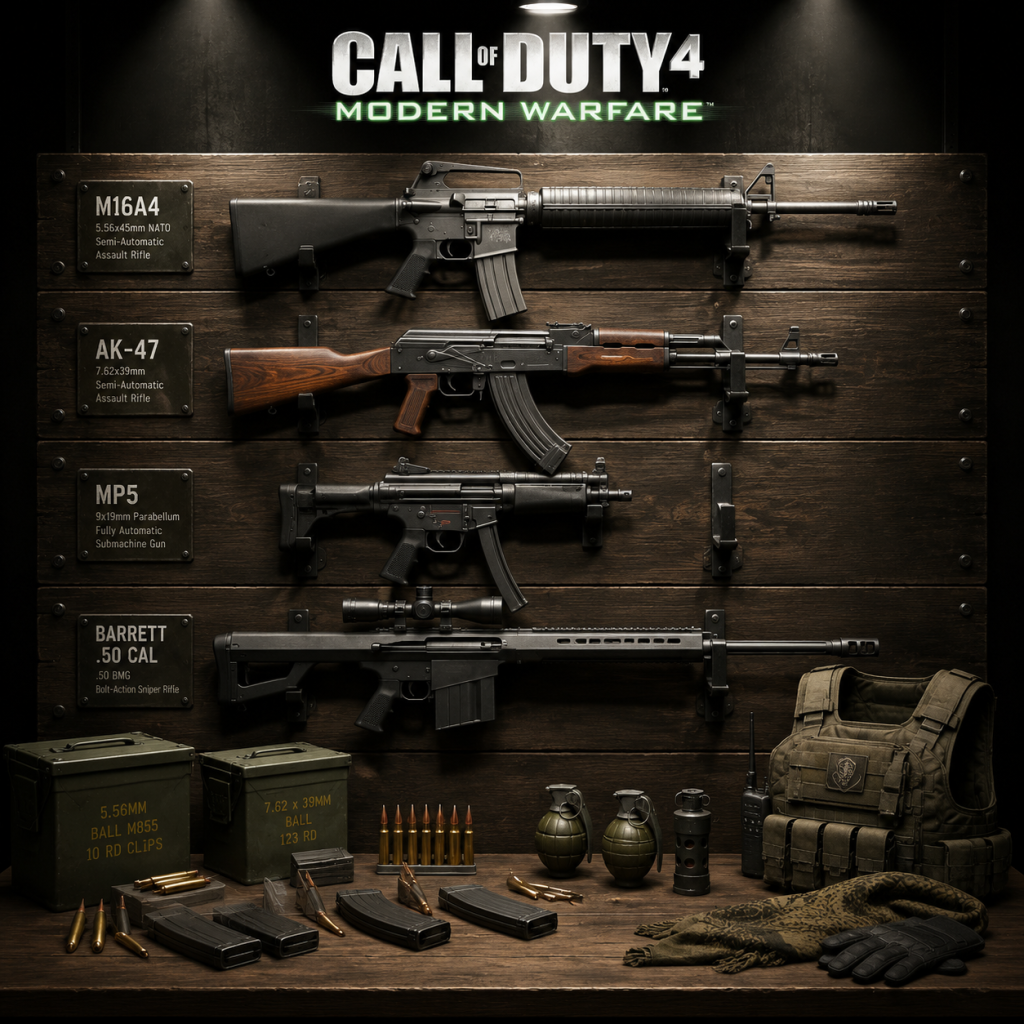
All Game Items
All Game Items in Call of Duty 4: Modern Warfare
This guide catalogues every item type found in Call of Duty 4: Modern Warfare, covering both the single-player campaign and multiplayer. Items are grouped logically, with explanations of function, acquisition methods, optimal usage, and notable synergies. Note that this game has no armor, consumables, or crafting materials—only weapons, equipment, perks, killstreak rewards, and collectibles.
---
1. Primary Weapons (Multiplayer & Campaign)
Assault Rifles (Versatile, medium-to-long range)
| Weapon | Caliber | Role | Unlock (Multiplayer) | Campaign Availability |
|---|---|---|---|---|
| M4A1 | 5.56mm | All-round starter rifle. Good accuracy, moderate damage, 30-round magazine. | Level 1 (starting) | Multiple missions (e.g., "Crew Expendable", "Hunted") |
| M16A4 | 5.56mm | Three-round burst rifle. High damage per burst, excellent at medium range. | Level 41 | "Charlie Don't Surf", "Death from Above" |
| AK-47 | 7.62mm | High damage, slower fire rate, heavy recoil. Excellent stopping power. | Level 19 | "All Ghillied Up", "One Shot, One Kill" |
| G3 | 7.62mm | Semi-auto battle rifle. Very high damage, low magazine (20 rounds). | Level 52 | Not directly obtainable; used by enemies |
| M14 | 7.62mm | Semi-auto marksman rifle. Slightly more damage than G3 but slower fire rate. | Level 55 (unlock after prestige) | "No Fighting in the War Room" |
| Weapon | Caliber | Role | Unlock | Campaign |
|---|---|---|---|---|
| MP5 | 9mm | All-round SMG, low recoil, controllable. | Level 1 | "Crew Expendable", "Hunted" |
| Skorpion | 9mm | High fire rate, small magazine (20 rounds). Best in close quarters. | Level 28 | "Safehouse" (briefly) |
| P90 | 5.7mm | Unique bullpup SMG with 50-round magazine. Fast fire rate, good hipfire. | Level 37 | "Heat" (briefly) |
| AK-74u | 5.45mm | Hybrid of SMG and assault rifle. Good damage, moderate recoil. | Level 48 | "All Ghillied Up" |
| Weapon | Caliber | Role | Unlock | Campaign |
|---|---|---|---|---|
| M249 SAW | 5.56mm | 100-round belt. Good for holding down areas. | Level 22 | "Death from Above" |
| RPD | 7.62mm | 100-round belt. Higher damage than M249, but more recoil. | Level 45 | "One Shot, One Kill" (briefly) |
| Weapon | Caliber | Role | Unlock | Campaign |
|---|---|---|---|---|
| M40A3 | 7.62mm | Bolt-action. Excellent accuracy, one-shot kill to chest. | Level 8 | "All Ghillied Up", "One Shot, One Kill" |
| R700 | 7.62mm | Bolt-action, same damage as M40A3 but better scope clarity. | Level 33 | Not available in campaign |
| Dragunov | 7.62mm | Semi-auto sniper. Slightly less damage, faster follow-up shots. | Level 43 | "One Shot, One Kill" (AlAsad's gun) |
| M21 | 7.62mm | Semi-auto, high damage, low recoil. Excellent for aggressive sniping. | Level 50 (unlock after prestige) | "No Fighting in the War Room" |
| Weapon | Gauge | Role | Unlock | Campaign |
|---|---|---|---|---|
| W1200 | 12 gauge | Pump-action. One-shot kill at close range. | Level 16 | "Hunted" (briefly) |
| M1014 | 12 gauge | Semi-auto. Faster follow-up shots. | Level 34 | Not in campaign |
| Weapon | Type | Role | Unlock | Campaign |
|---|---|---|---|---|
| M9 | Pistol (9mm) | Standard semiauto. Good all-round secondary. | Level 1 | Multiple missions |
| USP .45 | Pistol (.45 ACP) | Higher damage than M9, lower magazine (12 rounds). | Level 13 | "Crew Expendable" |
| Desert Eagle | Pistol (.50 AE) | Very high damage, one-shot headshot. Low magazine (7 rounds). | Level 40 | "No Fighting in the War Room" |
| RPG-7 | Rocket launcher | Single-shot anti-vehicle/anti-infantry. Destroys helicopters, kills groups. | Level 25 | "Death from Above" (pickup) |
| M60E4 (actually an LMG) | Not a secondary; placed for clarity: LMG available in campaign only. |
2. Attachments (Multiplayer Only)
Unlocked by weapon rank. Each weapon has 3 attachment slots, but only 1 attachment can be equipped at a time (except some guns have integrated scopes).
| Attachment | Effect | Unlock Requirement | Best Used With |
|---|---|---|---|
| Red Dot Sight (RDS) | 1x reflex sight, no magnification. Improves target acquisition. | 25 kills with that weapon | All assault rifles, SMGs, LMGs |
| ACOG Scope | 4x zoom, but adds slight aiming delay. Best for medium range. | 50 kills | M16A4, G3, M14, RPD |
| Suppressor | Silences weapon; reduces damage range and muzzle flash. | 75 kills | MP5, AK-74u, M40A3 |
| Grip (Foregrip) | Reduces recoil (not visible in stats but noticeable). | 100 kills | AK-47, LMGs, M16A4 |
| Extended Magazines (for some weapons) | Increases magazine capacity by 10–20 rounds. | Specific weapon challenges | Not all weapons have it; e.g., P90 gets 50 -> 60 |
| No Attachment (Ironsights) | Default. Sometimes preferable for fast aiming. | None | Snipers (for challenge) |
3. Equipment (Lethal & Tactical)
Lethal Grenades
| Item | Effect | Use Case |
|---|---|---|
| Fragmentation Grenade | Cookable, 5-second fuse. High explosive damage, shrapnel kill radius ~5m. | Clearing rooms, area denial, killing groups. Cook to prevent throwback. |
| .50 Cal (this is a weapon, not equipment) | Not equipment. | |
| Claymore | Tripwire mine. One-shot kill. Can be placed on walls or floors. | Defending objectives, covering flanks. Do not place near teammates. |
| Special Grenade (M67) | Not in COD4. |
| Item | Effect | Use Case |
|---|---|---|
| Flashbang | Blinds and deafens enemies for ~2 seconds. | Pre-storming a room, disabling campers. |
| Smoke Grenade | Emits thick smoke screen for ~15 seconds. Block vision. | Covering objectives, reviving teammates (only in certain modes), masking movement. |
| Stun Grenade | Slows movement and blurs vision. | Synergizes with stun+flash combo, but flash is more common. |
4. Perks (Multiplayer Only)
Perks are passive abilities. Each class has three perk slots (Perk 1, Perk 2, Perk 3).
Perk 1 (Red)
| Perk | Effect | Unlock | Synergies |
|---|---|---|---|
| Bomb Squad | Highlights enemy explosives in red (via heartbeat sensor). | Level 1 | Use with Claymores to avoid traps. |
| RPG-7 (actually equipment) | |||
| C4 x2 | Replaces lethal grenade with two C4 charges (detonated manually). | Level 7 | Use with Martyrdom? No, Martyrdom is perk 3. Place on objectives. |
| Special Grenades x3 | Swap your tactical grenade for three of the same type (flash or stun). | Level 14 | Good for aggressive pushes. |
| Claymore x2 | Carry two claymores instead of one. | Level 21 | Defensive setups. |
| Frag x3 | Carry three frag grenades. | Level 31 | Lethal spam. |
| Perk | Effect | Unlock | Synergies |
|---|---|---|---|
| Stopping Power | 40% damage increase against players (not vehicles). | Level 1 | Essential for assault rifles, SMGs. Doubles one-shot potential for snipers to chest. |
| Juggernaut | 25% health increase (takes one extra bullet to kill). | Level 23 | Use with high-damage weapons like AK-47 or shotguns to survive longer in CQC. |
| UAV Jammer | Make you invisible to enemy radar when moving (crouch or walk still visible? Actually invisible completely). | Level 35 | Perfect for sneaky flankers, especially with silenced weapons. |
| Sonic Boom | Increases explosive damage radius by 25%. | Level 46 | For RPG, C4, frags. One-shot groups easier. |
| Sleight of Hand | Faster reload speed. | Level 53 | LMGs benefit greatly. Also good for shotguns and snipers. |
| Double Tap | Increases fire rate (actually decreases delay between shots). | Level 56 | Makes burst weapons like M16A4 fire faster. |
| Overkill | Carry two primary weapons (no secondary). | Level 59 | Pair sniper with SMG, or AR with shotgun. |
| Perk | Effect | Unlock | Synergies |
|---|---|---|---|
| Deep Impact | Bullets penetrate walls more efficiently (increased damage through surfaces). | Level 1 | Great for wallbanging common camping spots. |
| Martyrdom | Drop a live grenade when killed. | Level 17 | Annoying for enemies; pairs with Frag x3 for extra grenade. |
| Steady Aim | Increased hipfire accuracy. | Level 29 | SMGs, shotguns. |
| Extreme Conditioning | Sprint longer distance (double sprint time). | Level 38 | SMG rushers. |
| Dead Silence | Makes footsteps silent (no sound to enemies). | Level 44 | Snipers, flankers. |
| Iron Lungs | Increases breath-holding time while scoped (for snipers). | Level 51 | Essential for sniper rifle stability. |
| Eavesdrop | Hear enemy microphone (if they have it on). | Level 57 | Gimmicky; rarely useful. |
| Last Stand | Upon lethal damage, you switch to a pistol (slowly) and can fire before dying. | Level 60 | Use with Stopping Power to get kills after death. |
5. Killstreak Rewards (Multiplayer)
Earn by getting consecutive kills without dying. Three tiers.
| Killstreak | Reward | Effect | Unlock (default: all available from start) |
|---|---|---|---|
| 3 kills | UAV | Enemy positions shown on minimap as red dots for ~15 seconds. Ping pulses. | Always available |
| 5 kills | Airstrike | Call in a cluster of bombs along a line you mark. One-shot kill on direct hit. | Always available |
| 7 kills | Helicopter | An attack helicopter circles the map, firing at enemies for ~45 seconds. Hard to destroy. | Always available |
---
6. Campaign-Only Items
Intel Laptops – Hidden collectibles. There are 30 Intel laptops scattered across missions. Collecting them unlocks cheats (like ragdoll mode, infinite ammo) and the "Eyes and Ears" achievement/trophy.
- Locations: Typically in non-obvious corners, on desks, under tables, or on rooftops. Example: M1 "Crew Expendable" – one on the bridge, one in the galley, one in the cargo hold.
- Use: No gameplay benefit during campaign, but completion unlocks rewards for subsequent playthroughs.
- M60E4 (LMG): High damage, 100-round belt. Found in "Death from Above" and "Ultimatum".
- G36C (Assault Rifle): Only in campaign (not multiplayer). Used by Price in flashback. High fire rate, moderate damage.
- M1911 (Pistol): Found in "No Fighting in the War Room".
- 25mm GAU-12: High explosive rounds, good for infantry.
- 40mm Bofors: Medium explosive, anti-vehicle.
- 105mm Howitzer: Devastating area damage, slow fire rate.
- Experience Points (XP): Earned by kills, assists, objectives (capture/defuse), headshots, win bonuses. XP determines rank (Level 1 to 55, then Prestige).
- Rank: Unlocks weapons (as listed), perks, and challenges. Prestige resets rank to 1 but gives a special icon; no new items.
- COD Points: Not present in this game (introduced in later titles). No microtransactions.
- Challenge Rewards: Complete challenges (e.g., 100 headshots with M4) to unlock weapon attachments (Red Dot, ACOG, etc.). No currency spent.
- No currency. You cannot buy items. All weapons are found on the ground or given by scripted events. Intel collection is purely for achievement/unlockables.
- Dogtags – Not an item, but a game mode (Kill Confirmed) wasn't in COD4. So no.
- Awards & Ribbons – In multiplayer, awards like "First Blood" or "Headshot" give bonus XP but no physical items.
- Create-a-Class – You can customize loadouts using any unlocked weapons, attachments, perks, and equipment. This is the core system; no separate "armor" or "consumables".
- "Stopping Power + Deep Impact" (Perk 2 & 3) with M16A4 makes it a wall-penetrating beast.
- "UAV Jammer + Silencer" (Perk 2 + attachment) on MP5 is the ultimate stealth class.
- "Sonic Boom + Frag x3" (Perk 2 + Perk 1) maximizes grenade lethality.
- "Last Stand + Stopping Power" can yield post-death kills but is risky.
- "Overkill" lets you carry a sniper rifle for long range and an SMG for close, covering all distances.
- "Martyrdom + Frag x3" – Mass chaos; dropped grenade often kills pursuers.
Weapon Pickups – In campaign, you can swap your weapon for enemy weapons found on the ground. These include the same primary and secondary weapons listed above, plus some exclusive variants:
Vehicle Weapons – In the AC-130 gunship mission ("Death from Above"), you use three weapons:
NV Goggles – Used in night vision missions ("All Ghillied Up"). No pickup, automatically equipped.
---
7. Currencies and Progression
Multiplayer
Campaign
---
8. Miscellaneous Items
---
Important Synergies and Builds
---
Acquisition Summary Table (Multiplayer)
| Item Type | How to Obtain |
|---|---|
| Weapons | Reach specific rank level (see tables above) |
| Attachments | Complete weapon-specific challenges (kills) |
| Equipment (Frag, Claymore, etc.) | Unlocked via rank (Frag default) |
| Tactical grenades | Unlocked via rank (Flash default) |
| Perks | Unlocked via rank (1st perk of each tier available at rank 1) |
| Killstreak rewards | Always available from rank 1 |
| Prestige rewards | Prestige icon; no items |
This covers all items in Call of Duty 4: Modern Warfare. Note that the game has no armor, consumables (like health packs), or materials. Equipment is limited to grenades. Use this guide to optimize your loadouts and understand what each piece does.
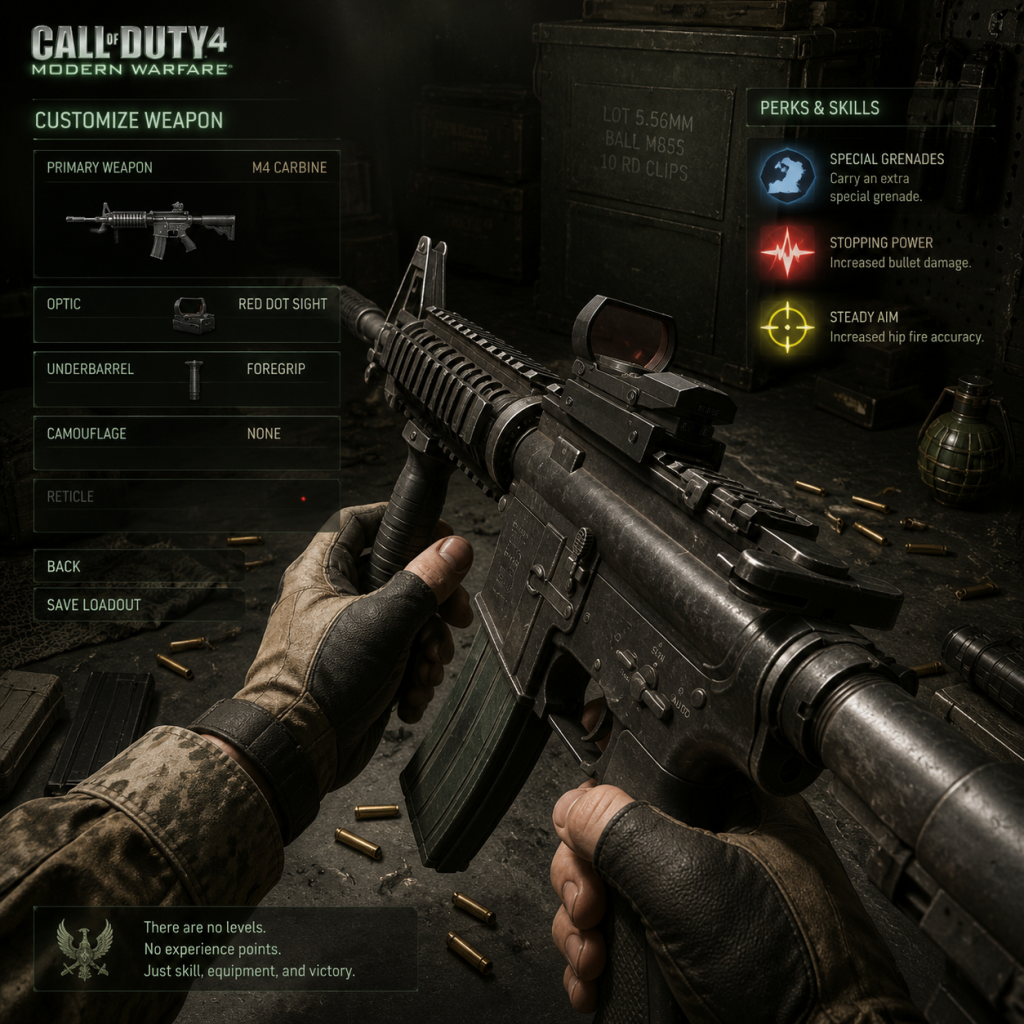
Character Skills
Character Skills in Call of Duty 4: Modern Warfare
Overview
Call of Duty 4: Modern Warfare does not feature traditional character classes, spells, or role-specific abilities. Instead, the game’s “skills” are represented by Perks (passive abilities that modify your soldier’s capabilities) and Killstreaks (reward abilities earned by consecutive kills without dying). Additionally, Equipment (grenades, special grenades, claymores) functions as tactical tools akin to short-cooldown special moves. This guide covers every available Perk, Killstreak, and essential Equipment, providing detailed effects, unlock conditions, optimal usage, synergies, and recommended class builds.
Important: Campaign characters (Soap, Price, Gaz, etc.) share identical movement, health, and weapon skills—there are no unique character talents. All skills described here are universal across multiplayer and Spec Ops. “Cooldowns” for Perks are passive and constant (always active). Killstreaks have charges that reset after death or use.
---
1. Perks (Passive Skills)
Perks are organized into three tiers (Slot 1, Slot 2, Slot 3), unlocked via leveling up. You may select one perk per slot. They are always active once equipped; no cooldowns or resource costs.
Slot 1 Perks
| Perk | Unlock Level | Effect | When to Use | Combos & Synergies |
|---|---|---|---|---|
| C4 | 1 | Carry an extra C4 charge (total 2). | Objective modes (Sabotage, Domination) for trap setting or destroying bomb sites. | Pair with Sonic Boom (increases blast radius) for devastating traps. |
| Claymore | 1 | Carry an extra Claymore (total 2). | Defensive play; secure flanks, bomb sites, or chokepoints. | Use with Dead Silence or UAV Jammer to hide while traps kill enemies. |
| RPG-7 | 16 | Start with a rocket launcher as secondary weapon. | Anti-vehicle (if enemies use vehicles in modded servers) or clearing campers in windows. | Combine with Stopping Power (reduces rocket effectiveness? Actually Stopping Power does not affect explosive damage; use Bandolier for extra rockets). |
| Frag x3 | 1 | Carry three frag grenades instead of one. | Aggressive pushes, clearing rooms, objective captures. | Synergizes with Martyrdom (drop grenade on death) for post-mortem kills. |
| Special Grenade x3 | 1 | Carry three special grenades (flash, stun, or smoke). | Support role: spam flash/stun into enemy positions, or use smoke for cover. | Combine with Extreme Conditioning to rush while enemies are blinded. |
Slot 2 Perks (Most Impactful)
| Perk | Unlock Level | Effect | When to Use | Combos & Synergies |
|---|---|---|---|---|
| Stopping Power | 1 | Increases bullet damage by ~40%. | Almost always—reduces time-to-kill (TTK) significantly, especially with high-damage weapons (AK-47, M40A3). | Mandatory with most assault rifles and SMGs; pairs with Deep Impact for wallbanging. |
| Juggernaut | 1 | Increases maximum health by ~25% (100→125 HP). | For high-survivability builds; use when you expect many trades or have a weapon with slow fire rate. | Combo with Last Stand to survive longer and potentially kill enemies after being downed. |
| Double Tap | 20 | Increases weapon fire rate. | Useful for low-rate weapons (e.g., M16, MP44) to boost DPS; less effective on already-fast guns. | Pair with Stopping Power for supreme damage output (but they are in different slots? Double Tap is Slot 2, Stopping Power is Slot 2—cannot combine). Use with Sleight of Hand for fast reload between bursts. |
| Sonic Boom | 37 | Increases explosive damage radius. | For classes that heavily use grenades, RPG, or claymores. | Works with Frag x3, C4, Claymore—makes traps more lethal. |
| Last Stand | 40 | When killed, you drop to a pistol and can fire for ~3 seconds. | Close-quarters or objective play; allows trading kills or surviving long enough to be revived in Hardcore modes? No revives in core, but still useful for post-mortem frags. | Combine with Juggernaut to survive long enough to shoot; pair with Martyrdom for extra explosion. |
Slot 3 Perks
| Perk | Unlock Level | Effect | When to Use | Combos & Synergies |
|---|---|---|---|---|
| Extreme Conditioning | 1 | Sprint longer (double sprint time). + faster climb? Actually only affects sprint duration (10 seconds instead of 5). | For rushing or objective players who move a lot. | Use with a lightweight weapon (SMG) and maybe UAV Jammer for silent rushing. |
| Steady Aim | 1 | Reduces hipfire spread; no effect when ADS. | For shotguns (hipfire focused) or SMG run-and-gun. | High effectiveness with shotguns (M1014, W1200) and PPSh (hipfire strong). |
| Deep Impact | 1 | Bullets penetrate walls/cover with less damage reduction. | For classes that shoot through walls; effective on large maps with many thin cover. | Pair with Stopping Power (Slot 2) for maximum wallbang kills; use LMG with FMJ? (No FMJ attachment in COD4—only penetration by weapon base). |
| Dead Silence | 1 | Player footsteps are silent (except when falling). | Stealth gameplay; essential in Search and Destroy, SnD. | Pair with UAV Jammer (Slot 1? No, UAV Jammer is a perk? Actually UAV Jammer is a Slot 3 perk—same tier. Cannot dual. Use with Claymore for traps.) |
| Martyrdom | 30 | On death, drops a live frag grenade (cooks for ~2 sec). | For chaotic close-range engagements; often catches pursuers. | Combos with Last Stand: after Last Stand fails, grenade drops; or with Frag x3 for more explosive potential. |
| Eavesdrop | 44 | Allows hearing enemy voice chat (if they use mics). | Strategy: get intel on enemy positions (rarely used in public matches). | No real combos; mainly for competitive communication jamming. |
Corrected Slot 3 Perks (6 options): Extreme Conditioning, Steady Aim, Deep Impact, Dead Silence, Martyrdom, Eavesdrop.
---
2. Killstreaks (Reward Abilities)
Killstreaks are earned by achieving a consecutive kill count without dying. They can be used once earned; after use or death, the streak resets to 0. No cooldown per se—just re-earn the kills.
| Killstreak | Kills Required | Effect & Duration | How to Use | Strategic Notes |
|---|---|---|---|---|
| UAV | 3 | Scans the minimap, revealing enemy positions (dots). Duration: ~15 seconds. | Press the killstreak button (default 6 on PC, D-pad down on console) to activate. | Best used early in a round to track enemy movement; combine with airstrike for clustered enemies. |
| Airstrike | 5 | Calls in a precision bombing run (three lines of bombs). Duration: ~5 seconds after placement. | Uses a marker placed on ground; bombs fall in a linear pattern perpendicular to your facing direction. | Place towards enemy spawn or objective. Combine with UAV to see where enemies are concentrated. |
| Attack Helicopter | 7 | A health helicopter flies over the map, shooting at enemies for ~30 seconds. | Activated automatically when earned; helicopter arrives and patrols. | Provides area denial and can get its own kills. Protect it by shooting down enemy RPGs? Hard to do. Use when enemy team is respawning to maximize impact. |
- Use UAV + Airstrike: Spot enemies with UAV, then immediately call airstrike on their location.
- No direct synergy between streaks and perks, but perks that help you survive (Juggernaut, Last Stand) make it easier to reach streaks.
- Frag Grenade: Cookable (hold to throw). Damage: 200 within 5 ft, radius ~10 ft. Use for area clearing.
- Flashbang: Blinds and deafens for ~5 seconds. Use before breaching doors.
- Stun Grenade: Slows movement and blurs vision for ~7 seconds. Use to disable enemies before attacking.
- Smoke Grenade: Creates thick smoke screen for ~10 seconds. Use for covering objectives or escaping.
- Claymore: Proximity mine; one-shot kill. Placed on ground. Triggered by enemy passing in front. Use for flank protection.
- C4: Remote-detonated explosive. Can be thrown or placed. Two max. Use for destroying vehicles (not in standard COD4) or trapping bomb sites.
- Objective defender: Claymore + C4 + Martyrdom → trap yourself then blow up.
- Aggressive rusher: Frag x3 + Flash x3 + Stun x3 (but can only equip one special grenade type per loadout).
- Weapon: MP5 (or SKORPION) with silencer
- Perk 1: Frag x3
- Perk 2: Stopping Power
- Perk 3: Extreme Conditioning
- Equipment: Flashbang
- Killstreaks: UAV, Airstrike, Helicopter
- When to use: Domination, Capture the Flag; sprint between points, throw flashes, melt enemies.
- Weapon: M40A3 with ACOG or default scope; secondary: M9 pistol
- Perk 1: Claymore
- Perk 2: Stopping Power
- Perk 3: Deep Impact
- Equipment: Smoke (to obscure your position)
- Killstreaks: UAV, Airstrike (rarely helpful for snipers)
- When to use: Long-range maps; set claymore to cover your back, wallbang through thin cover.
- Weapon: RPD (LMG) with foregrip? No foregrip in COD4; use red dot sight
- Perk 1: Bandolier (but Bandolier is not in COD4—extra ammo is a perk? Actually Bandolier is a slot 1 perk in COD4 that increases starting ammo? No, COD4 slot 1 has C4, Claymore, RPG-7, Frag x3, Special Grenade x3. So no extra ammo. So use Frag x3 or Claymore.
- Perk 2: Juggernaut
- Perk 3: Martyrdom
- Equipment: Frag
- When to use: Hold chokepoints, survive longer, drop grenade on death.
- Weapon: AK-47 with silencer
- Perk 1: Special Grenade x3 (smoke + flash)
- Perk 2: Stopping Power
- Perk 3: Dead Silence
- Equipment: Flashbang
- When to use: Flanking, S&D rounds; silent footsteps allow flanking without detection.
- Experiment with builds: Switch perks based on map and game mode. Stopping Power is universally strong, but Juggernaut can save you in objective modes where enemies spam grenades.
- Killstreak timing: Call UAV early to help team; airstrikes are most effective when enemies are clustered on objectives.
- Perk slots are limited: You cannot stack two slot 2 perks, so choose wisely.
- No spellcasting or magic: All “skills” are grounded in military realism.
---
3. Equipment (Special Moves)
While not strictly skills, equipment like grenades and claymores have tactical cooldowns (recharge via resupply or pickups). They are part of every soldier's kit.
Cooldowns: 5 seconds after throwing to replenish (if you have extra from Frag x3 perk). Otherwise, only one of each is available per life unless you pick up from dead soldiers.
Recommended Equipment Combos:
---
4. Recommended Class Builds (Skill Synergies)
Below are sample loadouts that combine Perks, Equipment, and Killstreaks for specific playstyles.
4.1 Rushing SMG Build
4.2 Sniper Build
4.3 Tank Build
4.4 Stealth Build
---
5. Campaign & Spec Ops Notes
In single-player, you have no control over skills. Each mission assigns specific weapons and equipment. The only “skill” changes come from different player characters (Soap, Price, etc.), but mechanics are identical. Use the environment, lean (on PC), and weapon-switching as your tactical abilities. No perks unlockable in campaign.
---
Final Tips
This guide covers every skill-like system in Call of Duty 4: Modern Warfare. Master your Perks and Killstreaks to dominate the battlefield.
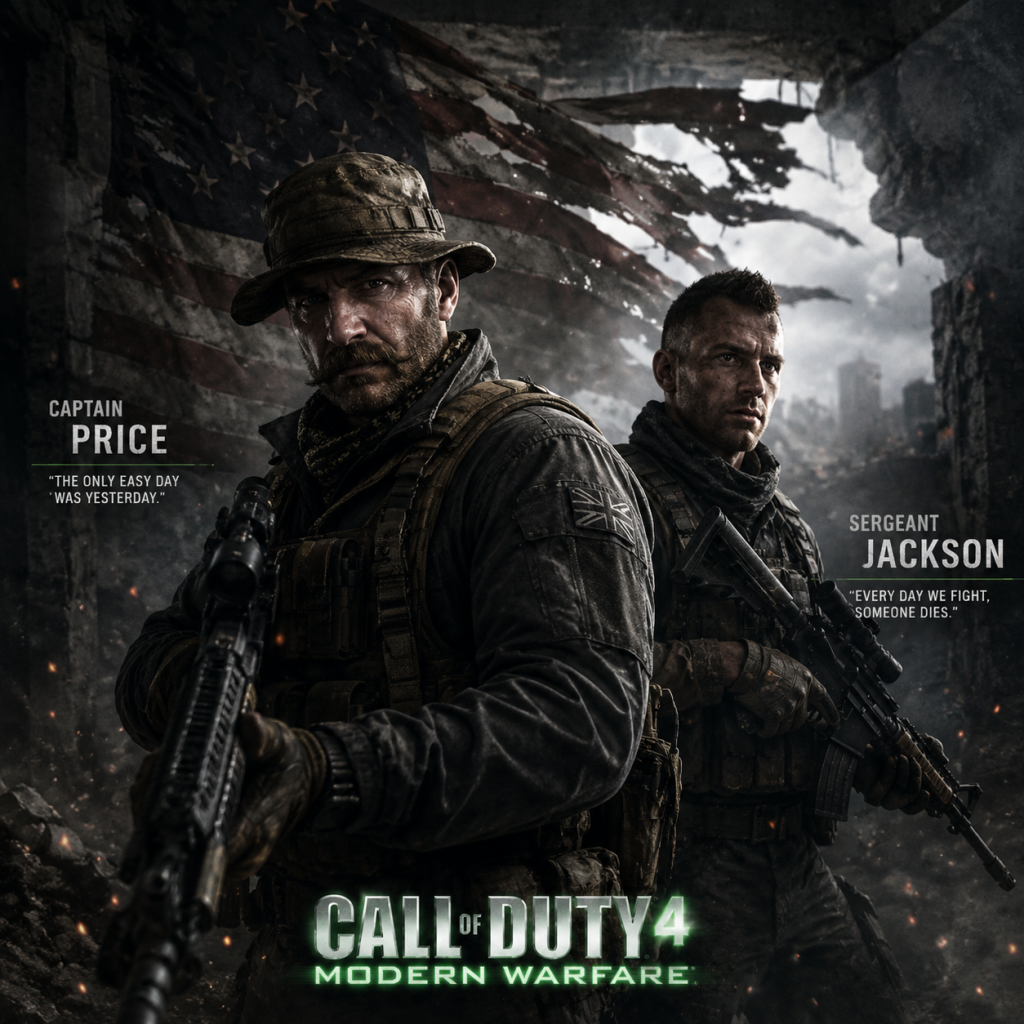
Characters & Roles
Characters & Roles: Call of Duty 4: Modern Warfare
Introduction
Call of Duty 4: Modern Warfare does not use class-based or hero-based systems in the traditional sense. Instead, the game offers a linear single-player campaign driven by a cast of memorable soldiers, and a multiplayer mode where players create their own roles via the Create-a-Class system. Below, we cover every major character from the campaign and then explain how classes/roles work in multiplayer, including recommended loadouts for common playstyles.
---
Single-Player Campaign Characters
The campaign follows two primary perspectives: British SAS and U.S. Marine Force Recon. Key characters include:
Soap MacTavish (Player Character – SAS)
- Background: A new recruit to the SAS, known by the codename “Soap.” He is the player character for most SAS missions. Soap is young, highly capable, and quickly earns the respect of Captain Price.
- Strengths: Player-controlled; versatile across all situations. In cutscenes, he is depicted as resourceful and brave.
- Weaknesses: None mechanically – he is an avatar.
- Playstyle: The player drives the action; Soap’s loadout changes per mission, but he is proficient with all standard weaponry.
- Unlock: Automatically played from the start of the campaign.
- Equipment: Varies by mission; typically an M4A1 or G36C assault rifle, often with a sidearm and frag grenades.
- Background: A veteran SAS officer with extensive field experience. Known as “Bravo Six.” Price is the commanding officer of Soap’s squad. He is calm, strategic, and fiercely loyal.
- Strengths: Provides mission briefings and tactical advice. In gameplay, he occasionally fights alongside the player, offering suppressing fire and taking down enemies.
- Weaknesses: Not directly controllable; his AI can sometimes be unpredictable, but generally effective.
- Playstyle: Price embodies the ideal support leader – he uses cover, coordinates with the squad, and prioritizes objectives.
- Unlock: Appears in the second mission “Crew Expendable” and throughout the game.
- Equipment: Typically carries a G36C or MP5, sometimes with a red dot sight, and uses flashbangs.
- Background: A member of Price’s squad, Gaz is a capable and loyal soldier. He often provides banter and works alongside Soap and Price.
- Strengths: Competent in firefights, good at following orders.
- Weaknesses: AI can get stuck or be less aggressive than desired.
- Playstyle: Acts as a supporting rifleman, often covering flanks or providing backup.
- Unlock: Appears from “Crew Expendable” onward.
- Equipment: Usually carries an MP5 or G36C.
- Background: A young Marine officer leading the player’s squad during the U.S. missions. The player controls Vasquez during these chapters.
- Strengths: Same as Soap – player avatar with full control.
- Weaknesses: Not applicable.
- Playstyle: Same as Soap; loadout adjusts to Marine-issue weapons like M16A4 or M4A1.
- Unlock: Played in missions such as “War Pig” and “Shock and Awe.”
- Equipment: Standard U.S. Marine gear; M16A4 with M203 grenade launcher in some missions.
- Background: A tough, experienced Marine NCO. Griggs is a key ally during the U.S. campaign and later joins the SAS team.
- Strengths: Invaluable for his steady aim and ability to hold positions. In “The Sins of the Father,” he provides critical fire support.
- Weaknesses: None significant.
- Playstyle: Aggressive yet tactical; often lays down suppressive fire or provides covering fire as the player advances.
- Unlock: Introduced in “War Pig.”
- Equipment: Typically carries an M4A1 or a machine gun like the M249 SAW.
- Background: An SAS legend featured in the flashback mission “All Ghillied Up.” He is a master sniper and teacher to a young Captain Price.
- Strengths: Incredible marksmanship and stealth expertise. He guides the player through the Chernobyl mission.
- Weaknesses: He is wounded later in the mission and becomes reliant on the player.
- Playstyle: Stealth-oriented; uses a suppressed sniper rifle and ghillie suit.
- Unlock: Played as a supporting character in “All Ghillied Up.”
- Equipment: Dragunov sniper rifle (suppressed) or M21, plus a sidearm and claymores.
- Background: Imran Zakhaev is a Russian ultranationalist leader seeking to reclaim Soviet power. He is the main villain, orchestrating the nuclear threat.
- Strengths: Charismatic, ruthless, and well-connected.
- Weaknesses: His fanaticism eventually leads to his downfall.
- Playstyle: Not playable; seen in cutscenes and as a target at the end.
- Unlock: N/A.
- Al-Asad: A Middle Eastern warlord loyal to Zakhaev.
- Khaled Al-Asad appears in the televised execution and is a secondary antagonist.
- Victor Zakhaev: Zakhaev’s son, involved in the nuclear attack.
- Kamal “The Butcher”: Tortures Price but is not directly seen.
- Force Recon Marines: Various unnamed squad members.
- AC-130 Gunner: The player takes control of an AC-130 gunship in “Death from Above,” offering a unique perspective.
- Primary Weapon (Assault Rifles, SMGs, LMGs, Snipers, Shotguns)
- Secondary Weapon (Pistols, Launchers)
- Perks (3 slots: Perk 1, Perk 2, Perk 3)
- Equipment (Frag, Flashbang, Smoke, etc.)
- Special Grenade (Flashbang, Smoke, Stun)
- Goal: Balanced offense and defense, versatile engagement.
- Weapons: M4A1 (red dot sight, stopping power), Ak-47, G36C.
- Perks:
- Equipment: Frag grenade + Special Grenade (Flash/Stun).
- Playstyle: Rush objectives but hold angles when needed. Use stopping power to win mid-range fights.
- Strengths: High damage output, good all ranges.
- Weaknesses: Average mobility; no stealth.
- Team Synergy: Works with any team composition; provides consistent firepower.
- Goal: Surprise attacks, flanking, or long-range elimination.
- Weapons: MP5 suppressor (close), M40A3 or Barret .50cal (sniper).
- Perks:
- Equipment: Flashbang + Frag or Smoke.
- Playstyle: Move quietly, use suppressed weapons to avoid minimap blips, take down enemies from unexpected angles.
- Strengths: Can break enemy lines without being detected.
- Weaknesses: Lower health if caught; less effective in head-on fights.
- Team Synergy: Pairs well with Assault players who draw attention.
- Goal: Capture flags, plant bombs, provide intel, and keep teammates alive.
- Weapons: P90 (high ammo), RPD (LMG sustained fire), or M16A4 with grenade launcher.
- Perks:
- Equipment: Smoke grenades (for cover) + Frags or Stuns.
- Playstyle: Stay near objectives, suppress enemies, and use smoke to block lines of sight. Reload often to maintain suppressive fire.
- Strengths: Can hold chokepoints and dominate capture zones.
- Weaknesses: Slower movement with LMGs; limited stealth.
- Team Synergy: Essential for objective modes; protects Assault players.
- Goal: Long-range elimination and area denial.
- Weapons: M40A3 (acog or standard), Dragunov, Barret .50cal.
- Perks:
- Equipment: Claymore + Flashbang (defensive).
- Playstyle: Find elevated or far positions, pick off enemies, relocate often.
- Strengths: Extreme range, fear factor.
- Weaknesses: Vulnerable up close; requires good map knowledge.
- Team Synergy: Needs teammates to engage close enemies; counters enemy snipers.
- Goal: Fast-paced close quarters combat, clearing rooms.
- Weapons: MP5 (red dot), P90, M1014 shotgun.
- Perks:
- Equipment: Flash/Stun + Frag.
- Playstyle: Sprint into enemy territory, use hip-fire, throw grenades frequently.
- Strengths: Surprises enemies; high mobility.
- Weaknesses: Low health (if not using Juggernaut); ammo consumption high.
- Team Synergy: Disrupts enemy formation; creates chaos for slower teammates.
- Assault: M4 + red dot, frag, bandolier, stopping power, deep impact.
- Spec Ops: MP5 silencer, flash, claymore, UAV jammer, dead silence.
- Demolitions: M16 + grenade launcher, frag, bandolier, sleight of hand, steady aim.
- Sniper: M40A3, smoke, bandolier, stopping power, iron lungs.
- Close Quarters: P90, flash, frag x3, sleight of hand, extreme conditioning.
Captain John Price (SAS)
Gaz (SAS)
Lieutenant Vasquez (U.S. Marine Force Recon – Player Character)
Sergeant Griggs (U.S. Marines)
Captain MacMillan (SAS)
Zakhaev (Primary Antagonist)
Imran Zakhaev’s Voice (and supporting villains)
Other Notable NPCs
---
Multiplayer Roles (Create-a-Class System)
Modern Warfare’s multiplayer has no fixed character classes. Instead, players create custom loadouts using:
You can think of “roles” as archetypes determined by loadout choices. Below are the most effective and popular role builds, with recommended equipment and team synergy.
1. Assault (All-Rounder)
- Perk 1: Bandolier (extra ammo)
- Perk 2: Stopping Power (increased damage)
- Perk 3: Deep Impact (bullet penetration)
2. Stealth (Flanker / Sniper)
- Perk 1: Claymore or C4 (tactical use) or Bandolier
- Perk 2: UAV Jammer (invisible to UAV) or Stopping Power (for one-shot sniper kills)
- Perk 3: Dead Silence (muffled footsteps) or Iron Lungs (sniper breath hold)
3. Support (Objective & Team Utility)
- Perk 1: Bandolier or Special Grenades x3 (if running stun/flash)
- Perk 2: Sleight of Hand (faster reload) or Juggernaut (more health)
- Perk 3: Extreme Conditioning (unlimited sprint) or Steady Aim (hip-fire)
4. Sniper (Designated Marksman)
- Perk 1: Claymore (protection) or Bandolier
- Perk 2: Stopping Power (one-shot kills on body) or UAV Jammer
- Perk 3: Iron Lungs (steady aim) or Deep Impact (penetration)
5. Run-and-Gun (Aggressive Entry)
- Perk 1: Frag x3 or C4 x2
- Perk 2: Sleight of Hand or Juggernaut (for survivability)
- Perk 3: Extreme Conditioning (sprint) or Steady Aim (hip-fire accuracy)
Pre-Set Classes (Multiplayer)
The game offers default classes for immediate play:
These can be customized freely after leveling up.
---
Summary
Call of Duty 4: Modern Warfare’s characters are memorable story drivers, while its multiplayer roles are flexible archetypes built from weapon and perk combinations. Mastering the Create-a-Class system allows you to adapt to any situation. The most effective players switch roles based on map, mode, and team needs. Use the recommended loadouts above as a starting point, then fine-tune based on personal preference.
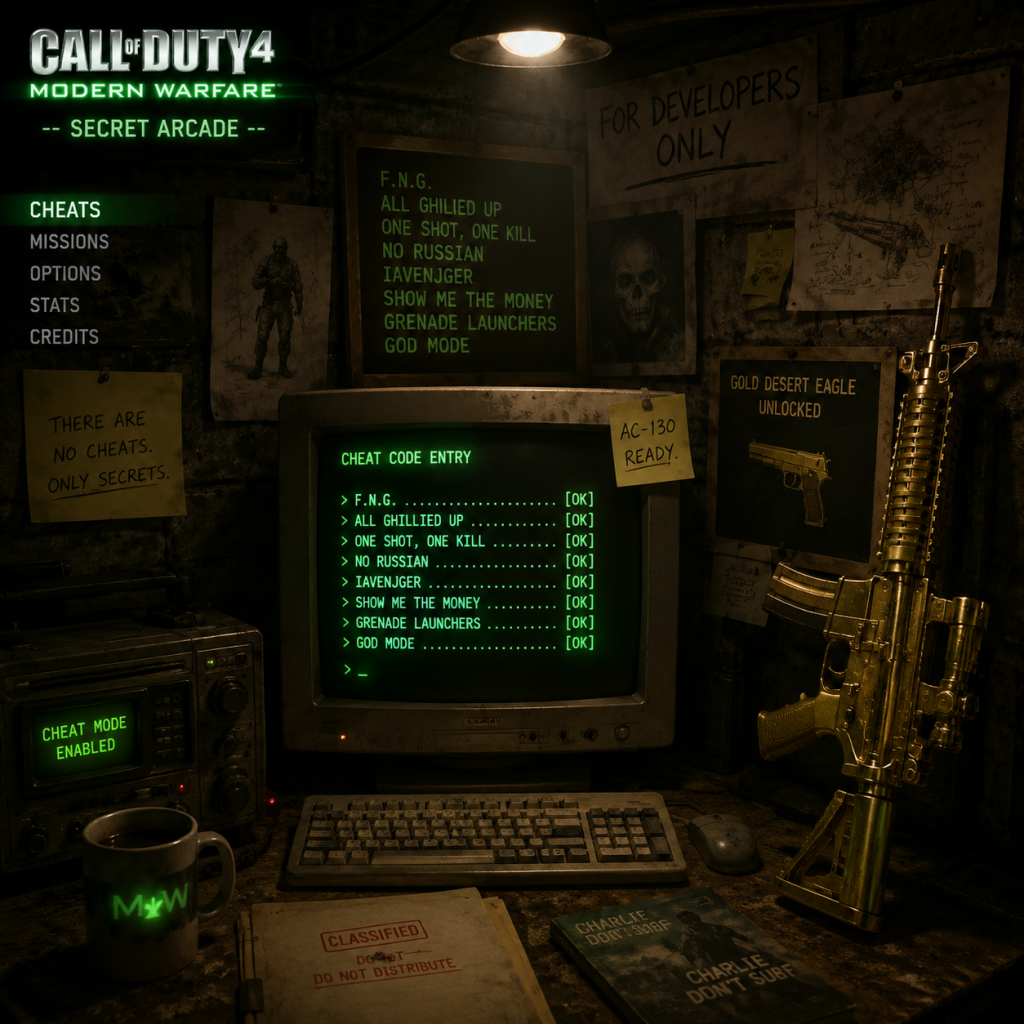
Cheats & Secrets
Cheats & Secrets: Call of Duty 4: Modern Warfare
Overview
Call of Duty 4: Modern Warfare (2007) is a defining first-person shooter that includes a variety of developer-intended secrets and a robust console system on PC. Note that console versions (Xbox 360, PlayStation 3) do not have built-in cheat codes—only the PC version supports console commands. This guide covers all legitimate cheat codes, unlockable content, Easter eggs, and hidden features present in the game.
---
PC Cheat Codes (Console Commands)
To enable cheat codes on PC:
1. Launch the game.
2. Press the tilde key (`~`) to open the developer console.
3. Enter one of the following commands (case-sensitive).
4. Press Enter to activate.
Important: Some commands may disable achievements or stat tracking. Use `sv_cheats 1` first if required (though most work without it).
#### Full List of Console Cheat Commands
| Command | Effect |
|---|---|
| `god` | God mode (immortal) |
| `demigod` | Invulnerable but can still be slowed by damage |
| `give all` | Grants all weapons, ammunition, and equipment |
| `give ammo` | Refills current weapon ammo |
| `ufo` | Free camera mode (fly around, no collision) |
| `noclip` | Walk through walls |
| `notarget` | Enemies ignore you |
| `timescale X` | Adjust game speed (replace X with a number; 0.5 is half speed, 2 is double speed) |
| `cg_fov X` | Change field of view (e.g., `cg_fov 90` for 90° FOV) |
| `r_fullscreen 0` | Toggle windowed mode |
| `map <mapname>` | Load a specific map (e.g., `map mp_crash`) |
| `spdevmap <mapname>` | Load a single-player map in dev mode (enables cheats automatically) – e.g., `spdevmap crew_exp` for “Crew Expendable” |
| `kill` | Suicide (respawns at last checkpoint) |
| `weapon <weaponname>` | Spawn a weapon (e.g., `weapon ak47`) |
| `give weapon_<name>` | Alternative weapon spawn command (e.g., `give weapon_m4`) |
| `player_sethealth X` | Set player health (X is integer) |
| `fast_restart` | Immediately restart the current map |
> Note: Using cheats will prevent saving progress on that playthrough. Exit and reload a legit save to resume normal gameplay.
---
Unlockable Content (Official)
These are secrets and bonuses unlocked by completing the single-player campaign or achieving specific milestones.
#### 1. Arcade Mode
- Unlock: Complete the main campaign on any difficulty.
- Effect: Unlocks Arcade Mode in the main menu (PC only). In Arcade Mode, you replay missions with a score multiplier based on kills, headshots, and speed. A global leaderboard tracks your score.
- Unlock: Finish the campaign on any difficulty.
- Effect: A bonus mission set on a hijacked airliner. You must rescue a hostage within 60 seconds. Completing it on Veteran difficulty unlocks the “Mile High Club” achievement/trophy.
- Unlock: Beat the entire campaign on Veteran.
- Effect: You earn the “Veteran of the Modern War” achievement/trophy and a special calling card in Call of Duty 4: Modern Warfare Remastered (not original). No unique in-game item in the original.
- Unlock: Finding all 30 Intel laptops across the campaign unlocks:
- Effect: Each Intel reveals backstory about the Ultranationalists and the nuclear threat.
- Location: End of mission “Crew Expendable” (the prologue on the cargo ship).
- Details: After escaping the ship via helicopter, you see a massive explosion. If you look carefully, the explosion is a nuke—foreshadowing the later detonation in “Shock and Awe.” This is a subtle narrative Easter egg.
- Location: The abandoned city of Prypiat (missions “All Ghillied Up” and “One Shot, One Kill”).
- Details: The iconic yellow ferris wheel is a real-world landmark from the Chernobyl exclusion zone. Players often take photos or try to climb it (though invisible walls block access). A classic “look don’t touch” Easter egg.
- Location: End of mission “Shock and Awe.”
- Details: After the helicopter crash and subsequent wave of enemies, a nuclear explosion occurs. You can survive a few seconds to watch the wave consume you. The aftermath—a destroyed helicopter, your character crawling—is the only playable segment. No hidden path to survive.
- Location: In the mission “War Pig,” while riding alongside the squad, Gaz says, “Another sad, sorry soldier... just like you.” This line was reused and popularized in Call of Duty: Black Ops by Mason. A self-referential Easter egg for series fans.
- Location: Mission “Death from Above.”
- Details: If you shoot civilian vehicles or structures, the AC-130 crew comments (“What are you doing? Those are civilians!”). Also, the mission’s thermal view reveals that one of the “dead” bodies in the village is actually a stuffed animal. A dark humor detail.
- Location: Mission “Safehouse” (the farmhouse assault).
- Details: If you shoot the television in the living room, it displays a channel showing an old black-and-white movie – a reference to Dr. Strangelove’s war room scene. The TV is interactable and is a nod to classic film buffs.
- Each Intel laptop plays a unique sound when collected. The sound is a digital tone that becomes a melody if all 30 are collected in order. This is a hidden audio Easter egg intentionally designed by developers.
- Completing “Mile High Club” in under 30 seconds triggers a special congratulatory voice line from an unseen announcer. No unlockable reward beyond bragging rights and a secret achievement on PC (unsupported by official leaderboards).
- There is an unused developer test map accessible via console: `devmap mp_dev_room`. This is a flat gray room with weapon racks and targets, used for testing weapons. Not cheat but a secret leftover.
- Scrapyard hidden area: In the map “Scrapyard,” you can jump onto a specific truck frame to reach an elevated catwalk with a view of the entire map. Not normally accessible in standard play, but can be reached with a proper jump – no exploits needed.
- Shipment container glitch: The classic “Shipment” map has a spot behind containers where you can shoot through a tiny gap, commonly called “the corner glitch.” This was patched in later updates but remains on the original release (pre-patch).
- Calling card icons: Prestige Mode unlocks secret animated calling cards (e.g., the skull with a knife). These are earned, not cheated.
#### 2. Mile High Club (Epilogue Mission)
#### 3. Veteran Difficulty Rewards
#### 4. Intel Collectibles (Hidden Laptops)
- PC: The “Unsung Heroes” achievement and a special final cutscene (a CIA report about Imran Zakhaev’s rise).
- Console: Same achievement/trophy; no additional in-game reward beyond the achievement.
---
Easter Eggs & Hidden Features
#### 1. “Crew Expendable” – The Nuke Reveal
#### 2. “All Ghillied Up” – Ferris Wheel in Prypiat
#### 3. “Shock and Awe” – The Nuclear Blast Ending
#### 4. “Another Sad, Sorry Soldier” – Reference to Black Ops
#### 5. “Death from Above” – AC-130 with Hidden Messages
#### 6. “No Fighting in the War Room” – Movie Reference
#### 7. Intel Laptop Themes
#### 8. “Mile High Club” – Speedrun Trophy
#### 9. Developer Room (PC Only)
---
Multiplayer Secrets & Exploits (Safe)
Call of Duty 4: Modern Warfare multiplayer has no cheat codes, but there are a few legacy secrets:
> Note: All multiplayer glitches listed here are harmless and cannot be abused for unfair advantage. They are considered parkour or map knowledge.
---
Summary of Cheat/Secret Accessibility by Platform
| Platform | Cheat Codes | Unlockable Content | Easter Eggs |
|---|---|---|---|
| PC | Yes (console) | Arcade Mode, Mile High Club, Intel | Yes (all) |
| Xbox 360 | No | Mile High Club, Intel | Yes (all, except developer room) |
| PlayStation 3 | No | Mile High Club, Intel | Yes (all, except developer room) |
Final Notes
- No cheat codes exist on console – don’t fall for fake “button combos” online.
- Using PC cheats will disable autosave for that session. Always revert to a clean save for progression.
- Intel laptops are the only official “secret” collectible with narrative payoff. Finding all 30 is the ultimate Easter egg hunt.
- The “Mile High Club” mission is the only post-game content, accessible from the main menu after campaign completion.
Enjoy uncovering the hidden depths of Call of Duty 4: Modern Warfare—whether through developer commands or eagle-eyed exploration!