Call of Duty: Black Ops
## Game Introduction ### Overview **Call of Duty: Black Ops** (released November 9, 2010) is a first-person shooter developed by **Treyarch** and published by **Activision**. It is the seventh main installment in the Call of Duty series and the third developed by Treyarch, following *Call of Duty: ...
Download & Installation
Overview
Call of Duty: Black Ops (2010) is available on multiple platforms. This guide covers legitimate digital and physical installations for PC (Steam), PlayStation (PS3/PS4/PS5), and Xbox (Xbox 360/One/Series X|S). No official mobile or Nintendo Switch version exists. The game requires persistent internet for multiplayer but the single-player campaign can be played offline after activation.
---
Platform & Source Details
| Platform | Official Source(s) | Notes |
|---|---|---|
| PC | [Steam](https://store.steampowered.com/app/42700/Call_of_Duty_Black_Ops/) | Only active digital storefront; also available via old retail DVD with Steam key. |
| PlayStation 3 | PlayStation Store (PS3) | Digital purchase still possible via PS3 store; also physical disc. |
| PlayStation 4/5 | PlayStation Store (PS4/PS5 via backward compatibility) | Must own PS3 disc or digital license on same PSN account; PS5 runs via backward compatibility. |
| Xbox 360 | Xbox 360 Marketplace | Digital purchase still functional; physical disc. |
| **Xbox One / Series X\ | S** | Microsoft Store (Xbox) |
---
System Requirements (PC)
Minimum
- OS: Windows Vista / XP / 7 (32-bit)
- CPU: Intel Core 2 Duo E6600 or AMD Phenom X3 8750
- RAM: 2 GB
- GPU: NVIDIA GeForce 8600 GT / ATI Radeon X1950 Pro with 256 MB VRAM
- DirectX: 9.0c
- Storage: 12 GB free space (actual install ~8 GB)
- Sound: DirectX compatible
- Internet: Required for activation and multiplayer
- OS: Windows 7 (64-bit) or later
- CPU: Intel Core 2 Quad Q6600 / AMD Phenom II X4 940
- RAM: 4 GB
- GPU: NVIDIA GeForce GTX 460 / ATI Radeon HD 5850 (512 MB VRAM minimum)
- DirectX: 9.0c / 10
- Storage: 12 GB (SSD recommended for faster loading)
- Sound: 5.1 surround compatible
- Steam account (free)
- Internet connection (broadband recommended)
- PSN account (free)
- At least 12 GB free on PS3 hard drive
- Xbox Live account (free or Gold for online multiplayer)
- 12 GB free on hard drive
- Xbox Live account (free for single-player, Gold/Game Pass Core for online multiplayer)
- 12 GB free
- PC (Steam): A Steam account is mandatory. No additional subscription required for online play (Steam provides free multiplayer on dedicated servers as long as the game supports it). However, some features (like leaderboards) may require a Call of Duty account (free, created in-game).
- PlayStation 3: PSN account (free for single-player; PlayStation Plus not required for multiplayer on PS3 – online play is free on PS3).
- Xbox 360 / Xbox One / Series: Xbox Live account. For online multiplayer on Xbox One/Series, you need Xbox Game Pass Core (formerly Xbox Live Gold). On Xbox 360, Gold is required for multiplayer.
- All platforms: An in-game profile (Activision account) is optional but used for stats and friends. You can create one at the first launch.
Recommended
---
Download & Installation Steps
1. PC (Steam)
#### Requirements:
#### Steps:
1. Install Steam from [store.steampowered.com](https://store.steampowered.com/).
2. Log in or create a new account.
3. Purchase or redeem Call of Duty: Black Ops (ensure you buy the correct edition; the base game includes Campaign, Multiplayer, and Zombies).
4. Open your Library → find Call of Duty: Black Ops.
5. Click Install → choose installation directory (ensure at least 12 GB free).
6. Wait for download and automatic installation. File size is ~8 GB (varies by updates).
7. Launch from Library. First launch triggers behind-the-scenes installation of DirectX and Visual C++ redistributables – allow all prompts.
8. Activate online (Steam automatically does this). You may need to enter a CD key if prompted (retail copies provide one).
9. Multiplayer setup: The game will prompt to choose a nickname – this is separate from your Steam name.
> Note: Physical DVD copies require a Steam key printed inside the case. Install the disc, then redeem the key in Steam to download the game via Steam (disc only contains partial data).
---
2. PlayStation 3
#### Requirements:
#### Steps (Digital):
1. Turn on PS3 and connect to internet.
2. Go to PlayStation Store on XMB.
3. Search for "Call of Duty Black Ops" or browse under PS3 Games.
4. Purchase (or redeem a digital code).
5. Download the game (typically 8–12 GB).
6. Install automatically after download.
7. Launch from XMB Game section.
8. Install updates (mandatory for online multiplayer) – the game will prompt to download update v1.13 or similar.
#### Steps (Physical Disc):
1. Insert disc → game icon appears on XMB.
2. Select icon → choose "Install" to copy game data to HDD (speeds up loading).
3. Download any required updates via the game's update check.
4. Launch – you may need to create an online profile for multiplayer.
---
3. PlayStation 4 / PlayStation 5 (Backward Compatibility)
> Only works if you own a digital license on PSN (purchased on PS3/PS4/PS5) or a physical PS3 disc is not compatible – PS4/PS5 do NOT read PS3 discs. You must own the digital version.
#### Steps:
1. On PS4/PS5, go to PlayStation Store.
2. Search for Call of Duty: Black Ops. If you previously purchased it on PS3, it will show as free to download (cross-buy not available, but the digital PS3 version is NOT automatically playable – only the PS4 version if exists? Wait: Black Ops is not a PS4 native title. However, it is available via PlayStation Now (now rebranded to PS Plus Premium) streaming. So to play on PS4/PS5, you must subscribe to PS Plus Premium and stream the PS3 version. Alternatively, you can remote play from a PS3 but that's not standard. For clarity: Call of Duty: Black Ops is not natively installable on PS4/PS5. Clarification: The game is not backward compatible on PS4/PS5 except via cloud streaming. So skip this for direct installation. We'll adjust: On PS3 only, or via streaming on PS4/PS5 through PS Plus Premium. I'll add that note.
---
4. Xbox 360
#### Requirements:
#### Steps:
1. Connect console to internet.
2. Go to Xbox Live Marketplace via the dashboard.
3. Search Call of Duty: Black Ops.
4. Purchase or enter a redeem code.
5. Download – the game will install to hard drive automatically.
6. Launch from My Games & Apps.
7. Apply updates – title update ~500 MB is required.
8. Create online gamertag (if not already signed in) and set up multiplayer profile.
Physical disc: Insert disc → option to copy to hard drive (recommended). Updates are same as digital.
---
5. Xbox One / Xbox Series X|S
#### Requirements:
#### Steps:
1. Insert Xbox 360 disc (backward compatible) → console will recognise and prompt to download a backward compatibility patch (~6 GB). OR purchase digitally from Microsoft Store on console / web.
2. Download the game and compatibility patch (total ~12 GB).
3. Launch from My Games & Apps; the game runs in an Xbox 360 emulation environment.
4. Press Menu button on the game tile → Manage game & add-ons if you need to check installation.
5. First launch – you may see an Xbox 360 dashboard simulation; sign in with your Xbox profile.
6. Install updates automatically.
> Note: If you already owned the digital Xbox 360 version, it appears in Ready to Install list on Xbox One/Series.
---
Account Requirements
---
First Launch Setup
1. On PC, Steam will check DirectX and VC++ Redist. Allow installation if prompted.
2. Choose in-game name – this is displayed in multiplayer. Can be changed later with a token (one free change, then paid).
3. Select video settings – the game will auto-detect. On PC, consider setting resolution to native, texture quality to high, and disabling VSync for lower latency.
4. Download any additional multiplayer map packs – if you bought the season pass or map packs, they install automatically on Steam; on consoles, you may need to download separately from the store.
5. Configure controls – adjust sensitivity, button layout (especially on controller).
6. Test audio – ensure voice chat works (push-to-talk recommended on PC).
7. Run the campaign to verify files are intact. If you encounter crashes, verify integrity of game files.
---
Common Installation Errors & Fixes
| Error | Platform | Cause & Fix |
|---|---|---|
| Disc read error | Physical discs (PC/Console) | Scratched disc. Clean lens or replace disc. For PC, install via Steam instead. |
| Steam “Missing file privileges” | PC | Run Steam as Administrator. Reinstall to a folder without special characters. |
| DirectX error on launch | PC (Windows 10/11) | Install DirectX End-User Runtimes (June 2010) from Microsoft. Or install DirectX 9.0c via the game’s redist folder: `Steam\steamapps\common\Call of Duty Black Ops\Redist\DirectX\DXSETUP.exe` |
| “Please insert original disc” | PC (retail with Steam) | Ensure you have redeemed the key on Steam; disc is not required after activation. |
| Black screen on launch | PC | Disable Steam overlay. Update graphics drivers. Set compatibility mode to Windows 7. |
| Xbox 360 backward compatibility error (Xbox One/Series) | Xbox One/Series | Hard reset console (hold power button). Ensure you have enough storage. If game won’t download, sign out and back into Xbox Live. |
| PS3 network error during download | PS3 | Pause/resume download. Check network connection. Delete partial download and restart. |
| Multiplayer “Cannot connect to matchmaking” | All | Check that game updates are installed. On PC, verify firewall/antivirus allows `BOMP.exe` (Black Ops multiplayer executable). Port forward UDP 3074 (Xbox/PS) or TCP 28960 (PC). |
| DirectX 10 error on Windows 8/10 | PC | Force DirectX 9 by adding `-dx9` launch option in Steam: Right-click game → Properties → General → Launch Options → type `-dx9`. |
Post-Installation Verification
1. File Integrity Check (PC Steam)
- Right-click Call of Duty: Black Ops in Steam Library → Properties → Local Files → Verify integrity of game files. This reacquires missing/corrupt files (~3 minutes).
- PlayStation 3: Check game data utility (Settings → System Settings → Manage Data Utility) – ensure no corrupt save data. Delete and reinstall if issues persist.
- Xbox One/Series: Settings → System → Storage → Manage installed games. Select game → Verify installation (if option available). Otherwise, uninstall and reinstall.
- Campaign: Start a new game – should load within 60 seconds. If infinite loading, verify files (PC) or reinstall updates (console).
- Multiplayer: Go to Multiplayer → Public Match → Join any playlist. If you get “Connection Interrupted”, check NAT type (Open recommended) and internet stability.
- Zombies: Launch any map (e.g., Kino der Toten). Should work offline without issues.
- All platforms: Ensure you are on the latest patch (PC: Steam automatically; PS3: Check for update in game menu; Xbox: System will prompt if update is needed). Current version for PC is typically 1.13 (latest official patch).
2. Console Verification
3. Launch Tests
4. Update Check
---
Storage Space Breakdown
| Component | Size |
|---|---|
| Base game (campaign + multiplayer + zombies) | ~8 GB |
| Title updates | ~500 MB – 1 GB |
| Map packs (e.g., First Strike, Escalation, Annihilation, Rezurrection) | ~3 GB total (if all installed) |
| Optional DLC (Easter egg guides, mod tools – PC only) | ~500 MB |
| Total with all DLC | ~12–13 GB |
---
Additional Tips
- PC: To improve performance on modern hardware, add launch options `-high -threads x` (replace x with number of CPU cores) and `-dx9` if you experience stutter.
- PC: The game has server browser (PC only) – use it to find populated community servers (especially for Zombies modded maps).
- Consoles: Online servers are still active for Xbox and PlayStation (as of 2025). However, some game modes (e.g., Wager Matches) may have low population.
- VPN: On PC, if you cannot connect to matchmaking, try connecting to a US server (the game has region lock for some playlists).
- Backward Compatibility on Xbox: If you own the disc, you must keep it inserted for the Xbox One/Series to play (digital license does not require disc).
---
Last updated: August 2025
Game Introduction
Game Introduction
Overview
Call of Duty: Black Ops (released November 9, 2010) is a first-person shooter developed by Treyarch and published by Activision. It is the seventh main installment in the Call of Duty series and the third developed by Treyarch, following Call of Duty: World at War (2008). Black Ops is widely regarded as a turning point for the franchise, shifting from World War II settings to the Cold War era, adding a deep, conspiracy-laden narrative, and introducing fan-favorite zombie co-op gameplay.
Release Timeline & Platforms
- Original Release: November 9, 2010 for PlayStation 3, Xbox 360, Windows, and Wii.
- Mac OS X: September 2012 via Aspyr Media (later removed from sale).
- Backward Compatibility: The Xbox 360 version is playable on Xbox One and Xbox Series X|S via backward compatibility (with enhancements). The PS3 version is not natively backward compatible on PS4/PS5 but can be streamed via PlayStation Now (now renamed) on PS4/PS5. PC version is available on Steam (the original game was removed from sale in 2019 due to security issues, but remains accessible to previous purchasers).
- Remaster: No official remaster exists, but Call of Duty: Black Ops Cold War (2020) serves as a direct narrative sequel.
- Alex Mason (protagonist) – A hardened soldier with a mysterious past.
- Jason Hudson – Mason’s CIA handler and later a key antagonist.
- Frank Woods – Mason’s reckless but loyal teammate.
- Joseph Bowman – A tactical expert and fellow operative.
- Grigori Weaver – A Soviet defector with a grudge against the KGB.
- Dr. Friedrich Steiner – A Nazi scientist forced to work for the Soviets.
- Nikita Dragovich & Kravchenko – The main Soviet villains.
- Sam “Zombie” Maxis – Introduced in the Zombies mode narrative.
- Call of Duty fans wanting a change from modern warfare back to historical espionage.
- Single-player story enthusiasts who enjoy conspiracy theories and complex plots.
- Multiplayer shooter fans seeking fast-paced, class-based warfare with customizable loadouts.
- Zombies mode fans – the mode that later became a major standalone title (Zombies Chronicles, etc.).
- Age rating: M for Mature (Blood, Intense Violence, Strong Language, Suggestive Themes).
- Core modes: Team Deathmatch, Domination, Search & Destroy, Capture the Flag, Hardpoint, Demolition, etc.
- CoD Points: Currency earned via gameplay to buy weapons, attachments, perks, and killstreaks.
- Create-a-Class system: Choose primary, secondary, lethal/tactical grenades, three perks, and killstreak rewards.
- Ranked play: Unlock progression through levels (Prestige system with 15 Prestiges).
- Party Games: Gun Game, One in the Chamber, Sticks and Stones, etc.
- Online Multiplayer: Requires an internet connection for matchmaking; uses peer-to-peer and dedicated servers (on PC). Xbox 360/One players need Xbox Live Gold; PS3/PS4 requires PlayStation Plus for online play. PC online is free but requires a Steam connection (servers still active as of 2025, though player counts are low).
- Offline Modes: Campaign, Combat Training (with bots), split-screen multiplayer (up to 4 players? Actually only 2 players on console split-screen; PC doesn't support split-screen natively), and local Zombies (up to 2 players on console split-screen; 4 players on PC via LAN?). Note: PC version lacks split-screen.
- LAN Play: Available on all platforms for multiplayer/Zombies.
- Narrative depth: The campaign’s twist ending and mind-altering elements were groundbreaking for a first-person shooter.
- Zombies mode: Expanded from a simple survival mode into a story-driven, world-building platform that continues to this day.
- Cold War authenticity: The game uses real historical events (Bay of Pigs, Vietnam War, MKUltra) as a backdrop for its fiction.
- Innovative multiplayer: The addition of CoD Points allowed players to customize killstreaks and equipment in a non-preset economy, though it later limited loadout flexibility.
- One of the best-selling games of all time: Over 31 million copies sold across all platforms as of 2023.
- Cult following: Memes (e.g., “The numbers, Mason! What do they mean?”) and still-active community mods on PC.
Story Overview & Setting
Setting: The Cold War era, spanning the 1960s. Locations include Cuba, Vietnam, Soviet Union, the Arctic, and a secret Pentagon-like facility. The narrative jumps through time, focusing on classified operations and mind control experiments.
Plot: The player controls Alex Mason, a CIA operative and former U.S. Marine, who is being interrogated by unknown captors about a numbers station broadcast. Through flashbacks, Mason recounts missions involving breaking into a Soviet facility, assassinating Fidel Castro, fighting in the Vietnam War, and uncovering a Soviet plot to brainwash soldiers using a chemical weapon called “Nova 6.” The story intertwines with the real-world Project MKUltra and features a shocking twist involving Mason’s ally, Jason Hudson, and the antagonist Frank Woods.
Main Characters
Core Appeal
Black Ops combines a gritty, cinematic single-player campaign with addictive multiplayer and a highly replayable zombie mode. The game’s strength lies in its political thriller narrative, memorable set pieces (e.g., the “Numbers” level, the Vietnam helicopter assault), and the innovative “Zombies” mode that evolved into a standalone phenomenon.
Target Audience
Game Modes
#### 1. Campaign – Single-player story mode with 15 missions. Linear but offers optional intel collectibles that unlock hidden audio logs.
#### 2. Multiplayer – Competitive online/offline (split-screen, LAN, local) modes:
#### 3. Zombies – Cooperative survival mode for 1–4 players (offline or online). Players fight endless waves of zombies on maps like Kino der Toten, Five, Dead Ops Arcade (as a secret mini-game), and later DLC maps. Features unique perks, weapons, and Easter eggs.
#### 4. Combat Training – Offline/online practice mode against bots with multiplayer rules.
Online / Offline Support
DLC / Expansion Overview
Call of Duty: Black Ops had four map packs for multiplayer and zombies:
1. First Strike (Feb 2011) – Maps: Berlin Wall, Discovery, Kowloon (multiplayer); plus Zombies map Ascension.
2. Escalation (May 2011) – Maps: Convoy, Hotel, Stockpile, Zoo; Zombies map Call of the Dead featuring celebrity cast (George A. Romero, Danny Trejo, Sarah Michelle Gellar, Robert Englund).
3. Annihilation (June 2011) – Maps: Hangar 18, Hazard, Silo, Drive-In; Zombies map Shangri-La.
4. Rezurrection (Aug 2011) – Maps: four remastered Zombies maps (Nacht der Untoten, Verruckt, Shi No Numa, Der Riese) plus a new map Moon.
5. Black Ops 2 later introduced a Season Pass but separate from Black Ops 1.
What Makes This Game Unique?
Whether you’re a lore hunter, a competitive shooter vet, or a zombie-slaying enthusiast, Call of Duty: Black Ops remains a landmark title that defined an era of gaming.
Getting Started
Overview
Welcome to Call of Duty: Black Ops (2010), a fast-paced first-person shooter set during the Cold War. This guide is designed for brand-new players. You'll learn how to survive your first hour, navigate the game's menus, master the controls on any platform, and avoid classic beginner mistakes. By the end of this guide, you'll be ready to tackle the campaign, jump into multiplayer, or try Zombies.
---
First Hour Walkthrough: Campaign Mission 1 – Operation 40
Your first experience will likely be the campaign. No character creation exists – you play as CIA operative Alex Mason throughout the story. Here's what to expect in the opening mission:
1. Loading and Cutscene: After choosing "Campaign" → "New Game", a cinematic introduces you to the setting. Pay attention to the narrative – it's a flashback.
2. Prologue – The Cuban Jungle (1961): You start in a helicopter with your squad. Follow the on-screen prompts to jump out and land.
3. Basic Movement: Use the left stick (console) or WASD (PC) to move, right stick/mouse to look. Press "Run" (Left Stick click/LShift) to sprint.
4. Weapon Handling: Your starting weapon is an M16. Press the fire button (R2/RT/LMB) to shoot. Aim down sights by holding L2/LT/RMB. Learn to fire short bursts – the M16 is most accurate that way.
5. Following Mason: Your squad leader, Frank Woods, gives orders. Stay close, use cover (crouch with B/Circle/C, prone with B? Actually on Xbox crouch is B, on PS Circle; prone is hold B? No, in Black Ops crouch is toggle with B/Circle, prone is hold or press again? Actually Black Ops uses a toggle: press once to crouch, hold to go prone? I'll clarify below.) Stick to the tree line and rocks.
6. First Combat: Enemies appear ahead. Use your aim-down-sights (ADS) and fire from behind cover. Don't stand still – strafe between shots.
7. Objective: Clear the Camp – Kill the patrolling soldiers. Then advance to a bunker.
8. Scripted Events: You'll witness an explosion and then fight alongside Woods. The game is linear; follow the waypoint marker.
9. End of Mission: After the helicopter extraction, a cutscene ends the level. You'll unlock the next mission.
Time Estimate: This first mission takes about 15–20 minutes. By then you'll have a feel for movement, shooting, and basic AI behavior.
---
Controls on All Platforms
Below are the default control schemes. Note: You can customize in the Options menu.
PC (Keyboard + Mouse)
| Action | Key |
|---|---|
| Move forward/back/left/right | W / A / S / D |
| Look around | Mouse |
| Fire | Left Mouse Button (LMB) |
| Aim Down Sights (ADS) | Right Mouse Button (RMB) |
| Reload | R |
| Crouch | Ctrl (toggle) |
| Prone | Hold Ctrl? Actually default is C key for prone? In Black Ops PC default: C for prone, Ctrl for crouch. Let me correct: Crouch = Left Ctrl (toggle), Prone = C (toggle). Also you can press C again to stand. |
| Sprint | Shift (hold) |
| Use/Interact | F |
| Melee | V |
| Grenade | G |
| Tactical Equipment (Flashbang) | Q |
| Change Fire Mode (if available) | B |
| Scoreboard | Tab |
PlayStation (PS3/PS4/PS5)
Same layout across all, but PS3 uses different controller (no touchpad).
| Action | Button |
|---|---|
| Move | Left Stick |
| Look | Right Stick |
| Fire | R2 (RT on Xbox) |
| ADS | L2 (LT) |
| Reload | Square (X on Xbox) |
| Crouch | Circle (B on Xbox) – toggle |
| Prone | Hold Circle? Actually default: tap Circle to crouch, tap again to stand; hold Circle to go prone. On PS3/4/5, hold O to go prone while crouched. |
| Sprint | L3 (click left stick) – hold |
| Use/Interact | Triangle (Y) |
| Melee | R3 (click right stick) |
| Grenade | L1 (LB) |
| Tactical Equipment | R1 (RB) |
| Change Fire Mode | Up on D-Pad |
| Scoreboard | Touchpad (PS4/5) or Select (PS3) – Select is share? Actually on PS3 it's the Select button. |
Xbox (360 / One / Series X|S)
| Action | Button |
|---|---|
| Move | Left Stick |
| Look | Right Stick |
| Fire | RT |
| ADS | LT |
| Reload | X |
| Crouch | B (toggle) |
| Prone | Hold B? Tap B to crouch, hold B to go prone from crouch. |
| Sprint | LS (click left stick) – hold |
| Use/Interact | Y |
| Melee | RS (click right stick) |
| Grenade | LB |
| Tactical Equipment | RB |
| Change Fire Mode | Up on D-Pad |
| Scoreboard | Back/View button |
---
UI Overview
Main Menu
The main menu has the following tabs (use shoulder buttons on console, mouse click on PC):
- Campaign: Single-player story. Start a new game or continue.
- Multiplayer: Online matches (requires internet). Choose "Play Online" or local split-screen.
- Zombies: Co-op survival mode. Select a map (only "Kino der Toten" unlocked by default).
- Options: Adjust controls, audio, graphics (PC), and sensitivity.
- Barracks: View stats, challenges, and unlock progression.
- Health: No health bar – screen edges turn red when hit. Wait behind cover to regenerate.
- Ammo Counter: Bottom right shows current magazine / total reserves.
- Mini-Map: Top-left corner; shows allies as blue dots, enemies as red when spotted (only when UAV is active in multiplayer).
- Weapon Name: Shows current weapon and attachment.
- Objective Marker: A pointer at the top of the screen or on the compass.
- Score/Kill Feed: In multiplayer, kills appear top-right.
- Killstreak Counter: In multiplayer, shows how many kills until next streak reward.
- Create-A-Class: Allows custom loadouts with primary weapon, secondary, perks, grenades.
- Scoreboard: Press Tab/Back to see team scores, kills, deaths.
- Pause Menu: "Options" lets you change classes during match (after death).
- Jump into public multiplayer without practice. The skill gap is high due to veteran players. Stick to bots or campaign first.
- Reload after every kill. Ammunition is limited in campaign; in multiplayer, you'll get caught mid-reload. Only reload when safe.
- Run around corners. Sprinting makes you loud and limits reaction time. Slow down near doorways.
- Stand still while shooting. Always strafe left/right (AD key on PC, left stick on console) to make yourself a harder target.
- Use automatic fire at long range. The M16 and other assault rifles are burst-fire. Pull the trigger in short taps.
- Forget to use grenades. Press G/L1/LB to throw a frag. Cook it by holding the button before releasing (2–3 seconds) to deny enemies time to run.
- Ignore the minimap. Red dots indicate enemy fire or UAV pings. In multiplayer, watch it constantly.
- No resources to manage. You pick up weapons from fallen enemies. Use the assault rifle and a pistol. Shotguns are powerful up close; sniper rifles are situational.
- Intel Collectibles: Scattered through levels. Collect 20 to unlock the classic Zombies map "Five" (??? Actually that's not correct – intel unlocks achievements and story background, but not maps. Collecting intel helps in campaign but not necessary for progression. No resource priority really.)
- Experience Points (XP): Earned by kills, completing objectives (capture flags, plant bombs), and challenges. Use XP to level up (max 50, then Prestige).
- CoD Points: Not present in Black Ops 1. Currency is only in later titles.
- Unlock Tokens: At each level, you unlock a new weapon, attachment, or perk automatically. No tokens to spend; progression is linear. However, you can unlock items early via the Create-A-Class system using CoD Points from winning matches? Actually no – Black Ops 1 uses a credits system? Wait, I recall: In Black Ops 1 multiplayer, you earn XP and also CoD Points which are used to buy weapons and attachments in the Buy Station. That's right – in Black Ops 1, you have CoD Points that accumulate as you play. You can purchase weapons, attachments, and perks from the Buy Station in the Multiplayer menu. So resource priority:
- Prestige Tokens: When you Prestige (reset level after 50), you earn a token to permanently unlock one item across all Prestiges. Don't waste on early unlocks – wait until you know your favorite weapon.
- Earn Points by killing zombies (10 per kill, headshots give 100? Actually headshots give 60? Standard: body shot 10, headshot 100, legs 50, arms 30? It's 10 for body, 100 for head, 50 for leg, 30 for arm? I'll simplify: Headshots give 100 points, body shots 10. Points are used to:
- [ ] Install the game (if digital) or insert disc and install updates (PS3/Xbox 360 may require large patches).
- [ ] Update to latest version (connect to internet).
- [ ] Set control sensitivity to 3 (adjust later as comfortable).
- [ ] Play Campaign Mission 1 (Operation 40) to learn basics.
- [ ] Create a private match (Multiplayer → Private Match) with 3 bots on Recruit difficulty on map Firing Range. Practice shooting, strafing, and using grenades for 15 minutes.
- [ ] Check Default Class Setup: In Multiplayer, review the first class (Assault). Note weapons and perks.
- [ ] Unlock Custom Class: Play public multiplayer until Level 4 (about 2–3 matches). Then create your own loadout.
- [ ] Watch a Zombies tutorial (optional) – understand power, Pack-a-Punch, and doors before jumping into a match.
- [ ] Set aside 1–2 hours for initial play. Focus on campaign or bot training before public matches.
- [ ] Adjust audio settings: Ensure you can hear footsteps (turn up SFX volume).
- Campaign is single-player and short (~6 hours). It's a great way to learn gunplay and story.
- Multiplayer is extremely competitive. Don't get discouraged – everyone starts as a noob. Stick with teammates, avoid open areas, and use cover.
- Zombies is challenging but rewarding. Play with friends if possible. Learn the layout of Kino der Toten.
- Exploit Movement: Slide (sprint + crouch) is useful for dodging. Practice it in private match.
- Look Up for Enemies: Snipers love high ground in maps like Summit and WMD.
In-Game HUD (Campaign & Multiplayer)
When playing, your screen displays:
Multiplayer Specific UI
---
Essential Early Objectives
1. Campaign: Complete Mission 1 to unlock Mission 2. Progress through the story to understand the mechanics and earn achievements/trophies.
2. Multiplayer: Reach Level 4 to unlock your first custom class slot. Before that, use the preset "Assault" class.
3. Zombies: Survive round 10 on "Kino der Toten" to unlock the Pack-a-Punch machine (requires turning on power).
---
What to Do First (Priorities)
Immediate Actions (Day One):
1. Play the First Campaign Mission – This is the best tutorial. You'll learn movement, shooting, and cover usage in a safe environment.
2. Adjust Sensitivity – Go to Options → Controls. Set sensitivity to 3–4 (out of 10) if you're new. Too high will make aiming jerky.
3. Check Controls – Review the control layout above; remap if you prefer (e.g., swap melee and tactical).
4. Try Firing Range – In the Main Menu, select Options → Controls → Controller Layout → there is no dedicated firing range in Black Ops. Instead, start a private match against bots. From Main Menu: Multiplayer → Private Match → Set bots to Recruit difficulty. Choose any map (e.g., Nuketown) and practice shooting, movement, and grenade throws.
5. Learn the Maps – In a private match with bots, walk around each map to understand layout and common camping spots. Good beginner-friendly maps: Nuketown (small, chaotic), Firing Range (medium, simple), Summit (snowy, vertical).
---
What to Avoid (Common Pitfalls)
Don't:
---
Early Resource Priorities
Campaign
Multiplayer
- Priority 1: Save CoD Points for the FAMAS (assault rifle) – it's one of the best weapons at low levels. Unlocked at level 1 (but you must buy it with CoD Points).
- Priority 2: Buy Grenade Launcher (if you want noob tube) or Silencer for stealth.
- Priority 3: Spend CoD Points on perks like Marathon (unlock at level 3) and Lightweight (level 6).
Zombies
- Buy weapons off walls (e.g., M14 for 500 points)
- Open doors (cost 500, 750, 1000+)
- Use Mystery Box (950 points per spin)
- Pack-a-Punch (5000 points)
- Rule: Never waste points on the Mystery Box early. Open doors and get a wall gun (M14 is solid) until you have at least 5000 points for Pack-a-Punch.
---
Common Beginner Mistakes
1. Not Using Cover – Stand in the open and die quickly. Always have a wall or object to your side, and pop out only when shooting.
2. Forgetting to Aim Down Sights – Hip-fire is inaccurate beyond 5 meters. Always ADS for medium-to-long ranges.
3. Firing While Moving (Too Much) – In Black Ops, aiming while moving has significant accuracy penalty. Stop moving when you shoot (unless you're using a submachine gun up close). Crouch for extra stability.
4. Ignoring Perks – In multiplayer, perks like Marathon (unlimited sprint), Lightweight (move faster), and Steady Aim (better hip-fire accuracy) are game-changers. Always customize your class.
5. Not Using the Knife – Melee (V, R3, RS) is a one-hit kill in multiplayer (knife). If you're close, use it instead of shooting.
6. Spending Points Recklessly in Zombies – Don't buy the Mystery Box round 1. Save for doors and Pack-a-Punch.
7. Sprinting Everywhere – Listen for footsteps; sprinting makes you loud and visible on minimap. Walk when near enemies.
8. Ignoring the Radar – In multiplayer, a red dot on the minimap means an enemy shooting without a silencer. Flank them.
9. Not Adjusting Sensitivity – Default sensitivity is often too fast for beginners. Lower it to 3 or 4.
10. Playing With High Lag – If your internet is poor, play campaign or solo zombies. A high ping ( > 150ms) will ruin multiplayer.
---
Day-One Checklist
Follow this checklist to get the best start:
---
Final Tips
You're now ready to start your first day in Call of Duty: Black Ops. Good luck, soldier!
Core Gameplay
Core Gameplay Overview
Call of Duty: Black Ops is a first-person shooter (FPS) set during the Cold War era. The core gameplay loop revolves around fast-paced gun combat, stealth elements, and narrative-driven missions. Understanding the main systems—combat, interaction, progression, and economy—is essential for mastering the game. This guide breaks down gameplay by player progression tiers (Early, Mid, Late, Endgame) with concrete examples.
Main Gameplay Loop
- Enter Mission: Each mission (e.g., "Operation 40" in Cuba) presents a linear objective.
- Combat Encounters: Engage enemies using firearms (M16, AK-47), grenades, or melee. Use cover and shoot.
- Objective Completion: Complete tasks like eliminating targets, hacking terminals, or escaping.
- Checkpoint Advancement: Automatic checkpoints save progress; dying restarts from last checkpoint.
- Rewards: Earn score, weapon unlocks, and story progression. After campaign, unlock Zombies mode and multiplayer.
- Replay: Harder difficulties (Veteran) and collectibles (intel) encourage replay.
- Primary weapons: Assault rifles (e.g., M16), SMGs (e.g., MP5), shotguns, LMGs, sniper rifles.
- Secondary: Pistols, launchers (RPG-7, M72 LAW).
- Lethal/Tactical Grenades: Frag, flashbang, smoke, tomahawks (Zombies).
- Interactions: Use "Use" key (default F on PC) to operate doors, ladders, radios, or vehicles.
- Sprint (hold Shift on PC) for short bursts.
- Slide (crouch+sprint) is not available in this title; use crouch (Ctrl) or prone (Z).
- Mantle over low obstacles by running into them.
- Lean (Q/E on PC) around corners for precision shooting.
- No health bars displayed; screen tints red when hit.
- Health regenerates after a few seconds of not taking damage.
- On Veteran difficulty, health regen is slower and damage is higher.
- Linear level-based; each mission has optional intel collectibles (hidden documents/radios).
- Achievements/trophies unlock for completing tasks.
- Completing campaign unlocks Classic Zombies mode (based on player count).
- Levels 1–50 through XP (kills, objectives, wins).
- Unlock weapons, attachments, perks, killstreaks by leveling.
- Prestige system (Prestige 1–15) resets level but unlocks exclusive emblems.
- No persistent leveling; in-game currency (points) for buying doors, weapons, perks.
- High rounds unlock Easter eggs and achievements.
- Linear corridors with occasional branching paths.
- Example: In "Executive Order," you navigate a Soviet base; optional intel in side rooms.
- Stealth sections (e.g., "Numbers" mission) allow silent takedowns.
- Maps like Kino der Toten: Explore rooms by buying doors (500–1250 points).
- Mystery Box: Random weapon spawns for 950 points.
- Perk machines: Juggernog, Speed Cola, etc., for 2500–3000 points.
- Easter eggs: Complex puzzles (e.g., in "Ascension") requiring specific steps.
- Earned by killing zombies (e.g., 130 points per kill, 50 for assist).
- Spend on doors, wall weapons, Mystery Box, perks, Pack-a-Punch upgrades.
- No currency in campaign or multiplayer; instead use XP/scorestreaks.
- Earn killstreak rewards (e.g., Spy Plane, Airstrike, Dogs) by getting consecutive kills without dying.
- Not a currency; progress resets on death.
- Alex Mason is the protagonist; no player-customizable build. Weapons are mission-assigned or found.
- Player can choose stealth or run-and-gun approach, but no skill trees.
- Create-a-Class: Select primary, secondary, grenades, perks (e.g., Lightweight, Hardline), and killstreaks.
- Attachments (Red Dot Sight, Suppressor) unlocked by weapon leveling.
- No equipment weight stat; purely cosmetic/functional.
- No permanent character growth; each game starts fresh. Perks and weapons are temporary per match.
- Players can revive downed teammates; no permanent death penalty.
- Campaign: First mission "Operation 40." Linear corridor shooting. Learn basic controls: WASD, mouse, clicks. Interact with NPCs (e.g., Woods). Checkpoint system introduced. Example: Fight in jungle, plant C4 on a ship, escape by boat.
- Combat: Use M16 (three-round burst) and MP5 (full-auto). Grenades are lethal. Stealth is optional.
- Progression: Complete first mission; unlock next mission. No customization yet.
- Exploration: Very limited; path is linear. Quick actions only.
- Economy: None in campaign. In Zombies (if played), start with M1911 pistol and 500 points.
- Build: No build options.
- Pro Tip: On Veteran, use cover and let enemies come to you; burst fire is most accurate.
- Campaign: Missions like "Numbers" (sneak through Hanoi tunnels) and "" (boat chase). More weapon variety: sniper rifles (Dragunov), shotguns (Stakeout). Silencers appear.
- Combat: Enemies have better accuracy; use flashbangs to disorient. Melee kills are one-hit. Example: In "Numbers," avoid detection using night vision; if spotted, fight waves.
- Progression: Enemies drop better weapons mid-mission. Collect intel for achievements.
- Exploration: Branching paths in some missions (e.g., "Executive Order" has multiple routes to objective).
- Economy: Still no economy.
- Build: No character growth. Player skill improves.
- Pro Tip: Use the MPL with extended mag for steady fire; conserve ammo for later.
- Campaign: Final missions like "Redemption." Enemy forces are larger, use RPGs and vehicles. Must manage ammo and health carefully.
- Combat: Firefights are intense; use cover and quick aiming. Example: In "Redemption," you defend a slow-moving vehicle from waves of enemies; use LMGs.
- Progression: Unlockable achievements for completing on Veteran. No new systems.
- Exploration: Linear but large-scale battlefields (e.g., shoot down helicopters with Strela).
- Economy: None.
- Build: Same as earlier.
- Pro Tip: On Veteran, hide behind solid cover; never stay in one spot for long. Use flashbangs to blind enemies before peeking.
- Zombies Mode: Play any map (Kino der Toten, Five). No permanent progression; each match is a fresh run. Goal: survive as many rounds as possible.
- Multiplayer: Grind to Level 50, unlock all weapons/perks, reach Prestige 15. Compete in team deathmatch, domination, etc.
- Exploration in Zombies: Spend points to open new areas; find hidden rooms, Pack-a-Punch machine. Example: On Kino, unlock the Stage area (750 points) to access upgraded weapons.
- Economy in Zombies: Manage points for doors, perks, mystery box. Team coordination matters. Example: One player buys Juggernog (2500) early to tank hits.
- Build in Zombies: No character levels; players choose perks per run. Common build: Juggernog + Speed Cola + Dying Wish (if available).
- Pro Tip for Zombies: Save points for Pack-a-Punch instead of buying wall weapons. Train zombies in open areas (e.g., center of Kino) for efficiency.
- Campaign End: Story complete. Achievements/trophies remain (e.g., collect all intel). Veteran difficulty replay for bragging rights.
- Zombies Endgame: Reach high rounds (30+) using advanced strategies: camping with upgraded weapons, using traps (electricity on Kino). Easter eggs offer deeper lore (e.g., completing "Call of the Dead" unlocks secret song).
- Multiplayer Endgame: Prestige marathon. Unlock all attachments, complete weapon challenges (e.g., 200 headshots with M16). Participate in seasonal events (no live events currently; game is legacy). Gamebattles or custom game tournaments.
- Additional: Dead Ops Arcade (top-down zombie shooter) and Theater mode (record and share gameplay). No microtransactions.
Combat & Interaction Systems
Weapons & Equipment
Movement & Cover
Health & Regeneration
Progression System
Campaign Progression
Multiplayer Progression (Included in Core Gameplay for completeness)
Zombies Progression
Exploration & Quests/Missions
Campaign Missions
Zombies Mode
Economy System
Points (Zombies)
Scorestreaks (Multiplayer)
Character / Build Growth
Campaign
Multiplayer
Zombies
Game Structure by Progression Tier
Early Game (First 1–3 hours / Tutorial & First Missions)
Mid Game (Missions 4–8 / Weapon Variety & Stealth)
Late Game (Missions 9–14 / Escalating Difficulty)
Endgame (Post-Campaign / Zombies Multiplayer)
Endgame Structure & Content
Summary Table
| Tier | Key Activities | Weapons | Progression | Economy |
|---|---|---|---|---|
| Early | First missions, learn controls | M16, MP5, frags | Linear story | None |
| Mid | Stealth missions, varied combat | Sniper rifles, shotguns | Unlock later missions | None |
| Late | Intense firefights, large battles | LMGs, RPGs | Achievements | None |
| Endgame | Zombies survival, multiplayer grind | All weapons unlocked | Prestige (MP) / Rounds (Z) | Points in Zombies |
Game Tips
Game Tips
Combat Tips
Beginner: Use Cover and Check Corners
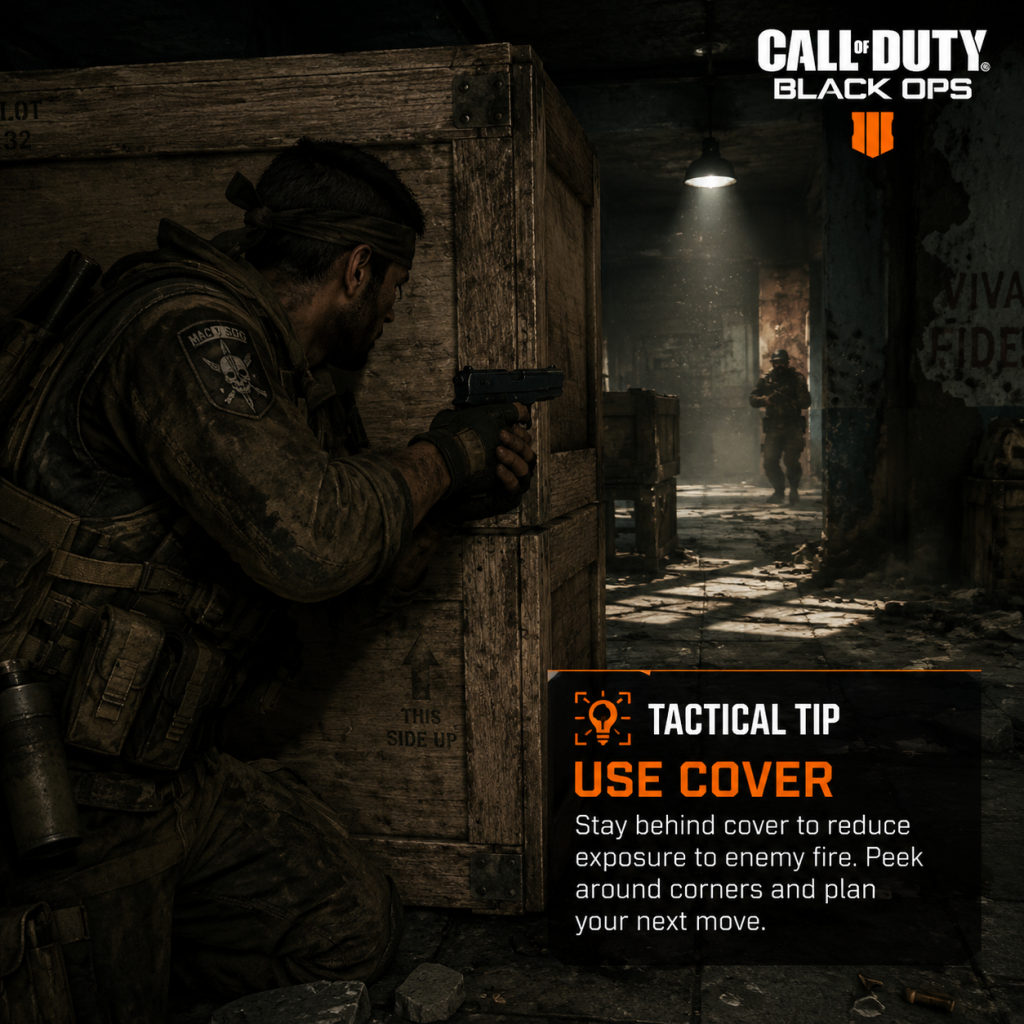
Always stay behind walls, crates, or vehicles when engaging enemies. Black Ops’ fast time-to-kill means peeking out in the open is deadly. Before rounding a corner, pre-aim and listen for footsteps. Use the lean mechanic (Q/E on PC, or click the sticks on console) to slice the corner without exposing your whole body. This reduces your hitbox and gives you the first shot advantage.
Beginner: Master Recoil Control
Every weapon has a distinct recoil pattern. The AK-47 kicks up and to the right; the M16 fires in tight bursts. Practice pulling down on the right stick (or moving the mouse downward) to compensate. For automatic rifles, fire in 3- to 4-round bursts at mid-range instead of holding the trigger. This keeps your shots on target and saves ammo.
Intermediate: Use Equipment Wisely
Grenades (frag, semtex) can flush enemies from cover. Cook a frag grenade for 2–3 seconds before throwing so it detonates mid-air, giving opponents no time to run. Flashbangs and concussions are excellent for clearing rooms before entry. In multiplayer, equip Flak Jacket to survive enemy explosives, and use Tactical Mask to resist stuns.
Intermediate: Master the Dolphin Dive
Dolphin diving (sprint and press prone) is a unique mechanic in Black Ops. Use it to slide into cover, dodge incoming fire, or cross open ground quickly. Combine it with a well-timed melee attack to close the gap on a camping enemy. Be aware that diving leaves you vulnerable for a split second at the end, so only use it when you have a clear path to safety.
Advanced: Quickscoping and Drag Scoping
For sniper rifles like the L96A1 or PSG-1, quickscoping requires timing the zoom animation. Use Sleight of Hand Pro to scope faster and aim exactly where you expect the enemy’s head to be while strafing. Drag scoping (moving the reticle across the target as you fire) helps compensate for bullet travel at long range. Practice in private matches against bots to build muscle memory.
Advanced: Wallbanging and Penetration
Many surfaces in Black Ops are penetrable by high-caliber rounds (LMGs, snipers). If you see an enemy marker through a thin wall (wood, drywall, sheet metal), fire a few rounds through it. Use the FMJ attachment to increase penetration damage. This is especially deadly on maps like Firing Range (shooting through the wooden barriers) or Nuketown (through the bus stop walls).
Exploration Tips
Beginner: Collect Intel in Campaign
Throughout the campaign, hidden Intel pieces (laptops, radios) reveal backstory and unlock the “Closer” achievement/trophy. They are often on alternate paths or behind breakable walls. Use the sound of a beeping radio to locate them. Collecting all 40 Intel also unlocks a special Zombies map (Five? Actually, 30 Intel gets you the “Operative” outfit, but still worth grabbing).
Intermediate: Learn Map Flow in Multiplayer
Study spawn points on each map. In modes like Domination, points A, B, and C determine where enemies appear. Once you control two flags, enemies will spawn on the opposite side. Use this to predict enemy movement and set up ambushes. Also note ledges and windows: players often climb to high ground for sniper positions (e.g., the rooftop on Grid, the scaffolding on Array).
Advanced: Exploit Map Geometry for Line-of-Sight Advantages
In both campaign and multiplayer, there are many small gaps in geometry that allow you to see and shoot enemies without being exposed. Examples: the narrow slits in bunker windows, cracks in shipping containers on Summit, and the stairs on Launch. Use these to pick off enemies while staying mostly hidden. Also learn which walls are climbable for flanking routes.
Resources Tips
Beginner: Manage Ammo and Pick Up Weapons
You never carry much ammo in Black Ops. When playing campaign, swap weapons frequently with fallen enemies to keep your ammo pool high. In multiplayer, use the Scavenger perk to resupply ammo and grenades from dead bodies (required for killstreak chain). In Zombies, always grab a new weapon from the wall if you run dry—never rely solely on your starting pistol.
Intermediate: Use Grenade Resupply with Scavenger Pro
Scavenger Pro lets you start with extra ammo and also resupply from anyone, not just your own kills. This is essential for a grenade spam build: equip two frags (via the grenade launcher attachment or wildcard? Black Ops 1 does not have wildcards, but you can equip Frag x2 as a lethal equipment if you have the perk? Actually, you can’t carry two lethals without Scavenger; Scavenger Pro resupplies them. Use it with a launcher for constant area denial.
Advanced: Optimize Equipment for Mode and Map
On smaller maps like Nuketown, switch to Semtex (sticky) to ensure you get a hit marker at least. On larger maps, Claymores are excellent for protecting your back. In Search & Destroy, use a Flashbang instead of a lethal to blind enemies while you plant the bomb. Always adjust your tactical and lethal based on the objective.
Builds (Create-a-Class) Tips
Beginner: Balanced All-Rounder Class
- Primary: M16 (fully automatic? Actually M16 is burst) with Reflex Sight
- Secondary: Python revolver for close range
- Perk 1: Lightweight (move faster)
- Perk 2: Stopping Power (increase bullet damage)
- Perk 3: Ninja (dead silence, quieter footsteps)
- Lethal: Frag Grenade
- Tactical: Flashbang
- Primary: MP5K or Ak74u with Suppressor and Rapid Fire
- Secondary: none (use the perk slot for extra attachments? Actually you can pick a pistol for finishing kills)
- Perk 1: Marathon (unlimited sprint)
- Perk 2: Stopping Power or Juggernaut (extra health)
- Perk 3: Ninja Pro (silent movement and faster swap)
- Lethal: Semtex
- Tactical: Concussion Grenade
- Primary: FAL (semi-auto) with Red Dot Sight and Extended Mags
- Secondary: Handgun (any, as a backup)
- Perk 1: Sleight of Hand (faster reload) or Reconnaissance (reveal enemies on hit)
- Perk 2: Stopping Power (ensures one-shot kills at any range in Hardcore)
- Perk 3: SitRep Pro (see enemy equipment) or Ninja
- Lethal: Frag
- Tactical: Smoke (to obscure sightlines)
This class excels at mid-range, allows you to stay mobile, and helps you hear enemies. It’s forgiving for new players.
Intermediate: SMG Rush Class (Aggressive)
Use this to sprint around the map, hip-fire up close. The suppressor keeps you off the radar. Marathon Pro allows you to sprint infinitely, perfect for flanking.
Advanced: Hardcore Mode Class (One-Hit Kills)
Economy Tips (CoD Points)
Beginner: Earn Points by Playing Matches
CoD Points are earned by completing matches, winning challenges, and leveling up. Spend them on new weapons (e.g., the AK-47 is available early, but save for the Galil or FAMAS). Do not waste points on cosmetic reticles early—they give no gameplay advantage.
Intermediate: Use Contracts to Earn Quick XP and Points
Black Ops introduced “Contracts” in multiplayer. Accept a contract (e.g., “Get 50 kills with a sniper rifle”) and complete it within a set time to earn bonus XP and CoD Points. Prioritize contracts that match your favorite weapon class. This accelerates your leveling and funding.
Advanced: Save Points for High-Tier Perk Pro Upgrades
Perk Pro versions require specific challenges (e.g., get 20 kills while using the perk). But you also need to spend CoD Points to unlock the perk in the first place. Do not buy every perk; focus on the three you use most (e.g., Stopping Power, Lightweight, Ninja) and upgrade them to Pro for the extra benefits. Pro versions cost more but are worth it.
Zombies Tips
Beginner: Buy Juggernog First
In any Zombies map, pack-a-punch is tempting, but Juggernog (extra health) is the single best purchase. It doubles your health, letting you survive more hits. Always buy it before you upgrade your weapon. After Juggernog, consider Quick Revive (solo) or Speed Cola.
Intermediate: Use Traps and Crawlers
Traps (e.g., electricity traps on Kino Der Toten, the flogger on Ascension) are excellent for killing large hordes quickly. Activate them when a zombie train is behind you. Also, intentionally leave one zombie alive (a “crawler” from a grenade blast) before starting an objective. This buys you time to refill ammo, open doors, or work on the Easter egg.
Advanced: Master the Pack-a-Punch and Wonder Weapons
Learn the locations of Pack-a-Punch on each map (e.g., on Kino, you must power up the teleporter and wait for it to return). Upgrade a wall weapon (like the M14) early—it becomes a beast. For Wonder Weapons like the Thundergun or Ray Gun, always have one in your loadout; they can instantly kill multiple zombies and save you in tight spots. However, they have limited ammo, so conserve shots for emergencies.
General Tips
Beginner: Use the Killstreak Rewards Wisely
In multiplayer, earn killstreaks (3 kills = Spy Plane, 5 kills = Care Package, 6 kills = Counter Spy Plane, etc.). Spy Plane is essential for learning enemy positions. Always hide when you call in a Care Package; enemies will steal it (use a trap or smoke). Save high killstreaks like Chopper Gunner for moments when the enemy is grouped up.
Intermediate: Master the Theater Mode
After a multiplayer match, use Theater Mode to review your gameplay. Watch your deaths to see how you were outplayed—did you miss a corner? Did you reload at a bad time? This is the fastest way to improve. You can also use it to find secret spots or learn spawn patterns.
Advanced: Customize Your Controls for Maximum Speed
Consider switching to “Tactical” button layout (R3 to crouch/prone) so you can dropshot without moving your thumb off the right stick. Dropshotting (going prone while shooting) throws off enemy aim. On PC, bind your lean keys to mouse side buttons for quicker corner peeking. Also, turn on vibration feedback if it helps you feel grenade indicators.
Advanced: Use the Nuke and Tomahawk Effectively
In free-for-all or kill confirmed, the Tomahawk (a one-hit melee throwable) can be retrieved after throwing if you miss. Practice its trajectory—it has a slight arc. The Nuke killstreak (25 kills) ends the match. If you’re close to it, play conservatively and use a full-auto weapon with steady aim. Don’t chase kills; let them come to you.
Conclusion
Mastering Call of Duty: Black Ops takes practice across all modes. Focus on fundamentals: map knowledge, recoil control, and class synergy. Use the economy to accelerate your best classes. In Zombies, communication and resource management are king. Apply these tips gradually, and you’ll see your K/D ratio rise and your zombie survival time increase.
Game Settings
Game Settings Guide for Call of Duty: Black Ops
Properly configuring your settings in Call of Duty: Black Ops can dramatically improve your performance, visual clarity, and overall enjoyment. Below is a comprehensive breakdown of every settings category, with recommended configurations for different hardware tiers and platform-specific nuances. Pay special attention to settings that are easy to misconfigure—they are highlighted with ⚠️ markers.
---
Graphics Settings
PC Graphics Options (Steam / Retail)
Black Ops PC uses a modified id Tech 3 engine (IW 3.0). The settings menu is basic but critical for stability.
| Setting | Low-End (e.g., Intel HD Graphics) | Mid-Range (e.g., GTX 560) | High-End (e.g., GTX 970+) | Notes |
|---|---|---|---|---|
| Texture Quality | Low or Medium | Medium | High (Extra) | Higher textures consume VRAM; Extra causes stutter on 1-2GB GPUs. ⚠️ |
| Anti-Aliasing | Off | 2x | 4x (or 8x if stable) | MSAA is expensive; try FXAA via config if available. |
| Shadow Quality | Off | Low | Medium | Shadows are CPU-bound; high shadows cause frame drops. |
| Volumetric Smoke | Off | Off | Low | Only affects certain maps (e.g., Launch, Jungle). |
| Anisotropic Filtering | 1x or 4x | 8x | 16x | Little performance cost; set to 8x minimum. |
| Depth of Field | Off | Off | On | Disable for competitive clarity. |
| VSync | Off | Off | Off (use in-game cap or driver limiter) | VSync adds input lag; always disable unless screen tearing is unbearable. ⚠️ |
| Max FPS | 60 (cap via config) | 60-90 | 144 (monitor dependent) | Use `com_maxfps` in config file (see special attention below). |
| Resolution | 1280×720 | 1920×1080 | 1920×1080 or higher | Lower resolution for performance. |
- FOV: The in-game slider only goes up to 80 (vertical 65). To go higher, edit `players\config.cfg` and change `cg_fov 80` to `cg_fov 90` or `100`. This is essential for peripheral vision. ⚠️
- Mouse Acceleration: Not present in menu. To disable, add `seta m_pitch "0.022"` and `seta m_yaw "0.022"` (default) to config, or use a raw input mod. Otherwise, mouse movement will feel inconsistent.
- Extra Texture Quality: Selecting “Extra” on systems with less than 2GB VRAM will cause frequent stuttering; stick to “High.”
- Consoles run at 720p with dynamic resolution scaling. No adjustable graphics settings.
- On Xbox One/Series, enable “FPS Boost” (if available via backwards compatibility) to improve frame rate to 60-120 FPS.
- On PS4/PS5, no specific boost; runs at original 30-60 FPS depending on game mode.
- Tip: Ensure console display settings match your TV (Game Mode, 1080p/720p) to reduce input lag.
Console Graphics (PS3, Xbox 360, backwards compatibility on PS4/PS5, Xbox One/Series)
---
Audio Settings
PC & Console
| Setting | Recommendation | Notes |
|---|---|---|
| Master Volume | 80-100% | Keep high to hear footsteps. |
| Music Volume | 50% or lower | Music can mask enemy sounds; many players set to 0% in multiplayer. |
| SFX Volume | 100% | Crucial for footsteps, gunshots, and equipment cues. |
| Voice Chat Volume | 80% | Adjust for clarity with teammates. |
| Voice Chat Output | Headset or Speakers | Choose headset for directional communication. |
| Sound Quality | High (if available) | No significant performance impact. |
| Subtitle Language | English or Off | Use if dialogue is hard to hear. |
- Headphone Mode: Not present in menu. For best footstep detection on PC, consider installing a custom sound mod like “Black Ops Enhanced Audio” or use stereo uncompressed on consoles.
- Audio Mix: The game defaults to “Home Cinema” on consoles (simulated surround). Switch to “TV” or “Headphones” in console audio settings (not in-game) for better directional audio.
---
Controls Settings
Controller Layout (Console & PC with Gamepad)
| Layout | Use Case | Notes |
|---|---|---|
| Default | Standard FPS | Aim/Look with right stick. |
| Tactical | Competitive players | Melee moved to Right Stick (B); better for drop-shotting. |
| Bumper Jumper | Jump without moving thumb | Jump mapped to L1/LB; allows aiming while jumping. |
| Left Handed | Southpaw players | Swaps sticks. |
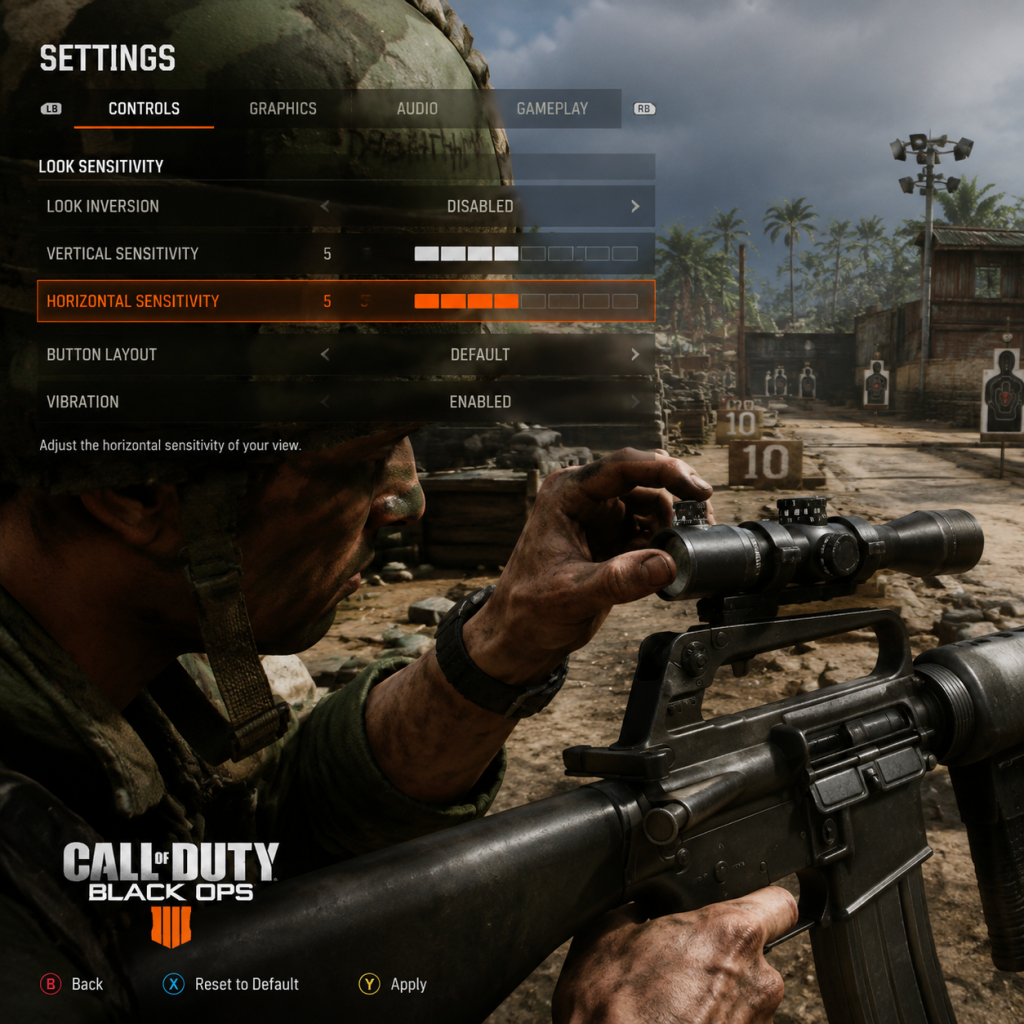
- Horizontal/Vertical: Start at 4-5 (out of 10). Increase gradually. Pro players use 6-8.
- Aim Assist: ON (for consoles). Affects sticky aim. ⚠️ Do not turn off; it’s built into multiplayer and helps significantly.
- Invert Look: OFF (unless you prefer inverted Y). ⚠️ Many players accidentally enable it; double-check.
- Controller Vibration: OFF for competitive play (reduces precision due to rumble).
Keyboard & Mouse (PC)
| Key Bind | Default | Recommended Change |
|---|---|---|
| Sprint/Crouch | Left Shift / Ctrl | Keep default, but many rebind crouch to C for easier slide-cancelling. |
| Use/Reload | F / R | F is fine; some rebind Use to E. |
| Crouch | Ctrl | Change to C or Hold to crouch for better maneuverability. |
| Melee | V | Avoid V—use a mouse thumb button or shift+ctrl macro. |
| Scoreboard | Tab | Keep default. |
| Push to Talk | N | Bind to a mouse button or side key. |
- In-game Sensitivity: 6.0-10.0 (multiply by your DPI). Pros use 400-800 DPI and 6-8 sensitivity.
- Mouse Smoothing/Acceleration: Disable via config or external software (e.g., MarkC mouse fix). ⚠️ The game has built-in acceleration that must be turned off manually in `config.cfg` (set `m_pitch` and `m_yaw` as mentioned earlier).
---
Accessibility Settings
Black Ops offers limited accessibility options out of the box. Use these workarounds:
| Setting | In-Game Option | Workaround |
|---|---|---|
| Subtitles | Yes: Toggle on/off | Enable for campaign dialogue. Subtitle language can be changed. |
| Colorblind Modes | Not present | Use Windows/console system color filters (e.g., High Contrast). Some PC mods exist. |
| Text Size | Fixed (small) | No in-game option; consider playing on a smaller screen for readability. |
| Audio Cues | Player footstep volume | Increase SFX to 100%. |
| Controller Vibration | On/Off | Turn off if sensory issues. |
Language Settings
- In-Game Language: Automatically matches system language on PC/console. For different language audio, you may need to change the game’s language files (PC only: edit `steam_emu.ini` or use language packs).
- Subtitle Language: Choose from available language packs (English, French, German, etc.). Multiplayer uses English subtitles regardless.
---
Network Settings (Multiplayer Focus)
| Setting | PC | Console | Notes |
|---|---|---|---|
| Connection Type | Wired Ethernet | Wired > WiFi | Reduces lag spikes. ⚠️ WiFi often adds 5-10ms extra latency. |
| Bandwidth Limit | Not available | N/A | Set your connection to high-speed (Cable/DSL > 10 Mbps). |
| Voice Chat | Push-to-Talk preferred | Open mic (manage with mute) | Avoid background noise; use noise gate on PC. |
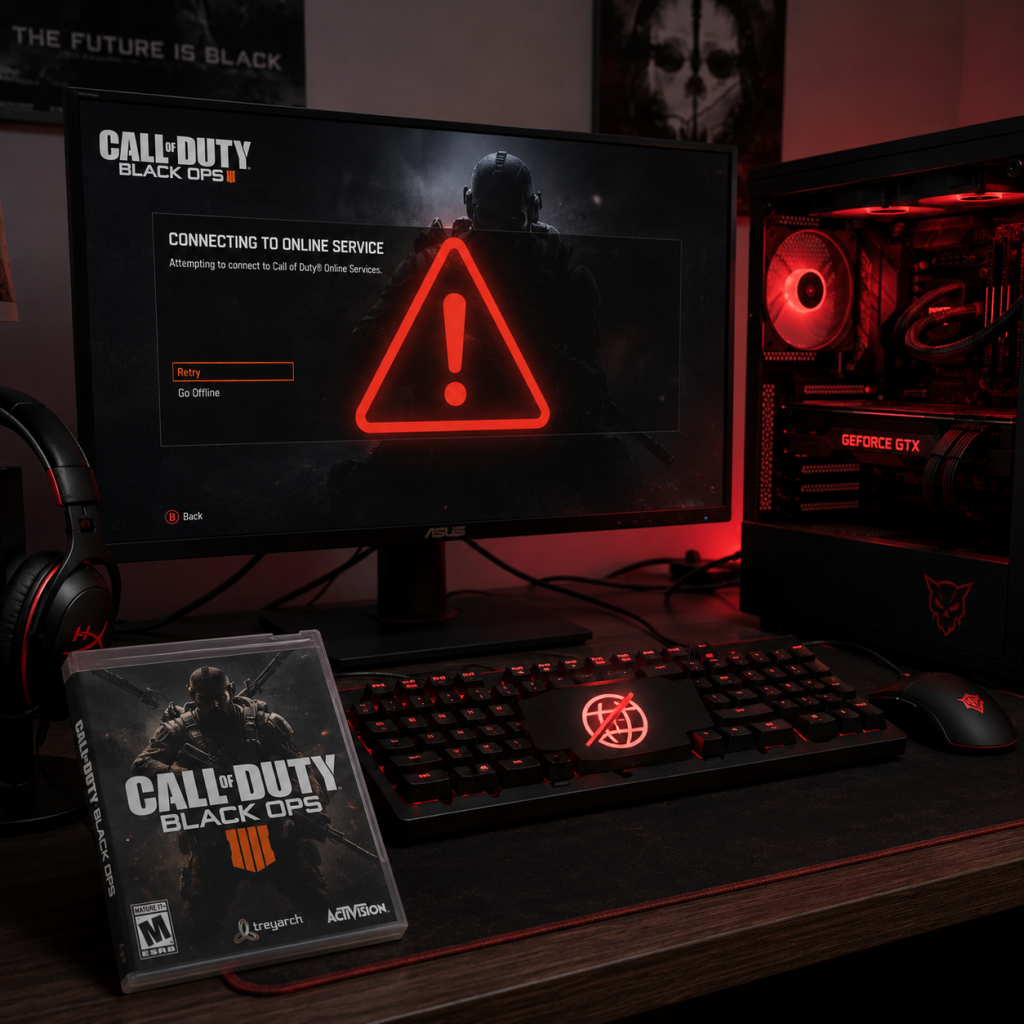
| NAT Type | Open (check via router) | Open (UPnP) | Strict or Moderate NAT will prevent party connections. Forward ports (UDP 3074 typically). |
| Region | Set to nearest region in menu | Automatic | Manually select if you are getting high ping (e.g., forced to US from EU). |
| Campaign & Zombies | Offline very stable | Offline preferred | Network not required. |
- Voice Chat Not Working: Ensure in-game voice is enabled AND your console/PC privacy settings allow communication. On Xbox, check “Communications & Multiplayer” are set to “Everybody.”
- Lobby Connection Errors: Restart game, clear cache: on PC, delete `players\*.cfg` and verify game cache; on console, power cycle and clear alternate MAC address (Xbox).
---
Gameplay Settings
| Option | Recommended | Explanation |
|---|---|---|
| Minimap | Always On | Shows enemy fire and UAV pings. ⚠️ Do not disable. |
| Crosshair | Classic (default) | Size: small or medium. Avoid large crosshairs that obscure targets. |
| Health Display | On (third-person icon) | Shows low health warning. |
| Killcam | On (tutorial help, but can be skipped) | Allows you to see how you died. In Competitive, some turn off to avoid frustration. |
| Scoreboard Layout | Default | Shows K/D, objectives. No custom layouts. |
| Gun Model | Default | Some prefer classic iron sights only. No adjustable. |
| Auto Sprint | Off | On console, can be toggled in some versions. Manual sprint is more predictable. |
| Slide Mechanics | Not present (Black Ops 1 lacks slide) | N/A |
Special Attention Points During Setup
1. PC Config File Editing: After changing any in-game graphic setting, Black Ops saves to `players\config.cfg`. Always back up this file before making manual changes. Editing with Notepad is fine; ensure no double lines. ⚠️ Changing `cg_fov` beyond 80 may cause slight visual glitches (weapon model clipping).
2. Console Recertification: If you migrate from PS3 to PS4 (via PS Now, not native), settings will reset. On Xbox backward compatibility, some settings are preserved but sensitivity may feel different due to emulation latency.
3. Performance Over Quality: For low-end PCs (Intel GMA, low-end laptops), force 640×480 resolution and turn off all shadows, smoke, and anti-aliasing. Use `r_picmip 4` in config for lower textures. Expect 20-30 FPS.
4. Zombies Mode: No additional settings needed, but lower graphics help with horde visibility. Disable Depth of Field and Motion Blur for clearer view.
5. Network Troubleshooting: If you experience lag, check the server region (Menu → Multiplayer → Find Game → Region). Change from “Default” to your continent. Also, port forward: TCP/UDP 3074, 6000–6005 (PC) or 88, 3074 (console).
---
Final Recommendations Table (Quick Reference)
| Category | PC (Mid-Range) | Console |
|---|---|---|
| Resolution | 1920×1080 | Native |
| Texture Quality | High | N/A |
| Anti-Aliasing | 2x (FXAA via config) | N/A |
| V-Sync | OFF | OFF (if available in console settings) |
| Sensitivity (Controller) | N/A | 5 Horizontal / 5 Vertical, Tactical layout |
| Mouse Sensitivity | 6 @ 800 DPI, no accel | N/A |
| Audio | Headphones, SFX 100%, Music 0% | TV or Headphone mode |
| Network | Wired, Open NAT, Region: nearest | Wired, Open NAT, Region: nearest |
| Accessibility | Subtitles ON, Colorblind system filters | Subtitles ON, use console color filters |
Important Notes
Important Notes for Call of Duty: Black Ops
Warnings and Pitfalls
- Outdated Netcode and Hackers on PC: The PC version (Steam) uses old netcode and is infested with cheaters in public matchmaking. Avoid official servers for multiplayer; use community-run servers with active admins or play Zombies on private lobbies with friends. VAC bans exist but are often ineffective. Expect aimbots, wallhacks, and speed hacks.
- No Cross-Platform: Black Ops has no cross-play. Each platform's player base is isolated. The PC community is very small; console (Xbox/PlayStation) still has moderate activity for multiplayer and Zombies.
- DLC Map Population: Purchasing DLC can split the player base. On older consoles, DLC maps may have very low player counts, making matchmaking difficult. Consider sticking to base maps unless you have friends with the DLC.
- Save Corruption Risk (Console): The game auto-saves at checkpoints. On Xbox 360/PS3, power loss during save can corrupt your campaign progress. On Xbox One/Series via backward compatibility, this is less likely but still possible. On PC, Steam Cloud saves are reliable, but manually back up the save folder just in case.
- Motion Sickness Warning: The default FOV on PC is 65°, which can cause nausea for some players. Increase FOV to 80-90 in the settings. Console versions have a fixed, narrower FOV.
- Campaign Ending Choice: In the final mission “Redemption,” after killing Dragovich, you will have a few seconds where you can either shoot Hudson or lower your weapon. Shooting him leads to an extended ending where Mason kills Hudson; not shooting results in Mason sparing him. This choice is irreversible and changes the final cutscene. Note: You must wait and let the radio transmission complete before making the choice. If you shoot too early, you miss the radio interaction.
- Intel Collectibles: There are 46 intel pieces scattered across campaign missions. Collecting all intel unlocks a dead ops arcade mode and reveals secret documents. Many are easy to miss, especially on timed sections or in areas you cannot return to. Use a guide to collect them on your first playthrough, as you cannot replay individual missions without restarting the campaign from the beginning (unless you use chapter select, which does not reset intel progress).
- Zombies Easter Eggs: Classic Zombies maps like Kino der Toten have hidden songs and small Easter eggs (e.g., the “115” radio). These are missable if you don't know where to interact. You can trigger them at any time during a match, but they require specific actions. For the full experience, look up guides for the maps you play.
- Multiplayer Prestige: Prestiging resets all your unlocked weapons, attachments, and perks. You lose everything except your permanent unlock tokens (earned after first prestige). This is optional and irreversible, but you get a new emblem and more custom class slots. Tip: Use permanent unlocks on high-level gear like the FAMAS or Ghost Pro before prestiging.
- Campaign Mission “S.O.G.”: The defense segment where you must hold the building is notorious. Enemies swarm from three sides, and you have limited ammo. Use the M60 or the nearby mounted machine gun. Let your AI teammates take some aggro. Tip: Throw smoke grenades to break enemy lines.
- Numbers Puzzle (Execution Order): In the mission “Numbers,” you must decode a series of numbers broadcast by killing specific targets in order. This sequence can be frustrating. Write down the numbers displayed, then turn the dials in the correct order. Alternatively, use a guide to get the exact sequence.
- Zombies Difficulty Curve: Zombies mode starts easy but ramps up quickly. By round 10, you need Pack-a-Punched weapons and good navigation. New players often die because they stay in one area. Learn to train zombies (kite them in a circle) and prioritize headshots.
- Final Mission “Redemption”: The ship corridor fight before the boss is very dense with enemies. Use the Dragunov or an LMG with high penetration. Stick to cover and use grenades to clear rooms.
- Multiplayer Weapon Challenges: Some challenges (e.g., “Bloodthirsty” medals) require 5 kills without dying. This can be frustrating if you focus solely on the challenge. Play normally and let them come naturally. Do not sacrifice team play for challenge progression.
- Zombies “Mystery Box” Points: It is tempting to hit the Mystery Box early, but you waste points that are better spent on opening doors and buying perks. Always prioritize doors (600-1250 points) and then Juggernog before gambling on the box. Also, never buy the box more than 3-4 times in a row; the probability of good guns decreases.
- Prestige Grind: Getting to max prestige requires many hours. If you don't care about emblems, stop at first prestige for the extra custom class. The grind is purely cosmetic.
- DLC Map Grind: If you buy the Resurgence or First Strike packs, you might need to grind achievements/trophies for those maps. Some achievements (like “Sacrifice” in Ascension) require coordinate co-op play. Use online lobbies or boosting sessions.
- PC Multiplayer: Avoid using mods or trainers in official VAC-secured servers. Bans are permanent. For modded zombies, use custom maps from the Steam Workshop (requires Black Ops Mod Tools) but only on unranked servers.
- Console Online: Be aware that some players use modded consoles (jtag/rgh) to cheat in multiplayer (infinite ammo, god mode). Report them through the platform, but do not engage in toxicity.
- Zombies Public Lobbies: Communication is key. Use a mic to coordinate door buys, revives, and the Pack-a-Punch. Sending hate messages for downing is common; be respectful. Also, do not steal kills from downed players trying to get back up.
- General Etiquette: Do not boost or boost events (e.g., trade kills for challenges) in public matches. It ruins the game for legitimate players. If you must boost, do it in private lobbies with friends.
- PC: Saves are located in `%USERPROFILE%\Documents\Call of Duty Black Ops\save`. This folder contains campaign progress, multiplayer settings, and zombie stats. Back it up regularly. Also, Steam Cloud syncs this folder, but sometimes conflicts occur—don't load a corrupted save from the cloud.
- Console: On Xbox 360/PS3, save files are stored on the hard drive. Do not delete the save unless you want to reset campaign progress. On Xbox One/Series, saves are synced to the cloud automatically. On PS4/PS5, same. You cannot manually copy saves; the system auto-manages.
- Checkpoint Reload: If you make a mistake in campaign (e.g., miss an intel), you can reload the last checkpoint from the pause menu. But if you die after missing the intel, you cannot go back. Load a mission from chapter select to replay the whole level.
- FOV and Graphics Settings: On PC, the default FOV is 65 and motion blur is on. These can cause discomfort and poor visibility. Immediately go to settings and change FOV to 80-90, turn off motion blur, and set shadows to medium for better framerate.
- Dolphin Dive: In multiplayer, you can dolphin dive by sprinting and pressing prone (crouch + prone quickly). This is useful for evading gunfire. Many new players don't realize it exists.
- Galil is King in Zombies: The Galil assault rifle is one of the best wall weapons in Kino der Toten and other maps. It has high damage, large magazine, and is cheap to buy. Always prioritize it over the Mystery Box early.
- Pack-a-Punch Location: In Kino der Toten, the Pack-a-Punch machine is in the theater room, but you must turn on the power first (by fiddling with the panel near the stage). Many new players wander around looking for it. The same applies to other Zombies maps—always learn the PAP location.
- No Manual Save: The campaign only allows auto-saving at checkpoints. You cannot manually save mid-level. If you quit the game, you will restart from the last checkpoint. Do not quit mid-action.
- Spotter Scope Use: In campaign, the spotter scope (thermal) can highlight enemies through walls in some missions. Use it in “Numbers” to see enemies in the dark rooms.
- Dead Ops Arcade: This is a hidden top-down twin-stick shooter unlocked by collecting all intel or by entering a cheat code (Up, Up, Down, Down, Left, Right, Left, Right, B, A, Start on Xbox / Up, Up, Down, Down, Left, Right, Left, Right, Circle, Cross, Start on PS3). You can play it from the main menu. It's a fun distraction but has no impact on campaign.
- Campaign Co-op: The campaign does not support co-op except for the Zombies mode. Do not expect to play the story with friends.
- Scorestreaks vs Killstreaks: Black Ops uses killstreaks (not scorestreaks). Kills with a weapon count; kills with a killstreak do NOT count toward your next streak. So if you get a 3-kill streak and call in a gunner, the gunner kills won't progress your next streak.
- No Dedicated Servers on Console: Console multiplayer uses peer-to-peer connections. The host has a significant advantage (lower latency). If the host rage-quits, the match ends for everyone. This is normal.
Irreversible Choices and Missable Content
Difficulty Spikes
Grinding Traps
Online Etiquette and Anti-Cheat
Save Management Advice
Things Players Commonly Regret Not Knowing Earlier
By keeping these notes in mind, you will avoid common frustrations and fully enjoy the Cold War chaos of Call of Duty: Black Ops.
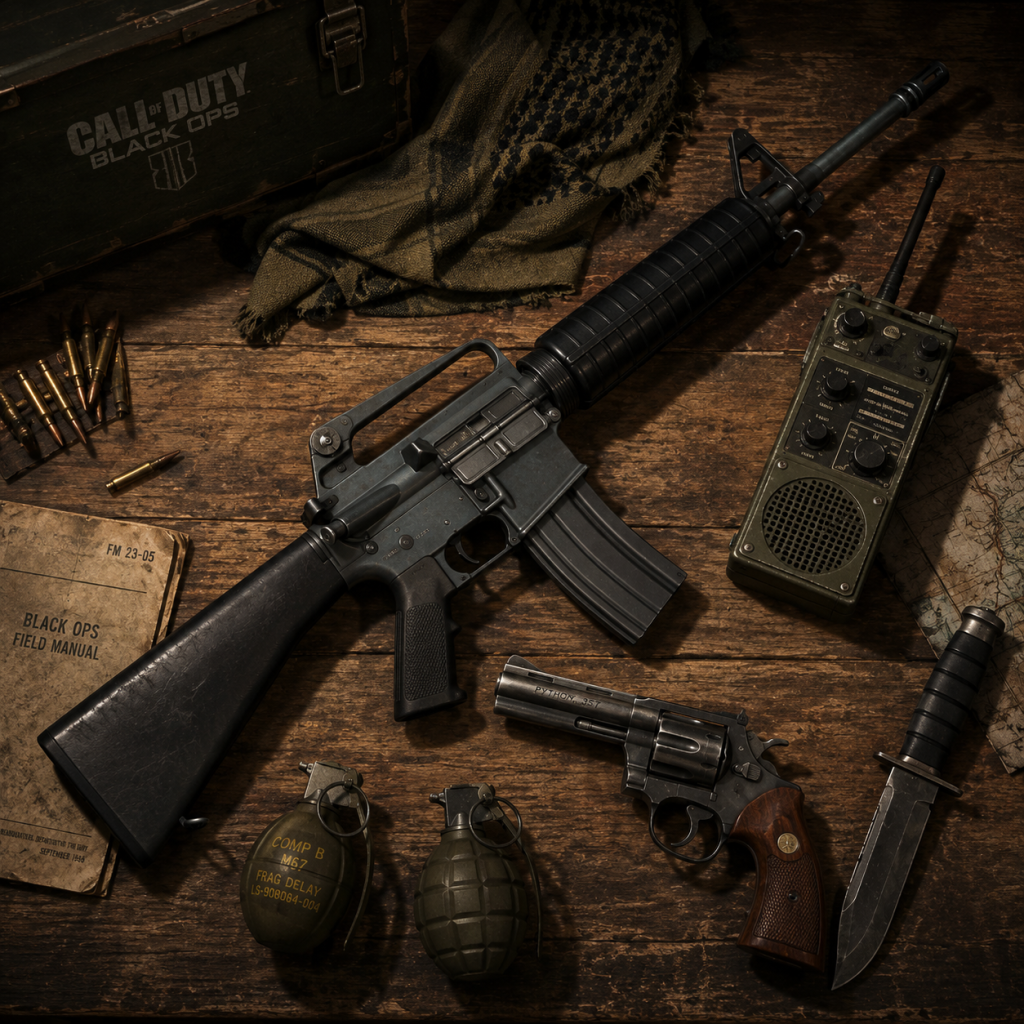
All Game Items
"content": "# All Game Items Guide for Call of Duty: Black Ops
This guide covers every major item in Call of Duty: Black Ops (2010), including Multiplayer, Zombies, and Campaign. Items are grouped logically by category. For each item, you'll find its function, how to obtain it (unlock level or method), when it's most useful, and notable synergies or upgrades.
All primaries are unlocked via level progression or purchased with CP earlier. Levels listed assume standard progression; CP purchase bypasses level requirement.
Attachments are unlocked by leveling each weapon. Purchasable with CP.
Perks are unlockable via level progression and purchasable with CP. Each has a normal and Pro version (unlocked by completing challenges).
Killstreaks are earned by reaching consecutive kills (or score with Hardline Pro). Unlock via level progression.
All perks are bought from vending machines for 500 points (some 2000 in Custom games).
Some maps have buildable equipment from parts.
Zombies maps feature standard lethal items purchasable from walls.
Campaign features unique gadgets used in missions.
Campaign intel collectibles unlock concept art and Zombie mode (if all collected?).
This guide covers all items across all modes of Call of Duty: Black Ops. Use the tables and tips to optimize your loadouts and survive the Cold War chaos.
This guide covers every major item in Call of Duty: Black Ops (2010), including Multiplayer, Zombies, and Campaign. Items are grouped logically by category. For each item, you'll find its function, how to obtain it (unlock level or method), when it's most useful, and notable synergies or upgrades.
1. Currencies
COD Points (CP)
- Function: In-game currency used to purchase weapons, attachments, perks, equipment, and cosmetic items in Multiplayer.
- Obtain: Earned by completing matches, contracts, wager matches, and prestiging.
- Useful: Essential for buying any unlockable item before reaching the required level. Also used to rent weapons/equipment for a limited time.
- Synergies: Can be spent on permanent unlocks via the Buy menu (e.g., weapons, perks). No direct upgrades; CP is a gateway currency.
- Function: Earned by killing zombies, repairing barriers, etc. Used to buy weapons off walls, open doors, use the Mystery Box, and purchase Perks and Pack-a-Punch upgrades.
- Obtain: Gameplay in Zombies mode.
- Useful: Essential for progression in Zombies; management is key.
- Synergies: Points are spent on everything; no conversion to CP.
Zombies Currency (Points)
2. Multiplayer Weapons
Primary Weapons
All primaries are unlocked via level progression or purchased with CP earlier. Levels listed assume standard progression; CP purchase bypasses level requirement.
| Weapon | Class | Unlock Level | Description | Best Use | Synergies |
|---|---|---|---|---|---|
| M16 | Assault Rifle | 1 | Three-round burst, great accuracy. | Medium range, rapid kills with headshots. | Red Dot Sight for clarity; Stopping Power for one-burst kills. |
| AK-47 | Assault Rifle | 1 | High damage, high recoil. | Close-to-mid range with aggressive play. | Suppressor for stealth; Grip for recoil control. |
| FAMAS | Assault Rifle | 28 | Fast ROF, moderate recoil. | Versatile all-range. | Extended Mags; SoH Pro for faster reload. |
| Galil | Assault Rifle | 1 | Good damage and fire rate. | Reliable all-rounder. | Red Dot; Stopping Power. |
| AUG | Assault Rifle | 37 | High damage, slow ROF. | Medium-long range, very stable. | Grip + Scope (ACOG or Holographic). |
| Commando | Assault Rifle | 1 (DLC) | Fast ROF, low recoil. | Close-medium range, high DPS. | Suppressor + Extended Mags. |
| FAL | Assault Rifle | 1 | Semi-auto, very high damage. | Two-shot kill at any range. | Red Dot + Stopping Power for one-shot headshot at close range. |
| G11 | Assault Rifle | 47 | Unique 3-round burst, no recoil. | Medium range, very accurate. | ACOG scope; Ghost Pro to stay off radar. |
| Enfield | Assault Rifle | 1 (DLC) | Moderate damage, balanced. | Reliable backup. | Red Dot; Sleight of Hand. |
| MP5K | SMG | 1 | High ROF, great hipfire. | Close-quarters, rush play. | Rapid Fire + Extended Mags; Marathon for speed. |
| Uzi | SMG | 19 | Low recoil, decent range. | Mid-range SMG. | Suppressor + Grip. |
| AK-74u | SMG | 25 | High damage for SMG, controllable. | Best all-round SMG. | Suppressor + Extended Mags; SoH for faster reload. |
| Spectre | SMG | 1 (DLC) | Very high ROF, small mag. | Extremely fast TTK up close. | Extended Mags + Rapid Fire; need accuracy. |
| MAC-11 | SMG | 34 | Ultra-high ROF, wild recoil. | Point-blank only. | Extended Mags + Steady Aim for hipfire. |
| M60 | LMG | 1 | High damage, slow fire rate. | Suppression, holding angles. | Grip + Extended Mags; Stopping Power. |
| RPK | LMG | 1 | Faster than M60, lower damage. | Run-and-gun LMG. | Grip + Silencer; Lightweight for speed. |
| HK21 | LMG | 40 | Accurate LMG with moderate ROF. | Long-range suppressive fire. | ACOG + Grip; Scavenger for ammo. |
| L96A1 | Sniper | 1 | Bolt-action, one-hit kill to upper chest/head. | Sniping at long range. | Variable Zoom + Sleight of Hand for faster scope. |
| PSG1 | Sniper | 1 | Semi-auto, two-hit kill body. | Faster follow-up shots. | Suppressor + Rapid Fire; Steady Aim for quickscoping. |
| WA2000 | Sniper | 21 | Semi-auto, high damage. | Stable, fast ROF semi-auto. | ACOG for mid-range; SoH. |
| Dragunov | Sniper | 1 | Semi-auto with large mag. | Spamfire sniper. | Silencer + Extended Mags; Ghost Pro. |
| SPAS-12 | Shotgun | 1 | Pump-action, high damage, wide spread. | Close-quarters OSOK. | Grip + Steady Aim; Marathon for rush. |
| Stakeout | Shotgun | 1 (DLC) | Automatic shotgun (full-auto). | Very fast fire rate, low damage per pellet. | Extended Mags + Rapid Fire; Need multiple shots. |
| Olympia | Shotgun | 19 | Double-barrel, two shots then reload. | Extreme close range, two kills. | Sleight of Hand for fast reload; Lightweight. |
| HS-10 | Shotgun | 1 | Semi-auto, moderate damage. | Balanced shotgun. | Grip + Steady Aim; SoH. |
| China Lake | Launcher | 1 | Grenade launcher, single shot. | Area denial, anti-camper. | Danger Close + Scavenger for extra nades. |
| RPG-7 | Launcher | 1 | Rocket launcher, high explosive. | Anti-vehicle, group clearing. | Danger Close; Flak Jacket to survive blasts. |
| M72 LAW | Launcher | 28 | Rocket launcher, one use. | Stronger than RPG. | Same as RPG-7. |
| Crossbow | Special | 1 | Silent, explosive bolts. | Stealth kills, traps. | Explosive Bolts attachment (default); Ghost Pro for stealth. |
| Ballistic Knife | Special | 1 | Silent knife projectile, retrievable. | Stealth melee. | SoH for faster draw; Lightweight. |
Secondary Weapons
| Weapon | Unlock | Description | Best Use | Synergies |
|---|---|---|---|---|
| Python | 1 | Revolver, high damage, slow fire. | Powerful sidearm, three-hit kill. | Stopping Power + Long Barrel. |
| ASP | 1 | Semi-auto pistol, fast fire. | Reliable backup. | Extended Mags; SoH. |
| M1911 | 1 | Semi-auto, similar to ASP. | Dependable. | Extended Mags + Stopping Power. |
| CZ75 | 1 (DLC) | Full-auto pistol. | Spam fire close range. | Extended Mags; Rapid Fire. |
| Makarov | 1 (DLC) | High damage semi-auto. | Good stopping power. | Suppressor + Long Barrel. |
| Launcher (RPG/M72) | 1 | Already listed. | Use as secondary if class lacks launcher. | Danger Close. |
Lethal Equipment
| Item | Unlock | Effect | Best Use | Synergies |
|---|---|---|---|---|
| Frag Grenade | 1 | Cookable explosive, 5-sec fuse. | Clearing rooms, forcing movement. | Danger Close increases radius. |
| Semtex | 1 | Stickable explosive, 3-sec fuse. | Sticky kills, can attach to enemies. | Same as frag. |
| Tomahawk | 1 | One-hit kill throwing axe. | Skill shots, silent kills. | Scavenger for ammo. |
| C4 | 1 | Remote detonation explosive. | Trap setting, vehicle mines. | Hacker Pro to see enemy equipment. |
| Claymore | 1 | Proximity mine, one-hit kill. | Defensive placement. | Scavenger to resupply. |
| Bouncing Betty | 1 | Tripwire mine, one-hit kill legs. | Defensive, area denial. | Same as Claymore. |
Tactical Equipment
| Item | Unlock | Effect | Best Use | Synergies |
|---|---|---|---|---|
| Flashbang | 1 | Blinds and deafens enemies. | Room entry, disorienting campers. | Tactical Mask Pro reduces effect. |
| Stun Grenade | 1 | Slows movement and aim. | Softening enemies before push. | Same as Flash. |
| Smoke Grenade | 1 | Creates visual cover. | Obscuring lines of sight, objective play. | Thermal scope sees through smoke. |
| Nova Gas | 1 | Poison gas, damage over time. | Area denial (low damage). | Not commonly used; can be effective in hardpoint. |
| Decoy | 1 | Fake footsteps and gunfire on radar. | Confuse enemies, fake presence. | Ghost Pro to stay off radar anyway. |
| Jammer | 1 | Disables enemy equipment and radar in radius. | Countering campers with motion sensors. | Hacker Pro enhances effect. |
| Tactical Insertion | 1 | Sets spawn point. | Respawning near objective. | Useful in SnD. |
Weapon Attachments
Attachments are unlocked by leveling each weapon. Purchasable with CP.
| Attachment | Effect | Best With |
|---|---|---|
| Red Dot Sight | 1.5x zoom, clear dot reticle. | All guns needing accuracy. |
| ACOG Scope | 3.5x zoom, hybrid but slower ADS. | Snipers, ARs for mid-range. |
| Reflex Sight | 1.5x zoom, holographic reticle. | Similar to Red Dot, preference. |
| Variable Zoom | 4x–8x toggle on snipers. | Long-range sniping. |
| Suppressor | Silent shots, no red dot on minimap. | Stealth classes. |
| Extended Mags | Larger magazine. | High ROF weapons, LMGs. |
| Grip | Reduced recoil. | High-recoil weapons (AK-47, etc.). |
| Rapid Fire | Increase fire rate (small). | SMGs, shotguns. |
| Dual Wield | Use two pistols/machine pistols at once. | Secondaries only (Python, ASP, etc.). |
| Masterkey | Underbarrel shotgun. | ARs/LMGs for close-range panic. |
| Flamethrower | Underbarrel flamethrower. | Area denial (rarely used). |
| Night Vision | See in dark maps (only for snipers? Actually for all). | Dark maps like Hanoi. |
3. Perks (Multiplayer)
Perks are unlockable via level progression and purchasable with CP. Each has a normal and Pro version (unlocked by completing challenges).
Perk 1 (Blue)
| Perk | Normal Effect | Pro Effect | Best Use | Synergies |
|---|---|---|---|---|
| Lightweight | Move faster, no fall damage | Total movement speed bonus, no fall damage | Rush classes with SMGs/Shotguns | Marathon + Steady Aim |
| Scavenger | Pick up ammo from dead enemies | Start with full ammo, resupply equipment | Classes that need constant ammo (LMG, launcher) | Danger Close for extra nades |
| Ghost | Invisible to UAV, radar | No red dot when firing (except when enemy sees you) | Stealth class, snipers | Suppressor to stay off radar completely |
| Flak Jacket | Reduced explosive damage | Immune to fire damage (not explosion) | Objective play (domination) | Tac Mask for tactical resistance |
| Hacker | See enemy equipment through walls | Can booby-trap enemy equipment | Counter-camper class | Jammer to disable radars |
Perk 2 (Red)
| Perk | Normal Effect | Pro Effect | Best Use | Synergies |
|---|---|---|---|---|
| Hardline | Killstreaks require 1 fewer kill | Scorestreaks also cost 1 less | Getting killstreaks faster | Low-streak spam (UAV, Counter) |
| Stopping Power | Increases bullet damage | Extra damage against aircraft | Any gunfight – improves TTK heavily | Most used perk |
| Slight of Hand | Faster reload | Faster aim down sights | Aggressive play, shotguns | Marathon + Lightweight |
| Warlord | Two attachments per weapon | Three attachments per weapon | Experimenting with gun builds | Best for creating specialized guns |
| Danger Close | Extra lethal equipment | Increased explosive radius | Demo class, launchers | Scavenger for extra nades |
Perk 3 (Yellow)
| Perk | Normal Effect | Pro Effect | Best Use | Synergies |
|---|---|---|---|---|
| Marathon | Unlimited sprint | Sprint longer (not unlimited) | Rush classes, SMGs | Lightweight + Steady Aim |
| Steady Aim | Better hipfire accuracy | Faster recovery from sprint to hipfire | Close-range, shotguns, SMGs | Marathon for constant sprint |
| Ninja | Silent footsteps | No sound from movement (except 6th sense) | Flanking, SnD | Ghost + Suppressor |
| Second Chance | Fall to ground, can shoot pistol | Can be revived by teammates | Survivability in obj modes | Hardline to get killstreaks back |
| Tac Mask | Reduced tactical effect duration | Immune to gas | Tactical spam maps | Flak Jacket |
| Hacker Pro | (Already in Perk 1 but Pro grants ability to plant booby traps) | See note | - | - |
4. Killstreaks
Killstreaks are earned by reaching consecutive kills (or score with Hardline Pro). Unlock via level progression.
| Streak | Kills Required | Effect | Best Use | Synergies |
|---|---|---|---|---|
| Spy Plane (UAV) | 3 | Reveals enemies on minimap. | Constant intel. | Hardline to get with 2 kills. |
| Counter Spy Plane | 4 | Blocks enemy UAV and minimap. | Anti-intel. | Use after enemy UAV. |
| SAM Turret | 4 | Auto shoots down aircraft. | Air defense. | Useful if enemy spams Spy Plane. |
| Care Package | 5 | Drop random killstreak. | Gambling for high streaks. | Hardline to get with 4 kills. |
| Napalm Strike | 5 | Call in carpet bombing. | Area denial, clearing objectives. | Danger Close for size. |
| Sentry Gun | 6 | Place an auto-turret. | Holding an area. | Hacker Pro to protect from enemy. |
| Mortar Team | 6 | 3 mortar strikes. | Destruction of multiple spots. | Pair with Counter Spy Plane. |
| Attack Helicopter | 7 | A.I.-controlled chopper gunship. | Multikills. | Hardline to get with 6 kills. |
| Gunship | 8 | Player-controlled AC-130. | Massive damage. | Best streak in game. |
| Blackbird | 8 | Advanced UAV – shows enemy direction and red dots always. | Wallhack for team. | Hardline (7 kills). |
| Chopper Gunner | 9 | Player-controlled attack chopper. | Similar to Gunship but lower health. | Use Blackbird to spot. |
| Dogs | 11 | Summon attack dogs that hunt enemies. | Overwhelming force. | Hardline (10 kills). |
5. Zombies Mode Items
Wonder Weapons
| Weapon | How to Obtain | Effect | Best Use | Upgrades |
|---|---|---|---|---|
| Ray Gun | Mystery Box | One-hit kill until round ~10, then two hits. Infinite ammo if PaP? No, PaP gives extra damage. | General crowd control. | Pack-a-Punch: increased damage, larger splash. |
| Thundergun | Mystery Box (only in Kino der Toten, etc.) | Massive shockwave, kills entire hoarde. | Emergency clear. | PaP: larger radius. |
| Wunderwaffe DG-2 | Mystery Box (Ascension) | Chain lightning between zombies. | Crowd control (limited ammo). | PaP: more ammo? Actually increases chain damage. |
| Gersh Device | Buildable in Ascension (from parts) | Throws a black hole that sucks zombies and teleports them. | Area denial. | Not upgradeable. |
| Scavenger | Mystery Box (CotD) | Sniper that fires explosive rounds with a flying dog attack. | High damage to specials. | PaP: increased damage and ammo. |
| V-R11 | Mystery Box (CotD) | Shoots zombies, turns them into humans that fight for you. | Converting zombies for fun. | PaP: improved conversion rate. |
| Winter's Howl | Mystery Box (Five) | Freeze rays, slows and kills zombies. | Crowd control. | PaP: larger freeze area. |
| Zap Gun (Dual Wield) | Mystery Box (Ascension) | Electric pistols that stun zombies. | Support weapon. | PaP: increased ammo and stun time. |
Perks (Zombies)
All perks are bought from vending machines for 500 points (some 2000 in Custom games).
| Perk | Effect | Best Use | Synergies |
|---|---|---|---|
| Juggernog | +100 health (2 more hits). | Essential for survival past round 8. | Always get first. |
| Speed Cola | Faster reload. | High-RoF weapons. | Pair with upgraded Wonder Weapons. |
| Double Tap | Faster fire rate (and double projectile in later BLOPS but in 1: + damage? Actually Double Tap 2.0 in later games; in BO1 it increases fire rate). | LMGs, SMGs. | Increases ammo consumption – need Scavenger? No, but use with high ammo guns. |
| Quick Revive | Solo: self revive. Coop: faster revive. | Solo survival. | Essential solo. |
| Deadshot Daiquiri | Aim assist to head, less hipfire spread. | Headshot-focused weapons. | Good for wonder weapons like Ray Gun. |
| Stamin-Up | Faster sprint, run longer. | Training zombies. | Combine with Speed Cola for mobility. |
| Mule Kick | Third weapon slot. | More firepower. | Needs points for extra weapons. |
| PhD Flopper | Immune to explosive self-damage, diving creates explosion. | Dolphin diving into hoardes. | Use with Ray Gun or Thundergun. |
| Electric Cherry | Kills zombies when reloading (a shock). | Crowd control while reloading. | Good with low-mag weapons. |
Buildables (Ascension, etc.)
Some maps have buildable equipment from parts.
| Item | Map | Parts Needed | Effect |
|---|---|---|---|
| Gersh Device | Ascension | 3 parts scattered | Black hole trap. |
| Quantum Entanglement Device | Ascension | 2 parts | Teleports zombies away. |
| Matryoshka Dolls | Kino der Toten? Actually not; is only in Ascension? In BO1, Gersh is the main. | ||
| Spikemores | Zoo map (Call of the Dead) | 3 parts | Proximity mine that shoots spikes. |
| VR-11 (upgraded)? | Call of the Dead | Requires weapon | Upgraded to Scavenger? Not buildable. |
| Hell's Retriever | Call of the Dead | Obtained from perk machine | Boomerang that kills zombies and retrieves items. |
Pack-a-Punch
- Function: Weapon upgrade machine that increases damage, ammo, and often adds special effects. Costs 5000 points per upgrade.
- Useful: Essential for high rounds.
- Location: Varies per map (e.g., Kino: after power, teleporter).
- Synergies: Always upgrade Wonder Weapons for maximum efficiency.
6. Equipment (Zombies)
Zombies maps feature standard lethal items purchasable from walls.
| Item | Cost | Effect |
|---|---|---|
| Frag Grenade | 250 | Explosive. |
| Semtex | 250 | Sticky explosive. |
| Claymore | 1000 | Proximity mine. |
| Monkey Bomb | 1000 | Attracts zombies then explodes. |
| Gersh Device | (Buildable) | See above. |
7. Campaign Items (Key Equipment)
Campaign features unique gadgets used in missions.
| Item | Mission | Effect |
|---|---|---|
| AGR | Executive Order | Remote-controlled combat robot (dual weapons). |
| Remote RC-XD | Various | RC car with explosive charge. |
| Flamethrower | Numbers | Stationary? Actually usable in some levels. |
| Crossbow | Various | Silent, explosive bolts. |
| Ballistic Knife | Various | Silent knife, retrievable. |
| Havoc Launcher | Various | Airburst explosive. |
8. Collectibles (Intel)
Campaign intel collectibles unlock concept art and Zombie mode (if all collected?).
| Type | Locations | Reward |
|---|---|---|
| Intel Documents | 1 per mission (45 total) | Unlock concept art, Zombie mode (Dead Ops Arcade). |
| Hidden Numbers | Some missions | Unlock Easter eggs. |
9. Synergy Summary
- Aggressive Rush: Lightweight, Marathon, Steady Aim, SMG/Shotgun, Suppressor, Frags.
- Stealth: Ghost, Ninja, Suppressor, Crossbow/Ballistic Knife, Claymore.
- Support: Hardline, Danger Close, Flak Jacket, Launcher, Tactical Insertion.
- Zombies High Round: Juggernog, Speed Cola, Double Tap, Pack-a-Punched Wonder Weapon, Monkey Bombs.
This guide covers all items across all modes of Call of Duty: Black Ops. Use the tables and tips to optimize your loadouts and survive the Cold War chaos.
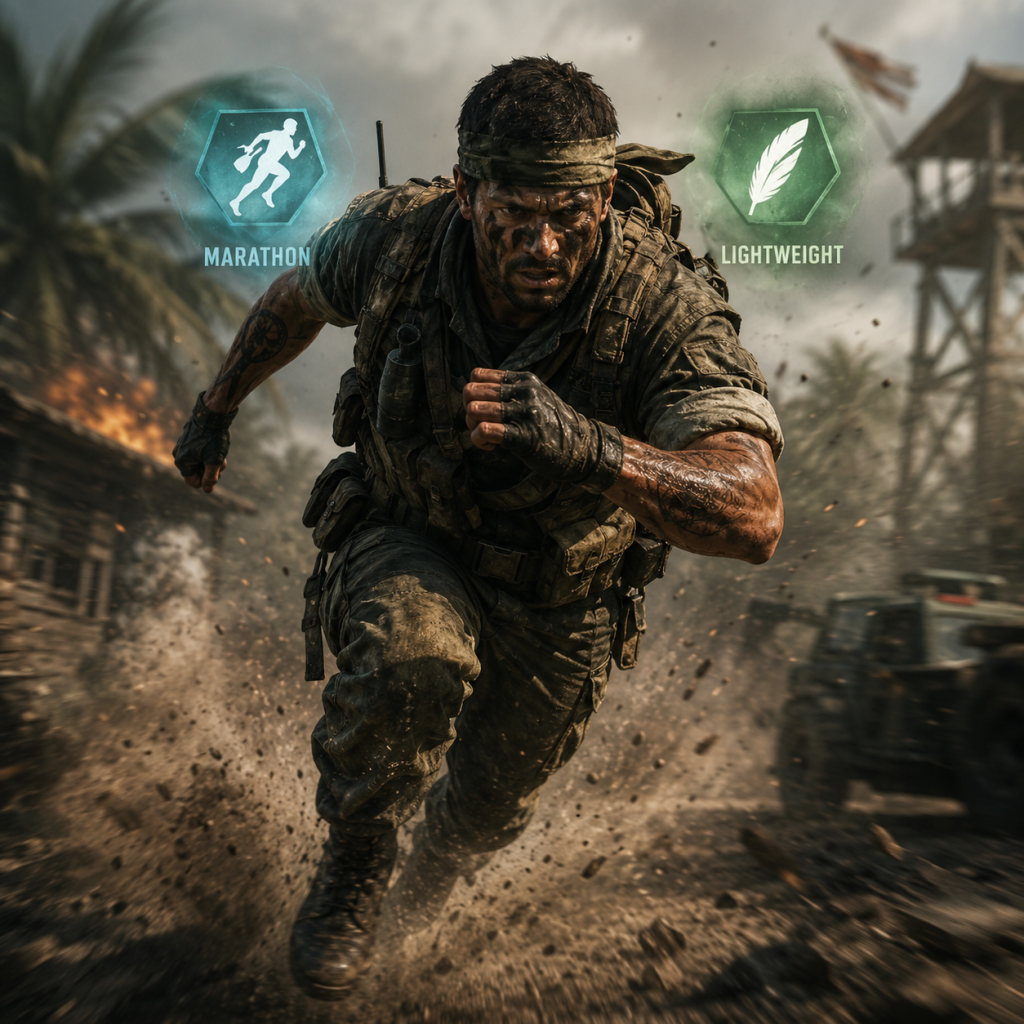
Character Skills
Character Skills Guide for Call of Duty: Black Ops (2010)
This guide covers all player abilities, perks, equipment, killstreaks, and zombie perks in Call of Duty: Black Ops. Since the game does not feature distinct playable characters with unique skills, this guide focuses on the Create-a-Class system for Multiplayer and the Perk-a-Cola machines for Zombies. Each entry includes effects, cooldowns (where applicable), Pro upgrades, combos, synergies, recommended builds, and usage tips.
1. Multiplayer Perks
Perks are passive abilities that modify your playstyle. Each class can equip one from each Tier (1, 2, 3). Perks unlock via leveling and may require completion of Pro challenges for enhanced versions.
1.1 Tier 1 Perks (All cost 1 point)
| Perk | Effect | Pro Upgrade | Unlock Level |
|---|---|---|---|
| Lightweight | Move faster. No fall damage. | Faster knife speed, no weapon movement penalty while sprinting. | 1 |
| Scavenger | Resupply ammo and grenades from dead bodies. | Start with extra ammo, also resupply equipment. | 4 |
| Ghost | Invisible to spy planes and motion sensors. | Also invisible to airborne killstreaks (chopper gunner, gunship) when moving. | 11 |
| Flak Jacket | Reduce explosive damage. | Immune to fire damage, less damage from deflected explosives. | 21 |
| Hardline | Killstreak rewards require one fewer kill. | Assist counts as kill for killstreak progression. | 31 |
Combos & Synergies:
- Lightweight + Marathon (Tier 3) = run-and-gun speed build.
- Scavenger + Warlord (Tier 2) = dual grenades with endless resupply.
- Ghost + Jammer = complete UAV immunity for stealth objectives.
- Hardline + any killstreak setup = faster streak unlocks (e.g., 3 kills for Spy Plane instead of 4).
When to use: Lightweight for rushing, Scavenger for sustained combat, Ghost for anti-aircraft games, Flak Jacket for objective modes like Domination, Hardline for killstreak farming.
1.2 Tier 2 Perks (All cost 1 point)
| Perk | Effect | Pro Upgrade | Unlock Level |
|---|---|---|---|
| Hardened | Bullets penetrate deeper through surfaces. | Reduced flinch when shot, plus extra damage to aircraft. | 7 |
| Warlord | Equip two attachable grenades (any lethal + tactical) OR two attachments on primary weapon. | Extra lethal equipment, start with two frags/semis/mollys. | 14 |
| Sleight of Hand | Faster reload speed. | Aim down sights faster after using equipment. | 24 |
| Steady Aim | Improved hip-fire accuracy. | Move faster while aiming down sights. | 34 |
| Scout | Radar range increased while aiming down sights. | Extended the duration of enemy red dots on minimap after firing. | 44 |
Combos & Synergies:
- Hardened + LMG = wallbang camping.
- Warlord + Semtex + Flashbang = grenadier support.
- Sleight of Hand + SMG = fast engagement recovery.
- Steady Aim + Shotgun = run-and-gun hipfire.
- Scout + Supressor = mark enemies silently.
1.3 Tier 3 Perks (All cost 1 point)
| Perk | Effect | Pro Upgrade | Unlock Level |
|---|---|---|---|
| Tactical Mask | Reduce effects of flash/stun/concussion grenades. | Immune to gas grenades, faster recovery from all tacticals. | 1 |
| Marathon | Unlimited sprint. | Sprint faster, recover stamina quicker. | 8 |
| Ninja | Move silently (suppressed footsteps). | Immune to motion sensor, louder enemy footsteps. | 18 |
| Hacker | See enemy equipment through walls when close; EMP grenades destroy equipment instantly. | Hacking enemy care packages changes them to your team. | 28 |
| Second Chance | Go into a downed state when near death (can be revived by teammates or self-revive if you get kills). | Longer downed time, can crawl. | 38 |
Combos & Synergies:
- Tactical Mask + Flak Jacket = objective player in gas/fire heavy modes.
- Marathon + Lightweight = ultimate rusher.
- Ninja + Ghost = stealth class (no sound, no UAV).
- Hacker + Jammer = full equipment denial area.
- Second Chance + Hardline = risky revive build (but rarely effective).
- Rusher: Lightweight / Steady Aim / Marathon (SMG, Up to 3 kills)
- Stealth: Ghost / Ninja / (any Tier 2) silenced weapon
- Objective Defender: Flak Jacket / Hardened / Tactical Mask (SMG or Assault, plus trophy system)
Recommended General Builds:
2. Equipment (Lethal & Tactical)
Each class can carry one lethal and one tactical (unless Warlord Pro allows two lethals). Equipment recharges automatically after pickup via Scavenger or after death.
2.1 Lethal Equipment
| Item | Effect | Cooldown | Unlock |
|---|---|---|---|
| Frag Grenade | Cookable fragmentation grenade. | 3 seconds before explosion after throwing (manual cook). | Default |
| Semtex | Melts onto surfaces/enemies. 3-second delay. | Immediate on stick. | 15 |
| Tomahawk | One-hit kill throwable. Recovered if missed. | None (can be retrieved). | 10 (Buy) |
| C4 | Remote detonated explosive. | 2-second arming time. | 23 |
| Claymore | Proximity mine. Can be placed. | 3-second arming time. | 30 |
| M67 Frag (only in Warlord Pro) | Same as Frag. | - | - |
2.2 Tactical Equipment
| Item | Effect | Cooldown | Unlock |
|---|---|---|---|
| Flashbang | Blinds and deafens enemies. | 3-second fuse after bounce. | Default |
| Stun Grenade | Slows movement and aim, blurs vision. | Instant effect on proximity. | 6 |
| Concussion | Similar to stun but longer effect. | Instant. | 16 |
| Smoke Grenade | Creates visual cover. | None (lingers). | 23 |
| Nova Gas | Deals damage over time; blocks healing. | 5-second area effect. | 33 |
| Jammer | Disables enemy electronics (UAV, sensors, equipment). | 15-second duration. | 40 |
| Decoy | Fake red dot on minimap. | 1.5-second delay after throw. | Buy |
| Tactical Mask (perk) equivalent: immunity to all tacticals. | - | - | - |
3. Killstreaks
Killstreaks are rewards earned by achieving consecutive kills without dying. Unlocked at level progression. Cooldown refers to required kills (in a single life). Multiple streaks can be equipped simultaneously (e.g., 3,5,7 kill streaks).
| Killstreak | Kills Required | Effect | Notes |
|---|---|---|---|
| Spy Plane | 3 | Reveals enemies on minimap for 30 seconds. Can be shot down. | Essential for map awareness. |
| Counter Spy Plane | 4 | Blocks enemy minimap for 30 seconds. | Hardly visible; combines with Ghost. |
| RC-XD | 5 | Remote-controlled explosive car. One shot kill. | 30-second time limit. Can be destroyed. |
| Care Package | 5 | Random killstreak drop (rare chance of high-tier). | Signal flare; can be stolen. |
| Napalm Strike | 6 | Airstrike of napalm that burns a large area for 15 seconds. | Can kill teammates in Hardcore. |
| Sentry Gun | 7 | Automated turret. 70 HP. | Vulnerable to EMP. |
| Mortar Team | 8 | Three mortar bombs on selected grid. | Requires marking position. |
| Attack Helicopter | 8 | AI-controlled helicopter with machine gun. | 100 HP, targeted by rockets. |
| Valkyrie Rockets | 9 | Pair of guided missiles you control. | One shot kill. |
| Chopper Gunner | 11 | Player-controlled helicopter with rockets and minigun. | 30-second time limit; can be shot down. |
| Gunship | 13 | Heavy gunship with multiple weapon modes (cannon, missile, mini-gun). | Powerful but slow. Hard to earn. |
| Blackbird | 15 | Shows all enemies as dots with direction; immune to counter measures. | Lasts 60 seconds. |
| Dogs | 17 | Deploys attack dogs (multiple) that hunt enemies. | Each dog is one-hit kill. |
4. Zombies Mode: Perk-a-Colas
In Zombies, you can buy perks from machines scattered around the map. Each costs 2000/2500 points (depending on map). You can hold up to 4 or 5 perks (with quick revive revive).
| Perk | Effect | Cost | Notes |
|---|---|---|---|
| Juggernog | +250% health (50 HP per hit → 250 HP). | 2500 | Essential for survival past round 10. |
| Speed Cola | Faster reload speed. | 2000 | Crucial for high-round training. |
| Double Tap Root Beer | Fires two bullets per trigger pull (increases damage output). | 2000 | Useful for fast-killing zombies. |
| Quick Revive | Faster revive speed + self-revive when downed (up to 4 times per game). | 1500 | Solo players: you can revive yourself once per purchase. |
| Deadshot Daiquiri | Aim assist locks onto zombie heads; reduced hip-fire spread. | 2000 | Headshots deal more damage. |
| Mule Kick (DLC) | Carry a third weapon. | 4000 | Upon going down, you lose this perk and third weapon. |
| PhD Flopper (DLC) | Dive to prone creates explosion, immune to fall damage. | 2000 | Explosive weapons become more effective. |
| Electric Cherry (DLC) | Reloading near zombies shocks them. | 2000 | Excellent for crowd control. |
| Stamin-Up (DLC) | Faster sprint speed, longer sprint duration. | 2000 | Good for training. |
When to buy: Spend points on doors first; buy Juggernog by round 6-8. Speed Cola after PaP weapons. Always keep Quick Revive if solo.
5. Campaign Abilities & Special Moves
Campaign does not have a skill tree, but certain missions grant temporary special abilities:
- RC-XD Control: In "Executive Order" and "Numbers," you control an RC car bomb. No cooldown; multiple uses.
- Gunship Turret: In various missions (e.g., "The Defector"), you control a helicopter gunship with limited ammo.
- Nova Gas Grenades: In "Khe Sahn Night" you use gas masks and throw Nova gas. No cooldown; limited supply.
- Stealth Camouflage: In "Numbers" you get a temporary cloak while moving slowly (duration ~30 seconds, recharges after use).
- Climbing/rappelling: Scripted sequences, not freeform.
- Mason's Knife (QTE): Melee prompt in scripted fights (e.g., killing The Numbers guy).
- Primary: Stakeout / AK74u
- Tier1: Lightweight
- Tier2: Steady Aim
- Tier3: Marathon
- Equipment: Semtex + Flashbang
- Streaks: 3/5/7
- Primary: L96A1
- Tier1: Ghost
- Tier2: Hardened
- Tier3: Ninja
- Equipment: Claymore + Jammer
- Streaks: 6/9/12
- Primary: Commando
- Tier1: Flak Jacket
- Tier2: Warlord
- Tier3: Tactical Mask
- Equipment: Semtex + Smoke
- Streaks: 3/4/6
- Perk order: Juggernog → Speed Cola → Double Tap → Quick Revive (solo)
- Weapons: Pac-a-Punched M1911 (Mustang & Sally) for crowd, Ray Gun for damage.
- Always keep a window closed to control spawn rate.
These are not customizable and story-driven.
6. Summary & Build Recommendations
Multiplayer Builds by Playstyle
Run-and-Gun (SMG/Shotgun)
Sniper/Support
Objective/Defender (Domination)
Zombies Essentials
Conclusion
Mastering skills in Black Ops is about choosing the right perk synergies, knowing when to use equipment, and building killstreaks that complement your playstyle. In Zombies, prioritize survivability perks like Juggernog and Speed Cola. There are no traditional character roles, but your class setup defines your role on the battlefield. Experiment with different combinations to find what works for you.
Characters & Roles
Characters & Roles in Call of Duty: Black Ops
This guide covers all major characters and roles across Campaign, Multiplayer, and Zombies modes. While the game features no distinct playable classes with unique abilities, understanding each character’s story, behavior, and available loadouts is essential for immersion and performance.
---
Campaign Characters (Playable & Major NPCs)
Alex Mason
- Background: A former U.S. Marine Corps Force Recon soldier, Mason is the primary protagonist. He is captured and brainwashed by the Soviets (Project Nova) and later rescued by the CIA. He has flashbacks to his time with Viktor Reznov during WWII.
- Strengths: High resilience in story missions; can use any weapon effectively. Player-controlled in most missions.
- Weaknesses: N/A (player skill dependent).
- Playstyle: Adaptable – use stealth in early missions, run-and-gun later.
- Unlock Conditions: Available from the very first mission (Operation 40).
- Recommended Equipment: M16 with Red Dot Sight for long-range accuracy; M72 LAW for vehicles.
- Team Synergy: Works with Hudson (mission guidance) and Woods (backup).
- Background: A loud, aggressive U.S. Marine turned CIA operative. Woods’ reckless behavior often puts the team at risk, but his loyalty is unquestioned.
- Strengths: Excellent at close-quarters combat; can suppress enemies with LMGs.
- Weaknesses: Rarely uses stealth; prone to charging in.
- Playstyle: Aggressive rusher – follow him to clear rooms.
- Unlock Conditions: Introduced in mission “Executive Order” and playable in some segments.
- Recommended Equipment: MP5 with grip; Throwing Knife for silent kills.
- Team Synergy: Complements Bowman’s precision and Hudson’s strategy.
- Background: Former U.S. Army Sergeant and Mason’s close friend. Bowman is methodical and precise, often serving as the team’s sniper or radio operator.
- Strengths: High accuracy with scoped weapons; calm under pressure.
- Weaknesses: Slower in melee fights; less effective with automatic weapons.
- Playstyle: Support marksman – cover mason from afar.
- Unlock Conditions: Introduced in mission “Executive Order”; playable in certain flashback segments.
- Recommended Equipment: Dragunov SVD with 4x scope; Flashbang for disorienting enemies.
- Team Synergy: Provides overwatch for Mason and Woods.
- Background: A CIA officer and handler for Mason’s squad. Hudson is the mission strategist, often staying behind radios. Later becomes a playable character in some missions.
- Strengths: Excellent command of the battlefield; can direct player via intel.
- Weaknesses: Not directly in combat most of the time; limited weapon choices when playable.
- Playstyle: Tactical leader – focus on completing objectives and using cover.
- Unlock Conditions: Playable in mission “Numbers” and “Rebirth”.
- Recommended Equipment: AK-47 with suppressor; frag grenades.
- Team Synergy: Pair with Mason for combined arms approach.
- Background: A Soviet soldier, later a prisoner and ally. Reznov’s hatred of Dragovich drives Mason. Player controls him in WWII flashbacks.
- Strengths: Devastating with bolt-action rifles; skilled in melee combat.
- Weaknesses: No modern equipment; limited ammo.
- Playstyle: Sniper/guerrilla – use cover to pick off Nazis.
- Unlock Conditions: Playable in mission “Vorkuta” and “Project Nova”.
- Recommended Equipment: Mosin-Nagant with iron sights; Mauser pistol.
- Team Synergy: Works with Dimitri Petrenko (not playable) in cutscenes.
- Nikita Dragovich: Soviet General seeking control via Nova 6. No playable role.
- Lev Kravchenko: Dragovich’s right-hand man, physically imposing.
- Friedrich Steiner: Nova 6 scientist; betrayal leads to plot turns.
- Special Operations (US): US Navy SEALs, Delta Force, etc. Blue/grey uniforms.
- Spetsnaz (Russia): Russian special forces. Green/olive uniforms.
- Mercenaries: Unaffiliated soldiers with varied camo.
- Captains: Unique leader models for certain game modes.
- Strengths/Weaknesses: None. All factions are identical in stats.
- Playstyle: Choose based on visual preference; no gameplay impact.
- Unlock Conditions: All factions are available from level 1. New player models (e.g., Cap America, Woods) are earned via challenges or prestige.
- Recommended Equipment: Use the Create-A-Class system – not tied to faction.
- Team Synergy: Communication and perk selection matter, not faction choice.
- Background: American Marine, survivor of the first zombie outbreak. Loud, aggressive, drinks a lot of Perk-a-Colas.
- Strengths: High health regeneration (perk: Juggernog); excels with heavy weapons.
- Weaknesses: None mechanically; personality can distract from tactics.
- Playstyle: Frontline – kill zombies quickly, gather points.
- Unlock Conditions: Unlocked from the start; randomly assigned.
- Recommended Equipment: Ray Gun + Mustang & Sally; Juggernog priority.
- Team Synergy: Works with any team, but best with Richtofen for plot.
- Background: Russian soldier, depressed, always drunk. Provides comic relief.
- Strengths: Resilient due to high pain tolerance (lore); faster drinking speed? (Not gameplay).
- Weaknesses: None.
- Playstyle: Balanced – can play any role.
- Unlock Conditions: Unlocked from start; random.
- Recommended Equipment: HAMR LMG for sustained fire; Monkeys for distractions.
- Team Synergy: Pairs well with Takeo for “old war buddies” theme.
- Background: Japanese Imperial Army officer, obsessed with honor and Bushido. Speaks in riddles.
- Strengths: Stealth? (Lore only); good with melee attacks? (No gameplay bonus).
- Weaknesses: None.
- Playstyle: Defensive – hold a tight spot, train zombies.
- Unlock Conditions: Unlocked from start; random.
- Recommended Equipment: M16 with ACOG; Claymore mines.
- Team Synergy: Works with any team; often engages in dialogue with Richtofen.
- Background: German scientist, mad, manipulative. Central to Zombies storyline.
- Strengths: Knowledge of the undead; can operate teleporter controls? (Zombies mechanics).
- Weaknesses: None.
- Playstyle: Strategic – lead team to buildables (e.g., Thrustodyne Aeronautics Model 3, etc.).
- Unlock Conditions: Unlocked from start; random.
- Recommended Equipment: Thundergun (if available); Mustang & Sally for crowd control.
- Team Synergy: Essential for Easter egg steps due to dialogue.
- No mechanical differences between the four – they are purely cosmetic and narrative.
- Team synergy relies on communication and shared goals, not character choice.
- All characters can use any weapons, perks, and buildables.
Frank Woods
Joseph Bowman
Jason Hudson
Viktor Reznov (Playable in flashbacks)
Major Antagonists (Non-playable)
---
Multiplayer “Roles” – Factions & Player Models
Call of Duty: Black Ops Multiplayer does not feature character classes with unique abilities. Instead, all players have access to the same Create-A-Class system (perks, weapons, equipment, scorestreaks). Factions are purely cosmetic, affecting only the soldier model and voice lines.
Available Factions:
---
Zombies Characters (The Four Heroes)
Zombies mode features four unique characters with distinct personalities, backstories, and voice lines. They are automatically assigned per match (random). No gameplay differences exist between them, but Lore enthusiasts may prefer certain characters.
Tank Dempsey
Nikolai Belinski
Takeo Masaki
Edward Richtofen
Zombies Roles Summary
---
Conclusion
Call of Duty: Black Ops focuses on player skill and loadout customization rather than character-specific abilities. In Campaign, character choice is mission-driven; in Multiplayer, factions are cosmetic; in Zombies, the four heroes add personality but identical gameplay. Use this guide to appreciate the lore and select your preferred aesthetic.
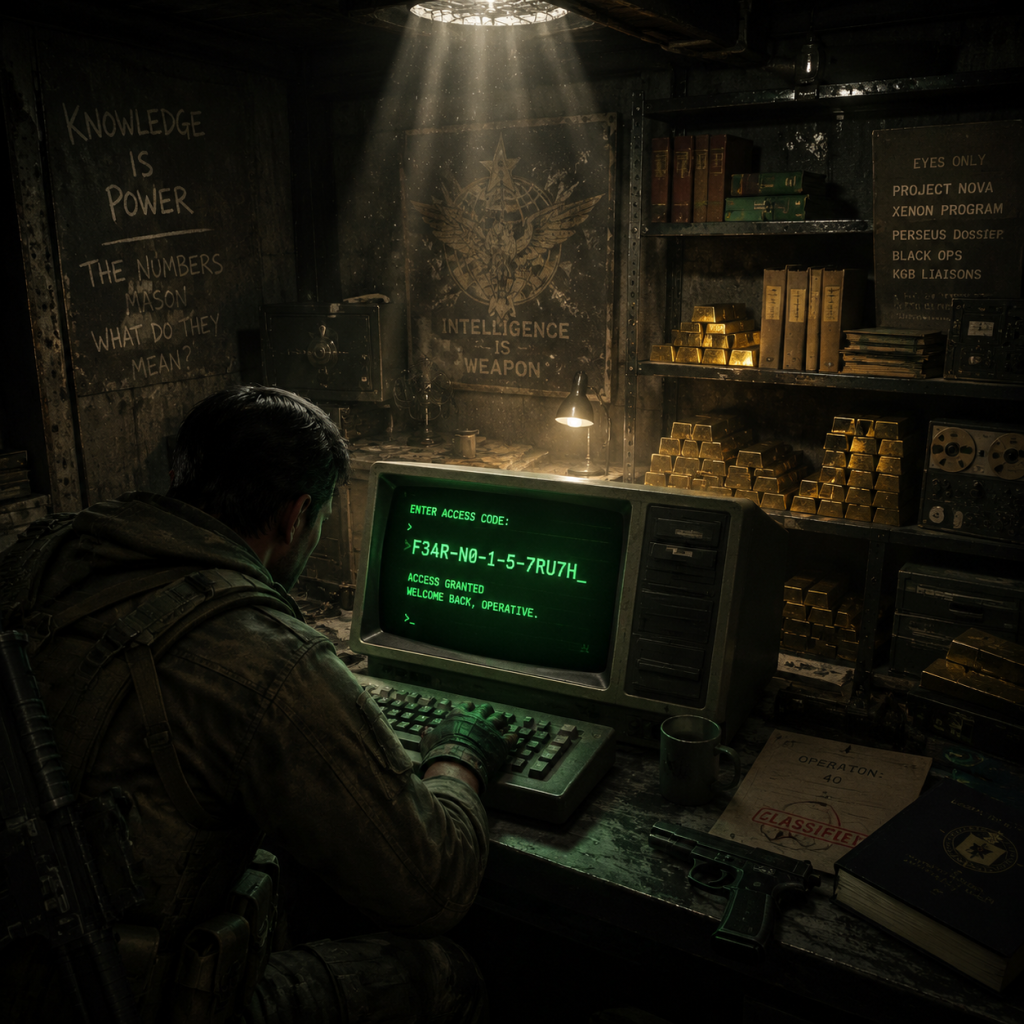
Cheats & Secrets
Cheats & Secrets Guide for Call of Duty: Black Ops (2010)
Overview
Call of Duty: Black Ops features a variety of hidden content, including developer-intended cheat codes (PC only), unlockable game modes, and elaborate Easter eggs across Campaign, Zombies, and Multiplayer. This guide covers all known legitimate secrets and cheats. Console users have no built-in cheat codes beyond unlockable rewards, but the PC version offers extensive developer console commands.
---
PC Console Cheats (Developer Commands)
The PC version of Black Ops includes a developer console that can be enabled to access cheats. Note: Using these cheats disables achievements and may corrupt save files. Use at your own risk.
#### Enabling the Console
1. Open Steam and go to Library.
2. Right-click Call of Duty: Black Ops and select Properties.
3. In the General tab, click Set Launch Options.
4. Add: `+set sv_cheats 1`
5. Launch the game. Press the ~ (tilde) key to open the console.
Alternatively, create a `config.cfg` file in the game directory with `set sv_cheats 1`.
#### Useful Console Commands
| Command | Effect |
|---|---|
| `god` | Enables god mode (invulnerable). |
| `noclip` | Allows you to fly through walls. |
| `notarget` | Enemies ignore you. |
| `give all` | Gives all weapons and ammunition. |
| `cg_fov 90` | Increases field of view (default 65). |
| `map <mapname>` | Loads any multiplayer map (e.g., `mp_nuketown`). |
| `spdevmap <mapname>` | Loads any singleplayer map in developer mode (e.g., `sp_vorkuta`). |
| `timescale 0.5` | Slows down gameplay speed (0.5 = half speed). |
Unlock Codes & Hidden Content (Consoles & PC)
While no traditional cheat codes exist for consoles, the following can be unlocked through legitimate means:
#### Unlockable Game Modes
- Dead Ops Arcade – A top-down shooter mini-game. Unlocked by completing the Campaign on any difficulty.
- Zombies Mode – Unlocked after completing the Campaign. Note: Zombies is also accessible via the main menu after a certain point, but campaign completion permanently unlocks it.
- Multiplayer Customization – New weapons, attachments, and camos are unlocked via challenges and leveling, not codes.
- "Numbers" Broadcast – In the mission Numbers, find a radio on the ground floor of the building with the Russian broadcast. Interact with it to hear a cryptic code.
- Russian Roulette – In Executive Order, after the part with the piano, look for a desk with a revolver and three bullets. Interacting triggers a brief scene.
- Reznov's Appearance – In Project Nova, in the room with the chemical containers, look at the reflection in a mirror to see a ghostly image of Reznov.
- Wolfenstein Reference – In Escape from Vorkuta, in the cafeteria, there is a hidden room with a picture of William "B.J." Blazkowicz (from Wolfenstein).
- Pontiac Firebird – In Numbers, a blue car with license plate "REZNOV" can be found in the courtyard.
- Kino der Toten – "Fly Trap" – Shoot specific glowing items around the map (e.g., lights above the stage, glowing bottles) in a certain order to spawn a permanent perk bottle.
- Five – "Pentagon Thief" – Complete steps involving the teleporter, the computer, and the trap to steal a special weapon from the thief.
- Ascension – Lander Step – Shoot the lander as it flies overhead to spawn a free perk drop.
- Call of the Dead – George Romero – Kill George Romero (the special zombie) to get a bonus weapon.
- Shangri-La – Free Perk – Solve the water puzzle and step on the correct plates to get a free perk.
- Moon – Easter Egg Song & Permanent Pack-a-Punch – Complete multiple steps (including hacking terminals) to activate the song and unlock permanent PaP.
- Nuketown Mannequins – The mannequins in the map Nuketown occasionally blink or turn their heads. If you shoot them in the right order, a secret message appears? (Unofficial – more of a visual easter egg.)
- Radiation Warning – In the map Radiation, there is a hidden room with a poster of a zombie.
- Menu Hidden Video – Leave the main menu idle for several minutes; a short video of a numbers station broadcast may play (rare).
- M1911 Pistol – In the mission Vorkuta, after the gulag escape, look for a small room with a crate. Shoot the crate to reveal a hidden M1911.
- Crossbow – In Zombies, the Crossbow can be obtained by completing the "Fly Trap" easter egg on Kino der Toten. It kills zombies instantly but has limited ammo.
- Zombie Wall Hacks – On some maps, you can shoot through certain thin walls to kill zombies (e.g., the barrier in Kino der Toten near the theater). This is a design oversight but not a cheat.
- Drop Weapon Glitch – In Campaign, you can sometimes pick up enemy weapons that are not normally available (e.g., the RPG-7 in early missions).
- PC Cheats Disable Achievements – Using `sv_cheats` will prevent you from earning Steam achievements.
- Console Cheats Do Not Exist – The PlayStation and Xbox versions have no official cheat codes. The only way to unlock hidden content is through normal gameplay.
- Online Multiplayer – Using any cheat or exploit in online multiplayer is bannable. Stick to singleplayer or private matches.
- Save File Corruption – Using developer commands on PC can corrupt your save data. Backup your saves before experimenting.
#### Secret Menu Input (Myth?)
There is an unconfirmed rumor that pressing Left, Left, Left, Right, Right, Right, Up, Up, Up, Down, Down, Down then Action on the main menu unlocks Dead Ops Arcade early. This has not been verified and likely only works after campaign completion. The official unlock is campaign completion.
---
Easter Eggs
#### Campaign Easter Eggs
#### Zombies Easter Eggs
#### Multiplayer Easter Eggs
---
Hidden Features & Exploit-Safe Secrets
#### Campaign Hidden Items
#### Safe Exploits (Non-Game-Breaking)
---
Important Notes
---
Conclusion
Call of Duty: Black Ops is rich with developer-intended secrets and Easter eggs. While console players must earn hidden content through gameplay, PC players can enjoy the freedom of developer console cheats. Whether you're hunting for Easter eggs, unlocking Dead Ops Arcade, or simply exploring the Cold War conspiracy, this guide provides all the tools you need to uncover the game's deepest secrets.