Clash Royale
## Overview **Clash Royale** is a real-time multiplayer strategy game that blends tower defense, collectible card mechanics, and MOBA (Multiplayer Online Battle Arena) elements. It is developed and published by **Supercell**, the Finnish mobile game company known for other hits like Clash of Clans,...
Download & Installation
Overview
Clash Royale is a real-time multiplayer strategy game developed by Supercell, originally released for mobile devices. It is now also available on PC via the Epic Games Store. There are no official versions for PlayStation, Xbox, or Nintendo Switch. This guide covers all legitimate download sources, step-by-step installation for iOS, Android, and PC (Epic Games Store), along with system requirements, account setup, and troubleshooting.
---
1. Official Download Sources
| Platform | Source | Link |
|---|---|---|
| iOS | Apple App Store | [App Store](https://apps.apple.com/app/clash-royale/id1053012308) |
| Android | Google Play Store (or Samsung Galaxy Store, Amazon Appstore) | [Google Play](https://play.google.com/store/apps/details?id=com.supercell.clashroyale) |
| PC (Windows) | Epic Games Store | [Epic Games Store](https://store.epicgames.com/en-US/p/clash-royale) |
---
2. System Requirements
Mobile (iOS & Android)
- iOS: Requires iOS 11.0 or later. Compatible with iPhone, iPad, and iPod touch.
- Android: Requires Android 5.0 (Lollipop) or higher. Minimum 2GB RAM recommended.
PC (Epic Games Store)
| Requirement | Minimum | Recommended |
|---|---|---|
| OS | Windows 10 64-bit | Windows 10/11 64-bit |
| Processor | Intel Core i3 (or equivalent) | Intel Core i5 (or better) |
| RAM | 4 GB | 8 GB |
| Graphics Card | DirectX 11 compatible (Intel HD 4000 or better) | Dedicated GPU (NVIDIA GeForce GTX 660 or AMD Radeon HD 7870) |
| Storage | 1.5 GB free space | 2 GB free space |
| Internet | Broadband connection | Broadband connection |
| Additional | Epic Games Launcher (free) | — |
3. Storage Space
- Mobile (iOS/Android): Approximately 1.2–1.5 GB after full download + updates.
- PC (Epic Games Store): Approximately 1.8–2.5 GB (game files + launcher overhead).
- Go to [Epic Games Store](https://store.epicgames.com/) and click Get Epic Games.
- Download the installer and run it.
- Follow the on-screen instructions to install the launcher (default location recommended).
- Log in with your Epic Games account (or create a free one).
- During first launch: The game will offer to create or log in to a Supercell ID.
- Supercell ID is a free account system. You can sign up with an email address or connect via Google/Apple ID.
- Benefits: Cloud save, cross‑platform progression (iOS ↔ Android ↔ PC), and account recovery.
> Ensure sufficient free space before installing. The game will require additional space for updates over time.
---
4. Step-by-Step Installation
4.1 iOS (iPhone / iPad)
1. Open the App Store on your device.
2. Tap the Search tab and type "Clash Royale".
3. Find the official app (publisher: Supercell) and tap Get (or the cloud icon if previously downloaded).
4. Authenticate with Face ID, Touch ID, or your Apple ID password.
5. Wait for the download to complete. The app icon will appear on your home screen.
6. Tap the icon to launch. Follow the in-game setup (see Section 6).
> Tip: Ensure you are signed in to your Apple ID and have a stable Wi‑Fi connection to avoid data charges.
4.2 Android (Google Play Store)
1. Open the Google Play Store app.
2. Search for "Clash Royale".
3. Select the game from the results (verified by Supercell).
4. Tap Install.
5. Accept permissions (storage, network, etc.) if prompted.
6. Wait for the download and automatic installation.
7. Once installed, tap Open to start the game.
> Alternative stores: Samsung Galaxy Store, Amazon Appstore – search similarly and download only from official Supercell listings.
4.3 PC (Epic Games Store)
#### Step 1 – Install the Epic Games Launcher (if not already)
#### Step 2 – Download Clash Royale
1. Open the Epic Games Launcher.
2. In the left sidebar, click Store.
3. Search for "Clash Royale".
4. On the game page, click Get (it’s free).
5. The game will be added to your library. Click Library on the left.
6. Find Clash Royale and click Install.
7. Choose an installation directory (ensure at least 2 GB free).
8. Click Install and wait for the download (may take a few minutes depending on internet speed).
9. Once done, click Launch to start the game.
> Note: You must keep the Epic Games Launcher running to play Clash Royale on PC.
---
5. Account Requirements
You can play without an account initially, but to save progress across devices or reinstall, you must link a Supercell ID.
> Important: If you skip Supercell ID setup, your progress is stored locally on the device. Uninstalling or switching devices will cause data loss.
---
6. First Launch Setup
After installation, the game will go through an initial setup:
1. Language selection – Choose your preferred language.
2. Supercell ID prompt – You can:
- Log in if you already have an account.
- Create a new Supercell ID (recommended).
- Skip (play locally, but risk data loss).
3. Download additional resources – The game will download ~500 MB of assets (on mobile) or ~1 GB (on PC). Ensure a stable internet connection.
4. Tutorial – A forced tutorial battle will play. Follow the prompts to learn basic mechanics.
5. Name selection – Choose your in‑game name (may be taken; try variations).
6. Tutorial completion – After the tutorial, you gain access to the main menu (home village, card collection, etc.).
> Tip: You can adjust settings (graphics, sound, notifications) from the gear icon in the main menu.
---
7. Common Installation Errors & Fixes
| Error/Issue | Platform | Cause | Solution |
|---|---|---|---|
| “Cannot Install” or “Insufficient Storage” | All | Not enough free space | Free up space (delete unused apps/files). For PC, clear temporary files or install on a different drive. |
| Download stuck/fails mid-way | All | Unstable internet or corrupted cache | Restart the launcher/app, switch to a wired connection, or clear cache (mobile: Settings > Apps > Clash Royale > Clear Cache; PC: Epic Launcher > Settings > Clash Royale > Verify Files). |
| “Connection Error” during update | Mobile PC | Server issues or firewall | Check Supercell server status at [https://supercell.com/en/games/clashroyale/](https://supercell.com/en/games/clashroyale/). Disable VPN, add Epic Launcher and Clash Royale to firewall exceptions. |
| “The game did not launch” (PC) | PC | Graphics driver or launcher conflict | Update GPU drivers. Run Epic Launcher as admin. Reinstall the game if files are corrupt. |
| “No compatible graphics card” (PC) | PC | Outdated GPU or unsupported hardware | Ensure your GPU meets minimum requirements. Update drivers. For integrated GPUs, set performance mode in BIOS. |
| App crashes on startup (mobile) | Mobile | Outdated OS or corrupted installation | Update your OS to the latest version. Reinstall the game (ensure Supercell ID backup first). |
| Epic Launcher not responding | PC | Launcher cache issues | Exit Epic Launcher, navigate to `%localappdata%\EpicGamesLauncher\Saved` and delete the `webcache` folder. Restart launcher. |
| Cannot sign in to Supercell ID | All | Internet or account issues | Check internet. Try logging in with a different method (email vs Google/Apple). Reset your password if needed. |
8. Post-Installation Verification
After installation, perform the following checks to ensure a smooth experience:
1. Launch the game successfully without error messages.
2. Check the version number: On the title screen or Settings > Help > Version. Latest version (as of writing) is ~v3.4+. Compare to the official release notes.
3. Load into the main menu – You should see the arena, chests, and the “Battle” button.
4. Play a 1v1 match (training camp or versus) to verify performance and controls.
5. Verify account linking: Go to Settings (gear icon) > Supercell ID to confirm it’s linked if you created one.
6. Check for updates: Mobile: App Store/Play Store; PC: Epic Launcher automatically updates.
> Optional: For PC users, adjust graphics settings (Settings > Graphics) to balance performance and quality. Lower settings if experiencing lag.
---
9. Additional Tips
- Cross‑platform play: Yes, Clash Royale supports cross-play between iOS, Android, and PC. You can battle against any player regardless of platform.
- Parental controls: On mobile, use device settings to restrict in-app purchases. On PC, Epic Launcher has parental controls.
- Offline access: Not available – requires constant internet connection.
- Mods/Third‑party tools: Not allowed. Using mods (e.g., private servers) will get your account banned.
---
Conclusion
You are now ready to enjoy Clash Royale on your preferred platform. Follow the official sources only, link a Supercell ID early to protect your progress, and keep the game updated for the best experience. If you encounter issues, refer to the errors table above or visit [Supercell Support](https://supercell.com/en/support/).
_Happy clashing!_
Game Introduction
Overview
Clash Royale is a real-time multiplayer strategy game that blends tower defense, collectible card mechanics, and MOBA (Multiplayer Online Battle Arena) elements. It is developed and published by Supercell, the Finnish mobile game company known for other hits like Clash of Clans, Brawl Stars, and Hay Day.
Release Timeline & Platforms
- Soft Launch: January 2016 (iOS, Canada)
- Global Release: March 2, 2016 (iOS & Android)
- PC Release: October 2023 (via the Epic Games Store)
- Platforms: iOS, Android, Windows PC (Epic Games Store). There are no official versions for PlayStation, Xbox, Nintendo Switch, macOS, or Linux.
- Real-time PvP strategy
- Card collection and deck synergy
- Competitive ranking systems (Trophy Road, Leagues)
- Short, intense matches (3 minutes + possible overtime)
- Social features (Clans, 2v2, Clan Wars)
- 1v1 Ladder (Trophy Road): The primary competitive mode where you battle opponents of similar trophy count. Winning earns trophies; losing loses them.
- 2v2 Mode: Team up with a friend or random player against another duo. No trophy risk, more chaotic fun.
- Events & Challenges: Periodic special modes like Triple Elixir, Draft, Sudden Death, or Retro Royale, often with unique rules and rewards.
- Clan Wars 2: A weekly clan-versus-clan competition where members battle to collect medals and win riverside duels to advance their clan’s boat.
- Party Mode: Rotating casual modes like Touchdown, Ramp Up, and others.
- Friendly Battles: Play against clanmates or friends with custom rules (e.g., tournament standard card levels).
- Training & Practice: Against AI bots to test decks or learn mechanics.
- New cards (troops, spells, buildings)
- New Arenas and Trophy Road milestones
- New game modes (temporary or permanent)
- Balance changes
- Event cycles and rewards
- Seasonal Pass: A monthly Pass Royale (paid) offers exclusive cosmetics, extra rewards, and QoL perks, but gameplay content (cards, modes) is free for everyone.
- There have been major “seasons” and a recent “Evolution” system that adds new abilities to specific cards.
Story Overview & Setting
Clash Royale is set in the same universe as Supercell’s Clash of Clans. The world is a whimsical, medieval-fantasy kingdom populated by the same familiar troops, spells, and buildings—but here they are used in duels between two rival Kings. There is no deep narrative campaign; instead, the story is light and implied: you are a King deploying your army in a series of one-on-one arena battles to climb the ranks, unlock new Arenas, and prove your tactical superiority. Each Arena (e.g., Goblin Stadium, Bone Pit, Spell Valley) represents a new environment and unlocks new cards, giving a sense of progression through a fantastical land.
Main Characters
The player assumes the role of a King whose tower defends their side of the arena. The King’s Tower is the most important structure; each player also has two Princess Towers. These towers are not controlled directly but fire automatically at nearby enemies. The real “characters” are the cards you collect and deploy: troops (e.g., Knight, Archer, Giant, Hog Rider), spells (Fireball, Zap, Rage), and buildings (Inferno Tower, Tesla, Goblin Hut). Each card has its own lore, but there are no individual story-driven protagonists.
Core Appeal & Target Audience
Clash Royale’s core appeal lies in its fast-paced, competitive 3-minute matches that blend quick thinking, real-time strategy, and deck-building. It’s easy to learn but difficult to master, offering a highly rewarding skill ceiling. The game targets mobile and PC gamers who enjoy:
It is free-to-play with optional in-app purchases, appealing to both casual players and hardcore esports enthusiasts. The game has a thriving competitive scene with official Supercell tournaments and a World Championship.
Game Modes
Online / Offline Support
Clash Royale is online-only; a stable internet connection is required for all game modes. There is no offline single-player campaign. The game uses Supercell’s servers for matchmaking, battle, and progress sync. However, replays and King’s Tower skin previews are accessible offline in a limited manner.
DLC / Expansion Overview
Clash Royale does not have traditional paid DLC or expansions. Instead, Supercell regularly releases free content updates approximately every 1-2 months. These updates introduce:
What Makes Clash Royale Unique?
Several features set Clash Royale apart from other mobile strategy games:
1. Real-time card-based combat: Unlike turn-based card games, you deploy units in real time, requiring split-second decisions.
2. Elixir economy: The mana-like Elixir regenerates over time, forcing players to manage resources vs. tempo.
3. Short, intense matches: A standard game lasts only 3 minutes, with an optional 2-minute overtime—perfect for mobile sessions.
4. Cross-platform play: Mobile and PC players compete on the same servers, with full account synchronization via Supercell ID.
5. Deep deck-building: With over 100 cards, countless synergies, and an ever-evolving meta, replayability is immense.
6. Spectator-friendly esports: The fast pace and clear objectives make it a popular streamed game.
7. Clan integration: Clans are not just social hubs; they are central to progression (clan donations, Clan Wars rewards).
Whether you are a casual player looking for quick matches or a dedicated strategist aiming for top ladder, Clash Royale offers a polished, competitive, and constantly evolving experience.
Getting Started
Overview
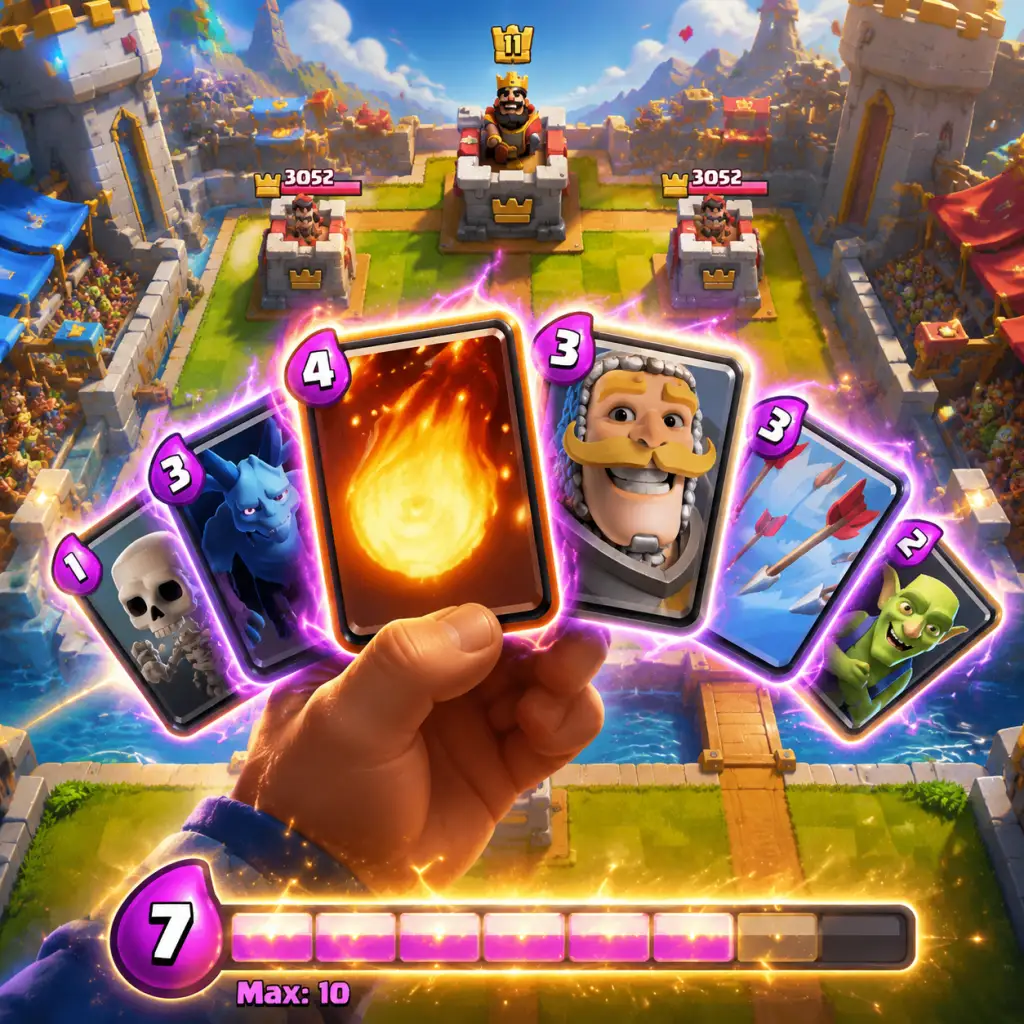
Clash Royale is a real-time multiplayer strategy game where you collect cards (troops, spells, buildings) and battle other players in 1v1 or 2v2 matches. There is no character creation – your identity is your in-game name and your King Tower level. This guide will walk you through your first hour, explain the interface, and help you avoid common beginner pitfalls.
---
First Hour Walkthrough (0–60 Minutes)
0–5 Minutes: Tutorial Arena (Training Camp)
- Launch the game. You’ll be placed in Training Camp (Arena 1).
- A bot teaches you the basics: place troops by dragging from the card tray to the arena, deploy spells by tapping, and attack towers.
- First card given: Knight (a balanced melee troop).
- Objective: Destroy the opponent’s Princess Towers, then the King Tower.
- The tutorial ends after you win your first match. You’ll earn a few cards and gold.
- After the tutorial, you’ll be prompted to fight a live player in the same arena (Training Camp is shared with other real players).
- Don’t panic if you lose – everyone starts with a simple deck.
- Your starter deck is: Knight, Archers, Bomber, Spear Goblins, Musketeer (or similar). Use cheap cards (elixir cost 2-4) to learn.
- Tip: Focus on defending first. Let your opponent overcommit, then counter-push.
- After your first win, you get a Free Chest (unlockable every 4 hours) and a Crown Chest (after collecting 10 crowns from wins).
- Chest slots: You start with 4 chest slots. Always keep a chest unlocking – the Gold Crate (3h) is fast.
- Open the [Shop] tab to claim the Daily Free Offer (gold, gems, or cards).
- Join a clan as soon as possible (you can search for beginner-friendly clans with “new players” in description).
- Benefits: Request cards (every 8h), donate cards (gain gold and XP), participate in Clan Wars.
- Ask your clanmates for a beginner deck recommendation – they often help.
- Win enough trophies (start at ~300) to reach Arena 2 (Bone Pit). You’ll unlock new cards like Skeleton Army and Giant.
- Use gems only to unlock Bonus Rewards in the Season Pass (if you bought it) – never rush chests.
- Change your player name (once for free via Settings > Change Name).
- Equip a Tower Skin (cosmetic) from challenges or shop.
- Choose an emote (taunt) that shows during battles.
- Drag & Drop: Tap and hold a card from the bottom tray, then slide your finger to the arena to place it. Release to deploy.
- Double Tap: For spells (e.g., Zap, Fireball) – tap the card then tap the target area.
- Quick Deploy: Double-tap the card icon to place it automatically at a default location (not recommended for precision).
- 2-Finger Zoom: Pinch to zoom in/out of the arena.
- Buttons: Top-left: Settings/Menu; Bottom-right: Emote wheel; Top-center: Elixir bar & timer.
- Mouse controls:
- Keyboard shortcuts:
- Scroll wheel to zoom.
- Right-click to deselect.
- Claim your Daily Free Offer from the shop.
- Unlock the Gold Crate from your chest queue.
- Play 1v1 battles until you fill all chest slots and earn enough crowns for the Crown Chest.
- Request your most used common card (e.g., Arrows) from clan.
- Complete any available free entry challenge in Events.
- Don’t spend gems to speed up chest unlocking. It’s a newbie trap – you’ll get more value saving for Season Pass.
- Don’t upgrade every card. Focus on a single deck (8 cards). Gold is scarce early.
- Don’t rush into higher arenas with underleveled cards. You’ll hit a wall. Keep cards at least level 6-7 before pushing past Arena 5.
- Don’t use all elixir at once. Wait for 10 elixir and then deploy counter-push. Elixir management is key.
- Don’t ignore defenses. Place buildings like Cannon or Tombstone to distract enemy troops.
5–15 Minutes: First Real Battle
15–30 Minutes: Unlocking Chests & Crown Chests
30–45 Minutes: Joining a Clan
45–60 Minutes: First Arena Upgrade
---
Character Creation
There is no character creation in Clash Royale. You can:
Your King Tower Level increases as you gain XP from donating cards, upgrading cards, and winning battles. Higher King level unlocks new card levels and tower HP.
---
Controls on All Platforms
Mobile (iOS/Android)
PC (Epic Games Store)
- Left-click to select a card, then left-click on the battlefield to place it.
- For spells: select card, then left-click the target area.
- Numbers 1-8 to quickly select cards (1 = leftmost card).
- Spacebar to quick-place the selected card at cursor.
- Esc to cancel a card selection.
---
UI Overview
1. Main Menu (Home Screen):
- Top bar: Gold, Gems, Player Level, Crowns (for Crown Chest).
- Center: Your tower and avatars.
- Bottom tabs: Battle, Cards, Shop, Clan, Events (from left to right).
2. Battle Screen:
- Top: Opponent’s info (name, tower level, clan badge). Timer (3 min + 2 min overtime). Elixir bar (10 segments).
- Center: Arena with 2 Princess Towers and 1 King Tower on each side. Bridge in the middle.
- Bottom: Card tray (8 cards). Current elixir amount (big number).
- Left/Right: Your tower health bars.
3. Cards Tab:
- Shows all collected cards. Tap a card to upgrade (requires gold and cards).
- Card Levels: Common (max 14), Rare (max 14), Epic (max 14), Legendary (max 14 – since update).
- Elixir Cost: Number on card icon. Higher cost means more powerful but slower to deploy.
4. Shop Tab:
- Daily Free Offer, card offers, gold packs, gem offers.
- Recommendation: Only buy cards you use with gold. Save gems for Tournament Chests or Classic/Grand Challenges later.
5. Clan Tab:
- Chat, war activity, member list.
- Donate/Request buttons (8h cooldown).
6. Events Tab:
- Special challenges (e.g., Touchdown, Mega Deck).
- Season Pass – buy it if you play daily (great value for gems, chests, and tower skins).
---
Essential Early Objectives
1. Reach Arena 3 (Barbarian Bowl) within first week. This unlocks key cards like Valkyrie and Hog Rider.
2. Upgrade your main deck equally – keep all cards in your deck within 1-2 levels of each other.
3. Always have a chest unlocking – idle chest slots waste progress.
4. Join a clan and donate daily for XP and gold.
5. Complete the Crown Chest daily (10 crowns) for bonus rewards.
6. Save gems for buying the Season Pass (or for cosmetic emotes/Tower Skins if you prefer). Do not spend gems on chests.
---
What to Do First & What to Avoid
Do First:
Avoid:
---
Early Resource Priorities
| Resource | How to Get | Priority Use |
|---|---|---|
| Gold | Chests, donating, shop offers | Upgrade main deck cards. Buy essential common cards from shop (e.g., Zap, Skeletons). |
| Gems | Free Pass, achievements, challenges | Save for Season Pass (500 gems) – gives best value. Do not spend on chests or gold directly. |
| Cards | Chests, requests, trades, shop | Focus on one deck. Request cards you need daily. Trade duplicate epics/legendaries in clan. |
| Chests | Battle wins, challenges | Unlock in this order: Silver (3h) > Gold (8h) > Crown (daily) > Magic/Giant (special). Never leave a slot empty. |
| Experience (XP) | Donating, upgrading cards, winning | Level up King Tower to unlock higher card levels. Donate every 8 hours. |
Common Beginner Mistakes
1. Overcommitting elixir. Placing expensive cards (e.g., Pekka, Golem) when you have low elixir leaves you defenseless. Always keep a cheap spell (Zap/Arrows) ready.
2. Ignoring spell value. Spells like Fireball can hit tower + troops. Don’t just throw spells at the tower if they have no troop support.
3. Panic placing. Take a breath. Let the opponent move first if you’re unsure. Reacting too fast often wastes elixir.
4. Not counting elixir. After each exchange, mentally note how much elixir you and your opponent have. If they place a 7-elixir Golem, you likely have a 3-elixir advantage. Exploit it.
5. Using a deck with no win condition. A win condition is a card that reliably damages towers (e.g., Hog Rider, Giant, Balloon). Don’t rely solely on troops that can be easily distracted.
6. Saving gems for chests. Worst possible use. Gems are best for Season Pass or Classic Challenges (gems entry, but high skill).
7. Not joining a clan. You miss out on donations, requests, and war rewards.
---
Day-One Checklist
- [ ] Complete the tutorial (Training Camp).
- [ ] Win your first 1v1 battle (you will get a chest).
- [ ] Claim the Daily Free Offer from the shop.
- [ ] Open the Training Camp Chest (reward for tutorial).
- [ ] Set a chest to unlock (Silver or Gold Crate).
- [ ] Join a clan (search for “active” or “new players”).
- [ ] Send a card request (pick your most wanted common – like Archers or Fire Spirit).
- [ ] Play until you have all 4 chest slots filled (keep unlocking them).
- [ ] Earn 10 crowns to fill the Crown Chest (play multiple matches).
- [ ] Check the Events tab for any free-entry challenge (play once, even if you lose).
- [ ] Do NOT spend gems. Spend only gold on upgrading one card (your most used).
- [ ] Learn the elixir tracking habit – practice counting elixir after each big play.
- [ ] Set a goal: Reach 200 Trophies by end of day (Arena 2 threshold is 300, but day 1 is fine).
- Decks: For beginners, use a balanced deck with 2 spells (small + big), 1-2 buildings, and 4-5 troops. Example: Knight, Musketeer, Spear Goblins, Skeletons, Zap, Fireball, Cannon, Baby Dragon (if you unlock it).
- Practice Mode: Use the “Private” tab to practice against a friend (or second device) to test new decks.
- Watch replays: After losing a close match, watch the replay to see where you misplayed elixir.
- Patience: Clash Royale is marathon, not sprint. Upgrading cards takes weeks. Enjoy the process.
---
Additional Tips
Now you are ready to enter the arena! Good luck.
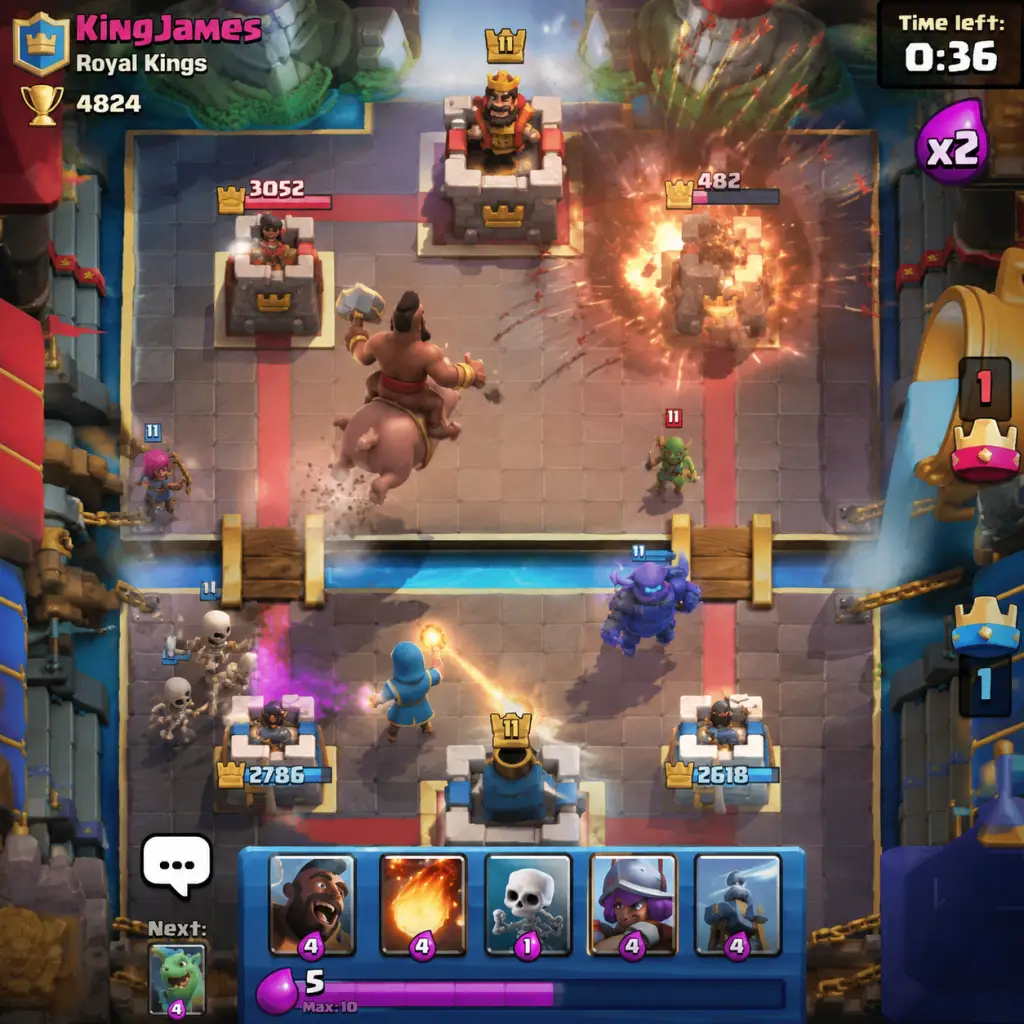
Core Gameplay
Core Gameplay Loop
The core loop of Clash Royale revolves around real-time 1v1 (or 2v2) battles where you deploy a deck of 8 cards (troops, spells, buildings) to destroy your opponent's Crown Towers while defending your own. Each match lasts up to 3 minutes, with a 1-minute Sudden Death Overtime if tied. The game is structured around a single-lane (with two side lanes) arena where elixir (the resource) regenerates over time. Your goal is to earn Crowns (by destroying towers) to win chests, trophies, and progress through Arenas. Matches are quick (3-5 minutes) and require strategic decision-making under time pressure.
Combat and Interaction Systems
- Elixir: Your resource bar (max 10). Regenerates at 1 elixir per 2.5 seconds. Spells and troops cost elixir. Managing elixir efficiently is key—never let it cap.
- Deck Building: 8 cards. No duplicates. You can have one Champion (legendary) in your deck after reaching King Level 14. Decks should have a balanced elixir cost (average 3.5-4.0) and synergy (e.g., tank + splash damage + building bait).
- Spells: Damage, heal, or spawn units. E.g., Fireball (4 elixir, area damage), Zap (2 elixir, stun), The Log (2 elixir, knockback).
- Buildings: Defensive structures like Cannon, Tesla, or Spawners (Goblin Hut). They don't move but can distract enemy troops.
- Crown Towers: Each player has 3 towers: 2 Princess Towers (side) and 1 King Tower (center). Destroying a Princess Tower earns 1 Crown; destroying the King Tower instantly ends the match (3 Crowns). The King Tower only activates after it takes damage; you can activate it early by damaging it with spells or troops (high-risk strategy).
- Pathfinding: Troops move toward the nearest enemy building, walking across the arena. They can cross bridges. Air and ground troops behave differently; spells target both.
- The King Tower Activation: A key mechanic. If the enemy hits your King Tower before you decide, it awakens and starts shooting. Skilled players try to activate it early for defensive advantage.
- Trophies: Gained by winning, lost by losing. Determines your Arena. Arenas unlock new cards and resources.
- King Tower Experience: Earned from upgrading cards, donating, and unlocking new cards. Leveling King Tower increases your tower hit points and damage, and unlocks slots for up to 9 cards (Level 14 gives Champion slot).
- Card Levels: Each card has 14 levels (Star Points for cosmetic after Level 13). Upgrading requires Gold and Cards. Higher levels increase stats.
- Chests: Won after battles (Silver, Gold, Giant, Magical, Legendary, etc.). Opening takes time or Gems. Contains Gold, Cards, and sometimes Gems. Chest cycle follows a fixed order (but free chests and crown chests are separate).
- Season Pass: Monthly pass (e.g., Diamond Pass) with bonus rewards, including Book of Books, Legendary Wild Cards, and emote. Free tier also gives rewards.
- Shop: Daily offers, card requests (every 8 hours), trade tokens (post-Level 11), bundle deals.
- Clan: Join to request/donate cards, participate in Clan Wars 2, and chat. Donations give XP and Gold.
- Special Events: Challenges (e.g., Sudden Death, Triple Elixir, Draft), Tournaments, Global Tournaments (every few weeks).
- Daily Crown Chest: Earn 10 Crowns daily (resets). Rewards Gold, Cards, Gems.
- Season Tasks: From free and paid pass. Examples: "Play 10 battles", "Win 3 battles with Giant", "Destroy 100 towers".
- Clan Wars 2: Weekly clan event where you attack enemy boats. Earn Fame and Race Medals for clan progression.
- Special Challenges: Short-lived, unique rules. Rewards exclusive emotes, tower skins, and large card packs.
- Path of Legends: Endgame ranked mode (after Level 14). 10 leagues. Completing leagues gives banner, badges, and top 1,000 leaderboard spots.
- Gold: Main currency for upgrading cards and buying from shop. Primary source: chests, crown chest, clan donations, season pass.
- Gems: Premium currency. Used to speed up chests, buy Gold, enter challenges (free entry once per day), and buy special offers. Obtained from free chests, crown chest, season pass, and occasional offers.
- Cards: Common, Rare, Epic, Legendary, Champion. Collected from chests, shop, trades, requests, season pass. Wild Cards (common, rare, epic, legendary, champion) can be used for any card of that rarity.
- Trade Tokens: Post-Level 11. Allow trading cards with clan members. Common/ Rare/ Epic/ Legendary tokens. You give one card and receive another of same rarity (plus a GT to the other player).
- Star Points: Cosmetic currency for Level 13+ cards. Earned from maxed card copies, season pass, and some challenges.
- Deck Building: As you unlock more cards, you experiment with synergies. Early on, simple win conditions like Giant + Musketeer + Fireball. Later, complex combos like Golem + Nightwitch + Lumberjack + Tornado.
- Card Leveling Focus: Prioritize your main deck. Max out win condition and key support cards first. Use trade tokens to speed up specific cards.
- King Tower Level: Aim to reach Level 14 as soon as possible to unlock Champion slot and max tower stats. Focus on donating and upgrading cards evenly to gain XP.
- Evolution: For Level 11+ cards, you can collect Evolution Shards (from events, pass) to unlock enhanced versions (e.g., Evolved Firecracker, Evolved Knight). Evolutions provide powerful bonuses like auto-targeting or extra HP.
- Champion Abilities: After King Tower 14, you can deploy one Champion per deck. Each Champion has a unique ability (e.g., Golden Knight dash, Mighty Miner bomb) that costs extra elixir and can be used once per deploy.
- Ultimate Champion League: Path of Legends is the true endgame. After reaching Level 14 and hitting 7,500 trophies (or unlocking Ultimate Champion), you enter a ranked mode with 10 leagues (Bronze to Ultimate). Each league resets monthly. Rewards include banners, emotes, and massive Wild Card stacks.
- Clan Wars 2: Endgame clans compete weekly in a boat race. Duels, Colosseum, and PvE battles. Rewards: boat upgrades, boat chest, clan trophies. Top clans get exclusive river race emblems.
- Global Tournaments: Monthly player-run tournaments (use code "SOLARIS" etc.) and Supercell-run global tournaments with 20-step milestone rewards (up to 500,000 Gold, Legendary King Chest, etc.).
- Special Events: Frequent limited-time challenges (e.g., Ladder Rush, 2v2 Ramp Up) that test skills and offer exclusive cosmetics.
- Top Ladder: Beyond Ultimate Champion, players compete for global leaderboard (top 1,000) and invitations to Clash Royale League (CRL) qualifiers (esports).
- Play quick 1v1 battles. Each win pushes you toward next Arena.
- Open chests (Silver and Gold) to collect cards.
- Join a clan for donations and requests.
- Spell Cycle: Use Fireball or Arrows to counter swarm.
- Tank + Support: Deploy Giant or Knight in front of Musketeer/Bomber.
- Bridge Spam: Don't spam; learn to build up elixir.
- Starter deck: Giant, Musketeer, Fireball, Arrows, Knight, Spear Goblins, Minions, Skeletons.
- Focus on one win condition (Giant or Hog Rider if you get it).
- Upgrade your main deck cards evenly; don't waste Gold on unused cards.
- Donate extra Common and Rare cards for XP and Gold.
- Use free chests (every 4 hours) and crown chest daily.
- Elixir overcap when bar full; always spend.
- Placing troops too close to tower (gets killed by tower).
- Ignoring King Tower activation (don't let them damage it unless planned).
- Fight to stay in Arena 8-9 (e.g., Jungle Arena, Hog Mountain).
- Participating in 2v2 modes (friendly or ladder) to practice.
- Season challenges appear (e.g., "Electro Giant Challenge").
- Building Placement: Tesla in center for Hog, Tornado to activate King.
- Spell Prediction: Anticipate opponent's swarm with Arrows/Zap.
- Elixir Advantage: Know when to defend cheaply and counterpush.
- Popular mid-game decks: Hog Cycle (Hog, Ice Spirit, Musketeer, Log, Fireball, Tesla, Ice Golem, Skeletons). Golem Beatdown (Golem, Nightwitch, Lumberjack, Tornado, Baby Dragon, Zap, Poison, Mega Minion).
- Start focusing on one archetype: Beatdown, Control, Cycle, or Siege.
- Save Gems for Global Tournament entry (20 gems for 20 wins; rewards are huge).
- Use trade tokens to get missing Legendary cards (e.g., Log, Sparky, Lumberjack).
- Max out your win condition first (e.g., Hog Rider to Level 11-13).
- Overcommitting elixir on defense; leave elixir for counterpush.
- Relying on single win condition without backup.
- Ignoring ladder meta—check deck popularity on RoyaleAPI.
- Focus on ladder climbing from 4,000 to 7,500 trophies.
- Clan Wars 2: you have multiple decks for boat attacks and duels.
- Participate in Monthly Global Tournaments for huge rewards.
- Evolution Cards: After collecting 6 Wild Shards to evolve a card, you get a powerful variant for 3 cycles. e.g., Evolved Knight (tanky + shield), Evolved Firecracker (confetti).
- Champion Cards: After King Level 14, you add 1 Champion per deck. Examples: Golden Knight (dash ability), Mighty Miner (bomb drop).
- Super Troops: (Not in Clash Royale? That's Clash of Clans. Actually, Supercell has Super Troops in CoC only. Ignore.)
- Meta decks dominate: e.g., Evolved Firecracker + Hog Cycle, Golem Beatdown with Evolved Skeletons, Phoenix + Miner Control.
- Need 3-4 evolved cards ready for different matchups.
- Start collecting all champion cards if possible.
- Max out your main deck to Level 14 (except legendaries which cap at 14? Actually, cards go to 14. Champion to 14 too.)
- Use Books of Cards (from Pass) to instantly upgrade a card by several levels.
- Farm Star Points for cosmetic upgrades.
- Not learning to counter Evolved cards (e.g., Evolved Firecracker requires Lightning/ rocket timing).
- Using too many high-elixir cards; average cost should be 3.8-4.2.
- Forgetting to activate King Tower early vs Hog/Ram.
- Play Path of Legends matches (best of 3?? No, it's 1v1 ladder but with set number of wins per league. Actually, it's a series of leagues: each league requires a certain number of wins to advance (e.g., 10 wins per tier). You can't lose trophies below your current league once you're in Champion.
- Compete in Global Tournaments (top players aim for top 100).
- Clan Wars 2 at highest level: your clan competes for Legendary League.
- Tower Princess Ability: At King Level 14, your Princess Tower gains a small splash attack? No, that's incorrect. The King Tower only gains HP and damage. But there are tower skins (from pass) that change appearance.
- Perfect Play: You need to read opponent's cycle, use positive elixir trades, and predict spells. Every elixir counts.
- You need multiple maxed decks for Clan Wars and ladder variety.
- Top meta decks: P.E.K.K.A. Bridge Spam with Evolved Battle Ram or Ram Rider. X-Bow Cycle with Evolved Mortar? Unusual. Generally, you adapt to the monthly balance changes.
- Use practice in 2v2 to test new strategies.
- The only remaining progression is cosmetic: Star Points for maxed cards, Tower Princess skin (e.g., "Ghoul" or "Santa" from pass), Emotes, Banner.
- Use Trade Tokens to max out every card in your collection (aim for all Level 14).
- Participate in every special challenge, especially those awarding Evolution Shards.
- Save Gems for the next Global Tournament or special offers.
- Being too predictable; vary deployment timing.
- Tilting—take breaks after two losses.
- Forgetting to adapt to the current meta (check RoyaleAPI monthly).
Progression System
Quests/Missions
Economy
Character/Build Growth
Endgame Structure
---
Core Gameplay by Player Progression Tiers
Early Game (Arenas 1–4, King Level 1–5)
Overview
You start with basic cards: Knight, Archers, Bomber, Fireball, etc. The game teaches you lane mechanics, elixir management, and basic defense. Opponents are similarly low-level.
Gameplay Loop
Key Mechanics Unlocked
Building Your Deck
Progression Tips
Common Mistakes
Mid Game (Arenas 5–9, King Level 6–10)
Overview
You now have access to more cards: Hog Rider, Musketeer, Fireball, Tesla, Golem, Wizard, Baby Dragon, etc. You start encountering players with level 9-10 cards. Need to learn counters and synergy.
Gameplay Loop
Key Mechanics Unlocked
Building Your Deck
Progression Tips
Common Mistakes
Late Game (Arenas 10–14, King Level 11–13)
Overview
Arenas 10-13 are highly competitive with near-maxed decks. Card levels matter: common+rare at level 13, epic+legendary at level 12-13. You unlock Evolutions at Level 11+? Actually, Evolution shards become available in Pass and events around King Level 11.
Gameplay Loop
Key Mechanics Unlocked
Building Your Deck
Progression Tips
Common Mistakes
Endgame (Arena 15 - Ultimate Champion and beyond)
Overview
After reaching 7,500 trophies and King Level 14, you enter Path of Legends. This is a ranked mode that resets monthly. Your goal: climb from Bronze III to Ultimate Champion. At the top, you compete for global leaderboard spots and Clash Royale League (CRL) qualifications.
Gameplay Loop
Key Mechanics Unlocked
Building Your Deck
Progression Tips
Common Mistakes
Summary Table
| Tier | Trophies | King Level | Key Cards | Focus |
|---|---|---|---|---|
| Early | 0-1400 | 1-5 | Giant, Musketeer, Fireball | Learn basics, join clan |
| Mid | 1400-4300 | 6-10 | Hog, Golem, Tesla | Master one archetype, use trades |
| Late | 4300-7500 | 11-13 | Evolved Cards, Champions | Max deck, push ladder |
| Endgame | 7500+ | 14 | All maxed, Meta Decks | Path of Legends, Global Tournaments |
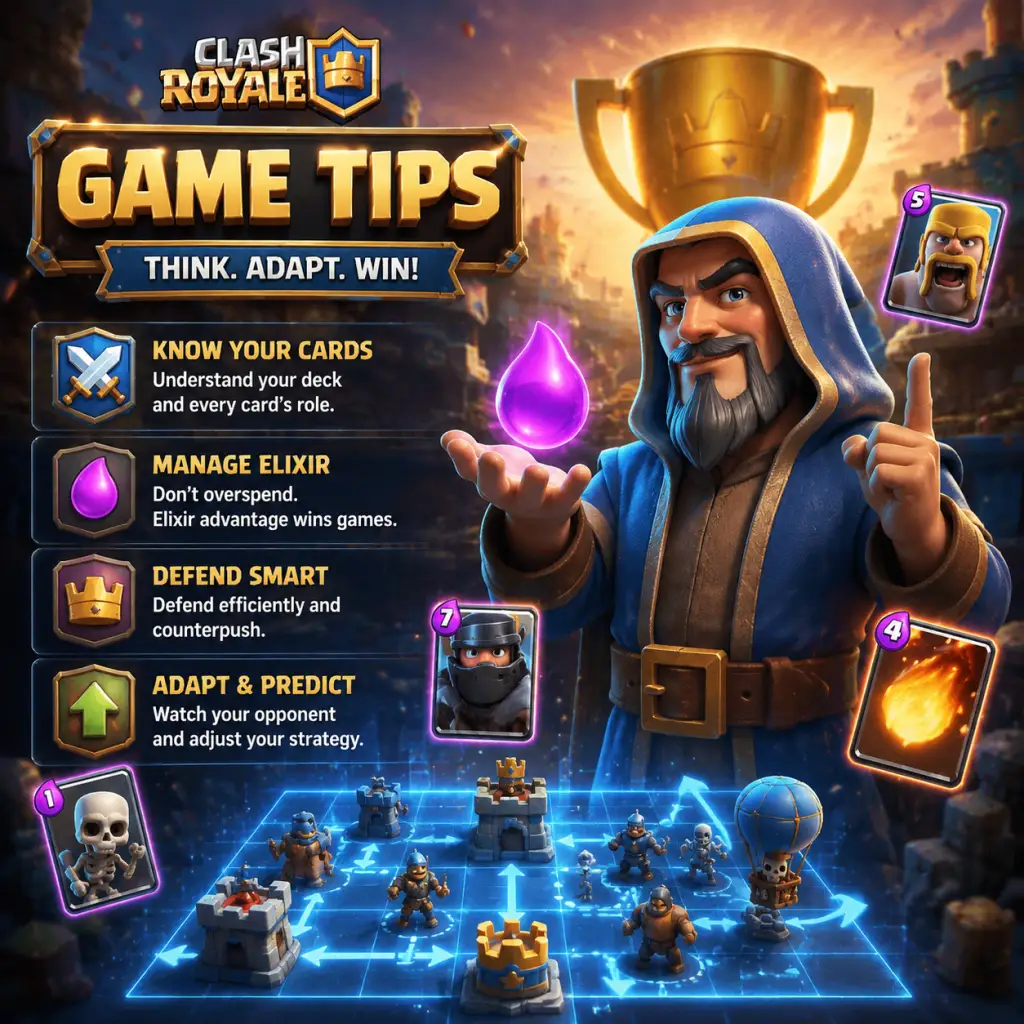
Game Tips
Overview
Clash Royale is a real-time multiplayer strategy game where you collect cards and battle opponents. Mastering the game requires a mix of tactical thinking, resource management, and practice. This guide provides a comprehensive set of tips organized by category and skill level.
---
Beginner Tips
1. Learn Your Cards
- Study each card's stats: Hitpoints, damage, range, area damage, spawn time, etc. Know which cards counter others (e.g., Arrows kill Minion Horde).
- Focus on a few cards first: Don't try to master all 100+ cards immediately. Pick a small set (e.g., Giant, Musketeer, Fireball, Skeletons) and learn their interactions.
- Include at least one tank (e.g., Knight, Giant, or Ice Golem).
- Include one swarm killer (e.g., Arrows, Zap, or Fireball).
- Include one building (e.g., Cannon or Tesla) for defense.
- Aim for average elixir cost between 3.0 and 4.0.
- At the start of a match, do not play a card until you reach 10 elixir. Let your opponent commit first if possible.
- Use elixir collector only if your deck is built around it; otherwise, it's a risk.
- Focus on defending your towers using minimal elixir. Then use surviving troops to launch a counterattack.
- For example: If opponent plays a Giant, place a building or a high-DPS troop (e.g., Mini P.E.K.K.A) behind your tower to kill it, then support the surviving troop with a spell or another unit.
- Most ground troops cannot cross the river without a bridge. Spells can target anywhere. Buildings can be placed on your side to lure enemy troops.
- Place buildings slightly off-center to distract and split incoming troops.
- Play the tutorial battles and training matches to get comfortable with basic mechanics.
- Complete the free chests and crown chests daily.
- Spell Prediction: If your opponent consistently places goblins or minions near their tower, predict with a Fireball or Arrows before they land. This wins elixir advantage.
- Kiting: Use cheap troops (e.g., Ice Golem, Knight) to lure heavy hitters like P.E.K.K.A or Prince away from your towers. Place them in the center or opposite lane.
- Pulling: Place buildings like Tombstone or Cannon in the center to pull enemy tanks and allow both towers to shoot them.
- Cycle Decks: With a low average elixir deck (2.6-3.0), you can cycle cards quickly to get to your win condition (e.g., Hog Rider + Fireball). Practice rapid rotations.
- Elixir Advantage: Aim to defend using 1-2 elixir less than your opponent's attack. Over time, this builds a lead.
- Don't Let Elixir Sit at 10: If you are at full elixir, play a card even if just a cheap one to avoid wasting regeneration. But do not commit too heavily if you don't know opponent's deck.
- Save Spells for Key Moments: Don't fireball a lone Musketeer unless it's critical. Use spells to finish tower or kill multiple units.
- Include 2-3 Win Conditions: e.g., Hog Rider + Miner, or Giant + Sparky. Have a primary and a backup plan.
- Add at least 2 spells: One light (Zap/Log) and one heavy (Fireball/Poison) to handle swarms and buildings.
- Synergy Matters: Pair cards that complement each other: e.g., Baby Dragon + Goblin Barrel (Baby Dragon tanks and clears swarms, Goblin Barrel deals damage).
- Gold Management: Spend gold only on cards you actively use. Avoid upgrading cards you never play.
- Request Cards Daily: In your clan, request cards you need for upgrades. Focus on one deck at a time.
- Save Gems for Special Challenges: Do not waste gems on chests or gold. Use them for grand challenges or to retry tournaments.
- Rocket Cycling: In double elixir, if you have a lead, use Rocket on their tower repeatedly for safe damage. Requires precise aim and prediction.
- Reacting to Cards: Memorize the exact placement spots for every card. For example, placing a Goblin Cage in the exact center of your side to distract both lanes.
- Zap/Log Trick: Use Zap to reset Inferno Tower/Dragon, Sparky charge, or to stun for a split second. Log can knock back troops and cancel charges (e.g., Prince).
- Bait Decks: Force opponent to use their small spell (e.g., Log) on a Goblin Barrel, then punish with Minion Horde or Skeleton Army.
- Mega Knight Decks: Pair Mega Knight with Bats, Zap, and a win condition like Miner to create a heavy control deck.
- Graveyard Decks: Use a tank (e.g., Knight or Ice Golem) to soak tower damage, then drop Graveyard. Time spells to defend against splash.
- Beatdown Decks: Combine a heavy tank (Golem, Giant) with splash support (Wizard, Baby Dragon) and a heavy spell. Play slowly, build huge pushes in double elixir.
- Mastery of Challenges: Once you have a solid deck (e.g., Hog 2.6), play classic challenges for practice and to earn cards/gold. Grand challenges offer better rewards but higher risk.
- Clan Wars: Participate if you have at least 8 decent cards for each mode. Coordinate with clanmates to maximize fame.
- Card Levels: Focus on one deck until all cards are level 13 (upgrade as high as possible). Then level up other cards for flexibility.
- Replay Review: After each loss, watch the replay and note mistakes: overcommitment, poor spell usage, bad placement.
- Adapt to Meta: Check websites like RoyaleAPI or DeckShop for current popular decks. Adjust your deck or playstyle accordingly.
- Practice with Friends: Create a 1v1 friendly battle with a clanmate to test new decks without trophy risk.
- First Play: Usually, the player who plays first is at a disadvantage unless they have a fast cycle. Wait until 10 elixir, then play a cheap card like Ice Spirit or Skeletons to scout opponent's response.
- Spell Cycling: In sudden death or tiebreaker, use spells on tower even if only hitting one tower. Rockets and miner can secure last-second damage.
- King Tower Activation: If a troop targets your princess tower but accidentally hits the king tower, it awakens the king tower which then shoots all enemies. Use this to your advantage by luring troops to hit king.
- Party Mode: Use this to practice new decks without trophy pressure.
- 2v2: Coordinate with teammate using emotes (but don't spam). Use a deck that synergizes – one player tanks, the other supports.
- Tournaments: Join small tournaments (e.g., 20-player) to test your skill under pressure. Larger tournaments require consistency.
- Silver Chests are the worst; open them quickly and move on.
- Gold Chests are decent; Magical Chests and Giant Chests are excellent cards/gold.
- Epic Chests and Legendary Chests are rare – use gold to buy them from the shop when needed.
- Don't Speed Up Chests with Gems – only worth it if you have a chest slot free and a full queue.
- Hog Cycle (2.6): Hog Rider, Musketeer, Cannon, Ice Spirit, Skeletons, Log, Fireball, Ice Golem. Average elixir 2.6. High skill ceiling, fast cycles.
- Golem Beatdown: Golem, Night Witch, Baby Dragon, Mega Minion, Lumberjack, Zap, Poison, Tornado. Heavy push in double elixir.
- Miner Control: Miner, Poison, Wall Breakers, Bats, Knight, Tesla, Log, Fireball – versatile controlling deck.
- Pass Royale: If you play daily, the Pass Royale offers great value (extra chests, books, gold). Buy if you can afford.
- Trade Tokens: In clan, trade extra cards for ones you need. Be strategic – don't trade away meta cards.
- Gold Efficient Upgrades: Upgrade cards only when you have enough gold and cards. Prioritize win conditions and common cards (cheaper).
2. Start with a Balanced Deck
3. Don't Overspend Elixir Early
4. Defend First, Counterattack Later
5. Use the River to Your Advantage
6. Practice with Training Camp
---
Intermediate Strategies
Combat Tips
Resource Management
Deck Building (Intermediate)
Economy Tips
---
Advanced Optimizations
Combat Mastery
Advanced Deck Building
Economy and Progression
Mental Game and Analysis
---
Category-Specific Tips
Combat
Exploration (Game Modes)
Resources (Gold, Gems, Chests)
Builds (Decks)
Economy
---
Conclusion
Clash Royale is a game of constant improvement. Start with simple decks, learn card interactions, manage resources wisely, and adapt to the meta. Record your gameplay, learn from losses, and stay patient. With these tips, you'll climb trophies and enjoy the game more.
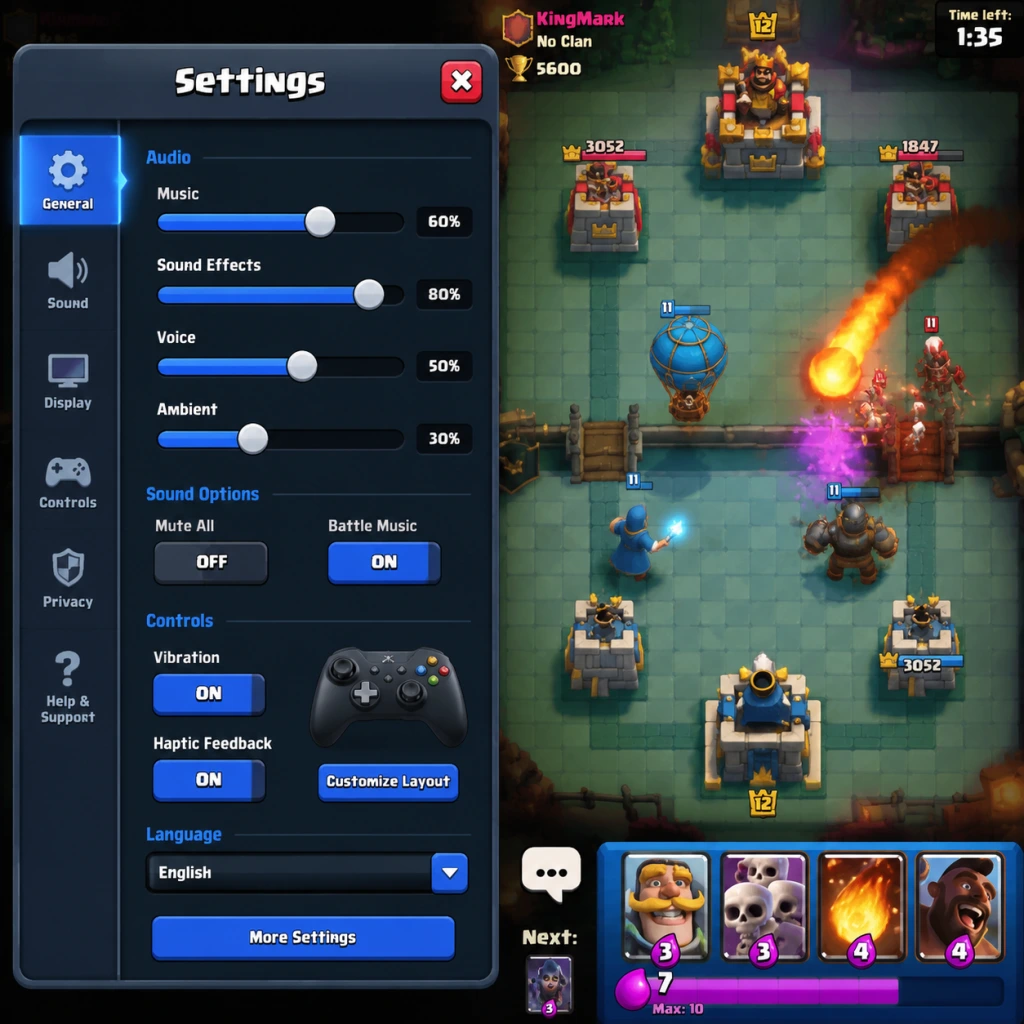
Game Settings
Overview
Properly configuring your Clash Royale settings can significantly impact your gameplay experience, from visual clarity and performance to audio feedback and competitive advantages. This guide covers all available settings across mobile and PC (Epic Games Store) versions, explains their effects, and provides recommendations for different hardware capabilities.
Graphics Settings
Graphics settings affect how the game looks and performs. On mobile, you can choose between Low, Medium, and High quality presets. The PC version offers more granular controls.
Quality Presets (Mobile & PC)
- Low: Reduces resolution, disables shadows, lowers particle effects. Best for older devices or when saving battery. Minimal visual distractions but can make some cards harder to see in heavy action.
- Medium: Balanced visuals with moderate effects. Recommended for most mid-range devices and PCs.
- High: Full resolution, shadows, particle effects, and smooth lines. Ideal for high-end devices and PCs. Enhances visual feedback but may cause overheating or frame drops on weaker hardware.
Advanced Graphics Options (PC Only)
| Setting | Effect | Recommendation |
|---|---|---|
| Resolution | Native, 1440p, 1080p, etc. | Set to monitor’s native resolution for sharpest image. Lower if performance issues arise. |
| Frame Rate | 30 FPS, 60 FPS, Auto (unlimited) | Always choose 60 FPS or Auto for competitive play. Smooth animations improve reaction time. |
| Smooth Line | Smooths edges (anti-aliasing) | Enable on high-end systems. Disable on low-end to boost FPS. |
| Shadows | Toggle shadows on/off | Shadows add depth but cost performance. Disable for competitive play (reduces visual noise). |
| Particle Effects | Controls explosion, spell, and death effects | High can obscure gameplay during intense battles. Set to Medium or Low for clarity. |
Optimal Settings by Hardware Level
- Low-End (e.g., iPhone 6, Android with 2GB RAM, low-budget PC): Graphics Quality Low, Resolution 720p, Frame Rate 30 FPS, Shadows Off, Particle Effects Low. Aim for stable 30 FPS.
- Mid-Range (e.g., iPhone XR, Android with 4GB RAM, average laptop): Graphics Quality Medium, Resolution native, Frame Rate 60 FPS, Shadows Off, Particle Effects Medium.
- High-End (e.g., iPhone 14 Pro, flagship Android, gaming PC): Graphics Quality High, Resolution native, Frame Rate 60 FPS or Auto, Shadows On, Particle Effects High. Disable Smooth Line if performance dips.
- Frame Rate: Crucial for competitive play. Ensure it's set to at least 60 FPS on capable devices. Many players leave it on 30 FPS, which can delay their reactions.
- Particle Effects: On High, spells like Rocket or Lightning can create large visual explosions that hide enemy placements. Lower to Medium to maintain battlefield awareness.
Easy-to-Misconfigure Settings
Audio Settings
Audio provides critical feedback for card deployment, tower damage, and spell activation. Even if you play muted, consider enabling sound effects for key notifications.
| Setting | Description | Recommendation |
|---|---|---|
| Master Volume | Overall audio output | Adjust to comfortable level. Keep it low if playing in public. |
| Sound Effects | Card sounds, battle noises, tower warnings | Enable. Critical for hearing card drops (e.g., Hog Rider splashing, Miner popping). |
| Music | Background battle music | Optional. Can be distracting; many pros disable it. |
| Voice | Announcer lines (e.g., “Triple Elixir!”) | Keep enabled for important game-state notifications. |
| Vibration | Phone vibrates on hits | Disable to save battery. Not essential. |
Special Attention
- Sound Effects help you react to off-screen card placements. A Goblin Barrel dropping makes a distinct sound—enable sound for better defense.
- Music can be turned off without loss of competitive edge.
- Button Size (if available): Larger buttons reduce mis-taps. Not present in current version.
- “Quick Launch”: Some launchers have it; not in-game.
- Mouse: Left-click to select/place a card, right-click to cancel.
- Keyboard: Number keys 1-8 to quickly select a card (1-8 correspond to card slots). Spacebar or Enter can be used to confirm placement (customizable in some versions).
- Key Bindings: In settings, you can reassign hotkeys for each card slot. F1-F8 are alternatives.
- Show Card Levels: Toggle to display card levels in battle. Enable to see opponent card levels during match (useful for elixir counting).
- “Decorate Mode”: Enables placing emotes and tower skins. Disable during battles to keep interface minimal.
- “Battle Log” & “Replay”: Not settings but part of interface; no configuration needed.
- Key Bindings: On PC, if you accidentally rebind a key, you may struggle to select cards quickly. Reset to default before tweaking.
- “Decorate Mode” can clutter the screen; turn off for matches.
- Colorblind Mode: Found under Settings → Graphics. Options for Protanopia, Deuteranopia, Tritanopia. Adjusts card rarity colors and elixir color (elixir is normally pink; colorblind modes shift to distinguishable hues). Highly recommended if you have any color vision deficiency.
- Text Size: Not adjustable in-game. Use device-level accessibility (e.g., iOS Display & Text Size).
- Screen Reader Support: Not built-in. Relies on OS-level accessibility.
- “High Contrast” Mode: Some devices offer it, but not in-game setting.
- Colorblind Mode should be enabled even if you don’t think you’re colorblind? Rarely beneficial. Only use if needed.
- No “Font” or “Button Size” adjustments exist. For vision impaired players, use system zoom.
- Game Language: Automatically detected from device/system language. Can be changed in Settings → Language. Supports many languages (English, Spanish, French, Chinese, etc.).
- Region: Not separately selectable; may affect clan search and time zone display.
- Changing language resets certain tutorial pop-ups? No, but card names will be in the new language, which can confuse interactions in international clans. If you play with English-speaking players, keep language as English for consistency.
Controls & Interface
Controls differ between mobile and PC.
Mobile Touch Controls
Clash Royale uses drag-and-drop to deploy cards, tap on towers to activate spells. There are no alternate control schemes. The only relevant settings are:
PC Keyboard & Mouse Controls
Interface Customization
Easy-to-Misconfigure
Accessibility Settings
Clash Royale offers limited accessibility options, but some are available:
Special Attention
Language Settings
Easy to Misconfigure
Network & Data Usage
Clash Royale is an online-only game. These settings affect connection stability and data consumption.
| Setting | Description | Recommendation |
|---|---|---|
| Wi-Fi Only | Blocks cellular data | Enable if you have limited data plan. Disable if you want to play on mobile internet. |
| “Low Data Mode” | Reduces background data usage | Not present. Instead, reduce graphics to save data? Graphics don’t affect data usage; only battle data (small packets). |
| “Continue Play” on Connection Loss | Automatically reconnects | Always enable; it can save you from accidental disconnects. |
| “Bandwidth Saver” | Compresses textures, reduces animation quality | Not available in Clash Royale. |
Special Attention
- Wi-Fi vs Cellular: Playing on unstable Wi-Fi may cause lag spikes. Cellular 4G/5G is often more consistent. Never play on high-latency connections.
- No frame-rate sync over network – your frame rate is independent. Don’t worry about “network packets per second”.
Gameplay & Notification Settings
These aren’t visual but affect your in-game experience.
| Setting | Description | Recommendation |
|---|---|---|
| “Auto-Deploy” or “Quick Deploy” | Not present. | – |
| “Do Not Disturb” (DND) | Mutes notifications during battle | Enable to avoid interruptions. |
| “Show Crown Level in Battle” | Displays opponent crown level (clan war) | Enable for psychological insight. |
| “Opponent Mute” | Mutes opponent emotes | Highly recommended to avoid tilt. |
| “Team Mute” (2v2) | Mutes teammate emotes | Use if you find them distracting. |
| “Battle Enter Animation” | Plays animation when match starts | Disable to save precious seconds? Not possible. |
| “Start Battle Button” placement | Not configurable. | – |
| “Clan Chat Notifications” | Alerts for clan messages | Personal preference. Disable if too frequent. |
| “Tournament/Chest Notifications” | Reminders for wars, chests | Enable to maximize progression. |
Easy to Misconfigure
- Opponent Mute: Many beginners leave it on and get tilted by emotes. Turn it off in settings if you find it annoying.
- Clan Chat Notifications: Can be overwhelming in large clans; disable if you only check manually.
- Graphics: Medium/High with 60 FPS, shadows off, particle effects medium.
- Audio: Sound Effects on, Music off.
- Controls: Use keyboard shortcuts on PC; default card slot order (1-8).
- Accessibility: Enable colorblind mode if needed.
- Network: Ensure stable connection; enable Wi-Fi only on limited data.
- Gameplay: Mute opponents, enable 60 FPS, and adjust notifications to your liking.
Conclusion
To get the best competitive experience:
Regularly review settings after updates, as new options may appear. Optimize for clarity and performance above all.
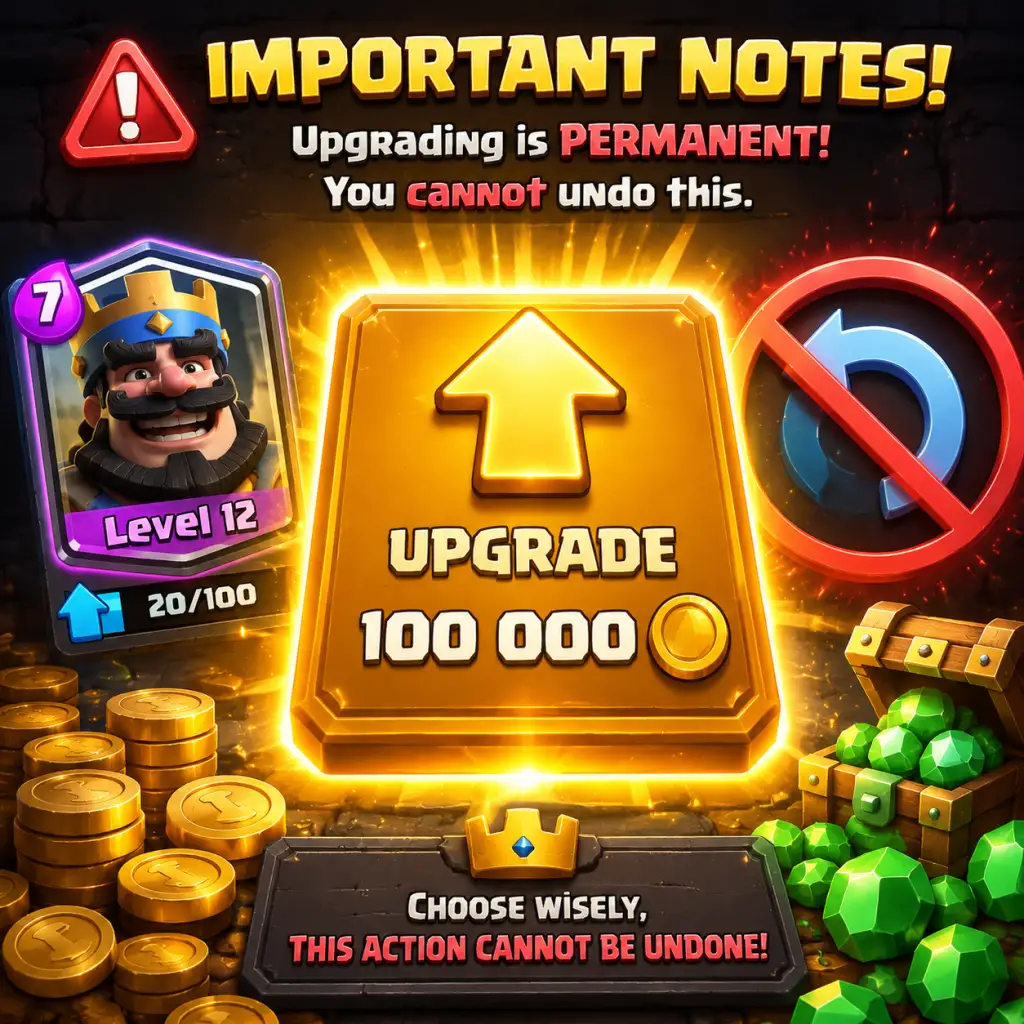
Important Notes
Important Notes
1. Irreversible Choices & Pitfalls
Card Upgrades Are Permanent: Once you spend Gold and Cards to upgrade a card, you cannot downgrade it. Avoid upgrading cards you rarely use or that are off-meta, as resources are scarce.
Trophy Road Pressure: Upgrading your King Tower too quickly via leveling cards can push you into higher trophy brackets where opponents are overleveled. It's often better to stay at a comfortable trophy range until your cards are adequately leveled.
Clan Departure: Leaving a clan resets your Clan War participation progress and you may lose pending donations/requests. Only leave if absolutely necessary.
Account Deletion: Deleting your Supercell ID or Clash Royale account is irreversible. All progress, purchases, and cosmetics are lost forever.
2. Missable Content
Season Pass Exclusives: Emotes, Tower Skins, Banners, and specific Evolution Shards from the Season Shop often become unavailable after the season ends. Some may reappear in later offers, but many are one-time only.
Limited-Time Challenges: Special events like "Electro Giant Challenge" or "Goblin Queen Challenge" offer unique rewards (e.g., exclusive emotes, tower skins) that may never return. Complete them within the window.
Global Tournament Rewards: Top % rewards and exclusive banners/tower skins from Global Tournaments are only available during that event. Miss the tournament and you lose the chance.
Special Events: Holiday events (Christmas, Anniversary, Chinese New Year) often have unique chests, emotes, or quests that disappear after the event ends.
Evolution Shards: Certain Evolution Shards are only obtainable through the Season Shop, Challenges, or specific offers. If you miss a season, you'll have to wait for a possible rerun or pay for wild shards.
3. Difficulty Spikes
King Tower Level Differences: Playing at a high trophy count with a low King Tower (e.g., Level 11 King Tower at 6000 trophies) puts you at a disadvantage because your towers deal less damage and have less HP. Focus on leveling your King Tower via card upgrades.
Card Level Gaps: Early arenas are balanced, but around Arena 9-12 you'll face opponents with cards 2-3 levels higher. This is a major skill-check moment.
New Arena Thresholds: Entering a new arena (e.g., Arena 11 to 12) introduces new cards and strategies (e.g., Royal Recruits, Archers X-Bow). Prepare by studying deck archetypes.
League Leaps: Above 5000 trophies (Master I and above), the competition sharpens drastically. You'll encounter meta decks, maxed cards, and high-skill players. Expect a plateau.
4. Grinding Traps
Over-Upgrading Off-Meta Cards: Spending Gold and Card Rares on cards that are underpowered or rarely used in the current meta is a huge resource sink. Check reputable sources (RoyaleAPI, YouTube meta reports) before committing.
Inefficient Crown Grinding: Grinding 2v2 for Crown Chest progress is slower than 1v1 if you lose often. Focus on winning 1v1 for faster crown earnings.
Gem Waste: Spending Gems on standard chests (Silver, Gold) is extremely inefficient. Use Gems only for Global Tournament entry, Challenge retries, or specific offers like Legendary Chests.
Challenges Over Ladder: Playing Classic/Grand Challenges costs Gems but can be a gold sink if you aren't winning. Only attempt if you have a solid deck and skill level.
Mastery Grinding: Mastery points take hundreds of battles. Focus on one deck to complete masteries faster, but don't let burnout affect your gameplay.
5. Online Etiquette & Anti-Cheat
Emote Spam: Spamming laugh or crying emotes is considered toxic. Use the mute button (tap an opponent's emote) to disable all emotes from a match.
Good Sportsmanship: Keep it simple: a single "Good Game" at the end is fine. Avoid BM (bad manners).
Third-Party Software: Do not use mods, bots, or hacks. Clash Royale has server-side validation, so cheating is nearly impossible. Using any external program that interacts with the game can result in a permanent ban.
Connection Issues: Repeatedly disconnecting intentionally may be flagged as exploitation. Ensure a stable connection and avoid quitting early.
Reporting: Use the in-game report feature for offensive player names, clan descriptions, or behavior. Do not abuse reports.
6. Save Management
Account Linking Is Mandatory: Without linking to a Supercell ID (or Google Play/Apple Game Center), your progress is stored only on the device. If you lose or reset your device, all progress is gone.
No Manual Saves: The game auto-saves to the Supercell servers. Changing devices requires logging into the same Supercell ID.
Transferring Accounts: To switch devices, open Clash Royale, go to Settings → Supercell ID → Log in on the old device, then on the new device select "Already have an account?" and log in.
Deleting Account: There is no option within the game to delete your account directly. You must contact Supercell support, and the deletion is permanent.
7. Common Regrets Players Wish They Knew Earlier
Saving Gems: Players often waste Gems on speeding up chest openings or buying Gold. Save them for Global Tournament entries (500 Gems for a tiered reward run) or the Season Pass (which gives exclusive rewards and a significant boost).
Gold Hoarding: Gold is the rarest resource. Avoid upgrading non-essential cards. Prioritize a single deck to level up for ladder.
Joining a Clan Late: Clans provide donations (cards), Clan Wars (rewards), and friendly battles. Join a clan as soon as possible (Arena 1) to accelerate progress.
Ignoring the Meta: Using a random deck without synergy leads to frustration. Check RoyaleAPI or YouTube for popular decks in your trophy range.
Not Practicing in Challenges: Many players dive straight into ladder and lose trophies. Use private tournaments or Classic Challenges (1 Gem entry) to practice without trophy loss.
Underestimating Card Levels: At higher levels, card level differences can negate skill. Leveling a deck evenly (within 1-2 levels of your King Tower) is crucial.
Forgetting the Season Shop: Each season has a dedicated shop offering Evolution Shards, Emotes, and Gold. Check it daily and spend season tokens strategically.
8. Additional Warnings
Monetization Pressure: Clash Royale uses gambling-like mechanics (chest contents are random). Be mindful of spending real money – set a budget and never chase a specific card.
Addictive Gameplay: The "one more match" loop is strong. Set time limits or use in-game notifications to avoid excessive play.
Server Latency: Matchmaking pairs you with opponents based on trophy count and region. Expect occasional lag; use a stable Wi-Fi connection for competitive matches.
Age Restrictions: The game is rated for ages 9+ but contains in-app purchases. Parental controls are available on both iOS and Android.
---
Remember: Clash Royale is a marathon, not a sprint. Patience, resource management, and continuous learning will yield the best results.
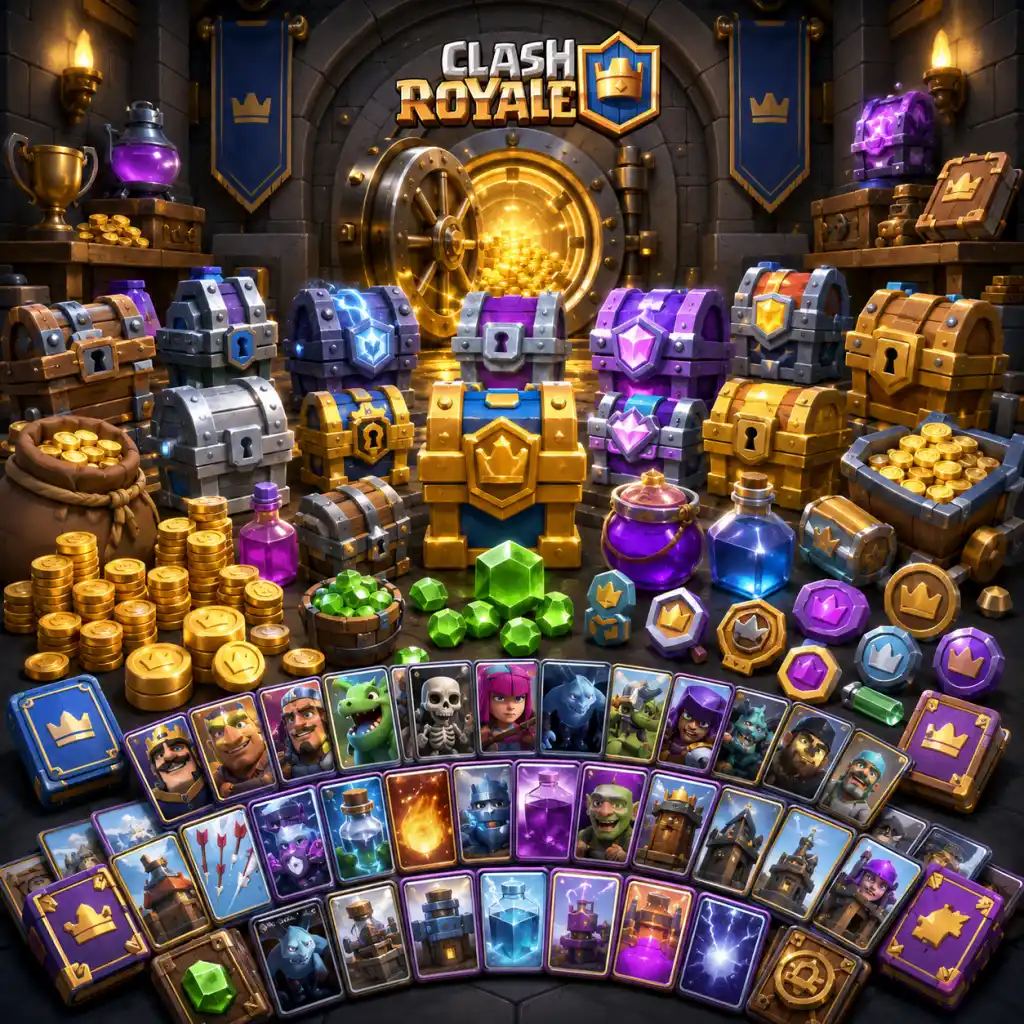
All Game Items
Overview
In Clash Royale, items are primarily divided into Currencies, Chests, Cards (the core collectibles), Tower Troops, Emotes, and Miscellaneous Resources. There are no traditional weapons or armor; instead, cards represent troops, spells, buildings, and champions that you deploy in battle. This guide covers every item type, how to obtain it, its utility, and important synergies.
---
Currencies
Gold
- What it does: Primary currency used to upgrade cards (costs Gold per level) and purchase items in the Shop.
- How to obtain: Opening chests, completing challenges, donating/requesting cards (Gold from donations), special events, Season Shop, and purchasing with Gems.
- When useful: Always essential for leveling up your deck. Prioritize spending on core cards to maximize power.
- Synergies: Used with Wild Cards to upgrade cards faster.
- What it does: Premium currency for speeding up chest openings, buying Gold, purchasing emotes, entering special challenges (e.g., Grand Challenges), and unlocking the Battle Pass (Pass Royale).
- How to obtain: Purchased with real money, earned from free Pass Royale tiers, special events, and completing achievements.
- When useful: Best saved for Grand Challenges (high return) or Pass Royale if you play actively. Avoid wasting on speeding chests unless necessary.
- Synergies: Gems can convert to Gold indirectly (via special offers).
- What it does: Used to unlock and upgrade Star Levels for maxed-out cards (Level 14 → cosmetic upgrades). Star Levels change card appearance and add special effects.
- How to obtain: Earned from Star Chests (every 1000 trophies after reaching maxed card collection), winning battles with maxed cards, and from special events.
- When useful: Only after you have cards at Level 14. Prioritize Star Levels for your main deck or favorite cards.
- Synergies: No direct synergy with gameplay, but gives bragging rights.
- What it does: Allow you to trade cards with clanmates. There are four types: Common, Rare, Epic, and Legendary Trade Tokens. Each token lets you offer one card and request another of the same rarity.
- How to obtain: From chests (especially Legendary and Epic chests), clan wars, special challenges, and Pass Royale.
- When useful: Essential for balancing card levels – trade cards you don’t use for ones you need. Use wisely to avoid giving away meta cards.
- Synergies: Combine with Wild Cards to quickly fill missing card copies.
- What it does: Wild Cards act as universal card copies that can be used to upgrade any card of the same rarity. They come in Common, Rare, Epic, Legendary, and Champion types.
- How to obtain: From chests, season shop, clan wars, special events, and Pass Royale.
- When useful: Highly flexible; use them on cards that are hard to request or are meta. Save Legendary and Champion Wild Cards for crucial upgrades.
- Synergies: Perfect for maxing out a specific deck without relying on random card drops.
- Contents: Cards, Gold, occasional Gems (rare).
- Time to open: 3 hours.
- How to obtain: Earn from battle wins every 4 battles (if you have an empty chest slot).
- When useful: Early game for basic cards; later game they are mostly Gold sources.
- Contents: Cards (mostly Common, some Rare), Gold.
- Time to open: 3 hours.
- How to obtain: Battle wins (every 4 battles, cycle with Gold chests).
- When useful: Steady low-tier resource income.
- Contents: More Gold, cards (Common, Rare, sometimes Epic).
- Time to open: 8 hours.
- How to obtain: Battle wins (every 4-6 battles).
- When useful: Good mid-tier chest for Gold and cards.
- Contents: Cards (guaranteed Rare), Gold, Gems.
- Time to open: Instant (earned by collecting Crowns from battles, up to 10 Crowns per day).
- How to obtain: Daily Crown Chest – collect 10 Crowns (1v1, 2v2, challenges).
- When useful: Daily reward – always complete for free resources.
- Contents: Many cards (guaranteed Epic), decent Gold.
- Time to open: 12 hours.
- How to obtain: Battle win cycle (about every 10-12 chests).
- When useful: Mid-game source of Epic cards.
- Contents: Many cards (more than Magical), Gold.
- Time to open: 12 hours.
- How to obtain: Battle win cycle (occasionally).
- When useful: Good for Common and Rare cards.
- Contents: 10 Epic cards (no other rarities).
- Time to open: 24 hours.
- How to obtain: From battle win cycle (rare) or purchased in Shop for Gems/Gold.
- When useful: Essential for gathering Epic cards for upgrades.
- Contents: 1 Legendary card (random).
- Time to open: 24 hours.
- How to obtain: Very rare from battle win cycle, or purchased in Shop (500 Gems).
- When useful: Best source of Legendary cards for F2P. Save Gems to buy if needed.
- Contents: Cards (with higher odds for Epics/Legendaries) and Gold.
- Time to open: 24 hours.
- How to obtain: Battle win cycle (late game), or special offers.
- When useful: Good chance for high-rarity cards.
- Contents: Vary (e.g., Clan Wars chests, Challenge chests).
- Time to open: Usually 1 hour or instant.
- How to obtain: Completing clan war battles, challenge milestones.
- When useful: Often contain Gold, cards, and sometimes Trade Tokens or Wild Cards.
- Contents: Guaranteed Legendary or Champion card, plus many other cards.
- Time to open: 24 hours.
- How to obtain: Sometimes available in special offers or as a Battle Pass reward.
- When useful: Best for chasing specific high-rarity cards.
- Example: Knight (Common) – Cheap, versatile tank. Good for distracting defenses. Synergizes with ranged units.
- Example: Wizard (Rare) – Splash damage, high DPS. Good against swarms. Weak to high-damage single-target.
- Example: Mega Knight (Legendary) – High HP, spawns with jump attack, hits area. Excellent for counter-pushing.
- How to obtain: From chests, shop, trade tokens, wild cards. Each card’s rarity determines availability.
- When useful: Key to every deck – choose based on meta and playstyle.
- Example: Fireball (Rare) – Medium damage, small radius. Useful for killing glass cannons (Wizard, Musketeer) or finishing towers.
- Example: Tornado (Epic) – Pulls enemies to center, delays Hog Rider, synergies with splash (e.g., Wizard + Tornado).
- Example: The Log (Legendary) – Knocks back ground troops, kills low-HP swarms. Essential in many cycle decks.
- How to obtain: Same as troop cards.
- When useful: Spells provide direct damage, control, or utility. Include at least 1-2 in deck.
- Example: Cannon (Common) – Cheap defensive building, targets ground. Great for distracting tanks.
- Example: Tesla (Rare) – Can target air, hides underground when not attacking. Invisible to spells when hidden.
- Example: Inferno Tower (Rare) – Melts tanks with increasing damage. Hard countered by swarms and Zap.
- How to obtain: Same method.
- When useful: Buildings are defensive or offensive (e.g., Goblin Barrel building distraction).
- Example: Golden Knight (Champion) – Charges in a line, stuns. Ability (Dashing Dash) can hit multiple units.
- Example: Skeleton King (Champion) – Summons skeletons from dead enemies. Ability (Soul Devourer) grants shield.
- Example: Mighty Miner (Champion) – Burrows underground, appears at tower. Ability (Bomb) deals area damage.
- How to obtain: Only from Legendary Chests, King’s Chests, Pass Royale (guaranteed), or special challenges.
- When useful: Champions are extremely powerful when used correctly. Their abilities change the flow of battle.
- Example: Princess Tower (Air Defense) – Shoots at air and ground, moderate damage. Default.
- Example: Cannon Tower (Bomb) – Shoots cannonballs that splash ground. Good against swarms.
- Example: Bomb Tower (Explosion) – Explodes on death. Harder to use.
- How to obtain: From chests, shop, events. They are upgraded with Tower Troop Wild Cards.
- When useful: Can change defensive strategy. Experiment based on meta.
- Types: Basic (free), Rare (from Shop with Gems), King’s Laughter, Skeleton Dance, etc.
- How to obtain: Purchased with Gems, from special offers, Pass Royale, or limited-time events.
- When useful: Use to taunt, BM (bad manners), or encourage after a good play. Can tilt opponents.
- What it does: Determines King Tower level. Each level increases tower HP and damage, and unlocks new card upgrade caps.
- How to obtain: Earned by upgrading cards. Each upgrade yields XP.
- When useful: Leveling your King Tower is critical for progression. Focus on upgrading a few cards efficiently.
- Each card can be upgraded up to Level 15 (with Gold and copies). Level 14 is max for Star Points. Level 15 requires Elite Wild Cards (a newer resource introduced in 2023).
- Elite Wild Cards are used to take cards from Level 14 to Level 15. They are rare and obtained from special events, Pass Royale, and Season Shop.
- What it does: Earned from daily tasks and Season Pass challenges. Spent in the Season Shop for Gold, Wild Cards, Chests, emotes, and tower skins.
- How to obtain: Complete seasonal tasks and the free Pass Royale path.
- When useful: Save for high-value items like Legendary Wild Cards or book of cards.
- Book of Commons, Rares, Epics, Legendaries: Instantly upgrades one card of that rarity to the next level without using Gold or copies. Very rare.
- How to obtain: From Pass Royale, special offers, or Season Shop.
- When useful: Use on a card that is one level away from a big power spike (e.g., leveling a win condition).
- Gold + Wild Cards: Combining Wild Cards with Gold speeds up card upgrades significantly. Prioritize upgrading cards that have strong synergy in your deck (e.g., Hog Rider + Earthquake).
- Trade Tokens + Wild Cards: Use Trade Tokens to get cards you need, then Wild Cards to cover remaining copies.
- Chests + Pass Royale: Pass Royale gives extra chest slots, faster opening, and guaranteed Legendary/Champion from King’s Chest. Buy it if you play often.
- Emotes + Psychological Play: Use emotes respectfully, but a well-timed “Oops!” after an opponent’s misplay can rattle them.
Gems
Star Points
Trade Tokens
Wild Cards
---
Chests
Chests are the primary source of cards, Gold, and sometimes other resources. They require a timer to open (can be skipped with Gems).
Common Chests
Silver Chests
Gold Chests
Crown Chests
Magical Chests
Giant Chests
Epic Chests
Legendary Chests
Lightning Chests
Crown Chest (Seasonal) – Pass Royale also gives a special Crown Chest with extra rewards.
Special Event Chests
King’s Chests
---
Cards (Troops, Spells, Buildings, Champions)
Cards are the core items. They are divided into Common, Rare, Epic, Legendary, and Champion rarities. Each card has unique stats and abilities. Below are key examples; for a full list consult the in-game card collection.
Troop Cards (Deployable units)
Spell Cards (Area effects)
Building Cards (Structures)
Champion Cards (Special high-rarity with active ability)
---
Tower Troops
Tower Troops are special cards that replace your King Tower or Princess Towers with a different unit that has unique abilities. They are obtained from Tower Troop cards (released in 2024).
---
Emotes
Emotes are cosmetic items that let you express yourself during battles. They have no gameplay effect but can be used for psychological impact or friendly banter.
---
Miscellaneous Resources
Tower Experience
Card Levels
Season Shop Currency (Season Tokens)
Books of Cards
---
Important Synergies and Upgrades
---
Quick Reference Table
| Item Type | Examples | Primary Use | Acquisition Method |
|---|---|---|---|
| Currencies | Gold, Gems, Star Points, Trade Tokens, Wild Cards, Elite Wild Cards | Progression & cosmetics | Battles, chests, shop, events |
| Chests | Silver, Gold, Magical, Legendary, etc. | Cards, Gold, resources | Battle wins, shop, Pass Royale |
| Cards | Knight, Fireball, Tesla, Golden Knight | Battle strategies | Chests, trades, shop |
| Tower Troops | Princess Tower, Cannon Tower | Defensive customization | Special events, shop |
| Emotes | King Laugh, Skeleton Dance | Communication, fun | Shop, Pass Royale, events |
| Books | Book of Legends | Instant card upgrade | Pass Royale, special offers |
This guide covers all significant items in Clash Royale. Note that game updates may introduce new items or change mechanics. Always check in-game patch notes for the latest information.
Character Skills
Overview
In Clash Royale, there is no traditional skill tree or player character with abilities. Instead, your \"skills\" are embodied by the cards you deploy and the Tower Troop you equip to your King's Tower. This guide covers every aspect of in-game abilities, from the unique mechanics of individual cards to the powerful Tower Troop upgrades that activate after losing a Princess Tower. We'll break down skills by card category—Troops, Spells, Buildings, and Tower Troops—and detail each ability's effects, upgrade impact, strategic combos, synergies, and optimal usage.
1. King's Tower & Tower Troops
Your King's Tower is your final line of defense. It has no active skill, but once a Princess Tower is destroyed, the King's Tower becomes active and fires repeatedly at enemies. You can also equip a Tower Troop (e.g., Cannon, Mortar, Inferno Tower, Tesla, Bomb Tower, X-Bow) to replace your King's Tower's weapon. These Tower Troops act as a permanent building that deploys 2.5 seconds after the King Tower activates and cannot be targeted directly by spells. Each Tower Troop has its own unique ability:
- Cannon – Fires cannonballs with moderate damage and knockback. No special effect.
- Mortar – Launches explosive shells that deal splash damage. Can target both ground and air? (No, Mortar targets ground only). Long range but slow fire rate.
- Inferno Tower – Shoots a beam that ramps up damage over time, excellent against tanks.
- Tesla – Bursts of electricity with moderate damage and stuns for 0.5 seconds per hit. Can target air and ground.
- Bomb Tower – Throws bombs that deal area damage and slow enemies on impact.
- X-Bow – Rapid-fires bolts at high speed, focusing on one target until destruction. Excellent for siege.
- Charge – After moving a certain distance, the unit speeds up and deals double damage on its next attack. (Prince, Dark Prince, Battle Ram, Ram Rider)
- Splash Damage – Area-of-effect attacks hitting multiple enemies in a radius (Bowler, Wizard, Executioner, Baby Dragon, Firecracker, etc.)
- Ranged Attack – Attacks from a distance (Archers, Musketeer, Princess, etc.)
- Shield – A temporary barrier that absorbs one hit from any source (Guards, Dark Prince, Cannon Cart)
- Heal – Restores health to nearby allies (Heal Spirit, Battle Healer)
- Death Damage – Deals damage upon death (Golemites, Lava Pups, Skeletons from Tombstone? Actually, no: only Golem and Lava Hound create smaller units; Ice Golem deals freeze on death; Balloon drops bomb; etc.)
- Stun – Interrupts attacks and prevents movement briefly (Electro Wizard, Zap, Lightning, Tesla)
- Knockback – Pushes enemies back (Fireball, Rocket, Bowler, Cannonball from Cannon Cart?)
- Invisibility – Can't be targeted by enemies (Royal Ghost)
- Spawner – Produces smaller units over time (Furnace, Goblin Hut, Tombstone, etc.)
- Graveyard Spawn – Upon death, spawns skeletons (Skeleton Barrel, Graveyard spell is different)
- Ability: Charge – after moving 3.5 tiles, speed increases to 100% and next attack deals 2x damage (visual: lance lowers).
- Cost: 5 Elixir
- Counters: Swarms (Skeletons, Goblins) because they stop the charge; building distraction.
- Synergies: Dark Prince (splash clears swarms, Prince handles tanks); Giant (tank absorbs damage).
- Upgrade Impact: More HP and damage; charge damage multiplier stays 2x.
- When to use: Punish opponents after they spend Elixir; use with a tank to protect charge.
- Ability: Spawn zap – upon deployment, deals 160 damage (at tournament standard) and stuns all nearby enemies for 0.5 seconds. Also attacks with a chain that hits 2 targets (main + 1 secondary) each dealing same damage and stunning 0.5s.
- Cost: 4 Elixir
- Counters: Overwhelm with swarms; use a tank to absorb stuns.
- Synergies: Hog Rider (reset Inferno Tower); any beatdown deck.
- Upgrade Impact: Damage and HP increase; spawn zap also scales.
- When to use: Reset Inferno Tower, Sparky; stun multiple troops on defense.
- Ability: Leap – jumps onto the nearest enemy troop or building, dealing area damage on landing. Also has splash attacks.
- Cost: 7 Elixir
- Counters: Swarms with high DPS (Minion Horde, Goblin Gang) distract; building placement.
- Synergies: Bait decks; Zap (clear small troops before leap).
- Upgrade Impact: Higher leap damage and HP.
- When to use: Counter-push after defending a large push; surprise leap on bridge.
- Ability: Summons 14 skeletons over 10 seconds around a target area. Skeletons appear randomly and gradually.
- Cost: 5 Elixir
- Counters: Poison, Fireball (kill skeletons); Valkyrie, Ice Wizard (splash).
- Synergies: Tank (Giant, Golem) to absorb tower damage; Freeze to lock tower.
- Upgrade Impact: Skeleton level increases, making them survive Zap one level lower.
- When to use: When opponent's splash troop is out of cycle or low on Elixir.
- Ability: Ignores buildings except the closest Crown Tower; jumps over the river. No special skill but is a fast, building-targeting tank.
- Cost: 4 Elixir
- Counters: Tornado (pull to King Tower), buildings (Cannon, Tesla), swarms.
- Synergies: Fireball (defend against swarms), Zap (reset Inferno).
- Upgrade Impact: More HP and damage.
- When to use: Rush after opponent overcommits; cycle with cheap cards.
- Zap – 0.5 second stun, resets target. Great for Inferno Tower/Sparky.
- Fireball – Splash damage + knockback. Can push a unit away.
- Tornado – Pulls all enemies in area to center for 1 second, useful for activating King Tower or grouping for splash.
- Rocket – High single-target damage; can snipe Crown Towers.
- Freeze – Stuns and freezes enemy troops and buildings for ~4-6 sec (duration by level).
- Lightning – 3 bolts hitting highest HP targets; stuns each for 0.5 sec.
- Poison – Damage over time and slows enemy movement and attack speed by 35%.
- The Log – Travels along ground, knocking back all enemies, resetting charge mechanics, and dealing damage.
- Barbarian Barrel – Rolls a barrel with Barbarian inside; on contact deals damage and spawns Barbarian.
- Giant Snowball – Slows enemies and has knockback, but weak damage.
- Earthquake – Deals building-only damage and slows their attack speed.
- Clone – Creates 1 copy of each friendly troop in area at 1 HP (no spells/clones of buildings).
- Heal – (Legacy) removed; replaced by Heal Spirit?
- Rage – Increases movement and attack speed by 35% for a time.
- Inferno Tower – Beam that ramps damage every 0.5 seconds: 1x, 2x, then 4x damage. Can be reset with stun.
- Tesla – Only activates when enemies enter its range; otherwise burrowed (immune to spells when underground).
- X-Bow – Siege tower; locks onto the nearest target and fires rapidly. Can target Crown Towers.
- Mortar – Fires shell that lands with a delay; area damage. Can target Crown Towers.
- Bomb Tower – Death bomb: upon destruction, deals area damage and slows.
- Cannon – No special ability but cheap and effective.
- Elixir Collector – Produces Elixir over time (0.5 elixir per second), can be targeted by spells/ troops.
- Tombstone – Spawns 4 Skeletons upon destruction.
- Goblin Hut – Spawns Spear Goblins periodically.
- Furnace – Spawns Fire Spirits periodically.
- Barbarian Hut – Spawns Barbarians.
- Beatdown (Golem/Lava Hound) – Use tank + heavy spell (Lightning/Poison) + support (Flying Machine, Baby Dragon). Skill: timing the push after opponent's spell is out.
- Control (P.E.K.K.A) – Use high damage defense + cycle spells. Skill: counter-pushing after stopping enemy attack.
- Siege (X-Bow/Mortar) – Lock onto tower and defend. Skill: building placement to protect siege weapon.
- Cycle (Hog Rider/Battle Ram) – Quick rotation of cheap cards. Skill: predicting opponent's counters and outcycling.
- Bait (Goblin Barrel, Skeleton Barrel) – Force opponent to waste spells. Skill: creating multiple threats.
- Hog Rider (win condition)
- Ice Golem (tank/kite)
- Musketeer (ranged damage)
- Cannon (defense)
- Fireball + Zap (spells)
- Skeletons + Ice Spirit (cycle)
- Charge: Use when building a push with a tank; avoid placing directly into swarms.
- Splash: Deploy behind a tank to counter swarms like Minion Horde.
- Stun: Save for resetting Inferno Tower/Sparky or interrupting Prince charge.
- Invisibility: Royal Ghost is excellent for sneak damage; place him away from defending troops.
- Tower Troop: Activate after losing a Princess Tower? Actually it activates automatically. Choose based on opponent's deck (Inferno vs tanks, Tesla vs swarm/stun needed).
When to use each: Choose Cannon for cheap defense, Mortar for chip damage, Inferno for tank killers, Tesla for versatile stun, Bomb Tower for swarm control, X-Bow for lock-in sieges.
2. Troop Abilities & Mechanics
Every troop card has an implicit or explicit ability. Here are the common mechanical categories:
Below we detail the most iconic and powerful cards and their unique abilities.
2.1 The Prince
2.2 Electro Wizard
2.3 Mega Knight
2.4 Graveyard (Spell)
2.5 Hog Rider
3. Spell Abilities
Spells are your tactical flexibility. Key ones with unique mechanics:
Each spell's effective radius, duration, and damage are key to combos. For example, Tornado + Fireball can obliterate many pushes.
4. Building Skills
Buildings are stationary structures with unique abilities:
Buildings are used for defense, distraction, or chip damage. The skill is knowing when to place them to pull enemy troops and activate King Tower.
5. Synergies & Recommended Builds
A deck's 'skills' come from card interactions. Key archetypes:
Example Deck – 2.6 Hog Cycle:
Strategy: Use Ice Golem to tank for Hog, defend with Cannon + Musketeer, cycle fast to outplay.
6. Upgrade & Mastery Progression
Upgrading cards increases their damage and HP (and sometimes spawn level or duration). Each level is a ~10% stat increase. Mastery rewards (Chest Keys, Emotes) require using the card in battles. Prioritize upgrades for your main win condition and key spells.
7. When to Use Each Skill
Conclusion
Mastering Clash Royale's skills means understanding each card's unique mechanics and how they interact. There is no single "best" skill; adaptability and deck synergy define success. Use this guide to refine your knowledge and climb the ladder.
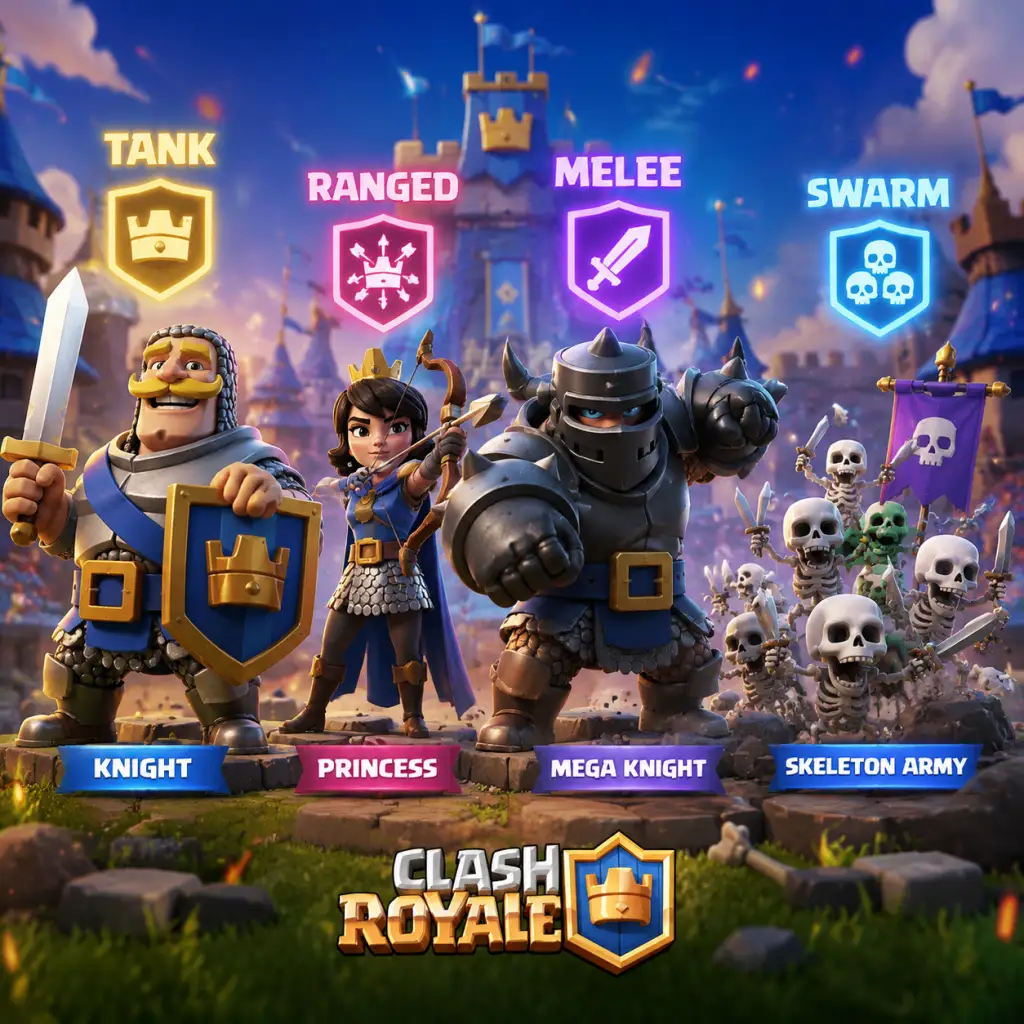
Characters & Roles
"content": "## Overview
In Clash Royale, every card you deploy is a character or unit with a specific role. This guide covers all playable units: Tower Troops, Champions, Legendary, Epic, Rare, and Common cards, plus Spells and Buildings. For each, we detail background, strengths, weaknesses, playstyle, unlock conditions, and team synergy. Note: There is no equipment system; upgrades increase damage and hitpoints. Deck synergy is key.
Tower Troops replace your King Tower’s ability. They are unlocked at certain King Levels and can be upgraded like regular cards.
In Clash Royale, every card you deploy is a character or unit with a specific role. This guide covers all playable units: Tower Troops, Champions, Legendary, Epic, Rare, and Common cards, plus Spells and Buildings. For each, we detail background, strengths, weaknesses, playstyle, unlock conditions, and team synergy. Note: There is no equipment system; upgrades increase damage and hitpoints. Deck synergy is key.
Tower Troops
Tower Troops replace your King Tower’s ability. They are unlocked at certain King Levels and can be upgraded like regular cards.
Princess Tower (Common)
- Unlock: King Level 1
- Role: Long-range defense, single target
- Background: A classic Clash tower, shooting arrows at ground and air.
- Strengths: Balanced stats, high range, reliable DPS.
- Weaknesses: No splash, moderate health.
- Playstyle: Default choice; works in most decks.
- Synergy: Pairs with any archetype.
- Unlock: King Level 7
- Role: High damage, short range, ground-only
- Background: A lone cannon that packs a punch.
- Strengths: Very high DPS, takes out tanks quickly.
- Weaknesses: Can’t target air, short range, fragile.
- Playstyle: Use with air defense cards like Musketeer.
- Synergy: Works in cycle decks needing anti-tank.
- Unlock: King Level 11
- Role: Rapid-fire, splash damage, ground/air
- Background: A twin-dagger wielding assassin.
- Strengths: Fast attack rate, moderate splash, decent vs swarms.
- Weaknesses: Low per-hit damage, vulnerable to spells.
- Playstyle: Effective against swarm pushes.
- Synergy: Pairs with big tanks to clear supporting troops.
- Unlock: King Level 9
- Role: Building that spawns a Goblin Brawler on destruction
- Background: A cage holding an angry goblin.
- Strengths: Spawned Brawler is a tanky fighter.
- Weaknesses: The cage itself is weak; Brawler is slow.
- Playstyle: Place defensively; the Brawler can counter-push.
- Synergy: Best in goblin-themed or bait decks.
- Unlock: Arena 14 (Spooky Town)
- Role: Win condition, tanky, dash ability
- Background: A golden-clad knight from Clash of Clans.
- Strengths: High health, dash deals massive damage to clustered enemies.
- Weaknesses: Vulnerable to swarms and high DPS; ability slow to charge.
- Playstyle: Use ability to wipe defending troops or finish towers.
- Synergy: Works with Graveyard or as a secondary win condition.
- Unlock: Arena 14
- Role: Summoner, tank, area denial
- Background: An undead king raising skeletons.
- Strengths: Ability summons a skeleton army; high hitpoints.
- Weaknesses: Slow speed; skeletons die to spells.
- Playstyle: Activate ability when crossing bridge to overwhelm.
- Synergy: Pairs with splash support like Baby Dragon.
- Unlock: Arena 16 (Executioner's Kitchen)
- Role: Ranged DPS, stealth ability
- Background: An elven queen with a bow.
- Strengths: High damage, ability makes her invisible and faster.
- Weaknesses: Low health; ability costs elixir.
- Playstyle: Use ability to dodge spells or snipe key targets.
- Synergy: Great in control decks or with a tank.
- Unlock: Arena 16
- Role: Tank buster, suicide attacker
- Background: A crazed miner with a huge drill.
- Strengths: Ability deals massive damage to a single target (usually tower).
- Weaknesses: Slow movement; easy to distract.
- Playstyle: Use ability on tower if unprotected; otherwise, target tanks.
- Synergy: Works in cycle decks with Miner.
- Unlock: Arena 17 (Rascal's Hideout)
- Role: Support, healing ability
- Background: A young prince with a toy.
- Strengths: Moderate damage, ability heals nearby allies.
- Weaknesses: Low health; ability requires timing.
- Playstyle: Place behind tank to heal; ability can turn fights.
- Synergy: Excellent with Giant or Golem pushes.
- Unlock: Arena 17
- Role: Defensive tank, ability reflects projectiles
- Background: A martial arts master.
- Strengths: Ability reflects spells and projectiles back at enemy.
- Weaknesses: Low damage; ability costs elixir.
- Playstyle: Use ability to counter spells like Rocket or Fireball.
- Synergy: Great against spell-heavy decks.
- Unlock: Arena 19 (Royal Arena)
- Role: Aerial support, revive ability
- Background: A legendary firebird.
- Strengths: High damage, revives as an egg that must be destroyed.
- Weaknesses: Egg is easy to kill; vulnerable to lightning.
- Playstyle: Force out anti-air; revive can waste enemy resources.
- Synergy: Works in beatdown decks.
- Unlock: Arena 4 (P.E.K.K.A's Playhouse)
- Role: Splash support, slow effect
- Strengths: Slows enemies, excellent defense.
- Weaknesses: Low damage, fragile.
- Playstyle: Use defensively to slow pushes.
- Synergy: Pairs well with Tornado.
- Unlock: Arena 7 (Royal Arena)
- Role: Long-range splash
- Strengths: Very long range, chip damage.
- Weaknesses: Dies to log, low health.
- Playstyle: Place behind tower to chip enemy tower.
- Synergy: Log bait decks.
- Unlock: Arena 10 (Hog Mountain)
- Role: Win condition, tank, distraction
- Strengths: Can be placed anywhere, good at tanking for support.
- Weaknesses: Low damage, easily countered by swarm.
- Playstyle: Chip damage or tank for Graveyard/Poison.
- Synergy: Control decks.
- Unlock: Arena 11 (Builder's Workshop)
- Role: Tank, lavapup swarm
- Strengths: Very high health, spawns pups on death.
- Weaknesses: No air defense, costly 7 elixir.
- Playstyle: Build a push behind it; pups clean up.
- Synergy: Balloon, Minions.
- Unlock: Arena 11
- Role: Area denial, high damage
- Strengths: One-shots most ground units, massive splash.
- Weaknesses: Very slow attack, easily zapped, vulnerable to air.
- Playstyle: Protect Sparky with tanks and spells.
- Synergy: Giant, Goblin Giant.
- Unlock: Arena 6 (Bone Pit)
- Role: Spell, knockback, ground clearing
- Strengths: Deals with swarms, pushes back tanks.
- Weaknesses: No air damage, low tower damage.
- Playstyle: Use offensively to clear path or defensively.
- Synergy: Princess, Goblin Barrel.
- Unlock: Arena 10
- Role: Rush, dash
- Strengths: Dashes to target, immune during dash.
- Weaknesses: Low health, easy to counter with swarm.
- Playstyle: Surprise attacks or punishes weak defenses.
- Synergy: Bridge spam.
- Unlock: Arena 10
- Role: Long-range splash, piercing
- Strengths: Hits target and line behind, can damage tower from afar.
- Weaknesses: Low health, slow attack.
- Playstyle: Place to snipe tower across river.
- Synergy: Tornado to align enemies.
- Unlock: Arena 11
- Role: Stun, reset
- Strengths: Spawn damage, stuns targets, resets Inferno.
- Weaknesses: Low health, vulnerable to spells.
- Playstyle: Use defensively to stop pushes.
- Synergy: Pair with tanks against Inferno.
- Unlock: Arena 11
- Role: Anti-tank, building targeting
- Strengths: Increasing damage melts tanks.
- Weaknesses: Weak to swarm, reset by Zap.
- Playstyle: Protect from swarm, use with tanks.
- Synergy: Lava Hound, Giant.
- Unlock: Arena 10
- Role: Win condition, swarm summon
- Strengths: High damage if unchecked, spawns skeletons.
- Weaknesses: Countered by splash troops and Poison.
- Playstyle: Place on tower with tank.
- Synergy: Miner, Poison.
- Unlock: Arena 12 (Jungle Arena)
- Role: Summoner, air swarm
- Strengths: Spawns bats, death spawns more bats.
- Weaknesses: Low damage, fragile.
- Playstyle: Combine with Golem for huge push.
- Synergy: Golem, Lava Hound.
- Unlock: Arena 13 (Electro Valley)
- Role: Win condition, snare
- Strengths: Snares enemy troops, high damage.
- Weaknesses: Dies to swarm, vulnerable to building.
- Playstyle: Use to snare tank and let other troops hit.
- Synergy: Lumberjack, Freeze.
- Unlock: Arena 13
- Role: Tank killer, rage drop
- Strengths: High melee DPS, drops Rage on death.
- Weaknesses: Low health, dies quickly.
- Playstyle: Use to kill tanks, Rage helps push.
- Synergy: Balloon, Golem.
- Unlock: Arena 16
- Role: Chain damage, stun
- Strengths: Chains to multiple targets, stuns.
- Weaknesses: Low HP, slow attack.
- Playstyle: Use in push to stun defenses.
- Synergy: Royal Giant, Giant.
- Unlock: Arena 15 (Executioner's Kitchen?)
- Role: Spawner, hex
- Strengths: Turns enemies into pigs that attack.
- Weaknesses: Low health, slow attack.
- Playstyle: Use defensively to create counter-push.
- Synergy: Bait decks.
- Unlock: Arena 12
- Role: Pull, anchor
- Strengths: Pulls enemy to center, can activate King.
- Weaknesses: Low damage, fragile.
- Playstyle: Pull high-value targets into kill zone.
- Synergy: Tornado, buildings.
- Unlock: Arena 13
- Role: Splash tank, jump
- Strengths: High health, splash, jumps on target.
- Weaknesses: Weak to swarms (if not jumping), slow.
- Playstyle: Use to counter pushes or as win condition.
- Synergy: Bridge spam.
- Unlock: Arena 15
- Role: Stealth, splash
- Strengths: Invisible until attacking, moderate splash.
- Weaknesses: Low health, easy to predict.
- Playstyle: Sneak past defenses.
- Synergy: Hog Rider, Miner.
- Unlock: Arena 5 (Spell Valley)
- Role: Tank, death split
- Strengths: Highest HP in game, splits into two Golemites.
- Weaknesses: Very expensive (8 elixir), slow.
- Playstyle: Build a slow push; defend until double elixir.
- Synergy: Night Witch, Lumberjack.
- Unlock: Arena 4
- Role: Tank killer, mini-tank
- Strengths: Very high damage, good HP.
- Weaknesses: Slow attack speed, vulnerable to swarms.
- Playstyle: Use to counter heavy tanks, then counter-push.
- Synergy: Battle Ram, Royal Ghost.
- Unlock: Arena 5
- Role: Win condition, building target
- Strengths: High damage on death, targets buildings.
- Weaknesses: Slow, easily shot down.
- Playstyle: Protect with Lava Hound or freeze.
- Synergy: Lava Hound, Freeze, Lumberjack.
- Unlock: Arena 2
- Role: Summoner, splash
- Strengths: Spawns skeletons, area damage.
- Weaknesses: Low health, vulnerable to spells.
- Playstyle: Use behind tank for constant swarm.
- Synergy: Giant, Skeleton King.
- Unlock: Arena 1
- Role: Rush, charge damage
- Strengths: Charge doubles damage, fast.
- Weaknesses: Stopped by swarm, single target.
- Playstyle: Use to punish overcommitment.
- Synergy: Dark Prince.
- Unlock: Arena 7
- Role: Splash, charge
- Strengths: Shield absorbs damage, splash.
- Weaknesses: Low damage output.
- Playstyle: Support Prince or other troops.
- Synergy: Prince, Valkyrie.
- Unlock: Arena 8 (Frozen Peak)
- Role: Tank, bomb on death
- Strengths: Bomb deals massive area damage.
- Weaknesses: Slow, low damage without bomb.
- Playstyle: Use defensively to kill pushes, or offensively to bomb tower.
- Synergy: Clone, Graveyard.
- Unlock: Arena 1
- Role: Air splash, tanky
- Strengths: Good HP, splash both air and ground.
- Weaknesses: Moderate damage, slow attack.
- Playstyle: Excellent support for pushes.
- Synergy: Golem, Balloon.
- Unlock: Arena 4
- Role: Building, anti-tank
- Strengths: Melts tanks, resets occasionally.
- Weaknesses: Weak to swarms, reset by zap.
- Playstyle: Place to defend against Golem, PEKKA.
- Synergy: Cards that distract swarm.
- Unlock: Arena 11
- Role: Siege win condition
- Strengths: Long range, high damage over time.
- Weaknesses: Requires protection, expensive.
- Playstyle: Lock onto tower with support.
- Synergy: Ice Wizard, Tesla.
- Unlock: Arena 11
- Role: Siege, splash
- Strengths: Hits tower from far, splash.
- Weaknesses: Slow attack, blind spot.
- Playstyle: Chip damage or cycle.
- Synergy: Miner, Log.
- Unlock: Arena 1
- Role: Spell, swarm
- Strengths: Surprise goblins on tower.
- Weaknesses: Easily countered by Log, arrows.
- Playstyle: Bait spells, then punish.
- Synergy: Princess, Goblin Gang.
- Unlock: Arena 8
- Role: Spell, crowd control
- Strengths: Stops all enemies for 5 seconds.
- Weaknesses: High cost, no damage.
- Playstyle: Use with Hog Rider or Balloon.
- Synergy: Hog Rider, Balloon.
- Unlock: Arena 8
- Role: Spell, high damage to 3 targets
- Strengths: Takes out high-value targets.
- Weaknesses: High cost, misses small troops.
- Playstyle: Use to eliminate Inferno Tower, Musketeer.
- Synergy: Beatdown decks.
- Unlock: Arena 5
- Role: Spell, area denial
- Strengths: Slows enemies, constant damage.
- Weaknesses: Slow damage, can be avoided.
- Playstyle: Use with Graveyard or to control area.
- Synergy: Graveyard, Miner.
- Unlock: Arena 9
- Role: Spell, positioning
- Strengths: Pulls all enemies to center, activates King.
- Weaknesses: No damage, situational.
- Playstyle: Pair with splash troops.
- Synergy: Baby Dragon, Executioner.
- Unlock: Arena 12
- Role: Spell, duplication
- Strengths: Creates copies of nearby troops.
- Weaknesses: Copies have 1 HP, easily killed.
- Playstyle: Surprise factor; use with Golem or Skeleton Army.
- Synergy: Skeleton Army, Golem.
- Unlock: Arena 12
- Role: Spell, copy last card
- Strengths: Versatile, can double up.
- Weaknesses: Costs +1 elixir, high skill.
- Playstyle: Use to repeat powerful spells or troops.
- Synergy: Rocket, Fireball.
- Unlock: Arena 8
- Role: Spell, speed buff
- Strengths: Increases speed and damage of troops.
- Weaknesses: No direct damage, temporary.
- Playstyle: Use with Hog Rider or Lumberjack.
- Synergy: Hog Rider, Balloon.
- Unlock: Arena 10
- Role: Spell, healing
- Strengths: Heals nearby troops.
- Weaknesses: Low heal, vulnerable to spells.
- Playstyle: Use to sustain pushes.
- Synergy: Three Musketeers, Royal Hogs.
- Unlock: Arena 6
- Role: Spell, spawns barbarian
- Strengths: Knocks back, spawns a barbarian.
- Weaknesses: No air damage.
- Playstyle: Use as cheaper log alternative.
- Synergy: Princess, Goblin Barrel.
- Unlock: Arena 11
- Role: Spell, spawns skeletons on death
- Strengths: Air troop, explosive death.
- Weaknesses: Weak to air spells.
- Playstyle: Use to chip tower or bait spells.
- Synergy: Bait decks.
- Unlock: Arena 17
- Role: Win condition, spawner
- Strengths: Burrows underground, spawns goblins.
- Weaknesses: Predictable, countered by building.
- Playstyle: Use repeatedly to chip tower.
- Synergy: Goblin Gang, Spear Goblins.
- Unlock: Arena 14
- Role: Spell, building damage
- Strengths: Deals 3x damage to buildings, slows.
- Weaknesses: Low troop damage.
- Playstyle: Use to destroy buildings.
- Synergy: Hog Rider, Royal Hogs.
- Unlock: Arena 6
- Role: Building, spawner
- Strengths: Spawns fire spirits over time.
- Weaknesses: Low health, easily killed.
- Playstyle: Chip damage or zone control.
- Synergy: Hog Rider, Miner.
- Unlock: Arena 5
- Role: Building, spawner
- Strengths: Spawns spear goblins.
- Weaknesses: Slow spawn, expensive.
- Playstyle: Build up swarm.
- Synergy: Spawner decks.
- Unlock: Arena 8
- Role: Building, spawner
- Strengths: Spawns barbarians.
- Weaknesses: Very slow, expensive.
- Playstyle: Defensive building that counter-pushes.
- Synergy: Beatdown.
- Unlock: Arena 2
- Role: Building, distraction
- Strengths: Spawns skeletons on death.
- Weaknesses: Low health, weak skeletons.
- Playstyle: Distract Prince, Hog, etc.
- Synergy: Graveyard defense.
- Unlock: Arena 4
- Role: Building, air/ground
- Strengths: Hidden underground, targets both.
- Weaknesses: Low health, moderate damage.
- Playstyle: Solid defensive building.
- Synergy: Siege decks.
- Unlock: Arena 5
- Role: Building, splash
- Strengths: Splash damage, good vs swarm.
- Weaknesses: No air, low splash radius.
- Playstyle: Defense against ground pushes.
- Synergy: Tornado.
- Unlock: Arena 1
- Role: Tank, building target
- Strengths: Good HP, cheap (5 elixir).
- Weaknesses: Low damage, easily distracted.
- Playstyle: Use as primary win condition with support.
- Synergy: Musketeer, Wizard, Graveyard.
- Unlock: Arena 4
- Role: Win condition, fast
- Strengths: Jumps over river, high damage.
- Weaknesses: Stopped by buildings, swarm.
- Playstyle: Cycle decks, punish overcommitment.
- Synergy: Valkyrie, Fireball.
- Unlock: Arena 1
- Role: Mini-tank, splash
- Strengths: Splash damage, decent HP.
- Weaknesses: Slow attack, vulnerable to air.
- Playstyle: Defensive or support.
- Synergy: Hog Rider, Graveyard.
- Unlock: Arena 1
- Role: Ranged DPS
- Strengths: High damage, decent range.
- Weaknesses: Low health, dies to fireball.
- Playstyle: Safe damage from behind tank.
- Synergy: Giant, PEKKA.
- Unlock: Arena 3
- Role: Splash support
- Strengths: Good splash, high damage.
- Weaknesses: Very fragile, expensive (5 elixir).
- Playstyle: Use behind tank to clear swarms.
- Synergy: Giant, Golem.
- Unlock: Arena 4
- Role: Tank killer, high DPS
- Strengths: Very high DPS, fast.
- Weaknesses: Low HP, single target.
- Playstyle: Use to kill tanks, then counter-push.
- Synergy: Valkyrie, Zap.
- Unlock: Arena 13
- Role: Support, healer
- Strengths: Heals nearby troops.
- Weaknesses: Low damage, vulnerable to swarm.
- Playstyle: Follow a tank to sustain push.
- Synergy: Royal Hogs, Three Musketeers.
- Unlock: Arena 10
- Role: Air DPS
- Strengths: Long range, can kite.
- Weaknesses: Low health, dies to spells
Cannoneer (Rare)
Dagger Duchess (Epic)
Goblin Cage (Rare)
Champions
Champions are hero units with unique abilities. They require one Elixir to activate their ability.
Golden Knight (Legendary)
Skeleton King (Legendary)
Archer Queen (Legendary)
Mighty Miner (Legendary)
Little Prince (Legendary)
Monk (Legendary)
Phoenix (Legendary)
etc. (other champions: Golden Knight, Skeleton King, etc. already covered)
Note: New champions are added periodically.
Legendary Cards
Ice Wizard
Princess
Miner
Lava Hound
Sparky
Log
Bandit
Magic Archer
Electro Wizard
Inferno Dragon
Graveyard
Night Witch
Ram Rider
Lumberjack
Electro Dragon
Ram Rider (already above)?
Phoenix (Legendary) - covered as Champion sometimes? Actually Phoenix is a regular legendary card? In game, Phoenix is a legendary troop (not champion). It has revive ability but is not a champion (no elixir ability). So include here.
Mother Witch (Legendary)
Fisherman (Legendary)
Mega Knight (Legendary)
Royal Ghost (Legendary)
Wall Breakers (Legendary? Actually common? No, they are rare? Wall Breakers are epic? Let's check: In game, Wall Breakers are epic. So move to epic section.
Heal Spirit (rare) etc.
Continue with all legendaries: Dart Goblin (rare), etc.
Epic Cards
Golem
P.E.K.K.A
Balloon
Witch
Prince
Dark Prince
Giant Skeleton
Baby Dragon
Inferno Tower
X-Bow
Mortar
Goblin Barrel
Freeze
Lightning
Poison
Tornado
Clone
Mirror
Rage
Heal
Barbarian Barrel
Skeleton Barrel
Goblin Drill
Earthquake
Goblin Cage (already as tower troop? This is a building card - separate)
Furnace
Goblin Hut
Barbarian Hut
Tombstone
Tesla
Bomb Tower
Inferno Dragon (legendary)
Rare Cards
Giant
Hog Rider
Valkyrie
Musketeer
Wizard
Mini PEKKA
Battle Healer
Flying Machine
Cheats & Secrets
Overview
Clash Royale has no official cheat codes, unlock codes, or secret commands. Supercell has consistently patched any exploitable glitches, and there are no developer-intended cheats. However, the game contains several Easter eggs, hidden features, and developer-intended surprises that are safe to use and add a touch of fun. This guide covers all known hidden content, from secret emotes to visual gags.
Secret Emotes & Interactions
1. The "Hehe" Emote (Tap the King's Tower)
- Location: In the main menu or during a battle, tap your King's Tower repeatedly (the tower behind your side).
- Action: Tap 10–15 times rapidly. Your King will laugh with a distinctive "Hehehe" sound and the King’s face will animate.
- Result: This is a persistent but harmless Easter egg. It does not affect gameplay.
- Location: In battle, tap your Crown Towers multiple times.
- Action: Tap each Crown Tower 5 times rapidly. The King will emit a grunt or angry expression.
- Note: Works only on your own towers, not enemy ones.
- Prerequisites: Android or iOS; friendly battle mode.
- Steps:
- Result: A hidden animation: the King does a double-take and then laughs heartily. This is purely cosmetic.
- Location: Main menu title screen (the "Clash Royale" text banner).
- Action: Tap the logo 10 times quickly.
- Result: The logo spins and a small spark effect appears. No function beyond novelty.
- Card: Goblin Barrel – Tap the barrel icon in the card info screen repeatedly. The goblins inside the barrel will peek out and wave.
- Card: Inferno Dragon – The dragon's eye glows when you hold the card.
- Card: Princess – She occasionally winks if you hold her card for a few seconds.
- Note: These are static animations, not interactive cheats.
- Some older cards (like Rocket, Fireball, Mortar) have a tiny Supercell logo hidden in the card art. Look closely at the bottom-right corner of the card when viewing full art in the collection.
- Tower Troop: King's Tower (unlockable via Pass Royale or events).
- Easter egg: Equip the "Ghost" tower skin and tap your King's Tower 20 times. The King will briefly turn transparent and emit a ghostly wail. This is purely cosmetic.
- What happened: In early versions (2016), using the Mirror spell on a mirrored card could cause infinite elixir drain and freezes. This was patched in update 1.2.0.
- Current status: Not functional; considered a historic bug.
- What happened: In the beta, exploiting a server lag glitch could double elixir generation when both players placed cards simultaneously. Fixed in global launch.
- Current status: No longer possible.
2. The "Angry King" Emote (Tap the Crown Towers)
3. Secret Emote Sequence (Friendly Battle only)
1. Start a Friendly Battle with a friend.
2. At the start of the match, both players must hold down their King’s Tower for 3 seconds.
3. Simultaneously use the "Hehe" emote (from the emote wheel) while holding.
Hidden Visual Features
1. The "Clash Royale" Logo Tap
2. Card Description Easter Eggs
3. The "Supercell" Stamp on Cards
Developer-Intended Hidden Content
1. Tower Troop Secret Skins
2. The "Mirror Match" Glitch (Patched)
3. The "Infinite Elixir" Exploit (Patched)
No Cheat Codes
To reiterate: Clash Royale does not have any console-style cheat codes or unlock codes. All cards, emotes, and tower skins are obtained through normal gameplay, purchases, or events. Using third-party tools (mods, bots, emulators) violates Supercell’s Terms of Service and can lead to permanent ban. Stick to the legitimate hidden features above for harmless fun.