
Destiny 2
## Game Introduction ### Overview **Destiny 2** is a free-to-play online first-person shooter (FPS) developed by **Bungie** and published primarily by Bungie (formerly Activision until 2019). The game launched on **September 6, 2017** for PlayStation 4 and Xbox One, followed by a PC release on Oct...
Download & Installation
Overview
Destiny 2 is a free-to-play online first-person shooter developed by Bungie. It is available on PC, PlayStation 4/5, Xbox One, and Xbox Series X|S. The game is not available natively on Nintendo Switch or mobile devices, though cloud streaming may be an option via third-party services (not officially supported). This guide covers legitimate download and installation steps for all supported platforms, including account requirements, system specs, and troubleshooting common errors.
---
Platform Availability & Official Download Sources
| Platform | Official Source | Notes |
|---|---|---|
| PC (Windows) | [Steam](https://store.steampowered.com/app/1085660/Destiny_2/) (and [Epic Games Store](https://store.epicgames.com/en-US/p/destiny-2)) | Free-to-play. Requires 64-bit Windows 7/8.1/10/11. Steam and Epic are the only legitimate PC sources. Avoid third-party key resellers for a free game. |
| PlayStation 4 / PlayStation 5 | PlayStation Store (PS4 [link](https://store.playstation.com/en-us/product/UP0001-CUSA05042_00-DESTINY2THEGAME) / PS5 [link](https://store.playstation.com/en-us/product/UP0001-CUSA05042_00-DESTINY2THEGAME)) | Free-to-play. One copy works on both consoles. |
| **Xbox One / Xbox Series X | S** | Microsoft Store (Xbox One [link](https://www.microsoft.com/en-us/p/destiny-2/9p6m6681pn6g) / Series X |
| Nintendo Switch | Not natively available | No official port. Only playable via cloud streaming services (e.g., GeForce Now) – not recommended for reliable performance. |
| Mobile (iOS/Android) | Not natively available | No official mobile version. Avoid unofficial APK downloads. |
System Requirements (PC)
Minimum Requirements
| Component | Requirement |
|---|---|
| OS | Windows 7 64-bit / Windows 8.1 64-bit / Windows 10 64-bit (latest update) |
| CPU | Intel Core i3 3250 / AMD FX-4350 |
| GPU | NVIDIA GeForce GTX 660 2GB / AMD Radeon HD 7850 2GB |
| RAM | 6 GB |
| Storage | 105 GB available space (SSD recommended) |
| Internet | Broadband connection |
| DirectX | Version 11 |
Recommended Requirements
| Component | Requirement |
|---|---|
| OS | Windows 10 64-bit (latest update) |
| CPU | Intel Core i5 2400 / AMD Ryzen 5 1600X |
| GPU | NVIDIA GeForce GTX 970 4GB / AMD Radeon R9 390 4GB |
| RAM | 8 GB |
| Storage | 105 GB SSD |
| Internet | Broadband connection |
| DirectX | Version 11 |
---
Account Requirements
Before you begin, ensure you have:
- Bungie.net account (required for cross-save, account management). [Create one here](https://www.bungie.net/en/User/SignIn).
- Platform-specific account: Steam/Epic Games, PlayStation Network (PSN), Xbox Live (Microsoft account).
- Optional but recommended: Link your platform accounts to Bungie.net for cross-save and cross-play features.
- License Agreement – Accept it.
- Account Linking – You can skip Bungie.net linking, but to enable cross-save and cross-play, link your platform account to a Bungie.net account.
- Character Creation – Create your first Guardian (choose class, race, appearance).
- New Light Tutorial – The introductory questline to learn basic mechanics.
All platforms require a persistent internet connection to play Destiny 2. There is no offline mode.
---
Step-by-Step Installation
PC via Steam
1. Install Steam from [steampowered.com](https://store.steampowered.com/about/) if not already installed. Log in or create a Steam account.
2. Navigate to Destiny 2 on Steam Store: [Destiny 2](https://store.steampowered.com/app/1085660/Destiny_2/).
3. Click Play Game (if free) or Add to Account – it is free-to-play, so no purchase needed.
4. In your Steam Library, select Destiny 2 from the left panel.
5. Click Install. Choose installation directory (ensure at least 125 GB free).
6. Steam will download the game files. This may take several hours depending on your internet speed.
7. After download completes, Steam will automatically verify and install.
8. Launch the game from Steam Library. The first launch will prompt you to accept the license and sign in with your Bungie.net account.
PC via Epic Games Store
1. Install Epic Games Launcher from [epicgames.com](https://store.epicgames.com/en-US/download). Log in or create an Epic account.
2. Open the Epic Games Launcher. In the Store tab, search for Destiny 2.
3. On the game page, click Get (it is free). The game will be added to your library.
4. Go to your Library, find Destiny 2, and click Install.
5. Choose installation folder and click Install.
6. Wait for download and installation completion.
7. Launch from Epic Library. On first launch, you will be asked to sign in to your Bungie.net account (if not already linked via Epic).
Important: If you have both Steam and Epic accounts, you can link each to the same Bungie.net account for cross-save. However, you cannot play on both PC storefronts simultaneously with the same Bungie.net account. Choose one primary platform.
PlayStation 4 | PlayStation 5
1. Ensure your console is connected to the internet and you have signed in to your PlayStation Network (PSN) account.
2. Open PlayStation Store from the home screen.
3. Search for Destiny 2 using the search bar.
4. Select Destiny 2 (Free) from the results. It will be the base game; there are also paid expansions.
5. Click Download (or Add to Library then Download).
6. Wait for the download to complete. On PS5, ensure you are installing the PS5 version (it automatically selects the correct one if you have a PS5 disc or digital).
7. Once installed, the game will appear on your home screen. Launch it.
8. First launch: Accept the license agreement, and you will be prompted to link a Bungie.net account (or skip temporarily). It is strongly recommended to link for cross-save.
Storage required: ~125 GB on PS4/PS5. You may need to free up space or use an external USB 3.0 HDD/SSD. On PS5, install to internal SSD for fastest performance.
Xbox One | Xbox Series X|S
1. Sign in to your Xbox Live / Microsoft account on your console.
2. Open the Microsoft Store (or My Games & Apps → See all → Full library).
3. Search Destiny 2. Select the game card.
4. Click Install (or Get if it doesn't show Install). The game is free.
5. Choose where to install (internal drive or external). On Xbox Series X|S, internal storage is recommended for optimal performance.
6. The download and installation process begins. You can monitor progress in My Games & Apps → Queue.
7. After installation, launch the game from My Games & Apps or the home tile.
8. On first boot, accept the license and sign in to Bungie.net (optional but recommended).
Note: Xbox Smart Delivery ensures you get the right version for your console. If you own an Xbox One and later upgrade to Series X|S, the game will automatically update to the enhanced version.
---
First Launch Setup
Regardless of platform, the first time you start Destiny 2 you will go through:
Cross-Save Setup: If you play on multiple platforms, link all accounts on [Bungie.net](https://www.bungie.net/en/User/AccountLinking). After linking, set your active platform. Your progress (characters, gear, season passes) will be shared across all linked platforms.
---
Common Installation Errors & Fixes
| Error | Possible Cause | Fix |
|---|---|---|
| Insufficient disk space | Not enough free space for download or install. | Free up space by uninstalling unused games/apps or moving files to external storage. The game requires ~105 GB after install but may need up to 125 GB temporary space. |
| Download stuck / slow | Network congestion, server issues, or launcher problems. | Pause and resume the download. Restart the launcher or console. For PC, try changing download region in Steam/Epic settings. On console, power cycle the console. |
| Corrupted files | Interrupted download or disk errors. | Steam: Right-click Destiny 2 in Library → Properties → Local Files → Verify integrity of game files. Epic: Library → Destiny 2 → three dots → Verify. Console: Uninstall and reinstall. |
| Antivirus blocking | Antivirus software may flag Destiny 2 executable. | Add an exception for the game folder (e.g., `C:\Program Files (x86)\Steam\steamapps\common\Destiny 2`). Temporarily disable antivirus during installation, then re-enable. |
| DirectX errors (PC) | Missing or outdated DirectX runtime. | Install DirectX from Microsoft's website or use the redistributable in the game's _CommonRedist folder. Run `dxdiag` to check version. |
| "You must be signed in to Xbox Live" (PC) | Microsoft account required for certain features. | Sign in to the Xbox app (Windows) with the same Microsoft account you used on the store. Ensure you have installed the Xbox Identity Provider. |
| Game crashes at launch | Outdated GPU drivers or incompatible hardware. | Update GPU drivers (NVIDIA / AMD). Verify system meets minimum requirements. Disable overlays (Discord, GeForce Experience, Steam Overlay). |
| Error code: CENTIPEDE / BEAGLE / etc. | Network connectivity issues between game and Bungie servers. | Restart router. Check Bungie Help Twitter for server status. Configure firewall/port forwarding (Bungie's ports: TCP 80, 443, 1119-1120, UDP 3074). |
Post-Installation Verification
After installation, confirm the game runs correctly:
- Launch the game and load into the first area (Cosmodrome or Tower).
- Check for updates – The game may download a small day-one patch or season update on first launch.
- Monitor performance – Adjust graphics settings in the Options menu if needed. On PC, use the built-in FPS counter (in video settings).
- Verify file integrity if you encounter crashes:
- SSD strongly recommended – Destiny 2's open-world patrolling and fast travel benefit greatly from SSD load times.
- Cross-play works across all platforms automatically. You can add friends from any platform via Bungie.net or in-game by searching their Bungie name.
- Free-to-play content includes all Year 1 content (Red War campaign, Curse of Osiris, Warmind) and all core activities (Crucible, Strikes, Gambit, open-world destinations). Expansions (e.g., Witch Queen, Lightfall) are paid DLC.
- Bandwidth usage – The initial download is large (~105 GB). If you have data caps, plan accordingly. Consider downloading overnight.
- Multiple platforms – You can install Destiny 2 on multiple platforms using the same Bungie.net account, but you can only be logged in on one platform at a time.
- Official Bungie Help: [https://help.bungie.net/](https://help.bungie.net/)
- Bungie Network Troubleshooting Guide: [https://help.bungie.net/hc/en-us/articles/360049199071](https://help.bungie.net/hc/en-us/articles/360049199071)
- Steam Community Hub: [https://steamcommunity.com/app/1085660](https://steamcommunity.com/app/1085660)
- Twitter: [@BungieHelp](https://twitter.com/BungieHelp) for live server status.
- Steam: Library → right-click Destiny 2 → Properties → Local Files → Verify integrity of game files.
- Epic: Library → Destiny 2 → three dots → Verify.
- Console: Uninstall/reinstall as last resort.
Recommended: After first successful launch, restart your system to ensure all drivers and services are properly loaded.
---
Additional Tips
---
Troubleshooting Resources
---
With this guide, you should be able to download, install, and start playing Destiny 2 on your platform of choice. Enjoy your journey, Guardian!
Game Introduction
Game Introduction
Overview
Destiny 2 is a free-to-play online first-person shooter (FPS) developed by Bungie and published primarily by Bungie (formerly Activision until 2019). The game launched on September 6, 2017 for PlayStation 4 and Xbox One, followed by a PC release on October 24, 2017 via Battle.net (later migrated to Steam in October 2019). It later received native support for PlayStation 5 and Xbox Series X|S in December 2020, with cross-generation play and 4K/60fps (and 120fps in PvP) enhancements. The title also became available on Stadia (now defunct). As of 2025, the game is playable on PC (via Steam), PS4, PS5, Xbox One, and Xbox Series X|S. There is no native Nintendo Switch or mobile version, though cloud streaming alternatives exist.
Destiny 2 transitioned to a free-to-play model in October 2019 with the release of the New Light version, allowing anyone to download and experience a substantial portion of the base game, all destinations, and core activities. Expansions and seasonal content are available as premium purchases.
Genre & Core Gameplay
Destiny 2 blends first-person shooting with RPG mechanics, MMORPG-style progression, and looter-shooter elements. Players create a custom Guardian (a class-based hero) and embark on a journey to defend the last safe city of humanity against alien forces, supernatural threats, and other Guardians. Key gameplay pillars include:
- Deep weapon and armor customization with random rolls, mods, and perks.
- Class-based abilities: Hunters (agile, stealth), Titans (heavy armor, defensive), Warlocks (magic, support).
- Cooperative PvE activities: story missions, strikes, dungeons, raids.
- Competitive PvP modes: Crucible (scrimish-style), Gambit (PvE/PvP hybrid), Trials of Osiris (high-stakes elimination).
- Seamless open-world destinations with public events, patrols, and hidden secrets.
- The Red War (base game 2017): The Cabal Emperor Dominus Ghaul attacks the Last City, locks the Traveler, and strips Guardians of their Light. Players must reclaim their power, rally the Vanguard, and defeat Ghaul.
- Curse of Osiris (2017 expansion): Investigate a mysterious Vex simulation on Mercury.
- Warmind (2018 expansion): Confront the Hive worm god Xol on Mars.
- Forsaken (2018 expansion): Avenge the death of Cayde-6 and hunt down the Barons in the Tangled Shore and Dreaming City.
- Shadowkeep (2019 expansion): Return to the Moon to face a resurrected Hive prince and confront nightmares.
- Beyond Light (2020 expansion): Explore Europa, wield the power of Stasis (Darkness), and stop Eramis, the Kell of Darkness.
- The Witch Queen (2022 expansion): Uncover the truth behind the Hive’s sorceress Savathûn and her reliance on the Light.
- Lightfall (2023 expansion): Face the ruthless Witness and its army on Calus’s flagship.
- The Final Shape (scheduled for June 2024, but details may have changed post-2025): The conclusion of the Light and Darkness saga.
- The Guardian (Player Character): A custom-created hero voiced by a handful of different voice actors, the Guardian is the central protagonist.
- Commander Zavala (voiced by Keith David): The stoic Titan Vanguard leader.
- Lord Shaxx: Crucible handler, charismatic and aggressive.
- Ikora Rey: The Warlock Vanguard, powerful and wise.
- Cayde-6 (deceased post-Forsaken): The Hunter Vanguard, comic relief, and fan favorite.
- The Exo Stranger / Elsie Bray: A mysterious time-traveler from an alternate future.
- Eris Morn: Hive-obsessed expert and guide through many campaigns.
- Savathûn: The Hive God of Deception, primary antagonist of The Witch Queen.
- The Witness: The overarching villain of the Light and Darkness saga, a colossal being commanding the forces of the Darkness.
- Tight, responsive gunplay with a huge arsenal of weapons ranging from hand cannons to fusion rifles to swords.
- Long-term progression with a gear score (Power level), seasonal battle passes, and Pinnacle/Raid gear.
- Social cooperative experiences: raiding (6-player endgame activities) is the crown jewel, requiring communication, strategy, and coordination.
- Competitive play: The Crucible offers skill-based matchmaking, ranked modes, and the high-stakes Trials of Osiris.
- Lore and world-building: The game has a vast, complex universe with hundreds of lore tabs, hidden books, and deep background stories.
- Campaigns: Linear story missions for each expansion and the base Red War (free).
- Strikes: 3-player cooperative missions with increased difficulty and modifiers (Nightfall).
- Dungeons: 3-player, challenging puzzle-based activities with unique loot.
- Raids: 6-player, the hardest cooperative content with complex mechanics (e.g., Last Wish, Vault of Glass reprisals).
- Crucible: Player versus Player (PvP) with various playlists: Control (domination), Clash (team deathmatch), Survival (competitive), Rumble (free-for-all), and Trials of Osiris (weekly tournament).
- Gambit: Hybrid PvE/PvP mode where two teams race to summon a Primeval boss while sending blockers to the opposing side; players can invade to kill opponents.
- Open World Patrols: Freely roam destinations (e.g., EDZ, Nessus, Europa, Savathûn’s Throne World) completing public events, lost sectors, and bounties.
- Seasonal Activities: Each season introduces a new 6-player activity, matchmade or fireteam-based, with unique mechanics and rewards (e.g., Ketchcrash, Astral Alignment, Nightmare Containment).
- Lost Sectors: Small dungeon-like areas off patrol zones, soloable for exotic gear (Legend/Master difficulty).
- Curse of Osiris (Dec 2017) & Warmind (May 2018): Smaller expansions adding new patrol zones (Mercury, Mars) and a few missions.
- Forsaken (Sep 2018): A major expansion introducing the Tangled Shore, Dreaming City, the Bow weapon type, and the most acclaimed raid (Last Wish).
- Shadowkeep (Oct 2019): Free-to-play transition; added the Moon, a new raid (Garden of Salvation), and Artifact system.
- Beyond Light (Nov 2020): First Darkness-themed expansion; added Europa, Stasis subclass, and deep crypt raid.
- The Witch Queen (Feb 2022): Considered the best expansion; added Savathûn’s Throne World, weapon crafting, Legendary campaign difficulty, and Vow of the Disciple raid.
- Lightfall (Feb 2023): Added Neptune’s Neomuna, Strand subclass, and Root of Nightmares raid; received mixed critical reception.
- The Final Shape (June 2024, subject to delays): Concludes the Light and Darkness saga, adding a new destination (Pale Heart of the Traveler) and a new subclass prism.
- Seasonal Content: In addition to major expansions, the game runs a seasonal model (four seasons per year, roughly 3 months each), each with a new activity, battle pass, story beats, and exclusive loot. Past seasons are vaulted as part of the Destiny Content Vault (DCV) to manage file size.
Story & Setting
The world of Destiny 2 is set in a distant, sci‑fantasy future where humanity has been decimated by a cataclysmic event known as the Collapse. A mysterious entity called the Traveler, a giant floating sphere of pure Light, now hovers above the last human city (the Last City) on Earth. Guardians are chosen by Ghosts (sentient AI drones) and resurrected to wield the Traveler’s Light, granting them superhuman abilities and the power to defeat monstrous aliens.
The main narrative arc is divided into campaigns (some free, some expansion-based) that address a series of ever-escalating threats:
Main Characters
Core Appeal & Target Audience
Destiny 2 appeals to players who enjoy:
Target Audience: FPS fans, loot enthusiasts, MMO players who want a more action-oriented world, and casual gamers who enjoy friends-based co-op. The game is rated T for Teen (ESRB) due to fantasy violence, mild language, and some suggestive themes.
Game Modes
Online/Offline Support
Destiny 2 is an always-online game and requires a stable internet connection. There is no offline single-player mode. Even when playing solo, you are connected to Bungie’s servers because the game is a shared-world shooter. All content—story missions, patrols, Crucible, Gambit—requires an active internet connection. The game does support play.com cross-play (cross-platform play) across all platforms, and cross-save allows progression to be shared between PlayStation, Xbox, Steam, and Stadia (now ended).
Players on consoles need a subscription (PlayStation Plus, Xbox Live Gold/Game Pass Core) to access most multiplayer features; PC players do not require additional subscriptions beyond internet access.
DLC & Expansion Overview
Destiny 2 has a rich history of paid expansions and seasonal content:
What Makes Destiny 2 Unique?
1. Exceptional Gunplay: Bungie’s pedigree from Halo shines with ultra-responsive aiming, feedback, and sound design that make every shot satisfying.
2. Evolving World: The universe changes over time—events, seasonal stories, and new mysteries unfold in real-time, with characters evolving and the narrative moving forward.
3. Dual Power Systems: Both Light (Elemental abilities) and Darkness (Stasis/Strand) are available to players, each with unique classes and subclasses, offering immense build variety.
4. Raids as a Social Benchmark: Destiny 2’s raids are revered as some of the best cooperative content in gaming, requiring communication, coordination, and skill, often with world-first races that attract massive viewership.
5. Seamless Drop-In/Out: You can join friends mid-activity without interrupting flow, and the game’s matchmaking is built for quick sessions or deep endgame grinds.
6. Cross-Save and Cross-Play: Play on any platform while keeping all progress, and team up with friends regardless of their system.
7. Free-to-Play with Depth: While some expansions are paid, the free core game offers dozens of hours of content, all PvP modes, Gambit, and access to all destinations—a generous entry point.
In summary, Destiny 2 is a sprawling, living, online FPS that rewards dedication, offers unparalleled shooter mechanics, and fosters a strong community around both cooperative and competitive play. Whether you’re a solo explorer or a raid veteran, there is always something new to discover in the Light and Darkness saga.
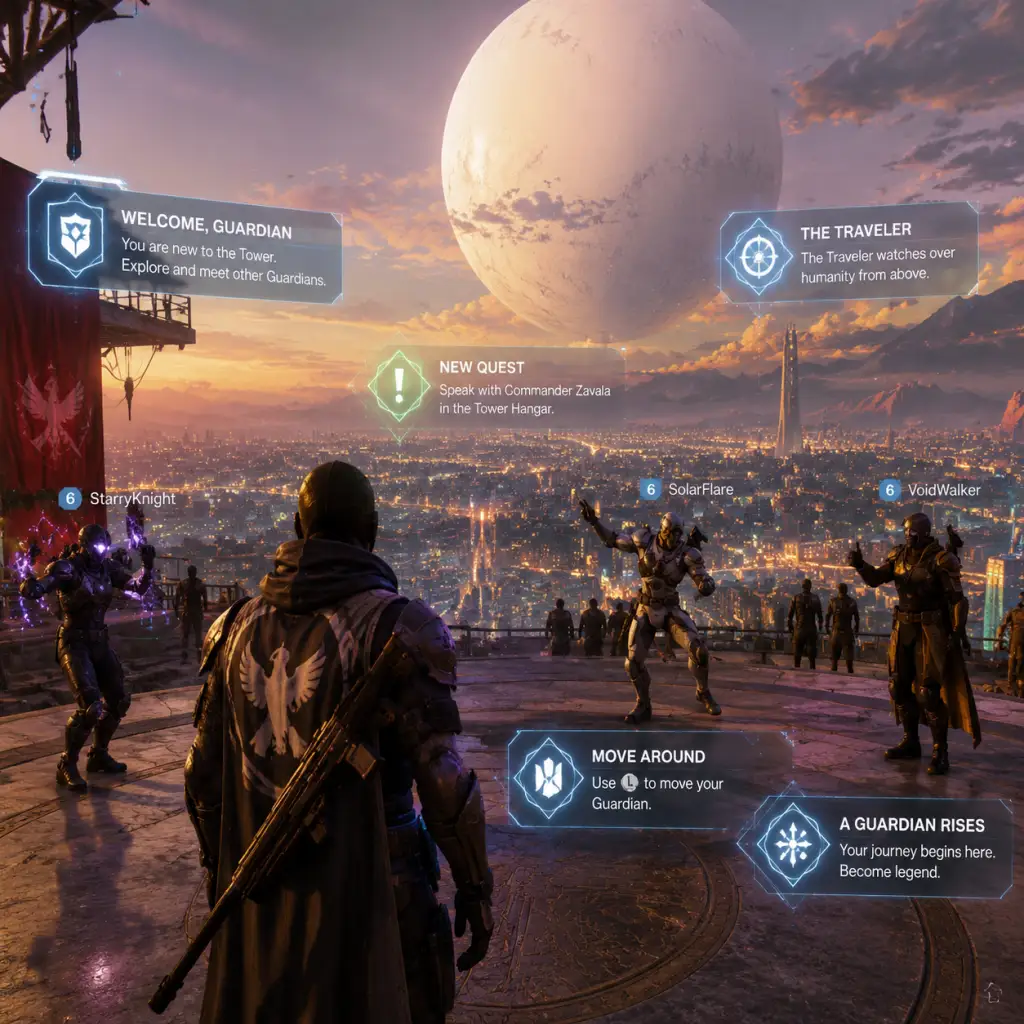
Getting Started
Getting Started
Overview
This guide helps brand-new players jump into Destiny 2 (free-to-play) without confusion. You will learn what to do in your first hour, how to navigate the menus, which resources to hoard, and how to avoid common pitfalls. Follow the Day-One Checklist at the end to start strong.
---
Character Creation
Destiny 2 has three character classes: Titan (tank/melee), Hunter (agile/precision), and Warlock (magic/support). Choose based on your playstyle:
- Titan: High armor, shields, and melee power. Good for aggressive players.
- Hunter: Fast movement, dodges, and potent knives. Excellent for PvP and solo play.
- Warlock: Healing abilities, area-of-effect attacks, and flying glides. Balanced for support.
You also choose a race (Human, Awoken, Exo) – this is purely cosmetic with no gameplay impact. Customize appearance lightly; you can change it later via the in-game Eververse (paid) or occasional free transmog items.
Once created, you immediately start a short introductory mission (the "New Light" questline). Do not skip dialogue – it explains basic controls and story context.
---
Controls (All Platforms)
| Action | PC (Keyboard+Mouse) | PlayStation | Xbox |
|---|---|---|---|
| Move | W/A/S/D | Left stick | Left stick |
| Look | Mouse | Right stick | Right stick |
| Shoot | Left Mouse | R2 | RT |
| Aim Down Sights | Right Mouse | L2 | LT |
| Melee | C or V | R1 (tap) | RB (tap) |
| Grenade | Q | L1 | LB |
| Jump | Space | X | A |
| Crouch/Slide | Ctrl | Circle | B |
| Sprint | Left Shift | L3 | L3 |
| Class Ability | E (tap) | R1 (hold) | RB (hold) |
| Super Ability | F | L1+R1 (together) | LB+RB together |
| Interact / Revive | E | Triangle | Y |
| Swap Weapons | Mouse wheel or 1/2/3 | D-Pad up/down | D-Pad up/down |
| Reload | R | Square | X |
| Map (Nav mode) | M or Tab | Touchpad (hold) | View button (hold) |
| Ghost (menu) | Tab | Touchpad (tap) | View button (tap) |
| Pull out Ghost | T (hold) | Hold Touchpad | Hold View |
| Emote | G | D-Pad left/right | D-Pad left/right |
| Sprint toggle | Q (default, can rebind) | L3 click | L3 click |
---
UI Overview
The Destiny 2 interface shows:
- Health & Shields (top-left) – red bar is health, blue bar is shield. Shield regenerates after a few seconds out of combat.
- Super meter (bottom-left) – fills as you deal/take damage. Full bar lets you use your super ability.
- Weapon slots (center-bottom) – three weapons: Kinetic (primary), Energy (special), Power (heavy). Ammo colors: white (primary), green (special), purple (heavy).
- Grenade & Melee charge (above weapons) – icons glow when ready.
- Class ability (bottom-left of weapon slots) – dodge (Hunter), barricade (Titan), rift (Warlock).
- Ammo counter – shows current magazine and total reserves.
- Sprint bar (only visible while sprinting) – a small stamina-like bar; when empty, you cannot sprint for a moment.
- Notifications (top-right) – quest progress, objectives, alerts.
- Director (map/planets screen) – opened with Tab (PC) or Touchpad (console). Shows destinations, quests, milestones.
- Ignore the Corrupted Strike or any Legacy: Forsaken campaign – those are free but confusing for new players. Stick to the New Light quest.
- Waste Enhancement Cores – you get a few from New Light, but save them for later.
- Try Crucible (PvP) or Gambit immediately – you will get stomped due to low Power and lacking gear. Wait until you are at least 1500-1550 Power and have some good weapons.
- Spend Glimmer on useless items – you need Glimmer for infusion and bounties.
- Reach Power 1350 soft cap by completing blue (rare) and purple (legendary) drops from activities: Patrols, Public Events, Strikes, and Lost Sectors.
- Complete all New Light quests including the ones that give you a choice of an exotic weapon (Riskrunner, Fighting Lion, etc.). Pick Riskrunner (great for new players – chain lightning damage).
- Unlock the Moon destination (from Tower map) by completing the intro quest "The Storming". Super easy.
- Open your first couple of Lost Sectors (on EDZ or Cosmodrome) – they drop gear and Engrams. Easy way to level.
- Complete a Strike (Vanguard Ops playlist) – matchmaking available. This teaches team play and gives powerful gear upon first completion weekly.
- Add friends or join a clan – doing activities with clanmates gives extra loot and XP bonuses.
- Infusing gear early – Infusion (raising Power of a lower item) costs Enhancement Cores and Glimmer. Only infuse weapons you absolutely love (like Riskrunner) after you hit the soft cap (1350).
- Deleting Legendary Shards – you need them to buy from Xur and for focusing engrams later. Save at least 500.
- Wasting Mod components – mods on armor and weapons are powerful, but mod components are scarce. Do not apply mods randomly; wait until you know what build you want.
- Buying weapons from Banshee-44 – he sells daily rotation weapons, but they are often mediocre. Save Glimmer and Shards.
- Playing Trials of Osiris – endgame PvP, requires high skill and Power. Avoid until you are ready.
---
First Hour Walkthrough (What to Do Step-by-Step)
1. Complete the New Light questline (called "A Light in the Dark" in the Cosmodrome). This teaches movement, shooting, reviving, and using supers. Do not abandon it.
2. After the intro mission, you land in the Cosmodrome (Earth). Follow the waypoints to:
- Kill enemies.
- Collect engrams (glowing orbs).
- Interact with terminals.
3. Return to the Tower – the social hub. You will automatically get a transmat (teleport) prompt.
4. In the Tower, go to the Kiosk near the mailbox (the "Quest Archive" terminal) to pick up new quests:
- "The Risk/Reward" (exotic quest) – not urgent but good.
- "Operation: Midguard" (one-time EDZ intro).
- "Going the Distance" (SPL/Adventures).
5. Equip better gear from drops. Do not dismantle any legendary (purple) or exotic (yellow) weapons/armor unless you are sure they are duplicates.
6. Complete Introduction to Bounties from the Tower vendor (Banshee-44, Zavala, Shaxx, etc.). Bounties give XP, Glimmer, and Bright Dust.
7. Play the first mission on the EDZ (European Dead Zone) called "The Warrior" (if offered) or simply wander into the EDZ patrol zone to shoot enemies and complete public events.
8. After about 30-45 minutes, you should be at Power level ~1300 (base). Equip highest Power items; the game auto-calculates your highest achievable Power for drops.
9. Unlock the seasonal artifact (if a season is active) – speak to the seasonal vendor in the Tower. This grants bonus XP and artifact mods.
What NOT to do in the first hour:
---
Essential Early Objectives (First Few Days)
---
What to Do First & What to Avoid
Priority list (Day 1-2):
1. Finish "New Light" questline.
2. Complete "Operation: Midguard" on EDZ.
3. Unlock all four elements of the Light (Arc, Solar, Void, Stasis if available) – but Stasis requires DLC, ignore for now.
4. Equip the Riskrunner exotic (obtained from "The Risk/Reward" quest). It is fantastic against Fallen enemies.
5. Visit Xur (weekend vendor) on Friday-Sunday in the Tower or on a planet – he sells exotic gear for Legendary Shards. Always buy weapons first, then armor for classes you play.
6. Level your Season Pass (if you bought it) – you get bonus XP from bounties.
Things to AVOID:
---
Early Resource Priorities
| Resource | Priority | Use |
|---|---|---|
| Glimmer | High | Bounties, infusion, planetary materials. Earned from everything. |
| Legendary Shards | High | Xur purchases, focusing engrams. Save up! |
| Enhancement Cores | Medium | Infusion, masterwork items. Do not waste. |
| Upgrade Modules | Low early | Used for infusion after soft cap. Save until you have high-level gear. |
| Planetary Materials (Dusklight Shards, etc.) | Medium | Upgrade armor mods, buy from Spider. Collect from patrols. |
| Bright Dust | Low | Earn from bounties; used for cosmetics. Save for specific Eververse items. |
| Seasonal currency (e.g., Risen Umbral Energy) | Low | Only relevant if you buy the Season Pass. Use for focusing high-stat armor. |
---
Common Beginner Mistakes
1. Holding onto too many engrams – Decrypt engrams at the Cryptarch (Rahool) in the Tower immediately. They scale to your current Power, so no reason to hoard.
2. Ignoring public events – They show as orange circles on the map. Participating gives large XP, Glimmer, and loot. Always join them.
3. Running into high-level areas – The Dreaming City, Moon (some parts), and Europa have enemies 1400+ Power. You will die quickly. Stick to Cosmodrome and EDZ until you are 1700+.
4. Playing solo all the time – Finding a clan or LFG (Looking For Group) group for Nightfalls, raids, and dungeons makes the game significantly easier and more fun.
5. Not using your Super – It charges quickly, especially with mods. Use it on groups of enemies or bosses; do not hoard it.
6. Falling off the map – Happens often to beginners. Watch your step; jumping puzzles are common in missions. Travel with Sparrow (unlocked early) to avoid falls.
7. Trying to solo a Lost Sector on Master difficulty – Those are Power 1600+; wait until you are higher.
---
Day-One Checklist
Before your first session ends, aim to complete:
- [ ] Create a character and finish the initial new light intro mission ("A Light in the Dark").
- [ ] Equip the highest Power gear from drops (no infusions).
- [ ] Visit the Tower and accept all available quests from the Quest Archive kiosk.
- [ ] Complete 1-2 patrols on EDZ or Cosmodrome to get used to shooting.
- [ ] Join a Public Event (orange icon) and earn a reward chest.
- [ ] Speak to Banshee-44 and pick up his daily bounties (easy XP).
- [ ] Purchase the Riskrunner exotic from the quest completion (if you chose it).
- [ ] Reach Power 1300 (should happen naturally from drops).
- [ ] Bind your Fireteam (if you plan to play with friends) – invite or join.
- [ ] Add the Destiny 2 Companion App to your phone – helps manage inventory and find groups.
- [ ] Unlock the Moon destination by picking up the quest "The Storming" from the Moon map.
- Complete all blue gear milestones until you hit soft cap 1350.
- Run Vanguard Strikes playlist once to get a weekly powerful drop.
- Explore Europa (if you own Beyond Light) or Savathûn's Throne World (if you own The Witch Queen) for more content.
- Save Enhancement Cores and Legendary Shards for when you start chasing a specific build (around Power 1500+).
---
Next Steps (After Day One)
Remember: Destiny 2 is a marathon, not a sprint. Take time to enjoy the worlds, listen to dialogue, and experiment with different weapons. Join the Destiny 2 LFG Discord to find groups for harder activities. Good luck, Guardian!
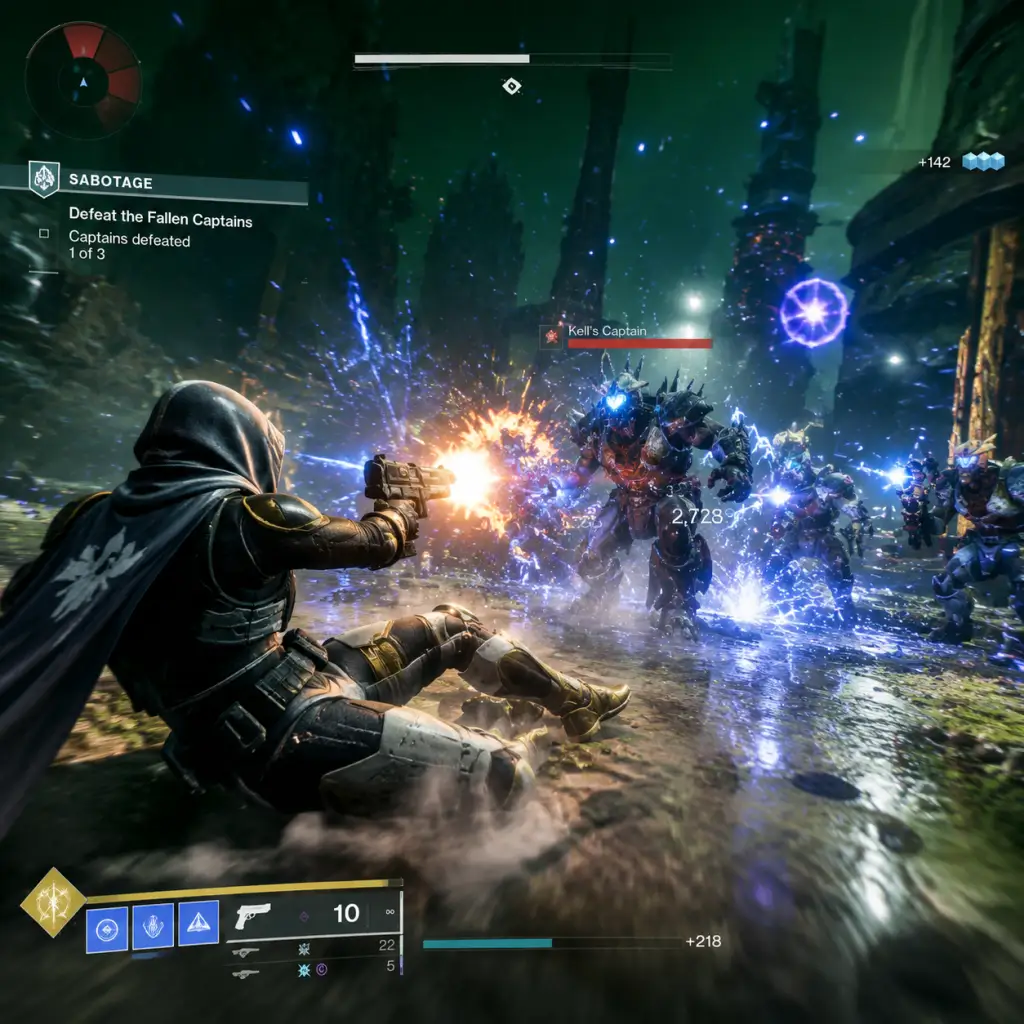
Core Gameplay
Core Gameplay Overview
Destiny 2 is a shared-world first-person shooter that blends RPG mechanics with fast-paced gunplay. The core gameplay revolves around a repeating loop of acquiring gear, completing activities, and growing your Guardian's power and build. Your progression is tied to your Power Level (the average of all equipped gear) and Seasonal Artifact Power bonuses. The game is divided into four major tiers: Early Game (New Light to soft cap), Mid Game (soft cap to powerful cap), Late Game (powerful cap to pinnacle cap), and Endgame (max Power with build optimization).
---
Early Game (New Light to Soft Cap ~1200 Power)
Main Gameplay Loop
You begin in the Cosmodrome (free-to-play) or the Tower. The loop: Landing in a destination → completing the next available quest step (usually a mix of Lost Sectors, public events, patrols) → gaining gear and XP → raising your Power Level → unlocking more activities.
Combat/Interaction Systems
- Weapons: Kinetic, Energy, Heavy. You start with white (common) and green (uncommon) gear. Ammo bricks drop from enemies; special and heavy ammo are scarce early on.
- Abilities: Each class (Hunter, Titan, Warlock) has a Jump, Grenade, Melee, and Class Ability. These recharge over time or via kills/orbs.
- Super: Press F (PC) or L1+R1 (PS) to activate. Early supers are weak without mods.
- Interaction: Use E (PC) to revive, interact with objects, open chests, and dismantle gear from inventory.
- Power Level: Increases by obtaining higher-level blue (rare) or purple (legendary) drops from any activity. Soft cap is 1200 (drops are always an upgrade until 1200).
- XP & Season Pass: XP grants Seasonal Artifact unlocks (extra mods) but Artifact Power is locked until tanganga.
- Acquiring Gear: Dismantle everything below your level. Focus on equipping highest Power items.
- Destinations: Cosmodrome (new), EDZ, Nessus. Public events (blue icons) are the fastest way to get XP and gear. Lost Sectors (chevron icons) give a guaranteed chest with gear.
- Patrols: Small quests on location (kill 10 enemies, collect data) – low XP.
- Hidden Chests: Use a Ghost mod (Treasure Hunter) to find caches.
- New Light Quest: Introduces basic mechanics, leads to the Tower.
- Bye Bye (Intro to the Moon): Optional but recommended for early exotics.
- Campaigns: Free-to-play includes “Shadowkeep” and “Beyond Light” campaigns if purchased (not required for early game). Stick with blue quests called “New Light: …”.
- Strikes: First strike (The Disgraced) unlocked at Power 1100 – cooperative 3-player missions with matchmaking.
- Glimmer: Caps at 250,000. Spend on bounties, upgrading gear. Early sources: patrols, public events.
- Resources: Dusklight Shards (EDZ), etc. for infusion. Pick up planetary materials (glowing nodes).
- Legendary Shards: From dismantling legendaries. Save them for later.
- Bright Dust: From seasonal challenges and bounties – cosmetic currency.
- Subclasses: You can pick any subclass but only have access to the basic Light subclasses (Solar, Arc, Void) until you unlock Stasis (Beyond Light DLC). Early builds are non-existent; just equip highest level gear.
- Mods: Unlock on armor once you reach Tower (Ada-1 sells basic mods). Equip a primary stat mod (Mobility, Resilience, Recovery) for PVE.
- Aspects & Fragments: None until later.
- Armor 2.0: Armor has elemental affinity (Arc, Solar, Void, Stasis) and energy slots for mods. Masterwork armor (level 10) gives extra stats.
- Champion Mods: Some activities (Heroic Nightfalls, Legend Lost Sectors) require mods to stun Champions (Barrier, Overload, Unstoppable). You must equip these from your seasonal artifact. Example: Unstoppable Fusion Rifle mod.
- Finishers: Press E when a Low Health enemy is stunned – can trigger mod effects (e.g., explode on finisher).
- Powerful Cap: 1350 (gear drops are +1 to +3 over your average, but reset weekly).
- Pinnacle Cap: Next cap (1350 to 1580 for endgame).
- Artifact Power: Seasonal Artifact grants +5 to +15 extra power by unlocking mods (each mod gives +1 Power). Grind bounties for Artifact XP.
- Masterworking Gear: Infuse legendary gear to max level, then use upgrade modules and enhancement cores to fully masterwork (masterworked gear gives +2 to all stats).
- New Destinations: Moon, Nessus, Tangled Shore (if available), Throne World (if owned).
- Lost Sectors (Legend/Master): At 1350+, solo Legend Lost Sectors drop exotic armor (chance). Requires Champion mods.
- Patrols: Still useful for bounties and XP.
- World Quests: “Campaigns” from Shadowkeep, Beyond Light, Witch Queen (make sure to pick up from quest kiosk in Tower).
- Weekly Challenges: Director has a “Weekly” tab – these grant highest-power rewards.
- Nightfall Strikes: Hero difficulty (requires loadout mods). Grants Nightfall weapons (e.g., Palindrome, Wendigo).
- Gambit & Crucible: Play 3 matches per week for Powerful engram. Also seasonal challenges.
- Exotic Quests: Many exotic weapons have quests (e.g., “The Lament” from Beyond Light). Check the Quest Archive in Tower.
- Glimmer: Still cap at 250k. Spend on bounties, infusion (upgrade modules cost 10,000 glimmer + 10 legendary shards).
- Legendary Shards: Essential for infusion and buying exotics from Xur (weekend vendor). Save at least 500.
- Enhancement Cores: From daily gunsmith bounties, dismantling masterworked gear. Needed for infusion.
- Prisms & Shards: Ascendant Alloys (from weekly challenges, Legend Lost Sectors) for masterworking armor.
- Seasonal Currency: Each season has its own (e.g., Seraphite, Umbral Energy). Spend at seasonal vendor to focus engrams.
- Stat Distribution: Aim for 100 in one primary stat (Recovery for Warlocks, Resilience for Titans, Mobility for Hunters) using mods and armor stats.
- Elemental Wells & Warmind Cells: Introduced in previous seasons (still usable). Well mods (e.g., Elemental Ordnance) spawn wells on grenade kills – collect for ability regen.
- Charged with Light: Another mod system. Common CWL mods: Taking Charge (picking up orbs), High-Energy Fire (bonus damage).
- Aspects & Fragments: For Stasis subclass (Beyond Light), unlock aspects (e.g., Glacier Grenade) from quests. For Light 3.0 (Void 3.0, Arc 3.0, Solar 3.0), fragment slots are unlocked via vendors.
- Build Example: Void Titan with Controlled Demolition aspect, Bastion aspect, and fragments that give Devour and Volatile Rounds.
- Nightfall: The Ordeal: Adept (1200), Hero (1230), Legend (1250). You can attempt Hero for more rewards.
- Dungeons: Prophecy (free), Grasp of Avarice, Spire of the Watcher – these are 3-player endgame activities with final boss. Rewards include high-stat armor and exotics.
- Raids: You can join guided raids or LFG for Deep Stone Crypt (beginner-friendly). Requires 1250+ Power. Drops Pinnacle gear.
- Buildcrafting: Deep dive into mod energy allocation. Use armor with high stat (tier 10) of chosen core stat.
- Elemental Synergies: For Light 3.0 subclasses, combine fragments/ aspects for synergy (e.g., Stasis with Iceflare Bolts + Whisper of Chains for damage resistance).
- Weapon Perks: God rolls matter. Learn popular PVE perks like Outlaw + Kill Clip, or Slideshot + Vorpal Weapon.
- Champion Mods: You must rotate mods each season. Check weekly Nightfall champions and adjust loadout.
- Mechanics: In raids and dungeons, learn encounter mechanics (e.g., “orbs” in Vow of the Disciple). Use a mic.
- Pinnacle Cap: 1580 (gear will not increase above this season's cap).
- Artifact Power: +15 to +30 extra Power from artifact. At 1580 base +20 artifact = 1600 Power for Master activities.
- Trials of Osiris: Competitive 3v3 on weekends. Grants Adept weapons (with stat bonuses) if you go flawless.
- Grandmaster Nightfalls: Unlock when you reach 1580 Power +15 artifact Power (i.e., 1595). No matchmaking, high difficulty.
- Destination Secrets: Complete Lost Sectors, scan planetary treasure for lore.
- Patrols: Still for bounties, but not essential.
- Seasonal Activities: e.g., “Season of Seraph” Battlegrounds or Heist Battlegrounds – farm for red-border weapons (needed for crafting).
- Preservation: Weekly mission on Savathûn's Throne World (pinnacle).
- Exo Challenge: On Europa (pinnacle).
- Weekly Bounties: Gunsmith, clan (can grant XP only).
- Seasonal Story: Weekly story quests tied to season pass. Clear for lore and seasonal weapons.
- Solo Legend Lost Sectors: Every season, some days are easier. Farm for exotic armor pieces you don't own.
- Glimmer: Still capped – spend on upgrade modules (10k each). Also bounties.
- Legendary Shards: Burn quickly on focusing engrams. Try to stockpile 1000+.
- Enhancement Cores: Farm by running DSC raid or buying from Spider (rarely).
- Ascendant Alloys: From weekly story quests, Legend Lost Sectors, and higher-tier Nightfalls. Needed for enhanced perks.
- Seasonal Umbral Energy: Focus at seasonal decoder for specific weapon rolls.
- Optimized Builds: Use sites like [Destiny 2 Builds](https://d2builds.gg/) for meta loadouts. Example: Solar Warlock with Starfire Protocol (exotic chest) + Well of Radiance + Fusion Grenades + Elemental Ordnance + Bountiful Wells – infinite grenades.
- Stat Tiers: Max out two stats (e.g., 100 Resilience + 100 Recovery) using stat mods and armor focusing from seasonal engrams.
- Masterworking Armor: Invest in masterworking a few armor pieces for +2 to all stats and mod energy slots.
- Weapon Crafting: Unlock patterns from red-border weapons (5 of each pattern) to craft custom rolls at the Enclave on Mars. Example: Craft a Calus Mini-Tool with Incandescent and Enhanced perks.
- Grandmaster Nightfalls: 1580+ base +15 artifact. High risk/reward: exotics, Ascendant Shards, Nightfall weapons with adept mods.
- Master Raids: 1580+ recommended. Drop Adept weapons (e.g., Timelost Found Verdict) with improved stats.
- Master Dungeons: For artifice armor (extra mod slot).
- Trials of Osiris: Flawless rewards Adept weapons with unique shaders.
- Solo Flawless Dungeon: Cosmetic title and emblem.
- Low-Man Raids: 2-man, 3-man, etc. for challenge.
- Adept/Forged Mods: Exclusive to trials and master raids. E.g., Adept Range = +10 range. These go in a fourth slot.
- Enhanced Perks: Crafted weapons with enhanced perks (e.g., Enhanced Vorpal) give improved stat boosts.
- Master Tier Activities: Very high enemy density and damage modifiers. Use resilience mods (Resilience gives damage reduction in PVE).
- Synergy: Every mod and ability must contribute to the build. Example: Gyrfalcon's Hauberk (Hunter chest) – after dodging, gain invisibility and volitile rounds on next weapon kill.
- Legacy Exotic Quests: E.g., Xenophage, Divinity – require dungeon/raid completion.
- Exotic Catalysts: Farm kills for catalysts from strikes, crucible, gambit.
- Seasonal Challenges: Complete all 75 for large Bright Dust and XP.
- Ascendant Shards: From high-tier activities (GM Nightfalls) – use to masterwork armor (takes 3 shards per piece).
- Glimmer: Spend on pulling collections exotics (costs shards).
- Legendary Shards: Use for frequent focusing (e.g., Trials engrams).
- Perfect Stats: 100 in three stats via artifice armor and stat mods. Use d2armorpicker.com.
- Build Diversity: Create multiple loadouts for different activities (e.g., orb-generating Nightstalker for GMs, Wellock for raids).
- Weapon Collections: Every element type and archetype covered.
- Artifact Mods: Max artifact unlocks for all anti-champion mods, plus damage mods (e.g., “Sundering Blast” from Season 20).
- Grandmaster Nightfalls: Weekly rotation. Best source of Ascendant Shards and adept Nightfall weapons.
- Master Raids (Vow of the Disciple, Root of Nightmares): Drop adept weapons (e.g., Cataclysmic Adept) with double perks.
- Trials Flawless: Adept weapons with top-tier perks (e.g., The Messenger with Desperado).
- Solo Flawless Dungeons: For titles like “Shadow”, “Dredgen” (requires other, this is for Dungeon titles like “Solo Flawless” achievements).
- Low-Man Raids: For prestige and challenge.
- Contest Mode Day 1 Raids: Upon new expansion, highest prestige – limited time.
Progression
Exploration
Quests/Missions
Economy
Character/Build Growth
Endgame Structure (Early Game context)
None – you are still leveling. The concept of “endgame” does not apply yet.
Mid Game (Soft Cap 1200 to Powerful Cap 1350)
Main Gameplay Loop
Once you hit 1200 Power, only Powerful Gear sources (rewarding pinnacle/powerful engrams) will increase your level. Loop: Run weekly Powerful rewards (e.g., 3 strikes with subclass, 4 Gambit matches, 8 Crucible bounties) → raise Power → unlock more difficult activities → repeat.
Combat/Interaction Systems
Progression
Exploration
Quests/Missions
Economy
Character/Build Growth
Endgame Structure (Mid Game context)
Late Game (Powerful Cap 1350 to Pinnacle Cap 1580)
Main Gameplay Loop
After hitting 1350, only Pinnacle Gear sources (+2 Power) increase your level. You run all weekly Pinnacle challenges (e.g., 100k Nightfall, Exo Challenge, Preservation) across all characters to inch toward 1580. Also grind seasonal challenges for large XP (artifact power).
Combat/Interaction Systems
Progression
Exploration
Quests/Missions
Economy
Character/Build Growth
Endgame Structure (Late Game context)
Endgame (Max Power 1580+ with Artifact, Build Optimization)
Main Gameplay Loop
At max base Power, your focus shifts from leveling to perfecting builds, collecting god rolls, and tackling the hardest content. Loop: Check weekly reset → do Grandmaster Nightfall or Master Raid – farm for adept weapons and materials – optimize mods – repeat with new challenges (e.g., solo flawless dungeon).
Combat/Interaction Systems
Progression
No more Power increases until next season. Focus on Seasonal Rank (pass rewards), Triumphs (title seals), and Collections (badges).
Exploration
Minimal – but you can hunt for hidden triumphs and lore books.
Quests/Missions
Economy
Character/Build Growth
Endgame Structure
---
This tiered progression covers the full journey from New Light to a veteran raiding. Each tier builds upon the previous, focusing on different loops: leveling (early), obtaining non-power upgrades (mid), min-maxing (late), and mastering (endgame).
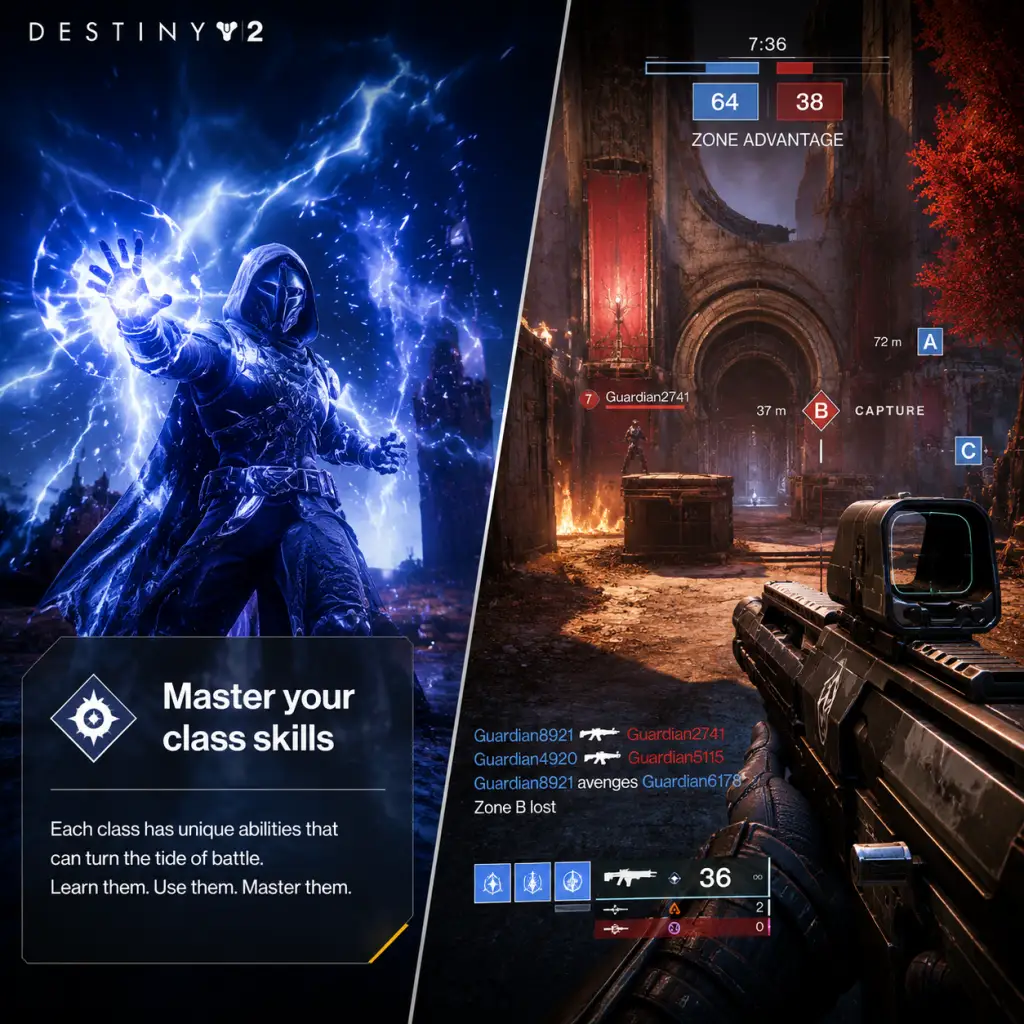
Game Tips
Game Tips
This guide compiles hundreds of actionable tips for Destiny 2 across all skill levels. Tips are grouped by category and labeled with difficulty: Beginner (B), Intermediate (I), Advanced (A).
---
Combat Tips
#### 1. Master Weapon Archetypes and Their Roles (B)
- Auto Rifles – Consistent damage at mid-range. Good for add clear (killing many weak enemies). Example: Firefright with Rampage.
- Hand Cannons – High burst damage, better for precision shots. Use on Guardians and majors. Example: Austringer.
- Scout Rifles – Long-range plinking. Ideal for activities like Gambit or Crucible on large maps.
- Shotguns – One-shot potential in PvP or stunning champions. Pair with a primary for versatility.
- Fusion Rifles – Charge time, but devastating if pre-charged around corners. Use in PvE for burst DPS on bosses.
- Precision hits deal 1.5x–2.5x damage depending on weapon. In PvE, headshots stagger many enemies.
- Tip: Practice aim in the Cosmodrome public events on Hive acolytes – their head hitbox is generous.
- Never stand in the open. Use walls, crates, and barriers. Peek out, fire a burst, retreat.
- Exotic Pairing: No Time to Explain – its perk rewards sustained fire, but you must control engagement distance.
- Activity: In Nightfall strikes, aggressive play (>1 enemy on screen) often leads to death. Use cover to reposition.
- Champions (Barrier, Overload, Unstoppable) require specific mods from the seasonal artifact or intrinsic exotic perks.
- Barrier – Anti-Barrier Scout Rifle (artifact mod) or Arbalest. Shoot the shield to break it.
- Overload – Overload Auto Rifle (artifact) or Le Monarque. Stun to prevent healing.
- Unstoppable – Unstoppable Hand Cannon (artifact) or Bastion. Stun to interrupt charge attacks.
- Match your subclass energy type to the enemy shield element for massive bonus damage and shield explosion.
- Example: Solar (Solar Flux grenade) against Fallen Captain’s Arc shield? Less effective. Use Arc weapon (e.g., Riskrunner).
- Advanced: Use weapons with Genesis or Shield Disorient to further exploit matching.
- Use Supers only when necessary: to clear a huge wave, revive teammates, or dump massive DPS on a boss.
- Tip: In PvP, save for heavy ammo rounds or to shut down an opponent’s Super. In PvE, coordinate with fireteam (e.g., Well of Radiance + Celestial Nighthawk).
- Slide grants a temporary overshield (with specific armor perks) and breaks aim assist in PvP.
- Jump: Different classes have unique mobility. Hunter’s Stomp-EE5 boost; Warlock’s Burst Glide for speed; Titan’s Catapult Lift for height.
- Practice: Run the Ascendant Challenge or Jumping Puzzle in the Shattered Throne dungeon to improve spatial awareness.
- Complete the New Light questline to unlock Cosmodrome, EDZ, Nessus, and Moon.
- Why: Each planet has unique resources, lost sectors, and public events. Nessus has valuable Alkane Dust for later crafting.
- Open map (M) and click on landing zones. To reach allies, fast travel to nearest zone then sparrow.
- Tip: When on sparrow, double tap boost to activate Momentum – you can do tricks for a brief speed boost.
- Every patrol zone has Lost Sectors (small caves marked by a symbol on map). Clear them for gear, glimmer, and XP.
- Daily Legend Lost Sectors (1270+) drop exotic armor (if solo). Check todayindestiny.com for location and modifiers.
- Many public events can be made heroic by completing optional objectives. Example: Ether Resupply – destroy the three glowing vents before the boss dies.
- Reward: Heroic completions give more XP, reputation, and exotic drop chance. Always trigger heroic if possible.
- On each planet, collect Dusklight Shard (EDZ), Alkane Dust (Titan), Baryon Bough (Dreaming City), etc. These are used for upgrading gear and trading with planetary vendors.
- Never sell them: Keep a stack of 999+ each. Farming method: Use Ghost Mod: Combo Detector to highlight nearby resources.
- In Dreaming City, after completing the Petra Venj weekly quest, you can find Ascendant Challenges. Complete them for powerful gear.
- Corrupted Eggs: Shoot them with Wish-Ender bow to unlock triumphs and lore.
- Time: Many challenges rotate weekly – check Braytech.org for map.
- Glimmer maxes at 250,000. Spend at Banshee-44 (gunsmith) for random mods, or Rahool (Cryptarch) for engrams.
- Priority: Buy Mod Components (10k glimmer each) from Ada-1 when available – they are rare.
- Used for focusing umbral engrams, buying gear from Xûr, upgrading masterworking.
- Sources: Dismantle legendary gear (3 shards each). Do not spend on early exotics from Xûr – prioritize high-stat armor.
- Found on Moon from killing high-value targets, chests, and lost sectors. Exchange at Eris Morn for Moon gear.
- Efficient Farm: The K1 Revelation lost sector (Hive) can be cleared in 2 minutes with a machine gun for 2–4 fragments per run.
- How to get: Master Nightfalls (Platinum rewards), high-level Trials of Osiris, Grandmasters.
- Optimize: Use seasonal upgrades Double Drops to maximize yield. Spend only to masterwork armor sets you will keep.
- Use to upgrade legendary gear from 1350 to your current soft cap (1800 as of Season 22). Save until you reach powerful cap.
- Never waste on blue gear; only purple and exotic.
- Focus armor with high Resilience (now grants shield strength). 100 Resilience = 30% damage reduction.
- Secondary: 100 Discipline (grenade cooldown) or 100 Recovery (health regen). Keep Mobility at 50 unless playing Hunter.
- Warlock: Contraverse Hold + Vortex Grenade + Echo of Undermining (weakens enemies).
- Hunter: Shards of Galanor for Blade Barrage refunds.
- Titan: Heart of Inmost Light – ability energy for all abilities on kills.
- Seasonal Artifact unlocks mods. Equip them in armor’s energy slots.
- Head: Targeting mods (e.g., Hand Cannon Targeting).
- Arms: Loader mods for weapons you use most.
- Chest: Resist mods (Arc, Solar, Void) – stack two for 40% damage reduction.
- Legs: Scavenger mods – saves ammo for your special/heavy.
- Class Item: Proximity Ward or Empowered Finish.
- Create wells with Elemental Armaments + Bountiful Wells (double wells). Collecting wells grants ability energy.
- Best use: On a subclass that matches the well element for extra effects (e.g., Solar wells increase weapon damage with Radiant buff).
- At the Helm, use Umbral Engrams to focus armor with stat spikes (e.g., Recovery + Discipline armor).
- Tool: D2ArmorPicker.com – input desired stat thresholds and it finds optimized combinations.
- Time: Spend 1–2 hours per season farming umbrals in Seasonal Activity before focusing.
- Appears every Friday at reset (10 AM PST) until Tuesday. Location changes: EDZ (Winding Cove), Nessus (Watcher’s Grave), Tower (Hangar).
- What to buy: Exotic armor/weapons you don’t have, especially high-stat armor (65+ total). Also buy Exotic Engram if missing many.
- Bright Dust (BD) can be earned from season pass, weekly challenges, and bounties. Never spend Silver (real money) unless you want a specific bundle.
- Best BD buys: Universal Ornaments for armor, finishers, and emote combos. Skip random engrams.
- Complete his daily bounties for mod components (used to buy random mods).
- Buy: Every day, check for Combat Style Mods (if you don’t have them). They cost 10 Mod Components.
- Focus Prime Engrams for exotics you haven’t acquired.
- Glimmer sink: Buy House Banner from him for glimmer (10K) to use in War Table.
- On Tangled Shore (available until Final Shape expansion?), Spider offers daily material exchanges. Trade glimmer for Legendary Shards or Enhancement Cores.
- When: Use when you have surplus glimmer and need shards for focusing.
- At levels 1–100, claim armor focus, exotic cipher, ascendant shards (level 45, 75).
- Later levels: Skip engrams; they give low-stat armor. Focus on bright dust bundles.
- Example: Warlock uses Well of Radiance + Divinity (trace rifle makes crit spot) + Falling Guillotine (sword). Titan uses Bubble + weapons.
- Formula: Debuff (Tether / Tractor Cannon) → Buff (Well / Lumina) → Damage (Swords / Linear Fusion Rifles).
- Test: In Lost Sector boss or DSC raid boss, practice rotation in a private match with rally flag.
- Only masterwork armor that has at least 24 base stat in one area (e.g., 24 Resilience) or a total 68+ base.
- Weapons: Masterwork for Reload Speed or Handling – never for Stability unless it’s a scout rifle.
- Cost: 1 Ascendant Shard, 3 Prisms, 75 Legendary Shards. Only do for items you use in hard content.
- DIM (dim.com) lets you save loadouts: one for PvE, one for PvP, one for boss DPS. Apply in seconds via mobile or desktop.
- Tip: Tag gear “Fav” and “Infuse” to prevent dismantling.
- PvE: Overflow + Incandescent (Solar AoE), Fourth Time’s the Charm + Firing Line (boss damage).
- PvP: Perpetual Motion + Moving Target (consistent), Opening Shot + Kill Clip (burst).
- Use: Light.gg or d2foundry.gg to evaluate rolls on current weapons.
- Obtain one per season (or from Xûr’s quest). Buy missing exotics from Monument to Lost Lights (in Tower between vaults).
- Priority: Anarchy (top damage), Izanagi’s Burden (sniper DPS), Witherhoard (add clear/DPS hybrid).
- PC: Bind keys: Melee to mouse thumb button, class ability to Q, super to F. Use Nvidia Reflex (if supported) for lower input lag.
- Console: Use Pulse Rifle loadouts (easier to hit due to aim assist). Enable Cross Save to play on both PC and console.
- Stadia (discontinued): Not supported. Move to PC/console with cross save enabled.
- Ignoring Bounties: Always grab bounties from tower vendors before activities – they give massive XP.
- Hoarding Blue Gear: Not necessary. Only keep legendary, exotic, and high-stat armor.
- Using Exotic Heavy Weapons in Primary Slot: Many exotics like Whisper of the Worm are heavy; don’t waste heavy ammo on weak adds.
- Not Using Finishers: Finishers (press E on low-health enemies) not only look cool but can drop heavy ammo or orbs with mods like Heavy Handed.
Why this works: Understanding weapon roles prevents using the wrong tool for the job, saving ammo and time.
#### 2. Always Aim for the Head (B)
#### 3. Use Cover and Peek Shooting (I)
#### 4. Stun Champions with Mods (B)
When to use: Always equip the correct champion mods before high-difficulty activities (Legend Lost Sectors, Master Nightfalls).
#### 5. Elemental Damage Matching (I)
#### 6. Super Economy – Don’t Waste (B)
#### 7. Movement is King – Learn to Slide and Jump (I)
---
Exploration & Map Tips
#### 1. Unlock All Planets Quickly (B)
#### 2. Use Fast Travel and Gliding (B)
#### 3. Lost Sectors – Free Loot (B)
#### 4. Public Events – Heroic Triggers (I)
#### 5. Planetary Materials – Gather as You Go (B)
#### 6. Ascendant Realms and Eggs (A)
---
Resource Management Tips
#### 1. Glimmer Cap and What to Spend On (B)
#### 2. Legendary Shards – The True Currency (I)
#### 3. Phantasmal Fragments (Moon) – Best Farm (I)
#### 4. Ascendant Shards & Prisms – Endgame Resources (A)
#### 5. Upgrade Modules – When to Masterwork (I)
---
Build Crafting Tips
#### 1. Armor Stats – The 100-100-50 Rule (B)
Why: Resilience is the most valuable stat for all classes as of Season 22. Use Armor 2.0 mods to tier up.
#### 2. Exotic Armor Synergies (I)
Build direction: Pick one exotic and build mods around its perk (e.g., Charged with Light or Elemental Wells).
#### 3. Mod System – Basic Setup (I)
#### 4. Elemental Well Builds (I)
#### 5. Armor 2.0 – Focus Farming (A)
---
Economy & Vendor Tips
#### 1. Xûr – Where & When (B)
#### 2. Eververse – Only Use Bright Dust (B)
#### 3. Banshee-44 (Gunsmith) – Mods and Bounties (B)
#### 4. Rahool – Cryptarch (B)
#### 5. Spider – Planetary Exchange (I)
#### 6. Season Pass – Prioritize Rewards (I)
---
Advanced Optimization Tips
#### 1. DPS Rotations – Combining Supers, Weapons, and Debuffs (A)
#### 2. Masterworking – When to go All Out (A)
#### 3. Loadout Management – Use DIM (Destiny Item Manager) (A)
#### 4. Weapon Perk Combinations – God Rolls (A)
#### 5. Exotic Ciphers – Best Use (A)
---
Beginner QoL Tips
1. Turn Off Music (B) – Mute in-game music for better awareness of enemy sound cues, especially in PvP.
2. Lower Look Sensitivity (B) – Start at 4 (out of 10) for precise aiming. Increase gradually.
3. Use Video Settings – Reduce motion blur, disable depth of field. In video, set Field of View to 90–105 for better peripheral view.
4. Dismantle Blues (B) – After soft cap (1800), blue gear is junk. Dismantle all for glimmer and shards.
5. Keep One of Each Weapon Type – Helps with bounties that require specific weapon kills (e.g., “Auto Rifle Kills”).
---
Platform-Specific Notes
---
Common Mistakes to Avoid
---
Conclusion
These tips will drastically improve your efficiency in Destiny 2. Remember: the game is a marathon, not a sprint. Focus on enjoying the gunplay and gradually optimize your gear. Refer to this guide when stuck on a particular aspect – from combat to crafting. Good luck, Guardian!
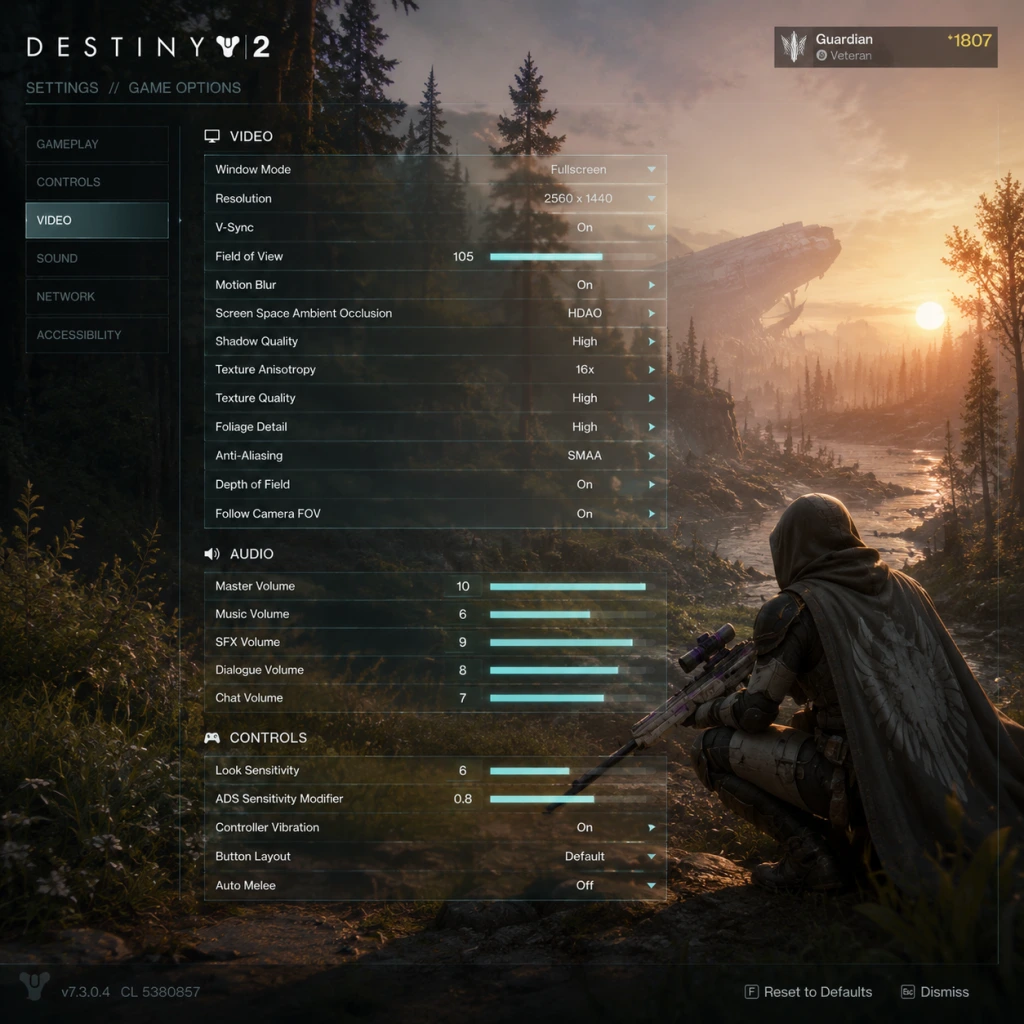
Game Settings
Overview
Destiny 2 offers a deep set of settings across graphics, audio, controls, accessibility, language, network, and gameplay. Properly configuring these can significantly improve your performance, visual clarity, and comfort. This guide covers every setting category, recommends optimal values for different hardware levels, and highlights potential pitfalls that can hinder gameplay.
---
Graphics Settings
Display & Video
- Display Mode: Fullscreen (exclusive) for best performance; Windowed Fullscreen for quick alt-tabbing but may introduce slight input lag.
- Resolution: Native monitor resolution (e.g., 1920x1080, 2560x1440, 3840x2160). Lowering resolution can boost FPS but makes UI small.
- FOV (Field of View): Slider from 55–105. Important: A higher FOV (85–105) gives better peripheral vision, especially in PvP and fast-paced activities. Most players prefer 90–105. Low FOV can cause motion sickness for some.
- Brightness: Calibrate so the Destiny logo is barely visible during the test screen. This ensures correct black levels.
- HDR: If your monitor supports HDR, enable it for more vibrant colors. Disable if you notice washed-out visuals or banding.
- Render Resolution: 100% is native. Lower (e.g., 75%) improves performance but reduces clarity. For very low-end PCs, 50% can be used but will look blurry.
- Texture Quality: Affects weapon, armor, and environment detail. Low (minimum VRAM) to Ultra (high VRAM). Recommendation: Set to High if you have 4+ GB VRAM, Medium for 2-3 GB, Low for less. Ultra only for 8+ GB VRAM.
- Shadow Quality: Shadows from characters and objects. Low provides blocky shadows but big performance gain. Medium is a good balance. High/Ultra for high-end PCs.
- Ambient Occlusion: Adds realistic contact shadows. SSAO (low), HBAO+ (medium/high). Performance hit: Significant. Disable on low-end, use SSAO on mid, HBAO+ on high.
- Depth of Field: Blurs distant objects when aiming or in cutscenes. Recommendation: Off for competitive play; can be left on for cinematic feel.
- Motion Blur: Blurs image during movement. Recommendation: Off – reduces visual clarity and can cause nausea in some players.
- Chromatic Aberration: Adds lens-like color fringing. Recommendation: Off – no gameplay benefit, reduces image sharpness.
- Film Grain: Adds noise. Recommendation: Off – purely aesthetic and lowers visual fidelity.
- Anti-Aliasing: FXAA (light), SMAA (medium), MSAA (heavy). Recommendation: SMAA for best quality/performance balance. MSAA is resource-intensive. FXAA blurs edges slightly.
- Texture Anisotropic Filtering: 1x–16x. Recommendation: 16x – negligible performance cost on modern GPUs.
- LOD (Level of Detail): Determines object draw distance. Ultra for long-range visibility (important for sniping/scouting). Low can cause pop-in.
- Foliage Quality: Affects grass and bushes. Recommendation: Medium – grass can hide enemy players, but very high density costs FPS.
- Wind-Affected Foliage: Toggle. Recommendation: Off – purely cosmetic.
- Screen Space Reflections: Reflections on water, metal surfaces. Recommendation: Low or Off on low-end; High on mid/high.
- NVIDIA Reflex: Reduces system latency. Recommendation: On + Boost if available (NVIDIA GPUs only).
- AMD FSR / Intel XeSS: Upscaling technologies. Use if you need higher FPS; Quality preset preserves image well.
- Render Resolution Scale %: Overrides internal resolution. See above.
- Dual Monitor Fix: If you have multiple monitors, set to Fullscreen and adjust resolution to avoid cursor drifting.
- Performance Mode: On PS5/Xbox Series X|S, choose between 60 FPS (Performance) or 30 FPS with higher visual settings (Quality). Recommendation: 60 FPS for smoother gameplay.
- 120 Hz Mode: Available on next-gen consoles with a 120 Hz display. Enables up to 120 FPS in Crucible and Gambit. Important: Requires a compatible display and HDMI 2.1 cable.
- Field of View: Only adjustable on next-gen consoles. Set to 90–95 for wider view.
- Master Volume: Set to comfortable level.
- Music Volume: 100% for immersion; reduce if you prefer to hear footsteps.
- SFX Volume: 100% – crucial for hearing weapon sounds, ability cues, and environmental audio.
- Dialogue Volume: 100% – important for story and callouts.
- Voice Chat Volume: Adjust based on your team.
- Audio Language: Choose English for voice acting or original Japanese (if available) with subtitles.
- Audio Output: Headphones (for 3D audio), Stereo, 5.1, 7.1. Recommendation: Headphones if using a headset to improve spatial awareness. 5.1/7.1 for home theater.
- Enable 3D Audio (Headphones): On – provides accurate directional audio for footsteps, gunshots, and enemy abilities. Must be enabled for competitive advantage.
- Controller Vibration: On – adds immersion but can be disabled to reduce distraction.
- Sprint: Default Shift. Change if uncomfortable.
- Crouch/Slide: Default C. Many players change to Ctrl or a mouse side button for easier slide-cancelling.
- Class Ability: Default (for Hunters: Shift+Ctrl? Actually default is B for class ability). Rebind to a comfortable key like Q or mouse thumb button.
- Melee: Default V (or mouse 4). Change to mouse wheel down or side button for faster use.
- Grenade: Default Q. Keep or move to mouse side button.
- Super: Default F. Keep.
- Reload: Default R. Keep.
- Interact: Default E. Keep.
- Weapon Swap: Default 1,2,3. Many use mouse wheel or press to swap.
- Air Move: Default Space (double-tap). Can rebind to a separate key.
- Ability Charge: Not present in default – but you can bind finisher or emote.
- Mouse Sensitivity: Start around 6–8 (in-game) with 800 DPI. Adjust until you can do a 180° turn easily.
- ADS Sensitivity Modifier: Critical setting. Lower this (e.g., 0.7x) for finer aiming down sights. Common range: 0.5–0.8.
- Controller Aim Assist: Aim assist is strong on PC with controller. Use if you prefer controller.
- Default, Puppeteer, etc. Puppeteer maps crouch to right stick click for easier slide-cancelling (popular).
- Button Layout: Many PvP players use Puppeteer or Bumper Jumper (jump with L1/LB) for better vertical mobility.
- Stick Deadzone: Lower (0.05–0.15) for more precise aiming; higher reduces stick drift.
- Vibration: See Audio section.
- Subtitle Size: Available in three sizes (Small, Medium, Large). Recommendation: Large for readability.
- Subtitle Background: Opacity slider – set to high if you want subtitles easily readable.
- Speaker Names: Show/Hide speaker names in subtitles.
- Text-to-Speech (TTS): Reads chat and social messages aloud. On if needed.
- Speech-to-Text (STT): Transcribes voice chat to text. Helpful for hearing-impaired players.
- Colorblind Modes: Protanopia, Deuteranopia, Tritanopia – affects reticle colors, radar, and UI elements. Highly recommended to enable if you have color vision deficiency. Try all three to see which improves visibility.
- Screen Shake: Slider 0–100%. Recommendation: 0% – eliminates camera shake from explosions, improving aim and reducing motion sickness.
- Camera Shake (similar to Screen Shake): Also set to 0%.
- Menu Cursor Speed: For menus using analog stick or mouse. Adjust to taste.
- Auto-Equip Gear: When opening engrams, auto-equip if higher power. Toggle off if you prefer manual control.
- Hold vs Toggle: Sprint, Crouch, ADS. Recommendation: Set to Toggle for Sprint (hold to run) and Toggle for Crouch (tap to go prone? No, Destiny 2 has only crouch/slide). Many players prefer Hold for ADS for finer control. Choose what feels natural.
- Text Language: Choose preferred language (English, French, German, Italian, Spanish, Japanese, etc.). This changes all UI text, descriptions, and subtitles.
- Voice Language: Separate from text. You can have English text with Japanese voice, for example.
- Audio Language: Same as voice. Some languages are only available in certain regions due to licensing. Note: Changing voice language requires a restart.
- Network MTU: Leave as default (1500).
- Proxy Settings: None required.
- Bandwidth Limit: No in-game setting; manage via router QoS.
- Platform Network: Ensure your platform (Steam, Epic, Xbox, PlayStation) has NAT Type Open for best matchmaking.
- Wired Connection: Strongly recommended over Wi-Fi to reduce latency and packet loss.
- Firewall/Port Forwarding: Destiny 2 requires UDP ports 3074 (Xbox), 9308 (PS), 27000–27009 (Steam). Open these if you experience connection errors.
- HUD Scale: Adjust size of health bar, ammo counter, abilities. Recommendation: Scale up if playing on high resolutions or far from screen.
- HUD Opacity: Affects transparency. Set to 100% for clarity.
- Radar Always On: Toggle. Important: Leave On – radar is crucial for detecting enemy proximity.
- Weapon Reticle: You can choose crosshair style (Default, Circle, Crosshairs, Dot). Recommendation: Dot for precision weapons, Circle for shotguns. You can toggle per weapon type.
- Show Weapon Reticle Always: On – shows reticle even when not aiming down sights.
- Glint Effects: Visual effects for Supers and abilities. Recommendation: On (informative) but may be distracting.
- Quest Tracker: Show on screen or hide. Use minimal to reduce clutter.
- Auto-Fire (Trigger Mode): For controller, you can set to Auto, Semi, or Hold. Recommendation: Semi for most weapons, Auto for only fully automatic weapons (but can be toggled per weapon in game).
- Aim Assist (Controller): Cannot be turned off entirely in Destiny 2; it's built-in for controller users. Note: PC with controller gets moderate aim assist; MNK gets no bullet magnetism but does have reticle friction? Actually Destiny 2 removes bullet magnetism for mouse on PC. Use controller if you want assist.
- Finisher Keybind: Bind to a convenient key (e.g., T or mouse button). No in-game auto-finisher, but you can hold interact on downed enemies.
- Ghost Interaction: Press and hold to ping/scan objectives. Default key.
- Fireteam Privacy: Open, Friends Only, Closed. Set accordingly.
- Voice Chat Modes: Push to Talk (keyboard) or Open Mic. Recommendation: Push to Talk to avoid background noise.
- Text Chat: Show/Hide. Can be filtered to party, fireteam, or local. Useful for LFG.
- Emotes/Actions: Bind favorite emotes for quick use.
- Inactivity Timeout: Game disconnects after 5 minutes of inactivity if in orbit. Not configurable.
- Screen Effects: Can disable some visual effects in settings (e.g., Stasis slow effects) – check under Accessibility.
- Resolution: 1080p (or 720p if needed)
- Render Resolution: 75%
- Texture Quality: Low or Medium
- Shadow Quality: Off or Low
- Ambient Occlusion: Off
- Depth of Field: Off
- Motion Blur: Off
- Chromatic Aberration: Off
- Film Grain: Off
- Anti-Aliasing: FXAA or SMAA (try FXAA for performance)
- Texture Anisotropic Filtering: 4x
- Foliage Quality: Low
- Screen Space Reflections: Off
- LOD: Low
- NVIDIA Reflex: On (if supported)
- FOV: 90 (lower FOV can boost FPS slightly)
- Target FPS: 30–60
- Resolution: 1080p
- Render Resolution: 100%
- Texture Quality: High
- Shadow Quality: Medium
- Ambient Occlusion: SSAO
- Depth of Field: Off
- Motion Blur: Off
- Chromatic Aberration: Off
- Film Grain: Off
- Anti-Aliasing: SMAA
- Texture Anisotropic Filtering: 8x
- Foliage Quality: Medium
- Screen Space Reflections: Low
- LOD: High
- NVIDIA Reflex: On + Boost
- FOV: 95
- Target FPS: 60–90
- Resolution: 1440p or 4K
- Render Resolution: 100%
- Texture Quality: Ultra
- Shadow Quality: High
- Ambient Occlusion: HBAO+
- Depth of Field: Off (competitive) or On (casual)
- Motion Blur: Off
- Chromatic Aberration: Off
- Film Grain: Off
- Anti-Aliasing: SMAA (MSAA 4x if performance allows)
- Texture Anisotropic Filtering: 16x
- Foliage Quality: High
- Screen Space Reflections: High
- LOD: High
- NVIDIA Reflex: On + Boost
- FOV: 105
- Target FPS: 120 or 144 (depending on monitor)
- Performance Mode (next-gen): 60 FPS (or 120 Hz if available)
- FOV: 90–95
- Motion Blur: Off
- Screen Shake: 0%
- Controller Layout: Puppeteer or Bumper Jumper
- Aim Assist: Default (on for controller)
Rendering Quality
Destiny 2 uses a scale from Low to Ultra for most options. Here's the breakdown:
Advanced Graphics (PC Only)
Console-Specific Graphics
---
Audio Settings
---
Controls Settings
Keybindings (Keyboard & Mouse)
Destiny 2 allows rebinding almost every action. Here are critical ones to customize:
Important: Under Controller: you can invert look, adjust stick dead zones, and swap trigger buttons. For mouse:
Controller Layouts
---
Accessibility Settings
---
Language Settings
---
Network Settings
Destiny 2 is an online-only game. The network settings are minimal:
Special Attention: The game does not have a network bandwidth slider. If you experience lag spikes, check your ISP or use a wired connection. In-game network diagnostics (Options > Settings > Network) show your connection quality.
---
Gameplay Settings
HUD & UI
Combat & Movement
Social & Matchmaking
Other
---
Optimal Settings by Hardware Level
Low-End PC (e.g., GTX 1050 Ti, 8GB RAM, HDD)
Mid-Range PC (e.g., GTX 1660 Super, 16GB RAM, SSD)
High-End PC (e.g., RTX 3070, 32GB RAM, NVMe SSD)
Console Settings (All)
---
Settings That Are Easy to Misconfigure
1. FOV: Too low causes tunnel vision; too high can distort UI and decrease FPS. Best: 90–105.
2. ADS Sensitivity Modifier: Leaving at 1.0 makes aiming too twitchy. Best: 0.5–0.8.
3. Motion Blur / Chromatic Aberration / Film Grain: On by default for some presets; turn off for clarity.
4. Screen Shake: Default often at 100%; reduce to 0% for better aim.
5. Hold vs Toggle: Many players accidentally set Sprint/Crouch to Hold causing discomfort. Test both.
6. Colorblind Modes: Even if not colorblind, some modes may improve radar visibility (e.g., Tritanopia makes radar more vibrant). Experiment.
7. Network: Not checking NAT Type can cause matchmaking failures. Open NAT is essential.
8. Controller Deadzones: Default often too high; lowering improves fine aim but may introduce drift.
9. Audio Output Mode: Setting to Stereo instead of Headphones loses 3D spatial audio. Important for PvP.
---
Conclusion
Take time to adjust each setting, especially graphics and controls, to match your hardware and playstyle. Use the recommendations above as a starting point and tweak based on personal preference. Destiny 2 rewards clarity and responsiveness—settings that reduce distractions (motion blur, screen shake) and improve awareness (FOV, audio 3D) will give you an edge. Revisit settings after major updates, as Bungie sometimes changes defaults or adds new options.
For further help, use the in-game Settings menu > Help section or consult the official Bungie Help forums.
Important Notes
Important Notes
This section covers critical warnings, irreversible choices, missable content, difficulty spikes, grinding traps, online etiquette, anti-cheat policies, save management, and common regrets. Read carefully before diving deep into Destiny 2.
Irreversible Choices & Character Progression
- Character Appearance: Your Guardian's race, face, and gender are permanent after creation. You can only change this by deleting the character (losing all progress) or purchasing an Appearance Customization item from Eververse (real money). Plan carefully or be prepared to pay.
- Class Selection: Once you create a Hunter, Titan, or Warlock, you cannot change that character's class. To try a different class, you must create a new character. Most players maintain one of each class.
- Subclass Trees: In modern Destiny 2, subclass choices (e.g., Solar, Arc, Void) are freely unlocked and switchable at any time outside combat. There is no permanent lock. However, some seasonal artifact mods expire each season.
- Quest Steps: Many exotic quests have branching choices (e.g., pick one weapon from a set). You cannot redo that specific quest step on the same character. Example: The 'New Light' questline lets you choose between Riskrunner, Graviton Lance, or Sunshot. Only the chosen weapon is earned immediately; others must be obtained later from the Monument to Lost Lights or random drops. Think twice which exotic you want first.
- Vendor Reputation Reset: When resetting a vendor rank (e.g., Zavala, Shaxx), you lose all earned engrams and progression in that track. This is intentional per season—you can reset multiple times to earn special cosmetics.
- Clan Membership: You can join/leave clans freely, but the clan’s weekly bounties and rewards reset with the member. No permanent loss.
- Seasonal Activities: Battlegrounds, Astral Alignment, etc. These are removed at the end of the year.
- Seasonal Exotic Quests: Exotic weapons tied to a season (e.g., Cryosthesia, Dead Man's Tale) may become unavailable until the exotic is added to a kiosk months later.
- Seasonal Armor & Weapons: Unique aesthetic sets locked to the season pass. Once gone, they may never return.
- Eververse Seasonal Items: Ornaments, emotes, ships from seasonal events often vanish permanently or reappear years later for high prices.
- Limited-Time Events: Solstice of Heroes, Festival of the Lost, The Dawning, Guardian Games. These offer exclusive gear that may be unobtainable outside the event window.
- Vault of Glass (Adept) Raid: The Timelost weapons only drop from Master challenges during that week’s rotation. If you miss it, you must wait for the next rotation (weekly).
- Iron Banner & Trials of Osiris: Seasonal ritual weapons (e.g., The Stalwart) appear only during those weeks. Complete bounties within the event window or wait for the next season’s refresh.
- Power Level Spike: The jump from soft cap (1750) to powerful cap (1810) is manageable, but the final grind to pinnacle cap (1820) requires weekly rewards from legendary raids, dungeons, and Nightfalls. Do not waste upgrade modules on gear below 1800 if you’re still climbing.
- Grandmaster Nightfalls: Extremely hard (base power 1830, player caps at 1825). Requires a coordinated team, high resilience, and proper mods. Start with easier difficulties and learn enemy spawns.
- Master Raids/Dungeons: Expect one-shot mechanics and heavy enemy resistance. Recommended 1835+ power (artifacts help).
- Crucible & Trials: PvP skill curves are steep. New players face veteran stacks. Use the Survival playlist to learn without constant stomps. Trials is only for teams—avoid solo queue unless you’re resilient.
- Exotic Encounters: Some exotic quests (e.g., The Divinity puzzle; The Whisper of the Worm) are solo-unfriendly. Use LFG or fireteam finder.
- Infusing Too Early: Infusing a lower-level piece into a higher one costs Upgrade Modules and Glimmer. Save infusion for gear you will use long-term (exotics, high-stat armor with desired rolls).
- Dismantling Exotics: Always check the 'Collections' tab first. If you dismantle an exotic you don’t own in collections, you can reacquire it for a small cost. However, if you dismantle a rare curated roll (e.g., a sunset weapon), you lose that specific roll permanently.
- Spending Enhancement Cores: Use them wisely—only to masterwork high-stat armor (65+ total stats) or exotics. Masterworked armor gives +2 to all stats and orb generation.
- Buying Resources from Vendors: You can buy Planetary Materials from Spider (Tangled Shore) or Rahool, but it’s often a waste. Instead, use destinations to farm materials or buy from Banshee-44 for mods.
- Destiny 2 uses BattleEye anti-cheat (PC). Any form of cheating (aimbots, wallhacks, network manipulation) leads to a permanent, platform-wide ban. Do not risk your account.
- AFK / Botting: Leaving macros running to farm rewards in PvP or gambit is considered cheating. Bans apply.
- Cross-Save: Ok, but do not share your account. Bungie bans accounts for credential sharing.
- Raid/Dungeon Etiquette:
- Trials of Osiris: Teabagging and toxic messages are frowned upon. Report harassment via Bungie’s system.
- Gambit: Do not bank motes when the invasion portal is open if you are carrying 15—coordinate with team.
- Clan: Join a clan for bonuses and help; do not expect to be carried. Contribute.
- No local saves: All progress is stored on Bungie’s servers. Deleting a character is permanent—you cannot recover it. To delete, you must go to character select screen and hold a button; be certain.
- Cross-Save: You can link your Bungie account across platforms (PC, PlayStation, Xbox) and select one primary account. Characters, gear, and season passes transfer. But DLC ownership does not—you must buy each expansion’s license on each platform you play on to access its content.
- Platform Migration: If you switch from console to PC, you can cross-save but cannot move owned DLC. You may lose progress if you change primary account; also, some items may be unavailable if they require DLC license.
- Backup: There is no manual backup. Two-factor authentication is strongly recommended to prevent account theft.
- Bounties Are Key: Always grab bounties from all vendors before playing any activity. They give massive XP for the Season Pass, which provides valuable rewards (enhancement cores, Exotic engrams, ornaments).
- Mods Are Temporary: Weapon and armor mods are consumable. Once you apply them, you cannot recover them without a new mod. Hoard mods for critical builds.
- Artifact Mods Reset Free: At season’s end, artifact mods expire. You can reset them anytime for free—use this to experiment for different activities.
- Use Destiny Item Manager (DIM): This external tool lets you transfer gear, create loadouts, and check vault. It is community-created, free, and officially endorsed. Install it now.
- Season Pass Exotics Are Free: If you own the season pass (or premium track), you get an exotic at level 35 and a catalyst later. You can also earn the base exotic from the free track at a higher level.
- Don’t Hoard Glimmer: Glimmer cap is 500,000. Spend it on Enhancement Prisms, Ascendant Shards, or upgrades from Banshee-44. Never let it overflow.
- Pinnacle Rewards Are Only Weekly: Once you complete a pinnacle source (e.g., 100k Nightfall, Master Empire Hunt), it gives +1/+2 power. Don’t replay for the same reward—wait for reset.
- Eververse Bright Dust: You can earn Bright Dust from weekly bounties (Eververse and seasonal challenges). Spend it on cosmetics you want, but prioritize current season exclusive items.
- The Monument to Lost Lights: A kiosk in the Tower that sells exotic weapons from past seasons and expansions. Costs Exotic Cipher (one per week from Xur quest), + Spoils of Conquest, + Ascendant Shards. Always grab a cipher each week.
- Xur Appears Every Weekend: Xur arrives Friday at 1 PM UTC and leaves Tuesday reset. He sells exotics and the Xenology quest for a cipher. Visit him weekly.
- Catalyst Required for Masterwork: Exotic weapons need their catalyst fully upgraded to generate orbs. Catalyst drops are random—use activities like strikes/Crucible to farm them.
- Pitfalls in New Light: The intro questline ‘A Guardian Rises’ is mandatory. Do not skip dialog—it teaches basics. After finishing, you get access to the Tower. Immediately visit the H.E.L.M. tower to grab seasonal content.
Missable Content & Time-Gated Items
Destiny 2 has a huge amount of time-limited content. Missing a season means losing access to:
Proactive Tip: Always pick up seasonal bounties from all vendors every week. Keep an eye on the 'Seasonal Challenges' tab for weekly triumphs that give bright dust and XP.
Difficulty Spikes & Grinding Traps
Grinding Traps:
Online Etiquette & Anti-Cheat
- Communicate clearly. Use push-to-talk if you have background noise.
- Do not join an LFG group for a role you cannot perform (e.g., relic holder in Vault of Glass).
- If you are new, say so—most sherpas are happy to teach.
- Do not start an encounter without consent; wait for everyone to be ready.
Save Management & Cross-Platform
Things Players Commonly Regret Not Knowing Earlier
By understanding these notes, you will avoid wasted effort, missing crucial items, and permanent mistakes. Destiny 2 rewards planning and patience.
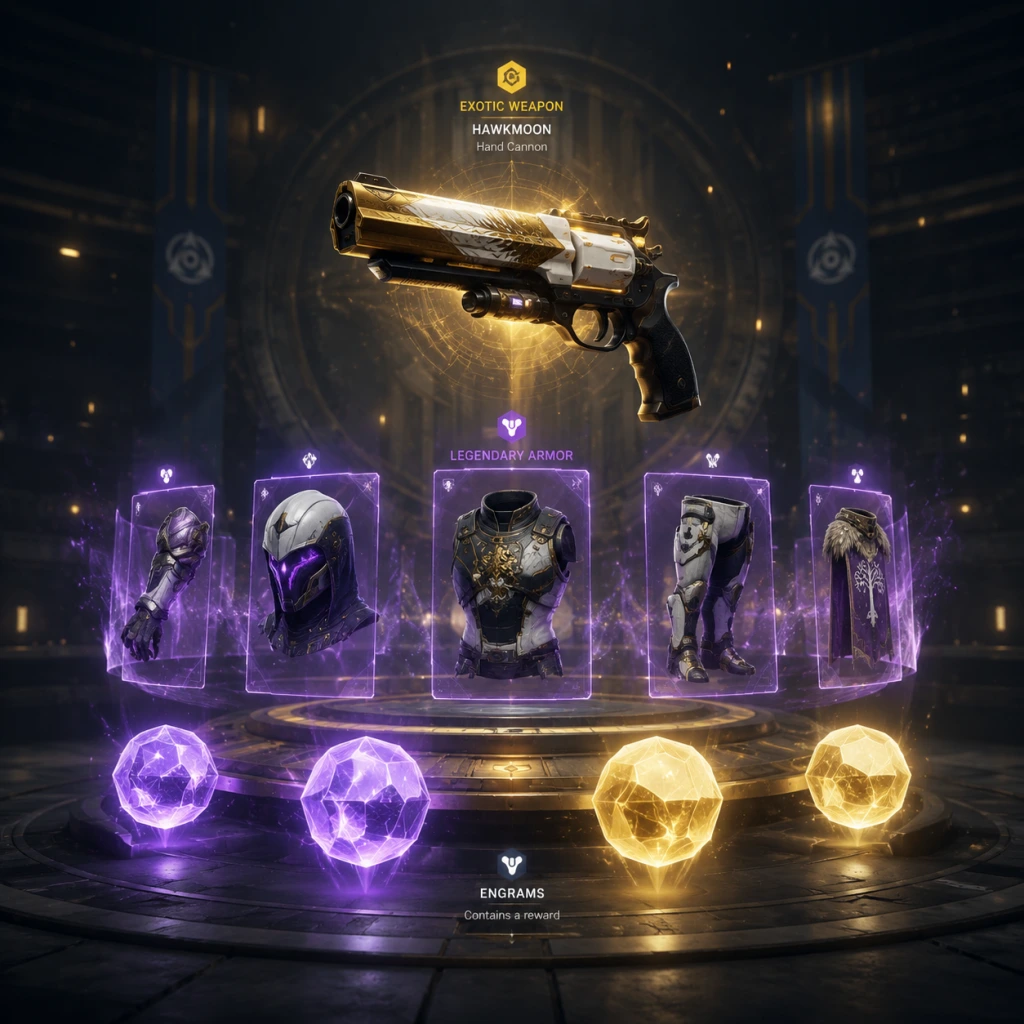
All Game Items
All Game Items
This guide catalogs every major item type in Destiny 2, organized by category. Each entry explains the item’s function, how to acquire it, when it shines, and notable synergies or upgrades.
---
Weapons
Weapons are divided into three slots: Kinetic, Energy, and Power. Each has unique archetypes, rarities (Common, Uncommon, Rare, Legendary, Exotic), and elemental damage (Solar, Arc, Void, Stasis, Strand, Kinetic for Kinetic slot). Exotics have unique perks and cannot be infused above their cap unless upgraded with Exotic Ciphers.
Kinetic Weapons (top slot)
- Primary Ammo: Auto Rifles, Hand Cannons, Pulse Rifles, Scout Rifles, Sidearms, Submachine Guns. Best for general add clear.
- Special Ammo: Shotguns, Snipers, Fusion Rifles, Bows (some), Glaives. For high burst damage.
- Exotics: Example: Ace of Spades (Hand Cannon – kills reload & buff damage), Outbreak Perfected (Pulse – nanite swarms). Obtain from Exotic quests, world drops, Xur.
- Same ammo types as Kinetic but with elemental damage. Essential for matching shields (e.g., Arc shields take more Arc damage).
- Exotics: Trinity Ghoul (Bow – lightning chain), Riskrunner (SMG – Arc conductor after taking Arc damage).
- Heavy Ammo: Rocket Launchers, Grenade Launchers, Linear Fusion Rifles, Swords, Machine Guns. High damage per shot.
- Exotics: Gjallarhorn (Rocket – tracking wolves), Thunderlord (Machine Gun – lightning strikes), Lament (Sword – healing on combo).
- World drops: Legendary engrams from any activity.
- Vendor ranks: Crucible, Vanguard, Gambit, Gunsmith.
- Raids & Dungeons: Unique loot pools; weekly lockouts.
- Exotic quests (e.g., “Presage” for Dead Man’s Tale) or Monuments to Lost Lights (kiosk in Tower).
- Seasonal activities: Umbral Engrams focused via Prismatic Recaster.
- Masterwork: Fully upgrade a weapon to gain +10 to a stat and create orbs on multikills. Costs Enhancement Cores, Prisms, Ascendant Shards.
- Crafted Weapons: From The Witch Queen expansion onwards. Level up to unlock enhanced perks (e.g., Enhanced One For All). Use crafting materials (neutral element, resonant alloys).
- Exotic Catalysts: Upgrade Exotics to add a tracker, stat boost, or perk. Dropped randomly from strikes, crucible, or specific activities.
- Legendary Armor: World drops, vendors, raids, dungeons, seasonal content. Can be masterworked.
- Exotic Armor: Each class has ~30 exotics with unique perks. One Exotic armor and one Exotic weapon allowed at a time.
- Armor Mods: Socketed into armor pieces. Types: Combat Style (Charged with Light, Warmind Cells, Elemental Wells), Raid/Dungeon mods, Stat mods (+5 to stat), General mods (Ammo finder, Scavenger, Resist).
- Elemental Affinity: Armor can be Arc, Solar, Void, Stasis, or Strand. Determines which mods can be slotted. Changing affinity costs 1 Upgrade Module.
- Artifact Mods: Unlocked via Seasonal Artifact (e.g., Anti-Barrier, Overload, Unstoppable). Vary each season; provide champion-perk weapons and bonus power.
- Masterwork Armor: Fully upgrade to gain +2 to all stats (total +12) and damage reduction while super is active. Costs Enhancement Prisms and Ascendant Shards.
- Stat Focus: Farm high-stat armor from Pit of Heresy, Prime Engrams, or seasonal umbral focusing.
Energy Weapons (middle slot)
Power Weapons (heavy slot)
#### Obtaining Weapons
#### Synergies and Upgrades
---
Armor
Armor is class-specific (Titan, Hunter, Warlock) with five slots: Helmet, Gauntlets, Chest, Legs, Class Item. Each has base stats (Mobility, Resilience, Recovery, Discipline, Intellect, Strength). Armor 2.0 system allows mod customization.
Rarity & Sources
- Example: Cuirass of the Falling Star (Titan – boosts Thundercrash). Obtain from solo lost sectors on Legend/Master difficulty (higher drop rate).
Mods & Customization
#### Upgrades
---
Consumables
Consumables provide temporary buffs, assist in activities, or unlock rewards.
| Item | Purpose | Acquisition | Notes |
|---|---|---|---|
| Raid Banner | Summons a banner that restores all ammo and super energy for a team. | Purchased from Hawthorne (5000 Glimmer). | Used before raid/dungeon encounters. |
| Finest Matterweave | Guarantees an Enhancement Core from the next powerful enemy killed. | Random drop or purchase from Banshee-44. | Stackable; use during powerful activities. |
| Eververse Engram | Contains cosmetic items (ornaments, ships, etc.). | Earned via seasonal rank-ups or purchased with Silver. | Can be previewed before opening. |
| Upgrade Module | Infuse a weapon/armor to a higher power level. | Purchased from Banshee-44 (10,000 Glimmer + 10 Legendary Shards). | Core to power level progression. |
| Enhanced Prism | Used to masterwork armor from Tier 8 to 9. | Nightfalls, Master/Grandmaster content, season pass. | Trade 10 to Rahool for an Ascendant Shard. |
| Ascendant Shard | Final upgrade for armor masterwork. | Grandmaster Nightfalls, raid encounters, season pass. | Very limited; use only on high-stat or exotic armor. |
| Exotic Cipher | Allows purchase of an Exotic from the Monument to Lost Lights. | Xur’s weekly quest “Xenology” (requires 21 strike/crucible/gambit completions). | Can hold only one at a time. |
Materials
Materials are used for upgrades, focusing, and crafting.
- Glimmer: Common currency (max 250,000 base; can increase via Ghost mods). Used for nearly everything: buying items, infusing, pulling from collections. Farm from public events, bounties, treasure chests.
- Legendary Shards: From dismantling Legendary/Exotic items. Used for focusing Umbral Engrams, buying Upgrade Modules, pulling items from collections. Max is limited only by inventory space (but they overflow to postmaster).
- Enhancement Cores: Upgrade weapon/armor from Tier 1-5. Drop from Banshee bounties, Nightfalls, dismantling masterworked items.
- Enhancement Prisms: Tier 6-8 armor upgrade. See Consumables table above.
- Ascendant Shards: See Consumables.
- Planetary Materials: Dusklight Shard, Herealways Piece, etc. Used for weapon crafting, focusing, and old vendor upgrades. Now mostly from planetary chests or Spider (if available).
- Crafting Materials: Neutral Element, Resonant Alloy, Ruinous Element, Ascendant Alloy. Acquired from Deepsight weapons, Ghost mods, and seasonal activities.
- Silver (Premium): Real-money currency (1000 Silver = $10). Used in Eververse for cosmetics, season pass, and bundles.
- Bright Dust: Earned from weekly bounties, seasonal challenges, and dismantling Eververse items. Used for Eververse cosmetic items (ornaments, emotes, shaders).
- Seasonal Currency: Each season has its own (e.g., Seraphite, Risen Umbral Energy). Used at the seasonal vendor for focusing umbral engrams.
- Vanguard/Crucible/Gambit Tokens (now deprecated): Replaced by reputation ranks. Still used in some legacy vendors.
- Destination Materials: Used to purchase bounties from planetary vendors (e.g., Etheric Spiral from Spider, but most are legacy).
- Triumphs: In-game achievements tracked under “Triumphs” tab. Completing them awards Bright Dust, titles (e.g., Rivensbane), and emblems. Some require Raid challenges or solo dungeons.
- Lore Books: Unlock by collecting hidden items (e.g., Dead Ghosts) or completing certain activities. Provide story background; grant triumphs and sometimes emblems.
- Emblems: Cosmetic badges for your nameplate. Earned from triumphs, events, collections, or code redemption.
- Shaders: Color palettes for weapons and armor. Obtained from dismantling items, Eververse, triumphs. Can be applied to any armor (once per shader piece if not unlocked in collections).
- Ghost Shells, Sparrows, Ships: Cosmetic without gameplay effect except Ghost mods. Source: Eververse, triumphs, Season Pass, Nightfall loot pool.
- Function: Provides XP bonuses, resource tracking, and mod slots (e.g., Treasure Hunter, Scavenger, Speed Demon).
- Acquisition: Eververse, season pass, triumphs, Xur (random).
- Mods: Detect caches, increase Glimmer from kills, reduce respawn timer, etc. Equip via Ghost screen.
- Function: Personal vehicle for fast travel on planets. Each has identical speed; differences are cosmetic.
- Acquisition: Eververse, collections, specific quests (e.g., “A Feather or Two”).
- Mods: Customizable via Eververse or quest rewards (e.g., improved handling).
- Function: Travel loading screen cosmetic. No gameplay effect.
- Acquisition: Eververse, raids (exclusive ships), season pass, triumphs.
- Function: Provides bonus power level (up to +20) and unlockable mods that grant champion perks (Anti-Barrier, Overload, Unstoppable).
- Acquisition: Given at start of each season via a short quest (e.g., “The Second”).
- Upgrades: Earn XP to unlock mods on the artifact tree. Unlocks reset each season.
- Weapon + Armor mods: Use “Charged with Light” mods (e.g., Taking Charge + High-Energy Fire) for bonus damage. Pair with “Elemental Well” mods to spam abilities.
- Exotic Pairings: For PvE, Exotic armor often synergizes with specific weapon types (e.g., Actium War Rig + Auto Rifles). Read perk descriptions carefully.
- Crafted Weapons: Enhanced perks outperform standard ones. Focus on leveling crafted weapons during seasonal content or Dares of Eternity.
- Masterworking: Prioritize Masterworking your most-used Exotic armor first (costs 3 Ascendant Shards for Exotic vs 3 for Legendary if you count Prisms). Weapons cost 1 Ascendant Shard for Legendary, more for Exotic.
---
Currencies
Currencies are used for purchasing cosmetics, seasonal content, and premium items.
---
Collectibles
Collectibles track achievements, lore, and cosmetic rewards.
---
Key Equipment
Equipment includes non-weapon/armor items that provide utility or cosmetics.
Ghost Shell
Sparrow
Ship
Seasonal Artifact
---
Important Synergies & Upgrades
---
This guide covers the breadth of Destiny 2’s item ecosystem. Always check current season’s artifact mods and vendor inventories before burning materials. Use Destiny Item Manager (DIM) or light.gg for detailed god rolls and mod recommendations.
Character Skills
Character Skills Overview
Destiny 2 features three Guardian classes: Titan, Hunter, and Warlock. Each class has five subclasses: Arc, Solar, Void, Stasis, and Strand. All subclasses now use the Aspects and Fragments system (introduced with Stasis, later retrofitted to Light subclasses). This guide covers every ability, including Supers, Melees, Grenades, Class Abilities, Jumps, Aspects, and Fragments. Each entry includes effects, cooldowns, upgrades (via Exotic armor or mods), combos, synergies, recommended builds, and optimal usage.
---
Class Overview
Common Class Abilities
Each class has a unique class ability and two jump types (except Warlock which has three). These are not subclass-specific.
- Titan
- Hunter
- Warlock
- Seismic Strike – Shoulder charge while sprinting; blinds nearby enemies.
- Ballistic Slam – Aerial slam; creates a damaging shockwave on landing.
- Knockout – After a melee kill, you gain increased melee range and damage; melee hits trigger health regeneration.
- Juggernaut – While sprinting, gain a frontal shield that breaks after absorbing damage.
- Touch of Thunder – Enhances grenades: Flashbang gets two charges, Pulse grenade creates a blinding explosion, Lightning grenade spawns an additional bolt, Arcbolt chains more targets.
- Spark of Resistance – When surrounded (3+ enemies), take reduced damage.
- Spark of Momentum – While sliding, gain melee energy.
- Spark of Magnitude – Increases explosion radius of Arc abilities.
- Spark of Ions – Defeating a jolted enemy creates an ionic trace that refunds ability energy.
- Throwing Hammer – Throw a hammer that can be picked up to restore melee energy.
- Hammer Strike – Shoulder charge that applies a burn.
- Roaring Flames – Solar ability kills increase ability damage (up to 3 stacks).
- Sol Invictus – Sunspots are created from ability kills; standing in a sunspot grants restoration and increased ability regen.
- Consecration – While sliding, activate to slam and create a wave of fire; follow up with another slam for a larger explosion.
- Ember of Ashes – Scales scorch stacks faster.
- Ember of Empyrean – Solar weapon or ability kills extend restoration and radiant.
- Ember of Singeing – Scorching enemies reduces class ability cooldown.
- Ember of Wonder – Ignition kills create Firesprites (grenade energy).
- Shield Bash – Shoulder charge that suppresses enemies.
- Shield Throw – Throw a shield that ricochets and weakens enemies.
- Bastion – Casting Barricade creates a Void overshield for you and nearby allies.
- Controlled Demolition – Void abilities and Volatile explosions heal you.
- Offensive Bulwark – While you have an overshield, grenade and melee recharge faster, and melee damage increases.
- Echo of Instability – Defeating volatile targets grants void weapons volatile rounds.
- Echo of Provision – Using a grenade gives melee energy.
- Echo of Domineering – Suppressing a target grants increased reload and handling.
- Echo of Reprisal – Taking damage near multiple enemies grants super energy.
- Howl of the Storm – Sliding while meleeing creates a wave of stasis crystals.
- Cryoclasm – Sprint to slide further and shatter frozen targets.
- Tectonic Harvest – Shattering stasis crystals creates stasis shards (melee energy).
- Whisper of Rime – Collecting stasis shards grants overshield.
- Whisper of Chains – Near frozen targets or crystals, take reduced damage.
- Whisper of Conduction – Shards track to you.
- Whisper of Shards – Shattering a crystal increases grenade recharge.
- Into the Fray – While you have Woven Mail (damage resistance from Strand), your melee charges faster.
- Drengr’s Lash – Activating Barricade creates a suspension wave.
- Banner of War – Defeating enemies near allies grants a buff that increases melee damage and healing.
- Thread of Generation – Dealing damage generates grenade energy.
- Thread of Warding – Picking up a Tangle grants Woven Mail.
- Thread of Fury – Damaging a Tangle with a melee refunds melee energy.
- Thread of Rebirth – Defeating suspended enemies spawns Threadlings.
- Combination Blow – Melee kill stacks increased damage and health regen (up to 3x).
- Disorienting Blow – Melee blind.
- Flow State – Dodging while amplified makes you harder to see and increases melee range.
- Lethal Current – After dodging, your next melee hits twice and jolts.
- Tempest Strike – While sliding, melee creates a wave of lightning.
- Knife Trick – Fan of three burning knives.
- Weighted Knife – Precision throw that refunds energy on kill.
- Proximity Knife – Throwing knife that explodes on contact.
- On Your Mark – Precision hits and kills increase reload and handling.
- Gunpowder Gamble – Scorch kills charge a volatile explosive that can be thrown.
- Knock ‘Em Down – Golden Gun and Blade Barrage gain increased duration or additional knives.
- Snare Bomb – Throw a smoke bomb that slows and weakens.
- Trapper’s Ambush – Quickfall melee that creates a smoke cloud.
- Vanishing Step – Dodging makes you invisible.
- Trapper’s Ambush – Quickfall makes you and nearby allies invisible.
- Stylish Executioner – Defeating a weakened, volatile, or suppressed target makes you invisible and marks nearby enemies.
- Shatterdive – Air dash downward to shatter frozen targets.
- Touch of Winter – Enhances grenades: Duskfield becomes larger, Glacier becomes a wall of crystals, Coldsnap tracks faster.
- Grim Harvest – Defeating slowed or frozen enemies creates stasis shards.
- Widow’s Silk – Grapple creates a permanent tangle and you get an extra grenade charge.
- Ensaring Slam – Air dodge to slam down and suspend enemies.
- Threadrunner – Defeating suspended targets creates threadlings.
- Arc Soul – After using rift, gain an arc soul that shoots nearby enemies.
- Electrostatic Surge – Killing enemies while amplified creates Ionic Traces and extends amplified.
- Lightning Surge – While sliding, melee to teleport and deal damage.
- Heat Rises – While airborne, consume grenade to float and gain melee energy on kills.
- Icarus Dash – Air dodge (two charges).
- Touch of Flame – Enhances grenades: Healing grenade provides restoration, Fusion grenade explodes twice, etc.
- Devour – Consuming a grenade grants devour; melee kills also can trigger it.
- Chaos Accelerant – Hold grenade to overcharge: Vortex becomes larger, Scatter becomes seeking, etc.
- Feed the Void – Defeating enemies with void abilities grants devour.
- Child of the Old Gods – After casting rift, a void soul that weakens and drains enemies.
- Iceflare Bolts – Shattering a frozen target spawns seekers that freeze others.
- Glacial Harvest – Freezing enemies creates stasis shards.
- Bleak Watcher – Hold grenade to deploy a turret that slows/freezes.
- Mindspun Invocation – Consume grenade for buff: Shackle creates suspending tornado, Threadling spawns seekers, etc.
- Weaver’s Call – Rift periodically spawns threadlings.
- The Wanderer – Tangles you create seek enemies and suspend.
- Class Ability: Barricade (Towering Barricade – tall wall; Rally Barricade – short cover with reload boost; Marksman’s Dodge? No, Titan has only Barricade variations).
- Jumps: High Lift, Strafe Lift, Catapult Lift.
- Class Ability: Dodge (Gambler’s Dodge – dodges near enemies refunds melee energy; Marksman’s Dodge – dodge reloads equipped weapon).
- Jumps: Triple Jump, Strafe Jump, High Jump.
- Class Ability: Rift (Healing Rift – continuously heals allies; Empowering Rift – increases weapon damage).
- Jumps: Burst Glide, Strafe Glide, Balanced Glide.
---
Titan Subclasses
Arc Titan (Striker)
Super: Fists of Havoc (roaming) – Ground slam chain; Thundercrash (one-off) – Fly forward and impact for massive damage. Cooldown: ~8:30 base (adjusted by Intellect mods).
Melee:
Grenades: Flashbang (blinds), Pulse (chain lightning), Lightning (stickies), Arcbolt (seekers).
Aspects:
Key Fragments:
Recommended Build: Thundercrash + Knockout + Touch of Thunder – Use exotics like Cuirass of the Falling Star to boost Thundercrash damage. Focus on Ionic Traces for ability uptime. Use with Arc weapons for synergy.
When to use: Thundercrash for boss DPS; Fists of Havoc for add clear. Knockout for sustain in PvP or PvE. Touch of Thunder for grenade spam.
---
Solar Titan (Sunbreaker)
Super: Hammer of Sol (roaming) – Throw explosive hammers; Burning Maul (roaming) – Slam the ground creating a tornado of fire.
Melee:
Grenades: Incendiary (burn), Thermite (line of fire), Fusion (stick and explode), Solar Grenade (area burn).
Aspects:
Key Fragments:
Recommended Build: Hammer of Sol + Roaring Flames + Sol Invictus – Use exotic Synthoceps or Loreley Splendor Helm. Focus on sunspots and hammer throwing for infinite melees. Perfect for add clear and sustain.
When to use: Hammer of Sol for mobs; Burning Maul for crowd control. Consecration for burst damage. Roaring Flames for high damage stacks.
---
Void Titan (Sentinel)
Super: Ward of Dawn (bubble) – Provides overshield and weapons of light to allies; Sentinel Shield (roaming) – Shield that can block damage and be thrown.
Melee:
Grenades: Vortex (pull + damage), Suppressor (silences abilities), Magnetic (stick + bounce), Axion Bolt (seeker).
Aspects:
Key Fragments:
Recommended Build: Ward of Dawn + Bastion + Controlled Demolition – Exotic: Helm of Saint-14 for bubble. Pair with grenade launchers or Void weapons for Volatile spam. Great for endgame survivability.
When to use: Ward of Dawn for boss encounters or capture points; Sentinel Shield for add clear and protection. Bastion for team overshields.
---
Stasis Titan (Behemoth)
Super: Glacial Quake – Roaming super that creates stasis crystals and shatters them for massive damage.
Melee: Shiver Strike – Lunge forward, dealing damage and slowing/freezing on impact.
Grenades: Glacier (create wall), Coldsnap (seek + freeze), Duskfield (pull and slow).
Aspects:
Key Fragments:
Recommended Build: Glacial Quake + Cryoclasm + Tectonic Harvest – Exotic: Howl of the Storm? Actually exotics like Heart of Inmost Light work. Focus on crystal shattering for ability regen. Excellent for crowd control and damage.
When to use: Glacial Quake for area denial and burst damage. Cryoclasm to aggressively shatter. Tectonic Harvest for melee uptime.
---
Strand Titan (Berserker)
Super: Bladefury – Roaming super with two claws that lunge and create suspend waves.
Melee: Frenzied Blade – Three rapid dash attacks that suspend enemies.
Grenades: Threadling (seekers that spawn), Grapple (pull + melee), Shackle (suspend).
Aspects:
Key Fragments:
Recommended Build: Banner of War + Into the Fray – Exotic: Synthoceps for melee damage. Focus on melee spam and suspend. Great for high-damage builds and team support.
When to use: Bladefury for mobbing and suspending. Banner of War for sustained melee damage in groups. Drengr’s Lash for instant suspend.
---
Hunter Subclasses
Arc Hunter (Arcstrider)
Super: Arc Staff – Roaming polearm with spin attacks and block; Gathering Storm – Throws a staff that storms the area and can be recalled.
Melee:
Grenades: Same as Titan (Arc).
Aspects:
Key Fragments: Same as Titan Arc fragments.
Recommended Build: Gathering Storm + Flow State + Lethal Current – Exotic: Liar’s Handshake for melee refund. Use Combination Blow for add clear and health. Perfect for arc melee builds.
When to use: Gathering Storm for boss damage; Arc Staff for mob control. Lethal Current for jolt synergy.
---
Solar Hunter (Gunslinger)
Super: Golden Gun – Six-shooter rifle; Blade Barrage – Throw multiple exploding knives.
Melee:
Grenades: Solar grenades (same as Titan).
Aspects:
Key Fragments: Same as Solar fragments.
Recommended Build: Blade Barrage + Knock ‘Em Down + On Your Mark – Exotic: Celestial Nighthawk for single shot Golden Gun or Shards of Galanor for Blade Barrage refund. Great for burst DPS.
When to use: Golden Gun for precision boss damage; Blade Barrage for add clear or burst. Knock ‘Em Down for super improvement.
---
Void Hunter (Nightstalker)
Super: Shadowshot – Tethers enemies making them take more damage and suppressing; Moebius Quiver – Fires multiple tethers that weaken.
Melee:
Grenades: Void grenades.
Aspects:
Key Fragments: Void fragments.
Recommended Build: Shadowshot + Vanishing Step + Stylish Executioner – Exotic: Orpheus Rig for super energy refund on tethered enemies. Excellent for invisibility and debuff synergy.
When to use: Shadowshot for crowd control and debuff; Moebius Quiver for single target. Stylish Executioner for perma-invisibility.
---
Stasis Hunter (Revenant)
Super: Silence and Squall – Throw a kama that freezes and creates a tornado that slows and damages.
Melee: Withering Blade – Throw a shuriken that slows and can bounce.
Grenades: Stasis grenades.
Aspects:
Key Fragments: Stasis fragments.
Recommended Build: Silence and Squall + Touch of Winter + Grim Harvest – Exotic: Bakris for dodge boost with Stasis. Focus on shatter combos. Great for crowd control and ability regen.
When to use: Silence and Squall for area denial. Shatterdive for instant crystal destruction. Touch of Winter for enhanced grenades.
---
Strand Hunter (Threadrunner)
Super: Silkstrike – Roaming super with rope darts that suspend and damage.
Melee: Threaded Spike – Throw a rope dart that returns and suspends.
Grenades: Strand grenades.
Aspects:
Key Fragments: Strand fragments.
Recommended Build: Silkstrike + Widow’s Silk + Ensaring Slam – Exotic: The Sixth Coyote for extra dodge. Use for high mobility and suspend loops.
When to use: Silkstrike for ad clear. Widow’s Silk for tangle generation. Ensaring Slam for quick suspend.
---
Warlock Subclasses
Arc Warlock (Stormcaller)
Super: Stormtrance – Roaming lightning hands; Chaos Reach – Beam of arc energy that can be canceled.
Melee: Chain Lightning – Melee that chains; Ball Lightning – Launch a ball that explodes vertically.
Grenades: Arc grenades.
Aspects:
Key Fragments: Arc fragments.
Recommended Build: Chaos Reach + Arc Soul + Electrostatic Surge – Exotic: Geomag Stabilizers for super duration (Chaos Reach). Good for ability spam and ranged damage.
When to use: Chaos Reach for boss DPS; Stormtrance for add clear. Arc Soul for turret support.
---
Solar Warlock (Dawnblade)
Super: Daybreak – Roaming sword that shoots projectiles; Well of Radiance – Plant a sword that heals and empowers allies.
Melee: Celestial Fire – Three-projectile melee; Incinerator Snap – A snap that scorches.
Grenades: Solar grenades.
Aspects:
Key Fragments: Solar fragments.
Recommended Build: Well of Radiance + Touch of Flame + Heat Rises – Exotic: Starfire Protocol for fusion grenade spam. Essential for raid DPS phases.
When to use: Well of Radiance for team support; Daybreak for add clear. Touch of Flame for enhanced grenades.
---
Void Warlock (Voidwalker)
Super: Nova Bomb – Single projectile; Nova Warp – Roaming void teleport explosions.
Melee: Pocket Singularity – Throw a void ball that pulls enemies and weakens; Devour (via aspect) – Melee kills activate devour (health regen on kills).
Grenades: Void grenades.
Aspects:
Key Fragments: Same as Void fragments.
Recommended Build: Nova Bomb + Devour + Feed the Void – Exotic: Contraverse Hold for grenade regen on damage. Great for survivability and grenade spam.
When to use: Nova Bomb for burst; Nova Warp for mobile PvP. Devour for infinite health in PvE.
---
Stasis Warlock (Shadebinder)
Super: Winter’s Wrath – Roaming staff that shoots freezing projectiles and shatters.
Melee: Penumbral Blast – Freeze on hit.
Grenades: Stasis grenades.
Aspects:
Key Fragments: Stasis fragments.
Recommended Build: Winter’s Wrath + Bleak Watcher + Iceflare Bolts – Exotic: Osmiomancy Gloves for turret charges. Excellent for crowd control and freezing entire rooms.
When to use: Winter’s Wrath for area freeze. Bleak Watcher for persistent CC. Iceflare Bolts for chain freezes.
---
Strand Warlock (Broodweaver)
Super: Needlestorm – Summon a volley of threadling seekers.
Melee: Arcane Needle – Three charges of a tracking projectile that severs.
Grenades: Strand grenades.
Aspects:
Key Fragments: Strand fragments.
Recommended Build: Needlestorm + Mindspun Invocation + Weaver’s Call – Exotic: Swarmers for threadling damage. Great for add clear and area control.
When to use: Needlestorm for burst. Mindspun Invocation for enhanced grenade. Weaver’s Call for threadling generation.
---
Conclusion
Mastering each subclass’s skills, aspects, and fragments is key to optimal play in Destiny 2. Experiment with different exotics and mods to find the build that fits your playstyle. For endgame content, always consider team composition and subclass synergy.
Characters & Roles
Characters & Roles
This guide covers every major playable class and non-playable character in Destiny 2. Playable characters are your Guardian – a resurrected warrior of Light – customized through three distinct classes. Non-playable characters (NPCs) drive the story and provide quests, lore, and services.
---
Playable Characters: The Guardian Classes
Your Guardian is the central hero. Each class has unique abilities, supers, and class items. All three classes are available to all players from the start (free-to-play). Subclasses must be unlocked via quests or purchased.
1. Titan
- Background: Titans are the armored wall of the Last City. Descended from the ancient order of the same name, they prioritize strength, defense, and protection. Famous Titans include Zavala and Saint-14.
- Strengths: High durability, crowd control (Barricade), strong melee, excellent for holding objectives and tanking damage.
- Weaknesses: Lower mobility, slower jump (Lift), less evasive than other classes.
- Playstyle: Aggressive frontliner. Use Barricade to block damage or revive allies. Subclasses emphasize area denial (Sentinel Shield), burst damage (Sunbreaker), or heavy assault (Striker).
- Unlock Conditions: All three classes are available from character creation. Subclasses require quests (e.g., "New Light" or DLC campaigns).
- Recommended Builds:
- Team Synergy: Titan supports with overshields (Void), damage buffs (Sunbreaker), and area control (Barricade). Very strong in raids and Grandmaster Nightfalls as a flex tank.
- Background: Hunters are scouts, lone wolves, and sharpshooters. They explore beyond the City and bring back knowledge. Famous Hunters include Cayde-6, Eris Morn (former), and the Exo Stranger.
- Strengths: High mobility, excellent dodge (class ability), precise damage, stealth options. Best for flanking and hit-and-run.
- Weaknesses: Low resilience, less crowd control than Titans or Warlocks, reliant on positioning.
- Playstyle: Agile skirmisher. Dodge reloads or recharges melee. Subclasses specialize in burst damage (Gunslinger), support (Nightstalker), or rapid attacks (Arcstrider).
- Unlock Conditions: Same as Titan. All subclasses available through quests.
- Recommended Builds:
- Team Synergy: Hunters provide debuffs (Nightstalker's Tether), invisibility for revives (Void), and massive burst damage (Celestial). Essential for high-level content revives.
- Background: Warlocks are scholars, mystics, and masters of the Light (and Darkness). They study the Traveler's powers. Famous Warlocks include Ikora Rey, Osiris, and Eris Morn (current).
- Strengths: Best healing (Rift class ability), powerful grenades, strong area-of-effect supers, self-buffs. Excellent support and crowd control.
- Weaknesses: Lower base mobility, no instant dodge, Rift requires stationary placement.
- Playstyle: Caster/support. Place Healing or Empowering Rift. Use grenades and ranged melee. Subclasses excel at healing (Dawnblade), crowd control (Voidwalker), or raw damage (Stormcaller).
- Unlock Conditions: Same as other classes.
- Recommended Builds:
- Team Synergy: Warlocks provide essential healing (Well of Radiance), damage buffs (Empowering Rift), and debuffs (Slow/Freeze). Mandatory in raids and Grandmasters.
- Role: Celestial entity, source of Light. The Great Machine terraformed planets. Now dormant above the Last City.
- Background: Ancient being of Light, opposed by the Darkness (Pyramids). Granted Ghosts to resurrect Guardians. Currently healing after the Red War.
- Significance: Central to the story. Guardians draw power from its Light.
- Role: Your companion, resurrects you, stores engrams, provides narrative commentary.
- Background: A fragment of the Traveler’s Light. Each Guardian has a unique Ghost voiced by Nolan North. Ghosts can be customized with shells.
- Significance: Essential for gameplay – revives, decrypts, and scans objects.
- Role: Titan Vanguard leader of the Last City. Represents military and protective authority.
- Background: First Guardian to be resurrected after the Collapse. Voice of reason, often at odds with Hunters and Warlocks.
- Quests: Gives red border weapons from Vanguard Ops and Nightfalls.
- Personality: Stoic, duty-bound, deeply cares for Humanity.
- Role: Warlock Vanguard, Hidden leader, master of the Void.
- Background: Former crucible champion, mentor to many Warlocks. Runs the Hidden intelligence network.
- Quests: Provides Meditations, Hidden bounties, and exotic quests.
- Personality: Wise, secretive, powerful.
- Role: Former Hunter Vanguard, comic relief, ace gunslinger.
- Background: Exo with a penchant for gambling and jokes. Died in the Forsaken expansion. His death started the Dreaming City curse.
- Significance: Although dead, his legacy continues via Ace of Spades, lore, and memorial. No longer gives quests (post-Forsaken).
- Role: Dredgen (ex-Gambit handler), rogue Lightbearer. Overseer of Gambit.
- Background: Ancient Lightbearer who survived the Dark Age by using Darkness. Runs Gambit matches in the Annex.
- Quests: Gambit bounties, Mote of Light, and exotic quests (Malfeasance, Lumina).
- Personality: Cynical, manipulative, but helpful to Guardians.
- Role: Hive expert, former Hunter, now a Warlock of sorts, guide on the Moon.
- Background: Lost her fireteam on the Moon, carries a Hive Acolyte eye. Key figure in Shadowkeep and Season of the Witch.
- Quests: Moon bounties, Pit of Heresy, exotic quests (Deathbringer, Xenophage).
- Personality: Omniscient, sorrowful, brutally honest.
- Role: Queen of the Awoken, former ruler of the Dreaming City, ally of the Guardian.
- Background: Powerful Awoken leader, skilled in Light and Darkness. Announced her presence in Forsaken.
- Quests: Seasonal content (Season of the Lost), offers Ascendant challenges, raid-related.
- Significance: Major lore figure, helps against Savathûn.
- Role: Temporal anomaly, former Exo, ally from the future.
- Background: Originally Elsie Bray from Golden Age, now a time-traveling Exo. Key figure in Beyond Light and Stasis unlock.
- Quests: Stasis subclass quests, Variks-related bounties on Europa.
- Personality: Mysterious, cautious, avoids timeline interference.
- Role: Legendary Titan, hero of the Vex timeline, present in the Infinite Forest.
- Background: Known for killing Vex with his head. Rescued by Guardian from the Vex network. Runs Trials of Osiris.
- Quests: Trials bounties, Saint-14's exotic quests (Perfect Paradox).
- Personality: Chivalrous, encouraging, deeply respects the Guardian.
- Role: Disgraced Warlock, former mentor to Saint-14, expert on Vex and Light simulation.
- Background: Exiled from the City after the Vex simulation incident. Reappeared in Curse of Osiris. Recently merged with Sagira (his Ghost).
- Quests: Seasonal content (Season of the Dawn, Season of the Lost).
- Personality: Arrogant but brilliant, now humbled.
- Role: Hive god of trickery, main antagonist in Witch Queen expansion.
- Background: Sister of Oryx, master of deception. Stole the Light and created Lucent Hive.
- Significance: Major raid boss (Vow of the Disciple), compelling villain with redemption arc.
- Role: Provides endgame lore and challenge.
- Variks the Loyal: Fallen ally, runs Europa quests and Empire Hunts.
- Spider: Eliksni crime lord, runs content in Tangled Shore (now retired from active quests).
- Xur: Agent of the Nine, sells exotic gear on weekends. Appears in random locations.
- Failsafe: AI of the Exodus Black on Nessus, provides bounties and story.
- Devrim Kay: EDZ scout, offers EDZ bounties.
- Shaw Han: New Light quest giver in Cosmodrome.
- Petra Venj: Awoken emissary on the Dreaming City, offers bounties and raid-related quests.
- The Nine: Mysterious entities, owners of the Awoken, related to Prophecy dungeon.
- Solar (Sunbreaker): Synthoceps + Roaring Flames + Sol Invictus for high melee damage. Use throwing hammer and sunspots.
- Void (Sentinel): Ursa Furiosa + Bastion + Offensive Bulwark for super-generating barricade and overshield support.
- Arc (Striker): Cuirass of the Falling Star + Thundercrash + Touch of Thunder for massive single-target super damage.
- Stasis (Behemoth): Precious Scars + Howl of the Storm + Cryoclasm for shatter-based crowd control.
- Strand (Berserker): Abeyant Leap + Into the Fray + Banner of War for constant woven mail and support.
2. Hunter
- Solar (Gunslinger): Celestial Nighthawk + Knock 'Em Down + Gunpowder Gamble for one-shot super. Or Star-Eater Scales + Blade Barrage for add clear.
- Void (Nightstalker): Omnioculus + Trapper's Ambush + Vanishing Step for permanent invisibility and team utility.
- Arc (Arcstrider): Liar's Handshake + Combination Blow + Flow State for melee chain kills. Or Raiju's Harness for super damage.
- Stasis (Revenant): Mask of Bakris + Grim Harvest + Touch of Winter for slowed targets and damage.
- Strand (Threadrunner): Whirling Maelstrom + Widow's Silk + Ensnaring Slam for insane add clear and tangles.
3. Warlock
- Solar (Dawnblade): Sunbracers + Touch of Flame + Heat Rises for infinite grenade spam. Or Phoenix Protocol for super generation with Well of Radiance.
- Void (Voidwalker): Contraverse Hold + Chaos Accelerant + Feed the Void for charged vortex grenades and devour.
- Arc (Stormcaller): Crown of Tempests + Electrostatic Surge + Arc Soul for ability uptime and support.
- Stasis (Shadebinder): Osmiomancy Gloves + Iceflare Bolts + Bleak Watcher for turret-style crowd control.
- Strand (Broodweaver): Necrotic Grips + Mindspun Invocation + The Wanderer for poison-tangle synergy and threadling swarm.
---
Non-Playable Characters (Major Roles)
The Traveler
Ghost
Commander Zavala
Ikora Rey
Cayde-6 (deceased)
The Drifter
Eris Morn
Mara Sov
The Exo Stranger (Elsie Bray)
Saint-14
Osiris
Savathûn, the Witch Queen
Others (Shorter Descriptions)
---
Summary Table: Playable Classes
| Class | Primary Role | Key Strength | Key Weakness | Best for |
|---|---|---|---|---|
| Titan | Tank/Support | High durability, crowd control | Low mobility | Holding objectives, survival |
| Hunter | DPS/Skirmish | Burst damage, evasion | Low resilience | Flanking, revives, DPS |
| Warlock | Support/Caster | Healing, ability uptime | Stationary Rift | Team support, add clear |
Conclusion
Destiny 2's characters – both playable and non-playable – create a rich, evolving world. The three Guardian classes offer distinct playstyles, each viable in all content. NPCs provide essential services, quests, and lore. Master your class, build synergy with your fireteam, and learn the NPCs' backstories to fully enjoy Destiny 2's universe.
Cheats & Secrets
Cheats & Secrets
Important Note
Destiny 2 is an online-only live-service game with no traditional cheat codes, console commands, or developer unlock codes. Bungie actively enforces anti-cheat measures; any attempt to use unauthorized third-party tools or exploits can result in a permanent ban. This guide covers only legitimate, developer-intended hidden content – including Easter eggs, secret missions, hidden areas, and collectibles – that are safe and fun to discover.
---
No Traditional Cheats
- No cheat codes like invincibility, infinite ammo, or level skips exist in Destiny 2.
- No unlock codes for items or abilities – everything is earned through gameplay.
- No developer console or debug commands are accessible to players.
---
Legitimate Hidden Content & Easter Eggs
1. Secret Missions (Exotic Quests)
These are hidden missions that grant powerful Exotic weapons. They are discoverable through specific in-game triggers.
| Mission | Exotic Reward | How to Unlock (Legit) |
|---|---|---|
| The Whisper (Io – Vaulted) | Whisper of the Worm (Sniper Rifle) | Wait for a Taken Blight public event on Io, find a secret Taken portal in the Lost Oasis during the event. (No longer obtainable due to content vaulting, but available in the "Exotic Archive") |
| Zero Hour (Tower Hangar – Vaulted) | Outbreak Perfected (Pulse Rifle) | Find the hidden Fallen transmitter in the Hangar after completing the regular mission "Enemy of My Enemy". (Now in Exotic Archive) |
| The Corridors of Time (Season of Dawn) | Bastion (Fusion Rifle) | Solve a complex puzzle involving token deposits and a hidden network of time corridors on Mercury. (Still obtainable via the “Aspect of Control” quest from the Exotic Archive) |
| Presage (Tangled Shore – Vaulted) | Dead Man’s Tale (Scout Rifle) | Board the Glykon ship via a hidden door in the Arms Dealer strike on the Tangled Shore. (Vaulted, but available in Exotic Archive) |
| Vox Obscura (Savathûn’s Throne World) | Dead Messenger (Grenade Launcher) | Complete the “Operation: Elbrus” quest and then find the hidden Pyramid ship on the Moon. (Still active in 2025) |
| Avalon (Savathûn’s Throne World) | Vexcalibur (Glaive) | Complete the “The Final Strand” mission and locate a hidden Vex portal in the Quagmire. (Active) |
2. Hidden Areas & Lore Rooms
- The Emperor’s Seals (Leviathan Raid – Vaulted): Each of the three main raid encounters had hidden seals that, when shot, opened side rooms with lore books.
- The Hidden Switches in The Whisper Mission: After clearing the jumping puzzle rooms, shoot the same glowing green switches to open chest rooms with lore and catalyst progress.
- The Fallen Transmitter in the Tower (during Season of the Outlaw): In the Hangar near the “Tribute Hall” entrance, a small radio device could be interacted with, starting the “Enemy of My Enemy” quest chain – still works for new players today.
- The Lost Sector Chest Spawn Secrets: Certain Lost Sectors have hidden levers or buttons that, when activated, spawn an additional chest with bonus loot (e.g., the Thief’s Folly Lost Sector on Nessus).
- The Ahamkara Skeleton Dance (Dreaming City): In the spine of the Keep of Honed Edges (raid area), if you stand on the large Ahamkara skull and wait, the skull will begin to bob and dance to the game’s music.
- The "Yellow Brick Road" in Prophecy Dungeon: During the desert jumping puzzle, there’s a small stretch of yellow glowing blocks that resemble the Yellow Brick Road from The Wizard of Oz. Follow them to a small nook with a ghost shell and a lore entry.
- Zavala’s Intro Quote Change: On certain holidays (e.g., Halloween, Solstice), Zavala’s opening line on the Tower changes to something seasonal or humorous.
- The Vex Milk Fountain (Nessus): In the Exodus Black zone, there’s a hidden Vex fluid fountain that sprays green liquid – jump into it for no reward, but fun.
- The Floating Scorn Face (Dreaming City): Near the Harbinger area, a floating face of a Scorn creature briefly appears and makes a sound before disappearing. A nod to the “Harbinger” exotic quest.
- The Chicken on Nessus: Near the landing zone of The Cistern, there’s a chicken that spawns and runs away if you approach. It’s been a meme since the game’s launch.
- The Cryptoglyph Puzzle (Season of the Splicer – Vaulted): A community puzzle that required capturing glyphs in a specific order to unlock hidden lore in the H.E.L.M. (Now unavailable.)
- Ahamkara Bones: Hidden in the Dreaming City, Ascendant challenges, and the Shattered Throne dungeon. Collect all 40 for the “Chronicler” title (now legacy).
- Lore Books from Hidden Chests: In the Moon’s “Pit of Heresy” dungeon, there are hidden chests that drop lore pieces for the “Letters from Eris” book.
- The “Headless Hunt” Prowler (Haunted Lost Sectors). During the Festival of the Lost, a headless pumpkin-headed foe spawns in specific locations; defeating it grants a buff and extra rewards.
- The Egg of Riven: In the Last Wish raid, there are 40 hidden Taken eggs that can only be destroyed with the Wish-Ender exotic bow. Completing all triggers a hidden chest with the “Cursebreaker” title (still obtainable).
- The Corrupted Puppeteer: In the Dreaming City’s strike “The Corrupted”, there’s a hidden conflux near the entrance that, if activated in the correct order, spawns a mini-boss and a bloom chest.
- Infinite Grenades: Using the Verity’s Brow or Shinobu’s Vow exotics with grenade-boosting mods.
- Perma-Invisibility: Hunters using the Omnioculus chest piece and the “Void” subclass can remain invisible indefinitely.
- One-Phase Damage: Using Starfire Protocol or Cuirass of the Falling Star to deal massive burst damage to bosses.
- The “Loot Cave 2.0” (EDZ – Patched): In the Gulch, a chest would respawn every 30 seconds; players farmed it until Bungie removed it.
- The “Rasputin Ball” (Moon – Patched): A giant ball from the Warmind expansion could be launched into a specific vent to unlock a secret chest in the Seraph Bunker. (No longer available.)
- The “Wall of Holes” (Io – Vaulted): A hidden cave with a wall full of small holes that spawned enemies; now inaccessible.
3. Easter Eggs
4. Secret Triumphs & Collectibles
5. Developer-Intended “Cheats” via Mods & Buildcrafting
While not cheats, Bungie permits certain powerful builds that feel like “cheats” when mastered:
6. Famous Community Secrets (Now Patched or Vaulted)
---
Conclusion
Destiny 2 has no cheat codes or unlock codes, but it is rich with developer-intended secrets and Easter eggs. These hidden missions, areas, and collectibles offer rewarding gameplay and deeper lore. Explore every corner, check all nooks, and keep an eye on community discoveries – many secrets are only hinted at in game. Always play legitimately; using exploits or cheats will get you banned.