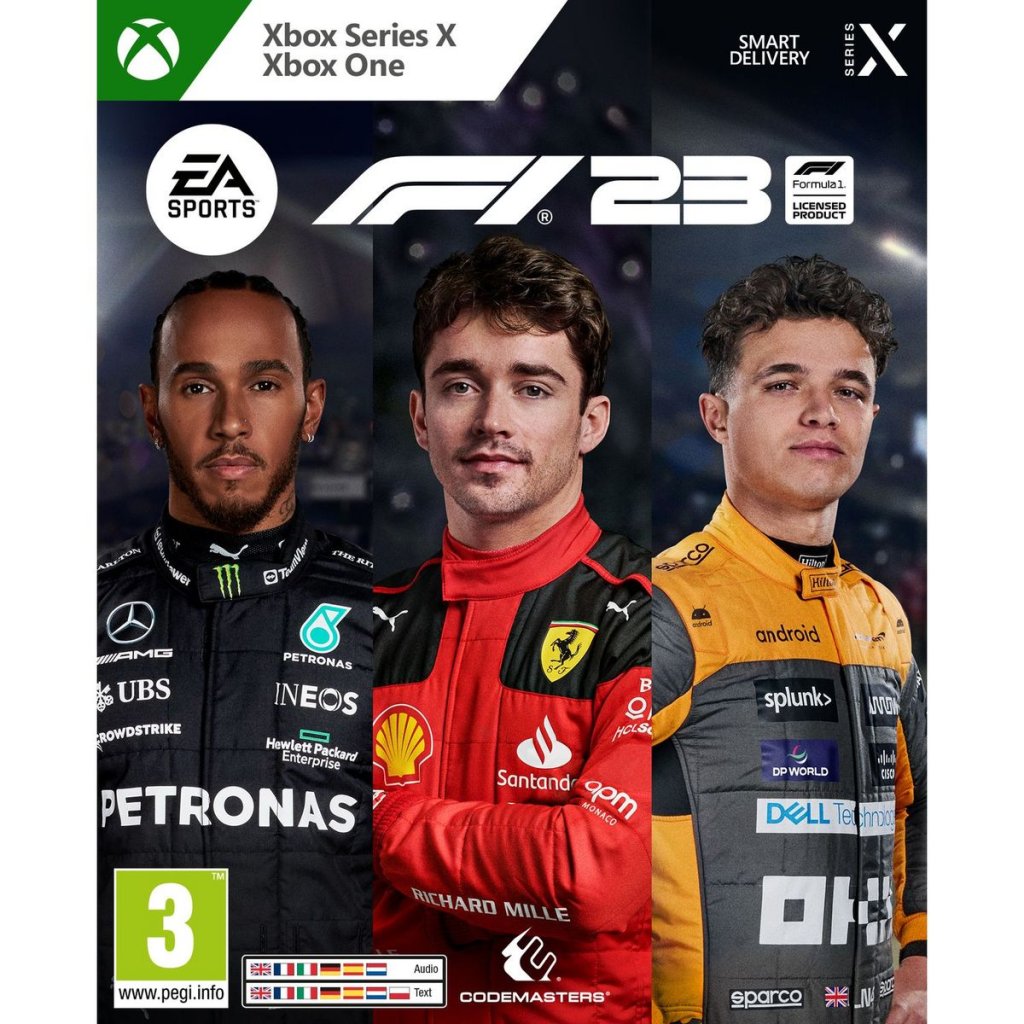
F1 23
## Game Introduction **F1 23** is the official video game of the 2023 FIA Formula One World Championship, blending authentic simulation racing with expanded narrative-driven content. Developed by **Codemasters** and published by **EA Sports**, it represents the pinnacle of the franchise’s commitm...
Download & Installation
Overview
This guide covers everything you need to download and install F1 23 on PC (Steam, Epic Games Store), PlayStation 4 & 5, and Xbox One & Series X|S. No official version exists for Nintendo Switch or mobile devices. Follow the platform-specific steps below to get racing.
---
System Requirements (PC)
Minimum Requirements (1080p, Low Settings, 30 FPS)
- OS: Windows 10 64-bit (21H1 or newer)
- CPU: Intel Core i3-2130 or AMD FX-4300
- RAM: 8 GB
- GPU: NVIDIA GTX 1050 Ti (4GB) / AMD RX 470 (4GB)
- DirectX: Version 12
- Storage: 80 GB available space (SSD recommended)
- Internet: Broadband connection required for online features
- OS: Windows 10/11 64-bit
- CPU: Intel Core i5-8600K / AMD Ryzen 5 2600X
- RAM: 16 GB
- GPU: NVIDIA RTX 2060 (6GB) / AMD RX 5600 XT (6GB)
- DirectX: Version 12
- Storage: 80 GB SSD
- Internet: Broadband connection
- CPU: Intel Core i7-10700K / AMD Ryzen 7 3700X
- GPU: NVIDIA RTX 3080 (10GB) / AMD RX 6800 XT (16GB)
- RAM: 16 GB
- Storage: 80 GB NVMe SSD
- Download the Steam client from [store.steampowered.com](https://store.steampowered.com/about/).
- Install and launch Steam, then create a free account or sign in.
- Open the Steam store and search for F1 23.
- Click Add to Cart and complete purchase (or redeem a key from a retailer).
- After purchase, click Install on the game's store page or go to your Library → F1 23 → Install.
- Choose an installation directory (avoid paths with special characters).
- Wait for download. Steam will handle the installation automatically.
- Once installed, click Play in your Library.
- First launch will sync with EA servers (see Account Requirements below).
- Download from [www.epicgames.com/store](https://www.epicgames.com/store/).
- Install and create / sign in to your Epic account.
- Search for F1 23 in the Epic Store.
- Purchase or redeem a key.
- Click Install → choose installation folder.
- Download will begin; Epic will install automatically.
- Click Launch from the Library.
- The game will prompt you to link your EA account on first startup.
- On your console, go to PlayStation Store.
- Search for F1 23.
- Choose edition (Standard, Champions Edition) and purchase.
- After purchase, the game will automatically start downloading.
- You can monitor progress from Downloads in the home screen.
- For disc versions: Insert the disc → installation starts automatically.
- Ensure you have at least 80 GB free (PS4) or 90 GB (PS5 for higher-resolution textures).
- Once installed, the game icon appears on your home screen.
- Select to launch. You’ll be prompted to sign in to your EA account.
- Go to Microsoft Store on your console or via Xbox app.
- Search for F1 23.
- Purchase or redeem digital code.
- After purchase, the download starts automatically.
- For disc: Insert disc → follow on-screen prompts.
- Required free space: 80 GB (Xbox One), 90 GB (Series X|S due to optimizations).
- You can queue the download and play while it installs partially (game supports “play while downloading” for early content).
- From Home or My Games & Apps, select F1 23.
- On first run, sign in to your EA account (or create one).
- PC (Steam/Epic): 80 GB (SSD highly recommended; HDD may cause longer load times)
- PS4: 80 GB
- PS5: 85–90 GB (includes mandatory 4K texture pack)
- Xbox One: 80 GB
- Xbox Series X|S: 85–90 GB (Smart Delivery optimizes download)
- EA Account: Required on all platforms to access online features, save progression via cloud saves, and link community events.
- Platform Accounts: Steam, Epic, PlayStation Network, Xbox Live.
- EA Play / Game Pass: If you subscribe to EA Play (PC, Xbox) or Game Pass Ultimate (Xbox, PC), F1 23 is included – but you still need an EA account.
- Online Multiplayer: Requires an active subscription (PlayStation Plus, Xbox Game Pass Core/Ultimate, or PC online is free).
- Solution: Free up space by uninstalling unused games or moving files. You usually need double the advertised space during installation (temporary files). Clear your Downloads folder and Recycle Bin.
- Cause: Outdated GPU drivers or missing Visual C++ redistributables.
- Fix: Update your graphics drivers (NVIDIA GeForce Experience / AMD Adrenalin). Install the latest DirectX runtime from Microsoft’s website.
- Cause: Network firewall or server outage.
- Fix: Check [EA Help Twitter](https://twitter.com/EAHelp) for server status. Temporarily disable antivirus/firewall (or add F1 23.exe as an exception). Restart router.
- Fix: Pause and resume download. Clear Steam download cache (Steam → Settings → Downloads → Clear Download Cache). Restart Steam.
- Fix: Install Microsoft Visual C++ 2015-2022 Redistributable (x64) from Microsoft.
- Fix: Delete the partially installed game. Go to Settings → Storage → find F1 23 and delete. Re-download from your library. Ensure console firmware is updated.
- Fix: Ensure your Game Pass subscription is active. Sign out of your Microsoft account on the console, restart, sign back in.
- Cause: Antivirus blocking executables or corrupted game files.
- Fix: Verify game files:
- Add exceptions for the game folder in your antivirus.
- Run the game as Administrator (right-click F1_23.exe → Properties → Compatibility → Run as Administrator).
- Fix: Launch in Windowed mode (add `-windowed` to launch options in Steam/Epic). Update drivers. Disable overlays (Discord, Steam, NVIDIA GeForce Experience).
- Pre-Loading: On PC, pre-load the game a day before release if you pre-ordered. On consoles, digital pre-orders also allow pre-load (check 48 hours before launch).
- Game Pass Users: F1 23 is included with EA Play (PC) and Xbox Game Pass Ultimate. Install via Xbox App on PC or console.
- Disc vs Digital: Disc versions still require a full installation to the hard drive. The disc is just a license key – you cannot play directly from the disc.
- Modding: F1 23 does not officially support mods. Unsanctioned mods may cause bans online. For offline only, use at your own risk.
- Cross-Platform: No cross-play between PC and consoles, but you can transfer progression via EA account across same platform family (PS4↔PS5, Xbox One↔Series X|S).
- Official EA Help: [help.ea.com](https://help.ea.com/)
- Steam Community Hub: [F1 23 Steam Discussions](https://steamcommunity.com/app/2108330/discussions/)
- Reddit: r/F1Game
Recommended Requirements (1080p, High Settings, 60 FPS)
For 4K / Ultra Settings (60 FPS+)
> Note: Actual storage may vary slightly depending on post-launch updates (expect ~90 GB after patches).
---
Platform-Specific Installation
1. PC – Steam
#### Step 1: Create or Sign In to Steam
#### Step 2: Purchase & Download
#### Step 3: Launch
2. PC – Epic Games Store
#### Step 1: Install Epic Games Launcher
#### Step 2: Purchase & Install
#### Step 3: Launch
3. PlayStation (PS4 / PS5)
#### Step 1: Purchase
#### Step 2: Install
#### Step 3: Launch
4. Xbox (One / Series X|S)
#### Step 1: Purchase
#### Step 2: Install
#### Step 3: Launch
---
Storage & Account Requirements
Storage Space (Per Platform)
> After day-one patches and updates, expect total usage of 90–100 GB.
Account Requirements
---
First Launch Setup
1. Language Selection: Choose your preferred language for menus, commentary, and subtitles.
2. Display Calibration: Adjust brightness, HDR (if supported), and V-Sync options.
3. Controller Setup: Configure button layout, vibration, and dead zones. Supports wheels (e.g., Logitech, Thrustmaster, Fanatec) on PC and consoles.
4. Difficulty / Assist Settings: You can set Braking Assist, Traction Control, Gearbox (Manual/Auto), and AI difficulty. These can be changed later.
5. EA Account Login: Enter your EA credentials (create one if needed). This syncs your F1 World progress and unlocks via Codemasters’ servers.
6. Optional: Telemetry Setup: For racing sim setups, you can enable UDP telemetry output (PC only).
7. Download Updates: The game may prompt to download a patch. Do not skip – it fixes crashes and enables online play.
---
Common Installation Errors & Fixes
Error: “Insufficient Disk Space”
Error: “DirectX 12 Error” (PC)
Error: “EA Servers Unreachable”
Error: “Stuck at 0% Download” (Steam)
Error: “MSVCP140.dll missing” (PC)
Error: “Installation Corrupted” (Console)
Error: “License Expired” (Game Pass)
Error: “Game Won’t Launch After Installation” (PC)
- Steam: Right-click F1 23 → Properties → Local Files → Verify integrity of game files.
- Epic: Click the three dots on F1 23 → Manage → Verify Files.
Error: “Black Screen on Launch”
---
Post-Installation Verification
1. Check Game Version: On the main menu, look at the bottom right corner for version number (e.g., v1.08). Compare with latest patch notes on EA’s website.
2. Test Online Connectivity: Enter F1 World or Multiplayer. If you see the calendar and events, the connection is working.
3. Benchmark Performance (PC): Run the built-in benchmark (Options → Display & Graphics → Benchmark). Ensure you meet your target framerate.
4. Input Devices: Test all buttons and pedals. Go to Settings → Control Setup → View Bindings.
5. Audio Check: Verify engine sounds, radio, and music levels. If no audio, check your Windows sound settings or console audio output (e.g., Dolby Atmos).
6. Cloud Save Sync: After playing a few minutes, exit the game. Relaunch – it should prompt “Loading save” confirming cloud sync.
---
Additional Tips
---
Need More Help?
Enjoy the race!

Game Introduction
Game Introduction
F1 23 is the official video game of the 2023 FIA Formula One World Championship, blending authentic simulation racing with expanded narrative-driven content. Developed by Codemasters and published by EA Sports, it represents the pinnacle of the franchise’s commitment to realism, accessibility, and community engagement.
Genre
- Simulation racing (realistic physics, tire wear, aerodynamics, ERS management)
- Arcade-adjacent features (rewind mechanic, simplified settings for newcomers)
- Developer: Codemasters (acquired by EA in 2021)
- Publisher: EA Sports
- Announced: May 3, 2023
- Release Date: June 16, 2023 (Worldwide)
- Early Access: June 13, 2023 for Champions Edition and EA Play subscribers
- PC (Steam, Epic Games Store, EA App)
- PlayStation 5
- PlayStation 4
- Xbox Series X|S
- Xbox One
- Primary Setting: The 2023 FIA Formula One World Championship calendar, featuring 23 real-world circuits (e.g., Monaco, Silverstone, Suzuka, Las Vegas Strip Circuit – new for this year)
- Time Frame: The 2023 season (March to November)
- Locations: Authentic recreations of all 23 tracks, including updated layouts and details
- Immersive Environment: Paddock club, garages, pit lane, and broadcast-style presentation
- Aiden Jackson – Young, talented McLaren driver; protagonist
- Devon Butler – Experienced, aggressive Aston Martin driver; antagonist-turned-rival
- Callie Mayer – Female driver for a new team; represents the next generation
- Toby B – Engineer / friend from F1 2021 (returns)
- Sophie Jackson – Aiden’s mother and former racing driver
- Authentic Simulation: Realistic physics, dynamic weather, full weekend format (Practice, Qualifying, Race)
- Accessibility: Multiple difficulty settings, assists (ABS, traction control, racing line), and the Precision Driving system that provides a more intuitive feel with a controller
- Braking Point 2: A compelling single-player story that breathes life into the championship
- F1 World: A persistent online hub with daily events, driver leveling, and car customization
- Cross-Platform Progression: Career progress, F1 World stats, and purchased content carry over across PC and consoles (via EA Account)
- Immersive Features: Adaptive AI, red flags, formation laps, and safety car variations
- Core Racing Fans: Those who crave realism and deep team management
- F1 Enthusiasts: Followers of the real-world sport who want to experience the 2023 season
- Story Gamers: Players interested in narrative-driven sports games (Braking Point 2)
- Casual Players: Accessible controls and assists make it welcoming for newcomers
- Esports Competitors: Dedicated ranked mode and official F1 Esports Series integration
- Career Mode – Create your own F1 driver or join as a real driver; manage a team (or race for an existing team) across multiple seasons
- My Team – Build your own team from scratch, hire staff, develop the car, manage finances, and compete for championships
- Braking Point 2 – Narrative campaign with branching choices and character arcs
- F1 World – Live service mode with weekly challenges, events, and a player progression system; earns XP to unlock cosmetic items and car upgrades
- Time Trial – Set fastest laps with leaderboards
- Multiplayer – Ranked and unranked races, custom lobbies, split-screen (2 player) on consoles
- Two-Player Career – Full championship with a friend
- Leagues – Create or join persistent leagues with custom rules and schedule
Developer & Publisher
Release Timeline
Platforms
No official version exists for Nintendo Switch or mobile devices.
Story Overview
F1 23 introduces Braking Point 2, a narrative campaign that continues the stories of characters first seen in F1 2021’s Braking Point. Players follow Aiden Jackson (McLaren’s young sensation) and Devon Butler (the controversial veteran) as their rivalry escalates through the 2023 season. Newcomer Callie Mayer enters the paddock as a rising star. The story delves into team dynamics, media pressure, and on-track drama, culminating in a pivotal championship battle. Players make key decisions that affect relationships and race outcomes, with fully voiced cutscenes and authentic F1 broadcast integration.
Setting
Main Characters (Braking Point 2)
The narrative also features real F1 personalities (e.g., Will Buxton as himself) and team principals (Zak Brown, Christian Horner, Toto Wolff, etc.) in supporting roles.
Core Appeal
Target Audience
Game Modes
Online / Offline Support
| Mode | Online | Offline | Notes |
|---|---|---|---|
| Career | No | Yes | Full offline; no internet required after install |
| My Team | No | Yes | Single-player only |
| Braking Point 2 | No | Yes | Single-player story |
| F1 World | Yes | No | Requires internet connection |
| Time Trial | Optional | Yes | Leaderboards need internet |
| Multiplayer | Yes | No (split-screen offline) | Local split-screen for 2 players on console; online cross-play supported |
| Two-Player Career | Optional | Yes | Can be local split-screen or online co-op |
| Leagues | Yes | No | Must be online to join/compete |
DLC / Expansion Overview
- Champions Edition (pre-order / deluxe) – Includes 3-day early access, VIP badge, Life-Sized Podium Pass, and exclusive cosmetic items
- F1 23 Champions Edition Upgrade – Separate purchase for standard edition owners to gain same benefits
- Formula 2 2023 – Included in base game (full F2 season with two drivers)
- Iconic Las Vegas Strip Circuit – Included in base game (new track)
- F1 23 Podium Pass – Seasonal battle pass (free and premium tiers) with cosmetics, clothing, helmet designs, and car liveries
- No major paid story expansions – Braking Point 2 is base game content
- Post-Launch Content – Free car updates, liveries, and community events tied to real-world race weekends
- F1 World Live Events – Timed challenges with exclusive rewards (no additional purchase needed)
What Makes F1 23 Unique?
1. Braking Point 2 Continuation – Only F1 game series with a multi-game narrative arc; characters evolve from F1 2021.
2. Precision Driving System – Revolutionary controller handling that bridges the gap between arcade and sim, praised for its nuanced feedback.
3. Red Flag Implementation – First time in the series (outside F1 22’s simplified version) where races can be halted and then resumed from standing starts; realistic safety protocols.
4. F1 World Hub – Persistent online metagame that keeps the game fresh year-round with daily events and a sense of progression beyond career mode.
5. Cross-Platform Progression – Unmatched continuity across PC and consoles; your driver level and purchases follow you everywhere.
6. Authentic Broadcast Package – Full race intros, mid-race interviews (with talking heads), and dynamic commentary with Alex Jacques, David Croft, and Jolyon Palmer.
7. Advanced AI – Adaptive AI learns from your driving style: mimics real driver aggression, defends harder, and makes errors based on fuel/tire states.
8. Accessibility Options – Fully customizable controls, audio cues for blind players, and colorblind modes – one of the most inclusive racing games.
Whether you’re chasing world championship glory in a full-length career, diving into the drama of Braking Point 2, or honing your skills in the ever-evolving F1 World, F1 23 delivers an unparalleled Formula One experience for 2023.
Getting Started
Getting Started
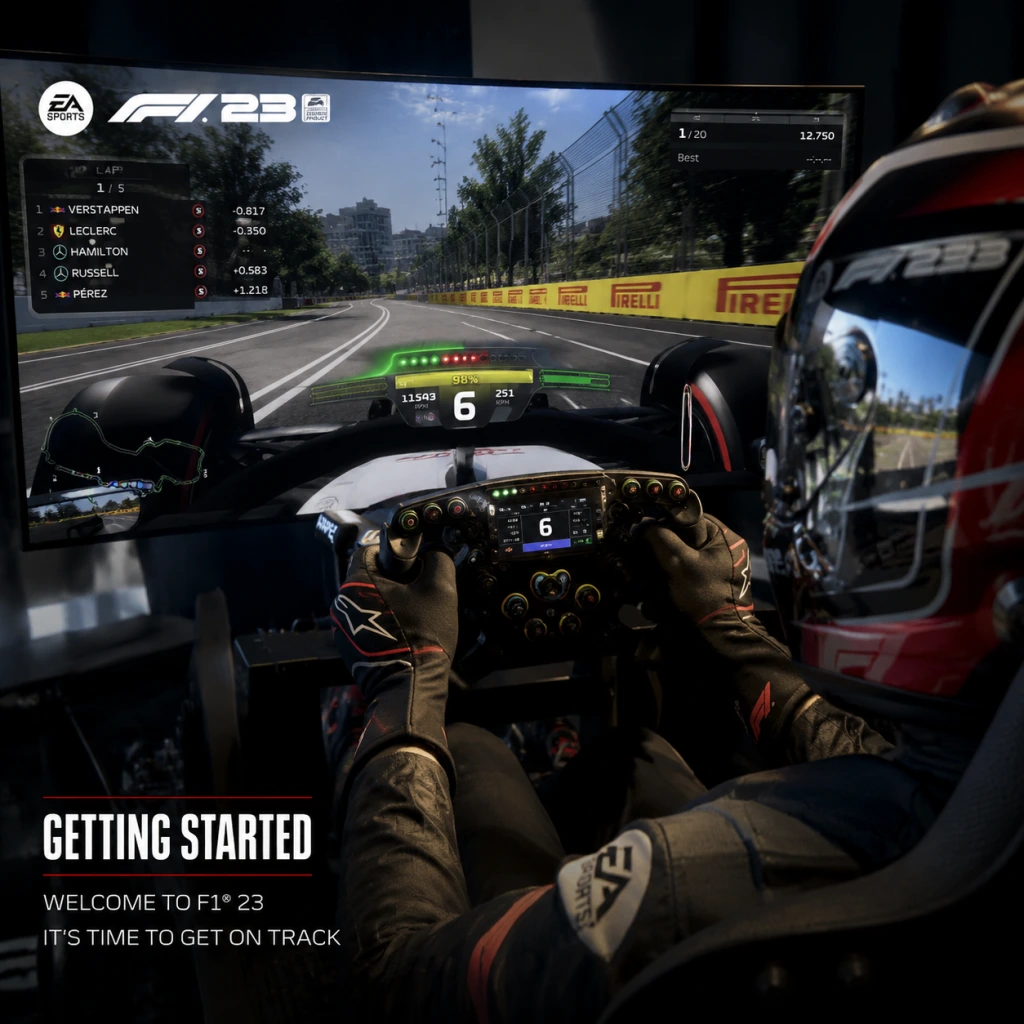
Welcome to F1 23, the most authentic Formula 1 experience yet. This guide will get you racing within your first hour and help you avoid common pitfalls. No character creation exists—you take on the role of an existing F1 driver or create your own in My Team mode. Follow this step-by-step plan to build confidence quickly.
First Hour Walkthrough
1. Launch the game and wait for the splash screens. On first launch, you’ll be prompted to choose a difficulty profile (Casual, Standard, or Expert). Select Casual if you are brand new—this will enable most driving assists.
2. Main Menu – You’ll see options: Grand Prix, Career (My Team / Driver Career), F1 World, Braking Point 2 (story mode), Multiplayer, Time Trial. Do not jump into multiplayer yet.
3. Choose Time Trial first. Pick the Bahrain International Circuit (the first track of the season) and the Red Bull Racing car (easiest to handle). Drive two or three laps just to get a feel for the throttle, braking points, and steering. Use the on-screen HUD to watch your speed, gear, and delta.
4. Exit Time Trial and start a Grand Prix event. Select Bahrain, set AI difficulty to 20 (extremely easy), and enable Flashbacks (rewind) at full (5 seconds, unlimited uses). Race distance: Short (5 laps). Complete the race, even if you spin or crash—use Flashback to retry corners.
5. After the race, go to Settings → Assists. Review your current setup: Traction Control (Full), Anti-lock Brakes (ABS on), Braking Assist (Low), Steering Assist (Full or Medium), Gearbox (Automatic), Pit Assist (On), ERS Assist (On), and DRS Assist (On). These are perfect for beginners.
6. Spend 30 minutes doing one more Grand Prix on a new track (e.g., Monza) to experience high-speed straights and chicanes. Use Flashbacks liberally.
7. Optional: Start Braking Point 2 story mode for a guided narrative with tutorials. It’s a great way to learn context and earn early rewards.
Character Creation (If Any)
There is no driver appearance creation in F1 23. You either:
- Play as an existing real F1 driver (in Grand Prix, Career, etc.)
- Create a My Team – custom team name, livery, logo, and driver suit. You cannot customize the driver’s face or body; you are a helmeted avatar. The driver’s name is entered but not spoken.
- In Braking Point 2, you control the protagonist Aiden Jackson (male) by default; no customization.
Controls (All Platforms)
Below are the default controls for each platform. Beginners should stick to automatic gearbox and assist features. For wheel/pedal users, consult your wheel’s manual for mapping.
| Action | PC (Keyboard) | PC (Gamepad – Xbox/PS) | PlayStation (DualSense) | Xbox (Wireless) |
|---|---|---|---|---|
| Accelerate | W | RT (Right Trigger) | R2 (Right Trigger) | RT |
| Brake | S | LT (Left Trigger) | L2 (Left Trigger) | LT |
| Steer Left/Right | A / D | Left Stick | Left Stick | Left Stick |
| Gear Up | Shift (right) | RB | R1 | RB |
| Gear Down | Ctrl (left) | LB | L1 | LB |
| DRS (Drag Reduction System) | Space | X (Xbox) / Square (PS) | Square | X |
| ERS Overtake | C | Y (Xbox) / Triangle (PS) | Triangle | Y |
| Pit Limiter | Q | D-Pad Down | D-Pad Down | D-Pad Down |
| Look Behind | V | Right Stick Click | R3 | Right Stick Click |
| Flashback (Rewind) | F | View/Back button + Y? (hold) | Touchpad tap? (check menu) | Menu? (check menu) |
| Pause/Esc | Esc | Start | Options | Menu |
UI Overview
Your screen (HUD) shows essential data during a race:
- Speedometer – km/h or mph (right side).
- Gear indicator – current gear number (center-right).
- Rev lights – LED bar above gear, turns red near shift point.
- Delta time – green if you are faster than your personal best, red if slower (top-left).
- Tire icons – front/rear left/right showing temperature (blue= cold, green= optimal, yellow= warm, red= too hot).
- Fuel – remaining laps (e.g., 3.2 shown as a bar).
- Position & gap – current position, time gap ahead/behind (bottom-left).
- DRS status – ‘DRS Available’ or not.
- ERS modes – Battery, Balanced, Overtake, etc. (default is auto).
- Radar – mini-map of nearby cars (top-center).
- Steering wheel (optional) – shows rotation.
- Complete 5 races on easy AI with Short distance to build muscle memory.
- Learn braking points: Aim for 100m boards, then brake zones (usually 50-100m before the turn). Use the track map and visual cues.
- Enable Flashbacks and use them every time you spin or crash – this lets you rewind 5 seconds and try again.
- Unlock the My Team career by reaching Driver Level 5 (do quick Grands Prix or Time Trials).
- Earn Pit Coins (in-game currency) by completing daily and weekly objectives from the F1 World hub.
- Do not jump into Online Multiplayer until you can avoid spinning 90% of the time. You will get hit and frustrated.
- Do not turn off assists – Traction Control Full and ABS On are your friends. Turning them off leads to constant spins.
- Do not ignore tire temperatures – cold tires cause understeer, overheated tires cause blistering. Drive smoothly for the first lap.
- Do not use manual gearbox until you are comfortable with braking points and tracks. Automatic is fine.
- Do not skip the formation lap for your first few races – it helps build track familiarity.
- Do not forget to use DRS in designated zones (press the button when the message appears within 1 second of another car).
- Spend your first Pit Coins on improving the Chassis and Aerodynamics departments at your HQ (these impact car performance the most).
- Upgrade the Power Unit gradually – it reduces engine wear.
- Save Driver perks for later; focus on car upgrades first.
- Complete the introductory ‘Welcome’ challenges to unlock basic car parts and currency.
- Prioritize the ‘Supercar’ events for XP and Pit Coins (they are easier than full GP races).
- [ ] Install the game and all updates (approx. 80-100 GB).
- [ ] Set video/graphics options to your monitor’s refresh rate (e.g., 60 FPS target for 60Hz). Turn off motion blur.
- [ ] Configure controls in Settings → Controls: ensure Flashback is mapped (if using gamepad, assign it to a convenient button like LB+RB).
- [ ] Enable Full Traction Control, ABS, Automatic gearbox, Braking Assist Low, Steering Assist Medium.
- [ ] Set AI difficulty to 20-30 and race distance to Short.
- [ ] Complete 5 laps at Bahrain in Time Trial (any car).
- [ ] Finish one Grand Prix (Bahrain, Short) without restarting – use Flashback if needed.
- [ ] Try Braking Point 2 for 20 minutes to see the story.
- [ ] Access F1 World and claim the starter rewards (usually 5,000 Pit Coins and a car part).
- [ ] Most importantly – have fun and don’t worry about pace; consistency comes before speed.
Essential Early Objectives
What to Do First
1. Set all assists to maximum in Settings → Assists. Then drive 5 laps at Bahrain in Time Trial.
2. Run a full Grand Prix weekend with easy AI (20-30) and short race length. Practice the start procedure (hold RPM at 10,500 and release when lights go out).
3. Try Braking Point 2 – it teaches racecraft, pit stops, and team radio in a low-pressure story.
4. Adjust camera – go with ‘TV Pod’ or ‘T-Cam’ (hood view) for wider awareness. Avoid bumper cam initially.
5. Learn the ”Monza” circuit – it’s fast with a few heavy braking zones; good for practicing chicanes.
What to Avoid
Early Resource Priorities
If you start My Team career:
If you play F1 World (live service hub):
Common Beginner Mistakes
1. Braking too late and turning while braking – Brake in a straight line, then release brake as you turn. Trail braking (light brake into the corner) is advanced.
2. Full throttle too early – Easy causes oversteer and spin. Gradually squeeze the throttle after the apex.
3. Missing apexes – Aim for the inside kerb of the corner; look ahead to where you want the car to go.
4. Ignoring fuel mix – Use ‘Lean’ on straights to save fuel, then ‘Rich’ for overtaking. But with ERS Assist on, it’s not critical at first.
5. Not using Flashbacks when you make a mistake – You are learning; rewind is a tool.
6. Changing too many settings at once – Only adjust one assist at a time (e.g., reduce Traction Control to Medium after 10 hours).
Day-One Checklist
Now you are ready to hit the track. Remember: every F1 champion started as a beginner. Use Flashbacks, keep assists on, and gradually increase AI difficulty when you consistently finish in the top 5. Good luck!
Core Gameplay
Core Gameplay Overview
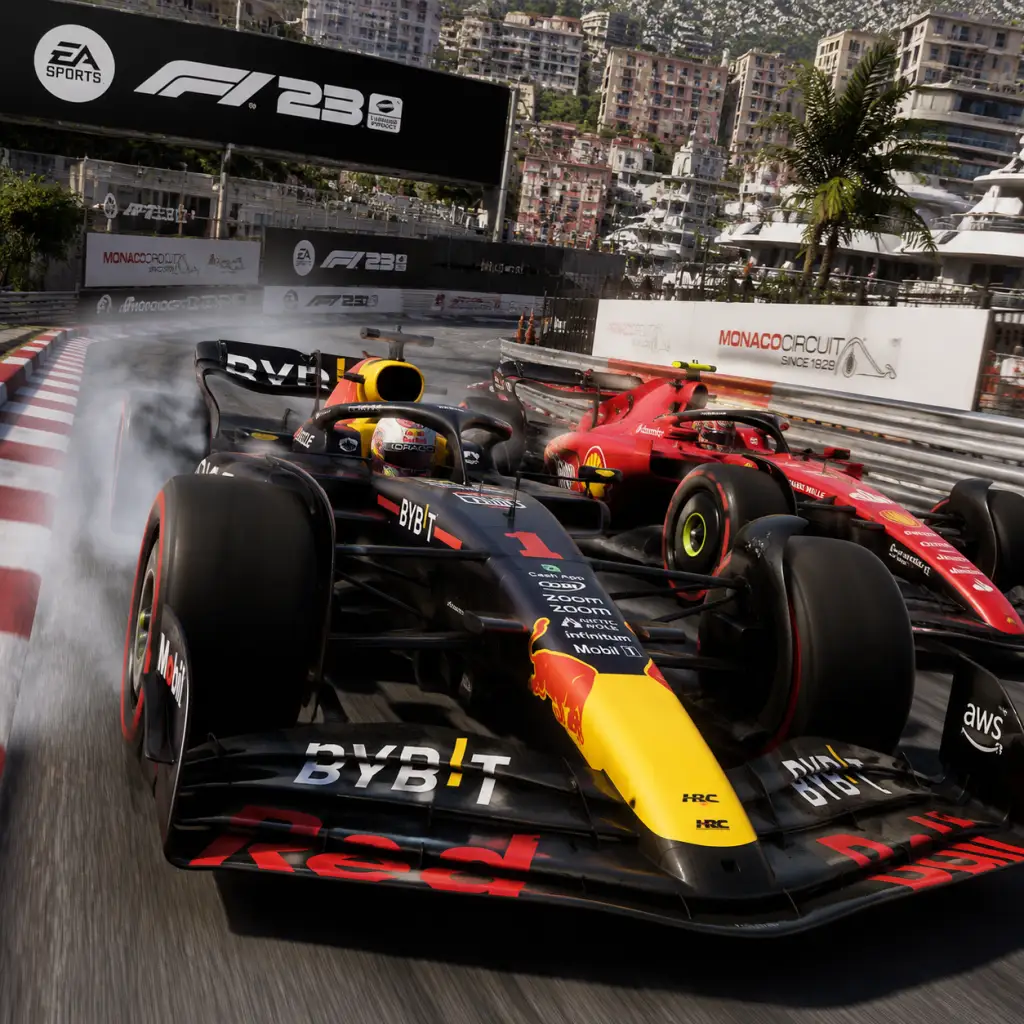
F1 23 offers a rich blend of authentic Formula 1 simulation, narrative driver career, and expansive online progression. The core gameplay loop revolves around preparing for and competing in Grand Prix weekends across multiple modes. Your primary interaction systems include steering, braking, accelerating, gear shifting, DRS activation, and ERS management, all of which demand precise timing and adaptability. Progression is measured through driver level, team development, currency accumulation, and unlockable content. The game supports exploration of tracks via practice sessions and time trials, while quests and missions take the form of race events, championship campaigns, and F1 World challenges. Economy management involves PitCoin (premium currency) and in-game cash earned from racing. Build growth applies to your driver’s skill tree (in My Team / Braking Point) and car upgrades. Endgame focuses on competitive online leagues, F1 World mastery, and achieving 100% completion.
---
Player Progression Tiers
Early Game (0–10 hours)
The early game serves as your entry point into F1 23’s systems. You’ll learn the basics of driving, race weekend structure, and the main progression paths.
- Main Gameplay Loop: Complete the Braking Point 2 story or start a My Team career. Each session involves practice (track acclimatisation, tyre management, fuel saving), qualifying (setting fast laps), and the race (managing tyres, ERS, and overtaking). Early races are shorter (25% distance) to reduce complexity.
- Combat/Interaction Systems: Beginner assists (automatic gearbox, ABS, traction control) are recommended. Combat centers on wheel-to-wheel racing—using DRS when within 1 second of the car ahead, managing tyre temperatures for grip, and avoiding collisions that cause damage. Use ERS deployment (overtake mode) strategically on straights.
- Progression: Increase driver level by earning XP from races and challenges. Level 1–5 unlocks basic cosmetic items, early car upgrades in My Team, and access to F1 World events. Complete Braking Point 2 chapters to unlock story progression and a unique car livery.
- Exploration: Learn each track’s braking points, corner apexes, and track limits via practice programmes (track acclimatisation, tyre management, qualifying pace). Use the radar and racing line (if enabled) to understand optimal paths.
- Quests/Missions: Braking Point 2 provides a cinematic campaign with 19 missions across 5 chapters. In My Team, you face contract negotiation missions, research and development milestones, and sponsor objectives (e.g., “Finish in the top 10 at Monaco”).
- Economy: Starting capital in My Team is given. Earn PitCoin (real‑money currency) or in‑game cash from race results and sponsor bonuses. Early purchases: engine upgrades, chassis parts, and driver facility improvements. Save PitCoin for premium liveries or overtake tokens in F1 World.
- Character/Build Growth: In Braking Point, your driver (Aiden or Devon) gains trait points from passing challenges—invest in consistency, racecraft, or wet weather skills. In My Team, your character’s level unlocks new contracts and team member perks. Car upgrades follow a linear tree: first focus on reliability (to avoid DNFs) then performance (engine, aero, chassis).
- Endgame Structure: Not yet relevant—you’re still building fundamentals. However, completing the early game unlocks F1 World events and online multiplayer.
- Main Gameplay Loop: Full race weekends (50–100% distance). You now manage fuel consumption, tyre degradation, and dynamic weather conditions carefully. Use MFD (Multi-Function Display) to monitor ERS levels, fuel mix, and differential settings mid‑race. Pit strategy becomes pivotal—deciding between undercut, overcut, or one‑stop vs. two‑stop strategies.
- Combat/Interaction Systems: Disable assists progressively (no ABS, manual gears). Master overtaking techniques: slipstream, late braking, and switchback moves. ERS manual overtake button is essential for passing on straights. Damage modelling requires caution—front wing damage costs downforce; punctures force unscheduled pits.
- Progression: Driver level 6–20 unlocks advanced car upgrades, exclusive liveries, and high‑level sponsors. Complete F1 World objectives (e.g., “Earn 3 podium finishes with Ferrari”) to earn PitCoin and cosmetic rewards. My Team reaches season 2 or 3, where you can move up the constructors’ standings or switch to a top team.
- Exploration: Mastery of all tracks—knowing exact braking points, kerb usage, and ideal racing lines. Use time trial mode to compare laps with ghosts of top players. Explore different car setups (aerodynamics, suspension, gear ratios) via telemetry feedback.
- Quests/Missions: F1 World features daily, weekly, and seasonal challenges (e.g., “Win a race at Silverstone with tyre wear set to simulation”). Multi‑player leagues begin—complete online placement races to rank in Bronze/Silver tiers. My Team offers story events (rivalry press conferences, driver market changes).
- Economy: Earn significant in‑game cash from high race placements. PitCoin becomes more valuable—spend on “Pit Passes” to unlock premium seasonal rewards in F1 World (tracks, exclusive cars, driver items). Invest in R&D to speed up car upgrades. Watch for sponsor contracts that pay extra for meeting specific objectives (e.g., “Lead 10 laps in a race”).
- Character/Build Growth: Max out core driver skills (starting at level 20). In My Team, hire better staff (chief engineer, strategist, mechanic) to improve pit stops, car development speed, and stewarding leniency. Car upgrade tree should be fully unlocked for your team—focus on best engine, gearbox, and aero packages for your track rotation.
- Endgame Structure: You’ll start competing in F1 World events that are high‑stakes (rewarding rare items). Ranked multiplayer becomes accessible—aim for Gold+ tier. Braking Point 2 is likely complete; now you play for leaderboard times and club championships.
- Main Gameplay Loop: 100% race distances with full simulation settings (no assists, manual ERS management, dynamic track rubbering). Each lap demands near‑flawless execution; a single mistake can lose positions. Pit windows are calculated down to the lap—monitoring tyre life, fuel consumption, and rival gaps.
- Combat/Interaction Systems: Advanced techniques: trail braking (maximising rotation), lift‑and‑coast for fuel saving, managing battery charge for hot laps, and using ERS depletion in qualify vs. race. Defensive driving—changing line to break DRS detection, blocking without weaving (illegal), and using under‑fuelling strategy with safety car periods.
- Progression: Driver levels 21–50 unlock endgame cosmetics, special medals for achievements (e.g., “Triple Crown” in F1 World). My Team constructors championship wins. F1 World season pass completion (if active event). All car upgrades maxed.
- Exploration: Circuit mastery—knowing every surface variation (e.g., Mexico’s thin air, Bahrain’s windy sections). Experiment with extreme setups: low‑downforce for Monza, high‑downforce for Monaco. Telemetry analysis helps perfect each sector.
- Quests/Missions: Elite F1 World challenges (e.g., “Win a Grand Prix without using DRS”). Online league promotions—compete for promotion to Diamond or Champion division. My Team “glory days” scenarios—re‑create historic races with specific regulations.
- Economy: Cash is nearly unlimited; PitCoin is still required for limited‑time cosmetics and VIP pit passes. Spend on player card decorations, victory animations, and custom race suits. No further performance upgrades to buy—only aesthetic.
- Character/Build Growth: Every driver skill maxed. Staff fully upgraded (5 stars). Car development reaches maximum potential—fine‑tuned setups for each track. Some players create multiple builds: high‑downforce specialist, wet weather expert, etc., by maintaining spare parts for different race weekends.
- Endgame Structure: Compete in official EA Sports F1 Esports qualifiers (requires late‑game skill level). Climb global leaderboards in Time Trial and Ranked. Join a competitive league (e.g., F1 23 subreddit leagues) for structured seasons with live stewards.
- Main Gameplay Loop: Season‑long F1 World comps or custom championships (e.g., 23‑race calendar with full weekends). Every race is a mental and physical marathon—maintaining concentration for 60+ laps. Online ranked matches with strict penalty systems and real‑time strategy adjustments.
- Combat/Interaction Systems: Wheel‑to‑wheel battles lasting multiple corners—mastered switchbacks, mind‑gaming opponents, and safety car restarts. Use of radio commands (calling out pit windows, driver status) in team modes. No assists means perfect throttle modulation and heel‑toe downshifts for some players.
- Progression: Achieve 100% completion—all F1 World challenges, all Braking Point achievements, all My Team milestones. Driver level 50 cap reached. All cars unlocked (vintage classics from F1 World). No further horizontal progression; only vertical improvement via leaderboard time reductions.
- Exploration: Experiment with alternate strategies: no‑stop races (if possible under tyre rules), extreme fuel‑saving approaches, or aggressive ERS usage. Learn every track’s alternate layouts (e.g., Bahrain endurance layout).
- Quests/Missions: Create your own narratives—replicate 2023 championship battles or historical seasons. Community events (weekly time trials set by Codemasters). No new official content unless the game receives post‑launch updates (e.g., future F1 World events).
- Economy: You likely have all items. PitCoin only useful for future seasonal passes if developers add new content. Otherwise, it’s a vanity currency.
- Character/Build Growth: All driver skills, staff, and car upgrades are fully maximised. Build growth shifts to mastery—optimising your own performance consistency over multiple races, reducing lap time variance, and improving pit entry/exit precision.
- Endgame Structure: Esports season begins—aim for top‑100 globally in Ranked. Offline—try to beat AI on hardest difficulty (Unbeatable) with all assists off. Create a league with friends using custom rules (e.g., equal performance cars, reverse grids). Compare telemetry with world’s best on specialty websites (e.g., time trial leaderboards via the game’s API).
Mid Game (10–40 hours)
The mid game sees you refining skills, customising your career, and delving into F1 World’s live service content.
Late Game (40–80 hours)
The late game is about mastery, optimisation, and high‑level competition.
Endgame (80+ hours)
The endgame focuses on perfecting every aspect and engaging with the community at the highest level.
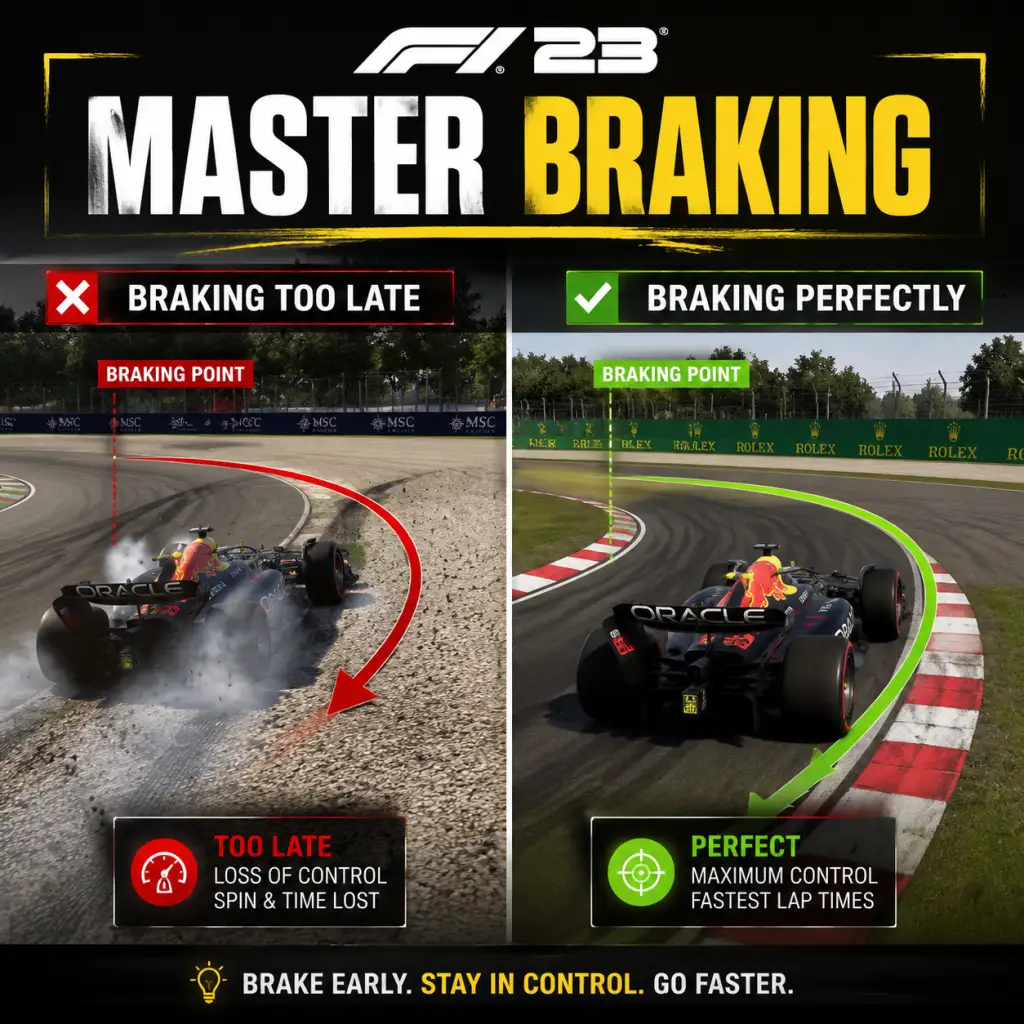
Game Tips
Game Tips
1. Beginner Tips
#### Master Braking Early
- Explanation: The most critical skill in F1 23 is braking. Use the distance marker boards (100m, 150m, etc.) as reference points. Brake in a straight line before turning the wheel, and release brakes gradually as you turn in.
- Deeper Analysis: Late braking can gain time, but for beginners it leads to understeer or spins. Start by braking earlier than you think, then move your braking point forward 5-10 meters each lap. This builds consistency and confidence.
- Explanation: Flashbacks allow you to rewind time and retry a corner. In single-player modes, use them to learn from mistakes.
- When to Use: After a crash or a major time loss, rewind to just before the error and analyze what went wrong. However, avoid heavy reliance—in multiplayer there are no flashbacks.
- Explanation: Cold tyres have low grip. On the out-lap, weave gently to warm them up. Overheated tyres lose performance and degrade faster.
- When: Always check the tyre temperature display (MFD) during practice and before pushing hard.
- Explanation: The Energy Recovery System can be set to different modes: None, Low, Medium, High, Overtake. Manual deployment saves battery for key moments.
- Deeper Analysis: In qualifying, use Overtake (blue lights) on main straights and Harvest (Low/Medium) in braking zones. In the race, balance between overtaking and defending. A full battery charge can gain 2-3 tenths per lap.
- Explanation: Drag Reduction System opens the rear wing, reducing drag for higher top speed. It is only allowed in designated DRS zones when within 1 second of the car ahead (in race) or in qualifying (anytime).
- When: Activate DRS as soon as you enter the detection zone if you are close enough. On tracks with multiple DRS zones (e.g., Bahrain), use it to set up overtakes into the next corner.
- Explanation: Jerky inputs unsettle the car, causing loss of traction or snap oversteer. Use a linear throttle and steering progression.
- Deeper Analysis: With traction control off, feather the throttle out of corners to manage wheelspin. With steering, use small corrections on the straights; for hairpins, turn more decisively but still smoothly.
- Explanation: Each weekend has three compounds (C1-C5). Softer tyres have more grip but wear faster; harder tyres last longer but provide less peak performance.
- When: In short stints (qualifying, early race battles), use softs. For long stints or high-degradation tracks (e.g., Singapore), choose mediums or hards. Always consider the projected delta between compounds.
- Explanation: The undercut is pitting earlier than your rival to gain track position by using fresh tyres on their out-lap. The overcut is staying out longer to benefit from a clear track and tire temperature.
- Deeper Analysis: The undercut works best when the pit delta is small (pit entry/exit loss < 2 seconds). The overcut works when the leading car has heavy traffic or tyre degradation. Use the race director and tyre wear map to decide.
- Explanation: The car starts with a set fuel load. You must manage fuel consumption to avoid running out. Use the MFD to adjust fuel mixture: Lean saves fuel but reduces power; Rich gives more power but consumes faster.
- When: At the start of the race with full tanks, use Standard mix. In safety car periods, switch to Lean to save fuel. On the final laps, if low, lift and coast gently.
- Explanation: The car setup affects handling. Key parameters: Aerodynamics (downforce wings), Suspension (mechanical grip), Brake bias, Differential.
- Deeper Analysis: For oversteer (rear slides more), soften rear anti-roll bar, stiffen front, or shift brake bias rearward. For understeer (car doesn't turn), stiffen rear, soften front, shift brake bias forward. Use track-specific setups from community or your own telemetry.
- Explanation: Gear ratios affect acceleration and top speed. Shorter ratios give better acceleration out of corners but lower top speed; longer ratios do the opposite.
- When: On low-speed twisty tracks (e.g., Monaco), use shorter ratios to maximize corner exit speed. On high-speed circuits (e.g., Monza), lengthen the top gear for higher straight-line speed.
- Explanation: Tyre pressure affects contact patch and wear. Higher pressure reduces rolling resistance but decreases grip. Camber (negative) improves cornering grip but wears the inner tyre.
- Advanced: Start with recommended pressures and adjust based on tyre temperature readings. If inner temps are high, reduce negative camber; if outer temps high, increase camber slightly.
- Explanation: Resource Points (RP) are earned from race results and objectives. Spend them on facility upgrades (e.g., wind tunnel, CFD, simulator) to improve car development, and on component upgrades (engine, chassis, aero, durability).
- When to Invest: Early career, prioritize Facilities first (speed up development), then focus on specific car weaknesses. For example, if you lose time on straights, upgrade Engine Power.
- Explanation: Each race weekend, you receive R&D objectives (e.g., complete a certain number of laps without spin) and manager goals (finish top 5, beat teammate). Completing them yields extra RP and team morale.
- Deeper Analysis: Always attempt the objectives, even if you risk a crash. If failing, restart qualifying with flashbacks. Manager goals affect your seat security; consistently meeting them leads to better contracts.
- Explanation: Your teammate's performance can help or hinder you. They can be asked to let you pass, hold up rivals, or block.
- When: In races where you're fighting for podium, request your teammate to slow down a rival (if they are behind). This can secure your position. However, overusing it may hurt team harmony.
- Explanation: F1 World features multiple car categories (e.g., 2023 Cars, Classic, Supercar). You earn tokens and blueprints from events to unlock and upgrade cars.
- When: At start, focus on one car per category to maximum level rather than spreading resources. Use daily/weekly events to farm upgrade materials.
- Explanation: Each event has bonus objectives (e.g., finish without damage, win with a certain car). Completing them gives extra rewards.
- Deeper Analysis: Re-run events with weaker cars for easier objectives, or use higher-level cars for win conditions. Prioritize events that reward parts you need.
- Explanation: In multiplayer, avoid dive-bombs and respect track limits. Use defensive lines when protecting position.
- Advanced: In ranked lobbies, learn the three overtaking techniques: slipstream pass into DRS zone, switchback after a late apex, and undercut via pit strategy. Use radar and mirror to anticipate moves.
- Explanation: Use the on-screen MFD and post-session data to analyze lap times, sector splits, throttle/brake traces.
- When: After practice sessions, compare your best lap to an optimal line. Look for areas where you lifted off throttle too early or braked too hard.
- Explanation: Adjust steering linearity, saturation, and wheel rotation for personal preference. For wheels, set rotation to 360° or 540° for F1 cars.
- Deeper Analysis: Higher linearity (e.g., 50) makes small movements more sensitive, beneficial for precise steering corrections. Lower saturation reduces maximum lock angle, helping avoid oversteer.
- Explanation: Assists like Traction Control, ABS, and Racing Line make driving easier but sacrifice pace. To improve, gradually disable them.
- Advanced Setup: Keep medium Traction Control for stability in wet conditions, but use no assists in dry for best lap times. Alternatively, leave ABS on if you struggle with locking.
- Explanation: Each circuit has unique challenges: heavy braking zones (e.g., Monaco Turn 1), high-speed corners (e.g., Eau Rouge), or kerb management (e.g., Baku castle section).
- How to Practice: Use time trial mode with a set lap requirement (e.g., 20 clean laps) to memorize ideal lines. Study telemetry from top leaderboard ghosts.
#### Use Flashbacks Wisely
#### Pay Attention to Tyre Temperatures
2. Driving Techniques (Intermediate)
#### ERS Management
#### DRS Activation
#### Smooth Steering and Throttle Input
3. Race Strategy
#### Tyre Compound Choice
#### Pit Stop Timing & Undercut/Overcut
#### Fuel Management
4. Car Setup
#### Basic Setup Principles
#### Gear Ratio Adjustments
#### Tyre Pressure & Camber
5. Career Mode
#### Resource Points Allocation
#### R&D Objectives & Manager Goals
#### Teammate Management
6. F1 World (Online & Live Events)
#### Building Your Car Collection & Upgrades
#### Completing Event Challenges Efficiently
#### Online Racecraft & Etiquette
7. Advanced Optimization
#### Telemetry & Data Analysis
#### Customizing Controller/Steering Wheel Settings
#### Using All Assists Strategically
#### Practice Track-Specific Techniques
Summary Table: Tiered Tips
| Tier | Focus Area | Key Tip |
|---|---|---|
| Beginner | Braking | Use brake markers and brake early |
| Beginner | Tyre Warmup | Weave on out-lap to heat tyres |
| Intermediate | ERS | Manual deploy on straights |
| Intermediate | Race Strategy | Use undercut with fresh tyres |
| Advanced | Setup | Adjust brake bias per corner exit |
| Advanced | Telemetry | Compare sector times to optimal |
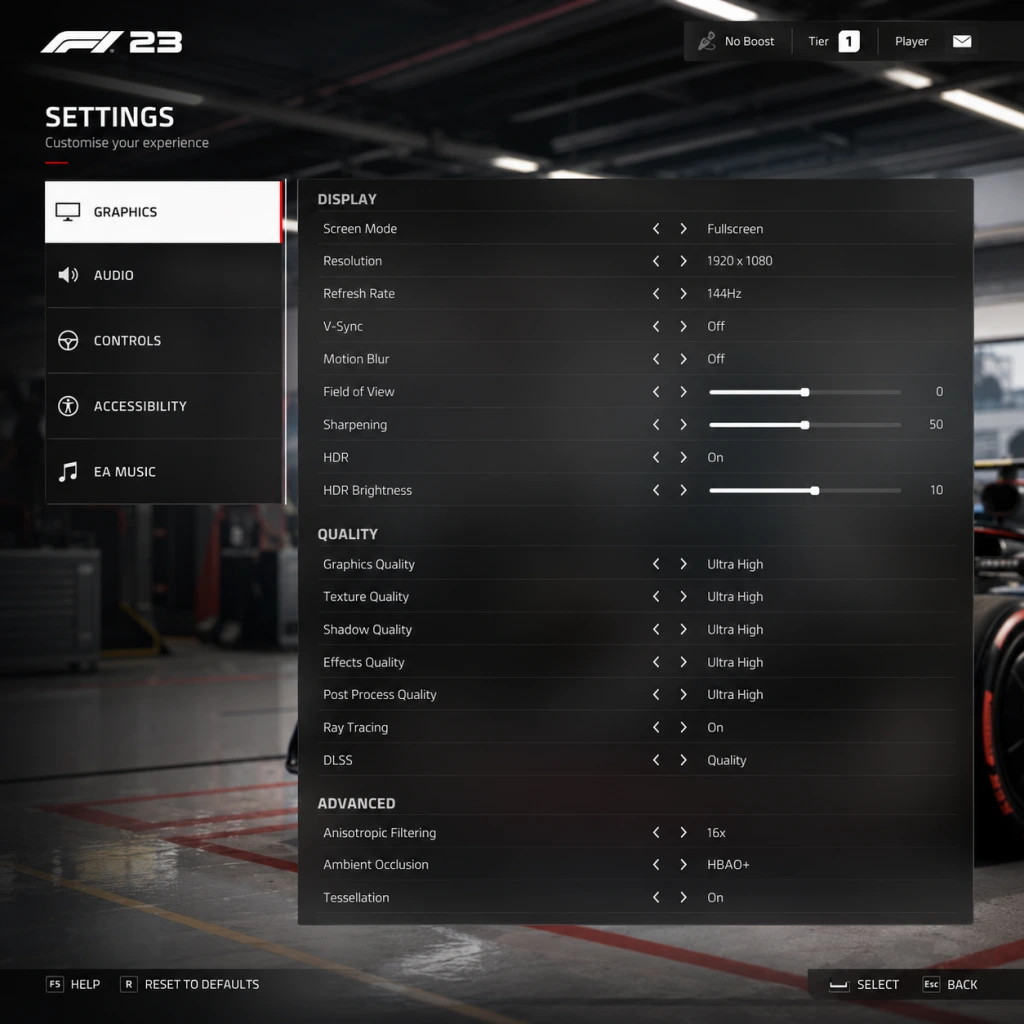
Game Settings
Game Settings for F1 23
This guide covers all settings in F1 23 across Graphics, Audio, Controls, Accessibility, Language, Network, and Gameplay categories. Optimised settings for different hardware levels (Low, Medium, High, Ultra) are recommended. Special attention is given to settings that are commonly misconfigured, which can hinder performance or immersion.
---
Graphics Settings
Display Settings
- Resolution: Match your monitor's native resolution. For 1080p, 1440p, or 4K.
- Refresh Rate: Set to your monitor's max (e.g., 144Hz if supported).
- V-Sync: Off for best input lag (use with G-Sync/FreeSync). On if you experience screen tearing.
- Frame Rate Limit: Either unlimited or cap slightly below monitor refresh rate (e.g., 141fps for 144Hz) to reduce input lag.
- Field of View (FOV): Affects how much you see. Recommended: 10-20 (cockpit) or -5 to +5 (TV Pod). Incorrect FOV can distort depth perception and braking points.
- Camera Shake and Camera Movement: Turn down or off for consistency, especially in cockpit view.
Quality Settings
| Setting | Low (60fps 1080p) | Medium (60fps 1440p) | High (120fps 1440p) | Ultra (120fps 4K) |
|---|---|---|---|---|
| Overall Preset | Low | Medium | High | Ultra |
| Texture Quality | Low | Medium | High | Ultra |
| Shadow Quality | Low | Medium | High | Ultra |
| Post-Processing | Low | Medium | High | Ultra |
| Reflections | Low | Low | Medium | High |
| Particles | Low | Medium | High | Ultra |
| Crowd | Off | Low | Medium | High |
| Weather Effects | Low | Medium | High | Ultra |
| Track Detail | Low | Medium | High | Ultra |
| Mirror Quality | Off | Low | Medium | High |
Advanced Graphics
- Ray Tracing: Turn OFF for performance (large FPS hit). On only for high-end GPUs (RTX 3070+ / RX 6800 XT+).
- DLSS / FSR / XeSS: Use Quality or Balanced for 1440p, Performance for 4K. DLSS 3 Frame Generation (if available) can double FPS on RTX 40 series.
- Anti-Aliasing: TAA (Temporal) recommended. SMAA is lighter but can shimmer.
- Dynamic Resolution: Off. When on, it automatically reduces resolution to maintain FPS; can introduce blur.
- Motion Blur: Off (it hides detail and can cause disorientation).
- Depth of Field: Off (blur in peripheral vision).
- Ray Tracing is extremely heavy and should only be enabled if you have headroom after hitting 60fps+.
- Dynamic Resolution often blurs the image more than simply lowering other settings.
- Master Volume: Adjust to comfortable level.
- Effects Volume: Car engine, tyre squeal, collisions. Keep at 100% for immersion.
- Voice Volume: Radio messages from race engineer. Keep around 80% to hear over engine.
- Music Volume: Lower or off to focus on racing sounds.
- Tyre Audio: Important for feeling grip; set high.
- Radar/Lap Info: Optional audio cues for flags, DRS, etc.
- Engine Volume often sounds weak at default. Increase above 80% to hear gear shifts properly.
- Crew Chief voice can be lost under engine noise; balance with Effects volume.
- Steering Deadzone: Default 5. Increase to 10 if you experience stick drift.
- Steering Linearity: Keep at 0 (linear) for most precise input.
- Throttle Deadzone: 0-5.
- Brake Deadzone: 0-5.
- Vibration: On for force feedback feel; off if distracting.
- Trigger Effects (RT/LT resistance): On for PS5/ Xbox controllers. Simulates pedal feel.
- Wheel Rotation: Set to 360° for Formula 1 (or match in-game steering ratio).
- Steering Deadzone: 0.
- Steering Linearity: 0 (linear).
- Force Feedback (FFB):
- Pedal Calibration: Must be done! Set brake pressure to comfortable (e.g., 50-70%).
- Wheel Calibration: Adjust steering angle so wheel matches in-game steering.
- Incorrect steering angle is the most common error. Match wheel to in-game value (360° recommended).
- Pedal deadzones: Many players don't calibrate, leading to inconsistent braking.
- Force Feedback clipping: If FFB feels heavy or rattles, lower overall FFB strength until peaks are clean.
- Colorblind Modes: Protanopia, Deuteranopia, Tritanopia, and Custom. Apply to HUD or gameplay elements.
- Subtitles: On/Off for dialogue and radio.
- Text Size: Increase for readability.
- Audio Cues: Gear shift, flag warnings, DRS activation. Off if distracting.
- Controller Layout: Several presets (e.g., Classic, Alternative). Customize per button.
- Vibration Intensity: Reduce if sensitive.
- Flashbacks: Unlimited or limited. Helps beginners recover from mistakes.
- UI Language: Choose from available languages (e.g., English, French, German, etc.). Game must restart to apply.
- Audio Language: Commentary and race engineer voice. English default, many regional options.
- Subtitles Language: Separate from UI language.
- Cross-Play: Enabled to play with other platforms (PC, PlayStation, Xbox). Can be disabled for platform-only lobbies.
- Voice Chat: On/Off (requires headset).
- Region: Select closest for lower latency.
- Online / Offline: Offline for single-player only; online for Leaderboards and F1 World.
- Data Sharing: Allow telemetry and analytics (optional).
- Cross-Play is on by default; if you experience connection issues in leagues, disable it to reduce matchmaking variables.
- Voice Chat automatically activates; turn off in public lobbies to avoid toxic chat.
Special Attention:
---
Audio Settings
Special Attention:
---
Controls Settings
Controller Setup (Gamepad)
Wheel Setup
- On Track Effects: 50 (vibration from kerbs, bumps).
- Off Track Effects: 30 (rumble off track).
- Wheel Damper: 30 (smooths oscillations).
- Understeer: 80 (feel loss of front grip).
- Tyre Wear: 30 (optional).
Special Attention:
---
Accessibility Settings
---
Language Settings
---
Network Settings
Special Attention:
---
Gameplay Settings
Assists
| Assist | Beginner | Intermediate | Expert |
|---|---|---|---|
| Braking Assist | Full | Low | Off |
| Steering Assist | Full | Medium | Off |
| Traction Control | Full | Medium | Off |
| Anti-Lock Brakes (ABS) | On | On | Off |
| Gearbox | Automatic | Automatic or Manual | Manual |
| DRS Assist | On | On | Off |
| ERS Assist | On | On | Off |
| Pit Assist | On | On | Off |
- Damage: Reduced (for beginners) or Simulation (for realism).
- Race Length: 25% (short), 50% (medium), 100% (full).
- Formation Lap and Safety Car: On for realism, off for quick races.
- Flashbacks: Unlimited (can rewind) – good for learning, but consider limiting to 5 for discipline.
- Camera Type: TV Pod (TV behind car preferred), T-Cam (above driver), Cockpit (most immersive). Each has different FOV and height.
- FOV: Adjust per camera – too wide makes apexes look far; too narrow loses side visibility.
- Camera Height: Low for cockpit, medium for TV Pod.
- Mirrors: Virtual (always on) or visible in cockpit view.
- HUD Presets: Minimal, Full, Custom. Remove elements you don't need (e.g., lap time delta).
- Racing Line: On for beginners (shows braking points). Off to learn tracks.
- Tyre Temperature Display: Show numeric values for optimal performance.
- Delta Time: Use time delta (green/red) relative to target lap.
- Braking Assist should be turned off as soon as possible – it slows you down significantly.
- Traction Control on Full reduces exit speed. Move to Medium after 10 hours.
- Racing Line creates dependency; disable it for career mode after learning tracks to improve pace.
- Damage Simulation: Many players leave damage on 'Reduced' for ranked races but forget to switch back for league events – be aware.
Camera Settings
HUD & Display
Special Attention:
---
Conclusion
For the best experience, start with Medium graphics preset (or match hardware from table), disable Ray Tracing, use DLSS Quality, and calibrate controls thoroughly. Beginners should enable Full assists and Racing Line, then gradually disable them as they improve. Always double-check steering angle, pedal deadzones, and FOV – these are the settings most frequently misconfigured and have the biggest impact on lap times and immersion. Adjust audio balance so tyre and engine sounds are prominent for feedback.
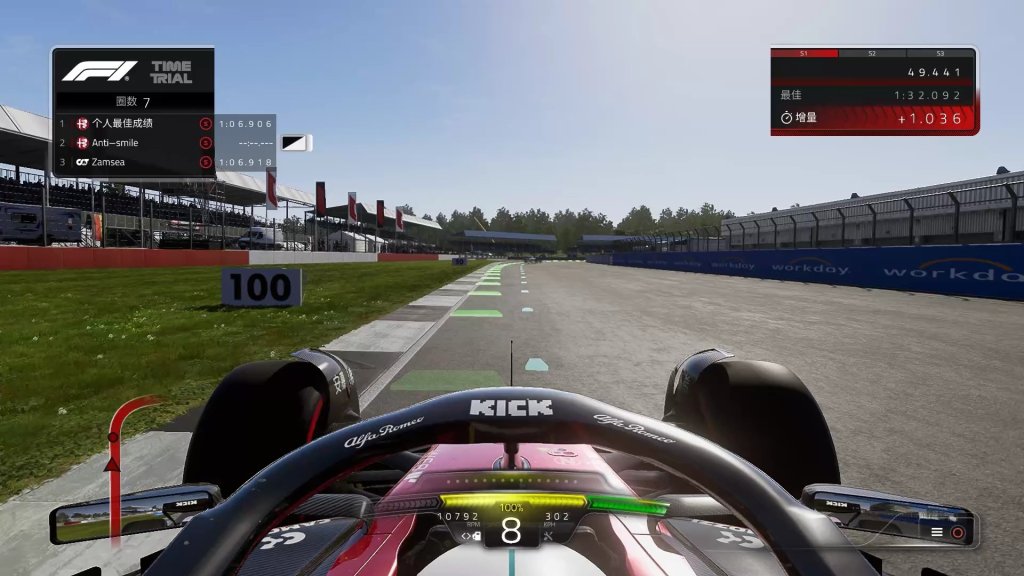
Important Notes
Important Notes
This section highlights critical warnings, common pitfalls, irreversible decisions, and other crucial information that can make or break your F1 23 experience. Read this before diving in to save time, frustration, and regret.
⚠️ Irreversible Choices & Missable Content
#### Braking Point 2 – Chapter Progression
- Missable: Braking Point 2 is a linear narrative campaign with 16 chapters. You cannot replay individual chapters from the main menu; you must start a new playthrough or reload a manual save from before a specific chapter. The only way to experience a different outcome is to create a separate save slot before key decision points (marked by branching dialogue choices).
- Irreversible Decisions: Certain story choices affect character relationships and post-story scenes. For example, deciding to support Aiden or Devon in Chapter 9 permanently alters post-season interactions. Always save manually before a branching choice.
- No Chapter Select: There is no New Game+ or chapter select for Braking Point 2. Once you finish the story, you must restart to see alternate endings or missed moments.
- F1 World features daily, weekly, and seasonal events. Unlike My Team or Career, these events have expiration dates. If you miss a weekly challenge that rewards a unique livery or part upgrade, that item is gone forever (at least until the next season, if ever repeated). Check the in-game calendar regularly.
- Season Pass/Tier Rewards: Rewards from the Battle Pass (unlocked with Podium Pass purchase or free track) are only available during that season. Unclaimed tiers after the season ends are lost. Complete all 50 tiers before the season deadline.
- Once you sign a driver or staff member (engineer, aerodynamicist, etc.) in My Team, you cannot cancel the contract mid-season. You must wait until the contract expires (typically 1–2 seasons). If you accidentally sign a low-performing driver, you are stuck with them for the remainder of their contract.
- Tip: Always save before negotiating contracts. Read the performance clauses and length carefully. Short-term (1-year) contracts are safer for early seasons when you may want to upgrade staff frequently.
- In Driver Career, your initial team choice is permanent for at least the first season. You cannot request a mid-season transfer unless you have a contract clause (unlocked later). If you choose a backmarker team like Haas or Williams, you will be fighting for P15–P20 every race for the first half of the season, which can be frustrating for newcomers. Pick a midfield team (e.g., Alpine, Aston Martin) for a more balanced difficulty.
#### F1 World – Limited-Time Events
#### My Team – Driver & Staff Contracts
#### Driver Career – Team Selection
###
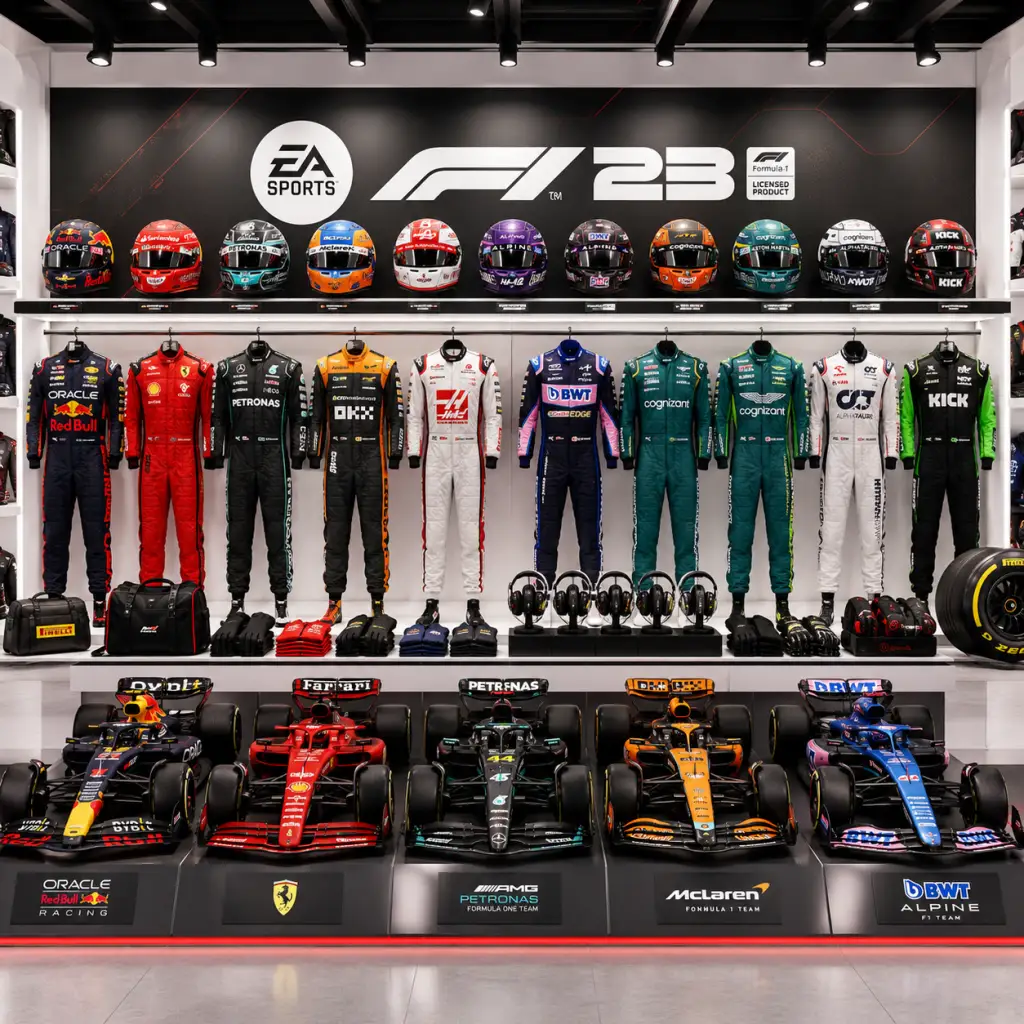
All Game Items
Overview
F1 23 does not feature traditional weapons or armor. Instead, the game's item ecosystem revolves around currencies, car upgrades, cosmetic customization, and collectibles. These items are used to improve car performance, personalize appearances, and track achievements. Below is a comprehensive guide to every major item category.
---
Currencies
PitCoins
- Description: Premium currency purchased with real money. Can also be earned slowly through Podium Pass tiers and special events.
- Used For: Buying cosmetic items (helmets, suits, liveries, gloves, podium apparel) in the in-game store, and purchasing Podium Pass tiers.
- How to Obtain:
- When Useful: Unlocking exclusive limited-time cosmetics or skip grinding in Podium Pass.
- Synergies: No synergy with performance; purely cosmetic.
- Description: Main earnable currency for car upgrades in My Team and Career modes.
- Used For: Purchasing and upgrading car components (engine, chassis, drivetrain, etc.) at the factory.
- How to Obtain:
- When Useful: Constantly needed to improve car performance. Prioritize investing RP in areas where car is weakest.
- Synergies: RP spent on engine upgrades synergizes with better powertrain durability; chassis upgrades improve tire wear management.
- Description: Separate XP for Driver and Team levels.
- Used For: Unlocking new abilities, PitCoin bonuses, and cosmetic items as you level up.
- How to Obtain:
- When Useful: Level milestones grant PitCoins, Podium Pass XP boosts, and certain cosmetic unlocks.
- Synergies: Higher level grants access to more advantageous contract offers in Career.
- Effect: Increases max speed, acceleration, and engine reliability.
- Upgrade Cost: 1000 RP per level up to level 3, then 2000 RP for 4-5.
- When Useful: Essential for power tracks (Monza, Baku, Spa).
- Synergy: High engine level pairs well with low-downforce rear wings.
- Effect: Improves handling, stability in corners, and overall responsiveness.
- Upgrade Cost: 800 RP per level.
- When Useful: Critical on twisty circuits (Monaco, Hungary, Singapore).
- Synergy: Combine with upgraded front suspension for better turn-in.
- Effect: Better traction out of slow corners, reduces wheel spin.
- Upgrade Cost: 600 RP per level.
- When Useful: Helpful on circuits with low-speed corners (Mexico, Yas Marina).
- Synergy: High drivetrain level reduces the need for traction control assist.
- Effect: Improves front-end grip and braking stability.
- Upgrade Cost: 500 RP per level.
- When Useful: Beneficial on tracks with heavy braking zones (Canada, Austria).
- Synergy: Works with chassis upgrades for overall balance.
- Effect: Enhances rear traction and high-speed stability.
- Upgrade Cost: 500 RP per level.
- When Useful: Useful on high-speed corners (Silverstone, Suzuka).
- Synergy: Pairs with drivetrain upgrades for better exit speed.
- Effect: Increases downforce and reduces drag, improving cornering speed and straight-line efficiency.
- Upgrade Cost: 700 RP per level.
- When Useful: Balanced benefit across all tracks; prioritize mid-level first.
- Synergy: High aero level allows use of more aggressive wing setups.
- Effect: Reduces risk of engine overheating, especially in hot conditions or slipstreaming.
- Upgrade Cost: 400 RP per level.
- When Useful: Essential on high-temperature races (Bahrain, Qatar) or if you use high ERS modes often.
- Synergy: Works with engine upgrades to prevent performance loss during sustained high power.
- Effect: Improves battery capacity and energy recovery rate (both MGU-K and MGU-H).
- Upgrade Cost: 900 RP per level.
- When Useful: Critical for overtaking and defending; allows more frequent ERS deployment.
- Synergy: High ERS level dramatically shortens overtake time and helps in qualifying.
- Varieties: Hundreds of designs across classic, modern, and fantasy themes.
- Rarity: Common (free pass), Rare (PitCoins), Epic/Legendary (Podium Pass premium tiers).
- How to Obtain:
- When Useful: To express personal style or replicate real-world drivers' designs.
- Varieties: Team-specific, retro, driver-inspired, abstract patterns.
- Rarity: Similar to helmets.
- How to Obtain: Same as helmets – Podium Pass, store, events.
- When Useful: Customization in multiplayer lobbies; no gameplay effect.
- Varieties: Color variations, sponsor logos, material textures.
- How to Obtain: Usually bundled with suits or sold separately in store.
- Varieties: Full car wraps, including gradient, metallic, matte, and animated patterns.
- How to Obtain:
- When Useful: Visually distinguishes your My Team or multiplayer car.
- Description: Cosmetic items for your driver avatar when not in the car (shown during podium celebrations or interviews).
- How to Obtain: Podium Pass and store.
- When Useful: Enhances driver identity in Career mode cutscenes and multiplayer podiums.
- Description: Achievement-style badges that display on your profile. Examples: "Clean Lap King" (10 clean laps in a row), "Overtaking Master" (50 overtakes).
- How to Obtain: Complete specific challenges in any game mode.
- When Useful: Bragging rights; no gameplay impact.
- Description: Standard PlayStation Trophies, Xbox Achievements, Steam Achievements.
- Examples: "World Champion" (win Driver’s Championship in Career), "Podium Pass Master" (complete all tiers in a season).
- How to Obtain: Complete predefined objectives.
- When Useful: Unlock percentage completion; no in-game reward except for some that grant small PitCoin bonuses on some platforms (varies).
- Description: Virtual stamps collected by completing daily/weekly F1 World events.
- How to Obtain: Participate in limited-time events (e.g., “Summer Showdown”), meet lap time or position targets.
- When Useful: Used to unlock exclusive cosmetics or earn bonus PitCoins via event progression system.
- Effect: Doubles Podium Pass experience earned from races for a limited time (e.g., 1 hour).
- How to Obtain: Rare rewards from Podium Pass premium track or store purchase with PitCoins.
- When Useful: Activate before a long gaming session to accelerate pass progression.
- Note: As of launch, F1 23 does not include temporary currency multipliers. Only direct PitCoin purchases and earning via Podium Pass.
- While not in-game items, certain hardware (e.g., Logitech G923, Thrustmaster T248) enhances immersion. In-game settings support wheel customization (rotation, force feedback strength).
- Saved control schemes (e.g., “F1-style”, “COD-style”) are stored as profiles but not tradeable items.
- Direct purchase via platform stores (Steam, PlayStation Store, Xbox Store).
- Earn small amounts from Podium Pass free track (≤100 per season).
Resource Points (RP)
- Completing Grand Prix weekends (position, race distance bonuses).
- Completing Department Objectives (e.g., earn 50 points per department).
- One-time rewards from Event Invitations.
Experience Points (XP)
- Driver XP: Race results, completing sessions (Practice, Qualifying, Race).
- Team XP: Department performance, long-term contract milestones.
---
Car Upgrade Components (Materials)
These are not physical items but represent the application of Resource Points into specific car parts in My Team mode. Each component has upgrade levels (1-5) that can be purchased sequentially.
Engine
Chassis
Drivetrain
Front Suspension
Rear Suspension
Aerodynamics
Cooling
Energy Recovery System (ERS)
---
Cosmetic Items
All cosmetic items are purely visual and do not affect performance. They can be obtained through the Podium Pass, in-game store (with PitCoins), or as rewards from F1 World events.
Helmets
- Podium Pass: Free track offers 1-3 helmets per season; Premium track offers 5-10.
- In-game store: Rotating stock, costs ~10,000-30,000 PitCoins.
- Event rewards: Completing specific F1 World challenges.
Race Suits
Gloves
Liveries (Car Paint Jobs)
- Podium Pass premium tiers (multiple per season).
- F1 World weekly challenges.
- Special promotion (e.g., pre-order bonuses).
Podium Apparel (Caps, T-Shirts, Jackets)
---
Collectibles
Badges
Trophies / Achievements (Platform-specific)
F1 World Event Stamps
---
Special Items (Consumable-like)
Podium Pass XP Boosts
PitCoin Multipliers (not present in 2023 but common in earlier titles; confirm not in F1 23)
---
Key Equipment (Non-item)
Racing Wheel & Pedals (Physical)
Custom Controls Presets
---
Summary Table
| Category | Items | How to Obtain | Performance Impact |
|---|---|---|---|
| Currencies | PitCoins, Resource Points, XP | Purchase, races, objectives | Significant (RP) / None (PitCoins) |
| Car Upgrades | Engine, Chassis, etc. | Spend RP in factory | Direct performance |
| Cosmetics | Helmets, Suits, Liveries, Gloves | Podium Pass, store, events | None |
| Collectibles | Badges, Trophies, Stamps | Achievements, events | None |
| Special | XP Boosts | Podium Pass, store | Temporary progression boost |
Tips for Item Usage
- Prioritize RP spending on the component that most impacts your weakest track type. For example, if you struggle in slow corners, upgrade Drivetrain and Rear Suspension before Engine.
- Never spend PitCoins on items that are also available via Podium Pass free track – wait to earn them naturally.
- Collect Podium Pass XP boosts for days when you plan to complete multiple F1 World events to maximize rewards.
- Cosmetics have no gameplay effect, so only buy them if you truly enjoy the design.
---
This comprehensive item guide covers everything you can acquire and utilize in F1 23 to enhance performance, appearance, and progression.
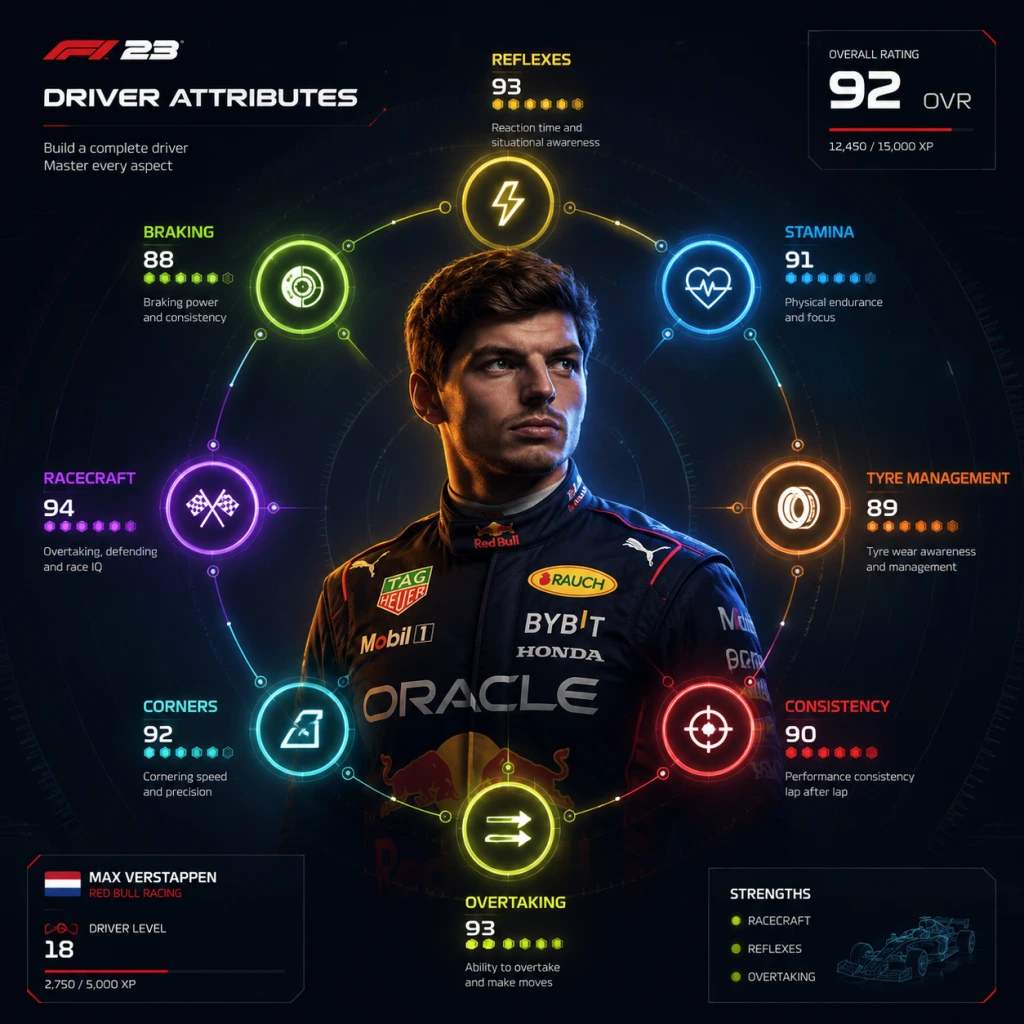
Character Skills
Character Skills (Driver Attributes)
In F1 23, the only true "character" with customisable skills is the player-created driver in My Team career mode. This driver has five core attributes that directly affect on-track performance, team morale, and development opportunities. Each attribute can be improved by spending Resource Points (RP) earned through races, objectives, and team goals. Additionally, the 22 real-world F1 drivers have fixed ratings in these same attributes, which influence their performance in career mode and their value as teammates.
Attribute Overview
| Attribute | Effect | Max Level | Starting Level |
|---|---|---|---|
| Racecraft | Better overtaking, defending, and race starts | 99 | 20 |
| Awareness | Reduces crash risk, improves ERS energy management, and helps avoid penalties | 99 | 20 |
| Pace | Maximum speed potential, tyre temperature management | 99 | 20 |
| Consistency | Less performance drop over a stint, better tyre wear control | 99 | 20 |
| Experience | Unlocks perks, reduces pit stop errors, improves feedback from your race engineer | 99 | 20 |
Skill Descriptions
#### 1. Racecraft
- Effect: Influences how effectively you overtake (in AI simulation) and defend positions when the AI controls your driver during safety car periods or if you skip sessions. Higher rating means the AI can execute clean passes and hold off attackers with more precision. Also improves your ability to gain positions at race starts.
- Upgrade Cost: Increases per level; early levels cost ~50 RP, later levels over 500 RP.
- Combo Synergy: Pairs well with Pace to turn high speed into overtakes. Use on tracks with long straights (Monza, Baku).
- Recommended Build: Prioritise to 70+ for a balanced driver; max out only if you frequently simulate sessions.
- When to Use: Always beneficial; especially important in the middle of the grid where overtaking is common.
- Effect: Reduces the chance of being involved in first-lap incidents, spinning out in wet conditions, and getting time penalties for track limits or unsafe rejoins. High Awareness also improves ERS energy harvesting efficiency (both regen and deployment) because the AI driver manages battery better.
- Upgrade Cost: Moderate; similar scaling to Racecraft.
- Combo Synergy: Essential for Consistency builds – high Awareness + high Consistency makes a nearly unshakeable driver in endurance stints.
- Recommended Build: Keep at least 60 for safety; go higher if you often race in wet weather or on tight street circuits (Monaco, Singapore).
- When to Use: Critical at start of championship when you have low overall performance; later becomes a quality-of-life upgrade.
- Effect: Determines the maximum speed your driver can achieve in clean air. Affects top speed, acceleration out of corners, and how quickly they reach optimal tyre temperature. High Pace means faster lap times when the driver is in full control (no assists).
- Upgrade Cost: Most expensive attribute to upgrade; often requires 300–800 RP per level at high tiers.
- Combo Synergy: Combines with Racecraft for a front-runner build. Also synergises with car upgrades that boost engine and aero.
- Recommended Build: Focus on Pace early if you want to fight for podiums; but balance with Consistency to avoid tyre overheating.
- When to Use: Always; the most impactful attribute for raw lap time.
- Effect: Reduces lap-to-lap variation, slows tyre degradation, and maintains closer lap times through a stint. A high Consistency driver can manage tyre wear better and keep performance steady on older tyres.
- Upgrade Cost: Medium; cheaper than Pace but more than Racecraft.
- Combo Synergy: Best with Awareness to create a "safe and steady" driver perfect for long stints and conservative strategies.
- Recommended Build: Essential for one-stop strategies; aim for 80+ if you plan to run long first stints.
- When to Use: Prioritise during races with high tyre wear (Bahrain, Barcelona) or when you have a car with poor tyre management.
- Effect: Unlocks passive perks as you level up (see below). Also improves the quality and accuracy of race engineer radio calls and pit stop timing. High Experience shortens pit stops (less chance of error) and gives more precise fuel consumption estimates.
- Upgrade Cost: Cheapest per level; starts at 20 RP and scales slowly.
- Perks Unlocked (automatic as Experience reaches certain thresholds):
- Combo Synergy: Pairs with everything; a must-upgrade over time because of the passive perks.
- Recommended Build: Spend remaining RP on Experience after hitting 70+ in other attributes.
- When to Use: Always valuable; the perks are permanent bonuses.
- Racecraft: 70
- Awareness: 60
- Pace: 70
- Consistency: 65
- Experience: 60
- Total RP investment: ~5,000 RP
- Strategy: No glaring weakness; works on all tracks and conditions.
- Racecraft: 50 (less important for single lap)
- Awareness: 50 (penalties less likely in qualifying)
- Pace: 99
- Consistency: 40 (tyre wear irrelevant in one lap)
- Experience: 50
- Strategy: Max out Pace early; use car upgrades that boost engine performance. You'll struggle in the race if you don't improve other stats later.
- Racecraft: 60
- Awareness: 70
- Pace: 60
- Consistency: 99
- Experience: 70
- Strategy: Win races through strategy – pit later, manage tyres perfectly. Combine with high Awareness to avoid incidents. Expect to lose a few tenths per lap initially, but overtake others when they pit.
- Racecraft: 96
- Awareness: 93
- Pace: 97
- Consistency: 95
- Experience: 99
- Never neglect Experience – its perks are permanent and boost all other attributes eventually.
- Use Awareness as a safety net when racing on hard difficulty – it prevents AI-caused accidents.
- Attribute upgrades do not affect your own manual driving skill; they only influence AI performance and incidental bonuses. Focus on track practice and setups for real speed gains.
#### 2. Awareness
#### 3. Pace
#### 4. Consistency
#### 5. Experience
- Level 25: "Sharp Reflexes" – improved reaction to crashed cars ahead.
- Level 50: "Fuel Whisperer" – fuel consumption reduced by 1%.
- Level 75: "Sixth Sense" – warning when a car is about to spin ahead.
- Level 99: "Legendary Status" – extra +5 to all other attributes (permanent).
---
Recommended Builds
#### A) The Balanced All-Rounder (Recommended for Beginners)
#### B) The Qualifying Specialist (For Pole Positions)
#### C) The Endurance Iron Man (For Long Stints)
---
How to Upgrade Attributes
1. Access the My Team Headquarters menu.
2. Select Driver then Attributes.
3. Spend available Resource Points (earned from race results, completing objectives, and team sponsors).
4. Upgrades apply immediately to your driver's AI performance when you simulate sessions, and indirectly affect your own driving (e.g., ERS advice, pit stop speed).
---
Real-World Driver Ratings (Fixed Skills)
Each of the 22 real F1 drivers has pre-set attributes that influence their performance in Career Mode and Two-Player Career if you choose them as your teammate. These ratings change slightly each season based on real-world performance. Example ratings for Max Verstappen (2023):
You cannot upgrade these drivers; their ratings are static per season. They serve as benchmarks for your own skill progression.
---
Braking Point Characters (No Skills)
The narrative mode Braking Point features three playable characters: Aiden Jackson, Devon Butler, and Callie Mayer. None have customisable skills or attributes. Their driving performance is fixed and represents the same general AI behaviour as any other driver in the game. The mode focuses on story decisions, not skill trees.
---
Important Note on Virtual Reality and Social Features
This character skills system applies only to My Team career mode. Other modes (Online, Grand Prix, Time Trial) use default driver ratings of 79 for all attributes (your online avatar has no skills). Team upgrades and facility improvements are separate from driver skills and are covered in the All Game Items section of this guide.
---
Final Tips
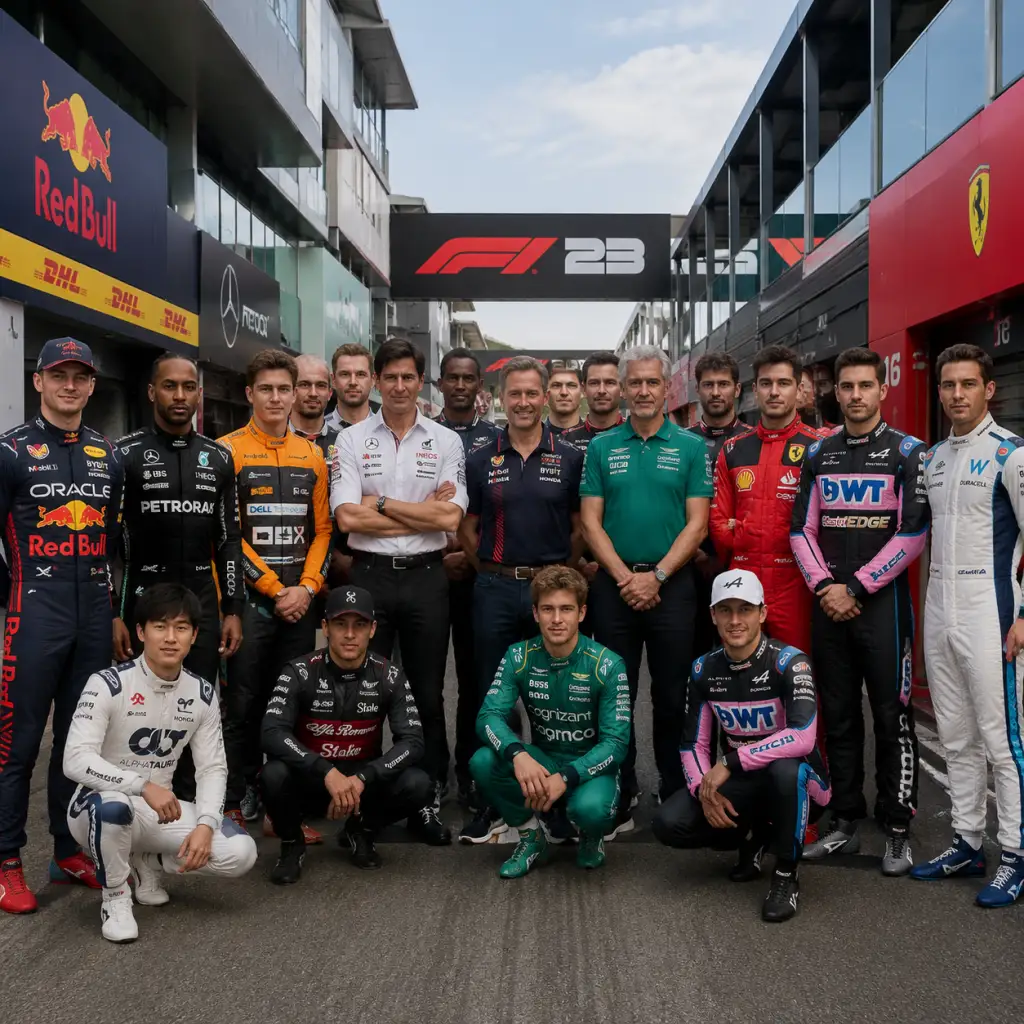
Characters & Roles
Characters & Roles
Overview
F1 23 features a variety of characters that you can play as or interact with. These include the 20 real-world Formula 1 drivers from the 2023 season, a set of fictional characters from the Braking Point story mode, the custom driver you create in My Team, and the full roster of Formula 2 drivers. While there are no traditional classes or heroes, each character has distinct attributes, playstyles, and roles within the game’s modes. This guide covers every major character, their strengths and weaknesses, unlock conditions, and how they fit into the overall experience.
1. Official F1 Drivers (2023 Season)
Each real-world F1 driver is fully controllable in Quick Race, Career, My Team (as your teammate), and online modes. They have in-game ratings for Racecraft, Awareness, Pace, and Consistency (scored 0–100). These ratings affect AI performance in single‑player and are used to define driver identity. All drivers are available from the start.
#### Top Drivers by Overall Rating (Example – approximate values)
| Driver | Team | Overall | Strengths | Weaknesses |
|---|---|---|---|---|
| Max Verstappen | Red Bull Racing | 98 | Pace, Racecraft, consistency; excels at all tracks | None in game; slight drop in wet handling |
| Lewis Hamilton | Mercedes | 95 | Racecraft, wet weather ability, experience | Slightly lower qualifying pace than Verstappen |
| Fernando Alonso | Aston Martin | 93 | Racecraft, tire management, aggressive defense | Occasional inconsistency early season |
| Charles Leclerc | Ferrari | 91 | Qualifying pace, speed on street circuits | Racecraft and consistency below top tier |
| Lando Norris | McLaren | 90 | Adaptability, strong in variable conditions | Lower raw pace on power‑hungry tracks |
- Red Bull: Max Verstappen, Sergio Pérez
- Mercedes: Lewis Hamilton, George Russell
- Ferrari: Charles Leclerc, Carlos Sainz
- McLaren: Lando Norris, Oscar Piastri
- Aston Martin: Fernando Alonso, Lance Stroll
- Alpine: Esteban Ocon, Pierre Gasly
- Williams: Alex Albon, Logan Sargeant
- AlphaTauri: Yuki Tsunoda, Nyck de Vries
- Alfa Romeo: Valtteri Bottas, Zhou Guanyu
- Haas: Kevin Magnussen, Nico Hülkenberg
- Choosing a high‑rated driver as your teammate in My Team gives you a stronger benchmark but also a more demanding opponent in contract negotiations.
- Lower‑rated drivers are easier to outperform, making them safer choices if you focus on your own progression.
- AI drivers have unique behavioral traits (e.g., Hamilton is more conservative, Verstappen more aggressive), affecting race difficulty.
- Background: A young British driver rising through the ranks, signed by a fictional team (Interceptor Racing) for his first F1 season. He is determined, but inexperienced and often clashes with his teammate.
- Strengths: Adaptable learner; his attributes improve as the story progresses. No fixed weaknesses beyond storyline setbacks.
- Playstyle: The story forces you to face specific challenges (e.g., wet races, defensive driving). Your choices affect relationships, but not permanent stats.
- Unlock Conditions: Braking Point is unlocked from the main menu; you start as Aiden.
- Recommended ‘Build’: Not applicable – Braking Point uses fixed car setups tied to story segments. Focus on following mission objectives (overtake, hold position, etc.).
- Background: A cocky, wealthy American driver, Aiden’s teammate and primary rival. He uses dirty tactics and has a strong PR presence.
- Strengths: High starting pace, aggressive overtaking, but poor sportsmanship.
- Weaknesses: Prone to mistakes when pressured; disliked by the team principal.
- Playstyle: In story races where you control Devon (rare), use his aggression to push through traffic. When racing against him, expect contact.
- Unlock Conditions: Part of the story; unlocked automatically when you reach certain chapters.
- Background: A veteran Swedish driver, former champion, now a mentor figure to Aiden. He drives for a top team (YouClash Racing) and is calm, wise.
- Strengths: Excellent racecraft, tire management, strategic calls. Very consistent.
- Weaknesses: Slightly lower peak qualifying speed due to age.
- Playstyle: In story races where you control Casper, prioritize clean driving and long‑term strategy. His radio calls provide hints.
- Unlock Conditions: Encountered early in chapter 2; playable in specific missions later.
- Andre Correia – Your race engineer in Braking Point; offers advice but no driving role.
- Rebecca Ivanova – Team principal; makes decisions that affect story branches.
- Sean Moore – A rival from F2; appears in flashback races.
- Background: None – completely blank slate.
- Strengths: Fully customizable; you decide which attributes to prioritize.
- Weaknesses: Initially low overall; no inherent bonuses. You must earn every stat point.
- Playstyle: Adapts to your driving style – you can build a driver that excels in qualifying (high Pace), race management (high Consistency), or all‑rounder (balanced).
- Unlock Conditions: Start a new My Team save from the main menu.
- Recommended Attributes Build:
- Team Synergy: Your custom driver’s attributes combine with your chosen teammate’s ratings to influence overall team performance and sponsor goals. A high‑rated teammate will demand a bigger salary but pushes the team forward.
- Strengths/Weaknesses: Each F2 driver has a set of ratings similar to F1 drivers but generally lower (40–70 range). The top F2 drivers (e.g., Pourchaire) can be strong challenges in F2 career.
- Playstyle: F2 cars are slower and less downforce‑dependent than F1; driving requires smoother inputs. The driver choice matters less than in F1 due to shorter races.
- Unlock Conditions: All F2 drivers are available from the start in F2 mode. They cannot be used in F1 modes.
- No equipment/builds – the F2 season is standardized aside from car upgrades in your team’s development tree.
- Playable: You control the car on track. All F1, F2, and story characters fall under this role.
- Responsibilities: Race preparation (practice programs), qualifying, race strategy (pitting, tire management, overtaking).
- AI Controlled: In Career/My Team, your teammate is a separate driver. Their performance affects Constructor Standings and team morale.
- Synergy: A fast teammate pushes development (more R&D points) but can beat you. A slower teammate makes your life easier but limits team progress.
- Not a playable character, but a role you control from the menu. Decides: driver contracts, upgrades, facility investments, sponsor choices.
- Impact: Your decisions shape the team’s trajectory. For example, hiring a high‑rated teammate boosts performance but costs more.
- Non‑playable characters that affect gameplay (safety car deployments, penalty decisions, race commentary). No unlock conditions or builds.
- Main playable characters: 20 F1 drivers, 3 Braking Point characters (plus the custom My Team driver), and 22 F2 drivers.
- Key strengths/weaknesses are reflected in driver ratings and AI behavior.
- Unlock conditions: All real and F2 drivers are unlocked from the start; story characters unlock via progression; My Team driver is created on demand.
- No equipment or builds exist – driver choice is about personal preference, challenge level, and narrative immersion.
- Team synergy matters most in career modes where driver attributes combine with team R&D to determine performance.
Strengths & Weaknesses (General)
Unlock Conditions: All F1 drivers are available immediately in any mode that allows driver selection.
Recommended ‘Build’ (No equipment) – simply pick a driver that matches your skill level and preferred challenge.
Team Synergy – In Career/My Team, choosing a teammate with complementary attributes can boost the team’s overall performance index (e.g., a consistent driver paired with a fast one balances development focus).
2. Braking Point Story Characters
Braking Point is a narrative campaign featuring a set of original characters. You play as Aiden Jackson in the story, but you also interact with and control other characters in specific missions.
#### Aiden Jackson
#### Devon Butler
#### Casper Akkerman
#### Other Characters (Not Playable Directly)
Team Synergy in Braking Point – The story is linear, so synergy is fixed. Your relationship with Devon and Casper influences dialogue and minor gameplay objectives (e.g., “Help Devon with a tow” vs. “Pass him immediately”).
3. My Team Custom Driver
In the My Team career mode, you create your own driver (name, appearance, number). This driver has five attributes that you can upgrade over time: Racecraft, Awareness, Pace, Consistency, and Experience. Unlike real drivers, your custom driver starts with low ratings (around 50–70) and improves through practice programs, race results, and facility upgrades.
- Beginners: Focus on Consistency and Awareness first to reduce mistakes and improve race finishes.
- Experienced players: Prioritize Pace and Racecraft to challenge for wins quickly.
- Balanced: Distribute points evenly for a steady progression.
4. F2 2023 Drivers
F1 23 includes the full 2023 Formula 2 grid, with drivers such as Frederik Vesti, Théo Pourchaire, Oliver Bearman, Ayumu Iwasa, Jack Doohan, and others. These are playable in the F2 2023 game mode (separate championship) and also appear in Braking Point’s flashbacks and some Career Mode scenarios (as potential replacements or rivals).
5. Roles & Team Dynamics
Beyond individual characters, F1 23 has structured roles within game modes:
#### Driver
#### Teammate
#### Team Principal (Career/My Team)
#### Safety Car Driver / Stewards / Commentators
Summary
Choose your character wisely, but remember: your own skill behind the wheel is the deciding factor.

Cheats & Secrets
Cheats & Secrets
Overview
F1 23 does not include traditional cheat codes (e.g., invincibility, infinite flashbacks, or unlock-all-commands) that can be typed in during gameplay. However, there are several legitimate hidden features, Easter eggs, and unlockable secrets discovered within the game. These are developer-intended content that can be accessed through normal progression, specific in-game events, or secret interactions. No exploits or third-party tools are required.
Unlockable Hidden Content
#### 1. Safety Car Driver Appearance
- Platform: All (PC, PS4/PS5, Xbox One/Series X|S)
- How to unlock: Win the F1 World Series championship in My Team career mode while playing on the hardest difficulty (100 AI). You will be awarded a special Safety Car Driver cosmetic set for your avatar in F1 World events. This set includes a helmet and race suit with the FIA safety car livery.
- Note: This is a one-time unlock tied to your saved profile.
- Platform: All
- How to unlock: Complete all Braking Point episodes on Legend difficulty (highest) without restarting a single race. After the credits roll, a brief hidden cutscene plays showing a character’s epilogue not seen in lower difficulties.
- Details: The scene reveals the fate of a certain driver you thought was retiring. It provides a subtle hint about future Braking Point narratives.
- Platform: All (requires F1 World access)
- How to unlock: Win 25 daily events in F1 World mode during a single season (pre- or post-launch). The livery is a retro-styled paint job with the classic EA Sports logo, applicable to the Ferrari F2004 and McLaren MP4/4.
- Where to equip: In the My Team garage under Car Customization → Classic Cars.
- Platform: All
- How to unlock: Set your player name in My Team to exactly "Jimmer" (capitalization irrelevant). During the opening race of your career, the race commentator David Croft will say a unique line: “And here’s the debut of the mysterious Jimmer—a name we’ve never heard of in Formula 1.”
- Note: This only works for the first race of a fresh career save.
- Platform: All
- How to unlock: Win a race in My Team with your driver’s level at exactly 20 (attribute points distributed minimal). On the podium, your driver will perform a unique celebration: a shy, awkward wave instead of the normal spray-champagne animation. This is a rare Easter egg referencing the early struggles of a rookie driver.
- Location: Monaco circuit
- How to find: Drive slowly past the barriers at Tabac corner (turn 13). Among the sponsor decals is a tiny sticker that reads “1976 – N.L.” a nod to Niki Lauda and the 1976 season.
- Platform: PC only (Steam)
- How to trigger: Import a F1 22 save file into F1 23. A one-time pop-up appears saying: “Nice to see you again. Hope you haven’t forgotten how to brake.”
- Location: First launch screen before the main menu.
- Location: Silverstone circuit, main straight
- How to find: During a time trial, look at the electronic billboard near the finish line. For a split second, the board flashes the names of all Codemasters developers who worked on F1 23. This occurs only once per session and is easy to miss (record your replay to confirm).
- Platform: All
- How to trigger: In My Team, if you win the final race of the season by exactly 1.876 seconds (mimicking the 2016 Abu Dhabi GP gap between Rosberg and Hamilton), your race engineer says: “That’s a very familiar margin. Some would say championship-winning.” This is a subtle callback to the 2016 title decider.
#### 2. Secret Braking Point – Chapter 7 Extended Ending
#### 3. ‘EA Sports’ Classic Livery for F1 Classic Cars
#### 4. Hidden Driver Name in Commentary
#### 5. Secret Podium Celebration Animation
Easter Eggs & Developer Jokes
#### 1. ‘1976’ Reference on Monaco Barriers
#### 2. Hidden ‘F1 22’ Save File Message
#### 3. Developer Appreciation Billboards
#### 4. Secret Radio Message – ‘Nico Rosberg 2016’
No Traditional Cheat Codes
F1 23 has no secret key presses or console commands to unlock everything instantly. All content (cars, liveries, upgrades) must be earned through gameplay. The developers intentionally avoided cheat codes to preserve competitive integrity in online modes. If you encounter any claims of cheat codes online, they are either mods (PC only, unsupported) or misinformation.
Final Note
All secrets listed above are official and can be discovered without mods. Some may require substantial time investment, but they reward dedicated players with unique cosmetic and narrative bonuses. Remember that online leaderboards and multiplayer are strictly monitored, so using any external cheat tools may result in a ban.