
Far Cry 6
## Far Cry 6 – Game Overview **Genre:** First-Person Shooter (FPS) with open-world action-adventure, stealth, and role-playing elements. **Developer & Publisher:** Developed by Ubisoft Toronto (lead) in collaboration with Ubisoft Montreal, Ubisoft Shanghai, Ubisoft Berlin, and other Ubisoft stud...
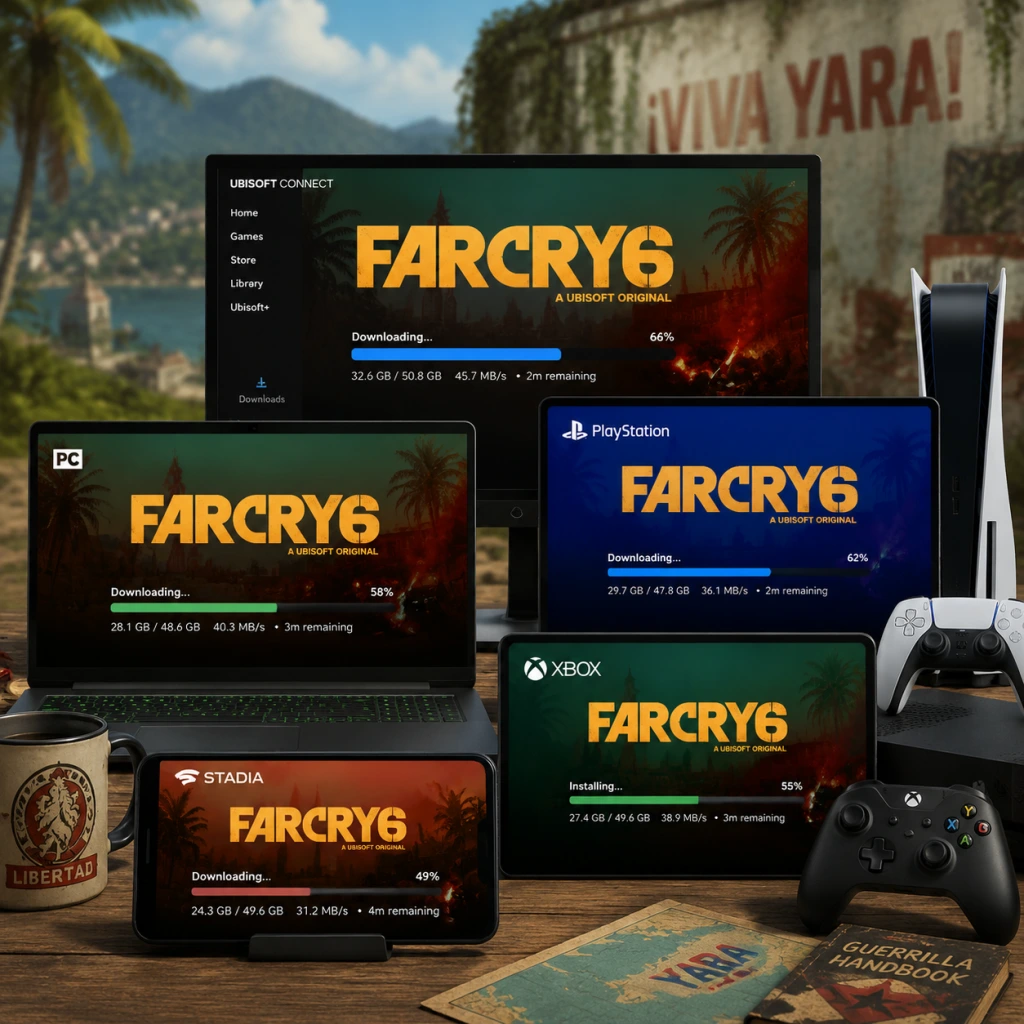
Download & Installation
Far Cry 6 – Download & Installation Guide
1. Supported Platforms
Far Cry 6 is available on the following platforms (as of 2025):
- PC (Windows) via Ubisoft Connect, Steam, and Epic Games Store
- PlayStation 4 & PlayStation 5 (digital/physical)
- Xbox One & Xbox Series X|S (digital/physical)
- Stadia (discontinued; no longer accessible)
- Not available on Nintendo Switch or mobile devices.
- PC (Ubisoft Connect): [store.ubisoft.com](https://store.ubisoft.com)
- PC (Steam): [store.steampowered.com](https://store.steampowered.com) (first released on Steam in 2023)
- PC (Epic Games Store): [store.epicgames.com](https://store.epicgames.com)
- PlayStation Store: On your console or via [store.playstation.com](https://store.playstation.com)
- Microsoft Store (Xbox): On your console or via [xbox.com](https://www.xbox.com)
- Physical discs: Available for PS4, PS5, Xbox One, Xbox Series X|S
2. Official and Legitimate Download Sources
Always purchase or download from official stores to avoid malware and ensure online functionality:
3. PC System Requirements
#### Minimum (1080p / 30fps / Low settings) | Recommended (1080p / 60fps / High settings)
| Component | Minimum | Recommended |
|---|---|---|
| OS | Windows 10 (64-bit) | Windows 10/11 (64-bit) |
| CPU | AMD Ryzen 3 1200 / Intel Core i5-4460 | AMD Ryzen 5 3600X / Intel Core i7-9700 |
| RAM | 8 GB (dual-channel) | 16 GB (dual-channel) |
| GPU | AMD Radeon RX 460 (4GB) / NVIDIA GeForce GTX 960 (4GB) | AMD Radeon RX 5700 XT (8GB) / NVIDIA GeForce RTX 2070 Super (8GB) |
| DirectX | 12 | 12 |
| Storage | 60 GB (SSD highly recommended) | 60 GB (SSD required) |
- Internet: Broadband connection for online features and activation.
- Other: Ubisoft account required.
- PC: ~60 GB (game). Additional space for saves (~100 MB).
- PS4: ~50 GB (disc version may require additional download).
- PS5: ~50 GB (optimized, may vary with patches).
- Xbox One: ~55 GB.
- Xbox Series X|S: ~50 GB.
- All platforms: A Ubisoft account is mandatory for online features (co-op, Ubisoft Connect rewards).
- PC (Steam/Epic): Must link your Steam or Epic account with Ubisoft account on first launch.
- PlayStation / Xbox: Sign in with your platform account; then link Ubisoft account when prompted.
- Note: Physical discs still require an internet connection for day-one patches and account linking.
- Digital:
- Physical (Disc):
- Digital:
- Physical:
4. Storage Space
Note: Sizes can increase with patches and DLC. Ensure at least 10% extra free space for updates.
5. Account Requirements
6. Step-by-Step Installation by Platform
#### 6.1 PC – Ubisoft Connect
1. Download and install the Ubisoft Connect PC application from [ubisoft.com/connect](https://ubisoft.com/connect).
2. Open Ubisoft Connect and log in with your Ubisoft account (or create one).
3. Go to the Store tab, search "Far Cry 6", and purchase or redeem a key.
4. After purchase, go to Games > My Games and find Far Cry 6.
5. Click Download and choose installation folder (at least 60 GB free).
6. Wait for download and installation to complete. (Steam/Epic versions will install via their respective clients but also require Ubisoft Connect as a background service.)
#### 6.2 PC – Steam
1. Install Steam from [store.steampowered.com](https://store.steampowered.com) and log in.
2. Search "Far Cry 6", purchase, and click Install.
3. Steam will download the game and also install a lightweight Ubisoft Connect overlay (if not already installed).
4. On first launch, you will be prompted to link your Steam and Ubisoft accounts (follow on-screen instructions).
#### 6.3 PC – Epic Games Store
1. Install the Epic Games Launcher from [epicgames.com](https://www.epicgames.com) and log in.
2. Find Far Cry 6 in the store, purchase, and click Install.
3. Epic will download the game. It will also install Ubisoft Connect if needed.
4. First launch: link Epic account to Ubisoft account.
#### 6.4 PlayStation 4 & 5
1. Go to PlayStation Store on the console.
2. Search "Far Cry 6", select edition, and purchase.
3. Click Download (PS4 version will be downloaded by default on PS4; on PS5 you can choose PS5 version if available).
4. Installation starts automatically; wait for completion.
1. Insert disc into console.
2. The game icon appears; select Copy or install from disc.
3. A mandatory day-one patch download may be required.
4. Launch game; link Ubisoft account when prompted.
Note: PS5 owners can download the free PS5 upgrade if they own the PS4 digital/disc version (check store).
#### 6.5 Xbox One & Xbox Series X|S
1. On the console, open Microsoft Store (or use Xbox app).
2. Search "Far Cry 6", purchase, and select Install.
3. Choose install location (internal or external drive).
4. Download and installation proceed automatically.
2. After initial install, download any updates.
3. Launch game; link Ubisoft account.
Smart Delivery: If you buy on Xbox One, you get the optimized Xbox Series X|S version free. The correct version is installed automatically.
7. First Launch Setup
1. Language and Region: Choose language, subtitles, and region settings.
2. Graphics (PC): On first launch, the game may auto-detect hardware and apply recommended settings. You can adjust in Options > Video.
3. Account Linking (all platforms): You must sign in to Ubisoft account or create one. For Steam/Epic users, a web browser window will open to link accounts.
4. Patching: If any updates are pending, the game will download them before the main menu.
5. Privacy: Accept the Ubisoft privacy policy and EULA.
6. Tutorial: The game begins with an optional intro mission; you can skip or play.
8. Common Installation Errors and Fixes
| Error / Issue | Cause | Solution |
|---|---|---|
| PC: "Insufficient disk space" | Not enough free space. | Check actual free space; empty recycle bin; move other files to external drive. Ensure 60 GB free. |
| PC: "DirectX error" | Missing or corrupt DirectX runtime. | Install DirectX from Microsoft; also install VC++ redistributables from the game’s _CommonRedist folder (in install directory). |
| PC: "Ubisoft Connect not detected" | Ubisoft Connect missing or not running. | Install/update Ubisoft Connect; restart client and game. |
| PC: Slow download on Steam/Epic | Bandwidth throttling or server congestion. | Pause and resume download; change download region in settings (e.g., to a less busy one). |
| Console: Disc read error | Dirty/scratched disc or drive issue. | Clean disc; check for scratches; try reinstalling from digital download if disc is damaged. |
| Console: Installation stuck at 0% | Server connectivity issue or corrupted download. | Check internet connection; restart console; clear cache (PS4: turn off, unplug for 30s); for Xbox: go to Network Settings > Advanced > Alternate MAC address > Clear. |
| All: "Ubisoft account link failed" | Incorrect credentials or server timeout. | Try again later; reset password; ensure you are using the same account as on the store. |
| Windows: Game crashes on startup | Outdated GPU drivers, conflicting software, or missing OS updates. | Update GPU drivers (AMD/NVIDIA/Intel); disable overlays (Discord, GeForce Experience); run as administrator; verify game files. |
| Unable to launch on Steam/Epic | Ubisoft Connect not installed. | Allow the launchers to install Ubisoft Connect automatically; if blocked by antivirus, add exceptions. |
9. Post-Installation Verification
To confirm the game is installed correctly:
- PC: In your launcher (Ubisoft Connect, Steam, Epic), the game should appear as "Installed" with version number. You can also check file integrity:
- PlayStation: From the home screen, highlight Far Cry 6 and press Options > Information to see version and storage usage.
- Xbox: Go to My games & apps > Far Cry 6 > Manage > File info to check size and version.
- Common check: Launch the game and confirm it reaches the main menu without errors. Check that the Ubisoft account is linked (you should see your avatar or Uplay points).
- HD Texture Pack (PC): Ubisoft offers a free high-resolution texture pack (~15 GB). Download separately from Ubisoft Connect or Steam DLC page. Only install if you have a powerful GPU (8GB+ VRAM) and ample SSD space.
- Cross-save / Cross-progression: Supported between PC (Ubisoft Connect) and consoles if you link the same Ubisoft account. (Not available between Steam/Epic and consoles yet.)
- Pre-loading: If you purchased digitally before release, you could pre-load the game; on launch day, only a small unlock patch downloads.
- Co-op: Requires both players to have Ubisoft accounts and be friends via Uplay.
- Backup saves: PC saves are stored in `Documents\My Games\Far Cry 6\` (or in Ubisoft Connect cloud). Consoles use internal storage; you can back up via USB (PS4) or cloud saves (Xbox/PS5).
- Ubisoft Connect: Games > Far Cry 6 > Properties > Verify files.
- Steam: Right-click the game in Library > Properties > Local Files > Verify integrity of game files.
- Epic: Click the three dots on the game tile > Verify.
10. Additional Tips
By following this guide, you will have Far Cry 6 installed and ready to play on your platform of choice. Enjoy your time in Yara!

Game Introduction
Far Cry 6 – Game Overview
Genre: First-Person Shooter (FPS) with open-world action-adventure, stealth, and role-playing elements.
Developer & Publisher: Developed by Ubisoft Toronto (lead) in collaboration with Ubisoft Montreal, Ubisoft Shanghai, Ubisoft Berlin, and other Ubisoft studios. Published by Ubisoft.
Release Timeline:
- Worldwide Release: October 7, 2021
- Next-Gen & Current-Gen Platforms: Same day release on PS4, PS5, Xbox One, Xbox Series X|S, PC (via Ubisoft Connect, Epic Games Store, Steam – Steam version released later in 2022)
- Post-Launch Content: Multiple DLCs and updates released between 2021 and 2023; cross-over missions added later.
- PC (Windows) via Ubisoft Connect, Steam, Epic Games Store
- PlayStation 4 & PlayStation 5
- Xbox One & Xbox Series X|S
- Amazon Luna (cloud streaming)
- Stadia (service discontinued)
- Location: Yara, a fictional Caribbean island inspired by Cuba (specifically the 1950s-60s era). The country is divided into three main regions:
- Time Period: Modern-day but with a distinct revolutionary aesthetic reminiscent of Cold War-era Cuba. The economy is driven by viviro, a plant that fuels Yara’s industry and corruption.
- Atmosphere: Vibrant but oppressive; colorful colonial architecture contrasts with military checkpoints, propaganda posters, and guerrilla graffiti. The world feels alive with civilians, animals, and dynamic weather (including hurricanes).
- Dani Rojas – A young Yaran who escapes their past and joins the revolution. Fully voiced, customizable appearance, and gender-selectable. Their personal story ties directly to the rebellion.
- Antón Castillo – The dictator of Yara, a charismatic but ruthless leader who believes he is the only one who can save the country. He is determined to pass his legacy to his son.
- Diego Castillo – Antón’s teenage son, torn between his father’s expectations and his own conscience. His arc mirrors the game’s themes of generational trauma.
- María “Mami” Marquessa – Antón’s ruthless right-hand, head of the secret police.
- Various Regional Commanders – Each region has its own lieutenant (e.g., General Reyes, José Gabriel, etc.) who must be defeated to weaken Castillo’s grip.
- Juan Cortez – A charismatic former spy and revolutionary strategist who guides Dani and runs the guerrilla network Libertad.
- Clara García – Leader of the Moralistas, a student activist group.
- The Monteros – A family-run smuggling operation led by an aging matriarch Philly Montero and her children.
- The Legends of 67 – Veteran revolutionaries who still fight from the shadows.
- El Tigre – A mysterious masked rebel who helps Dani early on.
- Guerrilla Toolkit: Craft makeshift weapons (e.g., the “Resolver” guns), use a grappling hook, throw “Supremo” backpacks that unleash unique abilities (e.g., homing missiles, EMP blasts, poison gas).
- Vehicular Combat: Drive over 60 land, sea, and air vehicles, including tanks, boats, and civilian cars. You can fire weapons from vehicles, call in airstrikes, and ride horses.
- Amigo Companions: The game features “Amigos” – animal and robot companions that fight alongside you (e.g., a crocodile named Guapo, a dog named Chorizo, a panther named Oluso, and a robot named Bandido).
- Base Liberation & Fortresses: Capture military bases, tank factories, and outposts. Infiltrate or go loud. Side missions include dismantling propaganda, freeing hostages, and destroying supply lines.
- Choices & Consequences: Some missions let you choose between factions, affecting the ending and available allies.
- Takedowns & Stealth: Improved movement, stealth takedowns, and a “Distraction” system using rocks or radio chatter.
- RPG-Lite Progression: Skill trees (for firearms, sneaking, vehicles), weapon modding with piece-by-piece customization, and gear sets that grant passive bonuses.
- Primary: Fans of the Far Cry series, especially those who enjoyed Far Cry 3, 4, and 5.
- Secondary: Open-world FPS enthusiasts; players who like sandbox chaos (Just Cause, Ghost Recon); fans of story-driven action games with political themes.
- Third-party: Casual gamers looking for a visually beautiful, accessible open-world with moderate difficulty.
- What to expect: Moderate violence, strong language, mature themes (drugs, oppression, death). Not suitable for young children.
- The main story (approx. 25–40 hours) plus dozens of side missions, treasure hunts, and “Yaran Stories” (faction quests).
- Online Co-op: Up to two players can play the entire campaign together (drop-in/drop-out via invite). Both players earn progression and loot. You can share vehicles, vehicles, and takedowns.
- Note: There is no competitive multiplayer in Far Cry 6. The focus is entirely on co-op and single-player.
- After completing the campaign, you can replay “Special Operations” – timed, challenge-based missions that reward currency for customizable gear and cosmetics.
- “Far Cry Arcade” is removed in this entry; instead, there are smaller side activities like trike races, treasure hunts, and hunting challenges.
- Offline Mode: The entire single-player campaign can be played completely offline without an internet connection (on consoles) or with Ubisoft Connect offline (PC). No DRM beyond the required platform account.
- Online Features: Co-op requires an internet connection and a Ubisoft account. The same applies to accessing the in-game store, leaderboards, and community events.
- Cross-Play / Cross-Save: No cross-play between platforms. Cross-save is available between PS4/PS5 and Xbox One/Series X|S within the same console family. PC does not cross-save with consoles.
- Released: November 2021
- Content: A roguelite-style expansion where you play as Vaas Montenegro (from Far Cry 3) inside a twisted mental simulation. Survive Vaas’s mind, unlock memories, and fight version of his psyche.
- Released: January 2022
- Content: Similar roguelite structure starring Pagan Min (Far Cry 4). Explore his distorted palace and confront his past.
- Released: February 2022
- Content: Play as Joseph Seed (Far Cry 5) in a post-apocalyptic Montana-themed simulation. Manage resources and survive his twisted sermons.
- “Danny & Dani vs. Everybody” (featuring Dani Rojas and Danny Trejo as a guest character)
- “Rambo: First Blood” crossover (Sly Stallone’s John Rambo-themed mission)
- “Stranger Things” crossover (a short mini-event inspired by the TV series)
- The Season Pass includes all three Vaas/Pagan/Joseph DLCs, plus the classic Far Cry 3: Blood Dragon (standalone remaster).
- The Ultimate Edition includes the Season Pass + cosmetic packs, weapons, and XP boosters.
Platforms (as of 2025):
---
Story Overview
Set in the fictional Caribbean island nation of Yara, Far Cry 6 places you in the role of Dani Rojas (male or female, player’s choice), a local Yaran who joins the revolutionary movement Libertad to overthrow the tyrannical regime of Antón Castillo (voiced by Giancarlo Esposito). Antón rules with an iron fist, exploiting the country’s resources (especially the valuable tobacco-like crop viviro) and forcing his son Diego to follow in his footsteps. The story follows Dani’s journey from a reluctant bystander to a full-blown guerrilla leader, rallying various factions—from the scrappy Libertad guerrillas to the underground Montero family—against the oppressive Fuerzas Armadas Revolucionarias (FAR) and Castillo’s secret police, the Civiles. The narrative explores themes of revolution, legacy, sacrifice, and the human cost of freedom.
---
Setting
- Madrugada – Dense jungles, mountains, and rebel hideouts.
- Valle de Oro – Agricultural heartland with tobacco fields, rivers, and colonial towns.
- El Este – Urban landscapes, ruined hotels, and a coastal capital city, Esperanza.
---
Main Characters
Protagonist
Antagonists
Allies & Factions
---
Core Appeal
Far Cry 6 retains the series’ signature blend of chaotic open-world sandbox gameplay, but introduces several new elements:
---
Target Audience
---
Game Modes
Single-Player Campaign
Co-op Multiplayer
Special Operations (Endgame)
Races & Challenges
---
Online / Offline Support
---
DLC / Expansion Overview
Far Cry 6 received three story DLCs, plus a free crossover mission:
1. Far Cry 6: Vaas – Insanity
2. Far Cry 6: Pagan – Control
3. Far Cry 6: Joseph – Collapse
Free Crossover Missions
Season Pass & Ultimate Edition
---
What Makes Far Cry 6 Unique?
1. Political Setting Rooted in Reality: Unlike the fantastical locales of previous Far Cry games, Yara feels like a real-world dictatorship inspired by Cuba. The story tackles revolution, propaganda, and intergenerational conflict with a surprisingly serious tone.
2. The Supremo System: Instead of traditional skill tree unlocks, you equip a “Supremo” backpack that grants a powerful special ability on a cooldown. This changes combat dramatically (e.g., fire homing missiles, deploy poison gas, use an EMP).
3. Resolver Weapons: You can craft improvised weapons from scraps found around Yara. Examples include a CD-launching gun, a homemade nail gun, and a machine gun that shoots household items.
4. Amigo Animal Companions: Not just cosmetic; each Amigo has unique abilities (e.g., Guapo the croc distracts enemies, Chorizo the dog tags enemies through walls, Oluso the panther performs silent takedowns). Bandido the robot can hack electronics or explode.
5. No Hunting for Crafting: Hunting is purely for fun or side missions; skins are not used for upgrades. Instead, resources come from looting military crates and completing missions.
6. Faction Allegiances: Your choices affect which allies you gain access to, leading to different story beats and endings.
7. Live-Service Elements: Weekly challenges, “Lost Between Worlds” (a replayable mode with randomized islands and modifiers), and seasonal events keep the game active post-launch.
8. Giancarlo Esposito’s Performance: The actor’s portrayal of Antón Castillo is widely praised as one of the best Far Cry villains—a cold, calculated, and tragic figure.
---
Summary
Far Cry 6 is a bold entry in the long-running series, shifting from the isolated mountains of Kyrat or the American heartland to a sun-soaked Caribbean revolution. It combines the series’ signature chaos with a more grounded story, deep customization, and a memorable villain. While it retains the familiar loop of capturing outposts, liberating regions, and crafting gear, it adds unique elements like Supremos, the DIY weapon system, and animal companions. The game is best enjoyed in co-op or solo for players who appreciate open-world shooters with a vibrant, living world and a narrative that asks tough questions about freedom. With extensive post-launch content and active modding support on PC, Far Cry 6 remains a robust choice for FPS fans in 2025.
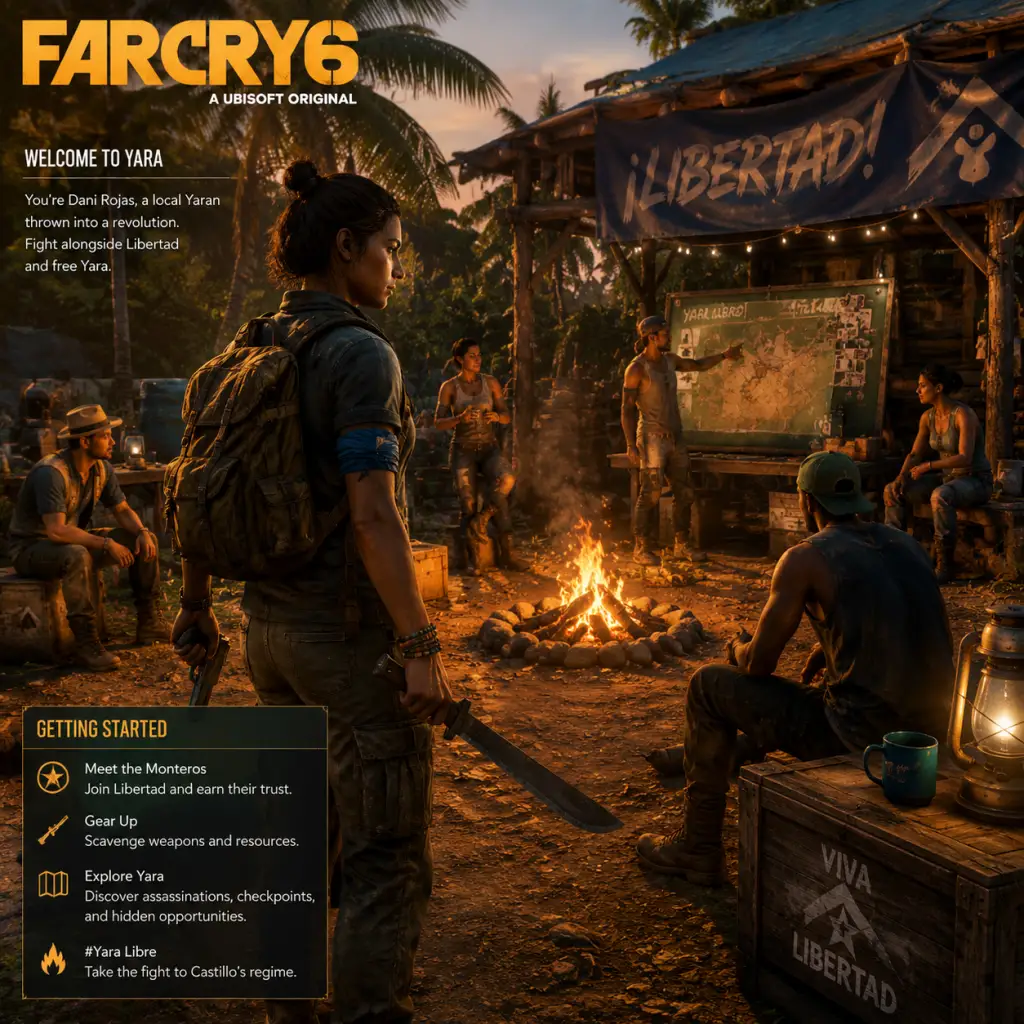
Getting Started
Far Cry 6 – Getting Started Guide for New Players
Welcome to Yara, a tropical paradise under the iron fist of dictator Antón Castillo. As a brand-new player, this guide will walk you through your first hour, explain controls, UI elements, early objectives, and help you avoid common pitfalls. No character creation exists – you play as Dani Rojas (male or female, chosen at the start). Let’s dive in.
First Hour Walkthrough (No Spoilers)
0–5 min: Introduction
- The game opens with a cinematic: you’re a civilian in the capital, Esperanza. After a brief sequence, your boat is attacked and you wash ashore on the island of Isla Santuario.
- You cannot skip weapon tutorials – follow the prompts.
- Tip: Pay attention to the tutorial pop-ups; they explain basic mechanics like crouching, takedowns, and aiming.
- You’ll be given a makeshift weapon (a machete and a rifle). Follow the linear path through the jungle. You’ll encounter a few soldiers – use cover, aim for headshots (one-hit kill with a suppressed pistol later).
- At the end, you rescue a guerrilla leader named Clara Garcia. She gives you your first mission: escape the island.
- Action: Grab the ‘Resolver’ weapon from the dead soldier – it’s a unique firearm you can upgrade later.
- You’ll need to find a boat. Follow the quest marker. Along the way, you’ll meet a friendly NPC (Juan Cortez) who gives you a suppressed handgun and a camp building tutorial.
- On the boat, a quick shooting segment occurs – just aim and fire at the pursuing helicopter. You’ll crash land on the main island of Madrugada.
- Important: After the crash, you are now free to explore. The first major objective is to reach the guerrilla camp called “Montero Farm”.
- Follow the road to the farm. You’ll encounter soldier patrols – sneak past them or fight. Killing every patrol is not necessary.
- At the farm, you meet Clara again and unlock your first Guerrilla Camp (a type of safe house). Here you can:
- Mission: You are given your first main story mission: “The Lion’s Den” – infiltrate a nearby military checkpoint. This will teach you stealth and hacking.
- To choose, press the corresponding button when prompted (e.g., Y on Xbox, Triangle on PlayStation, F on PC).
- Note: You cannot change gender later, so be sure before proceeding.
5–15 min: Combat Tutorial
15–30 min: Escape to the Mainland
30–60 min: First Camp (Montero Farm)
- Upgrade weapons at the workbench.
- Purchase gear from the Corojo store.
- Start side missions (marked with a yellow !).
- Fast travel from the map (once unlocked).
Character Creation & Gender Choice
Far Cry 6 does not have a character creator. You can choose between Male Dani or Female Dani at the very start (before the opening cutscene). This choice affects voice lines and some player animations, but no gameplay differences. Both are canon; select whichever you prefer.
Controls Overview (All Platforms)
#### PC (Keyboard & Mouse)
| Action | Key |
|---|---|
| Move | W, A, S, D |
| Look | Mouse |
| Shoot | Left Mouse Button |
| Aim Down Sights | Right Mouse Button (hold) |
| Reload | R |
| Interact / Loot | E |
| Crouch / Slide | Left Ctrl |
| Jump / Vault | Space |
| Sprint | Left Shift |
| Melee Attack | V |
| Use Gadget / Supremo | Q |
| Switch Weapon | 1, 2, 3, 4 |
| Map | M |
| Health Kit | 6 (hold) or press 6 for instant use |
| Grenade | G (cycle with mouse wheel) |
| Call Ride / Vehicle | X |
| Camera / Photo Mode | P |
#### PlayStation (PS4 / PS5)
| Action | Button |
|---|---|
| Move | Left Stick |
| Look | Right Stick |
| Shoot | R2 |
| Aim Down Sights | L2 (hold) |
| Reload | Square |
| Interact / Loot | Triangle |
| Crouch / Slide | Circle (hold to slide) |
| Jump / Vault | Cross |
| Sprint | L3 (press left stick) |
| Melee Attack | R1 |
| Use Gadget / Supremo | L1 |
| Switch Weapon | D-Pad Left/Right |
| Map | Touchpad (swipe up) |
| Health Kit | Up on D-Pad (hold) |
| Grenade | Down on D-Pad (cycle with Left/Right) |
| Call Ride / Vehicle | R3 (press right stick) |
| Camera / Photo Mode | Options > Photo Mode |
#### Xbox (Xbox One / Series X|S)
| Action | Button |
|---|---|
| Move | Left Stick |
| Look | Right Stick |
| Shoot | RT |
| Aim Down Sights | LT (hold) |
| Reload | X |
| Interact / Loot | Y |
| Crouch / Slide | B (hold to slide) |
| Jump / Vault | A |
| Sprint | L3 (press left stick) |
| Melee Attack | RB |
| Use Gadget / Supremo | LB |
| Switch Weapon | D-Pad Left/Right |
| Map | View Button (two boxes) |
| Health Kit | Up on D-Pad (hold) |
| Grenade | Down on D-Pad (cycle with Left/Right) |
| Call Ride / Vehicle | R3 (press right stick) |
| Camera / Photo Mode | Menu > Photo Mode |
UI Overview
Your HUD (always present unless you toggle it off in settings) includes:
- Health Bar (bottom left): Green bar; when damaged it turns red. Use a Health Kit (hold Up D-Pad / 6) to restore.
- Ammo Counter (bottom right): Current magazine / total ammo. When ammo is low, enemies won’t drop more – loot weapon caches or buy ammo at camp stores.
- Minimap (top right): Shows nearby enemies (red dots), allies (blue dots), points of interest. You can expand to full map with M (PC) or Touchpad (PS) / View button (Xbox).
- Objective Marker (on screen): Yellow diamond – follow it for current main story mission. Side missions appear as yellow !.
- Gadget/Supremo Wheel (hold Q/L1/LB): Lets you select gadgets like grenades, Molotovs, explosive arrows, or your backpack weapon (Supremo).
- Tips & Messages (center): Tutorials and game hints appear briefly.
- Enemy Alert Status: When spotted, a red exclamation mark appears above enemies. When enemies are searching, a yellow eye icon shows.
- DO liberate as many outposts as possible – they reduce enemy patrols and unlock fast travel.
- DO upgrade your weapon workbench to craft suppressors for all weapons (eliminates noise penalty).
- DO complete the “Triada Blessings” side mission early – it gives you mystical abilities that help stealth.
- DO hunt animals for crafting materials – focus on aligators (hide for pouches) and wolves (meat for health recovery).
- DO explore the map to find “Chests” (silver coins) – they contain rare weapons and large sums of Pesos.
- DON’T attack heavily fortified anti-aircraft bases early – they are tough and require better gear. Avoid them until level 3-4.
- DON’T ignore the compass – enemies can see you from far away. Use “Eagle Vision” (press C on PC, press R3? no, that’s scan) – actually, you need to hold the map button to mark enemies? Wait, there’s a binoculars function. Use binoculars (press V on PC, hold L1+? Actually default is Middle Mouse Button on PC? Let’s clarify: In Far Cry 6, you press the binoculars button (default B on PC, up on D-pad? No, that’s health. The correct button is Hold the weapon wheel? I recall it’s Hold Q then select Binoculars. But for simplicity: use the Weapon Wheel (hold Q/L1/LB) and choose binoculars. Better to say: “Press the gadget wheel and select Binoculars (icon looks like binoculars).” I’ll adjust.
- DON’T spend all Pesos on cosmetics – weapons and weapon upgrades matter more.
- DON’T fast travel everywhere – you miss collectible items and side missions.
- DON’T kill every animal you see – some are endangered and give no materials. Focus on aggressive animals (alligators, wolves, bears).
- DON’T engage every patrol head-on – sometimes it’s faster to sneak by.
Radial Wheel for Items: Hold the grenade button (G on PC, Down D-Pad on console) to cycle through throwables and special ammo. You can also edit loadouts at weapon workbenches.
Essential Early Objectives
After reaching Montero Farm, your top priorities:
1. Complete “The Lion’s Den” – Learn stealth and hacking. You’ll get a key item: a USB drive that unlocks network hacks.
2. Liberate Outposts (look for red flags on map) – Clearing an outpost earns you resources, weapon rewards, and fast travel points. First outpost is in Madrugada region, south of Montero Farm.
3. Collect Yaran Pesos (gold coins) – Loot bodies, sell bandidos supplies, or complete treasure hunts. Use Pesos to buy weapons early on – the best early weapon is the ‘MS16 L’ rifle from the Corojo store (around 500 pesos).
4. Craft a Health Pouch – Required to carry more than 2 Health Kits. Materials: animal hides, found by hunting (alligators, wild boars, etc.). Craft at camp workbench.
5. Meet Juan Cortez again – He’ll give you the “Supremo” backpack, a powerful special weapon. Don’t miss this quest.
What to Do First (Priorities)
What to Avoid (Newbie Traps)
Early Resource Priorities
Resources are limited. Spend them wisely:
| Resource | Use | Get It From |
|---|---|---|
| Yaran Pesos (Gold) | Buy weapons, ammo, vehicles, clothes | Looting enemies, selling items, treasure hunts |
| Supremo Bond (blue material) | Upgrade your Supremo backpack capacity & damage | Enemy commanders, supply drops |
| Meat, Hides, Feathers | Craft pouches, health kits, ammo pouches | Hunting animals |
| Scrap Metal | Upgrade weapon workbenches | Scavenging military trucks, base materials |
| Weapon Powder | Craft ammo types (e.g. armor-piercing, incendiary) | Looting enemy weapon caches, stores |
| FND Intel (white documents) | Unlock enemy base locations and main story | Finding them in the world (yellow diamond when nearby) |
1. Collect metal scraps to upgrade workbench to level 2 (unlocks suppressors).
2. Hunt alligators for crocodile hide – craft a larger health pouch (carry 4 health kits).
3. Gather supro Bond from commanders (they glow blue in enemy camps).
4. Save up ~1000 Pesos to buy the MS16 L rifle and a good suppressor.
Common Beginner Mistakes
1. Not using the Weapon Wheel – You can carry up to 4 weapons. Swap between them mid-combat; don’t stick to one.
2. Running in plain sight – Always crouch near enemies; noise from running alerts them. Use slide when sprinting to stay low.
3. Ignoring the map “Bandidos” system – Once unlocked (shortly after Montero Farm), you can send Bandidos on missions to earn money and resources. Do it regularly.
4. Forgetting to save – Autosave is frequent, but manual save (pause menu) before big fights is smart.
5. Using the wrong ammo type – Early game, Armor-Piercing rounds are best for soldiers (pierce helmets). Fire ammo works well against animals. Swap ammo at workbench.
6. Neglecting vehicle upgrades – The first car you get (from the farm) can be upgraded with armor and a turret at the bandido camp later; do this to survive ambushes.
7. Jumping off tall cliffs – Fall damage is real; use the paraglider (unlocked later) or wingsuit (also later). For now, use ziplines or careful jumps.
Day-One Checklist
Before you leave the first area, ensure you have ticked off:
- [ ] Choose your Dani gender
- [ ] Complete the tutorial (escape Isla Santuario)
- [ ] Arrive at Montero Farm and accept “The Lion’s Den” main mission
- [ ] Upgrade your weapon workbench at Montero Farm (requires scrap metal – gather from nearby wrecked cars)
- [ ] Craft a larger health pouch (2-3 hide from alligators)
- [ ] Buy the MS16 L rifle from the Corojo store (if you have 500+ pesos)
- [ ] Complete “The Lion’s Den” mission
- [ ] Liberate at least one outpost in Madrugada (south of farm)
- [ ] Collect at least 3 FND Intel documents (find one near the farm)
- [ ] Hunt an alligator and a wolf for materials
- [ ] Talk to Juan Cortez to unlock Supremo quest
- [ ] Set up your Bandidos first operation (unlocked after “The Lion’s Den”)
- [ ] Customize your weapon with a suppressor (workbench level 2)
Once you’ve done these, you’re well prepared for the rest of the game. Good luck, guerrilla!

Core Gameplay
Far Cry 6 – Core Gameplay Guide
This guide breaks down the core gameplay loop, combat and interaction systems, progression, exploration, quests, economy, character/build growth, and endgame structure across four player progression tiers: Early Game, Mid Game, Late Game, and Endgame. Examples are specific to Far Cry 6 and assume you play as Dani Rojas on the island of Yara.
---
Early Game (Hours 1–10, Rank 1–10, Starter Regions: Isla Santuario + first two regions)
Core Gameplay Loop
1. Travel to a mission or activity marker using any vehicle (car, horse, boat, wingsuit).
2. Scout the area using the camera or binoculars to tag enemies and identify threats.
3. Engage enemies using stealth (silenced weapons, takedowns, throwing gadgets) or loud combat (rifles, explosives, Supremo special attacks).
4. Complete objectives: assassinate a target, steal supplies, free hostages, destroy anti-air cannons.
5. Loot bodies and containers for resources: gunpowder, metal, medicine, money, and unique parts.
6. Return to a camp or hideout to craft gear, upgrade weapons at the workbench, and equip new Resolver weapons or Supremo packs.
7. Repeat.
Combat & Interaction Systems
- Weapons: Start with a simple rifle (M16-A), pistol, and a machete. You can switch between three weapon slots. Early weapons have low accuracy and damage.
- Stealth: Crouch, use grass/high ground, and whistle to distract. Takedowns are silent (press melee prompt from behind). Silencers reduce damage but keep you undetected.
- Supremo: A backpack weapon – the first one is the “Exterminador” (fire-based rocket launcher). Recharge by getting kills or picking up batteries. Use it to clear groups or stun tanks.
- Resolver Weapons: Craftable special weapons like the “El Miedo” (nail gun) or a poison-spewing gun. Early Recipes require unique parts from mini-bosses or vehicles.
- Vehicles: Hijack any vehicle. Tanks are rare early; use horses for quiet travel. Boats open up rivers around Isla Santuario.
- Interaction: Press E/button to interact with doors, loot, talk to NPCs, or start missions. “Send Supplies” from the workbench to upgrade camps.
- Rank: Earn XP from kills, missions, and side activities. XP bars fill and grant rank ups (1–20). Each rank gives a “Puntos de Liberación” to spend in the “Guerrilla” skill tree (e.g., more health, faster aiming, improved stealth).
- Gear: Three gear slots: Head, Chest, Legs. Early gear sets give minor bonuses (e.g., “Cacique” – increased pistol damage). Collect gear from chests or as mission rewards.
- Supremo Upgrades: Use gunpowder and metal at the workbench to upgrade Supremo capacity, damage, or recharge speed.
- Bandidos Missions: Unlock after reaching a certain Guerrilla rank. Send your recruits on timed missions for resources. Early Bandido missions are simple (1–2 recruits) and yield basic supplies.
- Fast Travel: Unlock by capturing checkpoints (small military posts). Each region has 3–5 checkpoints. Capture them to unlock a fast travel point.
- Collectibles: Look for “Yaran Stories” (audio logs), “Criptograma” puzzles, and “Misión Secundaria” side quests. Collecting them rewards XP and unique gear.
- Wildlife: Hunt animals (caimans, boars, deer) for hides to craft upgrades at the camp. Be careful – predators attack you too.
- Treasure Hunts: Marked on map as yellow question marks. They reward gear, weapons, or unique parts. Early example: “Treasure of the Sea” on Isla Santuario gives a unique pistol.
- Main Operations (Yellow Diamond): Progress the story. First few missions: escape the beginning island, meet Juan Cortez, and gain access to the broader map.
- Misión Secundaria (Blue Diamond): Side missions from NPCs. Example: “The Old Soldier” – help a veteran find his weapons stash.
- Yaran Stories: Collectible missions that don’t trigger automatically but are found as audio logs. They provide backstory and small rewards.
- Free Roam Activities: Destroy anti-aircraft guns, steal supply trucks, free prisoners from camps. These earn resources and lower enemy control.
- Currency: Pesos (pick up from enemies, loot containers, sell items). Use pesos to buy ammunition, gear blueprints, and vehicle upgrades at shops.
- Resources: Gunpowder, metal, medicine, and plants. Craft ammo, health items, and gear. Trade resources between camps via “Send Supplies” – costs a few resources but boosts camp development.
- Shops: Found in camps and towns. You can buy weapons, vehicles, and clothing. Early shop inventory is limited.
- Skill Tree: Spend Puntos de Liberación on three branches: “Guerrilla” (stealth and movement), “Supremo” (explosives and Supremo upgrades), and “Leader” (health and damage perks). Early focus: “Health I” and “Silent Takedowns” for survival.
- Gear Synergies: Mix gear sets for bonuses. For example, two pieces of “Cacique” set boost pistol damage; three pieces give a headshot multiplier.
- Resolver Weapons: Build them at workbenches using unique parts from mini-bosses (like “Admiral Benítez” – a sea captain). Early Resolver: “La Varita” (pistol that fires through walls) – requires parts from a mission.
- Open up each region by completing the “Operation” – a multi-step main mission that unlocks the regional leader. For example, in Madrugada, you work with Libertad to take down a Castillo puppet.
- More complex camps: upgrade them with “Chicharrón” (chicken companion) or “Guapo” (crocodile) to assist in combat.
- Loot vehicles for high-tier parts: military vehicles yield better gunpowder. Tank parts become common.
- Frequently switch between stealth and all-out assault. Use Supremo more liberally as you upgrade recharge speed.
- New Weapons: Unlock assault rifles with scopes, sniper rifles (like “SVD”), and shotguns. Grenades and Molotovs become affordable.
- Supremo Variants: Earn new Supremo packs from missions or by completing “Special Operations” (co-op activities). Examples: “Volta” (electrical damage), “Fumigador” (poison gas).
- Resolver Weapon Upgrades: Improve your Resolver weapons with better mods: scope, suppressor, extended mag. Each weapon has three mod slots.
- Vehicle Combat: Tank upgrade allows you to fire cannon while driving. Air support: call in a helicopter strike using the “Radio” gadget (unlock via side mission in El Este).
- Interaction: Use the “Machete Throw” skill to silently take out enemies from range (requires skill point). Also, hack enemy alarms (disable them with a quick time press).
- Rank Cap: Mid-game you’ll reach rank 20 and hit the cap? Actually rank cap is 20, but after that you earn “Insight Points” for gear upgrades. The rank system soft-caps; your rank levels don’t increase further, but you can still earn XP for skill points? Let me correct: The rank system goes from 1 to 20. After hitting rank 20, you no longer earn XP for rank, but you continue to earn skill points by completing activities. Important: Skill points are earned from missions and side content, not rank. So rank is separate from skill tree. OK, clarify.
- Gear Tiers: Unlock “Rare” (blue) and “Epic” (purple) gear from side quests and treasure hunts. Each gear piece has a mod slot for additional perks (e.g., “+10% explosive resistance”).
- Camp Upgrades: Each region has a main camp (e.g., “Patria” in Madrugada). Upgrade buildings: Arsenal (weapon workbench upgrades), Stables (horse speed), and Scavenging (resource income). Spend resources and “Insignias” (earned from Bandidos missions).
- Bandidos Missions: Unlock 3–5 recruit slots. Send teams on longer missions (30–60 minutes) for rare resources like “Improvised Parts” and unique gear.
- New Regions: Each region has distinct biomes. Madrugada: dense jungle and rivers. Valle de Oro: rolling hills and tobacco plantations. El Este: swamp and mangrove. Vehicles become essential for long-distance travel.
- Hidden Caches: Look for “Criptograma” puzzles (symbols on walls) that unlock secret rooms with high-tier weapon parts or unique clothing.
- Military Targets: Destroy radar stations, guard posts, and supply depots. Doing so reduces enemy patrol density and unlocks fast travel points.
- Companions: Unlock “Chicharrón” (aggressive chicken) by completing a side quest in Madrugada. Later, “Guapo” (crocodile) and “Oluso” (jaguar) can be brought along for combat support.
- Regional Operations (Orange Diamond): Multi-part main quests for each region. Example: In Valle de Oro, you must win the heart of a loyalist general’s daughter and steal his armored vehicle.
- Misión Secundaria: More complex side missions with unique rewards. Example: “The Lost Treasure” in El Este – a series of underwater treasure hunts requiring diving gear.
- Special Operations: Co-op only mode unlocked after reaching a certain point. Complete challenging multi-objective missions for currency and exclusive gear.
- Yaran Stories: Many are now available. Some require specific gear (e.g., “The Smoke” – need a sniper rifle).
- Pesos Inflation: You’ll have excess pesos. Spend on weapon paints and vehicle skins. Still need to buy ammo but ammo is cheap.
- Resource Management: Gunpowder is the bottleneck for weapon upgrades. Focus looting military crates and large fuel tanks. Metal is abundant; sell excess at shops.
- Trade Routes: Use “Send Supplies” between camps to transfer resources. This reduces your active resource stash but builds up camp stockpile for upgrades.
- Black Market: Unlock via a side mission in Madrugada. Buy unique weapons and clothing using “Moneda” (earned from weekly challenges and Bandido missions). Don’t spend early; save for endgame gear.
- Skill Tree: By now you should have many points. Popular mid-game builds: “Stealth Assassin” (maxed silent takedowns, faster movement while crouched), “Explosive Engineer” (increased explosive damage and Supremo recharge on kills), or “Rambo” (more health, faster reload, higher damage).
- Gear Sets: Combine three pieces of a set for set bonuses. Example: “El Tigre” set (three pieces gives stealth kills make no sound even if detected). Mix and match mods.
- Companion Abilities: Use “Chicharrón” to distract enemies; order him to attack by aiming at enemy and pressing companion action (R on PC). Later companions like “Oluso” can instantly kill a single target on command.
- Supremo Special: Each Supremo has an alternate fire mode (hold down button). “Exterminador” secondary: fires a cluster of fire bombs. Learn to switch between modes for different situations.
- The loop shifts from exploration to high-intensity combat and optimization. You have full map access, most upgrades unlocked.
- Focus on completing the main operations to defeat Antón Castillo. Each main mission is a multi-phase set-piece battle with heavy resistance.
- Use your fully upgraded Supremo and best weapons to clear halls of enemies. Stealth is still possible but often the alarm triggers automatically.
- Loot becomes less important; you’re collecting “Insignias” and “Moneda” for the best gear.
- Participate in “Insurrection” activities – weekly high-level challenges that reset enemy control in regions.
- Endgame Weapons: The best weapons are Supremo legendary variants (e.g., “El Amigo” – a rocket launcher that homes in on vehicles) and unique Resolver weapons (e.g., “La Triada” – triple-shot pistol). Get them from Black Market or impossible treasure hunts.
- Enemy Types: You’ll face “Spec Ops” soldiers who can take more damage, use energy shields, and call in airstrikes. Some areas have anti-air turrets that shoot you out of the sky.
- Interaction: Use the “Wingsuit” to glide long distances – essential for travel. Also, “Horse” companions can be called anywhere (L key on PC).
- Vehicle Upgrades: Own a tank (TANK) from the garage. Equip it with the best turret and armor. Air vehicles like a helicopter are useful but fragile.
- Rank 20 Cap: No further rank increase. Instead, gear has a “level” system? Actually gear doesn’t have levels; only rarity. So progression is horizontal: you unlock more gear sets and mods.
- Gear Rarity: Legendary (yellow) gear has two mod slots and a unique perk. Example: “The Hat of the Fox” – automatically marks enemies within 30 meters.
- Insignias: Used for camp upgrades. You can earn them from Bandido missions, but late game you may have enough. Focus on finishing camp buildings.
- Black Market: Buy the “MS16 L” – a semi-auto rifle with high accuracy and damage, or the “Supercharger” – a sniper rifle that penetrates cover.
- Map Completeness: There may be a few hidden areas behind “Base Jump” points or underwater caves. Use advanced gear like upgraded scuba gear for long underwater stays.
- Insurrection: After finishing the main story, the game introduces a rotating weekly Insurrection where a region is retaken by Castillo forces. You must recapture checkpoints and defeat a high-level commander. Rewards include legendary gear and Moneda.
- Arcade Mode: Not tied to campaign progression, but part of Far Cry 6’s late-game offering. Play user-created maps or official Arcade maps for additional XP and resources.
- Final Operations (Red Diamond): The concluding missions of the main story. High difficulty; bring your best gear. Example: “The Battle of Esperanza” – assault the capital city with allied forces.
- Operation: ‘The True Yaran’: A special operation available after the main game, requiring you to assassinate high-value targets across Yara.
- Misión Secundaria: Some late-game side missions only appear after completing certain main quests. Example: “The Legacy” – a series of puzzles involving the old revolution.
- Bandido Missions: Now you have 10+ recruit slots. Send teams on 4-hour missions for top-tier resources like “Gold Bars” (used for rare upgrades).
- Moneda: Earn from weekly challenges, Bandido missions, and special ops. This is the premium currency for Black Market items. No real-money purchase; only earned in-game.
- Gold Bars: Rare resource from late Bandido ops. Used to craft ultimate weapon mods (like “+100% damage” but I think not; actually gold bars are for something else. Wait: In Far Cry 6, “Gold” is not a resource; perhaps I confuse with other game. Let me correct: Late Game resources: “Improvised Parts” used in crafting legendary gear. Bandido missions yield “Insignias” and “Legendary Gifts” which are weapon/gear blueprints).
- Resource Exchanges: Sell surplus animal hides and common metals at shops. Buy ammo because you’ll use a lot.
- Optimized Gear Sets: Combine legendary gear with synergistic mods. For stealth: use “Oluso” companion for its one-hit kill ability, equip the “Whisper” silencer on your weapon, and wear three pieces of the “Ghost” set for silent movement.
- Supremo Mods: Each Supremo can be customized with up to two mods. For example, add “+50% blast radius” and “+30% damage” to your “Exterminador”.
- Companion Upgrades: Each companion has a skill tree that unlocks abilities. Spend points from completing companion-specific missions. “Chicharrón” can learn to alert you to enemies. “Guapo” can pin enemies.
- Skill Tree Completion: You should have all skills unlocked by now. If not, do remaining side quests to earn skill points.
- The endgame revolves around two main activities: Insurrections and Special Operations.
- Insurrection: Each week, a random region becomes contested. You must recapture all checkpoints (currently held by elite soldiers) and then assault a fortress to defeat a “General”. The loop: fast travel to region, move through checkpoints in order (they reactivate one by one), eliminate all enemies at each, then take down the fortress. Reward: Legendary weapon/gear blueprint and Moneda.
- Special Operations: Co-op missions with 3–4 phases. Example: “Operation: Enduring” – you must disable three anti-air guns, then defend a point, then extract. High difficulty. Rewards include unique gear and resources.
- Also: complete all Yaran Stories, treasure hunts, and Bandido missions.
- Max Difficulty: Elite enemies have thermal vision, grenade launchers, and can call in mortar strikes. Use a mix of stealth and explosives. Your Supremo should be fully upgraded with best mods.
- Vehicle Combat: In Insurrections, you may face armored convoys. Use a tank or a helicopter with rockets to take them out.
- Interaction: Use the “Rock” gadget to distract (useful for creating openings). The “C4” is good for setting traps on checkpoint doors.
- No Further Leveling: No skill points or ranks beyond 20. Horizontal progression: collect all legendary gear, max out camp upgrades, and unlock all weapons.
- Camp Upgrades: Max out all camps (Arsenal, Stables, Garage, etc.) for permanent bonuses like 20% faster vehicle spawn or +50% pistol damage.
- Completionist Goals: Earn all achievements/trophies. Some require specific feats (e.g., kill 10 enemies with a frying pan).
- Map 100%: Clear all fog, find all collectibles, complete all activities. Use the map legend to track missing items.
- Easter Eggs: Look for hidden references (e.g., “Treasure of the Day” – a reference to previous Far Cry games).
- Base Jumping: Some locations require you to base jump into a small pool – find them for collectibles.
- No New Main Quests: The main story is complete. However, some side missions are only available after the final mission (e.g., “The Aftermath” – a series of missions dealing with Yara’s reconstruction).
- Weekly Challenges: Ubisoft Connect challenges offer Moneda and XP (though XP is pointless). Do them for Black Market currency.
- Co-op Special Operations: Rotating weekly. Join with a friend or matchmake. These are the hardest content.
- Bandido Master Missions: Unlock by sending many recruits on missions. These are 12-hour missions that reward unique cosmetics.
- Moneda Farming: Best done through Insurrections and Special Ops. Each Insurrection gives 50 Moneda. Weekly challenges give 25. Use to buy Black Market items.
- Useless Resources: Gunpowder and metal accumulate. You can sell them for pesos, but pesos are only for ammo and vanity items. Focus on Moneda.
- Black Market Inventory: Rotating weekly. Key items: “El Fino” (pistol with high fire rate), “La Muerte” (explosive crossbow).
- Optimization: Fine-tune your gear for specific playstyles. For stealth runs: use “Oluso” companion, “Whisper” weapon mod set (rifle), and gear that increases movement speed while crouched. For loud builds: use “Exterminador” with area damage mods, armor that reduces Supremo ability cooldown on kill.
- Maxed Companions: All companions fully upgraded. “Guapo” can tear through armor quickly. “Chicharrón” can revive you if you equip his final perk.
- No More Skill Points: All skills acquired. No further character growth.
Progression
Exploration
Quests & Missions
Economy
Character & Build Growth
---
Mid Game (Hours 10–25, Rank 11–20, Regions: Madrugada, Valle de Oro, El Este)
Core Gameplay Loop
Combat & Interaction Systems
Progression
Exploration
Quests & Missions
Economy
Character & Build Growth
---
Late Game (Hours 25–40, Rank 20+, Regions explored, main story nearly complete)
Core Gameplay Loop
Combat & Interaction Systems
Progression
Exploration
Quests & Missions
Economy
Character & Build Growth
---
Endgame (Post-story, Total playtime 40+ hours)
Core Gameplay Loop
Combat & Interaction Systems
Progression
Exploration
Quests & Missions
Economy
Character & Build Growth
---
Summary Table of Core Systems by Tier
| System | Early Game (1–10h) | Mid Game (11–25h) | Late Game (26–40h) | Endgame (40h+) |
|---|---|---|---|---|
| Main Loop | Travel → Scout → Engage → Loot | Regional ops, camp upgrades | High-intensity combat, set-piece battles | Insurrections, Special Ops\ |
| Combat Style | Stealth or basic gunplay | Stealth + Supremo combos | Loud with heavy weapons | Tactical, mix of stealth & explosives |
| Weapons | Starter rifle, pistol | Sniper, shotguns, Resolver uniques | Legendary weapons, best Resolvers | All unlocked, optimize mods |
| Gear Rarity | Common (white) | Rare (blue), Epic (purple) | Legendary (yellow) | Legendary sets complete |
| Progression | Rank 1–10, skill points | Rank 11–20, side perks | Rank cap, horizontal loot | No progression, collection |
| Economy | Pesos, gunpowder, metal | Moneda introduced, trade routes | Black Market focus | Moneda farming, sell excess |
| Quest Focus | Main ops, first side quests | Regional operations, treasure hunts | Final main missions, special ops | Weekly challenges, co-op |
| Build | Basic stealth/health | Gear set synergies, companion perks | Optimized sets, Supremo mods | Maxed companions, perfect mods |
Final Tips for Each Tier
- Early: Prioritize upgrading the workbench at your first camp. It unlocks better weapon mods. Always loot containers; they respawn after a while. Don’t hoard resources – spend them on gear upgrades.
- Mid: Unlock all companions as soon as possible. “Chicharrón” is great for early combat. Participate in Bandido missions to get unique gear blueprints.
- Late: Save Moneda for legendary weapons from the Black Market. The “MS16 L” assault rifle is a must-have for its accuracy. For the final missions, equip a tank from the garage to survive heavy attacks.
- Endgame: Join co-op for Special Ops – easier with two players. For Insurrections, use a vehicle with a turret to quickly clear checkpoints. Don’t forget to use the “Horse” for silent traversal in stealth sections.
---
By understanding the core gameplay loop and how to evolve with each tier, you can conquer Yara efficiently and enjoy the full depth of Far Cry 6. Good luck, Guerrilla!
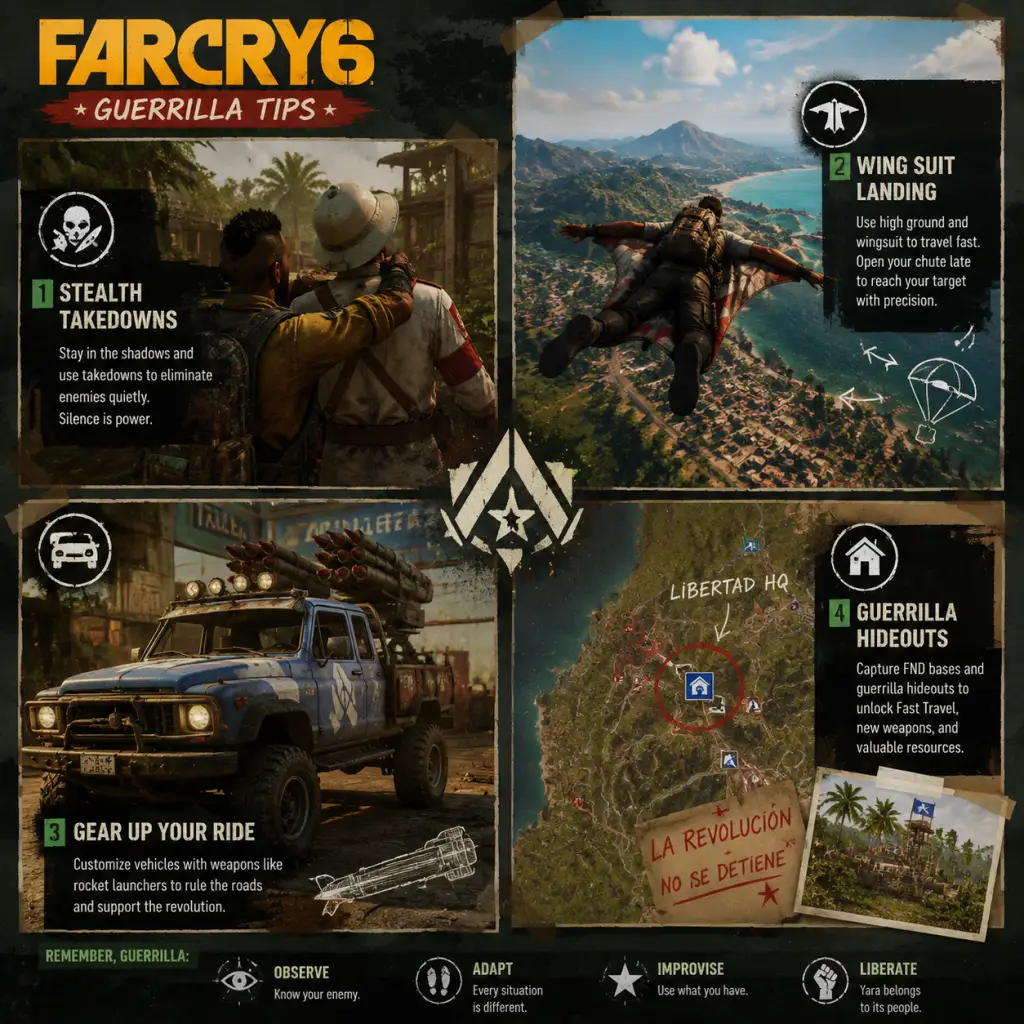
Game Tips
Game Tips
This guide provides a comprehensive collection of tips for Far Cry 6, organized by category. Each tip includes an explanation of why it works and the optimal situation to use it, covering early, mid, and late game strategies.
---
Combat Tips
1. Use Armor-Piercing Rounds by Default
- Explanation: Armor-piercing rounds ignore helmets and body armor, allowing you to kill most human enemies with a single headshot regardless of their defense level. Standard rounds are useless against armored foes.
- When to Use: Always equip armor-piercing ammunition as your primary ammo type. Swap to explosive or poison rounds only for specific threats (vehicles, groups). Early game you unlock this mod – craft it immediately.
- Explanation: Using your phone’s camera marks enemies through walls and shows their health, armor, and type. This allows you to plan attack routes, prioritize high-value targets (snipers, medics, rocket users), and avoid surprises.
- When to Use: Every engagement, especially in stealth or when entering a new area with multiple enemies. Combine with a silencer for perfect clearance.
- Explanation: When detected, throwing a smoke grenade creates a visual barrier. Enemies lose track of you, allowing you to reposition, heal, or perform a stealth attack. Smoke also disables enemy motion-sensing skills.
- When to Use: After losing stealth or when overwhelmed. Pop smoke, then move to the flank or escape. Also useful for reviving co-op partners safely.
- Explanation: Medicos (FND medics) can revive fallen soldiers, undoing your stealth takedowns. Snipers (Fusileros) pin you down with high damage. Eliminating them first reduces enemy sustain and pressure.
- When to Use: Always, regardless of loadout. Tag them, headshot with silenced weapon or a throwing knife before engaging the main force.
- Explanation: Each Supremo backpack provides a unique ultimate. The Exterminador (rockets) is fantastic for vehicles and groups. Triador (invisibility) enables safe flanking or escape. Empuje (EMP) disables electronics (helicopters, turrets, alarms) instantly. Volta (electricity) stuns groups and disables gadgets.
- When to Use: Exterminador when a convoy or chopper arrives. Triador for stealth runs on heavily fortified bases. Empuje if you see an alarm panel or armored vehicle. Volta when surrounded by infantry.
- Explanation: The machete allows silent melee kills. Certain gear sets (like the Runner set) and Supremo mods increase movement speed. You can sprint-takedown multiple enemies if you chain them quickly before alert spreads.
- When to Use: In close-quarters areas with tightly grouped enemies. Use the Triador or a speed boost Supremo to minimize detection between kills.
- Explanation: Flamethrowers and fire-based resolver weapons (El Fuegón) set the jungle on fire, dealing continuous damage to enemies hiding in vegetation. However, fuel drums and propane tanks explode if ignited, causing friendly fire.
- When to Use: Clear large areas of bush-camping enemies. Avoid near vehicles or explosive barrels. Great area denial tool.
- Explanation: Collecting all pieces of a gear set (e.g., Breacher for explosive damage, Intoxication for fire, Runner for speed) grants powerful set bonuses that stack with individual perks. For example, the Breacher 4-piece bonus increases explosive radius by 50%.
- When to Use: Mid-to-late game after you unlock more gear chests. Equip a set that matches your playstyle (explosive heavy, stealth, speed). Mixing sets is also viable – look for synergy.
- Explanation: Antennas and guerrilla camps become fast travel points when you first interact with them. This drastically cuts travel time and makes resource gathering more efficient.
- When to Use: Always as you enter a new region. Climb antennas (use the grappling hook) and complete the mini-puzzle to activate. Also clear small FND outposts for fast travel cache points.
- Explanation: The wingsuit lets you glide over long distances without losing altitude quickly. It’s faster than walking or driving across rough terrain and lets you bypass ground patrols.
- When to Use: From any helicopter, high cliff, or mountain after activating a wingsuit launch point. Essential for crossing the map quickly, especially in Madrugada. Combine with the “Aerial” gear set for reduced stamina drain.
- Explanation: These side missions (highlighted with a diamond icon) reward unique gear pieces that cannot be obtained elsewhere. Each set piece provides a specific perk that enhances your build.
- When to Use: As soon as you unlock the “Lost Hope” questline in a region. Many pieces are found underwater – bring the Buzo gear set for increased oxygen and swimming speed.
- Explanation: Horses are quieter than vehicles and don’t trigger enemy suspicion. They can also climb steeper terrain and jump over small obstacles. You can dismount and release the horse silently.
- When to Use: When approaching enemy bases or when trying to avoid roadblocks. Horses are also faster than running over long distances. Avoid riding through heavy combat zones – they panic.
- Explanation: Inside FND bases and outposts, computer terminals reveal hidden caches, mission intel, and strategic information. This often marks loot and new quests on your map.
- When to Use: After clearing an area – hack the terminals before leaving. Some terminals require a “keycard” found on officers. Keep an eye out for these cards.
- Explanation: Many rivers and coastlines hide underwater caves containing rare crafting materials (cobalt, titanium) and unique weapons. These areas are often unmarked.
- When to Use: When you need advanced components for Supremo upgrades. Equip the Buzo set and a weapon with explosive rounds to break underwater metal grates.
- Explanation: Medicinal herbs (red, blue, yellow varieties) are used to craft healing syringes, antidotes, and stamina boosts. They spawn in large clusters across the jungle.
- When to Use: Every time you see them – they are weightless and essential for self-sustain. Never buy med kits; craft them from herbs. Prioritize “White Sage” for the best healing syringes.
- Explanation: Metal is used for weapon modifications and gear upgrades. Gasoline fuels vehicles and is needed for crafting Molotovs and large explosives.
- When to Use: Whenever you pass a derelict car or metal crate, use the “Scrap” action (hold a button). It takes a few seconds but yields valuable materials. Target military vehicles for higher yields.
- Explanation: “Components” are a rare resource used for advanced gear mods and Supremo upgrades. They are found primarily in military-grade containers, FND bases, and locked chests.
- When to Use: Prioritize raiding FND convoys and base lockboxes for components. Avoid using components on low-tier upgrades – save them for endgame gear.
- Explanation: Some resources (e.g., animal skins) have no crafting use beyond certain upgrades. Selling them yields pesos, but others like gunpowder are always needed for ammo.
- When to Use: Check the “Economy” tab to track what you have excess of. Sell only duplicate rare weapon parts or exotic pelts after you have crafted all available upgrades. Never sell metal, components, or gasoline unless desperate.
- Explanation: Copper is critical for upgrading Supremo backpack mods. It is found in electrical panels, fuse boxes, and security systems within FND facilities.
- When to Use: During base infiltration, always check walls and corridors for glowing electrical boxes. Use the “Cortacircuitos” tool or a melee attack to harvest them. This is a slow farm – plan dedicated looting runs.
- Explanation: The Exterminador backpack provides powerful homing rockets that can instantly destroy vehicles and groups. Resolver weapons (e.g., El Criollo – a silenced sniper, or La Clave – a slug shotgun) give you unique capabilities that standard guns lack.
- When to Use: Choose the Exterminador as your first Supremo upgrade. For resolvers, pick El Criollo if you prefer stealth, or La Clave for close-quarters power. These will carry you through the first region.
- Explanation: Triador grants invisibility for a short duration, allowing you to move undetected past enemies, set up ambushes, or escape danger. It does not break on attack unless you take damage.
- When to Use: Any situation where stealth is critical – approaching a heavily fortified base, rescuing hostages, or bypassing patrols. Combine with silenced weapons and the Machete for perfect silent runs.
- Explanation: While full gear sets provide a bonus, mixing pieces from different sets often yields better raw stat boosts. For example, a piece from the Breacher set (+explosive damage) paired with a piece from Runner (+speed) can be more effective than a full 4-piece set.
- When to Use: Once you have multiple gear pieces, experiment. A typical mixed build: Breacher helmet, Runner chest, Intoxication pants, and Guerrero boots – covering damage, mobility, and survivability.
- Explanation: The Supremo backpack has upgrade trees for ability charge rate, duration, and cooldown. Prioritizing capacity (more uses per engagement) and duration (longer active time) yields the greatest combat impact.
- When to Use: As you collect copper and components, invest in these upgrades before damage or radius. They turn your Supremo into a frequent tactical tool rather than a one-off panic button.
- Explanation: This portable rocket launcher can lock onto vehicles and helicopters. It uses special ammunition found from downed enemies. It’s light and can be used while moving.
- When to Use: Always keep it in your gadget slot if you expect vehicles. It’s especially useful for convoys and helicopter patrols. Combine with the Exterminador Supremo for maximum anti-vehicle capability.
- Explanation: Most standard weapons (rifles, SMGs, pistols) can be looted from enemies or found in chests. Unique weapons are rewards from missions. Shops charge high prices for identical gear.
- When to Use: Only purchase weapons if you see a unique blueprint that you cannot find otherwise (e.g., some resolver weapons are sold by specific vendors). Otherwise, rely on loot.
- Explanation: Ammo capacity upgrades for each weapon type increase your sustained combat ability. Running out of ammid in the middle of a firefight is a common cause of death.
- When to Use: As soon as you unlock a workbench, upgrade your primary weapon’s magazine size. Follow up with armor-piercing rounds and damage mods. This is the most cost-effective use of resources early on.
- Explanation: The Bandido guerrilla camp has upgrade slots that generate passive income in pesos, ammo, and resources over time. Higher tier upgrades cost more but yield better returns.
- When to Use: After completing the first main mission in a region, invest in the camp’s “Supply Cache” and “Treasury” upgrades. They pay for themselves within an hour of playtime.
- Explanation: Rare weapons (gold exterior) have fixed stats and cannot be dismantled. Selling duplicates gives you a fat lump sum of pesos, but keep at least one copy for variety.
- When to Use: After you have a full arsenal of legendary weapons (e.g., MG42, SVD, M16A2), sell extras. Check your inventory for duplicates at workbenches.
- Explanation: The Camp Network allows you to exchange bulk resources for rare items like Supremo mods and unique weapon blueprints. This is a late-game economy loop.
- When to Use: Once you have excess metal, gasoline, and medicinal herbs (30+ each). Focus trades on items you cannot otherwise obtain, such as the “EMP Blast” Supremo mod or the La Sombra resolver.
- Explanation: While the game autosaves frequently, manual saves let you revert to a specific point before a difficult encounter or a mistake. Useful for trial-and-error stealth sections.
- When to Use: Before entering any major base, starting a main story mission, or attempting a challenging side objective. Use the pause menu “Save” option – you have multiple save slots.
- Explanation: Guapo (crocodile) is a powerful combat ally that can grab and kill enemies, causing chaos. Chorizo (weiner dog) is a distraction – he barks to lure enemies away. Kiko (chicken) is mostly cosmetic.
- When to Use: Guapo in combat situations – send him against heavy enemies or to clear a room. Chorizo for stealth – whistle him to distract a guard, then slip past. Keep Kiko for roleplay.
- Explanation: The grappling hook lets you scale vertical surfaces quickly and also use it as a zip line. The parachute opens automatically when falling from height (if equipped). This combo allows you to traverse the map almost arbitrarily.
- When to Use: Always carry the grappling hook (unlocked early). Use it to reach high ground for sniping or to bypass locked gates. The parachute is mandatory for wingsuit landings.
- Explanation: Early game, FND bases marked with “Skull” difficulty contain anti-air guns, heavy vehicles, and elite troops. Attempting them with stock weapons leads to repeated deaths.
- When to Use: Wait until you have a silenced sniper, armor-piercing rounds, and at least the Exterminador Supremo. Then clear them for rare loot and fast travel points.
- Explanation: Intel missions (marked with a binocular icon) unlock hidden chests, weapon caches, and lore documents on your map. They often point to areas with high-value loot.
- When to Use: Whenever you see an intel mission available in a region. They are bite-sized and reward you with permanent map markers for secret locations.
- Explanation: One player can focus on stealth with a silencer and the Triador Supremo, while the other carries heavy weapons for backup. This prevents accidental alerts and covers all combat scenarios.
- When to Use: In any co-op session. Agree on a plan before entering an area. Use the “Sync” option on takedowns to eliminate two enemies simultaneously.
- Explanation: Throwing a rock (press down on D-pad) creates a noise that draws enemies to investigate. You can also shoot environmental objects (barrels, speakers) to create diversions.
- When to Use: When you need to move a guard from a doorway or create a gap in patrol patterns. Works best with silencers – combine with timed takedowns.
- Explanation: The remote C4 explosive can be placed on roads, vehicles, or structures. Detonate it when a convoy passes to instantly destroy the lead vehicle, stopping the entire convoy for looting.
- When to Use: After triggering a “Convoy” side mission or when you see a patrol moving along a predictable route. Place C4 at choke points (bridges, narrow passes) and detonate as the vehicle passes.
- Explanation: The Bright Eyes set (found in Madrugada) grants the “Hunter’s Instinct” perk – it highlights enemies through walls when you aim down sights. This makes stealth trivial.
- When to Use: Mid-game, after you collect at least two pieces. Equip it for any base infiltration or sniper-heavy engagement. It removes the need for constant camera scanning.
- Explanation: “Special Operations” (like “Mace” and “Tria”) are high-difficulty missions unlocked post-game. They reward the best weapons, gear skins, and Supremo mods, and are necessary for 100% completion.
- When to Use: After completing the main story and reaching level 25+. Prepare by maxing your Supremo, bringing fully modded weapons, and planning your route. Co-op recommended.
2. Tag Enemies with the Camera Before Engaging
3. Use Smoke Grenades to Break Line of Sight
4. Prioritize Medics and Snipers First
5. Exploit Supremo Abilities Situationally
6. Chain Takedowns with the Machete and Supremo Speed Boosts
7. Fire Weapons Against Foliage but Beware of Explosions
8. Advanced: Use “Prestige” Gear Sets for Specialized Roles
---
Exploration Tips
1. Unlock Fast Travel Points Aggressively
2. Use the Wingsuit from High Points for Rapid Transit
3. Collect All Gear Pieces from “Lost Hope” Missions
4. Use Horses for Stealth Travel
5. Interact with Every FND Terminal for Intel
6. Explore Underwater Caves for Rare Resources
---
Resources Tips
1. Always Harvest Medicinal Herbs
2. Scrap Vehicles and Containers for Metal and Gasoline
3. Collect Components from High-Tech Loot Only
4. Sell Surplus Resources Only When Needed
5. Farm Copper from Electrical Boxes for Supremo Upgrades
---
Builds & Supremo Tips
1. Early Game: Focus on the Exterminador Supremo and Resolver Weapons
2. The Triador Supremo Is Essential for Stealth Builds
3. Mix Gear Set Pieces for Synergy, Not Full Sets
4. Upgrade Supremo Capacity and Duration First
5. The “El Pequeño” Gadget Is a Versatile Anti-Vehicle Tool
---
Economy Tips
1. Never Buy Weapons from Shops – Loot Them
2. Invest in Ammo Capacity Upgrades First
3. Complete Bandido Camp Upgrades for Passive Income
4. Sell Rare Weapon Duplicates but Keep One of Each Type
5. Use Camp Network to Trade Resources for High-End Gear
---
General Tips
1. Save Manually Often
2. Use Animal Companions Strategically
3. Master the Grappling Hook and Parachute
4. Avoid Heavily Fortified Bases Until You Have Better Weapons
5. Complete “Intel” Missions to Reveal Hidden Treasures
6. In Co-op, Coordinate Roles for Efficiency
7. Use Rocks and Environmental Noises for Distractions
8. Place C4 on Roads and Convoys for Catastrophic Ambushes
9. Upgrade “Bright Eyes” Gear Set for Wallhack Ability
10. Endgame: Tackle Special Operations for Ultimate Gear
---
This guide covers tips from your first steps in Yara to the hardest content. Adapt these strategies to your playstyle, and always remember: improvisation is the soul of revolution.
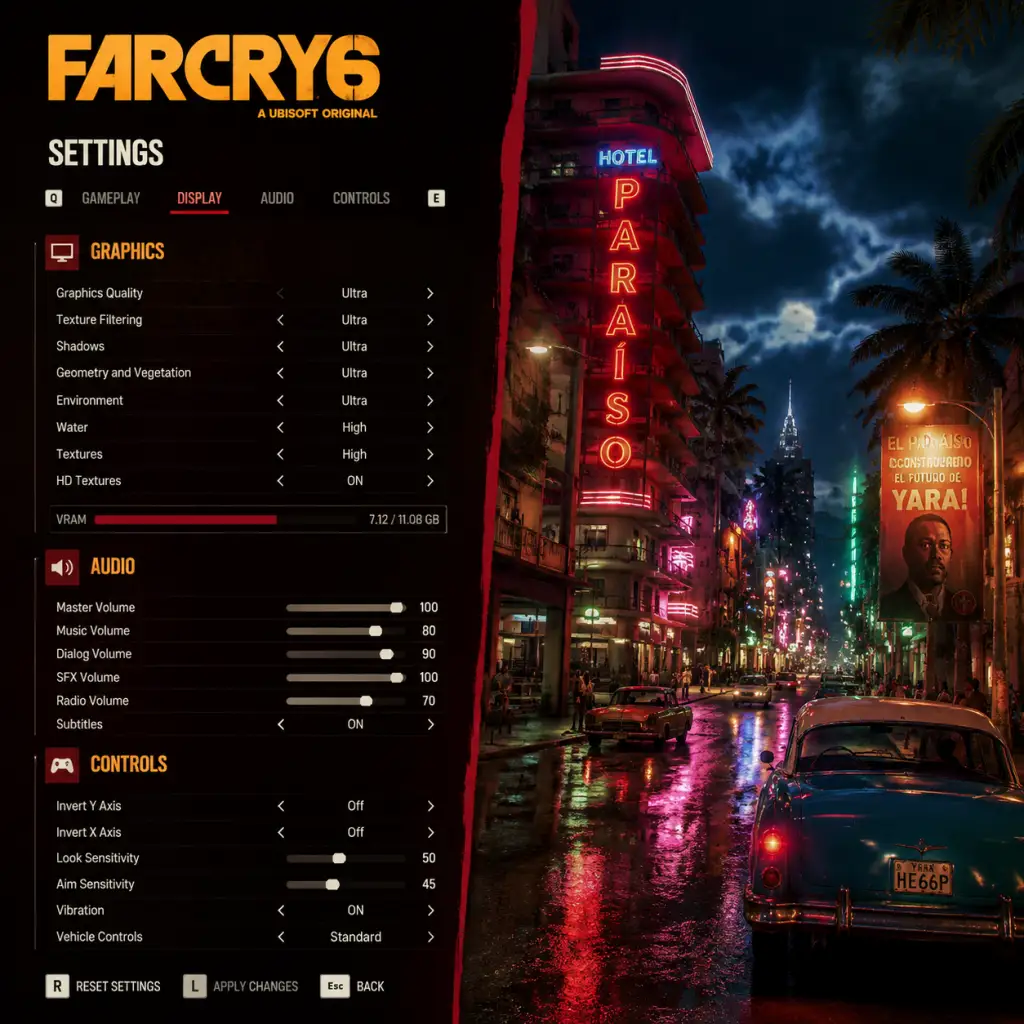
Game Settings
Far Cry 6 – Game Settings Guide
This guide covers all major settings in Far Cry 6 across Graphics, Audio, Controls, Accessibility, Language, Network, and Gameplay categories. Recommendations are provided for different hardware tiers (Low-End, Mid-Range, High-End, and Ultra) to balance performance and visual quality. Special attention points are highlighted to avoid common misconfigurations.
---
1. Graphics Settings
Graphics settings have the most impact on performance and visual fidelity. Far Cry 6 uses the Dunia engine (based on an evolved version of the CryEngine) and is demanding on hardware, especially with ray tracing and high-resolution textures.
#### 1.1 Display Settings
- Resolution: Native monitor resolution is recommended. For performance, you can lower the render resolution or use the FSR (FidelityFX Super Resolution) upscaling.
- Refresh Rate: Set to your monitor’s maximum refresh rate (e.g., 60 Hz, 144 Hz).
- VSync: Off for lower input lag (unless screen tearing is bothersome). On for consistent frame times but adds latency.
- Window Mode: Fullscreen for best performance; Borderless Window for easier alt-tabbing (slight performance cost).
- Field of View (FOV): Default is 75. Increase up to 90–100 for a wider peripheral view. Higher FOV reduces perceived speed but can drop performance slightly.
- Upscaling / Sharpening:
- NVIDIA DLSS (if supported): Best for RTX cards. Use Quality or Balanced for good image quality.
- Sharpening: Keep at 0.5–0.7; too high creates artifacts.
#### 1.2 Graphics Quality Presets
Far Cry 6 offers presets: Low, Medium, High, Ultra. Manual tweaking is recommended for optimal balance.
#### 1.3 Individual Graphics Settings & Performance Impact
| Setting | Low-End | Mid-Range | High-End | Ultra | Performance Impact | Special Attention |
|---|---|---|---|---|---|---|
| Texture Quality | Low | Medium | High | Ultra | Medium VRAM usage | Ultra requires >8GB VRAM; may cause stutter if VRAM is exceeded. |
| Shadow Quality | Low | Medium | High | Ultra | High | High and Ultra cast softer shadows but cost heavily. Medium is a good balance. |
| Ambient Occlusion | Off / SSAO Low | SSAO Low | HBAO+ | HBAO+ | High | HBAO+ looks better but drops ~10% FPS. SSAO is lighter. |
| Reflections | Low | Medium | High | Ultra | High | Screen-space reflections are medium; ray-traced reflections (if enabled) are extremely demanding. |
| Post-Processing | Low | Medium | High | Ultra | Medium | Includes bloom, motion blur, depth of field. Turn motion blur Off if you dislike it. |
| Geometry / Detail | Low | Medium | High | Ultra | Medium | Affects object LOD distance. High on mid spec is fine. |
| Terrain Quality | Low | Medium | High | Ultra | Low | Minor visual difference. Lower to save VRAM. |
| Water Quality | Low | Medium | High | Ultra | Medium | Reflection and transparency changes. Medium is fine. |
| Anti-Aliasing | TAA Low | TAA High | TAA High | TAA High | Low | TAA is standard; TAA High smooths edges better. FXAA is lighter but blurry. MSAA is too heavy. |
| Motion Blur | Off | Off | Off | Off | Negligible | Personal preference; almost always recommended Off. |
| Depth of Field | Off | Off | On | On | Low | Cinematic but can blur distant targets. Keep Off for competitive clarity. |
| Ray Tracing (if available) | Off | Off | Selective (Shadows only) | Full (Shadows + Reflections) | Very High | Only for high-end GPUs (RTX 3070+ or RX 6800+). Turn off for stable 60+ FPS. |
Low-End (e.g., GTX 1060 6GB, RX 580 4GB, or lower)
- Resolution: 1080p (or 900p)
- Upscaling: FSR Quality
- Preset: Low (then tweak up)
- Textures: Medium (if VRAM >4GB)
- Shadows, AO, Reflections: Low or Off
- Ray Tracing: Off
- Aim for: 30–60 FPS
- Resolution: 1080p or 1440p (with FSR)
- Preset: Medium, then adjust
- Textures: High (if 6GB+ VRAM)
- Shadows: Medium
- AO: SSAO Low
- Reflections: Medium
- Ray Tracing: Off
- Aim for: 60 FPS at 1080p; 45–60 at 1440p
- Resolution: 1440p native or 4K with FSR/DLSS Quality
- Preset: High
- Textures: Ultra (if VRAM >=8GB)
- Shadows: High
- AO: HBAO+
- Reflections: High
- Ray Tracing: Shadows only (or Off for higher FPS)
- Aim for: 60+ FPS at 1440p; 30-60 at 4K
- Resolution: 4K Native or with DLSS Quality
- Preset: Ultra, then enable Ray Tracing
- Ray Tracing: Full (Shadows + Reflections)
- Other settings maxed
- Aim for: 60+ FPS
- Master Volume: 70–80% to avoid distortion.
- SFX Volume: Keep at 100% for clarity.
- Music Volume: Reduce to 50–60% so it doesn’t overpower footsteps.
- Dialogue Volume: 100% for story moments.
- Voice Chat: Adjust if you play co-op; can mute.
- Speaker Configuration:
- 3D Audio: Enable if using headphones; helps with directional sounds.
- Movement: WASD (default). Some players prefer ESDF for more keys nearby.
- Interact / Reload: E (default). R for reload. Consider swapping if you prefer.
- Crouch / Slide: C (toggle) or Ctrl (hold). Many remap to Left Alt or a mouse thumb button.
- Melee: V (default). Bind to mouse side button for quick access.
- Grenade / Gadget: G (default) or middle mouse.
- Weapon Wheel: Tab (default). Hold to slow time. Consider binding to a mouse button.
- Vehicle Controls: WASD driving; Space for handbrake; Shift for boost.
- Special attention: The default key for “Call Vehicle” is not bound to anything; assign it (e.g., X) to quickly summon a ride.
- Layout: Choose from Default, Classic, Southpaw, etc.
- Invert Look: Off unless you prefer inverted Y-axis.
- Look Sensitivity: Start at 50 for X and Y, adjust. Higher for quick turns, lower for precision.
- Aim Sensitivity: Reduce to 30–40 for better aiming down sights.
- Dead Zones: Keep default (small). Increase if joystick drift occurs.
- Trigger Dead Zones: Default is fine.
- Vibration: Off for competitive aim; on for immersion.
- DPI: 800–1600 typical. Higher DPI may cause jitter.
- Sensitivity: Lower (e.g., 5–10 in-game) for precise aiming; higher for flick shots. Combine with DPI.
- Aim Down Sights (ADS) Sensitivity: 0.5–0.7 multiplier to slow down while aiming.
- Raw Input: ON – avoids OS acceleration.
- Mouse Smoothing: OFF – causes lag.
- Mouse Acceleration: OFF – inconsistent movement.
- Subtitles: Enable. Choose background opacity for readability.
- Closed Captions: On/off; includes sound effect descriptions.
- Hearing Impaired Settings: Enables visual cues for sound sources (footsteps, alarms).
- Colorblind Modes: Options for Deuteranopia, Protanopia, Tritanopia. Apply to UI and/or gameplay.
- Text Size: Adjust for menu and HUD.
- Screen Shake: Reduce or turn off if you experience motion sickness.
- Camera Bobbing: Off for smoother FPS.
- Auto-Progress Dialogue: Off if you want to read at your own pace.
- Hold vs. Toggle:
- Simplified Controls: An option that reduces button combinations (not recommended for advanced players).
- Interface Language: Choose from available languages (English, French, German, Spanish, etc.).
- Audio Language:
- Subtitles Language: Independent of audio.
- Note: Changing audio language requires a game restart on some platforms, so set before starting your playthrough.
- Connection Type: LAN or Online (automatically determined).
- Matchmaking Region: Choose your region (e.g., Europe, North America) for lower latency.
- Cross-Play:
- Bandwidth: Ensure you have at least 5 Mbps upload for stable co-op hosting.
- NAT Type: Open for best connectivity. Enable UPnP on router if having issues.
- Voice Chat: Can be disabled in Audio settings.
- Difficulty: Ranges from Story (easy) to Action (normal) to Guerilla (hard). Choose based on your skill. You can change at any time.
- Auto-Ammo Pickup: On – automatically picks up ammo from enemies/chests.
- Auto-Loot: On – loot enemies without pressing a button (after killing).
- Compass / Minimap:
- HUD Elements: Customizable visibility for objective markers, enemy markers, loot prompts. Turn off for immersion (e.g., remove enemy markers for a more realistic stealth experience).
- Quick Selection Wheel: Time slow while using wheel – can be enabled/disabled. Enabled makes combat easier.
- Auto-Equip Better Gear: On – equips better weapons/gear automatically (can be annoying; manually manage if you prefer).
- Clutch Mode (accessibility): Slows down time when taking damage, giving you a chance to respond. Can be turned off for challenge.
- Vehicle Control Options: Normal or Simplified. Simplified makes driving easier but less realistic.
- Sniper Hold Breath: Default toggle (shift). Can be changed to hold.
- Inventory Management: Use quick slots for gadgets (e.g., throwable, camera). Assign in Controls.
- Low FPS despite recommended settings: Disable ray tracing, lower shadow quality, turn off ambient occlusion. Update GPU drivers.
- Crash on startup: Verify game files on your platform. Disable overlays (Discord, Steam, Ubisoft).
- Audio crackling: Lower audio sample rate in Windows sound settings to 48000 Hz.
- Controller not working: Use Steam Input for Xbox/PlayStation controllers. Disable other input software. Restart game.
- Mouse input lag: Turn off VSync, enable Raw Input, remove mouse smoothing.
Mid-Range (e.g., RTX 2060, RX 5600 XT, GTX 1660 Ti)
High-End (e.g., RTX 3070, RX 6800, RTX 2080 Super)
Ultra (e.g., RTX 4090, RTX 4080, RX 7900 XTX)
---
2. Audio Settings
Audio settings affect your ability to hear enemy footsteps, gunfire direction, and ambient cues. Far Cry 6 supports 3D audio (Windows Sonic, Dolby Atmos) on compatible headsets.
- Headphones: Use if playing with headphones for spatial sound.
- Stereo: For desktop speakers.
- Surround (5.1/7.1): If you have a surround setup.
- Special attention: Selecting “Headphones” when using surround speakers will give poor spatial audio. Match your actual hardware.
---
3. Controls Settings
Controls are fully customizable on PC. On consoles, you can choose from presets.
#### 3.1 Key Bindings (PC)
#### 3.2 Controller Settings
#### 3.3 Mouse Settings (PC)
---
4. Accessibility Settings
Far Cry 6 includes robust accessibility options.
- Crouch: Toggle is easier on hands.
- Sprint: Toggle (default) or hold.
- Aim Down Sights: Toggle recommended for less strain.
---
5. Language Settings
- English (original) for authentic voice acting.
- Spanish (Castilian or Latin American) for immersion, as the game is set in a fictional Latin American island.
---
6. Network Settings
Far Cry 6 has a single-player campaign but also supports co-op for up to two players. Network settings mainly affect multiplayer.
- Far Cry 6 supports cross-play between Ubisoft Connect platforms (PC, Stadia, Luna) and consoles (PlayStation, Xbox) for specific modes? Actually, cross-play is limited to Ubisoft Connect PC and consoles? Verify: As of 2025, Far Cry 6 does not support cross-play for co-op between PC and consoles? It only supports same-platform co-op? Wait, check: According to Ubisoft, Far Cry 6 does not have cross-play. Players on PC can only play with other PC players (Steam/Ubisoft Connect). Console players can only play with same console family. This setting is not present but worth noting.
---
7. Gameplay Settings
- Compass: Shows only cardinal direction; less cluttered.
- Minimap: Detailed but can be distracting. Choose based on preference.
---
8. Special Attention Points During Setup
1. VRAM Usage Warning: Far Cry 6 has a VRAM bar in Graphics settings. If you exceed your available VRAM, you may experience stuttering or crashes. For example, Ultra textures on a 6GB card will likely overshoot. Lower Texture Quality if you see the bar exceed 90%.
2. Ray Tracing Performance: Ray tracing is extremely demanding. Even on RTX 3070, enabling full ray tracing at 1440p may drop below 60 FPS unless DLSS is on Performance mode. Test separately.
3. HD Textures Pack: The optional HD Textures add-on (free) requires 30+ GB of storage and high VRAM (8GB+). If your system can’t handle it, do not install it. It can slow down loading times.
4. FSR vs. DLSS: If you have an NVIDIA RTX card, prefer DLSS for better image quality. FSR is a fallback for non-RTX or AMD cards. Ensure you are using the correct version (FSR 1.0 is built-in; FSR 2.x not supported? Verify: FC6 uses FSR 1.0, which is less sharp than FSR 2.1).
5. Windowed Mode Stutter: Borderless windowed mode can cause micro-stutter on some systems. If you notice, switch to Fullscreen.
6. Audio Sync Issues: If dialogue is out of sync, check audio format (try stereo instead of surround) and turn off 3D audio.
7. Key Binding Conflicts: The game does not warn about duplicate bindings. If you assign a key already in use, both actions may conflict. Check the list carefully.
8. Controller vs. Keyboard Input Lag: If using a controller, ensure “Raw Input” for controller? Not present; just ensure no Steam controller overrides cause double input.
9. Difficulty Impact: Guerilla mode makes enemies more bullet-spongey and reduces health regen. If you find it frustrating, lower difficulty—it doesn’t affect achievements.
10. Save Game Corruption Prevention: Far Cry 6 auto-saves frequently. Do not manually quit during an auto-save icon. Also, disable cloud saves if you experience sync issues (especially on Steam/Ubisoft Connect).
---
9. Troubleshooting Common Issues
---
Use this guide to tailor Far Cry 6 to your hardware and preferences. The game is forgiving in terms of settings, but fine-tuning the ones above will give you the best experience in Yara.

Important Notes
Important Notes for Far Cry 6
This guide highlights critical warnings, pitfalls, irreversible choices, missable content, difficulty spikes, grinding traps, and player regrets. Read this before plunging into Yara to save yourself time, frustration, and missed opportunities.
---
1. Irreversible Choices & Locked Content
- Main Story Branching: Far Cry 6 has two main story paths after a certain point in the mid-game. You must choose between supporting the Monteros (hope & tradition) or the Legends of '67 (old veterans). This choice locks you out of certain missions and rewards for the rest of that playthrough. You cannot change paths without restarting.
- Rank & Gear Limitations: Once you upgrade a piece of gear to its max rank (e.g., Legendary), you cannot downgrade it. Similarly, some weapons and gear are exclusive to one faction path or the other (e.g., the El Yagrumo sniper rifle is only available if you side with the Legends of '67).
- Settlement Upgrades: Building facilities at your camps (Monteros, Legends, or city) provides permanent buffs. However, you can only upgrade one settlement per category (e.g., only one medical facility). Choose wisely – each offers different perks (e.g., faster healing vs. more ammo). You cannot relocate or swap upgrades later.
- Special Operations: Certain special operations (e.g., the Majestic missions) have time-limited events in online co-op. If you miss the event, the associated rewards (skins, weapons) may never return. Check Ubisoft Connect for active events.
- Early Game Side Quests: Some side quests vanish after you complete the main story mission "The Reunification" (Act 2). Complete the following before that point:
- Special NPC Interactions: Certain NPCs (like the old fisherman or the Insurgente leaders) have unique dialogues if you talk to them at specific story moments. These are easily missed if you fast-travel too much.
- Hidden Caches: Several Maximas Mantas (treasure caches) require you to complete specific environmental puzzles (e.g., blowing up walls, solving lighthouse patterns). They are permanent but easy to overlook; use the map filter to mark all undiscovered caches.
- Co-op Exclusive Rewards: Some vehicle skins and weapon charms are only obtainable through co-op missions. Play co-op with a friend to get them; solo players miss out.
- First Hour: The game starts relatively easy, but the first forced combat encounter (after the opening cinematic) can overwhelm you if you rush. Use stealth and the Resolver equipment from the workbench.
- Mid-Game: After reaching Rank 5 (around Act 2), enemies become bullet-sponges on the standard difficulty. Upgrade your gear to at least Rank 4 before engaging heavily fortified bases. Use armor-piercing rounds (AP) for human enemies; explosive rounds for vehicles.
- Endgame: The Insurgency mode (post-game) introduces enemies with level 20+ stats. If you haven't maxed out your weapon mods and Supremos (backpack gadgets), you will struggle. Recommended: max out at least one Supremo (e.g., Fang for hunting, Mirage for stealth) before finishing the main story.
- Boss Fights: Antón Castillo and El Doctor have specific mechanics (e.g., shield phases, summoning waves). Bring healing items and a high-damage weapon (e.g., the M16 or MS16 S with AP rounds). Avoid standing in the open.
- Material Grind: Avoid spending hours hunting animals for hides. Instead, buy materials from the Juan's Arms Dealers phone app (in-game) or complete Checkpoint challenges which reward materials directly. Animal hunting is only efficient for specific Garment Sets (e.g., The Heart of the Lion for stealth).
- Vehicle Upgrades: Upgrading vehicles (e.g., Verdugo jeep) is costly and often unnecessary. The game provides free vehicles at every camp. Only upgrade one vehicle for utility (e.g., water traversal).
- Bandito Campaigns: These passive missions (send recruits to gather supplies) are not essential. Focus on main quests and side missions for better rewards. Bandito campaigns are only useful for bulk cosmetic items or endgame materials.
- Economy Trap: Pesos (in-game currency) are abundant. Don't hoard them – buy weapon mods and gear upgrades as soon as you can. However, avoid buying Supremo upgrades early; you'll find better ones through quests.
- Manual Saves: Far Cry 6 uses auto-save heavily, but manual saves are limited to the pause menu. Create a manual save before making any major story choice (e.g., siding with a faction) or starting a co-op session. Auto-saves can overwrite your last manual save – be careful.
- Corrupted Saves: Rarely, saves can corrupt on PC (especially after modding or using cheat engine). Back up your save folder: `%USERPROFILE%\Documents\My Games\Far Cry 6`. On consoles, you can backup via cloud save (PS Plus/Xbox Live) or USB.
- Cross-Platform Saves: Save data does NOT transfer between platforms (e.g., Steam vs. Ubisoft Connect). If you own the game on multiple platforms, you must start fresh on each.
- Co-op Progress: In co-op, only the host's story progress is saved. Your guest's loot and XP carry over, but story decisions are not saved for the guest unless they are host in their own world.
- Anti-Cheat: Far Cry 6 uses BattlEye for online play. Disable overlays (Discord, MSI Afterburner) to prevent crashes. Do not use any third-party trainers or mods while online – you will be banned.
- Co-op Etiquette:
- Report Toxic Players: If you encounter griefers (e.g., blocking progress, team killing in friendly fire missions), use the in-game report function or Ubisoft Connect.
- Not Unlocking Fast Travel Early: Unlock Checkpoints and Liberated Camps fast travel points immediately. Saves hours of traversal.
- Ignoring the Bandido Sniper: The Bandido revolver (silenced) is one of the best stealth weapons – get it from the Juan's Arms Dealers early.
- Overlooking Resolver Gadgets: The Firebomb and EMP Grenade can trivialize vehicle-heavy areas. Craft them early.
- Not Using Supremo Mods: You can change your Supremo's elemental mod (e.g., fire, poison, explosive) at the workbench. This is easy to miss.
- Side Missions Are Optional but Valuable: The Triada Relics questline gives the best armor set for stealth. Don't skip it.
- Photo Mode: You can disable the HUD in photo mode for better screenshots, but many players discover this too late.
- Play on Custom Difficulty if you want a balanced experience: set Enemy Aggression to Low and Enemy Perception to High for stealth to be viable but not overpowered.
- Always carry a Respirator (gas mask) – toxic gas traps are common in fortresses.
- The Parachute is automatically deployed when you fall from high places – no need to manually equip it.
---
2. Missable Content
- The Legend of El Chacal (Star map treasure hunt)
- The Guerilla's Cook (recipe unlock)
---
3. Difficulty Spikes & Progression Traps
---
4. Grinding Traps & Efficiency Killers
---
5. Save Management & Technical Warnings
---
6. Online, Anti-Cheat & Etiquette
- Host controls mission flow. Ask before fast-traveling or starting a mission.
- Loot is instanced; you don't steal from each other, but resource crates are shared. Cooperate on resource collection.
- Use pings (Q on PC) to communicate objectives.
- If you join a game late, wait for the host to complete the current fight before looting.
---
7. Common Regrets & Late Discoveries
---
8. Final Tips
---
Good luck, Libertador. Remember: Yara is a dangerous place, but with these notes, you'll avoid the deadliest traps.
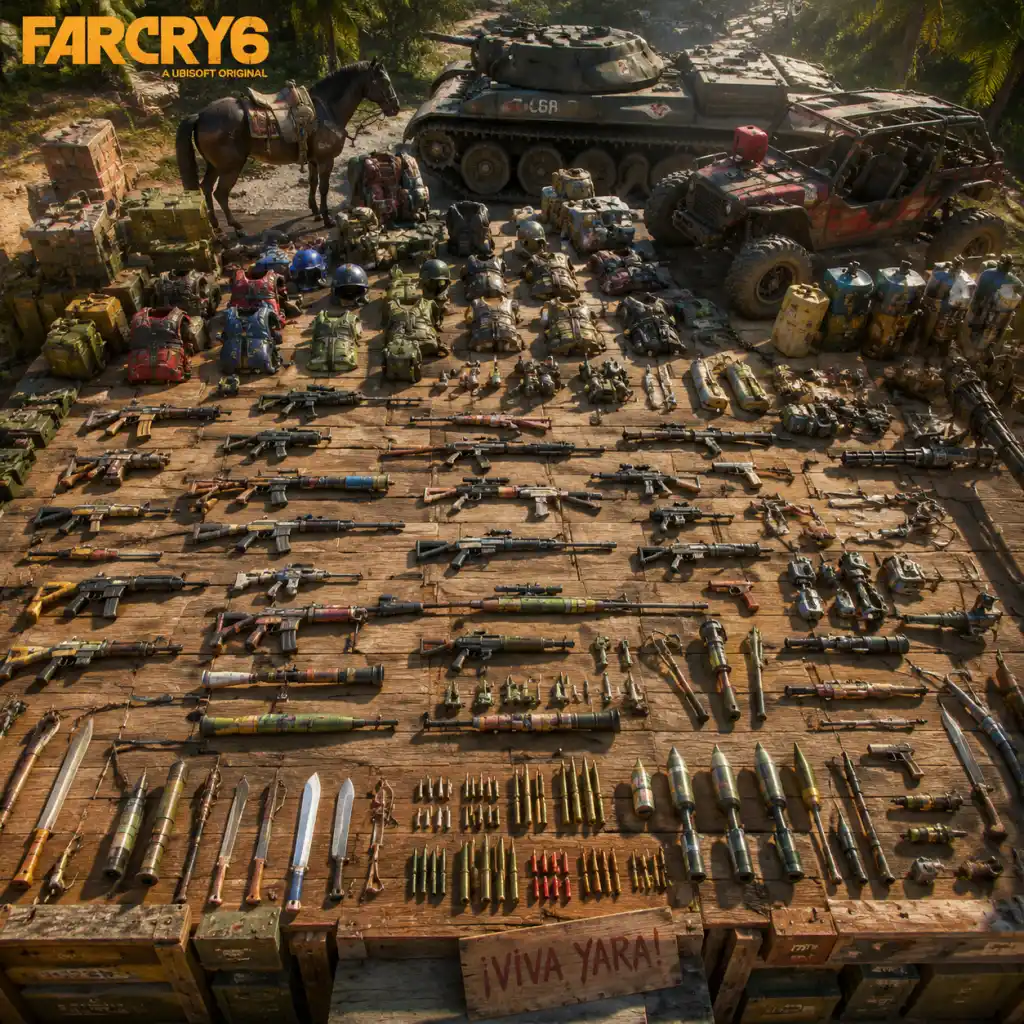
All Game Items
Far Cry 6 – All Game Items Guide
This guide provides a comprehensive breakdown of every major item type in Far Cry 6: weapons, gear (clothing/armor), consumables, materials, currencies, collectibles, and key equipment. Each section explains what the items do, how to obtain them, when they are useful, and any important synergies or upgrade paths.
---
1. Weapons
Weapons in Far Cry 6 are divided into Primary (rifles, SMGs, shotguns, LMGs, bows), Secondary (pistols, revolvers), Sidearm (pistols, revolvers – same slot as secondary), and Special weapons (Resolver, unique). Each weapon can be customized with mods (muzzle, scope, magazine, etc.) at crafting benches. Weapons have rarity tiers: Common, Uncommon, Rare, Epic, Legendary. Higher rarities have more mod slots and sometimes built-in perks.
How to Obtain:
- Loot enemies, chests, FND caches.
- Purchase from vendors (Guerrilla Garages, Juan's Arms Dealers) using Pesos or Moneda.
- Rewards from missions, treasure hunts, and Bandido operations.
- Crafting (Resolver weapons) using materials and unique components.
Notable Weapon Categories & Examples:
| Category | Description | Key Examples | Use Case |
|---|---|---|---|
| Assault Rifles | Versatile, effective at medium range. | SSGP-58 (high damage), AS VAL (integral suppressor) | General combat, stealth |
| SMGs | High fire rate, good for close quarters. | P90 (large mag), MP5SD (silenced) | Room clearing, stealth |
| Shotguns | Devastating at short range. | Super Shotgun (high damage), SPAS-12 (reliable) | Breaching, close combat |
| LMGs | Heavy suppression, large magazines. | M249 (200 rounds), RPK-74 (balanced) | Sustained fire, vehicle destruction |
| Sniper Rifles | Long-range precision. | Yara's Bane (explosive rounds), .308 Carbine (standard) | Stealth eliminations, lookouts |
| Bows | Silent, uses arrows (can be recovered). | Recurve Bow (tiered damage), Compound Bow (scope) | Stealth, hunting |
| Pistols | Backup weapon, can be dual-wielded. | Autocrat (high damage), 1911 (balanced) | Quick switch, emergency |
| Revolvers | High damage per shot, slow. | Shogun (spinning trick), El Tirano (unique) | Style, one-shot kills |
| Resolver Weapons | Over-the-top, unique effects. | The Triador (triple-barrel shotgun), La Varita (armor-piercing), Exterminator (pyro) | Specialized tactics, fun |
| Unique Weapons | Pre-modded with fixed perks. | Ol' Loco (explosive SMG), El Pepe (rocket launcher) | Build synergy, early power |
---
2. Gear (Clothing / Armor)
Gear consists of hats, gloves, chest pieces, trousers, and boots. Each piece provides a passive perk. There are multiple sets; equipping 4 pieces of the same set grants an additional set bonus. Gear can be upgraded at workbenches to increase effectiveness (e.g., cooldown reduction, damage boost).
How to Obtain:
- Loot chests, especially military and guerrilla chests.
- Complete specific missions or challenges.
- Purchase from vendors (rare pieces).
- Find in treasure hunts.
Notable Gear Sets:
| Set Name | Piece Perks (Example) | Full Set Bonus | Best For |
|---|---|---|---|
| Triador | Head: Enemy loot also drops pesos; Chest: +damage to vehicles; Arms: faster weapon swap; Legs: +speed when health low | Reduces damage from vehicles | Anti-vehicle, tanking |
| La Bruja | Head: +damage when not detected; Chest: +headshot damage; Arms: +movement speed while crouched; Legs: +sneak speed | Double damage on first shot from stealth | Stealth, sniping |
| Settler | Head: +health regen near water; Chest: +disease resistance; Arms: +melee damage; Legs: +movement speed in cultivation | Spawns a medicine plant after kills | Survival, health sustain |
| Sniper | Head: +hold breath duration; Chest: +accuracy; Arms: +reload speed; Legs: +crouch move speed | Marked enemies take extra damage from sniper rifles | Long-range, sniping |
| Scavenger | Head: +loot from containers; Chest: +resource pickup radius; Arms: +ammo pickup; Legs: +speed when collecting | All bullets pick up as armor-piercing | Resource gathering, ammo efficiency |
| Toxin (from Special Operations) | Head: +poison resistance; Chest: +damage to poisoned enemies; Arms: +poison grenade damage; Legs: +movement speed while poisoned | Poison cloud on kick | Poison builds, area denial |
---
3. Consumables
Consumables are single-use items used in combat, exploration, or survival.
| Item | Effect | How to Obtain | Use Case |
|---|---|---|---|
| Health Syringe | Restores health (small, medium, large varieties) | Craft from plants, loot | Emergency healing |
| Stamina Syringe | Refills stamina bar | Craft from plants | Sprinting, climbing |
| Poison/Heal Grenade | Creates a cloud that damages enemies or heals allies | Craft using special plants | Area control or team support |
| Molotov Cocktail | Fire area denial | Craft from alcohol & cloth | Crowd control, burning cover |
| Frag Grenade | Explosive damage | Loot, purchase | Group enemies |
| Sticky Grenade | Adheres to surfaces | Loot, purchase | Vehicle/tank destroyer |
| Proximity Mine | Triggered by enemies | Loot, purchase | Defensive traps |
| EMP Grenade | Disables electronics/vehicles | Loot, purchase | Anti-drone, anti-mech |
| Armor-Piercing Rounds | Ammo type, increases damage vs. armored enemies | Swap at workbench or buy | Armored soldiers, vehicles |
| Incendiary Rounds | Ammo type, sets enemies on fire | Same | Burn damage |
| Explosive Rounds | Ammo type, small area damage | Same | Anti-vehicle, groups |
| Poison Rounds | Ammo type, poison damage over time | Same | Stealth, crowd control |
| Booster (e.g., Strength Booster) | Temporary stat boost (damage, speed, health regen) | Buy from Juan's, rare loot | Hard encounters, boss fights |
| Throwing Knife | Silent kill, can be recovered | Craft from metal | Stealth |
| Rock | Distraction | Infinite, from ground | Lure enemies |
---
4. Materials & Resources
Materials are used for crafting weapons, gear upgrades, and camp improvements. They are gathered from the environment, looted from containers, or obtained from enemies.
Tier 1 (Common):
- Metal Scrap – basic upgrade material, from loot and enemies.
- Cloth – for crafting gear and some consumables.
- Medicinal Plants (Menta, Yerba, etc.) – for health/stamina syringes.
- Gunpowder – for ammo crafting.
- Industrial Metal – for weapon upgrades.
- Military Cloth – for armor upgrades.
- Tech Parts – for electronic components.
- Premium Leather – from hunting (crocodile, panther).
- Virucide – rare chemical from special operations.
- Depleted Uranium – for top-tier upgrades.
- Specialized Components – from unique enemies or caches.
- Scavenge for plants, break open boxes (fists or machete).
- Hunt animals for leather (use appropriate weapon).
- Complete missions, especially treasure hunts (yield rare materials).
- Use the Scavenger gear set to increase pickup radius and loot from containers.
Tier 2 (Uncommon):
Tier 3 (Rare):
How to Obtain:
Uses: Each workbench upgrade for weapons or gear costs materials. Camp upgrades (e.g., hideout network) require bulk materials. Ammo crafting uses gunpowder and cloth.
---
5. Currencies
There are three main currencies in Far Cry 6:
| Currency | Source | Spend On |
|---|---|---|
| Pesos | Loot, selling items, mission rewards, enemy drops | Weapons, ammo, vehicles, gear from regular vendors |
| Yaran Pesos | Identical to Pesos; actually same thing (just named so in Spanish) | Same as above |
| Moneda | Treasure hunts, Bandido operations, exploration, FND caches | Exclusive items from Lucky Juan's rotating stock (special weapons, gear, vehicles) |
| Bandido Supplies (not a currency per se, but a resource) | You recruit soldiers and send them on missions; they bring back cosmetics, materials, Moneda | Used to complete operations; not a direct spend |
---
6. Collectibles
Collectibles are optional items spread across Yara. They provide lore, unlock rewards, or reveal map points.
| Type | Count | Reward | Notes |
|---|---|---|---|
| USB Sticks | 30 | Lore documents about Yaran history | Often hidden in FND bases or camps |
| FND Chests | Many | Weapons, gear, materials | Require FND key cards or lockpicking |
| Treasure Hunts | ~20 each region | Rare Moneda, unique weapons, gear | Small puzzles/exploration |
| Diamond Caches | 10? (Part of special operation) | Moneda and materials | Hidden in oil rig area |
| Triada Relics | 3 | Unlock the Triador gear set | Involves puzzles across islands |
| Yaran Stories | 30+ | Lore entries | Find at various locations |
| Lost Carpet | 1 | Unlocks a unique vehicle | Long treasure hunt chain |
| Bandido Operations (Solo) | ~12 | Unlock companions, cosmetics | Recruiting soldiers from camps |
---
7. Key Equipment
Key equipment includes Supremo backpacks, Resolver tools, and vehicles that grant special abilities.
#### Supremo Backpacks
These backpacks provide a powerful active ability with a cooldown. How to Obtain: Complete main story missions, purchase from Juan's arms dealers, or find in treasure hunts. Upgrades: Each Supremo can be upgraded at workbenches (increase damage/duration, reduce cooldown) using materials and Moneda.
| Supremo Name | Ability | Best For |
|---|---|---|
| Exterminador | Fire napalm explosion | Clearing infantry, area denial |
| Médico | Healing blast that revives downed allies | Co-op, survival |
| Volta | EMP pulse disabling electronics | Anti-mech, anti-drone |
| Fumigator | Poison gas cloud | Crowd control if gear supports poison |
| Blast | Shockwave that knocks back enemies | Pushing enemies off ledges |
| Triada | Invisibility for a short time (DLC content) | Stealth |
Unique items with specific functions:
- Grappling Hook – Allows scaling cliffs. Unlocked early in main story.
- Parachute – Base jumping. Unlocked early.
- Wingsuit – Gliding. Unlocked early.
- Glider – Unlocked via a treasure hunt.
- Goat – A tameable animal that can distract enemies (from treasure hunt).
- Charm – Allows taming animals.
- Stealth build: La Bruja gear + silenced weapon (e.g., AS VAL) + Médico Supremo for emergency escape.
- Anti-vehicle build: Triador gear set + shield piercing ammo + Blast Supremo.
- Flame build: Exterminador Supremo + Molotovs + incendiary weapon (e.g., Exterminator Resolver) + Flamethrower (if obtained).
- Heavy gunner: LMG with explosive rounds + Scavenger gear (for ammo) + Volta Supremo to disable mechs.
#### Vehicles
Can be purchased, stolen, or earned. Categories: Land (trucks, jeeps, tanks), Sea (boats, jet skis), Air (helicopters, planes). Some have mounted weapons. Unique vehicles like the Exterminador (flamethrower truck) are from Moneda.
---
8. Synergies & Build Strategies
To maximize effectiveness, combine items:
Upgrade Priority: Craft gear upgrades first (they scale with your level). Weapon upgrades are impactful but expensive. Focus on one or two weapon types and upgrade them fully. For Supremos, upgrade cooldown and duration.
---
This guide covers all major item categories. For a complete list of every weapon, gear set, and collectible location, refer to dedicated guides. Happy revolution in Yara!
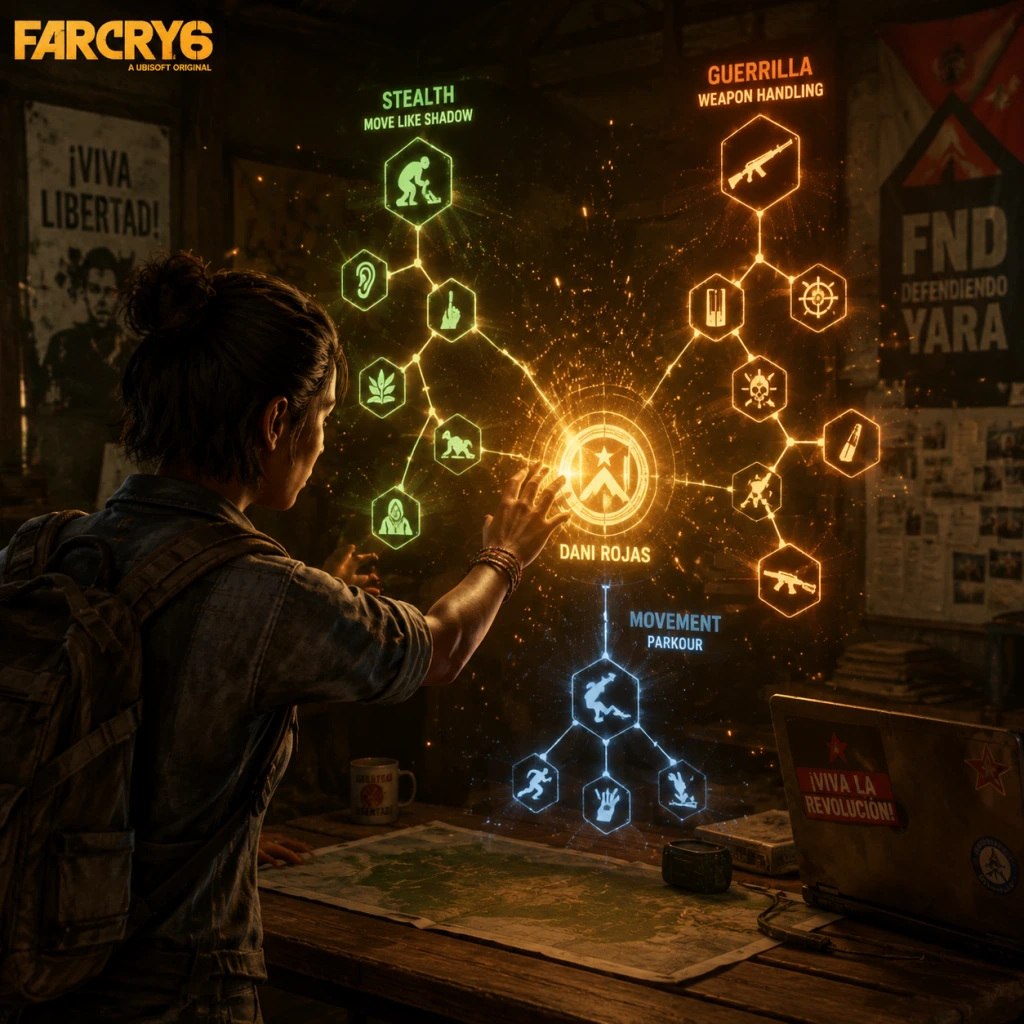
Character Skills
Character Skills – Far Cry 6
Far Cry 6 features a unified protagonist, Dani Rojas, with a flexible skill system that blends passive perks, active Supremo backpack abilities, Resolver tools, Amigos (animal companions), and Bandidos leader abilities. This guide covers every unlockable skill, ability, and talent in the base game, detailing effects, cooldowns, upgrades, combos, synergies, recommended builds, and optimal usage.
---
1. Dani Rojas Skill Trees
There are three skill trees: Guerrilla, Explosives, and Stealth. Each tree has 10–12 perks, for a total of 36 perks. All perks are passive and provide stat boosts or new interactions. Perks are unlocked using skill points earned from levelling up, completing missions, and finding Yaran Stories.
#### 1.1 Guerrilla Tree
Focuses on health, scavenging, and vehicle utility.
- Brawler – Increases melee damage by 50% and takedown speed. Synergizes with improvised weapons. Use when low on ammo.
- Field Surgeon – Revive speed increased by 40%. Essential for high difficulty.
- Scavenger – Enemies drop more ammunition and materials. Prioritize for early game sustainability.
- Horsepower – Vehicles deal 25% more damage to enemies. Combine with mounted weapons for road combat.
- Auto Parts – Vehicle repair speed doubled. Useful for frequent driving through checkpoints.
- Heavy Lifter – Increases carry capacity for materials by 50%. Great for crafting.
- Tireless – Sprint duration increased by 30%. Pair with parkour boots for exploration.
- Gunslinger – Pistol damage +20%. Works with any handgun, especially the Autocrat.
- Saddle Up – Horse stamina increased by 40%. Use for long-distance stealth travel.
- Lead Belly – Eat/drink while sprinting. Convenient for combat regen.
- Survival Instincts – Enemies highlighted when health is low. Best for chaotic fights.
- Hunker Down – Damage reduction while crouched (+15%). Combine with cover.
- Pyromaniac – Incendiary damage +30%. Works with Molotovs, fire ammo, and fire Supremos.
- Blast Protection – Explosive damage taken reduced by 25%. Stack with gear perks.
- Demolitionist – Throw explosive items 30% farther. Useful for clearing nests.
- Shrapnel – Grenades split into two after detonation? Actually, causes fragmentation damage. Each grenade deals 25% more damage.
- Fire in the Hole – Grenade cooking. Hold grenade to time explosion. Essential for skilled throwing.
- Cluster Luck – Improvised explosive (pipe bomb) damage +20%. Combine with Demolitionist.
- Heavy Ordnance – Rocket and launcher damage +25%. For clearing vehicles.
- Flak Jacket – Reduces self-inflicted explosive damage by 50%. Important for close-range Supremo use.
- Overcharge – Supremo backpack charge rate increased by 15%. Always useful.
- Triple Threat – Equip three throwables instead of two. Versatile for encumbrance.
- Fireproof – Ignite enemies cause less damage to you (burn duration -50%). Good with fire weapons.
- Napalm – Molotovs leave a larger fire pool. Area denial.
- Ghost – Movement noise reduced by 40%. Essential for stealth runs.
- Takedown Master – Chain takedowns up to 3 enemies. Murder entire patrols silently.
- Assassin – Takedown from any angle (frontal takedown). Huge combat bypass.
- Looter – Search bodies faster. Speeds up looting.
- Sixth Sense – Enemies marked through walls within 30m. Always active.
- Night Runner – Movement speed increased by 15% at night. Pair with night-vision gear.
- Parkour – Climb and mantle speed +25%. Vault over obstacles smoothly.
- Saboteur – Breaching charges deal double damage to alarms and generators. Disable backup.
- Vanish – After a takedown, you become invisible for 3 seconds. Chain escapes.
- Spotter – Marked enemies stay marked longer (30s extra). Team utility.
- Executioner – Knife throw kills any enemy instantly (once per 30s). Ranged stealth.
- Cloak & Dagger – Unlock takedown from water and while hanging. Aquatic stealth.
Recommended early picks: Scavenger, Field Surgeon, Tireless.
#### 1.2 Explosives Tree
Enhances explosives, fire, and Supremo backpack damage.
Recommended early picks: Overcharge, Shrapnel, Demolitionist.
#### 1.3 Stealth Tree
Enhances stealth, takedowns, and movement.
Recommended early picks: Ghost, Takedown Master, Sixth Sense.
---
2. Supremo Backpacks
Supremo Backpacks are active ultimate abilities with unique effects, a charge metre, and a short cooldown (typically 80–120 seconds). They can be upgraded via schematics found in FND bases or purchased from Juan's Arms Dealers. Each backpack grants a passive bonus and an active ability.
| Backpack | Active Ability | Passive Bonus | Cooldown | Upgrade Effects |
|---|---|---|---|---|
| Exterminador | Launches a cluster of homing micro-missiles | +20% blast radius for explosives | 90s | More missiles, faster lock, incendiary variant |
| Volta | Creates an EMP blast stunning electronics and vehicles | +15% movement speed when near electronics | 80s | Longer stun radius, damages robotic enemies |
| Triada | Briefly turns you invisible (5s) and silences movement | +15% stealth damage multiplier | 100s | Longer invisibility, faster recharge near enemies |
| Muerte | Summons a poison gas cloud that damages and confuses enemies | +10% fire damage | 110s | Cloud lasts longer, spreads faster |
| Fuego | Launches a sustained stream of fire (like flamethrower) | +25% burn duration | 120s | Increased range, explosive fire puddles |
| El Cap | Drops a supply crate with heavy weapons and ammo | +30% ammo capacity | 150s | Crate drops more items, attracts enemy attention |
| Rayo | Fires a long-range lightning bolt that chains to nearby enemies | +20% damage against vehicles | 100s | Chain arc more targets, stuns humans |
- Stealth: Triada for invisibility + Assassin takedowns.
- Explosives: Exterminador for crowd control.
- Fire: Fuego + Pyromaniac perk.
- Exterminador: in open combat against groups or helicopters.
- Volta: before hacking terminals or disabling alarms.
- Triada: to bypass heavily guarded rooms.
- Muerte: in confined spaces to clear entire rooms.
- Fuego: against armored enemies or to flush out cover.
- El Cap: when low on heavy ammo.
- Rayo: against convoys or drone swarms.
When to use:
---
3. Resolver Tools
Resolver tools are story-unlocked gadgets that enhance movement and combat versatility. They can be upgraded at workbenches.
| Tool | Effect | Upgrade Path |
|---|---|---|
| Grappling Hook | Pull Dani to ledges and rappel down. Trigger mid-air to cancel fall damage. | Faster pull, ability to pull enemies (Tier 2), silent attach (Tier 3) |
| Parachute | Slow descent; steerable. Opens automatically at height. | Faster descent control, deploy near ground (Tier 2), air brake (Tier 3) |
| Parkour Shoes | Wall-run on specific surfaces, slide longer, climb faster. | Longer wall-run, slide speed +20%, silent landing (Tier 3) |
| Ammo Backpack | Increases carried ammo by 75% for all weapons. | Additional grenade slot (Tier 2), explosive ammo compatibility (Tier 3) |
| Repair Tool | Repairs vehicles quickly. Usable on mounted guns and turrets. | Repair speed +50%, auto-repair when entering vehicle (Tier 3) |
- Grappling Hook + Triada Supremo: quick vertical escapes while invisible.
- Parkour Shoes + Ghost perk: silent rapid movement through urban areas.
- Parachute + Rayo Supremo: air-to-ground lightning strikes.
---
4. Amigos (Animal Companions)
Amigos are unique animals that fight alongside Dani. Each has a special ability and a loyalty metre that unlocks additional perks. You can bring one Amigo at a time.
| Amigo | Species | Special Ability | Secondary Ability (Loyalty 3) | Best Use |
|---|---|---|---|---|
| Guapo | Crocodile | Drags corpses to feed, creating a distraction area | Can be thrown at enemies (like a living grenade) | Stealth removal of bodies, crowd disruption |
| Boom Boom | Dog | Points at nearest enemy; scents explosives | Steals weapons from downed enemies | Recon and looting |
| Chicharrón | Rooster | Flies into an enemy’s face, blinding them | Flurry peck attack that stuns multiple enemies | Disabling priority targets |
| Oluso | Panther | Switches between stealth and attack mode | Invisible while stationary; silent takedown | Stealth escort missions |
| K-9000 | Robot Dog | Electric shock that stuns multiple enemies | EMP burst disables alarms and drones | Anti-tech, hacking support |
| Bandido (not animal) | - | Leads guerrilla ops (see Bandidos section) | Unlocks more missions | Progression |
| Gorilla (DLC: Danny Trejo) | Gorilla | Throws enemy bodies as projectiles | AOE ground slam | Chaos and destruction |
- Oluso + Ghost + Triada: complete stealth build.
- Guapo + Pyromaniac + Fuego Supremo: fire and fear tactic.
- K-9000 + Volta Supremo: double EMP lockdown.
---
5. Bandidos (Guerrilla Leader Skills)
Bandidos are earned by completing bandido operations. Each leader has a passive skill that affects mission outcomes. You can assign up to 5 leaders to operations. Skills unlock as leaders level up.
| Skill Name | Effect | Leader Level |
|---|---|---|
| Rally | Reduces mission time by 10% for all operations | 2 |
| Scout | Increases intel gain from reconnaissance missions by 15% | 3 |
| Quartermaster | Supplies cost 20% less materials | 4 |
| Demolition | Increases chance of clearing an obstacle by 30% | 5 |
| Tactician | Gain extra reward item from successful operations | 6 |
| Master of Arms | All combat operations have 15% higher success rate | 7 (max) |
---
6. Vehicle Skills (via Gear)
Vehicle skills are provided by clothing gear pieces, not a skill tree. Key vehicle-related perks:
- Driver's Cap – Vehicle ramming damage +30%.
- Racing Suit – Vehicle speed +10%.
- Off-road Wheels – Traction on rough terrain +25%.
- Armored Plating – Vehicle damage resistance +20%.
- Skill Tree: Ghost, Takedown Master, Assassin, Night Runner, Vanish.
- Supremo: Triada.
- Amigo: Oluso.
- Weapons: Silenced rifle, machete, throwing knives.
- Gear: Ninja uniform (increased stealth).
- Use: Infiltrate bases without raising alarm.
- Skill Tree: Demolitionist, Shrapnel, Heavy Ordnance, Overcharge, Triple Threat.
- Supremo: Exterminador.
- Amigo: Guapo (distraction).
- Weapons: Rocket launcher, grenades, Molotovs.
- Gear: Demolition vest (explosive damage boost).
- Use: Clear fortifications and vehicle convoys.
- Skill Tree: Pyromaniac, Fireproof, Napalm, Field Surgeon.
- Supremo: Fuego.
- Amigo: Chicharrón.
- Weapons: Flamethrower, incendiary rifle, Molotovs.
- Gear: Firefighter suit (burn resistance).
- Use: Burn out enemies from cover, area denial.
- Skill Tree: Horsepower, Auto Parts, Tireless, Lead Belly.
- Supremo: Rayo.
- Amigo: K-9000.
- Weapons: Mounted machine guns, EMP launcher.
- Gear: Driver's Cap, Racing Suit.
- Use: Hijacking convoys and vehicle combat.
Recommended build: Pair with Horsepower perk (Guerrilla tree) and Auto Parts for a vehicle combat loadout.
---
7. Build Recommendations
#### Stealth Assassin
#### Demolitions Expert
#### Firestarter
#### Vehicle Raider
---
8. When to Use Each Skill – Quick Reference
| Situation | Recommended Skill/Ability |
|---|---|
| Stealth takedowns | Takedown Master, Assassin, Triada |
| Large groups | Exterminador, Muerte, explosives perks |
| Armored enemies | Fuego, flak jacket, heavy ordnance |
| Vehicle chases | Rayo, Volta, Horsepower |
| Scavenging | Scavenger, Looter, El Cap |
| Exploration | Parkour, Grappling Hook, Tireless |
| Emergency escape | Triada, Vanish, parachute |
| Boss fights | Cluster Luck, Demolitionist, Overcharge |
This guide covers every skill available in Far Cry 6. Experiment with combinations to suit your playstyle. Unlock perks in order of importance to your chosen build, and upgrade Supremos and Resolver tools whenever possible. For the most impactful start, prioritize Scavenger, Ghost, and Overcharge. Good luck in Yara!

Characters & Roles
Characters & Roles – Far Cry 6
Far Cry 6 features a single protagonist, Dani Rojas, whose gender can be chosen (male or female) with identical gameplay. There are no traditional character classes or heroes. Instead, your role evolves through:
- Skill Trees (passive perks)
- Supremo Backpacks (ultimate abilities)
- Resolver Weapons (unique gear)
- Amigos (animal companions with distinct powers)
- Bandidos Leaders (NPCs leading guerilla operations)
- Versatile: Can adapt to any combat style via skills, gear, and Supremos.
- Stealth & Combat: Equally capable in open firefights and silent takedowns.
- Resilience: Can withstand heavy damage with proper Supremo shields and healing perks.
- No Specialization: Unlike class-based games, Dani has no inherent role bonuses; all advantages come from equipment choices.
- Limited Mobility: Early game lacks movement perks like grappling hook or parachute (unlocked via progression).
- Stealth Assassin: Use silenced weapons, throwing knives, and the “Triador” Supremo (reveals enemies). Approach from high ground.
- Rambo Gunslinger: Equip the “Madrugada” Supremo (explosive rounds), heavy machine gun, and blast-resistant gear. Charge in with vehicle or wingsuit.
- Sniper: Use a rifle with variable zoom, “Ojiva” Supremo (slow-mo headshots), and a full health perk loadout.
- Available from the start. Choose male or female voice at new game. No additional unlock required.
- Early Game: Silenced MS16 L (rifle), AutoPistol, Molotovs, and the Gladiador Supremo (provides poison immunity and reflecting projectiles).
- Mid Game: SKS sniper, LMG-S MG42, EMP grenades, and the Volta (shield) Supremo.
- Late Game: Double-barrel shotgun (Resolver), Compound Bow with explosive arrows, and the Oluso Amigo for stealth.
- Best Supremo Backpack: El Centinela (gives 10 seconds of invincibility) for clutch situations.
- Dani works with all allies. Use Juan’s vehicle upgrades for mobile combat, Clara’s intel for vulnerable targets, and Amigos like Boomer for tagging or Guapo for tanking.
- Role: Weapons & gear supplier, expert on “Resolver” technology.
- Background: Ex-KGB agent now living in Yara. He created many of the improvised weapons you use.
- Impact: Unlocks crafting of unique weapons and Supremo upgrades at his hideout on Isla Santuario.
- Required Quests: Complete first mission from Clara to reach him.
- Role: Leader of Libertad; primary quest giver for main story.
- Background: Daughter of a slain revolutionary. She runs the resistance from a hidden bunker.
- Impact: Unlocks major story missions, region progress, and final confrontation.
- Role: Farming expert, Montejo family member. Provides hunting gear and missions.
- Background: Estranged son of a wealthy rancher family. Uses his knowledge to aid Libertad.
- Impact: Unlocks P.A.I.N. (Pesticide Activated Insectoid Neutralizer) missions and special hunting weapons.
- Role: Leader of the PC (Partisan Community) cell in Esperanza.
- Background: A former soldier who runs underground newspaper.
- Impact: Unlocks intel about secret Castillo operations.
- Role: Bounty hunter and mentor for certain side missions.
- Background: Old man who knows the island’s secrets. He gives cryptic clues.
- Impact: Unlocks treasure hunts and hidden weapons.
- Type: Dog (German Shepherd)
- Background: Former FND military dog rescued from a checkpoint. Extremely loyal.
- Strengths: Can mark all enemies in a large radius (including through walls). Barking stuns nearby enemies.
- Weaknesses: Low health; cannot attack heavily armored units effectively.
- Unlock: Complete “Boomer” side quest early in Madrugada.
- Best Use: Recon for stealth approach. Use whistle to send him to mark targets.
- Build Synergy: Use with silenced weapons and El Centinela Supremo for quick take-downs.
- Type: Dachshund with a wheelchair
- Background: Rescued from a chemical lab by Juan. He’s a cute but fierce attacker.
- Strengths: Fast movement; can jump on enemies and cause distraction. Also sniffs out resources (ammo, materials).
- Weaknesses: Very low health; dies quickly if not supported. Cannot climb ladders.
- Unlock: Complete “The Dog Who Wanted to Fly” side quest in El Este.
- Best Use: Resource gathering in outposts. Use his distraction ability to flank enemies.
- Type: Rooster with combat training
- Background: A legendary fighting rooster owned by a Libertad member. Hates FND.
- Strengths: High attack speed; can peck enemies to death. His crowing causes confusion among foes.
- Weaknesses: Very fragile; cannot take damage. Easily killed if focused.
- Unlock: Complete “Rooster Wars” quest in Madrugada.
- Best Use: Aggressive distraction. Use in open combat to tie up one enemy while you handle others.
- Type: Crocodile
- Background: Rescued from a poaching ring by Juan. Now semi-domesticated.
- Strengths: Very high health; can one-shot most standard enemies. Terrifying aura makes enemies flee.
- Weaknesses: Slow movement; very loud (attracts attention). Cannot be called away easily.
- Unlock: Complete “A Croc Named Guapo” side quest in Valle de Oro.
- Best Use: Tanking in fortified positions. Send him into a group of soldiers to cause chaos.
- Type: Panther (black jaguar)
- Background: A mysterious ghost cat from the jungle. It appears after completing a series of radio transmissions.
- Strengths: Silent takedown (animates only on command); can kill soldiers without alerting others. Incredible stealth.
- Weaknesses: Cannot attack vehicles; low health if detected.
- Unlock: Complete “The Ghost Cat” side quest in Valle de Oro.
- Best Use: Alongside a stealth build. Send Oluso to eliminate isolated targets. Best Amigo for Ghost Run trophies.
- Lola: High stealth, low combat. Unlock: complete “Over the Wall” quest.
- El Chacal: Balanced stats. Unlock: free from prison in Madrugada.
- Machete: High combat, low stealth. Unlock: defeat in a duel in Valle de Oro.
- Rosa: High infiltration. Unlock: rescue from destruction mission in El Este.
- Dr. G. : High tech stats for sabotage. Unlock: side mission in Esperanza.
- Role: Main antagonist, dictator of Yara.
- Backstory: A ruthless leader who inherited power from his father. Uses refined Viviro to control the economy and military.
- Gameplay Impact: Appears in scripted cutscenes; fought in the final mission. No direct combat role for Dani.
- Role: Antón’s son, heir to the regime. Initially a puppet, later develops his own morality.
- Backstory: Raised in isolation, taught to be a soldier. Influenced by Dani during certain missions.
- Gameplay Appearance: Some missions where you can interact (non-combat).
- Role: Commander of the FND Special Forces.
- Backstory: Childhood friend of Clara, now enemy. Appears in several missions.
- Gameplay: Fought as mini-boss in El Este region.
This guide covers all major characters: Dani Rojas, key allies, Amigos, and notable enemy figures. Each entry includes background, strengths/weaknesses, playstyle tips, unlock conditions, recommended equipment, and team synergy.
---
1. Protagonist: Dani Rojas
Background: Dani Rojas is a former Yaran military conscript turned revolutionary. Growing up under Castillo’s regime, they lost family to the dictatorship. After a fateful encounter with Libertad leader Clara Garcia, Dani joins the resistance, slowly rising to become its most effective operative. Dani’s journey is deeply personal, and they are heavily involved in the revolution’s key events.
Strengths:
Weaknesses:
Playstyle Tips:
Unlock Conditions:
Recommended Equipment/Builds:
Team Synergy:
---
2. Key Allies (Non-Playable)
These characters serve as mission givers, shopkeepers, or support during operations. They are not controllable but influence Dani’s arsenal and story.
#### 2.1 Juan Cortez
#### 2.2 Clara Garcia
#### 2.3 Paulo Montero
#### 2.4 Phil “El Tigre” Castillo (no relation to Antón)
#### 2.5 Tio Mateo (Papá Mateo)
---
3. Amigos (Animal Companions)
Amigos are unique animals that accompany Dani on missions. They have distinct abilities, health pools, and can be commanded. Each has strengths and weaknesses.
#### 3.1 Boomer
#### 3.2 Chorizo
#### 3.3 Chicharrón
#### 3.4 Guapo
#### 3.5 Oluso
---
4. Bandidos Leaders (Guerilla Operation Managers)
Bandidos Leaders are NPCs you recruit to run automated guerilla operations (similar to Assassin’s Creed brotherhood). They are not directly controllable but can be assigned missions to earn resources, weapons, and currency.
List of Notable Bandidos Leaders (each has unique stats):
Strengths/Weaknesses: Each leader has levels in three areas: Combat, Stealth, Tech. Assign them to operations that match their strengths for higher success chance.
Playstyle: Passive management; you cannot control them in the field. Their only synergy is with the Bandidos minigame, providing passive income.
---
5. Enemy Leaders (Not Playable, but Notable)
#### 5.1 Antón Castillo
#### 5.2 Diego Castillo (El Hijo)
#### 5.3 Maria “La Pequeña” (Maria Martinez)
---
6. Character Progression & Role Customization
While there are no formal classes, you can build specific roles by combining:
| Role Archetype | Supremo Backpack | Amigo | Weapons | Perks (Skill Tree) |
|---|---|---|---|---|
| Stealth Sniper | Triador (marking) | Oluso | SKS sniper, silenced pistol | Parkour (silent movement), Headshot damage increase |
| Combat Medic | Volta (shield) | Boomer | SMG, sidearm | Health regen, revive speed, healing cloud |
| Explosives Demolition | Madrugada (rocket) | Guapo | Grenade launcher, machine gun | Blast radius, armor penetration |
| Saboteur | Ojiva (slow-mo) | Chorizo | Firework launcher, traps | Trap damage, hacking speed |
- Invest early in the “Survivor” skill tree for sustainability.
- Pair Amigos with complementary strengths (e.g., Oluso + stealth suit).
- Use gear sets that boost one attribute (e.g., +% headshot damage).
---
7. Unlock Conditions Summary Table
| Character/Amigo | Type | Unlock Method | Region |
|---|---|---|---|
| Dani Rojas | Protagonist | New Game | - |
| Juan Cortez | Ally | Main story (Isla Santuario) | Isla Santuario |
| Clara Garcia | Ally | Main story (first mission) | Madrugada |
| Boomer | Amigo | Side quest “Boomer” | Madrugada |
| Chorizo | Amigo | Side quest “The Dog Who Wanted to Fly” | El Este |
| Chicharrón | Amigo | Side quest “Rooster Wars” | Madrugada |
| Guapo | Amigo | Side quest “A Croc Named Guapo” | Valle de Oro |
| Oluso | Amigo | Side quest “The Ghost Cat” | Valle de Oro |
| Bandidos Leaders | Management | Various missions | All regions |
8. Conclusion
In Far Cry 6, your character is defined by choices: which Supremo, which Amigo, which Resolver weapons, and which skills you prioritize. There is no “best” build, but for a balanced approach, start with Boomer for intel, use the Centinela Supremo for survival, and specialize weapons for close or long range. Experiment with different combinations to find your playstyle. The allies and Amigos are there to support you—use them wisely.

Cheats & Secrets
Cheats & Secrets
This guide covers all official cheat modifiers, unlock requirements, secret endings, and notable Easter eggs in Far Cry 6. The game does not support traditional console cheat codes or button sequences; instead, a dedicated Cheat Menu is available after completing certain in-game challenges.
---
Cheat Menu
Accessible from Options > Gameplay > Cheats, the Cheat Menu contains modifiers that alter core gameplay. Each cheat is initially locked and must be unlocked by completing a specific condition. Once unlocked, you can toggle it on/off freely. Cheats can be activated at any time (even during missions) and remain active until disabled. They do not disable achievements or trophies.
#### List of Cheats and Unlock Conditions
| Cheat | Effect | Unlock Condition |
|---|---|---|
| Infinite Ammo | Weapon ammunition never depletes. | Complete all 10 Treasure Hunts. |
| No Reload | Weapons never need reloading. | Complete all 7 Yaran Stories. |
| Invincibility | Take no damage from any source (fall, fire, enemies). | Complete all 24 Yaran Stories. |
| One-Hit Kills | Any weapon (including melee) kills enemies in one hit. | Defeat all 5 special ops commanders (Santiago, McKay, etc.) and complete all 7 Yaran Stories. |
| Unlimited Supremo Energy | Supremo backpack ability can be used repeatedly without cooldown. | Complete all 16 Cockfighting matches. |
| Unlimited Resolver Ammo | Resolver weapons (e.g., Exterminator, La Varita) have infinite ammunition. | Defeat all 5 special ops commanders. |
| Vehicle Invincibility | All vehicles (cars, helicopters, boats) become indestructible. | Complete all 5 Bandido Operations (post-game). |
| Super Hero Jump | Dani can jump significantly higher, enabling parkour shortcuts. | Collect all 71 USB sticks (hidden collectibles). |
| Slow Motion Aiming | While aiming down sights, time slows to 10% speed. | Complete all 7 Yaran Stories. |
| Max Persuasion | Instantly maxes out influence with any Bandido leader (for Bandidos mode). | Defeat all special ops commanders. |
| No Enemy Spawns | Enemies no longer respawn in cleared outposts/freed regions. | Liberate all 13 regions (complete the main story). |
#### Tips
- Cheats can be combined for extreme gameplay (e.g., Invincibility + Infinite Ammo).
- Cheats are saved with your profile and carry over to New Game+.
- You can enable/disable cheats from the pause menu at any time; no need to restart the game.
- In the town of El Este, look for a building with a haystack on the roof. Jumping from a high ledge into the haystack triggers a brief sound effect from Assassin’s Creed and a pop-up message: “Eagle Vision not available.”
- In the Valle de Oro region, you can find a crashed UFO near the lake. Inside, a skeleton and a recording referencing a “facehugger” – a nod to the Alien franchise. Approach the cockpit to have Dani comment on the “xenomorph.”
- Your adorable dog Amigo, Chorizo, can sniff out hidden treasure caches. When you take Chorizo on a walk in Madrugada, he will occasionally dig up a small stash containing unique weapons or resources. This is not a bug but a hidden feature. Look for a prompt near Chorizo while he circles a spot.
- The mission “The Blood Dragon” is a direct tribute to Far Cry 3: Blood Dragon. You obtain a special weapon called the “Resolver: The Blood Dragon” – a futuristic rifle that shoots neon-blue projectiles. It’s found in a hidden bunker in El Este (coordinates: near the eastern coast). The mission involves a retro-80s aesthetic and voice lines from the original game.
- Deep in the jungle of Isla Santuario, there’s a small cave with a shrine dedicated to Cthulhu. The shrine has a squid-like idol, candles, and a note written in the mad cultist’s hand. A rare unique weapon, the “Tentacle Launcher,” can be found nearby after completing a small puzzle (rotate three statues to face the idol).
- In the southeast of Madrugada, you can find a radio tower with a faint broadcast of the song “Make It Bun Dem” from Far Cry 3. Near the base of the tower, there’s a burned-out drug processing lab with a skeleton wearing a tattered shirt and a note referencing “Vaas.” This is a direct nod to the iconic villain.
- Underwater in the Lake of the Sunken City (Conuco), you can find a pineapple house shaped like SpongeBob’s. Swim inside to find a bench, a jellyfish net prop, and a note signed “S. Squarepants.” This is purely decorative but a fun find.
- La Varita – A unique resolver rifle found in a secret cave in Esperanza after completing a side quest. Its shots can chain between enemies.
- Exterminator – A flamethrower hidden in the Nova Vista region behind a destructible wall. Requires a blowtorch or explosives.
- The D50 – A golden sniper rifle in the El Este region inside a crashed military helicopter on a mountain peak.
- Chorizo’s Bandolier – A gear piece that increases Amigo damage and health, found in a locked room in Clara’s camp after completing all of Chorizo’s bonding activities.
- Cheat Menu: 10 modifiers unlocked by completing specific challenges (Treasure Hunts, Yaran Stories, Cockfights, etc.).
- Secret Ending: Stay on the boat at the start to trigger an early credits roll and an achievement.
- Easter Eggs: Seven significant pop-culture references, including Assassin’s Creed, Alien, Blood Dragon, and SpongeBob.
- Hidden Items: Several unique weapons and gear pieces are hidden in the world, waiting for explorers.
---
Secret Ending
Far Cry 6 features a secret ending accessible within the first few minutes of the game. This ending is a callback to Far Cry 4.
How to trigger it:
1. During the opening prologue, after Clara Garcia frees you from the boat and tells you to escape Yara, do not get off the boat.
2. Instead, wait on the small fishing vessel. After about 30 seconds, the boat will automatically drift toward the open sea.
3. Dani will remark that they’re leaving, and a cutscene plays where Dani successfully escapes Yara, returning to the US.
4. Credits roll immediately. This counts as a “game completed” for certain statistics but does not unlock New Game+ or high-level rewards.
Result: You’ll receive the “A Better World” achievement/trophy (on PC/console). After the credits, you can load the last save to continue the game normally.
---
Easter Eggs
#### 1. Assassin’s Creed Reference
#### 2. The A.V. (Alien) Reference
#### 3. Chorizo’s Secret Stash
#### 4. Blood Dragon Reference
#### 5. Cthulhu Cult Shrine
#### 6. “The End” Flashback (Far Cry 3 Reference)
#### 7. SpongeBob SquarePants Easter Egg
---
Hidden Weapons & Items
While not strictly cheats, the following items are hidden and require exploration or specific actions to acquire:
---
Exploit-Safe Secrets
All cheats and secrets listed above are intended design features – no glitches or exploits. The only ‘exploit’ worth noting is the Fast Travel during combat trick: You can fast travel from any location, even while enemies are nearby, by opening the map and selecting a fast travel point (if not in active alert). This is a legitimate system mechanic, not a cheat or bug.
---
No Traditional Cheat Codes
Far Cry 6 does not accept keyboard commands like `godmode` or `giveall`. No debug console exists on PC. All cheat-like functionality is exclusively through the Cheat Menu described above. For mobile or streaming versions (Google Stadia, Luna, etc.), the same Cheat Menu is available via the settings.
---