Forza Horizon 5
## Overview **Forza Horizon 5** is an open-world racing game developed by **Playground Games** and published by **Xbox Game Studios**. Released on **November 9, 2021**, it is the fifth main installment in the Forza Horizon series and the twelfth overall in the Forza franchise. The game is available...
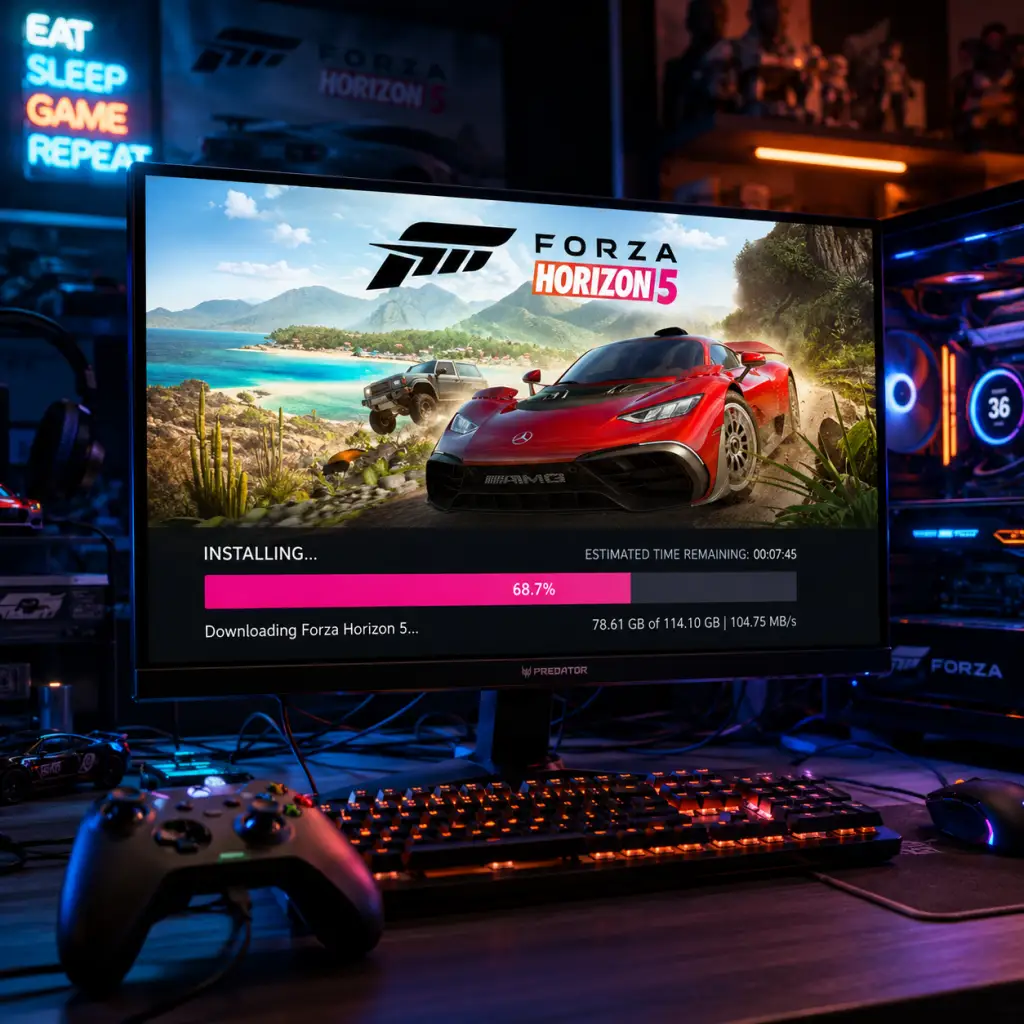
Download & Installation
Overview
Forza Horizon 5 is available on PC (Windows 10/11), Xbox One, Xbox Series X|S, and via Xbox Cloud Gaming (Beta). It is not natively available on PlayStation, Nintendo Switch, or mobile devices (except through cloud streaming on phones/tablets). The game is published by Xbox Game Studios and can be obtained through the following legitimate digital storefronts:
- Microsoft Store (PC & Xbox)
- Steam (PC only)
- Xbox Game Pass (PC & Xbox, subscription required)
Physical disc copies exist for Xbox One and Xbox Series X|S, but installation still requires downloading updates and the full game to the console's hard drive.
---
System Requirements (PC)
Minimum Requirements (30 FPS at 1080p Low)
| Component | Specification |
|---|---|
| OS | Windows 10 version 15063.0 or higher |
| CPU | AMD Ryzen 3 1200 / Intel Core i5-4460 |
| RAM | 8 GB |
| GPU | AMD Radeon RX 470 / Nvidia GeForce GTX 970 (4 GB VRAM) |
| Storage | 130 GB SSD (preferred) / HDD (slower loading) |
| DirectX | Version 12 |
| Network | Broadband internet connection |
Recommended Requirements (60 FPS at 1080p High)
| Component | Specification |
|---|---|
| OS | Windows 10 version 1903 or higher |
| CPU | AMD Ryzen 5 3600 / Intel Core i7-9700K |
| RAM | 16 GB |
| GPU | AMD Radeon RX 590 / Nvidia GeForce RTX 2070 (8 GB VRAM) |
| Storage | 130 GB NVMe SSD |
| DirectX | Version 12 |
| Network | Broadband internet connection |
---
Account Requirements
- Microsoft Account (Live ID): Required for multiplayer, online features, and syncing progress across platforms. Even on Steam, you must link a Microsoft account.
- Xbox Game Pass Subscription (optional): If you are playing via Game Pass, an active subscription is necessary to launch the game.
- Steam Account (if purchased on Steam): Standard Steam account with the game in your library.
- On PC: Follow the same steps as Microsoft Store (above). The game will appear in your Xbox app library if your Game Pass subscription is active.
- On Console: Go to My games & apps > Full library > Game Pass tab, find Forza Horizon 5, and select Install.
- Cloud Gaming: No installation required. Open the Xbox app or browser (xbox.com/play) and stream the game.
- Required free space: 130 GB minimum. After updates and DLC, the total may exceed 150 GB.
- Drive type: Use an SSD (SATA or NVMe) for best performance. An external USB 3.0 SSD works on both PC and Xbox. HDDs are supported but may cause longer load times.
- On Xbox Series X|S: The game must be installed on the internal SSD or an official Seagate Expansion Card to take full advantage of Quick Resume and reduced loading.
- Run the Windows Store Apps Troubleshooter (Settings > Update & Security > Troubleshoot > Additional troubleshooters > Windows Store Apps).
- Clear the Microsoft Store cache: Press Win + R, type `wsreset.exe`, press Enter. Restart the Store and try again.
- Ensure your system time and date are correct.
- The installer requires additional temporary free space (about 20 GB) for decompression. Free up more space (130 GB + 20 GB = 150 GB).
- On PC, check if your drive is formatted as NTFS; avoid FAT32.
- On Xbox, clear reserved space or move other games to an external drive.
- Pause and resume the download.
- On PC, close other bandwidth-heavy applications (Stream, browsers).
- Change DNS to Google (8.8.8.8 / 8.8.4.4) or Cloudflare (1.1.1.1).
- For Xbox, check network statistics (Settings > Network > Detailed network statistics).
- Verify game files:
- Disable antivirus temporarily during installation.
- Restart your PC/console and try again.
- Update your graphics drivers (NVIDIA, AMD, Intel).
- Disable overlays (Steam, Discord, Xbox Game Bar).
- Close background apps like MSI Afterburner or RivaTuner.
- Run the game as Administrator (Right‑click .exe file in installation folder > Properties > Compatibility > Run this program as an administrator).
- Check file integrity (PC): Use the tools mentioned above (Steam Verify / Windows Repair).
- Verify storage usage: Open drive properties and ensure the game folder uses ~130 GB. On Xbox, go to My games & apps > Manage > Forza Horizon 5 > See file info.
- Test launch: If the game opens to the main menu without errors, installation is successful.
- Run the in-game Performance Test: To ensure your hardware meets expectations and to calibrate settings.
- Ensure your Microsoft account is properly linked on Steam (if applicable). You can check in Steam overlay > Settings > Account > Manage Steam Guard settings > Linked accounts.
- For multiplayer, verify your Xbox Network status (Xbox Support page).
- Update to the latest version (check for patches via your platform's update mechanism).
- Achievements and Steam Cloud saves are supported (requires Microsoft account linkage).
- Mods are not officially supported; only direct file modifications at own risk.
- The game is installed via the Xbox app; you can also manage DLC and updates there.
- If you cancel your Game Pass subscription, you lose access to the game unless you purchase it outright.
- Use Quick Resume for instant switching (supported on Series X|S).
- Disc versions require a one-time online activation to install the latest patches.
- No installation required. Requires a stable internet connection of at least 10 Mbps (20 Mbps for 1080p 60fps).
- Supports touch controls on mobile, but a controller is recommended.
- Always download from official sources (Microsoft Store, Steam, Xbox Store) to avoid malware or bans.
- Keep your operating system and graphics drivers up to date before installation.
- If installing on a slow HDD, expect longer initial loading and possible texture streaming issues. Consider upgrading to an SSD.
- For the best experience, play on an Xbox Series X/S or a high-end PC with an SSD and 16 GB RAM.
---
Step-by-Step Installation Guides
1. Microsoft Store (PC & Xbox)
#### On PC
1. Open the Microsoft Store app (or Xbox app on Windows 10/11).
2. Search for “Forza Horizon 5”.
3. Click Get (if you own the game or have Game Pass) or Buy to purchase.
4. Once purchased, click Install and choose an installation drive (ensure at least 130 GB free).
5. The download will begin; you can monitor progress in the Downloads section of the Xbox app or Microsoft Store.
6. After download, the game will automatically install and appear in your Start Menu and Xbox app library.
#### On Xbox Console
1. Power on your Xbox and sign in to your Microsoft account.
2. Press the Xbox button to open the guide, then go to My games & apps > See all > Full library.
3. Navigate to Owned games or search for “Forza Horizon 5”.
4. Select the game and choose Install.
5. Choose an internal or external drive (USB 3.0+ for external). The console will download and install the game automatically.
6. If you have a physical disc, insert it; the console will prompt you to install.
> Note: Xbox Cloud Gaming users on console do not need to install; simply launch from the cloud tab.
2. Steam (PC Only)
1. Open Steam and log into your account.
2. Go to Library and select “Forza Horizon 5” (must be purchased first).
3. Click Install.
4. In the pop-up, select your installation directory (custom or default `C:\Program Files (x86)\Steam\steamapps\common`). Ensure at least 130 GB free.
5. Click Next, then Finish to start downloading.
6. Wait for the download to complete. Steam will automatically verify and install the game files.
7. After installation, the “Play” button will appear.
3. Xbox Game Pass (PC / Console)
---
Storage Space and Drive Recommendations
---
First Launch Setup
1. Launch the game from your chosen platform.
2. Sign in to your Microsoft account (or link if prompted). On Steam, you will be redirected to a browser to authenticate.
3. Graphics Calibration: The game will auto-detect your hardware and set a default quality. You can:
- Run the Performance Test (accessible later in settings).
- Adjust resolution, frame rate target, and quality presets.
4. Control Configuration: Select your input device (keyboard, controller, wheel). For a controller, ensure it is connected before launching.
5. Accessibility Settings: Adjust subtitles, audio options, and driving assists (e.g., automatic/manual transmission, traction control, braking assists).
6. Welcome Message: The game will play an intro cinematic, then allow you to start the prologue.
> Tip: On PC, enable VSync or cap FPS to your monitor's refresh rate to avoid screen tearing. Use Fullscreen mode for better performance.
---
Common Installation Errors and Fixes
Error: “Something went wrong” during download (Microsoft Store)
Solution:
Error: “Not enough space” even though you have free storage
Solution:
Error: Slow download speeds
Solution:
Error: “The file is corrupt” or installation freezes
Solution:
- Steam: Right‑click game > Properties > Local Files > Verify integrity of game files.
- Microsoft Store / Xbox app: Use the Repair option: Settings > Apps > Forza Horizon 5 > Advanced options > Repair or Reset.
Error: Game crashes on launch
Solution:
---
Post-Installation Verification
After installation, confirm the game is ready:
Additional checks:
---
Platform-Specific Notes
Steam
Xbox Game Pass (PC)
Xbox Console
Cloud Gaming
---
Final Recommendations
This guide covers the essential steps to download and install Forza Horizon 5 across all supported platforms. Enjoy the festival!
Game Introduction
Overview
Forza Horizon 5 is an open-world racing game developed by Playground Games and published by Xbox Game Studios. Released on November 9, 2021, it is the fifth main installment in the Forza Horizon series and the twelfth overall in the Forza franchise. The game is available on Windows 10/11 PC, Xbox One, Xbox Series X|S, and via Xbox Cloud Gaming (Beta). It is not natively available on PlayStation, Nintendo Switch, or mobile devices (except through cloud streaming).
Story & Setting
Unlike narrative-driven single-player titles, Forza Horizon 5 features a light story framework centered around the Horizon Festival—a fictional, globe-trotting automotive festival that serves as the backdrop for all events. Players are part of the festival crew, completing races, stunts, and challenges to increase their Hall of Fame rank and unlock new areas, cars, and events. The game is set in a vibrant, fictionalized representation of Mexico, featuring diverse biomes including arid deserts, lush jungles, ancient ruins, bustling cities (such as Guanajuato-inspired streets), rocky coastlines, and a snow-capped volcano—the series’ largest and most varied map to date.
There are no traditional main characters with deep backstories. Instead, players create their own avatar (male/female/other) and interact with a cast of festival hosts and personalities, such as:
- Alejandra – A local Horizon Festival vocalist and guide.
- Ramiro – The festival’s technical director.
- Professor C. M. “Papa” Fernando – A historian who provides context for the Horizon Mexico adventures.
- Dynamic seasons (each week changes the weather and landscape).
- EventLab – A creative mode to design custom races, stunts, and game modes.
- Horizon Arcade – Multiplayer party games blending driving with mini-challenges.
- Accessibility options – Extensive aids for players of all skill levels (e.g., rewind, difficulty scaling, auto-drive).
- Fans of open-world exploration who enjoy driving through beautiful environments.
- Car collectors who want to own and modify a vast garage of real-world vehicles.
- Multiplayer fans who engage in cooperative or competitive online events.
- Players who prefer a relaxed, rewarding experience with minimal pressure.
- Campaign (Horizon Adventure) – A series of themed expeditions and events (e.g., Baja off-road, street racing, stunt jumps) that progress the player’s rank and unlock new areas.
- Horizon Story – Short missions with unique goals, such as archaeology, stunt filming, or taxi service.
- Horizon Open – Online competitive races in various classes (e.g., road, dirt, cross country) with matchmaking.
- Horizon Tour – Cooperative PvE events where teams of up to 12 players complete objectives against AI.
- The Eliminator – A battle royale-style mode where players start in a random car and compete in shrinking arenas, finding better vehicles and eliminating opponents.
- Playground Games – Car-based competitive minigames like Flag Rush and King.
- EventLab – User-generated content; browse and play community-made races, stunt parks, or custom game types.
- Horizon Arcade – Dynamic open-world challenges (e.g., drift, speed, smash) that appear in the world and can be started by anyone.
- Forzathon Shop – A rotating weekly store where players use in-game currency (Forzathon Points) to buy rare cars and cosmetic items.
- Unmatched scope and variety – Its Mexico map is the largest in the series, with 11 distinct biomes and over 500 kilometers of drivable roads.
- Seamless multiplayer integration – Players can see and interact with others in the open world without lobby transitions.
- EventLab – A full-featured editor that lets players create and share custom races, stunt parks, and even game modes like tag or infection.
- Accessibility and inclusivity – The game includes robust options for colorblindness, dyslexia-friendly fonts, sign language for key dialogue (in cutscenes), and adjustable difficulty that can appeal to any skill level.
- Dynamic weather and seasons – Each week brings a new season (spring, summer, autumn, winter) that changes terrain, driving conditions, and available events.
- Car list diversity – Over 600 cars at launch (now over 800 with updates) ranging from classic muscle to hypercars, off-road trucks, and electric vehicles, each with detailed interiors and customization.
These characters offer quests, events, and flavor dialogue but play a minor role compared to the open-world sandbox.
Core Appeal
Forza Horizon 5’s core appeal lies in its freedom, variety, and polish. It blends authentic driving physics (via the ForzaTech engine) with an arcade-like, approachable feel. Players can drive hundreds of licensed cars across an enormous, seamless world, earning experience and credits through races, skill chains, exploration, and customization. The game emphasizes celebration of car culture and player expression, allowing deep vehicle tuning and visual modification. Its standout features include:
Target Audience
The game is designed for both casual racing fans and hardcore sim enthusiasts (via optional assists and tuning). It appeals to:
Game Modes
Forza Horizon 5 offers a wide array of modes, both offline and online:
Online & Offline Support
The game requires a persistent internet connection for initial setup and some features (e.g., Forzathon Shop, online modes, EventLab sharing). However, the core campaign, events, and exploration can be played offline after the game has authenticated. Players can choose to play entirely solo (with AI opponents) or enable online multiplayer at any time. Cross-play is fully supported across Xbox and PC (Steam and Microsoft Store). An Xbox Game Pass subscription is required for cloud streaming on mobile/tablets.
DLC & Expansions
Two major expansions have been released, each adding a new map and gameplay theme:
1. Forza Horizon 5: Hot Wheels (July 2022) – Features a colossal Hot Wheels-inspired track in the sky, with orange plastic loops, boost zones, and stunt ramps. Adds new cars and a custom campaign.
2. Forza Horizon 5: Rally Adventure (March 2023) – Takes players to a rugged new region for high-speed dirt racing, with an extended career mode and new off-road cars.
Additionally, the game supports regular free updates that add new cars, cosmetics, events, and seasonal content. The Forzathon weekly cycle keeps the experience fresh with new challenges and rewards. Paid Car Packs are also available for additional licensed vehicles.
What Makes This Game Unique
Forza Horizon 5 stands out from other racing games due to:
In summary, Forza Horizon 5 is a celebration of cars, culture, and exploration. Its open-world sandbox, polished gameplay, and continuous live-service support make it a genre-defining experience for racing enthusiasts and casual players alike.
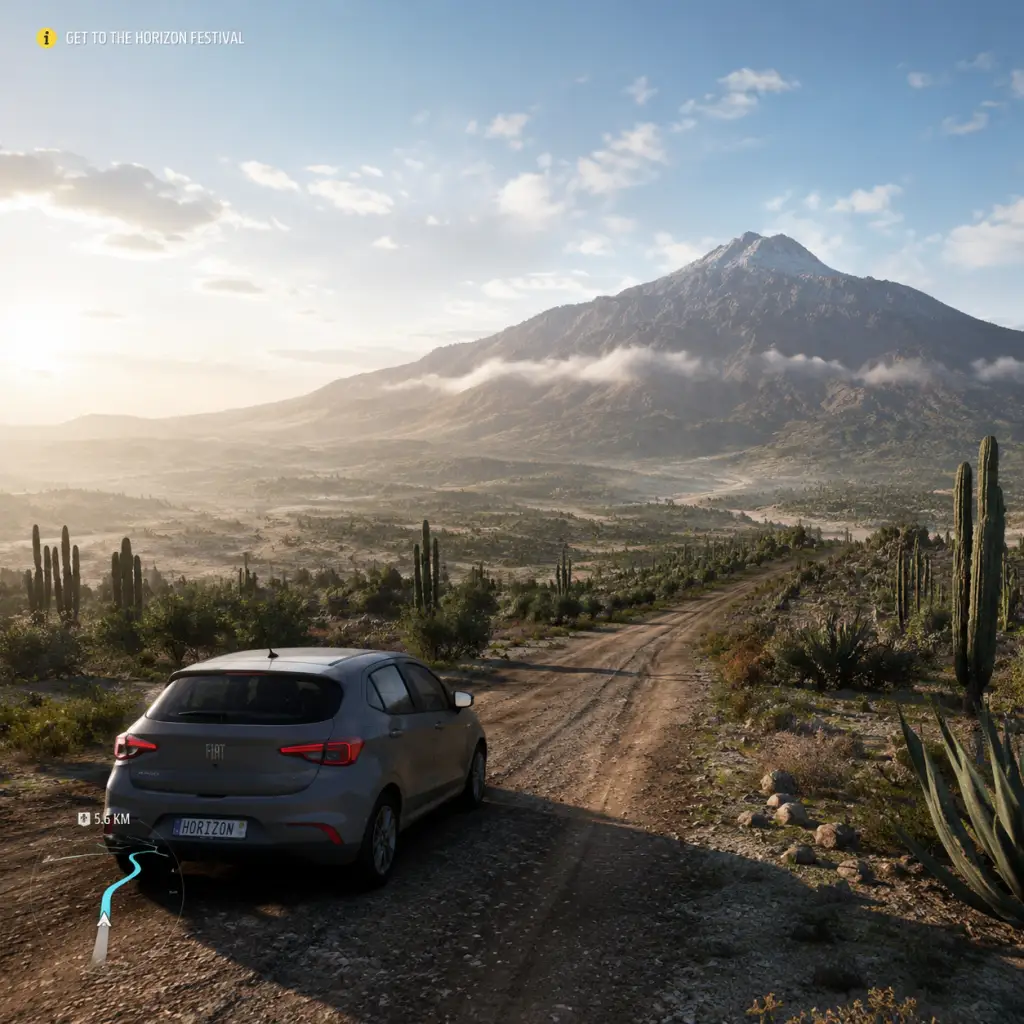
Getting Started
Overview
Forza Horizon 5 drops you into a vibrant open-world representation of Mexico. As a brand-new player, the game can feel overwhelming with its sheer scale, but this guide will walk you through your first hour, explain controls on every platform, decode the UI, and give you a clear day-one plan to start strong without wasting time or currency.
First Hour Walkthrough
1. Opening Cinematic: After a brief load, you'll see a cinematic flyover of Mexico. No input needed.
2. Character Selection: The game asks you to choose a pre-made avatar (male/female) and then customise their outfit, hair, glasses, and more. This has no gameplay effect – pick what you like.
3. Tutorial Race (Jadeite): You're thrown into a 3-lap race in a 2021 Ford Bronco. Follow the on-screen prompts for accelerate (RT / R2 / W), brake (LT / L2 / S), and steer (Left stick / Mouse/Keyboard). The game rewards you with your first car.
4. Horizon Festival Intro: After the race, you drive to the Horizon Festival main stage. Follow the road – you can't get lost. Watch the short cutscene.
5. First Horizon Adventure: You're prompted to start the "Horizon Adventure" – a series of events that unlock the map. Your first event is usually a street race, an off-road race, and a speed trap showcase.
6. Showcase Event: Around 15 minutes in, you'll do a special showcase event (e.g., racing against a train). It's scripted and easy – just follow the path.
7. Free Car Pop-up: After the showcase, you receive a pop-up offering a free car. Accept it – you can sell it later if you don't want it. The game will also give you a choice of a second free car (often a 2018 Porsche 911 GT2 RS or similar).
8. Access to Full Map: After the initial events, the entire Mexico map is revealed. You can now fast travel (requires unlocking fast travel for a fee) and explore freely.
Character Creation & Avatar Customization
Forza Horizon 5 does not have a traditional character creator (no sliders for face shape etc.). Instead, you select from about 12 default avatars (young male/female, older, different ethnicities) and then customize:
- Outfit: Tops, bottoms, shoes, accessories (hats, glasses).
- Emotes & Celebrations: Won from Wheelspins or purchased.
- Name / Gamertag: Based on your Xbox Live/Steam profile.
The avatar only appears in photo mode, video calls in the game, and the car showroom. It never affects driving performance. Change it anytime via the Pause Menu > Change Character.
Controls on All Platforms
| Action | Xbox Controller | PC Keyboard (Default) | PC Controller (Recommended) |
|---|---|---|---|
| Accelerate | RT (right trigger) | W | Same as Xbox |
| Brake / Reverse | LT (left trigger) | S | Same as Xbox |
| Steer | Left Stick | A / D | Left Stick |
| Handbrake | A button (or X) | Spacebar | A button |
| Rewind (Rewind Race Time) | Y button | R | Y button |
| View Map | View button (two squares icon) | M | View button |
| Change Camera | Change View button (right of Guide) | C | Change View button |
| Activate GPS Route | D-pad Up | NumPad 8 | D-pad Up |
| Horn | D-pad Left | Q | D-pad Left |
| Look Behind | Press Right Stick | V | Press Right Stick |
| Enter/Exit Car | Y button (hold) | F | Y button (hold) |
UI Overview
HUD (Heads-Up Display):
- Speedometer (bottom center): Shows speed in mph (change to km/h in Settings).
- Gear Indicator: Current gear (automatic or manual).
- Minimap (top left): Shows nearby roads, events, and other players (if online).
- Race Flags / Lap Info: During events, top-center shows lap count, position, and time.
- Influence & Credits (top right): You gain Influence (XP) and Credits (money) from completing events.
- Skill Score (during freeroam): Combinations of driving skills (drift, near miss, etc.) build a multiplier. Fill the meter for a Wheelspin.
- Horizon Adventure: Your main progression path – a list of events and challenges.
- Map: Full map of Mexico. Icons include races, speed traps, danger signs, player houses, fast travel boards.
- Cars: Your garage. Buy, sell, upgrade, and customize vehicles.
- Festival Playlist: Seasonal events that change weekly – offers rare cars and rewards.
- Settings: Graphics, audio, controls, difficulty, and assist options.
- Photo Mode: Capture your favourite moments.
- Left side: Current radio station (press D-pad right to change).
- Right side: Active notifications (new cars, accolades, challenges).
- Complete the initial showcase event to unlock the entire map.
- Set up your Horizon Festival Site: you can start events from the map.
- Smash at least 10 Fast Travel Boards (look for the silver arcade-looking icons on the map).
- Do the first few Horizon Adventure events to earn influence and a good starter car (e.g., 2019 Toyota Supra GR).
- Tune the difficulty: Go to Settings > Difficulty. For beginners, set Braking to Assisted, Steering to Normal, Traction Control On, Stability Control On. This will prevent spinning out.
- Play the Horizon Arcade events if you see one nearby – they’re fun and give good rewards.
- Don’t spend credits on cars in the first few hours – The game gives you plenty of free cars. Save credits for the Casa Bella house or upgrades.
- Don’t ignore Acclaim Boards – They give permanent stat boosts (e.g., more influence from skills). Fly to their locations on the map and drive through them.
- Don’t sell rare cars – You might need them for seasonal challenges later.
- Don’t try high-difficulty races too early – The AI can be brutal. Keep difficulty on Average until you’re comfortable.
- Don’t ignore your skill points – Earned from driving skills, they unlock perks on cars in the Car Mastery tree. Spend them to get wheelspins or credits.
- Credits: Use them for upgrading your starter cars (tires, brakes, engine) and eventually buying the Casa Bella house. Avoid buying cars from the Auto Show unless you have a surplus.
- Wheelspins: Earned from leveling up, events, and skill points. They give cars and credits. Save them until you are level 20+ – the higher your player level, the better the loot pools become.
- Influence: Player level ups unlock new events and rewards. Play Horizon Adventure and seasonal events to gain influence fast.
- Skill Points: Focus on one or two favourite cars. Start with the skill trees that offer CR (credits) or Forzathon Points (currency for exclusive cars).
- [ ] Complete opening cutscene and character selection.
- [ ] Finish the tutorial race and drive to Horizon Festival.
- [ ] Complete the first showcase event.
- [ ] Pick your free car from the pop-up.
- [ ] Set difficulty: Braking -> Assisted, Steering -> Normal, Traction Control & Stability Control ON.
- [ ] Smash at least 3 Fast Travel Boards.
- [ ] Start the Horizon Adventure – do the first 3 events.
- [ ] Open your inbox (Messages) – accept any free gifts.
- [ ] Go to a garage (any house you own or the festival) and apply skill points to one car (e.g., your starter Bronco or Supra) – unlock a Wheelspin if possible.
- [ ] Save your credits – don’t buy any cars yet.
- [ ] Play one seasonal event from the Festival Playlist (even if you don’t win, you’ll get participation rewards).
- [ ] Explore a little: drive off-road, find a board or two, take a photo for a quick accolade.
- [ ] Have fun and experiment with different car classes!
Pause Menu (Start button):
Bottom Bar (while driving):
Essential Early Objectives
1. Complete the Horizon Adventure – It’s the tutorial and unlocks dozens of events. Follow the main storyline until you reach the Horizon Festival Outpost.
2. Unlock Fast Travel – Smash the Fast Travel Boards (silver signs) scattered across the map. Each one reduces the cost of fast travel. There are 50 total – find 10 to significantly lower costs.
3. Do the Seasonal Championships – Even as a beginner, the Festival Playlist offers easy seasonal events that give Wheelspins and exclusive cars. Don’t skip them.
4. Get Your Free Cars – Check your message center (Inbox) often. The game gives away free cars regularly.
5. Buy the Casa Bella House – Costs 500,000 credits, but unlocks the Fast Travel to any road. It pays for itself quickly.
What to Do First & What to Avoid
✅ Do First:
❌ What to Avoid:
Early Resource Priorities
Common Beginner Mistakes
1. Not using Rewind – If you crash or miss a checkpoint, press Y (Xbox) / R (PC) to rewind a few seconds. It’s free and unlimited in solo mode.
2. Driving with assists off – Stability and traction control are a must for beginners. Turn them off only once you’re comfortable.
3. Gunning the accelerator on dirt or wet roads – Always start gently, especially off-road. Tapping the throttle prevents spinning.
4. Ignoring the Festival Playlist – Missing a week can lock you out of exclusive cars that may never return.
5. Selling Wheelspin cars – Most Wheelspin cars are duplicates or low-value. Rather than selling, check if they can be used for a seasonal event. If not, keep them – you might need their skill points.
6. Not exploring the map – The world is huge and filled with collectibles, bonus boards, and XP boosts. Drive around and explore.
7. Overtuning your car – Adding high-end parts without understanding the car’s handling can make it undriveable. Stick to upgrades that improve PI (Performance Index) gradually.
Day-One Checklist
Once you complete this checklist, you’ll have a solid foundation. The key to Forza Horizon 5 is to balance progression (Horizon Adventure) with exploration (collectibles and seasonal events). Don’t rush – enjoy the drive.
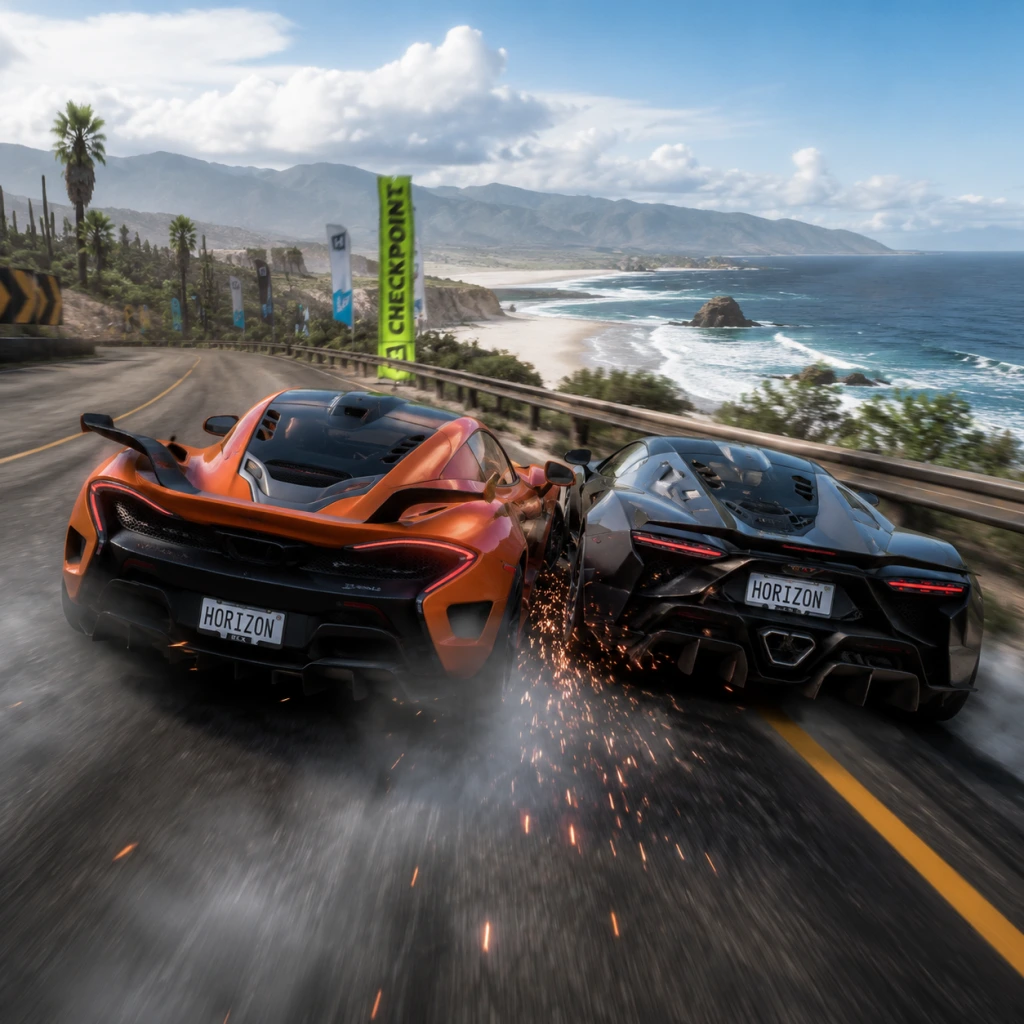
Core Gameplay
Core Gameplay Overview
Forza Horizon 5 is an open-world racing game that combines arcade-style driving with deep simulation elements. The core gameplay loop revolves around driving, participating in events, earning rewards, and upgrading your garage. There is no traditional combat system; instead, "interaction" involves competing in races, stunt jumps, speed traps, drift zones, and other performance challenges. Progression is tied to earning Accolades, leveling up your Player Level, accumulating Credits, and unlocking new cars and events. The game world is split into regions (e.g., Caldera, Baja, Jungle, etc.) and you can freely explore them from the start, but certain events and story missions unlock as you progress.
Player Progression Tiers
Early Game (First 1–3 Hours) – Reaching the Horizon Festival
- Main Gameplay Loop: Complete the opening sequence (airport intro, drive to your first festival site). You are given a starter car (e.g., 2020 Ford Bronco or 2019 Porsche 911 Carrera S) and immediately dropped into the Horizon Festival. The first hour introduces you to the basics: driving, braking, drifting, GPS route, and the minimal HUD.
- Interaction Systems: No combat; interaction is via driving through speed traps, drifting corners, and completing simple showcase events. You'll learn to rewind mistakes with the Rewind feature (press Y on Xbox, Backspace on PC).
- Progression: Your first Accolades (in-game achievements) start accumulating. Player Level increases by earning XP from events, stunts, and exploration. You unlock the Festival Playlist (seasonal content) after completing the first few story missions.
- Exploration: The entire map is open from the start, but early game focuses on the central Hub region (around the Horizon Mexico festival site). You can fast travel to discovered roads and festival outposts once you unlock Fast Travel (requires purchasing the Fast Travel Board skill from the Player House).
- Quests/Missions: Two main mission types: Horizon Story missions (e.g., "The Expedition" – a series of off-road races) and Showcase events (e.g., racing against a plane). There are no scripted linear quests; instead, there are hundreds of events spread across the map that serve as missions.
- Economy: You start with a small amount of Credits (approx. 10,000 CR). You earn Credits by completing events, winning races, and from Wheelspins (random prize wheels). Wheelspins are awarded for leveling up or completing seasonal challenges.
- Character/Build Growth: "Character" is the player avatar (no stats). Car growth comes from earning Car Mastery Points (spent on skill trees for each car) and upgrading parts (purchased with Credits). Early game you'll upgrade your starter car to B or A class.
- Endgame Structure: Not applicable yet. Early game sets the stage.
- Main Gameplay Loop: You now have access to multiple festival sites (e.g., Drag Strip, Baja Circuit, Horizon Backstage). You start participating in diverse event types: street races, dirt races, cross country, drag, drift, playground games (multiplayer). You'll also actively search for Barn Finds (hidden classic cars) and complete Horizon Arcade events (cooperative open-world challenges).
- Interaction Systems: The "interaction" deepens: you can enter the Horizon Life multiplayer hub (free roam with other players), challenge other players to head-to-head races, and join Convoy parties. No combat, but you can bump and jostle (drafting, contact).
- Progression: You unlock new story chapters (like "Vocho" rally story, "Lost and Found" treasure hunt). Player Level reaches 50–150. You earn Accolades for completing event types (e.g., complete 10 drift zones, reach 200 mph). Car Mastery unlocks allow you to earn Skill Points faster.
- Exploration: You'll have explored roughly 40% of the map. Use the Drone Mode (unlockable via Accolades) to scout areas. Many bonus boards (Fast Travel, XP, Danger Signs) are collected. The map reveals more roads as you drive them.
- Quests/Missions: Horizon Stories (up to 7 main storylines) each have 5–10 chapters. Example: "The Baja Expedition" requires winning desert races. There are also Horizon Festival Playlist seasonal objectives (complete 50% for exclusive cars).
- Economy: You earn Credits at a moderate pace (approx. 100,000–500,000 CR per session). Wheelspins become common. You can buy player houses (like the "Casa Solaria" for fast travel). Car prices range from 20,000 to 2 million CR.
- Character/Build Growth: You buy and upgrade multiple cars for different race types. Car Mastery trees let you unlock perks like extra XP, Forzathon Points, or skill boosts. You might specialize in a rally car or a hypercar.
- Endgame Structure: Not yet. You start seeing endgame activities like The Trial (co-op championship vs AI) and Forzathon Live (open-world cooperative events).
- Main Gameplay Loop: You've completed most Horizon Stories and have a large garage (20+ cars). You now focus on completing every event, obtaining rare cars, and grinding for high-end upgrades. You participate in Ranked Adventure (multiplayer ranked racing) and The Eliminator (battle royale driving).
- Interaction Systems: Multiplayer becomes central. You can create custom blueprints for events, join user-created races, and compete in weekly championships. No combat, but the Horizon Arcade events are chaotic cooperative challenges (e.g., smash piñatas, drift collectives).
- Progression: Player Level reaches 150–300. You unlock Prestige levels (every 100 levels). All 8 Horizon Festival outposts are claimed. You earn the Horizon Superstar badge by completing all base-game events.
- Exploration: Map fully explored? Probably 80%+. You hunt down the remaining 100+ bonus boards and complete all Danger Signs, Speed Traps, Speed Zones, Drift Zones, and Trailblazers.
- Quests/Missions: No new main story missions; instead, you have The Horizon Festival Playlist weekly/monthly which resets with new challenges. You also get Story Mode completionist accolades (e.g., "El Camino" story – complete all chapters).
- Economy: Credits accumulate quickly (millions). You can buy any car in the Autoshow (up to 10 million CR). Wheelspins often yield duplicate cars which can be sold or gifted. Forzathon Points earned from seasonal events can be traded for exclusive cars.
- Character/Build Growth: You now have fully upgraded cars tuned to specific race types (e.g., S2 class dirt, X class road). You experiment with obscure builds (e.g., drift trucks, rally hypercars). Car Mastery is maxed on many vehicles.
- Endgame Structure: You unlock the Horizon Backstage (award show) and can vote on fan-favorite cars to be added. Endgame truly begins when you complete the base game requirements (all stories, all events).
- Main Gameplay Loop: Endgame is dominated by seasonal content, community events, and self-directed goals. There is no level cap (Player Level goes infinite). You earn Skill Points (not to be confused with car mastery) by completing stunts, which unlock new perks on the Skill Tree (e.g., increased XP, more Credits from wheelspins).
- Interaction Systems: You engage with the Horizon Festival Playlist weekly reset (every Thursday) for new challenges, championships, and rewards. The Eliminator is a 72-player battle royale where you drive to survival. Horizon Tour is co-op race series. Rivals mode for time attack. No combat, but intense competitive racing.
- Progression: You chase the Horizon Hall of Fame – need to earn 200+ Accolades to be inducted (grind all event types). Prestige levels keep going (Prestige 1, 2, 3...). Many players aim for the Horizon Legend title by achieving all Accolades.
- Exploration: Map fully explored. You can use EventLab (player-created races) to create or play custom courses. You might revisit areas for seasonal changes (e.g., winter snow in the volcano).
- Quests/Missions: No new story content. Instead, the Forza Horizon 5 Hot Wheels and Rally Adventure expansions add new worlds and missions (if owned). Otherwise, it's all seasonal and community challenges.
- Economy: Credits are essentially unlimited. You can buy and sell rare cars in the Auction House. Forzathon Points are the primary currency for exclusive items. Wheelspins become trivial – you often spin for clothes, horns, extra credits.
- Character/Build Growth: You own every car? Possible after hundreds of hours. Builds focus on perfection: tuning for PI (Performance Index) caps, optimizing for Rivals leaderboards. You might create duplicate cars with different tunes for specific tracks.
- Endgame Structure: The core endgame loop is:
- Credits (CR): Main currency earned from races, Wheelspins, selling cars, completing accolades. No microtransactions? Game has paid DLC but no loot boxes. You can buy the VIP membership for double CR and free Wheelspins.
- Wheelspins: Random prize wheels awarded for leveling up, completing milestones, or from Car Mastery trees. They can yield cars, credits, clothing, horns, emotes.
- Super Wheelspins: Three-prize version, rarer.
- Forzathon Points (FP): Earned from completing Forzathon Live events and some seasonal challenges. Spent in Forzathon Shop for exclusive cars, clothing, and cars.
- Auction House: Player-to-player car trading using Credits. Prices fluctuate based on rarity and demand.
- Accolades: Over 1,000 challenges across categories (Stunts, Racing, Horizon Life, Adventure, etc.). Each accolade grants XP and sometimes Credits or cars. Progress toward Horizon Hall of Fame.
- Player Level: Increases via XP. Every level gives a Wheelspin. Every 100 levels earns a Prestige rank with special badge.
- Car Mastery: Each car has a skill tree (square grid) where you spend Skill Points (earned from driving skill chains) to unlock perks like: increased XP, extra Credits, car perks (e.g., "Drift XP boost"), fast travel discount, or even the ability to earn a duplicate car.
- Skill Points: Gained by performing driving skills (near misses, drifting, air time, etc.) in a continuous skill chain. Points increase as chain grows. Can be banked and spent on any car.
- Open World: Mexico is 1.5x larger than FH4's Britain. Diverse biomes: jungle, desert, canyon, beaches, city (Guanajuato), volcano (might be snowy at top).
- Fast Travel: Unlocked by purchasing houses (cheapest is Casa Solaria for 150,000 CR). Also reduces fast travel cost (max 50% off).
- Bonus Boards: 200+ collectibles: Fast Travel Boards (10 free fast travels each), XP Boards (bonus XP), Danger Signs (ramp jumps). Destroying them grants rewards.
- Barn Finds: Receive radio call for hidden classic cars; locate them on map with hint to unlock.
- Horizon Stories: Interactive travel missions that unlock new areas and cars.
- The Eliminator: 72-player battle royale on a shrinking map. Drive to collect car drops, then race to a final showdown. No weapons, just driving.
- Horizon Tour: Automated co-op races with matchmaking.
- Playground Games: PvP events like King, Flag Rush, Infection on arenas.
- Horizon Arcade: Open-world cooperative events that spawn randomly: Smash, Drift, Speed, Wreckage. Require teamwork to reach score targets.
- The Trial: Weeklies: co-op team vs. highly skilled AI. Must win to unlock exclusive car.
- Early Game: Focus on completing the first Horizon Story ("The Expedition") to unlock off-road races. Don't buy expensive cars yet; upgrade the starter car. Do Wheelspins as soon as you get them. Drive on all dirt roads to reveal map.
- Mid Game: Buy a player house for fast travel (Casa Solaria is best early). Earn Skill Points by doing long drifts on the dirt airstrip. Participate in Horizon Arcade to earn Forzathon Points. Save Credits for the Auction House to buy rare cars cheaply.
- Late Game: Complete all Danger Signs and Speed Traps for Accolades. For Rivals, use a tuned car (e.g., Mosler MT900S for speed). Grind the Festival Playlist every week; missing a week could lock you out of a seasonal exclusive car.
- Endgame: If you haven't bought the expansions, consider Hot Wheels (tracks) or Rally Adventure (more off-road). Set personal goals: own every car, achieve all Accolades, reach max Prestige. Use EventLab for fun community races.
Mid Game (3–15 Hours) – Expanding the Horizon
Late Game (15–40 Hours) – Mastery and Specialization
Endgame (40+ Hours) – Beyond the Base Game
1. Check the Festival Playlist every Thursday.
2. Complete weekly challenges (often requiring specific cars) to earn points.
3. Accumulate 20+ points per season to claim exclusive cars (often seasonal-only).
4. Participate in The Trial (co-op vs AI) for exclusive car reward.
5. Grind Forzathon Live events for Forzathon Points to buy rare cars from the Forzathon Shop.
6. Collect all accolades for the ultimate prestige.
Key Systems Deep Dive
Economy System
Progression Systems
Exploration System
Multiplayer & Events
Practical Tips by Tier
Conclusion
Forza Horizon 5's core gameplay is about freedom and expression through driving. There is no combat; interaction is competitive or cooperative racing. Progression is a sandbox where you set your own pace. The tiers help new players navigate the overwhelming content. The endgame is driven by seasonal events and community engagement, ensuring the game stays fresh long after the main story is complete.
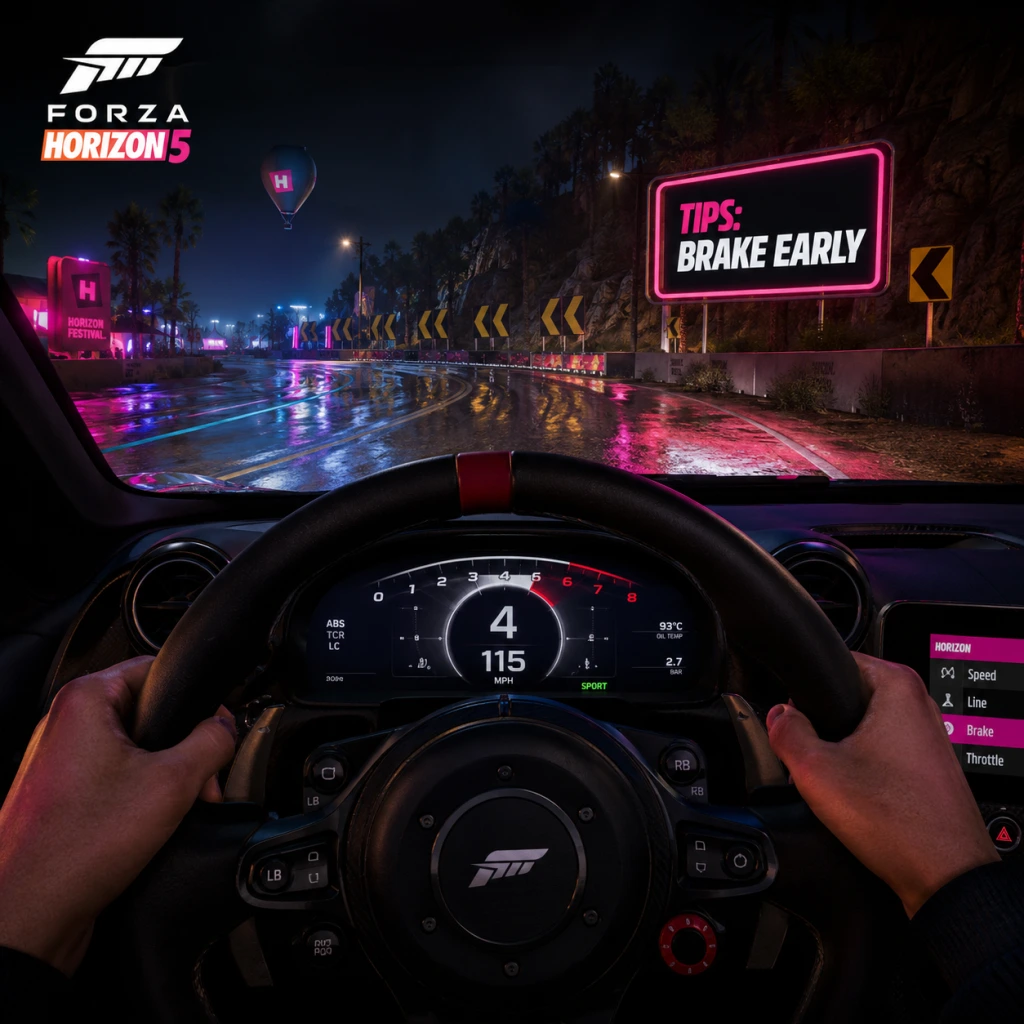
Game Tips
Game Tips for Forza Horizon 5
A comprehensive collection of tips organized by category to help you master the open world of Mexico. Whether you're a beginner or a seasoned veteran, these insights will save you time, credits, and frustration.
---
Beginner Tips
#### 1. Drive to Every Event the First Time
- Why it works: Fast travel is disabled until you discover the road leading to an event. Manually driving there removes the "unexplored" status and unlocks fast travel for free.
- When to use: Early game. Don't waste fast travel tokens—spend 30 seconds driving to a new race to save tokens for later.
- Why it works: Accolades are mini-achievements that reward XP, credits, and even cars. Completing the initial "Welcome to Mexico" accolade chain gives you a free house and a valuable skill.
- When to use: Right after the intro. Open the Accolade menu and focus on the "Horizon" and "Missions" categories.
- Why it works: The telemetry window (visible in Photo Mode or via the HUD toggle) shows real-time grip, tire slip, and braking force. Beginners can use it to understand when they're losing traction.
- When to use: Practice mode or when learning a new car. Turn it on from Settings > HUD > Telemetry.
- Why it works: Your first car (usually a 2019 Ford #25 Mustang) is worth very little credits but can be used in early events. Later, you'll need it for specific seasonal championships or achievements.
- When to use: Keep it forever. Don't auction or delete it.
- Why it works: Manual shifting gives faster acceleration and better control in corners. Clutch adds a small speed boost if timed perfectly.
- When to use: After getting comfortable with braking and steering. Switch in Settings > Controls > Shifting.
- Why it works: Braking while turning causes the car to understeer (plow forward) or oversteer (spin out). The game's physics reward a straight-line brake, then a smooth transition to throttle as you apex.
- When to use: Every corner. For sharp curves, brake hard before the turn, then accelerate out.
- Why it works: Rewinding a few seconds costs nothing and lets you practice a section repeatedly without restarting the whole race.
- When to use: Any time you crash or miss a checkpoint. Default key is Backspace (PC) or Y button (Xbox).
- Why it works: The handbrake (E on PC, X on Xbox) initiates a controlled slide. It's faster than a normal turn on tight city streets or dirt trails.
- When to use: Only on low-grip surfaces (dirt, snow, wet roads) or when you need a 90-degree turn. Practice in the car park near the Horizon Apex festival.
- Why it works: Using the bumper cam or hood cam reduces peripheral distractions, making it easier to spot checkpoints and obstacles. The interior cam has a rearview mirror, but hood cam offers the best visibility.
- When to use: Set it permanently for races. Change in Settings > Camera > Driving Camera.
- Why it works: Full throttle on rain creates wheelspin and loss of control. Short, partial presses keep the tires gripping.
- When to use: Any race with rain, puddles, or wet asphalt. Also effective in cross-country events.
- Why it works: Tires are the only component that affects all four contact patches. Upgrading from street to sport or race tires dramatically improves cornering speed and braking.
- When to use: Before any engine modifications. Even a stock engine will handle better with good tires.
- Why it works: Each event has a Performance Index (PI) cap (e.g., B700, A800, S1 900). Upgrading exactly to the limit without exceeding saves credits and is optimal. Exceeding forces you to detune or select a different car.
- When to use: Before entering a championship. Use the Auto-Upgrade feature to reach the class limit, then tweak manually.
- Why it works: Pre-built upgrades (like the "Drift" preset) often waste PI on unnecessary engine parts. Custom builds let you prioritize tire compound, suspension, and differential lock for the specific discipline.
- When to use: Building a dedicated drift car (e.g., Formula Drift #64 Corvette) or a rally car (e.g., Subaru WRX STI).
- Why it works: Lower psi (in tuning settings) increases the tire contact patch, which digs into sand, mud, and gravel. Higher pressure is better for smooth asphalt.
- When to use: For cross-country or dirt races. Start at 22 psi front/22 psi rear and adjust based on understeer/oversteer.
- Why it works: A roll cage reduces body roll and slightly stiffens the chassis, but it adds weight and costs PI. Only install it if you're experiencing excessive body roll in high-speed corners.
- When to use: For heavy cars (SUVs, trucks) or when tuning for high-speed stability. Skip it on lightweight sports cars.
- Why it works: 90% of cars can be won via wheelspins, accolade rewards, or seasonal championships. Buying from Autoshow is a waste of credits that could be spent on upgrades.
- When to use: Only buy a car from Autoshow if it's required for a seasonal championship and you don't own it (e.g., rare cars like the 1998 Toyota Supra).
- Why it works: Some cars are listed below market value (e.g., hard-to-get cars from last season). Buy them at a low price and wait a few days until the supply dries up, then resell for profit.
- When to use: Check the Auction House weekly for cars that were seasonal rewards 2-3 weeks ago. Example: Buy a 2019 Porsche 911 GT3 RS at 150k, sell for 400k once it's no longer available.
- Why it works: The Goliath is a massive circuit race that pays out huge XP and credits per minute. With a fast S2 car (e.g., Mosler MT900S), you can finish in under 10 minutes for ~50k credits (on Highly Skilled difficulty).
- When to use: Once you've unlocked the Goliath (by completing the main Horizon story). Set difficulty to Pro for even higher payout.
- Why it works: Super wheelspins contain three rewards (compared to one) and often include cars, exclusive cosmetics, or large credit stacks (100k+).
- When to use: Earn them from Accolades, seasonal events, or buying the "VIP" membership. Save all your regular wheelspins until you have many, then open them for a dopamine rush.
- Why it works: Keeping two of the same car is pointless unless it's a different tune. Selling duplicates in the Auction House (not Autoshow) earns you credits without losing garage space.
- When to use: Any time you receive a duplicate from a wheelspin. Check the current auction price first—some duplicates are worth more than Autoshow value.
- Why it works: This expedition unlocks the ability to fast travel to any road you've discovered. Removing the fast travel cost saves tens of thousands of credits over the course of the game.
- When to use: As soon as you reach the main festival. It's part of the "Vocho" story.
- Why it works: Every week (Thursday reset), the game offers new seasonal events with rare cars that may never return. Even if you're not a completionist, these cars can be sold for millions later.
- When to use: Weekly after the reset. Use the in-game "Seasonal Events" tab in the pause menu.
- Why it works: The Series Progress (bottom of the screen) shows how many points you need to reach the next season reward. Each seasonal activity gives a set value (e.g., 1 point for a daily, 3 for a championship).
- When to use: Check before doing random events. Focus on high-value activities first (e.g., The Trial, Playground Games).
- Why it works: The Trial is a co-op vs. AI event where you and up to 5 other players race against unbeatable AI. A good team blocks AI cars and drafts each other. If your team is bad, it's very hard to win.
- When to use: Only attempt The Trial when you have a fully upgraded car for the class. Join a big team (use LFG on Xbox or Discord) rather than solo queue.
- Why it works: Arcade events are open-world mini-games (e.g., Chaos, Air, Wreckage) that spawn every 15 minutes. They give massive XP (up to 60k for completing all rounds).
- When to use: Between races or when you need a break from competitive driving. Activate from the map with pink icons.
- Why it works: When joining a co-op session (Convoy), you can filter players by whether they have custom tunes. This ensures you're matched with people who know how to build, not just stock car users.
- When to use: Before starting a convoy for The Trial or Horizon Tour. Set filter in the Convoy menu.
- Why it works: Drafting (slipstream) behind another car reduces drag and gives a speed boost up to 10 mph. In a straight line, a well-timed draft can overtake a faster car.
- When to use: Always in public lobbies. Stay within one car length behind an opponent. Also works in co-op convoy races.
- Why it works: The Eliminator is a battle royale style mode where you start in a low-tier car and collect upgrades. The key is to avoid early confrontations and use the terrain (hills, forests) to hide until you have a strong vehicle.
- When to use: If you want a change of pace. Stay near the edge of the shrinking circle. When you have a Tier 6+ car, challenge others directly.
- Why it works: In The Trial or Horizon Tour, calling out turns, obstacles, or AI position can save seconds. The in-game voice chat is enabled by default.
- When to use: Mute if there's toxic players, but otherwise it's helpful. Push-to-talk (set in settings) prevents background noise.
- Why it works: In Ranked Adventure, hitting walls or other cars reduces your skill score. Clean driving is rewarded with more points towards the next rank.
- When to use: In every ranked race. Avoid aggressive ramming; instead, hold your line and let the opponent make a mistake.
- Why it works: Fast travel boards are breakable signs that reduce the cost of fast travel. Smashing 50 of them eliminates the cost entirely. The earlier you start, the more you save.
- When to use: Dedicate 30 minutes to finding boards (use the in-game map filter). Focus on the main highway areas where multiple boards are clustered.
- Why it works: There are 20 solar collectibles hidden across Mexico. Each one grants a wheelspin (regular) and the full set gives a super wheelspin. They're easy to spot as glowing spheres.
- When to use: While free-roaming. Look for them near ruins, pyramids, and beaches. Use a fast off-road car (e.g., Ford Bronco) to traverse rough terrain.
- Why it works: Each of the 5 festival sites (Apex, Baja, etc.) has a fast travel point. Unlocking them by completing their associated expeditions gives you 5 free fast travel points across the map.
- When to use: As part of the main story progression. Do not skip expeditions.
- Why it works: There are 100 "bonus board" collectibles (white circles on mini-map) that give 5,000 XP each. They are scattered everywhere, and collecting all 100 gives a massive XP boost (500k total).
- When to use: During a double XP weekend (if available). Use a fast car (e.g., Rimac Nevera) to zip between them.
- Why it works: In photo mode, you can zoom out and rotate the camera to see behind buildings or over hills. This helps spot hard-to-reach hidden barn finds or bonus boards.
- When to use: When the ping on the map suggests a collectible is nearby but you can't see it. Toggle photo mode with Pause > Photo Mode.
- Why it works: A clutch kick (pressing the clutch while on throttle) briefly over-revs the engine and breaks rear tire traction. Useful for initiating a drift in an AWD car or for tight hairpins.
- When to use: In drift zones or during rally races. It's an advanced skill—practice in a low-power RWD car like the Mazda RX-7.
- Why it works: Race tires have the highest grip in all conditions. Even in dry weather, race tires outperform standard sport tires on most tracks. The minor PI cost is worth it.
- When to use: For any all-weather event (e.g., The Colossus). Only switch to off-road tires when doing cross-country events.
- Why it works: In Forza Horizon 5, most circuits have short straights, so acceleration is more valuable than a high top speed. Shorten the final drive ratio to 3.5-3.8 for faster 0-60 times.
- When to use: For sprint races (like "The Heights") or tight circuits ("Mountain View"). For highway races, lengthen the final drive to 3.0-3.2.
- Why it works: The game's aerodynamics model is simplified; no livery affects physics. However, using a heavily damaged car can increase drag? Actually, visual damage doesn't affect performance. Instead, this tip reminds you that liveries are purely cosmetic—focus on parts upgrades for real performance.
- Why it works: Shifting at lower RPM (e.g., at 6000 rpm instead of redline) reduces wheelspin in low gears and keeps the car in a higher torque band. This is crucial for RWD cars spinning out.
- When to use: In rain or on dirt. Also when driving a powerful hypercar like the Koenigsegg Jesko.
- Why it works: Entering a drift zone while already in a slide from the previous turn maintains momentum. You can build a longer chain by reversing the steering direction mid-slide.
- When to use: In the Drift Club events. It's the key to high scores in "Drift Zone" speed traps.
- Why it works: The community has identified optimal cars for each PI class. For example:
- When to use: For competitive online racing or high-difficulty AI (Pro/Unbeatable). Use these builds from the Community Tunes (search by Gamertag "Nalak28" or "Duce" for popular tunes).
- Why it works: Instead of tuning from scratch, you can import a tune from the Community Content menu using a share code. This saves hours of testing.
- When to use: Whenever you need a competitive tune. Browse the top tunes for your car and apply one with a high download count.
- Why it works: Higher difficulty gives an XP and credit multiplier: Highly Skilled (1.4x), Expert (1.6x), Pro (1.8x), Unbeatable (2.0x). If you can consistently win on Pro, the payout difference is massive over time.
- When to use: After you've learned braking and racing lines. Start on Expert, then move up. Also, disable "Car Damage" in settings (it doesn't affect difficulty multiplier) to allow full aggression.
- Why it works: EventLab allows you to create custom tracks. You can build a short, high-reward circuit (e.g., 1-minute laps) to grind XP and credits quickly. Share it and farm downloads for even more influence.
- When to use: When you need to farm for a specific car or seasonal event. Search for "Credit Farm" EventLab blueprints (e.g., "B-Class Farm" by user "Mx5_SimRacer").
#### 2. Complete the Accolade System Early
#### 3. Use the Abero Telemetry App (in-game)
#### 4. Never Sell Your First Car
#### 5. Learn Manual with Clutch (Optional but Rewarding)
---
Driving & Handling Tips
#### 1. Brake in a Straight Line, Turn with Throttle
#### 2. Use the "Rewind" Feature Liberally
#### 3. Master the "Handbrake Turn" for Tight Corners
#### 4. Adjust Your Rearview Camera for Better Awareness
#### 5. Feather the Throttle on Wet Roads
---
Upgrades & Tuning Tips
#### 1. Always Install the Best Tires First
#### 2. Know Your PI Class Limits
#### 3. Use Custom Upgrades for Drift / Offroad
#### 4. Lower Tire Pressure for Off-Road Traction
#### 5. Invest in a Roll Cage Only When Needed
---
Economy & Credits Tips
#### 1. Never Buy Cars from the Autoshow if You Can Earn Them
#### 2. Auction House Arbitrage (Buy Low, Sell High)
#### 3. Do the "Goliath" Race for Fast Credits
#### 4. Super Wheelspins Are Better Than Regular Wheelspins
#### 5. Sell Duplicate Cars Immediately
---
Events & Progression Tips
#### 1. Complete the "Horizon Wilds" Expedition First
#### 2. Do Seasonal Championships for Exclusive Cars
#### 3. Use the "Series Progress" Tab to Plan Your Grind
#### 4. The Trial Is Easier with a Coordinated Team
#### 5. Horizon Arcade is Great for XP and Fun
---
Multiplayer & Co-op Tips
#### 1. Use "Tuning and Upgrades" Filter in Convoy Search
#### 2. Drafting is Critical in Online Races
#### 3. Playground Games (The Eliminator) Tips
#### 4. Use Voice Chat for Team Coordination
#### 5. Respect the Collision Penalty in Ranked
---
Exploration & Collectibles Tips
#### 1. Use Fast Travel Boards Early
#### 2. Solar Collectibles Give Bonus Wheelspins
#### 3. Unlock All Festival Sites for Free Travel
#### 4. Look for "Chipped" Collectibles (Bonus Boards)
#### 5. Use "Photo Mode" to Find Hidden Collectibles
---
Advanced Optimizations
#### 1. Master the "Clutch Kick" Technique
#### 2. Use Race Compound Tires for Wet Track (Even in Dry)
#### 3. Optimize Gearing for Acceleration vs. Top Speed
#### 4. Use a Custom Livery to Reduce Drag (Visually)
#### 5. Practice the "Short Shift" Technique on Manual
#### 6. Use the "Reverse Entry" Technique for Drift Zones
#### 7. Know the "Meta" Cars for Each Class
- A800: 2019 Honda Civic Type R (AWD swap, race tires)
- S1 900: 2018 Mercedes-AMG GT 4-Door Coupe (Hoonigan version)
- S2 998: Mosler MT900S (tuned to 9.6 PI)
- X999: Rimac Concept Two (electric AWD, highest top speed)
#### 8. Use the "Share Codes" Feature to Copy Tunes
#### 9. Adjust Your Difficulty Settings for Maximum Credits
#### 10. Use the "EventLab" to Create Custom Grind Races
---
Summary Table: Key Tips by Category
| Category | Top Tip | Best For |
|---|---|---|
| Beginner | Drive to every event first | Saving fast travel tokens |
| Driving | Brake straight, turn with throttle | Faster cornering |
| Upgrades | Install best tires first | Maximum grip per PI |
| Economy | Never buy cars from Autoshow | Saving credits |
| Events | Complete Horizon Wilds expedition | Unlock free fast travel |
| Multiplayer | Draft in online races | Quick overtakes |
| Exploration | Smash fast travel boards | Reduce fast travel cost |
| Advanced | Use meta cars and share codes | Winning high-difficulty races |
Final Thoughts
Forza Horizon 5 rewards both skill and knowledge. Use these tips to accelerate your progression, dominate races, and build an enviable car collection. Remember that the game is meant to be fun—take breaks to enjoy the scenery, maybe even use Photo Mode to capture your favorite moments. Happy driving!
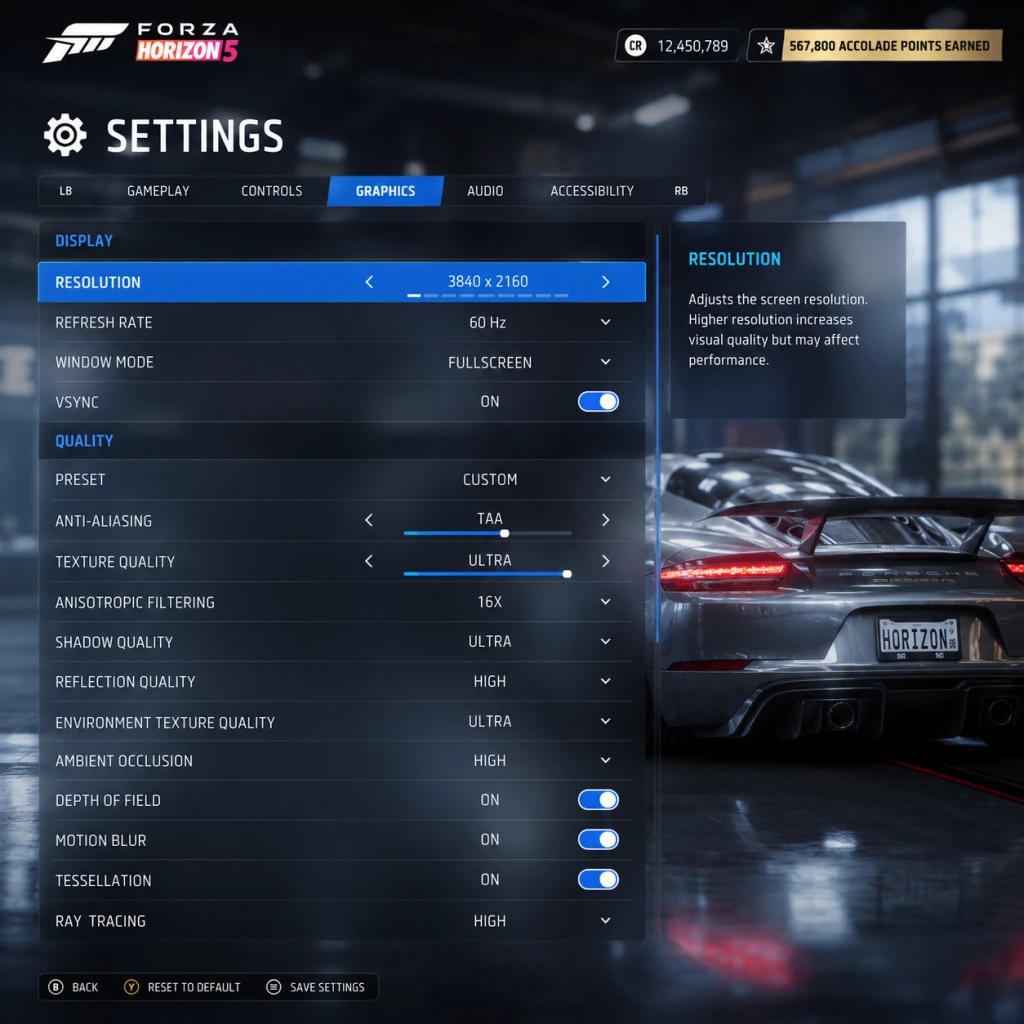
Game Settings
Overview
Forza Horizon 5 offers a vast array of settings across graphics, audio, controls, accessibility, language, network, and gameplay. Proper configuration is essential for optimal performance, visual fidelity, and personal comfort. This guide details every significant setting, recommends values for different hardware tiers (low-end PC, mid-range PC, high-end PC, Xbox One, Xbox Series S, Series X), and flags common pitfalls that can degrade experience.
---
Graphics Settings
Display
- Resolution: Set to native monitor/TV resolution. For performance gains on PC, use Dynamic Resolution Scaling (DRS) rather than dropping resolution outright.
- Refresh Rate: Match your display’s max (e.g., 60Hz, 120Hz, 144Hz). Higher rates reduce input lag.
- VSync: On – eliminates screen tearing but may add slight input lag. Off – recommended for competitive play on G-Sync/FreeSync displays; cap frame rate instead.
- Fullscreen vs Windowed: Fullscreen (exclusive) gives best performance. Borderless windowed is useful for multi-monitor setups but adds latency.
- Field of View (FOV): Default 80°; adjust higher (90-110°) for better peripheral awareness in cockpit view. Too high can distort.
- Graphics Preset: Quick way to set many options. For fine control, use custom.
- Xbox One: 1080p ~30fps, use Performance mode (fixed 30fps).
- Xbox Series S: 1440p ~60fps Quality, or 1080p ~60fps Performance with lower shadows.
- Xbox Series X: 4K ~30fps Quality, or 1440p ~60fps Performance.
- PC: refer to recommended table below.
Platform Tips:
Advanced Graphics (PC)
| Setting | Low-End (GTX 1060/RX 580 equivalent) | Mid-Range (RTX 2060/5700 XT) | High-End (RTX 3080/RX 6800 XT) | Notes |
|---|---|---|---|---|
| Dynamic Resolution Scaling | Off (render at 720p if needed) | On, target 60fps 1080p | On, target 120fps 1440p | Prevents drops; set target FPS |
| Shadow Quality | Medium | High | Ultra | High impact on performance |
| Motion Blur | Off | Off | Off | Hides details; most players disable |
| Environment Texture Quality | High | Ultra | Ultra | Visual pop-in reduced at Ultra |
| Geometry Quality | Medium | High | Extreme | Loads distant objects |
| Reflection Quality | Low | Medium | Ultra | Screen-space reflections demanding |
| SSR Quality | Low | Medium | Ultra | Secondary reflections |
| Lens Flare | Off | On | On | Cosmetic |
| Car Model Quality | High | Ultra | Extreme | LOD for vehicles |
| Water Quality | Medium | High | Ultra | Reflection complexity |
| Particle Effects | Low | Medium | High | Smoke, sparks |
| Shader Quality | High | Ultra | Ultra | Affects lighting and materials |
| Ambient Occlusion | Low | High | Ultra | Adds depth; performance hit |
| Anti-Aliasing | FXAA | TAA | TAA + MSAA x2 | TAA better for motion but softer |
| Anisotropic Filtering | 4x | 8x | 16x | Texture sharpness at angles |
| Depth of Field | Off | Off | High | Blurs distant objects (cinematic) |
| Texture Filtering | High | Ultra | Ultra | Similar to AF above |
Video Capture (In-Game)
- Clip Resolution: 1080p max; higher impacts performance.
- Clip Frame Rate: 30fps recommended; 60 very demanding.
- Enable Replay Recording: On – uses system resources; off to save performance.
- Master Volume: 80-100%
- SFX Volume: 70-90% – engine sounds, collision
- Music Volume: 60-80% – ambient and menu music (radio stations have separate mix)
- Voice Volume: 100% – characters, narrator
- Audio Output Dynamic Range:
- Enable Spatial Audio: On – works with Dolby Atmos, DTS:X, Windows Sonic. Great for hearing opponent positions.
- Audio Latency: Default; adjust only if you notice sync issues.
- Controller Layout: Choose from preset or custom. Default “Gamepad” works well.
- Vibration: On/Off; off reduces immersion but can improve lap times for some.
- Steering Sensitivity: 0 (linear) to 10 (very twitchy). Start at 5; increase for drift styles.
- Steering Deadzone: 0-100. For new controllers, set 0-5% inner deadzone to eliminate stick drift.
- Acceleration Deadzone: Similar; 0-5% recommended.
- Brake Deadzone: 0-5%.
- Clutch Deadzone (if using manual w/ clutch): 0-5%.
- Force Feedback (for steering wheels):
- Steering: A/D or mouse (relative).
- Throttle/Brake: Arrow Up/Down.
- Look Left/Right: Q/E.
- Switch Camera: C.
- Subtitles: On; choose “All” or “Dialogue Only”.
- Subtitle Color: Variety of colors for visibility.
- Subtitle Background: Black box helps readability.
- Text-to-Speech: Reads menu text aloud; useful for visual impairments.
- Speech-to-Text: Not available in FH5 yet.
- Color Blind Mode: Protanopia, Deuteranopia, Tritanopia filters for UI.
- UI Scale: Increase to 150% for larger menus.
- Narrator Speed: Slow-Normal-Fast.
- Audio Cues: Toggle for collision warnings, checkpoint beeps.
- Difficulty Assists: Can be scaled in Gameplay Settings (see below).
- Game Language: Choose interface text language. (Download required for some packs.)
- Voice Language: Select dubbing for characters – English, Spanish (Mexico) recommended for immersion.
- Subtitle Language: Independent from voice.
- Region: Affects in-game radio stations (e.g., Spanish stations in Mexico region).
- Online Mode: Enable to access multiplayer and Horizon Life. Disable for single-player only (faster loading).
- Privacy:
- Cross-Play: Enable to play with PC and Xbox players together. Disable for platform-only.
- Broadcast Settings (Twitch integration):
- Network Quality: Auto; manual adjustment not needed.
- Drivatar Difficulty: 1 (Very Easy) to 10 (Unbeatable). AI aggression scales.
- Braking Assist: Off / On (auto-brakes). On for beginners.
- Steering Assist: Off / On (auto-steers). On for learners.
- Acceleration Assist: Off / On (automatic throttle modulation). On for novices.
- Shift Mode: Manual w/ Clutch / Manual / Automatic. Manual gives speed advantage.
- Transmission: Manual gives better gear control.
- Drivetrain: Sway from default; RWD, AWD, FWD – affects handling.
- Simulation Mode (Full or Simplified) :
- Damage: Cosmetic only (visual) or Simulation (performance degradation). Simulation adds risk, costs more to repair.
- Traction Control: On / Off. Off for faster corner exits but requires throttle control.
- ABS (Anti-Lock Brakes): On / Off. Off can reduce braking distance but needs precise braking.
- Stability Control: On / Off. Off helps in drifting but makes spinning easier.
- Rewind: On / Off. Enable for learning; disable for challenge.
- Race Length: Normal (3 laps) / Long / Very Long. Affects tire wear strategy.
- Collision Mode: Ghosted (no contact) / Standard (contact) / Only Collision with AI (offline). Ghosted is great for beginners.
- Race Start: Standing or Rolling. Standing tests launches.
---
Audio Settings
- Headphones: Use “Headphones” setting for enhanced spatial awareness.
- Stereo: For TV/speaker bars.
- Home Theater: 5.1/7.1 setups; best for positional audio.
Common Mistake: Leaving dynamic range on “TV” with headphones can flatten explosions. Switch to “Headphones” for better damage cues.
---
Controls Settings
Controller (Xbox/PlayStation)
- FFB Scale: 100% default; reduce if wheel clips.
- Wheel Damper: 0-100; higher reduces vibrations.
- Centering Spring: Off for realism.
- Steering Sensitivity: 50% linear default.
Keyboard & Mouse:
Warning: Steering deadzone too high causes understeer; too low causes unwanted input. Test by checking controller calibration tool in-game.
---
Accessibility Settings
Key Point: Difficulty Assists (like automatic braking) can be turned on independently of main difficulty. Great for learning tracks.
---
Language Settings
Conflict to Avoid: If you set voice language to English but region to US, you miss unique Mexican radio content. For full authenticity, set Region to Mexico and Voice to Spanish.
---
Network Settings
- Open: Anyone can join your convoy.
- Friends Only: Only friends can join.
- Invite Only: No automatic join.
- Streamer Mode: Hides real player names.
- Allow Chat Interaction: For community votes.
Note: Turn off cross-play if you experience latency issues with PC players; or turn off for consistent console-only lobbies.
---
Gameplay Settings
These heavily impact handling and feel.
Difficulty
Simulation
- Simplified: Lenient tire grip, forgiving physics.
- Full: Realistic tire wear, weight transfer, off-road physics. Requires practice.
Critical Mistake: Many new players turn on automatic shifting + assist steering, then wonder why they can’t keep up in online races. Start with automatic but manual w/ clutch later for performance.
Event Settings
---
Recommended Settings Summary by Hardware
| Platform | Resolution Target | FPS Target | Graphics Preset | Additional Tweak |
|---|---|---|---|---|
| Xbox One | 1080p | 30 | High | Turn off motion blur, lens flare |
| Xbox Series S | 1440p | 60 | High Performance mode | DRS on (target 60fps) |
| Xbox Series X | 4K | 30 Quality | Ultra | RT reflections on |
| Xbox Series X | 1440p | 60 Performance | High | DRS off, shadows to high |
| PC Low-End (GTX 1060) | 1080p | 60 | Medium | DRS on (60fps), shadows medium, particles low |
| PC Mid-Range (RTX 2060) | 1440p | 60 | High | DRS off, TAA, shadows high, reflections medium |
| PC High-End (RTX 3080) | 1440p | 120 | Ultra | DRS off, MSAA x2, RT on if supported |
| PC Extreme (RTX 4090) | 4K | 120 | Extreme | DRS off, MSAA x4, RT high |
Final Notes
- Always apply settings and test in a short race (e.g., sprint event) to check performance.
- Save your personal profile changes; they are stored in the cloud.
- For competitive online play, disable V-Sync, motion blur, and use 120Hz if available.
- Use the Performance Overlay in Settings (PC) to monitor GPU/CPU usage and adjust accordingly.
- If you experience input lag, disable V-Sync and cap FPS one below max refresh (e.g., 59 for 60Hz).
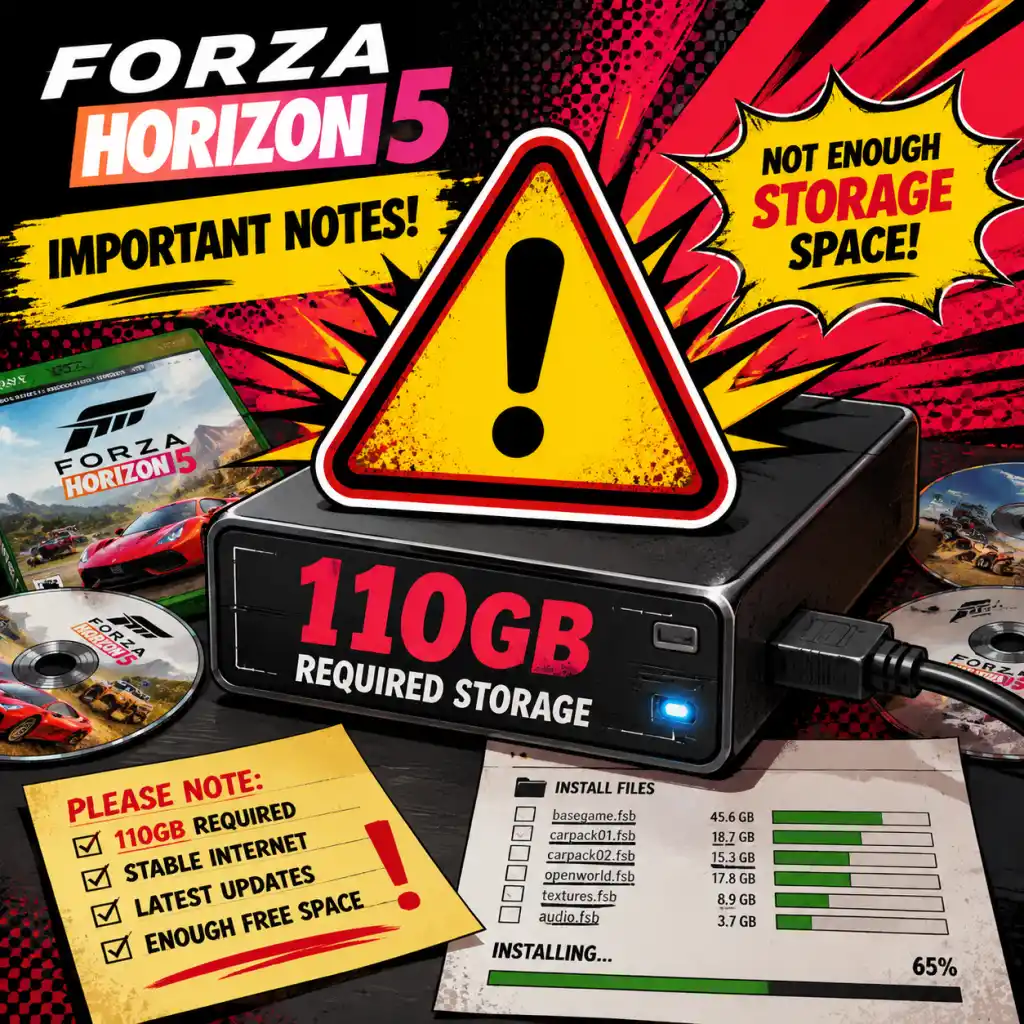
Important Notes
Important Notes for Forza Horizon 5
Warnings
- Game Size: The base game requires approximately 110 GB of storage. With all updates and expansions (Fortune Island, Lego Speed Champions — note: FH5 expansions are Hot Wheels and Rally Adventure), expect over 150 GB. Ensure enough free space, especially on Xbox Series S/X or PC.
- Internet Requirement: While the campaign can be played offline, features like Horizon Life (multiplayer), Forzathon events, EventLab, and certain rewards require a persistent internet connection. An Xbox Game Pass Ultimate subscription is needed for online multiplayer on Xbox.
- System Performance: On PC, the game is demanding. Use the benchmark tool to find optimal graphic settings. Lowering environment texture quality helps VRAM usage. Disable Ray Tracing if experiencing frame drops.
- Microtransactions: The game includes optional purchases: Car Pass (with Ultimate Edition), VIP membership, and individual car purchases. You can earn almost everything through gameplay, but beware of impulse buying credits with real money — it's not necessary.
- Wasting Credits on Unnecessary Upgrades: Do not immediately fully upgrade every car you get. Many stock cars are competitive in their class (e.g., B, A). Upgrading to S2 or X class can make handling extremely difficult. Save credits for specific event requirements.
- Ignoring Fast Travel Boards: Collecting 50 fast travel boards reduces fast travel cost to zero. Prioritize this early — use a radar pulse or a fast car to smash them. Without this, fast travel is prohibitively expensive (CR 10k each hop).
- Not Joining a Club: Being part of a Club gives you access to Club House, daily rewards, and easier credit earning through Club objectives. Join an active club (or create your own) to unlock weekly bonuses.
- Skipping Forza Link Tutorial: The dialogue wheel system (Forza Link) lets you quickly respond to NPCs. Learning it early speeds up interactions and unlocks certain accolades. Skip at your own risk.
- Forgetting to Turn on Horizon Solo: If you are annoyed by other players causing chaos, enable Horizon Solo mode in the pause menu. This removes other players from your world but retains AI traffic and drivatars.
- First Car Selection: The game gives you a choice of three starter cars (e.g., 2019 Porsche 911 Carrera S, 2020 Chevrolet Corvette Stingray, 2020 Toyota Supra GR). This decision is permanent and cannot be changed later. The cars are all good, but the Porsche is balanced, Corvette is fast at launch, and Supra has great tuning potential. Choose wisely.
- Accolade Rewards: Some accolades reward exclusive cars or cosmetic items. Once you claim an accolade, the item is added to your inventory. You cannot re-earn or trade it. However, you are not forced into a permanent choice; all accolades remain available until completed.
- Story Choices: The main Horizon Story missions have no branching narratives. You can always replay them. However, the order of completing certain expeditions (like the Vocho Story) does not affect anything.
- Houses: Your first house (the Player House near the starting area) is given for free. Subsequent houses are purchased and can be sold back? Cannot be sold. Choose wisely: the "Lugar Tranquilo" (house near Horizon Festival) gives fast travel discount, which is very useful early on. Buy it first!
- Seasonal Events: The Weekly Forzathon, Seasonal Championships, and PR Stunts are only available for a specific week. Miss them, and you may never get that exclusive car or reward again (though some rotate). Check the Festival Playlist every Thursday to claim Season rewards.
- Festival Playlist Rewards: Many rare cars (e.g., 2018 Ferrari 488 Pista, 2020 Koenigsegg Jesko) are only obtainable through completing season objectives. If you miss a season, you might have to wait for a repeat or pay millions in the Auction House.
- Eliminator Season: The Eliminator battle royale mode is always available, but its weekly bonus for the Festival Playlist resets. Participate each week for the accolade.
- Monthly Rhythms: Some events like "Super Wheelspin" rewards are time-gated. Always check the in-game calendar or the Forza Hub app.
- Forza Edition Cars: Some "Forza Edition" cars are only available through specific seasonal events or as gifts. These are often excellent for grinding skill points or credits.
- The Goliath Race: The final street race "The Goliath" is a long course (over 30 km in a single lap). For newcomers, it can be overwhelming due to traffic and high-speed turns. Lower the difficulty temporarily or use a well-tuned S1 car with good brakes.
- PR Stunts: Danger Signs like "La Cruz" and "El Arco" require precise speed and landing. If stuck, switch to a lighter vehicle or adjust the difficulty to "Highly Skilled" or below for easier traffic/spacing.
- Trial Events: Co-op races against Unbeatable drivatars can be brutal. If your team is losing, don't stress — it's better to let the AI win than to ram teammates. Use a car from the recommended class and focus on finishing.
- The Hot Wheels Expansion: The tracks are narrow with loops and boost sections. Beginners may find the physics challenging. Practice in the main game first, or reduce speed before loops.
- Wheelspin Addiction: Spending too much time doing wheelspins is inefficient. Each wheelspin gives random credits or cars. It's better to earn guaranteed rewards from events. Do not buy wheelspins with real money.
- Skill Point Waste: Do not randomly spend skill points on cars you won't drive. Each car has a skill tree with perks like credit bonuses, XP, or exclusive car mastery. Prioritize cars you use often for events or Forzathon.
- Not Using Auto-Show: The game automatically adds all unlocked cars to your garage. Do not manually buy duplicate cars unless needed for specific upgrades. The garage can be overwhelming — filter by "New" to see only recent additions.
- Ignoring Auction House: Use the Auction House to buy cars at lower prices than the Autoshow. Many rare cars (like the 2014 Ferrari LaFerrari) sell for 10-15 million in auction but cost 40 million new. Also, sell duplicate rare cars to earn credits fast.
- Over-Focusing on One Class: Don't only upgrade one car. Different events require different classes (A, S1, S2, etc.). Build a balanced garage across classes to always be ready.
- No Ramming: In Horizon Arcade, The Trial, or any cooperative mode, avoid ramming teammates. It reduces their speed and your overall chance to win. If someone accidentally rams you, don't retaliate.
- Inviting to Convoy: If you want to play with friends or randoms, use the Convoy invite. During an event, stay close to the group to maximize XP and credits.
- Be Mindful of AFK Players: In Horizon Life, AFK players may be driving in circles or standing still. They can be reported for Unsportsmanlike Conduct. Do not do this yourself — it ruins the experience.
- Anti-Cheat: Forza Horizon 5 uses a proprietary anti-cheat system. Using mods, trainers, or third-party tools that alter gameplay (e.g., infinite money, crash-proofing) will result in a permanent ban from online features. Save files can also be flagged. Stay away from any cheat software.
- Reporting: Use the in-game reporting for players who are toxic or buggied. Please only report genuine issues.
- Cloud Saving: Game saves are automatically synced to the cloud via Xbox Live. If you play on PC and Xbox, ensure you are connected to the internet to avoid conflicts. If you lose connection, your local save may overwrite the cloud. To be safe, manually sync before quitting.
- Local Save Location (PC): Your save file is located at `%USERPROFILE%\Documents\Forza Horizon 5\`. Backup this folder regularly (e.g., before a major update or if you plan to reinstall). Copy the entire folder to a safe location.
- Multiple Profiles: You can have multiple saves by using different Xbox profiles. This is useful for restarting without losing progress. Each profile has its own save.
- Corruption Risks: Rarely, save files can corrupt due to sudden crashes. Always wait for the "Saving..." icon to complete before turning off your console or PC. On PC, avoid force-closing the game.
Pitfalls & Common Mistakes
Irreversible Choices
Missable Content
Difficulty Spikes
Grinding Traps
Online Etiquette & Anti-Cheat Notes
Save Management Advice
Things Players Commonly Regret Not Knowing Earlier
1. Buy the "Lugar Tranquilo" House First: It reduces fast travel cost to 10% of normal (or free once you break 50 fast travel boards). This saves millions over time.
2. Use "Skill Song" Feature: When you play a radio station (especially Horizon XS or Pulse), a special "Skill Song" icon appears. During these, skill points earned from combos are doubled. Use this to grind skill points for perks.
3. Master the Mini-Map UI: The minimap shows upcoming turns, but also displays danger signs and speed zones. Use it to plan routes. Also, the "GPS" can be set to "dynamic" for more precise directions.
4. Don't Sell Rare Cars: Even if you don't drive a car, keep it. Many rare cars are only obtainable once via seasonal events. Selling them for quick credits is a mistake — you'll pay much more to reacquire them.
5. It's Okay to Lower Difficulty: You can change the difficulty menu at any time (Drivatar difficulty, assists, etc.) without penalty. Lower difficulties give more leeway and less frustration, especially in The Trial.
6. Collect All Fast Travel Boards Early: Use a fast car and a radar pulse (via the Car Mastery tree of any Fortune Island car) to locate them. This will pay for itself in saved fast travel costs within a few hours.
7. The "Photo Challenge" Weekly Pays Well: Every week, complete the photo challenge for a Super Wheelspin and 5FP. It's fast and easy.
8. Use Forza Hub Rewards: Install the Forza Hub app on Xbox or mobile to claim monthly bonuses like credits and cars, tied to your Forza franchise progress (plays, levels, etc.).
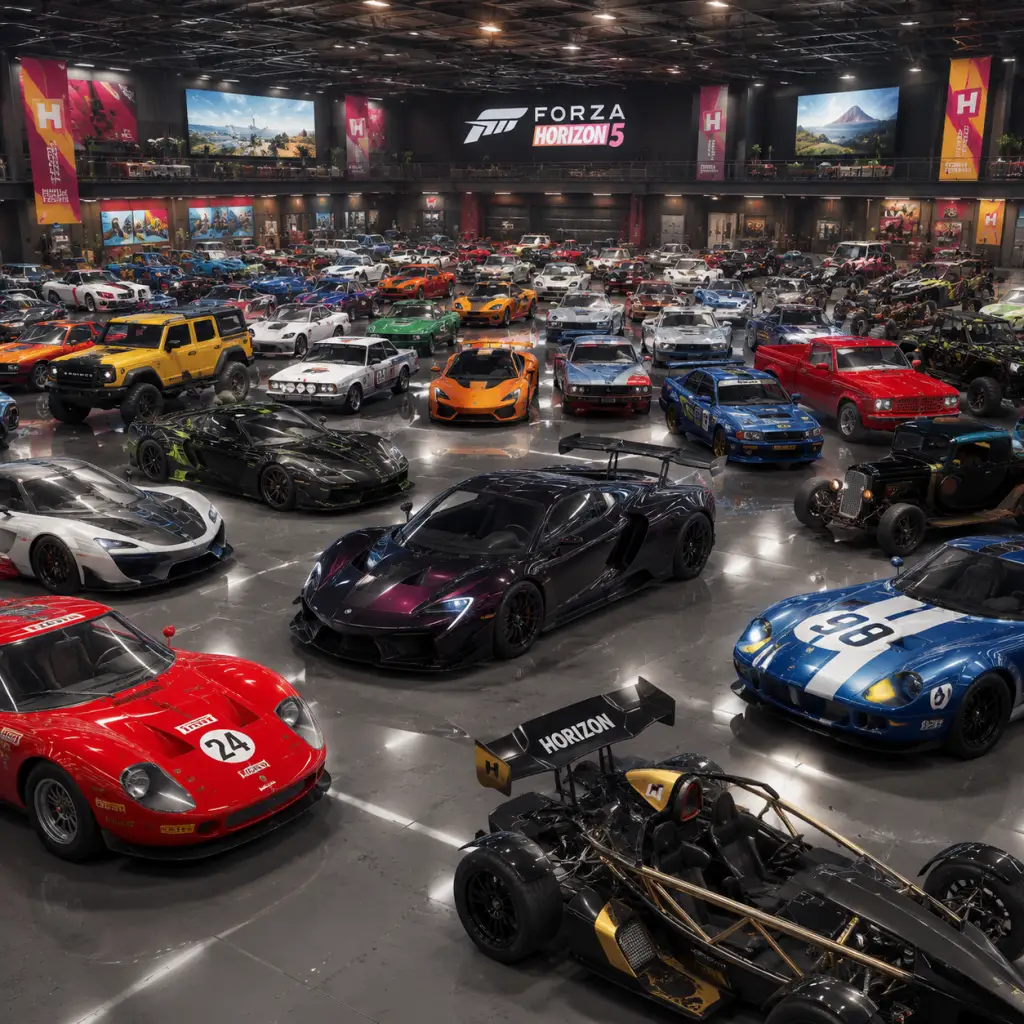
All Game Items
Overview
Forza Horizon 5 is a racing game without traditional weapons or armor. Instead, items encompass everything you collect, purchase, and upgrade: currencies, cars, performance upgrades, cosmetics, consumables, collectibles, and event passes. This guide categorizes every major item type, explains how to obtain them, when they are useful, and any synergies or upgrades.
---
Currencies
Credits (CR)
- What it does: Primary currency. Used to buy cars, upgrades, cosmetics, and Fast Travel tokens.
- How to obtain: Race winnings, selling cars (auction or garage), Wheelspins, completing accolades, Festival Playlist rewards, Horizon Arcade.
- When useful: Always. Needed for almost all purchases.
- Synergies: Use with Forza Points (FP) to buy exclusive cars in the Forzathon Shop.
- What it does: Premium currency. Used in Forzathon Shop for exclusive cars, cosmetics, and Wheelspins.
- How to obtain: Completing daily/weekly Forzathon challenges, Festival Playlist, monthly rewards.
- When useful: When you want limited-time items not available for Credits.
- Upgrades: None. Spend wisely as FP resets weekly.
- What they do: Random prize wheels. Wheelspin gives 1 prize; Super Wheelspin gives 3.
- Prizes include: Credits (5k–500k), cars, cosmetics, horns, emotes, Forza Edition cars.
- How to obtain: Leveling up, completing accolades, Festival Playlist, purchased with FP (rarely).
- When useful: Early game for quick credits and rare cars.
- Synergies: Use Car Mastery perks to earn extra Wheelspins from specific cars.
- What it does: Exclusive currency to claim rare cars from the Backstage (seasonal selection).
- How to obtain: Completing the Festival Playlist (earn 20 points per series).
- When useful: To get past Festival Playlist exclusive cars you missed.
- Limit: Earn 1 pass per series; can save up to 3.
Forza Points (FP)
Wheelspins & Super Wheelspins
Backstage Pass
---
Cars
Cars are the core "items" of FH5. They are categorized by class (D to S2/X), type (e.g., Super GT, Rally, Offroad, Trucks), and rarity (Common → Rare → Epic → Legendary → Forza Edition).
Obtaining Cars
| Method | Details |
|---|---|
| Autoshow | Buy with Credits or Forza Edition with FP. Full price. |
| Wheelspins | Random cars of varying rarity. |
| Barn Finds | Discover 14 hidden barns; each gives a unique car after restoration. |
| Festival Playlist | Earn 20/40 points per week to unlock exclusive cars. |
| Accolades | Complete specific challenges (e.g., win all street races). |
| Auction House | Player-to-player marketplace. Can be cheaper for rare cars. |
| Car Mastery | Spend skill points on a car's perk tree to unlock other cars (e.g., Ford Bronco '21 unlocks the '77 Bronco). |
| Horizon Backstage | Use Backstage Pass to claim past seasonal cars. |
Notable Car Types
- Forza Edition (FE) – Upgraded versions with unique perks (e.g., 2x Skill Score, 50% XP bonus). Very rare.
- Hard to Find (HTF) – Cars that only appear in Wheelspins or Auction House.
- Exclusive Cars – Only obtainable via Festival Playlist (e.g., Koenigsegg Jesko, Hoonigan RS200).
- Campaign: Use cars that match event restrictions (e.g., Retro Saloons for a specific championship).
- Online: Meta cars for class-based races (e.g., BAC Mono for S1, Lamborghini Aventador SVJ for S2).
- Forzathon Live: Choose a balanced car with good offroad/road handling.
- Skill Points Farming: FE cars with "2x Skill Score" perk (e.g., Ferrari 599XX Evo).
- Performance Upgrades: Purchase from Autoshow under Garage → Upgrades & Tuning. Categories: Engine, Drivetrain, Tires, Brakes, Suspension, Weight Reduction, Aero, Driveline.
- Swaps: Engine, drivetrain, and aspiration swaps (e.g., V12 engine in a Miata). Cost Credits and increase PI.
- Tuning: Adjust gear ratios, suspension, alignment, tire pressure, differentials for optimal handling.
- Cosmetic Upgrades: Body kits, rims, tire wall styles, window tint, license plates. No performance effect.
- How to obtain: All upgrades cost Credits. Some unlocked via Car Mastery (e.g., drift suspension).
- When useful: Before any competitive race. Tuning can shave seconds off lap times.
- Synergies: Combine engine swaps with weight reduction to maximize power-to-weight ratio.
- What they do: Change your driver's appearance (helmets, suits, glasses) and emotes (dances, poses) used after races/forzathons.
- How to obtain: Wheelspins, Festival Playlist, Accolades.
- When useful: Purely visual; no gameplay impact.
- Car Horns: Unique sounds (e.g., "Dixie Horn", "Clown Horn"). Use while driving.
- License Plates: Custom text (e.g., "WINNER", "FAST"). No effect.
- How to obtain: Wheelspins, Festival Playlist, Accolades.
- What they do: Pre-set chat phrases for online co-op. Some unlocked via accolades.
- How to obtain: Festival Playlist milestones, Accolades.
- What they do: Instantly teleport to any discovered road or festival site. 1 token per fast travel.
- How to obtain: Buying from Autoshow for 2,000 CR each (max 25). Earned as rewards from accolades and Wheelspins.
- When useful: Early game to reach events quickly. After buying Fast Travel house (costs 2,000,000 CR), fast travel becomes free.
- Note: Infinite fast travel is unlocked by purchasing the "Buena Vista" house.
- What they do: For 30 seconds, Skill Score multiplier is doubled and combo timer doesn't expire.
- How to obtain: Activate from Car Mastery (certain cars have perk). Also via Festival Playlist (rare).
- When useful: When farming skill points for Car Mastery trees. Combine with FE cars for huge scores.
- Synergies: Use a car with "2x Skill Score" perk to quadruple skill points during a Skill Song.
- What they do: Some cars have a perk that gives +50% XP for a limited time (e.g., 15 minutes).
- How to obtain: Spend skill points on car's perk tree.
- When useful: Before a long race or Forzathon Live to maximize player level gains.
- Note: XP boosts stack? Tested: only one active at a time.
When Useful
Upgrades & Tuning
---
Cosmetics & Character Items
Character Apparel & Emotes
Car Horns & License Plates
Forza LINK phrases & Character Voices
---
Consumables
Fast Travel Tokens
Skill Songs
XP Boost (via Car Mastery)
---
Collectibles
Bonus Boards
Over 200 boards scattered across the map. 3 types:
| Board Type | Effect | Count | Reward upon collecting all |
|---|---|---|---|
| XP Board | +1000 XP (5 boards grant 1 Wheelspin) | 50 | Wheelspin for each 5 collected |
| Fast Travel Board | Reduces Fast Travel cost by 200 CR (from 5,000 to 0). | 50 | Free Fast Travel after collecting all 50 |
| Skill Board | +10,000 Skill Score (counts toward skill points) | 100+ | Significant skill point bonus |
- How to obtain: Drive to map icon; smash the board. Some are hidden off-road or in the air.
- When useful: Prioritize Fast Travel boards early to reduce costs. XP boards help level up. Skill boards give skill points for Car Mastery.
- What they are: 14 hidden vehicles across the map. You find a barn, then wait for restoration (real time, usually 30 mins to a few hours). The car is then free.
- List of Barn Find cars (examples): 1965 Mini Cooper S, 1970 Porsche 914/6, 1990 Mazda RX-7, 2019 Italdesign DaVinci, etc.
- How to obtain: Discover barn location (marked by a rumor on map after certain accolades).
- When useful: Early game for free cars, some are excellent (e.g., '70 Porsche is a great A-class car).
- Treasure Hunts: Weekly seasonal activities. Solve a clue to find a chest, gives a car or other reward.
- Story Missions: Each story (e.g., "V10", "The Lost JDM Legends") rewards specific cars upon completion.
- When useful: Unique cars not available elsewhere (e.g., Hoonicorn V2 from "Gymkhana 10" story).
- 20 points: Exclusive car
- 40 points: Second exclusive car (often Forza Edition or rare)
- Weekly Forzathon: Complete to earn 3 FP and Wheelspin.
- Daily Challenges: +1 point each.
- Horizon Tour: Co-op road trips; rewards include Credits, XP, and sometimes cars.
- Horizon Arcade: 10-minute public events (e.g., Chaos, Drift, Treasure). Always reward Forza Points.
- What it is: Update car list every series. Use Backstage Pass to claim one car per pass.
- Example cars: 2018 Apollo Intensa Emozione, 2020 Toyota GR Supra, 2019 RAESR Tachyon Speed.
- Categories: Discovery, Creativity, Adventure, etc.
- Rewards: Credits, cars, cosmetics, Wheelspins, Forza Points.
- Notable examples:
- When useful: Grind these for easy free items and to unlock specific cars (e.g., completing the "Explorer" storyline awards a Jeep Wrangler).
- Car-specific perks: E.g., reduction in cash cost, bonus XP, additional Wheelspins, Skill Songs.
- Unlock other cars: E.g., spend points on the '21 Subaru WRX STI to unlock the '04 Subaru WRX STI for free.
- Best use: Focus on cars you drive often. FE cars often have the best perks (e.g., 2x Skill Score).
- Item storage: All cars are stored in your garage (max 1,000 cars). Cosmetics and consumables are kept in your inventory (no limit).
- Selling items: Cars can be sold in auction house or to garage (50% of Autoshow value). Cosmetics cannot be sold.
- DLC Items: Cars from Hot Wheels and Rally Adventure expansions are separate but can be used in the main game if owned.
- Synergies: Combining XP boosts, Skill Songs, and an FE car with 2x Skill Score is the fastest way to farm skill points and levels.
Barn Finds
Treasure Hunts & Story Missions
---
Event Items & Passes
Festival Playlist Milestones
Each season (summer, autumn, winter, spring) offers:
Horizon Tour & Horizon Arcade
Backstage (Seasonal Selection)
---
Accolades
Accolades are achievement-like challenges that reward items upon completion.
- "Speed Demon" – Reach 250 mph in any car → reward: 50,000 CR.
- "Money Guru" – Earn 10,000,000 Credits total → reward: 200,000 CR.
- "Fashionista" – Equip 10 different outfits → reward: horn.
---
Car Mastery Trees
Each car has a unique skill tree. Spending Skill Points (earned from gaining Skill Score chains) unlocks perks:
---
Important Notes
This guide covers all item categories in Forza Horizon 5. Use the table of contents above to jump to any section for detailed strategies and acquisition methods.
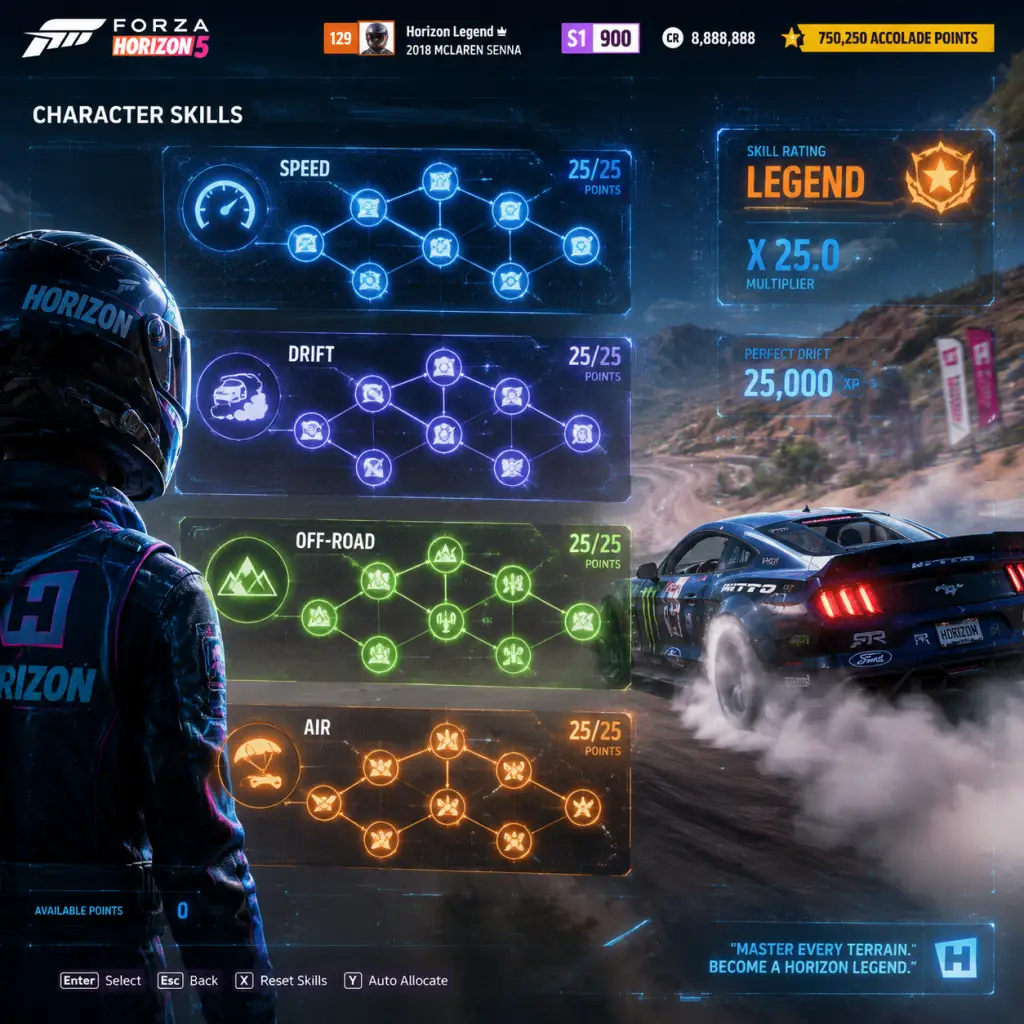
Character Skills
Overview
Forza Horizon 5 does not feature traditional character classes, spells, or ability cooldowns. Instead, your "character" is the driver, and your "skills" are driving maneuvers performed in any car, plus the Car Skill Tree (unique to each vehicle). This guide covers every driving skill, the Skill Chain system, the Skill Song ability, and how to optimize your car’s skill tree for any event type.
---
1. The Skill System
Every action you perform while driving earns Skill Points. These points accumulate in a Skill Chain (shown on the left side of the screen). The multiplier increases as you chain skills together without crashing or stopping. Points are banked when you stop (e.g., fast travel, enter an event) or when you crash. Banking converts the current multiplier into a flat Skill Point reward.
Key terms:
- Skill Points: Currency used to unlock car perks in the Car Skill Tree.
- Skill Chain: A streak of consecutive skill actions; the higher the multiplier, the more points banked.
- Skill Score: The raw number before multiplier application.
---
2. All Driving Skills
These are the actions that generate Skill Points. Master them to farm Skill Points quickly.
| Skill Name | How to Trigger | Base Score | Multiplier Effect | Notes |
|---|---|---|---|---|
| Drift | Hold throttle while steering into a corner to slide the rear wheels. | 50 | +0.1 per second of sustained drift | Longer drifts = more points. Combine with E-Brake for tighter angles. |
| Speed | Reach speeds above 150 mph (241 km/h) on any road. | 100 | +0.2 per 10 mph over 150 | Stacks with other skills. Easily earned on highways. |
| Near Miss | Pass within ~1 meter of another car, traffic, or object at speed. | 75 | +0.15 per near miss | Chain quickly by weaving through traffic. |
| Wreckage | Destroy destructible objects (fences, signs, cactus, etc.). | 25 | +0.05 per object | Group objects together for consecutive hits. |
| Air | Get all four wheels off the ground (jumps, hills). | 50 for landing | +0.1 per second airborne | Longer air time = more score. Time your landing to avoid crash. |
| Drift Tap | Tap the E-Brake while already drifting to change direction. | 20 per tap | +0.05 per tap | Used to extend drifts or link corners. |
| Clean Driving | Complete a race or section without hitting walls or contact. | Bonus at end | +0.5 per segment | Only available in races, not free roam. |
| Burnout | Hold throttle and brake simultaneously at standstill. | 30 | +0.05 per second | Useful at the start of a skill run to jump-start chain. |
| Donut | Continuously spin in circles (hold handbrake + throttle). | 50 per rotation | +0.1 per rotation | Easy to maintain in open fields. |
| Two Wheels | Drive on two wheels (e.g., on a curb or ramp side). | 100 | +0.2 per second | Rare but high scoring; look for banked curves. |
| Sideswipe | Hit another car side-to-side at speed. | 80 | +0.15 per hit | Aggressive, but may cause crash. |
| Draft | Follow closely behind another car for 3+ seconds. | 60 | +0.1 per second | Use on straightaways. |
| Drift Zone | Successfully pass a Drift Zone score threshold. | Bonus score | +0.5 for each star | Drift Zones have their own scoring; Skill Points are separate. |
| Speed Zone / Trap | Complete a Speed Zone or Trap with target speed. | Bonus score | +0.5 for each star | Similar to Drift Zones. |
| Danger Sign | Land a long jump in a Danger Sign zone. | Bonus score | +0.5 for each star | Based on jump distance. |
| Story Mission Skills | Complete specific story objectives (e.g., Vocho stunts). | Variable | +0.2 per objective | Mission-specific, check each story. |
3. Skill Chain Mechanics
- Maintaining the chain: Performing any skill action within ~5 seconds of the last action keeps the chain alive.
- Losing the chain: Crashing, rolling over, getting stuck, or stopping for more than 5 seconds resets the chain to 1x multiplier.
- Banking: To bank your points, you must either:
- Max multiplier: 10x is the cap. Requires a long chain of high-value skills.
- Effect: All Skill Points earned during this time are doubled (base score x2, then multiplied by chain).
- Cooldown: Skill Songs appear randomly once every few minutes (approx. 10-15 min real time). You cannot trigger them manually.
- Strategy: When a Skill Song begins, immediately start a high-risk skill chain (avoid crashes). Target areas with dense objects (cactus fields, fences, traffic) or long drift zones. The 2x multiplier stacks with your chain multiplier (e.g., 5x chain becomes effectively 10x).
- Fast travel to a house or festival site.
- Enter an event (race, showcase, etc.).
- Manually stop the car (press the handbrake while stopped or exit the car).
Pro tip: Use Drift Zones or Speed Traps to bank points instantly when you cross the finish line – they count as event completion.
---
4. Skill Song (Radio Ability)
Tune your radio to the Horizon Pulse or Horizon Block Party station (or any station that plays a "Skill Song"). When the song starts, a notification appears: "Skill Song active – Double Skill Points for 60 seconds!"
---
5. Car Skill Tree (Perks)
Every car in Forza Horizon 5 has a unique Skill Tree that can be unlocked using Skill Points earned from driving. The tree branches into several categories (usually 4-6 nodes). Common perks include:
| Perk Name | Effect | Skill Points Cost | Best Use |
|---|---|---|---|
| Improved Grip | +5% grip on all surfaces | 1-2 | Road racing |
| Powerful Acceleration | +3% acceleration | 2-3 | Sprint races |
| Drift Bonus | +10% more Skill Points from Drift skills | 3 | Drift Zone farming |
| Speed Bonus | +10% more Skill Points from Speed skills | 3 | Highway speed runs |
| Air Bonus | +10% more Skill Points from Air skills | 3 | Danger Sign grinding |
| Wreckage Bonus | +20% more Skill Points from Wreckage | 2 | Object destruction runs |
| Near Miss Bonus | +15% more Skill Points from Near Miss | 2 | Traffic weaving |
| Chain Duration | Extends the window to keep chain alive by 1 second | 1-2 | All-around |
| Quick Bank | 50% of unbanked skill points are kept after a crash (instead of 0) | 4 | Aggressive play |
| Skill Magnet | Increases the radius to collect Skill Point tokens (for XP) | 2 | Leveling up faster |
| Fast Travel Discount | Reduces fast travel cost by 5% (stackable) | 1-3 per level | Long-term convenience |
| Experience Boost | +5% XP from skills | 2 | Leveling up faster |
| Wheelspins | Unlock a free Wheelspin or Super Wheelspin | 3-5 | Purely for rewards |
---
6. Recommended Skill Builds by Event Type
A. Skill Point Farming (General)
- Car: Any fast, agile car with high drift potential (e.g., 2019 Rimac Nevera, 2018 Koenigsegg Agera RS).
- Perks: Drift Bonus, Wreckage Bonus, Chain Duration, Quick Bank.
- Strategy: Drive through the Granjas (farmland) area northeast of the map – dense cactus and fences. Use constant drift and wreckage combos. Skill Song triggers – go to the Dunes for long Air + Drift combos.
- Car: Lightweight, RWD with drift tuning (e.g., 1992 Toyota Supra, Formula Drift cars).
- Perks: Drift Bonus, Chain Duration, Air Bonus (for jumps within zones).
- Strategy: Use manual+clutch for easier e-brake drifts. Focus on maintaining a single drift through the entire zone. Use the Drift Tap to adjust angle without resetting.
- Car: High top speed and acceleration (e.g., 2020 Bugatti Chiron, 2021 Hennessey Venom F5).
- Perks: Speed Bonus, Chain Duration, Accelerate.
- Strategy: Approach speed traps from a long runway. Use a downhill approach when possible. During Skill Song, target multiple speed traps in one chain.
- Car: Lightweight with high horsepower and good suspension (e.g., 2018 McLaren Senna, 2021 Ford Bronco Raptor).
- Perks: Air Bonus, Wreckage Bonus (for landing through fences), Quick Bank.
- Strategy: Approach jump at max speed, aim for a steep launch ramp. Chain Air skill with any objects hit during flying. Land softly to avoid crash.
- Car: Rally or off-road (e.g., 2010 Ford Focus RS, 2020 Subaru WRX STI).
- Perks: Wreckage Bonus, Chain Duration, Grip (dirt variant).
- Strategy: Smash through fences, signs, and bushes while maintaining speed. Near Misses on trees/rocks also count. Use Skill Song when entering open fields.
- Car: Hypercar (e.g., 2022 Koenigsegg CC850).
- Perks: Speed Bonus, Near Miss Bonus, Chain Duration.
- Strategy: Drive on the main freeway north of the map, weaving through traffic for Near Misses, maintaining high speed. Avoid hitting cars to prevent crash. Bank at fast travel points along the route.
- Skill Chain vs. Car Perk: Unlock Quick Bank early on any car you use for farming – it saves you from losing a 10x chain due to a single crash.
- Combining Skills: The best chains mix multiple skills. Example: Drift around a corner (Drift) → speed up to 160 mph (Speed) → smash a fence (Wreckage) → jump over a hill (Air). Each adds to the multiplier.
- Using Manual Gears: Manual transmission (with clutch) allows you to hold a gear in a drift for longer, increasing Drift score per second.
- Car Mastery: Unlocking all perks on a car grants a bonus Wheelspin. Focus on one car you love to drive.
- Skill Points per Hour: The most efficient method is: take a high-speed car to the Highway with Speed Bonus and Near Miss Bonus, chain until 10x, then fast travel to a house. Repeat. ~300-500 Skill Points per hour.
- Skill Song + Danger Sign: When Skill Song starts, go to the Hotel Danger Sign (southwest of the map). The jump distance plus double points can net 200+ Skill Points in one go.
- Drift: Use in Drift Zones, in free roam to maintain chain, and in tight corners during races (as a faster turn technique).
- Speed: Use on straight sections of any race or free roam. Combine with Draft for extra points.
- Near Miss: Use in traffic-dense areas (city, highway). Also effective in races when overtaking opponents.
- Wreckage: Use in fields, near barns, or anywhere with breakable objects. Essential for the "Wreckage" accolade.
- Air: Use over jumps or during Danger Signs. Also use when cresting hills on dirt roads.
- Drift Tap: Use to extend a drift that is about to end, or to rotate the car without losing the chain.
- Burnout/Donut: Use at the very start of a free roam session to kickstart a chain, or when waiting for a Skill Song.
- Two Wheels: Rare – use on specific curbs (like the stadium edges) or during stunt missions.
- Sideswipe: Use in street races or against AI to destabilize them, but risk crash.
- Draft: Use in multiplayer convoys or behind AI to earn points while saving fuel (in races with fuel, though not in Horizon).
B. Drift Zone Grinding
C. Speed Trap / Speed Zone
D. Danger Sign / Jump Challenges
E. Cross Country / Dirt Racing
F. Highway Farming (Safe Chain)
---
7. Advanced Tips and Synergies
---
8. When to Use Each Skill (Practical Context)
---
9. Summary
Forza Horizon 5’s skill system rewards creativity and risk. There are no character classes or spells – only your driving prowess and the perks you unlock for each car. Master the seven core skills, learn to chain them under a Skill Song, and invest your Skill Points wisely in car-specific trees that boost your favorite driving style. With the tips above, you’ll unlock every car mastery and earn unlimited Wheelspins.
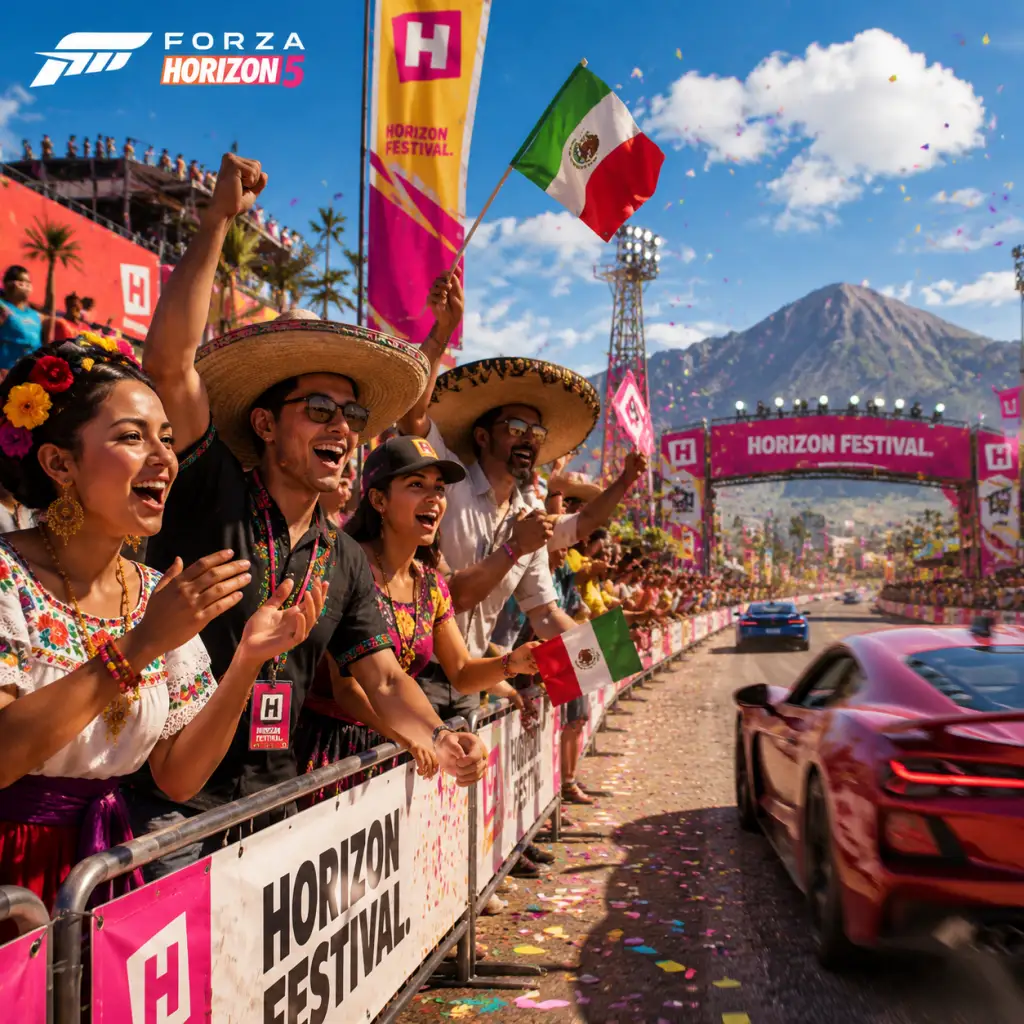
Characters & Roles
Overview
Forza Horizon 5 does not feature traditional character classes, heroes, or playable units with distinct abilities or skill trees. Instead, the game focuses on the player as a nameless driver and the vibrant cast of NPCs that drive the festival narrative. Your ‘character’ is your avatar (customizable appearance but with no gameplay impact) and the Drivatars (AI opponents) that simulate other players. This guide covers every major character encountered in the Horizon Festival, their role in the story, how they influence gameplay, and the unspoken ‘roles’ that you, the player, can adopt through driving style and car selection.
---
Major NPC Characters
1. Ramiro (Head of Horizon Festival – Mexico)
- Background: Ramiro is the charismatic festival director for Forza Horizon 5. A Mexican native with a deep love for cars and culture, he oversees the entire festival in Mexico. He is enthusiastic, welcoming, and serves as the player’s primary guide through the main storyline.
- Strengths: Provides all major festival introductions, unlocks the Horizon Story chapters, and awards early game cars and credits. His missions are mandatory for progression.
- Weaknesses: None gameplay-wise; he is purely a narrative driver.
- Playstyle Influence: Ramiro’s events often focus on diverse driving disciplines (road racing, off-road, street scene) to showcase the festival’s variety. He encourages exploration.
- Unlock Conditions: Automatically appears at the start of the game (opening sequence).
- Recommended Equipment/Builds: No direct equipment; completing his missions rewards you with free cars (e.g., 2019 Ford #25 Mustang RTR, 2021 Ford Bronco).
- Team Synergy: He aligns with every activity; his events are mandatory prerequisites for other character storylines.
- Background: Alejandra is a fearless street racer who runs the Street Scene events. She is rebellious, competitive, and loves high-risk driving through urban environments and mountain roads.
- Strengths: Unlocks the Street Scene race series, which offers high-reputation rewards and exclusive cars (e.g., 1986 Porsche #911 Turbo). Her events are fast-paced and challenging.
- Weaknesses: Street races take place on closed city circuits or point-to-point routes; no off-road or cross-country focus.
- Playstyle Influence: She favors nimble, high-speed cars with strong handling for tight corners (e.g., hypercars, sports cars).
- Unlock Conditions: Met after reaching Horizon Festival Main Stage (first few hours). Speak to her at the Street Scene outpost.
- Recommended Equipment/Builds: Cars with high acceleration and braking (e.g., McLaren Senna, Ferrari F40). Upgrades: Race tires, upgraded brakes, light weight.
- Team Synergy: Works well with other road-focused characters; her events complement Ramiro’s Horizon Stories.
- Background: Miguel is a rugged off-road expert who manages the Dirt Racing series. He has a no-nonsense attitude and a passion for rally cars and trucks.
- Strengths: Unlocks Dirt Racing events (both circuit and point-to-point) which reward utility vehicles and rally cars (e.g., 2019 Ford Ranger Raptor).
- Weaknesses: His events are limited to unsealed roads; some require specific vehicle classes (e.g., Off-road, Rally Monster).
- Playstyle Influence: Emphasizes vehicle control on loose surfaces, drifting, and jump management.
- Unlock Conditions: Appears after completing Ramiro’s early missions. Visit the Dirt Racing outpost.
- Recommended Equipment/Builds: Rally or off-road cars with high ride height, all-terrain tires, and upgraded suspension. Examples: Hoonigan RS200, Ford Focus RS RX.
- Team Synergy: Pairs with the Cross-Country series for complete off-road mastery.
- Background: Lucha is a masked luchador wrestler who hosts Horizon Arcade events. He is energetic, flamboyant, and brings a carnival-like atmosphere to the festival.
- Strengths: Horizon Arcade events are multiplayer mini-games (e.g., drifitng, speed traps, danger signs) that reward Forzathon Points, used to buy exclusive cars and items.
- Weaknesses: Events are multiplayer-only (co-op) and require internet connection. Solo players cannot trigger them alone (though you can matchmake).
- Playstyle Influence: Encourages creative driving, stunts, and team coordination.
- Unlock Conditions: Appears on the map after reaching the Horizon Festival Main Stage; Horizon Arcade activates every 15 minutes.
- Recommended Equipment/Builds: Any car suited for the specific challenge; for drift arcs, use drift-tuned cars (e.g., Formula Drift #64 Nissan).
- Team Synergy: Best played with friends or random players; rewards are shared.
- Background: Hugo is a quirky photographer who asks you to capture cars in scenic locations for the Horizon Story: Apex and other photo challenges. He is absent-minded but passionate about art.
- Strengths: Photo challenges reward you with Cars (e.g., 2018 Mercedes-AMG GT 4-Door Coupé) and influence. No driving skill required.
- Weaknesses: Missions are simple; no racing involved.
- Playstyle Influence: Encourages exploration and stopping to appreciate the world.
- Unlock Conditions: First encounter during the ‘Apex’ Horizon Story early in the game.
- Recommended Equipment/Builds: Not applicable. Use any car with good looks for photos.
- Team Synergy: Complements exploration-focused gameplay.
- Background: Drivatars are AI-controlled opponents that simulate the driving styles of real players. They are created from the game’s player data and appear in races, free roam, and convoys.
- Strengths: Adaptable difficulty (scales from ‘Highly Skilled’ to ‘Unbeatable’). They use upgrades and tuning similar to real players.
- Weaknesses: Can be inconsistent; sometimes make strange decisions (braking early, missing checkpoints).
- Playstyle Influence: They represent the variety of human driving—aggressive, cautious, drifting, etc.
- Unlock Conditions: Always present in the world; you can race against them in any event or encounter them in free roam.
- Recommended Equipment/Builds: Build your car to counter the expected Drivatar behavior (e.g., if they are aggressive, focus on acceleration).
- Team Synergy: Drivatars are your opponents; no synergy.
- Background: You are a rookie driver invited to the Horizon Festival. Your avatar has no backstory or special abilities. All progression is tied to the cars you own and drive.
- Strengths: Complete adaptability; you can choose any car, any driving style (traction/race/off-road/drift), and any career path.
- Weaknesses: No inherent advantages; performance depends entirely on vehicle choice and tuning.
- Playstyle Influence: You define your own role by the events you choose:
- Unlock Conditions: Player character is always active.
- Recommended Equipment/Builds: Varies by role. General recommendations:
- Team Synergy: You are the leader of the festival; you can join co-op convoys with friends or random Drivatars.
---
2. Alejandra (The Street Scene Organizer)
---
3. Miguel ‘El Güero’ (The Dirt Racing Specialist)
---
4. Lucha (The Luchador / Horizon Arcade Host)
---
5. Hugo (The Photographer / Horizon Story Narrator)
---
6. Drivatars (AI Opponents / Player Mimics)
---
The Player’s Role (You)
- Road Racer: Focus on road and street circuits with high-speed cars.
- Off-Road Enthusiast: Prefer dirt and cross-country events with rally vehicles.
- Drifter: Use drift-tuned cars for Danger Signs, Drift Zones, and Horizon Arcade.
- Explorer: Prioritize Barn Finds, Bonus Boards, and photo challenges.
- Road Racing: AWD conversion, race tires, high power.
- Off-Road: All-terrain tires, rally suspension, increased ride height.
- Drifting: Drift suspension, sport tires, power upgrades.
---
Car Classes (Misinterpretation Prevention)
While not characters, the game’s performance index (PI) system divides cars into classes D (slowest) to X (fastest). These are not roles, but they affect which events you can enter. Each class has a designated event type:
| Class | Typical Use Case | Example Cars |
|---|---|---|
| D-C | Beginner events, nostalgia | 1957 Ferrari 250 TR |
| B-A | Balanced road racing | Subaru WRX STI, Porsche 911 |
| S1-S2 | High-performance road/street racing | Lamborghini Aventador, Koenigsegg Jesko |
| X | Extreme physics, limited events | 2019 Rimac Nevera, 1998 McLaren F1 GT |
| Off-road | Dirt/Cross-Country | 2018 Jeep Wrangler, Hoonigan RS200 |
Conclusion
Forza Horizon 5 does not have traditional character classes or roles, but the narrative is driven by distinct NPCs who each represent a different facet of the festival. The player can roleplay through their choice of events and cars. Understanding each character’s events and rewards helps you progress efficiently. Remember: your real ‘role’ is determined by the car you drive and the roads you choose.
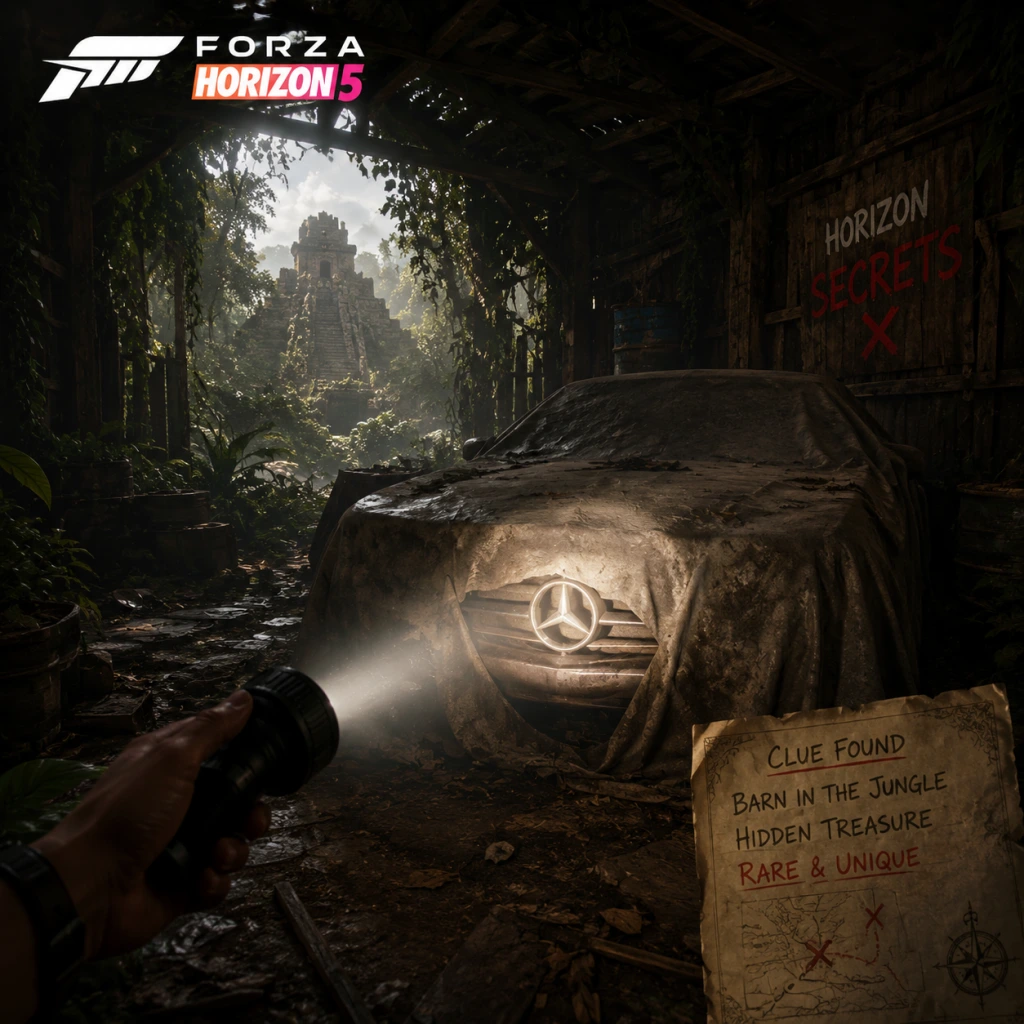
Cheats & Secrets
Overview
Forza Horizon 5 does not contain any traditional cheat codes, console commands, or unlock codes like those found in older arcade racers. The game is online-focused and designed to be fair for all players. However, the world of Mexico is packed with Easter eggs, hidden content, and developer-intended secrets that reward exploration. These are not exploits—they are legitimate, fun discoveries Playground Games intentionally placed. Below is a comprehensive list of everything secret, hidden, or unusual in Forza Horizon 5.
---
No Cheat Codes
- No button sequences or text entry cheats exist.
- No save file manipulation for unlocking cars (doing so can result in a ban).
- No developer cheat menu accessible by players.
- The only “unlock” codes come from promotional giveaways (e.g., codes from Microsoft Rewards or store pre-orders) – these are not hidden, but advertised.
- 1970 GMC Jimmy – Found in the jungle near the southern beach.
- 1986 Ford RS200 Evolution – In the desert area west of the Caldera.
- 1969 Ferrari Dino 246 GT – On a farm southwest of the main festival.
- 1965 Ford Transit – Near the airstrip in the northeast.
- 1963 Volkswagen Beetle – In the hills east of the Horizon Baja Outpost.
- 1992 Mazda 323 GT-R – Behind a barn in the central farming region.
- 1970 Porsche 914/6 – On a cliffside overlooking the sea.
- 1962 Triumph Spitfire – In the southwest corner of the map.
- 1993 Toyota #1 T100 Baja Truck – In the Baja peninsula area.
- 1977 Ford F-150 Flareside – In the northern farmlands.
- 1968 Abarth 595 Esseesse – Near the city of Guanajuato.
- 1981 BMW M1 – In a hidden garage in the city.
- 1973 Ford XB Falcon GT – Behind a waterfall in the jungle.
- 1970 Plymouth Hemi Cuda – In a barn near the highway.
- 1990 Mazda Savanna RX-7 – In a forest clearing.
- 1969 Toyota 2000GT – In the hills above the east coast.
- 1992 Honda NSX-R – In a garage in the south.
- 1955 Mercedes-Benz 300 SLR – On a mountain road.
- 1995 BMW 850CSi – In a barn near the coast.
- 2020 Ferrari SF90 Stradale – In a modern barn near the airport.
- 1987 Buick Regal GNX – Earned by completing the “Road Racing” series accolades.
- 2017 Ford #25 'RTR' Mustang – Unlocked in the “Drift Club” story.
- 2020 Koenigsegg Jesko – Hidden behind the “V10” Story completion.
- 2015 Ferrari 488 GTB – Earned by reaching Player Level 100.
- 1997 Mazda RX-7 (VeilSide) – Rare car from Festival Playlist (seasonal).
- 2009 Mercedes-Benz SLR Stirling Moss – Reward for the “Stirling Moss” horizon story.
- Park any car inside the large warthog statue at the Horizon Festival Mexico main stage. This triggers a hidden achievement worth 5 Gamerscore.
- Search for user-created challenge cards named “SEKRET” or “EGG”. Some lead to hidden jumps or rooms.
- Look for a small red track piece stuck in a tree near the stadium – a nod to the Hot Wheels expansions.
- Near the waterpark, you can find a yellow Lego brick on the ground. Drive over it to hear a special sound effect.
- At the Caldera (the volcano), drive around the rim at top speed. The achievement “Ring of Fire” pops when you complete a lap above 200 mph. The name is a play on both Johnny Cash and Sonic the Hedgehog’s rings.
- In the desert town of “Alamosa” (east of the map), there is a parked RV behind a house. It’s a clear homage to Walter White’s RV.
- An abandoned “Mr. Plow” truck (a snowplow with the same logo) can be found stuck in mud near the snowy mountain.
- In Guanajuato, on a tall building wall, there is a giant mural of the Forza Horizon logo. It is not part of any mission.
- Drive the 1993 Jeep Wrangler (available from Barn Find) through the jungle area. The dinosaur skeleton near the southeast coast respawns every few minutes.
- A white Toyota Trueno AE86 (often called the “Initial D” car) spawns as a traffic car on mountainous roads. It can be bought from the Autoshow as a standard car, but spotting it driving is an Easter egg.
- A rusty Volkswagen Beetle hangs from a tree near the southern beach. It is a direct reference to a scene from the original Forza Horizon.
- Southwest coastline, near the “Playa Azul” fast travel board. Drive off the cliff into the water at the right spot (look for an opening between rocks). You’ll find an underground cave with a hidden drift zone.
- At the very top of the city, there is a construction site with a ramp that launches you over a tall building. No mission required – just for fun. Achievement “Roof Top” is unlocked if you land on the helipad.
- Drive to the top of the Caldera volcano (marked as a danger sign). There is a small campfire with a single chair. If you sit in Photo Mode, the camera angle reveals a hidden message in the smoke: “FH5 was here”.
- In the northeastern desert, there is a small airstrip with a crashed plane. Inside the plane is a collectible silver skull (interact with it to get 10,000 credits).
- Near the main stage, behind the giant screen, there is a door that only opens if you honk your horn exactly 5 times in Beatbox rhythm. Inside is a small room with a Forza Edition wheel rim on a pedestal. Taking a photo of it triggers a shout from the announcer.
- Technically not a cheat, but many players overlook the fact that you can earn Skill Points to unlock Car Mastery perks. Some perks grant Instant Influence or Wheelspins – effectively “cheating” the progression system legally. Check every car you own for hidden perks.
- In the Battle Royale mode “The Eliminator”, there is a secret car – the 1970 GMC Jimmy (Barn Find) – that spawns rarely. Driving it gives you a unique horn sound recognizable to old players.
- During a Horizon Arcade event (not the story missions), if you complete all three rounds within the time limit, a “Boss” car (a blacked-out Forza Edition Ferrari) will chase you for a minute. If you escape without fast travel, you get a one-time reward of 50,000 credits.
- In early versions of the game, players could exploit the Goliath race to gain infinite credits. This has been patched. Do not attempt – it is considered a bug exploit.
- “The Big One” – Complete all 10 stories. Unlocks the “Forza Edition” GMC Vandura.
- “Rush of the Horizon” – Win 5 consecutive races in a row. Unlocks a secret horn sound.
- “Well Rounded” – Earn a star card tier. Unlocks the “Star” race suit.
- “Explorer” – Visit all roads. Unlocks the “Explorer” horn and a hidden badge.
---
Barn Finds (Secret Cars)
Barn Finds are the closest thing to a “secret” car unlock system. They are hidden abandoned cars scattered across the map. To start, you must purchase a “Barn Find rumor” from someone in the Horizon Festival Outpost (costs a few thousand credits). A circle appears on the map; drive inside and look for a barn icon. Once found, the car is restored over time and added to your garage for free.
All Barn Find cars (listed in approximate unlock order):
> Tip: Every Barn Find reveals a short story about the car. Some are only accessible after certain accolades.
---
Secret Cars & Hidden Unlocks
Certain cars are not sold in the Autoshow and must be earned through specific Accolades, Festival Playlists, or Forzathon Shop events. These are secret because they are not advertised in the main menus:
> Note: The Forzathon Shop rotates rare cars weekly. Check it often.
---
Easter Eggs
Forza Horizon 5 contains dozens of Easter eggs referencing pop culture, previous Forza games, and developer jokes.
1. “You Can’t Park There” Achievement
2. The “Super 7” Challenge Card
3. Hot Wheels & Lego References (Base Game)
4. “Sonic” Reference
5. “Breaking Bad” Reference
6. “The Simpsons” Easter Egg
7. “Forza” Logo Painting
8. “Jurassic Park” Jeep
9. “Initial D” Reference
10. “The Lost” VW Beetle
---
Hidden Locations & Activities
1. The Underwater Cave
2. The Rooftop Ramp in Guanajuato
3. The Volcano Summit
4. The Desert Airport
5. The Horizon Festival Secret Room
---
Developer-Intended Hidden Content
Skill Points & Car Mastery Trees
“The Eliminator” Secret Car
“Horizon Arcade” Hidden Boss
The “Pacific Standard” Glitch (Patched)
Achievements That Unlock Hidden Content
---
Important Note on Cheats & Exploits
Forza Horizon 5 has a strict anti-cheat system. Using third-party software, save editors, or memory modifiers will result in a permanent ban from online play. The only “cheats” in the game are the officially designed shortcuts like Skill Point farming, fast travel boards, and XP boards. These are not secrets but logical progression tools. If you see a YouTube video claiming to “unlock all cars for free” – it is either using an unpatched glitch (which may get you banned) or a modded account (also bannable). Stick to the legal secrets listed above.
---
Conclusion
Forza Horizon 5 rewards players who explore and experiment. No cheat codes exist, but the world is filled with developer secrets. Whether it's finding a hidden barn, discovering a pop culture reference, or unlocking a rare car through an accolade, these secrets add depth to an already massive game. Happy hunting!