Fruit Ninja
## Game Introduction ### Overview **Fruit Ninja** is a fast-paced, addictive arcade game that challenges players to slice flying fruit with swipes of their finger (or controller/mouse). Originally launched as a mobile title, it has become a cultural phenomenon with ports to nearly every major platf...
Download & Installation
Fruit Ninja Download & Installation Guide
Overview
Fruit Ninja is a popular arcade-style game where players slice flying fruit with swipes. It is available on multiple platforms including PC (Steam, Microsoft Store), PlayStation, Xbox, Nintendo Switch, and mobile devices (iOS, Android). This guide covers legitimate download sources, step-by-step installation, system requirements, and troubleshooting for each platform.
---
PC (Steam)
System Requirements
| Component | Minimum | Recommended |
|---|---|---|
| OS | Windows 7 | Windows 10 |
| Processor | 2.0 GHz dual-core | 2.5 GHz quad-core |
| Memory | 2 GB RAM | 4 GB RAM |
| Graphics | DirectX 10 compatible | DirectX 11 compatible |
| Storage | 500 MB | 700 MB |
| DirectX | Version 10 | Version 11 |
Download & Installation Steps
1. Install Steam: If not already installed, download the Steam client from [store.steampowered.com](https://store.steampowered.com) and complete installation.
2. Create/Login to Steam Account: A free Steam account is required.
3. Search for Fruit Ninja: Open Steam client, click Store, search for "Fruit Ninja". The game is typically priced at $1.99 (may vary).
4. Purchase & Download: Click Add to Cart, complete purchase, then click Install from the game’s library page.
5. Choose Installation Location: Select a drive with at least 700 MB free space (default: `C:\Program Files (x86)\Steam\steamapps\common\Fruit Ninja`).
6. Wait for Download & Installation: Steam will automatically download and install the game.
7. Launch: Click Play in Steam library.
First Launch Setup
- On first launch, you may be asked to grant permission to access local files (for leaderboards). Allow.
- The game will load a title screen; you can adjust options (resolution, sound) from the main menu.
- Error "Missing executable": Verify game file integrity via Steam (right-click game > Properties > Local Files > Verify integrity of game files).
- Black screen on launch: Update graphics drivers; run in compatibility mode (Windows 7).
- Download stuck: Restart Steam client or clear download cache (Steam > Settings > Downloads > Clear Download Cache).
- Permissions for microphone (for voice control?) – Decline if not needed.
- Game may integrate with Xbox Live for achievements.
- Error 0x80070005: Run the Windows Store Apps Troubleshooter (Settings > Update & Security > Troubleshoot).
- Installation fails: Reset Microsoft Store cache: `wsreset.exe` in Run dialog.
- Game not launching: Update Windows and GPU drivers.
- PS3: Any PS3 model with at least 200 MB free space.
- PS4: Any PS4 model with at least 500 MB free space.
- On PS4, you may need to agree to the user terms.
- Trophies are supported.
- Slow download on PS3/PS4: Pause/resume download; restart console.
- CE-34878-0 error (PS4): Rebuild database (Safe Mode option 5).
- No space error: Delete unused games/saves.
- Xbox 360: 200 MB free.
- Xbox One/Series: 500 MB free.
- Might prompt for Xbox Live Gold (for online leaderboards) – not required for single player.
- Installation stops: Check network; clear persistent storage (Settings > System > Storage > Clear local saved games).
- Game crashes on start: Power cycle console; reinstall.
- Any Nintendo Switch model (including Lite) with at least 500 MB free space on internal memory or microSD card.
- No significant setup; may ask to link Nintendo Account for online features.
- Download error 2137-0020: Check internet; restart Switch.
- Insufficient space: Delete other games or use a microSD card.
- Game freezes: Archive and re-download.
Common Errors & Fixes (Steam)
---
PC (Microsoft Store & Xbox Game Pass)
System Requirements (Same as Steam version)
Download & Installation Steps
1. Sign in to Microsoft Account: Open Microsoft Store app on Windows 10/11.
2. Search for Fruit Ninja: Type "Fruit Ninja" in the store search bar.
3. Get the Game: Click Get or Install (free with Game Pass; otherwise purchase). If using Game Pass, ensure your subscription is active.
4. Follow Prompts: The store will download and install automatically. Progress shown in the Downloads & Updates section.
5. Launch: Find Fruit Ninja in Start menu or Xbox app library.
First Launch Setup
Common Errors & Fixes (Microsoft Store)
---
PlayStation (PS3, PS4)
Note: Fruit Ninja VR is available for PSVR, but the standard game is on PS3 and PS4.
System Requirements
Download & Installation Steps
#### PlayStation Store
1. Connect to PSN: Ensure PlayStation Network account is signed in.
2. Open PlayStation Store: From the XMB (PS3) or home screen (PS4).
3. Search for Fruit Ninja: Use search or browse under Games > Arcade.
4. Download: Select the game (purchase if needed, free demo available).
5. Automatic Installation: Once downloaded, the game installs automatically. Progress shown under Notifications > Downloads.
6. Launch: Find Fruit Ninja on the home menu.
First Launch Setup
Common Errors & Fixes
---
Xbox (Xbox 360, Xbox One, Xbox Series X|S)
System Requirements
Download & Installation Steps
#### Microsoft Store on Xbox
1. Sign in to Xbox Live.
2. Open Store: From dashboard.
3. Search for "Fruit Ninja".
4. Select & Install: Choose Install on the game page. If not owned, purchase first.
5. Queue: The game downloads to your console. Check progress in My games & apps > Queue.
6. Launch: From My games & apps.
Backward compatibility: The Xbox 360 version is playable on Xbox One/Series X via backward compatibility.
First Launch Setup
Common Errors & Fixes
---
Nintendo Switch
System Requirements
Download & Installation Steps
#### Nintendo eShop
1. Connect to Nintendo Account on Switch.
2. Open eShop from home menu.
3. Search for "Fruit Ninja".
4. Purchase & Download (price ~$1.99). Confirm with Nintendo Account password.
5. Auto-installation: Game downloads directly to system memory (you can choose SD card if inserted).
6. Launch: Icon appears on home screen after download completes.
First Launch Setup
Common Errors & Fixes
---
Mobile (iOS & Android)
Device Requirements
| Platform | Minimum OS | Storage |
|---|---|---|
| iOS | iOS 9.0 or later | ~100 MB |
| Android | Android 4.1+ | ~80 MB |
Download & Installation Steps
#### iOS (App Store)
1. Open App Store.
2. Search for "Fruit Ninja" (Halfbrick Studios).
3. Tap Get (free with ads) or purchase any add-ons. Use Face ID/Touch ID/Apple ID password to confirm.
4. App automatically downloads and appears on home screen.
#### Android (Google Play Store)
1. Open Google Play Store app.
2. Search for "Fruit Ninja".
3. Tap Install (free with ads). Accept permissions.
4. Download and install automatically; open from Open button or app drawer.
First Launch Setup
- On first launch, the game may request access to device storage (for screenshots) – grant if desired.
- Optional: sign in to Google Play Games or Game Center for achievements and leaderboards.
- Installation fails (Android): Clear Google Play Store cache (Settings > Apps > Google Play Store > Storage > Clear Cache).
- App not compatible: Update OS; check if device supports OpenGL ES 2.0.
- Crash on start: Reinstall; check for updates.
- PC (Steam): Launch the game; you should see the title screen with slicing fruit demo. Check options menu for settings.
- PC (Microsoft Store): Launch from Start menu; ensure no immediate crash.
- PlayStation: Game should load to main menu; test a quick game.
- Xbox: Game boots to dash; try a round.
- Switch: Game loads to main menu; test touch screen or Joy-Con controls.
- Mobile: App opens; tap Play to start a classic game.
- Internet Connection: Ensure stable connection for downloading.
- Storage Space: Always check available space before installation.
- Update the Game: After install, check for patches (usually automatic).
- Reinstall as Last Resort: If persistent issues, uninstall and download again.
- Contact Support: For unresolved issues, contact Halfbrick support via their website.
Common Errors & Fixes
---
Post-Installation Verification
After installation, verify the game works correctly:
If any platform fails, refer to the common errors section above or reinstall.
---
General Troubleshooting Tips
---
This guide covers legitimate sources only. Do not download from unofficial sites to avoid malware.
Game Introduction
Game Introduction
Overview
Fruit Ninja is a fast-paced, addictive arcade game that challenges players to slice flying fruit with swipes of their finger (or controller/mouse). Originally launched as a mobile title, it has become a cultural phenomenon with ports to nearly every major platform. The game’s simple premise—slice fruit, avoid bombs—belies its deep replayability and satisfying visual feedback.
Genre
Arcade
Action
Casual
Score Attack
Developer & Publisher
Developer: Halfbrick Studios (an Australian independent game studio based in Brisbane, Queensland)
Publisher: Halfbrick Studios (self-published on most platforms; initial mobile release via Apple App Store and Google Play)
Release Timeline
Original Release: April 20, 2010 (iOS)
Android Release: September 1, 2010
Console/PC Versions: \
- Xbox 360 (Kinect): August 10, 2011 \
- PlayStation 3 (Move): September 20, 2011 \
- Windows Phone 7: December 22, 2011 \
- Wii (MotionPlus): April 19, 2012 \
- Nintendo 3DS: March 14, 2013 \
- PlayStation Vita: March 19, 2013 \
- PC (Steam): August 12, 2015 (Fruit Ninja: The Game) \
- Xbox One: January 7, 2016 \
- PlayStation 4: January 26, 2016 \
- Nintendo Switch: May 10, 2018 (Fruit Ninja: The Game) \
- Oculus Quest: May 21, 2020 (Fruit Ninja VR)
Notable Updates: Many versions received steady content updates adding new blades, backgrounds, and modes. A major re-release, Fruit Ninja 2, was announced for mobile in 2024 but focuses on a different gameplay loop.
Platforms
Mobile: iOS, Android, Windows Phone, Kindle Fire
Console: Xbox 360, Xbox One, Xbox Series X|S (backward compatible), PlayStation 3, PlayStation 4, PlayStation 5 (backward compatible), Wii, Wii U, Nintendo Switch, PlayStation Vita, Nintendo 3DS
PC: Steam, Microsoft Store, macOS (via Mac App Store)
VR: Oculus Rift, Oculus Quest/Quest 2, HTC Vive, PlayStation VR, SteamVR
Other: Windows Mixed Reality, Apple TV, Nvidia Shield
Story Overview
Fruit Ninja does not have a traditional narrative. The “story” is minimal: you are a ninja who practices blade skills by slicing fruit that appears in mid-air. The game world is a dojo or training ground where the ninja perfects their technique. Various themes and backgrounds (e.g., a bamboo forest, a dojo, a carnival) provide context, but the focus is purely on gameplay.
Setting
The primary setting is a traditional Japanese dojo or training area, often shown with wooden floors, sliding doors, and cherry blossom trees. The fruit appears in dynamic patterns, flying in from all sides. Some backgrounds change with special events (e.g., Halloween, Christmas).
Main Characters
The Ninja: The player character, always depicted in silhouette. The ninja has no name, voice, or personality—it’s a blank slate for the player. Different versions (e.g., Fruit Ninja: The Game for consoles) may show a more detailed character, but the core remains anonymous.
The Sensei (mentioned in tutorials): An off-screen teacher who gives tips and encouragement.
Fruit: Not characters per se, but the cast includes apples, peaches, watermelons, bananas (and many more) that react with splashes and sprays.
Core Appeal
Instant Gratification: Each slice produces a satisfying sound, juice explosion, and score pop-up. The feedback loop is immediate and rewarding.
Simple Controls: Swipe to slice—any direction. No complex combos or skills to learn.
Highscore Obsession: The game is built around beating your own best score, earning three-star ratings on levels, and competing on leaderboards.
Zen Mode: For relaxation, with no bombs or time limits.
Variety of Modes: Classic, Arcade, Zen, plus special modes like Survival, Task, and PvP in later versions.
Target Audience
Casual gamers of all ages (ESRB: Everyone 10+ for mild fantasy violence/Fruit juice; PEGI 3)
Mobile gamers looking for quick, pick-up-and-play sessions
Competitive score-chasers who enjoy leaderboards
Fans of arcade-style action and physics-based gaming
VR enthusiasts (Fruit Ninja VR offers immersive slicing)
Game Modes
#### Classic Mode
- Three lives (missed fruit = lost life)
- Bombs end the game immediately
- Goal: achieve the highest score possible
- 60-second timed round
- Three special bananas appear: \
- No lives; just maximize score in the time limit
- 90 seconds with no bombs and no lives
- Pure fruit slicing for relaxation or warm-up
- Endless fruit stream with increasing speed and frequency
- Bombs are present; three lives
- 50 levels with specific objectives (e.g., slice x watermelons, avoid bombs, hit certain fruit in order)
- Each level has three-star rating
- Pass the Blade: Hot-seat competitive play where players alternate turns slicing fruit; highest total wins.
- Fruit Tournament: Up to 4 players compete simultaneously on split-screen (on supported platforms) – slice fruit on your side to send bombs to opponents.
- Online Leaderboards: Asynchronous competition for all modes via internet.
- Juice Physics: Realistic splashing and particle effects that made slicing fruit feel visceral and satisfying.
- Touchscreen Pioneer: One of the first games to showcase the potential of capacitive touchscreens for simple, intuitive interactions.
- Bomb Inclusion: The risk-reward of avoiding bombs while chasing high scores added tension.
- Minimalist Design: No ads (in paid versions) and no clutter—just fruit, blade, and score.
- Cross-Platform Legacy: From phones to VR, the core gameplay translates perfectly without losing its charm.
- Cultural Impact: Memes, references in TV shows, and even a mention in the Oxford English Dictionary for “fruit ninja” as a generic term for slicing games.
#### Arcade Mode
Freeze Banana: slows time \
Frenzy Banana: doubles score per slice \
Double Banana: gives a second point multiplier \
#### Zen Mode
#### Survival Mode (console/PC versions)
#### Task Mode (console/PC versions)
#### Multiplayer Modes (in console/PC versions)
Online/Offline Support
Offline: Single-player modes (Classic, Arcade, Zen, Survival, Task) can be played entirely offline.
Online: Required for leaderboards, achievements/trophies syncing, and some multiplayer modes (e.g., online tournaments in console versions, cloud saves). The mobile version uses online for daily challenges and social features but core gameplay is offline.
Local Multiplayer: Available on console/PC versions via split-screen or hot-seat, no internet required.
DLC & Expansions
Blades and Backgrounds: Cosmetic DLC packs were released for mobile (e.g., Katana Blade, Dojo 2 Background, etc.). Many are earned through in-game currency or purchased.
Fruit Ninja: The Game (2015) – A standalone retail release for consoles and PC that includes all prior DLC and new modes.
Fruit Ninja VR (2016) – A separate VR title with room-scale slicing, different fruit patterns, and multiplayer battles.
Fruit Ninja 2 (2024) – A sequel on mobile with a progression system, loot, and daily quests; not DLC but a new title.
* Seasonal Events: Usually free updates with themed backgrounds, fruit decorations, and limited-time blades (e.g., Christmas, Halloween, Chinese New Year).
What Makes This Game Unique
Final Thoughts
Fruit Ninja is a masterclass in arcade game design. Its simplicity allows anyone to play immediately, yet its depth of scoring mechanics and mode variety keeps veterans coming back for decades. Whether you have 30 seconds or an hour, Fruit Ninja provides a crisp, juice-filled slice of fun.
Getting Started
Getting Started with Fruit Ninja
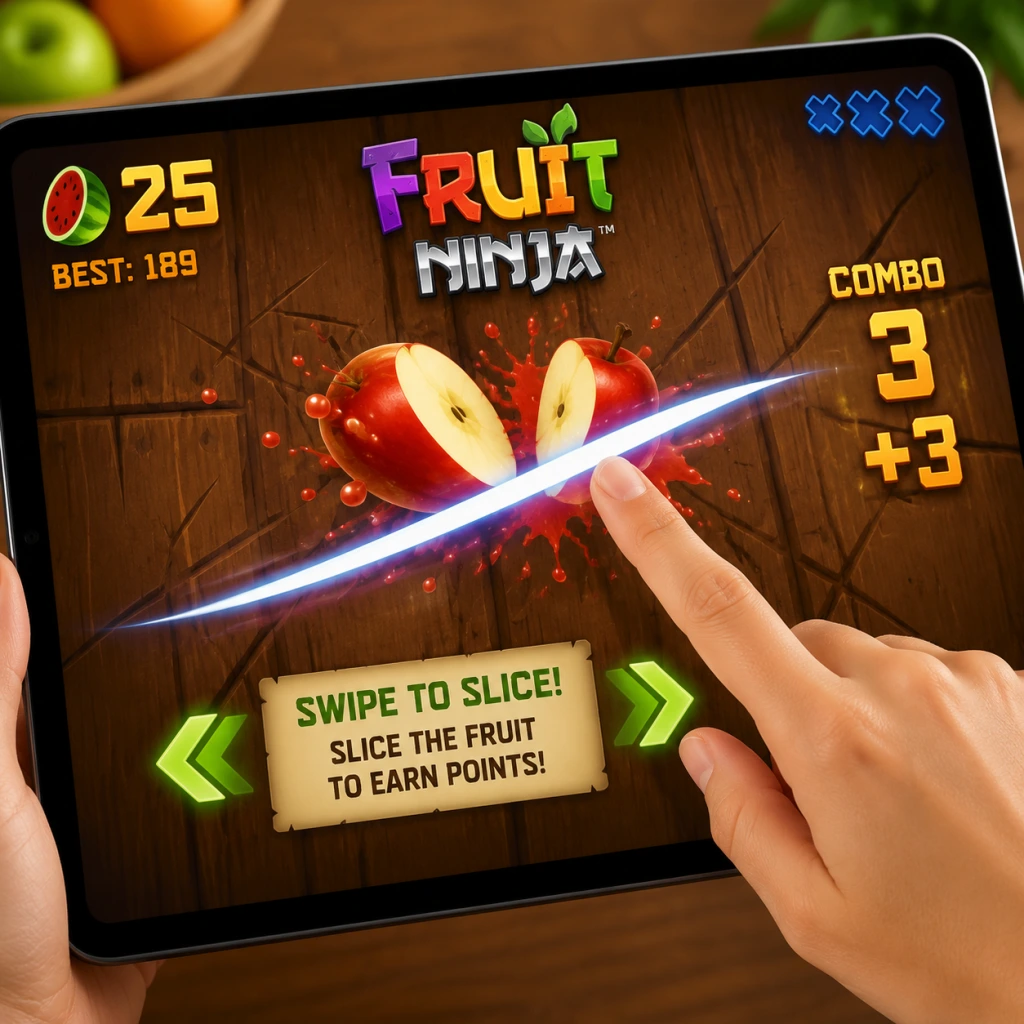
Welcome to Fruit Ninja! This guide will walk you through your first hour, explain the controls on every platform, decode the user interface, and give you a clear day-one plan. By the end, you’ll be slicing fruit like a pro.
First Hour Walkthrough
1. Launch the game. On PC (Steam/Microsoft Store) click Play; on console select the title from your library; on mobile tap the icon.
2. Skip or watch the tutorial. The game will teach you basic swipes. Pay attention to the bomb indicator (a red flash) – you must avoid slicing bombs.
3. Play your first Classic round. Fruits will fly up from the bottom. Swipe to slice them. Try to hit three or more fruits in one swipe for a combo (extra points).
4. After the round, explore the main menu. You’ll see modes, store, achievements, and settings.
5. Unlock your first blade. Spend your starting coins on a cheap blade in the store (e.g., the “Ion” or “Basic” blade). Blades affect visuals and sometimes gameplay slightly.
6. Play at least one round in each mode: Zen (no bombs, no time limit – relax and aim for high combos), Arcade (bombs & special bananas – fast action), and Classic (standard mode with bombs & three lives).
7. Check the daily challenge. Complete one simple task (e.g., “Slice 50 fruit”) for bonus coins.
8. Spend your first 50–100 coins on a basic background – it changes the visual theme but doesn’t affect gameplay. Save remaining coins for blades or dojos.
Character Creation – None
Fruit Ninja does not have character creation. You play as a faceless ninja. Customization is limited to blades, backgrounds, and dojos (the slicing area). Focus on unlocking these instead.
Controls on All Platforms
| Platform | Controls |
|---|---|
| Mobile (iOS/Android) | Touch & swipe. Use one finger. Swipe fast to create a single continuous slash. Avoid tapping – you need a swipe motion. |
| PC (Mouse) | Click and drag. Hold left mouse button, then swipe across fruit. Release after each swipe. Works best in the center of the screen. |
| PC (Keyboard) | Not ideal. Some versions support mouse only. Use a mouse for best results. |
| PlayStation / Xbox / Nintendo Switch | Use the right thumbstick or motion controls (Switch). Swipe the stick quickly. For motion on Switch: swing the Joy-Con like a sword – a gentle flick works better than a wild swing. |
| Arcade cabinet / VR | Physical blade or motion controller. Follow on-screen instructions. |
UI Overview
- Main Menu: Modes (Classic, Zen, Arcade), Store, Achievements, Daily Challenge, Settings.
- In-Game HUD:
- Post-game screen: Final score, coins earned, combo count, and options to retry or return to menu.
- Complete the tutorial if you haven’t (it awards a small coin bonus).
- Unlock your first blade – any blade, even the cheapest, because it shows you the store mechanics.
- Reach a score of 1000 in Classic mode – this is achievable within 2–3 rounds. It unlocks the first achievement and gives a sense of progression.
- Slice 10 bombs in total – this is required for a one-time reward in some versions. Practice identifying bombs: they look like dark, spiky fruit with a red fuse.
- Play Zen mode for 60 seconds – no bombs, no rush, perfect for practicing combos (swipe through 3+ fruits at once).
- Spend your first 50 coins on a blade (e.g., “Ion”).
- Complete the daily challenge every day for steady coin income.
- Focus on combos rather than just slicing every fruit. Combos multiply your score.
- In Classic mode, prioritize slicing the fruit that is about to hit the bomb – if you miss a fruit, you lose a life; missing a bomb ends the game instantly.
- Use two fingers on mobile to create dual blades (if unlocked) – but start with one finger to master timing.
- Swiping wildly. Many beginners swipe randomly and hit bombs. Wait for fruits to appear, then slice deliberately.
- Ignoring bombs. Even one bomb hit ends the game. Train your eye to spot the red glow.
- Buying expensive backgrounds first. They don’t help you play better. Spend only on blades or dojos that give a gameplay edge (some blades have slight differences like wider slash radius).
- Playing on a laggy device. Low frame rates make bomb avoidance harder. Reduce graphic settings on PC or close background apps on mobile.
- Coins: The main currency. Spend them in this order:
- Tickets (if available in your version): Used for premium draws. Save them until you have enough for a guaranteed blade or dojo. Do not spend on single draws.
- Achievements: Some reward coins. Check the achievement list and complete easy ones (e.g., “Slice 100 fruits”).
- [ ] Play the tutorial (if available) – 2 minutes.
- [ ] Play 1 round of Classic, 1 round of Zen, 1 round of Arcade – each about 1 minute.
- [ ] Buy your first blade with starting coins.
- [ ] Complete the daily challenge (check the main menu).
- [ ] Earn at least one combo (3 fruits in one swipe) in Classic mode.
- [ ] Avoid slicing any bombs during your first 5 rounds – practice recognizing them.
- [ ] Reach a score of 1000 in Classic – you’ll get an achievement and feel the progression.
- [ ] Check settings – adjust sensitivity (PC/mobile) or vibration (mobile) to your liking.
- [ ] Save your remaining coins – don’t buy anything else until you have 150 coins for a better blade or dojo.
- Top left: Current score.
- Top center: Combo multiplier (starts at 1x, goes up with consecutive slices).
- Top right: Remaining lives (Classic: 3 fruit misses = game over; represented by fruit icons).
- Bottom center: Bomb warnings (red flash when bomb appears – you have ~0.5 seconds to avoid it).
- Special bananas: Appear in Arcade mode – Freeze banana (slows time – slice it), Double Points banana, Frenzy banana (creates a storm of fruit).
Essential Early Objectives
What to Do First and What to Avoid
DO:
AVOID:
Early Resource Priorities
1. Blade (any, ~50–100 coins)
2. Dojo (optional, changes background – cosmetic only)
3. Background (cosmetic)
4. Special blades (purely cosmetic – no effect)
Common Beginner Mistakes
1. Slicing bombs because you swiped too fast without looking. Solution: Always watch where the bomb is before slicing. Use the red flash as a warning.
2. Trying to slice every single fruit. You only get three lives per Classic round. It’s okay to let a fruit fall if it’s next to a bomb.
3. Not using combos. A two-fruit slice gives 2x points for that slice, but a three-fruit slice gives 3x. A five-fruit slice can skyrocket your score.
4. Overusing the same swipe direction. Mix horizontal, vertical, and diagonal swipes to cover more area.
5. Forcing dual-blade mode before you’re ready. On mobile, you need to swipe with two fingers simultaneously. Start with one blade until you consistently avoid bombs.
Day-One Checklist
After your first hour, focus on improving combo chains and learning bomb patterns. Fruit Ninja rewards precision, not speed. Happy slicing!
Core Gameplay
Overview
Fruit Ninja is an arcade action game where the core interaction is swiping across the screen (or using a mouse/controller) to slice flying fruit. The main gameplay loop is simple: fruit are launched into the air; you slice them; avoid bombs; maximize combos and special fruit. This guide breaks down the progression tiers, explaining how the systems evolve from early learning to master-level play.
---
Progression Tiers
Early Game (Hours 0–2)
Main Gameplay Loop:
- Play Classic Mode: Fruit appear one at a time; you must slice every fruit and miss no more than three (misses reduce lives). Bombs end the run instantly. The goal is to achieve a high score.
- Complete the Tutorial (optional but recommended) to learn basic swipes, combos, and the difference between fruits.
- Single Swipe: A straight line across the screen. Slices one fruit at a time but can hit multiple if they align.
- Combo Swipe: Slicing multiple fruits with one continuous swipe (e.g., a diagonal line through three apples). Combos grant bonus points and a visual “Combo x3” popup.
- Bomb Avoidance: Grey bombs with fuses. Touching them ends the run (or costs a life in some modes). Early game players learn to recognize bombs instantly.
- Special Fruits:
- Unlock Dojo Basics: Blade upgrades become available after first 100 points. The basic blade is “Standard Blade” (no effect).
- High Score Benchmark: Aim for 50–100 points in Classic Mode. You earn XP for the Dojo rank (see below).
- Achievements: First few achievements are easy, e.g., “First Slice” (slice one fruit), “Combo King” (get a 3-fruit combo).
- There is no free-roam exploration. The only “exploration” is trying different modes (Classic, Arcade, Zen) and tapping on menu buttons to see what they unlock.
- Daily Challenges: Simple tasks like “Slice 10 apples in a row” or “Get a 5x combo”. Rewards are small (coins, XP).
- Blade Missions: Unlockable after Dojo level 2: “Slice 50 fruit without missing” for a new blade.
- Coins: Earned from high scores, daily challenges, and achievements. Used to buy blades, power-ups, and cosmetic upgrades.
- Early Game Currency: You start with 0 coins; first 100 come from playing a few runs.
- Spending Priorities: Save coins for the ”Icicle Blade” (freezes fruit on contact) – excellent for learning combos.
- Dojo System: You have a Dojo rank (initially White Belt). XP from every fruit slice (1 XP per fruit missed? Actually XP per point scored in Classic Mode, proportionally). Leveling up unlocks new blades, backgrounds, and blade trails.
- Blades: Early blades have no special effect. The first special blade available (after 500 XP) is the Sword of Oni (does nothing but looks cool).
- Power-ups (Arcade Mode only): Unlock Frenzy, Freeze, and Double Points after completing Arcade Mode once. These are consumable with limited uses.
- Player starts Classic Mode. First fruit: a single apple – slice it. Next: two oranges close together – swipe through both (combo x2). Pom appears – slice it for three small fruits. Bomb appears – avoid. Score: 37 points. No misses. Earns 3 coins, 37 XP toward Dojo. Achievements unlocked: “Beginner Slicer”.
- Shift to Arcade Mode (60 seconds, fruit and bananas constantly spawn; bananas grant special effects). The loop is: maximize score within time limit by chaining combos, using bananas (blue = freeze, yellow = double points, green = frenzy).
- Classic Mode becomes about survival: bombs appear more frequently; fruit spawn faster.
- Zen Mode (90 seconds, no bombs, fruit only) for practicing combos.
- Banana Mechanics:
- Advanced Combos: 6+ fruit combos become common; need to plan swipe paths (e.g., sweeping a circle when fruit cluster).
- Bomb Timing: In Arcade Mode, bombs are worth -10 points if sliced, but end your game in Classic. Mang G th? Actually in Arcade, slicing a bomb deducts 10 points and removes a banana effect; still dangerous. Mid-game players learn to dodge bombs instinctively.
- Dojo Rank: Reach Green Belt (around 10,000 XP). Unlock the Katana Blade (no effect) and the Tropical Sunrise background.
- High Scores: Classic Mode target 500+; Arcade Mode target 1500+; Zen Mode target 1000+.
- Blade Unlocks: Several blades available: Shadow Blade (dark trail) costs 500 coins; Ice Blade (freezes fruit) costs 1000 coins. The Ice Blade is a must-have for Arcade Mode because frozen fruit can be sliced multiple times for bonus points.
- Still no world exploration. Exploration of menu depths: The “Dojo” page shows all blades, backgrounds, and blade trails. “Scores” tab shows leaderboards (local and online). “Settings” for controls.
- Multiplayer: Fruit Ninja Frenzy (local multiplayer on same device, up to 4 players, each slice their own fruit on a shared screen). Explore by inviting friends.
- Daily Challenges become harder: “Get 10,000 points in Arcade Mode”, “Slice 100 fruits in a single run”. Rewards: 50–100 coins, rare blade trails.
- Achievement Hunting: “Master Blader” (slice 1000 fruit in one session), “Impossible Cross” (slice a bomb immediately after a banana? actually avoid? There’s one for slicing a bomb in Arcade mode 10 times).
- Chain Challenges: Unlock after Dojo rank 10: “Complete 10 daily challenges in a row” for a unique blade (e.g., “Chainsaw Blade” with mechanical sound).
- Coins: Earn faster due to higher scores; average 50–100 coins per Arcade run. Daily challenges give 200–500 coins.
- Spending: Invest in Power-ups (Arcade Mode): 3 Frenzies for 150 coins. Or unlock the Golden Cleaver blade (doubles score in Classic Mode) for 5000 coins – high priority.
- In-App Purchases (optional): Players may buy the ”Party Pack” DLC for new game modes (Coconut Crunch, etc.) but it’s not required for progression.
- Blade Selection: Mid-game players choose blades based on the mode:
- Blade Trails: Unlock cosmetic trails (e.g., fire, rainbow) that provide no gameplay benefit but are cool.
- Backgrounds: Change visual theme (e.g., Dojo, Ocean, Space). Some backgrounds affect fruit visibility – not recommended for competitive play.
- Player chooses Arcade Mode, equipped with Ice Blade and two Frenzy power-ups. Start: first few fruit sliced; a blue banana appears – slice it, then ice blade freezes three oranges; slice each orange twice (each slice counts). During freeze, a green banana appears – slice it, frenzy activates. Fruit rain. Player swipes rapidly, averaging 5+ combos. Score at end: 2,500 points. Earns 80 coins, 500 XP. Unlocks “Blade Master III” achievement.
- Focus on Classic Mode perfection: achieve 10,000+ points without missing a single fruit (no bombs). This requires memorizing spawn patterns and mastering full-screen swipes.
- Championship Mode (if available on platform) – players compete in online tournaments with set rules (e.g., “Double Points Only”, “No Bananas”).
- Modifiers: Unlock after Dojo rank 15. Modifiers increase difficulty for bonus points: “Bombs 2x” (bombs appear twice as often), “Fruit Speed 1.5x”, “No special fruit”.
- Perfect Run: Slicing every fruit in a game without missing any (bomb excluded). This gives a huge score multiplier (2x for entire run). Achieved in Classic Mode.
- Fruit Patterns: Fruits appear in predictable sequences (e.g., three oranges in a triangle, then a bomb below). Late-game players know patterns and preset swipe paths for optimal combo.
- Bomb Manipulation: In Arcade Mode, slicing bombs cancels banana effects; players may intentionally slice a bomb to remove a “bad” banana (e.g., if already have double points but want frenzy? Not advisable, but possible).
- Super Combos: Combining bananas and frozen fruits: e.g., activate freeze, then double points (yellow banana), then slice a single fruit 5 times (each slice counts with double points). Max point potential.
- Dojo Rank: Achieve Black Belt (50,000 XP). Unlock the ultimate blade: Void Blade (creates a black hole that sucks nearby fruit into the slice, automatically hitting them). Also unlock Master Dojo backgrounds.
- High Scores: Top 10% on global leaderboards: Classic Mode 20,000+, Arcade Mode 50,000+, Zen Mode 30,000+.
- Blade Collection: Collect all blades (12 blades). Some rare blades require special achievements: “Slice 10,000 fruit with the Ice Blade” unlocks “Frostbite Blade” (perma-freeze? no, just cosmetic).
- Mystery Dojo: A hidden mode? Actually, there is a “Mystery Mode” in some versions (e.g., Fruit Ninja VR). For standard, exploration is unlocking all backgrounds (25 total) and blade trails (15 total).
- Online Multiplayer: In platform versions, there may be asynchronous multiplayer: “Beat a Friend’s ghost” or weekly challenges against other players’ scores.
- Legendary Quests: “Achieve a 50-hit combo in Arcade Mode” – requires perfect use of freeze + frenzy.
- Weekly Challenges: “Score 100,000 points in a single Classic Mode session” – may take multiple tries.
- Blade Master Challenges: Each blade has a challenge: “Slice 500 fruit with the Lightning Blade” for a special trail.
- Coins: High earn rate: 300–500 coins per excellent run. Daily challenges yield 1000+ coins. Total coins needed to buy all blades, backgrounds, and trails: about 200,000 coins.
- Spending: Prioritize ”Void Blade” (costs 15,000 coins) – essential for high scores because its black hole effect chains fruits automatically.
- Blade Upgrades: Some blades can be upgraded to increase their effect duration (e.g., Ice Blade upgrade “Permafrost” extends freeze by 2 seconds). Upgrades cost coins and require Dojo rank.
- Optimal Loadout for Classic Mode: Void Blade + “Double Points” power-up + “Freeze” power-up. Save power-ups for when a yellow banana appears.
- Build for Arcade Mode: Frost Blade (frozen) + Frenzy power-up + Double Points power-up. Activate Frenzy then Double Points for max score.
- Blade Synergies: Certain blades pair with backgrounds that improve contrast (e.g., “Dark Dojo” background makes fruit glow). Not game-changing but minor advantage.
- Classic Mode with Void Blade. First fruit: three apples – single swipe, combo. Nine more fruits appear quickly – swipe in an arc, hitting 7. Bomb appears – dodged. Gold Dragon appears – sliced, gains 500 points. A Freeze banana – activates, then Double Points banana appears – slice it, now 4x points (freeze + double). During freeze, fruits spawn slowly – each slice counts double. Score at end: 12,000 points. No misses. Unlocks “Perfect Slicer” achievement.
- Competitive Leaderboards: Dedicated players grind for top 100 global scores. Requires near-perfect runs with optimal power-up usage.
- Speedrunning: Some players challenge themselves to complete Classic Mode with highest score in shortest time? Not an official mode, but community challenges exist.
- Achievement 100%: Unlock every achievement (e.g., “Slicing Legend” – slice 1,000,000 fruit total). This is the ultimate endgame goal.
- New Game+ (if available): In some versions (e.g., Fruit Ninja Kinect), after completing all Dojo ranks, you unlock “Master Mode” where fruit move faster, bombs are invisible, and bananas are rare.
- Perfect Ghost Mode: In Arcade Mode, there is a “ghost” replay of your best run; try to beat it in real-time for a trophy.
- Expert Techniques:
- Dojo Rank: Maximum rank is Grandmaster (200,000 XP). Unlocks exclusive blade “Dragon Saber” with a fiery trail that leaves afterimages.
- High Scores: Top 100 on leaderboards require Classic Mode 100,000+, Arcade Mode 500,000+.
- Blade Collection: Obtain all blades, including event-only blades (e.g., “Pumpkin Blade” from Halloween). Some require real-money purchases or DLC.
- Background & Trail Complete: Collect all backgrounds (30) and blade trails (20). Some trails are unlocked by connecting with Facebook friends.
- Secret Modes: In the PC version, there is a “Fruit Toss” mode (tilt fruit, not slice) – accessible from hidden menu: tap the Fruit Ninja logo 10 times on the main menu. Also, “Zen Mode” has a hidden infinite timer? Actually no.
- Developer Mode: For modding community, but official support is limited.
- Daily Challenges become extremely difficult: “Score 300,000 points in Arcade Mode with only the Ice Blade”.
- Weekly Tournaments: Compete for a unique blade that changes every week. Top 100 participants get the blade for free.
- Achievement Completion: “Fruitocaust” – slice 1,000,000 fruit total. This requires thousands of runs.
- Coins: At this stage, coins are abundant (5000+ per hour). You have bought everything. Only reason to earn coins is to buy limited-time power-ups for events.
- No meaningful spending unless new DLC adds content.
- Optimal Universal Build: Void Blade (for its black hole) + Double Points + Frenzy + Quick Slice (passive power-up that increases swipe speed). This build is used for both Classic and Arcade high-score attempts.
- Blade Mastery: You have used every blade for 10,000+ slices. You know which blade has the widest hitbox (Void Blade) or fastest animation (Lightning Blade).
- Player enters Arcade Mode with Void Blade and three power-ups: Double Points, Frenzy, Quick Slice. Game starts: fruit speed is 1.5x. Player immediately activates Frenzy and Double Points. First banana: freeze – sliced. During freeze, fruits pile up – player uses spiral swipe to hit 12 fruits in one motion (world record technique). Score ticks up rapidly. At 40 seconds, a bomb appears; player intentionally slices it to cancel a “blue banana” that would slow the game (they want speed). End score: 450,000 points. Earns 1200 coins. Leaderboard: rank 57. Achieves “Slicer God” achievement.
Combat/Interaction Systems:
- Pomegranate: Explodes into three smaller fruits when sliced, giving extra points.
- Star Fruit: Gives a temporary star effect that doubles points from subsequent slices.
- Freeze Fruit: Slowing down time briefly.
- Gold Dragon Fruit: Awards a large point bonus.
Progression:
Exploration:
Quests/Missions:
Economy:
Character/Build Growth:
Example Run (Early Game):
---
Mid Game (Hours 2–10)
Main Gameplay Loop:
Combat/Interaction Systems:
- Blue Banana: Activates Freeze – slow motion for 5 seconds; fruit move slowly, allowing complex combos.
- Yellow Banana: Activates Double Points – all slices worth 2x for 5 seconds.
- Green Banana: Activates Frenzy – fruit rain down rapidly; slicing any fruit gives +50 points each.
Progression:
Exploration:
Quests/Missions:
Economy:
Character/Build Growth:
- Classic Mode: Ice Blade (freezes fruit to avoid bombs? Actually frozen fruit still have bombs? No – bombs are not frozen? In Classic, freezing fruit is risky because bombs might be hidden; better to use Golden Cleaver for score multiplier).
- Arcade Mode: Lightning Blade (sparks when slicing, gives minor score boost from electrical effects) or Icicle Blade (freezes fruit, allowing multiple slices per fruit for bonus points).
Example Run (Mid Game):
---
Late Game (Hours 10–50)
Main Gameplay Loop:
Combat/Interaction Systems:
Progression:
Exploration:
Quests/Missions:
Economy:
Character/Build Growth:
Example Run (Late Game):
---
Endgame (Hours 50+)
Main Gameplay Loop:
Combat/Interaction Systems:
- The “Double Swipe”: Swipe two separate lines rapidly in opposite directions to cover more area.
- The “Spiral Swipe”: Circular motion to catch fruits in a cluster.
- Bomb as a Combo extender: In Arcade, if you have a score multiplier, slicing a bomb doesn’t kill you (only -10 points), so some players use bombs to “reset” banana effects intentionally.
Progression:
Exploration:
Quests/Missions:
Economy:
Character/Build Growth:
Example Run (Endgame):
---
Summary Table
| Progression Tier | Main Mode | Target Score (Classic) | Key Blades | Important Unlocks |
|---|---|---|---|---|
| Early Game | Classic | 50–100 | Standard | Dojo, Daily Challenges |
| Mid Game | Arcade | 500–1500 | Ice Blade | Golden Cleaver, Power-ups |
| Late Game | Classic & Arcade | 10,000–50,000 | Void Blade | Modifiers, Legendary Quests |
| Endgame | Leaderboards | 100,000+ | Dragon Saber | 100% Achievements |
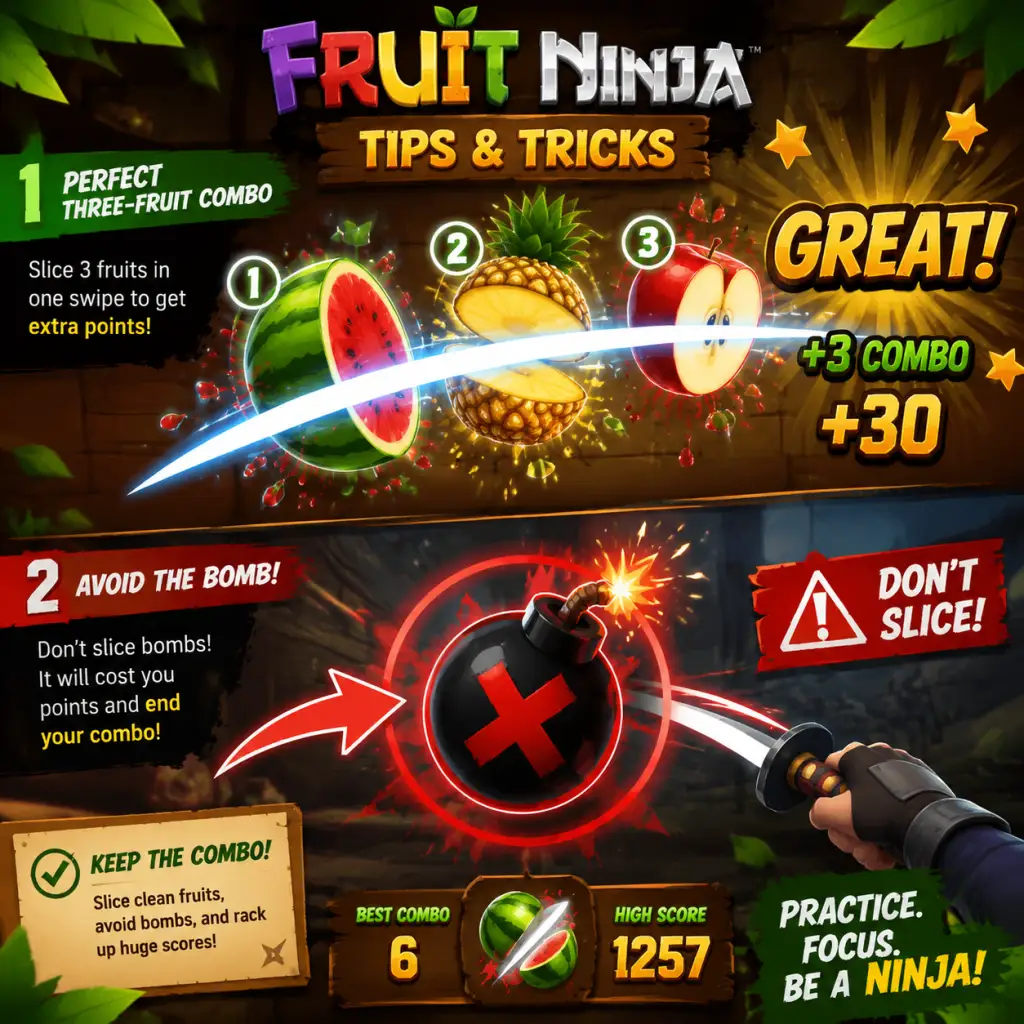
Game Tips
Fruit Ninja Game Tips
Introduction
Fruit Ninja is an arcade action game focused on slicing fruit and avoiding bombs. Unlike RPGs or adventure games, it has no exploration, resource gathering, builds, or economy. Instead, the entire gameplay revolves around combat (slicing technique), score optimization, power-up usage, and mode-specific strategies. This guide covers every aspect of becoming a better slicer, from the first apple to the legendary 1000+ combo.
---
1. Slicing Techniques (Combat)
The core skill is how you swipe. Beyond tapping frantically, precise slicing can double your score.
Beginner: One Fruit at a Time
- Get comfortable with single slices – Your first goal is to consistently hit every fruit and avoid bombs. Swipe from the edge of the screen toward the fruit, following its trajectory.
- Use simple straight swipes – Don’t try curving yet. A straight left-to-right line is easiest to aim.
- Prioritise safety – If a bomb appears near fruit, kill it first. Even if you miss a fruit, don’t risk hitting the bomb.
- Master curve swipes – Draw an arc (like the letter 'C') to slice multiple fruit in one move. Practice on the slow-paced "Classic" mode.
- Slice through clusters – When fruit clump together, one curved swipe can cut 3–5 pieces. This reduces wasted motion.
- Cut fruit just before they exit – Fruit at the screen’s edge are harder to hit. Aim for fruit near center – you have more time.
- The Cradle technique – Hold your finger (or controller stick) at the bottom center. When fruit appear, swipe upward in a semi-circle, catching multiple pieces. Then return to center and repeat. This minimises hand movement and increases speed.
- Bomb deception – If a bomb is among fruit, swipe around it. Do not panic-swipe through it. Use short, tight curves that avoid the bomb’s hitbox.
- Double-tap bombs – In Zen mode, bombs can be “deactivated” by tapping them (on mobile) or pressing a button (on console/PC). This removes them without penalty. Always tap bombs immediately.
- Never hit bombs – A bomb ends Classic mode instantly and subtracts 10 points in Arcade. It’s better to miss a fruit than hit a bomb.
- Slice every pomegranate – The pomegranate (red-magenta fruit that looks like a small bomb but is not) explodes into multiple seeds when sliced. Each seed counts as a fruit. Always prioritise it.
- Don’t ignore bananas – Bananas often appear in groups. One swipe can get 3–4 bananas easily.
- Build up the streak meter – In Classic and Arcade, the multiplier increases after each consecutive fruit slice without hitting a bomb or missing too many. A missed fruit resets the streak. A bomb ends it.
- Never miss in a row – If you miss one fruit, immediately refocus; missing two in a row lowers multiplier. Use the “Cradle” technique to maintain rhythm.
- Ultra streak threshold – At 20+ consecutive slices, the multiplier caps at 10x (Classic) or 8x (Arcade). After that, every fruit is worth 8–10 points. Prioritise consistency over single big slices.
- Freeze banana strategy – When you slice a freeze banana (blue), time slows for a few seconds. During this, all fruit move slowly. Slice every fruit on screen—this is your chance to massively boost streak without fear. After freeze ends, the streak remains.
- Bomb in Arcade mode – In Arcade, hitting a bomb gives +10 points but removes one life. If your streak is high, a bomb can interrupt it. Only intentionally hit bombs if you have many lives (e.g., using a shield power-up).
- Frenzy banana – The yellow frenzy banana spawns a flurry of fruit for 2 seconds. In that time, do rapid small swipes rather than wide arcs. Each swipe can catch 2–3 fruit; don’t waste motion.
- Start with the classic blade – It has no special effects, which forces you to learn fundamentals. Don’t jump to a powerful blade too soon.
- Use the dojo for practice – The dojo (training mode) lets you slice without penalty. Practice curve swipes and bomb avoidance for 10 minutes daily.
- Slice-cicle – A blade that freezes fruit. Great for beginners because it slows fruit after first hit, making follow-ups easier. Combine with freeze banana for double freeze.
- Shield – Protects against one bomb hit per game. Essential for Classic high-score runs where one mistake ends the run.
- Extra blades – Some blades give more combo points. The “True Blade” does 2x damage to pomegranates (though pomegranates don’t have HP – it’s actually just cosmetic). The “Ryujin” sword adds a fire trail that counts as an extra slice every time you cut, effectively doubling score on each fruit. Ryujin is the best scoring blade – get it as soon as possible.
- Use power-ups consecutively – In Classic, you can activate power-ups (like Shield, Freeze, Double Points) before a round. Time them for when the fruit density is highest (e.g., after the first 30 seconds).
- Double Points + Freeze – If you have both, activate Double Points first, then Freeze. That way each fruit during freeze gives 2x points, and you can slice them all safely.
- Avoid using power-ups in early game – Save them for the last 30 seconds when fruit spawn speed is maxed. That’s when multiplier is hardest to maintain.
- Set a goal: First try to survive 60 seconds. Then aim for 100 fruit. Eventually 150+.
- Watch the edges – Bombs often appear near the top corners. Keep your finger centered to react quickly to unexpected fruit.
- Pace yourself – In the first 30 seconds, fruit are slow. Build your streak multiplier to 5x before the speed increases. After that, you can afford a few misses.
- Three lives, high pace – Arcade gives you three lives, but each bomb costs one life. The goal is score, not survival.
- Always slice bombs if you have lives left – Bomb gives +10 points. In Arcade, you get three lives, so treat bombs as bonus points. But if you have only one life left, avoid bombs.
- Use freeze bananas to extend life – During freeze, you can safely slice everything; use that time to regain composure.
- No bombs, no lives – Zen is pure slicing. Use it to practice curve swipes, multi-fruit arcs, and to test new blades.
- Focus on pomegranates – Because there are no bombs, you can focus entirely on hitting every pomegranate and banana. This mode is ideal for learning the spawn patterns.
- Steal fruit from opponents – In party mode, fruit that appear on your side are yours; but if you swipe into the opponent’s side, you can steal theirs. Be aggressive.
- Bomb passing – If a bomb appears on your side, you can swipe it toward the opponent’s area—it will explode there and cost them a life. This is a high-level trick.
- Play Classic mode to earn stars – Each run gives 1–3 stars based on score. Stars unlock new dojos and blades. Aim for 1 star per run first.
- Complete daily challenges – These give easy star bonuses and sometimes special blades or power-ups.
- Save up coins (in-game currency) – Coins are earned by playing. Do not waste them on cosmetic backgrounds. Save 5000 coins for Ryujin.
- Use the “Double Points” power-up – It’s cheap and effective for achieving high scores needed for 3-star ratings.
- Some achievements require extreme scores – e.g., “Slice 1000 fruit in one Classic game”. To achieve this, use Ryujin blade + Shield + Double Points, and play a flawless game with freeze bananas maximising multiplier.
- Do not buy power-ups with real money – They are rarely worth it. The free daily power-up is sufficient.
- Calibrate your device – On mobile, adjust the screen sensitivity in settings. On PC, match cursor speed to your reaction time.
- Minimise distractions – Any small delay (like a notification) can cost you a bomb hit. Turn on Do Not Disturb.
- Warm up with Zen mode – Play 3 minutes of Zen before attempting a high-score run.
- Use fingers, not stylus – Stylus can reduce precision due to screen angle. Index finger is best.
- Two-finger technique – For advanced players, use two fingers to slice simultaneously from opposite sides. This can catch fruit from both edges. Practice in Zen first.
- Use controller analog stick – The analog stick gives smooth curves. Keep your thumb on the stick at all times; do not lift it between swipes.
- Mouse control – On Steam, some players use a mouse with the button held down (click and drag). Set mouse sensitivity to medium-high.
- Always end a run with a bomb? – In Arcade, intentionally hit a bomb when you have 3 lives to score +10. But ensure you have at least one life left for later.
- The 1000 fruit challenge – Requires extreme concentration. Divide the game into thirds: first 30 seconds build multiplier, middle 30 maintain, last 30 survive. Use freeze bananas to reset tempo.
Intermediate: Curve Slices & Multi-Fruit
Advanced: The “Cradle” & Bomb Avoidance
---
2. Score Optimization
Your score is the number of fruit sliced per game. Bonuses come from streak multipliers and special fruit.
Beginner: No Bombs & Pomegranate Priority
Intermediate: Streak Multiplier
Advanced: Freeze & Bomb Combos
---
3. Power-ups & Blades (Equipment)
Fruit Ninja offers blades, power-ups, and special items that affect slicing. These are unlocked via progression or microtransactions.
Beginner: Basic Blade & Dojo
Intermediate: Best Power-ups for Score
Advanced: Power-up Timing & Stacking
---
4. Game Mode Strategies
Fruit Ninja has several modes: Classic, Arcade, Zen, and others (like Party, Sundae, etc.). Each demands a different approach.
Classic Mode (Beginner & Intermediate)
Arcade Mode (Score Chasers)
Zen Mode (Relaxed Practice)
Party Mode (Multiplayer)
---
5. Progression & Unlocks
Fruit Ninja has no true “leveling” but you unlock blades, power-ups, dojos, and backgrounds through star ratings and achievements.
Beginner: Earn Stars
Intermediate: Unlock the Ryujin Blade
Advanced: Max Out Achievements
---
6. General Tips & Platform-Specific Advice
All Platforms
Mobile Specific
Console/PC Specific
Boost Your High Score
Conclusion
Fruit Ninja is deceptively simple but rewards deep technique. Master slicing, power-ups, and mode-specific strategies to reach the top of the leaderboard. Remember: consistency beats flashiness. Happy slicing!
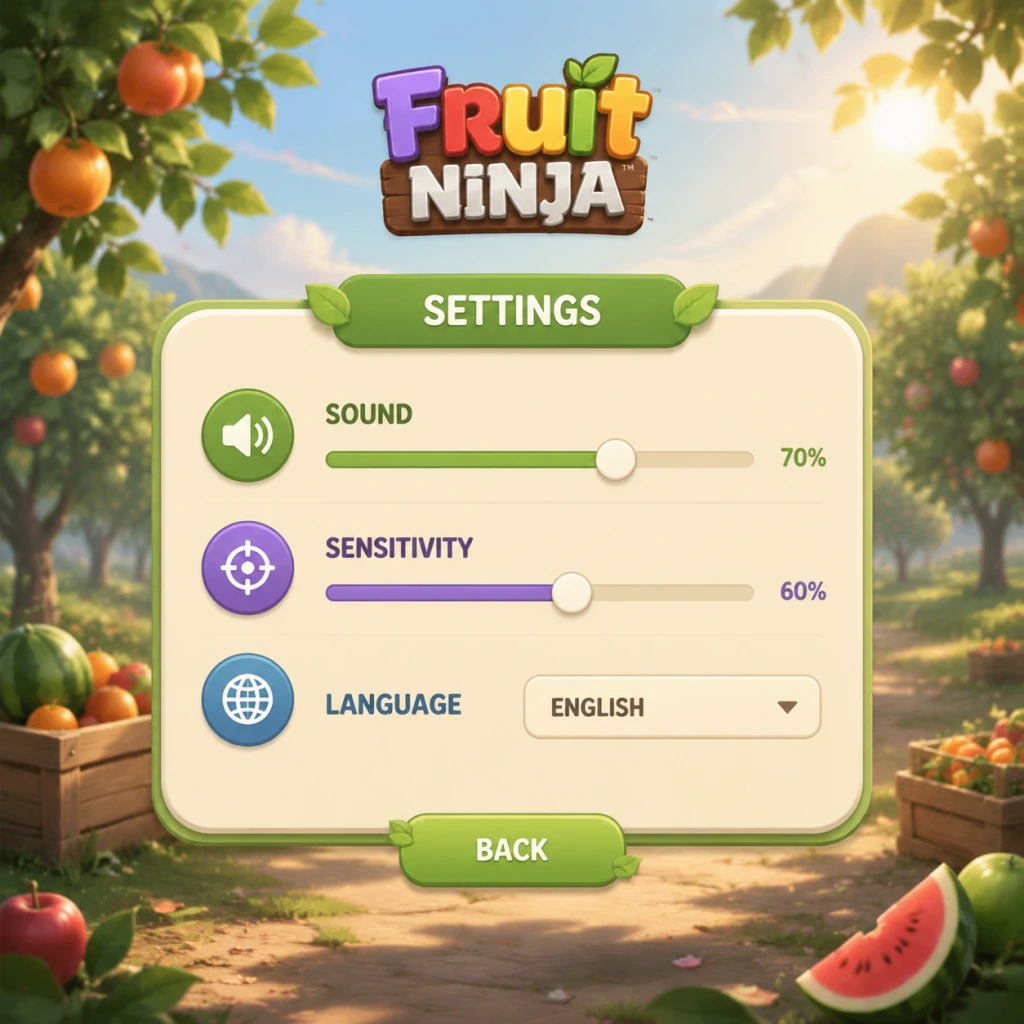
Game Settings
Fruit Ninja Game Settings Guide
Overview
Fruit Ninja is a lightweight arcade game that runs smoothly on almost any hardware. However, tweaking certain settings can significantly improve your slicing precision, reduce distractions, and tailor the experience to your platform. This guide covers every settings menu—graphics, audio, controls, accessibility, language, network, and gameplay—with optimal recommendations for low-end, mid-range, and high-end systems, plus pitfalls to avoid.
Graphics Settings
Graphics options are available only on PC (Steam, Microsoft Store) and mobile devices. Console versions run at a fixed resolution and refresh rate.
Available Options
- Resolution: PC only. Choose your monitor’s native resolution for best clarity. Lower resolutions can improve performance on very old hardware, but Fruit Ninja is not demanding.
- VSync: Prevents screen tearing. Enable if you see tearing; disable for slightly lower input lag on high-refresh-rate monitors.
- Particle Effects: Controls explosion and juice splatter intensity. Set to Low if you experience frame drops on low-end PCs or older mobile devices.
- Bloom: Bright glow on sliced fruit. Disable for a crisper look and minor performance gain.
- Anti-Aliasing: Smooths jagged edges. FXAA is sufficient; MSAA is unnecessary given the simple art style.
- Display Mode: Windowed, Fullscreen, or Borderless Windowed. Fullscreen offers best performance; Borderless allows quick alt-tabbing.
Recommended Settings by Hardware Level
| Setting | Low-End (Intel HD Graphics) | Mid-Range (GTX 1050 / RX 560) | High-End (RTX 2060+) |
|---|---|---|---|
| Resolution | 720p or 900p | 1080p | 1440p or 4K |
| VSync | Off | On (if tearing) | On at native refresh |
| Particle Effects | Low | Medium | High |
| Bloom | Off | Off | On |
| Anti-Aliasing | None | FXAA | FXAA |
| Display Mode | Fullscreen | Fullscreen | Fullscreen |
Audio Settings
Audio settings are identical across all platforms.
- Master Volume: Overall game sound.
- SFX Volume: Sound effects for slicing, bombs, power-ups, and blade sounds.
- Music Volume: Background music.
- Voice Volume: Announcer and combo shouts (e.g., “Excellent!”).
- Swipe Sensitivity: Determines how quickly a touch is registered as a swipe. Higher values require faster movement; lower values register slow swipes. Default is usually fine, but if you find your cuts missing, increase sensitivity.
- Blade Trail: Visual feedback for your finger path. Keep On.
- Blade Color: Cosmetic, no gameplay effect.
- Mouse Sensitivity: Affects the distance needed to register a slice. Start at default; adjust if you overshoot fruit (lower) or need more range (higher).
- Key Bindings: Some versions allow remapping. Default: Click and drag to slice. No keyboard shortcuts for slicing (must use mouse).
- Controller Support: Xbox/PlayStation controllers work via Steam Input. Set up analog stick or touchpad for slicing. Recommended: Use the right stick for slashing motions. Sensitivity settings apply to controller sticks too.
- Stick Sensitivity: Same logic as PC mouse sensitivity. If you find the slice curving unexpectedly, lower sensitivity.
- Motion Controls (Switch only): Tilt to aim? Not standard—only uses stick. Check if motion slicing is available in options; if yes, disable unless you prefer gyro aiming.
- Bomb Flash: When a bomb appears, the screen flashes. Can be toggled for players with photosensitivity or for clarity.
- Subtitles: For announcer lines (available in some versions). Enable if you have hearing difficulties.
- Colorblind Mode: Changes bomb and fruit colors to more distinguishable palettes (e.g., blue/purple bombs instead of black). Available on mobile and modern PC builds.
- Reduced Motion: Disables extra particle effects and animations for motion sensitivity. Improves clarity as well.
- Font Size: Not changeable; the game uses large, clear fonts by default.
- Online Leaderboards: Enable to submit your high scores. Requires internet connection. Disable if you play offline to avoid annoying “connection lost” popups.
- Cloud Save: Syncs progress across devices. Recommended to turn on if you use multiple platforms (e.g., Steam and mobile via same account).
- Multiplayer (if available in your version): Matchmaking region and NAT type. Usually automatic. If you experience lag in Versus mode (some mobile versions), switch to a server region closest to you.
- Blade Trail Duration: How long the slash trail lingers. Shorter = less screen clutter; longer = more visual feedback. Default is fine.
- Score Display: Show live score or hide it. Keep visible for high-score attempts.
- Bomb Explosion Effect: May be toggleable. On by default; can be disabled for cleaner view.
- Auto-Retry: In Arcade mode, some versions ask if you want to try again after dying. Enable to save a tap.
- Classic Timer Display: In Classic mode, you see a countdown. No option to change it.
Optimal: Leave all at 100% for classic arcade feel. Reduce SFX if playing in a quiet environment or if bomb sounds startle you. Some players mute music to focus on the rhythm of bomb beeps.
Pitfall: The bomb warning sound is part of SFX, not music. If you lower SFX too much, you might miss bomb audio cues—especially dangerous in Arcade mode where bombs end the game.
Controls Settings
Controls vary greatly by platform. This section covers the most important adjustments.
Mobile (Touch)
PC (Mouse & Keyboard)
Console (PS, Xbox, Switch)
Special Attention: Sensitivity and Slice Precision
Misconfigured sensitivity is the #1 cause of missed slices. Test in Zen Mode (no bombs) after changing sensitivity. If you repeatedly miss fruit on the edges, turn sensitivity down. If you cannot slice fast fruit at the center, turn it up. On mobile, also ensure your screen protector does not reduce touch responsiveness.
Accessibility Settings
Fruit Ninja offers a few helpful features:
Optimal Setup: Enable Bomb Flash (it helps even without conditions), and if you have mild colorblindness, toggle Colorblind Mode to avoid confusing bomb fuses with fruit stems.
Language Settings
The language option is usually found in the main menu or settings gear icon. The game supports dozens of languages. Important: The language change affects UI text and announcer voice (if available). On PC, voice language is tied to game language; on mobile, you can sometimes separate them. If you prefer the original English announcer but want menu text in your language, check for separate “Voice Language” option. If not available, you may need to keep the entire game in English.
Misconfiguration Tip: Some players accidentally set language to a script they cannot read, then cannot navigate back to change it. Memorize the settings icon position: It’s usually a gear or wrench in the top-right corner. If you change language and cannot read the menu, tap that icon, then look for a flag or language list (often the second option). Alternatively, reinstall the game to reset language.
Network Settings
Fruit Ninja primarily works offline. Network settings are minimal:
Attention: If you are on PC and use mods or trainers, disable cloud saves to prevent sync corruption or bans.
Gameplay Settings
These settings affect how the game plays.
Optimal: Keep all defaults. The only tweak worth making is disabling Bomb Explosion Effect if you find the explosion surprises you—but it also provides visual feedback of your mistake.
Summary of Must-Change Settings
| Setting | Recommendation | Reason |
|---|---|---|
| Mouse/Stick Sensitivity | Medium (adjust per feel) | Too high or low causes missed slices |
| Bomb Flash | On | Helps anticipate bomb damage |
| Language | Your preferred language | Ensure you can read menus |
| Online Leaderboards | Off if offline | Prevents error prompts |
| Colorblind Mode | On if needed | Improves fruit/bomb discrimination |
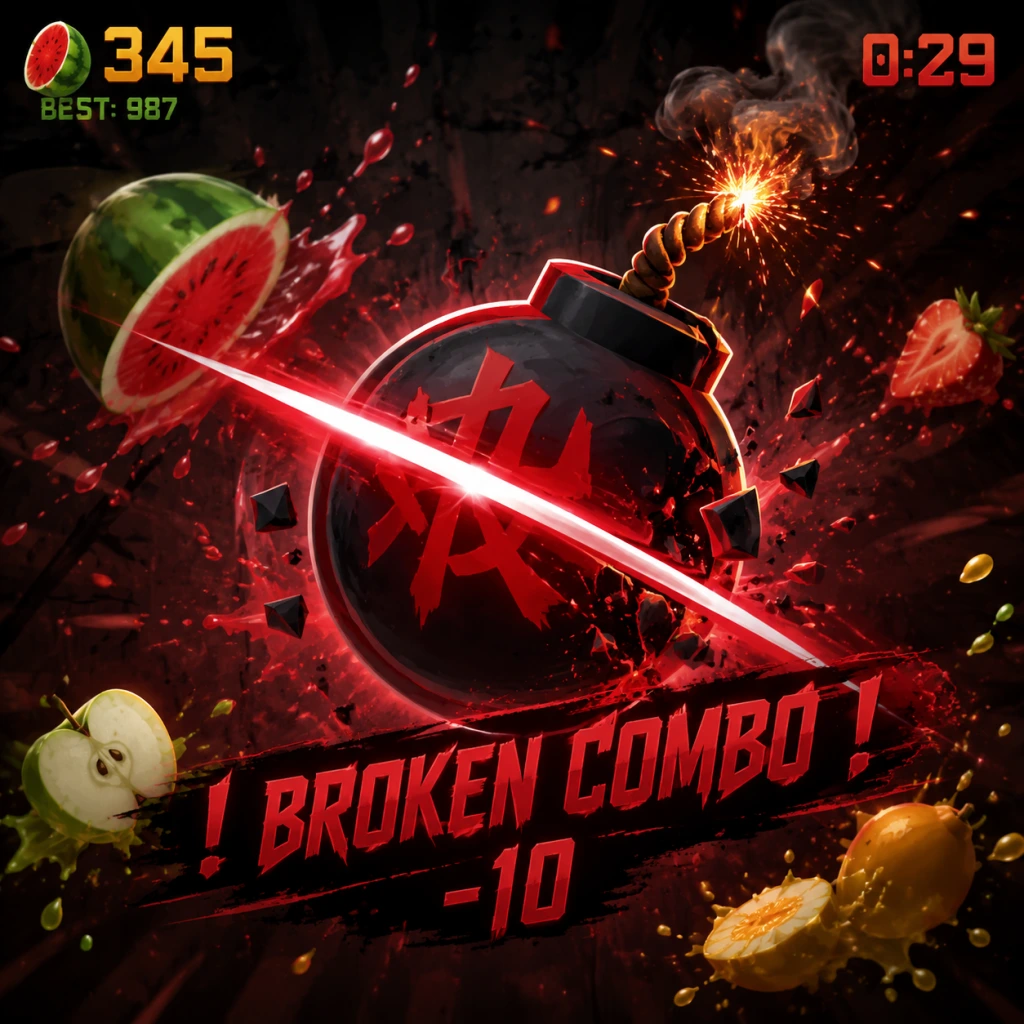
Important Notes
Important Notes
1. Warnings & Pitfalls
- Bombs break combos: Any swipe that touches a bomb instantly ends your combo streak, even if you also slice fruit. In Classic mode, a bomb hit ends the game immediately. In Arcade mode, it only breaks the combo but does not end the game. Always keep your swipes clear of bombs.
- Missed fruit reduce score: In Classic mode, missing three fruits ends the game. In Arcade mode, missed fruit do not end the game but reduce your combo potential. Pay attention to the entire screen, especially edges where fruit can escape.
- Time-limited items: Many blades and dojos are only available during special events (e.g., seasonal holidays, collaborations). If you miss an event, those items may never return (or return years later). Always check the store for limited-time offers.
- In-app purchases trap: The premium currency (Star Fruit) is slow to earn for free. Buying a flashy blade with real money might be regretted later if a better limited blade appears. Think before spending real currency.
- Blade and Dojo purchases: Once you spend Star Fruit or coins on a blade or dojo, you cannot refund it. All blades are purely cosmetic, but some have subtle visual effects that may be distracting. Try the free trial (if available) before buying.
- Upgrading power-ups (in some versions): In certain console or mobile editions, power-ups like “Slow Motion” or “Bomb Deflect” can be upgraded. These upgrades are permanent but consume event tokens or coins. Choose wisely based on your preferred game mode (e.g., Arcade vs Classic).
- Mistakenly buying bundles: The shop often offers bundles with multiple items. Ensure you don’t already own one of the items, as duplicates are not compensated.
- Event-exclusive blades: Examples include the “Dragon Blade” (Chinese New Year), “Zombie Blade” (Halloween), and “Flaming Blade” (anniversary). These are only obtainable during events.
- Seasonal dojos: Backgrounds like “Winter Wonderland” or “Haunted Graveyard” appear once a year. Grind event missions to unlock them permanently.
- Achievements tied to events: Achievements like “Slice 100 snowflakes” (Winter event) can only be completed during the live event. Missing them means 100% completion is impossible.
- Party Mode (local multiplayer): On some platforms, Party Mode is a separate download or only available in specific versions. Check your platform’s store before assuming it’s included.
- Classic Mode’s final push: After 50–60 fruits in Classic Mode, the speed and bomb frequency increase dramatically. Many players hit a wall around score 500–800. Practicing two-finger slicing and keeping calm is essential.
- Arcade Mode’s second half: The first 30 seconds of Arcade Mode are easy; the final 30 seconds become chaotic with extreme fruit density and bomb placement. Use the “Freeze” power-up wisely during this phase.
- Zen Mode high scores: Achieving 100+ combos in Zen Mode requires perfect timing; missing one fruit resets the streak. The difficulty spike is mental—stay focused.
- Farming coins in Classic Mode: Endless repetition of Classic Mode yields a few coins per game. If you want all blades, this is a slow grind. Instead, focus on Arcade Mode (which rewards more coins per minute) or daily challenges.
- Chasing leaderboard scores: Obsessing over world leaderboard scores can lead to burnout. Top scores often use exploits or endless grinding. Set personal goals instead.
- Unnecessary upgrades: In versions with power-up upgrades, maxing out “Bomb Deflect” may not be worth the tokens if you rarely play Arcade Mode. Prioritize upgrades that match your favorite mode.
- Leaderboard rules: Fruit Ninja leaderboards are global and generally clean. Using mods, trainers, or hacked APKs will result in a permanent ban from leaderboards and possibly account suspension. On Steam, VAC is not used, but the game’s own anti-cheat detects score tampering.
- Multiplayer etiquette (Party Mode): In local multiplayer, take turns gracefully. If using online multiplayer (rare), avoid disconnecting mid-match to save your score.
- Spectating or recording: If you stream or record gameplay, ensure no copyrighted music is played (if you have custom soundtracks). The game’s music is safe.
- Cloud saves: On mobile, sync with Game Center (iOS) or Google Play Games (Android). On Steam, enable Steam Cloud. Uninstall without cloud sync = lost progress.
- Manual backup (PC): Locate your save file at `%APPDATA%\FruitNinja` (Windows) or `~/Library/Application Support/FruitNinja` (Mac). Copy this folder before reinstalling or switching devices.
- Cross-platform limits: Progress does not transfer between platforms (e.g., from iOS to Android). If you switch devices, you start over.
- What is saved: Unlocked blades, dojos, achievements, high scores, and accumulated coins. Power-up levels (if applicable) are also saved.
- Two-finger slicing is critical: Many players start using one finger, but using two fingers (or more) allows you to slice multiple fruit simultaneously and build combos faster. Practice splitting your swipes.
- Turn off screen shake: In settings, disabling “Screen Shake” removes visual clutter, making it easier to see fruit and bombs during high-speed gameplay.
- Bombs are not always instant death: In Arcade Mode, hitting a bomb only drains your time—it does not end the game. Use this knowledge to risk slicing near bombs for a combo bonus.
- Special blades have no gameplay effect: All blades behave identically regardless of rarity. Don’t spend real money expecting a competitive advantage.
- The “Bonus” fruit (pomegranate) is worth extra points: In Classic Mode, slicing the pomegranate (a large red fruit) yields many points. Always prioritize it. In Arcade Mode, it adds time.
- Daily challenges give generous rewards: Log in daily to earn free coins, event tokens, and sometimes exclusive blades. Missing a day delays unlocking desired items.
- Pausing is allowed: In all single-player modes, you can press the pause button (or tap the pause icon) to take a breather. Use this during chaotic moments to plan your next moves.
- Sound effects help timing: The sound cue of a bomb is distinct. Playing with sound on (or using headphones) can alert you to bombs just off-screen.
2. Irreversible Choices
3. Missable Content
4. Difficulty Spikes
5. Grinding Traps
6. Online Etiquette & Anti-Cheat
7. Save Management
8. Things Players Commonly Regret Not Knowing Earlier
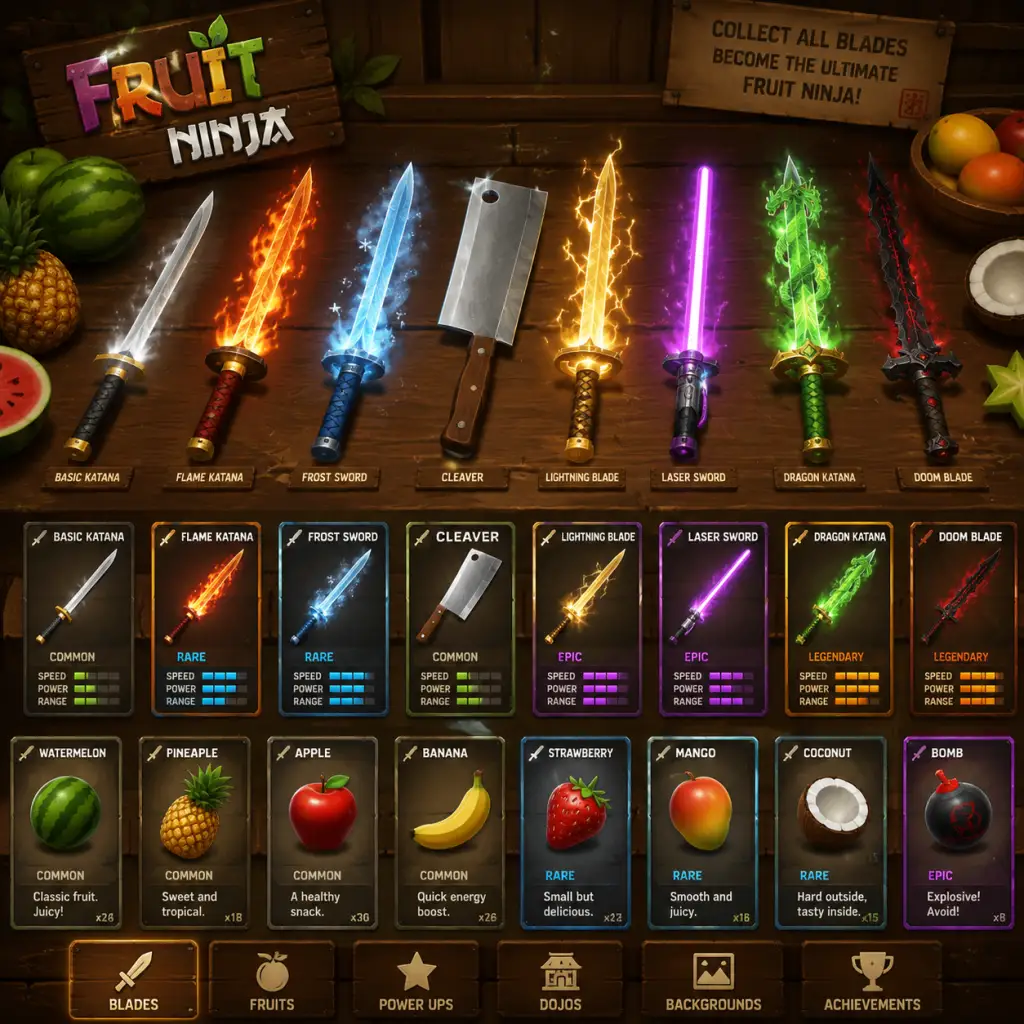
All Game Items
All Game Items in Fruit Ninja
This guide covers every major item category in Fruit Ninja, including blades (weapons), power-ups, currencies, dojos (backgrounds), bladetrails, and other collectibles. Items are grouped logically with descriptions, acquisition methods, optimal usage, and key synergies.
---
1. Blades (Primary Equipment)
Blades are the core equipment in Fruit Ninja. Each blade changes the visual slicing effect and many have unique special abilities. Blades are unlocked via coins, achievements, events, or in-app purchases. Some blades also grant score bonuses or alter fruit behavior.
#### 1.1 Basic Blades
| Blade Name | Effect | How to Obtain | Best Use |
|---|---|---|---|
| Standard Blade | No special effect; classic white slash. | Default unlocked. | All modes; no downsides. |
| Katana | Longer, curved slash trail. | Unlock with 5,000 coins. | Looks cool—no mechanical benefit. |
| Icy Blade | Freezes fruit on contact; frozen fruit shatter and give +2 points each. | Unlock with 15,000 coins or via achievement. | Excellent in Arcade mode to maximize score from ice explosions. |
| Flaming Blade | Sets fruit on fire; burning fruit explode and also drop score bonuses. | Unlock with 15,000 coins. | Use with combos that chain fire explosions for huge point bursts. |
| Shuriken | Throwing star shape; no special effect. | Purchase from store for 8,000 coins. | Purely cosmetic. |
| Lightning Blade | Electric effect; occasionally double-strikes fruit (secondary slash). | Unlock after reaching level 10 (if leveling system exists) or via event. | Great for glass fruit—guarantees slicing even on glancing hits. |
| Bamboo Blade | Wooden sound; no special effect. | Earn by scoring 50,000 points in a single Classic run. | Cosmetic only. |
| Truffle Blade | Chocolate splatter; +5% score multiplier. | Unlock in special event (e.g., Valentine's). | Synergizes with score multipliers power-up. |
| Ultra K.O. Blade | Golden glow; +10% score multiplier. | Reward for completing all Classic mode achievements. | Best for high-score chasing. |
| Blade Name | Effect | How to Obtain | Best Use |
|---|---|---|---|
| Blade of Awesomeness | Rainbow trail; +20% score multiplier. | Obtain by collecting all Golden Tickets (rare). | Maximum score potential; pair with Frenzy power-up. |
| Gladiator Blade | Roman sword design; +1 extra life in Classic mode (only once per run). | Unlock by achieving 100 consecutive slices without bomb in Classic. | Classic mode only; gives safety net. |
| Neon Blade | Neon glow; no special effect. | Purchase from store for 25,000 coins. | Cosmetic; popular for visibility. |
| Pixel Blade | 8-bit sound effects; no special effect. | Unlock via hidden achievement: slice 1,000 fruits in Zen mode. | Nostalgic; no gameplay impact. |
| Slasher Blade | Jagged trail; +5% chance to avoid bomb damage (bomb doesn't end streak). | Unlock by slicing 500 bombs in Arcade mode. | Arcade mode risk reducer. |
| The Nice Blade | Pink heart-shaped slice; +2 extra seconds in Zen mode. | Obtain from Valentine's event. | Zen mode exclusive. |
| The Naughty Blade | Devilish red slice; +2 extra seconds in Arcade mode. | Obtain from Halloween event. | Arcade mode extended timer. |
| Leprechaun Blade | Green clover trail; doubles coin pickups. | St. Patrick's Day event. | Use in Classic to farm coins faster. |
| Heart Blade | Heart-shaped slice; +5 seconds in Zen mode. | Buy with 40,000 coins after unlocking Nice Blade. | Zen mode high-score runs. |
2. Power-Ups (In-Game Temporary Boosts)
Power-ups appear randomly during gameplay in Arcade and Classic modes. They are not inventory items you carry—they manifest as floating icons that you must slice to activate.
| Power-Up | Effect | Duration | When to Prioritize |
|---|---|---|---|
| Freeze | All fruit slow down drastically, making slicing easier. | ~5 seconds. | Use when multiple fruits are clustered or when you need to set up a big combo. |
| Frenzy | Rapid continuous slicing of multiple fruits; score multiplier increases during effect. | ~8 seconds. | Activate when many fruits are on screen or just after a bomb clears. Maximizes combo chains. |
| Score Multiplier (2x) | Doubles all points earned during the effect. | ~10 seconds. | Combine with Frenzy or a full screen of fruit for exponential score. |
| Bomb Shield | Next bomb hit is ignored—streak continues. | Single use until bomb is hit or duration expires (~15 seconds). | Use if you have a long combo going and see a bomb approaching; gives safety for risky slices. |
| Star Fruit Storm | Spawns many Star Fruit (extra points, +10 each) on screen. | Instant effect (multiple fruit appear). | Activate when you have no fruit to slice—immediately start slicing for bonus points. |
- Power-ups do not stack with identical ones; using a second Freeze while one is active refreshes duration.
- In Classic mode, power-ups appear rarely; in Arcade mode they appear more frequently.
---
3. Currencies
Fruit Ninja uses two primary currencies, plus an event currency.
| Currency | Icon | Purpose | Acquisition |
|---|
| Star Fruit | Small star-shaped item | Only used for buying extra lives in Classic mode (via in-game store pop-up). | Rare drops from high-combo slices or as a reward for achievement milestones.
| Golden Ticket | Gold ticket | Used to unlock exclusive event blades (like Blade of Awesomeness) or enter VIP challenges. | Awarded from completing all daily challenges in a month, or via special promotions.
Currency Tips:
- Coin farming is best done in Classic mode; aim for long combos and slice every fruit (including bombs carefully).
- Never waste Star Fruit on extra lives early in a Classic run—save it for late-game high scores.
- Golden Tickets are extremely rare; hoard them until you can afford a blade that permanently boosts score.
---
4. Dojos (Backgrounds)
Dojos are purely cosmetic backgrounds that change the visual theme of the game. They have no effect on gameplay but some are tied to achievements.
| Dojo Name | Description | How to Unlock |
|---|---|---|
| Classic Dojo | Traditional wooden temple with bamboo. | Default. |
| Sakura Garden | Cherry blossom trees and floating petals. | Unlock with 10,000 coins. |
| Neon City | Cyberpunk night skyline with neon lights. | Unlock by scoring 1,000,000 points total lifetime. |
| Haunted Hall | Dark, spooky interior with cobwebs. | Halloween event. |
| Winter Wonderland | Snowy landscape with falling snowflakes. | Winter holiday event. |
| Space Station | Starry space backdrop with orbiting fruit. | Unlock with 25,000 coins. |
| Pixel Playground | 8-bit retro style. | Unlock by completing all Zen mode achievements. |
| Underwater Reef | Coral reef with bubbles. | Unlock with 15,000 coins. |
| Volcanic Core | Lava flow and embers. | Unlock by slicing 10,000 fruits total. |
5. Bladetrails & Slicing Effects
These are cosmetic enhancements that alter the visual trail left by your blade. They do not affect gameplay.
| Trail Name | Color/Effect | How to Obtain |
|---|---|---|
| Standard White | Default white trail. | Free. |
| Red Rage | Red fiery trail. | Unlock with 5,000 coins. |
| Blue Bolt | Blue electric trail. | Unlock with 7,500 coins. |
| Green Toxic | Green slime trail. | Unlock by achieving 3,000 in a single Zen run. |
| Purple Haze | Purple smoke trail. | Unlock with 10,000 coins. |
| Gold Rush | Gold sparkle trail. | Unlock with 20,000 coins. |
| Rainbow Stream | Multicolor gradient trail. | Unlock by completing all Arcade mode challenges. |
6. Consumables & Miscellaneous Items
Fruit Ninja has no traditional consumable inventory (like potions or bombs). However, there are one-time use items from certain events or store packs:
- Extra Life (Classic Mode) : Purchased with Star Fruit (3 pieces) during a Classic run. Instantly revives you after a bomb hit, allowing the run to continue from that point. Only one use per run.
- Double Coins Boost : A consumable that doubles coin drops for the next 10 minutes of play (available in some mobile versions via ad watch or small purchase).
- Mega Splatter : A rare power-up that causes all fruit on screen to explode in a chain reaction (only obtainable via special crate drops in certain versions).
---
7. Collectibles & Achievement Rewards
Some items are unlocked by completing specific achievements or challenges.
| Collectible | Effect | Achievement Required |
|---|---|---|
| Golden Pineapple | Cosmetic icon (profile). | Slice 1,000 pineapples total. |
| Diamond Fruit Trophy | Cosmetic icon. | Score 100,000 points in a single Classic run. |
| Bomb Master Emblem | Cosmetic icon. | Slice 1,000 bombs without ending a run (in Arcade mode). |
| Zen Master Badge | Cosmetic icon. | Complete Zen mode with 100% accuracy (no misses). |
| Combo King Crown | Cosmetic icon. | Achieve a 50x combo multiplier. |
---
8. Synergies & Item Combinations
To maximize performance, combine items logically:
- Score Farming in Arcade: Use Ultra K.O. Blade (or Blade of Awesomeness) + Frenzy power-up + Score Multiplier. Activate Frenzy first to build combo, then hit a multiplier power-up if it appears.
- Classic Mode Survival: Use Gladiator Blade (extra life) + Bomb Shield power-up. Save extra life for late game when bombs become frequent.
- Coin Grinding: Use Leprechaun Blade (doubles coins) and prioritize slicing golden fruit. Equip the Double Coins Boost consumable from the store.
- Zen Mode High Score: Use Nice Blade or Heart Blade (extra time) + Freeze power-up to slow fruit and carefully slice every one for perfect accuracy bonuses.
- Bomb Avoidance Training: Use Slasher Blade (bomb damage reduction) to learn patterns without punishment.
- No Armor or Equipment: Fruit Ninja is an arcade game; there is no armor, weapons besides blades, or traditional RPG inventory.
- Items Are Purely Cosmetic or Score-Optimizing: None affect movement or controls.
- Events Vary by Platform: Always check the in-game store for limited-time blades and dojos.
- Unlock Costs Increase: Later blades cost more coins; prioritize the ones that give score multipliers or survival benefits early.
Note: Not all blades and power-ups appear in every version of Fruit Ninja (e.g., mobile vs. console). This guide covers the most common items across the franchise.
---
9. Important Notes
---
Conclusion
Mastering Fruit Ninja's items means knowing which blade suits your playstyle and which power-ups to prioritize. Grind coins for the Ultra K.O. Blade, hoard Golden Tickets for the Blade of Awesomeness, and use dojos to keep the game fresh. Remember that practice with the right gear can push your score far beyond raw skill alone. Happy slicing!
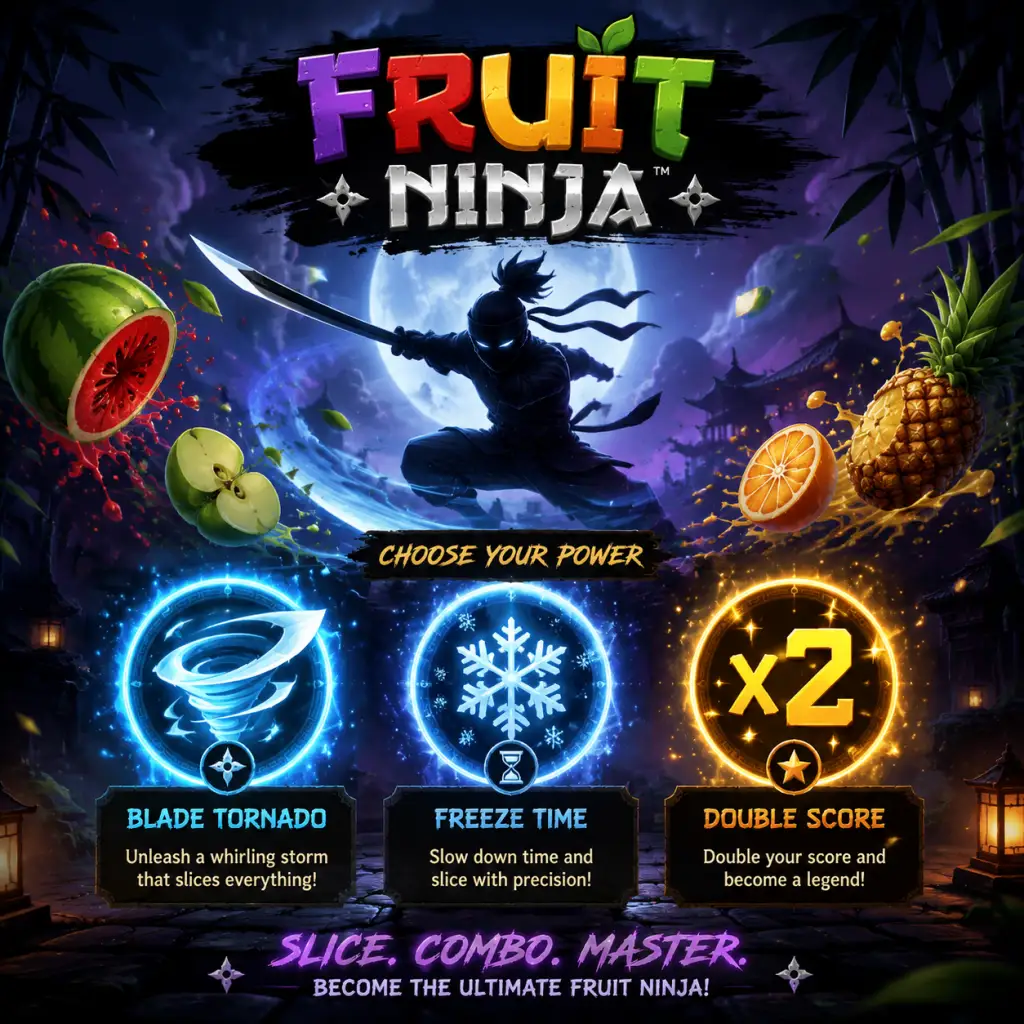
Character Skills
Overview
Unlike RPGs or action-adventure games, Fruit Ninja does not feature playable characters with unique skills, ability trees, spells, or talents. Every player uses the same core mechanic—swiping to slice fruit. The “character” is represented solely by cosmetic items (blade skins, dojos, and bladetrails) that have no effect on gameplay. However, the game does offer a set of player skills (techniques and strategies) that can be mastered to improve score and performance. This guide covers every meaningful skill, technique, power-up, and situational tactic in Fruit Ninja.
---
Core Swipe Skills
Every slice is a swipe. Mastering the following swipe types will dramatically increase your accuracy, combo potential, and score.
1. Basic Swipe
- Description: A straight line from point A to point B across the screen (or using mouse/controller).
- Effect: Slices any fruit your swipe passes through. One swipe can hit multiple fruit if they are aligned.
- When to use: Default motion for isolated fruit or when you want to be precise.
- Tip: Keep swipes short and quick – long swipes are harder to control and may hit bombs accidentally.
- Description: A curved motion, often starting from one side of the screen and looping around to catch fruit in a broad arc.
- Effect: Covers a wide area; ideal for groups of fruit spread out horizontally or vertically.
- When to use: When three or more fruit are scattered in a cluster, especially in Zen mode (no bombs).
- Tip: Practice drawing a “C” or reverse “C” that encloses all fruit without dipping into bomb zones.
- Description: A very short, gentle swipe that touches only one fruit.
- Effect: Slices a single fruit with minimal movement.
- When to use: When a single fruit is flying alone and you want to conserve motion for the next batch. Useful in Classic mode to avoid accidental bomb grazes.
- Tip: Tap quickly – a full swipe might catch a nearby bomb.
- Description: A swipe that reverses direction mid-motion (e.g., left-to-right then right-to-left in one continuous move).
- Effect: Allows slicing fruit that are close together but moving in opposite directions.
- When to use: For fruit pairs that cross each other’s path, or to recover if a fruit slips past your first swipe.
- Tip: Only attempt if you have high finger/controller speed; slower backhands can register as separate swipes.
- Description: Rapid, repeated swipes without lifting your finger/stylus (or quickly moving mouse/joystick).
- Effect: Creates a “blender” effect; you can slice many fruit in rapid succession, often achieving manual combos.
- When to use: In Arcade mode when many fruit and power-ups are on screen simultaneously.
- Tip: Keep your hand relaxed – tense swipes tire you and reduce accuracy.
2. Circular / Arc Swipe
3. Light Swipe (Tap)
4. Backhand Swipe
5. Fast Continuous Swipes
---
Power-Up Skills (Arcade Mode Only)
Arcade mode introduces three temporary power-ups that spawn randomly. They are not tied to character level or unlock; they are found during gameplay. Activating them correctly is a skill.
| Power-Up | Appearance | Effect | Duration | Timing Strategy |
|---|---|---|---|---|
| Freeze | Blue ice crystals | Slows down time for all fruit and bombs | ~3 seconds | Use when the screen is overcrowded or when you need to set up a massive combo. Do not use early in the round; save for high-score multipliers. |
| Double Score | Golden stars | All points earned during the effect are doubled | ~5 seconds | Activate before slicing a large group or during a manual combo. Combines perfectly with Freeze – freeze first, then double. |
| Bomb | Red bomb icon (not a fruit bomb) | Clears all non-bomb fruit from the screen (does not give points for cleared fruit) | Instant | Only useful when the screen is full of fruit and you are overwhelmed – it resets the field. However, using it wastes potential points; avoid unless necessary. |
---
Combo Skills
Comboing is the single most important scoring skill. Combos multiply your base points.
Manual Combos
- What it is: Slicing three or more fruit in one continuous swipe. The game automatically recognizes a “combo” if the swipe touches at least three fruit (excluding bombs).
- Score Multiplier:
- Skill Tip: To achieve combos, wait until fruit cluster together. Avoid swiping too early. In Classic and Arcade modes, watch out for bombs – if your combo swipe hits a bomb, the combo breaks (and in Classic, game over).
- Practice: Use Zen mode (no bombs) to practice drawing perfect arcs that catch all fruit on screen.
- Description: Rapid slicing of multiple fruit within a short time window; the game tracks a consecutive slice streak. Each streak increases the combo counter displayed on screen.
- Score Bonus: Each consecutive slice adds 1 point to the base per fruit (in addition to the manual combo multiplier). Higher streaks yield massive scores.
- Skill: Maintain a steady rhythm. If you stop for more than ~1 second, the streak resets. Use fast, short swipes – not long, slow ones.
- In Classic mode, a bomb hit ends the game. In Arcade, it ends your combo streak and drains your time meter.
- Invisible Skill: Reading fruit trajectories to predict bomb paths. Bombs always fly at the same angles as fruit. Practice identifying the black fuse and gray shape early.
- Tip: In crowded screens, prioritize identifying bombs before swiping. If uncertain, do a small swipe away from the bomb.
- Goal: Survive as long as possible while accumulating score.
- Skill Focus:
- Goal: Maximum fruit sliced in 90 seconds; no bombs.
- Skill Focus:
- Goal: Highest score in 60 seconds with three lives (miss three fruit = game over).
- Skill Focus:
- 3 fruit: 3x multiplier per fruit
- 4 fruit: 4x multiplier
- 5+ fruit: 5x multiplier (cap)
Multi-Swipe Combos (Arcade Only)
Bomb Avoidance as a Skill
---
Mode-Specific Skills
Classic Mode
1. Patience: Do not swipe frantically – wait for safe combos.
2. Bomb awareness: Bombs can drop at any time. Always keep a finger ready to abort a swipe.
3. Endgame strategy: At high speed, only slice fruit that are safe (i.e., no bombs nearby). Missing fruit is better than hitting a bomb.
Zen Mode
1. Speed and accuracy: Swipe as fast as possible without missing fruit.
2. Arc swipes: Perfect your circular slices to catch all four/five fruit in a wave.
3. Do not stop: Stop even for a millisecond reduces your total count. Continuous motion is key.
Arcade Mode
2. Lives management: Do not miss easy fruit – each miss cost a life. Focus on safe slices unless you are chasing a record.
3. Bomb handling: In Arcade, bombs reduce your time by ~5 seconds. If time is low, avoid bombs; if time is high, you can afford to risk them for combo potential.
---
Recommended “Builds” (Loadout Choices)
Since no character skills exist, your loadout choices are purely cosmetic. However, some players prefer certain blades for visual clarity or feedback.
| Blade Type | Visual Feedback | Recommended For |
|---|---|---|
| Standard (default) | Thin white trail | No preference; universal |
| Heavy Blades (e.g., Katana) | Thick, colorful trail | Players who like visible confirmation of slice path |
| Light Blades (e.g., Sunbeam) | Glowing, particle effect | Those who want to see the exact trajectory (helps with precision) |
| Event/Themed Blades | Unique sounds/animations | Fun factor; no competitive advantage |
Bladetrail – Different colors can help with contrast against fruit colors. For example, a bright bladetrail (white, yellow) stands out against dark fruit, while a dark trail (blue, black) works best on light backgrounds.
---
When to Use Each Skill (Summary Table)
| Skill | When to Use |
|---|---|
| Basic Swipe | Single fruit, or when you need pinpoint accuracy near bombs. |
| Circular Swipe | Groups of 3–5 fruit clustered loosely. |
| Light Swipe (Tap) | Lone fruit during high-speed phases to avoid accidental bombs. |
| Backhand Swipe | Crossing fruit pairs or to catch a fruit that slipped past. |
| Fast Continuous Swipes | Arcade mode when the screen is full and you want to maximize streak. |
| Freeze Power-Up | Just before a large cluster of fruit (ideally with Double Score). |
| Double Score Power-Up | Immediately after Freeze, or when you have a sure manual combo. |
| Bomb Power-Up | Only if the screen is so cluttered that you cannot see bombs – use as emergency reset. |
| Manual Combo | Whenever three or more fruit align without a bomb in their path. |
| Multi-Swipe Streak | Arcade mode only; maintain rhythm throughout the round. |
| Bomb Avoidance | Always – especially in Classic mode where one mistake ends the game. |
| Patience (Classic) | When fruit density is low and bomb risk is high. |
| Speed (Zen) | Entire round – never stop swiping. |
Conclusion
Fruit Ninja may lack traditional character skills, but mastering the player skills detailed above will elevate your slicing prowess. Focus on clean, purposeful swipes, learn to read fruit and bomb patterns, and practice power-up timing in Arcade mode. There is no “best blade” because all are cosmetic – your greatest tool is your own hand-eye coordination. Good luck, and may your combos be endless!
Characters & Roles
Characters & Roles in Fruit Ninja
Overview
Fruit Ninja is an arcade game with no traditional playable characters, classes, or heroes. However, this guide covers every “character” in the broadest sense: the player ninja (avatar), blades (equipment), and the game modes (roles) that define your playstyle. Each is described with background, strengths, weaknesses, unlock conditions, and recommendations.
---
1. Player Ninja (The Slicer)
- Background: A masked ninja warrior honing blade skills by slicing fruit. Multiple skins exist (e.g., Classic Ninja, Shadow Ninja, Golden Ninja) but are purely cosmetic.
- Strengths: Unlimited swipe potential; no stamina or cooldowns. Adaptable to any mode.
- Weaknesses: No unique abilities; performance depends entirely on player skill.
- Playstyle: Reactive and precise. Requires fast reflexes and strategic swiping to avoid bombs and maximize combos.
- Unlock Conditions: Default character unlocked from the start. Skins are earned through achievements, events, or purchased via the in-game store.
- Recommended Equipment: Blades and dojos are cosmetic; choose what feels comfortable visually.
- Team Synergy: No team mechanics exist. In multiplayer modes (Party, Arena), players compete independently.
- Classic Blade: Default, simple blue blade.
- Katana: Curved design, no effect.
- Flame Blade: Leaves a fiery trail; purely visual.
- Ice Blade: Frosty trail; no mechanical freeze.
- Laser Blade: Thin glowing line; no effect.
- Most blades are unlocked by earning stars in Classic mode (e.g., 50 stars for Katana).
- Others are event rewards or purchasable.
- Classic Mode: Any blade – personal preference.
- Arcade Mode: Choose a blade with a clear trail for better visibility (e.g., Flame or Laser).
- Zen Mode: Sleek blade like Katana for minimal distraction.
- Team Synergy: Not applicable.
- Background: Original endless mode; slice fruit while avoiding bombs.
- Strengths: Simple focus on survival and accuracy.
- Weaknesses: One bomb ends the game; high pressure.
- Playstyle: Careful, safe swipes. Prioritize avoiding bombs over slicing every fruit.
- Unlock Conditions: Unlocked by default.
- Recommended Blades: None impactful; choose a subtle blade to reduce distraction.
- Background: Timed mode (60s) with special bananas (Freeze, Double Score, Bomb).
- Strengths: Power-ups boost score potential; fast-paced fun.
- Weaknesses: Relies on power-up collection; less forgiving for mistakes.
- Playstyle: Aggressive, wide swipes to hit multiple fruit and collect bananas. Prioritize Freeze for safety.
- Unlock Conditions: Unlocked by default.
- Recommended Blades: Blade with long trail (e.g., Flame) to see swipe path.
- Background: Relaxed mode with no bombs or time limit; focus on slicing patterns.
- Strengths: Pressure-free practice; no penalties.
- Weaknesses: No combo multiplier; score is lower.
- Playstyle: Experiment with curved swipes or one-handed slicing; perfect for learning tricks.
- Unlock Conditions: Unlocked by default.
- Recommended Blades: Minimalist blade (e.g., Classic).
- Party Mode (Console/Mobile): Multiplayer with up to 4 players sharing a screen. Roles are identical; co-op does not exist.
- Arena (Mobile): Real-time one-on-one score battle. Single role: competitive slicer.
- Freeze: Slows all fruit; transforms you into a precision slicer for a few seconds.
- Double Score: Doubles points – role becomes high-risk, high-reward.
- Bomb: Clears all fruit on screen – use as emergency cleanup.
---
2. Blades (Weapons/Equipment)
Blades are the “weapons” used to slice fruit. In most versions they have no statistical impact on damage, speed, or score – only cosmetic. Notable blades include:
#### Unlock Conditions:
#### Recommended Builds:
---
3. Game Modes (Roles)
Each mode acts as a distinct “role” with different objectives and playstyles.
#### 3.1 Classic Mode – The Survivalist
#### 3.2 Arcade Mode – The Combo Chaser
#### 3.3 Zen Mode – The Meditative Slicer
#### Additional Modes (Platform-Specific):
---
4. Power-Ups as Temporary Roles
Power-ups in Arcade mode act as short-term “abilities” that change your playstyle:
---
5. Team Synergy
Fruit Ninja has no cooperative team roles in any mode. Multiplayer modes are competitive only. There is no synergy between characters, blades, or roles. All players use identical mechanics.
---
6. Summary Table
| “Character” / Role | Type | Strength | Weakness | Unlock |
|---|---|---|---|---|
| Player Ninja | Avatar | Universal | No abilities | Default |
| Blades | Equipment | Cosmetic variety | No stats | Stars/events |
| Classic Mode | Role | Survival focus | Bomb ends game | Default |
| Arcade Mode | Role | Power-ups | Timed pressure | Default |
| Zen Mode | Role | Stress-free | Low score | Default |
7. Conclusion
Fruit Ninja is a simple arcade game without complex character systems. All “characters” are cosmetic or mode-based. Focus on mastering your swiping technique and understanding each mode’s rhythm rather than seeking mechanical advantages.
Cheats & Secrets
Cheats & Secrets
Overview
Fruit Ninja is a pure skill-based arcade game with no built-in cheat codes, console commands, or unlock codes that bypass gameplay progression. Developers at Halfbrick Studios designed the game to rely entirely on player reflexes and precision. However, the game contains several official Easter eggs, hidden features, and developer-intended secrets that reward observant players. These do not break the game balance and are considered safe to use.
> Important: No method exists to unlock paid blades, dojos, or power-ups for free using codes or exploits. Any website claiming otherwise is fraudulent. All unlockable content requires in-app purchases or earning in-game currency through legitimate play.
---
Secret Fruits & Easter Eggs
The Pomegranate
- How to trigger: In Classic mode (and sometimes Arcade), a pomegranate may appear among the fruit. After slicing it, quickly swipe again across the two halves before they fall off-screen.
- Effect: The pomegranate splits open, revealing its seeds and granting a bonus of 10 points (varies by version) plus a satisfying crunch sound.
- Note: This is not a guaranteed spawn; it appears randomly roughly once every few games. It is considered an official Easter egg by the developers.
- How to trigger: A rare purple dragon fruit with green scales appears extremely rarely in Classic and Arcade modes.
- Effect: Missing it has no penalty. Slicing it gives a one-time high score bonus (around 15 points). No secondary interaction exists.
- How to trigger: In Zen mode, a pomegranate may appear at the very end of a session (last 5 seconds). Slice it and immediately re-slice the halves for a final bonus.
- Effect: Adds extra points before the mode ends.
- Claim: Many early online guides stated that slicing three fruits in a “Z” shape grants a hidden point bonus or secret achievement.
- Reality: This is a myth. No “Z” combo exists in any official version (mobile, PC, console). The game only registers the number of fruits sliced in a single continuous swipe, not the shape. However, the rumor persists due to the “Z” achievement in Fruit Ninja Kinect (Xbox 360), which required you to slice fruit with your body in a Z pattern to earn 10 Gamerscore. No extra points are awarded.
- How to trigger: In Arcade mode, when a bomb appears, quickly swipe it along with adjacent fruit. If you slice the bomb but avoid the “Piggy Bank” power-up, the combo continues.
- Effect: No secret, but many players don’t realize that bombs in Arcade do not end the game—they only freeze your combo for 3 seconds. Slicing the bomb intentionally can be a tactic to reset fruit patterns.
- Description: “Slice a fruit that appears in the background.”
- How to unlock: On certain dojos (backgrounds), such as the Classic Dojo, a tiny fruit may appear briefly in the distance (e.g., a banana on a tree). Wait for it to appear and swipe at it. The fruit is only visual and cannot be sliced, but the game recognizes a swipe in its direction if the touch/mouse is near the sprite. This is easier on mobile where you can tap the background.
- How to unlock: In Classic mode, achieve a combo of 10 or more fruit in one swipe. No special notification, but it triggers a hidden trophy on PlayStation and Xbox versions.
- Note: This is an exploit-safe secret; it does not require any cheat.
- How to trigger: The game internally tracks how many bombs you have avoided without accidentally slicing them. After reaching 100 bomb dodges, a small toast message appears: “Bomb Dodger! You’ve avoided 100 explosions!” Not an official achievement but a hidden developer milestone.
- How to trigger: On the main menu, tap the “Fruit Ninja” logo rapidly 10 times (or 5 times in some mobile versions) with three fingers.
- Effect: A small ninja star appears, spins, and then the screen shows the developer credits (Halfbrick Studios logo, names scrolling). This works on mobile and PC (click repeatedly). On console, press the A button rapidly on the logo.
- Each dojo background has one interactive element that reacts to a swipe:
- Note: These are purely visual and do not affect gameplay.
- Claim: Tapping the “Blades” shop icon 25 times unlocks a hidden blade.
- Reality: False. No hidden blade exists behind menu tapping. All blades are either available by default, purchased with in-game coins, or bought with real money. Do not waste time on this.
- During special events (e.g., Fruit Ninja’s anniversary, cross-promotions), Halfbrick released one-time-use codes in newsletters or social media. These codes (e.g., `HALFBRICK2023`) unlocked themed blades or dojos.
- Current status: Most codes have expired. No active codes are publicly known. Searching online for current codes leads to outdated or fake sites.
- Xbox 360 Kinect: No cheat codes. However, certain gestures (like bowing) can trigger an accessory unlock? This is unconfirmed.
- Nintendo Switch: No cheat codes available.
- Steam / Microsoft Store: No console commands or cheat engine support. Using third-party trainers risks account bans.
The Dragon Fruit
The Hidden Pomegranate in Zen Mode
---
Secret Combo Patterns
The “Z” Combo (Myth vs. Reality)
The “Arcade” Combo (Piggy Bank Bombs)
---
Hidden Achievements & Trophies
“Fruit Ninja” Achievement (PC / Console)
“Combo Breaker” (Secret Trophy)
“Bomb Dodger” (Hidden Stat Tracking)
---
Screen Taps & Developer Secrets
Title Screen Easter Egg
Dojo Interaction Easter Eggs
- Classic Dojo: Swipe the wooden practice dummy’s head – it will nod.
- Moonlight Dojo: Swipe the hanging lantern – it will swing.
- Waterfall Dojo: Swipe the falling water – a rainbow briefly appears.
- Sky Dojo: Swipe the clouds – they part to reveal a sun.
- Winter Dojo: Swipe the snowman – it wiggles.
The “Free Blade” Myth
---
Unlock Codes (Official & Unofficial)
Official Promotional Codes (Time-Limited)
Console Version Cheats
---
Exploit-Safe Secrets Summary
| Secret | How to Trigger | Effect | Platform |
|---|---|---|---|
| Pomegranate Split | Slice pomegranate twice quickly | +10 bonus points | All |
| Dragon Fruit | Slice rare dragon fruit | +15 points | All |
| Background Fruit Slicing | Swipe at distant fruit on dojo | Hidden achievement | Mobile, PC, Console |
| Title Screen Credits | Tap logo rapidly | Developer credits | All |
| Dojo Interactive Elements | Swipe specific objects | Visual reaction | All |
| Bomb Dodger Milestone | Avoid 100 bombs | Toast message (no trophy) | All |
| Combo Breaker Trophy | 10+ fruit combo in Classic | Hidden trophy | PlayStation, Xbox |
Conclusion
Fruit Ninja has no traditional cheats, but its secrets add charm. The most rewarding Easter eggs are the pomegranate split and the dojo interactions. None of these provide unfair advantages; they exist purely for fun. If you are looking for an edge in scoring, focus on mastering combos, avoiding bombs, and using power-ups effectively—that is the real "secret" to Fruit Ninja.