God of War (2018)
## Game Introduction for God of War (2018) ### Genre Action-adventure, hack-and-slash, third-person, mythological fantasy ### Developer & Publisher - **Developer:** Santa Monica Studio (a first-party Sony Interactive Entertainment studio) - **Publisher:** Sony Interactive Entertainment ### Releas...
Download & Installation
Download & Installation Guide for God of War (2018)
This guide covers all official platforms where God of War (2018) can be purchased, downloaded, and installed. The game is natively available on PC (Steam, Epic Games Store) and PlayStation (PS4 & PS5 via backward compatibility). It is not available on Xbox, Nintendo Switch, or mobile devices.
---
Platform-Specific Details
1. PC (Steam)
- Store: Steam
- Edition: Standard / Digital Deluxe
- DRM: Steam DRM (no additional third-party launcher required)
- Account: Free Steam account needed
- Store: Epic Games Store
- Edition: Standard only (Deluxe not available on Epic)
- DRM: Epic Games Store DRM
- Account: Free Epic Games account needed
- PlayStation Store: PS4 disc / PS4 digital / PS5 digital (backward compatible)
- PS5 enhancement: 60fps performance mode, 4K checkerboard, faster loading (no native PS5 version, but runs via backward compatibility)
- Account: PlayStation Network (PSN) account required for digital purchases and online features
- Disc: PS4 disc works on PS5 (requires disc drive)
2. PC (Epic Games Store)
3. PlayStation (PS4 & PS5)
---
System Requirements (PC)
Minimum Requirements (720p / 30fps, Low settings)
| Component | Requirement |
|---|---|
| OS | Windows 10 64-bit (version 2004 or later) |
| CPU | Intel i5-2500K or AMD Ryzen 3 1200 |
| RAM | 8 GB |
| GPU | NVIDIA GTX 960 (4GB) or AMD R9 290X (4GB) |
| DirectX | Version 11 (DirectX 12 required for some features) |
| Storage | 70 GB SSD (HDD may cause stuttering) |
| Sound | DirectX compatible |
Recommended Requirements (1080p / 60fps, High settings)
| Component | Requirement |
|---|---|
| OS | Windows 10 64-bit (version 2004 or later) |
| CPU | Intel i5-6600K or AMD Ryzen 5 2600 |
| RAM | 16 GB |
| GPU | NVIDIA GTX 1060 (6GB) or AMD RX 570 (8GB) |
| DirectX | Version 11 (DirectX 12 recommended) |
| Storage | 70 GB SSD |
| Sound | DirectX compatible |
Ultra / 4K Requirements (4K / 60fps, Ultra settings)
| Component | Requirement |
|---|---|
| OS | Windows 10 64-bit (version 2004 or later) |
| CPU | Intel i7-7700K or AMD Ryzen 7 3700X |
| RAM | 16 GB |
| GPU | NVIDIA RTX 2070 or AMD RX 5700 XT |
| Storage | 70 GB NVMe SSD |
| Sound | DirectX compatible |
---
Step-by-Step Installation
On PC (Steam)
1. Open the Steam client (or download from [store.steampowered.com](https://store.steampowered.com)).
2. Log into your Steam account (create one if you don’t have it).
3. Search for “God of War” in the store or navigate to [Steam Store Page](https://store.steampowered.com/app/1593500/God_of_War/).
4. Click “Add to Cart” (or “Buy” / “Play” if already purchased).
5. Complete purchase (or redeem a key if you have one via Games > Activate a Product on Steam).
6. After purchase, go to your Library.
7. Find “God of War” in the list and click “Install”.
8. Choose installation directory (recommended: an SSD with at least 70 GB free).
9. Click “Next” and wait for download (approx. 55-65 GB depending on updates).
10. After download, Steam will automatically install and verify files.
11. Click “Play” to launch.
On PC (Epic Games Store)
1. Open the Epic Games Launcher (download from [epicgames.com](https://www.epicgames.com/store/en-US/)).
2. Log into your Epic Games account (create one if needed).
3. Search for “God of War” in the store or visit [Epic Store Page](https://store.epicgames.com/en-US/p/god-of-war).
4. Click “Get” or “Buy”.
5. Complete purchase or redeem a code via “Redeem Code” in the launcher.
6. Once owned, go to your Library (left sidebar).
7. Find “God of War” and click “Install”.
8. Select installation location (SSD preferred).
9. Click “Install” and wait for download (approx. same size as Steam).
10. After installation, click “Launch”.
On PlayStation (PS4 / PS5)
#### Digital Purchase (PS Store)
1. On your PS4/PS5, go to PlayStation Store from the home screen.
2. Search for “God of War”.
3. Select the game (make sure it’s the 2018 version, not the 2022 sequel).
4. Click “Add to Cart” or “Download” (if previously purchased).
5. Complete purchase.
6. The download will start automatically. You can monitor progress from Notifications > Downloads.
7. Once downloaded, the game appears on your home screen.
8. Launch the game.
#### Physical Disc (PS4 / PS5)
1. Insert the God of War (2018) PS4 disc into your console.
2. The console will detect the disc and begin installing the game data (may require a system update).
3. Wait for installation (indicated by progress bar on the home screen).
4. Once installed, launch the game from the disc icon.
5. If prompted, download any updates (patch 1.35 or later).
Note: PS5 digital owners cannot play disc-based games unless they have the disc drive model. For PS5 digital edition, purchase digitally only.
---
Account Requirements
- Steam: Free Steam account. No additional subscriptions needed for single-player.
- Epic Games Store: Free Epic Games account.
- PlayStation: Free PSN account for digital purchases and online features (trophies, cloud saves). PlayStation Plus is not required for this single-player game.
Cross-platform note: No cross-save or cross-progression between PC and PlayStation.
---
First Launch Setup
PC
1. On first launch, you may see a Shader Compilation window. This is normal and takes 10–20 minutes (CPU-dependent). Do not close the game during this process.
2. After compilation, the game will present the Main Menu.
3. Go to Settings > Graphics to adjust resolution, quality presets, upscaling (DLSS/FSR), etc.
4. Recommended settings for balanced performance: Original (not Enhanced) for most GPUs, or High for RTX 2060-class and above.
5. Input: The game supports keyboard/mouse and controllers (Xbox, DualShock, DualSense). If using a PlayStation controller, enable PlayStation Controller Support in Steam’s controller settings or use DS4Windows on Epic.
6. HDR: Accessible in Video settings if your display supports it. Calibrate brightness as prompted.
PlayStation
1. Launch the game from the home screen.
2. The first boot may show a “Saving…” message while initializing save data.
3. Adjust Display and Audio settings from the in-game menu.
4. If playing on PS5, the Performance Mode (target 60fps) is recommended. Go to Settings > Graphics > Performance/Resolution Mode and select Performance.
5. Controller: DualShock 4 or DualSense works natively. The DualSense’s haptic feedback and adaptive triggers are partially supported (no advanced PS5 features).
---
Common Installation Errors & Fixes
PC (Steam / Epic)
| Error / Issue | Cause | Fix |
|---|---|---|
| Shader compilation stuck or crashes | CPU insufficient or Windows install issue | Restart PC and run the game again. Ensure Windows is updated. If still stuck, verify game files (Steam: right-click > Properties > Local Files > Verify integrity; Epic: Library > three dots > Verify). |
| “Microsoft Visual C++ Runtime required” | Missing VC++ redistributable | Install from [Microsoft](https://aka.ms/vs/17/release/vc_redist.x64.exe) (x64) for both 2015-2022. Restart PC. |
| “GPU driver not compatible” | Outdated or corrupted drivers | Update GPU drivers from NVIDIA/AMD website. For NVIDIA, use GeForce Experience or download from [nvidia.com](https://www.nvidia.com/Download/index.aspx). For AMD, use Adrenalin or [amd.com](https://www.amd.com/en/support). |
| Low FPS / stuttering after launch | High settings or HDD causing streaming issues | Lower graphics settings to Medium/Original. Ensure game is on SSD. Disable Dynamic Resolution Scaling if enabled. |
| Game won’t start / black screen on launch | Conflicting overlays (Discord, Steam overlay) | Disable overlays temporarily. For Steam: right-click game > Properties > General > uncheck “Enable the Steam Overlay while in-game”. Also disable Discord overlay. |
| “DirectX 12 is not supported” | GPU does not support DirectX 12 or driver issue | Update GPU drivers. If GPU is pre-2015, use DirectX 11 mode (if available via launch options). Add `-dx11` in Steam launch options. |
| Download stuck at 0% or slow | Server congestion or network issue | Pause and resume download. Restart launcher. Change download region (Steam: Settings > Downloads > Download Region; Epic: Settings > Network > Throttle downloads). |
| Error code 0x80070005 (Epic) | Permission issue during installation | Run Epic Games Launcher as Administrator. Right-click launcher shortcut > Properties > Compatibility > “Run this program as an administrator”. |
| Cracked/illegitimate copies cause crashes | Pirated files are unstable | Only use legitimate copies from Steam or Epic. |
PlayStation
| Error / Issue | Cause | Fix |
|---|---|---|
| “Cannot install” disc error | Dirty disc or damaged laser | Clean disc with soft cloth. Restart console. If persists, try safe mode > Rebuild Database. |
| Download stuck | Network issues or server maintenance | Check PSN status (support.playstation.com). Pause and resume download. Rebuild database: Settings > System > System Software > Rebuild Database. |
| “CE-30005-8” error on launch | Corrupted save or game data | Delete and reinstall game (not save data). Go to Settings > Storage > Game and Apps > delete God of War. Then reinstall. |
| Performance mode not showing on PS5 | Game not updated to latest patch | Check for updates: highlight game icon > Options > Check for Update. |
Post-Installation Verification
PC
1. Launch the game and confirm you reach the main menu without crashes.
2. Start a New Game and play for at least 5 minutes – check for unusual stuttering, texture pop-in, or audio glitches.
3. Verify file integrity via launcher if any issues arise.
4. Confirm that save files are being created (Steam Cloud / Epic Cloud may sync).
PlayStation
1. Launch the game to the main menu.
2. Start a New Game and let the intro sequence play – ensure no freezing or audio out-of-sync.
3. Check that trophies are enabled (Trophy list should appear under your profile).
4. Confirm that save data is created (Settings > Storage > Saved Data > God of War).
---
Additional Tips
- Steam users can enable Steam Input for better controller support (especially for DualSense and Switch Pro controllers). Go to Steam > Settings > Controller > General Controller Settings and enable PlayStation / Switch configuration support.
- Epic users may need to add the game as a non-Steam game to use Steam Input features.
- Modding: God of War (2018) on PC has limited mod support (mostly texture mods). Install via manual file replacement; always back up original files.
- Cloud Saves: Both Steam and Epic support cloud saves. PlayStation cloud saves are available with PS Plus.
- Disc vs. Digital on PS5: If you have the PS5 disc edition, prefer disc for potential resale; digital offers convenience.
- [ ] Purchased from official store (Steam, Epic, PlayStation Store).
- [ ] PC system requirements met (especially SSD and GPU).
- [ ] Installed to SSD (PC) or internal storage (PS4/PS5).
- [ ] Launch does not produce errors.
- [ ] Settings adjusted for desired performance.
- [ ] Controller works correctly.
---
Final Checklist
By following this guide, you should have a smooth installation experience and be ready to embark on Kratos’ journey in the Norse realm.
Game Introduction
Game Introduction for God of War (2018)
Genre
Action-adventure, hack-and-slash, third-person, mythological fantasy
Developer & Publisher
- Developer: Santa Monica Studio (a first-party Sony Interactive Entertainment studio)
- Publisher: Sony Interactive Entertainment
Release Timeline & Platforms
| Platform | Release Date |
|---|---|
| PlayStation 4 | April 20, 2018 |
| PlayStation 5 (via backward compatibility & enhanced patch) | November 12, 2020 |
| Microsoft Windows (PC) | January 14, 2022 |
Story Overview
God of War (2018) marks a soft reboot of the iconic franchise. Set many years after the original trilogy, Kratos has left the bloody Greek pantheon behind and now lives in the realm of Midgard, married to a giantess named Faye. After Faye’s death, Kratos embarks on a deeply personal journey with his young son Atreus to fulfill her final wish: scatter her ashes from the highest peak in all the Nine Realms—Jötunheim, the land of the giants. Along the way, they confront Norse gods, monsters, and their own inner demons, unraveling the mysteries of Atreus’s heritage and Kratos’s painful past.
Setting
The game is set in a reimagined version of Norse mythology. The primary playable realm is Midgard (roughly analogous to Scandinavia), a frozen wilderness dotted with ancient ruins, forests, mountains, and lakes. Through magical gateways (the Realm Travel Room in Tyr’s Temple), players can visit other realms such as Alfheim (home of the Light and Dark Elves), Helheim (realm of the dead), Muspelheim (a fiery trial arena), Niflheim (a cursed fog-filled maze), and Jötunheim (the giants’ realm). The world is interconnected but not fully open—it combines wide explorable areas with linear story paths.
Main Characters
- Kratos – The Ghost of Sparta, former Greek God of War, now an aging father seeking redemption. He wields the Leviathan Axe (a magical frost axe) and the Guardian Shield.
- Atreus – Kratos’s young son, originally named Loki. He is skilled with a bow, learns runic magic, and can understand animal speech. His true heritage plays a central role in the plot.
- The Stranger / Baldur – The main antagonist, a nearly invulnerable Norse god spurred by a prophecy. A muscular, enigmatic figure who stalks Kratos and Atreus.
- Freya – A witch of the woods, later revealed as the Vanir goddess Freya. She aids the pair and harbors deep grief over her son Baldur.
- Mimir – The severed head of the wisest being alive, carried by Kratos and Atreus. He provides lore, puzzles, and exposition throughout the journey.
- Brok & Sindri – Two bickering Huldra brothers who are master blacksmiths; they upgrade Kratos’s gear throughout the game.
- The World Serpent (Jörmungandr) – A colossal snake that speaks to Atreus and helps the protagonists.
- Emotional, personal storytelling – Unlike the rage-driven revenge tales of the original trilogy, this game focuses on father-son bonding, grief, and learning to control anger.
- Seamless over-the-shoulder camera – No cuts during gameplay or cutscenes (single-shot camera trick). Immersive and cinematic.
- Tactical combat – The Leviathan Axe can be thrown and recalled (like Mjölnir), combined with shield bashing, runic attacks, and Atreus’s arrows for crowd control. Enemies have weak points requiring strategic target prioritization.
- Exploration & RPG progression – Side quests, collectibles (e.g., Nornir chests, Odin’s ravens), gear crafting with stats (Strength, Runic, Defense, Vitality), and skill trees for both Kratos and Atreus.
- Norse mythology immersion – Authentic lore, runes, Yggdrasil, and realms rendered with stunning detail.
- Fans of the original God of War series (mature action gamers)
- Players new to the franchise (accessible story and mechanics)
- Story-driven action-adventure enthusiasts
- Players who enjoy linear-but-open worlds with RPG elements
- Age 17+ due to Mature (ESRB) rating for violence, blood, gore, and strong language.
- Single-Player Campaign – The primary mode. Linear story with optional side quests (called Favors).
- New Game+ – Unlocked after completing the main story once. Retains all gear, skills, and resources, with new armor sets and upgraded enchantments. Harder enemy scaling.
- No multiplayer or co-op modes – Entirely single-player experience.
- Offline: The entire campaign can be played without an internet connection on all platforms. Achievements/trophies are saved offline and sync when online.
- Online: Optional online features include:
- No required online activation – on PC, a one-time internet connection may be needed for DRM (Steam/Epic) but not for gameplay.
Core Appeal
Target Audience
Game Modes
Online & Offline Support
- Downloadable content updates (free and paid)
- Cloud saves (via PlayStation Plus or Steam Cloud)
- Leaderboards (if present, but the game has no competitive online modes)
DLC & Expansions Overview
God of War (2018) received no major story DLC expansions. The post-launch content includes:
| Content | Type | Release Date | Details |
|---|
| “The Lost Pages of Norse Myth” | Free Digital Booklet | April 2018 | A lore compendium available via PlayStation Store.
| “The Last of Us” themed shield & armor (PS4 exclusive) | Free Cosmetic | June 2018 | Cross-promotion tie-in.
| Photo Mode | Free Update | June 2018 | Added photo mode with filters, focus, and character poses.
| Lingering Updates | Free | 2018-2019 | Bug fixes, performance patches, and quality-of-life improvements.
No paid expansions exist. The game’s complete experience is contained in the base purchase (PS4/PS5/PC).
What Makes God of War (2018) Unique?
1. One continuous shot – The entire game (including loading screens disguised as travel sequences) is presented as a single unbroken camera take, a technical marvel that enhances immersion.
2. Rebirth of a character – Kratos transforms from a flat rage monster into a layered, vulnerable father figure, bringing emotional depth rarely seen in action games.
3. The Leviathan Axe – A new iconic weapon that feels weighty and satisfying, with the ability to freeze enemies and recall it with a press of a button (sound design and haptic feedback excel here).
4. Intergenerational dynamic – Atreus is not a sidekick but a genuine partner whose growth and learning mirror the player’s own progression.
5. Worldbuilding through Mimir – The talking head mechanic allows for rich, lore-filled conversations while Kratos is climbing, rowing, or exploring, making travel feel alive.
6. Norse mythology with a twist – The game reinterprets mythology, intertwining it with Greek tragedies from Kratos’s past (e.g., the final boss reveal).
Final Word: God of War (2018) is not just a reboot; it is a masterclass in narrative-driven action gaming. It won numerous Game of the Year awards (including The Game Awards 2018) and stands as a must-play title on PlayStation and PC.
Getting Started
Getting Started Guide for God of War (2018)
This guide is for brand-new players. It covers the critical first hour, teaches you the controls, deciphers the UI, and gives you a clear plan to avoid common early pitfalls.
First Hour Walkthrough (Spoiler-Free)
The game opens with a brief cinematic showing Kratos and his son Atreus. You have no character creation—Kratos is a fixed protagonist.
1. The Opening Area: You start in a snowy forest. Follow the linear path. Atreus will lead you. Do not run ahead—stay close to him.
2. First Combat: You encounter a few draugr (undead enemies). The game tutorializes basic attacks (R1, R2) and blocking (L1). Use the Leviathan Axe (you get it shortly after) to throw (L2 + R1).
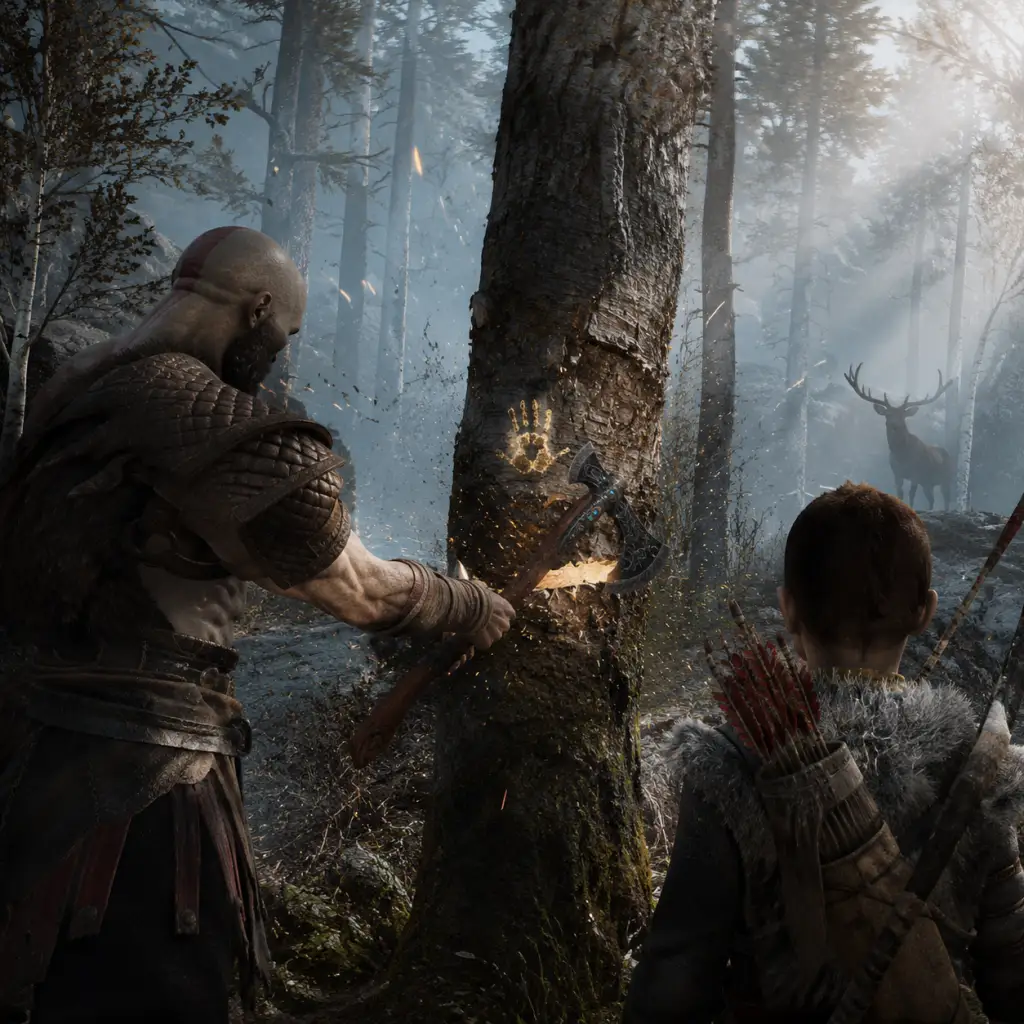
3. Getting the Leviathan Axe: After a short fight, you retrieve the axe from a tree. This is your primary weapon for most of the game.
4. First Troll: Shortly after, you face a troll named Brenna Daudi. Dodge its slow attacks (circle) and hit its weak point on the back. Use Atreus’ arrows (square) to stagger it.
5. Return Home: After the troll, you return to your home. The main story goal is set: spread your wife’s ashes from the highest peak in the realms.
6. Leave the Woods: You’ll walk through the Wildwoods, encounter more enemies, and eventually meet Brok the blacksmith. This marks the end of the first hour.
Controls (All Platforms)
#### PlayStation 4 & PlayStation 5 (DualShock 4 / DualSense)
| Action | Button |
|---|---|
| Light Attack (Leviathan Axe) | R1 |
| Heavy Attack | R2 |
| Throw Axe / Recall Axe | L2 + R1 / Hold Triangle |
| Block / Parry | L1 |
| Dodge | Circle |
| Run | Hold Circle while moving |
| Interact / Execute | Circle (near prompt) |
| Atreus Arrow | Square |
| Runic Attack (Light) | L1 + R1 |
| Runic Attack (Heavy) | L1 + R2 |
| Spartan Rage (activate) | L3 + R3 |
| Menu | Options |
| Map / Touchpad | Touchpad |
| Action | Key |
|---|---|
| Light Attack | Left Mouse Button |
| Heavy Attack | Right Mouse Button |
| Throw Axe / Recall | Mouse Side Button 4 / Hold Q |
| Block / Parry | L-Shift |
| Dodge | Space |
| Run | Hold Space while moving |
| Interact | E |
| Atreus Arrow | Left Ctrl |
| Runic Attack (Light) | 1 |
| Runic Attack (Heavy) | 2 |
| Spartan Rage | F |
| Menu | Esc |
| Map | M |
UI Overview
- Health Bar (top-left): Red bar for Kratos. Green segments are Rage meter (used for Spartan Rage).
- Atreus’ Health (top-left, below Kratos): Small bar. He can be revived with a prompt if down.
- Runic Attack Cooldown (bottom-left corner): Two circles—light and heavy runic attacks. They charge slowly.
- Axe Throw Indicator (center, while aiming): A reticle. Hold L2 to aim.
- Enemy Health Bar (above enemy’s head): Shows health and stun meter (yellow bar).
- Hacksilver & XP (top-right): Currency and experience points.
- Map (touchpad or M): Shows current realm, undiscovered areas, and objectives.
- Compass (top-center): Points you toward your current quest objective.
- Upgrade your Axe Handle as soon as you have Hacksilver and Hacksilver (you get plenty from chests and enemies).
- Spend XP on Atreus’ Skills first: “Watchful Protector” (auto-aim bonus) and “Arrow Recovery” are great early investments.
- Explore the first area (Wildwoods) thoroughly after the troll fight. There are lore markers, Odin’s Ravens, and hidden collectibles.
- Use Spartan Rage sparingly—it’s a panic button for tough fights or to regain health. Hold L3+R3 when your health is low.
Essential Early Objectives
1. Follow the Story: Complete the main quest “The Marked Trees” and “Path to the Mountain.” Do not deviate until you have the axe and basic combat down.
2. Learn Combat Basics: Practice blocking, dodging, and throwing the axe. Use Atreus’ arrows to interrupt enemy attacks.
3. First Upgrade: After meeting Brok, you can upgrade the Leviathan Axe. Prioritize the Grip of the Forge (increases Runic stats) early.
4. Open Chests: Wooden chests give Hacksilver; Legendary chests give enchantments or upgrade materials. Always open them.
5. Climb Everything: Yellow ledges are climbable. Look for them to find shortcuts and hidden loot.
What to Do First – Beginner Priorities
What to Avoid – Common Beginner Mistakes
| Mistake | Why It Hurts | Better Approach |
|---|---|---|
| Button mashing attacks | Drains stamina, leaves you open | Use light attacks (R1) to stagger, then heavy (R2) to knock down. |
| Ignoring Atreus | Atreus can stun enemies and give you openings | Spam square whenever enemies are far or winding up. |
| Not blocking | Many attacks are blockable | Hold L1 to block; tap L1 just before hit to parry (yellow ring). |
| Wasting Hacksilver on irrelevant gear | Resources are scarce early | Only buy axe upgrades and Atreus armor from Brok; save Hacksilver for later. |
| Overlooking realm tears | They require materials you don’t have yet | Ignore them until you are level 4+ or have the right resources. |
| Skipping side content | Missed XP, enchantments, and lore | Do at least the first few side quests (e.g., “The Weight of Chains”). |
Day-One Checklist
- [ ] Install the game and apply latest patch (check for updates).
- [ ] Adjust settings: Set difficulty to “Give Me a Story” (easy) or “Give Me a Balanced Experience” (normal). Do not start on “Give Me God of War” — it is very punishing.
- [ ] Configure controls: If on PC, test sensitivity and key bindings. On console, enable “Axe Throw Auto-Aim” in options.
- [ ] Complete the first hour up to meeting Brok.
- [ ] Upgrade Leviathan Axe at Brock’s shop (use the free upgrade components from the chest near him).
- [ ] Spend your first XP on Atreus’ skills.
- [ ] Explore the Wildwoods fully: open all chests, break all pots, shoot all Odin’s Ravens (3 in the first area).
- [ ] Learn the dodge timing against the troll (dodge left/right, not backward).
- [ ] Save your game manually (pause → save) after each major event. Autosave is frequent, but manual save protects against glitches.
Pro Tip: Don’t rush. God of War rewards careful exploration. Read the lore tablets—they deepen the story. Enjoy the journey.
Core Gameplay
Core Gameplay Guide for God of War (2018)
This guide breaks down the core gameplay systems across four progression tiers: Early Game, Mid Game, Late Game, and Endgame. Each tier explains the main gameplay loop, combat/interaction mechanics, progression, exploration, quests/missions, economy, character/build growth, and endgame structure with specific examples.
The Core Gameplay Loop
The loop is: Explore → Fight → Loot → Upgrade → Progress Story. You traverse interconnected realms, solve environmental puzzles, battle enemies (Draugr, Hel-Walkers, Trolls, Ogres, etc.), collect Hacksilver, XP, and crafting materials, then return to shops (Brok / Sindri) to upgrade gear, learn new skills, and craft enchantments. Story progression unlocks new areas, abilities, and realms.
---
Early Game (Chapters 1–5: "The Marked Trees" to "Inside the Mountain")
Main Gameplay Loop
- Linear progression through the Wildwoods, Foothills, and first visit to the Mountain.
- Primary objective: Scatter Faye’s ashes from the highest peak.
- First boss: The Stranger (Baldur) – teaches you blocking, dodging, and heavy attacks.
- Leviathan Axe: Main weapon; light/heavy attacks, throw (R1 then R2 for recall), Frost damage.
- Atreus (Boy): Arrow commands (Square) – stuns enemies, interrupts attacks, reveals weak points.
- Shield (L1): Block, parry (just before hit), shield bash (L1 + R1).
- Spartan Rage: Unlocked after first Stranger fight – temporary invincibility, massive damage, health regen.
- Finishers: R3 on stunned enemies (circle appears).
- Climbing/Swimming: Limited; you can climb yellow-marked surfaces, swim in shallow water.
- Level 0–2: Kratos starts at Level 1. XP unlocks new Runic Attacks and Skills.
- Gear: Basic starting armor (Survival Set). First upgrades from Brok after clearing the Wildwoods.
- Skill Tree: Unlock early key skills: Clear Out (R1+R1+R1), Executioner’s Cleave (hold R2), Whirlwind Sprint (sprint + R1).
- Atreus: Unlock “Shock Arrows” after getting the Light Arrows in Alfheim? Actually early game: regular arrows only until Alfheim.
- Realm: Midgard only (Wildwoods, Foothills, The Mountain).
- Collectibles: Ravens (1), Legendary Chests (basic Runic Attacks and enchantments), Nornir Chests (requires hitting three seals in time).
- Hidden Chambers: First Valkyrie (Gunnr) available after completing “The Magic Chisel” – very hard, skip early.
- Fast Travel: Unlocked at the end of Chapter 4 (Mystic Gateways).
- Main Path: Follow the story.
- Side Quests (Favors): “Fafnir’s Hoard,” “The Weight of Chains” (first artifact favor), “Dying Light” (unlocks later).
- All optional: Recommend doing “Fafnir’s Hoard” for early Hacksilver.
- Hacksilver: Drops from enemies, chests, and sold artifacts. Use for buying gear, upgrade materials.
- XP: Earned from combat, completing quests, story events. Used to unlock skills.
- Materials: Hacksilver buys basic upgrade stones (Dust of Realms, Soft Svartalfheim Steel). Loot from chests and enemies.
- Armor: Buy / upgrade the Traveler Armor (Runic focus) or Ivaldi’s Deadly Mist Set (not yet). Early: stick with Survival or Niflheim? No, that’s late game. Early best: Fallen Ash grip for axe (dropped from first Ogre).
- Talismans: Start with Talisman of the Realms (slow time) – found in the Mountain.
- Enchantments: Slot into armor and talisman; focus on +Strength, +Runic, +Cooldown. Early choices: Eyes of the Outer Realm (from Legendary Chest in Witch’s Woods).
- No true endgame content yet. The game continues linearly.
- Non-linear exploration opens after receiving the Blades of Chaos (around Chapter 7).
- Two weapons now: Axe and Blades (fire damage). Switch between them for combat variety and puzzles.
- Multiple realms accessible: Alfheim, Helheim (partial), Muspelheim (via realm tears – requires 4 Muspelheim Language Ciphers).
- Lake of Nine: Central hub, water level drops twice, revealing new islands and side content.
- Blades of Chaos: Light/heavy combos, R1 hold for spin, R1+R1+R1+R2 for burn. Can also grapple (R1+R1+R2 on air).
- Atreus: Unlocks Light Arrows in Alfheim – stun enemies, reveal hidden paths; later Shock Arrows after Mason’s Channel.
- Runic Attacks: Equip one light and one heavy Runic for each weapon; found in chests or bought from Brok/Sindri.
- Talisman of the Realms: Slows time – use before burst attacks.
- Spartan Rage: Upgrades via Skill Tree – gain health on kills, extended duration.
- Level 4–6: Reach Level 5 by equipping fully upgraded armor sets.
- Armor Sets:
- Weapon Handles: Found or bought; upgrade at shops. Example: Axe Pommel: Retribution (high chance to stun on block break).
- Skill Tree: Max out early skills; unlock Guardian’s Justice for axe (counter), Hyperion Grapple for blades (pull enemies).
- Atreus Skills: Focus on Arrow Surge (multiple arrows) and Meditation (faster arrows).
- Lake of Nine: Explore all island chains, hidden coves, and the Dragons (free them for Hacksilver).
- Realms:
- Collectibles: Ravens (get the Ravens’ Curse? Not yet), Legendary Chests (Runic Attacks), Nornir Chests (Idunn Apples, blood mead).
- Valkyries: Found in hidden chambers: Gunnr (Midgard), Kara (Foothills), Geirdriful (Alfheim). Defeat for unique gear and more Valkyrie essence.
- Favors:
- Main story missions: Continue to unlock Jotunheim and Helheim.
- Hacksilver: Abundant from selling artifacts (from Favors), enemy drops, and chests. Spend on crafting materials and gear upgrades.
- Materials: Soft Svartalfheim Steel, Haze Weave (from Niflheim), Muspelheim ore, Rage from Valkyries.
- Hacksilver Pitfalls: Don’t buy common upgrade stones; instead farm Niflheim for Mist Echoes to buy unique materials.
- Midgame Build Options:
- Skill Priority:
- Still playing through the main story.
- Story climax: Obtain the Chisel from Mimir, enter Helheim to retrieve the Heart of the Mountain, then ascend to Jotunheim.
- Full realm access: Helheim fully explorable (more Ravens, Nornir chests, and a Valkyrie – Rota).
- Optional realms fully unlocked: Niflheim (all gates open), Muspelheim all trials.
- Combat difficulty spikes: Enemies hit harder, more projectile-based foes (Revenants, Nightmares).
- Runic Attacks: You should have at least 3–4 per weapon. Use the Gauntlet of Ages (from early game) but upgraded with enchantments (e.g., Andvari’s Soul, Njord’s Tempest etc.) – this allows you to shoot a blast that slows time.
- Atreus: Unlocks Wrath of the Wolf (runic summon) from story – deals massive damage and stuns.
- Weapon Upgrades: Both weapons can reach Level 4 (requires Haze Weave from Niflheim or Muspelheim alloy).
- Armor: Best late-game armors:
- Talismans: Max out a talisman (e.g., Talisman of Unbound Potential – double Runic usage).
- Player Level 7–9: Kratos can reach Level 8 with full Ivaldi’s Set + Valkyrie gear.
- Skill Tree: Unlock the final skills: Guardian’s Return (axe throw returns faster), Sky Strike (blades).
- All Runic Attacks available: Purchase missing ones from Brok/Sindri.
- Atreus: Unlocks Light on Command (summon light runic attack) and Shock on Command – use for elemental weaknesses.
- Niflheim: Ivaldi’s Workshop – requires farming Mist Echoes to open central chests. The maze is timed; use Ivaldi’s armor to reduce curse damage.
- Muspelheim: Complete 5 trials in each of 3 categories (Survival, Combat, Time) to earn Muspelheim alloy and enchantments. Best resource for high-level upgrade materials.
- Helheim: Ravens (6), Legendary Chests (Runic Attacks for Blades). Valkyrie Rota (Power level 7).
- Hidden Chambers: All 8 Valkyries now accessible if you have enough keys (some require story progression like the one in the Mountain).
- Main Path: Complete the story – after Helheim, return to Midgard, climb the summit, finish the game.
- Favors complete all: Especially “The Crown of the Exiled” (gives Talisman of the Realms upgrade?), “The Last of the Frogs” (kill a special Troll).
- Valkyrie Quests: Defeating 8 Valkyries unlocks the Queen (Sigrun) in the Council of Valkyries. This is the hardest content.
- Hacksilver: Plenty; spend on maxing out upgrades.
- Materials:
- Crafting: Upgrading to level 8 gear requires Frost Ancient’s Etching (from ancient enemies) and Burning Ancient’s Etching – farm them in specific areas.
- Optimized Builds:
- Skill Assignments: Equip Ivaldi’s Anvil (heavy axe runic) and Hyperion Grapple (heavy blades runic) for boss damage.
- After completing the main story, the world is open. You can continue to explore, defeat remaining Valkyries, finish Niflheim/Muspelheim, and collect all chests/ravens.
- No NG+ in original 2018 – but the endgame is about completion.
- Goal: 100% completion – defeat Valkyrie Queen, obtain all gear sets, all trophies, fully upgrade every item.
- No new story content – but the world is persistent.
- Revenants, Hel-Revenants, and Ogres still spawn.
- Time needed: 10–20 hours depending on efficiency.
- Full arsenal: Both weapons maxed, all Runic Attacks, all Atreus runic summons.
- Valkyrie Queen Sigrun (Power level 9): Requires perfect parrying, dodging, and knowledge of all Valkyrie attack patterns. Use Axe Runic: Ivaldi’s Anvil and Blades Runic: Nemean Crush for stagger. Equip Talisman of the Realms (Slows time) to create openings.
- Enchants: Use high-level enchantments like Perfect Armor of the Valkyrie (from Queen) or Asgard’s Shard (40 strength).
- Player Level 9+: The maximum level is 10 with the Valkyrie Queen Set (after dropping from Sigrun). But gear can reach Level 8 max.
- All Skills Unlocked: Every skill in all trees plus maxed out Atreus abilities.
- All Gear Upgraded to Level 8+: Requires final resources like Burning Ancient’s Etching (from Fire Ancients in Muspelheim).
- Niflheim Completion: Ivaldi’s Workshop fully cleared, free the dead, get the Brilliant Scale (trophy).
- Muspelheim Completion: Complete all trials, earn The Valhalla Plunder (trophy).
- Valkyrie Queen Defeat: Trophy “God of War”.
- All Realms 100%:
- Fast Travel: Use Mystic Gateways freely.
- No new areas.
- Favors: All complete.
- Hidden Quests:
- Valkyrie Queen: Final fight.
- Hacksilver: Maxed; you likely have over 100k. Use to buy all enchantments and gear from shops for 100% completion.
- Materials: Farm Niflheim for Mist Echoes (you need about 200k total for all upgrades). Muspelheim for alloys. Farm Ancients for etchings.
- Sell excess artifacts: The towers near the Lake of Nine sell resources.
- Final Build:
- Skill Allocation: Max everything.
- Atreus: All skills maxed, best arrows (Shock/Light for stun).
- Concept: No more meaningful upgrades – only completion.
- No New Game Plus in original 2018 version (PC version does not have NG+ either).
- Challenge Opportunities:
- Trophies: Earn all 37 (including Platinum).
- Summary: Endgame is the pursuit of 100% completion and beating the hardest optional boss.
Combat / Interaction Systems
Progression
Exploration
Quests / Missions
Economy
Character / Build Growth
Endgame Structure (Early Game Has None)
---
Mid Game (Chapters 6–12: The Light of Alfheim to The Healing of the Heart)
Main Gameplay Loop
Combat / Interaction Systems
Progression
- Deadly Mist Set – requires Niflheim mist echoes (mid-game crafting).
- Valkyrie Set – defeated Valkyrie Gunnr? But you need multiple Valkyries.
- Traveler Set – good for strength defense.
Exploration
- Alfheim: Complete the Light Elf temple and side quests (e.g., “Find the Veiled Treasure”).
- Helheim: Story-required, but you can return later for collectibles.
- Muspelheim (after 4 Ciphers): Combat trials – needed for upgrades and resources.
- Niflheim (after 4 Ciphers): Cursed mist maze – farm Mist Echoes for Ivaldi’s gear.
- Vanaheim Tower: Accessible after main story? Actually only via a side quest.
Quests / Missions
- “The Queen’s Wishes” (from Ratatoskr) – gather seasonal keys.
- “Fafnir’s Hoard” (if not done).
- “The GiaF” (side quest in Alfheim).
- “Dragon’s Tears” – free all dragons.
Economy
Character / Build Growth
- Runic Build: High cooldown, use Talisman of the Realms, enchantments with +Runic and +Cooldown. Gear: Ancient armor (from Alfheim) or Cuirass of the Black Bear (if you pre-ordered? no, from story).
- Strength Build: Focus on high damage per hit. Use Traveler’s set or Valkyrie set (when you get pieces).
- Defensive/Luck Build: Use enchantments like “Yggdrasil’s Shard” for health regen.
- Axe: Glacial Wake (R1 hold for combo), Ivaldi’s Anvil (heavy runic).
- Blades: Hyperion Grapple, Nemean Crush (heavy runic).
- Atreus: Runic Summon (unlock? actually he gets runic attacks later) – better to focus on arrow skills.
- Spartan Rage: Upgrade Fury (charge faster with kills).
Endgame Structure (Not Yet)
---
Late Game (Chapters 13–16: The Witch’s Cave to The Mountain “Return to the Summit” incl. Jotunheim)
Main Gameplay Loop
Combat / Interaction Systems
- Ivaldi’s Deadly Mist Set (Fully Upgraded): Level 7, high defense, self-healing in mist.
- Sindri’s Royal Dwarven Set: High cooldown, luck boosts.
- Valkyrie Set (multiple pieces): Best for all-around stats; requires defeating 3+ Valkyries.
Progression
Exploration
Quests / Missions
Economy
- Haze Weave: Only from Niflheim central chest – 500–1,000 Mist Echoes per piece.
- Muspelheim Alloy: From Muspelheim trials – need to complete final challenges for perfect asgardian steel.
- Rage of the Valkyrie: Dropped by Valkyries – needed for final talisman upgrades.
- Perfect Artifacts: Sell for Hacksilver.
Character / Build Growth
- Runic/Cooldown (Easiest): Ivaldi’s set with enchantments: Andvari’s Soul, Njord’s Tempest, Muspelheim’s Wrath. Use Talisman of Unbound Potential.
- Strength/Defense: Valkyrie set maxed, use The Weight of the World enchantment for +strength.
- Luck/Loot: Sindri’s set with high luck for extra Hacksilver and rare drops.
- Healing Build: Use the Talisman of the Realms (slows time) plus enchantments that give health on Runic kills.
Endgame Structure (Transition to Post-Story)
---
Endgame (Post-Story Completion)
Main Gameplay Loop
Combat / Interaction Systems
Progression
Exploration
- Midgard: All ravens (51 total), all Legendary Chests, all Nornir Chests, all Valkyrie Chambers.
- Alfheim: All ravens (23), all collectibles.
- Helheim: All ravens (11).
- Muspelheim: All trial rewards.
- Niflheim: All workshop chests.
- Jotunheim: One hidden chamber (Valkyrie Olrun) – need 4 keys.
Quests / Missions
- “The Last of the Frogs” (already).
- “The Giant’s Favor” (already).
- “Bodies in the Water” (already).
Economy
Character / Build Growth
- Armor: Valkyrie Queen Set (best all-around stats).
- Talisman: Talisman of the Realms maxed with Perfect Assassin’s Mark enchantment.
- Enchantments: 3x Perfect Eye of the Outer Realm (+20 all stats), 3x Perfect Forbidden Grip (+10 strength, +10 luck).
Endgame Structure (Ultimate)
- Defeat Sigrun without armor (for bragging rights).
- Complete Muspelheim trials on “Give Me God of War” difficulty (if playing on GMGOW).
- Speedrun the game.
---
This comprehensive breakdown covers the entire core gameplay journey in God of War (2018), from your first steps in the Wildwoods to the final clash with the Valkyrie Queen. Use it to plan your progression and optimize your build at each stage.
Game Tips
Game Tips Guide for God of War (2018)
Combat Tips
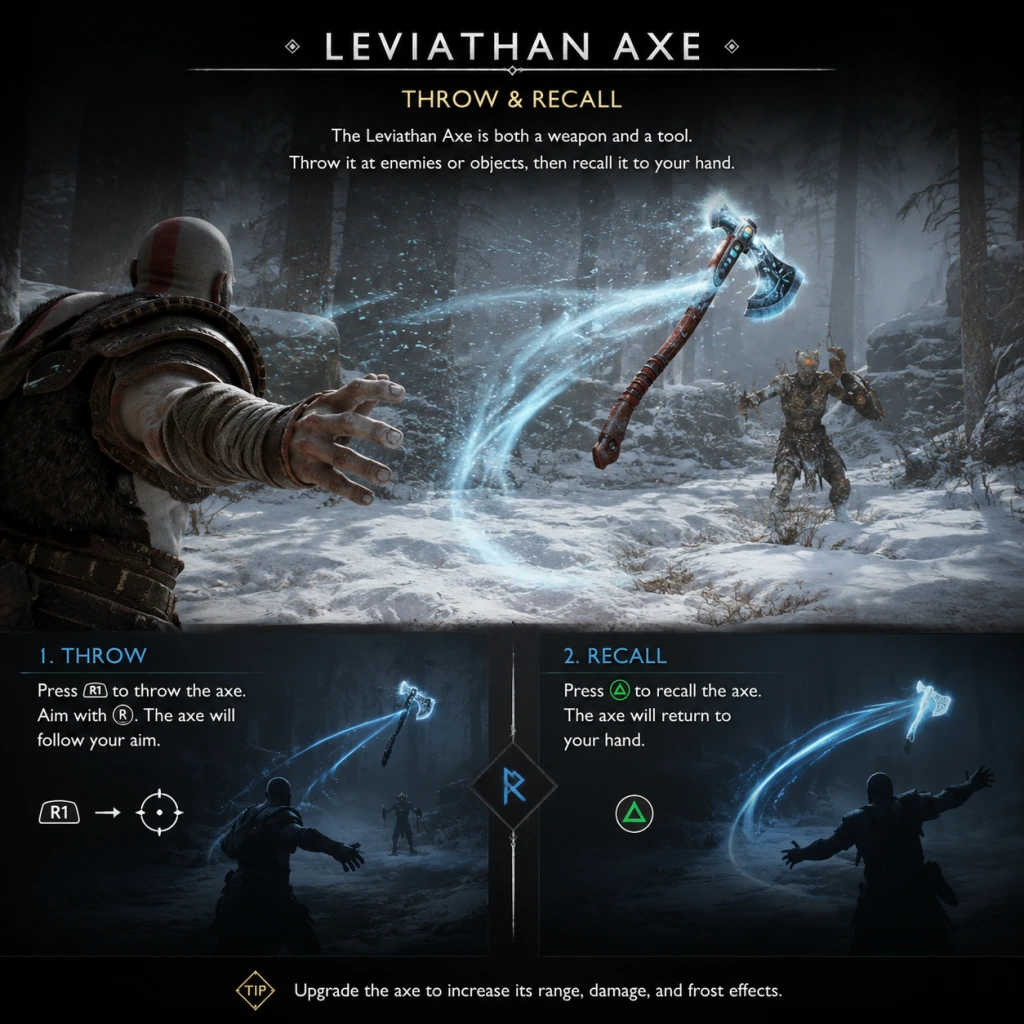
1. Master the Leviathan Axe Throw and Recall
- The Leviathan Axe is not just melee; its thrown attack can stun enemies, hit distant foes, and trigger freeze. Follow up throws with fists or the Blades of Chaos to maximize damage.
- Why it works: The axe throw has homing properties and interrupts enemy attacks. Recalling the axe damages enemies in its path, making it a versatile crowd control tool.
- When to use: Use against fast enemies like Revenants to slow them down, or to break shields. In boss fights, freeze the boss to create openings for heavy combos.
2. Use Atreus as a Strategic Partner
- Atreus fires arrows that stun, distract, or apply elemental effects. Upgrade his bow to unlock Shock Arrows (electric) and Light Arrows (blind).
- Why it works: Arrows interrupt enemy attacks, especially unblockable ones. They also build the stun meter quickly, leading to instant-kill grabs.
- When to use: Constantly mash square during combat. Use Shock Arrows against mechanical enemies and Light Arrows against dark elves or revenants.
3. Parry and Block Wisely
- Kratos can block most attacks (yellow ring indicator) but must dodge unblockable red-ring attacks. Parrying (L1 just before hit) stuns enemies and allows a counter.
- Why it works: Parrying grants a stun window and brief invulnerability. It is safer than evading for slow, telegraphed swings.
- When to use: Practice on Draugr and Wulver. Against bosses, parry specific combos to break their stance and deal massive runic damage.
4. Stun Grabs and Finishers
- Build the stun meter (yellow bar) with bare-handed attacks, Atreus arrows, and certain runic attacks. When full, grab the enemy for a devastating finisher.
- Why it works: Stun grabs instantly kill most non-boss enemies, grant invincibility frames, and often drop health/rage orbs.
- When to use: Prioritize stunning heavy enemies like Ogres or Trolls to bypass their large health pools.
Exploration & Navigation
1. Open Every Chest and Break Every Pot
- Resources like Hacksilver, Healthstones, and Rage Orbs are hidden everywhere. Even seemingly empty chests may contain rare materials.
- Why it works: Early game scarcity makes every resource valuable. Hidden chambers often hold Idunn Apples (health) or Horns of Blood Mead (rage).
- When to use: Always smash pots and open chests as you explore. Use the map to check area completion percentages.
2. Use the Boat to Reach Hidden Areas
- The Lake of Nine is a hub with many side paths. Row to every shoreline and dock, even if it seems empty. Many lead to treasure, lore, or optional bosses.
- Why it works: Lowering the water level (via main story) reveals new layers with high-level loot. Revisit after each water drop.
- When to use: After each major story beat, circumnavigate the lake and explore newly accessible areas.
3. Look for Cracked Walls and Odin's Ravens
- Cracked walls can be destroyed with a Leviathan Axe throw, revealing hidden rooms. Odin's Ravens are collectibles that reward legendary chests when enough are found.
- Why it works: Hidden rooms contain upgrade materials and lore. Ravens unlock powerful enchantments.
- When to use: Keep an eye out for shimmering cracks (usually on walls near chests) and glowing ravens perched high or moving in circles.
Resource Management & Economy
1. Prioritize Upgrading Your Axe and Armor First
- The Leviathan Axe is your primary weapon; upgrade it to unlock new skills and damage. Armor provides defense and perks.
- Why it works: Higher damage reduces time-to-kill, and better armor prevents one-shots. Perks like "Protective Barrier" can save you in tough fights.
- When to use: Spend Hacksilver and materials at the Huldra Brothers' shop after acquiring them. Focus on one weapon and one armor set early.
2. Farm Hacksilver by Selling Excess Resources
- Duplicate resources or lower-tier materials can be sold for Hacksilver. Unwanted enchantments and talismans can also be sold.
- Why it works: Hacksilver is needed for most purchases. Selling surplus lets you buy rare materials like Norseman's Iron or Dust of Realms.
- When to use: Only sell items you have a surplus of (e.g., after clearing a mine). Keep at least 10-20 of each crafting material.
3. Invest in Resource-Boosting Talismans and Enchantments
- Some talismans and armor pieces increase Hacksilver drop rate or chance of rare loot. The "Talisman of Cursed Power" boosts runic attacks but also increases resource drops.
- Why it works: These effects compound over long play sessions. For farming, equip them before entering areas with many enemies.
- When to use: Equip before exploring new dungeons or farming runs in Muspelheim.
Builds & Upgrades
1. Armor Sets and Their Synergies
- Early game: "Traveler's Armor" for defense. Mid-game: "Valkyrie Armor" for balanced stats. Late game: "Zeus Armor" for glass cannon damage or "Valkyrie+ Armor" for high runic.
- Why it works: Each set has bonuses (e.g., Ancient Armor boosts runic damage). Choose based on playstyle: defensive for Valkyries, offensive for hordes.
- When to use: Switch armor for different encounters. Use high defense against solo bosses, high runic against groups.
2. Runic Attacks and Their Cooldowns
- Equip runic attacks on both the Axe and Blades of Chaos. Prioritize runic attack damage and cooldown reduction. "Njord's Tempest" and "Hel's Touch" are excellent early choices.
- Why it works: Runic attacks deal massive damage and have invincibility frames. Spamming them can melt bosses.
- When to use: Use at the start of a fight or when enemies are grouped. Rotate between weapons to minimize downtime.
3. Atreus' Armor and Runic Upgrades
- Upgrade Atreus' bow and armor to increase his damage, arrow capacity, and special arrow types. The "Tunic of the Ravens" set boosts his damage significantly.
- Why it works: Atreus can kill weaker enemies on his own and apply stun to bosses. His arrows also trigger elemental effects.
- When to use: Fully upgrade Atreus as soon as possible. Use Shock Arrows against machines, Light Arrows against shades.
Puzzles & Environmental Interaction
1. Read the Runes and Match the Symbols
- Many puzzles require matching runes to gates or chests. Look for rune patterns on nearby cliffs or walls. Use the focus ability to examine.
- Why it works: Runes are often hidden in plain sight. Matching them correctly opens doors or chests with rare loot.
- When to use: Always scan the environment for rune references before brute-forcing. Use the D-pad to mark notes.
2. Freeze Mechanisms with the Axe
- The Leviathan Axe can freeze waterfalls or gears, allowing you to climb or cross. After freezing a gear, quickly run to the other side.
- Why it works: Freezing extends the window for traversal. You can also freeze enemies in place during combat.
- When to use: For moving platforms or timed puzzles. Use the axe throw to freeze distant mechanisms.
3. Burn Hel-Brambles with the Blades of Chaos
- Red vines called Hel-Brambles block paths. They can only be removed with the Blades of Chaos (obtained mid-game).
- Why it works: Clearing brambles reveals hidden areas and shortcuts. Some contain legendary chests with Idunn Apples.
- When to use: After getting the Blades, revisit earlier areas to clear brambles you couldn't before.
Boss & Enemy Strategies
1. Learn Enemy Attack Patterns
- Each enemy has distinct attacks with audio and visual tells. Learn dodge timings and parry windows.
- Why it works: Predictability allows you to avoid damage and counterattack. For example, Trolls swing slowly but have wide arcs; dodge to the side.
- When to use: Study patterns in the first encounter. Use Spartan Rage as a panic button, not a damage tool.
2. Use the Environment
- Many arenas have explosive pots, hanging objects, or ledges you can throw enemies off. Use them to deal extra damage or instant kill.
- Why it works: Environmental kills save time and resources. For example, throwing a Draugr into lava instantly kills it.
- When to use: Always be aware of your surroundings. Grapple smaller enemies and toss them into hazards.
3. Spartan Rage: Use Judiciously
- Spartan Rage makes you invincible, heals you, and deals massive damage. Save it for desperate moments or boss phases.
- Why it works: The healing is crucial in prolonged fights. The damage can break enemy stun meters quickly.
- When to use: Activate when health is low or when the boss is about to use a devastating attack. It also recharges over time with hits.
Advanced Techniques & Optimizations
1. Cancel Animations with the Arrow
- Firing an arrow from Atreus can cancel some of Kratos' recovery animations, allowing for faster combos.
- Why it works: Shaves off frames from heavy attacks. Great for speed kills.
- When to use: After a heavy attack, tap square to cancel and then continue comboing.
2. Rune-Gem Stacking
- Enchantments that boost the same stat (e.g., Runic) stack multiplicatively. Equip three "Perfect Rune of the Ancient" for massive damage.
- Why it works: Stacking allows you to exceed normal damage caps. Builds become one-shot capable.
- When to use: For power-farming Muspelheim trials or Valkyrie fights.
3. Utilize the "Frost Awaken" Stance
- After a successful axe throw recall, press R2 for a powerful frost-enhanced heavy attack. The axe has different stances based on movement.
- Why it works: The frost attack inflicts freeze quickly and deals high damage. It's a guaranteed stagger on most enemies.
- When to use: After recalling the axe from a throw, instantly use heavy attack.
General Tips
1. Read the Lore and Codex Entries
- The game's lore provides backstory, hints for puzzles, and context for bosses. Atreus also learns new abilities from lore.
- Why it works: Some puzzles require lore knowledge. Also, reading increases your understanding of the world.
- When to use: Whenever you find a lore marker.
2. Check the Map for Hidden Collectibles
- The map shows regions and their completion percentages. It also marks the locations of all collectibles once you purchase maps from the dwarf shop.
- Why it works: Saves time and ensures you don't miss Idunn Apples or other upgrades.
- When to use: After clearing a region, check map for missing collectibles before moving on.
3. Adjust Difficulty to Your Skill
- "Give Me a Challenge" is the default normal mode. If you struggle, lower it. The game is meant to be enjoyed.
- Why it works: Higher difficulties change enemy aggression and damage. Adjust to match your playstyle.
- When to use: At the start, or switch mid-game if frustrated.
Game Settings
Game Settings Guide for God of War (2018)
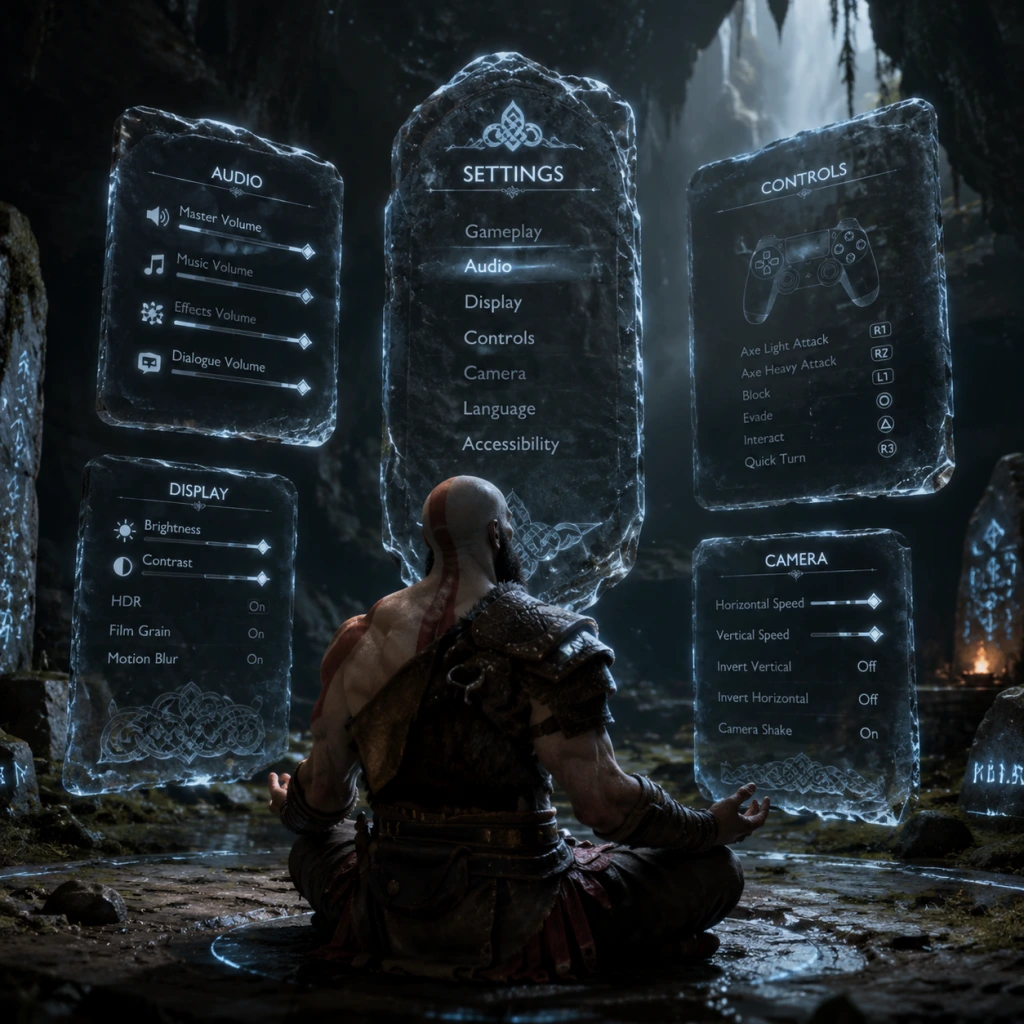
This guide covers every settings menu in God of War (2018) across all platforms (PC and PlayStation). It provides optimal recommendations for different hardware tiers, explains misconfiguration pitfalls, and highlights special attention points during setup.
---
1. Graphics Settings (PC Only)
God of War (2018) on PC offers a wide range of graphics options. Settings are accessed from the main menu under Settings > Graphics.
#### Display & Resolution
- Display Mode: Choose between Fullscreen, Borderless Windowed, and Windowed. Fullscreen provides best performance; Borderless is better for alt-tabbing but can introduce input lag.
- Resolution: Set to your monitor’s native resolution (e.g., 1920x1080, 2560x1440, 3840x2160). Lower resolutions improve performance but reduce clarity.
- Refresh Rate: Match your monitor’s refresh rate (e.g., 60Hz, 144Hz). Enable VSync if you experience screen tearing; otherwise disable to reduce input lag.
- Graphics Preset: Choose from Low, Medium, High, Ultra, or Custom. Presets adjust all sub-settings automatically.
#### Advanced Graphics Options
| Setting | Recommendation | Hardware Tier Notes |
|---|---|---|
| Texture Quality | High or Ultra | Low VRAM (≤4 GB): Medium; 6 GB: High; 8+ GB: Ultra |
| Model Quality | High | High on all tiers; minor impact on FPS |
| Anisotropic Filtering | 16x | Negligible performance cost, sharpens distant textures |
| Lighting Quality | High | Medium on lower-end GPUs (e.g., GTX 1060) |
| Shadow Quality | High | Low or Medium for significant FPS gains on weaker hardware |
| Reflections | High | Medium or Low to boost FPS; very demanding on water surfaces |
| Atmospherics | High | High creates beautiful fog/particles; Medium if FPS struggles |
| Ambient Occlusion | SSAO (Low) | HBAO+ is more accurate but costs ~10% FPS; disable if needed |
| Anti-Aliasing | DLSS Quality (Nvidia) / FSR Quality (AMD) | TAA is default; use upscalers for best performance/quality balance |
- NVIDIA DLSS (20 series+): DLSS Quality is recommended for RTX cards. Balanced or Performance for higher FPS.
- AMD FSR (all GPUs): FSR Quality at 1440p or Ultra Quality at 1080p. FSR can cause slight ghosting.
- Intel XeSS (Arc GPUs): XeSS Quality for best visuals.
- Render Scale: Manual scaling (e.g., 80%) can improve performance but looks worse than DLSS/FSR.
- VRAM Management: God of War is VRAM hungry. If your GPU has 4GB VRAM or less, set Texture Quality to Low and reduce Model/Lighting Quality. The game may stutter if VRAM overflows.
- Shadow Quality: Very taxing on CPU as well. Lowering it can help on quad-core processors.
- DLSS vs FSR: DLSS generally provides better image stability. FSR tends to produce shimmering on foliage.
- Disable Motion Blur if you dislike the effect; it’s purely aesthetic.
- Master Volume: Set to 100% and adjust via system volume.
- Music Volume: 80-100%; the soundtrack is immersive.
- SFX Volume: 100% to hear combat cues.
- Dialogue Volume: 100% — critical for story and hints from Atreus & Mimir.
- Speaker Configuration: Choose Stereo for headphones or 5.1/7.1 for surround systems. The game supports Dolby Atmos on PC.
- Dynamic Range: Default (Wide) works for most setups. Reduce to Medium or Narrow if using TV speakers to avoid quiet dialogue.
- Dialogue Balance: God of War (2018) has many environmental whispers and atmospheric sounds that can mask dialogue. Ensure Dialogue Volume is not lower than SFX.
- Headphone Mode: Some players report that 5.1 emulation on stereo headphones sounds hollow. Use stereo if you prefer crisp soundstage.
- Invert Y Axis: Off by default; enable if you prefer inverted look.
- Look Sensitivity: Start at 50% and adjust. Higher sensitivity helps with quick camera turns during combat.
- Aim Sensitivity: Lower (30-40%) for precise aiming of Leviathan Axe throws.
- Controller Vibration: On for immersion; off for competitive precision.
- Preset Layouts: Default, Alternate, or Custom. Default is optimized for the game’s combat (R1 for light attacks, R2 for heavy).
- Custom Mapping: Use on PC to assign actions to mouse buttons or keyboard. Recommended: Map “Block/Parry” (L1) to an easily reachable key like C or side mouse button.
- Auto-Sprint: Off by default. Enabling it makes Kratos sprint automatically when moving forward. Some players find it helpful; others lose control during combat. Try both.
- Quick Turn: Default is down on D-pad. Muscle memory is essential; practice using it to face enemies quickly.
- PC Specific: The game shows controller prompts by default. To switch to keyboard prompts, go to Settings > Gamepad/Keyboard > Input Device Icon. Misconfiguration here can confuse new players.
- Subtitles: On by default. Choose from Small, Medium, or Large text size. Large recommended for readability.
- Subtitle Background: Enable to improve contrast against bright scenes.
- Closed Captions: Describes sound effects (e.g., “door creaking”). Helpful for hearing-impaired players.
- Colorblind Modes: Protanopia, Deuteranopia, Tritanopia filters apply to UI elements and enemy indicators.
- High Contrast Display: Increases contrast on characters and enemies; useful for low vision.
- Mono Audio: Combine left/right channels for single-ear headphone users.
- Audio Cues for Puzzles: Some puzzles provide audio hints (e.g., wind chimes). Leave on.
- Hold vs Toggle: Many actions (e.g., sprint, crouch) can be set to toggle instead of hold. Recommended for players with reduced grip strength.
- Combat Assist (Auto-Aim): On by default for axe throws. Increases lock-on assist. Turn off for manual control.
- Accessibility Controller Support: Compatible with PlayStation Access controller and Xbox Adaptive Controller on PC.
- Subtitle Background: Without it, white subtitles can be invisible against snow/winter environments (common in God of War). Enable it.
- Combat Assist: Can interfere with intended throws (e.g., aiming at specific rune puzzles). Temporarily disable it during puzzle sections.
- Spoken Language: English (default), French, German, Spanish, Italian, Portuguese, Russian, etc. The English voice acting is exceptional (Christopher Judge as Kratos).
- Subtitles Language: Choose any supported language. If playing in a language you don’t understand, set subtitles to your native tongue.
- Menu Text Language: Changes UI text. Must match your desired interface language.
- Dual Audio: No option for Japanese voiceovers in the 2018 version (only in God of War Ragnarök).
- Language reset: Changing spoken language restarts the game. Do it before starting a playthrough to avoid confusion.
- Steam Cloud Saves: Enable to sync progress across devices. Disable if you prefer manual backups (saves are also locally stored).
- Epic Online Services: Used for cross-save? Not applicable for this game. Leave as default.
- Network Permissions: Ensure the game has internet access for achievements and updates. Offline mode works fine for gameplay.
- Difficulty Level: Choose at start – Give Me a Story (Easiest), Give Me a Balanced Experience (Normal), Give Me a Challenge (Hard), Give Me God of War (Very Hard). You cannot change later except downgrading from Give Me God of War? Actually, only Give Me God of War locks the difficulty; others can be changed in settings at any time.
- Auto Pick Up: On by default. Off requires pressing a button to collect loot. Keep on to avoid missing items.
- Auto Sheathe Weapon: Off by default. When On, Kratos automatically puts away the Leviathan Axe after a few seconds of non-combat. Off gives more control for puzzles.
- HUD Visibility: Choose from On, Off, or Auto-Hide. Auto-Hide is recommended for immersion; health and runic cooldowns appear only during combat.
- Mini-map Exploration Style: Default shows discovered areas. No alternative style.
- Camera Sensitivity: Separate from Look Sensitivity? Not in this game; it’s unified. Adjust as per Controls section.
- Difficulty Lock: If you choose “Give Me God of War”, you cannot reduce difficulty later. Only choose it if you are experienced with action games.
- Auto Pick Up: Turning it off in a game where gear shards burst from enemies can be annoying; keep on.
- Auto Sheathe: If On, you cannot quickly throw the axe after combat ends. Off ensures readiness.
- Preset: Custom
- Resolution: 1920x1080
- DLSS/FSR: FSR Ultra Quality or Quality
- Texture Quality: Medium
- Model Quality: Medium
- Shadows: Low
- Reflections: Low
- Lighting: Medium
- Atmospherics: Medium
- Ambient Occlusion: Off
- Anti-Aliasing: TAA (or FSR)
- Preset: High
- Resolution: 2560x1440
- DLSS/FSR: DLSS Quality or FSR Quality
- Texture Quality: High
- Model Quality: High
- Shadows: High
- Reflections: High
- Lighting: High
- Atmospherics: High
- Ambient Occlusion: HBAO+
- Anti-Aliasing: DLSS (Quality)
- Preset: Ultra
- Resolution: 3840x2160
- DLSS/FSR: DLSS Performance or FSR Balanced
- Texture Quality: Ultra
- Model Quality: Ultra
- Shadows: Ultra
- Reflections: Ultra
- Lighting: Ultra
- Atmospherics: Ultra
- Ambient Occlusion: HBAO+
- Anti-Aliasing: DLSS (Performance)
- Default settings; no user-adjustable graphics. Turn off Motion Blur if desired.
- No adjustable graphics; performance mode gave higher FPS? Actually, God of War 2018 on PS4 Pro targets 30 FPS at 4K checkerboard. No performance toggle.
- The PS5 version (God of War Ragnarök? Wait, 2018 version runs via backwards compatibility on PS5 with dynamic 4K 60 FPS. No settings menu on PS5.
- [ ] Graphics preset matches your hardware capability.
- [ ] Upscaling enabled if needed (DLSS/FSR).
- [ ] VRAM not overloaded.
- [ ] Audio balance – dialogue clearly audible.
- [ ] Subtitle background enabled.
- [ ] Controls comfortable – test in the opening tutorial area.
- [ ] Difficulty set to your preference (can change later except hardest).
#### Special Attention Points
---
2. Audio Settings
Available on all platforms under Settings > Audio.
#### General Audio
#### Speaker/Headphone Configuration
#### Special Attention Points
---
3. Controls Settings
Platform-specific: PC keyboard/mouse and controller; PlayStation controller.
#### General Controls
#### Button Mapping (PC & PlayStation)
#### Special Attention Points
---
4. Accessibility Settings
God of War (2018) includes robust accessibility options accessed via Settings > Accessibility.
#### Visual Accessibility
#### Audio Accessibility
#### Motor Accessibility
#### Special Attention Points
---
5. Language Settings
Change language for audio and text independently under Settings > Language.
#### Special Attention Points
---
6. Network Settings
God of War (2018) is single-player with no multiplayer. Network settings are minimal but present on PC via platforms (Steam/Epic).
---
7. Gameplay Settings
Located under Settings > Gameplay on all platforms.
#### Combat & Difficulty
#### HUD & Camera
#### Special Attention Points
---
8. Recommended Settings for Common Hardware
#### Low-End PC (e.g., GTX 1060 6GB, Ryzen 5 1600, 16GB RAM) – Target 1080p 60 FPS
#### Mid-Range PC (e.g., RTX 3070, Ryzen 5 5600X, 16GB RAM) – Target 1440p 60 FPS
#### High-End PC (e.g., RTX 4080, Ryzen 7 7800X3D, 32GB RAM) – Target 4K 120 FPS
#### PlayStation 4 (Original/Slim) – 1080p 30 FPS
#### PlayStation 4 Pro – 1080p/1440p up to 30 FPS with checkerboarding
#### PlayStation 5 – 60 FPS at 4K via BC or native PS5 version
---
9. Misconfiguration Pitfalls & Special Attention Points
1. VRAM Overflow: Setting Texture Quality to Ultra on a 4GB GPU causes stuttering. Always check VRAM usage warning (displayed in bottom-left of Advanced Graphics).
2. DLSS/FSR Sharpness: Default sharpness may be too high causing artifacts. Set to 0.2-0.5 on PC.
3. VSync & Frame Rate Cap: If VSync is Off, enable an in-game frame rate cap (e.g., 60 FPS) to prevent tearing without input lag. On PC, use the cap in settings (not external tools) to avoid stutter.
4. Audio Output Device: On PC, ensure the correct device is selected under Audio settings – default may be a different device (e.g., HDMI vs. headphones).
5. Controller Detection: If using a PlayStation controller on PC, the game may show Xbox button prompts. Install DS4Windows (third-party) or use Steam Input to show PlayStation glyphs. In-game, set Controller Icon to
6. Accessibility Settings Overlooked: Many players skip the Accessibility menu, but enabling Subtitle Background and High Contrast Display can significantly improve gameplay for all users.
7. Difficulty Change Lock: As mentioned, “Give Me God of War” cannot be lowered. Double-check before committing.
---
10. Final Setup Checklist
Before starting your playthrough, verify these settings:
Adjust settings with the in-game benchmark? God of War (2018) has no built-in benchmark. Use the first large combat area (e.g., River Pass) to test FPS stability.
With these settings optimized, you are ready to embark on Kratos and Atreus’s journey through Midgard and beyond.
Important Notes
Important Notes for God of War (2018)
Warnings
- Combat Adjustment Period: The early game lacks upgrades and abilities, making even basic encounters dangerous. Do not rush into large groups without crowd control (Atreus arrows, heavy attacks, shield blocks).
- Exploration Dangers: Some early areas (e.g., the Cliffs of the Raven, Midgard’s Lake of Nine) contain high-level enemies (Valkyries, Revenants) that will one-shot you. A skull icon above their health bar indicates they are far above your recommended level. Avoid them until you reach a higher Player Level (5+).
- Story Spoilers: Avoid reading lore tomes or optional text if you care about story surprises. The game does not lock you out of plot context, but many important reveals are found in codex entries and conversation prompts.
- Resource Mismanagement: Hacksilver and materials (Hacksilver, Dust, Hardened Metal) are scarce early on. Avoid wasting Hacksilver on low-tier armor or runic attacks. Save for mid-to-late-game upgrades (e.g., Mist Armor, Zeus Armor).
- Skill Choices: Prioritize upgrades that improve combat flow: Parry (Shield), Whirlwind Sprint (Axe), Artery (Atreus skills). Do not spread skill points evenly; focus on your preferred playstyle.
- Ignoring Atreus Upgrades: Atreus’s arrows, attacks, and runic summons are crucial. Unlock his abilities early (especially Surge of Fury and Wrath of the Wolf) for crowd control and stagger.
- Selling Unique Items: Do not sell the Hacksilver Spool, Eye of the Keeper, or any quest-specific collectibles (e.g., Dust of Fates, World Serpent’s Bait). They are needed for late-game upgrades or cannot be retrieved.
- Neglecting Side Quests: Many favors (side quests) are time-sensitive. Some become permanently missable if you advance the main story past a certain point (see Missable Content).
- Story Branch: The game has two major narrative branches based on your choice at the end of the main quest: Brok’s funeral vs. Fimbulwinter. This affects the post-game ending cutscene but does not lock out any gameplay content. Your decision is permanent for that save file.
- Favor Outcomes: Several favors allow you to give items to characters (e.g., Hacksilver to Brok). Once given, those resources are gone. No significant negative impact, but you cannot retrieve them for other uses.
- Armor Crafting: Crafted armor pieces cannot be dismantled or sold. If you craft a weak set early, you may waste materials. Check the Best Armor Sets guide before committing.
Pitfalls
Irreversible Choices
Missable Content
| Content Type | Specific Examples | How to Miss | Can It Be Retrieved? |
|---|---|---|---|
| Favors (Side Quests) | “The Lost and Found”, “The Poison Heart”, “Deus Ex Malachite” | Advance the main story past Chapter 6 (reaching the Mountain) before completing them. | No, permanently missable. |
| Treasure Maps | “A Marked Grave”, “The Plague” | Some maps only appear in specific locations after triggering certain events. | No, must be found on first visit. |
| Ravens | Odin’s Ravens (51 total) | One raven in the Jotunheim realm disappears after the story. Also, areas become inaccessible after certain battles. | No, permanently missable. The raven in the Jotunheim tower must be killed before completing the main story. |
| Armor Sets | Valkyrie Armor, Zeus Armor, Mist Armor | Must defeat all Valkyries before finishing the story (Valkyrie Queen Sigrun fights you only after all others are dead). | Only if all Vallkyries are defeated, the armor sets become available through Brok and Sindri. Defeat the Queen to unlock the final set. |
| Enchantments | The Traveler’s Stone, Gauntlet of the Valkyries | Some enchantments are looted from specific realm tears that close after the story ends. | No, missable if you don’t clear them before the final battle. |
| Scrolls & Artifacts | Several lore scrolls in the Shores of Nine area | Some artifacts are only accessible during a specific main quest (e.g., The Magic Chisel). | No, must be collected during that window. |
Difficulty Spikes
- Baldur (First Fight): Your first major boss encounter. He is aggressive and has unpredictable patterns. Use Atreus arrows to stagger, block his unblockable attacks with a well-timed dodge, and use the stun meter for a quick finisher.
- Valkyries (Mid-to-Late Game): These optional super-bosses have massive health, high damage, and unique attack patterns. Each Valkyrie has specific weaknesses (e.g., Gunnr – freeze, Rota – slow). Recommended Level 6+ with upgraded armor and runic attacks. Be prepared to learn attack tells and use the Spartan Rage as a panic button.
- Sigrun (Valkyrie Queen): The hardest boss in the game. She combines all other Valkyrie attacks. Requires perfect timing, blocking, and dodging. Use the Ivaldi’s Deadly Mist armor set for health regeneration and brute force.
- Realm Tears (Eir, etc.): Some realm tears spawn waves of weak enemies that become overwhelming. Use area-of-effect runic attacks and Atreus’s stun arrows to control crowds.
- The Mountain – Traveler Encounter: A brute enemy with a near-unblockable area attack. Use shield parry after he exhausts himself, then follow with runic attacks.
- Early Game Resources: Do not grind for Hacksilver or materials in the first few hours. The game’s economy is balanced so that you earn enough naturally. Hacksilver becomes abundant after Chapter 5 (Lakeside area).
- Upgrade Overdrive: Upgrading every piece of gear equally is inefficient. Focus on one weapon (Leviathan Axe) and one armor set (e.g., Brok’s set early, then Valkyrie later). Spreading upgrades leads to underpowered gear.
- Endless Realm Tears: Some realm tears in Muspelheim and Niflheim require repeating trials for resources. You only need enough for the armor sets you want. Once you have the necessary materials (e.g., Mist Echoes for Niflheim armor), stop farming; the rest is wasted time.
- Laboratory of the Dead (Niflheim): Keep a brisk pace. You only need to gather 1200 Mist Echoes total for the three armor sets. Use the Realm Shifter ability to skip combat in the central maze.
- No Multiplayer: God of War (2018) is a single-player only game. There is no online etiquette to follow, no team play, and no anti-cheat system. Mods are allowed on PC but may corrupt saves if improperly installed. Use mods at your own risk; always back up your save file before tinkering.
- Leaderboards: The PS4 version had photo mode leaderboards for community challenges? Not relevant. There are no competitive elements.
- Save Scumming: The game does not prevent manual saving or reloading. You can save before boss fights or important decisions to avoid negative outcomes. This is not considered cheating.
- Use Manual Saves: The game auto-saves frequently, but always make a manual save before:
- Multiple Save Slots: Keep at least three rotating saves. That way, if you accidentally overwrite a critical save, you can fall back to an earlier point. Especially important for the missable content window (Chapter 6).
- Cloud Save / Backup: On PC, use Steam Cloud or manually copy the save folder. On PS4/PS5, use PS+ cloud saves or a USB drive. If you lose your save, you will have to restart from scratch – no New Game+ carryover except for certain gear.
- New Game+: After completing the game, you can start New Game+ with your gear, levels, and resources. It also adds new armor sets and enchantments. Do not delete your old save unless you are done with it, as some items are only obtainable in NG+.
- Exploration Is Key: Many players stick to the critical path and miss dozens of favors, treasure, and lore. The game rewards thorough exploration of every shoreline, cave, and shipwreck.
- Atreus Can Climb Bars: Atreus can climb certain wall bars that Kratos cannot. Pay attention to ledges and gaps that only he can access – they often hide loot chests or ravens.
- Blocking vs. Dodging: Holding L1 blocks most non-unblockable attacks, but dodge rolling is essential for area-of-effect attacks. Many players block too much and take unnecessary damage.
- Runic Attacks Recharge Faster with High Runic Stat: If you focus on runic attack builds, invest in gems and armor that boost Runic and Cooldown. This makes your abilities available more often.
- You Can Change Atreus’s Tunic: His clothing provides passive buffs (e.g., increased stun, health recovery). Check the customization menu before major battles.
- The Compass Helps With Ravens: When you’re near an Odin’s Raven, the compass on the screen flashes blue. Use this to track them.
- The Game Does Not End After the Final Boss: After the credits, you return to the open world. All side content remains available (except the raven in Jotunheim). New Game+ unlocks after defeating the Valkyrie Queen and/or finishing the story.
- Use the Sparring Mat: In the workshop, you can practice combat with infinitely respawning enemies. This is the best place to test new runic attacks or learn parry timing.
- Sell Unwanted Enchantments: You can sell enchantments to Brok or Sindri, but you cannot reobtain legendary ones once sold. Check a guide before selling anything with a gold border.
Grinding Traps
Online Etiquette / Anti-Cheat Notes
Save Management Advice
- Entering a new realm (Midgard, Alfheim, Helheim, Jotunheim).
- Fighting a Valkyrie or realm tear.
- Starting a main quest that may lock previous areas.
Things Players Commonly Regret Not Knowing Earlier
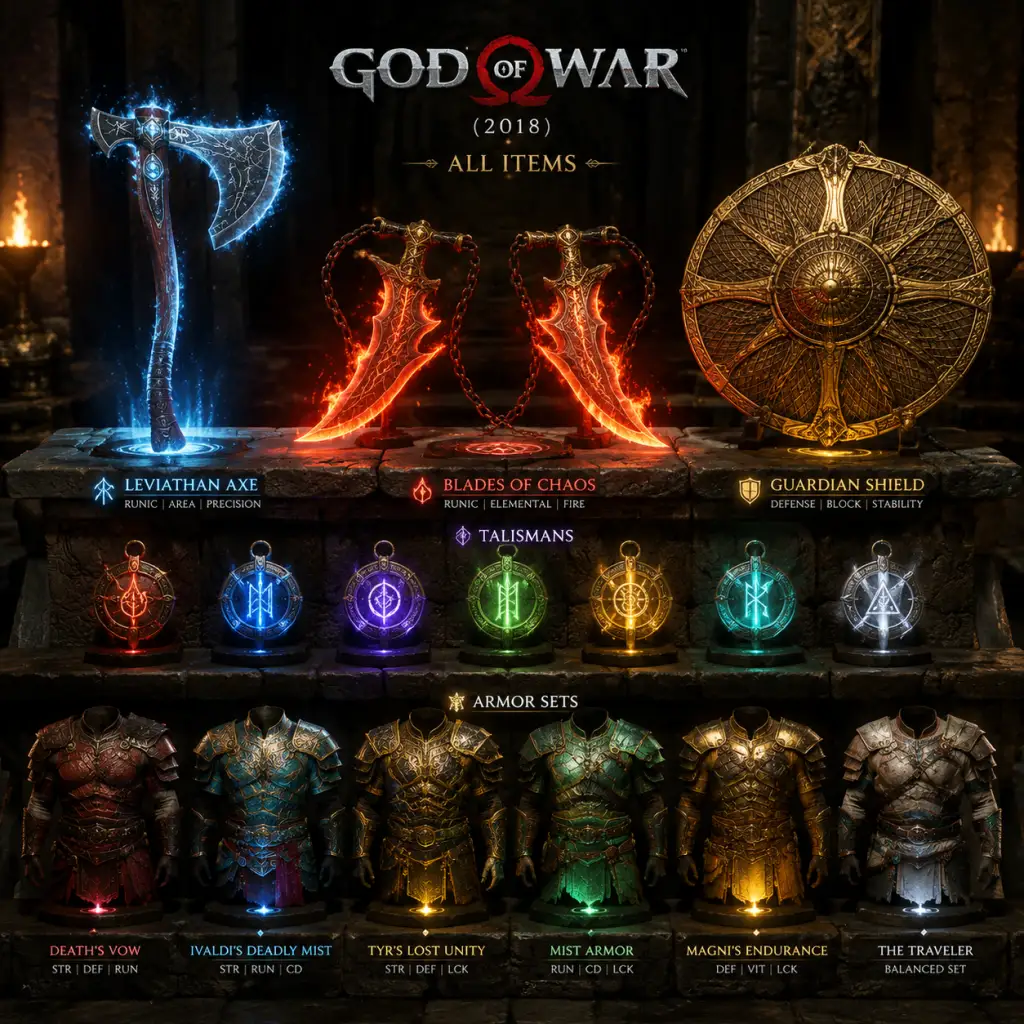
All Game Items
Comprehensive All Game Items Guide for God of War (2018)
This guide catalogs every major item category in God of War (2018). Items are grouped logically with details on acquisition, function, optimal use, and upgrades. All platforms (PS4, PS5, PC) are covered.
---
Currencies
| Currency | Description | How to Obtain | Uses |
|---|---|---|---|
| Hacksilver | Main currency. Silver coins dropped by enemies, found in chests, reward from quests. | Enemies, chests, quest rewards, selling items. | Upgrading weapons, buying equipment, crafting armor, purchasing resurrection stones. |
| XP (Experience) | Earned by killing enemies and completing objectives. | Combat, quests, exploration. | Unlocking new combat skills (Runic Attacks, Shield skills, etc.) for Kratos and Atreus. |
| Legendary Resources (Dust of Realms, Hacksilver? – not a currency but listed as resource) | See Materials section. |
Weapons
#### Leviathan Axe (Main Weapon)
- Base: Frost axe with throw and recall. Upgrades increase damage and unlock Runic Attacks.
- Upgrades (via Sindri/Brok): Use Hacksilver and resources (Dust of Realms, Pound of Flesh, etc.) to increase Level from 1 to 5+. Each level adds a socket for Enchantments.
- Runic Attacks: Equippable abilities (Light/Heavy) learned via XP purchase or found in realms. Later upgrades allow two slots.
- Grip of the Leviathan Axe: Handles. Craftable/buyable. Three types: Strength, Runic, and Balanced. Best endgame: Grip of the Forgotten Flame (post-game).
- Base: Fire blades, unlocked mid-game (after Alfheim). Burn enemies, use for crowd control.
- Upgrades: Same system as Axe. Increase level to 5+.
- Runic Attacks: Separate set for Blades. Fire-based.
- Blade Handles: Similar to Axe grips. Best endgame: Grip of the Deadly Charges (realm tears).
- Base: Activated by R3. Kratos becomes invulnerable, punches deal massive damage, and automatically heal.
- Upgrades: Via skill tree: extend duration, increase damage, unlock charged attacks.
- Guardian Shield (Starting): Balanced block, parry possible. Upgrades via skill tree.
- Shatter Star Shield (Mid-game): Heavy shield, can break enemy guards, but slower. Purchase from Brok/Sindri after certain quest.
- Stone Wall Shield (Late-game): Highest block stability, but no parry. Crafted from rare materials (e.g., Haze Weave).
- Time Shield (Endgame): Perfect parry slows time. Bought from Brok/Sindri after completing all favors for them.
#### Blades of Chaos (Secondary Weapon)
#### Spartan Rage (Unarmed Mode)
---
Shields
Each shield can be upgraded with Shield Rondings (equippable) that provide bonuses (e.g., chance to stun, increase block break damage).
---
Armor Sets
Armor consists of three pieces: Chest, Wrist (Gauntlets), Waist (Belt). Each piece has base stats (Strength, Defense, Runic, Vitality, etc.) and can be upgraded at Brok/Sindri. There are many sets; here are the most notable.
| Set Name | Focus | Obtained | Best For |
|---|---|---|---|
| Fallen Ash Set | Strength and Runic. | Crafted from materials dropped by Valkyries (Asgardian Ingot, etc.). | Damage dealing, high cooldown. |
| Valkyrie Set | Balanced stats, high Defense. | Reward from defeating Valkyries (each piece drops from a different Valkyrie). | Endgame all-rounder. |
| Sindri’s Royal Dwarven Armor | Luck and Cooldown. | Bought from Sindri after completing his favor chain. | Farming Hacksilver, quick ability spam. |
| Brok’s Royal Dwarven Armor | Defense and Vitality. | Bought from Brok after his favor. | Tank builds. |
| Aesirbane Set | High Strength, low Runic. | Post-game realm tears (Niflheim). | Physical damage focused. |
| Ivaldi’s Deadly End | Runic and Cooldown. | Crafted from Niflheim resources (Mist Echoes, Haze Weave). | Runic attack spam in Nilfheim. |
| Traveler Set | Defense, slow movement. | Drops from Traveler enemies. | Very tanky but slows Kratos. |
| Muspelheim Set | Balanced, with perk to increase damage when low health. | Earned from defeating Muspelheim trials. | High risk/reward. |
| Legendary “Zeus” Armor (New Game+) | Extreme glass cannon: +Damage but -Defense. | Crafted from resources in New Game+ (unique drop from Valkyrie Queen). | Highest DPS possible. |
---
Enchantments (Socket Gems)
Enchantments are slotted into Weapons and Armor. They grant stat bonuses, perks, or activate effects. There are dozens; below are categories and key examples.
- Stat Enchantments: +Strength, +Runic, +Defense, +Vitality, +Luck, +Cooldown. Common from chests and shops.
- Unique Perk Enchantments:
- Set Bonuses: Some enchantments require multiple pieces to activate (e.g., “Ancient” set from stone enemies).
- Leviathan Axe:
- Blades of Chaos:
- Bow:
- Runic Summons: Unlock from skills menu. Examples:
- Tunic: Provides Atreus with defense and stat bonuses to Kratos (e.g., +Runic, +Cooldown). Best in slot: Tunic of the Lost (from Niflheim).
- Talisman: Grants Atreus unique effects. Examples:
- Eye of the Winged Chosen: +Luck, +Cooldown, chance to slow time on dodge. (From Valkyrie drops.)
- Njord’s Temporal Stone: Perfect parry slows time. (From a favor reward.)
- Ivaldi’s Corrupted Mind: Chance to trigger a protective bubble when hit. (Found in Niflheim.)
- Yggdrasil’s Heart: Increases Runic and health regeneration. (Chest in Alfheim.)
- Hel’s Touch: Effect when killing an enemy causes explosion. (From Brok/Sindri quest.)
Obtaining: Open world chests, realm tears, Valkyrie drops, shop purchases (with Hacksilver and resources), favor rewards.
---
Runic Attacks (Special Abilities)
Each weapon can equip a Light Runic Attack (quick damage, short cooldown) and a Heavy Runic Attack (slower, powerful, longer cooldown). Unlocked via XP purchase in the Skills menu, or found as Legendary Chest loot.
Examples:
- Light: Hel’s Touch (short-range blast), Njord’s Tempest (spin), Leviathan’s Wake (projectile).
- Heavy: Fury of the Ice Troll (large AOE), Frost Giant’s Frenzy (multi-hit), Ivaldi’s Anvil (slam).
- Light: Blast of Hephaestus (fire burst), Wrath of the Fire Giant (spin).
- Heavy: Prometheus’ Flame (pillar of fire), Nemean Crush (ground slam).
Best combos: Pair a quick Light Runic with a slow Heavy for crowd control then big damage. Cooldown reduction from armor/enchantments is vital.
---
Atreus Gear
Atreus has three equipment slots: Bow (Runic Summons), Tunic, and Talisman. These affect his damage, arrow type, and summon abilities.
- Talon Bow (base): Rapid arrow shots.
- Talon Bow Upgrades: Increase arrow damage, unlock summon abilities (e.g., Spartan Rage for Atreus).
- Lion’s Roar (Tier 1): Summon a spectral wolf.
- Alpha Strike (Tier 2): Summon wolves that cause stun.
- Summon Storm (Tier 3): AOE storm of birds/lions.
- Blazing Sigil (burn enemies).
- Magnetic Brace (pull enemies toward Kratos).
Upgrades: All Atreus gear can be upgraded for Hacksilver and resources at the shop. Focus on increasing his stun damage and support utility.
---
Talismans (Active Items)
Kratos can equip one Talisman that provides an activated ability (on cooldown) and passive stats. Talismans can be upgraded once (in New Game+) for better stats and extra Enchantment sockets.
| Talisman | Effect | How to Obtain |
|---|---|---|
| Talisman of the Realms | Slows time for a few seconds after activation. | Purchase from Brok after completing “The Deception” favor. |
| Shattered Gauntlet of Ages | Throws a powerful projectile (combo with enchantments for higher damage). | Craft from Sindri after completing all his favors. |
| Amulet of Kvasir | Perfect dodge slows time (passive effect). | Reward from Valkyrie Queen. |
| Bitter Squirrel | Spawns health/rage stones on activation. | Find in Alfheim hidden chamber. |
| Unbound Potential | Resets all Runic cooldowns. | Reward from a Muspelheim trial. |
| Talisman of Concentration | Increases Runic damage after a perfect parry. | Found in a Legendary Chest in Helheim. |
Consumables
These items are used in combat and found throughout the world or crafted at shops.
- Resurrection Stone: Revives Kratos once when health reaches zero. Must be equiped in inventory slot. Costs 35,000 Hacksilver or crafted from rare materials. Can be upgraded to grant bonus (e.g., full rage meter).
- Health Stones (Green): Small shards (dropped by enemies) or large chunks (chests, shops). Restore health.
- Rage Stones (Yellow): Fill Spartan Rage meter. Found in chests or dropped.
- Freya’s Gift: A one-time item that revives Atreus if downed (unique story reward).
- Tinker’s Shards: Used to open Legendary Chests (found in realm tears, requires key). Not consumable per se but key items.
---
Resources / Materials
These are used for upgrading equipment, crafting armor, and unlocking realm travel.
| Material | Use | How to Obtain |
|---|---|---|
| Hacksilver | Primary currency (see above). | |
| Dust of Realms | Upgrade weapons and armor. | Drop from bosses, realm tears, chests. |
| Pound of Flesh | Upgrade weapons. | Dropped by certain enemies (trolls, ogres). |
| Asgardian Ingot | Upgrade high-level armor and weapons. | Dropped by Valkyries, some realm tears. |
| Haze Weave | Craft Niflheim armor sets. | Earned in Niflheim labyrinth runs (reward from chests after clearing rooms). |
| Mist Echoes | Currency in Niflheim (opening chests, buying gear). | Earned by killing enemies in Niflheim, opening chests. Also used to keep Ivaldi’s armor effects active. |
| Muspelheim Ores | Unlock arena trials, buy gear. | Collect from Muspelheim realm by completing trials. |
| Aesirbane / Asgard’s Fire | Post-game legendary armor. | Realm tear rewards, Valkyrie Queen drops. |
| World Serpent Scales | Upgrade certain armor pieces. | Dropped by The World Serpent (encounter after main story). |
| Chaos Flame | Upgrade Blades of Chaos to Level 3. | Obtained from a Legendary Chest in Helheim. |
| Frozen Flame | Upgrade Leviathan Axe to Level 3. | Found in a Legendary Chest in Thamur’s Corpse. |
| Rise of the Valkyrie | Unlock Valkyrie arena. | Collect all 8 from Valkyries. |
| Tinker’s Scroll | Unlock special gear recipes. | Hidden chests. |
| Dwarven Steel | Craft Dwarven armor sets. | Bought or found in Lake of Nine area after progressing. |
| Legendary Rune | Used to unlock high-level Runic Attacks. | Rare drops from bosses or realm tears. |
| Frost/Flame Ancient’s Heart | Craft high-end enchantments. | Dropped by Ancient bosses (Frost, Fire). |
| Symbol of the Realm | Travel between realms (not consumed, used for fast travel). | Given after main story completion. |
Collectibles
These items are for completionists and often unlock lore, favors, or trophies.
- Artifacts: Small objects (Masks, Bottles, etc.) often in clusters. 8 sets of 10 artifacts each. Collecting all rewards a random legendary enchantment.
- Ravens (Odin’s Ravens): 51 hidden green ravens across realms. Destroying all reveals a secret chamber with high-level loot (key to Valkyrie Queen).
- Treasure Maps: Scrolls found in world; each indicates a hidden dig spot. Rewards include armor, enchantments, Hacksilver.
- Lore Marker Runes: 17 runes that you find and activate (like a collectible). Completing all gives a trophy and lore.
- Shattered Gauntlet of Ages Enchantments: Six special enchantments that when socketed into the Gauntlet create a powerful attack (the gauntlet itself is a talisman). Each dropped by a specific Valkyrie.
- Valkyrie Heads: After defeating each Valkyrie, you collect their head as proof. Not consumed but needed to unlock Valkyrie Queen fight.
- Realms Between Realm (Niflheim Favor): Collect “Anchor of Fog” from central chamber for crafting Zeus armor (New Game+).
- Mystic Gateways (Fast Travel): Unlockable via the Mystic Gateway stones. After story, all become accessible.
- Jotnar Shrines: Giant statues that reveal lore. Interact for XP.
- Chests:
- Guardian’s Key (from Fafnir’s Storeroom?) – Actually, the Chisel is key.
- The Chisel – Used to open the Hibernal’s Tomb and gain entry to Jotunheim. Obtained from the final area of the game (main story).
- Blades of Chaos – Not an item but a weapon; story required.
- Light of Alfheim – Required to light the bridge to the Dark Elves’ temple.
- Shadow of the Mountain (item) – Actually a key item to open a door in Helheim.
- Seidr Horn – Used to break the curse on Freya? Not exactly.
- Tyr’s Temple Key – Unlocks realm travel room fast.
- Mimir’s Head – Attached to Kratos’ belt, gives advice and lore. Not a usable item but important.
- Runic builds: Use Ivaldi’s Armor + Talisman of the Realms + high Runic stats on Axe and Blades. Cooldown reduction from armor and Enchantments allows spamming Runic Attacks. Best against Valkyries.
- Strength builds: Zeus Armor (New Game+) + Shatter Star Shield (for guard break) + high Strength Enchantments. Glass cannon.
- Tank builds: Traveler Armor + Stone Wall Shield + Vitality Enchantments. High survivability for low skill players.
- Luck builds: Sindri’s set + Lucky enchantments increases Hacksilver drops and chance to trigger powerful effects.
- Atreus synergy: Equip abilities that stun enemies (e.g., Summon Storm, Blazing Sigil) to combo with Kratos’ Runic Attacks.
- PC Version: Supports keyboard/mouse and controller. Same items, but item hotkeys can be remapped. No exclusive items.
- PS5 Backward Compatibility: Runs at 60fps with 4K. Items unchanged.
- New Game+ Content: All items carried over plus new “Aesirbane” armor sets, upgraded versions of existing items, and new rarity (Perfect).
- Legendary Chests (gold): Contain Runic Attacks, enchantments, resources. Need special keys (sometimes).
- Nornir Chests (mystical): Puzzle chests that require lighting rune seals. Rewards: Idunn Apples (increase Max Health) or Horn of Blood Mead (increase Max Rage).
- Hacksilver Chests: Plain silver chests.
- Mythic Chests (green glow): Rare resources.
---
Key Items (Story/Progress)
These items are required to progress the story or open new areas.
---
Upgrades & Synergies
Item Synergies:
Upgrade Priority:
1. Weapon upgrades (Leviathan Axe and Blades) to Level 4+ as soon as possible.
2. Armor set that suits your playstyle (Valkyrie for balanced, Fallen Ash for damage).
3. Enchantments with synergy (e.g., Ivaldi’s Corrupted Mind for survivability).
4. Atreus’ bow and runic summons (Tier 3 summon is powerful).
5. Resource gathering in Niflheim for endgame armor.
---
Platform Differences
---
This guide covers all major items. For exhaustive lists of every Enchantment, Runic Attack, and resource drop rates, consult the in-game codex or specialized wikis.
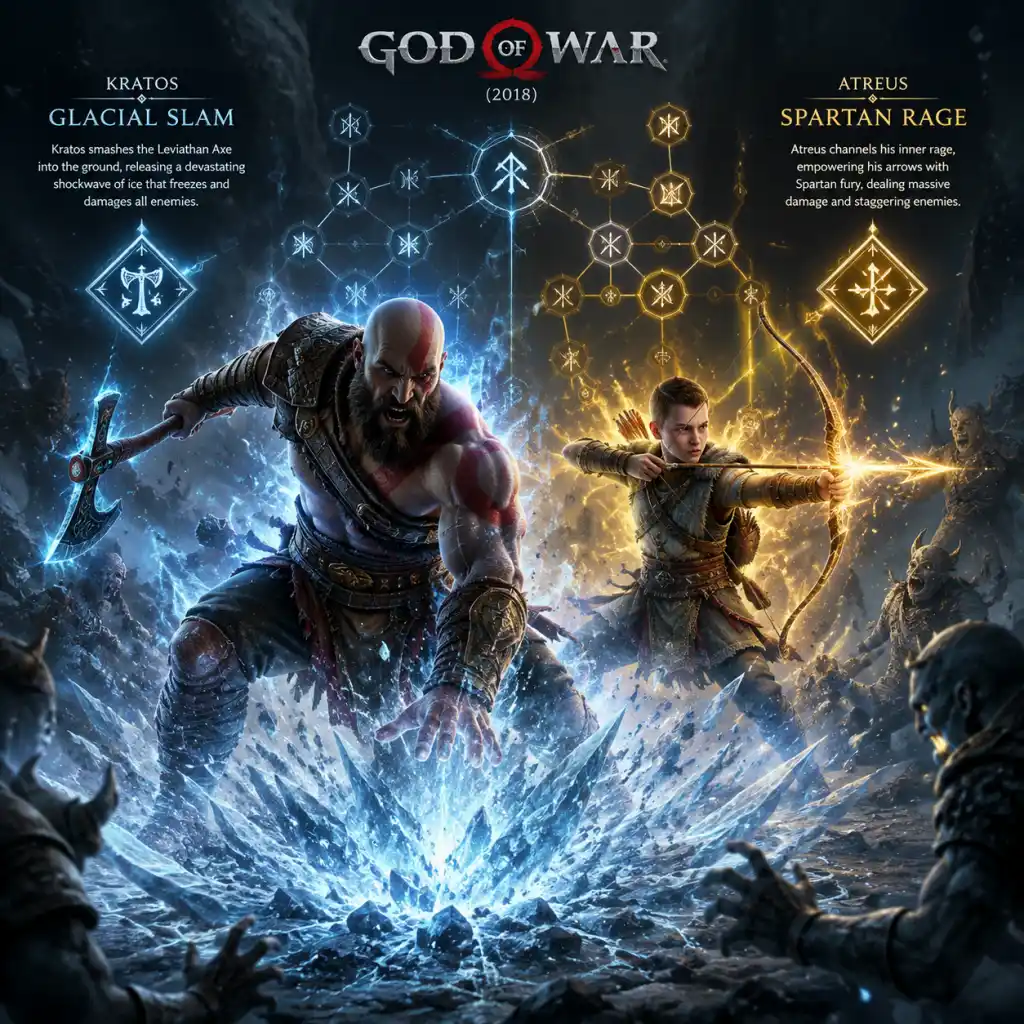
Character Skills
Character Skills Guide for God of War (2018)
This guide covers all skills and abilities for Kratos and his companion Atreus. Kratos has three main skill trees: Leviathan Axe, Blades of Chaos, and Ranged Combat (which includes Atreus's abilities). Additionally, Runic Attacks, Spartan Rage, Talismans, and Guardian Shield are covered. For each skill or ability, we detail its effects, cooldown (where applicable), upgrade paths, combo potential, synergies with other skills or equipment, recommended use cases, and suggested builds.
Kratos's Leviathan Axe Skills
The Leviathan Axe skills are unlocked with XP earned from combat, quests, and exploration. They are grouped into three trees: Axe Throw, Melee, and Runic. Each skill has level 1, 2, and sometimes 3 upgrades that improve damage, stun, or add new effects.
#### Axe Throw Tree
| Skill Name | Description | Cooldown/Effect | Upgrades | Combos & Synergies | When to Use |
|---|---|---|---|---|---|
| Flurry of Arrows (Atreus) | Atreus fires a rapid volley of arrows, hitting multiple times. | Atreus cooldown: ~8s | Level 2: More arrows; Level 3: Unblockable | Use after Kratos throws the axe to keep pressure. Synergizes with Runic attacks that stun. | Against groups or to interrupt enemy actions. |
| Splinter Shot | Hold R1 to charge and release a spread of three axe projectiles. | No cooldown, consumes stamina? Actually, it's a charged throw. | Level 2: Increased damage; Level 3: Slows enemies on hit | Follow up with recall attack for a spinning slash. | Great for controlling crowds or hitting multiple flying enemies. |
| Whirlwind Throw | Hold R2 and then press R2 again to spin the axe in a circle before throwing. | No cooldown | Level 2: Larger spin radius; Level 3: Adds a frost explosion | Can be canceled into recall. Use before charged attacks to clear space. | When enemies are clustered or to break shields. |
| Anger of the Earth (Runic Attack) | Slams the axe into the ground, creating a shockwave of ice. | Cooldown varies by tier (base ~60s) | Tier 1 to 3: Increased damage and radius, longer freeze | Use with Spartan Rage for massive area damage. | Against groups or large enemies. |
| Skill Name | Description | Cooldown/Effect | Upgrades | Combos & Synergies | When to Use |
|---|---|---|---|---|---|
| Serrated Cob | Press L2 then R1 for a jab that stuns. | No cooldown | Level 2: More stun damage; Level 3: Unblockable | Start combo with this, then follow with heavy attacks. | To open guards or interrupt charging enemies. |
| Bursting Forth | After a block break, press R1 for a quick follow-up. | No cooldown | Level 2: Extra hit; Level 3: Knockback | Use after parry (Guardian Shield skill) for extra damage. | When enemies are staggered. |
| Valiant Strike | While sprinting, press R1 for a leaping slash. | No cooldown | Level 2: Larger arc; Level 3: Frost effect | Combos with Serrated Cob for air attacks? Actually, it's a ground slam. | To close distance or hit aerial enemies. |
| Executioner's Cleave | Hold R2 for a charged heavy attack, can be released as a powerful cleave. | No cooldown | Level 2: Faster charge; Level 3: Unblockable | Best after stunning an enemy or in a combo. | For high damage on a single target. |
| Glacial Cleave | After a full combo, hold R2 for a frost explosion. | No cooldown | Level 2: Bigger explosion; Level 3: Freeze duration increase | Use after R1-R1-R2 combo. Synergizes with Frost build. | To freeze multiple enemies around. |
Heavy Runic Attacks are powerful abilities that replace the heavy attack button when equipped. They have cooldowns and can be upgraded with Runic gems.
| Skill Name | Description | Cooldown (Base) | Upgrades & Gems | Combos & Synergies | When to Use |
|---|---|---|---|---|---|
| Leviathan's Wake | A linear projectile that freezes enemies. | 60s | Increased speed, damage, or freeze duration. | Use after Atreus arrows to keep enemies still. | Ranged opener. |
| Frost Giant's Frenzy | Kratos spins and slams the axe repeatedly. | 90s | More hits, larger area. | Use while enemies are grouped. | Crowd control and damage. |
| Ivaldi's Anvil | Summons a frost anvil that slams down. | 80s | Increased damage, frost build-up. | Use after a parry to guarantee hit. | High damage single target or after stagger. |
Kratos's Blades of Chaos Skills
Unlocked after retrieving the Blades (mid-game). Similar XP progression with their own trees: Whiplash, Blade Throw, and Runic. The Blades excel at crowd control and burning effects.
#### Whiplash Tree
| Skill Name | Description | Cooldown/Effect | Upgrades | Combos & Synergies | When to Use |
|---|---|---|---|---|---|
| Arrea Embrace (Whiplash) | Press L2 then R1 to grapple an enemy and pull them toward you. | No cooldown | Level 2: Larger range; Level 3: Stuns on pull | Can be followed by a shield slam or heavy attack. | To isolate an enemy from a group. |
| Relentless Fury | After a full Blades combo, hold R2 for a fiery explosion. | No cooldown | Level 2: Larger blast; Level 3: Burn damage over time | Use against groups. Synergizes with Burn status. | When surrounded. |
| Grasp of the Flame | While sprinting, press R1 for a sweeping fire attack. | No cooldown | Level 2: More hits; Level 3: Ignores block | Good for closing distance. | To interrupt ranged enemies. |
| Skill Name | Description | Cooldown/Effect | Upgrades | Combos & Synergies | When to Use |
|---|---|---|---|---|---|
| Whirlwind Toss | Hold R2 then release to spin blades around before throwing. | No cooldown | Level 2: More spins; Level 3: Burn spread | Combos with recall. | Crowd control from range. |
| Blazing Tempest | Heavy Runic Attack: Kratos spins blades creating a fire tornado. | 90s | Increased radius, duration, or burn damage. | Excellent for clearing large groups. | Against wave of enemies. |
| Meteor Slam | Heavy Runic Attack: Jumps and slams down with fiery shockwave. | 80s | Increased damage, area. | Use after launch or in air combos. | High area damage. |
| Skill Name | Type | Description | Cooldown | Upgrades | When to Use |
|---|---|---|---|---|---|
| Tartarus Rage | Light | Kratos spins blades in a circle around himself. | 40s | More hits, burn damage. | Self-defense against enemies closing in. |
| Rage of the Titans | Light | A short-range beam of fire. | 50s | Increased damage, range. | To stagger large enemies or break rocks. |
| Hel's Touch | Light | A quick fiery uppercut that launches enemies. | 30s | Faster animation, added burn. | To launch enemies for air combos. |
| Prometheus Flame | Heavy | A massive fire blast around Kratos. | 90s | Huge damage, burn on all hits. | When surrounded by strong enemies. |
| Nemean Crush | Heavy | Kratos slams the blades into the ground, creating a shockwave. | 70s | Increased shockwave radius. | Area control. |
Atreus Skills and Abilities
Atreus gains XP through combat and story progression. His skill tree is called Ranged Combat in the menu. He also has passive skills and talisman-like upgrades via his bow and arrows.
#### Atreus Arrow Types
| Arrow Type | Unlock | Effect | When to Use |
|---|---|---|---|
| Standard Arrow | Default | Moderate damage, stun. | General use, interrupting attacks. |
| Shock Arrow | Early game (after lightning abilities) | Deals shock damage, can stun multiple enemies in chain. | Against groups or to paralyze enemies. |
| Sound Arrow | Mid game (after reaching the Lake of Nine) | Creates a noise that distracts enemies, can stun. | To stealthily take out one enemy or break their guard. |
| Skill Name | Description | Upgrades | Synergies | When to Use |
|---|---|---|---|---|
| Summon Animal | Atreus calls a wolf to attack enemies. | Level 2: Wolf deals more damage; Level 3: Wolf pins enemies. | Good for crowd control or interrupting a boss. | When you need a distraction or extra pressure. |
| Swift Arrows | Atreus fires a quick volley of three arrows. | Level 2: More arrows; Level 3: Unblockable. | Use after a heavy attack to maintain combo. | To build stun quickly. |
| Guardian's Light (passive) | Atreus's arrows occasionally heal Kratos for a small amount. | Not upgradable. | Pairs well with any build. | Always useful, especially in tough fights. |
| Runic Summon | Atreus uses a runic summon (e.g., wolves, ravens) based on equipped rune. | Unlock runes via side quests. | Each has unique effects: stun, damage, healing. | Use according to enemy weakness. |
Spartan Rage
Spartan Rage is a temporary super mode. It is unlocked early and used via L3+R3. While active, Kratos gains:
- Increased damage (all attacks).
- Health regeneration (each hit restores HP).
- Unblockable attacks.
- No cooldown on basic moves.
- Emergency heal when low on health.
- To burst down a tough enemy or boss.
- To break out of heavy stunlock.
- Pair with runic attacks that have long cooldowns; Spartan Rage doesn't affect those cooldowns but you can interrupt with rage.
- Armor sets like Valkyrie or Ares boost rage duration or damage.
Duration: ~10 seconds base. Can be extended with enchantments and armor bonuses.
When to use:
Synergies:
Talismans and Active Abilities
Kratos can equip one talisman that grants an active ability (activate with R1+R2). These are powerful and often game-changing.
| Talisman Name | Effect | Cooldown | Best Build | When to Use |
|---|---|---|---|---|
| Talisman of Unbound Potential | Resets all Runic Attack cooldowns. | 180s | Runic spam build. | Use after using both runic attacks to instantly reuse them. |
| Amulet of Kvasir | Slows time after a perfect dodge. | 60s | Any build, especially for dodgers. | Activate after a perfect dodge to unleash a full combo. |
| Shattered Gauntlet of Ages | Slows time when activated and can be upgraded with enchantments. | 90s | Best with high Runic stat. | Use to control battle tempo. |
| Talisman of Cursed Power | Increases all damage but reduces defense. | 120s | Glass cannon builds. | For boss fights where you can avoid hits. |
| Talisman of the Realms | Teleports you behind an enemy and stuns them. | 60s | Stealth or backstab setups. | To initiate fights or escape pressure. |
Guardian Shield and Parry Skills
Kratos's shield has its own passive and active abilities. The shield can block most attacks, and a perfectly timed block (parry) staggers enemies.
- Guardian Shield: Default shield, can parry. Upgrade via the blacksmith to improve block strength and parry window.
- Vandal's Shield: A different shield available later, focuses on reflecting projectiles.
- Parry: Press L1 just before an attack. Successful parry stuns the enemy and opens them to attacks. Unlockable via skill purchase.
- Shield Strike: After a parry, press R1 for a follow-up attack. Can knockback or set up combos.
- Guardian's Ward: Hold L1 to raise shield; reduces damage taken but drains stamina.
Skills:
Recommended Builds
| Build Name | Weapons | Skills Focus | Talisman | Atreus Rune | When to Use |
|---|---|---|---|---|---|
| Runic Spam | Axe and Blades | Max Runic stat, use runic attacks with low cooldown. | Talisman of Unbound Potential | Runic Summon that resets runic cooldowns (e.g., Wolf rune). | Against bosses or large groups; melt HP. |
| Frost Warrior | Axe only (or as primary) | Frost damage skills, freeze enemies. | Amulet of Kvasir | Shock arrows (to stun). | For crowd control; freeze then execute. |
| Fire Berserker | Blades only | Burn damage, high DPS. | Talisman of Cursed Power | Sound arrows (to break blocks). | High risk, high reward; use with defensive armor. |
| Balanced | Both weapons | Mix of passives, balanced stats. | Shattered Gauntlet of Ages | Guardian's Light (heal). | Default playthrough for beginners. |
| Valkyrie Slayer | Any | High Strength and Runic; use runic attacks that stun. | Any with good stats | Any with stun (e.g., ravens). | Specific for Valkyrie fights; maximize stagger. |
When to Use Each Skill: Summary
- Axe Throw skills: Use to control distance, interrupt ranged enemies, or apply frost status from afar.
- Blades Whiplash: Use to pull enemies closer or escape being surrounded.
- Spartan Rage: Emergency heal or burst damage; activate when low on health or facing a strong enemy.
- Atreus arrows: Use constantly; each type has utility: standard for interrupts, shock for crowd control, sound for stealth.
- Atreus wolf summon: Use when you need a temporary tank or to interrupt a boss's attack.
- Talisman active: Use according to situation; reset cooldowns before a big fight, slow time on dodge.
- Parry: Master this; it's essential for breaking enemy defenses and creating openings.
This guide covers every skill and ability in God of War (2018). Upgrade priorities depend on your playstyle, but investing in at least one runic attack from each weapon tree is recommended due to their high damage and utility. Always keep Atreus upgraded—his arrows and summons are invaluable. Experiment with different combinations to find your favorite build.
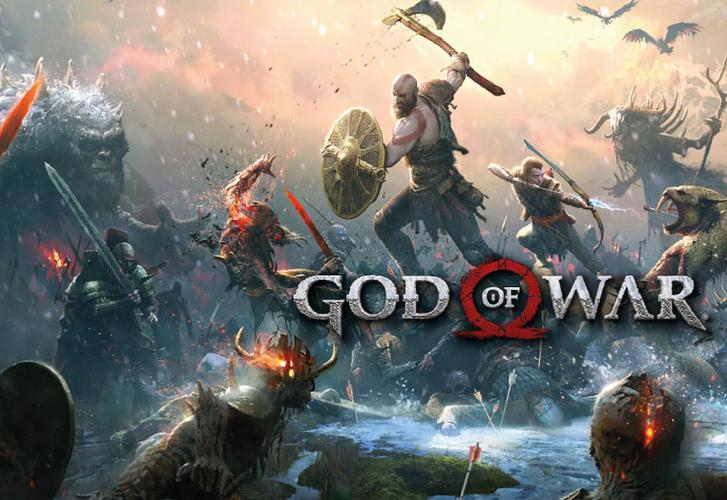
Characters & Roles
Characters & Roles in God of War (2018)
This guide covers every major character in God of War (2018), focusing on the two playable characters: Kratos and his son Atreus. While the game is single-player with a fixed protagonist, understanding their roles, strengths, and synergies is crucial for mastering combat and progression. We also detail key supporting characters and their functions.
---
Kratos: The Ghost of Sparta
Background
Kratos, once the vengeful God of War from Greek mythology, now lives in Midgard with his son Atreus. He wields the Leviathan Axe (a frost-enchanted weapon given by his wife Faye) and later the Blades of Chaos (his old chained blades from his past). His primary role is melee damage dealer, tank, and crowd controller.
Strengths
- High base damage with both weapons.
- Staggering attacks – heavy hits break enemy poise.
- Stun potential – fists and runic attacks can fill the stun meter, enabling finishers.
- Defensive options – block, parry, dodge roll, and shield bash.
- Area of Effect (AoE) capabilities – especially with Blades of Chaos and runic attacks.
- Elemental damage – Frost (axe) and Fire (blades) exploit enemy weaknesses.
- Slow movement compared to many enemies; relies on positioning.
- Limited ranged options – only the axe throw (can be recalled) and runic attacks.
- High stamina cost for consecutive dodges/blocks when overwhelmed.
- No self-healing outside of Spartan Rage or talismans.
- Vulnerable during long attack animations (e.g., heavy runic attacks).
- Early Game: Focus on axe throws and basic combos. Use shield to block projectiles. Upgrade axe frequently.
- Mid Game: Unlock Blades of Chaos. Use both weapons for elemental advantage. Invest in runic attacks for bursts.
- Late Game: Optimize armor sets (e.g., Sindri’s Royal Dwarven Set for defense, or Valkyrie sets for offense). Balance runic cooldowns with luck for more frequent activations.
Weaknesses
Playstyle
Kratos excels in relentless aggression, using his heavy attacks to stagger enemies and his light attacks to build combo meter. Switch between axe (for single-target freeze) and blades (for crowd control). Use shield parries to counter enemy attacks, then follow up with a heavy combo. Utilize Atreus’s arrows to interrupt and build stun. Activate Spartan Rage when overwhelmed or to finish off tough foes; it grants health regen and massive damage.
Unlock Conditions
Kratos is available from the start. No unlock necessary. The Blades of Chaos are obtained during the story quest “The Magic Chisel”.
Recommended Equipment & Builds
| Build Type | Armor Set | Enchantments | Talisman | Runic Attacks (Axe) | Runic Attacks (Blades) |
|---|---|---|---|---|---|
| Strength/Damage | Valkyrie+ (fully upgraded) | Strength + Runic gems | Talisman of Unbound Potential +3 | Njord’s Tempest, Ivaldi’s Anvil | Rage of the Titans, Prometheus Flame |
| Cooldown/Runic | Sindri’s Royal Dwarven Set | Cooldown + Runic | Talisman of Concentrated Vitality | Hel’s Touch, Leviathan’s Roar | Blast of Hephaestus, Spartan Charge |
| Defensive/Stun | Traveler Set | Defense + Stun | Talisman of the Realms (for realm shift) | Frost Giant’s Frenzy, Mist of Helheim | Hyperion Slash, Nemean Crush |
Team Synergy (with Atreus)
Atreus is Kratos’s indispensable support. His arrows interrupt enemy attacks, build stun, and can trigger elemental effects when upgraded. Use Atreus’s Shock Arrows to stun groups, Runic Summon for crowd control, and Wrath of the Wolf for massive damage. Kratos should coordinate attacks with Atreus’s summons – e.g., use a heavy runic attack while Atreus’s wolves pin enemies. Always keep Atreus’s arrow meter full by using his abilities on cooldown.
---
Atreus: The Boy
Background
Atreus is Kratos’s son, unaware of his divine heritage (he is the son of a god and a giant). He fights with a short bow and a magical knife (Talons of Chaos? – actually a dagger). His role is ranged support, crowd control, and stagger maintenance. He is always present in combat.
Strengths
- Ranged harassment – arrows interrupt enemy attacks and stun.
- Lightning damage – shock arrows can stun groups and chain to multiple enemies.
- Summons – spectral animals (wolves, boar) distract and damage foes.
- No resource cost for basic arrows (unlimited quiver). Special arrows and summons have cooldowns.
- Can be manually commanded (shortcut buttons) for precise timing.
- Passive buffs – some skills increase Krato’s combo damage or stagger.
- Low direct damage – arrows are insignificant against bosses/elites without upgrades.
- Squishy – Atreus cannot be hit in combat (he is AI-controlled and invulnerable), but if he is stunned (very rare) he stops attacking briefly.
- Cannot be directly controlled – you only command his actions, not movement.
- Cooldown-dependent for special arrows and runic summons.
- Some enemies are immune to shock/stun (e.g., certain bosses).
- Early Game: Only basic arrows. Use frequently to build stun.
- Mid Game: Unlock shock arrows and first wolf summon. Prioritize cooldown reduction on Atreus’s skills in his skill tree.
- Late Game: Max out Atreus’s skill tree. Equip the Fertility armor variant (if available) or Ancient armor for increased damage. Focus on Cooldown and Runic stats to reduce his ability timers.
- Wrath of the Wolf (summons two wolves) – best damage.
- Shock Arrows – stun all nearby enemies.
- Thousand Arrows – multiple shots for constant pressure.
- Bear Slam (late game) – heavy stun and damage.
- Role: Witch of the Woods, mentor. Teaches Kratos and Atreus about the world. Provides key story progression and magic (e.g., the travel rune).
- Combat involvement: Sometimes casts spells to help (healing, removing poison) but not controllable.
- Importance: Essential for unlocking upgrades (e.g., to the Blades of Chaos) and lore. Protect her during “The Witch’s House” quest.
- Role: Dwarven blacksmiths. Upgrade Kratos’s weapons and armor, craft enchantments.
- Locations: Brok appears early in the Lake of Nine, Sindri at various points. Both can be found in the world.
- Services: Upgrade axe, blades, and armor; sell materials; offer side quests. Brok is more direct, Sindri is more cautious. Completing their favors unlocks unique armor sets (e.g., Ivaldi’s Mist Armor).
- Role: The smartest man alive, advisor. Tells stories, provides lore, and offers riddles. He is basically a walking encyclopedia attached to Kratos’s belt. No combat role, but his knowledge unlocks Valkyrie locations and Legendary Chest hints.
- Role: Norse god, invulnerable to all threats (physical and magical) due to a curse. He is the primary boss fought multiple times. His curse makes him immune to damage until the final fight when Atreus’s mistletoe arrows break it.
- Combat: Each encounter requires specific tactics (e.g., stunning him with fists or hitting with elemental attacks after his shield is down). He is fast, strong, and uses frost attacks.
- Role: Secondary bosses. Magni is the stronger (uses a hammer), Modi is faster (uses a mace). They appear mid-game in the “Mountain” region.
- Fight tips: Focus on Modi first (he uses lightning and interrupts), then Magni. Use Atreus’s shock arrows on Modi to stun him, then punish.
- Role: Nine elite optional boss fights. Defeating them rewards Valkyrie armor (best in game) and the Valkyrie Summon enchantment. They are extremely difficult, requiring perfect parries, dodges, and elemental management.
- Tips: Use the Talisman of the Realms to slow time, and armor with high defense/cooldown. Study each Valkyrie’s attack patterns (they have varied moves, e.g., blinding light, aerial attacks). Atreus’s shock arrows help interrupt their combos.
- Role: Her ashes are the goal of the journey. She is a giant (Jotun) and foresaw the events. Her legacy influences the story and the Leviathan Axe.
Weaknesses
Playstyle
Atreus is a passive assistant: keep pressure on enemies with constant basic arrows (spam R1 recommended). Use Shock Arrows to freeze large groups or Runic Summon (e.g., Wrath of the Wolf) to deal burst damage and create openings. His Talon Bow can be upgraded for more puncture. In boss fights, wait for openings and use Atreus’s abilities to interrupt dangerous attacks. He is essential for breaking enemy shields (shock arrows stun shield-bearers).
Unlock Conditions
Atreus is available from the start. No unlock required. His shock arrows are obtained during the story quest “The Sickness” (after freeing Blue Sand). His Runic Summons are unlocked through the main story and optional favors.
Recommended Equipment & Builds
Atreus has only one weapon: the Talon Bow (upgradeable). His armor sets are optional collectibles – the best is Valkyrie+ (shared with Kratos) or Sindri’s Royal Dwarven Set for cooldown. However, Atreus’s gear is less impactful than his skills. Prioritize unlocking these skills:
Best Talisman for Atreus: None directly; his cooldown is affected by Kratos’s talisman? (No – Atreus has his own stats that are boosted by armor and enchantments on Kratos’s chest? Actually, Atreus’s damage and cooldown are independent and scale with story progression. The only way to improve him is via his skill tree and some enchantments that benefit “Atreus” (e.g., Atreus’s Protection). Use Enchantments that increase his arrow damage or reduce cooldowns (e.g., Heart of the Wolf, Horn of Boreas).
Team Synergy (with Kratos)
Atreus is the perfect partner for Kratos’s aggressive play. His arrows interrupt enemies, allowing Kratos to land heavy combos. Use Atreus’s Runic Summon before unleashing a runic attack to maximize damage. When fighting multiple enemies, spam shock arrows to stun several at once, then Kratos uses area-of-effect attacks (Blades of Chaos). In one-on-one fights, use Atreus’s Wrath of the Wolf to pin the enemy, then follow up with a heavy runic attack. Always command Atreus when you see a gold ring around an enemy – that means it’s stunned and ready for a grapple/finisher; Atreus can instantly trigger it.
---
Supporting Characters (Non-Playable)
Freya
Brok & Sindri (The Huldra Brothers)
Mimir
Baldur (Main Antagonist)
Magni & Modi (Thor’s Sons)
The Valkyries (Optional Bosses)
Kratos’s Wife (Faye) – Deceased
---
Summary Table: Playable Characters
| Character | Weapon(s) | Role | Strengths | Weaknesses | Best Build Focus |
|---|---|---|---|---|---|
| Kratos | Leviathan Axe, Blades of Chaos, Shield | Primary damage dealer, tank | High damage, stagger, area control, elemental flexibility | Slow, limited ranged, vulnerable during long animations | Strength + Runic, Cooldown for sustain, or Defense for survival |
| Atreus | Talon Bow, Knife | Ranged support, stun builder | Interruption, stun, summons, unlimited basic arrows | Low damage, cooldown-dependent, AI-controlled | Cooldown reduction via skills (not gear heavily) |
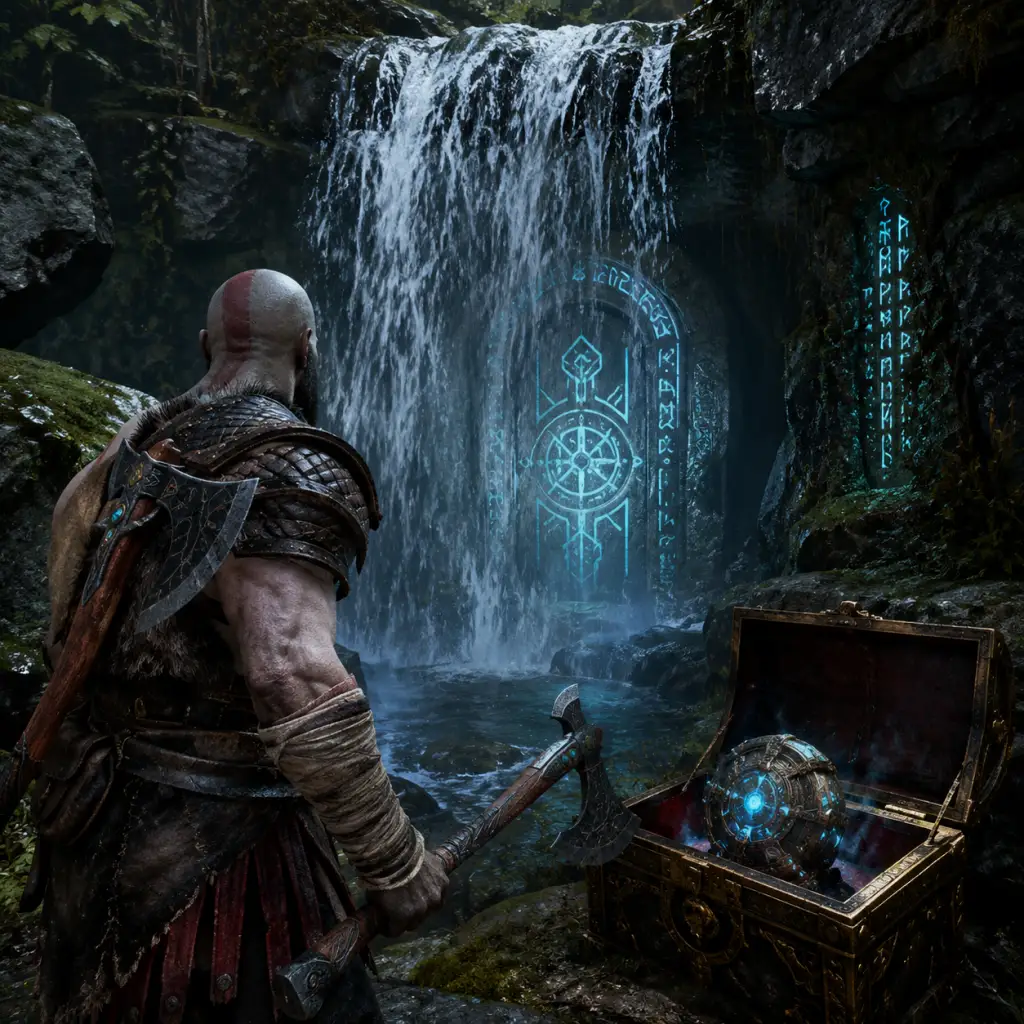
Cheats & Secrets
Cheats & Secrets Guide for God of War (2018)
1. No Traditional Cheat Codes
God of War (2018) does not include any traditional cheat codes (e.g., button combinations, command prompts, or debug menus) on any platform. The developers intentionally designed the game to reward exploration, puzzle-solving, and skill rather than offering shortcuts. All hidden content listed below is legitimate, developer-intended secrets or Easter eggs.
2. Easter Eggs & Pop Culture References
- Infinity Gauntlet Reference: The talisman Shattered Gauntlet of Ages and its six enchantments (Andvari's Soul, Njord's Temporal Stone, Muspelheim Eye, Eye of the Outer Realm, Ivaldi's Corrupted Mind, and Asgard's Shard of Existence) form a clear nod to Marvel’s Infinity Gauntlet. Equip all six to see a brief visual effect.
- Ares’ Helmet: Inside the Temple of Týr, you can find the helmet of Ares (from the original Greek God of War trilogy) on a pedestal. Examine it for a unique dialogue from Kratos.
- “I Don’t Know Who That Is”: During Atreus’s questions about various gods, Mimir sometimes responds with “I don’t know who that is” – a reference to characters cut from the game (e.g., Heimdall, Thor).
- Ghost of Sparta: In the travel room at the Witch’s Cave, a hidden painting shows Kratos as the Ghost of Sparta from previous games.
- Pirate Skull: Inside a sarcophagus in the Lake of Nine, you can find a pirate skull that Kratos comments on.
- Faye’s Carvings: Throughout the journey, you can find carvings left by Kratos’s wife Faye, which foreshadow events and link to the broader God of War mythology.
- The Hidden Chamber of Odin: Located at the very top of the Lake of Nine (above the elevator). Requires completing the “Favor of the Fates” quest. Inside you find a legendary chest containing the enchantment “Eye of the Outer Realm” and lore about Odin.
- Veithurgard Pass: A secret tunnel near the Witch’s Cave that leads to a Valkyrie and several chests. Accessible only after lowering the water level twice.
- The Lost and Found (Secret Room): In the Foothills, after freeing the dragon Fafnir, you can find a hidden door behind a waterfall that leads to the Forgotten Caverns, containing the “Forgotten Armor Set” (unlocked via New Game+).
- Runestone Lake: A hidden area in Midgard, east of the Lake of Nine, accessible after completing the main story. Contains a Nornir chest and multiple lore markers.
- The Huldra Mine: In the Mountain, after the first visit, you can return to find a previously locked passage that leads to a Valkyrie (Olrun).
- New Game+ – After completing the story (any difficulty), you can start NG+. It retains your gear, levels, and skills, and introduces:
- Valkyrie Queen Sigrun – Secret boss encounter. To unlock, you must defeat all eight Valkyries scattered across the realms. She is located in the Council of Valkyries in Midgard. Drops the legendary “Sigrun’s Helmet” and crafting materials for the Zeus Armor Set.
- Ivaldi’s Deadly Mist Armor Set – The best armor for general use. Crafted using Mist Echoes from Niflheim. Requires completing the workshop’s maze multiple times.
- Secret Enchantments:
- Respeccing Skills Free of Charge: You can refund all skill points at any time by entering the Skills menu (no penalty). This allows you to experiment with different builds without cost.
- Hacksilver Farming: The fastest legitimate method is running the Muspelheim Endurance Trial (Kill 100 enemies) with the “Hacksilver” enchantment equipped (increases Hacksilver earned). Repeatable and safe.
- XP Farming: Defeating the Valkyries (especially the Queen) gives massive XP. Alternatively, the “Sigrun’s Helmet” provides a bonus to XP earned.
- Mist Echoes Farming: In Niflheim, use the “Mist Echoes” enchantments (e.g., “Mist Echoes +50%”) and run a full loop through the workshop, opening every chest. The central chamber respawns enemies quickly.
- The Trolls: Some trolls are hidden behind puzzle gates or in optional areas (e.g., Brennna in Alfheim, Stinnr in Helheim). They drop rare materials.
- The Travelers: Six optional Traveler mini-bosses appear in side areas. They reward high-level hacksilver and unique enchantments.
- The Ogre in the Foothills: In the area where you first meet Brok, a hidden ogre can be lured by destroying all three wooden barricades.
- Odin’s Ravens: Destroy all 51 Ravens scattered across the realms. Reward: magical door to The Favor of the Fates side quest and the “Raven’s Reach” enchantment.
- Jotnar Shrines: There are 11 hidden shrines that tell the story of the giants. All must be found to earn the “Jotnar’s Wisdom” trophy and unlock the “Bound of the Jotnar” armor set in New Game+.
- Treasure Maps: Found in various chests, each leads to a hidden cache. The final treasure, “Breadth of the World”, grants the Njord’s Temporal Stone enchantment.
- Rune Chests: Solving their puzzles permanently increases your maximum health or rage. There are 14 health and 14 rage stones to collect.
- The “Shattered Gauntlet of Ages” – A talisman that holds up to three enchantments. To obtain its full power, collect the six corresponding enchantments (listed above). The gauntlet itself is found in the “Breadth of the World” treasure cache.
- The “Blades of Chaos” – Not a secret, but a hidden detail: when you first wield them, Kratos can activate a hidden “Rage of the Spartans” ability (temporary) by pressing L3+R3 while at full rage. This is not told to the player.
- The “Chisel of the Sages” – Required to open the Hidden Chamber of Odin. Obtained from a favor in Alfheim (secret area behind a rune door).
3. Secret Areas & Hidden Locations
4. Developer-Intended Unlockable Secrets
- Zeus Armor Set: Extremely high damage but low defense. Obtained by defeating the Valkyrie Queen Sigrun in NG+.
- Ares Armor Set: Boosts Rage and allows Rage to heal more. Found in chests throughout NG+.
- Traveler+ Armor: Enhanced version of the Traveler set.
- Perfect Enchantments: Upgrades to existing enchantments (e.g., +20 stats).
- Eye of the Outer Realm (Hiddem Chamber of Odin)
- Hvitr the Unerring (Legendary chest in Alfheim)
- Andvari’s Soul (Shattered Gauntlet component, obtained from a favor)
- Njord’s Temporal Stone (Breadth of the World treasure hunt)
- Muspelheim Eye (Muspelheim Trials)
- Ivaldi’s Corrupted Mind (Niflheim)
- Asgard’s Shard of Existence (Valkyrie Queen Sigrun)
5. Exploit-Safe Secrets (Legitimate Glitches & Tricks)
As of the latest patches (1.35 on PS5/PC), no game-breaking exploits remain. However, the following are safe, legitimate tricks that some players consider “exploits” but are fully part of the game:
6. Hidden Boss Fights (Other than Valkyries)
7. Collectibles That Unlock Secrets
8. Secret Items
9. Difficulty Unlock
While not a cheat, the “Give Me God of War” difficulty is available from the start. However, after beating the game on any difficulty, New Game+ allows you to carry over your gear and face enemies with increased stats. This is the only “unlock” tied to difficulty.
---
Conclusion: God of War (2018) eschews traditional cheat codes in favor of deep, rewarding exploration. Every secret listed here is accessible through in-game actions—no console commands or external tools required. Use this guide to experience all the hidden content the developers intended.