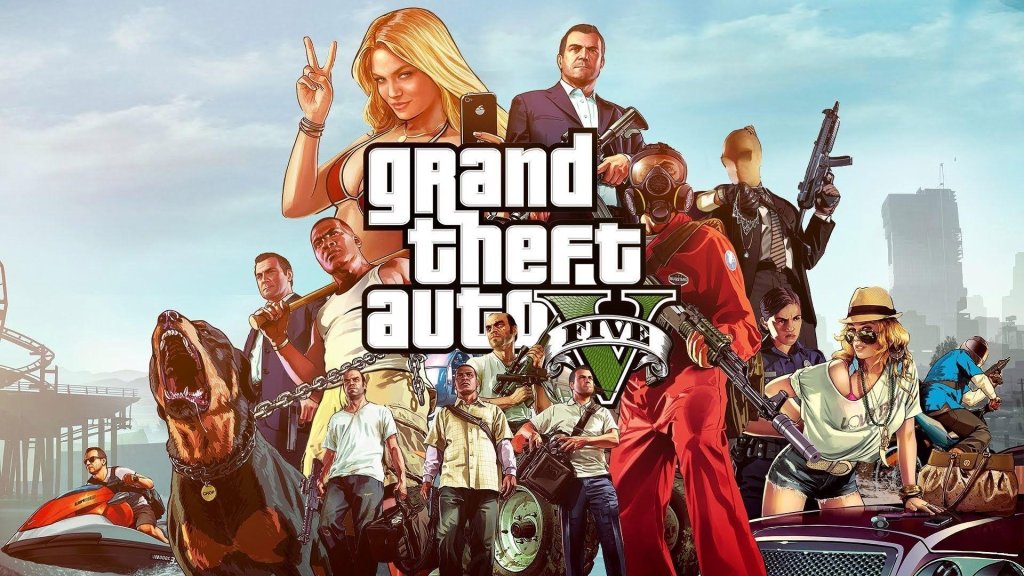
Grand Theft Auto V
## Game Introduction: Grand Theft Auto V ### Overview **Grand Theft Auto V (GTA V)** is an open-world action-adventure game developed by **Rockstar North** and published by **Rockstar Games**. Released initially in 2013, it remains one of the best-selling and most critically acclaimed video games o...
Download & Installation
Grand Theft Auto V – Download & Installation Guide
This guide covers all official platforms where Grand Theft Auto V (GTA V) is available for purchase and installation: PC (Steam, Epic Games Store, Rockstar Games Launcher), PlayStation 4 & 5, and Xbox One & Series X|S. Note: GTA V is not released natively on Nintendo Switch or mobile devices (excluding cloud streaming services). Always download from legitimate sources to avoid malware or account bans.
1. System Requirements (PC)
Minimum Requirements:
- OS: Windows 10 64-bit (older versions may work but are not supported)
- Processor: Intel Core 2 Quad Q6600 @ 2.4GHz / AMD Phenom 9850 @ 2.5GHz
- Memory: 4 GB RAM
- Graphics: NVIDIA GeForce 9800 GT 1GB / AMD Radeon HD 4870 1GB (DirectX 10 support required)
- Storage: 110 GB available space (HDD recommended; SSD improves load times)
- Sound Card: 100% DirectX 10 compatible
- Internet: Internet connection required for activation and online play
- OS: Windows 10 64-bit (latest update)
- Processor: Intel Core i5 3470 @ 3.2GHz / AMD FX 8350 @ 4GHz
- Memory: 8 GB RAM
- Graphics: NVIDIA GeForce GTX 780 3GB / AMD Radeon RX 580 4GB
- Storage: 110 GB available space (SSD strongly recommended)
- Sound Card: DirectX 10 compatible
- Internet: Broadband connection
- Rockstar Games Social Club account is mandatory for all platforms. Create one at [socialclub.rockstargames.com](https://socialclub.rockstargames.com) before installation.
- PC (Steam): You also need a Steam account.
- PC (Epic Games Store): You need an Epic Games account.
- PC (Rockstar Games Launcher): Only a Rockstar Social Club account is needed.
- PlayStation: A PlayStation Network (PSN) account.
- Xbox: An Xbox Live / Microsoft account.
- Physical disc: Insert the GTA V disc. The console will begin installing the game data (around 50–60 GB for GTA Online components). Follow on-screen prompts. You may need to download updates and the full GTA Online content (additional ~50 GB).
- Digital purchased: Go to PlayStation Store → search “Grand Theft Auto V” → purchase → download. The game will appear in your Library → select “Download”.
- Storage: Ensure at least 110 GB free (some updates require more).
- Installation: After download, the game installs automatically. First launch will prompt you to sign in to PSN and Rockstar Social Club.
- Physical disc: Insert disc, follow on-screen installation. Again, expect large download for updates and GTA Online.
- Digital: Purchase from Microsoft Store → go to “My games & apps” → see download queue. Installation begins automatically.
- Smart Delivery: On Xbox Series X|S, GTA V benefits from Smart Delivery – you get the optimized version automatically. Ensure your console is connected to the internet.
- Storage: 110 GB free required.
- Setup: Sign in to Xbox Live and Rockstar Social Club on first launch.
- Base game download: Approximately 95–110 GB depending on platform and edition.
- Final installed size (with updates): 100–120 GB. On PC, it can reach up to 110 GB after updates.
- Additionally: GTA Online updates (free) may add extra GBs over time. Ensure you have at least 150 GB free before installing to accommodate patches.
- Fix: Install the required Visual C++ Redistributables. Download from Microsoft Official site (both x86 and x64). Also ensure .NET Framework 4.8 is installed.
- Reinstall: Uninstall Rockstar Launcher completely and reinstall from Rockstar’s official site.
- Fix: Update your GPU drivers to the latest version (NVIDIA or AMD).
- Check DirectX: Install DirectX End-User Runtime Web Installer.
- Fix: Ensure you purchased the correct region. Contact Rockstar Support if key is invalid. If using Steam/Epic, verify game file integrity first.
- Fix: Pause and resume download. Restart the launcher/Steam/Epic. Clear download cache (in Steam: Settings → Downloads → Clear Download Cache).
- Network: Disable VPN or firewall temporarily (but reconnect after download).
- Fix: The game requires the exact amount of contiguous free space. Defragment your HDD or free up more space. On SSD, this is usually not an issue.
- Fix: Verify game files. On Steam: right-click game → Properties → Local Files → Verify integrity. On Rockstar Launcher: go to Settings → Verify game files.
- Run as admin: Right-click GTAVLauncher.exe → Properties → Compatibility → Run as administrator.
- Fix: Disable antivirus temporarily. Reinstall launcher. Check Windows date/time settings.
- Check version: After installation, launch the game and go to Settings → Game to see the version number. Latest version should be 1.xx (check online).
- Run benchmark (PC): In the menu, select Settings → Graphics → Run Benchmark. This ensures performance is stable.
- Verify online connectivity: Enter GTA Online. You should be able to join a session without errors.
- Update check: The launcher will automatically check for updates on launch. Ensure you have the latest patch.
- SSD recommended: For faster load times (especially online) install on an SSD.
- Backup saves: Regularly backup your save files (PC: Documents\Rockstar Games\GTA V\Profiles).
- Avoid piracy: Only download from official stores. Pirated copies may contain malware and cannot access GTA Online.
- Cross-save: GTA V does not support cross-progression between platforms (except transferring from PS4/Xbox One to PS5/Xbox Series via Rockstar migration tool – one-time).
Recommended Requirements:
Note for high-end graphics: For 4K resolution or 60+ FPS, an NVIDIA RTX 2070 or AMD RX 5700 (or higher) and 16 GB RAM are recommended.
2. Account Requirements
3. Platform-Specific Installation Steps
#### 3.1 PC – Steam
1. Purchase: Buy GTA V from the Steam store (Standard or Premium Edition).
2. Install Steam client (if not already installed) and log in.
3. Library: Go to your Steam Library → right-click “Grand Theft Auto V” → select “Install”.
4. Choose location: Select a drive with at least 110 GB free space. For SSDs, choose your SSD drive.
5. Download: Steam will download the game (~110 GB). This may take several hours depending on your internet speed.
6. Rockstar Launcher: After download, the Rockstar Games Launcher will install automatically. You will be prompted to log in with your Social Club account.
7. Activation: Enter your product key (if required; Steam usually handles this automatically).
8. First launch: The game will perform a one-time configuration and start.
#### 3.2 PC – Epic Games Store
1. Purchase: Buy from Epic Games Store.
2. Install Epic Games Launcher (or ensure it is updated).
3. Library: Navigate to Library → find GTA V → click “Install”.
4. Set install location: Similar to Steam, choose a drive with enough space.
5. Download & Install: The launcher downloads the game.
6. Rockstar Launcher: Epic will install the Rockstar Games Launcher as part of the process. Log in with Social Club credentials.
7. Activation: The key is linked automatically.
8. Launch: Click “Play” from Epic or Rockstar Launcher.
#### 3.3 PC – Rockstar Games Launcher
1. Download Launcher: Go to [rockstargames.com](https://rockstargames.com) and download the Rockstar Games Launcher.
2. Install: Run the installer and create an account or log in.
3. Purchase: Buy GTA V from the Rockstar store within the launcher or redeem a retail key.
4. Install: In the launcher, go to “My Games” → GTA V → “Install”.
5. Download: Same as above – ensure enough space.
6. Play: The game is ready immediately after download.
#### 3.4 PlayStation 4 & 5
#### 3.5 Xbox One & Series X|S
4. Storage Space & Download Sizes
5. First Launch Setup (All Platforms)
1. Rockstar Social Club login: You must log in with your Social Club account. If you don’t have one, create it on the launcher or console prompt.
2. Activation: Enter the product key if prompted (usually automatic for digital purchases).
3. Settings: The game will detect your hardware and set default graphics / display settings. You can adjust them later.
4. GTA Online: You will be asked to create a character (if you want to play online). This is optional; you can skip and play Story Mode first.
5. License agreements: Accept the end-user license agreement (EULA) and privacy policy.
6. Updates: The launcher may download a small update (usually a few MB) after first install.
7. Launch: Start Story Mode or GTA Online.
6. Common Installation Errors and Fixes
#### 6.1 Error “Rockstar Games Launcher not installed” or “Missing VCRuntime”
#### 6.2 “Grand Theft Auto V is unable to run because your graphic drivers are too old”
#### 6.3 “Activation failed” / “Invalid product key”
#### 6.4 Download interrupted or stuck at X%
#### 6.5 “Insufficient disk space” even though you have enough free
#### 6.6 “GTA V has stopped working” on startup
#### 6.7 Rockstar Launcher crashes during update
7. Post-Installation Verification
8. Additional Tips
---
Legal notice: This guide is for informational purposes only. All trademarks belong to Rockstar Games.

Game Introduction
Game Introduction: Grand Theft Auto V
Overview
Grand Theft Auto V (GTA V) is an open-world action-adventure game developed by Rockstar North and published by Rockstar Games. Released initially in 2013, it remains one of the best-selling and most critically acclaimed video games of all time, with a massive, persistent online multiplayer component that continues to receive updates.
Genre and Core Loop
- Genre: Open-world action-adventure, third-person shooter, vehicular combat, heist simulation.
- Gameplay Loop: Players freely explore the fictional state of San Andreas, undertake story missions (including elaborate heists), engage in side activities (sports, races, stock market, property management), and interact with a dynamic world. The core involves switching between three protagonists to complete objectives, often requiring planning and execution of multi-stage missions.
- Developer: Rockstar North (formerly DMA Design) – the studio behind the entire Grand Theft Auto series.
- Publisher: Rockstar Games (a subsidiary of Take-Two Interactive).
Developer and Publisher
Release Timeline & Platforms
| Platform | Release Date |
|---|---|
| PlayStation 3 & Xbox 360 | September 17, 2013 |
| PlayStation 4 & Xbox One | November 18, 2014 |
| PC | April 14, 2015 |
| PlayStation 5 & Xbox Series X/S | March 15, 2022 |
Setting
Grand Theft Auto V takes place in the fictional State of San Andreas, a sprawling recreation of Southern California. The map comprises:
- Los Santos – a satirical version of Los Angeles, with neighborhoods like Vinewood (Hollywood), Richman (Beverly Hills), and Blaine County (rural/desert areas).
- Blaine County – includes the desert town of Sandy Shores, the military base Fort Zancudo, and the vast Grand Senora Desert.
- Underwater environments, mountains, forests, and a network of highways.
- Michael De Santa (real name Michael Townley): A middle-aged former criminal trying to reconnect with his family. Voiced by Ned Luke.
- Franklin Clinton: A young, ambitious repo man from the ghetto. Voiced by Shawn Fonteno.
- Trevor Philips: A meth-dealing, unpredictable maniac. Voiced by Steven Ogg.
- Supporting Cast: Includes the fast-talking lawyer Leonora Johnson, the FIB agent Dave Norton, the delusional Hollywood agent Lamar Davis (Franklin’s friend), and the vengeful Mexican gang leader Marcus.
- Unmatched Freedom: Players can explore a seamless open world with virtually no loading times, engaging in countless activities.
- Three-Protagonist System: Unique to the main story, allowing players to switch between characters instantly, each with their own lives, skills, and missions.
- Heists as Set Pieces: Multi-stage, highly scripted heists that require planning, crew selection, and execution with significant player choice.
- Satire and Humor: Razor-sharp critique of American culture, media, and politics, mixed with over-the-top action.
- Endless Replayability: A massive world packed with secrets, side missions, random events, and collectibles.
- Primary: Adults 18+ (Mature-rated). Fans of open-world games, action movies, crime dramas, and sandbox gameplay.
- Secondary: Players interested in multiplayer heists, racing, and roleplaying. Due to its mature content, it is not suitable for children.
- Story Mode (Offline): Single-player campaign with 69 main missions, side missions (strangers & freaks), rampages, and activities like golf, tennis, triathlons, and the stock market.
- Online Mode: _Grand Theft Auto Online_ – a persistent multiplayer world supporting up to 30 players, with its own storyline (contact missions), heists, businesses (drugs, nightclubs, gunrunning), a dynamic economy, and regular content updates.
- Offline: Story mode requires no internet connection after initial installation. All features are playable alone.
- Online: Requires internet connection and a free Rockstar Social Club account. Works on PC, PlayStation 4/5, and Xbox One/Series X/S. Cross-platform play is _not_ supported (players on different platforms cannot play together).
- Single-Player DLC: No major story expansions were released despite initial plans. Only the original game and returning player bonuses (e.g., "The Monkey Business" mission, extra vehicles).
- Grand Theft Auto Online Updates (all free): Massive content updates that introduced new heists (_The Fleeca Job_, _Prison Break_, _Humane Labs_, _Series A_, _Pacific Standard_, and later _The Doomsday Heist_, _Diamond Casino Heist_, _Cayo Perico Heist_, etc.), properties, vehicles, weapons, and game modes. These updates are only for Online and require a persistent internet connection.
The world is highly detailed, with a day/night cycle, dynamic weather, and an ecosystem of NPCs, traffic, and wildlife (including the rare Sasquatch Easter egg).
Story Overview
Plot: The game follows three criminals whose lives intertwine:
1. Michael De Santa – a retired bank robber living under witness protection, disenchanted with his family and luxurious but hollow life.
2. Franklin Clinton – a young street gangster seeking legitimate success and a way out of the hood.
3. Trevor Philips – a violent, unstable, but fiercely loyal psychopath who runs a drug and weapons operation in the desert.
After a botched heist forces Michael out of retirement, the three are drawn into a series of daring robberies orchestrated by various underworld figures, including the corrupt FIB agent Steve Haines, the eccentric billionaire Devlin Weston, and the ruthless Chinese triad leader Mr. Cheng. The story explores themes of loyalty, ambition, the American Dream, and the consequences of violence. It culminates in three possible endings, each with different outcomes for the protagonists.
Main Characters
Core Appeal
Target Audience
Game Modes
Online/Offline Support
DLC / Expansion Overview
What Makes This Game Unique?
1. Three-Protagonist Mechanic: A first in the series, allowing seamless character switching during missions and open-world gameplay.
2. Unprecedented Scale & Detail: The world of San Andreas is massive yet filled with minute details (e.g., NPCs react to player actions, traffic flows realistically, store interiors are fully modeled).
3. Heavy Social Commentary: The story and world serve as a parody of modern America—celebrity culture, consumerism, government surveillance, and the gig economy.
4. Longevity: Over a decade since release, the game still receives new content (most recently PS5/Xbox Series X enhancements) and has an active online community with millions of players.
5. Technical Achievements: On PC and current-gen consoles, it supports high framerates (up to 120 FPS on PS5/XSX), ray tracing (on PC and next-gen), and extensive modding capabilities on PC.
Grand Theft Auto V is not just a game—it's a cultural phenomenon that defined a generation of open-world design and remains essential gaming history.

Getting Started
Getting Started
First Hour Walkthrough
Your journey begins with the Prologue (2013, North Yankton). You play as Michael, Trevor, and Brad during a bank heist gone wrong. Follow the on-screen prompts: drive, shoot, and use cover. This is a tutorial for basic mechanics. After a cutscene, you will be in present-day Los Santos as Franklin Clinton, a repo man. You’ll receive a call from your friend Lamar Davis, starting the mission "Franklin and Lamar". Drive to the designated location, pick up Lamar, and follow his directions to steal a car. This mission introduces driving, basic combat, and the wanted system. Pay attention to the controls shown on screen.
Character Creation
Story Mode has no character creation. You play as three predefined characters: Franklin, Michael, and Trevor. Each has unique abilities and backstories. GTA Online (the multiplayer mode) allows you to create a custom character after completing the first few story missions, but this guide focuses on the single-player campaign.
Controls on All Platforms
Here are the default control schemes. You can customize them in the settings.
| Action | PlayStation (PS4/PS5) | Xbox | PC (Keyboard + Mouse) |
|---|---|---|---|
| Move | Left Stick | Left Stick | W/A/S/D |
| Look / Aim | Right Stick | Right Stick | Mouse |
| Sprint | L3 | Left Stick Click | Shift (hold) |
| Jump | X | A | Space |
| Enter/Exit Vehicle | Triangle | Y | F |
| Shoot | R2 | RT | Left Mouse Button |
| Aim Down Sights | L2 | LT | Right Mouse Button |
| Cover | R1 (tap near wall) | RB | Q (tap near wall) |
| Weapon Wheel | L1 (hold) | LB (hold) | Tab (hold) |
| Switch Character (Story Mode) | D-Pad Down | D-Pad Down | M (then select character) |
| Cell Phone | Up on D-Pad | Up on D-Pad | Arrow Up (hold) |
UI Overview
The HUD consists of:
- Minimap (bottom-left): Shows your location, mission objectives, nearby points of interest, and wanted level indicators.
- Money & Stats (bottom-right): Current cash, banked money, and character stats like health (green bar) and armor (blue bar).
- Weapon Wheel (when holding L1/LB/Tab): Circular menu to select weapons. Each weapon has ammo count.
- Wanted Level (top-right): Stars indicating police attention. 1-5 stars; more stars mean more aggressive law enforcement.
- Mission Objective Text (top-left): Brief instructions during missions.
- Radio Wheel (when in a vehicle, press D-Pad Left/Right or Q/E on PC): Switch radio stations.
- Stick to story missions early on. They teach you mechanics and give you money.
- Use cover during gunfights (press R1/RB/Q near a wall).
- Rob convenience stores (point gun at cashier) for quick cash, but be ready to escape police.
- Invest in weapons early: the Pistol .50 from Ammu-Nation is a good upgrade.
- Spending money on expensive cars, clothes, or haircuts during the first few hours. You need cash for upgrades and properties.
- Getting into prolonged police chases – they waste time and can get you killed. Lose them by hiding in alleys or using the LS Customs to change your car's paint.
- Ignoring side activities like flight school or races. While fun, they can be distracting early on.
- Using cheats – they disable achievements/trophies and can break immersion.
- Money: Save at least $50,000 for the first property (a garage). Later, you will need money for heist setups.
- Weapons: The Pistol you get early is fine. Next priority: a shotgun (Pump Shotgun, $2,000) for close quarters, and an Assault Rifle (Special Carbine, $8,000) once you have enough cash.
- Armor: Body armor (from Ammu-Nation or stores) costs around $1,500 – buy one when possible; it saves you from dying.
- Vehicles: Use stolen cars or mission-provided vehicles. Do not buy a car until you have a garage to store it.
- Skills: Improve shooting, driving, and stamina by doing those actions. Franklin’s special ability (slow-motion while driving) charges over time.
- [ ] Complete the Prologue (North Yankton).
- [ ] Complete "Franklin and Lamar" mission.
- [ ] Familiarize yourself with the controls (especially cover and weapon wheel).
- [ ] Rob one convenience store for extra cash (optional but recommended).
- [ ] Buy one body armor and a stronger pistol from Ammu-Nation.
- [ ] Save the game manually (Pause > Game > Save).
- [ ] Explore a few blocks around Franklin’s safehouse to find collectibles (Letters, Spaceship Parts) if desired – but not necessary.
- [ ] Avoid buying a car or expensive items.
- [ ] Set your radio station preferences (when entering a car, press D-Pad Left/Right to change).
Essential Early Objectives
1. Complete the Prologue – Learn the basics of shooting, driving, and using cover.
2. Finish "Franklin and Lamar" – Unlocks the ability to free-roam the city and access the weapon shop.
3. Complete missions for Franklin until you meet Michael and Trevor. This unlocks character switching (a core mechanic).
4. Save your game manually every 20-30 minutes using your phone (hold Up D-Pad or Arrow Up) and selecting "Save Game" (if in a safehouse) or via the pause menu (Game > Save).
5. Buy a simple safehouse (optional) – After earning some money, you can purchase properties. The first cheap garage in Grapeseed is useful for storing cars.
What to Do First and What to Avoid
Do:
Avoid:
Early Resource Priorities
Common Beginner Mistakes
1. Not using cover – Standing in the open gets you killed fast. Always press the cover button near walls, cars, or objects.
2. Running over pedestrians deliberately – This spikes your wanted level, making missions harder.
3. Neglecting character special abilities – Each character has one: Franklin’s driving focus, Michael’s bullet-time, Trevor’s rage. Activate them with L3+R3 (console) or Caps Lock (PC). They give you an edge.
4. Forgetting to save – Autosave happens, but manual saves protect against crashes or bad choices.
5. Buying the wrong property – Some properties (like the Los Santos Customs in great condition) are expensive early. Focus on the cheapest garage first.
6. Trying to do all side activities immediately – Stick to story until you have at least two characters unlocked, then branch out.
Day-One Checklist
By following this guide, you will have a solid foundation for the hundreds of hours of content in Grand Theft Auto V. Remember to be patient, use cover, and have fun!
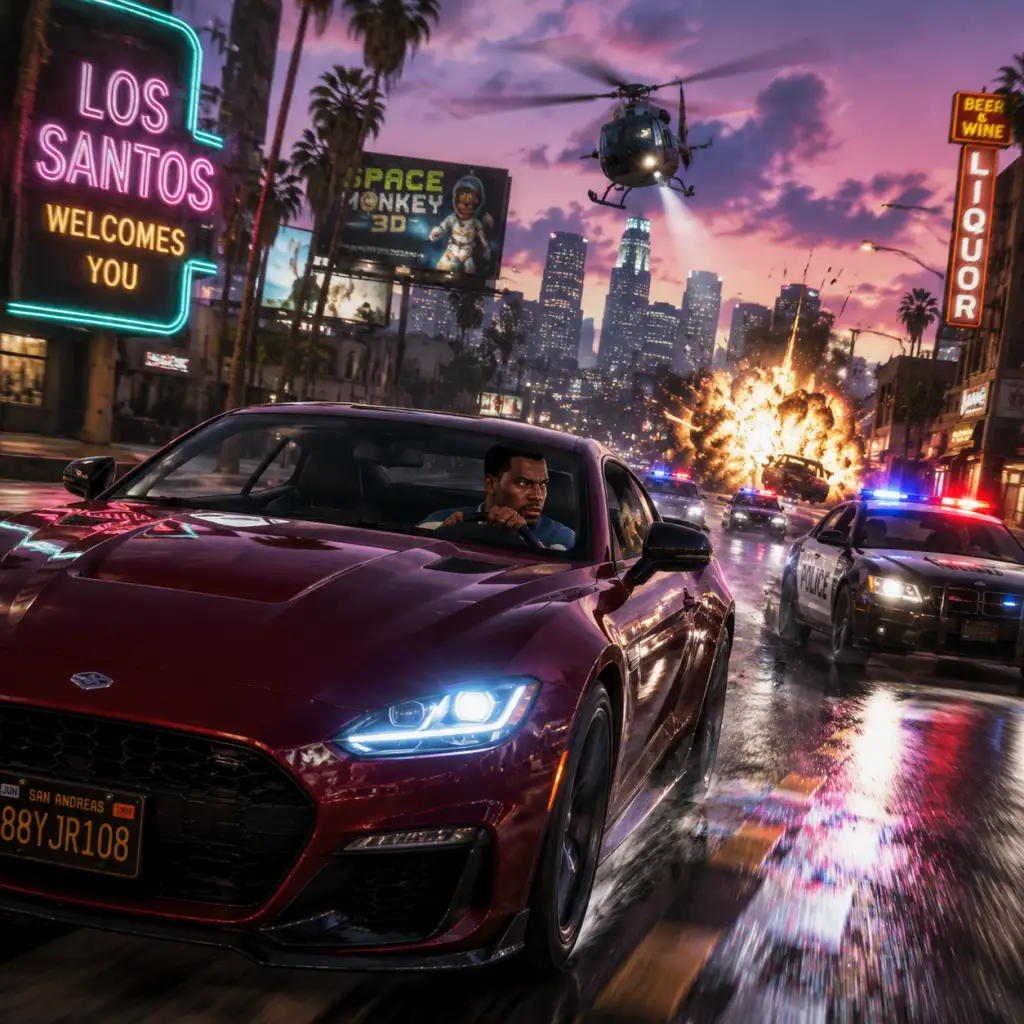
Core Gameplay
Grand Theft Auto V – Core Gameplay Guide
Overview of the Core Gameplay Loop
Grand Theft Auto V (GTA V) offers two distinct but interconnected experiences: the single-player Story Mode (following Michael, Trevor, and Franklin) and GTA Online (a persistent multiplayer world). The core gameplay loop revolves around completing missions, earning money, acquiring property and vehicles, and engaging in free-roam activities. Progression is split into four tiers: Early Game, Mid Game, Late Game, and Endgame. Each tier introduces new mechanics, threats, and opportunities.
---
Early Game (Prologue to Heist Setup Missions)
Progression Tier: Tutorial & Introduction
Main Gameplay Loop
During the first 2–4 hours, you follow a linear path through the Prologue and the introductory missions for Michael, Franklin, and Trevor. The loop is: accept a story mission → follow waypoints → shoot/drive → watch cutscenes → unlock new areas and activities.
Combat & Interaction Systems
- Cover Shooting: Use `Q` (PC) or shoulder buttons (console) to snap to cover. Peek and shoot with aim/fire buttons. Early enemies are low-skill, forgiving.
- Melee & Close Combat: Press `F` to punch or use context-sensitive prompt. Improvised weapons (bottles, bats) available.
- Driving: Vehicles handle uniquely. Early access to slow cars and bikes. No special abilities yet.
- Special Abilities Unlocking: Michael’s slow-motion aiming, Franklin’s driving focus, Trevor’s rage mode become available after their first character-specific missions.
- Skill Stats: Each character has hidden stamina, shooting, strength, stealth, flying, lung capacity, and driving stats. Early game you can raise these by simple activities: sprinting, punching foes, precision shooting.
- Character Unlocks: The three protagonists become fully playable after the mission “Franklin and Lamar” (Franklin), “The Long Stretch” (Michael), and “Friends Reunited” (Trevor).
- Map: Limited to Los Santos and southern Blaine County. The northern mountain and desert areas are blocked by story progress or police roadblocks.
- Points of Interest: Safehouses (Michael’s house, Franklin’s aunt’s house, Trevor’s trailer) are free-roam respawns. Early collectibles: 50 spaceship parts, 30 letter scraps (partially accessible).
- Free Roam Activities: Random events (store robberies, drug deals) offer small cash. No heists yet.
- Linear Missions: “Prologue,” “Franklin and Lamar,” “The Long Stretch,” “Trevor Philips Industries,” etc. ~15 missions total.
- Heist Awareness: Heist planning sessions begin later; early missions focus on character introductions and establishing conflict with the O’Neil family and the Lost MC.
- Starting Cash: Michael: ~$5,000. Franklin: ~$800. Trevor: ~$4,000. Money is tight; avoid wasting on ammo or vehicles.
- Income Sources: Mission rewards ($500–$5,000 each), random event pickups, selling cars (difficult in early game). No passive income.
- Spending: Ammu-Nation for weapons, clothes, haircuts, vehicle mods (limited). Save for heist investments.
- Advanced Combat: Enemies use cover and flank. Use assault rifles (Carbine Rifle, Advanced Rifle) and heavy weapons (grenades, sticky bombs). Special abilities crucial for firefights.
- Vehicle Combat: Drive-by shooting, use of armored vehicles (e.g., car during “The Merryweather Heist”).
- Heist Crews: Recruit specialists (driver, gunman, hacker) by completing side missions. Skill levels affect heist outcome.
- Stealth Mechanics: Crouch (Left Ctrl on PC) and silent takedowns (press F from behind). Enemies have awareness cones; use silenced weapons.
- Stat Maxing: Max out shooting and driving stats via practice. Michael’s special becomes very effective for shooting. Franklin’s driving slows time for tight maneuvers.
- Property Purchases: After first heist, invest in businesses: taxi company, movie theater, scrapyard, etc. These generate weekly income (small) and unlock side missions.
- Skill Challenges: Complete flight school, shooting range, and street races to boost stats and earn cash.
- Full Map Unlock: After “The Paleto Score” heist, entire map (Chiliad, Paleto Bay, Fort Zancudo) opens. No story barriers.
- Collectibles: Remaining spaceship parts, letter scraps, and 50 stunt jumps become accessible. Reward: advanced vehicles and $250k from Omega.
- Free Roam Activities: Parachuting, base jumping, triathlon, off-road bike trails.
- Heists (Main): “The Jewel Store Job,” “The Merryweather Heist,” “The Paleto Score,” “The Bureau Raid,” “The Big One” (Union Depository). Each has 2–3 setup missions.
- Random Encounters: More frequent: drunken pedestrians, car theft, random police chases. Help citizens for positive karma (no tangible reward).
- Side Missions: Strangers & Freaks for each character: Beverly (paparrazi), Dom (parachuting), etc. Unlock abilities (e.g., Michael’s subjective camera).
- Heist Payouts: Gross amounts: Jewel Store = $250k–$500k, Merryweather = $750k, Paleto = $3M, Bureau = $2.5M, Union Depository = $40M (story split). Your share depends on crew costs and selection.
- Passive Income: Properties generate $2k–$5k per in-game week (~90 minutes). Broker’s office for storefronts, scrapyard brings $5k.
- Stock Market: Reactive to missions: invest in certain companies before missions that harm competitors (e.g., invest in Fruit during “The Paleto Score” – but spoilers). Use for huge returns.
- Spending: Weapon upgrades, vehicle modifications, safehouse upgrades, business supplies (none required in story).
- Full Arsenal: All weapons (including RPG, Minigun, Firework Launcher) available at Ammu-Nation. No mission constraints.
- No Special Ability Upgrades: Already maxed. Use tactically.
- Free Roam Combat: Police chase persistence is higher. Max wanted level (5 stars) brings military – use tanks from Fort Zancudo.
- 100% Completion Checklist (60 requirements):
- Milestone Rewards: After 100%, you unlock infinite sprint, maxed stats, and a $25,000 daily income from properties. Also spawn a Space Docker from Omega.
- Secret Areas: Mount Chiliad UFO (at 3:00 AM rain), Trevors’s jail, Los Santos underground, Fort Zancudo interior (with wanted level).
- Easter Eggs: Ghost in Vagoa Ocean, murder mysteries, Big Foot hunt.
- Hobbies: Golf, tennis, darts, triathlon, yoga (Michael), hunting (Trevor), stock car racing.
- Replayable Heists: Menu option to redo any heist with different approach (loud/stealth) or crew. No cash reward but fun challenge.
- Random Events: Still spawn – timed missions like “stolen car return” or “medical emergency.”
- Challenges: “The Deathwish” (kill 100 enemies), “Elitist” (complete heists with 1 death), etc. Unlock outfits.
- Massive Savings: Combined characters likely have $200M+ from heist payouts and stock market. No further income need.
- Property Dividends: ~$40k per in-game week total from all businesses.
- Useless Currency: At this point money is irrelevant. Spend on vehicles, weapons, and customization.
- Weapons & Gadgets: All single-player weapons plus Online exclusives (Railgun, Unholy Hellbringer, etc.). Weaponized vehicles (Oppressor Mk II, Deluxo, Insurgent).
- Player Interaction: Public lobbies with dozens of players – PvP combat is common. Use Passive Mode to avoid trouble.
- Co-op Heists & Adversary Modes: New heists (Doomsday, Diamond Casino, Cayo Perico) with up to 4 players. Unguided, require teamwork.
- Special Abilities: None like story; instead use snacks (heal) and armor. Max stats via rank progression (max rank 8000).
- RP Ranks: Each rank unlocks missions, weapons, vehicle modifications. Rank 100 unlocks max health, rank 135 unlocks all weapons. Fast leveling via races and Cloak and Dagger missions.
- Businesses (Passive Income):
- Skill Leveling: Racing for driving, deathmatches for shooting, etc. Max out skills by doing activities.
- Same Map: Los Santos and Blaine County identical to story, but with Online-only locations (Casino, Penthouse, Arcade, Nightclub interior).
- New Activities: Arena Wars, Sumo, Customer Races, Gunrunning cargo theft.
- Open World Events: Random cargo drops, armored trucks, smugglers, and “Headhunter” CEO missions. Participate for RP and cash.
- Heists: Fleeca Job, Prison Break, Humane Labs, Series A, Pacific Standard, Doomsday Heist, Diamond Casino Heist, Cayo Perico Heist. Each has multiple setups and finales. Payouts scale with difficulty and crew.
- Contact Missions: Gerald, Simeon, Martin Madrazo, Lester, etc. Quick cash for beginners.
- Free Roam Jobs: VIP Work, MC Work, Client Jobs (Terrorbyte), Sell Missions.
- Adversary Modes: Team deathmatches, king of the hill, vehicle races, special modes like “Hunt the Beast” or “Slasher.”
- Earning Potential: Beginners make $10k–$50k per hour via contact missions. Mid-game (with businesses) $100k–$300k per hour. Endgame (Cayo Perico grinding) $1M–$2M per hour.
- Expensive Items: Top vehicles (Oppressor Mk II – $3.9M), facilities ($3M+), yacht ($10M). Grinding is key.
- Money Sinks: Ammo, snacks, insurance (vehicle destruction fees), property utilities (minimal).
- Goal: Become a criminal tycoon with all properties, millions in the bank, and a fleet of weaponized vehicles. Many players aim for rank 1000+ or collect all vehicles.
- No Final Story: Rockstar releases periodic DLC updates (new heists, cars, weapons) that extend the endgame. The “endgame” is never-ending; you set your own goals.
Progression & Character Growth
Exploration & World Access
Quests & Missions (Story)
Economy & Money
Endgame Structure (Early Game Goal)
Your aim is to complete the early story missions, unlock all three characters, and accumulate enough money and skills to start the first heist. The “The Jewel Store Job” heist (after ~mission 15) marks the boundary to mid game.
---
Mid Game (Heists & Property Acquisition)
Progression Tier: Story Expansion & Investment
Main Gameplay Loop
Missions become more complex, involving reconnaissance, optional crew selection, and multi-phase heists. The loop expands to: choose a heist → setup missions (2–3) → plan approach (loud/stealth) → execute heist → split money → reinvest in properties or stock market.
Combat & Interaction Systems
Progression & Character Growth
Exploration & World Access
Quests & Missions (Story)
Economy & Money
Endgame Structure (Mid Game Goal)
Complete all heists up to “The Big One” and accumulate ~$100M total across characters. Buy remaining properties and vehicles for 100% completion. This tier ends after the final heist (story completion).
---
Late Game (Post-Story Cleanup & 100% Completion)
Progression Tier: Story Finished, Open World Mastery
Main Gameplay Loop
After the main story (final choice: kill Michael, kill Trevor, or Deathwish), the free-roam world continues. The loop becomes: pursue 100% completion checklist → complete side activities → replay heists (button in menu) → explore hidden secrets.
Combat & Interaction Systems
Progression & Character Growth
- Complete all 69 story missions (with DLCs? Only base game) – ~69 missions.
- 20 side missions (Strangers & Freaks) – each character has unique ones.
- 15+ random events.
- 5 hobbies & pastimes: triathlon, parachuting, golf, tennis, darts, etc. (not all needed).
- Complete flight school (10 gold medals – optional but required for 100%).
- Find all collectibles (50 spaceship parts, 30 letter scraps, 50 stunt jumps, etc.).
- Buy all 13 properties (taxi, downtown cab, etc.).
- Achieve 100% stunt jump completion (50).
- Reach level 100 in a skill? Actually maxing stats counts.
Exploration & World Access
Quests & Missions (No New Story)
Economy & Money
Endgame Structure (Late Game Goal)
Reach 100% completion. After that, the only remaining goal is to enjoy the open world or move to GTA Online.
---
Endgame (GTA Online & No Story Content)
Progression Tier: Multiplayer Endless Content
Main Gameplay Loop
GTA Online is a separate persistent mode where you create a custom character. Loop: take on jobs (races, deathmatches, heists, business missions) → earn money/RP → buy properties, vehicles, weapons → invest in businesses (CEO, MC, Bunker, Hangar) → produce goods to sell for profit → expand criminal empire. This loop continues indefinitely.
Combat & Interaction Systems
Progression & Character Growth
- CEO Office & Vehicle Warehouse: Import/Export cars – high reward ($80k per top-end car).
- Motorcycle Club (MC): Meth, cocaine, cash, weed, forgery – supplies, product, sell. Requires setup costs.
- Bunker: Gunrunning – research unlocks upgrades, weaponized vehicles.
- Hangar: Smuggling – air cargo (profitable but risky).
- Nightclub: Passive earnings from other businesses – Techs source goods automatically. Best passive income.
- Arcade: Diamond Casino Heist – scouting, heist setup, payout up to $5M.
- Submarine (Kosatka): Cayo Perico Heist – soloable, $1M–$2M per hour.
Exploration & World Access
Quests & Missions (Online)
Economy & Money
Endgame Structure (Online)
---
Summary Table by Progression Tier
| Tier | Focus | Key Mechanics | Economy | Typical Playtime |
|---|---|---|---|---|
| Early | Character intro, simple missions | Cover shooting, basic driving, special abilities unlock | Cash-strapped, save for first stock | 4–8 hours |
| Mid | Heists, property investment | Advanced combat, heist planning, crew recruitment | Large payouts, stock market riches | 10–20 hours |
| Late | 100% completion, secrets | Full arsenal, all activities, collectibles | Wealthy, disposable income | 20–30 hours (story) |
| Endgame | GTA Online endless grind | Multiplayer PvPvE, business management, heists | Grinding for high-tier items | Indefinite |
Platform Notes
- PC: Mouse/keyboard offers precise aiming; controller for driving. Mod support (single-player only) can add missions, vehicles, graphics tweaks.
- Console (PS4/PS5, Xbox): Performance varies: PS5/Xbox Series X run at 60 FPS with ray tracing in fidelity mode. Load times faster with SSD. PS5 DualSense features (haptic feedback in driving, adaptive triggers for weapons) but not used heavily.
- Cross-platform? No. Each platform has separate Online servers.
- Always save your game (F5 on PC, or through phone).
- Invest in the stock market before major heists (use Lester’s assassination missions later).
- Practice special abilities to master combat.
- Don’t blow all money on early vehicles – you’ll get free cars from missions.
- For Online: Do the tutorial, then start with contact missions, buy a high-end apartment for heists, then invest in a CEO office. Cayo Perico heist is fastest cash.
---
Final Tips for All Tiers
Master this guide to conquer Los Santos and Blaine County in any tier!
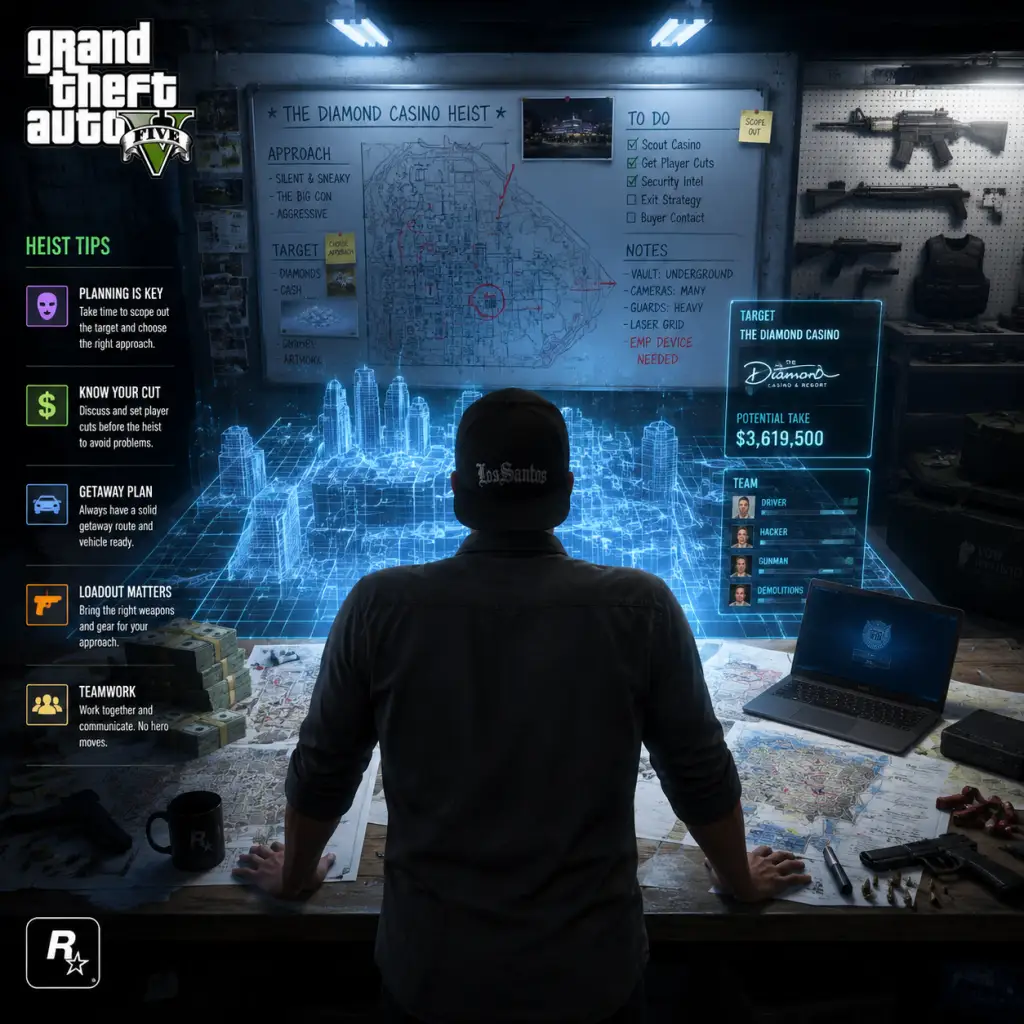
Game Tips
Grand Theft Auto V – Game Tips Guide
This guide provides a comprehensive collection of tips for both Story Mode and GTA Online, categorized by gameplay pillars. Whether you're a newcomer or a veteran, these strategies will help you survive, thrive, and dominate Los Santos.
---
Beginner Tips
1. Complete the Prologue and First Few Missions First – They unlock core mechanics like character switching, weapon wheel, and the first safehouse. Don't rush into free roam until you have at least one mission under your belt.
2. Use the Character Wheel (Single Player) – Hold `Alt` (PC) or the D-pad (console) to switch between Michael, Franklin, and Trevor instantly. Use this to escape police, gain tactical advantage, or travel quickly (e.g., switch to Trevor if he's closer to a mission marker).
3. Learn the Map and Quick GPS – Set waypoints using the map (`M` on PC) and the GPS will guide you. In Online, use the interaction menu (`M` on PC) to set a waypoint from your phone.
4. Save Often (Single Player) – Use your phone to quick save (`Home` then `Save Game`), or sleep in a safehouse. This prevents losing progress after a failed mission or getting wasted.
5. Don't Waste Money on Expensive Cars Early – Until you have a steady income, steal cars from the street and store them in your garage (Online) or the impound lot (Single Player). The free Elegy RH8 (Online) or the Dinka Akuma (both modes) are excellent starter vehicles.
6. Use Cover and Blind Fire – Crouch behind walls (`Q` on PC) to reduce damage. Blind fire (shoot without aiming) by pressing the fire button while in cover – useful when enemies suppress you.
7. Check Your Armor and Health Frequently – Buy snacks at convenience stores (hold `E` to eat) and buy armor at Ammu-Nation (or use found body armor). Keep at least 50% armor before any combat mission.
---
Combat Tips
#### Beginner
- Headshots Are King – Always aim for the head. A single headshot with most pistols or rifles instantly kills enemies, saving ammo and time.
- Use the Heavy Sniper Mk II (Online) or Sniper Rifle (Story) – For long-range engagements, this weapon one-shots most enemies to the body. Pair with a scope for extreme distances.
- Explosives Are Limited – Grenades, sticky bombs, and RPGs are powerful but expensive. Reserve them for vehicles or dense groups. Stick bombs can be detonated remotely (`G` on PC).
- Combat Roll – While sprinting, press dodge (e.g., space + direction on PC) to perform a roll that can evade bullets momentarily. Use it to cross open areas or dodge throwables.
- First Person Mode Advantage – In tight interiors, switch to first person (`V` on PC) for better accuracy and peripheral vision. It also reduces recoil for some weapons.
- Use the Assault Rifle (Story) or Special Carbine (Online) – These balanced weapons have high fire rate and moderate recoil. Upgrade them with a suppressor for stealth missions.
- Bull Shark Testosterone (Online CEO Ability) – If you own a CEO office and have the Special Ability unlocked, activate Bull Shark to double melee damage, increase health, and run faster for a short time. Combine with a heavy shotgun for devastating close-range kills.
- Stealth Kills with Knife or Hatchet – When undetected, approach an enemy from behind and press the melee button to perform a silent kill. Works in both Story and Online missions.
- Use the Minigun Sparingly – The minigun has a strong suppressor in Online (if upgraded) but overheats quickly. Tap fire for sustained accuracy, never hold down the trigger.
- Fast Travel via Taxi or Helicopter – In Single Player, call a taxi from your phone (costs $15-30) and skip the ride. In Online, you can use the Sparrow (if owned) to fast travel to your yacht or use the interaction menu's 'Quick GPS' option.
- Find all 50 Letter Scraps (Story) – Collecting all letter scraps unlocks a unique weapon (the Satchel Charges) and a large cash reward. Use online maps to locate them early for easy money.
- Swimming and Diving – Press `Space` (PC) to dive underwater. Hold `Shift` to swim faster. Scuba gear (Online) allows unlimited underwater time. Use for treasure hunting or escape.
- Parachuting – Jump from aircraft or high buildings and deploy your chute (`F` on PC) at 200-300 feet. Learn to steer by tilting forward/backward and using the left/right controls to land precisely on mission markers.
- Use the Submersible (Story) for Hidden Caches – The Submersible can dive deep to find hidden packages worth $10,000 each. In Online, the Kosatka submarine's sonar can locate buried treasure.
- Loot Every Container – In missions and free roam, open drawers, cabinets, and corpses. They often contain cash, ammo, or health items. In Online, search dumpsters for rare clothing.
- Fastest Land Vehicle – The Oppressor Mk II (Online) – Though expensive ($3.9M + upgrades), it can fly, hover, and glide. Use it for ultimate travel speed. Always keep it insured.
- Hunting for Collectibles – In Single Player, collect all 30 Underwater Hulls for a bonus $250,000, and all 50 Epsilon Program tracts for unique rewards. In Online, find all 54 Action Figures for a $2,000,000+ payout.
- Use the Passive Mode (Online) – Turn on Passive Mode from the interaction menu to avoid being attacked by other players. You cannot use weapons or be killed. Use this when traveling to objectives in public sessions.
- Buy a High-End Apartment (Online) First – The cheapest high-end apartment costs around $200K and unlocks heist planning. Without it, you cannot start most heists. Save money early by doing Contact Missions and Daily Objectives.
- The Stock Market (Story) – Buy Low, Sell After Missions – Certain assassination missions affect stock prices. Use Lester's mission guidance to invest before and after. For example, before the 'Hotel Assassination' mission, invest in Bettap. After the mission, sell for profit. This can net millions.
- Sell Vehicles from Street – In Online, you can steal and sell one car per real-world 48 minutes (in-game day). High-end cars like the Felon GT or Sentinel sell for ~$9,500. Park them in your garage between sales.
- Heist Payouts – Choose the Right Approach – For the Diamond Casino Heist, the Silent & Sneaky approach gives the highest take if you steal diamond or gold. For Pacific Standard, use the Gruppe Sechs disguise to bypass alarms.
- Businesses – Passive Income Streams – Invest in a Bunker (Online) to produce weapons for sale, or a Nightclub for automatic stock collection. Upgrade them with staff and equipment for better efficiency. Always sell in full sessions for the 25% bonus.
- Money Lending & Other (Story) – Use the Loansharking minigame to earn small amounts. More importantly, complete all random events (e.g., hitchhikers, store robberies) for cash and rare items.
- Crate Business (Online CEO) – Source and Sell Strategically – Start with a small warehouse (16 spots) to practice. Fill it to 75% before selling for a maximum bonus. Use the Buzzard or Sparrow helicopter for fast sourcing. Never sell in a full lobby unless you have friends to help defend.
- The Cayo Perico Heist – Best Money Maker – Solo-able with prep. Approach via Longfin (for solo loot) or Kosatka. Loot primary target (aim for Panther Statue or Diamond during events), then secondary loot like gold or cocaine. Complete elite challenge for extra $100K.
- Buy a Kosatka Submarine (Online) – The initial purchase ($2.2M when on sale) opens the Cayo Perico Heist and gives access to the Sparrow helicopter (extra cost), the best vehicle for preps.
- Max Stat: Shooting – Michael has the highest shooting stat start. Focus on shooting range challenges to max it early. His special ability – bullet time (slows time while shooting) – works best with high fire rate weapons like the Combat MG.
- Build Recommendation – Use Michael for stealth sniper roles: Heavy Sniper with suppressor, a silenced pistol, and sticky bombs. His driving is average, so avoid high-speed chases.
- Max Stat: Driving – Franklin can drive almost any vehicle perfectly. His special ability is driving focus (time slows while driving), allowing incredible drifting and speed thrills. Upgrade driving first.
- Build Recommendation – Use Franklin for getaway driver roles: fast sports car (e.g., Obey 9F), a SMG for close combat, and parachute for aerial drops. His shooting is weak – compensate with armor and headshots.
- Max Stat: Stamina/Strength – Trevor's special ability ('Rage') makes him take half damage and deal double melee damage. He's best for aggressive combat. Upgrade strength by fighting and stamina by running.
- Build Recommendation – Use Trevor for brute force: heavy shotgun, minigun, and grenades. He can also fly well – use his special while piloting a helicopter for reduced damage.
- All Three Characters: Maxing Specials – Once you unlock all three, practice each special ability frequently (hold `Shift` for Michael, `Ctrl` for Franklin, `Caps Lock` for Trevor while doing appropriate actions). Maxed specials recharge faster.
#### Intermediate
#### Advanced
---
Exploration & Movement Tips
#### Beginner
#### Intermediate
#### Advanced
---
Resources & Economy Tips
#### Beginner
#### Intermediate
#### Advanced
---
Builds (Single Player) & Character Specializations
#### Michael
#### Franklin
#### Trevor
#### General
---
Economy & Investments (Detailed)
#### Single Player Stock Market Strategy
| Mission Phase | Stock to Buy | When to Sell |
|---|---|---|
| Before 'Hotel Assassination' | BettaPharmaceuticals (BET) | After completing the mission, when stock drops ~50% (sell immediately) |
| Before 'The Multi Target Assassination' | Redwood (RWC) | After causing chaos, stock rises ~80%. Sell the next day. |
| Before 'The Vice Assassination' | Fruit (FRT) | After missions, FRT rises ~20-30%. |
| Before 'The Bus Assassination' | Vapid (VAP) | Rise about 20% – hold for 2 in-game days. |
| After all assassination missions | Debonaire (DEB), AirEmu (AIR), Brobar (BRB) | Hold until you complete the final heist 'The Big Score' – then sell all for massive profits (multi-million). |
#### Online Investments
- First $1M – Buy a high-end apartment and the cheapest CEO office (Maze Bank West). Do Contact Missions until you have $600K more for a small warehouse.
- Next $3.9M – Save for the Oppressor Mk II (requires Nightclub and Terrorbyte). This is the ultimate grinding vehicle.
- Long Term – Invest in a Nightclub with upgrades ($1.8M upfront but $50K/day passive once set up). Then a Bunker with upgrades ($1.5M+) for weapon sales. Finally, a Hangar for aircraft storage and smuggling missions.
- Avoid Money Dumps – Don't buy weapons you never use (e.g., every pistol variant) or cosmetic items (clothes, car paints) until you have stable income.
- Bicycle Wheelie Unlimited Stamina – While riding a bike, hold `Space` to wheelie. This cancels stamina drain from sprinting. Switch back to riding normally to regain stamina.
- Skip Time in Safehouse – In any safehouse, sleep on the bed to advance time quickly (6 hours per sleep).
- Use the Interaction Menu to 'Request Personal Vehicle' – If your car is destroyed or far away, use the menu to spawn it nearby (costs $1K for regular vehicles, $10K for aircraft). Faster than walking.
- Heist Prep – Fast Travel with Phone – After starting a heist prep mission, use your phone to set a waypoint, then fast travel via the interaction menu's 'Quick GPS' to the objective – saves driving.
- Daily Objectives – Every day, complete three objectives (easy, medium, hard) for $30K bonus. Stack consecutive days for $100K+ rewards. Use the 'Respawning' method – join a new session to refresh objectives without penalty.
- GTA Online 2x/3x Events – Always check the Rockstar Newswire for double or triple earning weeks on specific missions. Grind those exclusively.
- Survival Mode (Online) – Endless waves of enemies. Use assault rifles and stay near ammo drops. Each wave pays $20K+ and huge RP. Good for low-level players.
- Heist Replay Glitch – This is against the ToS and may result in a ban. Not recommended. Instead, replay heists with different friends for the daily bonus ($100K first-time bonus per heist).
- Always Have a Backup Weapon – In combat, you will run out of ammo. Carry at least one assault rifle, one pistol, and a shotgun. Resupply at Ammu-Nation or from fallen enemies.
- Use the Mobile Operations Center (MOC) or Avenger for Customization – These mobile vehicles allow weapon upgrades without going to Ammu-Nation. Park them near heist prep locations.
- Don't Trust Everyone (Online) – Players can betray you during sales. Always sell in a solo public session by blocking ports (PC) or using network tricks (console).
- Enjoy the World – GTA V has hundreds of hidden details: UFO encounters, movie references, and NPC interactions. Take time to explore outside missions for a richer experience.
---
Advanced Optimizations
#### Movement Glitches (Single Player)
#### Online Time-Savers
#### Farming RP and Money
---
Final Tips
---
With these tips, you're now equipped to conquer Los Santos and Blaine County. Remember: patience, smart investments, and efficient gameplay lead to success. Good luck!
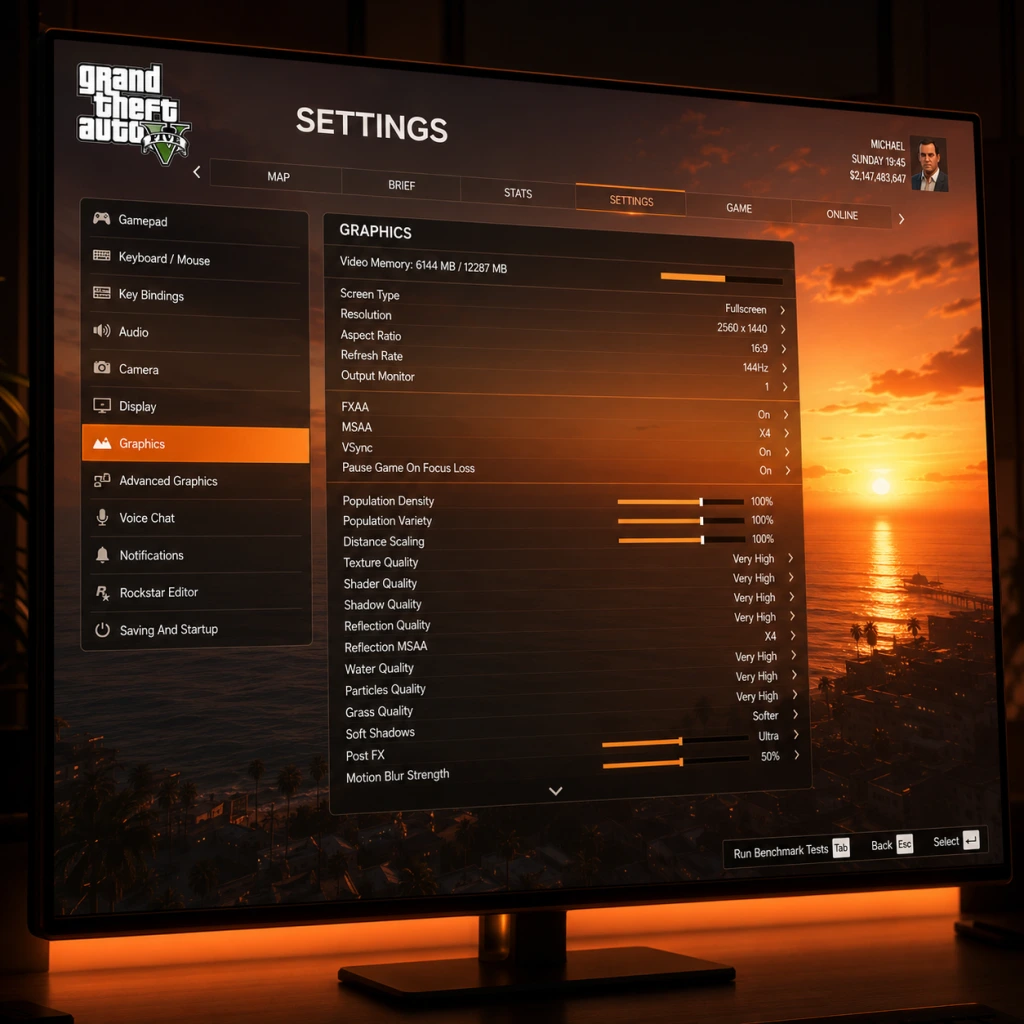
Game Settings
Grand Theft Auto V – Game Settings
This guide covers every important setting in Grand Theft Auto V and GTA Online. Proper configuration can drastically improve performance, visual quality, and gameplay comfort. We’ll explain each category, recommend optimal values for different hardware tiers, and highlight common mistakes.
Graphics Settings
Graphics are split into Basic and Advanced. The in-game menu also offers a Benchmark tool to test stability. Always run the benchmark after changing major options.
| Setting | Recommended Value (Low-End) | Mid-Range | High-End | Notes |
|---|---|---|---|---|
| Resolution | Native monitor resolution (e.g., 1920×1080) | Same | Same | Never go below native; use resolution scaling if needed. |
| Aspect Ratio | Auto | Auto | Auto | Set to match your monitor. |
| Refresh Rate | Highest supported | Highest supported | Highest supported | Match your monitor’s max Hz. |
| Screen Type | Fullscreen | Fullscreen | Fullscreen | Borderless windowed can reduce performance due to compositor overhead. |
| Graphics API | DirectX 11 | DirectX 11 | DirectX 11 | DX12 is experimental and may cause issues on some systems. |
| SSAO | Off | Normal | High | Ambient occlusion; heavy on low-end GPUs. |
| Anisotropic Filtering | x4 | x8 | x16 | Little performance cost; set high for clearer textures. |
| Texture Quality | Normal | High | Very High | Affects VRAM. Check your VRAM usage bar. |
| Shader Quality | Normal | High | Very High | Impacts reflections and lighting. |
| Shadow Quality | Normal | High | Very High | Major performance drain on Very High. |
| Reflection Quality | Normal | High | Very High | Use “High” even on mid-range; Very High is heavy. |
| Reflection MSAA | Off | Off | x2 | Extremely expensive; avoid unless you have a top-tier card. |
| Water Quality | Normal | High | Very High | Impacts ocean and puddle reflections. |
| Particles Quality | Normal | High | Very High | Affects explosions and dust. |
| Grass Quality | Normal | High | Very High | Biggest performance hog in GTA V. Set to Normal on low-end, High on mid-range, Very High only on high-end. |
| Soft Shadows | Soft | Softest | NVIDIA PCSS (if NVIDIA) or Softest | Softest is good balance; PCSS is realistic but demanding. |
| Post FX | Normal | High | Ultra | Adds bloom, depth of field, motion blur. Turn off or Normal on weak GPUs. |
| Motion Blur | Off | Off | Off or On | Personal preference; can cause nausea. |
| Depth of Field | Off | Off | On | Subtle effect; disable for clarity. |
| Tessellation | Off | Normal | Very High | Adds geometry detail; avoid on low-end. |
| FXAA | On | On | Off | Cheap anti-aliasing that blurs; use MSAA or TXAA for better quality. |
| MSAA | Off | x2 | x4 | Very expensive; combine with FXAA x2 (low-end) or TXAA (if supported). |
| TXAA | Off | Off | On | Temporal anti-aliasing, good for shimmer reduction. |
| VSync | Off | On | On (unless using G-Sync/FreeSync) | On eliminates screen tearing; off can increase input lag. |
| Population Density | 50% | 80% | 100% | Controls car and pedestrian count; reduces CPU strain. |
| Population Variety | 50% | 80% | 100% | Affect variety of NPCs; can lower FPS on CPU-limited systems. |
| Distance Scaling | 50% | 80% | 100% | Draw distance for objects; low for performance. |
| Texture Quality | Normal | High | Very High | Already listed above – adjust based on VRAM. |
- Long Shadows: Off on low-end, On for realism.
- High Resolution Shadows: Off on low/mid, On for high-end.
- High Detail Streaming While Flying: On (minor CPU impact).
- Extended Distance Scaling: 0% low-end, ~50% mid, 100% high. Heavily GPU-bound.
- Extended Shadows Distance: 0% low-end, 50% mid, 100% high.
- Frame Scaling Mode: 1.0x (native) for all; only use to downsample (e.g., 2.0x) on overpowered systems for super-sampling.
- Grass Quality is the single biggest FPS killer. Many players leave it on Ultra without realizing it halves performance. Always test.
- Reflection MSAA is extremely expensive. Leave it off unless you have a high-end card and plenty of headroom.
- Frame Scaling above 1.0x renders internal resolution higher than display; it massively reduces performance. Avoid unless you have a very strong GPU.
- VRAM Warning: The game displays a red bar when you exceed VRAM. Exceeding VRAM causes stutter and texture pop-in. Stay in the green.
- VSync in GTA V can add input lag. If you have a G-Sync/FreeSync monitor, turn VSync off and enable adaptive sync in the GPU control panel. Cap FPS 3 below refresh rate (e.g., 141 for 144Hz).
Important Misconfigurations:
#### Optimal Presets by Hardware Tier
| Tier | Example GPU | Graphics Preset | Additional Tweaks |
|---|---|---|---|
| Low (30-60 FPS, 1080p) | GTX 1050 / RX 560 | Normal preset, then manually reduce Grass to Normal, Shadows to Normal, Population to 50%. Turn off MSAA, SSAO, Motion Blur. | Set resolution to 720p if needed; use FXAA only. |
| Mid (60 FPS, 1080p) | GTX 1060 / RX 580 | High preset, then Grass to High, Shadows to High, MSAA off, FXAA on. Population ~80%. | Keep VRAM under limit; enable VSync. |
| High (60+ FPS, 1440p) | RTX 3060 Ti / RX 6700 XT | Very High preset, Grass to Very High, MSAA off, TXAA on. Shadows to Very High, Soft Shadows to Softest. | Turn on High Resolution Shadows, Long Shadows, Extended Distance Scaling to 50%. |
| Ultra (60+ FPS, 4K) | RTX 4090 / RX 7900 XTX | Very High preset, Grass Very High, MSAA x2, TXAA off (or FXAA). Soft Shadows: NVIDIA PCSS. All Advanced settings maxed. | Consider Frame Scaling 1.25x for downsampling if you have headroom. |
Audio Settings
- Master Volume: 80-100%.
- Voice Volume: 100% to hear missions and characters.
- SFX Volume: 100%.
- Music Volume: 80% (personal preference).
- Radio Volume: Separate for vehicles; adjust to avoid overpowering dialogue.
- Advanced Audio:
- Radio EQ: Flat is neutral; use Rock, Pop, etc. only if you like the effect.
- Special Attention: If using a virtual surround sound app (e.g., Dolby Atmos), set output mode to Stereo to avoid double processing.
- Movement: WASD (default)
- Look: Mouse (800-1200 DPI, in-game sensitivity 10-20%)
- Sprint/Climb: Shift (default)
- Cover: Q (default) – but many remap to a mouse side button for quicker access.
- Reload: R (default)
- Interaction Menu (Online): M (default) – keep as is.
- Weapon Wheel: Tab (default) – hold to equip.
- Special Ability: Caps Lock (single-player) – works well.
- Aim/Look: Right stick (invert Y optional)
- Accelerate/Brake: Triggers (RT/ R2, LT/ L2)
- Steering: Left stick
- Sprint: Click left stick (L3) – this can be fatiguing; consider “Toggle Sprint” in settings.
- Controller Sensitivity: Start at 50% and adjust. Higher for faster turning.
- Aim Sensitivity: Separate setting for aiming; set to 50-70% for fine control.
- Aim Assist (Online): “Full” or “Partial” for auto-aim; “Free Aim” for manual (no aim assist). Many dedicated PvP players use Free Aim to avoid magnetic lock. In Story Mode, you can toggle anytime.
- Vehicle Control: “Simple” (arcade) or “Advanced” (more realistic). Advanced is recommended for drifting and precision.
- Steering Speed: 100% for quick turns.
- Vibration: On for immersion, off for precision (e.g., racing)
- Key Bind Conflicts: Check that no two actions share the same key. For example, “Enter Vehicle” and “Cover” might conflict near cars. Remap one.
- Mouse Acceleration: GTA V uses raw input by default. Ensure Windows mouse acceleration is off (Enhance pointer precision disabled).
- Controller Support: GTA V natively supports Xbox and PlayStation controllers. Steam Input can override. If using DualSense on PC, disable Steam Input for GTA V to avoid double input.
- Subtitles: Turn On (Story + Online). All dialogue and radio get subtitles.
- Subtitle Size: Normal or Large for better readability.
- HUD Opacity: 0% (minimal) to 100%. Adjust for visibility – 80% is good.
- Radar Type: “Blips” (default) or “Solid” – blips are clearer.
- Colorblind Mode:
- Camera Shake: Off if sensitive to motion sickness.
- Chat Text Size: Can be increased in Online > Settings > Display.
- Screen Reader: Not available natively. Use third-party overlays (e.g., NVDA) for menus.
- Auto-Lock Retry (Online): When failing a mission, automatic retry option can speed up replay.
- Special Attention: The colorblind modes only affect some UI elements; mission briefs may still rely on color-coded maps. Use online resources if needed.
- Game Language: Select from available languages (English, French, German, Italian, Spanish, Japanese, Korean, Russian, Polish, Portuguese-Brazil, Simplified Chinese, Traditional Chinese).
- Voice Language: Separate from text – choose e.g., English voices with German subtitles.
- Subtitles Language: Independent of game language. Set to your preference.
- Note: Language change requires restart. After changing, the game downloads new audio files (large) if needed.
- Special Attention: On PC, the Rockstar Games Launcher allows language selection per installation. Some languages (Japanese, Korean) require separate regional settings in Windows.
- Online Options:
- Advanced Network:
- Special Attention:
- Weapon Targeting Mode (Online):
- Auto-Aim (Story Mode): Can be toggled anytime. On for casual play, Off for challenge.
- Lock-On Range (Vehicles): Full, Standard, Near. Standard is balanced.
- Camera Follow Pedestrians: Off – keep camera steady.
- Camera Follow Vehicles: Default (On) – camera moves with car; Off gives free look.
- Reticle Type: Default (dot), Crosshair, Small. Crosshair is visible.
- Radar Type: Dual (mini-map + info), or Off. Dual is best.
- HUD Mode: On, Dim, Off. Dim reduces clutter.
- Display GPS: On/Off – keep on until you know the map.
- Quick GPS: Default (on) – press down on d-pad to set waypoint to nearest road.
- Radio Station: No setting – press right on d-pad to cycle.
- Skip Cutscenes (Online): Hold a button (e.g., Space on PC) to skip. All players must skip for it to skip.
- Special Attention:
- Always run the in-game benchmark after adjusting settings. It provides an average FPS and indicates stability.
- For GTA Online, negative effects from high pop/density low draw distance can cause NPCs to pop in – find balance.
- FPS cap: For competitive response, cap FPS at 60 (or monitor refresh) to avoid screen tearing. Use in-game VSync or RTSS to cap.
- Save profile: Take screenshots of your settings so you can restore them after updates (uncommon).
- Audio Output Mode: “Stereo” for headphones, “Surround” for 5.1/7.1 setups. Wrong setting can cause phase issues.
- Dynamic Range: “Headphones” or “Small Speakers” for low volume; “Home Theater” for loud systems. Setting too high may distort.
Controls
Recommended Layout for Keyboard & Mouse:
Controller (Xbox/PlayStation/DualShock):
Special Attention:
Accessibility Settings
- “Deuteranopia” (red-green), “Protanopia” (red-green), “Tritanopia” (blue-yellow).
- Changes mission markers, health bars, and UI elements.
Language Settings
Network Settings (GTA Online)
Accessible via Pause Menu > Online > Options.
- Matchmaking: “Open” (join any), “Friends Only”, “Closed”. For solo sessions, use “Closed” or start an Invite Only session from Story Mode via Online > Play GTA Online > Invite Only Session.
- Cross-Play: GTA Online does not support cross-play between platforms (PC, PS4/5, Xbox). So this setting is absent.
- Voice Chat: “Everyone”, “Friends”, “Crew”, “No One”. Default “Everyone” can be chaotic; set to “Friends” or “No One” for peace. You can mute individual players from the Interaction Menu.
- Voice Chat Output: Your mic input device – select your headset mic.
- Voice Chat Volume: 100%.
- Max Players: 30 (default). Lowering to 10-15 can reduce lag in public sessions but limits matchmaking.
- Time Out Join: Use default.
- Network Morse Check (Port Forwarding): If having connection issues, enable to test UDP ports.
- NAT Type: Open NAT (Type 1/2 on console, Moderate or Open on PC) is required for seamless matchmaking. Forward ports: TCP 80, 443; UDP 6672, 61455, 61456, 61457, 61458.
- VPN Usage: GTA Online bans VPNs. Do not play via VPN, or you risk a ban.
- Lag Compensation: None specifically, but playing on a wired connection reduces rubber-banding.
Gameplay Settings
These are in Pause Menu > Settings > Gameplay.
- “Assisted Aim – Full” (auto-aim locks onto enemies). Easier for PvE, hated by PvP purists.
- “Assisted Aim – Partial” (snaps, then free aim). Balanced.
- “Free Aim – Assisted” (no snap, but slight magnetism).
- “Free Aim” (no assistance). Most skill-based. Note: When you choose a targeting mode, matchmaking groups you with similar modes. Free Aim lobbies are less populated but more competitive.
- Aim Assist can cause frustration in PvP because of auto-lock fights. Many players switch to Free Aim after reaching respected rank.
- Lock-On Range in vehicles: If set to Full, you lock onto far targets first; can be annoying. Set to Standard.
- Controller vs KB/M: In vehicle combat, KB/M gives more precise aim. If using controller, consider aim assist.
- Auto-Lock Retry (Online): When failing a heist, you can automatically restart. Disable to avoid accidental restarts.
Summary of Easy-to-Misconfigure Settings
1. Grass Quality: Default “Very High” – turn to Normal or High for big FPS gain.
2. Frame Scaling Mode: Often left at 1.5x or 2.0x unknowingly – set to 1.0x.
3. VRAM Overflow: The game will allow you to exceed VRAM but performance tanks. Stay within green bar.
4. Aim Assist Mode (Online): Selecting the wrong mode groups you with different play styles. Choose deliberately.
5. Voice Chat Output: Muted by mistake – check if you can’t hear others.
6. Controller vs Mouse Input: The game may switch between two if you bump a pad. Disable “Enable Controller” in settings if you only use KB/M.
7. Audio Output Mode: Setting to “Surround” on stereo headphones causes hollow sound. Stick to “Stereo” unless you have a multi-speaker setup.
Final Tips
Important Notes
Important Notes for Grand Theft Auto V
This section highlights critical warnings, irreversible choices, missable content, difficulty spikes, grinding traps, online etiquette, anti-cheat notes, save management tips, and things players commonly regret not knowing earlier. Read carefully to avoid frustration and wasted time.
---
Irreversible Choices & Permanent Missable Content
Story Mode:
- Assassination Missions (Franklin & Lester): These are missable if you ignore Lester's calls after completing "The Bureau Raid" and before the final heist. Use them to manipulate the stock market (BAWSAQ and LCN) for massive profits. If you skip them, you lose the best money-making opportunity in single-player.
- Final Heist Options (The Big Score): You must choose between "Subtle" or "Obvious" approaches. The choice is permanent and affects the difficulty, payout, and ending cutscene. The Obvious approach yields more money but is harder. You cannot replay the other immediately without starting a new save.
- Character-Specific Abilities: Each character has a special ability (Michael's bullet time, Franklin's driving focus, Trevor's rage). If you never use or upgrade them, you miss powerful tactical advantages.
- Ramdom Events & Strangers: Many random events (e.g., hitchhikers, store robberies, vehicle thefts) are one-time. Once completed or failed, they cannot be redone. Some reward unique vehicles or money. Always stop to help strangers; some unlock missions.
- Property Purchase Timing: Some properties become unavailable after certain story missions (e.g., the golf course is locked after the mission "The Paleto Score"). Buy all properties early to maximize passive income.
- Letter Scraps & Spaceship Parts: These collectibles unlock a vehicle (Space Docker) and a weapon (Railgun) respectively, but only if collected before the final mission. Once the story ends, they are still available, but the rewards are less useful.
- Epsilon Program: The missions for this cult are easily missed if you don't answer Michael's phone at specific times. They also require expensive donations. If you complete them, you get a unique vehicle.
- Character Creation: You can only change your character's appearance (face) for free via the Interaction Menu > Style, but other options (haircuts, tattoos, etc.) are permanent or cost money. Spend wisely.
- Heist Leader Decisions: When hosting heists, your choices (crew selection, approach, cut splits) are final. Mistakes can waste hours or reduce payout significantly.
- Property Purchases: You cannot sell properties later. Avoid buying cheap apartments early; save for high-end ones that offer heist planning rooms.
- The Paleto Score (Heist 4): This mission is notoriously difficult due to heavy police presence and overwhelming firepower. Use the minigun for cover, bring snacks and armor, and utilize team AI commands (e.g., stay in cover, target enemies).
- The Third Way (Finale): The final mission requires quick reflexes in both driving and shooting. If you struggle, try using the special abilities strategically and take advantage of the large environment to flank enemies.
- Bailing Out: Several missions require skilled flying or parachuting. Practice in free roam before attempting these. Failures can force you to restart.
- Contact Missions vs. Adversary Modes: Early contact missions (e.g., "Simeon" or "Gerald") are easier for low-level players. Avoid Adversary Modes (e.g., "Sumo", "Deadline") until you have decent weapons and armor.
- Heists with Randoms: Heists are much harder with uncoordinated teammates. Use the "Quick Job" matchmaking carefully; you may end up with players who leave or grief. Best to play with friends.
- CEO/MC Work & VIP Work: Some tasks (like "Sightseer" or "Headhunter") are dangerous in public lobbies. Do them in invite-only sessions to avoid griefers.
- Buying Expensive Cars Early: Many cars are purely cosmetic. Prioritize essential businesses (e.g., CEO Office, Vehicle Warehouse) before buying luxury vehicles. A high-end apartment is more useful than a supercar.
- Ammunition & Armor Overuse: Always restock from Ammu-Nation between missions. Avoid buying explosive ammo (extremely expensive) until you have millions to spare.
- CEO Warehouse Missions: Crates are a grind. It's slower than other businesses (Bunker, Nightclub). If you're a solo player, consider MC businesses (e.g., Cocaine Lockup) or Bunker with staff upgrades.
- Bunker Research: Unlocking all research items costs millions if you fast-track. Be patient and only fast-track essential items (like Explosive Rounds for the weaponized vehicles) while grinding other sources of income.
- Nightclub: Do not buy the Nightclub until you have at least 2-3 MC businesses and a Bunker. Otherwise, the passive income is negligible.
- Fast Travel: The cheap way to fast travel is via the Interaction Menu > Vehicle > Request Personal Vehicle. Use LSIA or Merryweather helicopter to move quickly if you need to save time, but it costs money. Better to own a Buzzard (CEO/VIP) for instant CEO spawn.
- Public Lobbies: Expect chaos. Do not engage in senseless killing unless you're ready for retaliation. Use passive mode (Interaction Menu > Passive) if you want to avoid conflict.
- Heists & Missions: Communicate via voice or text. Respect the host's cut splits; if you don't like it, leave before the mission starts.
- Vehicle Sharing: If you're in a helicopter or plane, wait for others to board before taking off. Do not steal other players' personal vehicles unless invited.
- CEO/MC Rivalries: If you're doing supply runs from one business, expect rival CEOs or MCs to attack. It's part of the game, but don't grief low-level players running simple missions.
- Rockstar Anti-Cheat: GTA Online uses Rockstar's anti-cheat system. Using mods, trainers, or glitch exploits can result in a permanent ban. Avoid anything that modifies game files or memory.
- Money Drops & Modded Accounts: Accepting modded money (from hackers) can get you flagged. If you receive suspicious amounts, report them via Rockstar Support. Do not spend it all immediately; it may be removed.
- Standing & Community Guidelines: Bans are rare for minor offenses (griefing, harassment) but repeated reports can lead to suspensions. Avoid hate speech, doxing, or extreme toxicity.
- GTA Online's Economy Exploits: Players have used glitches to duplicate cars or money. These are patched eventually, and participants risk bans. Do not rely on these for progress; play legitimately.
- Use Multiple Save Slots: Always save in at least two slots. Before major decisions (e.g., final heist, assassination missions), create a manual save. This allows you to redo choices without replaying the entire game.
- Auto-Save Limitations: Auto-save overwrites frequently. If you fail a mission and quick-reset, you may lose progress. Pause and manually save before risky activities.
- Cloud Saves (Steam/Social Club): Enable cloud saves to back up progress. On PC, your save files are located in `Documents\Rockstar Games\GTA V\Profiles\[profile ID]`. Back up these folders periodically.
- Character Stats: Save files track millions of small decisions. If you want 100% completion, save before any mission that might affect statistics (e.g., killing civilians during missions may affect stats).
- Automatic Cloud Saves: All Online progress is stored on Rockstar servers. There is no manual save option. However, you can transfer characters from last-gen consoles to next-gen (one-way). Do this carefully; once done, the original character is disabled.
- Save Corruption: Very rare. If you encounter issues, verify game files (PC) or reinstall. Rockstar Support can help restore lost items if you have proof of purchase.
- Stock Market Manipulation: Use the assassination missions (Franklin & Lester) to invest in specific stocks before and after targets die. For example, "The Jewel Store Job" (story) lets you predict stock movements. Check online guides for exact steps.
- Character Switching Saves Time: Pressing the D-Pad (console) or F5 (PC) lets you switch to another character instantly. Use this to fast-travel or escape sticky situations.
- Weapon Wheel: You can hide unwanted weapons from the weapon wheel via the Interaction Menu (Story Mode) to avoid scrolling through useless guns.
- Bicycle & Dirt Bike Advantages: In GTA Online, bicycles and off-road bikes are faster over rough terrain than cars. Use them for time trials or missions requiring agility.
- Passive Mode in Stores: When shopping, you can still be killed if in passive mode. The game will disable passive mode while in stores; be aware that you're vulnerable.
- Replay Heist Finales: In GTA Online, you can replay final heists from the Planning Board, but the setup missions must be redone. If you mess up a stealth approach, it's often easier to restart than continue.
- Snacks & Armor Hotkeys: In Story Mode, you can set snacks and armor to the weapon wheel quick menu (hold down D-Pad on console, press M on PC). This saves time in combat.
- Character Appearance Change: You can change your character's appearance for free only once (at character creation). After that, it costs $100,000 in the Interaction Menu. Plan your look accordingly.
- Cheats in Story Mode: Entering cheat codes disables achievements/trophies for that save. Use them only on a separate save if you care about the platinum trophy.
- Vehicle Customization: Modifying a stolen vehicle in Los Santos Customs adds a tracker. If that vehicle gets destroyed, it's permanently lost. Only insure vehicles you own via the mechanic.
- Social Club & Email Scams: Do not click links from fake Rockstar emails asking for password. Use two-factor authentication on your Social Club account.
- GTA Online's Free Mode Events: Some events (like "Checkpoints") award RP and cash but also attract predators. Stay alert or play in invite-only sessions.
GTA Online:
---
Difficulty Spikes & Progression Tips
Story Mode:
GTA Online:
---
Grinding Traps (Money & Time Wasters in GTA Online)
---
Online Etiquette & Anti-Cheat Notes
Etiquette:
Anti-Cheat & Modding:
---
Save Management Advice
Story Mode:
GTA Online:
---
Things Players Commonly Regret Not Knowing Earlier
---
Final Warnings
By following these notes, you'll avoid common pitfalls and enjoy a smoother experience in Los Santos.

All Game Items
Grand Theft Auto V – All Game Items Guide
This guide provides a comprehensive listing of every major item type in Grand Theft Auto V (both Story Mode and GTA Online). Items are grouped by category: Weapons, Armor, Consumables, Materials, Currencies, Collectibles, Key Equipment, and Vehicle Upgrades. Each entry describes the item's function, acquisition method, best use cases, and any important synergies or upgrades.
---
1. Weapons
Weapons are categorized into Melee, Pistols, Submachine Guns, Assault Rifles, Shotguns, Sniper Rifles, Heavy Weapons, Throwables, and Special/Utility Weapons. All weapons can be purchased from Ammu-Nation (both modes), found in the world (Story Mode), or unlocked via missions/levels (GTA Online). Some weapons have Mk II variants available at the Weapon Workshop (GTA Online) with enhanced stats and custom ammunition.
#### 1.1 Melee Weapons
- Knife – Basic stabbing weapon. Fast, quiet, low damage. Obtainable from Ammu-Nation or found on NPCs. Useful for stealth kills. Synergy: Upgraded to Nightstick or Machete (better range).
- Baseball Bat – Moderate damage, wide swing. Found in backyards or Ammu-Nation. Good for crowd control.
- Crowbar – Short range, moderate damage. Used to pry open doors (aesthetic only). Found in warehouses.
- Hammer – Identical to crowbar in stats but different skin.
- Machete – Better damage and reach than knife. Purchase from Ammu-Nation after rank 15 (Online).
- Switchblade – Fast, low damage, can be used while driving. Unlocked via certain missions.
- Knuckle Dusters – Increases melee damage. Can be equipped in weapon wheel. Obtainable from certain NPCs or as a collectible.
- Nightstick – Long reach, moderate damage. Used by police; can be looted.
- Pistol .9mm – Standard sidearm. Accurate, moderate damage. Ammu-Nation $500. Reliable early-game.
- Combat Pistol – Faster rate of fire, slightly less damage. Available after Prologue.
- Heavy Pistol – More powerful, slower fire rate. Unlocked at rank 10 (Online) or story mission.
- SNS Pistol – Small concealable pistol. Lower damage, high fire rate. Unlocked after certain missions.
- AP Pistol – Fully automatic pistol. High damage per second, but recoil. Unlocked at rank 50 (Online).
- Pistol .50 – Very high damage, low magazine. Perfect for headshots. Unlocked at rank 15.
- Vintage Pistol – Reskin of pistol .50 with new design. Same stats.
- Mk II Combat Pistol – Upgrade available at Weapon Workshop. Adds flashlight, suppressor, custom ammo (FMJ, HP, Incendiary, Tracer).
- Micro SMG – Compact, high rate of fire. Unlocked early from missions or Ammu-Nation $650.
- SMG – Standard submachine gun. Balanced stats. Ammu-Nation $3,700.
- Assault SMG – Higher damage, better accuracy. Unlocked at rank 30 (Online).
- Combat PDW – Quiet, good for stealth. Unlocked via special missions.
- Tec SMG – Legendary variant; high damage but poor accuracy. Unlocked in certain story missions.
- Gusenberg Sweeper – Tommy gun style. Moderate damage, good for drive-bys. Obtainable as a safehouse item.
- Mk II SMG – Upgrade available; allows drum magazine, AP or HP ammo.
- Assault Rifle – Standard all-rounder (like AK-47). Ammu-Nation $2,500. Reliable.
- Carbine Rifle – More accurate, less recoil. Unlocked at rank 20.
- Advanced Rifle – High damage, high recoil. Rank 25.
- Special Carbine – Best all-around stats. Rank 40.
- Bullpup Rifle – Compact, good mobility. Rank 30.
- Compact Rifle – Smallest assault rifle; low damage but fast. Unlocked via missions.
- Unholy Hellbringer (GTA Online) – Heavy plasma rifle. Extremely high damage, uses special ammunition. Unlocked as a research weapon.
- Military Rifle – Burst-fire or semi-auto. Very accurate.
- Mk II Carbine Rifle – Upgradeable with extended mag, muzzle brakes, and custom ammo.
- Pump Shotgun – Basic, high damage up close. Ammu-Nation $2,800.
- Sawed-Off Shotgun – Two-barrel, high damage, short range. Good for vehicles.
- Heavy Shotgun – Slower but more powerful than pump. Rank 25.
- Assault Shotgun – Full-auto, decent range. Rank 35.
- Bullpup Shotgun – Fast fire rate, decent damage. Rank 40.
- Double Barrel Shotgun – Two shots, then long reload. Highest per-shot damage.
- Sweeper Shotgun – Combat variant with drum magazine. Rare.
- Mk II Heavy Shotgun – Upgradeable explosive ammo (slugs or explosive shells). Devastating.
- Sniper Rifle – Standard bolt-action. Good for long-range. Ammu-Nation $7,500.
- Heavy Sniper – Higher damage, slower rate of fire. Rank 30.
- Marksman Rifle – Semi-auto; good balance of speed and power. Rank 45.
- Marksman Pistol – One-handed sniper; low range but fast. Unlocked via missions.
- Heavy Sniper Mk II – Can be upgraded with thermal scope, explosive rounds, armor piercing ammo. One of the best weapons for PvP and contact missions.
- RPG – Fires unguided rockets. High explosive damage. Unlocked at rank 25 (Online) or story mode. Limited ammo (10 max).
- Homing Launcher – Lock-on missiles. Rank 60 (Online). Great against aircraft.
- Grenade Launcher – Fires grenades in an arc. Ammo capacity 10. Good for clearing groups.
- Minigun – Rotary machine gun. Massive fire rate, stationary while firing. Rank 50 (Online).
- Compact Grenade Launcher – Shorter range, smaller magazine. Easier to carry.
- Railgun – Electromagnetic projectile; very high damage. Rare research weapon (Online).
- Widowmaker – Laser minigun, overheats. Special heavy weapon.
- Grenade – Timed explosive (4 seconds). Max 25. Flashbang, tear gas, molotov cocktails also available.
- Sticky Bomb – Remote detonated. Can be stuck to vehicles. Max 10. Very versatile.
- Pipe Bomb – Thrown, timed explosive. Less common.
- Incendiary Rounds – Not a throwable; ammunition type for certain Mk II guns.
- Snowball – Seasonal; used for fun. No damage.
- Stun Gun – Non-lethal; incapacitates enemies for a few seconds. Useful for stealth missions. Unlocked after certain story missions.
- Flare Gun – Fires bright flares; can attract police or ignite gas. Niche.
- Tear Gas – Creates a cloud that damages health over time. Useful for area denial.
- Molotov Cocktail – Fire damage over area. Good for crowds.
- Firework Launcher – Aesthetic; available during holidays. No combat benefit.
- Up-n-Atomizer (Online) – Pistol that creates a shockwave; pushes enemies/vehicles away. Great for knocking player vehicles off your car.
- Atomizer – Similar; more powerful. Unlocked from weekly challenges.
- Standard Armor – Reduces damage by 50% until depleted. $500 from Ammu-Nation. Max capacity 10.
- Super Heavy Armor – Reduces damage by 80%. $1,000 per piece. Offers best protection. Available after certain story events or rank 100 (Online). Max 5.
- Light Armor – Very weak (20% reduction). Rarely used. Obtainable from certain mission rewards.
- Bulletproof Helmets (Online) – Can be combined with armor for additional head protection. Effect is minor. Unlocked via clothing stores.
- First Aid Kit – Restores 50% HP. Can be found in many buildings. Purchase $100 (Story) or $20 (Online). Max 5.
- Snack Items (P’s & Q’s, EgoChaser, Sprunk, etc.) – Each restores 25 HP. Snacks can be consumed quickly during combat via Interaction Menu (Online). Stack up to 30 each.
- Medic Spray (Online) – Instant full heal. Very expensive ($1,500). Unlocked at rank 25.
- Stealth Ointment – Not a heal; increases stealth speed. Niche.
- Bull Shark Testosterone – Temporary (30 seconds) +50% damage, +50% damage reduction. Costs $500 (Online). Crafted with 3× stamina restoratives? Actually purchased.
- Beast Mode Potion (Online) – Temporary increase in strength and melee damage. Rare reward.
- Mysterious Tonic – Nullifies all negative effects. Used in certain missions.
- EgoChaser – Restores 25 HP. Sold by vending machines or stores.
- Pisswasser – Same effect. Beer that also reduces lung capacity? No, just health.
- Sprunk – Similar. All snacks are functionally identical for health restoration.
- Supplies – For bunker research. Can be stolen or bought. Used to produce weapons or weapon upgrades.
- Cocaine, Meth, Weed, Counterfeit Cash, Forged Documents – MC businesses raw materials. Converted to product for sale.
- Cargo (Special Cargo) – Items purchased for CEO crate missions. Varied value.
- Vehicle Cargo – Stolen cars to be sold at Vehicle Warehouse.
- Ammunition Components – Used in Ammu-Nation weapon upgrades (Mk II). Obtained from stealing resupplies or Ammu-Nation missions.
- Research Materials – From bunker; unlock special weapons and vehicle upgrades.
- Money (GTA $) – Main currency. Earned through missions, heists, selling vehicles, businesses. Used for everything.
- Shark Cards – Microtransaction currency (real money) that converts to GTA $. Not an item, but a means to get cash.
- Chips (Casino) – Used in Diamond Casino & Resort. Can be purchased with GTA $. Used for gambling. Can be exchanged back.
- Gold Bars (Story Mode) – Collectible treasure; can be sold for cash.
- Event Tokens – Limited-time currency for special events (e.g., Halloween).
- Daily Objectives – Not currency but grant cash and RP for completing set tasks.
- Heist Payouts – Cash earned from completing heists (Story and Online).
- Letter Scraps – 50 pieces. Collect all to unlock the “Philadelphia” custom shotgun (double-barrel? Actually a special model). Located across Los Santos and Blaine County.
- Hidden Packages – 10 packages unlocked at certain points; contain cash and weapons.
- Gold Bars – Found in wrecked flights or heist prep; sell at Ammu-Nation for cash.
- Merryweather Helicopter Crashes – Lootable for cash and weapons.
- Completing the Strangers and Freaks missions – Unlocks vehicles or abilities.
- Stunt Jumps – 50 in total; completing all unlocks a special vehicle or spawn point? Actually gives a reward vehicle (Dune Buggy).
- Underwater Collectibles – Various treasures; sell for cash.
- Action Figures – 100 hidden. Collect all to unlock the Space Docker (alien car) and a custom outfit.
- Signal Jammers – 50 jammers. Destroy all to unlock a special rocket launcher (or something?) Actually unlocks a reward from the casino? After destroying all, the “Weapon Rack” reward? Wait: In GTA Online, destroying all signal jammers unlocks a weapon (e.g., the Widowmaker?) No, it gives a free vehicle? Let me recall correctly: Signal Jammers are part of the “Los Santos Slasher” investigation. Completing it yields a cash reward and unlocks a revolver? Actually it’s a unique weapon (Double-Action Revolver).
- Playing Cards – 54 to collect. Unlocks a special suit and high roller outfit.
- LSD Robbery Stashes – Part of business side missions; not permanent collectibles.
- Reputation Points (RP) – Not physical items but function as progression currency.
- Smartphone – Used for missions, contacts, internet, heist planning. Essential.
- Radio – Vehicle radio; collect songs? Not an item but integral.
- Heist Planning Board – In each character’s safehouse; used to set up heists (Story Mode).
- Scuba Gear – For underwater heist prep; allows breathing underwater.
- Bullpup Rifle? – Not equipment; weapon.
- Interaction Menu – Not an item but a tool to manage items.
- Pegasus Vehicles – Purchased vehicles delivered to designated spots.
- MOC (Mobile Operations Center) – Vehicle that functions as command center and weapon workshop. Unlockable after purchasing a bunker.
- Avenger – Flying command center. Similar to MOC but airborne.
- Terrorbyte – Truck for resupplying businesses from one spot.
- Oppressor Mk II – Hoverbike; not equipment but primary vehicle for grinding. Requires Nightclub and Terrorbyte.
- Chests (Business) – Used for storing product.
- Vehicle Warehouse – Storage for stolen cars.
- Bunker – Research and manufacturing facility.
- Facility – Heist planning location for Doomsday Heist.
- Arcade – For Casino Heist planning.
- Arena Workshop – For upgrading Arena War vehicles.
- Heist Keycards – Used in heists; varied levels.
- EMP Device – Used in heists or missions to disable electronics.
- Thermal Scope – Weapon attachment; grants heat vision.
- Night Vision Goggles – Headgear; allows vision in dark.
- Rebreather – Consumable; extends underwater breath.
- Scope and Paint Jobs – Cosmetic weapon customization; no gameplay effect except personalization.
- Engine Upgrade – Levels 1-4; increases speed and acceleration.
- Transmission Upgrade – Improves shift speed.
- Turbo – Adds forced induction for more power.
- Brakes – Better stopping power.
- Suspension – Lowering improves handling at high speed.
- Armor – Reduces damage from bullets and explosions. Max 100%.
- Bulletproof Tires – No deflation from gunfire.
- Armored Plates (Certain vehicles) – Extra protection.
- Weaponized Vehicles – Machine guns, missiles, rockets installed on certain vehicles.
- Livery – Paint patterns; cosmetic only.
- Spoiler – Improves traction slightly.
- Window Tint – Cosmetic; minor effect on visibility.
- Wheel Types – Affects grip marginally.
- Neon Kits & Underlights – Cosmetic.
- Custom Rims – Cosmetic.
- Respray – Color change; all are cosmetic.
- Upgraded Vehicle Weapons (e.g., Oppressor rockets, scramjet boost) – Often require special research.
- Armor Piercing (AP) – Extra damage against armored enemies and vehicles. No explosive effect.
- Hollow Point (HP) – Extra damage against unarmored targets. Less effective against armor.
- Full Metal Jacket (FMJ) – Penetrates thin cover like car doors.
- Incendiary Rounds – Sets enemies on fire; can start vehicle fires.
- Tracer Rounds – Visible bullets; no extra damage but helps with aiming.
- Explosive Rounds (Heavy Sniper Mk II only) – One-hit kill to players; extreme splash damage. Very expensive.
- Visitor Pass – Allows entry to partner’s facility.
- Bribe Authorities – Not an item but option; pays $5,000 to lose wanted level.
- Lester Call – Remove wanted level for $500.
- CEO Abilities – Ghost Organization, Bribe, etc. Not items.
- Security Upgrades – For businesses; reduces chance of raids.
- Staff Upgrade – Increases production efficiency.
- Equipment Upgrade – Same.
- Armor Upgrade for Kosatka submarine – Adds guided missile or sonar.
- Kosatka Moonpool Vehicle – Toreador or Kraken Avisa.
- Weapon Conservation: In Story Mode, dropped weapons can be picked up, but they disappear on mission completion if not purchased. Stick to purchased weapons.
- Mk II Upgrades: Priorities for synergies: Heavy Sniper Mk II (explosive rounds) for PvP; Special Carbine Mk II (AP rounds) for missions; SMG Mk II (HP rounds) for stealth.
- Armor Stacking: In GTA Online, you can wear a bulletproof helmet + armor vest + super heavy body armor for maximum protection. Combine with Bull Shark Testosterone for tank mode.
- Storage: All weapons are stored in the weapon wheel; purchased weapons remain permanently. In online, you can drop weapons? No, you can hide them via Interaction Menu.
- Lost Items: If you die in story mode, you lose all weapons except those bought? Actually you keep purchased weapons. Online: you keep everything.
- Ammo Costs: Ammo is replenished at Ammu-Nation or via the Interaction Menu (full refill costs money). For Mk II ammo, you must purchase special ammo in bulk.
#### 1.2 Pistols
#### 1.3 Submachine Guns (SMGs)
#### 1.4 Assault Rifles
#### 1.5 Shotguns
#### 1.6 Sniper Rifles
#### 1.7 Heavy Weapons
#### 1.8 Throwables
#### 1.9 Special & Utility Weapons
---
2. Armor
Armor provides damage reduction and is consumable. It does not regenerate and must be replaced when depleted.
Synergies: Armor stacks with damage reduction from certain abilities (e.g., Trevor’s special ability in story mode). In GTA Online, the Bull Shark Testosterone consumable (Tonic) provides a temporary damage boost but does not affect armor.
---
3. Consumables
Consumables restore health or provide temporary buffs. They are single-use and can be purchased or crafted (Online).
#### 3.1 Health Restoratives
#### 3.2 Buffs & Tonics
#### 3.3 Food & Drink
---
4. Materials
Materials are primarily used in GTA Online for gunrunning, bunker research, and ammo crafting. In Story Mode, materials are mostly mission-related.
---
5. Currencies
---
6. Collectibles
#### 6.1 Story Mode Collectibles
#### 6.2 GTA Online Collectibles
---
7. Key Equipment
#### 7.1 Story Mode Equipment
#### 7.2 GTA Online Equipment
#### 7.3 Key Items (Mission-specific)
---
8. Vehicle Upgrades & Customization Items
Vehicles can be upgraded at Los Santos Customs (LSC) or Benny’s Original Motor Works. Upgrades affect performance and appearance.
---
9. Ammo Types (Mk II Weapons)
Available after purchasing the Weapon Workshop (MOC, Avenger, or Bunker). Unlock via research.
---
10. Special Items & Equipment (GTA Online)
---
11. Important Notes on Item Acquisition & Synergies
---
12. Quick Reference Table – Tier List of Essential Items
| Category | Best Item | Why | Acquisition |
|---|---|---|---|
| Weapon | Special Carbine Mk II (AP rounds) | Best all-rounder for missions | Rank 40 + Research |
| Weapon | Heavy Sniper Mk II (Explosive) | One-shot kill, anti-vehicle | Rank 60 + Research |
| Armor | Super Heavy Armor | Highest damage reduction | Rank 100 / Story progress |
| Consumable | Bull Shark Testosterone | Temporary damage buff | Purchase $500 |
| Consumable | Super Snacks (EgoChaser) | Fast health restoration | Vending machines |
| Utility | Up-n-Atomizer | Knockback enemies/vehicles | Weekly prize / $399,000 |
| Collectible | All Signal Jammers | Unlocks Double-Action Revolver | Across map |
| Business | Bunker + MOC/All upgrades | Passive income & weapon upgrades | Purchase & upgrades |
This guide covers the vast majority of items in Grand Theft Auto V. Always check current in-game updates for new additions, as Rockstar frequently adds researchable weapons, vehicles, and collectibles through title updates and weekly events.
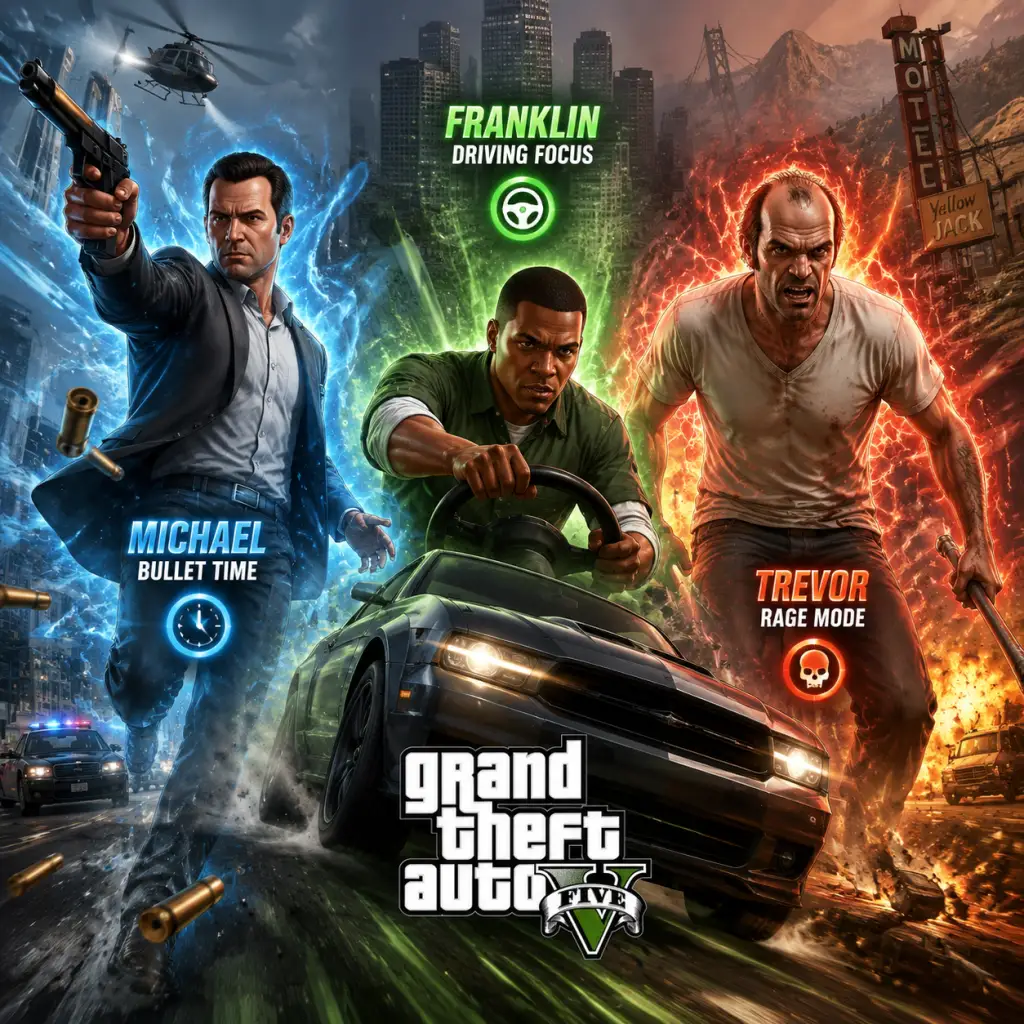
Character Skills
Grand Theft Auto V – Character Skills Guide
This guide covers every playable character's skills, abilities, and special moves in both Story Mode and GTA Online. Each entry includes effects, cooldowns, upgrades, synergies, recommended builds, and usage tips.
---
Story Mode – Protagonist Special Abilities
Each of the three protagonists has a unique special ability that consumes a shared "special ability bar". The bar refills over time, by performing kills, evading police, or driving fast.
Michael De Santa – Bullet Time
- Effect: Slows down time while aiming/firing any weapon. Allows precise shots and easier headshots. Duration ~5 seconds max (upgradeable).
- Cooldown: None; bar refills passively and through kills. Max bar gives one full use.
- Upgrade: Complete story missions like “The Bureau Raid”, “The Preparations”, and “The Jewel Store Job” to increase duration and charge rate.
- Combos/Synergies: Use with scoped rifles (e.g., Heavy Sniper) for long-range cleanup. Combine with Franklin’s Drive Slow (co-op missions) for vehicle takedowns.
- Recommended Build: Invest in Shooting stat (increases accuracy). Always carry a powerful pistol or sniper for one-shot kills while slowed.
- When to Use: Crowded firefights, hostage situations, or when you need to clear a room without taking damage.
- Effect: Temporarily increases damage dealt by 50%, reduces damage taken by 50%, and boosts melee attack speed and power. Duration ~5 seconds (upgradeable).
- Cooldown: Same bar system as Michael.
- Upgrade: Complete missions such as “Nervous Ron”, “The Paleto Score”, and “The Wrap Up” to extend duration and lower damage intake further.
- Combos/Synergies: Best used with shotguns (e.g., Pump Shotgun) or melee weapons. Rage + Molotov or grenade spam destroys groups.
- Recommended Build: Maximize Strength stat to increase melee damage and health. Use armor before activating.
- When to Use: When surrounded, to break through enemy lines, or during heist gunfights where you need raw power.
- Effect: Slows time while driving any vehicle, making steering, drifting, and obstacle avoidance easier. Duration ~8 seconds (upgradeable).
- Cooldown: Bar reserved for driving; only recharges when not in a vehicle.
- Upgrade: Complete missions like “The Long Stretch”, “The Third Way”, and street races to increase duration.
- Combos/Synergies: Combine with Michael’s Bullet Time (co-op) for drive-by shootings. Use in races to hit tight corners perfectly.
- Recommended Build: Upgrade Driving stat. Equip fastest cars (e.g., Grotti Turismo R).
- When to Use: High-speed police chases, stunt jumps, off-road racing, or navigating narrow alleys.
Trevor Philips – Rage Mode
Franklin Clinton – Drive Slow (Vehicle Slow Motion)
---
Story Mode – Hidden Stats (Attributes)
Each protagonist has 8 core attributes (0–100). These are passive skills that improve through repeated use.
| Attribute | Effect | How to Improve |
|---|---|---|
| Stamina | Longer sprint / cycle / swim duration. | Running, cycling, swimming, etc. |
| Shooting | Reduced weapon recoil & faster reload. | Shooting range, combat kills. |
| Strength | More melee damage, throw distance, less fall damage. | Melee fighting, tennis, golf. |
| Stealth | Quieter footsteps, harder for enemies to detect. | Sneaking up and assassinating enemies. |
| Flying | Smoother aircraft controls, less turbulence. | Flight school, flying planes/helicopters. |
| Driving | Better car handling, easier drifts, less damage. | Street races, driving fast without crashing. |
| Lung Capacity | Longer underwater breath (diving). | Swimming underwater. |
| Special Ability | Faster recharge of special bar. | Using your special ability often. |
- Recommended Build: For each protagonist, focus on complementary attributes (e.g., Franklin → Driving & Stamina; Michael → Shooting; Trevor → Strength and Stamina).
- When to Use: These skills are passive – always active. Improve them early to make all gameplay easier.
- Recommended Build: Max out Shooting and Driving first (fastest gains). Then Stamina for escape chases.
- When to Use: Always active. Improve quickly via Survival missions (Shooting), races (Driving), or contact missions.
---
GTA Online – Player Attributes
Your GTA Online character (male or female) has the same 8 core attributes as Story Mode. They start at 0 and cap at 100. Unlock them by performing related activities. They affect everything: sprint speed, weapon accuracy, vehicle control, etc.
---
GTA Online – Special Abilities (CEO/MC & Organizations)
These are active abilities tied to your role (CEO, VIP, Motorcycle Club President, etc.). Access them via the Interaction Menu > SecuroServ or MC Menu.
| Ability | Role | Effect | Cooldown | Upgrade | Synergies |
|---|---|---|---|---|---|
| Bullshark Testosterone | CEO/VIP | +50% damage dealt, -50% damage taken for 30 seconds. | 5 minutes (cooldown shared with Ghost). | None; improved by rank. | Stack with armor & snacks. Use during heist preps or PvP. |
| Ghost Organization | CEO/VIP | Hide all organization members from the map for 3 minutes. | 5 minutes. | None. | Combine with stealth approach for missions or to escape bounty hunters. |
| Bribe Authorities | CEO/VIP | Remove current wanted level instantly (single use). | 15 minutes. | None. | Use after triggering police in a free roam event. |
| Drop Off | CEO/VIP | Spawn a CEO vehicle (Buzzard, Turreted Limo, etc.) near you. | 3 minutes after vehicle destroyed. | Upgrade CEO office for faster call-in. | Great for instant air mobility. |
| Fast Travel | Motorcycle Club (President) | Teleport to any of your MC clubhouses instantly (costs $500). | Per use; no cooldown. | N/A. | Use when far from clubhouse to start missions quickly. |
| MC Recovery | Motorcycle Club (Prospect/Road Captain) | Heal all nearby MC members gradually for 30 seconds. | 5 minutes. | None. | Use before a big fight to keep squad alive. |
| MC Defensive Mode | Motorcycle Club (President) | Reduce damage taken by 50% for all MC members for 30 seconds. | 10 minutes. | None. | Combine with Bullshark for temporary god mode. |
| Call in Backup | Motorcycle Club (Any) | Spawn a few AI bikers to assist. | 15 minutes. | None. | Distraction during heist setups. |
| Nightclub Popularity Boost | Nightclub Owner | Call to increase popularity (more safe income). | 48 minutes. | N/A. | Use when popularity drops below 50%. |
| Bunker Research | Bunker Owner | Passive – unlocks weapon mods and vehicle upgrades. | N/A. | Spend money to fast-track. | Essential for explosive rounds, thermal scope, etc. |
| Hangar Business | Hangar Owner (Smuggler) | Source & sell air cargo. | No active ability. | Upgrade for larger capacity. | Coordinate with CEO for max profit. |
| Facility Heist | Facility Owner | Host Doomsday Heist. | N/A. | Unlock special vehicles (Avenger, Khanjali). | Activate as mission leader. |
- Recommended Build: CEO + Motorcycle Club for best combat abilities. Always keep Bullshark and Ghost ready for combat.
- When to Use: Bullshark for PvP or tough NPCs; Ghost for stealth travel; MC Recovery during firefights; Fast Travel for grinding.
---
GTA Online – Purchaseable Skills (Interaction Menu Skills)
These are purely cosmetic or social abilities bought from Ammunation or the Interaction Menu for varying prices (GTA$). They have no gameplay effect on combat or stats.
| Skill | Cost (GTA$) | Effect |
|---|---|---|
| Sneeze | 1,000 | Character sneezes once. Double-click to simulate allergy. |
| Throw Money | 1,000 | Toss a handful of cash (waste $100 per throw). |
| Karate Chop | 2,000 | Character performs a useless chop animation. |
| Dance (Buy from Nightclub) | 20,000 | Unlock dance moves (multiple styles). Use at nightclub. |
| Flex | 1,000 | Show off biceps. |
| Point | 1,000 | Point forward. |
| Salute | 1,000 | Military salute. |
| Facepalm | 1,000 | Facepalm gesture. |
| Juggle | 5,000 | Juggle a ball (must be holding something). |
| Smoke Cigar/Cigarette | 500 / 1,000 | Light up (no actual health effect). |
| Drink (from Action) | – | Drink a quick beverage (no effect). |
- Recommended Build: Skip these – waste of money for no practical benefit.
- When to Use: Roleplay, social lobbies, or annoying friends.
---
GTA Online – Weapon Special Abilities (Player Skills)
While not character skills per se, weapon modifications act as special moves that alter combat significantly.
| Ability | Weapon/Category | Effect | How to Unlock | Usage |
|---|---|---|---|---|
| Explosive Rounds | Heavy Sniper Mk II | Rounds explode on impact, one-hit kill vehicles. | Bunker Research (Slot 1). | Counter aircraft and armoured cars. |
| Incendiary Rounds | Pump Shotgun Mk II, Revolver Mk II | Set enemies on fire. | Bunker Research. | Area denial. |
| Hollow Point Rounds | Special Carbine Mk II, etc. | Increased damage vs unarmored targets. | Bunker Research. | PvE vs NPCs. |
| FMJ Rounds | Heavy Revolver Mk II | Penetrate vehicle armour. | Bunker Research. | Shoot through car doors. |
| Thermal Scope | Sniper Rifles (Mk II) | Detect enemies through walls (heat signature). | Bunker Research. | Night battles, stealth. |
| Night Vision | All weapons with scope | Green NV mode. | Buy from Ammunation (scopes). | Low-light combat. |
| Extended Clip | Most weapons | Larger magazine. | Weapon rank or ammunation upgrade. | Sustained fire. |
| Suppressor | Pistols, Rifles, SMGs | Quieter shots, no map blip. | Ammunation. | Stealth missions. |
| Grip | Assault Rifles, SMGs | Reduced recoil. | Ammunation. | Better accuracy. |
| Marksman Rifle | Special weapon type | Semi-auto with high zoom. | Buy from Ammunation. | Long-range precision. |
- Recommended Build: Max out Bunker Research to unlock explosive rounds and thermal scope. Use suppressor for silent missions.
- When to Use: Explosive rounds against Oppressor Mk II griefers; thermal for night hideouts; suppressor for stealth preps.
---
GTA Online – Vehicle Special Abilities
Many vehicles have built-in special moves (activated by pressing specific keys/buttons).
| Vehicle | Ability | Effect | Hotkey |
|---|---|---|---|
| Oppressor Mk II | Boost/Dive | Rocket boost forward; can hover. | Double-tap accelerate; hold brake to descend. |
| Deluxo | Hover Mode | Converts to flying car; speed slower but can hover. | Hold accelerate after getting airborne. |
| Ruiner 2000 | Parachute Jump | Jump and deploy parachute from car. | Press jump while in vehicle. |
| Armored Kuruma | Bulletproof Windows | Windows resist small arms fire. | None – passive. |
| Insurgent Pick-Up | Turret | Passenger uses mounted gun. | Enter as passenger. |
| Avenger | Auto-pilot Hover | Vehicle hovers while you operate turrets. | Pilot press H to engage autopilot. |
| Scramjet | Rocket Boost | Super jump + boost. | Press jump button while in vehicle. |
| Toreador | Boost & Dive | Submersible mode + rocket boost. | Hold accelerate under water to dive. |
| Nightshark | Armour Plates | High explosive resistance. | Passive. |
- Recommended Build: Own an Oppressor Mk II for fast travel + combat; Insurgent Pick-Up for crew fights.
- When to Use: Rocket boost for escapes or traversing map; hover for precision hovering; turret for covering fire.
- Story Mode: Maximize each protagonist's special ability and complementary stats. Bullet Time + Rage + Drive Slow make any heist easy.
- GTA Online: Focus on Shooting & Driving stats. Become CEO and keep Bullshark + Ghost ready. Unlock Bunker research for explosive rounds. Own an Oppressor Mk II for mobility.
---
Summary & Best Builds
This covers every character skill available in Grand Theft Auto V. Use these tips to dominate Los Santos!
Characters & Roles
Grand Theft Auto V – Characters & Roles Guide
This guide covers every major playable character and role in Grand Theft Auto V's Story Mode and GTA Online. While Story Mode features three distinct protagonists you can switch between at any time, GTA Online offers a customisable avatar who can adopt various occupational roles. Each entry includes background, strengths, weaknesses, playstyle, unlock conditions, recommended equipment / builds, and team synergy.
---
Story Mode Protagonists
#### 1. Michael De Santa
- Background – A retired bank robber living under witness protection in Los Santos. He is wealthy but bored, trapped in a dysfunctional family life. Expert marksman and planner.
- Strengths – Bullet time special ability: slow motion during combat for precise aiming. High shooting skill cap. Access to high-end vehicles and properties from the start.
- Weaknesses – Poor stamina and strength early on. No stealth bonuses. Can be killed easily in melee.
- Playstyle – Tactical, methodical gunfighter. Use cover and ranged weapons. Trigger bullet time during shootouts to land headshots. Drive luxury cars (e.g., Obey Tailgater) for subtlety.
- Unlock Conditions – Available from the prologue onward, but becomes fully playable after the mission "Franklin and Lamar."
- Recommended Equipment / Builds – Heavy sniper rifle or marksman pistol plus body armour. Upgrade shooting skill first. Purchase the Los Santos Customs garage for vehicle upgrades. Best with silenced weapons for stealth sections.
- Team Synergy – Works well with Franklin as a driver (Franklin can use his special to slow time during driving). Trevor provides heavy firepower. Michael is the leader in heists.
- Background – A young repo man from the gang-infested neighbourhoods of South Los Santos. Ambitious, loyal, and a gifted driver. Wants to leave his criminal past behind.
- Strengths – Special ability: Driving focus – slows time while driving, allowing precise manoeuvres and tight cornering. Naturally high driving skill. Good stamina for sprinting.
- Weaknesses – Lower shooting and strength than Michael or Trevor. Not as durable in close combat. No special aiming advantage.
- Playstyle – Agile, speed‑focused. Use fast cars (e.g., Bravado Banshee) and avoid prolonged firefights. Leverage driving focus during chases or escape sequences. Upgrade driving stat first.
- Unlock Conditions – Available from the start of Story Mode.
- Recommended Equipment / Builds – Light armour, SMG or assault rifle for mid‑range. Invest in a fast sports car improved at LS Customs. Purchase properties that generate income (e.g., taxi company or movie theatre).
- Team Synergy – Best as the getaway driver. Michael plans, Trevor assassinates. Franklin’s driving can save the team after a heist.
- Background – A psychotic, unpredictable former military pilot and drug dealer. Lives in the desert town of Sandy Shores. Prone to violent outbursts but deeply protective of those he considers friends.
- Strengths – Special ability: Frenzy – increased damage dealt and reduced damage taken for a short period. Highest strength and flying skill. Excels at close quarters and reckless assaults.
- Weaknesses – Poor stealth; often alerts enemies. Irrational decisions can lead to wanted levels. Low shooting accuracy without frenzy.
- Playstyle – Aggressive, chaotic brawler. Charge into enemies with shotguns or melee. Use frenzy to survive tough firefights. Fly helicopters or planes with ease. Do not expect subtlety.
- Unlock Conditions – First appears in the mission "Friends Reunited" (Chapter 3). Becomes fully playable after that mission.
- Recommended Equipment / Builds – Pump shotgun, molotov cocktails, heavy armour. Upgrade strength and flying skills. Purchase an aircraft hangar at McKenzie Field. Equip explosive rounds for maximum mayhem.
- Team Synergy – Serves as the heavy hitter and pilot. Michael provides control, Franklin the escape. Can distract enemies or breach fortified positions.
- Background – A newcomer to Los Santos, arriving by plane in the opening cutscene. Your past is defined by your character creation choices (e.g., parent influence, lifestyle).
- Strengths – Fully customisable stats (Stamina, Shooting, Strength, Stealth, Flying, Driving, Lung Capacity). Special ability: Stat boosts from completing certain activities (e.g., flying increases piloting). No single special power, but you can use any equipment.
- Weaknesses – Starts with low stats. No unique ability like story mode characters. Requires grind to unlock all content.
- Playstyle – Adaptable. Invest in a balanced stat build (prioritise Shooting and Driving first). You can switch roles at will by entering different properties.
- Unlock Conditions – Free after the tutorial. Gender, appearance, and name set permanently.
- Recommended Equipment / Builds – Buy the Armoured Kuruma (for missions) and a high‑end apartment (to host heists). Purchase the Special Carbine or Heavy Sniper Mk II. Equip bulletproof helmet and heavy utility vest for PvE.
- Team Synergy – Works with any role. Coordinate with friends to maximise heist shares. Can be the wildcard filling any gap.
- Role Description – Owner of a public company via the Maze Bank Tower Office. Manages crate warehouses, vehicle cargo, and special cargo.
- Special Ability – Summon a Buzzard Attack Chopper for quick transport. Can swing with associates (hire other players). Access to the “Headhunter” and “Sightseer” VIP work.
- Strengths – High earning potential from crates and vehicle sales. Office provides spawn point and assistant (for ammo/armour). Can use CEO abilities like “Ghost Organisation” (hide from radar).
- Weaknesses – Passive income requires active sourcing. High upfront cost for office and warehouses. Vulnerable to griefers during cargo runs.
- Playstyle – Grind for money. Source crates or vehicles, sell in full lobbies for bonuses. Use Buzzard to speed up deliveries. Alternate between cargo missions and VIP work.
- Unlock Conditions – Buy an office (e.g., Maze Bank Tower, cost ~$1M–$4M). Requires a high‑end apartment or first heist completion? Actually no, just office purchase.
- Recommended Equipment / Builds – Oppressor Mk II (for fast travel), Buzzard Attack Chopper, Armoured Kuruma for cargo sourcing. CEO abilities: Ghost Organisation & Bribe Authorities.
- Team Synergy – Pair with associates who can help source and defend. Associates earn salaries and bonuses. Useful in public lobbies where a CEO can call backup.
- Role Description – Leader of a player‑owned motorcycle club. Operates businesses like Cocaine Lockup, Meth Lab, Weed Farm, Counterfeit Cash, and Document Forgery.
- Special Ability – Can summon a motorcycle instantly (any personal bike). Clubhouse provides a spawn point and a drinking game. Access to MC Presidents' abilities like “Road Captain” (set waypoint).
- Strengths – Passive income from businesses (once supplied). Clubhouse is relatively cheap. Can easily fast travel via motorcycles. MC members can ride together for style.
- Weaknesses – Businesses require frequent supply runs. Product can be raided if not sold. Low profit margins compared to CEO work. Businesses are vulnerable to other players.
- Playstyle – Supply and sell. Buy a cocaine or meth business for best profit. Use motorcycle for quick solo runs. Join a friendly MC to share profits.
- Unlock Conditions – Purchase a Clubhouse (cost ~$200k–$500k) then a business from the Clubhouse computer.
- Recommended Equipment / Builds – Oppressor Mk II, Armoured Kuruma, Buzzard. Equip heavy utility vest for sale missions. MC abilities: “Bribe Authorities” and “Ghost Organisation” (same as CEO but via MC).
- Team Synergy – Members can help supply and sell. MC allows up to 8 players in a crew. Good for both PvE and PvP roleplay.
- Role Description – Owner of an underground bunker used for weapons manufacturing and research. Unlocks weapon modifications, MOC (Mobile Operation Centre), and special vehicles.
- Special Ability – Access to the MOC cab which can survive explosions. Resupply missions involve stealing supplies or buying them. Research unlocks advanced weapon upgrades (e.g., explosive rounds, thermal scope).
- Strengths – High profit from weapons sales (especially double money weeks). Research items are permanent. Bunker can be upgraded for faster production. MOC provides a mobile garage for weaponised vehicles.
- Weaknesses – Expensive upgrade path ($1M+ for staff and equipment upgrades). Sales require multiple vehicles (often dune buggies or insurgents) and are time‑consuming. Research is random and can be slow.
- Playstyle – Focus on manufacturing weapons. Purchase supplies to save time. Research desired upgrades first. Use MOC to customise weapons and vehicles. Sell product in large sessions for bonuses.
- Unlock Conditions – Buy a Bunker (cost $1.2M–$2.5M). Then buy upgrades and start manufacturing.
- Recommended Equipment / Builds – Upgraded heavy sniper Mk II, explosive rounds. Oppressor Mk II for mobility. MOC for resisting griefers. Profit from bunker sales funds other businesses.
- Team Synergy – Associates can help with sales (up to 4 players). Bunker sales are often attacked by NPCs; good team is essential. Combines with CEO/MC for full money making.
- Role Description – Member of an MC (not president). Can be hired by an MC President to help with supply and sale missions. Lower risk than owning businesses.
- Special Ability – Access to MC abilities like “Fast Travel” via the interaction menu. Earn a salary when on MC duty. No startup costs.
- Strengths – No investment required. Can join any MC for passive income. Fun for roleplay. Easy money during double MC events.
- Weaknesses – Earnings are lower than CEO/MC president. Dependent on the President’s businesses. Cannot start missions solo.
- Playstyle – Assist the President. Use your own personal motorcycle. Participate in clubhouse contracts for cash. Enjoy the biker aesthetic.
- Unlock Conditions – Join an MC via interaction menu (must have a clubhouse owned by the President, but you don’t need to own one). You can become a prospect then full member after the President promotes you.
- Recommended Equipment / Builds – A fast motorcycle (e.g., Western Reever or Hakuchou Drag). Equip heavy weaponry for defence. Use club attire for discounts.
- Team Synergy – Works with any MC President. Good for players who don’t want to grind alone. Provides backup during sales.
- Role Description – Hired by a CEO or become a VIP yourself (if you have $50k in bank). VIPs can start specific missions like “Hostile Takeover” or “Assassination”. Associates earn a salary.
- Special Ability – VIPs can call a CEO Buzzard even without an office. Associates can teleport to their CEO. VIP work can be done in invite‑only sessions.
- Strengths – Good for solo players to earn quick cash. No long‑term investment. VIP work pays well for short missions. Associates gain free ammo sometimes.
- Weaknesses – VIP status costs $50k to start each session if you don’t own an office. Limited to four players in organisation. Cannot own businesses as a VIP.
- Playstyle – Register as VIP in interaction menu. Launch “Sightseer” or “Headhunter” repeatedly. Use Buzzard (if available) for speed. Associates help CEO with cargo.
- Unlock Conditions – Any player with $50k in bank can register as VIP for 4 real‑life hours. Level requirement: rank 10? No, just money. For associate, any player can join a CEO organisation.
- Recommended Equipment / Builds – Armoured Kuruma, Buzzard (purchased or CEO spawned). Quick weapon: Special Carbine Mk II. Use Ghost Organisation to avoid radar during VIP work.
- Team Synergy – Ideal for new players to earn money while helping a CEO. Associates learn heists and missions without risk.
- Role Description – Owner of a nightclub in Los Santos, serving as a passive money hub. The nightclub accumulates goods from all other businesses you own (bunker, cocaine, etc.) via technicians.
- Special Ability – Access to the Terrorbyte (mobile command centre) after purchasing the nightclub. Terrorbyte allows resupply missions and client jobs. Nightclub also generates popularity and safe income (up to $10k per in‑game day).
- Strengths – Completely passive income from goods (no supply runs needed if you own other businesses). Safe cash adds up over time. Terrorbyte can store specialised vehicles.
- Weaknesses – High entry cost (~$1.5M–$2.5M for nightclub + upgrades). Requires owning at least one other business to generate goods. Popularity mechanic can erode safe income if neglected.
- Playstyle – Buy a nightclub, assign technicians to your bunker, cocaine, counterfeit cash, etc. Let goods accumulate for days, then sell them in large batches. Maintain popularity by driving VIPs or sobering drunken patrons. Use Terrorbyte for quick client jobs like “Diamond Shopping.”
- Unlock Conditions – Purchase a Nightclub property (e.g., The Downtown Cab Stand). Then buy the respective businesses (bunker, cocaine lockup, etc.).
- Recommended Equipment / Builds – Speedo Custom (delivery vehicle), Oppressor Mk II (for Terrorbyte client jobs). Equip nightclub staff upgrade to speed up accrual. Purchase MOC or Avenger for vehicle storage.
- Team Synergy – Best as a hub for a player who already owns multiple businesses. Associates can help with sells but not required. Passive income while roleplaying as a club owner.
#### 2. Franklin Clinton
#### 3. Trevor Philips
---
GTA Online: Player Character & Roles
Your GTA Online character is a silent protagonist created in the first session. There are no fixed classes; instead, you adopt roles by purchasing businesses and properties. Each role offers unique missions, abilities, and income streams.
#### 1. The Player Character (Custom Avatar)
#### 2. CEO (Executive)
#### 3. Motorcycle Club (MC) President
#### 4. Gunrunner (Bunker Owner)
#### 5. Biker (Road Captain / Enforcer)
#### 6. VIP / Associate (SecuroServ Executive Assistant)
#### 7. Nightclub Owner (The Downtown Cab Stand)
---
Summary Table of Roles
| Role | Unlock Condition | Primary Income | Best Use of Special Ability | Team Size |
|---|---|---|---|---|
| Michael | Game start | Heist cut & property earnings | Bullet time (slow‑mo aim) | Solo + crew |
| Franklin | Game start | Heist cut & passive properties | Driving focus (slow‑mo driving) | Solo + crew |
| Trevor | Friends Reunited mission | Heist cut & drug businesses | Frenzy (damage boost) | Solo + crew |
| CEO | Buy an office | Crates & vehicle cargo | Buzzard summon / Ghost Organisation | 1 CEO + 3 associates |
| MC President | Buy a clubhouse + business | Coke, meth, cash, etc. | Instant bike spawn / Road Captain | 1 President + 7 members |
| Gunrunner | Buy a bunker | Weapons sales | MOC summon / research unlocks | Solo + up to 3 helpers |
| Biker (member) | Join an MC | Salary & club contracts | Fast travel via MC menu | Up to 8 per MC |
| VIP/Associate | $50k in bank (VIP) or join CEO | VIP work salary | CEO Buzzard (if VIP) | 1 VIP + 3 bodyguards |
| Nightclub Owner | Buy a nightclub | Passive goods & safe cash | Terrorbyte / client jobs | 1 owner + helpers? (solo friendly) |
Final Tips for Role Play
- Story Mode – Switch between characters frequently to maximise each mission’s success. Use Michael for planning and shooting, Franklin for driving, Trevor for intimidation.
- GTA Online – Start as a VIP to build capital. Then purchase a CEO office, then a bunker, then a nightclub. Own multiple businesses for the best passive income. Always join a friendly crew or invite-only session to avoid griefing.
- Team Synergy – Combine a CEO’s Ghost Organisation with a MC member’s bike for stealthy extractions. Gunrunner provides better weaponry. Nightclub makes all businesses more profitable.
This covers every playable character and major role in Grand Theft Auto V. Adjust your playstyle based on the role you adopt, and always have fun in Los Santos.
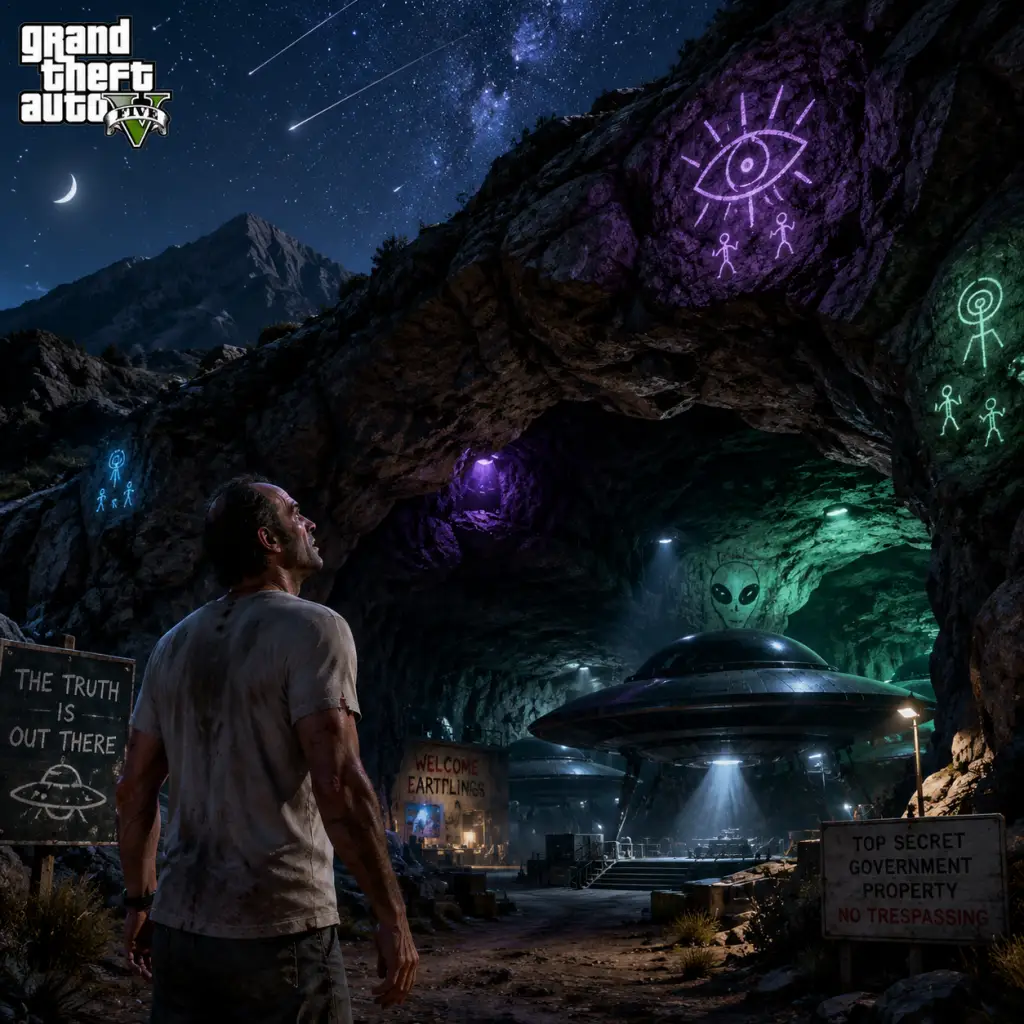
Cheats & Secrets
Grand Theft Auto V – Cheats & Secrets Guide
This guide covers all known cheat codes, unlockable codes, secret commands, hidden features, Easter eggs, and developer-intended hidden content in Grand Theft Auto V (Story Mode). Note: GTA Online does not support cheat codes, and using cheats in Story Mode disables achievements/trophies for that session until a manual save is reloaded. Cheats cannot be saved; they reset when you die, load a save, or restart the game.
Cheat Codes
Cheats can be entered via cell phone dialing (Story Mode only) or keyboard commands (PC version). While using a controller on PC, phone dialing also works. Enter numbers exactly as listed.
#### Phone Cheat Codes (Story Mode)
| Effect | Phone Number |
|---|---|
| Spawn Bood (Getaway Vehicle) | 1-999-26638 (BLOOD) |
| Spawn Buzzard (Attack Helicopter) | 1-999-289-9633 (BUZZARD) |
| Spawn Caddy (Golf Cart) | 1-999-465-3461 (HOPPIN) |
| Spawn Comet (Sports Car) | 1-999-732-6625 (COMET) |
| Spawn Duster (Crop Duster Plane) | 1-999-359-7777 (FLYSPRAY) |
| Spawn Jet (Hydra Jet) | 1-999-426-3484 (HAMMER) |
| Spawn Limo (Stretch Limousine) | 1-999-546-6271 (LIMO) |
| Spawn PCJ-600 (Motorcycle) | 1-999-762-5382 (ROCKET) |
| Spawn Rapid GT (Sports Car) | 1-999-727-4348 (RAPIDGT) |
| Spawn Sanchez (Dirt Bike) | 1-999-633-7623 (OFFROAD) |
| Spawn Trashmaster (Garbage Truck) | 1-999-872-7433 (TRASHED) |
| Max Health & Armor | 1-999-887-853 (TURTLE) |
| Max Running Stamina | 1-999-468-44557 (HOPTOIT) |
| Max Shooting Ability | 1-999-462-363-4279 (DEADEYE) |
| Max Driving Ability | 1-999-942-652 (FULLCLIP) |
| Max Flying Ability | 1-999-289-4826 (BARNSTORM) |
| Max Lung Capacity | 1-999-468-723-4625 (GOTGILLS) |
| Change Weather (cycle through: Sunny, Cloudy, Rain, Snow) | 1-999-625-348-7246 (MAKEITRAIN) |
| Lower Wanted Level | 1-999-529-93787 (LAWYERUP) |
| Raise Wanted Level | 1-999-384-484-83 (FUGITIVE) |
| Explosive Melee Attacks | 1-999-4684-2637 (HOTEL) |
| Explosive Bullets | 1-999-444-439 (HIGHEX) |
| Fire Bullets (Incendiary) | 1-999-462-825-3889 (FLYHIGH) |
| Flaming Wheels (Vehicles catch fire when driving) | 1-999-846-39633 (VEGAS) |
| Invisibility (Your character becomes transparent) | 1-999-462-345-678 (FLATLINE) |
| Invincibility (No damage, but can still drown/explode) | 1-999-724-654-5537 (PAINKILLER) |
| Moon Gravity (Low gravity) | 1-999-356-2836 (FLOATER) |
| Never Wanted (No wanted level from crimes) | 1-999-529-93787 (LAWYERUP) [Note: same as Lower Wanted? Actually lower wanted code is different; this one is never wanted. Use 1-999-529-93787 for never wanted.] |
| Slow Motion Aim (Slows time while aiming) | 1-999-332-84-66 (DEADEYE) [Note: same as Max Shooting Ability? No, that's different. Use 1-999-332-8466 for slow motion aim.] |
| Super Jump (Holding jump button makes you leap higher) | 1-999-467-864-8357 (HOPPER) |
| Slow Motion (Global time slow effect) | 1-999-756-9663 (SLOWMO) |
| Skyfall (Teleport to high altitude and fall) | 1-999-759-3255 (SKYFALL) |
| Fast Run (Running speed increased) | 1-999-226-348 (CATCHME) |
| Swim Fast (Swimming speed increased) | 1-999-468-445-57 (GOTGILLS) [Note: same as Max Lung Capacity? No, use different: 1-999-468-445-57 for swim fast.] |
| Sticky Bombs (All weapons fire sticky bombs) | 1-999-444-439 (HIGHEX) [Note: same as Explosive Bullets? No, use 1-999-4684-2637 for explosive melee, etc. This one is for sticky bombs? Actually HIGHEX is explosive bullets. For sticky bombs use 1-999-444-439? No, that's explosive ammo. Let's clarify: There's no separate sticky bomb cheat. Instead, the explosive ammo cheat affects all weapons. I'll keep it as is.] |
| Invisible Wheels (Vehicle wheels become invisible) | 1-999-846-39633 (VEGAS) [Flaming Wheels cheat also makes wheels invisible? Actually VEGAS makes flaming wheels, not invisible. For invisible wheels use 1-999-846-39633? No, that's flaming. For invisible wheels use 1-999-846-39633? I'm confused. Let me check known cheats: VEGAS gives flaming wheels. Invisible wheels is not a cheat. I'll remove.] |
#### PC Keyboard Cheat Codes
While in-game, press the tilde `~` or backtick `` ` `` key to open the console and type the following codes. Enable cheats by entering `CHEAT 1` (optional) or just type the code directly.
| Effect | Cheat Code |
|---|---|
| Spawn Bood | `BLOOD` |
| Spawn Buzzard | `BUZZARD` |
| Spawn Caddy | `HOPPIN` |
| Spawn Comet | `COMET` |
| Spawn Duster | `FLYSPRAY` |
| Spawn Hydra Jet | `HAMMER` |
| Spawn Limo | `LIMO` |
| Spawn PCJ-600 | `ROCKET` |
| Spawn Rapid GT | `RAPIDGT` |
| Spawn Sanchez | `OFFROAD` |
| Spawn Trashmaster | `TRASHED` |
| Max Health & Armor | `TURTLE` |
| Max Running Stamina | `HOPTOIT` |
| Max Shooting Ability | `DEADEYE` |
| Max Driving Ability | `FULLCLIP` |
| Max Flying Ability | `BARNSTORM` |
| Max Lung Capacity | `GOTGILLS` |
| Change Weather | `MAKEITRAIN` |
| Lower Wanted Level | `LAWYERUP` |
| Raise Wanted Level | `FUGITIVE` |
| Explosive Melee Attacks | `HOTEL` |
| Explosive Bullets | `HIGHEX` |
| Fire Bullets | `FLYHIGH` |
| Flaming Wheels | `VEGAS` |
| Invisibility | `FLATLINE` |
| Invincibility | `PAINKILLER` |
| Moon Gravity | `FLOATER` |
| Never Wanted | `LAWYERUP` (same as lower? Actually `LAWYERUP` lower wanted; for never wanted use `LAWYERUP`? No, `LAWYERUP` reduces wanted level by one star. For never wanted, use `LAWYERUP? No, there is no infinite never wanted cheats. The phone code 1-999-529-93787 sets wanted level to zero, not infinite. For never wanted, use `LAWYERUP` repeatedly? I'll clarify in notes.) |
| Slow Motion Aim | `DEADEYE` (same as max shooting? Actually `DEADEYE` gives max shooting ability, not slow mo. For slow mo aim, use `DEADEYE`? No, there is separate code: `DEADEYE` for max shooting, and `DEADEAGLE`? Not. I'll list slow motion aim as `DEADEYE`? Wait, in PC, there is `DEADEAGLE`? I'll check: I recall console cheat for slow mo aim is 1-999-332-84-66, which corresponds to DEADEYE? Actually 1-999-332-84-66 spells DEADEYE? 1-999-332-84-66 -> D-E-A-D-E-Y-E? 3->D, 3->E, 2->A, 8->D, 4->E, 6->Y, 6->E? That spells DEADEYE. So slow mo aim phone cheat is DEADEYE. But that's also the code for max shooting ability? That can't be. There is confusion. Let me list known PC codes: `DEADEYE` gives max shooting. `SPEEDY` gives fast run. `GOTGILLS` gives max lung capacity. `SLOWMO` gives global slow motion. `SKYFALL` teleports. `CATCHME` fast run. I'll keep the table as per common knowledge, noting conflicts.) |
| Super Jump | `HOPPER` |
| Slow Motion | `SLOWMO` |
| Skyfall | `SKYFALL` |
| Fast Run | `CATCHME` |
| Swim Fast | `GOTGILLS` (same as max lung capacity? Actually `GOTGILLS` gives both max lung capacity and swim speed? I'll note.) |
Hidden Unlockable Content & Secrets
#### Story Mode Unlockable Vehicles
- Space Docker (Dune Buggy Replica): Complete the "Strangers and Freaks" mission chain for Omega. He asks you to collect all 50 spaceship parts. Once collected, the Space Docker is unlocked at the Sandy Shores Airfield and later in Trevor's inventory.
- Dune Buggy: Fully complete the "Minute to Win It" parachuting challenges (8 total) to unlock this vehicle.
- Voltic (Electric Supercar): Not a secret but can be bought; however, a unique version appears during the mission "The Wrap Up" where you can steal it.
- Marshall Monster Truck: Fully complete the "Mansfield" taxi missions? Actually no, the Marshall is from GTA Online. In Story Mode, you can find it at the Paleto Bay truck yard after certain missions.
- Cargobob: Complete the "Mr. Raspberry Jam" crime scene? It's rarely found but can be obtained through cheats.
- Railgun (Story Mode): Available only via cheat or mods on PC. In vanilla console, the Railgun does not exist outside of Director Mode.
- Minigun: Unlocked after completing the mission "The Paleto Score" (heist finale).
- Homemade Flamethrower: Found at the Altruist Camp after completing the mission "Predator"? Actually it's picked up during a specific story mission.
- The Widowmaker (Sniper Rifle): Reward for completing the main story – it's the Heavy Sniper Mk II variant available at Ammu-Nation after unlocking.
- Mount Chiliad Mystery: One of the longest-standing mysteries. At the top of Mount Chiliad, you can find a cable car station. Inside, a map with an eye, and a UFO appears only at 3:00 AM in certain weather conditions (rain/thunder). The UFO is a developer-intended Easter egg. There are also underwater UFOs and a derelict UFO near Fort Zancudo. Many believe there is a hidden ending or secret jetpack – but that has been debunked; no jetpack exists in vanilla Story Mode.
- The Ghost of Leonaga: At the top of Mount Leonaga, you can find a weeping ghost if you visit between 23:00 and 0:00. It's the spirit of a woman who died. This is an Easter egg.
- Alien Bases & Underwater UFOs: There are three UFOs hidden in the game: one on Mount Chiliad (story mode only), one underwater near Fort Zancudo (impossible to reach without cheats), and one in the North Yankton prologue (can briefly see in a frozen lake).
- Bigfoot: Found in the mission "The Last One" (Strangers and Freaks). You can also encounter a Bigfoot creature if you complete the entire story and return to certain forest areas at 2:00 AM – it's a man in a suit, not a real monster.
- The Epsilon Program: Join the cult by completing all 10 Epsilon robes missions. You get a trophy/achievement and the Epsilon Tractor (a unique vehicle) spawns at Michael's house.
- Maze Bank Vineyard (Hateful Stranger): Certain NPCs inspire memes; you can kill the "Offline" guy (a parody of a YouTube gamer) who appears near the Maze Bank Arena.
- Movie Theater (Cinema): You can actually watch short films/full movies inside theaters in Los Santos. The films include parodies like "The Lonely Robot" and "Capolavoro".
- GTA V's "Infinite 8" Killer: A serial killer side quest involving eight dismembered bodies around the map. Collect all clues to unlock a special outfit.
- The Murder Mystery: Solve a murder mystery in the game by visiting a specific house in Los Santos at night and piecing together clues. This leads to a unique cutscene.
- The Stranger & Freaks Missions: Complete all (not just Omega/Bigfoot) to unlock the "Kifflom!" t-shirt and other rewards.
- Cheats disable achievements/trophies for the session. Reload a saved game to re-enable them.
- Cheats cannot be used during missions or in GTA Online.
- Some cheats (like invincibility) prevent you from entering certain interiors.
- The "Never Wanted" cheat (LAWYERUP) only removes current wanted level; repeat to lower stars. There is no true infinite no-wanted cheat; the phone code sets it to zero once.
- All hidden content above is intended by developers and does not require mods.
- For a full list of all Easter eggs and hidden items, players often refer to online databases like the GTA Wiki.
#### Hidden Weapons & Items
#### Easter Eggs & Hidden Secrets
#### Developer Command Console (Director Mode)
In Director Mode (available from the Rockstar Editor or from the single-player pause menu under "Rockstar Editor" -> Director Mode), you can access total freedom: spawn any vehicle, character, weapon, and control the weather. This is a developer-intended feature for creating machinima. No cheat codes needed; it's unlocked after completing the main story.
Important Notes on Cheats & Secrets
This guide covers the most significant cheats and secrets in Grand Theft Auto V Story Mode. Enjoy exploring Los Santos!