Hearthstone
## Game Introduction ### Genre and Developer **Hearthstone** is a **digital collectible card game (CCG)** developed and published by **Blizzard Entertainment**, the renowned studio behind *World of Warcraft*, *Overwatch*, and *Diablo*. It blends strategic deck-building with turn-based card combat,...
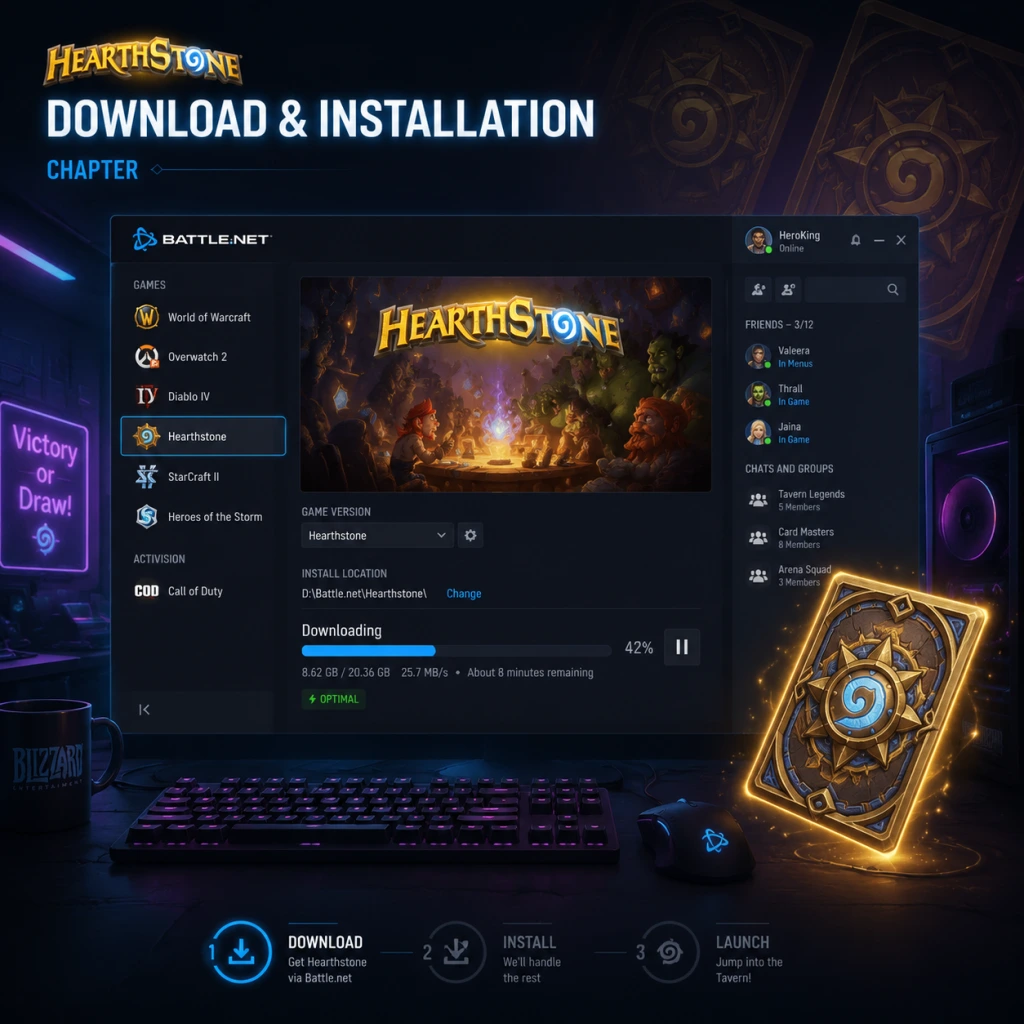
Download & Installation
Overview
Hearthstone is a digital collectible card game developed and published by Blizzard Entertainment. It is not available on Steam, Epic Games Store, PlayStation, Xbox, or Nintendo Switch. The game is officially distributed exclusively through:
- Battle.net (Windows and macOS)
- Apple App Store (iOS / iPadOS)
- Google Play Store (Android)
- Website: [https://battle.net/download](https://battle.net/download)
- Launcher: You must download and install the Battle.net desktop app first. Hearthstone is then downloaded and managed within the launcher.
This guide covers downloading and installing Hearthstone on all supported platforms, including system requirements, account setup, common errors, and post-installation verification.
---
Platform-Specific Instructions
1. PC (Windows / macOS) via Battle.net
#### Official Download Source
#### Step-by-Step Installation
1. Download the Battle.net Setup File
- Go to [https://battle.net/download](https://battle.net/download).
- Click the Download for Windows (or macOS) button. The file is named `Battle.net-Setup.exe` (Windows) or `Battle.net-Setup.dmg` (macOS).
2. Install the Battle.net Launcher
- Windows: Run the `.exe` file. If a User Account Control prompt appears, click Yes. Follow the on-screen installer – accept the license agreement, choose a destination folder (default is usually fine), and complete the installation.
- macOS: Open the `.dmg` file. Drag the Battle.net icon into the `Applications` folder. Then launch Battle.net from the Applications folder or Launchpad.
3. Log In or Create a Battle.net Account
- After installation, the Battle.net launcher will open. If you already have an account, enter your email and password and click Log In.
- If you are new, click Create a Free Account and follow the registration process. You will need an email address and to set a password.
4. Download and Install Hearthstone
- Once logged in, you will see the Battle.net home screen.
- Click the Hearthstone tab in the launcher (on the left side or the game list). If you don't see it, click All Games and then Hearthstone.
- Click the blue Install button. The launcher will begin downloading Hearthstone. You can monitor progress in the Installations section (click the gear icon top-left -> "Installations").
- After the download completes, the Play button will appear. Click it to start the game.
#### System Requirements
| Component | Minimum | Recommended |
|---|---|---|
| OS (Windows) | Windows 7 (64-bit) | Windows 10 (64-bit) |
| OS (macOS) | macOS 10.13 (High Sierra) | macOS 10.15 (Catalina) or later |
| Processor | Intel Core 2 Duo 2.0 GHz or equivalent | Intel Core i5 or better |
| Memory | 4 GB RAM | 8 GB RAM |
| Graphics | Integrated GPU with 256 MB VRAM | Dedicated GPU with 1 GB VRAM (e.g., NVIDIA GeForce GTX 460, AMD Radeon HD 5670) |
| Storage | 4 GB free space (game + launcher) | 6 GB free space |
| Internet | Broadband connection (DSL or faster) | Broadband connection (DSL or faster) |
#### Storage Space
- The Hearthstone game client itself requires approximately 4 GB of space.
- The Battle.net launcher adds about 1 GB. Total needed: ~5 GB.
- Temporary space during installation may require an additional 2 GB.
- A Battle.net account is mandatory to play Hearthstone on any platform.
- The account is free. No paid subscription is required to play the game, though optional in-game purchases exist.
- Error: "Battle.net agent crashed" or "Unable to start installation"
- Error: "Download stalled" or "Stuck at 0%"
- Error: "Not enough disk space"
- Error: "The file or directory is corrupted and unreadable"
- Error: "GPU not supported"
- Launch the game and verify that the main menu screen loads smoothly.
- Check the Settings menu (gear icon) -> Video to confirm resolution and framerate are acceptable.
- Ensure sound works: play a card or navigate menus.
- If you encounter any crashes, run the Scan and Repair tool from the Battle.net launcher (gear icon -> Scan and Repair).
- Apple App Store: Search for "Hearthstone" or go directly to [https://apps.apple.com/app/hearthstone/id625257520](https://apps.apple.com/app/hearthstone/id625257520)
- Supported Devices: iPhone 6s or newer, iPad 5th generation or newer, iPad Air 2 or newer, iPad Mini 4 or newer, iPod Touch 7th gen.
- OS Version: Requires iOS 13.0 or later (as of 2025).
- Storage: Approximately 4 GB free space.
- A Battle.net account is required. You can log in on the first launch.
- If you already have a Battle.net account, use the same account to share progress across platforms.
- Error: "Cannot connect to App Store"
- Error: "Installation Pending"
- Error: "Insufficient Storage"
- Error: App crashes on launch
- Launch the app and verify you can navigate menus.
- Play a game (Practice mode) to test performance.
- Ensure notifications are enabled for Hearthstone if desired (Settings -> Hearthstone -> Notifications).
- Google Play Store: Search for "Hearthstone" or go to [https://play.google.com/store/apps/details?id=com.blizzard.wtcg.hearthstone](https://play.google.com/store/apps/details?id=com.blizzard.wtcg.hearthstone)
- Samsung Galaxy Store also offers the official app, but the Play Store version is recommended for timely updates.
- OS Version: Android 8.0 (Oreo) or later (as of 2025).
- RAM: Minimum 2 GB (recommended 4 GB+).
- Processor: 64-bit ARM processor (e.g., Snapdragon 835, Exynos 8895, Kirin 970 or better).
- Storage: Minimum 4 GB free space (game + cache).
- Stable internet connection (Wi-Fi recommended for initial download).
- A Battle.net account is required. Log in on first launch or create one.
- Cross-progression works across all platforms using the same account.
- Error: "Incompatible with your device"
- Error: "Download failed"
- Error: "App not installed"
- Error: Game hangs at "Loading" screen after login
- Launch the game and wait for the main menu to load.
- Tap the Settings gear icon -> Audio and Graphics to verify options are available.
- Try playing a game against the Innkeeper (Practice mode) to check responsiveness.
- Cross-Platform Play: Hearthstone supports full cross-play and cross-progression between PC, iOS, and Android. Your collection, rank, and achievements are synced via your Battle.net account.
- No Console Versions: As of 2025, Hearthstone is not available on PlayStation, Xbox, or Nintendo Switch. Any claims otherwise are false.
- Authentication: Always use the official Blizzard website or app stores. Do not download from third-party sites to avoid malware.
- Updates: The game receives frequent patches. Keep your client updated via the respective launcher or app store.
#### Account Requirements
#### First Launch Setup
1. After clicking Play, the Hearthstone client will open.
2. If you are not already logged in (you should be via Battle.net), you may be prompted to log in again – but typically you are automatically signed in.
3. The game will download additional assets (patches, card art, etc.) – this is normal and may take a few minutes.
4. You will be greeted with the Introduction Questline (a tutorial). You can play through it or skip it (though playing it rewards free packs).
5. After the tutorial, you enter the main menu where you can access the Shop, Collection, Modes, etc.
#### Common Installation Errors & Fixes
- Fix: Close all Battle.net processes via Task Manager (Windows) or Activity Monitor (macOS). Restart the launcher as administrator (right-click -> Run as Administrator on Windows).
- Method: On macOS, delete `~/Library/Application Support/Battle.net` and reinstall.
- Fix: Pause and resume the download. If that fails, restart the Battle.net launcher.
- Method: Check your antivirus/firewall – add Battle.net as an exception. Temporarily disable VPN if in use.
- Fix: Free up at least 8 GB of space (system drive). Clear temporary files using Disk Cleanup (Windows) or remove large files.
- Method: Move other games/apps to another drive.
- Fix: Run the Battle.net installer as administrator again. Use the Scan and Repair feature: in the launcher, click the gear icon next to the Hearthstone Play button -> Scan and Repair.
- Fix: Update your graphics drivers to the latest version from the manufacturer's website.
- If the error persists, your GPU may be too old (e.g., Intel GMA 950). Consider upgrading or using a device with a supported GPU.
#### Post-Install Verification
---
2. iOS (iPhone / iPad)
#### Official Download Source
#### Step-by-Step Installation
1. Open the App Store on your iOS device.
2. Tap the Search tab and type "Hearthstone".
3. Locate the official app by Blizzard Entertainment, Inc. (look for the icon with a blue H).
4. Tap Get (or the cloud icon if you have previously downloaded).
5. Authenticate with Face ID, Touch ID, or your Apple ID password.
6. The app will download and install automatically. Progress is shown on the home screen.
7. Once installed, tap Open to launch.
#### System Requirements (iOS)
#### Account Requirements
#### First Launch Setup
1. After tapping Open, the game will download additional assets (usually ~1 GB of data). This may take a few minutes over Wi-Fi.
2. You will be prompted to Log In with Battle.net or Create Account.
3. After logging in, you will go through the same introduction questline as on PC (or skip it).
4. The game will sync your collection and progress from other platforms.
#### Common Installation Errors & Fixes
- Fix: Check your internet connection, sign out and back into your Apple ID, or restart your device.
- Fix: Go to your home screen – the app icon might show "Waiting..." – tap and hold the icon, then tap Resume. If not, restart the device and try again.
- Fix: Delete unused apps, photos, or videos. Check storage in Settings -> General -> iPhone Storage.
- Fix: Ensure iOS is updated. If still crashing, delete the app and re-download. If persists, contact Blizzard support.
#### Post-Install Verification
---
3. Android
#### Official Download Source
#### Step-by-Step Installation
1. Open the Google Play Store app on your Android device.
2. Tap the search bar and type "Hearthstone".
3. Find the official app by Blizzard Entertainment, Inc. (developer name).
4. Tap Install.
5. Accept the permissions request (storage, network, etc.). Note: Hearthstone requires access to photos/media/files for screenshot sharing – you can deny this, but the game may not allow screenshots.
6. The download and installation will proceed automatically. Size is about 3.5 GB (plus additional data on first launch).
7. After installation, tap Open.
#### System Requirements (Android)
Note: Many budget or older devices may not run Hearthstone smoothly. Check Blizzard's official supported device list on their website.
#### Account Requirements
#### First Launch Setup
1. After opening, Hearthstone will download initial data (additional ~1–2 GB). This happens automatically.
2. You will be asked to Log In with your Battle.net account. If you do not have one, tap Create a Free Account.
3. Complete the tutorial questline (optional but recommended).
4. The game will download card art and other assets in the background.
#### Common Installation Errors & Fixes
- Fix: This means your device does not meet requirements. You cannot bypass this. Consider using an alternative device or play on PC.
- Fix: Ensure you have sufficient storage. Clear the Google Play Store cache: Settings -> Apps -> Google Play Store -> Storage -> Clear Cache. Then retry.
- Fix: Enable installation from unknown sources if downloading from elsewhere (not recommended). For official Play Store, try restarting your device and installing again.
- Fix: Close the app completely, then reopen. If persists, clear the app data (Settings -> Apps -> Hearthstone -> Storage -> Clear Data) – note this deletes local preferences but not your account progress.
#### Post-Install Verification
---
Additional Notes
---
Troubleshooting – General
| Issue | Solution |
|---|---|
| Game crashes on startup (all platforms) | Update your OS/drivers, disable overlays (e.g., Discord, Xbox Game Bar), lower graphics settings. |
| Connection errors at login | Check your internet connection. Reset your router. Disable VPN. Ensure Blizzard services are not down (check [https://blizzard.com/support](https://blizzard.com/support)). |
| Missing sound or distorted audio | Check system volume, in-game Volume sliders, and update audio drivers (PC) or restart device (mobile). |
| User Interface is unresponsive | Force close the app and restart. If on PC, try changing the window mode (Fullscreen vs Windowed). |
Post-Installation Verification Checklist
- [ ] Game launches without error messages.
- [ ] Main menu is fully displayed (Shop, Collection, Modes, etc.).
- [ ] Tutorial or Practice game loads and plays without lag.
- [ ] Sound effects and music are audible.
- [ ] Your collection (if returning player) syncs correctly.
- [ ] Game version matches the latest patch (check in Settings -> About).
If all checks pass, you are ready to play Hearthstone! Enjoy.
Game Introduction
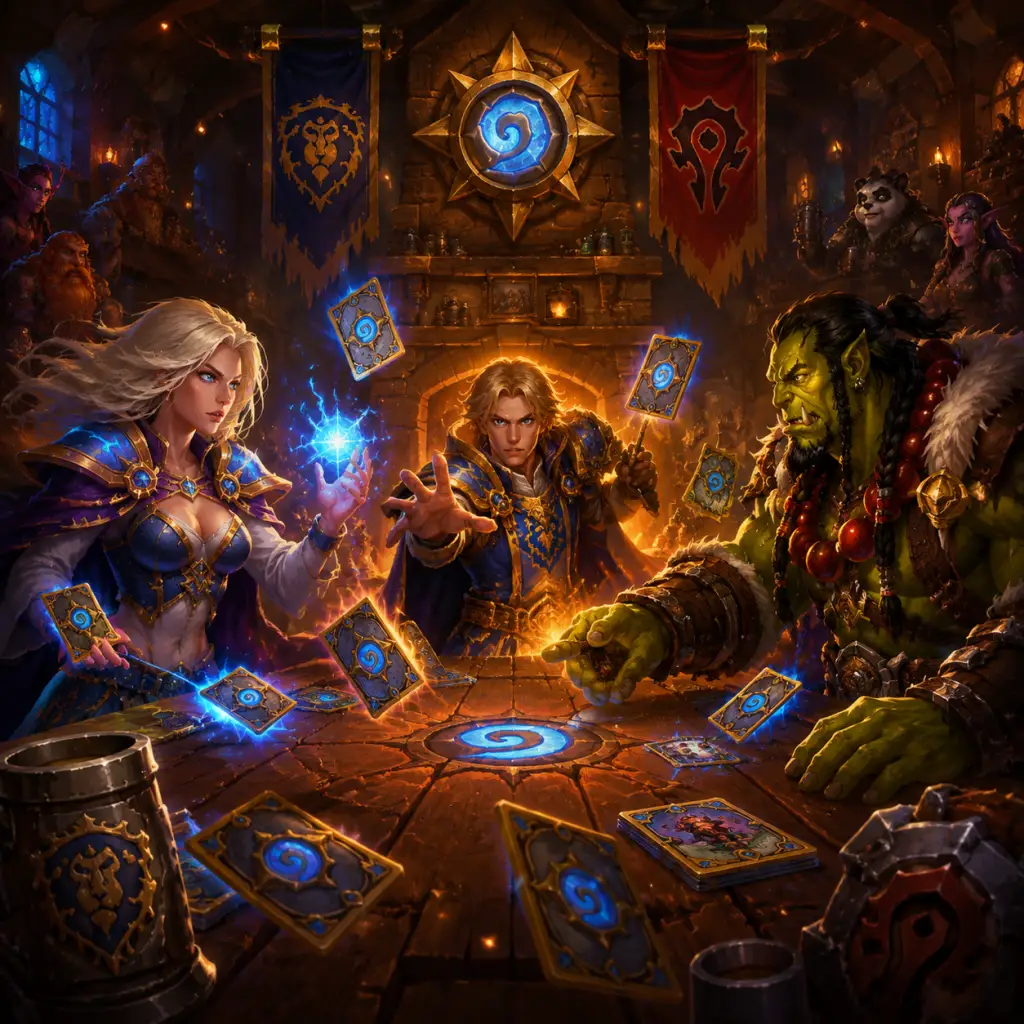
Game Introduction
Genre and Developer
Hearthstone is a digital collectible card game (CCG) developed and published by Blizzard Entertainment, the renowned studio behind World of Warcraft, Overwatch, and Diablo. It blends strategic deck-building with turn-based card combat, wrapped in the high-fantasy world of the Warcraft universe.
Release Timeline and Platforms
- Initial Announcement: March 2013 (PAX East)
- Open Beta: January 21, 2014 (Windows, Mac)
- Full Launch: March 11, 2014 (Windows, Mac)
- iPad: April 16, 2014
- iPhone & Android: August 2014 (tablets), December 2014 (phones)
- Cross-Platform Play: Available from launch on all platforms.
- Windows PC
- macOS
- iOS (iPhone, iPad)
- Android (phones, tablets)
- Mage – Jaina Proudmoore (hero power: Fireblast)
- Paladin – Uther Lightbringer (hero power: Reinforce)
- Hunter – Alleria Windrunner / Rexxar (hero power: Steady Shot)
- Rogue – Valeera Sanguinar (hero power: Dagger Mastery)
- Warlock – Gul’dan (hero power: Life Tap)
- Druid – Malfurion Stormrage (hero power: Shapeshift)
- Shaman – Thrall (hero power: Totemic Call)
- Warrior – Garrosh Hellscream (hero power: Armor Up!)
- Priest – Anduin Wrynn (hero power: Lesser Heal)
- Demon Hunter – Illidan Stormrage (hero power: Demon Claws; added with Ashes of Outland)
- Death Knight – The Lich King (hero power: Ghoul Charge; a separate class added in March of the Lich King, with its own set and hero power)
- Casual players who enjoy quick, fun card games with a gentle learning curve.
- Competitive players seeking strategic depth and a ranked ladder.
- Card-collection enthusiasts (similar to Magic: The Gathering or Yu-Gi-Oh!) but digital-only.
- Warcraft lore fans who appreciate familiar characters and humor.
- Mobile gamers looking for a polished, free-to-play CCG.
- Casual Mode: Unranked matches against other players.
- Ranked Mode: Competitive ladder with monthly seasons and rank rewards (Bronze to Legend).
- Arena: Draft mode where you build a deck from random card choices and play until three losses. Rewards include packs, gold, dust, and cards. Cost: 150 gold or real money.
- Tavern Brawl: Weekly rotating mode with unique rules (e.g., pre-constructed decks, wild effects). Often offers a free pack for first win each week.
- Battlegrounds: Auto-battler mode (8 players, buy minions, place them on a board, and they fight automatically). Completely separate from the main card game. Free-to-play with optional perks.
- Duels: Hybrid of Arena and Battlegrounds – build a deck, face opponents, and receive passive treasures after wins. A separate mode with its own progression.
- Solo Adventures: Story-driven PvE content (e.g., The League of Explorers, One Night in Karazhan, Kobolds & Catacombs dungeon runs). Newer expansions feature the Book of Heroes and Book of Mercenaries linear story campaigns.
- Heroic Brawliseum: Rare, high-stakes competitive event (entry fee, high rewards for high wins, no matchmaking pool for casuals).
- Mercenaries: A role-playing/auto-battler mode where you collect mercenaries, level them, and complete bounties. Launched in 2021 but received mixed reviews and is now in maintenance mode.
- Practice Mode: Play against AI opponents (Basic, Expert) to test decks. Available offline? No, still requires connection for authentication.
- Year of the Mammoth (2017): Journey to Un’Goro, Knights of the Frozen Throne, Kobolds & Catacombs.
- Year of the Raven (2018): The Witchwood, The Boomsday Project, Rastakhan’s Rumble.
- Year of the Dragon (2019): Rise of Shadows, Saviors of Uldum, Descent of Dragons.
- Year of the Phoenix (2020): Ashes of Outland, Scholomance Academy, Madness at the Darkmoon Faire.
- Year of the Gryphon (2021): Forged in the Barrens, United in Stormwind, Fractured in Alterac Valley.
- Year of the Hydra (2022): Voyage to the Sunken City, Murder at Castle Nathria, March of the Lich King.
- Year of the Wolf (2023): Festival of Legends, TITANS, Showdown in the Badlands.
- Year of the Pegasus (2024): Whizbang’s Workshop, Perils in Paradise (TBD), The Great Dark Beyond (TBD).
Current Platforms:
Not Available: Steam, Epic Games Store, PlayStation, Xbox, Nintendo Switch. The game is only obtainable through Blizzard’s official Battle.net client or respective mobile app stores.
Story and Setting
Hearthstone is set in the rich World of Warcraft universe, primarily inspired by the Warcraft RTS series and MMORPG. The game presents itself as a tavern-style card game played by iconic Warcraft characters. While there is no overarching single-player narrative, each expansion introduces its own lore and setting, such as the Old Gods (Whispers of the Old Gods), League of Explorers (The League of Explorers), or the Frozen Throne (Knights of the Frozen Throne). The core premise: players are Hearthstone heroes summoning minions, casting spells, and using weapons to defeat their opponent’s hero. The game’s tone is lighthearted and humorous, with cartoonish art and quirky voice lines even when dealing with dark themes.
Main Characters
Hearthstone features 10 distinct hero classes, each with a unique hero power and associated iconic characters:
Each class has a distinct playstyle and card pool, allowing for vast strategic variety.
Core Appeal and Target Audience
Core Appeal: Fast-paced, accessible, and highly strategic card battles that take 5–10 minutes per match. The game’s deep RNG (random card generation, discover mechanics) adds excitement and unpredictability. Collecting cards, building custom decks, and climbing competitive ladders provide long-term progression.
Target Audience:
Game Modes and Online/Offline Support
Online Support: Hearthstone is primarily an online-only game. Most modes require a persistent internet connection, even for single-player content (due to server-side authentication and matchmaking).
Offline Support: There is no offline mode. A stable internet connection is required at all times.
Game Modes:
Expansions and DLC Overview
Hearthstone follows a three-expansion-per-year model, each with ~135 new cards, alongside periodic mini-sets (35 cards) and Adventure content. Major expansions include:
Mini-Sets are smaller card bundles (e.g., Darkmoon Races, Wailing Caverns, Audiopocalypse).
Paid Content: Expansions are sold in packs (100g each, 100 cards total) or via pre-order bundles with bonus items. Mini-sets cost $14.99 or 2000 gold. Solo adventures like The League of Explorers were paid ($19.99 for all wings) but newer adventures are free.
Free-to-Play Model: The game is free-to-start. Players earn gold through daily quests, Tavern Brawls, events, and ladder rewards. New and returning players receive a free deck after completing introductory tasks. The core set (rotating free cards) helps new players. However, building competitive meta decks often requires significant investment or spending.
What Makes Hearthstone Unique
1. Accessible yet Deep: Simple to learn (click and drag cards) but with complex strategic layers (mana curve, counters, synergy). The Discover mechanic (choose one of three random cards) adds skill-testing RNG.
2. Class Identity: Each of the 10+ classes feels distinct, with signature cards, hero powers, and playstyles (e.g., Mage’s spells, Warlock’s self-damage, Demon Hunter’s aggression).
3. Cross-Platform Progression: Play on PC, tablet, or phone – all progress (cards, gold, rank) syncs seamlessly.
4. Rotating Standard Format: The Standard format includes only cards from the last two years, keeping the meta fresh and preventing power creep. Wild format allows all cards.
5. Over-the-Top Voice Acting and Art: Every card has a witty quote, and the visual style is charmingly cartoony, even in grim expansions.
6. Regular Content Updates: New expansions every 4 months, plus mini-sets, balance patches, and seasonal events (e.g., Fire Festival, Halloween).
7. Esports and Community: Blizzard supports a robust competitive scene with the Hearthstone World Championship and Grandmasters (though the latter was restructured in 2023). Community content creators (e.g., Trump, Kripparrian, Kibler) have massive followings.
8. Innovative Modes: Battlegrounds and Duels extend the gameplay beyond traditional CCG, attracting different audiences.
In summary, Hearthstone is a landmark digital card game that has defined the genre for over a decade. Its blend of strategy, luck, and Warcraft charm continues to captivate millions, whether they’re casual mobile players or hardcore ladder grinders.
Getting Started
Download & Installation
Platform Availability
Hearthstone is not available on Steam, Epic Games Store, PlayStation, Xbox, or Nintendo Switch. The game is officially distributed exclusively through Blizzard’s own platforms:
- PC (Windows / macOS): Download the Battle.net desktop app from [blizzard.com](https://www.blizzard.com), then install Hearthstone from the app.
- Mobile (iOS / Android): Search for “Hearthstone” in the App Store (iOS) or Google Play Store (Android). The game requires ~3–5 GB of storage and a stable internet connection.
- Tablets: Works on iPad and Android tablets with touch controls.
- PC: Windows 7+ or macOS 10.12+, 2GB RAM, 3GB storage, Intel Core 2 Duo or AMD Athlon 64 X2.
- Mobile: iOS 12+ or Android 5.0+, 2GB RAM recommended.
- Mouse left-click: Select cards, target enemies, play cards.
- Mouse right-click: Target own hero or minions for actions like attacking.
- Drag & drop: Card from hand onto the battlefield.
- Scroll wheel: Zoom on board (useful to see card text).
- Keyboard shortcuts:
- Tap: Select cards, tap to play.
- Drag & tap: Drag card to board, then tap to confirm target.
- Long press: View card detail.
- Swipe left/right: Scroll hand.
- End turn button: Large green button at center bottom.
- Restart turn? – No undo; be careful.
- Same as mobile but with larger interface. Landscape recommended.
- Play Button: Large central button. Opens game mode selection (Casual, Ranked, Arena, Battlegrounds, etc.).
- Missions & Quests: Icon top-left (looks like a scroll). Daily quests give gold and XP.
- Shop: Bottom-right – buy packs, adventures, bundles.
- Collection: Bottom-left – manage decks, craft/dust cards.
- Hero Portrait: Top-left – shows your current hero class. Click to change class.
- Quest Log: See progress.
- Friends List: Social features.
- Settings Gear: Top-right – options, sound, language, etc.
- Hand: Cards at bottom.
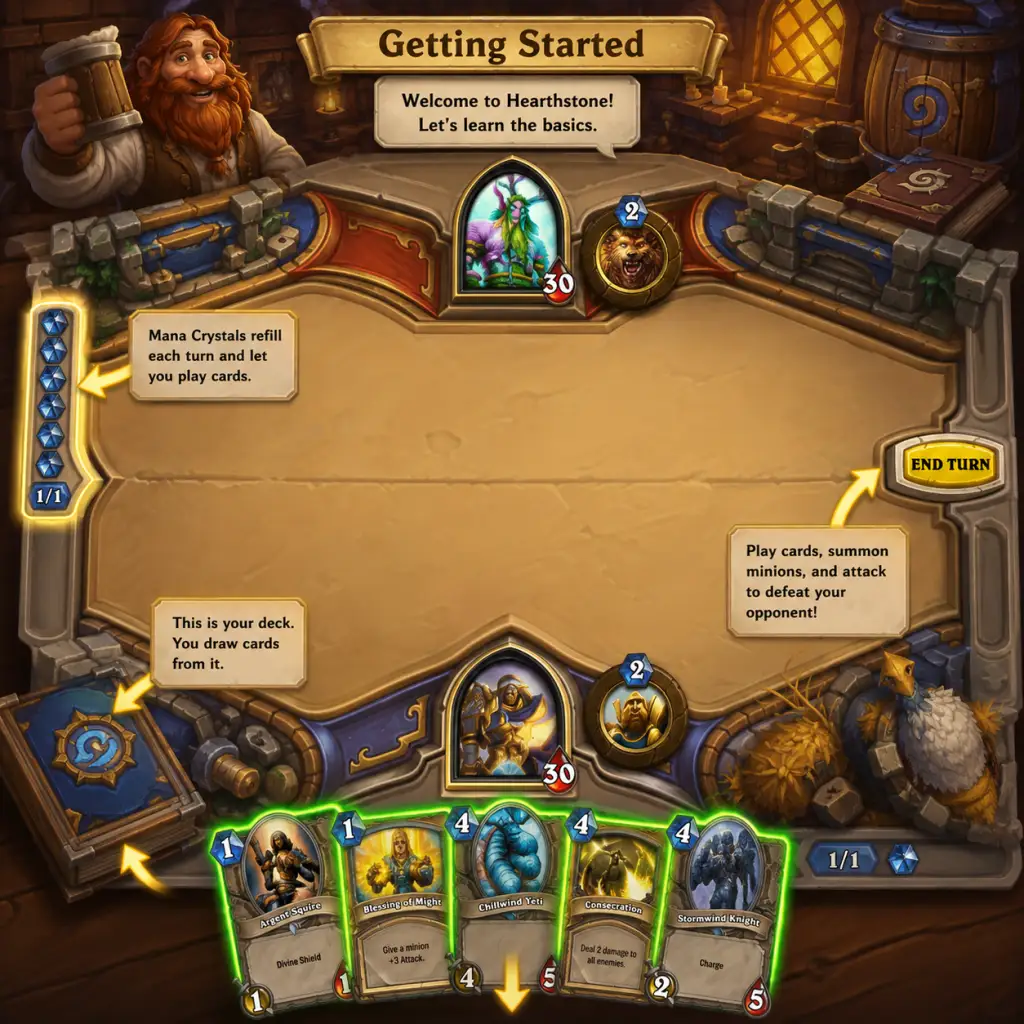
- Mana Crystal: Top of hand – shows current & max mana.
- Hero Portrait: Top-left (your hero) and top-right (opponent). Health and armor.
- Hero Power: Small button below hero (costs 2 mana).
- End Turn: Green button bottom-right (blinks when you can attack).
- Board: Center – your minions (left side of your hero) and opponent’s (right side).
- Deck Tracker: Before your turn, you can view past actions (not automatic – need third-party app for tracking drawn cards).
- Unlock all 10 heroes: Play Practice matches vs AI for each class. Win once with any deck to unlock that class. This grants free cards and expands options.
- Complete Daily Quests: Earn gold (40–100+ per quest). Reroll bad quests (tap the ‘X’ next to a quest once per day).
- Reach Level 10 with one class: Leveling up heroes unlocks class-specific basic cards for free.
- Try Tavern Brawl: Available Wednesdays–Mondays. Even with weak decks, you can get a free pack for your first win each week.
- Play Ranked (after level 20): No need to fear; you start at low ranks against other beginners. You cannot drop below rank 20 until later seasons.
- Gold: Save for buying Standard packs (100 gold each) or Arena entry (150 gold if you’re experienced). Do not spend on non-essential cosmetics.
- Arcane Dust: Dust duplicate cards (auto-dust is fine). Use dust to craft key neutral commons/rares. Save for a Tier 1 budget deck (e.g., Zoo Warlock or Face Hunter).
- Packs: Open all free packs first. Do not hoard packs – open them immediately to get cards.
- Hero Level: Level each hero to 10 for free basic cards. Highest priority = level one hero to 10, then spread out.
- Card Backs: Not a resource but cosmetic – obtainable from events or seasonal rewards.
- [ ] Complete the 3-part Tutorial.
- [ ] Open your first free pack (from tutorial reward).
- [ ] Unlock at least 6 heroes by winning Practice matches (use the same starting Mage deck).
- [ ] Level your Mage (or chosen class) to Level 10 by playing Practice matches (you’ll unlock more basic cards).
- [ ] Complete all available daily quests (check the quest icon).
- [ ] Use your first 100 gold to buy a Standard pack (e.g., the most recent expansion).
- [ ] Craft one or two recommended neutral common cards with your initial dust (e.g., Novice Engineer, Acidic Swamp Ooze).
- [ ] Play one Casual game (even if you lose – it’s okay).
- [ ] Read the in-game tips (question mark icons during matches).
- [ ] Set your deck format to Standard in Collection (not Wild).
- [ ] Do NOT buy Arena tickets or cosmetic packs.
- [ ] Add a few friends (or play against friends to learn) – optional.
System Requirements (Minimum)
Game Introduction
Genre and Developer
Hearthstone is a digital collectible card game (CCG) developed and published by Blizzard Entertainment, the renowned studio behind World of Warcraft, Overwatch, and Diablo. It blends strategic deckbuilding with turn-based card combat, set in the Warcraft universe. Players choose a hero class, build a 30-card deck, and battle opponents online.
Story & Setting
While Hearthstone has no single-player campaign, it features whimsical taverns, characters from Warcraft lore (e.g., Jaina Proudmoore, Thrall), and expansions that tell self-contained stories (e.g., The Frozen Throne, Whispers of the Old Gods). The core gameplay is competitive or casual PvP, with occasional solo adventures.
Getting Started Guide for Beginners
First Hour Walkthrough
1. Launch the game – After installation, open Hearthstone. You’ll see a Blizzard logo, then the Tutorial begins.
2. Choose your class – The tutorial forces you to start as Mage (Jaina Proudmoore). No choice is needed; this is the only way. You’ll learn basic mechanics: mana, cards, attacking, hero power.
3. Complete the Tutorial (≈15 minutes) – You’ll play three scripted matches against the Innkeeper (AI). Follow on-screen prompts. You cannot lose these matches.
4. Post-tutorial freedom – After the tutorial, you can play Practice mode against AI (unlock more heroes), enter Play mode for casual PvP, or explore other modes.
5. Unlock Heroes – You start with 3 heroes: Mage, Warrior, Hunter. Play Practice mode matches until you defeat each of the 10 class AI opponents to unlock all heroes. Each win unlocks a new class (e.g., Priest, Druid, etc.). This is your first major goal.
Character Creation (Hero Selection)
Hearthstone has no character creation (no name, appearance, or attributes). Instead, you choose a hero class – there are 10 classes (Mage, Hunter, Warrior, etc.). Each class has a unique Hero Power (costs 2 mana, clickable button) and access to class-specific cards. Your “character” is simply the hero portrait you select before a match. You can switch classes freely between games. No permanent choice is required. Early on, focus on mastering one class (e.g., Mage is forgiving for beginners).
Controls on All Platforms
#### PC (Mouse & Keyboard)
- `1`, `2`, `3`… to select cards in hand (by position).
- `Enter` to end turn.
- `Escape` to open menu (leave match, settings).
- `H` to highlight hand (shows cards clearly during opponent’s turn).
#### Mobile (iOS / Android)
#### Tablet
UI Overview (Main Screen)
After the tutorial, you see the Main Menu. Key elements:
During a Match:
Essential Early Objectives
What to Do First and What to Avoid
#### ✅ DO:
1. Complete the entire tutorial (even if you already played, replay to refresh).
2. Play Practice mode to unlock heroes and learn basic cards.
3. Do all daily quests – never skip them; they are your main gold source.
4. Spend gold only on Standard packs (not Wild or Classic packs unless you know what you’re doing). Start with “Year of the Phoenix” packs (e.g., Mean Streets of Gadgetzan or Journey to Un’Goro – whatever is current Standard).
5. Use your first 100 gold to buy one pack, then open it. Use the free cards to improve basic decks.
6. Craft only essential neutral cards (like Novice Engineer, Harvest Golem) with Arcane Dust. Never craft class cards for a class you don’t play yet.
7. Join a tavern – but no need; focus on learning.
#### ❌ AVOID:
1. Buying packs from the Shop immediately – you get a lot of free packs from quests and leveling.
2. Dusting all your cards for one deck – dust is scarce; keep cards for variety.
3. Playing Ranked before understanding basic strategies – you’ll lose a lot and feel frustrated.
4. Ignoring the free card backs – some require wins, but don’t stress.
5. Playing Arena (Draft mode) – entry costs gold and requires card knowledge. Stick to constructed modes.
6. Giving gold to the ‘Innkeeper’ for cosmetic items – not needed early.
Early Resource Priorities
Common Beginner Mistakes
1. Overcommitting to the board – Playing all cards early empties your hand, leaving you vulnerable to board clears (e.g., Flamestrike). Maintain 2–3 minions.
2. Not using the hero power – Many beginners forget they can use it when they have spare mana. Use it to gain tempo.
3. Trading inefficiently – Don’t trade weak minions into strong ones. Attack face when you can’t kill opponent minions.
4. Ignoring the mana curve – Your deck should have a balance of low-cost (1–3 mana) and high-cost cards. Avoid too many 7+ cost cards.
5. Conceding too early – Hearthstone has many comeback mechanics. Wait until you see lethal (lethal = opponent can kill you next turn).
6. Not reading patch notes – Balance changes can make your deck weaker. Check official news.
7. Spending real money impulsively – Not necessary to have fun; grind is generous.
Day-One Checklist
By following this guide, you’ll understand Hearthstone’s basics, avoid common pitfalls, and build a strong foundation for competitive play. Welcome to the tavern!
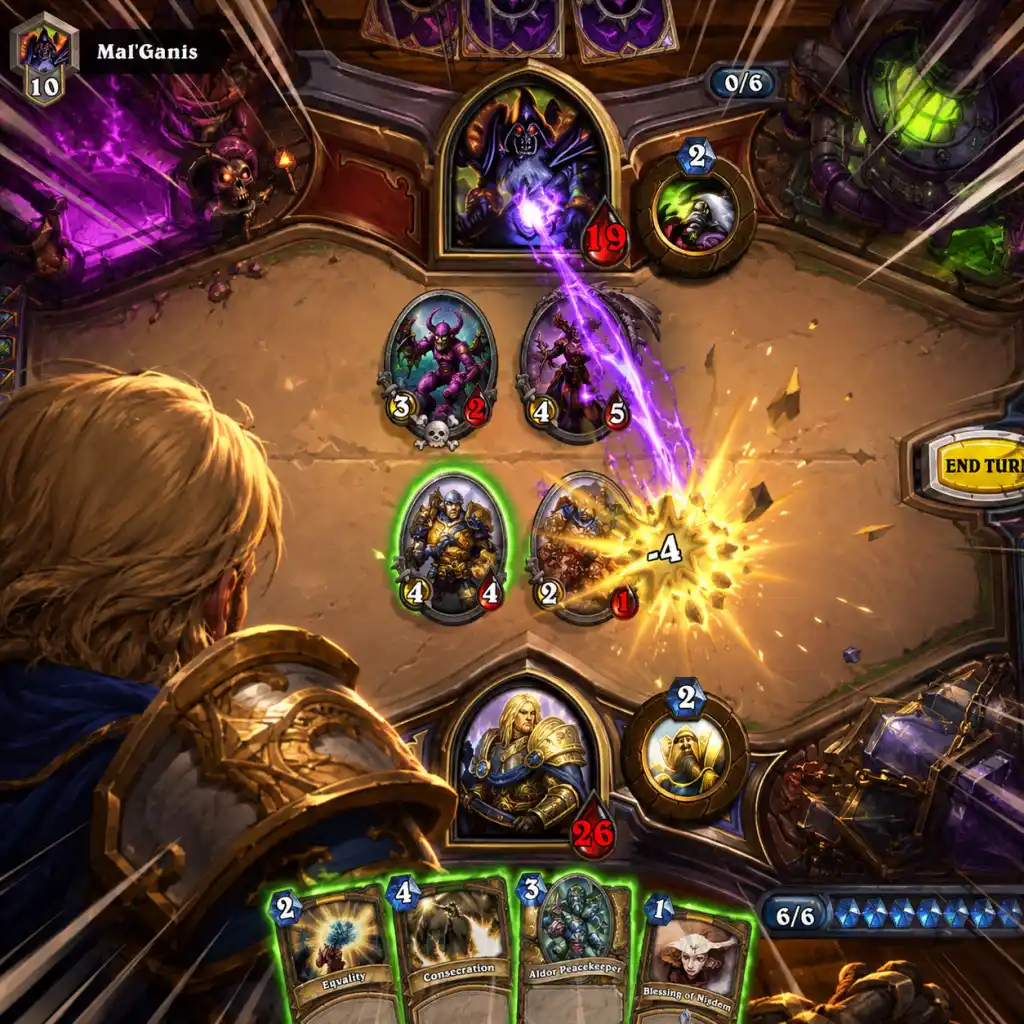
Core Gameplay
Overview of Core Gameplay Loop
Hearthstone is a turn-based digital card game where two players face off using pre-constructed decks of 30 cards. The primary loop is: Draw a card → Play cards using mana crystals → Attack enemy minions or the opposing hero → End turn until one hero’s health reaches 0. You can customize your deck with cards from your collection, earned through packs, crafting, or rewards. The game features several modes, each with its own rules and progression, but the core loop remains consistent across all constructed modes.
Core Systems
- Mana System: Each turn you gain one mana crystal (up to 10 total). You spend mana to play cards. Cards have a cost (0-10) and effects (summon minions, deal damage, draw cards, etc.).
- Combat: Minions attack enemies each turn after being played. They can attack enemy minions or the enemy hero. Damage reduces health; minions die when health hits 0.
- Hero Powers: Each class has a unique 2-cost hero power (e.g., Mage deals 1 damage, Priest heals 2). These can be used once per turn.
- Quests and Missions: Daily and weekly quests reward gold, XP, and sometimes packs. The Rewards Track gives cosmetics and resources as you level up.
- Progression: Player levels (1-60+) earn classic packs and dust. Ranked mode uses medals (Bronze → Diamond → Legend). Battlegrounds and Arena have separate rating systems.
- Economy: Gold is earned from quests and wins (up to 100 gold per day from 3 wins). Packs cost 100 gold. Arcane Dust is used to craft specific cards. Disenchanting cards yields dust.
- Build Growth: Collecting cards expands your arsenal. Crafting key cards for meta decks accelerates competitiveness. Legendary cards are powerful but require 1600 dust each.
- What to Expect: You begin with a handful of basic cards for each class. You’ll face other new players or AI in Apprentice Ranks. Progress through 40 ranks (Apprentice 40 to 1) by winning games. You cannot lose ranks here, making it a safe learning zone.
- Deck Building: Stick to one class and craft cheap neutrals (e.g., Chillwind Yeti, Bloodfen Raptor). Use class-specific basic cards. Example: Mage with Frostbolt, Fireball, and cheap minions is effective.
- Economy Focus: Complete all daily quests (reroll 50-gold quests for 60+). Save gold for 10-pack bundles of the latest expansion to guarantee a legendary in the first 10 packs.
- Quests and Rewards: The Apprentice Track gives 30+ packs and a guaranteed legendary (Arfus? Actually, the reward is a specific class legendary—e.g., Zayle, Shadow Cloak? No, the guaranteed legendary from early packs is random but one of the first 10 packs in a set. The Apprentice Track also awards a free Death Knight? Actually, the new player experience gives a free deck of choice after completing Apprentice ranks. Choose a deck from a meta tier list (e.g., Irondeep Trogg Beast Hunter or Whizbang? Check current standard).
- Progression Tips: Focus on Standard format (rotating expansions). Avoid crafting Wild-format cards early. Use the in-game deck recipes as starting points. Learn to trade efficiently (attack with your minion into a larger minion to kill it without losing yours).
- What to Expect: Ranking up now involves wins and losses (stars). You start at Bronze 10 and progress through Silver, Gold, Platinum, Diamond, with bonus stars for win streaks. Reaching Diamond 5 resets to Bronze 10 each month (but you keep the highest rank reward).
- Deck Building: You should have enough cards for at least one tier-1 or tier-2 deck. Focus on a single powerful deck (e.g., Aggro Demon Hunter, Control Warrior, or Token Druid). Craft essential legendaries (e.g., Kael’thas Sunstrider? Actually, good early legendaries: The Leeroy Jenkins for aggro, or Alexstrasza for control).
- Economy Focus: Complete weekly Tavern Brawl for free pack. Save gold for the mini-set (2000 gold) or use in Arena if you enjoy it. Disenchant extra copies and golden cards you don’t need. Prioritize crafting cards for your chosen deck over collecting all cards.
- Quests and Rewards: Daily quests now give 60–100 gold. Weekly quests (e.g., play 20 games) reward 2500 XP for the Rewards Track. Track levels grant packs, gold, and cosmetics. Aim for level 50 on the Track to get all major rewards.
- Progression Tips: Learn matchup knowledge. For example, as an aggro player, race to kill control before they stabilize. Use deck trackers (e.g., Hearthstone Deck Tracker) to improve decision-making. Manage your mana curve (average cost 2–3 for aggro, 3–4 for control).
- Arena and Tavern Brawl: Arena is a good place to earn packs and gold if you average 4+ wins. Tavern Brawl offers weekly fun and a free pack for first win.
- What to Expect: Diamond 5 to Legend is the most competitive climb. No win streak bonuses, so each game matters. You need a ~55%+ win rate to progress. Only the top ~1% of players reach Legend each month.
- Deck Building: You must play a refined, high-tier deck. Common choices: Quest Mage, Handbuff Paladin, or Control Warlock. You should have all essential cards, including multiple legendaries. Tech choices matter (e.g., include Gift of the Wild against aggro, or Theotar, the Mad Duke for disruption).
- Economy Focus: At this stage, you probably have a large collection. Save gold for upcoming expansions. Use duplicate protection to avoid opening extra legendaries. Prioritize crafting key neutrals like “Gigafin” or “Lord Barov”.
- Quests and Rewards: Rewards Track still provides XP and gold. The Legend rank rewards a special card back and a Legendary card (random) at season end.
- Progression Tips: Play multiple games with the same deck to master it. Learn to read opponent’s hand (e.g., Druid holding 2 cards might have Bloom or Survival of the Fittest). Use resources like HSReplay.net to see deck win rates. Adjust tech cards based on pocket meta (common decks you face).
- Mental Game: Avoid tilt. Take breaks after losses. Focus on making the optimal play each turn, not just big swings.
- What to Expect: Once at Legend, you compete for top 1000 or even top 100 (shown by a number). Win streaks matter again. Toxic environment may exist. Top players stream or enter qualifiers for tournaments (e.g., Hearthstone World Championship).
- Deck Building: Experiment with off-meta decks to counter the Legend meta. Control and combo decks often dominate. Example: “Thief Rogue” or “Miracle Priest” can catch opponents off guard.
- Economy Focus: Gold is abundant if you consistently earn from quests. Focus on collecting full expansion sets. Use gold to buy bundles or enter high-stakes modes like Heroic Brawliseum (12-win challenge).
- Quests and Rewards: At Legend, the Rewards Track maxes out at level 400+? Actually, after level 50, you earn cosmetic rewards every level. No additional functional rewards.
- Exploration and Variety: Try all modes:
- Competitive Play: Qualify for Masters Tour via top Legend finishes or special qualifier tournaments. Practice with scrims and study replays.
- Progression Tips: Analyze your gameplay with replays. Focus on mulligan decisions (keeping the right 3 cards). Learn to play around opponent’s AOEs. For example, against Control Warlock, keep minions above 1 health to avoid Defile.
Progression Tiers in Hearthstone
Early Game (Levels 1–20, Apprentice Ranks)
Objective: Learn basic mechanics, earn core cards, and build your first functional deck.
Example: A new player chooses Mage. Basic deck includes Frostbolt (3 cost deal 3), Fireball (4 cost deal 6), and minions like Novice Engineer (2 cost draw a card). They grind Apprentice ranks, earning packs and gold. After reaching Apprentice 1, they receive a free deck (e.g., a budget Druid ramp deck). They then pick Druid and start climbing Bronze.
Mid Game (Level 20–50, Bronze through Diamond Ranks)
Objective: Refine deck knowledge, climb ladder, and acquire a competitive deck.
Example: A player has a budget Face Hunter deck (low-cost minions and spells). They climb from Bronze to Gold by maintaining a positive win rate. At Gold 5, they craft the legendary “Krul”? Not. Actually, “Luna’s Pocket Galaxy” for mage? Better example: The player saves 1600 dust for “The Queen’s Guard” (a neutral legendary). They improve their deck’s consistency and push to Platinum.
Late Game (Diamond 5 to Legend)
Objective: Reach Legend rank, optimize gameplay, and fine-tune deck choices.
Example: A player reaches Diamond 2 with a Secret Paladin deck. They notice many Druids. They swap one secret for a “Divine Favor” to disrupt Druid ramp. They push to Legend with a 58% win rate over 200 games.
Endgame (Legend rank, High MMR, Competitive Modes)
Objective: Sustain high Legend rank, compete in events, or excel in other modes like Battlegrounds and Arena.
- Battlegrounds: Autobattler mode. Progress here with rating (up to 18,000+). Requires knowledge of tribes, triples, and economy management.
- Arena: Draft a deck and aim for 12 wins. Target 7+ wins to go infinite. Draft tier lists and meta knowledge are key.
- Duels: Construct a 15-card deck then draft cards between matches. Similar to Arena but with hero powers and treasures.
- Tavern Brawl: Weeklies often have unique rules.
Example: A top Legend player (rank 357) plays a homebrew Big Priest in Wild format. They reach top 50 by predicting the meta shift. They then qualify for a Blizzard tournament by finishing top 4 in a qualifier. They also maintain high MMR in Battlegrounds (12,000 rating) by mastering the Elemental tribe.
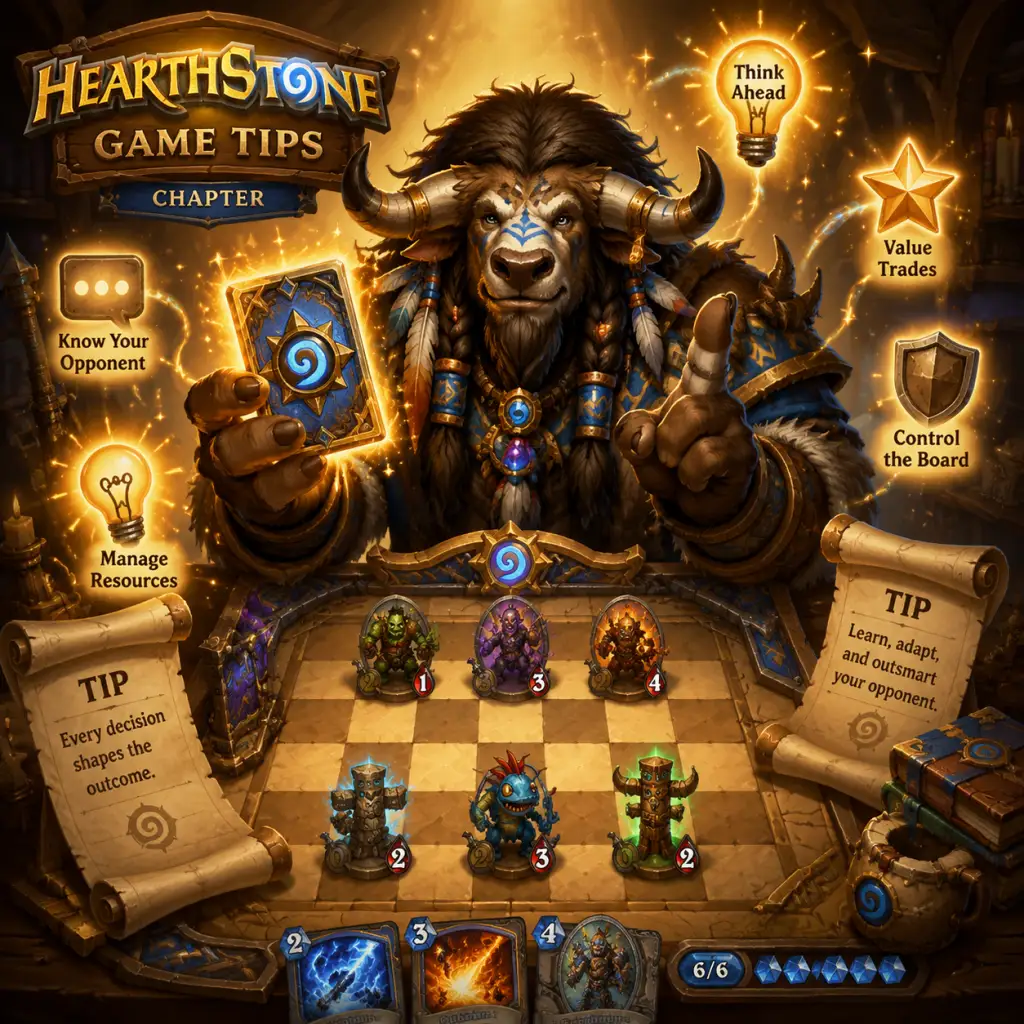
Game Tips
Overview
This guide compiles essential tips for mastering Hearthstone, categorized by skill level and gameplay aspect. Whether you are a new player learning the ropes or a veteran seeking an edge, these strategies cover combat, deck building, resource management, and the in-game economy.
Beginner Tips
Learn the Core Mechanics Thoroughly
- Mana Curve: Ensure your deck has a smooth distribution of cards costing 1 to 7+ mana. A classic rule: include about 8 cards of cost 1-2, 8 of cost 3-4, 8 of cost 5-6, and 6 of cost 7+. This prevents drawing only expensive cards early.
- Trading vs. Going Face: Early game, prioritize trading minions to maintain board control. Only attack the opponent directly if you have lethal damage or if their hero power is irrelevant (e.g., against control decks).
- Hero Power Usage: Use your hero power when you have spare mana. For example, a Mage should ping a 1-health minion rather than wasting a card. Always consider if the 2 mana could be saved for a future turn.
- Face Hunter and Budget Zoo Warlock are cheap, fast, and teach tempo. They require few legendaries and adapt well to the early ladder.
- Why it works: These decks punish slow opponents and let you learn the flow of each class without complex combos. Craft cards like Leper Gnome, Knife Juggler, and Dire Wolf Alpha first.
- Each week, Tavern Brawl offers one free Classic pack. Always complete it, even if you lose (you still get the pack). The rotating rules teach you new interactions.
- Track opponent cards: If a Rogue has kept a card since turn 1, suspect Backstab or Preparation. If a Mage holds a coin and plays slowly, they might have a Mana Wyrm combo. Use this to bait removal.
- Play around common spells: Against Priest, assume they have Shadow Word: Death for your big minion. End your turn with a 4-attack minion (immune to SW:D). Against Paladin, anticipate Consecration on turn 4.
- Include 1-2 tech cards in your deck: Eater of Secrets vs Secret-heavy decks, Blood Knight vs Divine Shield, MCTech vs heavy go-wide strategies. Removing a situational card for a tech card can swing winrates by 5%.
- Check the Hearthstone Meta weekly on sites like HSReplay or Vicious Syndicate. Adjust your deck to counter the top 3 archetypes on ladder.
- General rule: Keep early-game cards (1-3 mana) unless you are playing a combo deck that needs a specific draw. For slow decks, mulligan away high-cost cards for curve filler.
- Class-specific mulligans: Against aggressive decks (e.g., Pirate Warrior), keep board clears like Flamestrike or Lightning Storm even if it costs 7 mana because you need it on turn 5-6.
- Calculate lethal every turn: Even if you don’t have a direct kill, know how much damage you can deal. Sometimes using a removal spell on a taunt instead of saving it allows exact lethal.
- Value trading vs. tempo: Value trading means preserving your minions’ health, while tempo trading means spending mana efficiently. For example, using Fireball on a 4-health minion is pure tempo loss (1 card for 1 card) but could save your 2/3. Only do this if your minion can then attack face.
- Card advantage: Control decks (e.g., Reno Priest) must never over-commit. If you have multiple copies of a card, play only one until the opponent forces a second answer. Save board clears until the opponent commits at least 4+ minions.
- Mana management: In late game, always leave 2 mana for a hero power or a reactive spell (e.g., Anduin’s hero power heals). Knowing when to pass the turn without playing anything is a skill.
- Build around a win condition: Combo decks (e.g., Malygos Druid) need extreme draw power and stalling. Control decks need removal and a finisher (e.g., C’Thun). Aggro decks need low mana curves and burst (e.g., Leeroy Jenkins + Cold Blood).
- Include draw engines: Decks with proactive draw (e.g., Novice Engineer, Azure Drake) perform better than those relying on top-decks. For combo decks, include Arcane Intellect or Nourish.
- Play draw cards before making decisions: If you have Loot Hoarder and a minion to play, play the Hoarder first to draw into more options. This especially matters when deciding between two plays.
- Weapon usage: Equip weapons after attacking with minions, because you can use the weapon’s durability to finish off weak minions. Always check if the weapon swing reduces lethal potential.
- Popping taunts: Use direct damage spells on taunt minions only if you plan to attack face that turn. Otherwise, trade into taunts with minions to preserve spells.
- Auras like Stormwind Champion: Wait until after the opponent clears the aura minion before playing your own minions; otherwise they might get buffed only to be removed immediately.
- Test secrets: If the opponent has a secret from Maddest Scientist or is playing Hunter, attack with a weak minion first to trigger Explosive Trap before playing your key minions.
- Bait removal: Play a medium-sized threat (4/5) to force out Polymorph or Hex, then follow up with your actual finisher.
- Aggro: Win by turn 5-7. Cards like Flame Imp, Vicious Fledgling. You trade only to survive; otherwise go face. Good for fast ladder grinding.
- Midrange: Balanced curve, outvalue opponents through efficient minions. Example: Midrange Shaman with Thunder Bluff Valiant. Takes board then transitions to pressure.
- Control: Survive until late game with removal and heals. Win with a big threat (e.g., N’Zoth, Ragnaros). Requires patience and fatigue management.
- Combo: Assemble pieces (e.g., Exodia Mage). Need heavy draw and stall; fragile if disrupted.
Start with Budget Decks
Use the Innkeeper’s Tavern Brawl for Free Packs
Intermediate Strategies
Hand Reading and Mind Games
Tech Cards and Metagame Adaptation
Mulligan Optimization
Advanced Optimizations
Perfecting the Trade Decision
Resource Planning for Control Decks
Deck Building Synergies
Combat Tips (In-Game Tactics)
Sequencing and Order of Operations
Taunt and Aura Management
Secrets and Baits
Deck Building Tips
Archetype Selection (Exploration of Playstyles)
Card Ratios
| Card Type | Suggested Count |
|---|---|
| Spells | 6-10, depending on class |
| Weapons | 0-4 (for classes that equip) |
| Minions | Rest |
| Endgame threats | 1-3 (e.g., Tirion Fordring, Ragnaros) |
- Why it works: Spells provide direct damage, removal, or draw; weapons offer face damage and board control; minions are your primary board presence.
- Never float mana: If you have 3 mana and nothing to play, use hero power. If your deck regularly floats mana, adjust the curve (add more 2- and 3-drops).
- Consider Overload (Shaman): Plan ahead. If you overload 2 next turn, your turn 4 becomes turn 2 mana-wise. Don’t overload near a turn you need a key spell.
- Card advantage: Gaining more cards than opponent via draws or multiple effects (e.g., Sprint). Use when opponent is slow or you can afford the tempo loss.
- Tempo: Spending mana efficiently to control the board. Playing a 4/5 on turn 4 is tempo positive. Sometimes you use Fireball on a 3/2 because that keeps your 5/5 alive – that’s tempo, not value.
- Your health is a resource: Against aggro, trade heavily to preserve health. Against control, you can afford to take damage in exchange for card advantage. Know when to tap (Warlock hero power): do it early if you have no play, but avoid tapping below 10 health against burst classes.
- Daily Quests: Always reroll 40-gold quests hoping for 50 or 60 gold. Complete all quests every 3 days to maximize gold per time.
- Arena vs. Buying Packs: If you average less than 3 wins, buy packs directly. If you average 5+ wins, Arena is better for value. Use tools like HearthArena to draft better.
- Crafting Priorities: For beginners, craft neutral cards that fit many decks: Piloted Shredder, Doctor Boom (Classic), Azure Drake (classic). Avoid crafting niche legendaries until you have a full collection.
- Never disenchant cards unless you need dust for a key legendary. If you must, dust duplicates only (keep at least 2 copies of common/rare, 1 of epic/legendary).
- Golden cards: Disenchant goldens if you are F2P, unless you plan to collect (they give more dust than normal).
- Adventures (e.g., One Night in Karazhan, Curse of Naxxramas) give guaranteed high-value cards and are often better per gold than random packs. Complete all wings before buying packs.
- Use Hearthstone Deck Tracker and HSReplay to review your games. Identify every misplay: Did you miss lethal? Did you waste a removal spell? Did you over-commit to a Brawl? This improves decision-making.
- Record your mulligans: After the game, check if you kept a card that ended up being a dead draw. Adjust your mulligan rules accordingly.
- Pretend to have a card: Play a slow turn (e.g., hero power and pass) to make the opponent think you have a board clear. This can cause them to overextend or play around a spell you don’t have.
- Emote usage: Your emotes can tilt opponents. Use „Well played” sarcastically after a lucky draw to provoke misplays (though risky).
- Alexstrasza (dragon): Use to set opponent to 15 health only if you have lethal next turn or a burst combo. Using it on yourself is often wrong unless you have armor synergy.
- Tirion Fordring: Play him when opponent has no silence. If they have Hex, consider baiting it first.
Resource Management
Mana Crystals and Curve Efficiency
Card Advantage vs. Tempo
Health Management
Economy Tips
Free-to-Play (F2P) Gold Management
Dusting Decisions
Adventure vs. Packs
Advanced Optimizations (Revisited)
Replay Analysis and Tracking
Mind Games and Baiting
Key Timing for Legendary Plays
Conclusion
Hearthstone mastery comes from constant learning and adaptability. Apply these tips incrementally: start with the beginner section, then incorporate intermediate strategies as you climb ranks. Use external tools to track your progress, and never stop refining your plays. Good luck on the ladder!
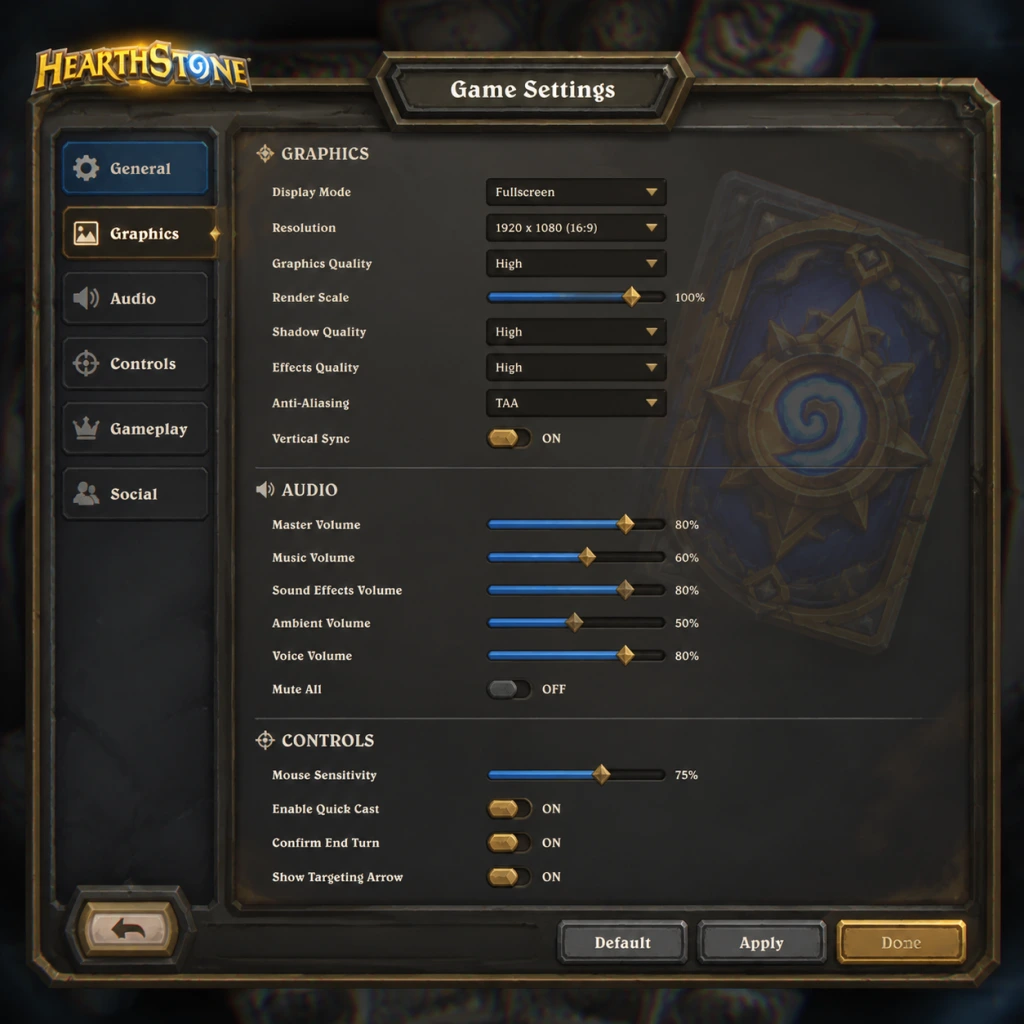
Game Settings
Overview
This section details every configurable setting in Hearthstone, covering graphics, audio, controls, accessibility, language, network, and gameplay options. Optimal recommendations are provided for low-end, mid-range, and high-end hardware, along with notes on commonly misconfigured settings and special setup considerations.
---
Graphics Settings
Hearthstone is a 2D card game with light 3D effects, so it runs well on most systems. However, turning down certain options can improve stability on low-end devices or laptops.
| Setting | Options | Notes |
|---|---|---|
| Resolution | Native (recommended), 1080p, 1440p, etc. | Match your monitor’s native resolution for best clarity. Lower resolutions reduce GPU load but may blur text. |
| Display Mode | Fullscreen, Windowed, Windowed (Fullscreen) | Fullscreen provides best performance. Windowed (Fullscreen) allows quick alt-tabbing. |
| Vsync | On / Off | Enable to prevent screen tearing. Disable if you want uncapped FPS or have a G-Sync/Freesync monitor. |
| Frame Rate Cap | 30, 60, 120, Unlimited | 60 FPS is smooth for card animations. Cap at 30 on very weak hardware to save battery (mobile) or reduce heat. |
| Graphics Quality | Low, Medium, High, Ultra | Affects board detail, particle effects, and portrait animations. Recommended: Low/Medium for integrated GPUs; High/Ultra for dedicated GPUs. |
| Texture Filtering | Bilinear, Trilinear, Anisotropic x2/x4/x8/x16 | Higher values sharpen distant textures. x4 is a good balance. |
| Anti-aliasing | Off, FXAA, MSAA 2x/4x | Smooths jagged edges. MSAA 4x is heavier. FXAA is light but blurs slightly. |
| Shadows | Off, Low, High | Only affect hero portraits and board ornaments. Turn Off to save performance. |
| Particles | Off, Low, High | Affects spell effects, card entrances. Low reduces clutter. |
Hardware Recommendations
- Low-end (Intel UHD Graphics, 4 GB RAM): Resolution 1280x720, Windowed (Fullscreen), Vsync Off, Frame Rate 30, Quality Low, Textures Bilinear, AA Off, Shadows Off, Particles Off.
- Mid-range (GTX 1050 / RX 560, 8 GB RAM): 1920x1080, Fullscreen, Vsync On, Frame Rate 60, Quality High, Aniso x4, AA MSAA 2x, Shadows Low, Particles Low.
- High-end (RTX 2060+, 16 GB RAM): Native resolution, Fullscreen, Vsync Off (with G-Sync), Frame Rate Unlimited, Quality Ultra, Aniso x16, AA MSAA 4x, Shadows High, Particles High.
Note: Hearthstone’s performance on PC is rarely GPU-bound; CPU and RAM speed matter more for loading times and turn transitions.
---
Audio Settings
| Setting | Options | Notes |
|---|---|---|
| Master Volume | 0–100 | Controls overall audio output. |
| Music | 0–100 | Background lobby and board music. |
| Sound Effects | 0–100 | Card plays, attacks, hero powers, emotes. |
| Ambient | 0–100 | Environmental sounds like tavern chatter or board ambience. |
| Voice | 0–100 | Hero voice lines, card quotes, and announcer sounds. |
Misconfiguration risk: Turning off SFX entirely can cause you to miss audible cues (e.g., secret activation, rope burning). Leave SFX at least 40.
---
Controls & Input
Hearthstone uses mouse and keyboard on PC, and touch on mobile/tablet.
Keyboard Shortcuts (PC)
| Key | Action |
|---|---|
| 1–9 | Select corresponding card in hand (1–10) |
| Enter | End turn |
| Space | Play selected card / Concede in some menus |
| Escape | Open menu / Cancel |
| Tab | Cycle through cards in hand |
| F1–F4 | Emote hotkeys (greetings, threaten, etc.) |
| Ctrl + 1–9 | Deck tracker hotkeys (if using HDT) |
Mouse Controls
- Left-click & drag: Play a card or attack target.
- Right-click a card: View card details and possible interactions.
- Right-click the board: Emote wheel.
Controller Support: Hearthstone does not natively support controllers. Third-party mapping tools (e.g., JoyToKey, Steam Input) can be used but are not recommended due to poor UI navigation.
Misconfiguration: On PC, accidentally rebinding mouse buttons via third-party software can break drag-and-drop. Keep defaults unless you have accessibility needs.
---
Accessibility Settings
| Setting | Location | Notes |
|---|---|---|
| Colorblind Mode | Options > Accessibility | Offers Protanopia, Deuteranopia, Tritanopia filters. Also changes card rarity colors (common, rare, etc.) to distinct patterns. |
| High Contrast Mode | Options > Accessibility | Inverts colors on certain UI elements for better readability. |
| Card Text Size | Options > Accessibility | Increases the font size of card text (tooltips and hand). |
| Screen Reader Support | Not built-in | Windows Narrator or third-party OCR tools may work but are not officially supported. |
| Auto-Squelch | Options > Gameplay | Automatically mutes opponent emotes (reduces visual/audio distraction). |
---
Language & Region
| Setting | Options | Notes |
|---|---|---|
| Language | English, French, German, Spanish, Italian, Portuguese, Russian, Polish, Japanese, Korean, Chinese (Simplified & Traditional), Thai, etc. | Selected during Battle.net installation. Changes in-game text and voice lines for some heroes. |
| Region | Americas, Europe, Asia, China | Affects matchmaking, in-game shop currency, and card pool (China server is separate). Can be changed from Battle.net launcher. |
Misconfiguration risk: Setting an unsupported language (e.g., Hindi) will default to English. Changing region does not reset your collection but you will have separate progress for each region.
---
Network Settings
| Setting | Description | Notes |
|---|---|---|
| Streaming Data | Toggle to limit background data usage (mobile) | Disable to save cellular data; game will download assets on demand. |
| Background Downloads | Enable/disable asset downloads while playing | Turn Off to avoid lag during matches (assets download after game). |
| Competitive Mode | Auto-squelch + disable Battle.net overlay | Optional toggle for tournament play to reduce distractions. |
- Use a wired connection or 5 GHz Wi-Fi for stable latency.
- Close bandwidth-heavy applications (streaming, downloads) while playing.
- On mobile, set to low-resolution streaming if data cap is tight.
Misconfiguration: Leaving Background Downloads ON can cause sudden lag spikes when new patches or card assets load mid-game. Turn it OFF.
---
Gameplay Settings
| Setting | Options | Notes |
|---|---|---|
| Auto-Squelch | On / Off | Mutes opponent emotes automatically. Highly recommended to reduce tilt. |
| Auto-Rope | On / Off | When On, the turn timer rope appears earlier as a reminder. Off disables the visual warning (rope still appears). |
| Turn Timer | Standard (75s first turn, 90s+ per turn average) | Cannot be changed. No setting available. |
| Spectator Mode | Allow spectators / Friends only / Off | Adjust in Friends list. |
| Friend Requests | Allowed / Friends of friends / Off | Controls who can add you. |
| Card Back | Cosmetic – no gameplay effect | Change in Collection > Card Backs. |
| Deck Slot Display | Show only class icons / Show deck names | Under Options > Collection. |
| Shortcut for Concede | Escape > Concede (or Alt+F4) | No direct hotkey. Be careful not to concede accidentally. |
---
Optimized Settings for Different Hardware
| Hardware Tier | Graphics Preset | Resolution | Frame Rate | Special Notes |
|---|---|---|---|---|
| Low-end (Intel HD 520, 4 GB RAM) | Low | 1280×720 | 30 FPS | Turn off shadows & particles. Use windowed mode if fullscreen causes crashes. |
| Mid-range (GTX 1050, 8 GB RAM) | High | 1920×1080 | 60 FPS | Enable Vsync. Texture filtering x4. |
| High-end (RTX 2060, 16 GB RAM) | Ultra | 2560×1440 | 120 FPS | Disable Vsync if using G-Sync. Anti-aliasing MSAA 4x. |
- iOS/Android: Use Medium quality, cap at 30 FPS to save battery. Disable background downloads.
- Low-end phones: Set resolution to 75% or use battery saver mode (reduces frame rate to 20).
- Account linking: Ensure your Blizzard account is linked to Battle.net before starting. You cannot transfer progress between regions.
- Initial download size: ~4 GB on PC, ~3 GB on mobile. Use Wi-Fi for first download.
- Dual-account play: You can run two Hearthstone instances on PC (via different Battle.net accounts) but only one at a time in ranked.
- Mobile vs PC settings: Settings are independent per platform. Tweak separately.
- Cloud save: Progress is server-side. No local saves.
- Reevaluation after patches: Major updates may reset some settings (especially Resolution and Graphics Quality). Check after every patch.
---
Settings Easy to Misconfigure
1. Country/Region vs Language – People often set Language to match their region (e.g., English in EU), but that does not affect matchmaking. If you want Chinese card text without Chinese matchmaking, set language to Chinese but keep region Americas.
2. Auto-Squelch – New players may leave it Off; then opponent spam emotes can be distracting. Toggle On immediately.
3. Background Downloads – As noted, leaving this On causes lag. Always turn Off after initial install.
4. Resolution Scaling – On mobile, setting resolution to 100% on a low-end device causes stutter. Scale down to 75% or 50%.
5. Colorblind Mode – Some players think it adds visual effects; it does not. It only recolors elements. If you don’t need it, leave it Off.
6. Vsync – Turning Off Vsync can cause screen tearing on standard monitors. On low-end, it can overload GPU if frame rate is uncapped.
---
Special Attention Points During Setup
---
This concludes the comprehensive settings guide for Hearthstone. Use the recommended presets as starting points and fine-tune based on your personal hardware and preferences.
Important Notes
Important Notes
This section covers critical warnings, common pitfalls, irreversible decisions, missable content, difficulty spikes, grinding traps, online etiquette, anti-cheat policies, save management, and things players frequently regret not knowing before starting Hearthstone. Read carefully to avoid wasting time, money, and progress.
---
Warnings & Pitfalls
- Dusting (Disenchanting) Cards Permanently Destroys Them. Once you disenchant a card, you cannot get it back except by crafting it again at a higher cost (or by owning a copy if it’s later reacquired). Do not disenchant cards until you thoroughly understand the meta and know you won’t need them. New players often regret dusting legendary cards for a quick dust boost.
- Spending Gold on Packs vs. Adventures. Adventures (e.g., Galakrond’s Awakening, Tombs of Terror) offer unique, often powerful cards that cannot be obtained from packs. Buying packs might feel more immediate, but adventures provide guaranteed, exclusive cards. Prioritize adventures if you want those cards.
- Crafting Cards Before the Meta Settles. Each expansion brings new cards. Wait at least 1–2 weeks after an expansion launch before crafting legendaries or epics, as the meta often shifts and powerful cards get nerfed (which gives full dust refunds if disenchanted quickly).
- Over‑investing in One Class. Hearthstone has 11 classes. Focusing all resources on one class limits your ability to complete quests that require other classes. Spread your early resources to build at least 2–3 competitive decks.
- Ignoring the Battle Pass (Tavern Pass). The free track provides significant gold, packs, and a legendary. The paid track accelerates rewards but is not mandatory. The pass resets every expansion (roughly 4 months), so missing a season means losing unredeemed rewards.
- Roping (Intentionally Delaying Turns). This is poor sportsmanship and can result in report actions. Blizzard considers excessive turn‑time abuse as unsportsmanlike conduct. Always play promptly.
---
Irreversible Choices
| Action | Irreversible? | Notes |
|---|
| Choosing a free legendary from the new/returning player deck | Yes, you receive one deck; cannot change your selection | Pick carefully after research – this is a key early power boost.
| Crafting a card | No, you can disenchant it later, but you lose dust | Avoid crafting until you’re sure.
| Completing a daily quest | No (resets daily) but missing a day loses that quest slot | Always log in at least every 3 days to stack max 3 quests.
| Spending gold on Rumble or Unknown Packs | No, but inefficient | Better to save for guaranteed content like minisets or adventures.
| Skipping an expansion’s free login legendaries | Yes, if you don’t log in during the promotion, you miss the card | Claim all freebies during each expansion launch (usually first 90 days).
- Deleting a Backpack/Account. Hearthstone accounts are tied to your Blizzard account. You cannot transfer progress between regions (e.g., Americas to Europe) without starting over. Deleting your account is irreversible – all cards, dust, and rank vanish.
- Expansion Launch Events. Each new expansion (typically every 4 months) offers a free legendary and a free card pack simply for logging in. Missing this means losing those freebies permanently.
- Tavern Brawl Weekly Rewards. Every Wednesday, a new Tavern Brawl becomes available. Your first win of the week awards a free Classic (or Standard) Pack. If you skip a week, that pack is lost forever.
- Special Event Log‑in Rewards. Hearthstone often runs limited‑time events (e.g., Felfire Festival, Noblegarden). Players who log in during the event earn exclusive card backs, packs, or cosmetics that may never return.
- Adventures with Time‑Limited Content. Some adventures (e.g., Galakrond’s Awakening) are permanently available, but their Heroic difficulty rewards (e.g., card backs) are exclusive to that adventure. If you miss the event window, you cannot earn the card back later.
- Battle Pass (Tavern Pass) Rewards. The paid and free tracks reset each expansion. Any unredeemed tiers expire when the pass ends. Claim all rewards before the expansion launch day.
- Ranked Play Floor. Once you reach rank 10, 5, Legend, etc., you won’t drop below that floor for the season. This means matches become significantly harder as you climb. New players often get stuck at ranks 20–15 due to incomplete collections.
- Arena Mode. Arena requires deep card knowledge and drafting skills. New players will lose gold quickly if they attempt Arena without experience. Practice with Arena Helper apps or watch streams before spending gold.
- Heroic Brawliseum / Tavern Brawl. These modes have a high skill and collection barrier. Avoid them until you have a meta deck and understand the format.
- The Inkeeper Challenge (Tutorial). The tutorial is simple, but the jump to playing against real opponents is stark. Expect many losses initially. Play against the Innkeeper (AI) on higher difficulty to learn basic strategy.
- Dual‑Class Arena & Special Formats. These mix rules and cards, increasing complexity. Beginners should stick to Standard or Casual until comfortable.
- Buying Packs for a Specific Card. Pack openings are random. Chasing a single legendary by buying packs is extremely inefficient. Better to save gold for the miniset (guaranteed ~2600 dust value) or craft the legendary directly.
- Disenchanting All Duplicates. Keep at least 2 copies of each common/rare (or 1 for legendaries) for deck building. Only disenchant extra copies beyond 2 (or 1 for legendary).
- Spending Gold on Tavern Brawl Entries (after first win). The first win gives a pack; subsequent entries cost gold but rarely return profit. Save gold for packs or adventures.
- Crafting Epics/Legendaries Without a Plan. Epics cost 400 dust each, legendaries 1600. Focus on crafting cards that fit multiple meta decks. Use sites like HSReplay.net or Vicious Syndicate to see usage rates.
- The Pity Timer. Within each pack type, you are guaranteed a legendary within 40 packs (worst case) and an epic within 10 packs. Track your pack openings (or use an app) to avoid wasting gold after hitting the timer.
- Battle Pass Leveling. The free pass provides enough gold to buy ~80 packs per expansion. Completing all daily and weekly quests maximizes this. Buying packs with real money becomes a cost‑efficient trap if you don’t play daily.
- Emote Use. Spamming Well Played or other emotes after a win is considered poor sportsmanship. You can squelch (mute) your opponent’s emotes by right‑clicking their portrait or using the emote wheel.
- Roping (Stalling). Deliberately letting the turn timer run out to annoy opponents is reportable. Blizzard can issue temporary bans for repeated roping.
- Third‑Party Tools & Add‑ons. Use only Blizzard‑approved tools (e.g., Hearthstone Deck Tracker – allowed, Firestone – allowed). Programs that automate gameplay, inject code, or modify the client are forbidden and can lead to permanent account bans.
- Account Sharing / Trading. Sharing accounts violates Blizzard’s Terms of Service (ToS). Selling accounts, gold, or cards is strictly prohibited and can result in permanent account closure.
- Reporting Players. If you encounter harassment, intentional disconnects, or cheating, use the in‑game report feature (right‑click on player name). Blizzard reviews reports; false reports waste resources.
- Stream Sniping. Watching a streamer’s stream while playing against them is considered cheating and disrespectful. Avoid it.
- No Local Save Files. Hearthstone is entirely server‑sided. Your progress, collection, and rank are stored on Blizzard’s servers. You cannot backup or restore locally.
- Logging In on Multiple Devices. You can play on PC, iOS, and Android, but you cannot be logged in simultaneously on two devices. If you attempt to, the first session is kicked out.
- Account Security. Enable Blizzard Authenticator (via the Blizzard Battle.net app or mobile authenticator) to prevent unauthorized access. Never share your login credentials.
- Region Locking. Progress does not transfer between regions (Americas, Europe, Asia). If you start on one region, you cannot switch to another without starting fresh. Choose your region wisely based on your location and ping.
- Recovering Lost Accounts. If you lose access, contact Blizzard Customer Support with proof of purchase or verification. They can restore accounts but cannot recover cards lost to disenchantment or deleted accounts.
- Start with a budget deck (e.g., Zoo Warlock, Face Hunter) using only Basic and Common cards. This builds fundamentals without spending dust.
- Join the official Hearthstone Discord or subreddit for community support and deck sharing.
- Never recycle a legendary until you are 100% sure it’s not used in any top tier deck. Even niche legendaries can become meta after nerfs.
- Keep a spreadsheet of your pack openings to track pity timer progress.
- Patience is key. Hearthstone is a marathon, not a sprint. Enjoy the journey, learn from losses, and build your collection over time.
---
Missable Content & Time‑Sensitive Events
---
Difficulty Spikes & Learning Curve
---
Grinding Traps & Resource Management
---
Online Etiquette & Anti‑Cheat
---
Save Management & Account Security
---
Things Players Commonly Regret Not Knowing Earlier
1. Disenchanting Cards for Quick Dust – You Almost Always Lose Value. Many new players disenchant class cards from classes they don’t play, only to later switch classes. Keep all cards for at least the first few weeks.
2. Not Claiming the Free Arena Ticket. Each week, Tavern Brawl gives a free pack. Some events give free Arena tickets – always claim them even if you never play Arena, as they can be used later.
3. Ignoring the Classic (Wild) Card Set. Classic cards are always in the core set; they are a safe craft for beginners. However, some Classic cards have been rotated; check before dusting.
4. Over‑valuing Whizbang the Wonderful. This card gives you a random deck each game, which is fun but practice it won’t teach deck building. Use it only for casual fun.
5. Not Updating the Game Client. Hearthstone receives frequent patches. Playing an outdated version can cause disconnections or prevent you from playing ranked. Always update via Battle.net.
6. Buying Individual Packs with Real Money. The in‑game shop often sells bundles (e.g., 60 packs + cosmetic) that are far better value. Never buy a single pack for $1.99.
7. Skipping the Free Year of the Dragon Core Set. If you are a new or returning player, you get a temporary core set of cards from Year of the Dragon. Do not disenchant them – they are free and rotate out, but during their season they are powerful.
8. Not Using the /dance Emote. While not essential for winning, learning to /dance (type /dance in chat) can be a fun way to break the ice. But avoid spamming it.
9. Thinking Rank = Skill. Rank is heavily influenced by deck strength and card collection. A Legend rank player with a top meta deck may lose to a lower rank player with a less refined deck. Focus on learning patterns, not just climbing.
10. Forgetting to Claim Free Cards from the Battle.net Launcher. Sometimes Blizzard offers free packs or legendary cards via the Battle.net news page. Check the launcher regularly.
---
Final Advice
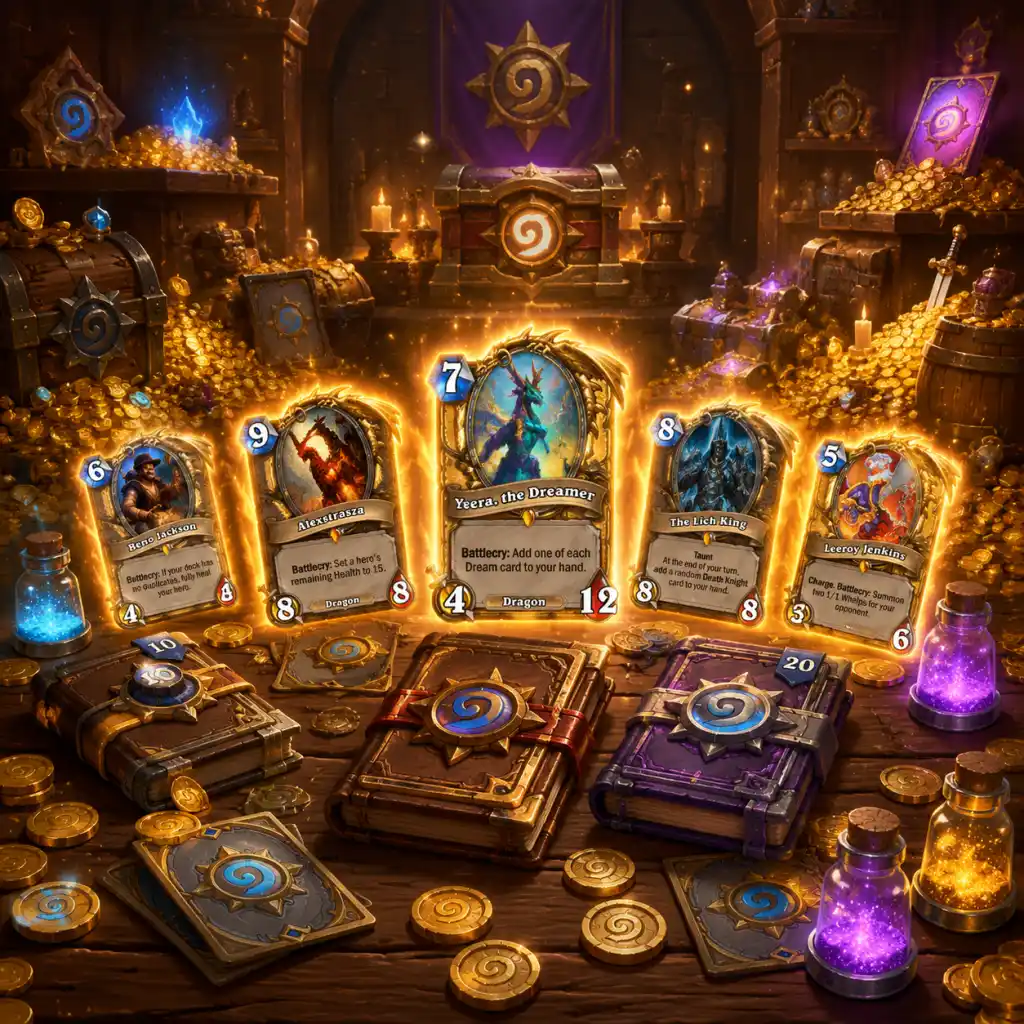
All Game Items
Overview
Hearthstone is a digital collectible card game where the primary "items" are cards and currencies. Unlike traditional RPGs, there are no equippable weapons or armor, but Weapon cards exist as a subtype. This guide covers all major game items: currencies, card packs, cards with subtypes, cosmetics, consumables, and other collectibles. Each entry explains how to obtain the item, when it is useful, and any important synergies or upgrades.
---
Currencies
Gold
- What it does: Used to purchase card packs, Arena tickets, and some cosmetic items. Also required for entry into the Arena mode.
- How to obtain: Earned by completing Daily Quests (40–100 gold each), winning 3 games in Play mode (10 gold per 3 wins, up to 100 gold per day), from the Tavern Pass reward track, and as one-time rewards from achievements, leveling heroes (100 gold every 2 levels), and seasonal events.
- When useful: Always useful. Save gold for new expansion packs (100 per pack) or Arena runs (150 per ticket).
- Synergies: None directly; gold is the universal soft currency.
- What it does: Used to craft any card (except core set and certain special cards). The cost varies by rarity: Common (40), Rare (100), Epic (400), Legendary (1600). Golden cards cost more but are cosmetic.
- How to obtain: Disenchant extra copies of cards from your collection (e.g., a common yields 5 dust, rare 20, epic 100, legendary 400). Also from duplicate protection refunds and seasonal events.
- When useful: Essential for building specific decks. Save dust for key Legendary cards or to complete a deck.
- Upgrades: Golden cards can be disenchanted for more dust than normal but are not necessary for gameplay.
- What it does: Used in the Mercenaries mode to upgrade equipment and abilities. Not used in standard Hearthstone.
- How to obtain: From completing Mercenaries bounties, selling duplicates, and reward track.
- When useful: Only if you play Mercenaries.
- What they are: Contain 5 cards of random rarities (Common, Rare, Epic, Legendary). Guarantees at least one Rare or better. Duplicate protection ensures you don't open more than two copies of a Common or Rare, or more than one of an Epic or Legendary until you own them all for that set.
- Types: Classic (now Core Set, free), Year of the (current expansion), Golden packs, Class packs (contain cards only for that class).
- How to obtain: Purchased with Gold (100 each) or real money. Awarded from Tavern Pass, special events, and Arena/Duels rewards.
- When useful: Open packs from the latest expansion to build your collection. Save gold for new set launches.
- Synergies: Each pack belongs to a specific set (e.g., Showdown in the Badlands). Cards from that set synergize within Standard format.
- Description: Creatures with Attack and Health that can be played on the board. Many have abilities (Battlecry, Deathrattle, Taunt, Rush, Divine Shield, etc.).
- Example: Chillwind Yeti (4 mana 4/5, no ability) – a classic neutral minion.
- How to obtain: Packs, crafting, rewards.
- When useful: Almost all decks rely on minions for board presence.
- Synergies: Tribal tags (e.g., Murloc, Beast, Dragon, Mech) enable tribal synergy cards like Murloc Warleader.
- Description: One-time effects that do not stay on board. They can deal damage, heal, draw cards, buff minions, etc. Have Spell Schools (Arcane, Fire, Frost, Holy, Nature, Shadow, Fel) that enable some synergies.
- Example: Fireball (4 mana, deal 6 damage to a target) – a Mage spell.
- How to obtain: Same as minions.
- When useful: Essential for removal, burn, and combos.
- Synergies: Some minions benefit from casting spells (e.g., Mana Wyrm gains attack). Spell schools matter for cards like Inquisitive Creation (adds a spell from a specific school).
- Description: Equippable items that give the hero Attack and Durability. Attacking with a weapon uses one durability. Weapons can have additional effects (Battlecry, Deathrattle). Only certain classes have weapon cards: Demon Hunter, Hunter, Paladin, Rogue, Shaman, Warrior, Death Knight, and occasionally neutral (like Coghammer).
- Example: Fiery War Axe (3 mana 3/2) – a Warrior weapon from the Classic set.
- How to obtain: Packs, crafting.
- When useful: Control the board by attacking minions or going face. Decks like Pirate Warrior rely on weapons.
- Synergies: Cards that buff weapons (e.g., Upgrade!) or interact with weapon durability (e.g., Captain Greenskin).
- Description: Legendary cards that replace your hero, granting a new Hero Power, Armor, and often a Battlecry. Introduced in Knights of the Frozen Throne and later sets (e.g., Hero cards from Journey to Un'Goro? No, actually KFT and onwards).
- Example: Frost Lich Jaina (9 mana, Battlecry: Summon a 3/6 Water Elemental, gain 5 Armor, Hero Power: Summon a 3/6 Water Elemental with Lifesteal).
- How to obtain: Legendary from the corresponding expansion packs (e.g., KFT packs for Frost Lich Jaina).
- When useful: In control or fatigue decks; they provide game-winning value and unique powers.
- Upgrades: None directly; some hero cards have been moved to Wild format as sets rotate.
- Description: Introduced in Murder at Castle Nathria. They are persistent board items with three durability. Activate their effect at the start of your turn (or when you use a card that references them). Can be targeted by opponents.
- Example: The Scourge (3 mana, 3 Durability, start of turn: Summon a 1/1 Ghoul with Charge that dies at end of turn).
- How to obtain: Packs (epic or legendary).
- When useful: Provide repeated value each turn.
- Synergies: Count as "Location" for cards like Location, Location, Location (Druid spell).
- What they are: Custom back-of-card designs. Purely cosmetic. You can equip one at a time.
- How to obtain: Earned from achieving Rank 5 in a Ranked season (now ranked floors), from special events, pre-ordering expansions, winning in tavern brawls, and buying from the shop (real money).
- When useful: No gameplay impact; used for personalization and bragging rights.
- Collection: All card backs are stored in a menu; some are limited-time exclusive.
- What they are: Alternate art, voice lines, and animations for the 11 hero classes. Some skins are animated with unique emotes.
- How to obtain: Purchased from the Shop (real money or in-game gold during special promotions), earned from completing special achievements (e.g., 1000 wins with a class rewards a golden hero skin), or from pre-ordering expansions (e.g., Magni Bronzebeard for Warrior).
- When useful: Cosmetically changes your hero; no gameplay effect.
- Synergies: Some skins (like Liadrin) are tied to specific classes but no mechanical advantage.
- What they are: Custom coin that appears when you start a game (the coin's art replaces the standard coin).
- How to obtain: Generally from pre-ordering expansions or special events.
- When useful: Cosmetic preference.
- What they are: Alternate board themes, emotes, and minion skins (e.g., Bartender Bob skins).
- How to obtain: Through Battlegrounds reward track (paid Tavern Pass) or shop bundles.
- When useful: Visual enjoyment only; no gameplay impact.
- What it does: Allows one Arena run (construct a deck from random picks, play until 3 losses or 12 wins).
- How to obtain: Purchased with 150 Gold from the Shop, or earned as a reward from special events or the reward track. Also available for real money.
- When useful: To play Arena mode; rewards packs, gold, dust, or even a card (if 12 wins). Good for players who excel at drafting.
- Synergies: None; Arena has its own reward structure.
- What it does: Grants entry to the current Tavern Brawl (free). Some special Brawls may require a ticket but typically no cost.
- How to obtain: The first Tavern Brawl each week is free. Additional entries cost gold (varies, sometimes 50 gold).
- When useful: To play the weekly Brawl for a free pack (first win gives a Classic pack, now a Standard pack).
- What it does: Entry to Duels mode (like Arena but with deckbuilding from a pool). Costs 150 Gold or 1 Duels Token.
- How to obtain: Earned from reward track, shop bundles.
- When useful: For Duels mode.
- The only material used for crafting cards. No other materials exist.
- Hearthstone does not have a crafting material system like in other games. Disenchanting directly yields dust.
- Description: 2-Mana ability available each turn from turn 1 onward. Each class has a default Hero Power (e.g., Mage: Fireblast (deal 1 damage), Paladin: Reinforce (summon 1/1 Silver Hand Recruit)). Hero Powers can be upgraded or replaced by certain cards (e.g., Justicar Trueheart, Hero cards, or spells like Shadowform).
- How to obtain: Default for each class. Upgrades are from cards.
- When useful: Used every turn; key to many strategies (e.g., Warlock Hero Power for card draw).
- Synergies: Cards that interact with Hero Power (e.g., Coldarra Mage, Garrison Commander).
- What they are: 30-card decks given to new players for each class after completing the tutorial. Updated yearly.
- How to obtain: Automatic upon starting the game and completing initial quests.
- When useful: Beginner-friendly introductions, but weak compared to crafted decks.
- What they are: In-game challenges that award XP, packs, gold, card backs, or hero skins. Tracked in the Achievement interface.
- How to obtain: Perform specific actions (e.g., "Play 20 Battlecry minions").
- When useful: Unlocks cosmetic rewards and accelerates Tavern Pass progression.
- What it is: A seasonal progression system rewarding XP, gold, packs, Arena tickets, and cosmetics as you earn XP from play.
- How to obtain: Free for all players; a premium Tavern Pass (paid) adds extra cosmetics and XP boosts.
- When useful: Main source of free items; complete quests to level up.
- Duplicate Protection: Opening packs guarantees you won't get more than the maximum playable copies (2 for Common/Rare, 1 for Epic/Legendary) until you own all cards of that rarity for that set. Golden cards count separately.
- Rotation: Every year, the oldest three expansion sets rotate out of Standard format into Wild. Cards from rotated sets remain playable in Wild and some Tavern Brawls.
- Crafting vs Opening: It's often better to open packs of a new set before crafting to avoid duplicates.
- Real Money Items: Some cosmetics and pre-order bundles are only available with real money (e.g., special hero skins, battlegrounds perks). These are optional.
Arcane Dust
Runes (Mercenaries Currency)
---
Card Packs
Standard Card Packs
---
Cards
Cards are the core items. They are divided into several subtypes. Each card has a Mana Cost (0-10), rarity (Common, Rare, Epic, Legendary), and class or Neutral. Cards are obtained from packs, crafting, rewards, and the Core Set.
Minions
Spells
Weapons
Hero Cards
Location Cards
---
Cosmetics
Card Backs
Hero Skins
Coins
Battlegrounds Cosmetics
---
Consumables / Tickets
Arena Ticket
Tavern Brawl Ticket
Duels Token
---
Materials (Crafting Components)
Arcane Dust (Covered under Currencies)
Enchanting? None.
---
Key Equipment (Hero Powers & Decks)
Hero Powers
Starter Decks (Preconstructed)
---
Other Collectibles
Achievements
Reward Track (Tavern Pass)
---
Important Notes
This guide covers all major item types in Hearthstone. For specific card interactions and deck recipes, refer to the official card library or community sites like Hearthstone Top Decks.
Character Skills
Overview
In Hearthstone, each player assumes the role of a Hero belonging to one of eleven distinct classes. Each class has a unique Hero Power (a repeatable ability costing 2 mana), exclusive class cards, and a signature class mechanic that defines its playstyle. This guide covers every class's Hero Power, core mechanics, and representative spells, abilities, and special moves. It includes effects, mana costs (cooldowns), synergies, and strategic usage tips.
---
Death Knight
Hero Power: Ghoul Charge
- Cost: 2 Mana
- Effect: Summon a 1/1 Ghoul with Charge. It dies at the end of turn.
- Cooldown: Once per turn (standard Hero Power rule)
- Usage: Use for early board presence, finishing a wounded enemy, or triggering Corpse synergies. The Ghoul can attack immediately.
- Death Knight cards generate Corpses when friendly minions die. Corpses are a resource spent on powerful effects.
- Corpse Spending: Cards like Corpse Bride or Boneguard Commander require a certain number of corpses to activate bonus effects.
- Synergies: Pairs with cards that generate extra corpses (e.g., Necrotic Mortician) or that spend them for large tempo swings.
- Heart Strike: 3 mana, deal 3 damage to an enemy minion and gain a corpse.
- Vampiric Blood: 3 mana, restore 5 health to your hero and gain 5 armor (your hero gains Armor even at full health).
- Corpse Explosion: 3 mana, deal 2 damage to all enemy minions, then spend 4 corpses to deal 2 more damage.
- Remorseless Winter: 7 mana, deal 2 damage to all enemies and summon a 3/3 Ghoul with Freeze.
- Grim Reaper (Hero Card): Replaces your hero power with Reaper's Scythe – 2 mana, deal 3 damage to an enemy minion and gain a corpse.
- Cost: 1 Mana (unique – only class with a 1-mana Hero Power)
- Effect: +1 Attack this turn.
- Cooldown: Once per turn
- Usage: Boosts your hero's attack for one turn, allowing you to trade into minions or deal face damage. Essential for activating Outcast and Attack synergies.
- Cards with Outcast gain a bonus effect (often cheaper cost or extra effects) when played from the far left or right of your hand.
- Synergies: Use Hero Power to push damage while positioning key Outcast cards correctly.
- Chaos Strike: 2 mana, deal 3 damage to an enemy minion. If your hero attacked this turn, draw a card.
- Eye Beam: 2 mana, deal 3 damage to an enemy minion. Lifesteal and costs (1) less if you have Outcast.
- Metamorphosis (Hero Card): Replace hero power with Sightless Magistrate – 1 mana, +2 Attack and Lifesteal this turn.
- Skull of Gul'dan: 5 mana, draw 3 cards. Outcast: costs (1) less.
- The Demon Soul (Quest Reward): After playing 6 Outcast cards, get a 0-cost spell that deals 6 damage and gives a 6/6 Demon.
- Cost: 2 Mana
- Effect: +1 Attack this turn and +1 Armor (permanent).
- Cooldown: Once per turn
- Usage: Provides both offense and defense. Use early to gain armor and control minions. Combos with Choose One cards that scale with attack.
- Cards with Choose One allow you to select one of two effects when played, giving versatility.
- Synergies: Cards like Nourish or Wrath can adapt to situation. Some cards (e.g., Keeper of the Grove) become stronger if you have activated Choose One multiple times.
- Armor Synergy: Druid also has many cards that grant Armor or gain benefits from Armor (e.g., Feral Rage).
- Innervate: 0 mana, gain 2 Mana Crystals this turn only. Classic ramp.
- Wild Growth: 2 mana, gain an empty Mana Crystal. Core ramp spell.
- Wrath: 2 mana, deal 3 damage to a minion OR deal 1 damage and draw a card.
- Nourish: 6 mana, gain 2 Mana Crystals OR draw 3 cards.
- Soul of the Forest: 4 mana, give your minions Deathrattle: Summon a 2/2 Treant.
- The Forest Elder (Quest Reward): After gaining 20 Armor, your Hero Power gains Lifesteal and costs (0).
- Cost: 2 Mana
- Effect: Deal 2 damage to the enemy hero.
- Cooldown: Once per turn
- Usage: Direct face damage. Ideal for aggressive decks that aim to reduce opponent's health quickly. Avoid using if you need to develop board.
- Hunter has strong Beast synergy (e.g., Scavenger's Ingenuity buffs Beasts) and Secrets – cheap spells that trigger when conditions are met.
- Synergies: Cards like Kill Command gain bonus damage (5 instead of 3) if you control a Beast.
- Arcane Shot: 1 mana, deal 3 damage to a minion.
- Kill Command: 3 mana, deal 3 damage. Deal 5 if you control a Beast.
- Tracking: 1 mana, look at 3 cards, pick one, discard the rest. Great for consistency.
- Eaglehorn Bow: 3 mana 3/2 weapon. Gains +1 Durability when a Secret is revealed.
- Dinotamer Brann: 7 mana 2/4 – Battlecry: If your deck has no duplicates, summon a 8/8 King Krush with Charge.
- Zul'jin (Hero Card): Replays all spells you've cast this game (as Hunter spells).
- Cost: 2 Mana
- Effect: Deal 1 damage to any target (hero or minion).
- Cooldown: Once per turn
- Usage: Versatile pinging tool for removing 1-health minions, triggering Spell Damage synergies, or finishing a wounded minion.
- Mage has many Spell Damage minions that boost spell damage. Also has Freeze effects to stall board.
- Synergies: Mana Wyrm gains attack when you cast spells. Sorcerer's Apprentice reduces spell cost.
- Frost Bolt: 2 mana, deal 3 damage to a minion and Freeze it.
- Fireball: 4 mana, deal 6 damage to any target.
- Flamestrike: 7 mana, deal 4 damage to all enemy minions.
- Apexis Blast: 5 mana, deal 5 damage and if it kills a minion, add a 5-cost minion to your hand.
- Reno the Relicologist (if Highlander): Battlecry: If your deck has no duplicates, deal 10 damage to the enemy hero.
- Jaina Proudmoore (Hero Card): Hero Power becomes Icy Touch – 2 mana, deal 1 damage, Lifesteal, and summon a Water Elemental.
- Cost: 2 Mana
- Effect: Summon a 1/1 Silver Hand Recruit.
- Cooldown: Once per turn
- Usage: Fills board with tokens. Core for Dude Paladin decks that buff Silver Hand Recruits. Also triggers Murloc or Divine Shield synergies.
- Paladin has many Divine Shield minions and buff spells to make minions stick. Murloc and Mech synergies exist.
- Synergies: Cards like Quartermaster give +2/+2 and Taunt to Silver Hand Recruits.
- Consecration: 4 mana, deal 2 damage to all enemies.
- Blessing of Kings: 4 mana, give a minion +4/+4 and Divine Shield.
- Libram of Wisdom: 1 mana, give a minion +1/+1 and Deathrattle: add a Libram of Wisdom to your hand. (Libram package reduces cost over game)
- Stand Against Darkness: 4 mana, summon 3 Silver Hand Recruits.
- Uther of the Ebon Blade (Hero Card): Hero Power becomes The Four Horsemen – 2 mana, summon a 2/2 Horseman. When you summon all four, destroy the enemy hero.
- Cost: 2 Mana
- Effect: Restore 2 Health to any target (hero or minion).
- Cooldown: Once per turn
- Usage: Heal your hero or minions to keep them alive. Combos with Inner Fire style cards that benefit from high health. Can also heal enemy minions for negative synergies (e.g., Auchenai Soulpriest makes it deal damage).
- Priest can copy or steal cards from opponent's deck, and has many cards that trigger when healing occurs (e.g., Northshire Cleric draws cards when healed).
- Synergies: Radiance gains +2/+2 when you heal a minion.
- Holy Nova: 5 mana, deal 2 damage to all enemy minions and restore 2 health to all friendly minions.
- Shadow Word: Death: 3 mana, destroy a minion with 5 or more Attack.
- Power Word: Shield: 1 mana, give a minion +2 Health and draw a card.
- Anduin (Hero Card): Hero Power becomes Voidform – 2 mana, deal 2 damage (and Lifesteal if you've cast a Shadow spell).
- Benedictus (Quest Reward): After restoring 15 health, your Hero Power costs (0) and can be used twice per turn.
- Cost: 2 Mana
- Effect: Equip a 1/2 Dagger.
- Cooldown: Once per turn
- Usage: Provides a weapon for early removal, combo enabler, and triggers Weapon synergies. The dagger has 2 durability, so you can attack twice.
- Cards with Combo gain a bonus effect if you played another card earlier this turn. Often requires a cheap card (like Dagger Mastery or Backstab) to activate.
- Synergies: Edwin VanCleef gains +2/+2 for each card played before him.
- Backstab: 0 mana, deal 2 damage to an undamaged enemy minion. Great for activating Combo.
- Eviscerate: 2 mana, deal 2 damage. Combo: deal 4 damage instead.
- Preparation: 0 mana, the next spell you cast this turn costs (2) less.
- Sap: 2 mana, return an enemy minion to its owner's hand.
- Valeera the Hollow (Hero Card): Hero Power becomes Death's Shadow – 2 mana, gain 4 Armor and give your hero Stealth until next turn. Also you can duplicate cards each turn.
- Burgle: 3 mana, add a random class card to your hand (from opponent's class).
- Cost: 2 Mana
- Effect: Summon a random basic Totem (Healing Totem – restore 1 health to all friendly minions at end of turn; Searing Totem – 1/1; Stoneclaw Totem – 0/2 with Taunt; Wrath of Air Totem – 0/2 with Spell Damage +1).
- Cooldown: Once per turn
- Usage: Provides board presence and utility. The random nature can be inconsistent, but you can reroll with certain cards. Synergizes with Totem cards like Totem Golem (overload) and Tuskarr Totemic.
- Overload cards cost mana now but lock some of your next turn's mana crystals. Strong tempo plays.
- Murloc and Mech tribal synergies are also common.
- Lightning Bolt: 1 mana, deal 3 damage to a minion. Overload: (1)
- Feral Spirit: 3 mana, summon two 2/3 Spirit Wolves with Taunt. Overload: (2)
- Hex: 3 mana, transform an enemy minion into a 0/1 Frog.
- Bloodlust: 5 mana, give all friendly minions +3 Attack this turn.
- Thrall, Deathseer (Hero Card): Hero Power becomes Transmute Spirit – 2 mana, transform a friendly minion into a random one costing (1) more.
- Evolving (Quest Reward): After playing 6 Overload cards, your Hero Power becomes Invocation – 2 mana, deal 2 damage to all enemies.
- Cost: 2 Mana
- Effect: Draw a card and take 2 damage.
- Cooldown: Once per turn
- Usage: Card advantage engine at the cost of health. Core for most Warlock decks. Can be used aggressively to find key cards, but beware of self-damage.
- Warlock has Discard mechanics (randomly discard cards for powerful effects) and Self-Damage payoffs (e.g., Flame Imp, Kobold Librarian). Demons are a common tribe.
- Synergies: Cards like Flesh Giant get cheaper as you take damage.
- Mortal Coil: 1 mana, deal 1 damage to a minion. If it dies, draw a card.
- Hellfire: 4 mana, deal 3 damage to ALL characters (including your hero).
- Siphon Soul: 6 mana, destroy a minion and restore 3 health to your hero.
- Voidcaller: 4 mana 3/4 – Deathrattle: Summon a random Demon from your hand.
- Gul'dan (Hero Card): Hero Power becomes Siphon Life – 2 mana, deal 3 damage to the enemy hero and restore 3 health to yours.
- Crystallizer: 1 mana 1/3 – Battlecry: Take 5 damage. Summon a 3/3 Crystal. Good for enabling self-damage payoffs.
- Cost: 2 Mana
- Effect: Gain 2 Armor.
- Cooldown: Once per turn
- Usage: Passive defense. Essential for Control Warrior to survive aggression. Can be used even at full health to increase total health pool. Synergizes with Armor-related cards like Shield Slam (deal damage equal to armor) and Bash (gain 3 armor, deal 3 damage).
- Warrior has many cards that benefit from having high armor, and Rush minions that can attack immediately.
- Synergies: Armorsmith gains armor when a friendly minion takes damage. Sword Eater gains +2 Attack if you have armor.
- Shield Slam: 1 mana, deal damage equal to your hero's armor to a minion.
- Execute: 2 mana, destroy a damaged enemy minion.
- Brawl: 5 mana, destroy all minions except one (randomly chosen).
- Risky Skipper: 1 mana 1/3 – Battlecry: Deal 1 damage to all minions. Triggers Armorsmith and Frothing Berserker.
- Garrosh (Hero Card): Hero Power becomes Bladestorm – 2 mana, deal 1 damage to all enemies. Gain 2 Armor each time a minion dies.
- Invigorate (Quest Reward): After gaining 20 Armor, your Hero Power costs (0) and gives +2 Attack this turn as well.
- Efficiency: Always consider whether using your Hero Power is the best use of 2 mana. In early turns, developing a minion is often better. In later turns, it fills mana gaps.
- Synergy Builds: Certain decks are built around Hero Power usage (e.g., Reinforce for Paladin, Life Tap for Warlock). Include cards that benefit from repeated hero power use.
- Opponent Hero Power Awareness: Know your opponent's hero power. For example, a Mage with Fireblast can ping your 1-health minions; a Hunter with Steady Shot will pressure your face.
- Upgraded Hero Powers: Many Hero Cards (e.g., Zul'jin, Thrall, Uther) replace or upgrade your Hero Power for the rest of the game. Plan your deck to capitalize on the upgraded version.
- Gold Hero Powers: Alternate hero skins often have different animations but same effects.
Class Mechanic: Corpses
Key Spells & Abilities
Recommended Build: Control or Midrange decks that generate and spend Corpses for value. Use Ghoul Charge early to contest board or trigger corpse generation.
---
Demon Hunter
Hero Power: Demon Claws
Class Mechanic: Outcast
Key Spells & Abilities
Recommended Build: Aggro or Midrange tempo decks that maximize Outcast triggers. Use Demon Claws every turn for face damage or to enable card draw from Chaos Strike.
---
Druid
Hero Power: Shapeshift
Class Mechanic: Choose One
Key Spells & Abilities
Recommended Build: Ramp Druid (gain mana faster) or Token Druid (flood board with Treants). Use Shapeshift to trade efficiently and accumulate armor for later turns.
---
Hunter
Hero Power: Steady Shot
Class Mechanic: Beasts & Secrets
Key Spells & Abilities
Recommended Build: Face Hunter (aggressive, use Hero Power every turn) or Midrange Beast Hunter. Use Steady Shot to finish off opponents or pressure early.
---
Mage
Hero Power: Fireblast
Class Mechanic: Spell Damage & Freeze
Key Spells & Abilities
Recommended Build: Control or Tempo Mage. Use Fireblast to enable minion trades or finish off low-health targets. Combine with Spell Damage for burst.
---
Paladin
Hero Power: Reinforce
Class Mechanic: Divine Shield & Buffs
Key Spells & Abilities
Recommended Build: Aggro Paladin (flood with Recruits) or Midrange Libram Paladin. Use Reinforce every turn to keep board presence.
---
Priest
Hero Power: Lesser Heal
Class Mechanic: Copy & Steal, Healing Synergies
Key Spells & Abilities
Recommended Build: Control Priest (heal and removal) or Combo Priest (utilize high health minions and buffs). Use Lesser Heal to keep key minions alive or trigger card draws.
---
Rogue
Hero Power: Dagger Mastery
Class Mechanic: Combo
Key Spells & Abilities
Recommended Build: Tempo Rogue (use weapon and cheap spells to control board) or Miracle Rogue (draw many cards with cheap spells). Use Dagger Mastery early to set up Combo turns.
---
Shaman
Hero Power: Totemic Call
Class Mechanic: Overload & Murlocs/Mechs
Key Spells & Abilities
Recommended Build: Aggro Overload or Midrange Shaman. Use Totemic Call to fill gaps; prioritize keeping the board for Bloodlust.
---
Warlock
Hero Power: Life Tap
Class Mechanic: Discard & Demons, Self-Damage Synergies
Key Spells & Abilities
Recommended Build: Zoo Warlock (flood board with cheap minions) or Control Warlock (draw heavy with Life Tap). Use Life Tap when you have mana left and need cards, but be mindful of health total.
---
Warrior
Hero Power: Armor Up!
Class Mechanic: Armor Synergy and Rush
Key Spells & Abilities
Recommended Build: Control Warrior (stack armor and clear board) or Enrage Warrior (use self-damage and armor for synergies). Use Armor Up! frequently to stay healthy and power up Shield Slam.
---
General Tips for Hero Power Usage
This guide covers every class's default skills and key abilities. For a full list of all class-specific spells, minions, and weapons, refer to the All Game Items section.
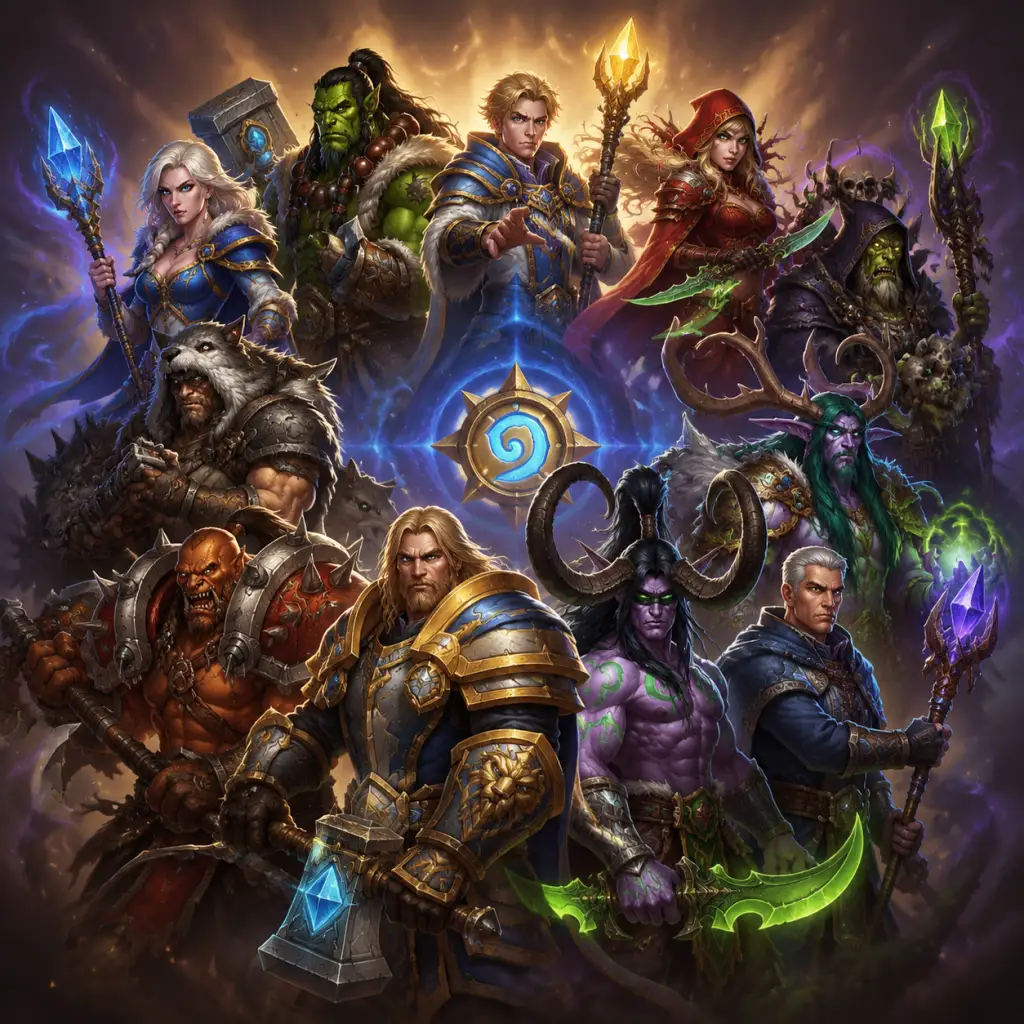
Characters & Roles
Characters & Roles
Overview
In Hearthstone, each player assumes the role of a Hero representing one of eleven distinct classes from the Warcraft universe. Each hero has a unique Hero Power (a 2-mana ability), exclusive class cards, and a signature playstyle. Additionally, there are neutral characters, minions, and important NPCs like the Innkeeper. This guide covers every playable hero, their backgrounds, strengths, weaknesses, recommended cards, and synergy within their class.
The Innkeeper
- Background: The cheerful dwarf who runs the tavern where all Hearthstone matches take place. He is the game's mascot and tutorial guide.
- Role: Non-playable character; serves as opponent in Practice mode and the tutorial.
- Playstyle: Uses basic decks that teach core mechanics.
- Background: Former Warchief of the Horde, son of Grommash Hellscream. A fierce orc warrior.
- Hero Power: Armor Up! – Gain 2 Armor.
- Strengths: Exceptional survivability via Armor; powerful weapons and minion removal; Control archetype dominance.
- Weaknesses: Slow starts; vulnerable to burst damage if Armor is bypassed; limited card draw.
- Playstyle: Control – stall the game with removal and Armor, then dominate late-game with high-cost threats.
- Recommended Cards: Shield Slam, Execute, Brawl, Grommash Hellscream (legendary).
- Synergy: Armor synergy (e.g., Shield Block, Armorsmith); enrage mechanics (e.g., Frothing Berserker).
- Background: The first human Paladin, wielder of the Ashbringer. He embodies the Light.
- Hero Power: Reinforce – Summon a 1/1 Silver Hand Recruit.
- Strengths: Board flooding; powerful buffs and healing; excellent tempo plays.
- Weaknesses: Weak to board clears; lacks burst damage; reliant on minion synergy.
- Playstyle: Aggro/Midrange – use cheap minions and buffs to overwhelm opponent; also secret-based builds.
- Recommended Cards: Truesilver Champion, Equality, Consecration, Tirion Fordring.
- Synergy: Silver Hand Recruit synergy (e.g., Quartermaster, Lost in the Jungle); Divine Shield synergy.
- Background: The leader of the Darkspear trolls, a master beastmaster and former warchief.
- Hero Power: Steady Shot – Deal 2 damage to the enemy hero.
- Strengths: Consistent face damage; best aggro class; powerful beasts and secrets.
- Weaknesses: Poor board control and card draw; weak against healing and taunt walls.
- Playstyle: Aggro – rush down the opponent’s health; also midrange Beast Hunter.
- Recommended Cards: Kill Command, Unleash the Hounds, Animal Companion, Savannah Highmane.
- Synergy: Beast synergy (e.g., Scavenging Hyena, Dire Wolf Alpha); secret synergy (e.g., Eaglehorn Bow).
- Background: A blood elf rogue and former member of the SI:7. Master of stealth and poisons.
- Hero Power: Dagger Mastery – Equip a 1/2 Weapon.
- Strengths: Combo mechanics; efficient removal; ability to generate extra cards (Thief Rogue).
- Weaknesses: Low health; vulnerable to weapon removal; combo requires setup.
- Playstyle: Tempo/Combo – use spells and cheap minions to gain board advantage, then burst with weapons and finishers.
- Recommended Cards: Backstab, Eviscerate, Sap, SI:7 Agent, Edwin VanCleef.
- Synergy: Combo triggers; weapon synergy (e.g., Poisoned Blade); burgle (Thief) archetypes.
- Background: Young king of Stormwind, son of Varian Wrynn. A devout priest of the Holy Light.
- Hero Power: Lesser Heal – Restore 2 Health to a character.
- Strengths: Excellent healing; strong removal (Shadow Word series); powerful resurrection effects.
- Weaknesses: Lack of direct damage; often slow; vulnerable to aggro if draws poorly.
- Playstyle: Control – use healing and removal to survive, then win with value or combo finishers (e.g., Shadowreaper Anduin).
- Recommended Cards: Northshire Cleric, Shadow Word: Pain, Shadow Word: Death, Holy Nova, Anduin (DK).
- Synergy: Dragon synergy; resurrection synergy (e.g., Eternal Servitude); inner fire combo.
- Background: Former Warchief of the Horde, a shaman who communes with the elements.
- Hero Power: Totemic Call – Summon a random Totem (Healing Totem, Searing Totem, Stoneclaw Totem, Wrath of Air Totem).
- Strengths: Versatile totems; powerful overload cards; strong board swing potential (e.g., Bloodlust).
- Weaknesses: Overload limits future turns; random totems can be unreliable; weak card draw.
- Playstyle: Midrange/Control – utilize totems and overload synergies; evolve archetype.
- Recommended Cards: Lightning Bolt, Flametongue Totem, Storm for the Corridor, Hex, Bloodlust.
- Synergy: Totem synergy (e.g., Totem Golem, Thunder Bluff Valiant); evolve synergy (e.g., Evolve, Doppelgangster).
- Background: The Lady of the Kirin Tor, a powerful human mage and leader of the Alliance forces.
- Hero Power: Fireblast – Deal 1 damage.
- Strengths: Excellent AoE removal; strong direct damage spells; secrets; freeze effects.
- Weaknesses: Low health; relies heavily on spells; weak against heavy minion pressure if board clear missed.
- Playstyle: Control/Tempo – use spells to control the board, then generate value with big spells or hero cards (e.g., Frost Lich Jaina).
- Recommended Cards: Fireball, Flamestrike, Frost Nova, Sorcerer’s Apprentice, Archmage Antonidas.
- Synergy: Spell synergy (e.g., Mana Wyrm, Flamewaker); secret synergy (e.g., Kirin Tor Mage); elemental synergy.
- Background: The first orc warlock, corrupted by demonic power, founder of the Horde’s dark magic.
- Hero Power: Life Tap – Draw a card and take 2 damage.
- Strengths: Unmatched card draw; powerful demons and board clears; self-damage synergies.
- Weaknesses: Self-damage can be lethal; lacks healing; vulnerable to aggressive burn.
- Playstyle: Handlock/Control – use Life Tap to maintain hand size, then deploy huge threats; also Zoo (aggro).
- Recommended Cards: Soulfire, Hellfire, Shadow Bolt, Doomguard, Jaraxxus (replaces hero).
- Synergy: Demon synergy (e.g., Demonfire, Dread Infernal); discard synergy (e.g., Darkshire Librarian, Cataclysm).
- Background: The archdruid of the night elves, protector of the natural world.
- Hero Power: Shapeshift – +1 Attack this turn and +1 Armor.
- Strengths: Ramp (gaining extra Mana Crystals); powerful choose-one cards; versatile minions.
- Weaknesses: Slow early game; vulnerable to fast aggro; lack of hard removal.
- Playstyle: Ramp/Combo – accelerate mana to play high-cost threats early; token druid uses board flooding.
- Recommended Cards: Innervate, Wild Growth, Swipe, Nourish, Ultimate Infestation.
- Synergy: Choose-one synergy (e.g., Keeper of the Grove); beast synergy (e.g., Druid of the Claw).
- Background: The Betrayer, a demon hunter consumed by vengeance. Introduced in Ashes of Outland (2020).
- Hero Power: Demon’s Bite – +1 Attack this turn.
- Strengths: Fast aggressive play; strong weapon and discard mechanics; excellent tempo swings.
- Weaknesses: Weak AoE; reliance on Outcast triggers; limited healing.
- Playstyle: Aggro/Tempo – use cheap minions and hero power for early pressure; Outcast synergizes with card order.
- Recommended Cards: Twin Slice, Battlefiend, Warglaives of Azzinoth, Kayn Sunfury.
- Synergy: Outcast synergy (e.g., Spectral Sight, Skull of Gul’dan); weapon synergy.
- Background: Heroes can become Death Knights via special Hero Cards (e.g., Frost Lich Jaina, Shadowreaper Anduin). These transform the hero, granting a new Hero Power (e.g., Icy Touch, Voidform).
- Role: Not a base class but special hero cards in various classes.
- Playstyle: Generally control-oriented, offering powerful ongoing effects.
- Note: Not a standalone class; covered under each class’s archetypes.
- Hero: The player avatar (the classes above).
- Minions: Creatures that attack and defend.
- Spells: One-time effects.
- Weapons: Equipped by hero to attack.
- Hero Cards: Transform your hero (e.g., Death Knight cards).
- Locations: Activatable effects each turn (added in Murder at Castle Nathria).
- All 11 base classes are available immediately to new players.
- Demon Hunter requires completing the free Progression starting set (first few tutorial missions).
- Death Knight class was added in March of the Lich King expansion; requires completing the Death Knight prologue to unlock.
- Hero cards are obtained from card packs or crafted with Arcane Dust.
Playable Heroes (Classes)
#### 1. Warrior – Garrosh Hellscream
#### 2. Paladin – Uther Lightbringer
#### 3. Hunter – Rexxar
#### 4. Rogue – Valeera Sanguinar
#### 5. Priest – Anduin Wrynn
#### 6. Shaman – Thrall
#### 7. Mage – Jaina Proudmoore
#### 8. Warlock – Gul’dan
#### 9. Druid – Malfurion Stormrage
#### 10. Demon Hunter – Illidan Stormrage
#### 11. Death Knight (Hero Cards) – The Lich King (Arthas) & specific class versions
Other Playable Characters (Battlegrounds)
In Battlegrounds mode, players choose from a rotating set of 24+ unique Heroes, each with a distinct Hero Power (e.g., Queen Wagtoggle gives random minions +1/+1 each turn). These are not covered in depth here; see Battlegrounds section for details.
Roles (Card Types)
Team Synergy
Hearthstone is a 1v1 game, so synergy is internal to your deck. Each class has archetypes that work well together (e.g., Beast Hunter, Dragon Priest). The guide emphasizes class-specific synergies above.
Unlock Conditions
Recommended Builds (Decks)
This is dynamic due to expansions. Typically, each class has at least one top-tier deck per meta. For the current best decks, check resources like HSReplay, Vicious Syndicate, or in-game deck recipes.
Conclusion
Mastering any character in Hearthstone requires understanding their hero power, class identity, and core synergies. Whether you prefer aggressive Hunter, controlling Warrior, or tempo Rogue, each offers a unique path to victory.
Cheats & Secrets
Overview
Hearthstone is a digital collectible card game developed by Blizzard Entertainment. As a modern online multiplayer game with a free-to-play model, it does not contain traditional cheat codes, unlock codes, or console commands. The game's anti-cheat system (Warden) strictly prohibits any third-party tools or exploits that modify gameplay. However, there are numerous developer-intended secrets, hidden interactions, Easter eggs, and fun facts that serve as the game's equivalent of cheats and secrets. This guide covers all known legitimate hidden content, including card interactions, hidden quests, secret mechanics, and cosmetic Easter eggs.
Are There Any Cheat Codes or Console Commands?
- No. Hearthstone has no developer console, no debug mode accessible to players, and no hidden menu to enable cheats like infinite mana or instant wins.
- Why? As a competitive online game, Blizzard enforces strict fair play. Using any cheat tool (e.g., deck trackers that automate plays, or memory editors) can result in a permanent account ban.
- Alternative: The game does have a Practice Mode against AI with adjustable difficulty (Normal vs. Expert) to help you learn, but it does not grant any special advantages.
Legitimate Easter Eggs & Hidden Features
1. Secret Quests (Hidden Achievements)
Blizzard has included hidden quests that reward gold, card packs, or special card backs. These are not shown in the quest log until completed.
| Quest Name | Requirement | Reward | Notes |
|---|---|---|---|
| The Meek Shall Inherit the Flame | Win a game where your deck contains only cards of 1 mana cost or less. | 100 Gold (one-time) | Must be in any mode except friendly challenges. |
| Stay a While and Listen | Win 100 games in any mode. | Card Back: "Stay a While and Listen" | One-time reward. |
| Level Up! | Reach level 10 with each of the nine original classes. | 100 Gold (originally, now replaced by class rewards) | Now part of the new player rewards. |
| Big Winner | Win 1000 games in any mode. | Card Back: "Big Winner" | One-time. |
| You've Got a Friend | Complete a game against a friend from your Battle.net friends list. | 80 Gold (one-time) | Appears after first friendly match. |
| C'est la Vie | Lose 100 games. | Card Back: "The Grave" | One-time. |
| Crash Test | Play 20 games with the same deck in a row (any mode). | Card Back: "Master of the Arena" | One-time. |
2. Card Interaction Easter Eggs
Certain cards trigger unique voice lines, animations, or special effects when played together. These are developer-intended fun interactions.
#### Notable Examples:
- Nozdormu (Dragon, 9 mana 8/8) – Forces each turn to last only 15 seconds. A notorious Easter egg: if both players have Nozdormu in play, the timer speeds up further (each turn ~7.5 seconds).
- Majordomo Executus (Neutral, 9 mana 9/7) – When your hero dies, you transform into Ragnaros the Firelord. The hero power changes to "DIE, INSECT!" which deals 8 damage to a random enemy. This is a hidden win condition / secret mechanic.
- The Darkness (Neutral, 4 mana 20/20) – Starts dormant. It has a hidden condition: when your opponent draws three of the "Candles" cards that shuffled into their deck, The Darkness awakens. This is a secret mechanic.
- Prison of Yogg-Saron (Warlock Quest card) – When you complete the quest, you get a special reward that can cast random spells. The animation includes a giant eye peering from a prison.
- Yogg-Saron, Hope's End (Neutral, 10 mana 7/5) – Casts a random spell for each spell you've cast this game. Can kill itself or give the opponent lethal. The sheer randomness is an Easter egg homage to Old Gods.
- Whizbang the Wonderful (Neutral, 4 mana 4/5) – When included in your deck, it randomly assigns you a pre-made deck recipe from the current expansion. This is a hidden deck-building secret.
- Zayle, Shadow Cloak (Neutral, 2 mana 2/2) – Similar to Whizbang, but for the Year of the Dragon expansion.
- The Amazing Reno (Neutral, 5 mana 3/2) – If your deck has no duplicates, at the start of your turn, you get an effect like Reno Jackson's battlecry (heal to full). This is a hidden quest-like mechanic.
- Subject 9 (Hunter, 5 mana 4/4) – Draws secrets from your deck. Each secret has a unique animation. If you have all five Hunter secrets equipped, a special Easter egg voice line plays: "I have all the secrets!"
- Liadrin (Paladin) – Unlocked by reaching level 20 in World of Warcraft (now retired? Still obtainable via new WoW account?)
- Tyrande Whisperwind (Priest) – Was a promotional reward for purchasing a BlizzCon Virtual Ticket or other events. Currently unobtainable, but may return.
- Morgl the Oracle (Shaman) – Obtained by purchasing the Warcraft III battle chest? Actually, it was from the Warcraft III promotion; currently not available.
- Alleria Windrunner (Hunter) – Was a pre-order bonus for the Hearthstone: The Grand Tournament expansion. No longer obtainable.
- Nemsy Necrofizzle (Warlock) – Originally from a Hearthstone Fireside Gathering event. Now earnable by participating in a Fireside Gathering? Check current availability.
- Various Card Backs – Many card backs are tied to hidden achievements or seasonal events. For example, the "Legacy of the Void" card back was earned by winning a game during a StarCraft II promotion.
- Right-click on the game board: In the main menu, right-clicking the fire or the innkeeper sometimes triggers a random voice line. This is a small Easter egg.
- Clicking on the Blizzard logo on the loading screen – No effect, but some versions of the game had a hidden animation if you clicked rapidly.
- The Card Collection search bar – You can type special search terms: `new`, `golden`, `owned`, `missing`, `legendary`, `spare`, `extra`, `!`, `#`, `@`. These are not hidden but not immediately obvious. For hidden fun: type `` to find cards with that keyword (e.g., `battlecry`, `deathrattle`). `cost:7` finds 7-cost cards. `attack > 5` finds high attack. `mana < 3` etc.
- The "Unstable Portal" effect – When playing a card that generates a random minion (like Unstable Portal), the revealed card often has a cutesy animation. This is a visual Easter egg.
- "The League of Explorers" adventure includes characters from Indiana Jones-style adventures.
- "Whispers of the Old Gods" expansion features cards named after World of Warcraft lore (e.g., C'Thun, Yogg-Saron).
- "Mean Streets of Gadgetzan" includes cards referencing World of Warcraft's Gadgetzan goblins.
- "Journey to Un'Goro" references Diablo's treasure goblins (e.g., Swamp King Dred).
- "Frozen Throne" expansion includes cards like Lich King and Sindragosa, directly tying to Warcraft III.
- "The Boomsday Project" includes Dr. Boom, who is a Warcraft character from the Burning Crusade.
- "Saviors of Uldum" has cards referencing the World of Warcraft patch 8.2.
- "Ashes of Outland" introduces Illidan Stormrage, a major Warcraft character.
- "Forged in the Barrens" adds Kazakus and other classic characters.
- "Murder at Castle Nathria" is a murder mystery themed set.
- In "The Great Dalaran Heist" (solo adventure), there are secret bosses and bonus objectives.
- In "Hearthstone Battlegrounds" (auto-battler mode), there are hidden synergies like the "Quilboar" tribe that were only revealed after a patch.
- Some Tavern Brawls have Easter egg card combinations that guarantee a win or special animation (e.g., playing 7 golden minions in a single game?).
3. Hidden Hero Portraits & Alternate Art
Some hero portraits were only obtainable through special promotions, events, or hidden criteria.
4. The Innkeeper's Secrets (Hidden Menus & Screens)
5. References to Blizzard Lore
Hearthstone is filled with references to other Blizzard games. Example:
6. Tavern Brawl Secrets
Tavern Brawls often have hidden rules or bonus effects that aren't explicitly stated. For example:
7. Developer-Intended Exploits (Now Fixed)
Historically, there were harmless exploits like the "Infinite Patches" glitch (Patches the Pirate would be pulled from deck multiple times), but these were patched. Do not attempt to replicate known bugs; they may violate the ToS.
Conclusion
Hearthstone does not have cheat codes or unlock codes. All its secrets are cosmetic or mechanical Easter eggs that enrich the game experience without breaking fairness. The most valuable secrets are hidden quests that reward gold and card backs, and card interactions that reference Blizzard's vast lore. For any new "secret" discovered, always verify it's not a bug that could lead to a ban. Enjoy the hunt!