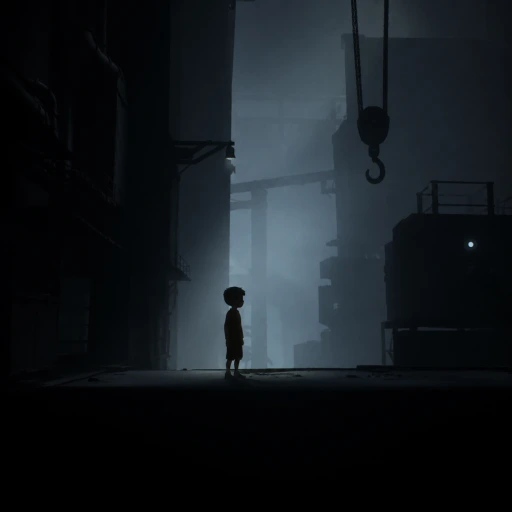
Inside
## Game Introduction: Inside **Inside** is a critically acclaimed cinematic puzzle-platformer developed and published by **Playdead**, the independent Danish studio behind the groundbreaking *Limbo*. Released initially on **June 29, 2016** for Xbox One (as a timed exclusive), the game quickly expan...
Download & Installation
Inside - Download & Installation Guide
This guide covers everything you need to legally download, install, and first-launch Inside on PC, PlayStation, Xbox, and Nintendo Switch. It includes system requirements, step-by-step instructions for each platform, troubleshooting common errors, and post-install verification.
---
Supported Platforms & Official Sources
| Platform | Official Store | App / Client |
|---|---|---|
| PC (Windows) | [Steam](https://store.steampowered.com/app/304430/Inside/), [Epic Games Store](https://store.epicgames.com/en-US/p/inside), [GOG](https://www.gog.com/en/game/inside) | Steam, Epic Games Launcher, GOG Galaxy |
| PlayStation 4 / PS5 | PlayStation Store (PS4 & PS5) | N/A (console built-in) |
| **Xbox One / Series X | S** | Microsoft Store (Xbox) |
| Nintendo Switch | Nintendo eShop | N/A (console built-in) |
---
System Requirements (PC)
| Component | Minimum | Recommended |
|---|---|---|
| OS | Windows 7 64-bit | Windows 10 64-bit |
| CPU | Intel Core 2 Quad Q6600 @ 2.4 GHz or AMD Phenom 9850 @ 2.5 GHz | Intel Core i5-750 @ 2.67 GHz or AMD Phenom II X4 965 @ 3.4 GHz |
| RAM | 4 GB | 8 GB |
| GPU | NVIDIA GeForce GTX 260 or AMD Radeon HD 4870 (512 MB VRAM) | NVIDIA GeForce GTX 660 or AMD Radeon HD 7850 (2 GB VRAM) |
| DirectX | Version 10 | Version 11 |
| Storage | 3 GB available space | 3 GB (SSD recommended) |
| Sound | DirectX compatible | DirectX compatible |
---
Account Requirements
- Steam: Free Steam account. Internet connection needed to download. (The game must be purchased from the Steam store.)
- Epic Games: Free Epic Games account. Same as Steam.
- GOG: Free GOG account. DRM-free download available.
- PlayStation: PlayStation Network (PSN) account. Internet connection required for download.
- Xbox: Xbox Live account (free or Game Pass). Internet required.
- Nintendo Switch: Nintendo Account. Internet required for download. Note: Inside is also available physically on Switch, but the digital version is the focus here.
- PC: ~1.7 GB download, ~2.5 GB installed. Steam/Epic/GOG will report slightly different numbers due to file structures. Always keep at least 3 GB free.
- PlayStation: ~2.2 GB installed size.
- Xbox: ~2.4 GB.
- Switch: ~2.5 GB (supports microSD cards up to 2 TB, download to external storage if needed).
- PC (Steam/Epic/GOG): The game will display a small settings screen for language, resolution, and graphics quality (Low, Medium, High). Adjust as desired, then press Start. You can also change these later in the pause menu (Options).
- Consoles: The game launches directly with default settings. You can adjust brightness and subtitles from the main menu (Options). No significant configuration needed.
Make sure your account is signed in on the respective platform before purchasing or downloading.
---
Step-by-Step Installation by Platform
PC – Steam
1. Install Steam Client – Download from [store.steampowered.com](https://store.steampowered.com/) and run the installer. Create a Steam account or log in to an existing one.
2. Purchase Inside – Go to the Steam store page for Inside (App ID 304430) and add to cart. Complete purchase via your preferred payment method.
3. Start Download – After purchase, click the “Install” button on the game’s store page or go to your Library → Inside → Install. Choose a drive location (ensure at least 3 GB free).
4. Wait for Download & Verification – Steam will download the game files (~1.7 GB) and automatically verify them. Do not interrupt the process.
5. Launch – Once complete, click “Play” in your Library. The game will start.
PC – Epic Games Store
1. Install Epic Games Launcher – Download from [store.epicgames.com](https://store.epicgames.com/) and log in / create an account.
2. Purchase Inside – Search for “Inside” in the store or use the [direct link](https://store.epicgames.com/en-US/p/inside). Buy and complete the transaction.
3. Install Game – On the game’s page, click “Install”. Select installation folder (default is fine). Ensure at least 3 GB free on that drive.
4. Download – The launcher will download and install the game.
5. Launch – Click “Play” on the library tile.
PC – GOG
1. Install GOG Galaxy – Download from [gog.com](https://www.gog.com/) and install. Create/log into GOG account.
2. Purchase Inside – Find Inside on GOG store (often on sale). Complete purchase.
3. Install via Galaxy – In your GOG library, click “Install” on Inside. You can also download a standalone offline installer from your library for DRM-free backup.
4. Run – After installation, click “Play” in Galaxy, or launch the executable directly (usually in `C:\Program Files (x86)\GOG Galaxy\Games\Inside`).
PlayStation 4 / PS5
1. Power on console and sign in to PSN.
2. Navigate to PlayStation Store – Select the store icon from the home screen.
3. Search for “Inside” – Use the search bar. The game is compatible with PS4 and PS5 (no separate PS5 version – runs via backward compatibility with boost mode).
4. Purchase – Add to cart and check out using PSN wallet or payment method.
5. Start Download – The game will begin downloading automatically. You can also choose “Download” after purchase. Ensure you have at least 3 GB free on your system storage. PS5 users: you can install to internal SSD or compatible external USB drive.
6. Install & Play – Once downloaded, the game appears in your library. Launch it normally.
Xbox One / Series X|S
1. Power on and sign in to Xbox Live.
2. Open Microsoft Store – From Home, go to Store.
3. Search for “Inside” – Find the game listed as both standard and Game Pass version (if you have Game Pass, you can install for free).
4. Purchase or Install – Click “Buy” or “Install” (if you own it through Game Pass). Confirm.
5. Select Install Location – Choose internal drive or external storage. The game requires ~3 GB.
6. Download & Auto-Install – The console will download and install. You can continue using other apps.
7. Launch – Once ready, the tile appears in “My games & apps”. Click to play.
Nintendo Switch
1. Turn on Switch and connect to internet.
2. Open Nintendo eShop – From Home, select the eShop icon. (You may need to link a Nintendo Account).
3. Search for “Inside” – Use the search function.
4. Purchase – Add to cart and complete the purchase. The game is priced at $19.99 / equivalent.
5. Download – The game will begin downloading immediately. You can see progress on the Home screen. The required space is ~3 GB. If your system storage is full, you can download to a microSD card.
6. Play – After download completes, the game icon appears on Home. Select it to start.
---
Storage Space & Additional Notes
Tip: For all platforms, ensure your storage is not critically low (below 1 GB) to avoid installation errors. SSDs improve load times especially on consoles (PS5, Xbox Series, Switch with fast microSD).
---
First Launch Setup
Inside requires minimal configuration. On first launch:
Controller support: Inside is best played with a controller on all platforms. PC recognizes Xbox, PlayStation, and generic controllers. On Nintendo Switch, Joy‑Con or Pro Controller works. Keyboard & mouse are supported on PC but not recommended.
---
Common Installation Errors & Fixes
PC
| Error / Issue | Cause | Solution |
|---|---|---|
| “Disk Write Error” in Steam | Antivirus blocking, or drive permissions. | Temporarily disable antivirus. Run Steam as Administrator. Verify game files: Right‑click Inside in Library → Properties → Local Files → Verify integrity of game files. |
| Missing DLL or runtime error (e.g., `xinput1_3.dll`) | Missing DirectX redistributable. | Install DirectX from Microsoft’s website or from the game’s redist folder inside `SteamLibrary\steamapps\common\Inside\_CommonRedist`. |
| Game crashes on startup / black screen | Outdated GPU drivers or corrupted config files. | Update graphics drivers. Delete config files (often in `%localappdata%\Inside`). Disable overlays (Steam, Discord, GeForce Experience). |
| Download stuck at 0% | Network issue or server load. | Pause and resume download. Restart Steam/Epic launcher. Check your firewall. |
| GOG offline installer fails | Corrupted download or drive space. | Redownload the offline installer files. Run as Administrator. Ensure enough space on the target drive. |
PlayStation
| Issue | Solution |
|---|---|
| Download won’t start / stuck | Restart console. Check network connection. Go to Settings → Storage → System Storage → Free up space. |
| “Cannot install” error (CE‑34788‑0) | Insufficient space. Delete unwanted games/saves. |
| Game crashes after download | Rebuild database: Safe mode → Rebuild Database (no data loss). |
Xbox
| Issue | Solution |
|---|---|
| Download halted | Check Xbox Live service status. Restart console. Go to Settings → System → Storage → Clear local saved games (do not delete saves). |
| Game fails to launch | Hard reset the console (hold power button 10 seconds). Re‑install the game if persistent. |
| “Try that again” error (0x80070490) | Sign out/in. Re‑enter your Microsoft account password. Update system firmware. |
Nintendo Switch
| Issue | Solution |
|---|---|
| Download very slow | Close other downloads. Put Switch in sleep mode with power connected (optimizes downloads). |
| “Corrupted data” error | Go to System Settings → Data Management → Manage Software → Inside → Check for Corrupt Data. If found, delete and redownload. |
| Game won’t start / freezes on logo | Try a hard reset: hold power button 12 seconds, then turn on. If persists, archive and reinstall. |
Post-Installation Verification
After installation, verify the game works correctly:
1. Launch the game – On all platforms, it should show the Playdead logo, then the main menu (a dimly lit forest scene).
2. Check audio – Ensure both music and sound effects are present. If not, check system audio settings and game options.
3. Run a quick test – Start a new game. You should control a boy running through a forest. Verify controls respond (movement, jump, interact).
4. Check for updates – On consoles, while connected to internet, the system may auto‑install day‑one patches. On PC, Steam/Epic/GOG will notify of updates. Inside is a mature, stable title with no major post‑release patches.
File integrity (PC only):
- Steam: Library → Inside → Properties → Local Files → Verify integrity of game files.
- Epic: In Library, click the three dots next to Inside → Manage → Verify.
- GOG Galaxy: Click the gear icon near Inside → Manage installation → Verify / Repair.
- Backup saves: On PC, saves are in `%localappdata%\Inside`. On consoles, they are stored in the cloud (if you have a subscription) or system storage.
- No DRM concerns: Inside from GOG is completely DRM‑free. Steam and Epic versions require their respective clients running to launch.
- Game Pass: If you have Xbox Game Pass for PC (Ultimate or PC), you can install Inside from the Xbox app for Windows – free as part of the subscription. The process is similar to the Epic Games Store.
- Language: The game is mostly wordless, but interface / subtitles support many languages. Check options for language selection.
If the game runs without crashes, missing textures, or audio issues, your installation is complete.
---
Final Tips
Enjoy Inside – a beautifully crafted, eerie puzzle‑platformer.
---
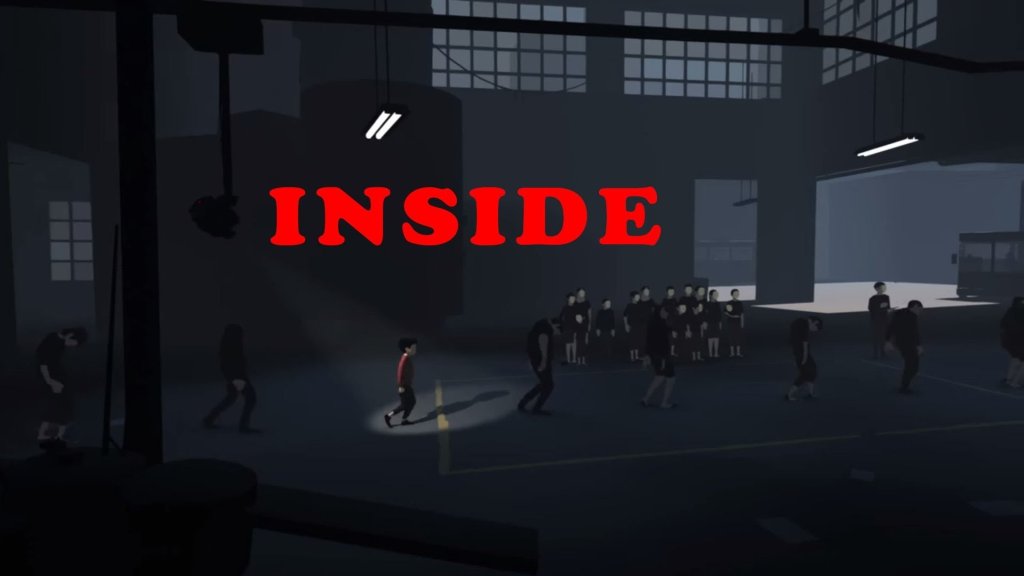
Game Introduction
Game Introduction: Inside
Inside is a critically acclaimed cinematic puzzle-platformer developed and published by Playdead, the independent Danish studio behind the groundbreaking Limbo. Released initially on June 29, 2016 for Xbox One (as a timed exclusive), the game quickly expanded to PlayStation 4 (August 2016), PC (July 2016 via Steam, GOG, and Windows Store), Nintendo Switch (June 2018), and later iOS/Android (December 2017 for iOS, 2020 for Android). A remastered version for Xbox Series X/S and PlayStation 5 arrived in 2021, offering 4K resolution and 60 FPS. The game has no downloadable content (DLC) or expansions, maintaining its tight, self-contained experience.
Genre
- Cinematic puzzle-platformer
- Atmospheric action-adventure
- Side-scrolling survival horror (light elements)
- Developer: Playdead
- Publisher: Playdead
Developer & Publisher
Release Timeline & Platforms
| Platform | Release Date |
|---|---|
| Xbox One | June 29, 2016 |
| PC (Windows, macOS, Linux) | July 7, 2016 |
| PlayStation 4 | August 23, 2016 |
| iOS | December 15, 2017 |
| Nintendo Switch | June 28, 2018 |
| Android | July 22, 2020 |
| Xbox Series X/S, PS5 (remastered) | 2021 |
Story Overview
Inside presents a wordless, interpretative narrative. A young boy in a red shirt awakens in a dark forest on the edge of a dystopian, totalitarian society. The player controls the boy as he flees through increasingly oppressive environments—forests, farms, factories, laboratories, and underwater complexes—while evading human captors, robotic dogs, and monstrous creatures. The story unfolds through environmental details, subtle animations, and a chilling final act that challenges traditional notions of agency and humanity. The ending is deliberately ambiguous, inviting analysis.
Setting
The game is set in a grim, monochromatic world inspired by Eastern European post-Soviet architecture and grim modern corporate control. Environments progress from natural landscapes (woods, fields) to industrialized zones (slaughterhouses, research facilities, underwater labs) and eventually a surreal, biomechanical interior. The color palette is limited to muted grays, blacks, and occasional reds or blues, emphasizing a cold, oppressive atmosphere.
Main Characters
- The Boy (Player Character): A silent, vulnerable protagonist with no spoken lines. His identity and motivations are unknown, but his actions drive the plot.
- Enemies: Human guards with flashlights and guns, robotic attack dogs, underwater leviathans, and a mysterious hive-minded creature that becomes central late-game.
- Other Entities: Homunculus-like “blob” beings, scientists, and—most notably—the massive “glob” of writhing flesh that the boy merges with in the game’s climax.
- Atmospheric storytelling: Tells a compelling tale without a single line of dialogue, relying on animation, sound design, and environmental cues.
- Tight puzzle design: Each puzzle is intuitive, physics-based, and seamlessly integrated into the world, with minimal trial-and-error.
- Sensory immersion: Exceptional audio (by Martin Stig Andersen) and visual art direction create a palpable sense of dread and wonder.
- Replayability: Hidden collectibles (20 orbs) and an alternate ending reward exploration and theory-crafting.
- Fans of atmospheric puzzle-platformers (e.g., Limbo, Little Nightmares, The Swapper)
- Players who appreciate minimalist storytelling and ambiguous narratives
- Those seeking a short, focused experience (2–4 hours) with high production values
- Audiences comfortable with dark themes (implied violence, body horror, dystopian concepts)
- Single-player campaign only. No multiplayer, co-op, or competitive modes.
- Fully offline single-player. No internet connection required to play. Achievements/Trophies are tracked offline and sync when connected.
- No DLC or expansions exist. Inside is a complete, standalone game. Additional content includes only free updates (e.g., 4K/60 FPS patches for newer consoles).
- Merged-ending mechanic: Unlike most games where the protagonist simply wins or loses, Inside features a grotesque fusion sequence where the boy merges with a fleshy mass, controlling it like a biological puppet. This moment is shocking, thematically rich, and entirely unexpected.
- Hidden object puzzle design: One of the game’s secret orbs is placed inside a vault that requires a 27-step binary code sequence, demonstrating extraordinary attention to secret content.
- Visual and audio mastery: The game uses dynamic lighting, depth of field, and a chilling soundscape that reacts to player actions—footsteps echo differently on various surfaces, and distant sounds build tension.
- Narrative ambiguity: The story is open to multiple interpretations (e.g., commentary on collectivism, loss of identity, or a modern take on the hero’s journey), encouraging community discussion years after release.
- No UI or HUD: The game shows no health bars, menus, or prompts, preserving pure immersion.
Core Appeal
Target Audience
Game Modes
Online/Offline Support
DLC/Expansion Overview
What Makes It Unique
In summary, Inside is a masterclass in environmental storytelling and puzzle design, offering a haunting experience that lingers long after the credits roll. Its polished execution and thought-provoking themes make it an essential title for any gamer interested in the artistic potential of the medium.

Getting Started
Getting Started with Inside
Welcome to Inside, a hauntingly beautiful 2.5D puzzle-platformer from the creators of Limbo. This guide is tailored for brand-new players, covering everything you need to survive your first hour, avoid common pitfalls, and set yourself up for a rewarding experience.
---
First-Hour Walkthrough: What to Expect
The game opens with a young boy alone in a dark forest. There is no tutorial text or HUD; you learn by doing. Here’s a step-by-step of the critical first segment:
1. Move Right – Walk to the right through the woods. You’ll see a fence. Push against it; it will fall down. Continue right.
2. Pull the Cart – You encounter a wooden cart blocking a steep slope. Stand to the left of it, press the interact button (E on PC, A on Xbox, Cross on PlayStation, B on Switch) to grab it, then push it to the right, down the slope. It will smash through a barrier.
3. Enter the Barn – Follow the cart down and enter the barn. You’ll see a ladder leading up. Climb it (press up on the left stick/arrow key).
4. Jump Across Gaps – At the top, you’ll need to jump over broken floorboards. Jump by pressing the jump button (Space/LB/L1/L). Land on the next platform and climb another ladder.
5. Dislodge the Block – Finally, push a wooden block off a ledge to create a ramp, then jump onto it to reach the exit. You’ll be chased by a group of dogs – run right as fast as you can.
6. Hide in the Tall Grass – After a brief sprint, you’ll reach tall grass. Press crouch (Ctrl/LS-click/L3/left stick click) to hide. Wait until the dogs run past, then move on.
This sequence teaches you the core mechanics: movement, pushing/pulling, jumping, climbing, and hiding. Don’t panic; you have infinite lives, and the game auto-saves frequently.
---
User Interface (UI) Overview
There is no on-screen UI in Inside. No health bar, ammo counter, or minimap. The game is intentionally minimalist:
- No HUD – All information is conveyed through the environment and the boy’s animations. If he stumbles, struggles to push, or looks around, that’s your feedback.
- Death/Respawn – When you die (e.g., crushed, drowned, shot), the screen fades to black and you restart at the last checkpoint. Checkpoints are marked by subtle environmental cues (e.g., a ladder, a door you opened).
- Loading – Only at the very start and occasionally between major areas. Otherwise, it’s seamless.
---
Controls (All Platforms)
Inside uses simple, responsive controls. Here’s a full breakdown:
| Action | PC (Keyboard + Mouse) | Xbox Controller | PlayStation Controller | Nintendo Switch Controller |
|---|---|---|---|---|
| Move | A/D or Left/Right Arrow | Left Stick | Left Stick | Left Stick or D-Pad |
| Jump | Space | A | Cross | B |
| Interact (push/pull/grab) | E | X | Square | Y |
| Crouch/Hide | Left Ctrl | Left Stick Click (LS) | L3 | Left Stick Click |
| Look Around | Move Mouse (optional) | Right Stick (camera pans slightly) | Right Stick | Right Stick |
Pro Tips:
- Jump while moving – Your jump distance is fixed; you can’t change it mid-air.
- Interact context-sensitive – The boy will automatically grab ledges, climb ladders, and hold onto ropes when near them. You just need to move toward them.
- Crouch is essential – Use it to hide from enemies, move through low passages, and avoid detection.
- Explore every corner – The game rewards curiosity. Hidden paths often lead to collectibles (orbs) or shortcuts.
- Push/pull everything – If an object looks movable, try it. The cart in the first area is a prime example.
- Wait and observe – If you’re stuck, stand still for a few seconds. Enemies move on patrol patterns; you can study them.
- Use the environment – Breakable glass, levers, floating platforms – all are interactive.
- Rushing – The game punishes recklessness. Taking a moment to assess is better than sprinting into death.
- Ignoring sound cues – Audio is critical. Footsteps, machinery hums, and growls warn you of danger.
- Assuming all paths are linear – Some areas have multiple ways to proceed. If one route seems impossible, backtrack and look for alternatives.
- Forgetting to save – The game auto-saves, but if you quit mid-level, you’ll restart from the last checkpoint. Save your progress by reaching a new area (often marked by a color change or door opening).
- Learning enemy patterns – Memorize patrol routes and timings.
- Mastering hidden movement – Crouch-walking, tiptoeing, and staying out of light.
- Understanding physics – Boxes float, levers stay activated, and ropes swing realistically.
- [ ] Comfortable controller/keyboard setup – Rested hands, no glare on screen, volume up (headphones recommended for the atmosphere).
- [ ] At least 3 hours of uninterrupted play – The game is short (~4-5 hours), but the first session should be uninterrupted to maintain immersion.
- [ ] A dark room – The lighting is integral to the game’s mood. Play in a dimly lit room for best experience.
- [ ] No external distractions – The game has no pause menu for story events; minimize notifications.
- [ ] Read the basic controls once – Print or have this guide handy if needed.
- [ ] Start the game – Choose “New Game” from the title screen. There is no difficulty selection or character creation.
---
Essential Early Objectives
Your first hour has these overarching goals:
1. Survive the forest chase – Getting caught by dogs means instant death. Use hiding spots (tall grass, dark corners).
2. Enter the industrial complex – After the dogs, you’ll find a path leading to a factory-like area. Follow the pipeline.
3. Solve the first “light puzzle” – You’ll encounter a room with a spotlight. Move crates to block the light beam and sneak past.
4. Navigate the underwater section – You’ll soon find a body of water. Swim right, but surface occasionally to avoid drowning. There’s a hidden lever to open a gate.
5. Escape the laboratory – After the water, you’ll enter a lab with scientists. Use stealth and environmental objects (e.g., a ball to distract a guard) to get through.
---
What to Do First vs. What to Avoid
✅ Do First:
❌ Avoid:
---
Early Resource Priorities (There Are None!)
Inside has no inventory, currency, or upgrade system. The only “resource” is your knowledge. Therefore, your priorities should be:
---
Common Beginner Mistakes (and How to Fix Them)
1. Trying to fight enemies – The boy is not a fighter. You cannot attack; only run, hide, or manipulate the environment.
2. Jumping too early – Time jumps carefully. A mistimed jump into a gap or onto a platform can send you back to a checkpoint.
3. Not using crouch – Many early deaths occur because players stand in plain sight. Crouch when enemies are near.
4. Pushing instead of pulling – Some objects only work when pulled (e.g., a crate on wheels needs to be pulled free before pushing). Try both.
5. Ignoring the water hazard – You can swim, but you have a limited breath meter (shown as a visual bubble animation). Surface often or find air pockets.
6. Getting stuck on a puzzle – If you’re stuck for more than 2 minutes, look for a clue: a different colored switch, a loose board, or an object you haven’t moved yet.
---
Day-One Checklist
Before you dig into your first session, ensure you have:
---
You are now ready to begin Inside. Remember: every obstacle is a puzzle, and every death is a lesson. The world is dark, but your curiosity is your greatest tool. Good luck.
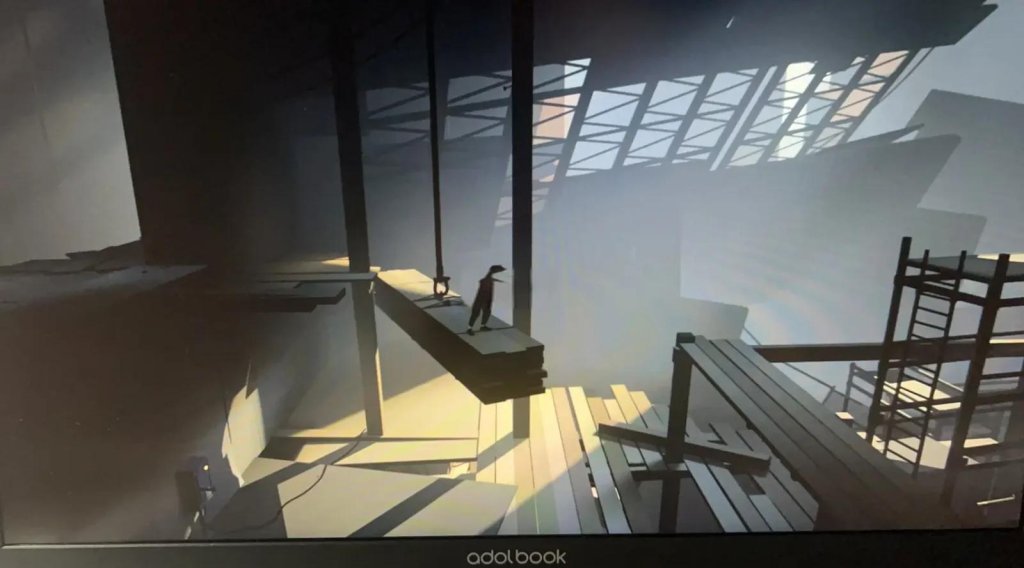
Core Gameplay
Core Gameplay Overview
Inside is a 2.5D cinematic puzzle-platformer with no combat, no dialogue, no inventory, and no traditional RPG elements. The gameplay loop is deceptively simple: move right, interact with the environment, avoid instant death, solve physics-based puzzles, and progress through a linear sequence of hauntingly atmospheric set pieces. The entire experience is a single, uninterrupted journey with no level select or menu hub. Progression is purely environmental and narrative-driven, with new gameplay mechanics introduced through the world itself rather than any skill tree or upgrade system. The only collectibles are 12 hidden glowing orbs that unlock an alternate ending.
Main Gameplay Loop
The core loop can be broken into five repeating steps:
1. Observe – Survey the new screen for hazards (searchlights, guard dogs, water, machinery), movable objects (crates, levers, ladders), and the path forward.
2. Move – Use the left stick/d-pad to run left or right; hold a button (A/X/cross) to sprint. The camera follows automatically.
3. Interact – Press the action button (E on PC, A on Xbox, X on PlayStation) to push/pull objects, climb ledges, operate levers, or trigger mechanisms. Some objects require a sustained press.
4. Solve – Combine movement and interaction to overcome obstacles: e.g., stacking crates to reach a high ledge, using a water pump to raise a platform, or timing a sprint past a spotlight.
5. Avoid Death – Every hazard kills you instantly and resets you to the last checkpoint (auto-saves every few rooms). Death animations are graphic but quick to reload.
Interaction Systems
Inside’s interaction system is entirely context-based. There are no weapons, no attacks, and no inventory. The player character (a young boy in a red shirt) can perform these actions:
| Action | Control | Example |
|---|---|---|
| Walk/Run | Directional stick + sprint button | Sprint toward a closing door before it slams shut |
| Jump | A/X/cross | Vault over small gaps, onto ledges |
| Climb | Auto-grab when near a ladder or ledge | Shimy up a drainpipe or across a horizontal beam |
| Push/Pull | Action button (hold to drag) | Move a crate onto a pressure plate |
| Operate Lever | Action button near a switch | Pull a lever to open a gate |
| Swim | Directional stick (air bubbles nearby) | Traverse flooded rooms; drown if air runs out |
| Control Hostage | Action button near a mind-controlled person | Use the mind-control helmet to guide bodies |
| Merge (Late Game) | Automatic after inhaling the hive | Control the giant flesh blob |
Progression
Progression is linear and story-bound. There are no experience points, levels, or skill unlocks. The only “growth” is the introduction of new abilities through environmental discoveries:
- Early Game: Basic Movement & Stealth – Move right, avoid searchlights and guard dogs, solve simple crate-and-lever puzzles. The boy can only jump, climb, push, and sprint.
- Mid Game: Underwater & Machinery – After falling into an underwater river, the boy learns to swim (limited by air bubbles) and use machinery like water pumps, forklifts, and submersible vehicles. The first major new ability is driving a small submarine deeper into the facility.
- Late Game: Mind Control & Hive – After a shockwave sequence, the boy acquires a mind-control helmet that allows him to manipulate other human subjects to stand on switches, activate levers, or serve as human shields. This is the game’s most complex mechanic.
- Endgame: The Hive Entity – The boy merges with a giant mass of flesh and nerves, becoming a giant blob that can smash through walls, break through fences, and walk through heavy water. This is the only form of “character growth” – a literal transformation.
- Hidden Orbs (12 total) – Yellow glowing spheres found in secret rooms. Collecting all 12 unlocks a hidden ending after the main credits. Each orb is tucked away in a dead-end or behind a breakable wall.
- Alternative Routes – A few puzzles can be solved in two ways (e.g., stacking two crates vs. using a see-saw), but both lead to the same next area.
- Easter Eggs – Vague references to Limbo, hidden notes, and unnerving imagery.
- Setting: A dark forest, a farm with roaming men in blue coats, pig pens, guard towers.
- Mechanics Introduced: Movement, sprint, jump, climb (ladders, ledges), push/pull crates, stealth (avoiding flashlight beams), instant death from dog attacks or falling.
- Puzzle Examples:
- Collectible: Orb #1 in a crate-hidden alcove near the first silo.
- Key Milestone: Falling into the flooded underground bunker after a chase sequence.
- Setting: Dimly lit underwater corridors, massive factory floors, conveyor belts, forklifts, a submerged vehicle bay.
- Mechanics Introduced: Swimming (limited air; surface for bubbles), driving a submersible (dodge obstacles, avoid crushing doors), operating heavy machinery (cranes, forklifts), chain-linked puzzles (pulling two levers in sequence).
- Puzzle Examples:
- Collectible: Orbs #2-#6 hidden in dead-end ducts, behind breakable glass, or inside submerged rooms.
- Key Milestone: Emerge from the factory into an open field with a massive, sky-high structure in the distance.
- Setting: A barren field with wind, a vertical laboratory, rows of armed guards, a giant glowing orb on a tower.
- Mechanics Introduced: The mind-control helmet (activate by standing near a stationary human subject; then you control that subject’s movements). The controller subject can walk, stand still, and be pushed into danger. You can switch back to the boy at any time.
- Puzzle Examples:
- Collectible: Orbs #7-#10 hidden behind movable facility objects or in remote corners of the mind-control area.
- Key Milestone: The shockwave sequence – a frantic auto-scrolling segment where the boy must sprint right without stopping, avoiding collapsing platforms and debris.
- Setting: The inner core of the massive structure, filled with pulsing organic matter, human experiments, and the final hive chamber.
- Mechanics Introduced: None new until the transformation. After merging with the blob, you control a massive, slow-moving entity that can smash through breakable walls, wade through water, and crush obstacles.
- Puzzle Examples:
- Collectible: Orbs #11 and #12 (if missed earlier) are near the hive entrance and in the blob’s escape path.
- Key Milestone: The final cutscene – either the normal ending or the hidden ending if all orbs collected.
There are no checkpoints you can manually save; the game auto-saves every 20-30 seconds.
Exploration
While Inside is strictly linear, it rewards curiosity. Many screens hide secrets off the main path (usually to the left or behind a movable crate). Exploration yields:
Example: In the farm section (early game), at a tall silo, instead of climbing the ladder immediately, you can push a crate left to reveal a shallow pit containing Orb #1.
Quests / Missions
Inside has no quests or missions in the traditional sense. There is no dialogue, no NPCs giving instructions. The only directive is implicit: keep moving right. The game tells its story through environmental storytelling and silent cutscenes. Objectives are purely emergent: “get past the guard dogs,” “escape the flooding room,” or “reach the glowing hive.”
Economy
There is no economy in Inside. The player collects nothing except the 12 optional orbs. There is no currency, no items to buy, no upgrades. The boy has only his red shirt and the clothes on his back throughout the game.
Character / Build Growth
There is no character or build growth in a conventional sense. The boy never learns new skills; instead, the game introduces new tools and environments that change how you interact with the world. The only “growth” is the final transformation into the hive entity, which replaces the boy’s small frame with a massive, unstoppable blob. That transformation is permanent for the final 15 minutes of the game.
Endgame Structure
After collecting all 12 orbs, the ending changes slightly: the boy unplugs the hive entity, releasing a shockwave that (impliedly) resets the world? Without the orbs, the player character slumps into a chair, and the game fades to black. The endgame sequence itself (the final 20-30 minutes) is a continuous, unbroken segment that includes:
1. The Shockwave Run – The boy is forced to sprint right through collapsing structures while being chased by a massive shockwave. This is pure adrenaline and timing.
2. Underwater Tunnels – Drowning danger, tight passages.
3. The Laboratory – Mind-controlled slaves, giant machinery, pressure puzzles.
4. The Hive Chamber – A room full of interconnected flesh and brains. The boy is sucked into the center, initiating the transformation.
5. The Blob Escape – Controlling the giant blob, breaking out through concrete walls, fighting through security forces (who are now helpless against you). The blob eventually stumbles, falls into water, and sinks. The game ends with a bizarre, ambiguous sequence that invites interpretation.
There is no New Game+ or post-game content aside from replaying to collect missed orbs for the alternate ending.
Core Gameplay by Player Progression Tiers
Early Game (First 20 Minutes – Farm, Forest, and Underground Bunker)
- Push a crate to a wall to climb over a fence.
- Stack two crates to reach a window sill.
- Time your sprint past a patrolling searchlight.
- Use a series of levers to drain a pond and reveal a passage.
Mid Game (Minutes 20–60 – Underwater, Factory, Construction Site)
- Navigate a flooded room by pushing a floating crate to create a platform.
- Drive a submarine through narrow pipes while avoiding spinning turbines.
- Use a forklift to lift a crate onto a high platform; then climb the crate.
- Balance a see-saw with multiple crates to raise a gate.
Late Game (Minutes 60–90 – The Field, Shockwave, Mind Control Section)
- Use a mind-controlled slave to stand on a pressure plate while you go through a door.
- Have a slave jump onto a switch, lowering a bridge for the boy.
- Sacrifice a slave to a security dog to distract it while the boy sneaks past.
- Coordinate two slaves to hold buttons simultaneously.
Endgame (Last 20 Minutes – The Hive, Transformation, Escape)
- As the boy: pull a series of levers to open a path to the hive center.
- As the blob: walk through a series of chambers, breaking windows and doors; one room requires you to duck under a descending metal gate (auto-duck).
- Final room: a wall of water – the blob sinks slowly, and you can no longer control the ascent. The game ends with the blob lying on a beach, then a bright flash.
Summary
Inside’s core gameplay is a masterclass in environmental storytelling and minimalist design. There are no menus, no upgrades, no HUD – just a boy, a red shirt, and a relentless push to the right. The player tiers reflect the game’s three distinct acts: stealth and basic puzzles (early), underwater and machinery (mid), mind control and transformation (late/endgame). The experience is short (2–3 hours) but dense, rewarding careful observation and persistence. Every death is a lesson, and every puzzle solved feels organic to the world.
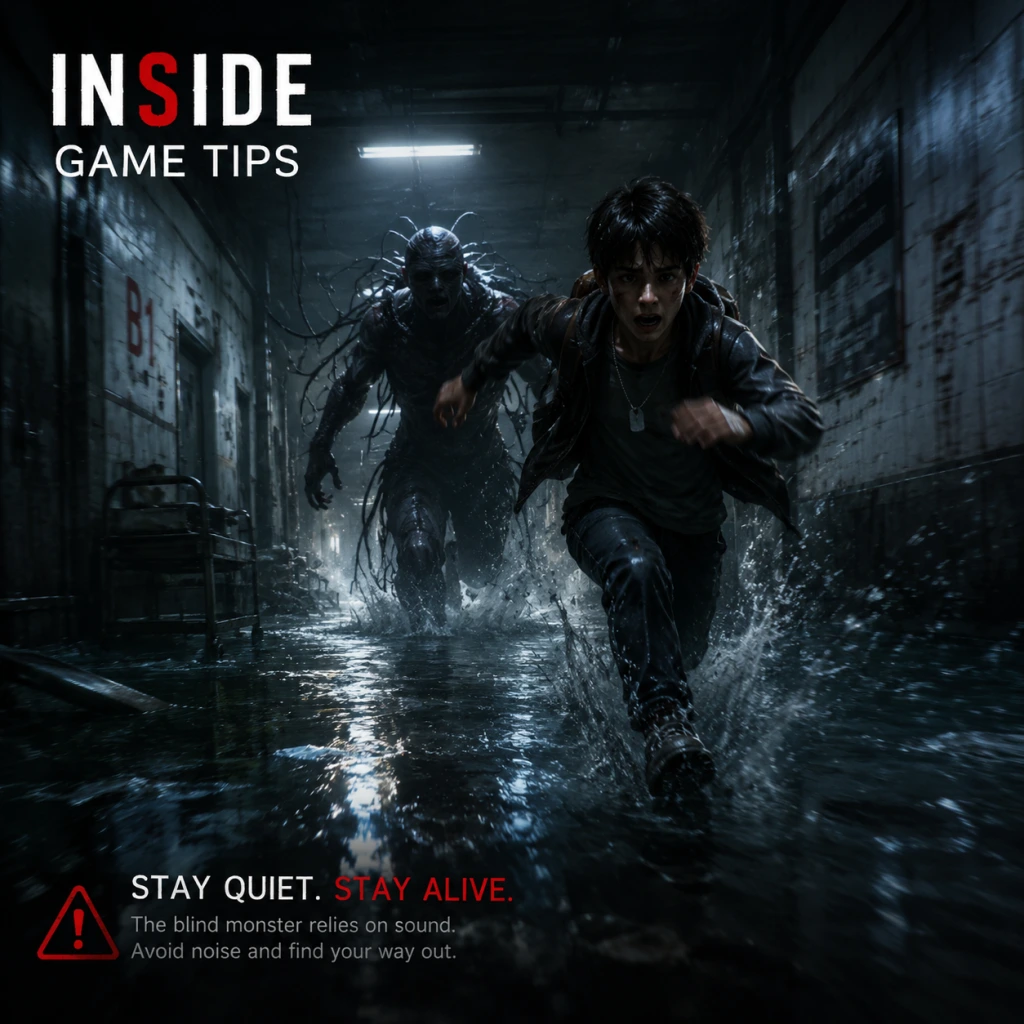
Game Tips
Game Tips for Inside
This guide provides comprehensive gameplay tips for Inside, grouped by category. Since the game has no combat, inventory, builds, or economy, the focus is on exploration, puzzle-solving, stealth, secrets, and optimization. Each tip includes a clear explanation, deeper analysis, and when to apply it.
Beginner Tips
1. Always move right, but slow down to observe
- Explanation: The game’s entire progression is linear, pushing you rightward. However, rushing leads to missed environmental clues or traps.
- Why it works: Developers placed visual cues (like a dangling rope, a subtle light, or a shadow) exactly where you need to look. Slowing down ensures you spot them.
- When to use: At every new screen transition. Pause, scan from left to right for interactive elements (ladders, levers, doors).
2. Be patient with underwater sections
- Explanation: Drowning is instant if you run out of breath. Each air pocket is placed deliberately.
- Why it works: The timing of air recharges is exactly enough to reach the next pocket if you swim directly. Panic swimming wastes oxygen. - When to use: In the submerged tunnel (Chapter 3) and the flooded factory (late game). Note the bubbles from air pipes as indicators.
3. Learn the jump and grab timing
- Explanation: The boy can grab ledges by pressing the interact button (E/Cross/A). Jumps have a fixed arc.
- Why it works: Many puzzles require precise jumps between moving platforms or grabbing a rope mid-swing. Practice the rhythm of jump + grab. - When to use: Any time you see a hanging chain, rope, or horizontal bar.
Exploration Tips
1. Check for hidden rooms behind destructible walls
- Explanation: Some walls break when rammed with objects (e.g., a crate, a tractor). These often hide secret collectibles (orbs).
- Why it works: The game uses subtle cracks or slightly different lighting on breakable walls. In later sections, you can use the mind-controlled humans or the shockwave sphere to smash them.
- When to use: After obtaining the shockwave ability (mid-game). Revisit earlier areas if possible (the game is linear, but you can backtrack to some screens before point-of-no-return).
2. Listen for audio cues
- Explanation: Many secrets are signaled by a faint hum, a heartbeat, or a distant machine sound.
- Why it works: The audio design is minimalistic. Any sound that doesn’t match the ambient noise is a hint. The most famous is the rhythmic thumping near the hidden room behind the waterfall.
- When to use: When you hear something unusual, stop and look for an interactable element (lever, hidden path).
3. Push every crate and box you see
- Explanation: Crates are the primary puzzle tools. They can be used as floating platforms, steps, or weights.
- Why it works: Every crate has a purpose, either immediately or later. Some are movable across many screens, like the crate you use to cross a gap in the forest.
- When to use: When you encounter a crate, move it with you until you are sure it’s no longer needed.
Puzzle Solving Tips
1. Observe enemy patterns before acting
- Explanation: Whether it’s a dog, a searchlight, or a guard, each enemy has a fixed patrol route or trigger area.
- Why it works: Rushing into an enemy’s line of sight causes instant death. By watching a full cycle (e.g., 3 seconds left, 2 seconds right, pause 1 second), you find the exact safe window.
- When to use: In the forest dog section, the farmhouse chase, and the water monster area.
2. Use the environment as a shield or distraction
- Explanation: The boy can hide behind objects, and certain noises (like a falling crate) can attract enemies temporarily.
- Why it works: The AI is simple: dogs are drawn to sound, guards react to movement. You can throw a crate to lure a dog away from a door. - When to use: In the industrial warehouse where guards patrol with flashlights. Throw a box in the opposite direction to create a safe path.
3. Master the shockwave mechanic
- Explanation: After the mind-control device, you can emit a pulse that stuns enemies, breaks certain walls, and activates machinery. - Why it works: The pulse has a radius and a short cooldown. It can be used offensively to stun dogs or unlock hidden paths. - When to use: In the later factory section (Chapter 5 onwards) to break concrete walls with cracks, or to stop advancing enemies to solve timing puzzles.
Stealth and Enemy Avoidance
1. Crouch and walk slowly
- Explanation: The boy can crouch (press C/right stick click) to reduce noise and visibility.
- Why it works: Some enemies (guards, dogs) only detect you if you are standing upright or running. Crouching makes you nearly invisible to searchlights as well.
- When to use: In the cornfield segment (avoiding the combine harvester), and in the indoor facility where guards have flashlights.
2. Use darkness to your advantage
- Explanation: Many areas are dimly lit. The boy blends into shadows if he stays still.
- Why it works: Enemies rely on light and motion. When you are in a dark corner and not moving, they will not spot you even if they pass nearby. - When to use: In the archive room where the giant machine scans for intruders. Stand motionless in dark spots.
3. Let the water monster pass before crossing
- Explanation: The underwater tentacle creature patrols specific areas.
- Why it works: It moves in a predictable loop. Wait until it goes far to the right, then swim quickly left. If you panic, it catches you. - When to use: In the submerged lab and the flooded tunnels.
Secrets and Collectibles
1. All 13 hidden orbs (balls) are missable
- Explanation: These glowing balls are the only true collectibles. Each unlocks an achievement and leads to the secret ending.
- Why it works: The orbs are placed in optional rooms that require creative puzzle-solving (e.g., stacking crates to reach a high ledge). Some are only accessible after gaining the shockwave ability.
- When to use: Follow a guide for exact locations, or look for suspicious areas: a gap behind a conveyor belt, a dark alcove above a ladder.
2. The secret ending requires all orbs
- Explanation: After collecting all 13, a hidden door unlocks in the final lab, revealing a different climax.
- Why it works: The orbs are tied to the game’s lore. Collecting them changes the final sequence, adding narrative depth.
- When to use: Before the point of no return (the machine that creates the shockwave sphere). Once you enter the sphere, you cannot backtrack to earlier chapters.
3. Breakable walls often hide an orb
- Explanation: After obtaining the shockwave, you can break certain walls that were previously indestructible. - Why it works: The game encourages replayability. The shockwave gives access to new areas even in earlier screens (e.g., the wall behind the tractor in the farm).
- When to use: Return to any screen with a suspicious crack after getting the shockwave.
Achievement/Trophy Tips
1. “Together Alone” (collect all orbs and get secret ending)
- Explanation: Requires all 13 orbs and then completing the game.
- Strategy: Use a video guide to avoid missing any. The most difficult orb is the one hidden in the cornfield (requires a specific time of day to access a secret path).
- Advanced: The orb in the swamp area requires you to ride a log across a lake and then jump at the right moment to grab a ledge.
2. “No Point in Dying” (complete game with 5 or fewer deaths)
- Explanation: This requires near perfection. Most deaths come from dogs, water monster, and conveyor belts.
- Strategy: Memorize all instant-death traps. Use quicksave/quickload if playing on PC (the game autosaves frequently, but you can reload manually). For console, practice each dangerous section until you can do it without failing.
- Advanced: The section with the massive water monster has the highest death risk. Learn its exact timing by watching a speedrun.
3. “The Big One” (complete the game in under 60 minutes)
- Explanation: Speedrun achievement.
- Strategy: Skip all optional rooms unless they are on the critical path. Use known shortcuts (e.g., in the farm, you can jump directly onto the tractor instead of the ladder).
- Advanced: Master the glitch-less speedrun route. The world record is around 30 minutes, but 45 minutes is attainable for beginners. Focus on minimizing hesitation.
Advanced Optimization (Speedrun/No Death)
1. Buffer your inputs
- Explanation: Hold the move key before a cutscene ends or before a door opens to gain a fraction of a second. - Why it works: The game allows input during transitions. This is crucial for speedruns.
- When to use: Right before a door opens, or when a platform is about to complete its cycle.
2. Skip the mind-control sequence animation
- Explanation: After the boy attaches the mind-control device, there is a long animation. You can skip it by pressing the interact button repeatedly. - Why it works: This saves about 10 seconds.
- When to use: Every time you see the device attach (it happens twice).
3. Use the shockwave to cancel momentum
- Explanation: When falling from a great height, you can use the shockwave to slow your descent slightly, preventing death from a long fall. - Why it works: The shockwave creates a brief upward push. Not intended but functional.
- When to use: In the section where you jump down a long shaft after the sphere pulls you. This can save a death if you misjudge.
Technical Tips
1. Adjust controller sensitivity for precise jumps
- Explanation: On console, the analog stick can be too loose. Reduce dead zone in system settings for better control.
- Why it works: The boy’s movement is binary (running vs walking). Fine-tuning helps with ledge grabs.
- When to use: Before starting the game, especially if you plan to attempt the speedrun or no-death achievements.
2. Use headphones for hidden room detection
- Explanation: Some secrets have faint audio cues (e.g., a low hum behind a wall). Speakers may not convey the direction.
- Why it works: 3D audio lets you pinpoint exactly which wall is breakable.
- When to use: During exploration for secrets.
3. Learn the skip for the cornfield tractor
- Explanation: There is a tricky jump onto a specific row of corn that bypasses the entire tractor chase.
- Why it works: This skip saves about 2 minutes and avoids a difficult segment.
- When to use: In speedruns or if you struggle with the tractor section.
By applying these tips, you will not only survive Inside but also uncover its darkest secrets and achievements. Practice each section individually to master the exact timing and pattern. Good luck!
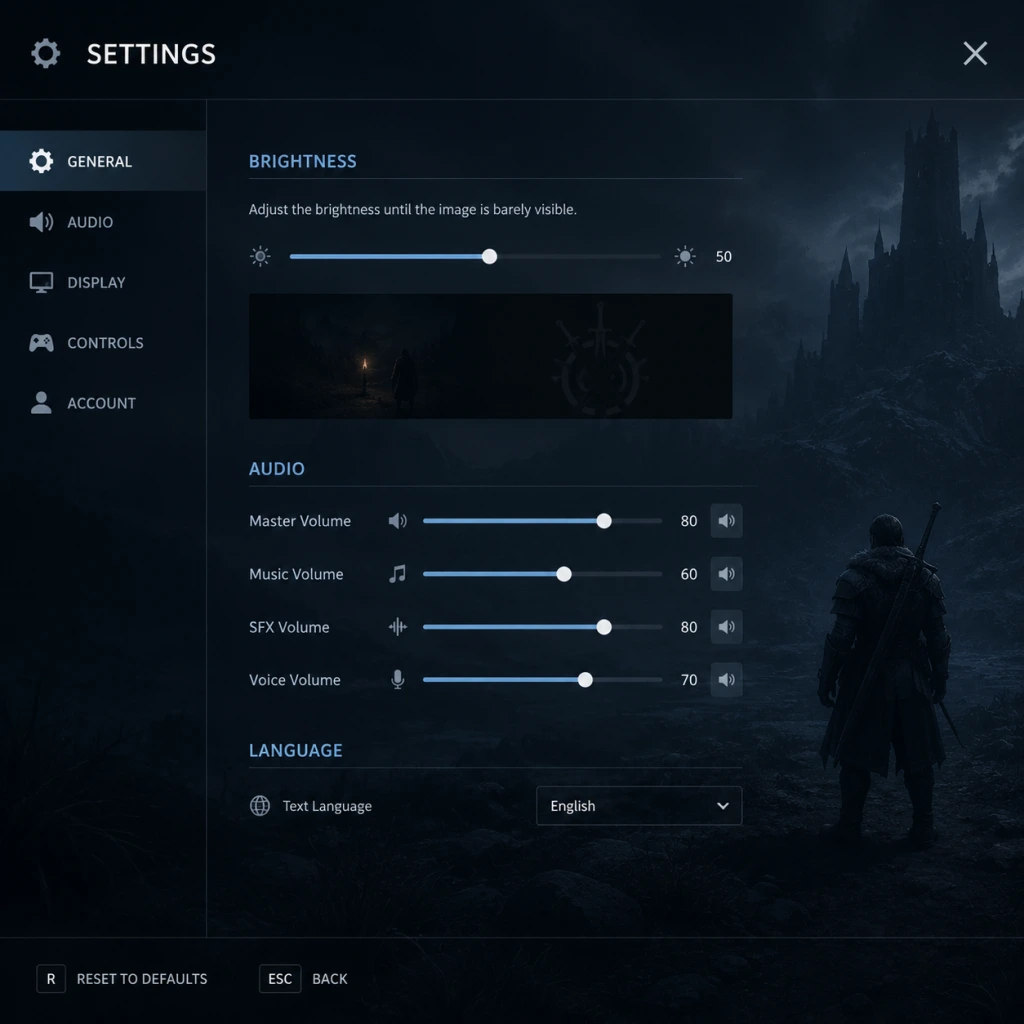
Game Settings
Game Settings Guide for Inside
Inside is a minimalist, atmospheric game with a deliberately sparse settings menu. Options are grouped under Graphics, Audio, Controls, and Language. There is no separate Accessibility menu, no Network settings (single-player offline only), and no gameplay difficulty options (the game has a fixed challenge). This guide explains each setting, recommends optimal configurations for different hardware tiers, and warns about common misconfigurations.
---
1. Graphics Settings
The Graphics menu is the most impactful for visual fidelity and performance. Inside uses a dark, muted color palette with heavy use of shadows, volumetric lighting, and post-processing effects.
| Setting | Options | Description |
|---|---|---|
| Resolution | List of supported resolutions (e.g., 1920x1080, 2560x1440, 3840x2160) | Sets the render resolution. Higher = sharper but more GPU load. |
| Display Mode | Windowed, Fullscreen, Borderless Windowed | Fullscreen offers best performance; Borderless windowed useful for multi-monitor. |
| VSync | On / Off | Synchronizes frame rate with monitor refresh rate. On eliminates screen tearing but can introduce input lag. Off gives lower latency but may cause tearing. |
| Texture Quality | Low / Medium / High / Ultra | Controls resolution of textures. High/Ultra improve detail on surfaces (wood, fabric, water). Low can make environments look blurry. |
| Shadow Quality | Low / Medium / High | Affects shadow resolution and distance. Low produces blocky shadows; High gives soft, realistic shadows. Performance impact moderate. |
| Ambient Occlusion | On / Off | Adds contact shadows where objects meet. Improves depth perception. Minor performance cost. |
| Post-Processing | On / Off | Enables bloom, depth of field, color grading, and film grain. Essential for the game's moody aesthetic. Disabling makes visuals flat. |
| Anti-Aliasing | None / FXAA / SMAA / TAA | Removes jagged edges. SMAA/TAA provide better quality. TAA may cause slight blur in motion. |
| Motion Blur | On / Off | Adds blur when camera moves. Can cause motion sickness for some players. Off improves clarity. |
| Gamma / Brightness | Slider (0.0 – 1.0) | Adjusts overall brightness. Default around 0.5. Setting too low hides details in dark areas; too high washes out contrast. |
Low-End Hardware (e.g., integrated Intel HD Graphics, GTX 750 Ti, Ryzen 3 with Vega 8)
- Resolution: 1280x720 or 1366x768
- Display Mode: Fullscreen
- VSync: On (if screen tearing bothers you)
- Texture Quality: Low
- Shadow Quality: Low
- Ambient Occlusion: Off
- Post-Processing: On (off only if desperate for FPS)
- Anti-Aliasing: FXAA (lightweight)
- Motion Blur: Off (saves a few FPS)
- Gamma: 0.5 (default)
- Expected performance: 30-60 FPS, stable at 30.
- Resolution: 1920x1080
- Display Mode: Fullscreen or Borderless Windowed
- VSync: Off (for lower input lag)
- Texture Quality: High
- Shadow Quality: Medium
- Ambient Occlusion: On
- Post-Processing: On
- Anti-Aliasing: SMAA or TAA
- Motion Blur: Personal preference (On recommended for cinematic feel)
- Gamma: 0.5
- Expected performance: 60 FPS (capped by engine, but stable).
- Resolution: 2560x1440 or 3840x2160 (4K)
- Display Mode: Fullscreen
- VSync: On (use G-Sync/FreeSync if available; otherwise Off)
- Texture Quality: Ultra
- Shadow Quality: High
- Ambient Occlusion: On
- Post-Processing: On
- Anti-Aliasing: TAA (best quality)
- Motion Blur: On (maintains intended look)
- Gamma: 0.5
- Expected performance: 60 FPS stable at 4K; 1440p may exceed 60 FPS (engine caps at 60).
- Gamma/Brightness: The default gamma (0.5) is intentionally dark. If you cannot see details in shadows (e.g., the boy's silhouette against dark backgrounds), increase gamma slightly to 0.55-0.60. Do not exceed 0.7 or contrast is lost.
- VSync: If you experience stuttering, disable VSync. If you see screen tearing, enable it. Borderless windowed mode also depends on VSync behavior of the OS (Windows DWM).
- Post-Processing: Disabling Post-Processing drastically changes the game's visual mood. Only turn it off for performance emergencies. The game was designed with bloom and depth of field.
Mid-Range Hardware (e.g., GTX 1060, RX 580, GTX 1660 Super)
High-End Hardware (e.g., RTX 2070 Super, RX 6700 XT, RTX 3080)
> Note: Inside has an engine-level frame rate cap of 60 FPS. Higher refresh rate monitors will still show 60 FPS. This is normal and part of the design for consistent physics and animation.
#### Settings to Watch Out For
---
2. Audio Settings
Audio is critical for immersion and puzzle clues. Settings are straightforward.
| Setting | Options | Description |
|---|---|---|
| Master Volume | Slider (0-100) | Overall volume. Default 70. |
| Music Volume | Slider (0-100) | Background music. Default 100. |
| SFX Volume | Slider (0-100) | Sound effects (footsteps, machinery, puzzles). Default 100. |
| Voice Volume | Slider (0-100) | N/A in Inside – no voices. Slider present but ineffective. |
| Subtitles | On / Off | Displays subtitle text for environmental sounds and ambient dialogue (very minimal). |
- Master Volume: 70-80 for balanced experience. Turn down if using headphones due to sudden loud sound effects (e.g., water splashes, dog barks).
- Music & SFX: Keep both at 100 relative to master. The atmospheric score and environmental sound design are integral.
- Subtitles: On recommended for first playthrough. Subtitles occasionally provide textual hints (e.g., "[distant shouting]") that can alert you to upcoming threats.
- Voice Volume does nothing because there are no spoken lines. Do not waste time adjusting it.
- Subtitles Off: New players often miss subtle audio cues for puzzles. Keep subtitles on to catch translations of non-verbal sounds (e.g., dog barks indicate proximity).
#### Easy Misconfiguration
---
3. Controls Settings
Inside uses minimal controls: move, interact, and a few actions. Platform-specific buttons differ.
| Setting | Options | Description |
|---|---|---|
| Keyboard/Mouse | Customizable key bindings | Remap movement (WASD default), Interact (E), Run (Shift), Pause (Esc). |
| Controller Layout | Presets (Xbox, PlayStation, Generic) | Choose button prompts matching your controller. Only changes on-screen icons. |
| Invert Y-Axis | On / Off | Inverts vertical camera control (camera is auto-scrolling, so this rarely matters). |
| Controller Vibration | On / Off | Controller rumble (e.g., when drowning, dog attacks). |
| Mouse Sensitivity | Slider | Only affects cursor in menus; not used in gameplay. |
- Keyboard: Default is fine. Consider rebinding Interact to a nearby key (e.g., F or Space) if you find E awkward.
- Controller: Use Xbox or PlayStation layout. The game is very playable on controller; analog movement improves precision for puzzles.
- Invert Y-Axis: Keep Off. Camera is not player-controlled.
- Controller Vibration: On – adds tactile feedback for danger (e.g., heartbeat when drowning). Off if you dislike rumble.
- Mouse Sensitivity: Irrelevant unless you use mouse to navigate menus. Leave default.
- Button Mapping: The Interact button is used for grabbing objects, pulling levers, and climbing. Make sure it is easy to press repeatedly (e.g., hold to drag). On keyboard, avoid using a key that conflicts with movement.
- Controller Dead Zones: There is no dead zone adjustment. If analog stick drifts, the game may register unintended movement. Check controller calibration in OS or consider using a newer controller.
#### Special Attention Points
---
4. Language Settings
| Setting | Options | Description |
|---|---|---|
| Language | List of available UI languages (English, French, German, Spanish, Italian, Japanese, Korean, Portuguese, Russian, Simplified Chinese, Traditional Chinese) | Changes menu text and subtitles (if enabled). |
- Choose your preferred language. The game has minimal text (menus, subtitles). Language does not affect gameplay.
- Changing language mid-game is safe. However, if you switch to a language you don't read, you may struggle to find settings again. Remember the approximate positions: Graphics is usually the first tab, Audio second, etc.
- Colorblindness: No colorblind modes. The game uses contrast (light vs dark) heavily, so most puzzles are accessible to colorblind players. Brightness adjustment can help.
- Difficulty: No difficulty settings. The game is linear and death is common (quick reloads). Persistence is the only mechanic.
- Motion Sickness: Disable Motion Blur in Graphics settings. Also keep Post-Processing On (the depth of field and bloom are not violent). If still nauseated, limit play sessions to 30 minutes.
- Hearing Impairment: Enable Subtitles (Audio settings). They provide text for ambient sounds, but do not convey all audio cues (e.g., direction of dog barks). Consider using headphones.
- One-Handed / Limited Mobility: The game can be played with one hand if you map Interact to a mouse button (e.g., left click) and movement to directional keys. Controller may be easier with one hand (using left analog stick and face buttons).
- Save System: The game auto-saves frequently at checkpoints (shown by a subtle white flash in the top-right corner). You cannot manually save or load earlier saves.
- Do not disable Post-Processing deliberately. The visual style is the core of the game.
- If performance is poor, first lower Shadow Quality and Texture Quality before touching Anti-Aliasing or Post-Processing.
- VSync: If you have a variable refresh rate monitor (G-Sync/FreeSync), leave VSync Off and cap FPS via GPU driver (e.g., Nvidia Control Panel) to avoid tearing.
- Game Crashes? Verify file integrity (Steam: right-click game > Properties > Local Files > Verify). If on Game Pass, reinstall. Also update graphics drivers.
#### Easy Misconfiguration
---
5. Accessibility Features
Inside has no dedicated Accessibility menu. The following workarounds exist:
---
6. Network / Multiplayer Settings
Inside is a single-player offline game. There are no network settings, no online connectivity, no multiplayer, and no DRM that requires internet. The game does not save to cloud unless your platform handles it (Steam Cloud). No configuration needed.
---
7. Gameplay Settings
There are no gameplay settings in Inside. The game has no difficulty levels, no tutorial toggle, no hints system, and no assist modes. Everything is fixed. The only configurable gameplay-related option is the in-game pause menu (Esc or Start), where you can save and quit.
---
Quick Setup Checklist for New Players
1. Graphics: Start a new game. Adjust gamma until you can clearly see the boy's silhouette against the first dark background. If you see a logo disappear into black, gamma is likely too low.
2. Audio: Ensure subtitles are ON.
3. Controls: Try both keyboard and controller. Pick whichever feels natural. Remap if needed.
4. Language: Confirm it's set to your preferred language.
5. Play: Enjoy the immersion. Resist temptation to tweak settings further during gameplay.
---
Final Tips
Inside is a polished, low-budget game that runs well on most hardware. The settings menu is intentionally minimalist; trust the defaults unless you have a specific issue.
Important Notes
Important Notes for Inside
This page consolidates essential warnings, pitfalls, and tips that players often wish they had known before starting Inside. Because the game is deliberately minimalist, many surprises—both good and bad—are best understood in advance.
###
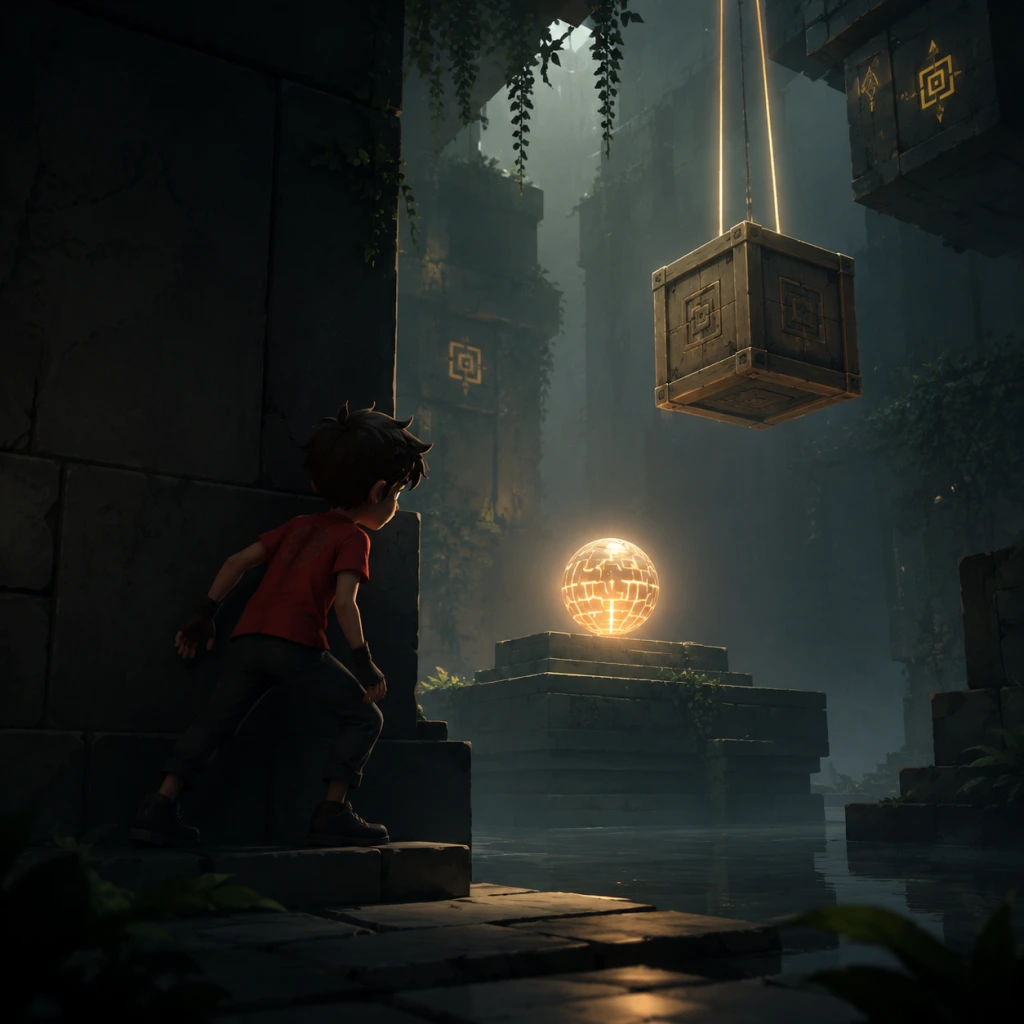
All Game Items
All Game Items in Inside
Inside has no traditional inventory, weapons, armor, consumables, or currencies. Instead, the game features a series of environmental objects, contraptions, vehicles, and collectibles that serve as puzzle-solving tools or story elements. Below is a comprehensive, spoiler-minimal breakdown of every major interactive element, grouped logically.
---
1. Environmental Objects & Interactive Elements
These are the primary tools you use to navigate and solve puzzles. None can be carried; all must be used in their immediate context.
| Object | How to Obtain / Where Found | What It Does | When Useful | Synergies / Upgrades |
|---|---|---|---|---|
| Wooden Boxes | Scattered throughout the world; often found in stacks or near ledges. | Push or pull to create platforms, block hazards (e.g., water jets, electric floors), weigh down pressure plates, or reach higher areas. | Essential for vertical navigation and many puzzles. Can be stacked up to 2 or 3 high. | Combine with water currents to create floating bridges; use with levers to hold them in position. |
| Levers & Switches | Mounted on walls, machinery, or ground level. | Pulling a lever rotates gears, opens doors, redirects water, activates conveyors, or disables hazards. | Required to progress through every area. Often paired with a timer (auto-reset) or a weight-based switch. | Some levers need to be held down (using boxes) or timed with moving platforms. |
| Pressure Plates | Floor panels that sink when something heavy (box, vehicle, or you) stands on them. | Activate doors, turn on/off water pumps, or raise/lower bridges. | Critical for puzzles where you need to reach a switch while keeping the plate depressed. | Use boxes or a vehicle (e.g., the mechanical suit) to keep the plate pressed while you run to the next area. |
| Water Currents & Pipes | Found in flooded sections and drainage systems. | Swimming against currents is challenging; breakable pipes can flood or drain rooms. | Used to flush out obstacles, raise floating objects, or create new pathways. | Boxes float and can be pushed along water currents to reach higher ledges. |
| Electric Panels & Discharge Points | Glowing, sparking machines that emit a deadly charge. | Touching them kills instantly. Can sometimes be neutralized by water or by pulling a nearby plug. | Hazards to avoid; some puzzles require resetting power by cutting a cable. | The shockwave device (see below) can temporarily disable certain electric fields. |
| Conveyor Belts & Moving Platforms | Found in industrial sections. | Carries objects or you in one direction; speed can be toggled by levers. | Used to transport boxes over gaps or to reach timed switches. | Jump off mid‑ride to reach hidden ledges. |
| Destructible Walls & Flooring | Flimsy barriers that break when struck by a heavy object (e.g., a box or the mechanical suit). | Open hidden rooms, secret paths, or shortcuts. | Critical for the secret ending path. | Requires a ramming object—e.g., a dropped box or a vehicle charge. |
2. Vehicles & Control Devices
These are “items” you temporarily operate, similar to equipment in other games.
#### a) Submarine (Dive Craft)
- How to Obtain: Found in a pool of dark water after the first underground section. You enter it by swimming inside.
- What It Does: Allows underwater movement and breathing. Has a spotlight that illuminates dark areas. Can dive deeper by tilting the analog stick.
- When Useful: Navigate flooded tunnels, outrun pursuing creatures, and access the deep sections near the game’s midpoint.
- Synergies: The spotlight can be used to distract enemies or reveal hidden passages. The submarine is resistant to some water currents.
- Note: The submarine is automatically abandoned when you reach a specific airlock.
- How to Obtain: Found in a hidden side room inside a building; you climb into a metallic exoskeleton.
- What It Does: Grants increased strength, wall-punching ability, and a ground-pound shockwave that stuns enemies and breaks weak floors. Also provides protection against some electric shocks.
- When Useful: Used in the secret ending sequence, enabling access to areas normally unreachable. The shockwave can also disable certain electric fields temporarily.
- Synergies: Use the ground pound to destroy boxes, break glass, or reveal hidden collectibles. The suit’s weight holds down pressure plates.
- How to Obtain: In a later section, you attach a parasitic organism that controls the minds of other humans.
- What It Does: Allows you to remotely control NPCs (workers) to walk, stand, or pull levers for you. The controlled NPC is vulnerable to hazards (e.g., dogs, water, electricity) and will die if mistreated.
- When Useful: Required to solve multi‑character puzzles—one player character plus one or two mind‑controlled helpers.
- Synergies: Must be used with pressure plates, levers, and other environmental elements. Losing a controlled NPC forces a reload from the last checkpoint.
#### b) The Shockwave Device (Mechanical Suit / “Big Suit”)
#### c) Mind Control Helmet (Worm-like Parasite Device)
---
3. Collectibles (Hidden Orbs / “Secret Orbs”)
These are the only true collectibles in Inside. They have no gameplay effect but are required to unlock the secret ending.
| Item | How to Obtain | Location Hints | Count | Reward |
|---|---|---|---|---|
| Golden Orb (also called “Orb of Light” or “Hidden Orb”) | Found in secret rooms, behind destructible walls, or in obscure corners. | Each orb is tied to a specific secret; you must deviate from the main path. Some require precise timing while holding boxes or using vehicles. | 15 in total (though many guides say 10 or 12; the definitive count is 15 on current versions). | Collecting all 15 unlocks a hidden underground bunker and a final cutscene (the “secret ending”). |
Important: You can collect them at any point and they persist after death. A dedicated “secrets” achievement/trophy exists on all platforms.
---
4. NPCs & Enemies (Utility Items for Puzzles)
While not items you carry, you interact with them as if they were tools.
| Entity | Description | How to Use | Hazard / Benefit |
|---|---|---|---|
| Guard Dog | Aggressive canine that appears in the first half. | Lure it into traps (e.g., crushing doors, electric panels) to eliminate it. | Threat; bites kill instantly. Once dead, it can be used as a weight (e.g., placed on a pressure plate). |
| Mind‑Controlled Workers | Helpless humans you can control with the parasite headset. | Walk them to levers, platforms, or sacrificial positions. | Essential for certain puzzles. Can be killed by hazards, which resets the puzzle. |
| Suspended Corpses (background element) | Hanging bodies in some rooms. | Not interactive; purely atmospheric. | N/A |
5. Key Environmental Hazards That Also Serve as “Items”
| Hazard | Effect | Puzzle Use |
|---|---|---|
| Water Jets | Push objects or you upward. | Use to launch boxes or yourself over gaps. |
| Wind Fans | Strong horizontal air streams. | Blow floating objects or your character sideways. |
| Drowning Water | Instantly kills if submerged too long. | Must be avoided or drained via pipe puzzles. |
| Electric Floor Panels | Fatal on contact. | Can be turned off with a lever, or neutralized by water. |
| Rotating Blades | Insta‑kill. | Time your passage to avoid them. |
6. Currencies & Consumables
None exist. Inside has no health bars, ammo, money, or crafting materials. The only “resource” is your ability to die and respawn at the last checkpoint (which is generous).
---
7. Upgrades & Synergies Summary
All upgrades are optional and hidden:
| Upgrade | Required Item / Action | Effect |
|---|---|---|
| Shockwave Device | Find the mechanical suit in the laboratory. | Enables breaking walls and stunning enemies. |
| Mind Control Parasite | Attach the worm in the flooded area near the end. | Remotely control humans. |
| Secret Ending | Collect all 15 hidden orbs. | Unlocks a new zone and additional cutscene. |
Note on “Items” Definition: Because Inside is a narrative‑driven puzzle game with no inventory system, the above list encompasses every tangible element you can interact with. There are no swords, potions, keys, or currency. Every object functions solely as a puzzle piece.
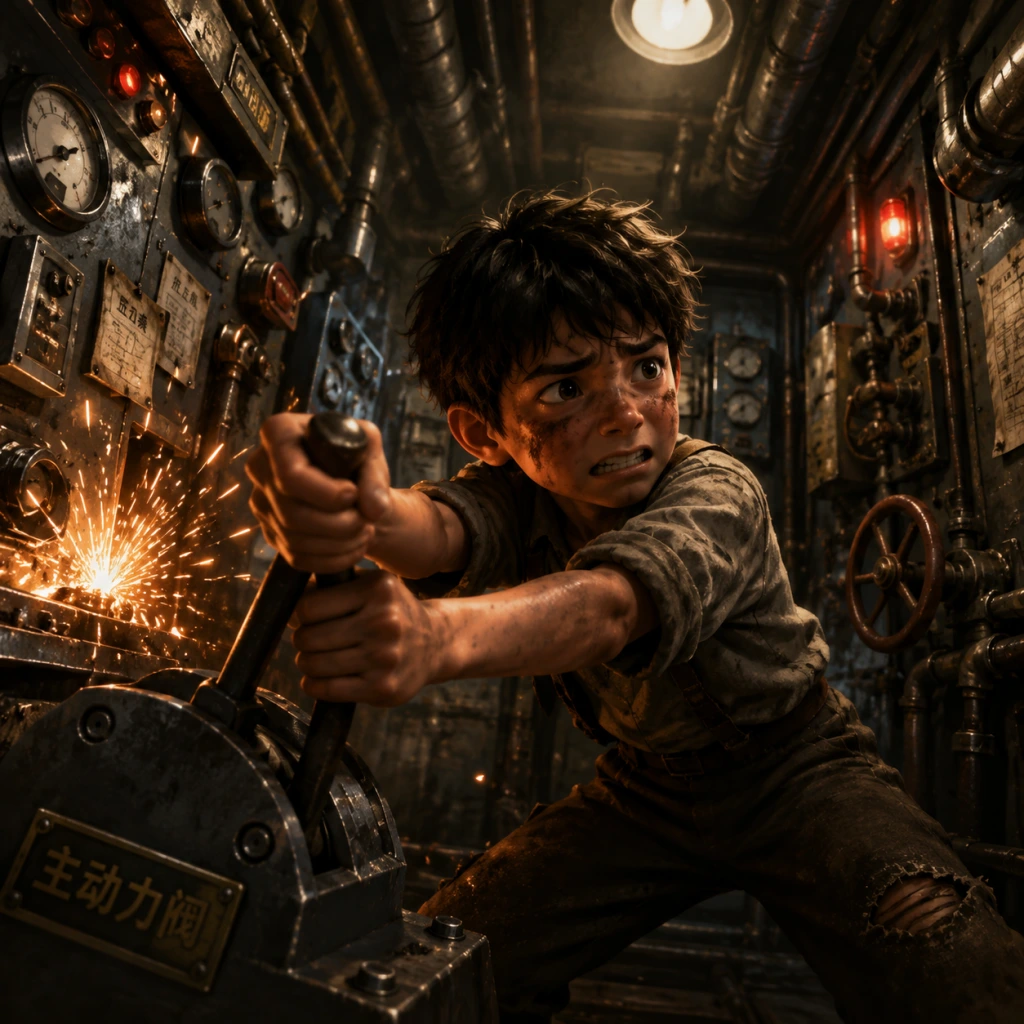
Character Skills
Character Skills in Inside
Inside features a single playable character: a nameless young boy. Unlike traditional RPGs or action games, the boy has no skill trees, levels, experience points, cooldowns, consumables, or upgradeable abilities. Instead, all abilities are intrinsic to the character from the start and are unlocked only by progression through the game environment. This guide details every distinct action or state the boy can perform, treating each as a “skill” for completeness.
Core Movement Skills
| Skill | Description | Platform Notes | Upgrade / Cooldown |
|---|---|---|---|
| Walk | Default movement. Speed is constant; there is no run button. Walking is silent but can alert dogs or searchlights. | Analog stick or D-pad; PC uses A/D or arrow keys. | Not upgradeable. No cooldown. |
| Run | Hold the sprint button (Shift on PC, left stick click on console) to run. Faster but louder; attracts enemies and triggers certain traps. | Supported on all platforms. | No upgrade. Use briefly to avoid timed hazards. |
| Jump | Press jump button (Space on PC, A on Xbox, Cross on PS, B on Switch). The boy has a fixed, short jump height. No double jump or wall jump. | Same across all versions. | Cannot be upgraded. Use for platforms, gaps, and hanging. |
| Climb | Automatically triggers when reaching a ladder, ledge, or rope. Boy can climb up/down ladders, shimmy along ledges, and hang from ropes. | No special input needed near climbable surfaces. | No cooldown. |
| Swim | Enter water to switch to swimming. Boy can swim in any direction but has limited lung capacity (see Holding Breath). | Press jump while underwater to swim upward. | Lung capacity is fixed (about 20 seconds). No upgrade. |
| Crouch | Hold crouch button (Ctrl on PC, down directional on some platforms) to lower profile. Useful for sneaking under low obstacles and hiding from searchlights. | Some puzzles require crouching to fit through vents. | No cooldown. |
Interaction Skills
| Skill | Description | Use Cases | Special Notes |
|---|---|---|---|
| Push/Pull Objects | Hold interaction button (E on PC, X on Xbox, Square on PS, Y on Switch) near movable objects like boxes, carts, or boats. Boy can push or pull slowly. | Solving physics puzzles, creating platforms, blocking water or hazards. | Boy cannot push objects larger than himself; some objects require multiple pushes. No upgrade. |
| Use Levers / Switches | Approach a lever or switch and press interaction. Levers toggle instantly; no hold required. | Opening doors, activating cranes, turning off machinery. | Most levers are one-time or reset after a timed sequence. |
| Hold Breath | While underwater, the boy automatically holds his breath. A visible bubble gauge shows remaining air. Pressing no action prolongs holding; surfacing refills gauge instantly. | Swimming through submerged passages, avoiding underwater obstacles. | If gauge empties, boy drowns and restarts from last checkpoint. No upgrade. |
| Hide | In dark areas or behind cover (tall grass, boxes, shadows), the boy is invisible to enemies. No button needed; simply stand still in concealment. | Evading dogs, searchlights, or human guards. | Some enemies can detect you even in cover if you move too quickly. |
| Sprint (Vehicle) | While driving the submarine-like aquatic vehicle, hold sprint to move faster but with increased noise (attracts enemy fish) and limited fuel (shown as a bar). | Escaping the giant eel, navigating flooded labs. | Fuel regenerates slowly when not sprinting. No upgrade. |
Special Abilities (Unlocked Through Progression)
These are not skills in the traditional sense but puzzle mechanics that function as temporary or permanent abilities for specific sequences.
#### The Mind-Control Helmet
- How to Obtain: Near the end of the game, the boy dons a mind-control helmet that allows him to interface with a giant, fleshy humanoid (the “blob”).
- Effect: The boy and the blob are linked. The boy can move the blob by moving himself. The blob can: break walls, smash glass, lift heavy objects, and climb. The boy remains vulnerable and must avoid damage while controlling the blob.
- Cooldown: The link is permanent once established. There is no manual disconnect. The blob cannot act independently.
- Upgrades / Special Moves: None aside from environmental interactions (smashing, lifting, climbing). The blob also has a “slamming” action when falling from heights.
- Combo / Synergy: The boy can use the blob to reach high ledges or solve puzzles requiring brute force. No direct combat synergy.
- How to Obtain: Found in a deep underwater section. The boy sits inside a small submersible with a propeller.
- Effect: Allows fast underwater movement and can break weak obstacles. Has a limited fuel gauge for sprinting (used to escape the giant eel).
- Cooldown: Fuel recharges when not sprinting. No manual refill.
- Upgrades: None. The vehicle is single-use for that section; you exit it and cannot return.
- While wearing the helmet: The boy controls the blob from a distance. The blob can be moved like a character (running, jumping, climbing, smashing). It is immune to drowning but can be killed by certain environmental hazards (e.g., electrical shocks).
- Special Action: The blob can lift and throw objects (including explosive barrels) – done by interacting with an object while near it.
- Cooldown: None for actions, but the blob takes time to return to the boy if separated. If the blob is killed, the boy must restart from checkpoint.
- Default playstyle: Use all movement abilities as needed. No combat, so no offensive build.
- Stealth focus: Crouch often, move slowly, hide in shadows. Dogs require patience; wait for them to turn away.
- Speedrun approach: Run past enemies when possible, but many areas force stealth. Memorize timed sequences.
- Underwater segments: Hold breath and navigate carefully. Use sprinting only when chased.
#### Underwater Propeller Vehicle
#### The Blob (Controlled)
Builds / Recommended Loadouts
Inside does not have builds or loadouts. The only “choice” is how you approach each puzzle. The following guidelines will help you:
Synergies & Combos
Because the game is linear and puzzle-based, there are no skill combos. However, certain sequences require chaining abilities:
| Sequence | Required Abilities | Notes |
|---|---|---|
| Water puzzle with boxes | Swim + Push/Pull + Jump | Push a box into water, jump on it, then swim under a gate. |
| Mind-control blob + platforming | Climb + Smash + Lift | Use blob to break wall, then climb on blob to reach high ledge. |
| Escaping the eel | Sprint (vehicle) + Navigation | Sprint only when eel is close; conserve fuel. |
When to Use Each Skill
- Walk – default state for most puzzles. Use when you want to be quiet.
- Run – only in narrow time windows (e.g., escaping collapsing platforms, outrunning an enemy that cannot be avoided).
- Jump – for gaps, climbing onto ledges, avoiding ground-level hazards.
- Climb – whenever a ladder, ledge, or rope is present. Automatically triggered.
- Swim – when water blocks your path. Always check for air pockets.
- Crouch – under low ceilings or when sneaking past searchlights.
- Push/Pull – for nearly every physical puzzle. Experiment with direction and distance.
- Use Lever – as soon as you see one; they usually solve a nearby puzzle.
- Hold Breath – only underwater. Surface often to avoid drowning.
- Hide – whenever an enemy appears. Stand still in dark/cover until they pass.
- Sprint (vehicle) – only when pressed, to recharge fuel.
- Mind-control blob actions – use smash to break obstacles, lift to move heavy items, climb to reach high areas. Direct the blob by moving yourself – it mirrors your position.
Tips for Mastering Abilities
1. Jump timing matters: The boy’s jump is short and fixed. Some platforms require pixel-perfect jumps – practice near save points.
2. Swimming and air: Memorize locations of air pockets. If you see a bubble trail, follow it – it leads to air.
3. Sound attracts enemies: Running on metal grating or pushing metal carts makes noise. Walk on dirt/grass when possible.
4. The blob is slow but strong: Do not rush controlling it. Position carefully before smashing walls.
5. No skill points, no XP: Everything is unlocked by progression. If you cannot do something, you likely haven’t reached that point yet.
Conclusion
While Inside lacks traditional character skills, every action the boy performs is essential to survival and puzzle-solving. Mastering these basic movements and special abilities is the key to completing the game. There are no builds, no upgrades, no cooldowns – just precise timing and environmental awareness. Use this guide to understand the full repertoire of the boy, and you will be prepared for every challenge the game throws at you.
Characters & Roles
Characters & Roles in Inside
Inside is a minimalist narrative-driven game with no traditional character classes, skill trees, or unlockable heroes. The game features a single primary playable character—a nameless young boy—alongside several key non-playable characters (NPCs) and environmental entities that serve specific roles in puzzles and storytelling. This guide covers every major character and “role” present in the game, describing their background, strengths, weaknesses, playstyle (where applicable), unlock conditions (all story-progression-based), and any team synergy.
---
1. The Boy (Primary Protagonist)
The silent, red-shirted boy is the only character directly controlled by the player for the majority of the game. He has no name, backstory, or dialogue. The player’s entire experience is filtered through his movements and interactions.
- Background: Unknown. The boy appears from the left side of the forest, fleeing from unseen pursuers. His motivation is progression to the right, deeper into a dystopian industrial complex. The game hints that he may be an escapee from a facility or a volunteer in a secret experiment.
- Strengths:
- Weaknesses:
- Playstyle: Stealth-puzzle platformer. The boy moves primarily to the right, solving environmental puzzles while avoiding detection and instant death. No combat—patience and timing are key.
- Unlock Condition: Available from the start of the game. No unlock required; the player begins controlling the boy after the title screen.
- Recommended Equipment: None. The boy uses no equipment; all interactions are with environmental objects (levers, boxes, vehicles).
- Team Synergy: The boy works alone for most of the game. In the final section, he merges with a mass of bodies and gains limited control over other humans (see “The Horde” below).
- Background: Spawned from a failed experiment, this mass is the culmination of many human subjects absorbed into one living entity. The boy becomes the “leader” of this horde at the end.
- Strengths:
- Weaknesses:
- Playstyle: Controlled destruction. The player guides the horde forward, absorbing humans and smashing barriers. Stealth is still required to avoid searchlights.
- Unlock Condition: Reached near the end of the game, after the laboratory sequence where the boy is subsumed. No optional unlock.
- Recommended Equipment: None; the horde uses its own mass as a weapon.
- Team Synergy: The horde itself is a team—it grows stronger by adding more humans. The boy remains the core consciousness.
- Background: Likely trained by the regime to track escapees and intruders. They appear early in the forest and later in the facility.
- Strengths:
- Weaknesses:
- Playstyle: Encountered in stealth sections. The boy must avoid being seen or heard. Use environmental traps to dispatch them (e.g., dropping a box on a dog, closing a door).
- Unlock Condition: N/A (enemy, not playable). They appear from Chapter 2 onward.
- Team Synergy: None; they are solo hunters.
- Background: Employees or soldiers of the oppressive facility. They appear in two varieties: flashlight-wielding hunters (early-mid game) and helmeted soldiers with shockwave weapons (mid-late game).
- Strengths:
- Weaknesses:
- Playstyle: Stealth challenges. The boy must avoid detection, use shadows and obstacles, and trigger distractions. No direct confrontation possible.
- Unlock Condition: N/A (enemy). They appear from Chapter 3 onward.
- Team Synergy: They work in pairs sometimes; one shockwave soldier often covers an exit.
- Background: Prisoners or test subjects kept alive underwater, possibly for organ harvesting or mind control experiments.
- Strengths: None (non-interactive).
- Weaknesses: None (cannot be harmed by the boy).
- Playstyle: Observational only; they serve as environmental storytelling. No gameplay effect.
- Unlock Condition: Seen in specific sections (like the underwater research area). Not playable.
- Team Synergy: N/A.
- Background: Factory workers enslaved by the helmet’s signal. They shuffle along mindlessly until the boy takes control.
- Strengths:
- Weaknesses:
- Playstyle: Puzzle-solving via mind control. The boy must herd workers into position, use them as movable platforms, and sacrifice them if necessary to progress.
- Unlock Condition: Acquired in the late game after exiting the water facility, when the boy finds a sonic helmet on a dead scientist.
- Recommended Equipment: Only the sonic helmet (which is a story item, not optional).
- Team Synergy: The boy controls multiple workers simultaneously, forming a temporary “team.” This is the closest the game gets to party mechanics. Losing workers can make puzzles impossible; careful management is required.
- Background: Military-grade enforcers, possibly the next evolution of the guards. They are immune to the boy’s basic tricks.
- Strengths:
- Weaknesses:
- Playstyle: Pure stealth. Avoid detection at all costs; no way to kill them. Use shadows and timed movements.
- Unlock Condition: N/A (enemy). Appears from Chapter 5 onward.
- Team Synergy: Sometimes two shockwave soldiers patrol a corridor together; the boy must find a gap.
- Background: Employees of the facility conducting unethical experiments.
- Strengths: None (fleeing).
- Weaknesses: None in gameplay terms; they are purely decorative until the horde section.
- Playstyle: Observational only.
- Unlock Condition: N/A.
- Team Synergy: Can become part of the horde.
- Background: The merged entity after escaping the facility. It seems to have reached the outside world but is severely weakened.
- Strengths: None (static).
- Weaknesses: Immobile; appears to be dying.
- Playstyle: Non-interactive cutscene.
- Unlock Condition: After completing the game.
- Team Synergy: N/A.
- Mobility: Can run, jump, climb, shimmy along ledges, swim, and pull/push objects.
- Swimming: Extended underwater breath-holding ability; capable of swimming through long underwater passages.
- Crouching & Hiding: Can hide behind objects and in darkness to avoid pursuers.
- Levers & Controls: Can activate switches, pull levers, and operate machinery (including vehicles).
- Fragile: Dies instantly from any major hazard: gunfire, dog attacks, electric shocks, deep water (if breath runs out), crushing, drowning, being shot by hunters, or the shockwave from helmeted soldiers.
- No Combat: Cannot fight back directly. Must rely on stealth, evasion, and puzzle solving to survive.
- Limited Interaction: Cannot break obstacles or interact with most objects unless specifically designed for puzzle solving.
---
2. The Horde (Final Transformation) [Role: Endgame Controllable Entity]
After a climactic sequence in the laboratory, the boy is absorbed into a writhing, fleshy mass of human bodies. The player then controls this giant blob as it breaks through the facility.
- Immense Size: Can crush obstacles, smash through walls, and break glass.
- Controllable Units: Can absorb and command additional humans (scientists and workers) who fall into the mass, adding to its bulk.
- High Health: Takes multiple hits from scientists’ weapons before dissolving.
- Slow: Moves sluggishly compared to the boy.
- Vulnerable to Light: Paralyzed by bright searchlights; must avoid or destroy light sources.
- Cannot Jump: Only moves horizontally; cannot climb or swim.
- Dissolves in Water: Contact with deep water causes the mass to dissolve and die.
---
3. The Dogs (Enemy: Hunter)
Aggressive guard dogs are encountered early in the game. They can sniff out the boy and chase him relentlessly.
- Speed: Faster than the boy when running in a straight line.
- Tracking: Can follow the boy’s scent; even if hidden, they will search the area.
- Instant Kill: Bites kill the boy instantly.
- Limited Intelligence: Can be fooled by breaking line of sight and hiding in darkness or boxes.
- Pinned by Objects: Can be trapped under falling boxes or doors.
- Drowning: Can be lured into deep water (the boy can swim, dogs cannot).
---
4. The Hunters (Enemy: Armed Guards)
Human enemies who will shoot the boy on sight. They carry flashlights and patrol fixed routes.
- Ranged Attack: Flashlight hunters shine a beam that instantly kills the boy if it touches him? (Actually, the flashlight itself doesn’t kill—but the hunters will shoot if the boy is illuminated. The light reveals him, then they shoot. In practice, being caught in the beam is fatal because the hunter fires.)
- Shockwave Soldiers: Emit a sonic blast that kills the boy instantly if within range.
- Pursuit: Once alerted, they chase the boy.
- Patterened Patrol: Follow fixed paths; the boy can predict and sneak past.
- Distractable: Can be drawn away by noise (e.g., using a lever to create a distraction).
- Falls: Can be pushed off platforms (rare opportunity).
- Blindness to Darkness: Cannot see in pitch-black areas; the boy can hide in shadows.
---
5. The Submerged People (Environment/Mysterious Entities)
Throughout the game, the boy occasionally encounters human-like figures submerged in water tanks or bound to machinery. They are not interactive but contribute to the eerie atmosphere.
---
6. The Mind-Controlled Workers (Controllable Humans via Sonic Device)
In a late-game sequence, the boy obtains a sonic helmet that allows him to control the movements of other human workers. These workers are used to solve puzzles.
- Obey Commands: Will walk left/right in response to the boy’s direction.
- Stand on Platforms: Can be used as stepping stones to reach high ledges.
- Hold Objects: Can be made to hold down a switch or block a sensor.
- Fragile: They die instantly if crushed by heavy objects or drowned. If one dies, it cannot be replaced (limited quantity in each area).
- Limited AI: Only move horizontally; no climbing or swimming.
- Control Range: The boy must be within a certain radius to maintain control; as soon as he leaves the area, the workers revert to idle.
---
7. The Blob (Single Large Entity) [Duplicated/Clarified: This is the same as “The Horde” but sometimes considered separately as a transitional form. We’ll treat them as one entry.]
(Already covered above under “The Horde.”)
---
8. The Helmeted Shockwave Soldiers (Elite Enemy)
A more advanced enemy type that appears in the agricultural/laboratory sections. They wear full-body armor and carry a device that emits a deadly pulse.
- Shockwave Attack: A circular blast radius that kills instantly. Can be triggered manually or automatically if the boy is detected.
- Armored: Cannot be harmed by any environmental means (the boy can’t push them off ledges).
- Pursuit: Once alerted, they will chase and shockwave.
- Slow: They walk methodically; the boy can outrun them.
- Blind in Darkness: Same as other hunters; hiding in complete darkness works.
- Single Path: Each shockwave soldier has a fixed route; the boy must time movement when they turn away.
---
9. The Scientists (Non-Interactive / Background)
White-coated researchers seen in the laboratory sections. They are not hostile but will flee if the boy approaches. They can be absorbed by the horde later.
---
10. The Final Blob (Post-Credits Entity) [Epilogue]
During the credits, the blob is shown lying on the beach, twitching. Its ultimate fate is ambiguous.
---
Summary Table of Major Characters/Roles
| Name / Role | Type | Unlock Condition | Key Ability | Weakness |
|---|---|---|---|---|
| The Boy | Protagonist (playable) | Start of game | Run, jump, swim, interact | Fragile, no combat |
| The Horde | Endgame entity (playable) | Late game (laboratory) | Absorb humans, smash barriers | Slow, weak to light, dissolves in water |
| Dogs | Enemy (non-playable) | Chapter 2+ | Fast tracking, instant kill | Fooled by darkness, can be trapped |
| Hunters (Flashlight) | Enemy | Chapter 3+ | Ranged shoot, chase | Patterned patrol, can hide |
| Shockwave Soldiers | Elite Enemy | Chapter 5+ | Lethal blast = instant kill | Slow, blind in dark |
| Mind-Controlled Workers | Puzzle tool (controlled) | Late game (helmet) | Move as directed, stand on platforms | Fragile, limited numbers |
| Submerged People | Background entity | Throughout | None | None |
Final Note
Inside deliberately avoids traditional RPG character mechanics. There are no classes, builds, or unlockable heroes. The boy is the only true protagonist, and the other “characters” function as obstacles, tools, or narrative symbols. This guide respects the game’s minimalism while providing a thorough breakdown of every being that plays a role in the story or gameplay. Enjoy the journey.
Cheats & Secrets
Cheats & Secrets for Inside
No Cheat Codes
Inside by Playdead has no traditional cheat codes, unlock codes, or console commands on any platform (PC, PlayStation, Xbox, Nintendo Switch). The developers deliberately avoided cheat functionality to preserve the game's minimalist, immersive atmosphere. There are no debug menus accessible through key combinations. However, the game is rich in hidden content, Easter eggs, and developer-intended secrets that reward exploration.
---
Hidden Collectibles: The 14 Light Orbs (Hidden Objects)
Inside contains exactly 14 glowing, white spherical orbs hidden throughout the game. Collecting all 14 unlocks the secret ending (see below). The orbs are not required to complete the main game, but they are the only collectibles. They are positioned off the main path, often requiring backtracking, precise timing, or solving extra puzzles.
Key locations (spoiler-free hints):
- 1–4: Early forest and farm areas, behind movable objects or in darkness.
- 5–8: Underground factory sections, often inside vents or behind machinery.
- 9–10: Water segments, submerged in narrow passages.
- 11–12: Laboratory and shockwave sequences, hidden in corners.
- 13: In the "hidden cornfield room" (see below).
- 14: Near the end, in the final underground facility.
- A single light orb (collectible #13).
- A small, mysterious diagram showing the boy connected to the water blob (the final creature).
- No other items.
- The boy's design (silhouette, white eyes) matches Limbo's protagonist.
- The hanging bodies in the early forest mimic Limbo's death scenes.
- A hidden spider in one of the underground tunnels (quickly scuttles away) references Limbo's giant spider.
- A broken carnival ride in a later area looks identical to a Limbo puzzle element.
> Tip: If you see a strange glow in the distance, investigate. Orbs are always stationary and white.
---
Secret Ending (True Ending)
After collecting all 14 orbs, a new, silent, black-and-white cutscene plays after the credits. In it, the boy awakens in a dark forest, touches a glowing tree, and the screen fades to the game's title. This ending is widely interpreted as a loop or a hint at the boy's true nature. This is the only way to see the full narrative closure intended by the developers.
---
Hidden Area: The Cornfield Secret Room
Just before the cornfield where dogs chase you, there is a small, fenced-off area with a single cornstalk. If you approach it and pull down repeatedly, a hidden hatch opens beneath the corn. Inside is a secret room containing:
This is one of the most well-known secrets and is easily missed because there is no visual prompt.
---
Secret Area: The Shockwave Room
During the shockwave sequence where you must run from a massive blast, instead of running right, go left immediately after the explosion. A previously sealed door will be open. Inside is a small chamber with a diagram of the boy's brain connected to wires—hinting at the game's themes. No orb here, but adds to the lore.
---
Easter Egg: The "Girl in the Water"
In the water segment where you must avoid searchlights (around 40% into the game), if you swim to the far left of the first room, you'll find a submerged, drowned girl hanging upside-down. This is a direct reference to the original Limbo protagonist's sister. It is purely atmospheric.
---
Easter Egg: Limbo References
Inside contains several nods to Playdead's previous game Limbo:
---
Developer Room (Not Normally Accessible)
Inside has a so-called "developer room" hidden in the game files, not accessible in normal gameplay. It contains debug tools, unused assets, and concept art. On PC, modders have found ways to unlock it via save-file editing, but this is not an intended secret. Do not attempt on consoles—no legitimate method exists.
---
Alternate Ending via "The Plug"
Near the very end of the game, you control the massive blob. There is a moment where you see a buried plug in the ground. Pulling that plug causes the blob to dissolve, leading to an immediate, premature credits roll. This is considered a bad ending and is not the intended final sequence. It does not require orbs. This is more of an interactive fail-state than a secret, but it's a memorable secret for players who experiment.
---
Secret Message in the Credits
If you complete the game with all 14 orbs, the credits include a subtle flashing frame (lasting one frame) that shows the word "INSIDE" in a stylized font. This is nearly impossible to spot without video recording.
---
Unused Content/Glitches (No Cheats)
Some players have discovered glitches that skip puzzles (e.g., clipping through walls with precise jumps), but these are not developer-intended and may corrupt saves. The game has no warp zones or debug cheats.
---
Summary Table
| Secret Type | Description | How to Access |
|---|---|---|
| Light Orbs (14 total) | White glowing spheres | Explore every corner, backtrack |
| Secret Ending | Extended cutscene after credits | Collect all 14 orbs |
| Cornfield Secret Room | Hidden hatch with orb & diagram | Pull down cornstalk repeatedly |
| Shockwave Room | Lore diagram | Run left after explosion |
| Drowned Girl Easter Egg | Limbo reference | Swim left in first water searchlight room |
| Limbo References | Spider, carnival ride, etc. | Observe environment |
| Bad Ending (The Plug) | Early credits | Pull the plug as the blob |
| Developer Room | Unused assets | Not accessible without mods |
> Important: Inside deliberately has no cheat codes. All secrets are discoverable through careful exploration and multiple playthroughs. Use a guide for the orbs if you want the true ending without excessive backtracking.