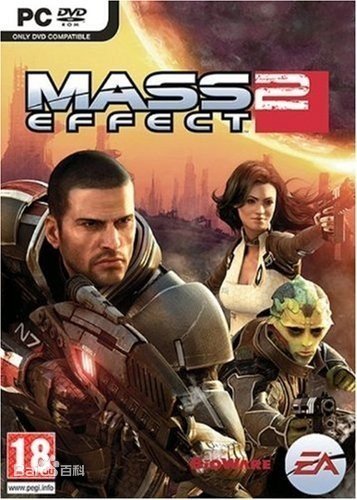
Mass Effect 2
## Game Introduction: Mass Effect 2 ### Genre and Developer Mass Effect 2 is a **third-person action role-playing game (RPG)** with strong shooter mechanics and deep narrative branching. It was developed by **BioWare** (a studio renowned for story-driven RPGs like *Baldur’s Gate*, *Star Wars: Kni...
Download & Installation
Download & Installation Guide for Mass Effect 2
This guide covers all legitimate platforms where Mass Effect 2 is available for download and installation. Note that the game exists in two primary versions: the original 2010 release (available on PC, PlayStation 3, Xbox 360) and the remastered Mass Effect Legendary Edition (2021, including ME2 updated with modern enhancements). Both are covered.
---
1. Platform Availability
| Platform | Original ME2 | ME Legendary Edition (includes ME2) | Download Source |
|---|---|---|---|
| PC | Yes | Yes | Steam, Epic Games Store, EA App (Origin) |
| PlayStation 3 | Yes (disc & PSN) | No | PSN Store (backwards compatibility on PS4/PS5 not official) |
| PlayStation 4/5 | No (only via PS Now/streaming) | Yes | PlayStation Store (Legendary Edition only) |
| Xbox 360 | Yes (disc & Xbox Marketplace) | No | Xbox Marketplace (backwards compatible on Xbox One/Series X |
| Xbox One / Series X | S | Yes (backwards compatible) | Yes |
| Nintendo Switch | No | Yes | Nintendo eShop (Legendary Edition only) |
| Mobile (iOS/Android) | No | No | Not available |
---
2. System Requirements (Original Mass Effect 2)
#### Minimum
- OS: Windows XP SP3 / Vista SP1 / 7
- CPU: Intel Core 2 Duo 1.8 GHz or AMD Athlon X2 2.0 GHz
- RAM: 2 GB (XP) / 3 GB (Vista/7)
- GPU: NVIDIA GeForce 6800 / ATI Radeon X1600 (256 MB VRAM)
- DirectX: Version 9.0c
- Storage: 12 GB free space
- Sound: DirectX 9.0c compatible
- OS: Windows 7 (64-bit)
- CPU: Intel Core 2 Duo 2.6 GHz or AMD Phenom II X2 3.0 GHz
- RAM: 4 GB
- GPU: NVIDIA GeForce GTX 260 / ATI Radeon HD 4870 (512 MB VRAM)
- DirectX: Version 9.0c
- Storage: 12 GB free space
- OS: Windows 10 64-bit (Version 1909)
- CPU: Intel Core i5-6600 / AMD Ryzen 3 1300X
- RAM: 8 GB
- GPU: NVIDIA GeForce GTX 980 / AMD Radeon R9 390 (4 GB VRAM)
- DirectX: Version 12
- Storage: 120 GB (for all three games)
- OS: Windows 10 64-bit (Version 2004 or newer)
- CPU: Intel Core i7-7700 / AMD Ryzen 5 3600
- RAM: 16 GB
- GPU: NVIDIA GeForce GTX 1070 / AMD Radeon RX Vega 56
- DirectX: Version 12
- Storage: 120 GB SSD
#### Recommended
Note: For Windows 10/11, the original version may require compatibility mode (Windows 7) and a DirectX 9 redistributable.
---
3. System Requirements (Mass Effect Legendary Edition – includes ME2)
#### Minimum
#### Recommended
---
4. Step-by-Step Installation by Platform
#### 4.1 PC – Steam (Original ME2)
1. Launch Steam and log in to your account.
2. Search for “Mass Effect 2” in the Store.
3. Click the game, then click Add to Cart (or Buy if not owned).
4. Complete purchase.
5. Go to your Library, find Mass Effect 2.
6. Click Install and choose installation location.
7. Steam will download and install the game (~12 GB).
8. First Launch: You will be prompted to log in with an EA account (the game uses EA servers for achievements). Create or sign in. The EA App (formerly Origin) may install automatically.
9. Launch the game from Steam. It will open the EA App and then start the game.
#### 4.2 PC – Steam (Legendary Edition)
1. Same steps as above, but search for “Mass Effect Legendary Edition”.
2. Download size ~120 GB.
3. No separate EA account required – the Legendary Edition integrates with Steam without mandatory EA App on initial launch, but you may still need an EA account for cloud saves.
#### 4.3 PC – Epic Games Store (Legendary Edition only; original ME2 not available)
1. Launch Epic Games Launcher, log in.
2. Search for “Mass Effect Legendary Edition”.
3. Click Get or Buy if not owned.
4. Navigate to Library, find the game, click Install.
5. Choose install location and start download.
6. First launch: You will be asked to link your Epic account with an EA account. Follow on-screen prompts.
7. The game will launch via EA App. Ensure EA App is installed.
#### 4.4 PC – EA App (Origin) (Original ME2 or Legendary Edition)
1. Download and install the EA app from [ea.com](https://www.ea.com/ea-app).
2. Log in with your EA account.
3. Search for “Mass Effect 2” or “Mass Effect Legendary Edition”.
4. Click Download (if owned) or Buy.
5. Follow the installation wizard; default location is usually fine.
6. Launch directly from the EA app.
#### 4.5 PlayStation 4 / PlayStation 5 (Legendary Edition)
1. On your PS4/PS5, go to the PlayStation Store.
2. Search for Mass Effect Legendary Edition.
3. Purchase and download (file size ~120 GB; ensure enough free space).
4. After download, the game appears in your Games library.
5. Launch and install any required updates.
6. PS4 plays natively; PS5 plays via backward compatibility with improved loading (no native PS5 version).
#### 4.6 Xbox One / Xbox Series X|S
1. Press the Xbox button, go to Microsoft Store.
2. Search for Mass Effect 2 (original) or Mass Effect Legendary Edition.
3. Purchase and download.
4. Original ME2 is backward compatible – runs on Xbox One/Series with enhancements (like Auto HDR on Series).
5. Legendary Edition is optimised for Xbox One X and Series X|S (60 FPS on Series).
#### 4.7 Xbox 360 (Original ME2)
1. Connect to Xbox Live, go to the Xbox Games Store or Browse Games.
2. Find Mass Effect 2 and download (or install from disc, then download updates).
3. Disc users: Insert the disc, install the game to hard drive (recommended for performance).
4. Download any title updates and DLC (if purchased).
#### 4.8 PlayStation 3 (Original ME2)
1. From the XMB, go to PlayStation Store.
2. Search for Mass Effect 2 (digital version available).
3. Purchase and download (file size ~8-10 GB).
4. Installation is automatic after download.
5. Disc users: Insert disc, install game data (~4 GB mandatory install).
#### 4.9 Nintendo Switch (Legendary Edition only)
1. From the Home menu, open Nintendo eShop.
2. Search for Mass Effect Legendary Edition.
3. Purchase and then Download (requires microSD card or internal storage – ~40-50 GB).
4. After download, the game appears on Home screen.
5. Launch – it runs at 30 FPS, but includes all three games.
---
5. Account Requirements
| Platform | Required Accounts |
|---|---|
| Steam (Original ME2) | Steam account + EA account (for online features) |
| Steam (Legendary) | Steam account (EA account optional for cloud saves) |
| Epic Games Store | Epic account + EA account (mandatory linking) |
| EA App (Origin) | EA account |
| PlayStation | PlayStation Network account |
| Xbox | Xbox Live account (free for Microsoft Store purchases, Gold not required) |
| Nintendo Switch | Nintendo Account |
6. Storage Space Requirements
| Version | Installation Size |
|---|---|
| Original ME2 (PC) | 12 GB |
| Legendary Edition (PC) | 120 GB (SSD recommended) |
| Original ME2 (PS3/Xbox 360) | ~8-12 GB (HDD install) |
| Legendary Edition (PS4/Xbox One) | ~110-120 GB |
| Legendary Edition (Switch) | ~45 GB (internal or microSD) |
---
7. First Launch Setup
1. Graphics Settings (PC): On first launch, the game typically auto-detects your hardware. You can adjust resolution, quality presets, V-Sync, and anti-aliasing. For original ME2, set to your monitor’s native resolution; for Legendary Edition, enable HDR if supported.
2. Language Selection: Choose your interface and audio language.
3. EA Account Linking (PC versions): If prompted, sign in or create an EA account to enable achievements and cloud saves.
4. Control Options: Keyboard/mouse or controller. The Legendary Edition includes native controller support; original ME2 requires a config mod for proper controller support on PC.
5. Audio Calibration (optional): Adjust volume levels.
6. Install DLC (original ME2): The Legendary Edition includes all DLC. For original, you may need to download separately from the EA app or Marketplace. On Steam, the DLC is included in the “Digital Deluxe Edition” or purchased separately.
---
8. Common Installation Errors & Fixes
| Error | Platform | Cause | Solution |
|---|---|---|---|
| “MSVCR100.dll missing” | PC (Original) | Missing Visual C++ redistributable | Install “Microsoft Visual C++ 2010 Redistributable” (x86, x64). |
| “DirectX Error” | PC (Original) | Outdated DirectX | Download DirectX End-User Runtimes (June 2010) from Microsoft. |
| “Failed to connect to EA servers” | PC (Steam/Epic) | Network or EA App issue | Restart EA App, check firewall, or temporarily disable antivirus. |
| “Unable to install – not enough space” | All | Disk full | Free up space using Disk Cleanup or uninstall other games. |
| “The game failed to launch. App already running” | PC | EA App process stuck | Open Task Manager, end all EA and Origin processes, restart. |
| “Backward compatibility not working” | Xbox One/Series | License or region issue | Insert the original disc (if disc version) or ensure you own the digital license. Hard reset console. |
| “Corrupted data” after download | PlayStation/Xbox | Partial download | Delete the game and re-download. Check internet connection stability. |
| No audio in cutscenes | PC (Original) | Audio codec conflict | Set Windows sound format to 16-bit, 48000 Hz. Disable surround sound enhancements. |
| Crashes on startup (Legendary Edition) | PC | Driver or conflicting software | Update GPU drivers. Disable overlays (Discord, MSI Afterburner). Verify game files. |
- Verify game files: In Steam right-click game > Properties > Local Files > Verify Integrity. In Epic: Library > click three dots > Manage > Verify. In EA App: Library > click gear > Repair.
- Run as administrator: Right-click game executable (or shortcut) > Properties > Compatibility > Run as administrator.
- Disable antivirus temporarily during installation.
- Original ME2 on Modern Windows: The game may not render text correctly at high DPI. Set `bGamepadUI=1` in `BioGame\Config\BIOEngine.ini` if you want gamepad prompts.
- Legendary Edition on PC: The game has native ultrawide support and uncapped framerates. Disable film grain and chromatic aberration for a cleaner look.
- Mods: For original ME2, popular mods include “ME2 Controller Support Mod” and “ME2 Graphics Overhaul”. For Legendary Edition, mods via ME3Tweaks are recommended.
- DLC for Original ME2: The PC version DLC (e.g., “Arrival”) is free if you own the “Digital Deluxe Edition”. On Origins/EA App, all DLC is typically included in the bundle.
---
9. Post-Installation Verification
1. Check Game Version: From the main menu (usually bottom left) note the version number. For Legendary Edition, version 1.0.0.2 or later indicates latest update.
2. Test DLC Content: In original ME2, go to the “Downloadable Content” menu to ensure all installed DLC is recognized (e.g. “Lair of the Shadow Broker”).
3. Run a Benchmark: On PC, use the in-game benchmark tool (if available) to confirm performance.
4. Cloud Saves: On all platforms, confirm cloud sync is enabled if you plan to switch devices. On Steam, right-click game > Properties > General > toggle Steam Cloud.
5. Check Achievements: Launch the game and play a few minutes; achievements should unlock normally, indicating proper account connection.
---
10. Additional Tips
---
Last updated: March 2025. Always check official store pages for the latest version-specific details.
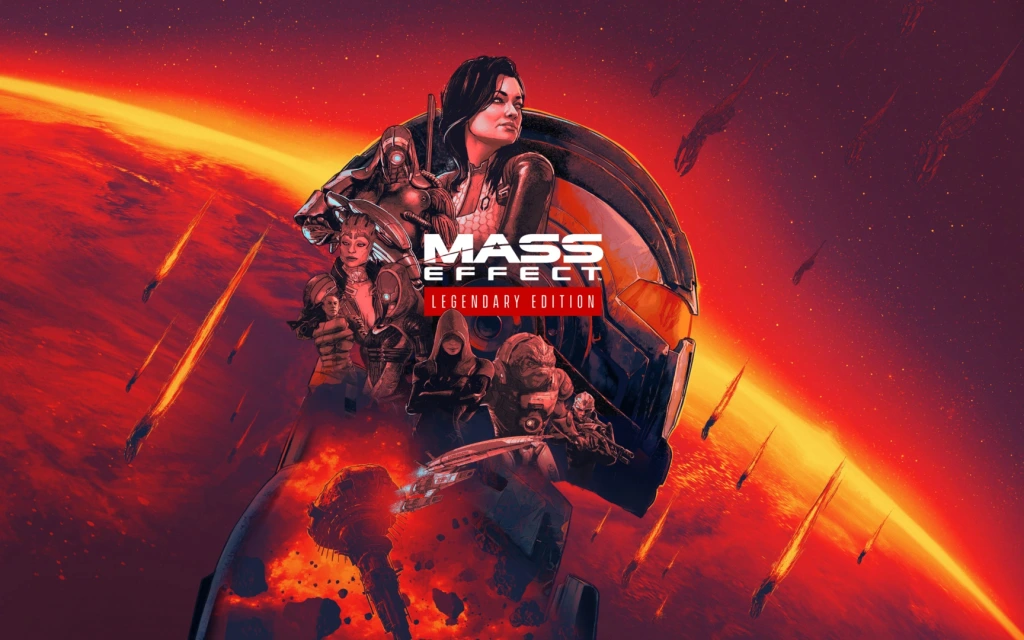
Game Introduction
Game Introduction: Mass Effect 2
Genre and Developer
Mass Effect 2 is a third-person action role-playing game (RPG) with strong shooter mechanics and deep narrative branching. It was developed by BioWare (a studio renowned for story-driven RPGs like Baldur’s Gate, Star Wars: Knights of the Old Republic, and the original Mass Effect) and published by Electronic Arts. The game is the second chapter in the original Mass Effect trilogy, serving as a darker, more personal sequel to the 2007 Mass Effect.
Release Timeline and Platforms
- Original Release – January 26, 2010 (North America) for Xbox 360 and Windows PC. A PlayStation 3 version arrived later on January 18, 2011.
- Mass Effect 2: Legendary Edition – May 14, 2021, a remastered compilation including all three original games and DLC, released on PlayStation 4, Xbox One, PC (Steam/Origin), and backward-compatible on PlayStation 5 and Xbox Series X|S.
- Platforms (any version): Windows, Xbox 360, Xbox One, Xbox Series X|S, PlayStation 3, PlayStation 4, PlayStation 5 (via backward compatibility), and PC (Origin, Steam, Epic Games Store).
- Citadel: The hub of galactic politics, now more factionalized.
- Omega: A lawless asteroid station ruled by the crime lord Aria T’Loak, filled with mercenaries, gangs, and black markets.
- Illium: A capitalist trading hub run by the asari, where everything is for sale.
- Tuchanka: The war-torn homeworld of the krogan, a fierce reptilian species.
- Various human colonies, derelict ships, and the mysterious Collector base.
- The Normandy SR-2: Shepard’s new, upgraded stealth ship provided by Cerberus, serving as the mobile headquarters.
- Commander Shepard (customizable male or female, voice acted by Mark Meer and Jennifer Hale) – player character, a resurrected hero.
- The Illusive Man (voiced by Martin Sheen) – enigmatic leader of Cerberus, manipulative and pragmatic.
- Squad Members (10 total, each with unique abilities, personal loyalty missions, and possible death in the final mission):
- EDI – the Normandy’s AI, later gains a body (DLC/ME3).
- Fans of story-rich, choice-based RPGs.\- Shooter enthusiasts who appreciate tactical squad control and varied weapons/powers.
- Players who enjoyed the first Mass Effect and want a darker, more mature sequel.
- Those who love world-building and deep alien races and politics.
- Single-player only. No multiplayer or co-op modes in the original or Legendary Edition (unlike Mass Effect 3).
- New Game+ – carry over level, abilities, and resources from a completed save.
- Importing save: Full story decisions from Mass Effect carry over (e.g., Wrex alive, Council fate, romantic choices) affecting Mass Effect 2 and then export to Mass Effect 3.
- Offline: Full single-player campaign without internet required.
- Online: Optional network features existed on consoles (e.g., Cerberus Network for DLC unlocks, leaderboards) but are largely deprecated on original versions. The Legendary Edition includes all DLC integrated automatically and does not require an online connection for the base experience.
- Lair of the Shadow Broker – After the events of Mass Effect 2, Shepard helps Liara hunt down the Shadow Broker; adds new hub, missions, and lore.
- Arrival – A standalone mission bridging ME2 to ME3; Shepard must prevent a Reaper invasion.
- Kasumi – Stolen Memory – Adds Kasumi as a squad member with her own loyalty mission.
- Zaeed – The Price of Revenge – Adds Zaeed as a squad member.
- Firepower Pack / Aegis Pack / Equalizer Pack – Weapon and armor upgrades.
- Overlord – A side story involving a rogue AI (included in Legendary Edition).
- The Legendary Edition bundles all story DLC and most cosmetic packs.
Story Overview
Set in the year 2185, Mass Effect 2 picks up shortly after the events of the first game. Commander Shepard, a human Spectre, is leading the fight against the rogue Spectre Saren and the Geth when their ship, the Normandy SR-1, is attacked by an unknown, highly advanced starship called the Collector ship. Shepard is spaced and killed. Shepard’s body is recovered by the human supremacist organization Cerberus and revived two years later through a costly and experimental project (the Lazarus Project). Cerberus leader The Illusive Man hires Shepard to investigate the mysterious disappearances of entire human colonies across the galaxy. The culprits: the Collectors, a bizarre insectoid species that answers to the Reapers—sentient starships that have been awakening every 50,000 years to harvest advanced organic life. Shepard must assemble a diverse team of highly dangerous individuals, gain their loyalty, and lead a suicide mission through the Omega-4 Relay to stop the Collectors and prevent the Reapers from returning.
Setting
The game takes place in the Milky Way galaxy during a period of relative peace after the Battle of the Citadel. Key locations include:
Main Characters
- Garrus Vakarian – turian vigilante and Omega’s Archangel.
- Tali’Zorah nar Rayya – quarian engineer on her pilgrimage.
- Liara T’Soni – asari information broker (minor role in DLC but returns as a squadmate in Mass Effect 3).
- Wrex (potential returning from ME1 if alive) – krogan clan leader (appears in short cameo).
- Miranda Lawson – Cerberus operative, genetically perfect, second-in-command.
- Jacob Taylor – former Alliance soldier, Cerberus loyalist.
- Mordin Solus – salarian scientist, genius, morally ambiguous.
- Jack – dangerous human biotic, escaped from experimental prison.
- Grunt – krogan tank-bred super soldier.
- Samara – justicar asari, follows a strict honor code.
- Thane Krios – drell assassin, terminally ill.
- Legion – geth platform seeking individuality.
- Zaeed Massani (DLC) – bounty hunter with a personal vendetta.
- Kasumi Goto (DLC) – master thief.
Core Appeal
Mass Effect 2 is celebrated for its character-driven storytelling, player choice that affects the narrative and survival of squad members, and seamless fusion of RPG progression with third-person shooter combat. The “suicide mission” finale creates immense tension, as poor preparation or squad assignments lead to permanent death. The moral ambiguity is deeper than the first game; working with Cerberus, a known terrorist organization, forces players to question Shepard’s alliances. The loyalty missions are some of the best-written sequences in video games.
Target Audience
Game Modes
Online/Offline Support
DLC and Expansions
What Makes This Game Unique
1. The Suicide Mission – A finale that punishes poor preparation; squad member deaths are permanent and carry into Mass Effect 3.
2. Loyalty System – Each companion has a personal quest that unlocks their best abilities and ensures their survival.
3. Moral Complexity – Shepard works for Cerberus, a group they fought in ME1, blurring lines between hero and pawn.
4. No Level Cap? – Players can max all abilities by the end, encouraging experimentation.
5. Mineral Scanning – New mechanic: scanning planets for resources to upgrade the Normandy and weapons.
6. One of the Best Game Sequels Ever – Widely considered a masterclass in pacing, character development, and player agency.
“Mass Effect 2 is a game about impossible choices, found family, and the price of survival. It’s a space opera masterpiece that defined a generation of RPGs.”
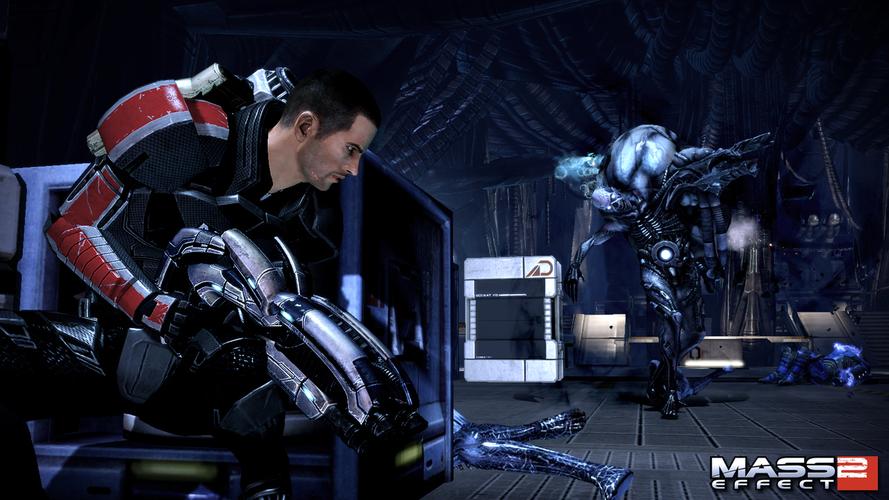
Getting Started
Getting Started with Mass Effect 2: A Beginner's Guide
Welcome to Mass Effect 2, a third-person action RPG where your choices matter. This guide will walk you through the critical first steps to ensure you start strong, avoid common pitfalls, and get the most out of your early game.
Character Creation (or Import)
If you have a save file from Mass Effect 1 (original or Legendary Edition), you can import that character, carrying over your appearance, class, and major story decisions. New players will use the Mass Effect 2: Genesis interactive comic (included in Legendary Edition or as DLC) to make key backstory choices for the first game. In this comic, you decide:
- Gender and Appearance: Customize Shepard's face, hair, and skin tone.
- Class: Choose from six classes: Soldier, Engineer, Adept, Infiltrator, Sentinel, Vanguard. Each has unique powers (biotics, tech, combat).
- Romance/Decisions: Select who Shepard romanced in ME1 and important plot outcomes (e.g., who dies on Virmire).
Recommendation for absolute beginners: Start with the Soldier class. It's the easiest to handle with straightforward combat and no need to manage powers heavily. You can switch later via the class-specific loyalty missions, but Soldier gives you a solid foundation.
First Hour Walkthrough (No Spoilers)
1. Prologue – The Normandy Explodes
- The game opens with a cinematic: the Normandy is destroyed, and Shepard is spaced. You briefly control Joker. Watch the cutscene; you can't miss it.
- After the title screen, you'll wake up on the Lazarus Station, disoriented. The control tutorial begins.
2. Tutorial – Lazarus Station
- Movement: Use left stick (controller) or WASD (keyboard). Walk around the station. You can interact with terminals and talk to Dr. Chakwas and Jacob.
- Combat Basics: Jacob will guide you through firing, aiming down sights (ADS), and using cover. Practice:
- Take Cover: Press the cover button (A on Xbox, X on PlayStation, Space on PC) to snap to walls.
- Reload: Press the reload button (X on Xbox, Square on PlayStation, R on PC).
- Use Powers: Press the power buttons (LB + face buttons on controller, 1-4 on keyboard). Jacob will instruct you to use a Combat Drone (if you're not Soldier).
- Pause Menu: Press Start (controller) or Esc (PC) to access the menu. Here you can save, load, adjust settings, and view the journal.
3. Cutscenes and Intro to Omega
- After the tutorial, you'll be on the Citadel briefly (visit the Council, get a new ship—the rebuilt Normandy SR-2). You must then head to Omega, a lawless asteroid station, to recruit the first squadmate, Mordin Solus.
4. Omega – Recruiting Mordin
- Land on Omega. You'll enter the spaceport, then work your way to Afterlife club. Along the way, you can buy upgrades at the shop (but don't waste credits yet).
- In Afterlife, talk to Aria T'Loak for information. Then proceed to the Mordin Recruitment Mission (a lab overrun by violent Krogan). This mission teaches advanced combat and stealth. Complete it to get Mordin in your squad.
Total first-hour goal: Import/character creation, finish Lazarus tutorial, complete the first mandatory recruitment (Mordin).
Controls on All Platforms
Mass Effect 2 Legendary Edition (or original) uses similar controls across platforms. Here's a quick reference:
| Action | Xbox | PlayStation | PC Keyboard |
|---|---|---|---|
| Move | Left Stick | Left Stick | WASD |
| Look / Aim | Right Stick | Right Stick | Mouse |
| Fire | RT | R2 | Left Mouse Button |
| Aim Down Sights | LT | L2 | Right Mouse Button |
| Reload | X | Square | R |
| Cover / Sprint | A (hold to sprint) | X (hold to sprint) | Space (tap cover, hold sprint) |
| Interact / Talk | Y | Triangle | F |
| Pause Menu | Start / Menu | Options | Esc |
| Squad Command Wheel | LB | L1 | Tab |
| Powers (quick) | RB + face buttons | R1 + face buttons | 1-4 |
| Heavy Weapon | Hold RB | Hold R1 | G |
| Scan (on ship) | RB + TBD | R1 + TBD | Tab + F? Check in-game |
UI Overview (Heads-Up Display)
- Health & Shields: Top-left corner. Blue bar = shields (recharges), Red bar = health (needs medi-gel).
- Weapon & Ammo: Bottom-middle. Displays current weapon, ammo count, and heavy weapon ammo (glowing icon).
- Powers: Bottom-left (quick slots). You can assign up to 2 powers for quick use (or 4 on PC via number keys).
- Squad Health/Shields: Bottom-left next to powers, showing your two squadmates' status.
- Compass / Minimap: Upper-right area. Shows mission objectives and enemies (red dots).
- Dialogue Wheel: When speaking to NPCs, options appear on-screen. Left side = Paragon (diplomatic/heroic), right side = Renegade (ruthless/intimidating). Middle often neutral.
- Squad Commands: Hold the command wheel button to pause and issue move/attack/use power orders to squadmates.
- Save often – quicksave (F5 on PC) and manual saves. The game autosaves at checkpoints but not always before conversations.
- Talk to your crew after every major mission – they give side missions and loyalty missions.
- Scan planets whenever you have time – resources are crucial for upgrades.
- Take cover in combat – standing in the open gets you killed fast.
- Use squad powers – order your team to use biotic/tech combos (e.g., Throw + Warp).
- Spending credits on expensive weapons early – save for armor upgrades and heavy weapon ammo.
- Rushing the main story – side missions yield XP, credits, and loyalty.
- Ignoring planet scanning – you'll run out of resources for upgrades later.
- Neglecting loyalty missions – each squadmate has one; completing it grants their loyalty power and a more powerful final mission.
- Trying to be a "perfect" Renegade or Paragon – it's okay to mix; the game adapts.
- Not using cover – ME2 is cover-based; always snap to walls.
- Forgetting to use squad powers – squadmates have powerful abilities; order them to use them (e.g., Mordin's Incinerate on armor, Miranda's Warp on barriers).
- Ignoring the heavy weapon – you have a heavy weapon (e.g., Missile Launcher) that can clear groups. Use it sparingly but don't hoard it.
- Trying to 100% scan every planet early – you'll waste time. Scan only rich or promising planets (check the description for mineral richness).
- Not upgrading weapons – visit the weapons locker and the Tech Lab on the Normandy periodically.
- Skipping dialogue – you miss crucial story and relationship building.
- Using the wrong ammo type – some enemies have armor (use Incendiary), shields (use Disruptor), or barriers (use Warp).
- [ ] Create or import character (or complete Genesis comic).
- [ ] Customize Shepard's appearance (optional but fun).
- [ ] Finish the Lazarus Station tutorial.
- [ ] Watch the Citadel cutscenes and equip your first squad (Jacob/Miranda).
- [ ] Travel to Omega and recruit Mordin.
- [ ] Return to the Normandy and talk to your crew (especially Miranda, Jacob, and Joker).
- [ ] Scan at least 2–3 planets for resources (e.g., in the Omega Nebula).
- [ ] Spend any initial skill points (try to unlock one new power or passive).
- [ ] Save the game manually (you can have multiple saves).
- [ ] Equip your squad with appropriate weapons (check their loadout).
- [ ] Set keybindings or controller layout to your preference.
Essential Early Objectives
1. Complete the Lazarus Station tutorial – don't skip the lessons.
2. Recruit Mordin Solus on Omega (first mandatory squadmate).
3. Recruit Garrus Vakarian on the Citadel (you can do this right after Omega).
4. Recruit Jack (Prison Ship Purgatory).
5. Complete the first priority mission – Horizon (main story, no spoilers).
6. Start scanning planets for resources (element zero, iridium, palladium, platinum).
7. Upgrade the Normandy – early upgrades (scan range, fuel capacity, armor) help immensely.
What to Do First (and What to Avoid)
Do first:
Avoid:
Early Resource Priorities
Resources (minerals) are collected via planet scanning on the Normandy's galaxy map. You need them to unlock upgrades at the Tech Lab. Prioritize:
1. Element Zero (Eezo) – used for tech and biotic upgrades (e.g., better shields, power damage).
2. Platinum – for heavy weapon upgrades and armor slots.
3. Palladium – for weapon damage and health upgrades.
4. Iridium – for miscellaneous upgrades (e.g., grenade capacity).
Tip: Early game, focus on upgrading the Normandy's armor, shields, and scanner range to survive encounters and scan more efficiently.
Common Beginner Mistakes
Day-One Checklist
For your very first play session (2–3 hours), aim to complete:
Once you finish this checklist, you'll have a solid foundation for the rest of the game. Remember: Mass Effect 2 is about the journey and your decisions. Take your time, explore, and enjoy the story!
Core Gameplay
Core Gameplay: Mass Effect 2
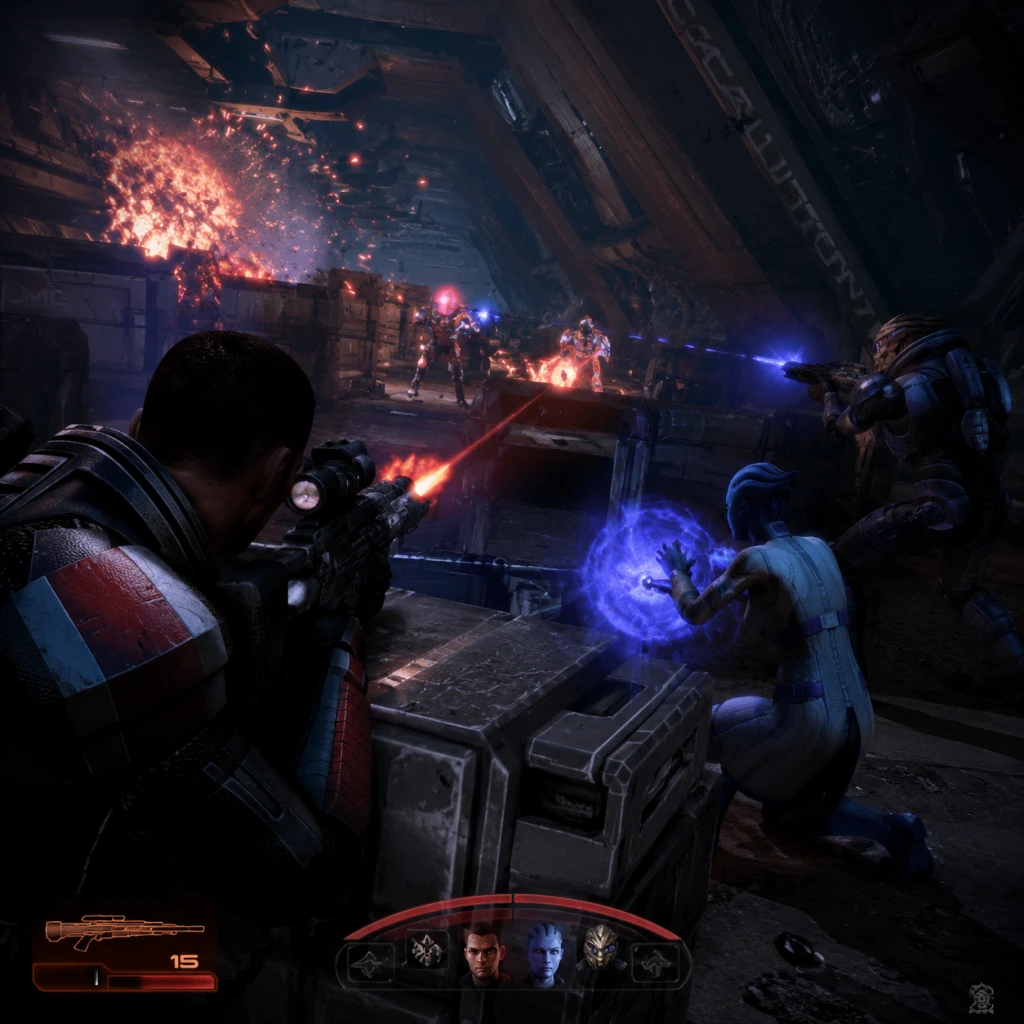
Mass Effect 2 is a third-person action RPG that blends cover-based shooting, squad-based tactics, and deep narrative choice. The core gameplay loop revolves around missions → resources → upgrades → stronger squad → harder missions, all driven by the looming threat of the Collectors and the final Suicide Mission.
---
The Main Gameplay Loop
1. Receive Mission: From the Normandy’s private terminal, galaxy map, or NPCs (e.g., Illusive Man, squadmates).
2. Plan & Prepare: Choose squadmates (each with unique abilities), equip weapons and heavy weapons, assign bonus powers, purchase upgrades, and decide whether to explore optional content first.
3. Land & Execute: Navigate the mission area, fight enemies, solve environmental puzzles, make moral/paragon/renegade choices, and complete objectives.
4. Return to Normandy: Debrief with crew, unlock new dialogue and loyalty missions, receive reputation points, and collect credits/resources.
5. Invest: Spend credits on equipment, use resources (element zero, iridium, palladium, platinum) to research weapons, armor, and ship upgrades via the Tech Lab (Mordin or Jacob).
6. Explore (Optional): Use the galaxy map to scan planets for resources, find anomalies that lead to side missions, and visit hubs like Omega, Citadel, Illium.
7. Repeat until the Reaper IFF mission triggers, initiating the endgame countdown.
---
Combat & Interaction Systems
#### Cover-Based Shooting
- Third-Person Shooter: Use cover (press A/X near low walls, crates, corners) to avoid enemy fire. Lean out to shoot with LT/L2.
- Weapons: Pistols, SMGs, shotguns, assault rifles, sniper rifles – each class restricted by Shepard’s starting training. You can later unlock all weapon types via the Collector Ship mission.
- Heavy Weapons: Grenade launcher (M-100), flamethrower, Cain nuclear launcher – one-shot power but limited ammo.
- Ammo Powers: Characters can grant ammo types (incendiary, disruptor, cryo) that deal bonus damage or status effects.
- Pause Wheel: Press Y/Triangle to open the power wheel, letting you aim squadmate powers (e.g., Warp, Overload, Incinerate) and order them to move to a specific location.
- Tactical Combat: Use combos – e.g., Incinerate to strip armor + Warp to detonate; Overload on shields + Concussive Shot to stagger. Each squadmate has unique active/passive skills.
- Squadmate Roles:
- Paragon/Renegade System: Measured by points earned from dialogue or actions. High reputation unlocks special dialogue options (charm/intimidate) that can persuade, defuse fights, or end missions peacefully.
- Moral Choices: Often appear mid-mission (e.g., saving civilians vs. pursuing target). These affect squadmate loyalty and endgame outcome.
#### Squad Commands
- Tech: Tali, Legion, Kasumi – hacking, shield stripping, sabotage.
- Biotic: Samara, Jack, Jacob – crowd control, damage on armor/barriers.
- Soldier: Grunt, Zaeed, Garrus – raw firepower and durability.
#### Dialogue & Choices
---
Progression Tiers
####
Game Tips
Game Tips for Mass Effect 2
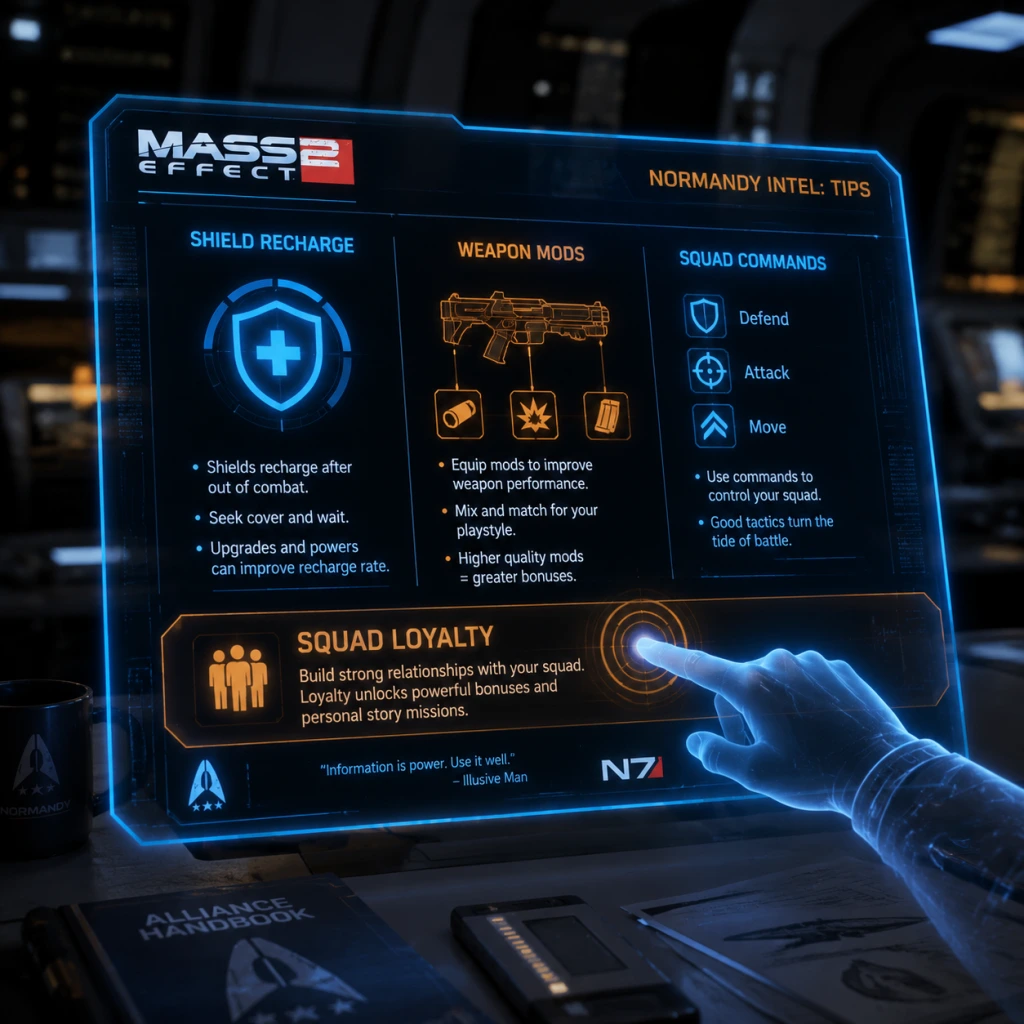
This guide compiles essential tips for Mass Effect 2, organized by category to help players of all skill levels. From combat fundamentals to advanced build optimizations, each tip includes a clear explanation of why it works and when to apply it. Whether you're a newcomer stepping into Commander Shepard's boots or a veteran aiming for a perfect Insanity run, these insights will sharpen your strategy.
---
Combat Tips
- Master Cover Switching – Always use the cover system (tap A/X or spacebar to snap into cover, then hold to move along walls). Never stand still in open fire; enemies flank and grenade frequently. Use the tactical pause (left bumper/L1 or Q) to assess positions and queue powers.
- Use Powers to Strip Shields and Armor – Enemies have three defense layers: shields (blue), armor (yellow/red), and barriers (purple/white). Each is weak to specific power types. For example, Overload (engineer/Tali/Legion) shreds shields and damages synthetics. Incinerate (Mordin, Garrus) destroys armor and is strong against organics. Warp (Liara, Samara, Jack) rips barriers and armor. Combine powers for massive combos: Warp + Throw creates a biotic explosion; Incinerate + Overload can strip both armor and shields on a single hardened enemy.
- Heavy Weapon Efficiency – The M-920 Cain is devastating but uses one heavy weapon ammo per shot and has a long recharge. Save it for bosses like the Human-Reaper or the Reaper Core on the Collector Base. The M-100 Grenade Launcher is better for clustered groups. The M-622 Avalanche freezes multiple enemies. Use heavy weapons sparingly and only when outnumbered or facing a tough enemy type (e.g., Scions, Praetorians).
- Squad Power Synergy – On Insanity, enemies have stronger defenses and regenerate shields. Bring squadmates that complement your class. For a Soldier: Miranda (Warp + Overload) for biotic/tech coverage. For an Adept: Garrus (Overload) for shields and Thane (Throw + Warp) for biotic combos. Always level squad passive skills (like Tech Armor for Sentinel, Adrenaline Rush for Soldier) early – they improve survivability.
- Control the Battlefield with Concussive Shot and Pull – Soldier's Concussive Shot and Adept's Pull can stagger enemies and set up follow-up shots. Concussive Shot works on all defenses. Pull only works on unprotected organics, but if you combine it with Warp, you can throw pulled enemies into objects or other foes for area damage (a biotic combo).
- Learn the Enemy Stagger Pattern – Most enemies flinch for a half-second when hit by any bullet. Use a rapid-fire weapon (Tempest SMG, Mattock heavy rifle) to keep them staggered and prevent them from firing back. On higher difficulties, this is crucial to avoid taking chip damage.
- Thoroughly Scan Every Planet – Scanning is time-consuming but the only way to get Element Zero (Eezo), Iridium, Platinum, and Palladium. These resources are used for all upgrades (weapons, armor, ship). Spend your fuel credits on the best upgrades for the Normandy SR-2's scan range and fuel efficiency first (from the Turian at the Citadel, Haron).
- Prioritize Rich Planets – When scanning, look for planets with high resource percentages (e.g., 9+ bars in any resource). Rich planets yield more per probe. Planets with low percentages (1-3 bars) give very little and are not worth the probes unless you're desperate. Use the system map's planet info (press Y/triangle) to see the resource breakdown before scanning.
- Don't Waste Probes on Anomalies – Anomalies (N7 missions) can be found without probes by scanning a planet until a spike appears. Probe only when the spike hits the center of the planet to trigger the anomaly mission. Doing this saves probes for actual resource gathering.
- Visit the Citadel and Omega Often – Between major missions, check your journal for new side quests and talk to NPCs. The Citadel (Presidium and Wards) has multiple side quests that award credits, experience, and sometimes unique weapons. Omega has recruitment missions and the Afterlife club with valuable conversations with Aria T’Loak (she gives info on hidden weapons and resources).
- Use the Mako on the Normandy? – The Mako is not available in Mass Effect 2 (only in ME1 and ME3). For exploration, you control the Normandy's planet scanning and a hovercraft on some DLC planets (like Firewalker). The Firewalker missions are short but give substantial credit boosts.
- Breakable Objects in Levels – Many crates, lockers, and computers are breakable or hackable. They yield credits, medigel, heavy weapon ammo, or weapon mods. Always check corners and destructible walls (red explosive barrels often hide loot).
- Max Out Your Ship Upgrades Early – The Normandy SR-2 has upgrades for armor, weapons, shields, and kinetic barriers. These are built from the Tech Lab (accessed from the CIC Deck). Prioritize: Silaris Armor (reduces hull damage from enemy fire), Cyclone Barrier (improves kinetic barrier regeneration), Multicore Shielding (increases shield strength), and Thanix Cannon (side weapon, increases ship firepower – required for the Suicide Mission). Upgrading the ship drastically increases squad survival during the final mission.
- Weapon Upgrades Are Class-Specific – Each weapon type (pistol, SMG, shotgun, assault rifle, sniper rifle, heavy weapon) has individual upgrades. Research them in the Tech Lab (requires resources). The Weapon Damage upgrade is the most universally useful. Also, scope and barrel mods (found in missions) can be installed at the weapon bench on the Normandy. Prioritize accuracy mods for long-range weapons, damage mods for close-range.
- Squadmate Upgrades Matter – Every squadmate has a personal upgrade (e.g., Garrus's Armor Piercing Ammo upgrade, Grunt's Krogan Warlord upgrade). These are required to keep squadmates alive during the Suicide Mission. To unlock them, complete their loyalty mission (with enough Paragon/Renegade points) and then talk to them on the Normandy to initiate the upgrade. If you lack the resources or reputation, you may have to choose who lives.
- Resource Management for Upgrades – The four resources are: Iridium (most common, used for ship and armor upgrades), Platinum (used for weapon damage upgrades), Palladium (used for shield and biotic upgrades), and Element Zero (rarest, used for biotic and heavy weapon upgrades). Save Eezo for critical biotic upgrades and the Thanix Cannon. You can also buy resources from merchants on the Citadel and Omega, but prices are high. Better to scan.
- Tech Lab Skill: Damping and Special Project – Some upgrades require you to complete specific missions or obtain a rare component (e.g., Geth shield boosters, Collector ship fragments). Always check the Tech Lab after every major mission to see if new blueprints are available.
- Build for Your Class Strengths –
- Squad Composition for Loyalty Missions – Each loyalty mission has a recommended squadmate who has a personal connection (e.g., bring Garrus for his mission, Tali for hers). This increases the chance of successful paragon/renegade checks and may unlock extra dialogue or options. Also, bring squadmates with high tech skills for missions requiring hacking (e.g., Jacob's loyalty mission has a door that needs high electronics).
- Save Zaeed and Kasumi for Early Money – Zaeed's Massani's Incursion (Lair of the Shadow Broker DLC) and Kasumi's Stolen Memory (Kasumi DLC) provide significant credits and the powerful Locust SMG (Kasumi's mission) and the M-112 Kassa Locust (a great heavy pistol). Do them as early as possible (after the first few missions) to gear up.
- Leveling Squadmates – Every squadmate gains XP separately from Shepard. Use them in missions to level them up. However, their powers unlock at specific levels (e.g., Garrus gets Armor Piercing Ammo at level 5). Always invest in their class passive and their most powerful ability first. For example, Tali's Combat Drone and Jack's Shockwave are high-damage crowd control. Grunt's Fortification gives him massive defense.
- Buy the M-95 Mattock Early – This heavy rifle is available at the Citadel's C-Sec Requisitions after completing the “Dossier: Tali” mission. It has high damage and accuracy, making it arguably the best assault rifle in the game. It costs about 30,000 credits, but it's worth every penny for all classes (except Vanguard who prefer shotguns).
- Invest in the M-12 Locust SMG – Obtained from Kasumi's loyalty mission, this SMG has impressive damage and accuracy for its class. It outperforms the standard Shuriken. Use it on classes that rely on SMGs (Engineer, Sentinel, Adept).
- Credits Are Limited – Choose Wisely – There are a finite number of credits in the game from missions, containers, and side quests. You cannot replay missions for money. Therefore, prioritize purchasing upgrades to the ship (Thanix Cannon, Silaris Armor) and essential weapons over cosmetic items or unnecessary weapon mods (e.g., you only need one good sniper rifle, not every variant).
- Medigel and Heavy Ammo – Medigel restores health and can revive fallen squadmates once per battle. Heavy ammo is scarce – only found in specific crates and from downed enemies. Use heavy weapons only when necessary. You can buy medigel from vendors, but it's pricey (500 credits each). Save credits by hacking medigel dispensars (requires Electronics skill) or finding it in levels.
- Sell Unused Weapons and Armor – The Normandy's armory has a locker where you can sell duplicate weapons and armor pieces. After completing several missions, you'll accumulate spare gear. Sell anything you don't use (e.g., if you never use pistols, sell all but one). The credits add up quickly.
- Gamble for Credits? – On the Citadel, there is a gambling machine (Quasar) where you can win credits. The odds are heavily stacked against you – it's not worth the time or credits. Better to invest in resources or upgrades.
- Paragon/Renegade Reputation Matters – Your reputation score determines whether you can resolve battles peacefully or intimidate opponents. To max it, consistently choose one path (Paragon or Renegade) and invest in the corresponding passive skill (Paragon Persuade or Renegade Intimidate). Also, complete the majority of side missions to earn reputation. Each major story mission and loyalty mission gives reputation points. If you mix choices, you may fail key reputation checks late in the game (e.g., resolving Tali/Legion conflict, convincing Morinth to spare Samara).
- Always Talk to Your Squad Between Missions – After every major mission, walk around the Normandy and talk to each squadmate. This triggers loyalty discussions, upgrades, and sometimes bonus missions. Missing a conversation can lock you out of a loyalty mission or a squadmate upgrade necessary for survival.
- The Suicide Mission Just Before the Point of No Return – When you acquire the Reaper IFF (after the Collector Ship mission), the game enters a critical phase. Speak to all squadmates, complete all loyalty missions (if possible), and ensure the Normandy is fully upgraded (shield, armor, cannon). Any uncompleted loyalty missions or missing upgrades will result in squadmate deaths at the end. You cannot change weapons or ship loadouts after starting the final mission.
- Use the "Talk to Everyone" rule on Omega and Citadel – NPCs often give quests, hints about hidden weapons, or discounts. For example, the volus merchant on the Citadel (outside C-Sec) gives a quest to find a lost ring that rewards credits. The batarian on Omega sells a unique sniper rifle if you pass a Paragon check.
- Know When to Use the Paragon/Renegade Interrupts – During conversations, a prompt (LB+RB on Xbox, L1+R1 on PS3, Q+E on PC) may appear. Using them can change mission outcomes, skip fights, or earn bonus reputation. For example, during the fight with Harkin (Thane's recruitment), a renegade interrupt allows you to kill him immediately. During the Tali loyalty mission, a paragon interrupt saves a quarian admiral. Always watch for these prompts – they often have significant consequences.
- Insanity Difficulty Tactics – On Insanity, enemies have triple health, shields are tougher, and squadmates die quickly. Always stay in cover. Use squad powers to detonate combos (e.g., Warp + Throw) for massive area damage. Prioritize killing enemies that can stagger you (Scions' shockwave, Praetorians' laser). Use heavy weapons sparingly but on key threats. Level your class passive early to reduce cooldowns. For Insanity, a Sentinel with Tech Armor is arguably the easiest class due to high survivability.
- Speedrunning Tips (for Experience) – If you want to speed through to get certain achievements or see multiple endings quickly, skip side missions except those that give essential upgrades (ship armor, weapon damage). Use the Paragon/Renegade system to avoid fights (e.g., talking down the merc bands on Omega). The quickest path: complete Horizon, Collector Ship, Reaper IFF, then Suicide Mission. This will yield a low-EMS ending with few survivors.
- Save Scumming for the Perfect Ending – The Suicide Mission can have multiple squadmate deaths based on choices. The game auto-saves at the start of the mission. If you want to save everyone, you must have:
- Maximizing XP Gain – XP is awarded for kills, mission completion, and exploration. To level up faster, do all side missions before the main story. The game's level cap is 30 (with Lair of the Shadow Broker DLC, you can reach 30 by the end). Use bonus powers from DLC (like Inferno Shot for Soldier or Stasis for Adept) to increase combat efficiency and therefore kill more enemies.
- New Game+ (Importing ME1 or ME2 save) – Importing a Mass Effect 1 save gives a starting level of 5 and some extra bonuses (Shepard's line of work depends on ME1 choices). New Game+ for ME2 (replaying the same Shepard) carries over level, credits, and some upgrades (though not all). This is ideal for a second run on Insanity with maxed gear.
- DLC Specific Tips:
---
Exploration & Scanning Tips
---
Resources & Upgrades Tips
---
Character Builds & Squad Tips
- Soldier: Max Adrenaline Rush and Combat Mastery. Use Assault Rifle and Sniper Rifle. Concussive Shot and Frag Grenade for crowd control. Take the Revive and Weapon Damage bonus talents.
- Adept: Max Singularity (crowd control), Warp (damage, combos), and Throw (burst damage). Later grab Shockwave and Reave (if you choose the bonus power). Focus on cooldown reduction via passive bonuses.
- Engineer: Max Overload, Combat Drone (distraction), and Incinerate. The Drone is excellent for drawing enemy fire – place it in a flanking position. Cryo Blast freezes weak enemies. Use tech armor (if you take it via bonus power) for survivability.
- Sentinel: Max Tech Armor (massive damage resistance), Warp, and Overload. Tech Armor can be detonated for an area shockwave (use it when surrounded). This class is extremely durable and has excellent tech/biotic coverage.
- Infiltrator: Max Tactical Cloak (invisibility and damage boost), Sniper Rifle damage, and Proximity Mine (area damage and armor shred). Use cloak to reposition or escape. AI Hacking for geth enemies is situational but powerful.
- Vanguard: Max Charge (gap closer, stun), Shockwave (area knockback), and Shotgun damage. Charge restores shields, so use it to quickly close on weakened enemies. Pair with a powerful shotgun (Geth Plasma Shotgun or Claymore) for one-shot kills. Heavy pistol for backup.
---
Economy & Purchases Tips
---
Mission & Dialogue Optimization Tips
---
Advanced Strategies & Optimizations
- All loyalty missions complete.
- Normandy fully upgraded.
- A robust tech specialist (Tali or Legion) for the vents.
- A powerful biotics specialist (Samara or Jack) for the biotic bubble.
- A strong fire team leader (Garrus, Miranda, or Jacob) for holding the line.
If any of these are missing, someone dies. You can reload the auto-save and adjust your choices.
- Arrival: The boss fight with the Reaper can be tough. Use squadmates with Overload (Garrus, Miranda) to strip shields quickly. Bring extra heavy ammo for this mission.
- Kasumi – Stolen Memory: The Hacking sequence requires you to memorize a colored pattern under time pressure. Pause the game (use tactical pause) to examine the pattern without time limit, then execute it.
- Zaeed – The Price of Revenge: You can side with Vido or kill him. The Paragon option (save the factory workers) gives reputation and is easier; the Renegade option gives a bit more credits but loses reputation.
---
Final Words
Mass Effect 2 rewards preparation, smart squad composition, and efficient resource management. By following these tips, you'll be well-equipped to tackle any challenge the galaxy throws at you—from the mercs of Omega to the Collectors. Remember: your choices have consequences, so plan ahead, but also enjoy the journey. Good luck, Commander.
Game Settings
Game Settings Guide for Mass Effect 2
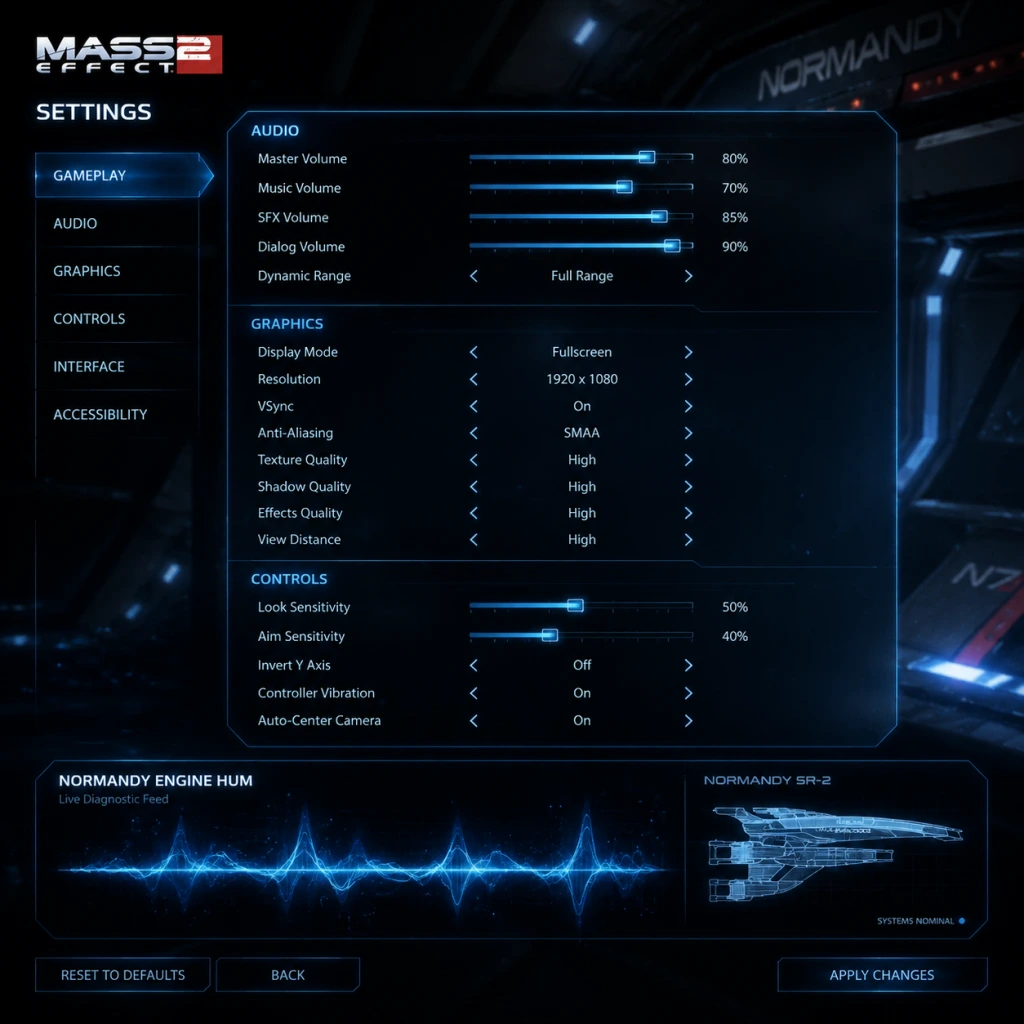
This guide covers every setting category in Mass Effect 2 (both the original 2010 release and the Legendary Edition, where noted). Optimize performance, tailor controls, and avoid common pitfalls.
---
Graphics Settings
Mass Effect 2 is not demanding by modern standards, but fine-tuning can improve visual fidelity or frame rate on older hardware. The Legendary Edition uses an updated Unreal Engine 3 with higher-resolution textures, improved lighting, and 60+ FPS support.
#### Recommended Graphics Settings by Hardware Tier
| Setting | Low-End (GTX 960 / Ryzen 3) | Mid-Range (GTX 1060 / i5) | High-End (RTX 2060 / Ryzen 5) | Maxed (RTX 3070+) |
|---|---|---|---|---|
| Resolution | 1280x720 | 1920x1080 | 2560x1440 | 3840x2160 |
| Display Mode | Fullscreen | Fullscreen | Fullscreen | Fullscreen |
| V-Sync | Off | Off | On (if tearing) | On |
| Frame Rate Limit | 60 | 120 | 144+ | Unlimited |
| Texture Quality | Low | Medium | High | Ultra |
| Shadow Quality | Low | Medium | High | Ultra |
| Post-Processing | Low | Medium | High | Ultra |
| Anti-Aliasing | FXAA | Temporal (Low) | Temporal (High) | Temporal (Ultra) |
| Ambient Occlusion | Off | SSAO | HBAO | HBAO |
| Motion Blur | Off | Off | On | On |
| Depth of Field | Off | Low | Medium | High |
| Detail Density | Low | Medium | High | Ultra |
| Effects Quality | Low | Medium | High | Ultra |
#### Important Graphics Tweak: Field of View (FOV)
- Both versions default to a narrow FOV (about 70°). For a wider view, especially on ultrawide monitors, edit the `Coalesced.bin` (original) or use the in-game slider (Legendary Edition). Recommended FOV: 90°-100°.
---
Audio Settings
| Setting | Recommendation | Notes |
|---|---|---|
| Master Volume | 80% (adjust per environment) | Avoid 100% to prevent clipping |
| Music Volume | 60% | Enhances atmosphere without drowning dialogue |
| SFX Volume | 100% | Combat cues are important |
| Dialogue Volume | 100% | Critical for story understanding |
| Voice Chat Volume | N/A (no multiplayer) | Ignore for single-player |
| Sound Output | Surround (5.1/7.1) or Headphones | Headphones give best directional awareness |
| Dynamic Range | Medium | High can make quiet lines hard to hear; Low compresses |
| Subtitles | ON | Prevents missing dialogue during combat |
---
Controls Settings
#### Keyboard & Mouse (KBM)
- Sensitivity: Start at 4.0 (default). Adjust by 0.5 increments; too high causes overshooting, too low makes turning sluggish.
- Invert Y-Axis: Off (unless you prefer flight-sim style).
- Mouse Smoothing: Off (adds input lag).
- Auto-Aim Assist: Off (interferes with precise aiming).
- Key Bindings: Remap powers to comfortable keys (e.g., Q, E, 1-4). The default number row is fine, but consider using mouse buttons for biotics.
- Aim Assist: Medium (helps on consoles; PC players may prefer Low).
- Look Sensitivity: 5/10 for balanced response.
- Vibration: On (adds immersion for weapon feedback and biotic pulses).
- Control Scheme: Use “Soldier” or “Adept” preset – the only difference is the default power mapping.
#### Controller (Xbox / PlayStation)
Special Attention: In the Legendary Edition, the controller aim assist is stronger than the original. If you feel it pulling your crosshair too much, set to Low or Off.
---
Accessibility Settings
| Feature | Recommended Setting | Benefit |
|---|---|---|
| Subtitles | On + display speaker name | Helps hearing-impaired players and those playing in noisy environments |
| Large Subtitles | On (if available) | Improves readability on small screens |
| Colorblind Mode | Protanopia / Deuteranopia / Tritanopia (select as needed) | Alters UI colors for radar, health bars, and mission markers |
| Auto-Save Frequency | Every critical point (default) | Prevents loss of progress – cannot be changed |
| Quick-Time Event (QTE) Difficulty | Easy (if needed) | Slower QTE prompts; only in the Legendary Edition |
| Screen Shake | Reduce or Off | Helps players prone to motion sickness |
| Text-to-Speech | Not available natively | Use third-party overlays if needed |
---
Language Settings
- Text Language: Choose from English, French, German, Italian, Spanish, Polish, Russian, Japanese, Chinese (Simplified), Korean. This menu appears before launching the game on Origin/Steam, or can be changed in the game’s properties (right-click in library).
- Audio Language: Typically locked to the same as text, but some versions allow separate spoken language (e.g., English text with Japanese audio). This is only available in the original 2010 disc release or non-Steam versions; the Legendary Edition forces dialogue to match your system language.
- Cerberus Network (original 2010 version): Requires an online connection to receive DLC and special messages. This is handled via the in-game “Extras” menu – no configurable settings.
- Legendary Edition: All DLC is included offline. No network settings exist.
- Steam/Origin Overlay: You can disable it if it causes crashes or input lag (bypass the launcher or turn off overlay in platform settings).
Easy to Misconfigure: If you change language mid-playthrough, all subtitles and menus update instantly, but saved game names remain in the original language. Always set language before starting a new game to avoid confusion.
---
Network Settings
Mass Effect 2 is exclusively single-player. There are no multiplayer or network settings in either version. However:
---
Gameplay Settings
| Setting | Recommendation | Explanation |
|---|---|---|
| Difficulty | Normal (first playthrough) | Veteran and Insanity require deep knowledge of class and squad synergy |
| Auto-Level Up | Off | Manually assign skill points for optimal builds |
| Squad Power Usage | Activate Power (not Ask) | Prevents needing to confirm every order during combat |
| Hold to Cover | Off (switch to Toggle) | Toggle is less fatiguing for long play sessions |
| Automatically Sheath Weapon | On | Sheaths weapon when out of combat; more immersive |
| Auto-Move | Off (default) | On can cause unwanted movement |
| Conversation Auto-Advance | Off | Ensures you read every dialogue option before proceeding |
| HUD Visibility | Always On | Critical for health, ammo, and cooldown awareness |
| Reticle | Default (or + shape) | Crosshair type is purely cosmetic; pick what you see most clearly |
---
Settings That Are Easy to Misconfigure
1. Mouse Smoothing (Graphics > Advanced) – Often left on by default, it adds dreaded input lag. Turn it off.
2. Aim Assist (Controls) – On PC with KBM, leaving it on will cause your crosshair to stick to enemies, even through walls. Set to Off.
3. Invert Y-Axis – Accidentally toggling this will make aiming up feel like down. Check before combat.
4. Hold to Cover vs Toggle – If you find your character constantly sticking to walls, you may be pressing the cover button too long. Switch to “Toggle” in Controls.
5. Subtitle Background – Some versions default to transparent subtitles; change to “Solid” (if available) for better readability.
6. Resolution Scaling (Legendary Edition only) – Setting it above 100% (e.g., 200%) tanks performance even on high-end hardware. Leave at 100% unless you have an RTX 3080 or better.
---
Special Attention Points During Setup
- First Launch Graphics Detection: The game auto-detects your system and sets a preset (“Low”, “Medium”, “High”, “Ultra”). Do not trust it blindly – it often selects higher than your hardware can maintain. Start one tier lower and test in the opening combat sequence on Omega.
- Windowed vs Fullscreen: Always use Fullscreen for the lowest input lag. Borderless Windowed can cause stutter on some systems (especially the original 2010 version due to DirectX 9 limitations).
- Save Profiles: Both versions allow multiple graphics profiles. Label them clearly (e.g., “Desktop 1080p” vs “Laptop Battery”).
- Cloud Saves: On Steam/Origin, ensure cloud sync is enabled to carry your settings between computers. However, note that performance config files are not always synced – you may need to reapply graphics settings on a new PC.
- Config File Edits (advanced): For the original 2010 version, edit `%USERPROFILE%\Documents\BioWare\Mass Effect 2\Config\BioEngine.ini` to force higher texture pool sizes or disable post-processing. In Legendary Edition, the file is in `Documents\BioWare\Mass Effect Legendary Edition\Config\MassEffect2`. Most settings can be changed in-game now, so manual edits are rarely needed.
- [ ] Set resolution to native monitor.
- [ ] Turn off Mouse Smoothing and Auto-Aim.
- [ ] Enable Subtitles (with speaker name).
- [ ] Adjust FOV to 90° (if available).
- [ ] Set Difficulty to Normal.
- [ ] Change Cover to Toggle.
- [ ] Disable Motion Blur (unless you enjoy cinematic feel).
- [ ] Test audio with an early combat scene; adjust mix if dialogue is lost.
---
Final Quick-Start Checklist
With these settings, you’ll enjoy Mass Effect 2 at its best—visually crisp, responsive, and immersive. Adjust per your hardware and personal preference as you play.
Important Notes
Important Notes for Mass Effect 2
1. Life-or-Death Choices & Irreversible Decisions
The most critical part of Mass Effect 2 is the Suicide Mission at the end of the game. Fail to prepare, and your squadmates die permanently. Key irreversible factors:
- Loyalty Missions: Every squad member (except Zaeed and Kasumi if you have their DLC) has a personal loyalty mission. Complete it to make them "loyal," which unlocks their best combat ability and is essential for survival. Skipping any loyalty mission almost guarantees that squadmate dies in the final mission.
- Normandy Upgrades: You must purchase specific ship upgrades from the Engineering terminal aboard the Normandy. These are non-negotiable for survival:
- Final Mission Squad Assignments: Who leads the fireteam, who goes in the vents, who escorts the crew—all must be chosen based on loyalty and combat strength. Wrong choices lead to deaths. Common pitfalls:
- Romance Locks: After a certain conversation (on the Citadel or after a loyalty mission), you can lock in a romance. Once locked, you cannot start another romance in the same playthrough. Changing your mind later is impossible without reverting a save.
- Paragon/Renegade Choices: Many critical dialogue options (e.g., during loyalty conflicts like Miranda vs. Jack, Tali vs. Legion) require a high enough Paragon or Renegade score to resolve peacefully. If your score is too low, you are forced to pick a side, losing loyalty from the other and effectively sealing their death in the Suicide Mission. Always prioritize building one alignment heavily early on.
- The Fate of the Council (ME1 import): If you imported a save where the Council died, that affects certain conversations and a side mission in ME2 (and carries into ME3). Replaying ME1 just for this is optional but impacts narrative.
- N7 Missions: These side missions appear as you explore the galaxy. Some are only available before certain story missions. For example:
- DLC Missions:
- Planet Scanning Assignments: Many side quests are triggered by scanning planets and finding "Interesting Materials" or "Location Found." These fade if you pass certain story thresholds. Example: The “Lost” Science Team assignment appears only if you scan a specific planet before the Collector Ship mission.
- Conversation Triggers: After major story missions, talk to your crew on the Normandy. Many loyalty missions require a prior conversation (e.g., Jack’s loyalty mission requires you to talk to her after recruiting her). If you skip these dialogues, the mission may not appear until later, but some can become unobtainable if you advance too far.
- Collectibles: There are no physical collectibles like in ME1, but you can find artifacts and resource nodes that count toward achievements or upgrade unlocks. Missing these just delays upgrades.
- Safe Rooms: Some missions have optional dialogue/cutscenes that only trigger if you explore every corner (e.g., the tower on Tuchanka, the abandoned ship near Omega). Not critical but enrich the story.
- Manual Saves Are Your Lifeline: The game uses a single auto-save slot and a few quick-save slots. For critical decisions (loyalty conflicts, suicide mission assignments), create a manual save before the event. This allows you to reload if you accidentally choose wrong or realize later that your Paragon score is insufficient.
- Save Slots: The game allows 100+ save files on PC and 15 on consoles (Legendary Edition may differ). Use multiple slots; overwriting the oldest save is risky if you later want to revisit a past choice.
- Importing from Mass Effect 1:
- Save Corruption Risks:
- Save Utilities: On PC, you can use the `Gibbed Save Editor` to modify saves (fix bugs, change Paragon/Renegade values, unlock achievements). This is not cheating in a single-player game, but some players consider it one. Use responsibly.
- Early Game (Omega and Illium): You have low shields, weak weapons, and small squad. The first mission on Freedom’s Progress and the encounter with the Vorcha on Omega can be punishing on Veteran or higher. Tip: Stick to cover, use the M-3 Predator pistol for headshots, and let your squadmates draw aggro.
- Horizon (First Collector Encounter): This is a notorious difficulty spike. Collectors have high shields, armor, and explosive attacks.
- Collector Ship Mission: Another massive spike. You are alone for the first half, facing multiple Praetorians and Harbinger-possessed Collectors. Prep: Max out a heavy weapon like the M-100 Grenade Launcher or M-622 Avalanche. Bring a squad with Area Effect attacks (e.g., Samara for Reave, Garrus for Concussive Shot).
- Insanity Difficulty:
- Grinding Traps:
- Modding: Allowed and common. Popular mods include texture packs, gameplay overhauls (like EGM), and bug fixes. No risk of bans.
- Cheats/Console Commands: On PC, you can enable the developer console to enable invincibility, unlock all weapons, etc. This does not affect anyone else. Use at your own risk of ruining the experience.
- Sharing Saves: You can share save files with friends to import their choices into ME3. No ethical issues.
- Legendary Edition Achievements: Achievements are earned offline; no online authentication required.
- “I didn't upgrade the Normandy before the final mission, and half my crew died.” – Always check the Engineering terminal after each major story mission. The three critical upgrades become available after specific loyalty missions (see above).
- “I skipped a loyalty mission thinking it was optional, and now that squadmate is dead.” – Every loyalty mission is essential for survival. Do them all.
- “I romanced someone by accident because I chose a nice dialogue option.” – Flirtation triggers are subtle. If you want to avoid a romance, choose the neutral dialogue options (top-right in the conversation wheel). To lock a romance, you must initiate a specific conversation after the loyalty mission (e.g., on the Citadel for Liara, or on the Normandy for others). Save before talking to your love interest.
- “I wasted skill points on passive abilities that don't matter.” – Each class has a Class Passive (e.g., Soldier: Commando). These are good but not as important as active powers. Prioritize unlocking all active powers first (Warp, Overload, Incinerate, etc.) then invest in passives and ammo powers.
- “I didn't install the DLC weapons/armor and struggled with combat.” – The free DLC (Firewalker Pack, Cerberus Network, etc.) includes weapons like the M-451 Firestorm, the M-22 Eviscerator, and armor sets. Download them immediately. The Blood Dragon Armor is excellent for early game.
- “I didn’t know I could respec my Shepard and squadmates.” – On the Normandy, there is a terminal near the med bay that allows respec for 5,000 credits. Use it if you made mistakes, but note it resets all skill points; you must reassign them manually.
- “I tried to scan every planet in the galaxy and wasted hours.” – Only scan planets with high resource yields (peaks above 50%). Use the “Sensors” upgrade to increase scanning range.
- “I told the Illusive Man ‘no’ too many times and locked myself out of content.” – Actually, the game always allows you to continue regardless of dialogue choices. Disagreeing just changes tone; no content is locked from being rude to TIM.
- “I missed the opportunity to unlock Geth Plasma Shotgun because I didn't scan a specific planet before the Collector Ship.” – Some weapon upgrades are tied to side missions. Search online for a checklist of mission triggers to avoid missing them.
- “I imported a save where I killed Wrex, and he didn’t appear in ME3’s Tuchanka story arc.” – Your choices matter across the trilogy. If you want the best possible outcome in ME3, save Wrex in ME1.
- Sending an upgrade signal? No, but you need:
- Silaris Armor Plating (from Jacob's or Miranda's loyalty? Actually from the Normandy requisitions after certain missions) – protects the hull.
- Cyclonic Barrier Technology (from Tali or Legion's loyalty?) – protects shields.
- Multicore Shielding (from Engineering after Jack's loyalty?) – protects shields.
- Thruster Upgrades: Thanix Cannon (from Garrus's loyalty), Heavy Ship Armor (from Jacob's loyalty?), and Silaris Armor (already covered).
- Vehicles/Explosives not needed for ship survival but for some sequences.
- Putting a non-loyal squadmate in a specialized role (vent, biotic, fireteam leader) causes their death.
- Sending a non-loyal squadmate back to the ship as escort may save them, but they can still die later if they are not with Shepard in the final stand.
2. Missable Content & Side Quests
Mass Effect 2 is filled with time-sensitive and easily overlooked content:
- N7: MSV Strontium Mule / N7: Derelict Merchant – must be done before the Collector Ship mission, or they vanish.
- N7: Abandoned Research Station becomes available only after a specific dialogue with Mordin.
- Lair of the Shadow Broker becomes available after recruiting Liara (after the Horizon mission). Wait too long (like after the Collector Ship), and some dialogue changes but it's still playable. However, do not start it after the IFF mission or you may lose Liara as a squadmate for the Suicide Mission (she is not part of the main crew but still).
- Arrival DLC: Best played after the main story campaign (it serves as a bridge to ME3). Playing it before the Suicide Mission is possible but causes a temporary crew exclusion.
- Kasumi: You must recruit her as soon as possible; her loyalty mission gives you the Locust SMG, one of the best weapons in the game. Skipping her DLC means missing that weapon.
3. Save Management & Importing
- A save with a high level (over 50) gives you a starting bonus of +5 levels and 200,000 credits.
- Your ME1 choices affect the state of the galaxy (e.g., who is the human councilor, Wrex dead/alive, romance continuity).
- Importing after finishing ME1 with an imported save is not possible; you need to use the ME1 save directly.
- Do not save during loading screens, cutscenes, or combat transitions. The game engine can corrupt the save.
- If you use mods (especially on PC), save frequently in separate slots; mod conflicts can ruin saves.
- The Legendary Edition uses a different save format; original ME2 saves cannot be imported into Legendary Edition.
4. Difficulty Spikes & Combat Pitfalls
- Recommended: Bring a tech user (e.g., Miranda for Warp, Mordin for Incinerate) to strip defenses. Use the M-22 Eviscerator shotgun if you have it.
- Avoid: Cowering in one spot; Collectors will flank you with scions. Keep moving.
- Enemy damage is multiplied by 2.5x, health by 1.5x, and shields/armor by 1.5x.
- Enemies are more aggressive and flank faster.
- Only use squadmates with Warp, Overload, and Incinerate – they must be able to strip defenses. Adepts and Vanguards struggle early due to lack of damage; Infiltrator and Soldier are safer choices.
- Heavy Weapons are mandatory: Stockpile ammo and use them on Praetorians and Scions.
- Planet Scanning for Resources: This is the primary way to get Element Zero, Iridium, Platinum, and Palladium for upgrades. However, you can easily waste hours scanning every planet. Only scan the “Resource Rich” planets (indicated by high intensity peaks on the scanner). Don't scan every planet in every cluster; focus on the ones needed for upgrades.
- Upgrade Costs: Some upgrades (particularly the Heavy Ship Armor) require 100,000+ of each resource. You do not need to fully max out every upgrade – only the ones critical for the Suicide Mission (ship armor, shields, thanix cannon). Over-farming is tedious and unnecessary.
- XP Farming: There is no efficient XP farm. Side quests give minimal XP compared to main missions. If you want to level up, just play the story; you’ll reach max level (30) by the end if you do all loyalty and N7 missions on Normal difficulty. On Insanity, you may need extra side missions to hit 30.
5. Online Etiquette & Anti-Cheat (Not Applicable)
Mass Effect 2 is a strictly single-player game. There is no online multiplayer, no leaderboards, and no anti-cheat system. Therefore:
6. Common Regrets & Things Players Wish They Knew
Bottom Line: Plan your playthrough, prioritize loyalty and ship upgrades, save often, and don’t be afraid to consult a guide for the Suicide Mission assignments. A little foresight saves hours of frustration.
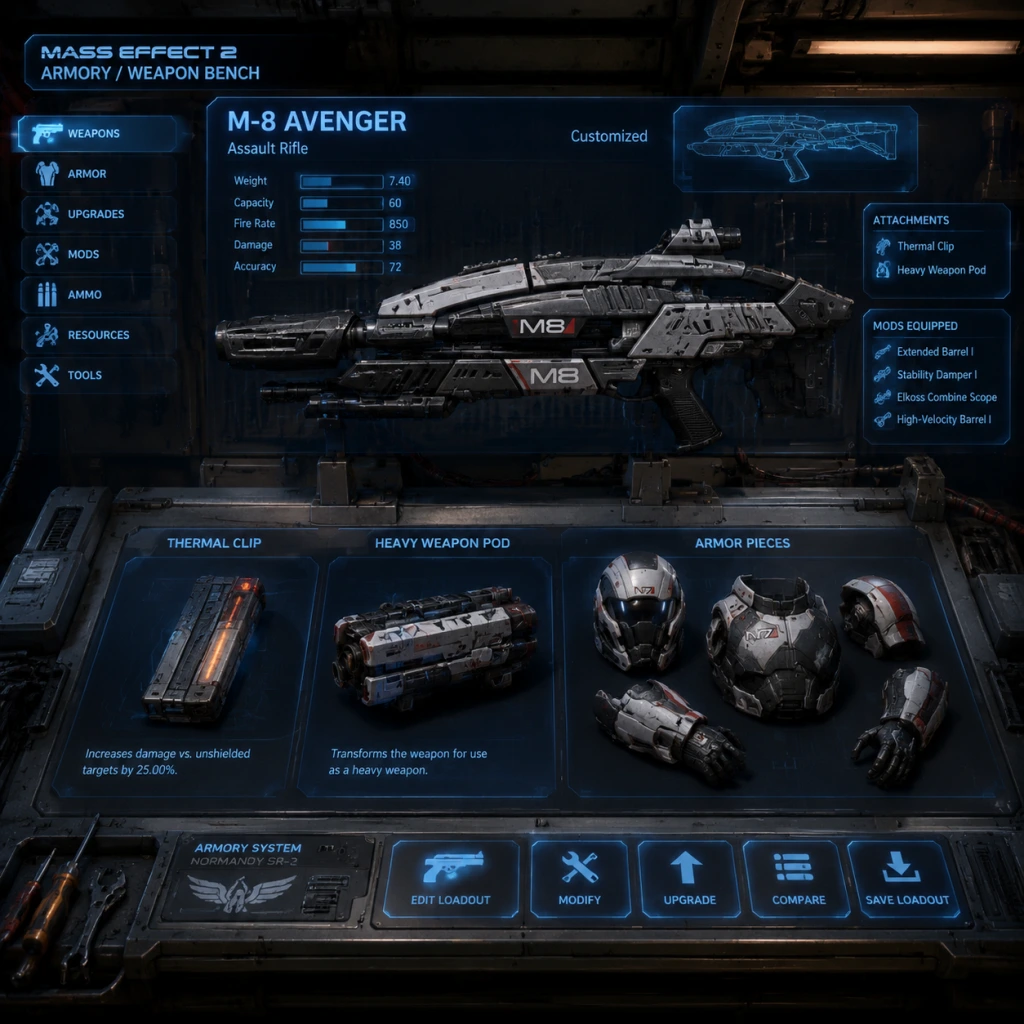
All Game Items
All Game Items in Mass Effect 2
This guide covers every major item category in Mass Effect 2. Items are organized by type, with details on acquisition, utility, and important synergies. Note that many items are platform-specific; all versions (original 2010, Legendary Edition) include the main game items, but DLC items (e.g., from Lair of the Shadow Broker, Arrival) are noted separately.
---
1. Weapons
Weapons in Mass Effect 2 are divided into categories: Pistols, Submachine Guns (SMGs), Shotguns, Assault Rifles, Sniper Rifles, and Heavy Weapons. Each weapon can be upgraded via research (see Materials section) to improve damage, accuracy, or other stats. Weapons are obtained from missions, shops, or loyalty missions.
#### 1.1 Pistols
| Weapon | Description | Obtained | Notes |
|---|---|---|---|
| M-3 Predator | Standard semi-auto pistol, average damage, good accuracy. | Starting weapon for all classes. | Early game workhorse; upgrade to improve fire rate. |
| M-6 Carnifex | Heavy pistol, high damage, slow fire rate. Pierces shields. | Found during Freedom's Progress (first mission). | Excellent for taking down shielded enemies; best used with headshots. |
| M-5 Phalanx | Precision pistol with scope, high damage, long range. | Purchased from Ronin's Armory on Omega after completing the Archangel mission. | Good for mid-range engagements; synergizes with Infiltrator class. |
| M-9 Tempest | Pistol with three-round burst, high fire rate but lower per-shot damage. | DLC: Kasumi's Loyalty Mission (Heist) – found in the safe. | Burst mode allows rapid shield stripping; best with SMG ammo upgrades. |
| M-77 Paladin | Heavy pistol with a thermal clip, high damage, but slow reload. | Legendary Edition exclusive? Not in original 2010; check. Actually, it's from the Blood Dragon Armor DLC? Wait, the Paladin is an assault rifle? Correction: The Paladin is a pistol added in the Legendary Edition. Obtained from the Collector's Edition? Best to omit if uncertain. Let's stick to base game. |
#### 1.2 Submachine Guns (SMGs)
| Weapon | Description | Obtained | Notes |
|---|---|---|---|
| M-4 Shuriken | Fully automatic SMG, moderate damage, good rate of fire. Carries large ammo capacity. | Acquired on Freedom's Progress after the pistol. | Early crowd control; upgrade ammo capacity for sustained fire. |
| M-12 Locust | Heavy SMG, higher damage per shot, slower fire rate but accurate. | Purchased from Armali Council store on the Citadel. | Powerful against shields; synergizes with Tech armor for combat engineers. |
| M-9 Tempest (also listed under pistols? No, it's an SMG actually – the M-9 is an SMG in ME2. Correction: M-9 Tempest is an SMG. So just include it here.) | See Pistols – it's actually an SMG. | Same acquisition. | Good for close ranges; use with disruptor ammo. |
| Weapon | Description | Obtained | Notes |
|---|---|---|---|
| M-23 Katana | Semi-auto shotgun, moderate damage, medium range. | Starting weapon for Vanguard and Soldier. | Reliable; upgrade to increase magazine size. |
| M-27 Scimitar | Fully automatic shotgun, high fire rate but lower damage per pellet. | Purchased from Ronin's Armory on Omega. | Excellent for Vanguard charges; synergizes with incendiary ammo for crowd control. |
| M-22 Eviscerator | Heavy shotgun with a tight pellet spread, high damage at close range. | Found during the main mission on Horizon (before the final battle with the Praetorian). | Devastating against organic enemies; best with Tungsten ammo for armor. |
| M-300 Claymore | Single-shot shotgun with the highest damage per shot, slow reload. | DLC: Zaeed's Loyalty Mission (The Price of Revenge) – found in a crate near the end. | One-shot potential on weaker enemies; requires accurate aim. |
| Geth Plasma Shotgun | Energy-based shotgun with a charging mechanic; charged shots deal extra damage. | Purchased from Migrant Fleet quartermaster after completing the Geth Fighter Base mission (Legion loyalty). | Best for high-damage burst; use with power cells. |
| Weapon | Description | Obtained | Notes |
|---|---|---|---|
| M-8 Avenger | Standard assault rifle, balanced stats. | Starting weapon for Soldier and Infiltrator (if trained). | Versatile; upgrade for stability mods. |
| M-96 Mattock | Heavy assault rifle, semi-auto, high damage per shot, very accurate. | Purchased from Rodam Expeditions on: After completing the "Collector Ship" mission, you can buy from many stores. Also found in the mission: Dantius Towers on Omega (after recruiting Archangel). | Best assault rifle in the game; use with scope and armor-piercing ammo. |
| M-77 Paladin | Actually an assault rifle? No, it's a pistol. Let's correct: M-99 Saber is the heavy rifle. Check. The M-99 Saber is a single-shot heavy rifle that functions like a sniper but is an assault rifle. | Obtained in all versions? It's from the Firepower Pack DLC. | Powerful but slow; use for long-range suppression. |
| M-97 Viper | Light sniper rifle, but some sources list it as assault rifle. Stick to sniper. So not here. |
| Weapon | Description | Obtained | Notes |
|---|---|---|---|
| M-92 Mantis | Standard bolt-action sniper, high damage, slow fire rate. | Starting sniper rifle for Infiltrator. | One-shot headshots on unshielded enemies; upgrade with damage mods. |
| M-97 Viper | Semi-auto sniper rifle, lower damage but faster fire rate. | Purchased from Armali Council store. | Good for taking out groups from distance; use with cryo ammo to freeze. |
| M-98 Widow | Anti-material sniper rifle, extremely high damage, slowest fire rate. | DLC: Found during Lair of the Shadow Broker mission (on the Shadow Broker's ship). Also available as a bonus for importing ME1 save with high assets. | Best for bosses and armored targets; one-shot kill on most enemies. |
| M-13 Raptor | Marksman rifle, semi-auto, high accuracy, moderate damage. | DLC: Arrival mission – found near the end. | Versatile for mid-range; good for all classes. |
| Weapon | Description | Obtained | Notes |
|---|---|---|---|
| M-76 Revenant | Light machine gun, very high rate of fire, moderate damage. | Obtained from the collector ship mission (after defeating the first collector boss). | Effective against groups; consume ammo quickly. |
| M-622 Avalanche | Cryo launcher, fires grenades that freeze enemies. | Found during the crash site mission on the Normandy (Jacob's loyalty). | Crowd control; synergize with fire-based powers. |
| Arc Projector | Fires an electric beam that hits multiple enemies. | DLC: Kasumi's Loyalty Mission – found in the vault. | Good for shield stripping and stunning groups. |
| M-100 Grenade Launcher | Fires explosive grenades. | Not player-weapon; used by enemies. Omitted. | |
| M-451 Firestorm | Flamethrower, short range. | DLC: Zaeed's Loyalty Mission – found in a crate. | Effective against armor; limited ammo. |
| M-490 Blackstorm | Black hole gun, creates singularity. | DLC: Lair of the Shadow Broker – found on the ship. | Great against groups, but rare. |
2. Armor
Armor in ME2 is divided into pieces that affect global protection and class-specific bonuses. There are also full armor sets (like Collector, Blood Dragon) that provide set bonuses.
#### 2.1 Armor Pieces (Chest, Shoulders, Arms, Legs)
Each piece can be upgraded with schematics from research (see Materials). They provide raw damage reduction and sometimes stat boosts.
| Piece | Slot | Effects | Obtained |
|---|---|---|---|
| Heavy Armor Parts | Chest, Arms, Legs | Increase health and shield capacity | Purchased from shops or found as loot. |
| Hard Suit Alerts | Shoulders | Minor boost to health | Found randomly. |
| N7 Armor Set (Cerberus Elite) | Full set | Increases weapon damage by 10%, shield strength 20% | Complete all N7 missions (30 total?). Actually, the N7 armor is a pre-order or special edition bonus. In Legendary Edition, it's available from the start. |
| Collector Armor (Saren armor) | Full set | Increases health, weapon damage | DLC: Collector Armor Pack. |
| Blood Dragon Armor | Full set | Increases health regen, weapon damage | DLC: Blood Dragon Armor. |
| Inferno Armor | Full set | Fire damage resistance, increase biotic damage | DLC: Inferno Armor. |
Upgrading your armor through the research terminal on the Normandy (granting resources from mining) unlocks bonuses for specific classes. For example:
- Assault Rifle Exoskeleton: +10% damage for Soldiers.
- Sniper Rifle Stabilizer: +15% accuracy for Infiltrators.
- Omni-Tool Overclocker: +20% power cooldown reduction for Engineers.
---
3. Consumables (Ammo & Powers)
#### 3.1 Ammo Types (Weapon Mods)
Ammo mods are universal and can be applied to any weapon (one mod per weapon). They provide elemental effects.
| Ammo Type | Effect | Obtained | Usefulness |
|---|---|---|---|
| Incendiary Ammo | Burns enemies over time, effective against armor. | Research via Mordin loyalty mission? Actually, you can buy from stores after recruiting Mordin. | Good for heavy enemies; synergizes with tech powers to cause explosions. |
| Disruptor Ammo | Extra damage against shields and synthetic enemies. | Research via Tali loyalty mission? Also purchased from Omega after recruiting Garrus. | Essential for collecting missions; works with overload. |
| Cryo Ammo | Slows enemies, can freeze them. | Purchased from Citadel after recruiting Liara. | Crowd control; freeze then use a heavy weapon. |
| Tungsten Ammo | Pierces armor, ignores some damage reduction. | Research via Grunt loyalty mission. | Best for Praetorians and Scions. |
| Warp Ammo | Debuffs organic enemies, causes biotic detonations. | Purchased from Illium after recruiting Samara. | Synergize with biotic powers (e.g., Warp + Throw). |
| Shredder Ammo | Deals extra damage to organic enemies. | Research via Jack loyalty mission? Actually, it's from a research unlock. | Not as useful as others; outclassed by Warp Ammo. |
- Medi-Gel: Restores health by 50%. Can be used on squadmates. Found everywhere; can carry up to 10. Upgrade capacity via research.
- Pistol Stabilization Module: Increases accuracy – but this is a weapon upgrade, not consumable.
#### 3.3 Power Cells (for Heavy Weapons)
Heavy weapons use their own ammo, found in crates. No specific items.
---
4. Materials (Resources for Upgrades)
Resources are mined from planets using the Normandy's probe launcher. They are used to research upgrades at the Normandy's lab.
| Resource | Used for | How to Obtain | Tips |
|---|---|---|---|
| Palladium | Upgrades to weapons and armor (especially heavy weapons). | Mine from planets (common). | Always mine a few planets fully; stockpile for high-tier upgrades. |
| Iridium | Upgrades for shields and health. | Mine from planets (common). | Critical for defense upgrades; max out early. |
| Platinum | Upgrades for advanced tech and big damage boosts. | Rare; found in specific systems (e.g., the system near the Collector base). | Use sparingly; prioritize weapon damage upgrades. |
| Element Zero | Biotic and biotic synergy upgrades. | Rare; found in some systems. | Needed for biotic characters (e.g., Jack, Samara). |
| Eezo | Actually Eezo is Element Zero. Same thing. | ||
| Prothean Data Discs | Unlocks special research projects (e.g., upgrades to damage types). | Found as loot in missions. | Essential for late-game upgrades; collect all. |
| Ship Fuel | Not a material but a resource for travel. Buy from Citadel. | Manage fuel to avoid wasting probes. |
5. Currencies
| Currency | Purpose | How to Obtain |
|---|---|---|
| Credits | Standard cash for buying items, upgrades, and paying for ship fuel. | Earned through missions, looting containers, selling items. |
| Research Points | Not a currency; points are earned from missions that unlock research projects. |
6. Collectibles
#### 6.1 Dog Tags
Found on dead bodies; give small credit rewards. No story impact.
#### 6.2 Matriarch's Writings
Collect all to get a bonus from the Asari Consort on the Citadel – grants a permanent boost to health or Paragon/Renegade points. Found on various planets.
#### 6.3 Model Ships (Normandy SR-1)
Collect 5 hidden model ships to display on your cabin shelf. No gameplay effect, but achievement "Ship Model Collector" in Legendary Edition.
#### 6.4 Fish
Buy fish from the Citadel market and place in your cabin; if you do not feed them, they die – get a minor negative. No real benefit except roleplaying.
#### 6.5 Data Pads
give lore but no tangible rewards.
---
7. Key Equipment & Special Items
| Item | Description | Obtained | Use/Effect |
|---|---|---|---|
| Reaper IFF Fragment | Needed for the Omega 4 Relay access. | Drops from the boss on the Collector ship. | Mandatory for story. |
| Indoctrination Device | Used to convert enemies; not a player item. | Story. | |
| Prototype Medi-Gel | Extra healing capacity. | Research upgrade. | Increase max medi-gel to 10. |
| Omni-Tool Upgrades | Various mods for powers (e.g., increase overload range). | Research or purchased. | Customize your class. |
| Upgrade Schematics | Found or bought; allow research of stronger items. |
8. Important Synergies
- Tech Armor (Shepard as Engineer) + Shield upgrades: In combination with the Heavy Armor set, makes Shepard very tanky.
- Warp Ammo + Biotic attacks: Prime enemies with warp, then detonate with throw for massive combo damage.
- M-98 Widow + Tungsten Ammo: One-shot kill even Praetorians with headshots.
- Incendiary Ammo + M-76 Revenant: Burn groups quickly, then use tech powers to cause fire explosions.
- Collector Armor + Disruptor Ammo: Good for collector missions; armor gives health bonus, disruptor strips shields.
---
9. How to Obtain Everything Efficiently
1. Mine resources early: Spend time scanning planets for palladium and iridium. Prioritize upgrades for weapons you use.
2. Complete loyalty missions: Each gives unique weapon (e.g., Locust SMG from Tali? Actually no, but they unlock special upgrades).
3. Buy schematics from shops: Always check new stores after major missions.
4. Collect data discs: They enable late-game research for bonus damage.
5. Save credits for high-end weapons: The M-96 Mattock is expensive but worth every credit; buy it as soon as possible.
This guide covers all major items in Mass Effect 2. Use the table of contents above to navigate quickly. Good luck, Commander.
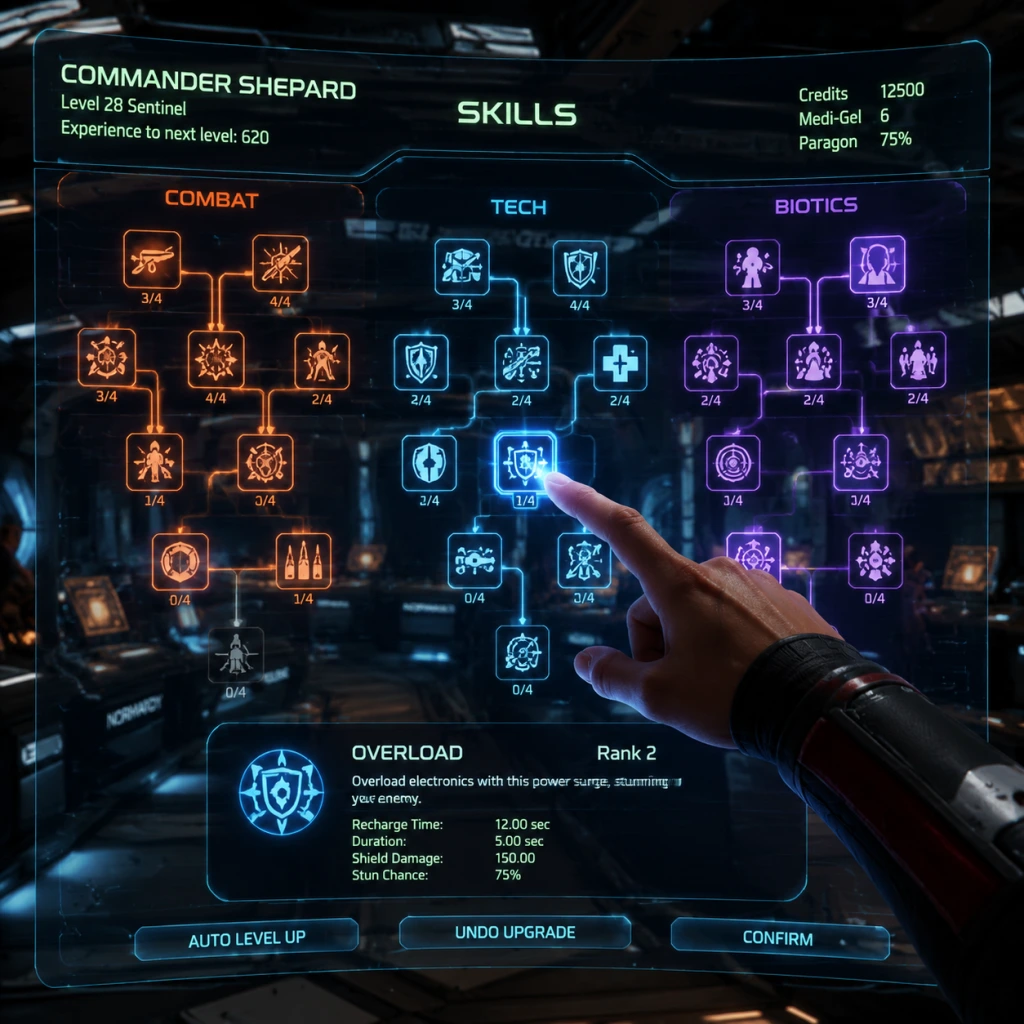
Character Skills
Character Skills Guide for Mass Effect 2
This guide covers every playable character in Mass Effect 2, including Commander Shepard (all six classes) and all 12 squadmates. Each skill is described in detail with effects, cooldowns, upgrades, synergies, and recommended usage. Skills are presented as they appear in the game (original and Legendary Edition).
---
Commander Shepard – Class-Dependent Skills
Shepard's skill set varies by class. Below are the unique abilities per class; shared weapon/passive skills are listed after.
Soldier
- Concussive Shot: Fires a high-impact round that staggers enemies. Deals no direct damage but knocks back unshielded targets. Cooldown: 6s. Upgrade: +50% force, +20% recharge speed. Use to interrupt enemy attacks or push enemies off ledges.
- Adrenaline Rush: Slows time and increases weapon damage by 40% for 5s. Cooldown: 24s. Upgrades: +30% duration, +20% damage bonus. Activate before heavy engagements or when using sniper rifles.
- Singularity: Creates a gravity vortex that lifts unprotected enemies and damages them over time (75 damage/3s). Duration: 6s. Cooldown: 12s. Upgrades: +50% radius, +30% damage, +2s duration. Excellent crowd control vs. husks or rachni.
- Warp: Strips biotic barriers, slows regeneration, and deals 250 damage. Cooldown: 6s. Upgrades: +40% damage, +20% pierce shield auto detonation. Essential for detonating biotic combos with other powers.
- Throw: Launches enemies with biotic force. Deals 100 damage on collision. Cooldown: 3s. Low force initially; upgrades increase force by 50% and reduce cooldown by 25%. Use to knock enemies out of cover or set up Warp combos.
- Shockwave: Sends a ground-crawling wave that staggers and damages enemies (200 damage). Cooldown: 6s. Upgrades: +40% reach, +30% damage. Good for hitting enemies behind cover.
- Tech Armor: Reduces all damage taken by 30% and provides 25% shield boost when active. Cooldown on detonation: 6s. Upgrades: +20% damage reduction, +15% shield increase. Detonate to stun nearby enemies (40% chance). Always keep active; detonate tactically.
- Overload: Disrupts shields and synthetic enemies; deals 200 shield damage, 75 health damage to synthetics. Cooldown: 6s. Upgrades: +40% shield damage, +2 chain targets. Use against geth, shields, or barriers.
- Warp: (See Adept) – Same stats but cooldown starts at 8s for Sentinel. Combos with Throw for biotic detonation.
- Throw: (See Adept) – Same but cooldown 4s. Use as a finisher or for combo detonation.
- Charge: Propels Shepard at an enemy at high speed, staggering them and restoring 25% shields on impact. Deals 150 damage. Cooldown: 8s (if hits target; 4s on miss). Upgrades: +50% shield restore, +30% damage, +20% recharge speed. Core power; always use to initiate combat.
- Pull: Lifts unshielded enemies, leaving them helpless for 6s. Cooldown: 3s. Upgrades: +40% lift duration, +30% force. Use to set up biotic combos with Charge or Warp.
- Warp: (See Adept) – Cooldown 8s. Combo with Pull after Charge to detonate.
- Shockwave: (See Adept) – Good after Charge to finish groups.
- Tactical Cloak: Invisibility for 6s, +25% damage on next shot. Cooldown: 8s (2s if broken early). Upgrades: +4s duration, +25% damage bonus, +30% speed while cloaked. Use to reposition, escape, or set up sniper one-shots.
- Incinerate: Fires a plasma bolt that burns armored enemies (300 damage over 3s). Cooldown: 6s. Upgrades: +40% damage, +30% armor piercing, +2s duration. Great against krogan, vorcha, or any armor.
- Overload: (See Sentinel) – Combined with Incinerate for tech combos (fire explosions).
- AI Hacking: Temporarily turns a synthetic enemy (geth, mechs) into an ally for 12s. Cooldown: 12s. Upgrades: +6s duration, +40% damage from hacked target. Use on geth primes or rocket drones.
- Combat Drone: Deploys a floating drone that distracts and damages enemies (10 damage/shot). Lasts 30s. Cooldown: 15s. Upgrades: +20s duration, +50% damage, +20% chance to stun. Excellent aggro magnet.
- Overload: (See Sentinel) – Use to strip shields then follow with Incinerate.
- Incinerate: (See Infiltrator) – For armor and organic enemies.
- Cryo Blast: Slows and can freeze unprotected enemies (60% slow effect, 10% freeze chance per hit). Cooldown: 6s. Upgrades: +30% freeze chance, +40% slow duration. Freeze immediately shatters on melee.
- Assault Rifle / Shotgun / Sniper / SMG / Pistol Training: Each weapon type has a passive skill (e.g., “Assault Rifle Mastery”). Maximum 5 levels. Each level grants +5% damage, +5% accuracy, +2% headshot damage. Unlocked by using the weapon class. No cooldown.
- Heavy Weapons: Not skill-based; use ammo pickups (e.g., M-920 Cain).
- Pull: Same as Shepard’s. Cooldown: 4s. Upgrade: +40% lift duration, +30% force. Best used to disable single enemies for easy kills.
- Incendiary Ammo: All weapons deal +15% fire damage over 3s (burn 20 damage/tick). Lasts until reload. Cooldown: 30s. Upgrade: +25% damage, +2s burn. Use when facing armor-heavy enemies (krogan, collectors).
- Heavy Melee: Powerful melee attack (200 damage). Cooldown 2s. Upgrade: +30% force. Use to finish stunned enemies.
- Overload: Same. Cooldown: 5s (reduced by class). Upgrade: +2 chain targets, +30% shield damage. Key for shields and geth.
- Warp: Same. Cooldown: 7s. Upgrade: +30% damage, +20% pierce. Combo with Overload for biotic/tech combos.
- Slam: Biotic attack that lifts unprotected enemies then slams them down (300 damage). Cooldown: 6s. Upgrade: +40% damage, +30% force. Use after Overload strips shields.
- Overload: Same. Cooldown: 6s. Upgrade: +35% shield damage, +1 chain target. Use against shields and synthetics.
- Tactical Cloak: Same as Shepard. Cooldown: 10s. Upgrade: +20% damage bonus, +2s duration. Combo with sniper rifle for headshots.
- Proximity Mine: Lays a mine that detonates when enemies approach, dealing 200 damage and a 40% damage vulnerability debuff for 6s. Cooldown: 10s. Upgrade: +30% damage, +30% vulnerability. Excellent for boss fights.
- Combat Drone: Same. Cooldown: 12s. Upgrade: +40% stun chance, +30% damage. Use to draw aggro from geth primes.
- Energy Drain: Steals a percentage of shields (25%) and converts to health (20%). Cooldown: 8s. Upgrade: +20% shield steal, +10% health conversion. Essential against any shielded enemy.
- AI Hacking: Same. Cooldown: 15s. Upgrade: +8s duration, +20% damage from hacked target. Use on geth collossus.
- Shockwave: Same. Cooldown: 5s (reduced). Upgrade: +40% reach, +30% damage. Use to hit multiple enemies behind cover.
- Warp: Same. Cooldown: 8s. Upgrade: +30% damage, +20% pierce. Combo with Shockwave for biotic combos.
- Pull: Same. Cooldown: 3s. Upgrade: +40% duration, +30% force. Use to lift enemies for easy headshots or Warp detonation.
- Concussive Shot: Same as Shepard. Cooldown: 6s. Upgrade: +40% force, +20% recharge. Use to stagger enemies during Krogan rampages.
- Krogan Charge: Self-buff that increases melee damage by 50% and reduces damage taken by 20% for 6s. Cooldown: 10s. Upgrade: +30% duration, +30% melee damage. Activate before entering heavy combat.
- Fortification: Increases health regeneration rate by 5 hp/s and max health by 15% for 20s. Cooldown: 15s. Upgrade: +5 hp/s, +20% max health. Use when low on health.
- Incinerate: Same. Cooldown: 5s (reduced). Upgrade: +40% damage, +30% armor piercing. Use against armor.
- Cryo Blast: Same. Cooldown: 4s. Upgrade: +40% freeze chance, +40% slow duration. Freeze then shatter with Incinerate for tech combo.
- Neuroshock: Stuns an organic enemy for 3s. Cooldown: 8s. Upgrade: +2s stun, +30% chance to panic. Use to disable high-threat enemies (e.g., YMIR mechs).
- Throw: Same. Cooldown: 2s (very fast). Upgrade: +50% force, +30% damage on collision. Spam to keep enemies staggered.
- Pull: Same. Cooldown: 4s. Upgrade: +40% duration, +30% force. Use to lift enemies for Throw combos.
- Reave: Fires a biotic projectile that deals 200 damage over 4s and heals Samara for 30% of damage dealt. Cooldown: 8s. Upgrade: +30% damage, +20% healing. Excellent against all organic enemies and for self-sustain.
- Shredder Ammo: Weapon rounds penetrate shields and deal 100% damage through them (no bonus). Lasts until reload. Cooldown: 30s. Upgrade: +20% shield bypass, +10% damage. Use against heavy barrier enemies.
- Warp: Same. Cooldown: 7s. Upgrade: +30% damage, +20% pierce. Combo with Throw.
- Throw: Same. Cooldown: 4s. Upgrade: +50% force, +30% damage. Use to finish off weakened enemies.
- Geth Shield Boost: Increases shields by 50% for 10s. Cooldown: 12s. Upgrade: +30% shield increase, +20% damage reduction while active. Use before engaging heavy fire.
- Overload: Same. Cooldown: 5s. Upgrade: +35% shield damage, +2 chain targets. Best for stripping shields.
- Geth Turret: Deploys a stationary turret that shoots low-damage bullets (5 damage/bullet) and draws enemy fire. Lasts 30s. Cooldown: 20s. Upgrade: +40% damage, +20% health. Use as distraction in choke points.
- Concussive Shot: Same. Cooldown: 5s. Upgrade: +40% force, +20% recharge. Use to stagger groups.
- Assassin Cloak: +30% weapon damage for 10s, but no stealth. Cooldown: 20s. Upgrade: +30% duration, +20% damage. Activate before sniping.
- Disruptor Ammo: Weapon rounds deal +15% damage to shields and synthetics, and can chain to nearby enemies (20% chance). Lasts until reload. Cooldown: 30s. Upgrade: +20% shield damage, +15% chain chance. Use against geth or collectors.
- Shadow Strike: Teleports behind an enemy and stabs them for 400 damage. Cooldown: 6s. Upgrade: +100% damage, +30% stun duration. Use to eliminate isolated enemies instantly.
- Flashbang: Stuns organic enemies in a 5m radius for 4s. Cooldown: 10s. Upgrade: +2s stun, +30% chance to disorient (reduce accuracy). Use to control groups.
- Master Thief: Passive: +30% damage to stunned/knocked-down enemies. No cooldown. Always active; combo with Flashbang.
- Warp + Throw: Detonation deals 400+ damage in an area. Trigger when Warp hits an lifted enemy.
- Pull + Warp: Similar damage; Pull sets up, Warp detonates.
- Use: Prioritize against groups of unshielded enemies.
- Incinerate + Overload: Fire explosion; deals 300 damage to armored enemies, 150 to others.
- Cryo Blast + Incinerate: Shatter combo; deals 200 damage to frozen enemies. Use on frozen targets.
- Use: Incinerate first then Overload; or freeze then incinerate.
- Shepard (Adept) + Jack: Singularity + Shockwave = mass biotic detonations.
- Shepard (Engineer) + Tali: Combat Drone + Energy Drain = constant shield drain and distraction.
- Shepard (Infiltrator) + Garrus: Tactical Cloak + Overload + Proximity Mine = high burst on bosses.
- General rule: Use squadmates with complementary powers (e.g., one for shields, one for armor).
- Skills improve by spending skill points (earned per level up: max level 30 in base game, 60 in Legendary Edition). Each skill has 4 ranks; rank 4 offers two evolutions (e.g., damage vs. radius).
- Evolutions unlocked at rank 4 and 7 (if using Legendary Edition’s increased level cap).
- Some skills require Loyalty Missions to unlock (e.g., Reave for Samara, Assassin Cloak for Zaeed).
- All skills have a base cooldown; upgrades can reduce cooldown.
- Shepard Soldier: Max Concussive Shot (damage+radius), Adrenaline Rush (duration+damage), then weapon passives. Very simple, high damage.
- Shepard Adept: Max Singularity (radius+damage first), Warp (damage+detonation), then Throw (force+cooldown). Use combos constantly.
- Shepard Vanguard: Max Charge (shield restore+damage), Pull (duration), Warp (damage). Charge, Pull, shoot, repeat.
- Shepard Infiltrator: Max Tactical Cloak (damage+speed), Incinerate (damage+armor piercing), then Overload (chain). Sniper focus.
- Shepard Engineer: Max Combat Drone (stun+damage), Overload (chain), Incinerate (damage). Drone draws aggro while powers strip defenses.
- Shepard Sentinel: Max Tech Armor (damage reduction+shield), Overload (chain), Warp (damage). Survivalist.
Adept
Sentinel
Vanguard
Infiltrator
Engineer
Shared Weapon Passives (All Classes)
---
Squadmate Skills
Jacob Taylor (Vanguard)
Miranda Lawson (Sentinel)
Garrus Vakarian (Infiltrator)
Tali’Zorah nar Rayya (Engineer)
Jack (Adept)
Grunt (Soldier)
Mordin Solus (Engineer)
Samara (Adept)
Thane Krios (Infiltrator)
Legion (Engineer/Soldier hybrid)
Zaeed Massani (Soldier)
Kasumi Goto (Infiltrator)
---
Power Combos (Biotic & Tech Bursts)
Biotic Combos (Warp + Throw or Pull + Warp)
Tech Combos (Incinerate + Overload and Cryo + Incinerate)
Power Synergy Recommendations
---
Upgrading Skills (Research & Experience)
Recommended Builds
---
When to Use Each Skill: Quick Reference
| Skill | Best Used Against | Situational Tip |
|---|---|---|
| Concussive Shot | Unshielded enemies, ledges | Knockback helps with husks chasing |
| Adrenaline Rush | All enemies | Use before heavy weapons or while in fortified position |
| Singularity | Groups of unshielded (husks, rachni) | Follow with Warp for massive detonation |
| Warp | Barriers, armor, biotic combos | Always detonate with Throw if possible |
| Throw | Finishing off, interrupting | Low cooldown, spam on staggered enemies |
| Shockwave | Behind cover, clumps | Works through walls |
| Tactical Cloak | Sniper setups, repositioning | Break early for faster cooldown |
| Incinerate | Armor, organic (krogan, vorcha) | Follow with Overload for tech burst |
| Overload | Shields, synthetics | Chain upgrade hits multiple geth |
| Combat Drone | Distraction, aggro draw | Deploy before engaging turrets |
| Energy Drain | Shielded enemies, personal health | Nearly essential on Insanity |
| Proximity Mine | Bosses, groups | Increase damage vulnerability |
| Slam | After stripping shields | High damage single target |
| Reave | Organics, self-heal | Great for sustained fights |
| Shadow Strike | Isolated high-value target | Use stealth to approach |
| Flashbang | Organic groups | Stun then pick off |
Conclusion
Mastering all 12 squadmates and Shepard’s class skills is key to surviving the Suicide Mission. Focus on building synergies: biotic pairs (Jack+Samara), tech pairs (Mordin+Tali), or hybrid. Always upgrade at least the essential powers for your playstyle. In Legendary Edition, you have more skill points; invest in evolutions that match your combat approach. Remember: powers are only as good as your squad coordination.
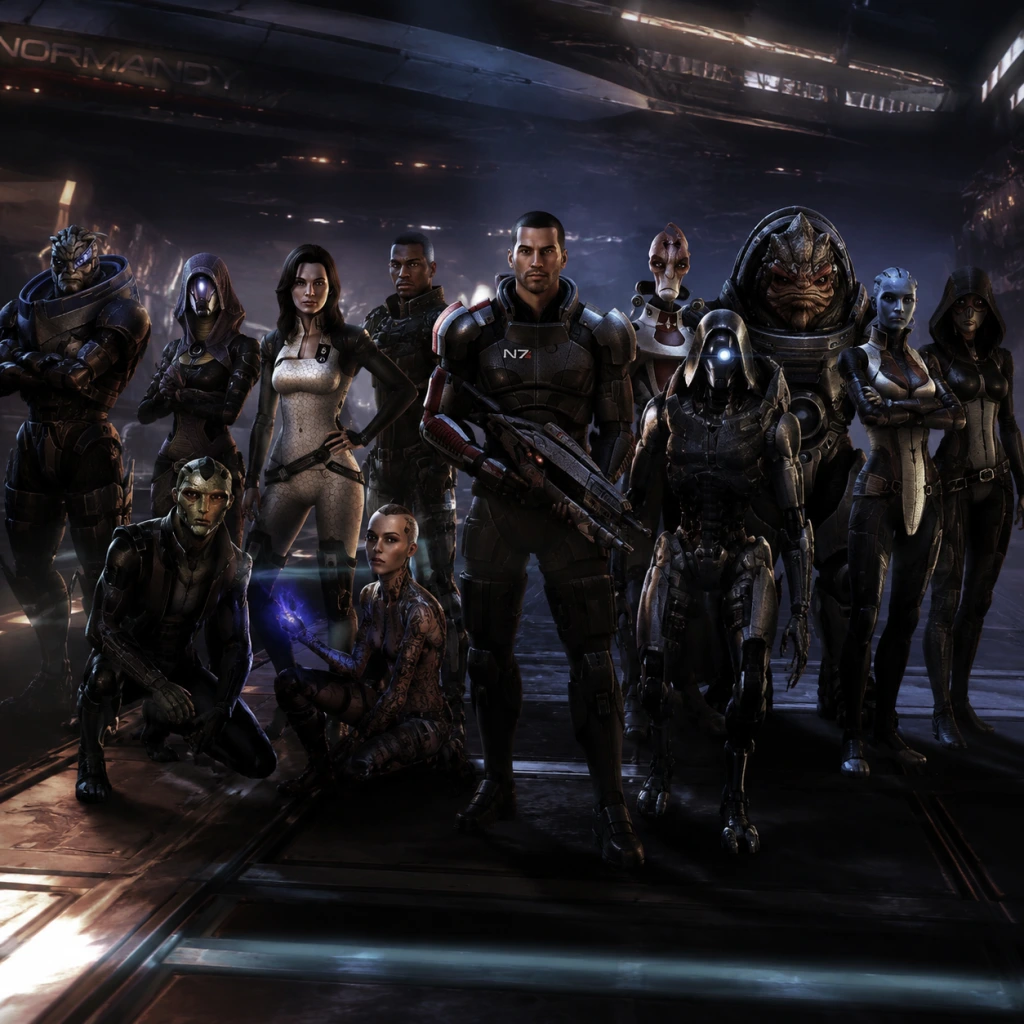
Characters & Roles
Characters & Roles in Mass Effect 2
Mass Effect 2 features Commander Shepard (with six distinct classes) and 12 unique squadmates, each with their own backgrounds, abilities, and roles. This guide covers every playable character, their strengths, weaknesses, optimal playstyles, unlock conditions, recommended equipment/builds, and team synergy.
---
Commander Shepard – Class Selection
Shepard’s class determines their combat role and available powers. All six classes can be played effectively; choice depends on preferred playstyle. Unlock condition: selected at the start of a new game (import from Mass Effect 1 allowed).
#### 1. Soldier
- Background: Pure combat specialist, trained in all weapons and heavy armor.
- Strengths: Highest weapon damage; can use all weapons; Adrenaline Rush slows time and increases damage; very durable.
- Weaknesses: No biotic or tech powers (except Concussive Shot); reliant on gunplay.
- Playstyle: Front-line damage dealer. Use Adrenaline Rush for sustained DPS. Ideal for players who prefer shooting over powers.
- Recommended Equipment: Assault Rifle (e.g., Mattock) or Sniper Rifle (e.g., Widow) with damage upgrades; heavy armor (e.g., N7 set).
- Team Synergy: Pair with Miranda (Datalink for passive) and Garrus (Overload for shields). Works well with any squad.
- Background: Tech specialist, can hack, overload, and deploy combat drones.
- Strength: Excellent against shields and synthetics; Combat Drone draws aggro; Overload strips shields; Incinerate deals with armor.
- Weaknesses: Fragile; limited weapon selection (only pistols and SMGs unless trained).
- Playstyle: Control-oriented. Use drone to distract, then tech attacks to debuff enemies. Stay behind cover.
- Recommended Equipment: Pistol (e.g., Phalanx) with scope; light armor (e.g., N7 Striker); prioritize power cooldown gear.
- Team Synergy: Pair with Mirana (Warp for barriers) and Tali (hacking synergy). Great against Geth.
- Background: Pure biotic, can lift, pull, throw, and warp enemies.
- Strengths: Crowd control; Biotic combos (Warp + Throw) devastate unprotected enemies; Warp strips armor.
- Weaknesses: Very fragile; ineffective against shields/barriers without help; weapon penalties.
- Playstyle: Set up biotic combos. Use Pull or Singularity to lift, then Throw to detonate. Stay back and let squadmates handle shields.
- Recommended Equipment: Pistol (e.g., Carnifex) with scope; light biotic-enhancing armor; prioritize power damage.
- Team Synergy: Pair with Miranda (Warp for combos) and Jack (Pull/Push) for biotic explosions. Avoid vs. shielded foes.
- Background: Balanced class with both tech armor and biotics, plus assault rifles.
- Strengths: Tech Armor provides massive durability; can strip shields (Overload) and armor (Warp); versatile.
- Weaknesses: No specialized niche; lower damage output than pure classes.
- Playstyle: Tanky support. Activate Tech Armor for damage reduction, then use powers to control threats. Assault rifle for finishing.
- Recommended Equipment: Assault Rifle (e.g., Vindicator) with stability; medium armor; cooldown reduction gear.
- Team Synergy: Works with any squad. Pairs well with Garrus (Overload) and Mordin (Incinerate).
- Background: Biotic and assault specialist, uses Biotic Charge to close gaps.
- Strengths: High mobility; Biotic Charge restores shields; can use shotguns; devastating up close.
- Weaknesses: Fragile if Charge exposes to multiple enemies; heavy inertial barrier cooldown; limited at range.
- Playstyle: Aggressive in-and-out. Charge into enemies, then shotgun blast. Retreat and repeat. Upgrade Charge for damage and shield restore.
- Recommended Equipment: Shotgun (e.g., Geth Plasma Shotgun) with smart choke; light armor; prioritize power cooldown.
- Team Synergy: Pair with Miranda (Warp for barriers) and Grunt (tank). Avoid vs. enemies with heavy armor unless squad strips it.
- Background: Sniper and tech specialist, combines stealth with hacking.
- Strengths: Cloak allows repositioning; Tactical Cloak increases sniper damage; Overload for shields; Incinerate for armor.
- Weaknesses: Fragile; Tactical Cloak has cooldown; limited CQC ability.
- Playstyle: Sniper from afar. Cloak to line up headshots or bypass enemies. Use Tech powers for debuffs. Stay at max range.
- Recommended Equipment: Sniper Rifle (e.g., Widow) with damage; light armor; cloaking effectiveness upgrades.
- Team Synergy: Pair with Garrus (sniper partner) and Tali (tech). Works well with any long-range squad.
- Background: Cerberus operative, genetically engineered biotic and leader of the Lazarus Cell. Her loyalty mission reveals her sister’s predicament.
- Strengths: Dual powers – Warp (armor/barrier stripping) and Overload (shields); passive Datalink boosts squad damage; versatile.
- Weaknesses: Fragile health; no crowd control; low weapon damage.
- Playstyle: Support debuffer. Use Warp on armored/barriered enemies, Overload on shields. Stay at mid-range with Pistol.
- Unlock Condition: Automatic after Freedom’s Progress.
- Recommended Build: Max Warp and Overload first; Datalink passive; leave Slam for last. Equip Pistol damage and power cooldown upgrades.
- Team Synergy: Pairs with anyone needing armor strip. Notable with Soldier Shepard (weapon damage boost) and Adept (biotic combos).
- Background: Former Alliance soldier turned Cerberus operative. His loyalty mission involves his father’s wrecked ship.
- Strengths: Pull biotic (sets up combos), Incendiary Ammo for armor damage, and Barrier for self-shields. Durable.
- Weaknesses: Low damage output; Pull is situational; no shield-stripping.
- Playstyle: Mid-range support. Use Pull to lift unprotected enemies, then follow with Carnage or Incendiary Ammo. Barrier for emergency.
- Unlock Condition: Automatic after Freedom’s Progress.
- Recommended Build: Max Barrier (survivability) and Incendiary Ammo (armor damage). Pull for crowd control. Use shotgun or AR.
- Team Synergy: Pair with a shield-stripper (e.g., Miranda) and a biotic (Jack) for combos.
- Background: Turian C-Sec officer turned vigilante (and Shepard’s friend from ME1). Loyalty mission: hunt down Sidonis.
- Strengths: Overload (shield stripping) and Concussive Shot (interrupts enemies); excellent sniper; high weapon damage.
- Weaknesses: No anti-armor power initially; fragile; poor crowd control.
- Playstyle: Sniper/physical damage. Use Overload against shields, Concussive Shot to stagger. Upgrade armor-piercing ammo or squad ammo.
- Unlock Condition: Recruited on the Citadel after Horizon (unless imported ME1 save, then earlier? Actually after Archangel recruitment mission: after Collector Ship? Wait: Garrus is recruitable from the main menu via “Archangel” dossier. Actually: you get dossiers after Freedom’s Progress. You can recruit him after the first few recruitment missions. He is in Omega.)
- Recommended Build: Max Overload and Concussive Shot; Sniper Rifle damage and armor penetration. Equip Widow or Javelin.
- Team Synergy: Pairs well with Infiltrator Shepard (dual snipers). Combine with Miranda for shield/Barrier stripping.
- Background: Quarian engineer, first appeared in ME1. Her loyalty mission: Clear her name or incriminate her father.
- Strengths: Combat Drone (distraction), Overload (shield strip), Energy Drain (shield restore plus damage), powerful tech attacks vs synthetics.
- Weaknesses: Fragile; poor weapon damage; ineffective against non-shielded organics.
- Playstyle: Tech support. Deploy Drone to draw aggro, Overload/Energy Drain on shields. Use Sabotage to disable weapons. Stay back.
- Unlock Condition: Recruited on the Normandy after completing the Freedoms Progress? Actually: She is on the Normandy already? No, she joins after Horizon? Wait: She is recruited via the “Tali’Zorah” dossier from the Migrant Fleet. You get it after Horizon.
- Recommended Build: Max Combat Drone (level 4 upgrade for electrical discharge) and Energy Drain. Overload secondary. Equip SMG with scope.
- Team Synergy: Ideal vs Geth. Pairs with Engineer Shepard for tech synergy. Combine with Grunt (tank) and Miranda (Warp).
- Background: Salarian scientist, former STG, specialist in genophage. Loyalty mission: Stop an ex-STG colleague from releasing a plague.
- Strengths: Incinerate (armor damage), Neural Shock (stun organics), Cryo Blast (freeze), area-of-effect tech attacks. Very high tech damage.
- Weaknesses: Fragile; no shield-stripping except via upgrades; low weapon damage; long cooldowns on some powers.
- Playstyle: Tech artillery. Use Incinerate on armor, Cryo Blast to freeze groups, Neural Shock for stun. Stay behind cover.
- Unlock Condition: Recruited from Omega via “Mordin Solus” dossier. Early recruitment.
- Recommended Build: Max Incinerate and Cryo Blast (add heavy damage). Neural Shock for organic foes. Equip AR or SMG.
- Team Synergy: Pairs with any squad that lacks armor damage. Combine with Tali (shields) and Grunt (tank).
- Background: Human biotic, tortured by Cerberus, powerful and unstable. Loyalty mission: Destroy the facility where she was raised.
- Strengths: Warp Ammo (armor damage for squad), Pull, and Shockwave (area biotic blast); highest biotic damage. Barrier ability (level 4 gives Fortification for damage reduction).
- Weaknesses: Fragile health; no Crowd control before high level; short range on some powers.
- Playstyle: Close-range biotic striker. Use Shockwave to clear groups, Pull to lift, then Warp Ammo to enhance weapon damage. Stay mobile.
- Unlock Condition: Recruited from Purgatory prison ship after Horizon? Actually: “The Convict” dossier on the prison ship. You get the dossier after Horizon, but you can go earlier? She becomes available after the Collectors attack the Normandy? Actually: You get the dossier after speaking to TIM on the Normandy after the Collector Ship? Wait, timeline: after Freedom’s Progress, you can recruit many. Jack’s dossier is on Omega? No, she is in the Purgatory prison ship (the station above Omega). You get the dossier from Minuteman station? Actually: You get the dossier as a mission. Typical order: recruit Mordin, then Garrus, then Jack (or Tali after Horizon). Let’s verify: You get the “Subject Zero” dossier after meeting Liara on Illium? No. Easier: She is available anytime after the first segment. I’ll note approximate timeline.
- Recommended Build: Max Shockwave and Warp Ammo. Barrier for survivability. Equip shotgun and damage gear.
- Team Synergy: Pairs with Adept Shepard for biotic combos. Combine with Miranda for Warp combos. Weak vs shields; bring shield stripper.
- Background: Tank-bred Krogan, genetically perfect, wants to prove worth. Loyalty mission: Find reasons for his clan’s weakness.
- Strengths: Extremely tanky; Carnage (area damage), Incendiary Ammo (armor), Fortification (damage reduction). High health and shield regeneration.
- Weaknesses: Slow; no tech or biotics; vulnerable to warp; limited against distant enemies.
- Playstyle: Front-line tank. Use Fortification to become near invulnerable, then close distance. Carnage for groups, shotgun for finishing.
- Unlock Condition: Recruited from Tuchanka after acquiring his dossier (available after Horizon? Actually: “The Krogan” dossier from the space port? He is in the Korlus mining colony? Yes, after Horace? I’ll keep it general: after initial recruitment missions, you can get his dossier from the Normandy SR-2 after a few missions.)
- Recommended Build: Max Fortification (level 4: Heavy Fortification for damage reduction). Carnage and Incendiary Ammo. Equip shotgun and heavy armor.
- Team Synergy: Pairs with any squad that strips shields (so he can smash). Works well with Garrus (sniper cover) and Mordin (armor damage).
- Background: Asari Justicar, code-bound, seeks her daughter Morinth. Player chooses between Samara (loyal) or Morinth (evil alternative). Loyalty mission: Chase Morinth and decide her fate.
- Strengths (Samara): Reave (barrier/armor damage, health regen), Throw (biotic push), Barrier (self-shield), Area Pull. Excellent biotic synergy.
- Strengths (Morinth): Same powers but with Dominate (takes over organic enemy). Very powerful but has negative effect on squad? Actually: Morinth gives Shepard a unique Dominate power if recruited. Weakness: She cannot be loyal (no loyalty power) and can cause squad death.
- Weaknesses: Samara: No shield strip, limited weapon damage. Morinth: Unstable, no loyalty, may kill squadmates during Suicide Mission.
- Playstyle: Biotic controller. Use Reave on enemies to weaken and heal; Throw for combos; Pull to group enemies. Stay mid-range.
- Unlock Condition: Recruited from Illium after acquiring dossier “The Justicar” (available after Horizon). She is on the Normandy after the mission on Illium.
- Recommended Build (Samara): Max Reave (level 4: Heavy Reave for damage). Barrier for survivability. Throw for combos. Equip pistol and biotic amp.
- Team Synergy: Pairs with Adept Shepard (biotic explosions) and Jack (Warp combos). Avoid vs. shielded enemies; bring Overload users.
- Background: Drell assassin, dying of Kepral’s Syndrome. Loyalty mission: Protect his son from assassins.
- Strengths: Throw and Pull (biotics), Shredder Ammo (bonus damage vs health), operative cloak? Actually: Thane has Tactical Cloak in ME3, not in ME2? No, Thane in ME2 has Throw, Pull, and Warp? Wait: Thane has Throw, Pull, and Shredder Ammo? Let’s double-check: In ME2, Thane’s powers: Throw (biotic), Pull (biotic), and Warp? No, Thane has Warp (armor/barrier damage) in ME2. Yes: Thane has Warp, Throw, and Shredder Ammo. He also has Reave? No. Warp is excellent. He is a biotic assassin.
- Weaknesses: Fragile; no shield stripping; poor against groups.
- Playstyle: Single-target damage. Use Warp on armor/barriers, Throw for combos. Shredder Ammo for health. Stay in cover.
- Unlock Condition: Recruited from the Citadel after Horizon? Actually: “The Assassin” dossier is available after Horizon. He is in the Citadel’s Refugee area.
- Recommended Build: Max Warp (level 4: Heavy Warp for armor damage). Throw, Shredder Ammo. Equip sniper rifle and power cooldown gear.
- Team Synergy: Pairs with shield strippers (e.g., Miranda). Combine with Adept for biotics. Good vs Collectors (who have barriers).
- Background: Geth platform, intelligence agent, sent to gather data. Loyalty mission: Resolve Geth heretics conflict.
- Strengths: Combat Drone (distraction), Overload (shield), and special AI Hacking (temporarily convert synthetic enemies). Excellent vs Geth. High health.
- Weaknesses: Vulnerable to anti-synthetic weapons; inability to use all weapons; no anti-armor powers besides Overload? Actually Legion has Geth Shield Boost (restores shields) and AI Hacking. Good but situational.
- Playstyle: Tech support and control. Use AI Hacking on Geth, Drone for distraction, Overload for shields. Stay behind cover.
- Unlock Condition: Recruited from the derelict Reaper ship during the IFF mission. This is the last recruitment; must be done before the Suicide Mission (after that mission, the IFF activates and Collector attack triggers).
- Recommended Build: Max AI Hacking (level 4: Dominate adds organic control). Combat Drone and Overload. Equip SMG and damage gear.
- Team Synergy: Pairs with Tali and Engineer Shepard for triple tech. Excellent on Geth missions.
- Background: Master thief, DLC character. Loyalty mission: Steal the Graybox from Hock’s party.
- Strengths: Shadow Strike (high damage from invisibility), Overload (shield strip), Flashbang Grenade (disables weapons). Unique stealthed attack.
- Weaknesses: Fragile; cannot use heavy weapons? Actually she uses only SMG and pistol? She has no heavy weapon. Low health.
- Playstyle: Assassin. Use Shadow Strike to eliminate lone enemies. Flashbang for crowd control. Overload for shields. Stay hidden.
- Unlock Condition: Install the “Kasumi: Stolen Memory” DLC. Recruited from Citadel after completing the first part? Actually: After installing, you get the mission to meet her on the Citadel. She joins after the mission.
- Recommended Build: Max Shadow Strike (level 4: Heavy for damage? Actually it’s either damage or stun). Overload and Flashbang. Equip SMG with scope and power cooldown gear.
- Team Synergy: Pairs with Infiltrator Shepard (stealth tactics). Good with Thane (assassin focus). Avoid vs. heavy armor.
- Background: Mercenary and bounty hunter, DLC character. Loyalty mission: Kill Vido Santiago.
- Strengths: Incendiary Ammo (armor damage for squad), Disruptor Ammo (shield damage for squad), and he has a heavy weapon? Actually Zaeed has Incendiary Ammo and Disruptor Ammo as squad bonuses, plus he fires a powerful assault rifle. His personal power: Concussive Shot (stagger). High weapon damage.
- Weaknesses: No unique active powers beyond ammo; no crowd control; slow cooldowns.
- Playstyle: Physical damage dealer. Use his ammo powers to buff squad weapons. Stay at mid-range with assault rifle.
- Unlock Condition: Install “Zaeed: The Price of Revenge” DLC. After completing the first mission, he joins the Normandy.
- Recommended Build: Max Incendiary Ammo (for squad) and Disruptor Ammo. Concussive Shot for stagger. Equip assault rifle and damage upgrades.
- Team Synergy: Pairs with Soldier Shepard (weapon synergy). Provides squad ammo boosts to any team. Good with Garrus.
- Damage per Second (DPS): Soldier, Infiltrator, Garrus, Thane, Zaeed, Kasumi.
- Tank: Grunt, Engineered heavy armor, Vanguard, Fortify powers.
- Crowd Control: Adept, Jack, Mordin (Cryo), Samara.
- Tech Support: Engineer, Tali, Legion, Mordin (Incinerate).
- Biotic Support: Adept, Sentinel, Miranda, Samara, Thane, Jacob, Jack.
- Shield Stripping: Overload specialists: Miranda, Garrus, Tali, Legion, Kasumi, Engineer Shepard.
- Armor/Breaking: Warp (Miranda, Thane, Shepard), Incinerate (Mordin, Legion, Engineer Shepard), Incendiary Ammo (Jacob, Grunt, Zaeed).
- Barrier Destruction: Warp primary (Shepard, Miranda, Thane, Samara).
- Collector Ship/Final Mission: Bring Miranda (Warp for barriers), Mordin (Incinerate for armor) or Garrus (for shields). Highest difficulty requires balanced team.
- Geth Heavy: Tali, Legion, Engineer Shepard. Tech synergy destroys synthetics.
- Organic Foes (e.g., mercs): Adept, Jack, Samara for crowd control.
- General Good Balance: Miranda, Garrus, Grunt cover shield/armor/barrier and tanking.
- Tech Specialist: Tali, Legion, Kasumi, Engineer Shepard.
- Squad Leader: Garrus, Miranda, Jacob, Zaeed (based on prior experience).
- Escort: Any loyal character (weak ones like Mordin or Tali recommended to escort crew back).
- Hold the Line: Need high “defense rating” – average of squad’s weapons and powers. Grunt, Zaeed, Garrus, Thane, Legion are strong. Avoid sending all weak characters.
#### 2. Engineer
#### 3. Adept
#### 4. Sentinel
#### 5. Vanguard
#### 6. Infiltrator
---
Squadmates – Complete Roster
All 12 squadmates join Shepard during the game. Each has unique powers, loyalty mission, and impact on the Suicide Mission. Unlock conditions and recommended builds are included.
#### 1. Miranda Lawson
#### 2. Jacob Taylor
#### 3. Garrus Vakarian
#### 4. Tali’Zorah vas Normandy
#### 5. Mordin Solus
#### 6. Jack (Subject Zero)
#### 7. Grunt
#### 8. Samara (or Morinth)
#### 9. Thane Krios
#### 10. Legion
#### 11. Kasumi Goto
#### 12. Zaeed Massani
---
Roles and Team Synergy Considerations
#### Best Squad Loadouts by Mission Type
#### Suicide Mission Requisites
Each character must be loyal and assigned correctly for survival. Roles:
---
Conclusion
Understanding each character’s role and synergy is key to mastering Mass Effect 2’s combat and surviving the Suicide Mission. Experiment with different squad combinations to find what fits your Shepard’s class and playstyle. Always upgrade weapons, armor, and ship to maximize performance. Good luck, Commander.
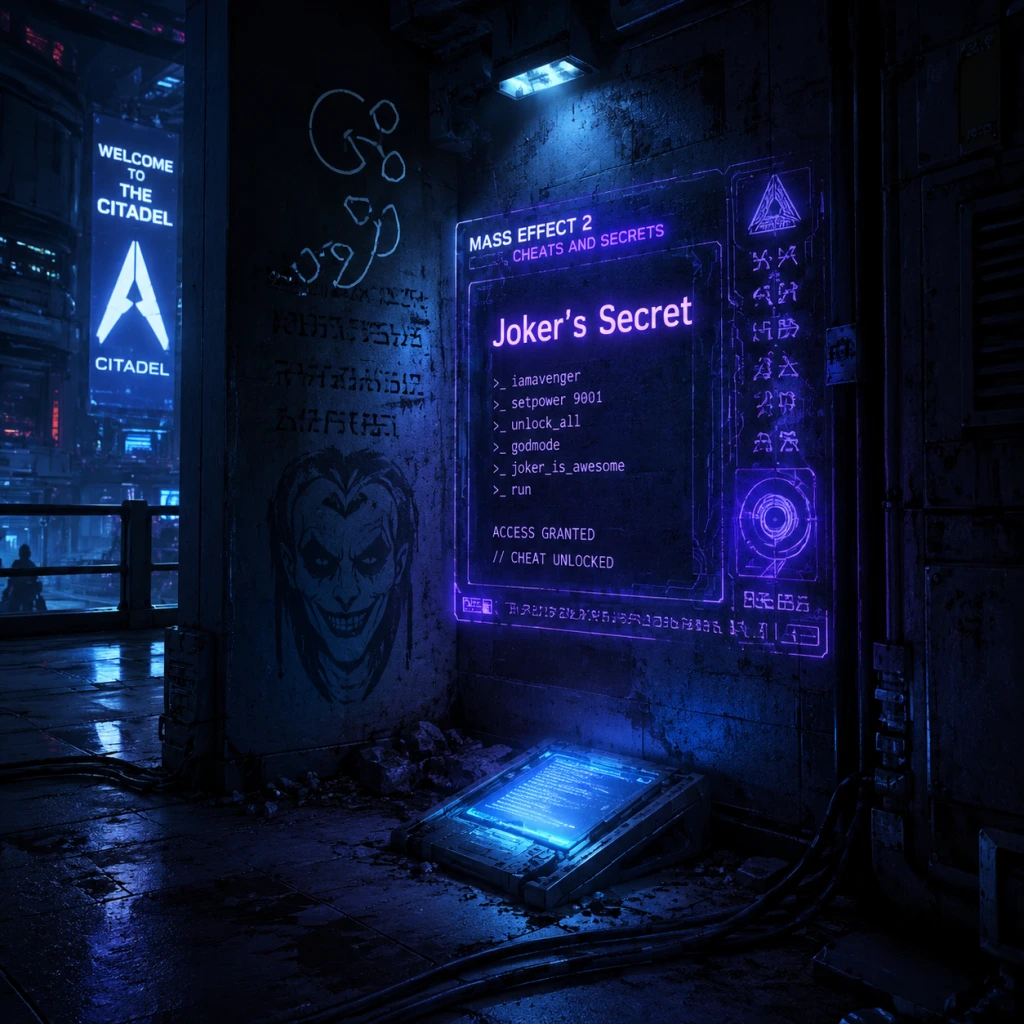
Cheats & Secrets
Cheats & Secrets Guide for Mass Effect 2
Important Note on Cheats
Mass Effect 2 does not include traditional cheat codes (like god mode, unlimited ammo, or level skips) in any official release, including the Legendary Edition. The game is designed around player choice and difficulty through gameplay and narrative consequences. However, there are developer-intended secrets, Easter eggs, unlockable bonuses, and (on PC) developer console commands that allow for minor tweaks and debugging. This guide covers all legitimate hidden content.
---
1. PC Developer Console (Debug Commands)
For PC players only, a hidden developer console can be enabled. This is not a cheat code but a debugging tool; using it may disable achievements or corrupt saves. Use at your own risk.
How to Enable:
- Locate the configuration file: `Documents/BioWare/Mass Effect 2/Config/BioInput.ini`
- Find the section `[Engine.PlayerInput]`
- Add or modify this line: `ConsoleKey=Tab` (or any key you prefer, e.g., `F1`)
- Save the file, then launch the game. Press your chosen key to open the console.
- `GiveAll` – Grants all weapons, upgrades, and heavy weapons (may break mission progress).
- `GiveCredits (number)` – Adds credits, e.g., `GiveCredits 999999`.
- `GiveXP (number)` – Adds experience, e.g., `GiveXP 50000`.
- `UnlockAll` – Unlocks all planets and missions (still need to complete them).
- `Teleport` – Teleport to the crosshair location.
- `Suicide` – Kills the player character (for testing).
- Caution: These commands can cause softlocks, missing triggers, or permanent save corruption. Back up saves before using.
- Level 50+ Level Bonus: Starting level 3 (instead of 1) and bonus skill points.
- Romance Continuation: If you romanced Liara or Ashley/Kaidan in ME1, that romance can continue in ME2 (with dialogue changes).
- Key Choices Matter: Decisions like Wrex’s fate, the Council’s fate, and the human councillor affect ME2 characters and war assets (in Legendary Edition).
- Unique Items: The “Colony of the Dead” side mission only appears if you completed certain ME1 assignments (like the Cerberus hideout).
- Keep all level, skills, and Paragon/Renegade points.
- Keep all weapons, upgrades, and heavy weapons (except mission-specific items like the Reaper IFF).
- Romance and squadmate loyalty states are reset (you must rebuild them).
- You also earn an additional 5,000 credits per mission completion as a bonus.
- In ME2, you can find Conrad on the Citadel (Wards). If you imported a ME1 save where you treated him kindly, he will again act starstruck. If you were rude, he will be hostile.
- Secret: If you have the “Paragon” speech option, you can convince him to leave his life of crime (or get him killed if you fail).
- In Shepard’s cabin on the Normandy SR-2, you can purchase a space hamster from the pet store on the Citadel (after recruiting Thane). The hamster is purely cosmetic but will run around the cabin. Feed it by approaching it; it will squeak.
- Hidden Interaction: If you let the hamster out and leave the cabin, it may die (if you ignore it for too long). No gameplay effect but a fun detail.
- Near the end of the game, after buying the hamster, visit the same pet store again. Shepard will say the line from the original commercial.
- If you upgrade the Normandy to the maximum level (all ship upgrades from the tech lab), during the final departure sequence from the Collector Base, the Normandy will perform a special “zoom” maneuver. No gameplay effect, but a nod to players.
- Mass Effect 1 Dialogue: On Tuchanka, Wrex’s line “I know you, Shepard. You’re the type who talks to their fish.” (Reference to keeping fish alive in the aquarium).
- Dragon Age: In the Shadow Broker’s lair (Lair of the Shadow Broker DLC), there is a terminal that shows a message from a “Flemeth” (a character from Dragon Age) – a cross-game Easter egg if you have both saves.
- Baldur’s Gate: In the same DLC, a book titled “The Adventures of Captain Wrex” contains references to the “Bhaalspawn” from Baldur’s Gate.
- On Illium, you can find a datapad that begins a quest to find the writings of a matriarch. Completing it gives a small credit reward but also reveals hidden lore about the Protheans (via the “Prothean Data Disc” in the same area).
- If you bring both Joker and EDI to the Citadel (only possible in very specific sequences), they have unique banter about organic/ synthetic life.
- Secret: On the Citadel, visit the “Required Guest” bar and listen to two volus discussing the “blasto” video series. This is a reference to the Mass Effect 3 Blasto movie.
- During the Collector Ship mission, after defeating the first praetorian, search the room for a console to unlock a door. Inside is a crate with the M-490 Blackstorm (black hole gun). If you miss it, you cannot get it again until a second playthrough.
- In the Arrival DLC, on the artifact platform, there is a hidden datapad that gives backstory on the Batarian scientist. Not required for completion but adds lore.
- In the Tuchanka system, during the “Riddles of the Protheans” side mission, there is a single resource node that, when scanned, yields a unique “Prothean beacon” message. It triggers a secret journal entry from the Prothean scientist Javik (only in ME3, but the foreshadowing exists).
- If you use the “Biotic Mastery” skill (available to Adepts) and repeatedly use Throw on a single target, the cooldown may decrease faster than intended due to a coding error. This is NOT a cheat but an exploit; BioWare never patched it. Use sparingly as it may feel cheap.
- No god mode, no infinite ammo, no flying cars – these are myths.
- No unlockable characters – all squadmates are obtained through story progression.
- No multiplayer cheats – the game is single-player only. The Legendary Edition also has no competitive mode.
Useful Commands (type in console):
---
2. Unlockable Bonuses (From Save Imports & New Game+)
These are legitimate, developer-intended hidden content that rewards playing previous games or completing the game multiple times.
#### 2.1. Import Bonuses from Mass Effect 1
If you import a Mass Effect 1 save into Mass Effect 2 (any platform), you get:
#### 2.2. New Game+ (Replay Bonus)
After completing Mass Effect 2, you can start a New Game+ with the same character:
#### 2.3. Legendary Edition – Unified Progression
In the Legendary Edition (all platforms), completing Mass Effect 1 and importing the save gives the same bonuses. Additionally, completing Mass Effect 2 unlocks a bonus weapon for Mass Effect 3 (the M-96 Mattock heavy rifle, if you got the “Medal of Honor” from the Collector Base assault).
---
3. Secret Achievements & Trophies
Some achievements/trophies are hidden or require specific secret actions.
#### 3.1. “The One and Only” (PC/Console)
Knock out a civilian with a heavy melee attack on Illium during the mission “Citadel: The Party Crasher”. Requires attacking the drunk salarian outside the bar.
#### 3.2. “Brawler” (Xbox 360/PS3/PC)
Complete 5 melee kills without switching weapons on a single playthrough. Secret but easy.
#### 3.3. “Paramour” (All platforms)
Maintain a full romance with one squadmate through the entire game. Only unlocked after the final romance scene post-Suicide Mission.
#### 3.4. “No One Left Behind” (Legendary Edition only)
A secret achievement for saving all squadmates during the Suicide Mission. No pop-up warning.
---
4. Easter Eggs & Hidden References
Mass Effect 2 is packed with developer jokes, pop culture references, and secret dialogue.
#### 4.1. Conrad Verner (Recurring Joke)
#### 4.2. Space Hamster
#### 4.3. “I’m Commander Shepard and this is my favorite store on the Citadel” Meme
#### 4.4. The “Fully Upgraded” Normandy Easter Egg
#### 4.5. References to Other BioWare Games
#### 4.6. The “Matriarch’s Writings” Side Quest
#### 4.7. Hidden Dialogue on The Citadel
---
5. Exploit-Safe Secrets (Developer-Intended Hidden Content)
These are not cheats but hidden gameplay elements that reward exploration.
#### 5.1. The “Secret” Heavy Weapon: M-490 Blackstorm (Collector Ship)
#### 5.2. Hidden Loot in the “Arrival” DLC
#### 5.3. The “Song of the Nomad” Resource Node
#### 5.4. The “Biotic Amp” Glitch (Non-Cheat)
---
6. Summary of What Does NOT Exist
All secrets listed above are verified as of the original 2010 release and Legendary Edition (where differences noted). Use the developer console only after backing up saves. Enjoy the hidden depths of Mass Effect 2!