
Microsoft Flight Simulator
## Overview **Microsoft Flight Simulator** (2020 edition) is the definitive flight simulation experience, reviving the legendary series after a 14-year hiatus. Developed by **Asobo Studio** and published by **Xbox Game Studios**, it sets a new benchmark for realism, immersion, and scale in the avia...
Download & Installation
Download & Installation Guide for Microsoft Flight Simulator
This guide covers how to download and install Microsoft Flight Simulator (2020 edition) on all supported platforms. The game is available on PC (Microsoft Store and Steam), Xbox Series X|S, and via Xbox Cloud Gaming (beta). It is not natively available on PlayStation, Nintendo Switch, or mobile devices.
Official Download Sources
- PC (Microsoft Store): Buy directly from the Microsoft Store on Windows 10/11, or subscribe to Xbox Game Pass for PC.
- PC (Steam): Purchase and download via the Steam client.
- Xbox Series X|S: Purchase from the Microsoft Store on Xbox, or play with an Xbox Game Pass Ultimate subscription.
- Xbox Cloud Gaming: Stream the game to supported devices (Android, iOS, PC, Xbox) with an Xbox Game Pass Ultimate subscription.
Important: Always use official stores. Do not download from third‑party sites – they may distribute malware or pirated copies.
Editions
Microsoft Flight Simulator comes in three editions (as of 2024):
| Edition | Content |
|---|---|
| Standard | 20 planes, 30 handcrafted airports |
| Deluxe | Standard + 5 additional planes and 5 handcrafted airports |
| Premium Deluxe | Deluxe + 5 more planes and 10 handcrafted airports (total 30 planes, 45 airports) |
System Requirements (PC)
Minimum (1080p, low settings, ~30 FPS)
- OS: Windows 10 (version 1909 or newer) or Windows 11
- CPU: Intel Core i5-4460 / AMD Ryzen 3 1200
- GPU: NVIDIA GTX 770 / AMD Radeon RX 570 (2 GB VRAM)
- RAM: 8 GB
- Storage: 150 GB (SSD strongly recommended)
- Internet: Broadband (for initial download and online features)
- OS: Windows 10/11
- CPU: Intel Core i5-8400 / AMD Ryzen 5 1500X
- GPU: NVIDIA GTX 970 / AMD Radeon RX 590 (4 GB VRAM)
- RAM: 16 GB
- Storage: 150 GB SSD
- Internet: 20 Mbps
- OS: Windows 10/11
- CPU: Intel Core i7-10700K / AMD Ryzen 7 2700X
- GPU: NVIDIA RTX 2080 / AMD Radeon RX 6800 XT (8 GB VRAM)
- RAM: 32 GB
- Storage: 150 GB NVMe SSD
- Internet: 50 Mbps
- Base game: ~130–150 GB
- Optional add‑ons (airports, planes, liveries): up to 200+ GB total
- Rolling cache: Configure up to 100 GB (adjustable in settings)
- Temporary download: The installer needs about 50–80 GB free for decompression even if the final install is smaller.
- Microsoft Account: Required for Microsoft Store and Xbox versions. Also needed for cloud saves and multiplayer.
- Xbox Live / Game Pass: For console play or if you subscribe to Game Pass on PC.
- Steam Account: Only needed if you purchase the game on Steam. (You still sign in with your Microsoft Account inside the game.)
Recommended (1080p, medium-high, ~30 FPS)
Ideal (4K, ultra, 30+ FPS)
Note: The game also requires a stable internet connection for downloading world scenery and updates. An additional 10–20 GB may be needed for the rolling cache.
Storage Space
Best practice: Have at least 200 GB free on your SSD before starting installation.
Account Requirements
Step-by-Step Installation
1. Installation on PC (Microsoft Store / Xbox Game Pass for PC)
1. Open Microsoft Store on Windows 10/11.
2. Search for "Microsoft Flight Simulator".
3. Click Buy (or Install if you have Game Pass).
4. Sign in with your Microsoft Account if prompted.
5. Choose your edition (Standard / Deluxe / Premium Deluxe).
6. Confirm payment (if applicable). The store will begin downloading.
7. Wait for the download to finish. The game will appear in your Start menu and Xbox app.
8. Launch the game from the Xbox app or Start menu.
Tip: You can also install via the Xbox app for PC, which gives more control over download location and updates.
2. Installation on PC (Steam)
1. Download and install the Steam client from store.steampowered.com.
2. Log into your Steam account.
3. Search for "Microsoft Flight Simulator".
4. Click Add to Cart and complete purchase.
5. The game will appear in your Library. Click Install.
6. Choose the installation folder (ensure at least 200 GB free on that drive).
7. Steam will download and install the game. This may take several hours.
8. Once done, click Play. The game will launch and prompt you to sign in with your Microsoft Account.
3. Installation on Xbox Series X|S
1. On your Xbox, go to Microsoft Store.
2. Search for "Microsoft Flight Simulator".
3. Select your edition and choose Buy or Install (if you have Game Pass).
4. Confirm the download. The console will start downloading.
5. Wait for installation – the game is about 150 GB. You can check progress in My games & apps.
6. After installation, launch the game from the Home screen or Game Pass tab.
Note: An external USB 3.0 drive can be used, but an internal SSD is recommended for best performance.
4. Xbox Cloud Gaming (Beta)
1. Subscribe to Xbox Game Pass Ultimate.
2. On a supported device (Android/iOS via browser, PC via xbox.com/play, or Xbox console), go to xbox.com/play or open the Xbox Game Pass app.
3. Find Microsoft Flight Simulator and tap Play.
4. The game will stream to your device. No download is required, but a stable 20+ Mbps internet connection is needed.
First Launch Setup
1. Sign in: Use your Microsoft Account when prompted.
2. Welcome screen: The installer will start downloading essential data (checking for updates, downloading world cache). This may take 10–30 minutes.
3. Graphics settings: The first launch automatically detects your hardware. Review and adjust:
- Display: Resolution, fullscreen/windowed.
- Graphics quality: Low, Medium, High, Ultra, Custom.
- VSync, frame rate limit, scenery detail, etc.
4. Control configuration: Choose your input device:
- Mouse & Keyboard (default)
- Gamepad (Xbox controller recommended)
- Joystick/Yoke (flight peripherals – calibrate in settings)
5. Audio settings: Volume levels for engine, radio, environment.
6. Content Manager: After first boot, open Content Manager from the main menu. Here you can download free updates, airports, and liveries.
7. Tutorial: It’s highly recommended to complete the initial flight training to learn basic controls.
Common Installation Errors and Fixes
| Error | Cause | Solution |
|---|---|---|
| "Checking for updates" stuck | Corrupted cache or server delay | Restart the PC and run the game as administrator. If still stuck, delete the `%LOCALAPPDATA%\Microsoft Flight Simulator` folder (backup custom settings first). |
| "We are so sorry but something went wrong" (0x0) | Outdated GPU drivers | Update drivers, disable antivirus temporarily, and reinstall the game. |
| "Not enough disk space" | Insufficient free space even though you have enough | The installer needs extra free space for temporary files. Free up 50–100 GB more. Use an SSD with at least 200 GB free. |
| Download stops or is extremely slow | ISP throttling or server load | Pause and restart the download. Use a wired connection. If on Steam, change download region to a less congested one. |
| Error 0x8007000E (Microsoft Store) | System memory or installation corruption | Run Windows Update, run `wsreset.exe` to reset Store cache, then try again. |
| Game crashes on launch | Corrupted configuration file | Delete `%APPDATA%\Microsoft Flight Simulator` folders (not the main game install). Relaunch the game – it will recreate default settings. |
| Xbox – Installation stuck at 0% | Console communication error | Hard reset the console (hold power button 10 seconds), check network, then retry. |
General Troubleshooting Steps
- Run as Administrator (PC): Right‑click the game exe or shortcut and select "Run as administrator".
- Disable Antivirus: Temporarily turn off Windows Defender or third‑party AV during download and installation.
- Verify Integrity (Steam): Right‑click the game in Library → Properties → Local Files → Verify integrity of game files.
- Repair Microsoft Store app: Go to Settings → Apps → Microsoft Store → Advanced options → Repair.
- Check for Windows Updates: Ensure you have the latest updates for Windows 10/11.
- SSD is essential – mechanical hard drives cause stuttering and slow loading.
- Keep your graphics drivers up to date (NVIDIA or AMD).
- Join the official forums (flightsimulator.com) for help and updates.
- Back up your `UserCfg.opt` file after configuring settings – it saves your preferences and can be reused after reinstallation.
Post-Installation Verification
1. Check game version: From the main menu, look at the bottom‑left corner (e.g., v1.36.2.0). Visit the official forums to see if that’s the latest.
2. Verify installation size: Right‑click the game folder (e.g., `C:\Program Files\WindowsApps\Microsoft.FlightSimulator...` or Steam library) and check size. It should be around 130–150 GB.
3. Test a flight: Load a free flight at your local airport. Ensure the textures load, controls respond, and framerate is stable.
4. Download world updates: Open Content Manager → Updates and download any available world updates (e.g., USA, Japan, etc.) to access improved scenery.
5. Check community folder: Ensure the `Community` folder exists in your install directory (for mods). If using Steam, it’s under `...\steamapps\common\MicrosoftFlightSimulator\Community\`.
6. Confirm online features: Go to Profile → Account and verify you are signed in. Try the live weather feature to ensure internet connection works.
7. Performance monitoring: Use the built‑in developer mode (Options → General → Data → Enable Developer Mode) to see FPS and usage stats.
Final Tips
By following this guide, you should have Microsoft Flight Simulator up and running on your chosen platform. Happy flying!
Game Introduction
Overview
Microsoft Flight Simulator (2020 edition) is the definitive flight simulation experience, reviving the legendary series after a 14-year hiatus. Developed by Asobo Studio and published by Xbox Game Studios, it sets a new benchmark for realism, immersion, and scale in the aviation genre. The game was released on August 18, 2020 for PC (Windows 10/11 via Microsoft Store and Steam), followed by an Xbox Series X/S launch on July 27, 2021. It is also playable on Xbox One via cloud streaming.
Genre
- Flight Simulation – a hyper-realistic, physics-based simulation of general, commercial, and military aviation. It falls under the broader categories of simulation and sandbox, with elements of exploration and education.
- Unparalleled visual fidelity and realism.
- A living, breathing world with real-time weather, live air traffic, and dynamic seasons.
- Vastness – fly anywhere on Earth without loading screens.
- Depth – from simple autopilot to complete system simulations (Garmin avionics, FMC, failures).
- Aviation enthusiasts and real-world pilots seeking a training tool or virtual flying.
- Simmers (previous FSX/P3D users) wanting a modern upgrade.
- Relaxed explorers who enjoy sightseeing (e.g., flying through the Grand Canyon).
- Tech enthusiasts impressed by the technology (Azure AI, photogrammetry).
- Free Flight – Choose any aircraft, airport, weather, and time of day. The default mode for open exploration.
- Flight Planner – Create custom flight plans with waypoints, ILS approaches, and altitude constraints.
- Challenges – Pre-set scenarios like “Landing at Jeju” (hard difficulty) or “Flying a propeller plane through a canyon”. Includes Bush Trips (long navigation experiences) and Discovery Flights (guided tours of landmarks).
- World Map – Interactive map to start flights from any of the 37,000+ airports (manual or click-to-fly).
- Multiplayer – Fly with others via Group or Shared Cockpit (two players can control one plane).
- Activities – Regular on-screen missions like cargo delivery or rescue (introduced in later updates).
- Required for full world streaming (photogrammetry, live weather, real-world air traffic).
- Multiplayer functionality (co-pilot, group flights, live traffic injection).
- Marketplace access for purchasing add-ons.
- Server-based features like cloud logs and leaderboards for challenges.
- The base game includes a cached world (lower detail) for areas you’ve flown before. You can fly offline, but you’ll lose live weather, traffic, and high-detail scenery outside cached locations. Offline mode is useful for areas without internet or for consistent performance.
- World Updates – Detailed scenery for specific regions (e.g., Japan, USA, Germany). Include new airports, POIs, and bug fixes.
- Sim Updates – Core simulator improvements (physics, performance, features).
- Deluxe Edition upgrade – Adds 5 extra aircraft and 5 hand-crafted airports.
- Premium Deluxe upgrade – Adds 10 additional aircraft and 10 hand-crafted airports (plus all Deluxe content).
- The in-game Marketplace sells airport scenery, aircraft (e.g., PMDG 737, Fenix A320), liveries, and missions from third-party developers.
- Local Legends – Historic aircraft like the Spitfire or Ju-52.
- Famous Flyers – Special liveries and flight challenges.
- Top Gun: Maverick Expansion (2022) – Missions inspired by the film, including a jet trainer and carrier landings.
- Dune Expansion – The “Sandworm” livery and flight challenges in the desert.
Story & Setting
Microsoft Flight Simulator does not follow a traditional narrative or campaign. Instead, it offers an open-ended sandbox where you are the pilot. The ‘story’ is what you make of it: learning to fly, completing challenges, exploring the world, or recreating real-world routes. The setting is the entire planet Earth, rendered at unprecedented detail. Using photogrammetry from Bing Maps, Azure AI, and satellite data, the game generates a 3D representation of over 2 million cities, 1.5 billion buildings, mountains, forests, airports, and realistic weather patterns.
Main Characters
There are no pre-defined characters. The player assumes the role of a pilot, with options to customize their avatar (appearance, gear, etc.) in the profile section. Aircraft are the true stars – each with its own cockpit, systems, and flight characteristics.
Core Appeal & Target Audience
Core Appeal:
Target Audience:
Game Modes
Online & Offline Support
Online:
Offline:
DLC & Expansion Overview
Microsoft Flight Simulator receives continuous free and paid content:
Free Updates (World Updates, Sim Updates)
Paid DLC (Deluxe/Premium Deluxe upgrades)
Marketplaces & Third-Party Add-ons
Expansion Packs (e.g., Dune, Top Gun)
What Makes This Game Unique
1. Entire Earth, Scaled to 1:1 – No other game boasts a fully explorable planet with this level of detail. Azure AI processes satellite images to generate autogen scenery, trees, and water bodies.
2. Live Weather & Real-Time Air Traffic – Weather is pulled from METAR reports. You can fly through actual storms. Planes in the sky reflect global flight data.
3. Dynamic Physics & Aerodynamics – Each aircraft has a unique flight model with accurate airflow, engine torque, and landing gear behavior. Wind, temperature, and pressure affect performance.
4. Photogrammetry Cities – Major cities like New York, Paris, Tokyo are digitally reconstructed from aerial photos, giving photorealistic buildings and landmarks.
5. VR Support – Full virtual reality support on PC (OpenXR) for immersive cockpit flying.
6. Community Ecosystem – A robust SDK for creating custom aircraft, airports, missions, and liveries. The community has produced thousands of free add-ons.
7. Cross-Platform Play – PC and Xbox players can fly together seamlessly.
Download & Installation
For step-by-step instructions on installing the game on PC (Microsoft Store, Steam) and Xbox, refer to the [Download & Installation Guide](#), which covers pre-requisites, file sizes, and troubleshooting.
---
This introduction is designed to give you a complete understanding of what Microsoft Flight Simulator offers. Whether you’re a seasoned pilot or a curious newcomer, the skies await.
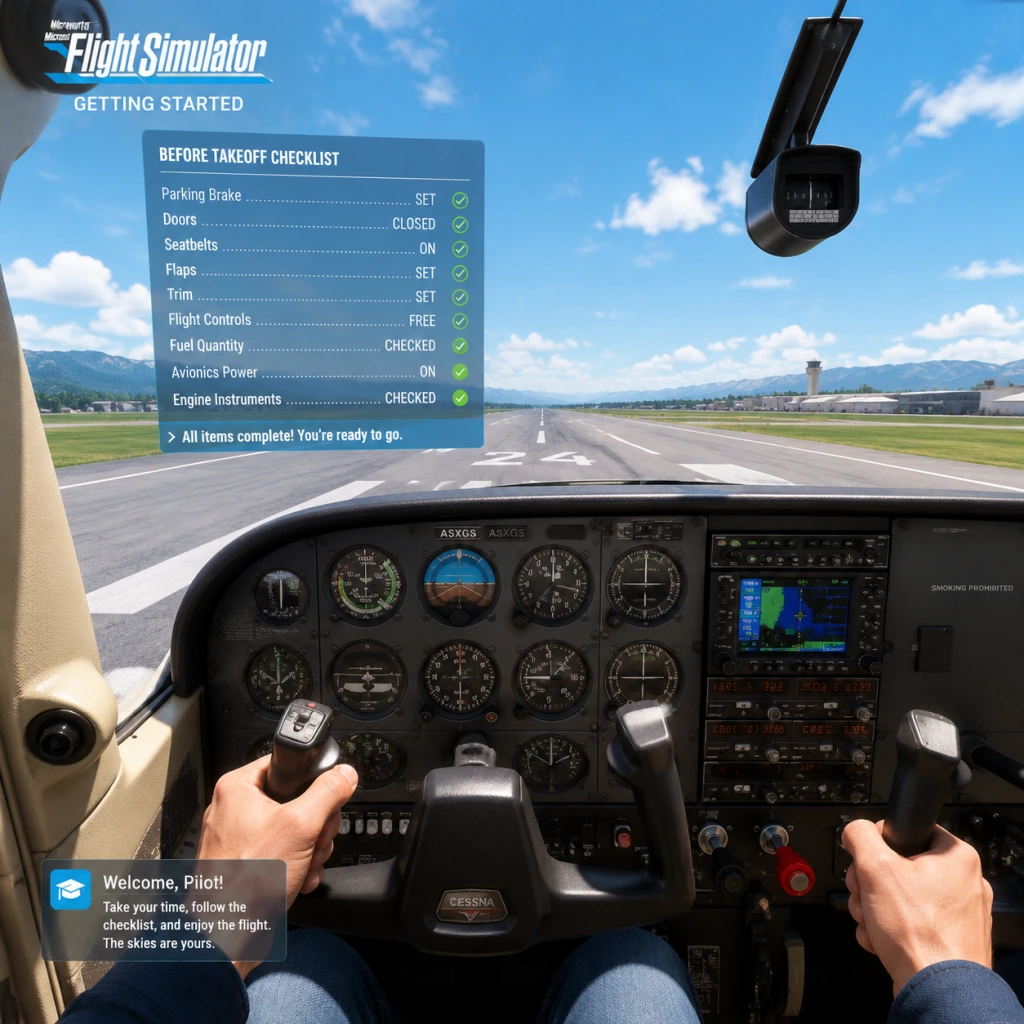
Getting Started
Getting Started Guide for Microsoft Flight Simulator
Welcome to the skies! This guide is designed for brand-new players, helping you take your first steps in Microsoft Flight Simulator (2020 edition) without getting overwhelmed. Follow this walkthrough to go from the main menu to flying your first successful flight.
First Hour Walkthrough: What You’ll Do
1. Launch the Game – After installation, the sim will load a title screen. Wait for the initial world data to download (this is one-time and can take several minutes, even hours on a slow connection).
2. Main Menu – You’ll see options: World Map, Activities, Free Flight, Training, Marketplace, Profile, and Settings. Start with Training.
3. Complete the Tutorials – The game includes interactive tutorials (takeoff, basic flight, landing). Do not skip them. The first tutorial teaches you how to start the engine, taxi, and take off using a Cessna 152. Follow the on-screen prompts.
4. Free Flight (First Attempt) – After tutorials, go to Free Flight > World Map. You can select any airport and aircraft (default is a Cessna 152 or 172). Choose a familiar airport (e.g., your home town or a large international airport like KSEA) and set departure time to daytime. Press FLY.
5. The Cockpit – You spawn on the runway or at a parking spot. If on the runway, the engine may be running. Use keyboard/mouse or controller to look around (right stick or mouse look). Your first goal: just take off and fly straight, then try a gentle turn and climb.
6. End the Flight – After 10–15 minutes, press Esc and choose End Flight to return to the menu.
Character Creation: None Needed
Microsoft Flight Simulator has no character creation. You always play from the cockpit perspective. There is no avatar, no custom pilot model. The focus is purely on flying.
Controls on All Platforms
The game supports multiple control methods. Here’s an overview of the most common ones:
#### Keyboard & Mouse (PC)
- Aileron/Roll – A/D (or mouse yaw left/right)
- Elevator/Pitch – W/S (or mouse forward/back)
- Rudder – Q/E (or numpad 0/Enter)
- Throttle – F1 (idle), F2 (decrease), F3 (increase), F4 (full throttle) – or use +/- on numpad
- Brakes – B (wheel brakes), Period (parking brake)
- Look – Hold right mouse button and drag, or use arrow keys
- Pause – Esc
- Instrument panel interaction – Left mouse click on switches/knobs
- Left stick – Pitch and roll
- Right stick – Camera look (free look) / also controls rudder when used (click right stick for rudder toggle)
- Left trigger – Brake (on ground) or reverse thrust
- Right trigger – Throttle up
- A – Push to talk (ATC) or confirm
- B – Back/cancel
- X – Toggle throttle quick access
- Y – Toggle autopilot modes
- D-pad up – Increase throttle
- D-pad down – Decrease throttle
- LB/RB – Snap views or next/previous instrument
- Plug and play is supported for most USB flight sticks and yokes (e.g., Thrustmaster T-Flight Hotas, Logitech Yoke). The game auto-detects and maps axes.
- You can fine-tune sensitivity in Options > Controls > Axis Settings.
- Top Bar – Shows flight info (speed, altitude, heading, vertical speed, current aircraft). You can click on these to change units.
- Top Right Corner – Quick settings (weather, time, teleport, reset flight). Use the C key to open the ATC panel.
- Bottom Toolbar – Appears when you move your mouse to the bottom of the screen. Contains:
- Instruments – Main flight displays (PFD, MFD, Garmin GPS, etc.) are clickable. You can press F10 to toggle the instrument panel visibility.
- DO: Choose a simple aircraft (Cessna 152 or 172) and a small, uncontrolled airport (e.g., KORS – Orcas Island).
- DO: Keep all automation off (no autopilot, no GPS). Rely on your instruments and visual cues.
- DO NOT: Attempt a long cross-country flight with complex airliners (Airbus A320, Boeing 747) on your first day. These have extensive systems and will frustrate you.
- DO NOT: Enable “Realistic” settings. Start with Easy flight model and Assistance On (hover over question marks in the airport selection screen to adjust).
- AVOID: Busting controlled airspace (Class B/C/D) near big airports without ATC clearance. You can set assistance to warn you.
- AVOID: Flying at night or in bad weather until you’re comfortable with instruments.
- Learning the interface – Spend your first 30 minutes in settings, controls, and the training missions. Don’t rush into “Free Flight” without understanding basic controls.
- Adjusting sensitivity – In Options > Controls > Axis, set a dead zone for your controller/stick to prevent jitter.
- Real-time weather vs. clear skies – Start with clear weather. Once comfortable, enable live weather for realism.
- Performance settings – Graphics may need tweaking. Lower settings like Terrain Level of Detail and Clouds if FPS is low.
#### Xbox Controller (PC & Xbox Console)
> Tip: Go to Options > Controls to remap any key or button. For beginners, the default Xbox controller preset is highly recommended.
#### Flight Yoke & Rudder Pedals (PC)
UI Overview: The Most Important Panels
- Flight Map (M key) – overhead view of your route, airports, obstacles.
- ATC – text-based air traffic control (call for takeoff clearance, flight following, landing).
- VFR Map – shows terrain, airspace, points of interest.
- Camera – switch between cockpit view, external view, drone camera.
- Tools – time compression, fuel calculator, weight & balance.
Essential First Objectives
1. Learn Basic Flight – Control speed, altitude, turns, and slow flight without stalling. Practice in the Cessna 152.
2. Master Takeoff and Landing – The tutorials cover this, but repeat them until comfortable.
3. Understand VFR Navigation – Use visual landmarks and the VFR map to fly from one airport to another.
4. Start with Clear Weather – Set weather to Clear Skies in Free Flight to avoid distractions.
5. Complete the “Basic Training” Flight School – Located in Activities > Flight Training. It takes about 30 minutes and covers all fundamentals.
What to Do First (Avoiding Overwhelm)
Early Resource Priorities: What to Spend Time On
Common Beginner Mistakes (And How to Avoid Them)
| Mistake | Solution |
|---|---|
| Stalling on takeoff – Pulling back too hard | Keep yoke/stick neutral until speed reaches 55 knots (Cessna), then gently rotate to climb at 70 knots. |
| Landing too fast – Coming in with excess speed | Reduce throttle at the threshold; aim for approach speed 65 knots in Cessna. Flatten descent rate when over runway. |
| Ignoring throttle – Forgetting to reduce power | Always monitor RPM. For low-wing aircraft, add carb heat when reducing power. |
| Forgetting to use flaps – Not extending them for takeoff/landing | Use 10° flaps for takeoff, 20–30° for landing (Cessna). Practice flap deployment. |
| Losing orientation while looking away – Getting confused by camera | Use the VFR Map (M) and the compass (top of panel). Keep your eyes on the instruments. |
| Trying to fly a complex aircraft immediately – Overwhelmed by systems | Stick to Cessna 152 until you understand basic flight. Later move to the TBM 930 or an airliner. |
| Not using ATC properly – Getting warnings for airspace violations | Request follow-me or use ATC to get clearance. In free flight, you can disable “Traffic” and “Airspace” warnings in Assistance settings. |
| Over-taxiing – Turning too sharply on the ground | Use differential braking (left/right brake) for tight turns. Light taps only. |
Day-One Checklist (First Play Session)
- [ ] Complete the Takeoff Tutorial (Training > Basic > Takeoff)
- [ ] Complete the Landing Tutorial (Training > Basic > Landing)
- [ ] Set controls to Easy model, and Assistance to at least “Medium” or “On” (Options > Assistance Options)
- [ ] In Free Flight, create a flight from a small uncontrolled airport (e.g., KORS) with clear weather and daytime.
- [ ] Take off, climb to 3000 feet, fly a few miles, then practice gentle turns and level flight.
- [ ] Do a slow flight exercise (reduce throttle to maintain altitude at 50–60 knots; note when stall horn sounds).
- [ ] Navigate back to the airport using the VFR Map (M key) and landmarks.
- [ ] Perform a landing (if crash, reload and try again).
- [ ] End flight after a successful landing (or after 20 minutes if struggling).
- [ ] Spend 10 minutes exploring the options menu – bind a favorite key for “Pause” and “Look” if needed.
- [ ] Save your controller preset as “My Control” (Options > Controls > Save Profile).
After completing this checklist, you’ll be ready for your first real flight from airport to airport. Remember: take it slow, learn the basics, and enjoy the view. The sim is designed to be a journey, not a race.
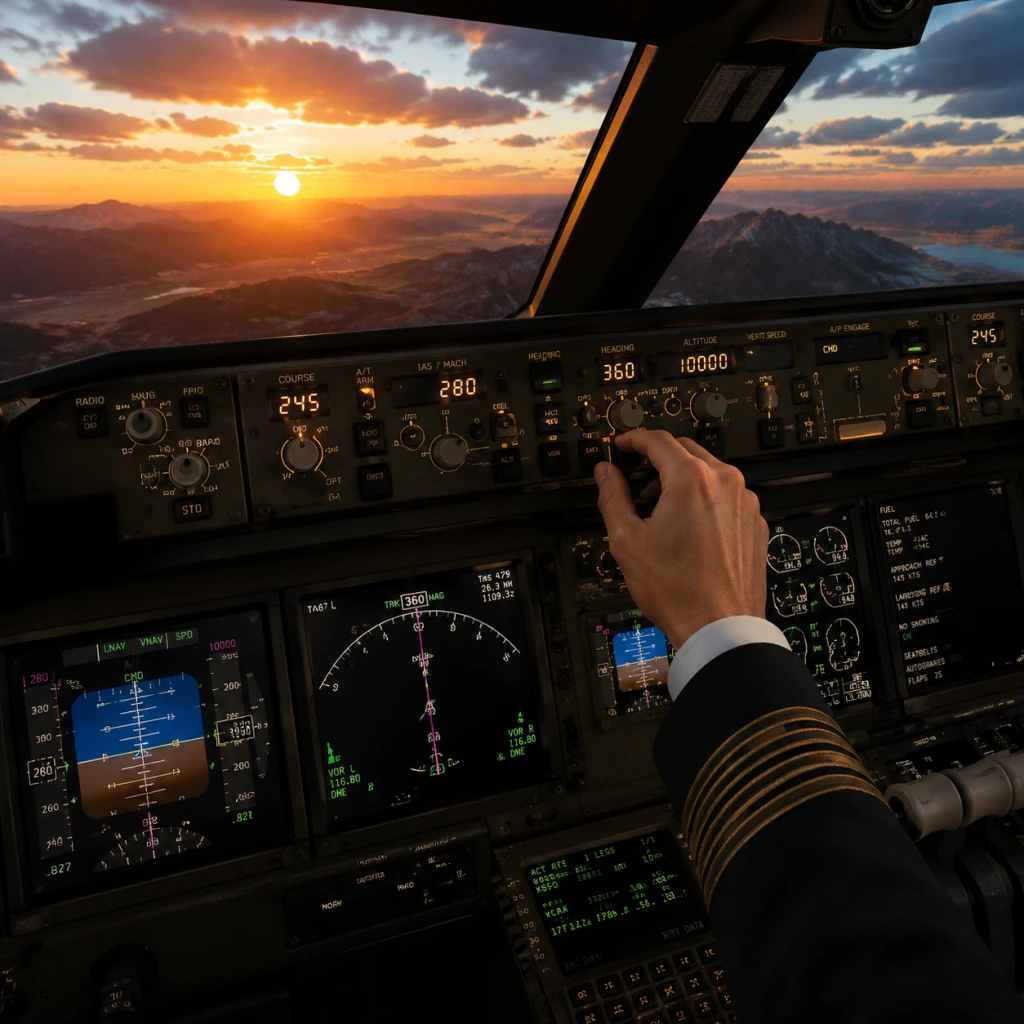
Core Gameplay
Core Gameplay Guide for Microsoft Flight Simulator
This guide breaks down the core gameplay of Microsoft Flight Simulator (2020 edition) into progression tiers. Unlike traditional games, there is no combat or linear storyline. The "game" is about mastering flight through increasingly complex aircraft, real-world navigation, and dynamic weather. Your progression is measured by pilot skill, aircraft unlocked, and the challenges you complete.
---
Main Gameplay Loop
The core loop is: Plan → Pre-flight → Fly → Navigate → Land → Review & Improve. You select a departure and destination, prepare the aircraft (checklists, fuel, flight plan), fly using real procedures, navigate via instruments or visuals, land safely, then review your flight performance (e.g., landing smoothness, fuel efficiency). The loop repeats with higher difficulty, longer routes, or more complex aircraft.
Interaction Systems
- Cockpit Interaction: Use mouse, keyboard, controller, or hotas to press buttons, flip switches, and turn knobs. The G1000 glass cockpit and steam gauges are fully clickable.
- ATC (Air Traffic Control): Communicate via text or voice (in-game system or VATSIM for online). Follow instructions for takeoff, route, and landing.
- Live Weather & Time: Real-time weather (from METAR data) and time-of-day affect your flight. You can pause or change these.
- Assists: Sliders for AI auto-pilot, auto-rudder, visual aids, etc. Beginners start with many assists.
- Activities:
- Aircraft Available: Cessna 152, Cessna 172, Savage Cub, Icon A5. All are default unlocked with low complexity.
- Progress Indicators:
- Example: You take a 20-minute flight from Seattle's Boeing Field (KBFI) to Renton (KRNT). Use visual landmarks (Lake Washington, I-5) and track your progress on the VFR map. Land on Runway 16 with a gentle crosswind.
- Activities:
- Aircraft Unlocked: Mooney M20 (complex single), TBM 930 (turboprop with G3000 touchscreen), Cirrus SR22 (glass cockpit, parachute). Unlock by completing specific challenges or earning points.
- Economy: You earn “flight points” for every landing (more points for smoothness, no assists). Points can be used in the marketplace to purchase aircraft (in-game credits, not real money). The default aircraft cost between 0–5,000 credits; advanced aircraft like the Airbus A320neo cost 15,000 credits. You earn ~500 credits per successful long flight.
- Progress Indicators:
- Example: Fly a TBM 930 from KLAX to KSEA (2.5 hours). Set up a flight plan in the World Map, use the G3000 to follow the magenta line. Encounter live thunderstorms over the Sierra Nevada; use weather radar to deviate. Perform an ILS approach to Runway 16R at KSEA with a steady 10 knot crosswind. Touchdown within 200 feet of the touchdown zone. Review your landing score (B-).
- Activities:
- Aircraft Unlocked: Airbus A320neo, Boeing 747-8 Intercontinental, Cessna Citation CJ4, F/A-18X (free update). Unlock via in-game store using credits earned.
- Economy: At this stage you likely have enough credits for all aircraft. The F/A-18X costs 20,000 credits. You can also buy paints and liveries.
- Character/Build Growth: This is metaphorical. Your "build" is your ability: you can transition to third-party aircraft (e.g., Fenix A320, PMDG 737) which have simulated failures and advanced systems.
- Progress Indicators:
- Example: Fly the A320neo from Paris CDG to JFK. Program the MCDU (flight management computer) with the route, manage fuel, follow SIDs/STARs. On approach into JFK, fly an RNAV approach to Runway 13L. Hand-fly the last 500 feet and land smoothly with auto-brake at 2. Touchdown score: A. Then do a turnaround and fly back to CDG.
- Activities:
- Economy: Real money can be spent on marketplace add-ons (aircraft, scenery, liveries). There is no in-game economy beyond that; credits are irrelevant.
- Character/Build Growth: You become a virtual pilot capable of flying any aircraft under any conditions. You may specialize in airliners, bush flying, or helicopters (with free or paid add-ons).
- Progression: No official endgame; you set your own goals: complete all achievements (hard), become a VATSIM controller, create a live stream series.
- Example: Fly a PMDG 737 on a 2-hour route from KORD to KATO (City/Regional) as part of a virtual airline. You use the real weather, file a flight plan with VATSIM ATC, depart from its gate with pushback, and land with a Category II approach in fog. After landing, you log into the virtual airline's website and record the flight hours.
Progression (Early to Endgame)
Progression is not linear but skill-based. The game tracks your flights, landings, and completions of activities. You earn experience and unlock new activities and aircraft as you demonstrate proficiency.
#### Early Game (First 10–20 hours)
Goal: Learn basic flight controls, takeoff, and landing. Gain confidence with small aircraft.
- Flight Training: Interactive lessons covering Cessna 152 basics (straight-and-level, turns, climbs, descents, stalls, landing). Complete all 24 lessons to unlock the "Bronze" rating.
- Landing Challenges: Short, arcade-style scenarios where you must land a specific aircraft (e.g., Cessna 152 at Lukla). Focus on flare and touchdown speed.
- Bush Trips: Pre-defined VFR routes using landmarks. First one: "France: Côte d'Azur" (Cessna 152, 8 legs, 30-60 min each).
- You unlock "Checkride" challenges after completing all landing challenges of an airport.
- You earn your first pilot "rating" (Private Pilot) after 5 flights with no assists.
#### Mid Game (20–100 hours)
Goal: Master instrument flight (IFR), navigate airways, and fly in adverse weather. Start using glass cockpits.
- IFR Training: Advanced lessons on instrument approaches (ILS, VOR, GPS).
- Flight Journal Missions: Narrative-driven “stories” like “The Madness of King George” (VFR in Grand Canyon) or “Dangerous Approaches” (IFR into KSEA with low visibility).
- Quick Challenges: Categories like "Emergencies" (engine fire, oil leak) where you react using checklists.
- Discovery Flights: You set your own route with live weather. Aim to fly a realistic 1-hour IFR route (e.g., KLAX to KSFO using airway J1).
- Complete all 5 IFR lessons to unlock "Instrument Rating".
- Unlock "Gold" badge on landing challenges for three different aircraft.
#### Late Game (100–300 hours)
Goal: Master modern airliners (airbus A320, Boeing 747) with full systems management, online flying (VATSIM), and complex procedures.
- VATSIM: Join the online network for real ATC and pilots. Fly a scheduled route from EGLL to KLAX with full IFR clearance.
- Build Your Own Missions: Use the "Flight Planner" to create custom challenges with specific aircraft, weather, and time limits.
- Achievement Completion: Many achievements require 100 successful landings, flying through canyons, or landing on carrier decks (F/A-18X).
- Endurance Flights: Real-time flights across oceans (e.g., KJFK to EGLL in the Airbus A320neo – 7 hours).
- Earn "Air Transport Pilot" rating after 50 flights with airliners.
- Complete the "World Tour" challenge (fly to all 5 continents in sequence).
#### Endgame (300+ hours)
Goal: Realism and community engagement. No new content from the game, but limitless possibilities via add-ons, custom missions, and online communities.
- Airline Operations: Join a virtual airline (e.g., Delta Virtual, British Airways VA). They provide flight assignments, tracking, and even ranks. Follow real-world schedules.
- Third-Party Add-ons: Purchase high-fidelity aircraft (e.g., PMDG 737, iniBuilds A310) and scenery packs. These add complex systems like failures, ground services, and detailed airports.
- User-Created Missions: Download from Flightsim.to: emergency scenarios, banner towing, search and rescue.
- Competitive Challenges: The official "World Update" challenges (e.g., landing at Courchevel with a King Air). Compete for high scores on leaderboards.
---
Summary Table: Progression Tiers
| Tier | Hours | Focus | Aircraft Examples | Key Activity | Rewards/Unlocks |
|---|---|---|---|---|---|
| Early | 0–20 | Basics, takeoff/landing | Cessna 152, 172, Savage Cub | Flight Training, Landing Challenges | Private Pilot rating, basic aircraft |
| Mid | 20–100 | IFR, weather, glass cockpit | Mooney M20, TBM 930, Cirrus | Flight Journal Missions, IFR training | Instrument Rating, advanced aircraft |
| Late | 100–300 | Airliners, VATSIM, endurance | A320neo, B747, CJ4 | Online flying, World Tour | ATP rating, all in-game aircraft |
| End | 300+ | Realism, add-ons, VA | Any (PMDG, FBW, etc.) | Virtual airline, custom scenarios | None; self-defined mastery |
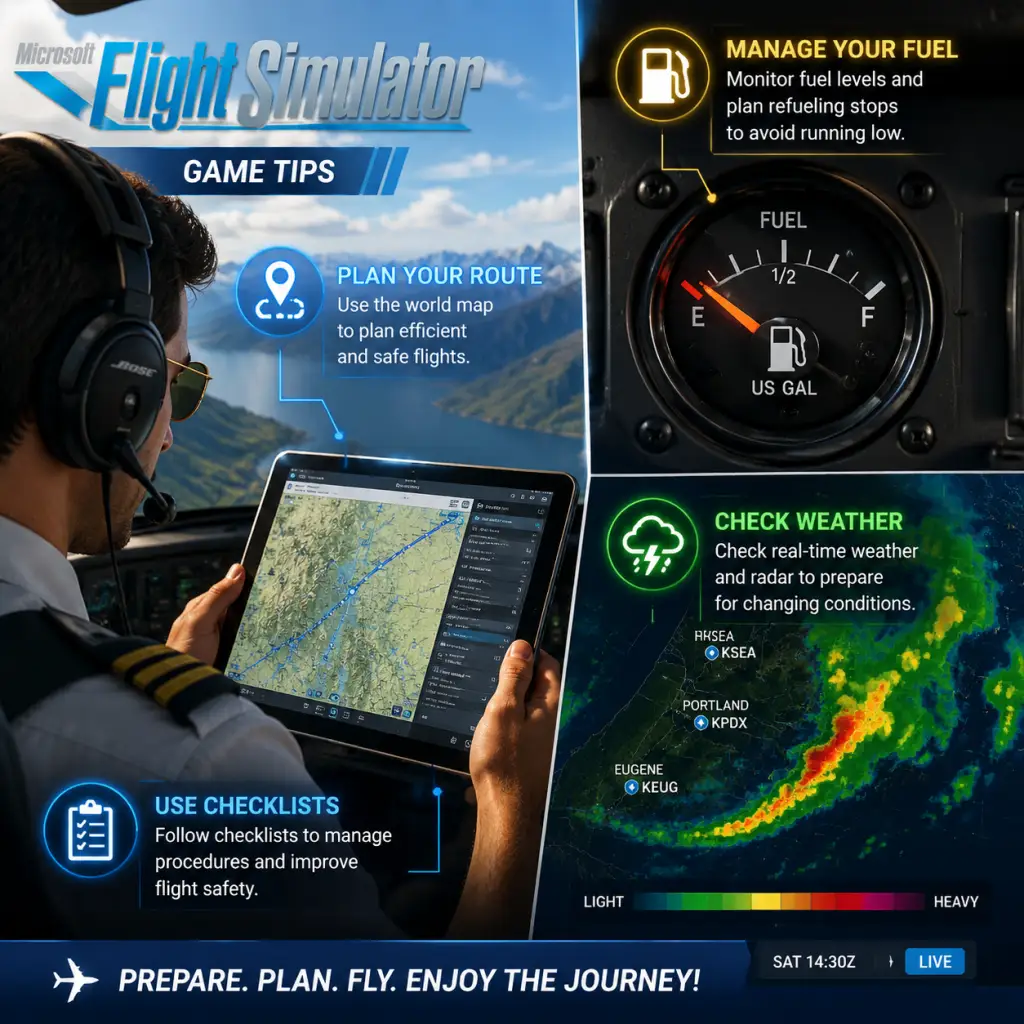
Game Tips
Game Tips for Microsoft Flight Simulator
This guide provides a comprehensive collection of tips for Microsoft Flight Simulator (2020 edition), organized by skill level and focus area. Whether you're a beginner just learning to taxi or an advanced sim pilot optimizing for realism, these actionable tips will enhance your experience.
---
Beginner Tips: Getting Airborne
These tips are essential for players who are new to flight simulation or returning after a long break.
#### 1. Start with the Cessna 152 or Icon A5
- Tip: Use the default Cessna 152 or the Icon A5 for your first few flights. These aircraft are simple, forgiving, and have low stall speeds.
- Why it works: Complex aircraft like the Airbus A320 or Boeing 747 have advanced systems (FMC, autothrottle, etc.) that can overwhelm a new player. The Cessna teaches basic concepts: pitch for airspeed, power for altitude, and coordinated turns.
- When to use: Until you can take off, maintain altitude, and land consistently without crashing.
- Tip: Press Pause/Break key (or Ctrl+.) to freeze the simulation, then press Y to enter Slew mode (instant repositioning). Use arrow keys to move the aircraft.
- Why it works: Active Pause stops time, allowing you to study instruments or plan your next move without crashing. Slew mode lets you reposition to practice specific phases like final approach.
- When to use: While learning instrument scanning, or if you stray off course and want to reset quickly.
- Tip: In the Assistance Options menu, set \"Takeoff Assist\", \"Landing Assist\", and \"Taxi Assist\" to Full. Disable crash detection initially.
- Why it works: This automated help reduces the learning curve for critical phases. You can focus on general flying using the controller/yoke rather than precise rudder control.
- When to use: First 5–10 hours, then gradually reduce assistance to \"Limited\" or \"Hard\" as you improve.
- Tip: Use elevator trim (mouse wheel or assigned keys) to relieve control pressure in level flight. The Cessna 152’s trim wheel is on the center pedestal.
- Why it works: Properly trimmed aircraft maintains altitude hands-off, reducing workload. It also makes approach smoother.
- When to use: After reaching cruise altitude; during descent, re-trim for attitude changes.
- Tip: Use Shift+Enter to zoom in, Shift+Backspace to zoom out. Middle mouse button to pan. Insert/Delete to change cockpit camera position.
- Why it works: Adjusting your view is crucial for spotting runway markers, checking instruments, or looking for traffic.
- When to use: Pre-takeoff checks, pattern work, and landing.
- Tip: Tune a VOR frequency (e.g., 113.40 for a local VOR) on the NAV radio, set the OBS (Omni Bearing Selector) to the desired radial, and fly to intercept.
- Why it works: VORs are the backbone of navigation before modern GPS. Even in MSFS, many missions rely on them. Understanding radials and CDI needle deflection builds navigation skills.
- When to use: Cross-country flights without direct-to GPS; practice in Free Flight with low weather.
- Tip: In aircraft with Garmin G1000 (e.g., Cessna 172 G1000), press FPL to enter flight plan waypoints. Use Direct-To button (green arrow) to fly directly to a waypoint.
- Why it works: The G1000 is the most common glass cockpit in MSFS. Feeling comfortable with it unlocks many add-on aircraft and enables GPS-based approaches.
- When to use: Flight planning for any cross-country; it reduces workload compared to VOR tuning.
- Tip: Press ~ (tilde) or the default '1' key to open ATC menu. Request IFR clearance before departure, then follow headings and altitudes given.
- Why it works: ATC vectors you through controlled airspace, helping you learn proper phraseology and expect approaches. It also reduces risk of traffic conflicts in multiplayer.
- When to use: When you want realistic procedures or are flying in busy airspace (e.g., KLAX, KJFK).
- Tip: In constant-speed propeller aircraft (e.g., Mooney M20), the blue lever is propeller RPM, black is mixture, red is throttle. Set full RPM for takeoff (2700), then reduce to 2400 for cruise.
- Why it works: Managing prop RPM improves fuel efficiency and engine longevity. Mixture (lean for altitude) prevents engine damage.
- When to use: All flights with constant-speed props; check the POH (checklist) for target RPM.
- Tip: When cleared for an ILS approach, press APR (Approach) button on the autopilot panel. The autopilot will capture the localizer and glideslope automatically.
- Why it works: Manual ILS flying is challenging; using AP helps you learn the procedure. Disconnect at minimums (200 ft) for a realistic hands-on landing.
- When to use: When practicing approaches in poor visibility; switch to manual at decision height.
- Tip: Use a free tool like MSFS Addon Linker to manage community folders. Turn off heavy sceneries for distant airports to improve performance.
- Why it works: Many add-ons run even when not near them, degrading performance. Addon Linker creates symbolic links you can enable/disable per flight.
- When to use: Before any flight, disable sceneries outside your route to save VRAM and CPU.
- Tip: Set Terrain Level of Detail (LOD) to 100–150 (default 200) for sharper ground textures with less stutter. Keep Cloud Quality on High, not Ultra, and disable Lens Flare.
- Why it works: LOD 200 loads too many triangles, causing CPU bottlenecks. Cloud quality is the biggest hit on GPU. These tweaks preserve visuals while gaining 10–15 FPS.
- When to use: Any flight, especially in VR or on mid-range GPUs (RTX 3060, 2070).
- Tip: In airliners like the A320, activate VNAV (Vertical Navigation) to automatically manage descent path from top of descent to approach fix. Set altitude constraints in the MCDU.
- Why it works: VNAV calculates optimal descent profile (idle thrust, 3-degree glidepath) saving fuel and avoiding terrain. It also sets precise crossing restrictions.
- When to use: Long-haul flights where ATC expects continuous descent; avoid VNAV during speed constraints if not programmed.
- Tip: Press Alt++ (plus key on numpad) to increase sim rate up to 16x. Use Alt+- to decrease. (You may need to bind keys in controls).
- Why it works: Cruise phases of long flights (e.g., London to New York) can take hours. Sim rate compresses time while maintaining physics accuracy.
- When to use: After reaching cruise altitude in a stable aircraft (AP on). Do not use during descent or approach as it may cause overspeeds or crashes.
- Tip: Use the Shift+4 shortcut to open the checklist panel. You can create custom checklists for each aircraft and share via text files.
- Why it works: Custom checklists ensure you never skip steps like setting flaps, mixture, or fuel pumps. They are especially handy for complex aircraft.
- When to use: Before every flight for the aircraft you fly; share with friends for consistency.
- Tip: In Neofly, choose cargo contracts for Cessna 172 or Piper Seneca. Avoid passenger missions until you can handle tight schedules.
- Why it works: Cargo missions have more flexible time windows, and penalties for damage are lower. You can earn rep slowly.
- When to use: First 10 missions to build capital for faster aircraft.
- Tip: Once you have \$50k, buy a used Cessna 208 Caravan for medium cargo, and keep the 172 for short hops. Do not sell the 172; use it for high-frequency short runs.
- Why it works: Different aircraft for different job lengths maximize earnings per hour. A single high-performance aircraft may sit idle on long runways.
- When to use: After initial capital build-up.
- Tip: In OnAir or FSCharter, enable live weather and set wind tolerance to realistic limits. Avoid flying in marginal conditions (crosswinds >15 knots) until you have more skill.
- Why it works: Live weather increases immersion and affects fuel consumption. Strong headwinds reduce range, increasing fuel costs.
- When to use: When you want career mode to be authentic; disable in beginners.
- Tip: Visit websites like VAT-SIM (for VATSIM) or IVAO to fly with real ATC. Or join a VA like Airline2Sim that schedules group flights.
- Why it works: Flying with others and receiving ATC instruction improves your radio skills and situational awareness. VAs often provide detailed manuals.
- When to use: After you can fly a simple IFR flight plan without hand-holding (intermediate).
- Tip: Install liveries via Flightsim.to and activate them via the in-game livery selection. Share custom ones via the community.
- Why it works: Liveries make multiplayer events more immersive as you can rep your VA or a real airline. They also personalize your aircraft.
- When to use: Before a group flight.
- Tip: Enable Developer Mode in Settings > General. Press Alt+Ctrl+Shift+D to open the performance monitor. Watch MainThread and GPU times.
- Why it works: If MainThread > 15ms, you are CPU limited (reduce traffic, LOD). If GPU > 15ms, lower rendering resolution or cloud quality.
- When to use: When troubleshooting stutters or FPS drops.
- Tip: Turn off in-game weather and traffic updates (set to live only when needed). Use static weather for benchmarks.
- Why it works: Streaming live weather and traffic pulls from servers, causing lag spikes. Static weather is purely local.
- When to use: During competitive multiplayer or when you need stable FPS.
- Tip: Use SimBrief to create flight plans that auto-load into MSFS via SimBrief Downloader. Pair with Little Navmap for offline mapping.
- Why it works: In-game flight planner is limited. SimBrief generates accurate fuel, weight, and route. Little Navmap shows terrain and weather overlays.
- When to use: For every IFR or long VFR flight.
- Learn to read METARs – The game uses real METAR data. Understanding wind direction (e.g., 27015KT meaning 15 knot wind from 270°) ensures you choose the correct runway.
- Use VFR Map (Shift+5) – It shows airports, obstacles, and your position. Great for visual navigation.
- Bind a key to Power On/Off Avionics – (Default G) to start engine without avionics draining battery.
- Set Flight Model to Modern – While Legacy is more simplified, Modern gives more realistic stall/spin behavior. Use Modern once you can handle it.
- Backup your UserCfg.opt** file – It contains all settings. Copy before major updates.
#### 2. Use Active Pause and Slew Mode
#### 3. Enable All Assistance toggles at first
#### 4. Master the Trim
#### 5. Know Your View Controls
---
Intermediate Tips: Mastering Systems and Navigation
These tips are for pilots who can fly visually but want to move to instrument flying and more complex aircraft.
#### 6. Learn VOR Navigation with the Cessna 172
#### 7. Program the G1000 Glass Cockpit
#### 8. Use the ATC Communications for IFR Clearance
#### 9. Understand the Throttle and Propeller Controls
#### 10. Use Approach Mode on Autopilot for ILS Landings
---
Advanced Tips: Optimizing Realism and Performance
For veterans seeking maximum immersion or frame rate.
#### 11. Install and Configure MSFS Add-on Linker (Addon Linker)
#### 12. Fine-Tune Graphics Settings for VR or 4K
#### 13. Use VNAV for Precise Descent Planning
#### 14. Enable Sim Rate for Long Flights
#### 15. Create Custom Checklists with the In-Game Checklist Tool
---
Economy & Career Mode Tips
MSFS 2020 itself has no built-in economy, but Neofly, OnAir, or FSCharter add-ons simulate jobs and money. These tips apply to those.
#### 16. Start with Cargo Missions in Light Aircraft
#### 17. Diversify Aircraft Instead of Upgrading One
#### 18. Use Live Weather for Realistic Operating Costs
---
Multiplayer & Community Tips
#### 19. Join a Virtual Airline (VA)
#### 20. Use Add-on Manager for Aircraft Liveries
---
Advanced Performance Optimization
#### 21. Use Developer Mode to Monitor Performance
#### 22. Disable Live World Updates During Sim
#### 23. Use External Programs for Flight Planning
---
Final Pro-Tips
This guide covers the most practical tips across all skill levels. Fly safe, and see you in the skies!
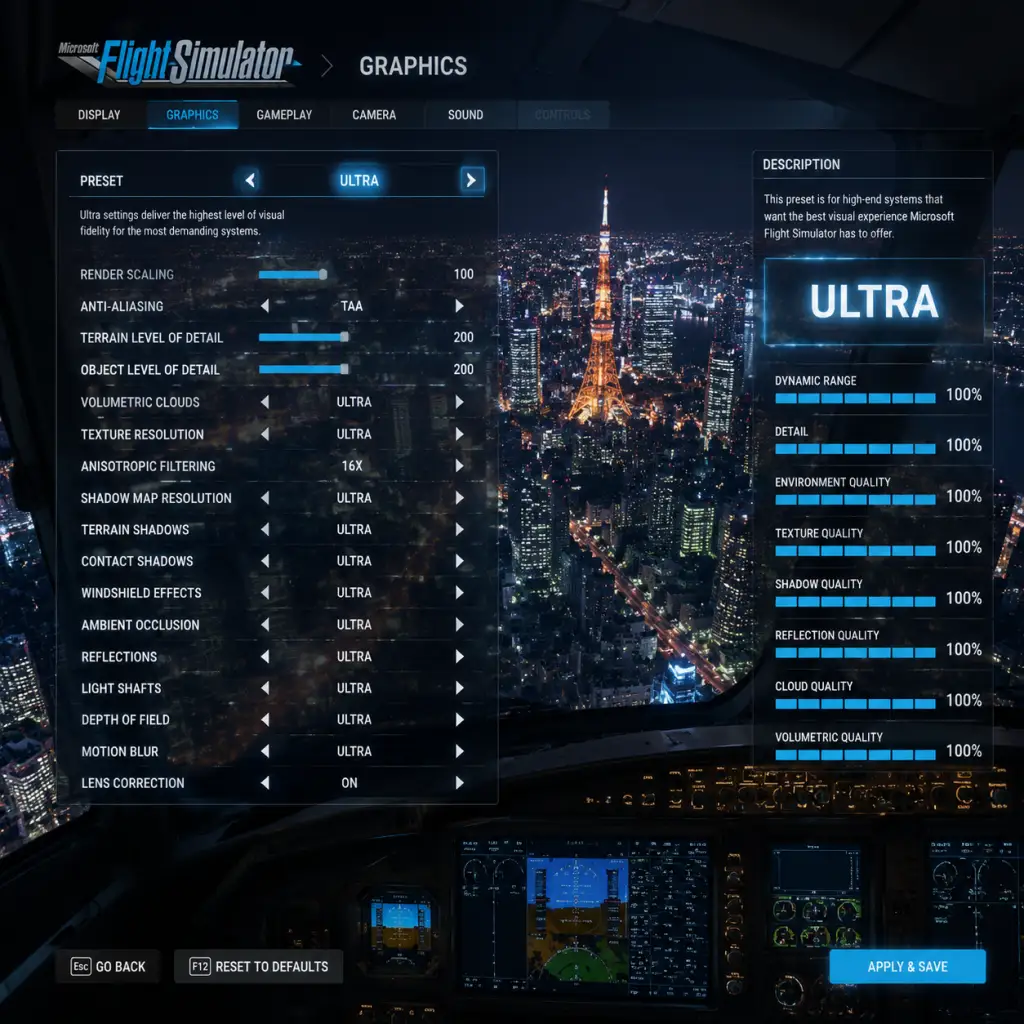
Game Settings
Graphics Settings
Graphics options heavily impact performance and visual fidelity. The game offers presets (Low, Medium, High, Ultra) but fine-tuning is recommended.
Key Options and Their Impact
- Render Scaling: Controls internal resolution. 100% = native. Lower for performance, higher for anti-aliasing. 70-80% is a good balance for mid-range.
- Terrain Level of Detail (LOD): How detailed ground textures appear. Lower values improve FPS over cities.
- Object Level of Detail: Similar but for buildings and vehicles. Significant VRAM usage.
- Texture Resolution: High textures need 4GB+ VRAM. Use Medium on 4GB cards, High on 6GB+, Ultra on 8GB+.
- Shadows: 512 or 1024 resolution. 1024 is sharp but FPS heavy. Medium 1024 recommended.
- Reflections: Cube or SSR. SSR is more realistic but performance cost. Off or Low for weak GPUs.
- Clouds: Volumetric clouds are beautiful but expensive. High or Ultra for strong GPUs, Medium otherwise.
- Ambient Occlusion: SSAO is lighter than HBAO+. HBAO+ for best visuals.
- Anti-Aliasing: TAA is default. DLSS/FSR available if supported. DLSS Quality gives great performance boost.
- Water: Wave detail and reflections. Medium is fine, High has more realism.
Hardware Tier Recommendations
| Tier | GPU example | CPU example | RAM | VRAM | Recommended Presets | Custom Tweaks |
|---|---|---|---|---|---|---|
| Low-end | GTX 1050 Ti | i5-8400 | 8 GB | 4 GB | Low | Render Scaling 70%, Terrain LOD 50, Clouds Low, Reflections Off |
| Mid-range | RTX 2060 | Ryzen 5 3600 | 16 GB | 6 GB | High (custom) | Render Scaling 80%, Terrain LOD 100, Clouds Medium, Shadows 1024 |
| High-end | RTX 3070 | Ryzen 7 5800X | 32 GB | 8 GB | Ultra (custom) | Render Scaling 100%, Terrain LOD 150, Clouds High, Shadows 2048, HBAO+ |
| Ultra | RTX 4090 | i9-13900K | 64 GB | 24 GB | Ultra | Render Scaling 100% (or 4x if 4K), Terrain LOD 200, Clouds Ultra, Shadows 4096, SSR + Cube |
Easy to Misconfigure Settings
- Rolling Cache: Stores terrain data locally for smoother streaming. Too small causes stuttering. Recommended minimum 16 GB, ideally 32 GB if you fly same area often.
- Photogrammetry: Streams real-world 3D data. Turn off if you have slow internet or want to reduce VRAM usage. On requires constant data.
- Weather: Live weather uses online data; can cause FPS drops if heavy clouds. Set to preset Clear or Few Clouds for performance.
- Aircraft Traffic: AI traffic or multiplayer traffic increases CPU load. Set to Low or Off if CPU limited.
- VSync: Enable to avoid screen tearing but adds input lag. Better to cap FPS in sim or via driver.
- Master Volume: 100% then adjust individual sliders.
- Internal Engine: Volume of your own aircraft. Keep high.
- External Engine: Other aircraft near you. Useful for traffic.
- ATC (Air Traffic Control): Speech volume. Set to 100% for clear instructions.
- Radio: COM1/COM2 audio separate; important for multiplayer.
- Ambient: Wind, rain, cockpit sounds. Adjust to taste.
- Notifications: Tutorial or event sounds.
- Throttle: Set to a slider or throttle quadrant.
- Aileron/Elevator/Rudder: Assign to joystick axes. Deadzones: 5-10% to avoid drifting.
- Sensitivity: Default 0.5 linear. Lower for smoother control on twitchy sticks. Example: Aileron sensitivity 0.3, elevator 0.4.
Audio Settings
Proper audio enhances immersion. Key settings:
Spatial Audio: Windows Sonic or Dolby Atmos supported. Enable for directional awareness (e.g., hearing another plane's engine position).
Misconfigured: ATC volume too low → mishear clearances. Internal engine too loud → miss radio calls.
Controls Settings
Controls are highly customizable. Use a joystick/yoke for best experience.
Axis Assignments
Key Bindings (Essential)
| Action | Default Keyboard | Recommended Alternative |
|---|---|---|
| Parking Brake | Ctrl+Period | Button on throttle |
| AutoPilot On/Off | Ctrl+Z | Side button |
| Flaps Up/Down | F6/F7 | Hat switch |
| Landing Gear | G | Button near thumb |
| View: Cockpit | A (hold) | POV hat |
Misconfigured Controls
- Null zones too small → aircraft veers off. Increase on worn joysticks.
- Throttle reverse axis → full throttle when pulling back. Reverse axis flag in settings.
- Multi-engine assignment – assign one axis per engine via throttle per engine option.
- Colorblind Modes: Protanopia, Deuteranopia, Tritanopia filters for instruments.
- Subtitles: All speech has subtitles, including ATC. Essential for hearing-impaired.
- Narration: Voice reads menus and tooltips. Good for visually impaired.
- Text Size: Increase UI scale for cockpit HUD elements.
- Controller Vibration: Feedback on triggers for turbulence, ground roll. Can be distracting.
- Toggle vs Hold: Many actions can be set to toggle (e.g., push-to-talk, flaps). Easier for limited mobility.
- Interface Language: Affects menus, labels, checklists. Choose your preferred.
- Voice Language: Sets language for ATC and pilot voice (if enabled). Must match region for realism or pick English.
- Keyboard Layout: Not in-game; use Windows language bar.
- Bandwidth Limit: Set to 100% (unlimited) for best streaming, reduce if internet capped (e.g., 10 Mbps limit).
- Manual Cache: Pre-download terrain for areas you fly often. Size adjustable (e.g., 50 GB for a country).
- Multiplayer: Enable to see other players. Disable for solo performance gain.
- Live Weather & Traffic: Require internet. Turn off for offline simplicity.
- AI Traffic: Simulated aircraft. High density reduces FPS.
- Data Source: Online Bing Maps vs offline (if caching). Online gives latest.
- Difficulty: Easy (full assist), Medium (some assist), Hard (realistic). Recommend Medium for beginners.
- Assistance: Individual toggles for auto-rudder, auto-mixture, auto-feather. Turn off to learn.
- Time Compression: Up to 16x. Use for long flights but note flight model may glitch at high values.
- Pause On: Pause on landing? Off for immersion.
- Cockpit Camera: Default eye point. Adjust vertical offset for tall/short players.
- External Camera: Chase, tower, etc. Can assign key to cycle.
- Difficulty: Medium
- Auto-rudder: ON
- Auto-mixture: ON
- Auto-feather: OFF
- Pause on landing: OFF
- Time compression: 2x initially
Calibration: Use Windows game controller panel first, then set sensitivities in-game.
Accessibility Settings
Microsoft Flight Simulator offers several accessibility features:
Special Attention: Subtitles for ATC are disabled by default. Enable in Audio settings.
Language Settings
Available languages: Interface and voice (ATC/Co-Pilot) can be set independently.
Note: ATC voice language may not have full coverage in all regions. If not, English default.
Network Settings
Controls data usage and multiplayer.
Misconfigured: Bandwidth limit too low causes blurry textures. Set to at least 50 Mbps if available.
Gameplay Settings
These affect flight experience and assistance.
Special Attention: Auto-mixture set ON for beginners to prevent engine damage. Turn OFF for realistic engine management.
Recommended Starting Setup:
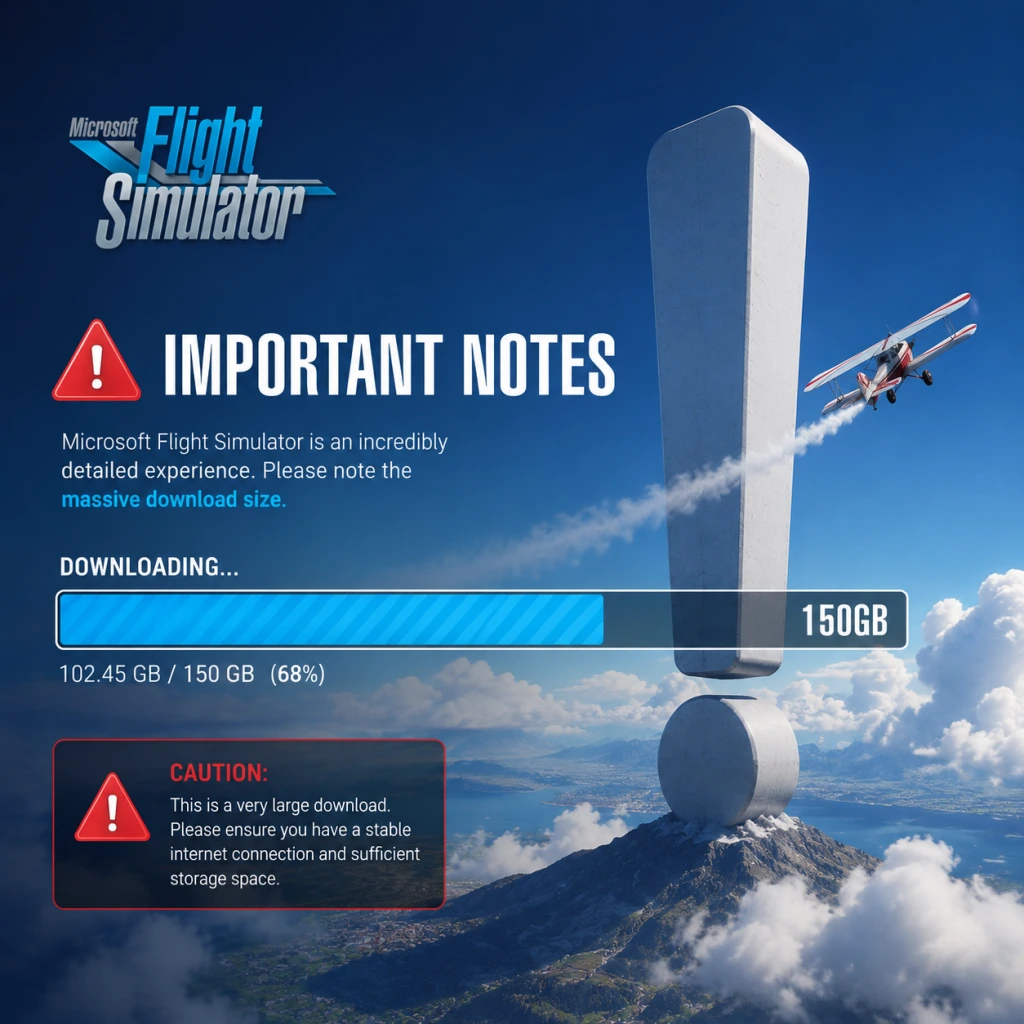
Important Notes
Important Notes for Microsoft Flight Simulator
1. Warnings and Pitfalls
- Gigantic Download Size: The base game requires approximately 100 GB of free space. With World Updates, optional scenery packs, and aircraft add-ons, it can easily exceed 300 GB. Ensure you have a fast internet connection and ample SSD storage.
- Always-Online Dependency: Although you can fly offline, the game streams high-resolution scenery, live weather, and real-time air traffic. Without internet, you will see blurry textures and generic weather. Offline mode is functional but greatly diminished.
- Performance Demands: This is one of the most graphically intensive games. Do not expect smooth performance on mid-range hardware at Ultra settings. Use the in-game benchmark tool to find your optimal settings.
- Control Setup: While flying with keyboard and mouse is possible, it is highly recommended to use a joystick, yoke, or at least an Xbox controller. Cheap flight sticks may have poor longevity; invest in a reputable brand.
- Marketplace Purchases: Any aircraft, scenery, or livery purchased from the in-game Marketplace is tied to your Xbox/Microsoft account and is non-refundable. Check third-party reviews before buying, as some add-ons may have bugs or poor performance.
- Pilot Profile Customization: Your in-game pilot name and appearance can be changed at any time in the menu – not irreversible.
- Control Bindings: Custom control profiles are saved locally. While you can revert to defaults, losing your carefully tuned bindings due to a game update or settings reset is common. Back up your `UserCfg.opt` file located in `%APPDATA%\Microsoft Flight Simulator\` periodically.
- Time-Limited Events: The game occasionally runs live events, such as Discovery Flights (e.g., flying over the Grand Canyon) or landing challenges (e.g., short-field competitions). These may not be repeated. Participate while available if you want the corresponding achievement or just a unique experience.
- Game Pass Availability: If you are playing via Xbox Game Pass, your access to the game and any included DLC ends when your subscription lapses. There is no permanent loss of progress, but you cannot play without an active subscription.
- Learning Curve vs. Tutorial: The built-in flight training covers basic aircraft but does not teach advanced topics like instrument flight rules (IFR), jet systems, or complex avionics. New players often struggle with the transition from a Cessna 152 to an airliner. Use online resources and the in-game checklist.
- Live Weather: Real-time weather can include severe turbulence, low visibility, icing, and strong crosswinds. Beginners should start with "Clear Skies" preset and gradually introduce live weather.
- Navigation: Understanding VOR/NDB, GPS, and ILS approaches requires study. The default Garmin units can be confusing; consider watching tutorial videos or using third-party flight planners.
- Achievement Hunting: The achievement “100% A Pilot” (land at every airport in the world) is impractical – there are over 37,000 airports. Do not focus on this; pursue achievements that are fun and within reason.
- Bush Trips: Official bush trips (e.g., Patagonia, African Bush) are long, repetitive point-to-point flights. They are not required for any major reward and can become tedious.
- Livery Collections: Downloading hundreds of liveries from sites like Flightsim.to can clutter your Community folder and slow loading times. Only install what you actually use.
- Multiplayer Behavior: When playing on the default multiplayer (in-sim traffic), avoid flying erratically near other players, colliding with them, or blocking runways. There is no reporting system, but disrespectful behavior can ruin the experience for others.
- VATSIM/IVAO Networks: These external ATC networks have strict rules (e.g., proper phraseology, obeying controllers). Failure to comply can result in a ban from the network, not from MSFS itself.
- Anti-Cheat: Microsoft Flight Simulator does not use any active anti-cheat software. Using mods is generally safe, but unstable or malicious mods can corrupt your installation. Stick to popular, well-reviewed mods.
- Auto-Save: The game automatically saves your position and flight state, but only retains the most recent few saves. If you want to keep a specific flight (e.g., during a long-haul), use the "Save Flight" option from the pause menu.
- Cloud Backup: Your pilot profile, achievements, and landing challenges are synced to the Xbox network. No manual backup is needed for these.
- Custom Content: Your Community folder (containing mods) is not backed up automatically. Manually back it up before major updates, as SIM updates can break mods.
- Not Updating Graphics Drivers: Many performance issues and CTDs (crashes to desktop) are caused by outdated GPU drivers. Always keep them current.
- Using an HDD: The game streams scenery continuously. Installing on a mechanical hard drive leads to severe texture pop-in, stuttering, and long load times. Use an SSD.
- Skipping Checklists: In complex aircraft like the A320neo or 787, ignoring checklists can lead to engine failures, incorrect flap settings, or autopilot issues. The in-game checklist is your friend.
- Buying Bad DLC: Some Marketplace aircraft are known to be buggy or abandoned. Research on forums (e.g., r/MSFS, official forums) before purchasing. Freeware mods on Flightsim.to are often of higher quality than paid content.
2. Irreversible Choices
3. Missable Content
4. Difficulty Spikes
5. Grinding Traps
6. Online Etiquette & Anti-Cheat
7. Save Management
8. Common Regrets
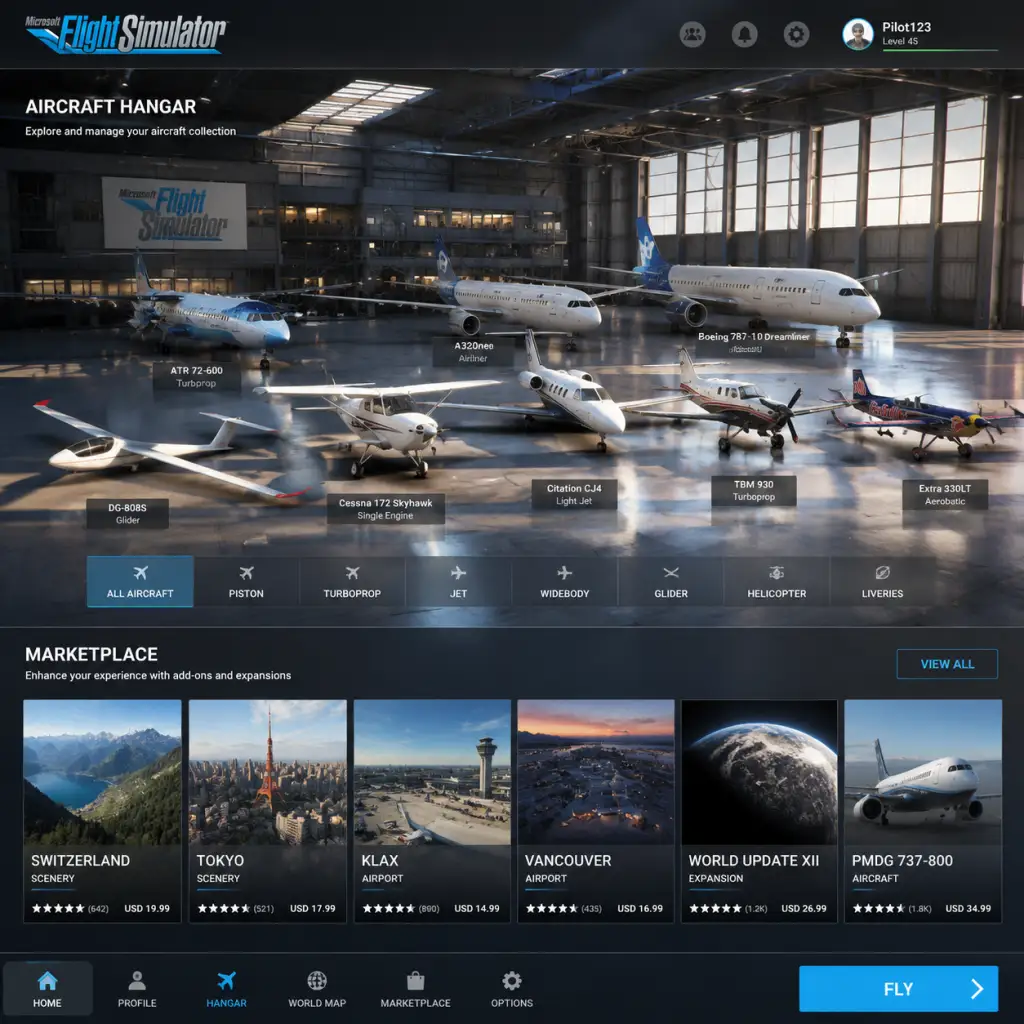
All Game Items
All Game Items in Microsoft Flight Simulator
Unlike traditional games, Microsoft Flight Simulator does not feature weapons, armor, or craftable materials. Instead, its "items" are aircraft, avionics, liveries, scenery, consumables (simulated), currencies, and unlockable content. This guide catalogues every major item type, explaining how to obtain them, when they're useful, and any relevant synergies.
1. Aircraft
The core items of the game. Each aircraft is a distinct vehicle with unique flight characteristics, avionics, and performance.
#### Default & Edition-Included Aircraft
- Standard Edition: 20+ aircraft including the Cessna 152, Cessna 172 Skyhawk, Beechcraft King Air 350i, Airbus A320neo, Boeing 747-8 Intercontinental.
- Deluxe Edition: Adds 5 extra aircraft (e.g., Diamond DA40-Tundra, Mooney M20R Ovation, Textron Aviation Bonanza G36).
- Premium Deluxe Edition: Adds 5 more (e.g., Boeing 787-10 Dreamliner, Cessna Citation Longitude, Zlin Shock Ultra).
- Obtaining: These are included in the purchase or available as separate paid upgrades via the in-game Marketplace.
- Hundreds of third-party aircraft from developers like PMDG, Aerosoft, Fenix, Just Flight, and Carenado.
- Examples: PMDG 737-800, Fenix A320, Aerosoft CRJ, Just Flight Piper PA-28 Arrow.
- Obtaining: Purchased with Flight Simulator Credits (see Currency section) from the Marketplace. Prices range from $15 to over $100.
- When useful: Adds higher fidelity, regional jets, historic planes, or specialized planes (e.g., bush planes, gliders).
- Free third-party aircraft like the FlyByWire A32NX, Working Title CJ4, or the Headwind A330-900.
- Obtaining: Downloaded from websites like flightsim.to or via the in-game Mods menu (if using the official mod framework).
- Note: Community mods are not official items but are widely used. They often improve default aircraft or add new ones.
- Each aircraft suits different missions: bush flying (Cessna 208 Caravan), airliner (A320, 747), IFR training (G1000-equipped planes).
- Synergy: Using a high-fidelity add-on with realistic systems requires additional setup (e.g., third-party avionics).
- G1000 NXi: High-end glass cockpit system for general aviation planes. Included in many default aircraft (Cessna 172, DA40). Also available as a stand-alone upgrade for other GA planes via mods.
- GNS 430W/530W: Older GPS/NAV/COM units. Found on default planes like the Cessna 152.
- GTN 750/650: Premium touch-screen GPS (available in some payware aircraft).
- How to obtain: Included with aircraft; third-party upgrades may be purchased or downloaded as mods.
- When useful: IFR flight, navigating VOR/ILS approaches, RNAV GPS waypoints.
- Default autopilot modes: Heading hold, altitude hold, VOR/ALS tracking. Present in most aircraft.
- Advanced FMS systems: In airliners (e.g., A320 FCU, 747 MCP). Can be upgraded via mods (e.g., Working Title CJ4 improvement mod).
- How to obtain: Built into aircraft; no separate item.
- Simulated radar: In airliners like the A320 NEO (default) and 787. Provides visual of precipitation.
- Marketplace upgrade: Some payware aircraft include more realistic weather radar (e.g., PMDG).
- Default liveries: Every aircraft comes with at least two (e.g., “Red” and “Blue”).
- Marketplace liveries: Packs of liveries (e.g., “Airline Fleet Pack”) sold for credits. Also free community liveries.
- How to obtain: Via Marketplace (paid) or flightsim.to (free, installed manually or through an installer).
- When useful: Personalization, role-play (e.g., flying for a virtual airline).
- Synergy: Some virtual airlines require specific liveries for rep flights.
- World Updates: Free periodic updates from Microsoft that enhance specific regions (e.g., USA, Japan, UK, France). Include new POIs, handcrafted airports, and photogrammetry.
- Marketplace Airports: Individual airports or airport packs (e.g., KLAX Los Angeles, EGLL Heathrow, LIRF Rome). Prices vary from $5 to $40.
- City/Landmark packs: e.g., “Downtown Las Vegas”, “Eiffel Tower”.
- How to obtain: Free from Content Manager (World Updates) or purchased with credits.
- When useful: When flying in those regions; improves immersion and accuracy for VFR navigation.
- Fuel: Aircraft have fuel tanks. Use fuel from the current airport. Fuel level can be adjusted in the pre-flight menu (Fuel and Payload). Running out of fuel causes engine failure. Replenish at airports (via ATC for ground services).
- Oil: Simulated in some aircraft (e.g., radial engine planes like the Beechcraft Model 18). Check oil temperature and pressure. Low oil can cause engine damage.
- Oxygen: For high altitude flight (e.g., over 12,500 feet). Some aircraft have tank systems; simulate oxygen supply duration. Manage via system page.
- De-icing fluid: Used on airliner wings; controlled via ground services (de-icing pad). Essential in winter weather.
- How to manage: In cockpit via systems; set in pre-flight for fuel/payload.
- How to obtain: Purchased with real money through the Microsoft Store or Steam overlay. Bundles come with game editions (e.g., Premium Deluxe includes $50 worth of credits).
- When useful: To buy payware content. Cannot be earned through gameplay.
- Achievements / Gamerscore: Obtainable on Xbox and Windows (via Xbox app). Examples: “First Flight” (complete a flight), “Globe Trotter” (land at 50 different airports).
- Badges: In-game profiles show badges for specific milestones (e.g., 1000 hours flown).
- Discovery Flights: Unlockable missions that teach specific skills. Completing all Discovery Flights for a category grants a “Master” achievement.
- Bush Trips: Pre-made long-distance flights across wilderness. Completing a Bush Trip unlocks a special livery (e.g., “Bush Trip” livery for the Cessna 172).
- Landing Challenges: Quick scenarios (e.g., landing at St. Barts). Earn medals (Gold, Silver, Bronze) that appear on your profile.
- How to obtain: By performing in-game actions.
- Bush Trips: Navigation exercises without GPS. 10-20 legs each. Unlock after completing previous legs.
- Landing Challenges: Short landing scenarios. ~50 included; additional ones in Marketplace.
- Discovery Flights: Guided tutorials (e.g., takeoff, landing, navigation).
- Live Events: Time-limited activities (e.g., Reno Air Races, New Year’s Eve flyovers).
- How to obtain: From the main menu. Bush Trips and Landing Challenges are pre-installed; Live Events appear during promotion periods.
- When useful: For training or variety. Some unlock special liveries or achievements.
- Yoke / Joystick: For primary flight control. Examples: Thrustmaster TCA Officer Pack (Airbus), Honeycomb Alpha.
- Throttle Quadrant: For engine controls. Honeycomb Bravo, Logitech throttle.
- Rudder Pedals: For steering on ground and coordinated turns.
- TrackIR / VR Headset: For head movement and immersion.
- Mouse / Keyboard: Basic control.
- Purchasing: Available from electronics retailers; not in-game.
- Aircraft & Liveries: In the “Aircraft” section of the main menu. Select a plane, then choose a livery.
- Airport & Scenery: In the World Map, enable or disable add-ons under the “Megascenery” filter. For purchased airports, they are automatically active.
- Consumables: Set fuel and payload in the pre-flight “Fuel and Payload” panel for each aircraft.
- Currencies: View your Fx balance in the Marketplace. Credits are added after purchase.
- Activities: From the sidebar: “Activities” > “Bush Trips”, “Landing Challenges”, etc.
- Add-ons Management: Content Manager (in main menu) to install/uninstall World Updates, Marketplace purchases, and community mods.
#### Marketplace Aircraft (Payware)
#### Community Mods (Freeware)
#### How to Use & Synergies
2. Avionics & Instruments
Aircraft panels are composed of individual instruments, many of which can be upgraded or replaced (in mods). Default aircraft come with built-in systems; add-ons often allow modular upgrades.
#### Garmin GPS Units
#### Autopilots
#### Weather Radar
3. Liveries & Paint Schemes
Cosmetic items that change the appearance of your aircraft (both default and add-on).
4. Airport & Scenery Packs
Add-on airports, landmarks, and region upgrades. These improve visual fidelity and may add more detailed terminal buildings, taxiways, and local scenery.
5. Simulated Consumables
While not inventory items, these are consumed during flight and must be managed.
6. Currencies
Flight Simulator Credits (Fx): Virtual currency used exclusively in the in-game Marketplace to purchase aircraft, airports, scenery, and liveries. 1 Fx = 1 USD (roughly).
Microsoft Points: Not used in MSFS.
Rewards from Activities: Some activities (Bush Trips, Landing Challenges) award trophies or achievements (gamerscore on Xbox) but no in-game currency.
7. Collectibles & Achievements
While not physical items, these are tracked for completionists.
8. Activities & Missions (Content Items)
These are scripted “missions” that can be considered items because you can choose to play them.
9. Key Equipment (Hardware & Accessories)
While not in-game items, the game supports and recommends certain peripherals for optimal experience. These are not “items” you find, but we list them for completeness.
10. How to Access & Manage Items
Summary Table of Item Types
| Item Category | Key Examples | How to Obtain | When Useful |
|---|---|---|---|
| Aircraft | Cessna 152, A320neo, PMDG 737 | Included, Marketplace, Mods | Any flight |
| Avionics | G1000 NXi, GTN 750 | Built-in, mods | IFR flight |
| Liveries | Airline packs, Bush Trip livery | Marketplace, mods, achievements | Role-play, aesthetics |
| Airports | KLAX, EGLL | Marketplace, World Updates | Regional flying |
| Scenery Packs | World Updates, city packs | Free (World Updates) or paid | Visual enhancement |
| Consumables | Fuel, oil, oxygen | Simulated – manage in flight | When needed for flight |
| Currencies | Flight Simulator Credits | Purchased with real money | Buying Marketplace content |
| Collectibles | Achievements, bush trip liveries | By completing activities | Profile, cosmetic |
| Activities | Bush trips, landing challenges | Pre-installed or time-limited | Training, variety |
| Equipment (hardware) | Yokes, pedals | External purchase | Essential for realism |
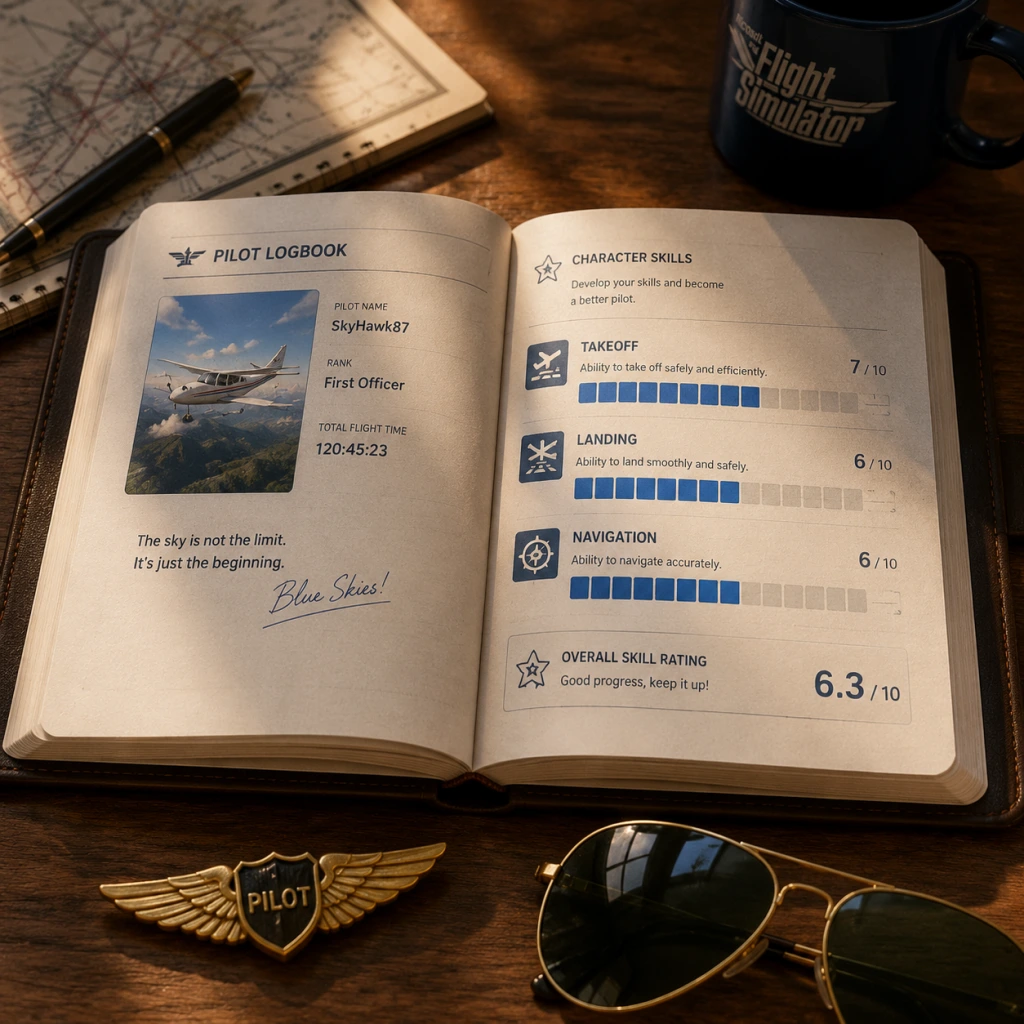
Character Skills
Character Skills Guide for Microsoft Flight Simulator
In Microsoft Flight Simulator, the only "playable character" is You, the pilot. However, the game offers a rich set of skills and abilities that can be developed and applied across different aircraft and flight scenarios. This guide categorizes these skills into: Pilot Skills, Aircraft Systems Management, Navigation & Communication, Autoflight Skills, Emergency Procedures, and Aerobatic Manoeuvres. Each skill includes effects, cooldowns (where applicable, e.g., after a stall recovery you need to regain airspeed), upgrades, synergies, recommended builds, and when to use.
---
1. Pilot Skills (Fundamentals)
These are core abilities every pilot must master. They have no cooldown in the traditional sense but require practice and correct execution.
#### 1.1 Visual Flight Rules (VFR) Scanning
- Effect: Continuously scan the horizon, instruments, and outside environment to maintain situational awareness. Increases ability to spot traffic, terrain, and landmarks.
- Upgrades: Practice in flight school missions; use external camera (Chase or Cockpit) to train peripheral vision.
- Synergies: Complements all navigation skills; critical for VFR landings.
- Recommended Build: Bush flying, general aviation, sightseeing.
- When to Use: Always during VFR flights; especially important near airports and in congested airspace.
- Effect: Cross-check attitude indicator, altimeter, airspeed, heading, and vertical speed to maintain control without outside references. Reduces spatial disorientation.
- Upgrades: Practice in IMC (Instrument Meteorological Conditions) like clouds or night. Use the G1000 or standard six-pack.
- Synergies: Works with all autopilot modes (coupling with AP) and navigation fixes.
- Recommended Build: Airliners, long-haul flights, bad weather flying.
- When to Use: In clouds, at night, or whenever visibility is low.
- Effect: Coordinated use of yoke/stick, rudder pedals, and throttle to perform smooth turns, climbs, descents, and stalls. Prevents uncoordinated flight (slips/skids).
- Upgrades: Training in taildraggers like the Icon A5 or Cub for rudder mastery; practice stalls and spins.
- Synergies: Required for aerobatics, crosswind landings, and manual approaches.
- Recommended Build: Warbirds, aerobatic planes, bush flying.
- When to Use: All phases of flight, especially takeoff, landing, and slow-speed handling.
- Effect: Ability to interpret engine sounds (RPM changes), stall warning horn, gear warning, and ATC callouts. Faster reaction to abnormal situations.
- Upgrades: Use in-cockpit sound, disable music, increase headphone volume.
- Synergies: Emergency procedures, engine failure detection.
- Recommended Build: Any aircraft.
- When to Use: Constantly; helps avert disasters like fuel starvation or overspeed.
- Effects: Proper use of mixture, throttle, propeller (constant speed vs fixed pitch), and cowl flaps. Optimizes fuel burn, prevents detonation, extends engine life.
- Cooldown: Engine overheating requires ~2–5 minutes of reduced power to cool down (simulated).
- Upgrades: Study aircraft manual (POH) for each plane; use fuel mixture on Lycoming/Continental engines.
- Synergies: Fuel management, electrical system (alternator load).
- Recommended Build: Piston singles, twins, turboprops.
- When to Use: During taxi, takeoff (full rich then lean), climb (lean for best power above 3000 ft), cruise (lean for best economy), descent (enrich).
- Effect: Select crossfeed, tank switching, fuel pumps on/off to maintain balance and avoid starvation. Can increase range by 10–15%.
- Cooldown: N/A (continuous).
- Upgrades: Use fuel planning tools (SimBrief), set fuel load before flight.
- Synergies: Engine management, weight & balance.
- Recommended Build: Long-range flights, twins with fuselage tanks.
- When to Use: After startup, during cruise (switch tanks every hour), before landing (ensure sufficient fuel in main tank).
- Effect: Manage battery, alternator/generator, avionics bus, master switch. Prevents battery drain and alternator failure.
- Cooldown: Battery drain recovers only after alternator is online (simulated recharge).
- Upgrades: Understanding of load shedding (turn off unnecessary avionics).
- Synergies: Navigation instruments, autopilot.
- Recommended Build: IFR flights, complex aircraft (e.g., TBM 930).
- When to Use: Startup, engine start (engage alternator after engine running), in-flight if electrical failure occurs.
- Effect: Set cabin altitude, pressurization rate, and bleed air sources. Maintains safe cabin pressure and oxygen levels above 10,000 ft.
- Cooldown: Pressurization changes take 10–30 seconds.
- Upgrades: Learn pressurization schedule (e.g., at 18,000 ft, cabin altitude ~8,000 ft).
- Synergies: Oxygen systems (if simulated), engine bleed.
- Recommended Build: Turboprops with pressurization (PC-12, TBM 930), jets.
- When to Use: During climb after takeoff (set landing elevation to 0), during descent (adjust to match field elevation).
- Effect: Trim aileron, elevator, and rudder for hands-off flight. Use flaps, spoilers, and speed brakes. Maximizes efficiency and reduces pilot workload.
- Cooldown: Trim adjustment immediate.
- Upgrades: Practice trim wheel sensitivity; use auto-trim if available.
- Synergies: Autopilot, stall recovery.
- Recommended Build: All aircraft, especially for long cruise.
- When to Use: After level-off (elevator trim), during climb/descent (retrim), landing (flaps deployment, trim adjustment).
- Effect: Tune VOR, NDB, DME, and ILS frequencies. Intercept radials, track bearings, determine position.
- Cooldown: Frequency change takes ~1 second.
- Upgrades: Learn to use VOR cross-checks, ILS approach plates. Practice with the Nav1/Nav2 radios.
- Synergies: Autopilot (NAV mode), IFR flight.
- Recommended Build: Vintage aircraft (DC-3, Cessna 152), IFR training.
- When to Use: When GPS is not available or for redundancy; during instrument approaches (ILS).
- Effect: Enter flight plan, waypoints, SIDs, STARs, and approaches. Activate direct-to or execute legs. Enables autopilot navigation.
- Cooldown: FMS load time ~2–5 seconds.
- Upgrades: Learn G1000, Garmin GTN 750, or jet-specific FMC (A320, B747). Use SimBrief import.
- Synergies: Autopilot (LNAV/VNAV), flight performance monitoring.
- Recommended Build: Any modern GA (G1000) or airliner.
- When to Use: For IFR flight plans, enroute navigation, and executing RNAV approaches.
- Effect: Request clearances, receive vectors, report position. Following ATC instructions reduces chance of traffic conflicts and adds immersion.
- Cooldown: Radio transmission takes ~3–5 seconds (simulated delay).
- Upgrades: Use third-party ATC (e.g., VATSIM, PilotEdge) for dynamic voice communication; learn phraseology.
- Synergies: Navigation (following vectors), altitude management.
- Recommended Build: IFR flights, commercial operations.
- When to Use: Before departure (clearance delivery), after takeoff (departure), during cruise (center), before landing (approach/tower).
- Effect: Engage pitch hold, altitude hold, heading hold, vertical speed, and flight level change. Reduces workload.
- Cooldown: Mode changes immediate; AP disengagement requires manual takeover.
- Upgrades: Learn each mode’s function; practice using AP in turbulence.
- Synergies: Autothrottle, FMS.
- Recommended Build: IFR flights, long-haul.
- When to Use: After climb established (altitude hold), during cruise (NAV mode for route), before approach (HDG and VS for vectors).
- Effect: Automatically adjusts throttle to maintain selected speed (IAS or Mach). Prevents overspeed and stall.
- Cooldown: Immediate engagement; disengages on manual throttle input.
- Upgrades: Understand speed envelope; practice with manual override.
- Synergies: Autopilot, flight directors.
- Recommended Build: Jets and advanced turboprops.
- When to Use: During climb (hold climb speed), cruise (maintain econ speed), descent (hold speed), approach (hold Vref).
- Effect: Shows pitch and roll commands to follow AP modes or manually. Helps hand-flying with guidance.
- Cooldown: N/A.
- Upgrades: Use flight director bars to train instrument scan.
- Synergies: Autopilot, ILS.
- Recommended Build: IFR, airliners.
- When to Use: When flying manually but wanting AP guidance, or during ILS approach (localizer/glideslope capture).
- Effect: Maintain best glide speed, identify dead engine (if multi), feather prop, secure engine, troubleshoot (fuel, magnetos, restart).
- Cooldown: After successful restart, engine warm-up needed (~1 min).
- Upgrades: Memorize boldface checklists; practice simulated failures in free flight.
- Synergies: Rudder control for yaw, trim, radio communication.
- Recommended Build: Twins (for asymmetric thrust training).
- When to Use: Immediately after failure; must be done within seconds.
- Effect: Apply nose-down pitch, add power, stop roll, and regain airspeed. Prevents spin.
- Cooldown: After recovery, regain altitude slowly.
- Upgrades: Learn incipient vs full stall; practice with various flap settings.
- Synergies: Trim, rudder.
- Recommended Build: All aircraft, especially aerobatic.
- When to Use: Upon stall warning or actual stall buffet; during low-speed maneuvres (base-to-final turn).
- Effect: Isolate electrical system, turn off master, vent cabin, use fire extinguisher (if simulated).
- Cooldown: System reset may take minutes.
- Upgrades: Know circuit breaker locations.
- Synergies: Communication (declare emergency).
- Recommended Build: Complex GA, airliners.
- When to Use: When smoke detected (annunciator or smell).
- Effect: Above 10,000 ft, don oxygen mask (if available) or descend to 10,000 ft immediately. Time of useful consciousness limited.
- Cooldown: Descent to 10,000 ft restores normal condition.
- Upgrades: Learn cabin altitude limits and oxygen rules.
- Synergies: Pressurization management.
- Recommended Build: High-flying aircraft (jets).
- When to Use: When cabin altitude exceeds 10,000 ft or during depressurization.
- Effect: 360-degree vertical loop. Requires 150–200 knots entry, smooth back stick, and throttle modulation to maintain positive G.
- Upgrades: Practice with Extra 330, Pitts S2S.
- Synergies: Energy management (pitch vs speed).
- Recommended Build: Aerobatic planes.
- When to Use: For fun or airshow routines.
- Effect: 360-degree rotation about longitudinal axis. Use full aileron, slight back pressure to maintain flight path.
- Upgrades: Perfect barrel roll (rolling around a point).
- Synergies: Rudder coordination.
- Recommended Build: Any agile aircraft.
- When to Use: Same as loop.
- Effect: Half loop followed by half roll, gaining altitude and reversing direction.
- Upgrades: Quickly gaining energy after loop.
- Synergies: Loop and roll.
- Recommended Build: Warbirds (P-51, F/A-18).
- When to Use: Combat simulation or a quick 180-degree turn with altitude gain.
- Effect: Half roll then half loop downwards, losing altitude and reversing direction.
- Upgrades: Ensure sufficient altitude.
- Synergies: Roll and loop.
- Recommended Build: Jets like F/A-18.
- When to Use: Evasive maneuvre or rapid descent with direction change.
- Focus: Visual scanning, stick & rudder, basic engine management, GPS navigation.
- Aircraft: Cessna 152, Cub, Icon A5.
- Skills Priority: VFR scanning > Engine basics > Radio nav (VOR) > Trim.
- Focus: IFR scanning, FMC/GPS, autopilot modes, radio navigation, ATC.
- Aircraft: G1000 aircraft (TBM 930, T210), airliners (A320, B748).
- Skills Priority: IFR scanning > FMC > Autopilot > ATC > Emergency.
- Focus: Systems management (pressurization, electrical, fuel), multi-engine, autothrottle, FMC, emergency procedures.
- Aircraft: A320, B747, B787.
- Skills Priority: FMC > Autothrottle > Pressurization > Engine failure > Electrical.
- Focus: Stick & rudder, short/soft field techniques (unlisted but derived from engine and control skills), VFR scanning, low-level navigation.
- Aircraft: Cub, Kodiak, Savage Cub.
- Skills Priority: Stick & rudder > VFR scanning > Engine management > Trim.
- Focus: Stick & rudder, energy management, spatial orientation, G-tolerance (not simulated but mental).
- Aircraft: Extra 330, Pitts S2S, F/A-18.
- Skills Priority: Stick & rudder > Aerobatic manoeuvres > Engine burst management.
- IFR Scanning + Autopilot: Allows pilot to monitor systems while AP flies the route; essential for busy IFR flights.
- GPS + Autopilot (NAV): LNAV/VNAV coupling enables precise approach to minimums.
- VFR Scanning + Stick & Rudder: Smooth low-altitude maneuvring in canyons or traffic pattern.
- Engine Failure + Rudder Control: Immediate application of rudder to counteract yaw (critical in twins).
- Pressurization + Hypoxia Awareness: Prevents physiological issues in high-altitude jets.
- ATC Communication + GPS: Following vectors while staying on route; reduces workload.
- Aerobatic Manoeuvres + Energy Management: Loop requires speed gained via dive; roll uses moderate speed; Immelmann uses climb energy.
#### 1.2 Instrument Flight Rules (IFR) Scanning
#### 1.3 Stick and Rudder Control
#### 1.4 Perceptual Skills (Aural & Visual)
---
2. Aircraft Systems Management
Each system has an effective "skill tree" derived from cockpit familiarity.
#### 2.1 Engine Management
#### 2.2 Fuel Management
#### 2.3 Electrical System
#### 2.4 Pressurization & Environmental
#### 2.5 Flight Control Systems
---
3. Navigation & Communication Skills
#### 3.1 Radio Navigation
#### 3.2 GPS / FMC Programming
#### 3.3 ATC Communication
---
4. Autoflight Skills
#### 4.1 Autopilot Modes
#### 4.2 Autothrottle
#### 4.3 Flight Director
---
5. Emergency Procedures
#### 5.1 Engine Failure (After Takeoff)
#### 5.2 Stall Recovery
#### 5.3 Electrical Fire / Smoke
#### 5.4 Hypoxia / Pressurization Failure
---
6. Aerobatic Manoeuvres (Special Moves)
These are advanced skills with no cooldown but require proper entry speed and altitude to avoid ground impact. Use in airshows or practice.
#### 6.1 Loop
#### 6.2 Roll (Aileron Roll)
#### 6.3 Immelmann Turn
#### 6.4 Split-S
---
7. Skill Builds (Recommended Proficiency Paths)
#### 7.1 VFR Tourer Build
#### 7.2 IFR Instrument Pro Build
#### 7.3 Commercial Airliner Build
#### 7.4 Bush Flying Build
#### 7.5 Aerobatic Build
---
8. Synergies & Combos
---
9. When to Use Each Skill (Summary Table)
| Skill | Phase of Flight | Typical Scenario |
|---|---|---|
| VFR Scanning | All phases (especially low alt) | VFR circuit, sightseeing |
| IFR Scanning | Climb, cruise, descent in IMC | Cloud flying, instrument approach |
| Stick & Rudder | Takeoff, landing, slow flight | Crosswind landing, stall recovery |
| Engine Management | Startup, climb, cruise, descent | Lean for economy, prevent overheating |
| Fuel Management | Cruise | Long cross-country fuel balancing |
| Electrical System | Startup, in-flight emergency | Alternator failure, battery drain |
| Pressurization | After takeoff, before landing | High-altitude jet operations |
| Flight Controls | All phases | Trim for hands-off climb |
| Radio Nav | Descent, approach | VOR radial tracking, ILS final |
| GPS/FMC | Route planning, enroute, approach | IFR flight plan, Direct-To |
| ATC Communication | Ground, departure, enroute, arrival | Clearance, vectors, taxi instructions |
| Autopilot | Climb, cruise, approach | Altitude hold, NAV modes |
| Autothrottle | Climb, cruise, descent, approach | Speed control in complex aircraft |
| Flight Director | Manual flight with guidance | Dual channel approach (ILS) |
| Emergency Procedures | Any phase (post-failure) | Engine fire, depressurization |
| Aerobatic Manoeuvres | Solo airshow practice | Loop, roll, Immelmann |
Conclusion
Mastering these skills transforms you from a casual sim pilot into a proficient virtual aviator. Microsoft Flight Simulator rewards deliberate practice—use the in-game flight school, checklists, and third-party tutorials to hone each ability. No skill has a literal cooldown, but honing them systematically (starting with basics then progressing to advanced emergency and aerobatic) will build muscle memory. Remember, the only playable character is you—your skills determine your success in the skies.
Characters & Roles
Characters & Roles Guide for Microsoft Flight Simulator
Introduction
Microsoft Flight Simulator (2020 edition) is not a traditional game with defined characters. Instead, the true "characters" are the aircraft themselves—each with unique handling, systems, and personality. Additionally, you—the pilot—adopt different roles depending on the mission and conditions. This guide treats every major playable aircraft as a distinct unit and outlines the pilot roles you can master. All aircraft are available to fly from the start (depending on your edition), but some are locked behind Deluxe or Premium Deluxe purchases.
Aircraft as Playable Units
1. General Aviation Trainers
- Cessna 152 – Two-seat trainer. Strengths: Light, forgiving, ideal for basics. Weaknesses: Slow, short range, no GPS. Playstyle: VFR pattern work, short hops. Unlock: Standard Edition. Recommended: Yoke + rudder pedals.
- Cessna 172 Skyhawk (G1000) – Four-seat classic with glass cockpit. Strengths: Stable, modern avionics for IFR. Weaknesses: Moderate performance. Playstyle: VFR/IFR cross-country. Unlock: Standard Edition. Recommended: Thrustmaster TCA Yoke.
- Piper PA-18 Super Cub – Tailwheel bush plane. Strengths: STOL, rugged. Weaknesses: Needs precise rudder. Playstyle: Bush flying, unpaved strips. Unlock: Standard. Team synergy: Formation bush trips.
- Diamond DA40 NG – Modern composite trainer. Strengths: Efficient, great visibility. Weaknesses: Light weight, crosswind sensitivity. Playstyle: Touring, pilotage. Unlock: Standard.
- CubCrafters XCub – High-performance bush plane. Strengths: Powerful, wide speed envelope. Weaknesses: Complex autopilot. Playstyle: Backcountry exploration. Unlock: Premium Deluxe.
- TBM 930 – Single-engine turboprop. Strengths: Fast, pressurized, G3000 cockpit. Weaknesses: Expensive, complex systems. Playstyle: High-speed executive travel. Unlock: Standard. Recommended: High-end joystick with throttle quadrant.
- Beechcraft King Air 350i – Twin turboprop. Strengths: Range, cabin comfort. Weaknesses: Symmetry in engine management. Playstyle: Regional air taxi or corporate. Unlock: Premium Deluxe. Team synergy: Multiplayer formation airliners.
- Cessna Citation CJ4 – Light business jet. Strengths: Speed, altitude capability. Weaknesses: Short range (relative). Playstyle: Quick point-to-point. Unlock: Deluxe.
- Cessna Citation Longitude – Midsize business jet. Strengths: Exceptional range, advanced avionics. Weaknesses: Heavier than CJ4. Playstyle: Transcontinental trips. Unlock: Premium Deluxe.
- Pilatus PC-6 Porter – Utility turboprop. Strengths: STOL, cargo door, ski/float options. Weaknesses: Low speed. Playstyle: Cargo drops, remote airstrips. Unlock: Standard.
- Airbus A320neo – Short-to-medium haul. Strengths: Fly-by-wire, automated, efficient. Weaknesses: Steep learning curve for FMC. Playstyle: Realistic airline operations. Unlock: Standard. Recommended: Full yoke + rudder, A320-specific throttle quadrant. Team synergy: Shared Cockpit mod for two-pilot crew.
- Boeing 747-8 Intercontinental – Jumbo jet. Strengths: Iconic, huge, four engines. Weaknesses: Slow to accelerate, complex systems. Playstyle: Long-haul flights, oceanic crossings. Unlock: Premium Deluxe.
- Boeing 787-10 Dreamliner – Long-range widebody. Strengths: Composite construction, fuel-efficient engines, modern cockpit. Weaknesses: Requires systematic checklists. Playstyle: Ultra-long-haul. Unlock: Premium Deluxe.
- Bombardier CRJ 550/700 – Regional jet. Strengths: Agile, realistic FMS. Weaknesses: Small cabin. Playstyle: Short hops, regional networks. Unlock: Deluxe (CRJ is add-on but in Deluxe? Actually CRJ is included in Deluxe and Premium Deluxe).
- Douglas DC-3 – Classic radial-engine transport. Strengths: Historical significance, rugged. Weaknesses: Radial engine management, manual navigation. Playstyle: Retro flights, cargo. Unlock: Premium Deluxe.
- Extra 330LT – Aerobatic aircraft. Strengths: Extreme rates, 3D maneuverability. Weaknesses: Unstable in cruise. Playstyle: Aerobatic competitions, formation aerobatics. Unlock: Premium Deluxe.
- Icon A5 – Amphibious light sport aircraft. Strengths: Water landings, folding wings. Weaknesses: Limited performance. Playstyle: Coastal exploration, waterways. Unlock: Premium Deluxe.
- Savage Cub – Ultralight bush plane. Strengths: Very short field performance. Weaknesses: Slow, no instruments. Playstyle: Bare-bones bush flying. Unlock: Deluxe.
- Ventus 2cT – Self-launching glider. Strengths: Silent flight, long glide ratio. Weaknesses: Requires thermal/ridge lift. Playstyle: Soaring, cross-country gliding. Unlock: Standard.
- FlyByWire A32NX – Free community mod that greatly enhances the default A320neo. Strengths: Realistic FMC, custom cockpit, optional EFB. Weaknesses: Requires manual installation. Playstyle: Hardcore simulation. Unlock: Free download (not included in base).
- Working Title CJ4 – Base was updated to improve the CJ4 via Working Title mod. Strengths: Better autopilot, FMC. Playstyle: Business jet with realistic systems.
- Description: Fly by visual reference. Use landmarks, charts, and ground references. No reliance on instruments for navigation.
- Strengths: Simple, scenic, forgiving. Weaknesses: Limited to good weather, day flights.
- Equipment: Cessna 152/172, Piper Cub, any GA.
- Playstyle: Low-altitude sightseeing, pattern work, cross-country with pilotage.
- Description: Fly solely by instruments in clouds or low visibility. Use navigation aids (VOR, ILS, GPS) and air traffic control.
- Strengths: Ability to fly in all weather, precise approach. Weaknesses: Requires instrument proficiency, awareness of procedures.
- Equipment: Any aircraft with IFR avionics (G1000, G3000, airliners).
- Playstyle: Realistic flights following IFR flight plans, approach minimums.
- Description: Operate airliners by strict procedures, checklists, and SIDs/STARs. Manage crew coordination (even solo).
- Strengths: High altitude, speed, automation. Weaknesses: Boring if you dislike long flights.
- Equipment: A320neo, 747, 787, CRJ.
- Playstyle: Full flight from gate to gate, use of autopilot, ATC communication (AI or online).
- Description: Land and take off in remote, rough, uphill/downhill strips. Use STOL techniques.
- Strengths: Adventure, challenge of tricky landings. Weaknesses: High risk, requires fine rudder control.
- Equipment: PC-6, Super Cub, XCub, Savage Cub.
- Playstyle: Off-airport operations, floatplane versions of GA.
- Description: Perform loops, rolls, spins, and competitive aerobatics.
- Strengths: Exhilarating, trains precise control. Weaknesses: Disorienting, not for casual.
- Equipment: Extra 330LT, any aerobatic-capable aircraft (e.g., TBM in a pinch but not ideal).
- Playstyle: Using flight dynamics, practicing sequences.
- Note: Base game does not include helicopters, but third-party add-ons offer them. Roles include tour, utility, and air ambulance.
2. Turboprops & Business Aircraft
3. Commercial Airliners
4. Vintage & Special Aircraft
5. Community/Add-On Characters (Notable)
Pilot Roles (Character Classes)
You, the pilot, can adopt various roles depending on aircraft and mission. These are not locked but represent progression tiers.
VFR Pilot
IFR Pilot
Commercial Airline Pilot
Bush Pilot
Aerobatic Pilot
Helicopter Pilot (via Add-Ons or Future Updates)
Unlock Conditions & Edition Differences
| Aircraft | Availability | Required Edition |
|---|---|---|
| Cessna 152 | Included | Standard |
| Cessna 172 G1000 | Included | Standard |
| TBM 930 | Included | Standard |
| A320neo | Included | Standard |
| B747-8 | Included | Premium Deluxe |
| B787-10 | Included | Premium Deluxe |
| CRJ 550/700 | Included | Deluxe |
| Citation CJ4 | Included | Deluxe |
| Extra 330LT | Included | Premium Deluxe |
| CubCrafters XCub | Included | Premium Deluxe |
| Icon A5 | Included | Premium Deluxe |
| Savage Cub | Included | Deluxe |
| DC-3 | Included | Premium Deluxe |
| Ventus 2cT | Included | Standard |
Recommended Equipment per Character
- General Aviation / Trainers: Joystick or yoke with throttle quadrant and rudder pedals. Head tracking (TrackIR) or VR for immersion.
- Turboprops / Business Jets: Precise yoke (Alpha or Bravo Throttle) for fine adjustments. Autopilot panel helpful.
- Commercial Airliners: Full yoke (TCA Airbus or Boeing yoke), dedicated throttle quadrant, rudder pedals (Thrustmaster TPR or MFG Crosswind). MCDU panels can be simulated via tablet app.
- Aerobatic: Deluxe joystick with twist or pedals, no center spring (e.g., VKB Gunfighter). VR for disorientation realism.
- Bush Flying: Joystick with strong centering; pedals essential for tailwheel.
- Formation Flying – For air shows or group tours. Use GA aerobatic aircraft or fighters (with add-ons). Communication via Discord.
- Shared Cockpit – Supported natively for the A320neo? Actually official Shared Cockpit is limited; third-party mods (YourControls) allow multiple players to control one aircraft. Great for airliner crews.
- Airline Operations – Rely on Vatsim or PilotEdge for ATC and realistic airline roles.
- Racing – Use aircraft like the Extra 330LT in a timed course (check Neofly or Bush Divers events).
Team Synergy in Multiplayer
Microsoft Flight Simulator multiplayer allows up to hundreds of players in shared airspace. Team synergy is best achieved via:
Conclusion
While there are no narrative characters, the aircraft themselves and the pilot roles create a rich tapestry of gameplay. Choose your airborne character—whether you prefer the serenity of a glider or the roar of a 747—and master the skies accordingly.
Cheats & Secrets
Cheats & Secrets Guide for Microsoft Flight Simulator
Overview
Microsoft Flight Simulator (2020 edition) is a highly realistic simulation game developed by Asobo Studio and published by Xbox Game Studios. As a simulation rather than an arcade game, it does not include traditional cheat codes (like invincibility, infinite fuel, or instant level-ups). However, the developers have embedded a variety of hidden features, Easter eggs, and a powerful Developer Mode that allows players to bend reality in ways that feel like cheats. This guide covers all legitimate secrets, hidden content, and developer-intended exploits that enhance the experience without breaking the simulation's integrity.
---
Developer Mode & Debug Tools (the "Cheat Engine" of MSFS)
The Developer Mode is a built-in, officially supported set of debugging and testing tools intended for content creators and advanced users. It can be used to manipulate weather, time, location, aircraft state, and more—effectively acting as a cheat menu.
#### Enabling Developer Mode
1. Launch the game and go to Options > General > Developer Mode.
2. Set the toggle to On (you may need to restart the sim).
3. Access Developer Mode via the top toolbar (hammer icon) or the menu bar (Alt+` on keyboard).
#### Useful "Cheat-Like" Features
- Weather & Time: Instantly change weather conditions, time of day, season, and cloud coverage—perfect for skipping storms or practicing VFR in clear skies.
- Teleport to Location: Use the "Go to Airport" or "Go to Position" tools to instantly jump to any airport, runway, or geographic coordinate.
- Fuel & Damage Override: Set fuel levels to maximum, repair all systems, or disable failures in the Systems Watch panel.
- Reset Simulation: Reset the flight to its initial state at any time (undo crashes, wrong taxi, etc.).
- Command Console: Press Ctrl+Shift+Z (or via menu) to open a Lua console where you can execute custom scripts—though these require programming knowledge.
- Location: Latitude 44.8378, Longitude -0.5776 near Bordeaux–Mérignac Airport (LFBD).
- What to see: A highly detailed 3D model of the Asobo Studio building, complete with company logo, parked cars, and even a small aircraft on the roof. It is not visible on default Bing maps; it is a custom scenery object added by the developers.
- How to find: Fly low over the industrial park south of LFBD airport—look for a building with a curved glass front and large "Asobo Studio" sign.
- Location: Latitude 37.239, Longitude -115.815 (Homey Airport – Area 51).
- What to see: A highly detailed representation of the real-world Nellis Range complex, including runways, hangars, airstrips, and—if you look closely near the dry lake bed—a small gray UFO (unidentified flying object) model. It is a static Easter egg, not a moving object.
- How to find: Take off from Tonopah Test Range Airport (KTNX) or fly directly to the coordinates. Use low altitude and slow speed; the UFO sits on the ground near a building.
- What: As part of the 1903 Wright Flyer add-on (free in the Deluxe Premium versions, or purchasable), you can fly this landmark aircraft. It includes a hidden “Flight Assist” mode that auto-flies the Flyer, revealing the developer's love for history.
- Secret liveries: Some aircraft (like the Cessna 152 or Boeing 747) have hidden liveries that depict fictional airlines like "FlightSim Expo 2020" or "Pan Am Retro"—unlocked by completing certain Bush Trips or challenges.
- Both of these US landmarks are hand-crafted with exceptional detail, but there is a hidden secret chamber at Mount Rushmore modeled after the real-life Hall of Records. You can fly into the slot behind Lincoln's head—no special trigger, just a fun secret.
- At Devil's Tower (Wyoming), if you fly extremely close to the column, you may spot a small, barely visible alien symbol carved near the base—a nod to the movie Close Encounters of the Third Kind.
- What: In the New York City area (near Central Park), a giant inflatable balloon shaped like a cartoon character sometimes appears during certain weather conditions (especially at night). It is a static model added for fun.
- How to find: Fly over Central Park at night when winds are calm. The balloon is located near the northeast corner of the park. Look for a brightly colored spherical object with a face.
> Warning: Overusing Developer Mode may break immersion or cause unexpected behavior. It is recommended for testing or learning, not for regular gameplay.
---
Hidden Easter Eggs & Secrets
#### 1. The "Asobo Studio" Office at Bordeaux
#### 2. The "Area 51" UFO & Military Base
#### 3. The "Wright Flyer" & Historical Aircraft
#### 4. The "Devil's Tower" and "Mount Rushmore" Enhancements
#### 5. The "Balloon Flight" Easter Egg
---
Secret Aircraft & Liveries
| Aircraft | How to Unlock | Notes |
|---|---|---|
| Norta G-46 (Amphibious) | Complete the Patagonia Bush Trip | Rare vintage plane perfectly suited for water landings. |
| Curtiss JN-4 "Jenny" | Pre-order or purchase as DLC | Historally significant biplane; free for Deluxe Premium owners. |
| Supermarine Spitfire | Microsoft Flight Simulator + World Update I | Requires purchase or included in Deluxe Premium; hidden liveries available via marketplace. |
| Airbus A320neo (B747 Dreamlifter skin) | Not officially unlockable—only via Developer Mode liveries | You can load any livery from the game files; search for "Dreamlifter" in the livery folder. |
---
Secret Locations & Points of Interest
- Fictional Airport "Saint Exupéry": In the airport search menu, type "Saint Exupéry" and you'll find a tiny airstrip in the middle of the South Pacific. It is a tribute to the author/pilot Antoine de Saint-Exupéry. The runway is extremely short (500m) and surrounded by water—a challenge for bush pilots.
- The "Lost Island": Off the coast of Hawaii (near N22°, W159°) there is a small island with a single runway and a hangar that is not on official charts. It appears only when the "Handcrafted Scenery" detail level is set to Ultra.
- Famous Movie Locations: The "Indiana Jones Canyon" (Monument Valley area) has a small hidden temple model; it's near the entrance to the valley. Also, the "Star Wars" Tatooine dunes can be found in the Rub' al Khali desert—though it's a natural terrain feature, not an Easter egg.
- Method: In Developer Mode, open the Systems Watch panel, select Fuel for your aircraft, and set the left and right tanks to 100% repeatedly. This works even mid-flight.
- Limitation: Does not work in career-like challenges or online live weather; only in free flight with developer tools enabled.
- Cheat: In the cockpit, press Ctrl+Shift+E to auto-start the engine without going through the checklist. This is a legitimate keyboard shortcut for all aircraft.
- Note: Not a secret; it is documented in official keyboard reference.
- What: Setting the weather to "Severe Storm" and flying directly into the eye of a generated tornado can cause extreme but safe turbulence—no damage occurs unless you hit a building. It's a fun way to test aircraft handling.
---
Community-Discovered Secrets & Exploits
#### The "Infinite Fuel" Exploit (Developer Mode)
#### Skipping Pre-Flight Checks
#### Flying Through the "Tornado" (Weather Exploit)
---
Conclusion
While Microsoft Flight Simulator lacks typical cheat codes, it compensates with a robust Developer Mode that serves as a sandbox for experimentation. The hidden Easter eggs (Area 51 UFO, Asobo Studio, secret chamber at Mount Rushmore) add personality and joy to exploration. For players seeking the absolute simulation experience, these secrets are harmless enhancements that celebrate aviation history and pop culture. Remember to always fly safely—even when cheating the weather!
---
Last updated: 2025-09-09. Secrets may be added or removed with updates; check the official forums and community Discord for the latest findings.