MLB The Show 23
## MLB The Show 23 - Game Introduction **Genre:** Sports simulation (baseball) **Developer & Publisher:** San Diego Studio (developer), Sony Interactive Entertainment (publisher) **Release Timeline:** - Announced: January 2023 - Released: March 28, 2023 (Worldwide) **Platforms:** PlayStation 4, P...
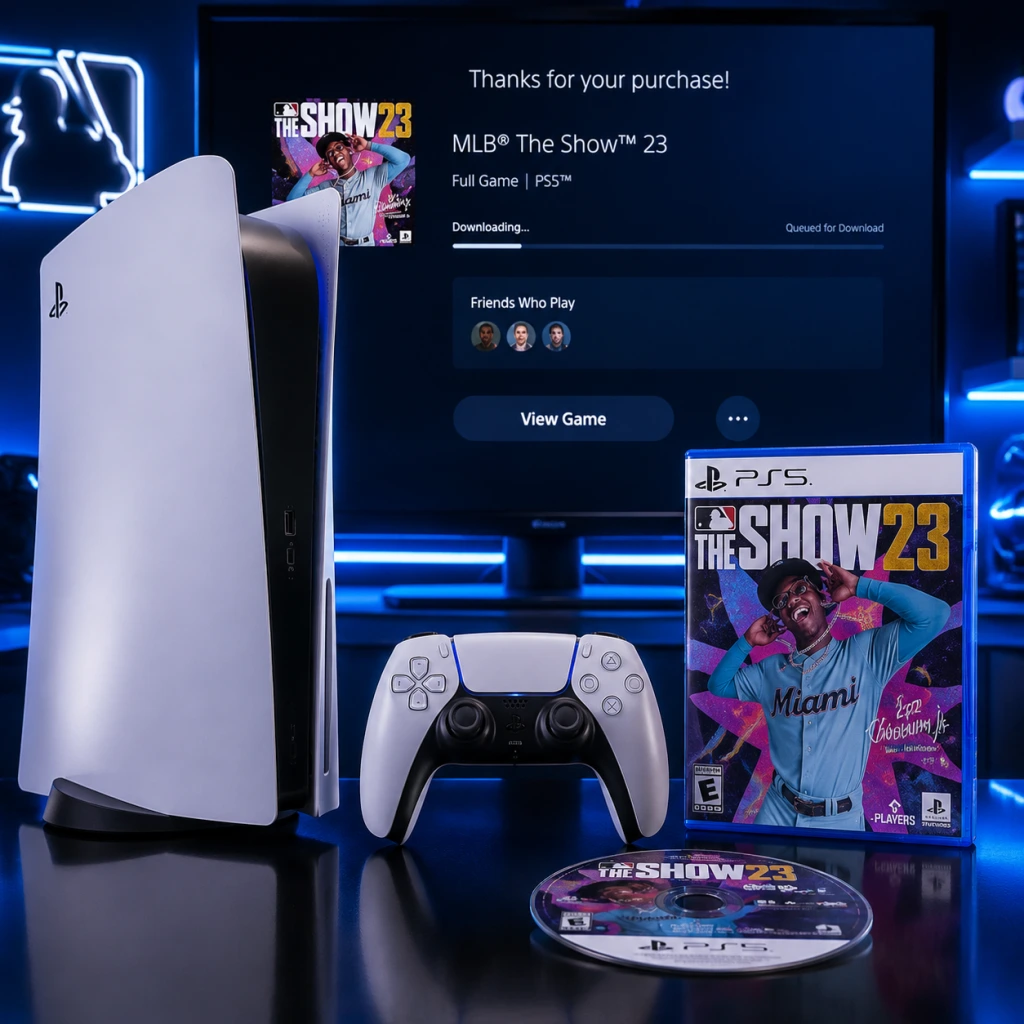
Download & Installation
Download & Installation Guide for MLB The Show 23
MLB The Show 23 is available on PlayStation 4, PlayStation 5, Xbox One, Xbox Series X|S, and Nintendo Switch. There is no PC, Steam, Epic Games Store, or mobile version. This guide covers legitimate digital and physical purchase methods, step-by-step installation on each platform, storage requirements, account prerequisites, first-launch setup, common errors, and post-installation verification.
---
Platforms & Official Sources
| Platform | Digital Store | Physical Media | Subscription Services |
|---|---|---|---|
| PlayStation 4 | PlayStation Store | Blu-ray disc | PlayStation Plus Extra/Premium (catalog) |
| PlayStation 5 | PlayStation Store | Blu-ray disc (PS5 version) | PlayStation Plus Extra/Premium |
| Xbox One | Microsoft Store | Blu-ray disc | Xbox Game Pass (Console, Ultimate) |
| **Xbox Series X\ | S** | Microsoft Store | Blu-ray disc (Smart Delivery) |
| Nintendo Switch | Nintendo eShop | Game Card (download required for updates) | Not available |
---
System Requirements
Since this is a console game, traditional minimum/rec requirements don't apply. Instead, ensure your hardware meets these prerequisites:
- PlayStation 4 – Any PS4 model (slim, Pro); system software 10.00 or higher (update before install). 60 GB free space. Online play requires PlayStation Plus (Essential or higher).
- PlayStation 5 – Any PS5 model (digital or disc); system software 23.00 or higher. 60 GB free space (or use external storage for PS4 version). Online play requires PlayStation Plus.
- Xbox One – Any Xbox One (S, X); OS version 10.0.22621 or newer. 60 GB free space. Online play requires Xbox Game Pass Core (formerly Live Gold) or Ultimate.
- Xbox Series X\|S – Any Series S or X; OS version 10.0.22621 or newer. 60 GB free space (optimized for Series S/X). Online play requires Game Pass Core or Ultimate.
- Nintendo Switch – Any Switch model (original, OLED, Lite). System version 16.0.0 or later. 15.8 GB free space (download required for full game; physical card holds base data but patch is mandatory). Online play requires Nintendo Switch Online (for multiplayer).
- PlayStation: PSN account (free, but online multiplayer requires PS Plus).
- Xbox: Microsoft account (free, online multiplayer requires Game Pass Core or Ultimate).
- Nintendo: Nintendo Account (free, online multiplayer requires Nintendo Switch Online).
- MLB The Show Account: Optional but highly recommended for cross-save and progression. Create at [mlbtheshow.com/account](https://www.mlbtheshow.com/account). Not required to play.
Network: Broadband internet connection (download speed ≥ 10 Mbps recommended; upload ≥ 3 Mbps for online modes).
---
Account Requirements
---
Step-by-Step Installation
#### PlayStation (PS4 / PS5)
Digital Purchase (PS Store):
1. Turn on console and sign in to your PSN account.
2. Go to PlayStation Store from the home screen.
3. Search for "MLB The Show 23".
4. Select the edition (Standard, Digital Deluxe, etc.) and confirm purchase/add to cart.
5. Complete payment.
6. After purchase, the download will start automatically. If not, go to Game Library → Purchased → select the game → Download.
7. Wait for download (~60 GB) and installation.
8. On PS5: you may be prompted to choose between PS4 and PS5 version. Select PS5 for optimized graphics. (Both count as separate titles.)
Physical Disc:
1. Insert the disc into the console.
2. The game tile appears. If it doesn't start auto-installing, select the tile and choose "Copy".
3. Follow on-screen prompts. A mandatory update patch (v1.01 or later, ~5–15 GB) will download.
4. After copy completes, launch the game.
From PlayStation Plus:
1. Go to PlayStation Plus hub > Collection (PS5) or Game Catalog.
2. Find MLB The Show 23 and select "Add to Library".
3. Then download from your library.
---
#### Xbox (One / Series X\|S)
Digital Purchase (Microsoft Store):
1. Sign in to your Microsoft account on the console.
2. Open Store or Game Pass app.
3. Search for "MLB The Show 23".
4. Choose edition and buy (or press "Install" if you have Game Pass).
5. The download begins automatically. You can monitor progress in My Games & Apps.
6. Xbox Smart Delivery will automatically deliver the correct version (Xbox One or Series X\|S).
Physical Disc:
1. Insert disc. Console installs game and required updates.
2. For Series X\|S, if the disc is Xbox One version, it will install the backward-compatible version. To get the Series X\|S optimized version, you must own the digital Series X\|S version (upgrade often available for a fee).
From Xbox Game Pass:
1. Go to Game Pass tab or search in Store.
2. Locate MLB The Show 23 and select "Install" (you must have active Game Pass subscription).
3. Choose where to install (internal or external).
4. Wait for download and installation.
---
#### Nintendo Switch
Digital (eShop):
1. Launch eShop from the HOME menu.
2. Sign in with your Nintendo Account.
3. Search for "MLB The Show 23".
4. Select the game and choose "Proceed to Purchase".
5. Complete payment using stored funds or credit card.
6. The download starts automatically. You can check progress on HOME menu.
Physical Game Card:
1. Insert the card into the Switch (slot at top).
2. An icon appears; select it to begin installation.
3. Even with the card, you must download a ~8 GB patch (required to play online and access full features). Make sure you have at least 15.8 GB free SD card or internal memory.
4. After download and installation, the game is ready.
> Note: The Switch version has lower graphical fidelity and 30 FPS. Digital file size is ~15.8 GB. Physical card contains part of the game, but the patch is mandatory.
---
Storage Space Summary
| Version | Base Download | Patch (approx.) | Total Required |
|---|---|---|---|
| PS4 | 50 GB | 10–15 GB | ~60 GB |
| PS5 | 60 GB | 8–12 GB | ~70 GB |
| Xbox One | 55 GB | 10 GB | ~65 GB |
| Xbox Series X\ | S | 65 GB | 8 GB |
| Switch | 10 GB (card) + 5.8 GB patch | 2–3 GB additional | ~15.8 GB |
---
First Launch Setup
1. After installation, launch the game from the system dashboard.
2. Screen calibration: You may be prompted to adjust safe zone and brightness. Follow directions.
3. Language selection: Choose preferred language (English, Spanish, French, etc., varies by region).
4. Online connectivity: The game will check for internet. If connected, it will attempt to download the latest roster update and patch. Ensure online access if you want live rosters and features like Diamond Dynasty.
5. Account linking: You'll be asked to sign in to your MLB The Show account (optional). This enables cross-save and cross-progression. Skip if not desired.
6. Parental controls: If underage, a PIN may be required.
7. EULA & Privacy: Accept the End User License Agreement and privacy policy.
8. Controller options: You can adjust settings (button layout, vibration, etc.) or proceed with defaults.
9. Home screen: The main menu appears with modes like Diamond Dynasty, Road to the Show, Franchise, etc.
---
Common Installation Errors & Fixes
| Error | Cause | Solution |
|---|---|---|
| Insufficient storage | Not enough free space. | Delete unused games or apps. On Switch, use a microSD card (UHS-I, min 64 GB). On PS5, you can move PS4 games to external USB drive. |
| Download stuck / slow | Network congestion, PSN/XBL outage, or corrupted cache. | Pause and resume download. Restart console. On Xbox, go to Settings > Network > Network troubleshooter. On Switch, try a wired connection or move closer to router. |
| Update required but won't install | Patch server issue or console firmware outdated. | Update console to latest firmware. Check for server status (twitter @PlayStation @XboxSupport @NintendoAmerica). Reboot router. |
| Disc read error (physical) | Dirty or damaged disc. | Clean disc with soft cloth. If scratched, consider digital purchase. Ensure disc is inserted correctly. |
| "You do not have a license" | User profile doesn't own the game, or game sharing misconfigured. | On PS: activate console as primary. On Xbox: set home console. On Switch: only the purchasing account can play. |
| Game crashes on launch | Corrupted installation or incompatible system version. | Reinstall game. On PS5: try rebuilding database (Safe Mode). On Xbox: clear persistent storage (Settings > Devices > Blu-ray > Clear Persistent Storage). On Switch: hold power button > restart. |
| Online multiplayer not working | Subscription expired or NAT issues. | Verify active PS Plus / Game Pass Core / Switch Online. Check NAT type (Open/Moderate). Port forward UDP 3074 (PlayStation), 3074 (Xbox), 1024-65535 (Switch). |
| Cross-save not syncing | Not signed in to MLB The Show account or account mismatch. | Log into the correct MLB account on all platforms. Ensure you link the same PSN/Xbox/Nintendo account. |
Post-Installation Verification
1. Check game version: From the main menu, navigate to Settings > About or Version. The current latest patch as of release is 1.17. Confirm the version matches the latest patch notes.
2. Launch a quick game: Select Exhibition mode and start a match. If the game loads without errors and gameplay is smooth, installation is correct.
3. Test online (optional): If you have online subscriptions, join a Diamond Dynasty lobby or play a casual online game. Ensure no disconnections.
4. Verify roster and roster update: Go to Rosters > Live Roster. If it shows the most recent date (e.g., Opening Day 2023 or later), the update applied.
5. Storage space after install: Confirm that the free space matches your expectations. Deleting the downloaded installer files (if any) is not needed on consoles.
6. Check for extras: If you bought the Digital Deluxe Edition, ensure bonus items (stubs, packs, cosmetic gear) appear in your inventory. Contact support if missing.
---
Uninstalling the Game
- PlayStation: Highlight game tile > Options > Delete.
- Xbox: My Games & Apps > Highlight game > Manage > Uninstall.
- Switch: HOME menu > System Settings > Data Management > Manage Software > Select game > Delete Software.
- Always keep your console firmware up to date to avoid compatibility issues.
- If you encounter persistent errors, try a hard reset (unplug power for 30 seconds, then restart).
- For disc versions, consider installing digitally for convenience (no disc swapping, faster load times on PS5/Xbox Series).
- Cross-progression requires active internet and logging into the same MLB The Show account on each platform.
- Refer to [mlbtheshow.com/support](https://www.mlbtheshow.com/support) for official troubleshooting.
> Note: Saved progress (saves) are stored separately unless deleted manually. MLB The Show 23 uses cloud saves via platform services and MLB account.
---
Final Tips
---
Guide last updated: October 2023. Versions and sizes may change with game updates. Always verify latest information on official store pages.
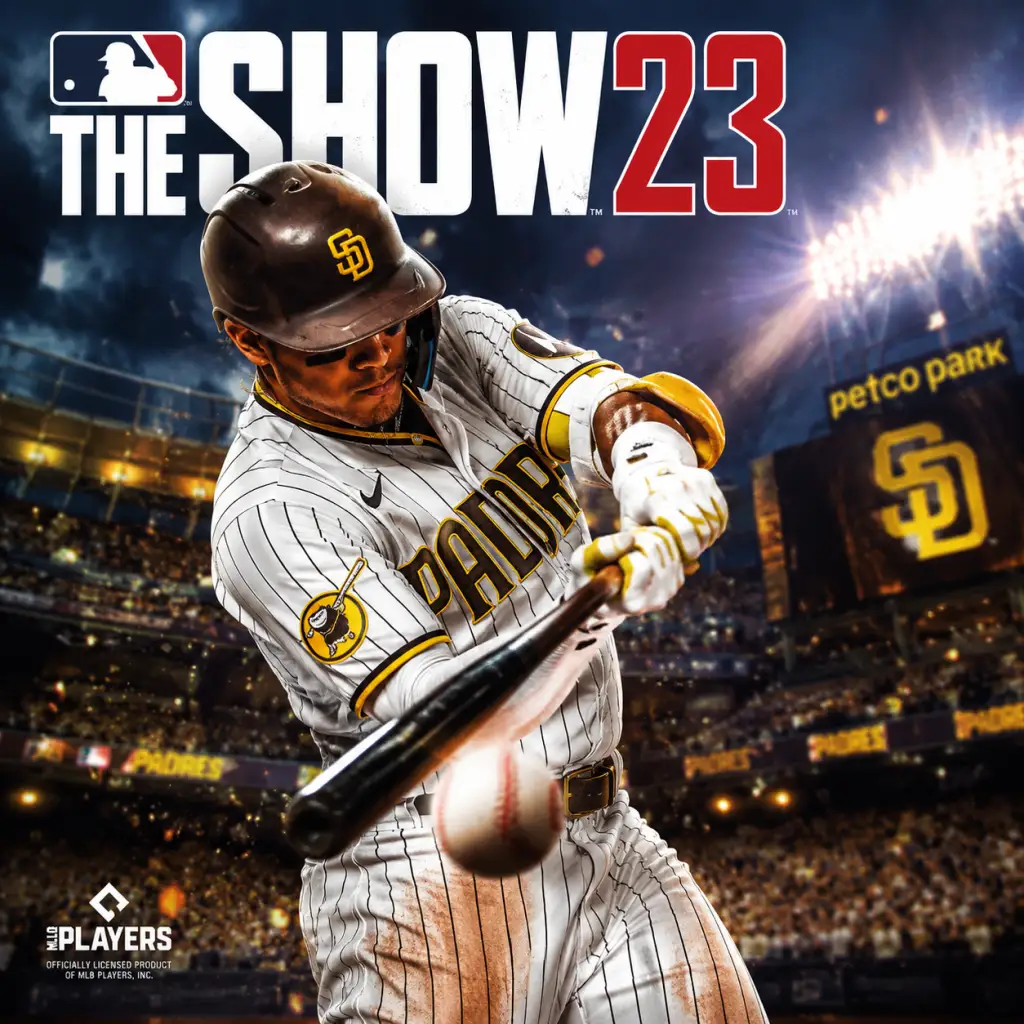
Game Introduction
MLB The Show 23 - Game Introduction
Genre: Sports simulation (baseball)
Developer & Publisher: San Diego Studio (developer), Sony Interactive Entertainment (publisher)
Release Timeline:
- Announced: January 2023
- Released: March 28, 2023 (Worldwide)
- Story Overview: MLB The Show 23 does not feature a traditional narrative campaign, but its Storylines mode offers a curated, documentary-style journey through Black baseball history, spotlighting legends from the Negro Leagues. Players experience pivotal moments, challenges, and achievements of iconic players like Jackie Robinson, Satchel Paige, and others. Additionally, the March to October mode simulates a full season with quick decision-making, and Road to the Show lets you create a player and live their career from the minors to MLB stardom.
- Setting: Authentic Major League Baseball stadiums, minor league parks, and classic venues. All 30 MLB teams, plus Negro League teams (with historical uniforms and stadiums). The game captures the atmosphere of the 2023 MLB season with updated rosters, ballparks, and in-game commentary.
- Negro Leagues Legends: Jackie Robinson, Satchel Paige, Josh Gibson, Buck O'Neil, Hank Aaron, and others featured in Storylines.
- Cover Athlete: Jazz Chisholm Jr. (Miami Marlins)
- Player-Created Character: In Road to the Show, you create a custom player (position, appearance, skills) and progress through the minor leagues to MLB.
- Fictional Diamond Dynasty Characters: Collectible player cards based on current and historical MLB stars, each with unique stats and attributes.
- Core Appeal: Deep simulation of baseball mechanics—pitching, hitting, fielding, baserunning—with realistic physics and player animations. The game offers a mix of arcade-friendly controls (e.g., directional hitting) and advanced simulation (Zone hitting, analog pitching). The Storylines mode provides educational and emotional context, honoring Black baseball pioneers. Diamond Dynasty (card-collecting mode) appeals to competitive players building dream lineups. Cross-platform play on Xbox and PlayStation (except Switch) expands the community.
- Target Audience: Baseball fans, sports gamers, history buffs, casual players who enjoy a relaxed pace, competitive online players, and anyone interested in the Negro Leagues' untold stories. Rated E for Everyone (ESRB).
- Offline Modes:
- Online Modes:
- Special Modes:
- Online Features: Cross-platform matchmaking (PS/Xbox, not Switch), leaderboards, in-game marketplace for card trading, live content updates (new card drops, events, programs), online co-op, and ranked seasons.
- Offline Features: Full offline access to RTTS, Franchise, Exhibition, Home Run Derby, Storylines (requires connection for first-time unlock), MTO, and practice. Some progression elements in RTTS and Franchise are saved locally.
- Required Connection: An internet connection is needed for initial game setup, updates, and to access Diamond Dynasty or Storylines. Standard offline modes require no persistent connection after initial installation.
- Stubs Currency: Purchasable premium currency used to acquire card packs in Diamond Dynasty and cosmetics in RTTS. Not required for progress.
- Captain Edition / Digital Deluxe: Launch editions including bonus packs, choice of cover athlete content, and early access.
- Season Pass / Programs: Free and premium reward tracks with earnable cards, uniforms, equipment, and stubs. No separate paid expansion packs post-launch; content is distributed via seasonal updates (e.g., new Storyline chapters, player programs, event rewards).
- Negro Leagues Storylines: Included in the base game; no additional purchase required for the core content. Future chapters may be added via free updates.
- Deep Integration of Negro Leagues Storylines: A first for a major sports game—authentic, respectful storytelling combined with playable moments that educate and celebrate Black baseball history. This gives the game emotional weight beyond typical sports titles.
- Cross-Platform Play (Xbox & PlayStation): Unprecedented for the series, allowing friends on different consoles to compete or co-op in Diamond Dynasty and online modes. (Switch excluded due to hardware limitations.)
- Dynamic On-Field Realism: Upgraded animations—individual hitting stances, pitcher wind-ups, fielding reactions—plus revamped lighting and weather effects on stadiums. The Show 23 introduces Player Likeness enhancements for over 200 players, making star players instantly recognizable.
- Diamond Dynasty ‘Seasons’ Format: Instead of continuous grind, the mode is split into 3-month seasons with new reward paths and competitive tiers, keeping the meta fresh. Sets and Seasons system limits card eligibility over time to encourage roster building variety.
- Co-op Multiplayer for Up to 3 Players: A rare feature in sports games—two friends can control the same team with shared fielding and hitting assignments, or a third can join as a designated hitter/manager.
- Accessibility & Customization: Multiple difficulty levels from casual (with simplified controls) to simulation (with full precision). Players can adjust sliders for pitch speed, contact, fielding assistance, and more. The game also includes a Dynamic Difficulty setting that adjusts based on performance.
Platforms: PlayStation 4, PlayStation 5, Xbox One, Xbox Series X|S, Nintendo Switch
Story / Setting
Main Characters
Core Appeal & Target Audience
Game Modes
- Road to the Show (RTTS): Create a player, train, play minor league games, earn MLB call-up, build relationships, and manage your career. Include attribute progression, equipment, and perks.
- March to October (MTO): Play a condensed full season; manage roster moves, make key decisions, and influence your team's playoff run. Season-long storylines with dynamic moments.
- Franchise Mode: Full team management—scouting, drafting, trades, contracts, minor league development, budget, and 30+ seasons. Trades and free agency logic improved for realism.
- Exhibition & Home Run Derby: Quick single games or home run contest with custom rules.
- Practice Mode: Batting, pitching, fielding drills.
- Diamond Dynasty (DD): Build and customize a team from collected player cards, compete in ranked seasons, events, Battle Royale (draft mode), and the Showdown mode (mini-game challenges). Cross-play enabled on PS/Xbox.
- Online Rated: Use default MLB teams to play ranked/unranked matches.
- Co-op Modes: 2-3 players cooperate in online games (e.g., co-op Diamond Dynasty or exhibition).
- Storylines (Negro Leagues): Narrative-driven sequences with archival footage, player biographies, and objectives to complete historical moments. Unlock rewards including player cards and uniforms.
- Mini Seasons: Single-player DD mode with a custom league of 10 teams; play a 21-game schedule and playoffs.
Online / Offline Support
DLC / Expansion Overview
What Makes MLB The Show 23 Unique?
In summary, MLB The Show 23 is the premier baseball simulation that respects its sport's past while embracing modern multiplayer, all wrapped in a polished, authentic package. Whether you're a longtime fan or new to baseball games, the depth of modes and historical tribute make it a standout title in the sports genre.
Getting Started
MLB The Show 23 - Getting Started Guide for New Players
Welcome to MLB The Show 23! This guide is designed to help brand-new players survive their first hour, understand the basics, and avoid common pitfalls. Whether you're on PlayStation, Xbox, or Nintendo Switch, we've got you covered.
First Hour Walkthrough (What to Do in Minutes 0–60)
1. Boot up and sign in. Choose your platform account (PSN, Xbox Live, Nintendo Account). The game will prompt you to agree to terms and set online preferences. You can skip online features for now.
2. Main Menu arrival. You'll see a flashy intro video; press any button to skip. The main menu has several tiles: Play, Road to the Show, Diamond Dynasty, March to October, Franchise, Online, Settings, and Store.
3. Start with the tutorial. Go to Play > Exhibition > Settings > Tutorial (or find "Show Tutorial" in the Play menu). The game offers a basic gameplay tutorial covering hitting, pitching, fielding, and baserunning. Complete it – it takes about 10 minutes and teaches the core mechanics.
4. Create your ballplayer (Road to the Show). From the main menu, select Road to the Show (RTTS). You'll be asked to create a character. This is not mandatory for all modes, but it's a great way to learn the game. Spend up to 15 minutes here.
5. Play your first exhibition game. Go to Play > Exhibition. Pick your favorite MLB team (or random) and the computer's team. Choose a difficulty: Dynamic or Rookie is recommended. Play 3 innings to get a feel for controls.
6. Explore Diamond Dynasty (optional). This is The Show's Ultimate Team mode. You can skip it in the first hour, but if you're curious, enter, open your starter packs, and build a basic squad. Don't spend real money yet.
7. Check Settings. Pause the game and go to Settings > Gameplay. Adjust camera: use "Catcher" for hitting, "Outfield" for pitching. Set hitting interface to Directional or Timing (easier than Zone for beginners). Turn on Hitting and Pitching Feedback so you see why you missed.
8. End your first hour by completing one full 9-inning exhibition game on Rookie. Try to get at least one hit and one out. Don't worry about winning.
Character Creation (Road to the Show)
If you choose to play RTTS, you'll be asked to build your ballplayer from scratch:
- Archetype: Pick a position (Pitcher, Catcher, Infielder, Outfielder). Each has different starting attributes.
- Appearance: Customize name, number, face, body type, batting stance, pitching windup. You can import a face scan via the MLB The Show companion app (optional).
- Equipment: Choose bat, glove, cleats, etc. These are cosmetic only but can be upgraded later.
- Attributes: You get a limited number of points to distribute among core stats (Contact, Power, Speed, Arm Strength, Fielding, etc.). For a beginner, balance is better than min-maxing. Put points into Contact and Fielding first.
- Exit creation and start your first RTTS game. You'll play as a minor leaguer. Follow the on-screen prompts for training and game action.
Controls on All Platforms
Below is a simplified reference for the most common actions. We use the Default (Standard) control scheme. If you change controls in settings, these will differ.
#### PlayStation (PS4 / PS5)
| Action | Button |
|---|---|
| Hitting - Swing | Circle |
| Hitting - Contact Swing | Triangle |
| Hitting - Power Swing | Square |
| Pitching - Select pitch | X, Circle, Triangle, Square (each mapped) |
| Pitching - Throw to base | Left stick direction + corresponding button (X=1st, Circle=2nd, Triangle=3rd, Square=Home) |
| Baserunning - Advance all | R1 |
| Baserunning - Return all | L1 |
| Fielding - Throw | Same as pitching throw |
| Dive/Jump | R2 (dive), L2 (jump) |
| Pause | Options button |
| Quick manage (DPAD) | Up: squad, Down: substitutions, Left: mound visit, Right: baserunner advance |
| Action | Button |
|---|---|
| Hitting - Swing | B |
| Hitting - Contact Swing | Y |
| Hitting - Power Swing | X |
| Pitching - Select pitch | A, B, X, Y (mapped) |
| Pitching - Throw to base | Left stick + button (A=1st, B=2nd, X=3rd, Y=Home) |
| Baserunning - Advance all | RB |
| Baserunning - Return all | LB |
| Fielding - Throw | Same as above |
| Dive/Jump | RT (dive), LT (jump) |
| Pause | Menu button (three lines) |
| Quick manage (DPAD) | Up: squad, Down: subs, Left: visit, Right: runner |
| Action | Button |
|---|---|
| Hitting - Swing | A |
| Hitting - Contact Swing | X |
| Hitting - Power Swing | Y |
| Pitching - Select pitch | A, B, X, Y (mapped) |
| Pitching - Throw to base | Left stick + button (A=1st, B=2nd, X=3rd, Y=Home) |
| Baserunning - Advance all | R |
| Baserunning - Return all | L |
| Fielding - Throw | Same as above |
| Dive/Jump | ZR (dive), ZL (jump) |
| Pause | + button |
| Quick manage (DPAD) | Up: squad, Down: subs, Left: visit, Right: runner |
UI Overview
When you're in a game, the HUD (Heads-Up Display) shows:
- Top left: Inning, score, outs, balls/strikes count.
- Top center: Pitcher's pitch count, stamina bar.
- Top right: Batter name, stats, pitcher name.
- Bottom left: Pitching meter (if using meter) or pitch selection wheel.
- Bottom center: Hitting reticle (if Zone hitting) or simple feedback.
- Bottom right: Baserunner icons (circles representing runners).
- During pitching: A feedback area shows ball movement and result.
- During hitting: PCI (Plate Coverage Indicator) circles for Zone hitting; simple arrow for Directional.
- Pause menu: Options to quit, change settings, view substitution, or access quick manage.
- Play: Quick exhibition games, home run derby, online versus, etc.
- Road to the Show: Career mode (create a player and climb the minors).
- Diamond Dynasty: Collect cards, build your ultimate team, play online or offline.
- March to October: Play key moments of a season with a chosen team.
- Franchise: Full season management (control roster, trades, drafts, finances).
- Online: Ranked seasons, Battle Royale, events, and co-op.
- Settings: Adjust gameplay, audio, video, controller, and accessibility.
- Store: Buy Stubs (virtual currency) and packs.
- Play the tutorial.
- Run a few exhibition games on Rookie to get comfortable.
- Adjust camera and difficulty to Dynamic (it adjusts as you improve).
- Create one Road to the Show player to have a save file.
- Open your Diamond Dynasty starter packs (free).
- Avoid Diamond Dynasty online until you have a basic understanding of your players and controls. The competition can be brutal.
- Avoid spending real money on Stubs or packs in the first week. You earn plenty by playing.
- Avoid using Zone hitting initially – it requires precise left stick movement and is hard for beginners. Use Directional or Timing.
- Avoid skipping the baserunning tutorial – it's easy to get out when you don't know how to stop runners.
- Avoid playing on higher difficulties (Veteran, All-Star) until you can consistently hit on Rookie.
- Avoid making many trades in Franchise mode early – stick to exhibition first.
- Completing daily moments and challenges (check the Diamond Dynasty menu).
- Playing games (any mode gives stubs based on performance).
- Selling duplicate cards you get from packs.
- Nothing until you hit 5,000 Stubs. Save up.
- Then buy the Player of the Month pack or Team Affinity packs that give you a strong card for your Diamond Dynasty lineup.
- Alternatively, save 15,000 Stubs for a gold or diamond starter from the marketplace.
- Avoid buying standard packs (like Show packs) – they are lottery tickets. Focus on guaranteed cards.
- Do not invest in equipment for Road to the Show until you reach the majors. Use what you get for free.
- Training Points (RTTS): Spend these on Contact and Vision first – they help you hit more consistently.
- Team Affinity Points: Earn these by playing with players from a specific team. Focus on your favorite team first.
Main Menu tiles explained:
Essential Early Objectives
1. Complete the Tutorial (unlocks basic understanding).
2. Play 3 exhibition games on Rookie – win at least one.
3. Create your Road to the Show player (even if you don't play RTTS yet).
4. Diamond Dynasty: Open starter packs and complete the first two moments (simple challenges) to earn stubs and packs.
5. Earn 1,000 Stubs (in-game currency) via playing games or completing challenges – don't spend them yet.
6. Customize your camera settings to a comfortable view (try Catcher for hitting and Outfield for pitching).
7. Learn to lay off bad pitches – practice with Directional hitting to just make contact.
8. Focus on pitching basics – throw strikes early in the count (use fastball down the middle on Rookie).
What to Do First and What to Avoid
Do First:
Avoid:
Early Resource Priorities
Your main currency is Stubs. Earn them by:
What to spend Stubs on first:
Other resources:
Common Beginner Mistakes
1. Swinging at everything. The #1 mistake. Wait for pitches in the strike zone. On Rookie, the CPU throws strikes often – be patient.
2. Using power swing all the time. Power swing (Circle on PS, B on Xbox) has a smaller sweet spot. Use normal swing (Square/X) most of the time.
3. Not using the left stick for fielding. When fielding, move your fielder with the left stick to the ball. Don't just rely on the game's auto-fielding.
4. Throwing to the wrong base. Check where the lead runner is going. Use the correct button (1st for runner going to 2nd, etc.). Practice in the fielding tutorial.
5. Ignoring baserunners. You can send a runner with R1/RB and stop with L1/LB. Don't let them run automatically – you'll get thrown out.
6. Not adjusting camera. Default camera might make it hard to see pitch location. Change it to Catcher (hitting) and Outfield (pitching) in settings.
7. Spending Stubs on packs early. Packs are gambling. You'll regret it when you get only bronze cards.
8. Skipping the tutorial. The game has many nuances; the tutorial explains pitching meter, baserunning controls, and fielding throws. Don't skip it.
9. Playing online too soon. Online connectivity can be laggy, and opponents exploit your inexperience. At least complete 10 exhibition games first.
10. Not using the practice mode. Go to Play > Practice to hit or pitch without pressure. Spend 10 minutes there daily.
Day-One Checklist
| Task | Completed? |
|---|---|
| [ ] Complete the in-game tutorial (Play > Exhibition > Tutorial) | ~15 min |
| [ ] Play one 3-inning exhibition game on Rookie | ~10 min |
| [ ] Create a Road to the Show player (any position) | ~10 min |
| [ ] Open Diamond Dynasty starter packs (free) | ~5 min |
| [ ] Change camera to Catcher (hitting) and Outfield (pitching) in Settings | ~2 min |
| [ ] Hit one home run in a game (Home Run Derby mode is easiest) | ~10 min |
| [ ] Earn 500 Stubs by completing a daily moment (check Diamond Dynasty > Moments) | ~10 min |
| [ ] Watch one YouTube beginner tutorial for MLB The Show 23 (optional but recommended) | ~15 min |
| [ ] Play one full 9-inning exhibition game on Rookie – try to get 3 hits and 3 strikeouts | ~30 min |
| [ ] Adjust difficulty to Dynamic after the game | ~1 min |
Final advice: Stick with Road to the Show or Exhibition for your first week. Those modes let you grow at your own pace. Once you're comfortable, try Diamond Dynasty offline modes (Conquest, Moments) before jumping into online. Good luck!
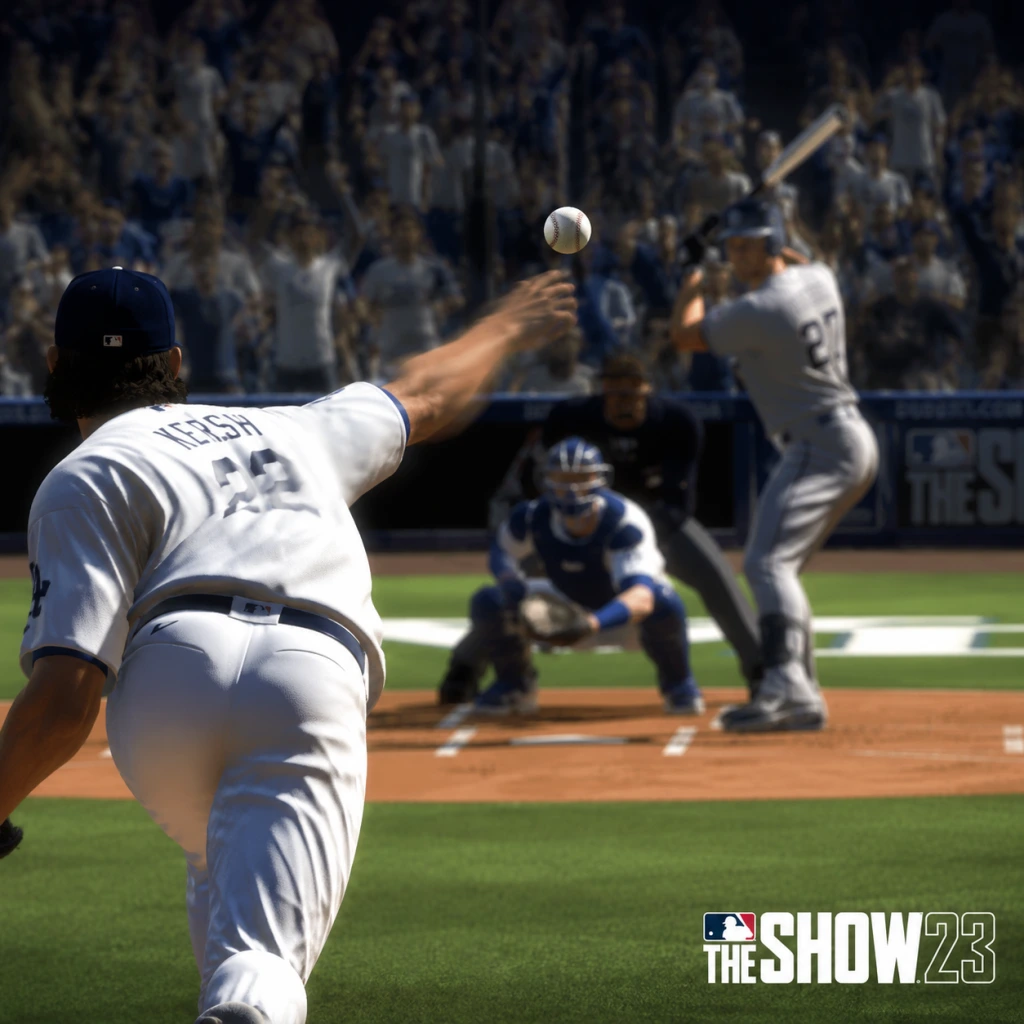
Core Gameplay
MLB The Show 23 - Core Gameplay Guide
This guide breaks down the core gameplay loop, systems, and progression in MLB The Show 23 across four distinct tiers: Early Game, Mid Game, Late Game, and Endgame. Each tier explains what to expect, what to focus on, and how the game’s mechanics evolve.
---
Core Systems Overview
Before diving into tiers, here are the foundational systems that persist throughout all stages:
- Combat/Interaction Systems: The core “combat” is baseball. Key mechanics include Hitting (Zone, Timing, Directional; PCI placement and swing timing), Pitching (Analog, Meter, Pinpoint; 5 pitch types with different break/speed), Fielding (Button accuracy, meter timing, throwing power), and Baserunning (standard controls, lead-offs, steals).
- Main Gameplay Loop: Play games (solo or vs. opponents) → earn XP, stubs, and rewards → upgrade your team/player → engage in new challenges → repeat. The loop differs slightly per mode: Road to the Show (RTTS) progresses a single player through a career; Diamond Dynasty (DD) builds a fantasy team from collected cards; Franchise manages an MLB organization; March to October condenses a season.
- Progression: Character progression in RTTS uses Archetypes (e.g., Slugs, Sparkplug, Ace) with skill caps and perk unlocks. Team progression in DD uses Team Affinity, Programs, and Live Series collection to boost overall team rating.
- Exploration:```
- Quests/Missions:```
- Economy: Stubs (premium currency) earned through gameplay, packs, and market flipping (buy/sell orders). Stubs buy packs, players, and equipment.
- Character/Build Growth: In RTTS, choose a primary archetype, then customise equipment, perks, and training. In DD, create a Created Player (CAP) with specific positions and attributes.
- Endgame Structure: Ranked Seasons, Battle Royale (draft), Events (limited-time modes), high-difficulty programs (e.g., Extreme), and the pursuit of 99 OVR collection players.
- RTTS: Start with Spring Training (3 games) and Double-A assignment. Focus on completing basic training, earning first set of Archetype XP. Play ~10 games to unlock first perk slot.
- DD: Complete the Starter Moments (e.g., Mike Trout, Shohei Ohtani) to earn early Gold and Diamond cards. Run through the Showdown (Team Affinity Season 1) – even partial completions yield reward packs. Play Conquest maps (e.g., USA Map) for free packs and stubs.
- Franchise: Play 10 exhibition games to understand sliders and CPU tendencies. Start a Franchise with a top team (e.g., Astros) to learn roster management.
- Hitting: Use Zone Hitting with PCI. Practice on Dynamic Difficulty (starts at Rookie). Focus on pitch recognition – fastballs and hanging curves.
- Pitching: Use Pinpoint (most accurate) – practice the gesture patterns for fastball, changeup, slider. Begin with Meter if Pinpoint is too difficult.
- Fielding: Use Button Accuracy for throws; practice in Practice Mode (fielding option).
- Economy: Spend early stubs on Packs (Headliners, 10-pack bundles) or Equipment for RTTS. Never buy packs with stubs – instead, invest in Buy Orders for players you want.
- Progression: RTTS – level up Archetype to 2 (unlock first perk). DD – complete Live Series as far as possible (collection rewards).
- RTTS: Choose “Slugs” archetype for a power hitter. Use training points to boost Power vs. Right at the cost of Contact.
- DD: Do the Joe Mauer moment (Rookie card) and the Jackie Robinson moment (Diamond). Run through Team Affinity Showdown for the division you want (e.g., AL East) to get a 90 OVR player pack.
- RTTS: Reach Triple-A or MLB. Complete Player Program goals (e.g., 10 HR, 20 RBIs). Equip Diamond Equipment to boost attributes. Continue archetype grind (level 3-5).
- DD: Focus on Team Affinity Season 2. Complete all conquest maps. Play Ranked Seasons (first 10 games to get end-of-season rewards). Run Mini-Seasons (conquest-like mode) for packs and stubs.
- Franchise: Simulate half-season, trade for prospects, use Scouting to find high-potential players in the draft.
- Hitting: Move to All-Star difficulty. Use Analytics (pitch sequencing from previous AB). Learn to foul off edge pitches.
- Pitching: Master Pinpoint for all pitches. Use Outlier fastballs and tunneling offspeeds.
- Fielding: Perfect Dive timing and Jump at the wall.
- Economy: Start Flipping cards on the market – look for cards with a gap between buy/sell orders (e.g., buy at 500, sell at 800). Use TheShowNation.com companion app to manage orders.
- Progression: DD – complete Live Series (collect all players) for a 99 OVR Randy Johnson or Ken Griffey Jr. (depending on collection). RTTS – unlock Gold Perk (e.g., “Dead Red” for hitters).
- RTTS: Equip “Barrel to Ball” perk to increase exit velocity. Use Training to boost Clutch attribute for late-game situations.
- DD: Complete Team Affinity Season 2 for the Central divisions – you get 95 OVR Corbin Carroll and Francisco Lindor (seasonal). Grind the Extreme Program if available (may be too hard, but partial progress).
- RTTS: Reach The Show (MLB) full-time. Complete Seasonal Goals (e.g., win Silver Slugger). Unlock Diamond Perks and Signature Equipment.
- DD: Finish Live Series collection. Grind Team Affinity Season 3 and any active Programs (e.g., Cover Athletes, Topps Now). Play Battle Royale for 12-win runs to get rare Diamond rewards.
- Franchise: Deep into year 2+ – use Draft Scouting to find 70+ OVR prospects. Trade for superstars on expiring contracts.
- Hitting: Use Hall of Fame difficulty. Perfect PCI placement for elite pitchers. Use Check Swing sparingly.
- Pitching: Mix pitches effectively – no pattern. Use Quick Pitch to catch opponent off guard.
- Fielding: Pre-load throws, use cut-off men.
- Economy: Engage in Pack Flipping during pack sales (e.g., 50% off packs). Acquire Stubs by flipping high-end cards (e.g., 99 OVR cards).
- Progression: RTTS – max archetype (level 8) and equip all 5 perk slots. DD – complete Major League Collections (e.g., Mookie Betts, Chipper Jones) for 99 OVR rewards.
- RTTS: Unlock “Breakout” perk for exiting slumps. Play on Legend difficulty in practice to sharpen skills.
- DD: Finish the Live Series to get 99 Randy Johnson. Also complete the Team Affinity Season 3 for a 99 OVR Jacob deGrom. Grind Ranked Seasons to reach World Series (900 rating) for exclusive 99 pack.
- RTTS: Achieve all-time records (e.g., 500 HRs, 300 wins). Unlock Hall of Fame card for your CAP.
- DD: Play Ranked Seasons to reach 1000 rating for Flawless banner. Win Battle Royale 12-0 multiple times. Complete Events (e.g., Moonshot, Low Overall) for exclusive cards. Finish the Extreme Program (highest difficulty).
- Franchise: Jump into Year 3+ – develop superstars, manage salary cap, try to win multiple World Series.
- Hitting: Master Legend difficulty – adjust PCI for outlier fastballs, read breaking balls early.
- Pitching: Use Pitch Confidence and Stamina management. Tunnel fastballs with curveballs, changeups with sliders.
- Fielding: Perfect jumping catches, relay throws, and tag plays.
- Economy: Team is complete; stubs used for Buying specific high-end cards from market. Sell duplicates. Buying packs is still inefficient.
- Progression: All cards are 99 OVR. Only attribute fine-tuning via Parallel (cards get slight stat boosts for hitting certain thresholds). Earn Parallel V by accumulating plate appearances / innings with card.
- DD: Grind the Extreme Program – complete 8/8 moments (e.g., 3 HR in 3 ABs on Legend). Reward: 99 OVR Mickey Mantle. Play Ranked Seasons with a 99 OVR lineup and face sweats. Participate in Community Challenges (e.g., score 100 runs in a week).
- RTTS: Retire after 20 seasons with 700 HRs. Your CAP card becomes a 99 Legend that you can use in DD.
---
Early Game (First Hours to Week 1)
Goal: Learn controls, build foundational team/player, understand daily tasks.
Gameplay Loop
Systems in Detail
Examples
---
Mid Game (Week 1 to Month 1)
Goal: Upgrade team to 85-89 OVR, unlock higher difficulty rewards, complete main programs.
Gameplay Loop
Systems in Detail
Examples
---
Late Game (Month 1 to Month 2-3)
Goal: Build a 90-95 OVR team, finish major collections, prepare for Endgame.
Gameplay Loop
Systems in Detail
Examples
---
Endgame (Month 2-3 until Next Year Release)
Goal: Max out team (99 OVR), achieve top competitive ranks, complete all final programs.
Gameplay Loop
Systems in Detail
Examples
---
Summary of Progression Tiers
| Tier | Typical OVR Range | Key Activities | Difficulty Level |
|---|---|---|---|
| Early Game | 60-75 (RTTS), 70-85 (DD) | Spring Training, Moments, Conquest, Showdown | Rookie/All-Star |
| Mid Game | 80-89 (both) | Team Affinity, Mini-Seasons, Ranked (first 10), Flipping | All-Star/Hall of Fame |
| Late Game | 90-95 (both) | Live Series collection, Battle Royale, TA Season 3 | Hall of Fame/Legend |
| Endgame | 99 OVR | Extreme Program, Ranked 1000, Events, Parallel V | Legend |
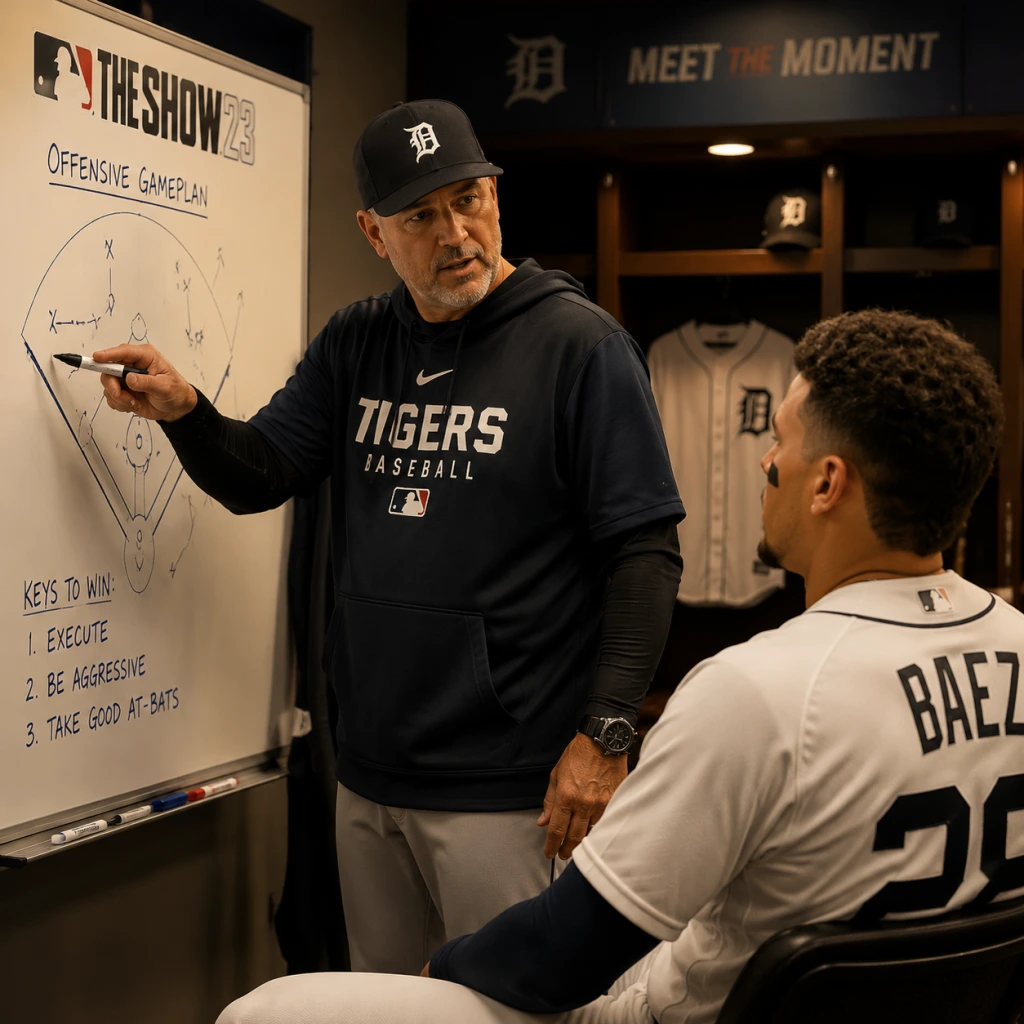
Game Tips
MLB The Show 23 - Game Tips
This guide covers essential tips across all aspects of MLB The Show 23, organized by gameplay category. Tips are labeled by player level: Beginner (B), Intermediate (I), Advanced (A).
---
Hitting Tips (Offense)
#### 1. Use Zone Hitting with PCI Placement (B/I)
- Explanation: Switch from Directional or Timing to Zone hitting if you haven't. The PCI (Plate Coverage Indicator) lets you aim your swing. Begin with the PCI centered (default) and use the left stick to track the pitch. Why: Zone hitting gives full control of bat placement, drastically improving contact quality over time. When: Always use in all modes; practice in custom practice to build muscle memory.
- Explanation: Don't swing at anything in the first two pitches unless it's right down the middle. Let the pitcher throw strikes. Why: Many players swing at bad pitches because they're anxious. Patience forces the pitcher to throw more strikes. When: Especially early in the count (0-0, 0-1). If the pitcher throws two balls, you’re ahead and can sit on a specific zone.
- Explanation: Instead of moving the PCI as the pitch comes, pre-set it where you expect the pitch (e.g., up-and-in) and only track minor adjustments. Why: Reduces overshooting and improves reaction time against high velocity. When: Against flamethrowers (98+ mph) or when you recognize patterns.
- Explanation: Lightly tap the swing button (X/□) to attempt a check swing. Why: Saves strikes on borderline pitches and avoids weak contact. When: When you start to swing but see it's a ball; also in two-strike counts to avoid strikeouts.
- Explanation: Press Circle/B to perform a contact swing (increases foul-off ability and reduces strikeout chance). Why: Greatly improves bat control, making it easier to foul off tough pitches. When: Always use with two strikes, especially against elite pitchers.
- Explanation: In Diamond Dynasty, before the game, check the pitcher’s handedness and pitch arsenal. Track what pitches they throw in what counts. Why: Predict pitches, e.g., many players throw outside fastballs on 0-1 to right-handed hitters. When: Use in competitive modes like Ranked Seasons or Battle Royale.
- Explanation: For newcomers, Pure Analog (right stick) is intuitive; Meter requires timing a button press. Why: Both are effective and easier than Pulse or Classic. The meter gives precise control over location. When: Start with Pure Analog; switch to Meter if you prefer consistent release points.
- Explanation: Mix pitch types and locations. A fastball down the middle is easy to crush. Why: hitters expect patterns; change eye levels and speeds. When: Sequence: fastball up, changeup down, curveball away, cutter inside.
- Explanation: Pinpoint (right stick gestures) provides the highest accuracy and optimal break when the input is perfect. Why: Rewards precision; a perfect pinpoint pitch is unhittable. When: If you're competitive in higher ranks, practice Pinpoint in custom practice.
- Explanation: In the pre-pitch screen, see the batter’s hot/cold zones (red = hot, blue = cold). Pitch to cold zones. Why: Batter has lower contact/power in cold zones. When: Always check before each at-bat; aim PCI to cold spots.
- Explanation: Throw a pitch clearly out of the zone (e.g., a slider in the dirt) when ahead in the count (0-2, 1-2). Why: Tempts the batter to chase, giving you an easy strikeout. When: Only when you have a clear advantage; never waste a pitch behind in the count.
- Explanation: Flick the right stick toward a runner then press a button (X to advance, Circle to retreat). Why: Gives fine control vs single button press that sends all runners. When: When you want only one runner to steal or advance.
- Explanation: Check speed rating (80+ is good). Use lead off (left stick) to get extra step before pitch. Why: Low speed runners are easily caught. When: Early in the count (0-0) or when the pitcher has slow delivery.
- Explanation: Press L2 while the batter is in the box to initiate hit and run: runner breaks automatically, batter tries to make contact. Why: Avoids double plays and moves runner into scoring position. When: 1-1 or 2-1 count, with a batter who has high contact, against a pitcher with low control.
- Explanation: When a fly ball is caught, tap the runner's direction button to have him tag and advance after catch. Why: Can get extra base if outfielder has weak arm. When: Runner on third with less than two outs; runner on second with a sacrifice fly to deep center.
- Explanation: When throwing, a meter appears. Press again near the green zone for accurate throws. Why: Prevents wild throws that let runners advance. When: Always on routine plays; for risky throws, release slightly early.
- Explanation: As the pitcher releases, watch the hitter's swing direction and ball trajectory immediately. Why: Gives you a half-second jump on the ball. When: Practice reading by playing as an outfielder only in practice mode.
- Explanation: Use left stick to direct the fielder to the ball's landing spot rather than running directly under it. Why: Proper routes reduce time to catch and minimize errors. When: Always charge balls hit directly at you; for gappers, angle correctly.
- Explanation: When the ball is hit deep, throw to the cutoff man (infield) instead of directly home. Why: Prevents extra bases if the throw is offline; the cutoff man can hold the runner or make a quick relay. When: Any time a runner is trying to score from second or third on a deep hit, especially if your outfielder has low arm strength.
- Explanation: In early game (silver/gold cards), focus on hitters with high contact and power. Why: Poor fielding can be mitigated with good user input, but bad hitting leads to few runs. When: Until you get diamond players with balanced stats.
- Explanation: Collect all 30 Live Series team collections to unlock a high diamond player (e.g., Ken Griffey Jr., Randy Johnson). Why: Provides a top-tier card for free over time. When: Start immediately; buy cheap Live Series cards from the market.
- Explanation: Each season program gives a top position player (e.g., shortstop). Tailor your lineup to cover weaknesses from that program. Why: Saves stubs because you can fill other positions with cheaper cards. When: Review program rewards before spending on the market.
- Explanation: Each card can be leveled up to Parallel V by earning XP in games. Why: Parallel upgrades boost all attributes (e.g., +3 contact/power per level). When: Focus parallel XP on cards you plan to keep long-term, not temporary ones.
- Explanation: Some cards have the Captain chemistry: when assigned as squad leader, they boost all same-team/league players on the roster. Why: Can turn gold cards into near-diamond quality if they match the theme. When: Build a squad around a Captain (e.g., Yankees Captain boosts all Yankees). Check the Captain's requirements.
- Explanation: The in-game economy lets you earn stubs through gameplay. Paying for stubs is expensive and unnecessary. Why: You can earn stubs by playing, flipping cards, and completing programs. When: If you want to spend, buy the base game only.
- Explanation: Place a buy order slightly above the current lowest sell order (e.g., 1 stub higher). Wait for it to fill. Why: Saves stubs compared to the instant “Buy Now” price. When: Always for common/gold cards; for rare cards, use buy orders and wait.
- Explanation: Buy low using buy orders, then sell high using sell orders. Focus on cards with at least 10% margin. Why: Earn stubs without playing games. When: Use theshownation.com or in-game market to find flips. Watch for market spikes after new programs.
- Explanation: Conquest mode rewards packs, stubs, and hidden rewards for conquering all territories. Why: Free rewards without spending stubs. When: Grind mini-seasons and conquest maps every few days.
- Explanation: Prices drop when a new program releases (e.g., All-Star program) as players sell old cards to buy new ones. Buy then. Why: Sell later when prices recover. When: Monitor trends: live series cards from early season rise in the endgame.
- Explanation: Each day, complete simple tasks (e.g., get X hits) to earn XP and stubs. Why: Steady progression; also fills the daily path reward bar. When: Log in daily; even one 5-minute game satisfies most.
- Explanation: Each month, a new program with 99 OVR cards at the end. Earn XP by completing missions. Why: The best free cards in the game. When: Grind the monthly program before the month ends, as it expires.
- Explanation: Showdown mode (vs CPU with a draft team) gives huge XP for completing stages. Why: Fast way to level up programs. When: If you can consistently beat the boss (final pitcher), it's efficient.
- Explanation: Don't splurge on 99 OVR cards early (first 2 months) because prices will drop later. Why: Endgame cards become cheaper as supply increases. When: Buy elite cards in August/September, not April/May.
- Explanation: Create a player and play as only that position. Why: Focus on one role (hitting/fielding) without pressure of managing a whole team. When: First few hours to get comfortable with controls.
- Explanation: Set up specific pitch types and locations (e.g., high fastballs, breaking balls away). Why: Isolate weaknesses. When: Before jumping into Ranked or Battle Royale; practice 10 minutes.
- Explanation: Play through historical Negro Leagues narratives. Why: Rewards rare cards and provides unique gameplay with quirks. When: Once you’re settled into Diamond Dynasty; offers good XP.
- Explanation: Draft a team from random cards, play up to 12 wins. Why: Elite rewards (diamond packs, prestige cards) for the skilled. When: If you have a good understanding of matchups and can win consistently.
- Explanation: Against fastballs, start swing slightly earlier (competitive swing). Against offspeed, delay swing (contact swing). Why: Maximizes exit velocity vs speed. When: After you can read pitch speed differences.
- Explanation: As a right-handed pitcher, throw slider to a right-handed batter that starts inside and breaks low and away. Why: Very hard to hit; often results in a swing-and-miss. When: Use with two strikes; requires good pinpoint accuracy.
- Explanation: In the field, pre-pitch you can see the defensive alignment. If the shift is extreme (e.g., all infielders to one side), bunt to the empty side. Why: Easy base hit. When: Against heavy pull hitters; may not work if opponent manually adjusts.
- Explanation: Pitchers have energy that decreases with pitches thrown. Sub a reliever when energy drops below 50% to avoid loss of velocity/control. Why: Tired pitchers give up hard contact. When: After 6 innings for starters, earlier if they struggle.
- Explanation: When fielding a ground ball, use the right stick to aim your throw instead of button. Why: Faster and more accurate for double plays. When: Practice this in exhibition games; essential for high-level infield defense.
#### 2. Wait for Your Pitch (B)
#### 3. Use the Left Stick to “Anchor” the PCI (I/A)
#### 4. Master the Check Swing (I)
#### 5. Use Contact Swing with Two Strikes (B)
#### 6. Study Pitcher Tendencies (I/A)
---
Pitching Tips (Defense)
#### 1. Use Pure Analog or Meter Pitching (B)
#### 2. Don’t Overuse Your Fastball (I)
#### 3. Use the Pinpoint Pitching Interface (A)
#### 4. Pitch to the “Cold Zones” (I)
#### 5. Mix in “Waste Pitches” (B)
---
Baserunning Tips
#### 1. Use the Right Stick for Individual Runner Commands (B)
#### 2. Steal Only with Fast Runners (B)
#### 3. Hit and Run (I)
#### 4. Tag Up on Deep Fly Balls (I)
---
Fielding Tips
#### 1. Use the Throwing Meter (B)
#### 2. Pre-Read the Ball Off the Bat (I)
#### 3. Cut off the Ball in the Outfield (I)
#### 4. Use Relay Throws from Outfield (A)
---
Diamond Dynasty Team Building (Constructs)
#### 1. Prioritize Hitting vs Fielding Early (B)
#### 2. Use “Live Series” Collection for New Players (B)
#### 3. Build Around One Position Per Program (I)
#### 4. Understand “Parallel XP” (I)
#### 5. Use “Captain” Cards for Squad Buffs (A)
---
Stubs Economy & Market Tips
#### 1. Never Buy Stubs with Real Money (B)
#### 2. Use “Buy Orders” Instead of “Buy Now” (B)
#### 3. Flip Cards for Profit (I)
#### 4. Complete Conquest Maps for Packs & Stubs (I)
#### 5. Invest in Cards During Market Downturns (A)
---
Resources & Progression
#### 1. Do Daily Missions (B)
#### 2. Focus on the “Monthly Awards” Program (I)
#### 3. Use “Showdown” for High XP Gains (I)
#### 4. Save Stubs for Endgame (A)
---
Game Modes & Exploration
#### 1. Try “Road to the Show” to Learn Mechanics (B)
#### 2. Use “Custom Practice” for Drills (B)
#### 3. Complete the “Storylines” Mode (I)
#### 4. Play “Battle Royale” for Competitive Rewards (A)
---
Advanced Optimizations
#### 1. Use “Swing Type Timing” for Different Pitches (A)
#### 2. Perfect the “Backfoot Slider” vs righties (A)
#### 3. Exploit Defensive Shift Reports (A)
#### 4. Manage Energy in Ranked Seasons (A)
#### 5. Use “Analog Fielding” for User-Controlled Throws (A)
---
Remember: Consistent practice and learning from losses is key. Use the in-game practice mode to refine specific skills. Good luck on the diamond!
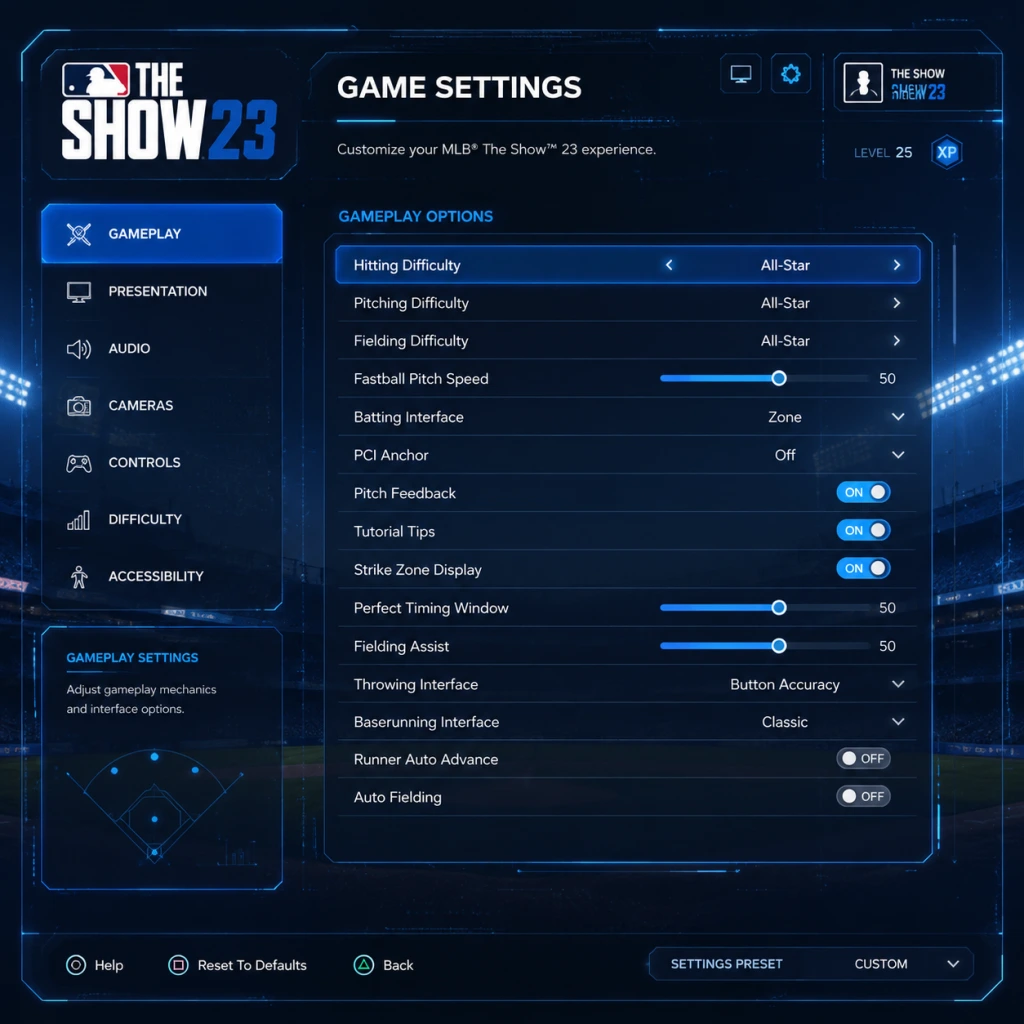
Game Settings
MLB The Show 23 - Game Settings Guide
This guide covers every settings category in MLB The Show 23, with recommended configurations for performance vs. quality on PlayStation 4, PlayStation 5, Xbox One, Xbox Series X|S, and Nintendo Switch (cloud version). Special attention is given to settings that players commonly misconfigure, which can negatively impact gameplay, readability, or online stability.
---
Graphics Settings
Graphics settings affect visual fidelity, frame rate, and input responsiveness. The game automatically detects your platform but allows manual overrides where hardware supports it.
| Setting | High-End (PS5, Xbox Series X) | Standard (PS4 Pro, Xbox One X) | Budget (PS4 Slim, Xbox One S, Switch) | Notes |
|---|---|---|---|---|
| Display Mode | Performance (60 fps) | Performance | Performance | Prioritize 60 fps for smoother pitching/batting. Quality mode (30 fps) introduces noticeable input lag. |
| Resolution | 4K (Upscaled or Native) | 1080p | 720p | Higher resolution improves clarity but may reduce frame rate on weaker hardware. |
| Field of View (FOV) | Default or +5 | Default | Default | Wider FOV can help track pop-ups but may distort peripheral vision. |
| Stadium Detail | High | Medium | Low | High detail can cause framerate dips during rain or crowd animations. |
| Shadow Quality | High | Medium | Low | Shadows have minimal impact on gameplay; lower for stability. |
| Texture Quality | High | Medium | Low | Affects player uniforms and grass textures. Low is acceptable. |
| Motion Blur | Off | Off | Off | Blur reduces clarity during fast camera pans; turn off for better reaction time. |
| Depth of Field | Off | Off | Off | Can obscure background fielders; disabling helps read batted balls. |
---
Audio Settings
Audio settings impact immersion, spatial awareness, and online communication.
| Setting | Recommended | Notes |
|---|---|---|
| Master Volume | 70–80% | Avoid 100% – compressed audio can mask cues like bat crack or catcher talk. |
| Sound Effects | 100% | Covers bat contact, ball hitting glove, and umpire calls. Crucial for timing. |
| Music Volume | 50% or Off | In-game music can distract during pitching. Many players mute it entirely. |
| Ambient Volume | 50–60% | Stadium noise (organ, crowd) adds atmosphere but can mask audio cues. |
| Commentary Volume | 30% or Off | Commentary is repetitive and can be distracting during online play. |
| Pitcher/Catcher Chatter | 100% | In online modes, you can hear the opponent’s pitcher call; this gives you a split-second hint on pitch type if you learn the codes. |
| Voice Chat (In Game) | Push-to-Talk | Avoid open mic to prevent background noise. |
| Broadcast Mix | Dynamic or Stereo | Choose Stereo for headphones; Dynamic for TV speakers. |
---
Controls Settings
Control schemes drastically affect your performance. MLB The Show 23 offers multiple presets for hitting, pitching, fielding, and baserunning.
#### Hitting Interface
| Control Type | Best For | Recommendation |
|---|---|---|
| Zone | Advanced players | Most precise: use a PCI (Plate Coverage Indicator) to aim contact. |
| Directional | Casual/Arcade | Simpler: only choose swing type. Less reward but more forgiving. |
| Timing | Beginners | No PCI – just time your swing. Easiest but lowest ceiling. |
| Analog | Veteran players | Uses right stick to control bat path. Highly skilled but can be inconsistent. |
#### Pitching Interface
| Control Type | Best For | Recommendation |
|---|---|---|
| Meter | Most players | Classic timing bar. Good balance of control and stress. |
| Pulse | Casual | Simplify: time a shrinking circle. Less accurate but easy. |
| Analog | Veteran players | Use right stick to simulate throwing motion. Highest skill gap. |
| Classic | Old-school | Only button presses; least realistic. |
#### Fielding & Baserunning
- Fielding: Set to Buttons (precise) or Analog (directional throws). Buttons are easier for beginners.
- Baserunning: Buttons (tap to advance/retreat) or Sliding Stick (right stick). Buttons are more reliable.
- Throwing Accuracy: Buttons (pre-set to bases) vs. Meter (timing based). Most players use Buttons for consistency.
- Recommendation: Off – Vibration can interfere with delicate control on pitching meter timing and swinging. Turn it off for competitive play.
#### Controller Vibration
---
Accessibility Settings
The Show 23 offers extensive accessibility options for visual, hearing, and motor impairments.
| Option | Recommended | Explanation |
|---|---|---|
| Text-to-Speech | On if needed | Reads menus and status messages. |
| Subtitle Size | Large | For dialogue and tutorial prompts. |
| Closed Captions | On | Shows spoken lines during story modes (e.g., Road to the Show). |
| Colorblind Modes | 4 options | Tritanopia, Deuteranopia, Protanopia, Achromatopsia. Adjustable UI colors. |
| High Contrast Mode | Off (or On if needed) | Changes background to solid colors for readability. |
| Screen Narration | On if vision impaired | Reads all interactive elements. |
| Controller Scheme | Customizable | Remap buttons individually. |
| Auto-Run / Auto-Field | Off for skilled players | Auto-field can take you out of position; manual fielding is better. |
| Pitch Trail | On (for beginners) | Shows a faint line of where the ball will go – helps read pitches, but advanced players turn it off because it’s unrealistic online. |
---
Language Settings
- Game Language: Choose from English, French, Spanish, Portuguese, etc. This affects menus, commentary, and subtitles.
- Commentary Team: English (Matt Vasgersian, Dan Plesac, Mark DeRosa) or alternate language packs. Commentators talk about real-world players and storylines – you may miss contextual hints in other languages.
- Audio Language: Separate from text. Keep the same language for consistency, or mix (e.g., English commentary with Japanese subtitles).
Recommendation: Leave on your native language to benefit from in-game tips mentioned by the broadcast team.
---
Network Settings
For online stability and performance.
| Setting | Recommendation |
|---|---|
| Network Connection | Wired Ethernet preferred over Wi-Fi. Wi-Fi can cause lag spikes. |
| Port Forwarding | If using console, forward TCP/UDP ports 80, 443, 3659, 3660, 4656, 9296-9299 to improve matchmaking. |
| Online Squads | Invite-only for friends; avoid open lobbies to reduce lag from distant hosts. |
| Cross-Play | Enable (if you want larger player pool) – but matchmaking may pair you with players on different hardware; performance delta is minimal. |
| Controller Vibration Online | Off – retains battery and prevents accidental inputs. |
| Connection Quality Display | Turn On – shows ping and packet loss overlay during games. If ping >80ms or packet loss >2%, consider restarting your network. |
---
Gameplay Settings
These affect in-game rules, difficulty, and presentational features.
| Setting | Description | Recommendation |
|---|---|---|
| Difficulty | Rookie to Legend | Start on Veteran (standard) – it balances challenge and fun. Do not start on Rookie; you’ll develop bad habits. |
| Batting Camera | Multiple angles | Default Zoom: Gives good view of strike zone. |
| Pitching Camera | Multiple angles | Broadcast or Behind Pitcher: best for seeing batter timing. |
| Fielding Camera | Showtime or Standard | Showtime: zoomed out for better range awareness. |
| Baserunning Camera | Follow Runner or Broadcast | Follow Runner feels more natural. |
| Strike Zone Display | On | Shows the strike zone outline – essential for umpire judgement. |
| Pitch Call Display | On | Shows the selected pitch before throw (only in offline modes – hidden online). |
| Batting Stats Display | On | Shows pitcher tendencies and hitter stats when at bat. |
| Umpire Ball/Strike Consistency | Accurate or Balanced | Accurate: More realistic variability. Balanced: More fair to players. Choose Accurate for simulation. |
| Game Speed | Normal | Do not increase speed; it shortens animation windows and makes timing harder. |
| Quick Counts | Off for full experience | Quick counts (e.g., 1-1 count) are for grinding Diamond Dynasty offline; turn off for realistic games. |
Additional Tips for First-Time Setup
1. Reset to Defaults First: If you’ve been changing settings randomly, go to Settings → Reset All. Then apply the recommendations above.
2. Test in Practice Mode: Before entering a game, go to Practice (Home Screen → Play → Practice) and try a few swings/pitches with your chosen control scheme.
3. Adjust Camera Height: In setting menus, camera angles often have sub-settings like height and zoom. Slightly lowering the batting camera can help you see low pitches.
4. Save Profile: The game saves settings per console user – not per profile. If you play on multiple systems, you’ll need to reapply.
5. Online vs. Offline Differences: Some settings (like Pitch Trail, Pitch Call Display, and Quick Counts) are forced off in online play. Practice with those off even in offline modes to avoid bad habits.
---
Summary: Quick Start Settings for Best Performance
| Category | Quick Recommendation |
|---|---|
| Graphics | Performance mode (60 fps), Motion Blur Off, Shadows Low |
| Audio | Chatter ON (100%), Music OFF, Commentary 30% |
| Controls | Zone hitting, Meter pitching, Button fielding, Vibration OFF |
| Accessibility | Pitch Trail OFF, Subtitle Size Large if needed |
| Network | Wired, Enable Connection Quality Display |
| Gameplay | Veteran difficulty, Default Zoom batting camera, Umpire Accurate |
Important Notes
Important Notes for MLB The Show 23
This guide covers critical warnings, pitfalls, irreversible decisions, and advice that every player should know before diving deep into MLB The Show 23. Whether you're playing Diamond Dynasty, Road to the Show, or Franchise mode, these notes will save you time, frustration, and regret.
Irreversible Choices & Missable Content
#### Road to the Show (RTTS)
- Archetype Selection is Permanent per Save: When you create a RTTS player, you choose a primary and secondary archetype (e.g., Power Hitter, Contact Hitter, Flame Thrower). This decision locks you into specific stat caps and perk paths. You cannot change archetypes later without starting a new character. Pitfall: Choosing a Balanced archetype sounds safe but gives no standout stats; specialized archetypes are better for earning Caps faster. Advice: Pick a primary that matches your playstyle and a secondary that complements it (e.g., Power+Contact for hitters).
- Equipment Boost Choices: When you unlock equipment slots, the stat bonuses are permanent but you can swap equipment. However, the Perk Points you allocate to each slot are irreversible unless you use a rare Perk Point Reset Token (earned from specific missions or bought with Stubs). Use them wisely—avoid spreading points too thin; max out one or two key stats.
- Team Trade Requests: If you request a trade from your current MLB team, the front office may accept or reject it. Once accepted, you cannot undo it. Trading too early (e.g., after one bad season) can land you on a struggling team. Missable Content: Certain team-specific storylines and achievements (e.g., winning a ring with your draft team) are lost if you jump teams.
- Collections Are One-Time: Once you lock in a card to a collection (e.g., Live Series, Team Affinity), that card becomes no-sell and cannot be traded or sold on the market. Pitfall: Don't lock in high-value duplicates or cards you might need for later exchanges. Always check if a card is needed for a later collection before locking.
- Prestige and Parallel Progression: Earning Parallel XP on a card is permanent. You cannot reset it. Once a card reaches Parallel V, it gains permanent stat boosts. Missable Content: Some cards have Prestige versions (e.g., collecting a set of cards) that provide a better art and slight stat upgrades—these are time-limited and tied to specific programs. If you miss the program window, you may never get that prestige version again.
- Seasonal and Event Rewards: Many packs, equipment, and exclusive cards are only available during a specific season or event (e.g., Finest, Postseason). After the event ends, they are removed from the reward path and often become prohibitively expensive on the market. Advice: Always complete as much as possible within each Featured Program or Conquest map before it expires.
- Trades and Contracts Are Final (with limited do-overs): Once you confirm a trade or sign a free agent contract, it's locked in. You cannot undo it without reloading a save. Pitfall: Trading away a highly rated prospect for an aging veteran is a common regret; always check trade ratings and prospect potential first.
- Rule 5 Draft: You must protect eligible players on your 40-man roster. Losing a promising prospect for nothing in the Rule 5 draft is irreversible—you cannot reclaim them. Missable Content: Certain historical or storyline scenarios (e.g., fantasy draft, relocation) are only available at the start of a franchise. You cannot relocate or change team settings mid-season.
- Dynamic Difficulty / Legendary: The jump from All-Star to Hall of Fame is steep—pitch speeds increase by ~10-15%, and plate discipline becomes critical. In DD, Legendary difficulty makes perfect-perfect hits rare. Grind Trap: Trying to brute force your way through Legend difficulty without adjusting your approach (e.g., not using PCI anchor, not reading pitch tunneling) leads to slumps and frustration. Advice: Lower difficulty to All-Star or Veteran when grinding for stats, then raise it when you're comfortable.
- Conquest Extreme Maps: The highest-tier Conquest maps (e.g., Showdown Extreme) require near-perfect play on Legend+ difficulty. These maps are designed for endgame squads. Pitfall: Attempting them with a low-90s overall team will waste hours. Grinding Trap: The rewards are tempting but the time investment vs. reward ratio is bad unless you're already top-tier.
- M2O (March to October) Full Seasons: Playing a full 162-game season for a single team affinity voucher is inefficient. Better: Use M2O on shortened season (9-innings or a few games) to farm moments and missions instead. Pitfall: Mindlessly playing full games for minimal XP.
- Parallel XP Without Strategy: Grinding Parallel XP on a card by playing full games against the CPU at low difficulty yields pitiful returns. Effective: Play 3-inning Conquest games or specific moments that grant double XP for that card type. Grind Trap: Spending 40 hours to get one Parallel IV card when you could have done it in 10 with targeted modes.
- No-Duo Grinding for Collections: Trying to collect every Live Series card by pure stubs grinding without flipping the market. It's much faster to invest in market flipping (buy low, sell high) rather than mindlessly playing games for stubs. Regret: Many players burned out chasing collections before discovering flipping.
- Stubs Scams: Never buy Stubs from third-party websites (e.g., “Stubs generators”). They are scams that steal your account credentials or console info. Only purchase through the PlayStation/Xbox store or use legitimate in-game earned stubs. Anti-Cheat Note: SDS has automated detection for suspicious stub transactions; buying from resellers can lead to a permanent ban.
- Market Price Manipulation: The diamond dynasty market is player-driven. Be aware of buy orders vs. sell orders. Low supply cards (e.g., high-tier Finest) can spike in price when a new collection drops. Pitfall: Selling a card right before a collection that requires it - you'll regret missing out on 100k+ stubs.
- Server Disconnections: In online play (Diamond Dynasty Ranked Seasons, Battle Royale, Events), a disconnection counts as a loss even if you were winning. Advice: Hardwire your console; avoid playing during peak server load (evenings/weekends). On PlayStation, a system-level crash may cause a 10-minute ban from matchmaking.
- Equipment Durability in RTTS: Equipment wears out over time. Playing with low-durability gear reduces your attributes drastically. Pitfall: Forgetting to repair or replace equipment before a key game (e.g., playoffs) can tank performance. Warning: High-end equipment costs many stubs or training points to repair.
- Team Affinity Progress Resets Partially: Team Affinity progress for certain programs (e.g., Season 1) does not carry over to Season 2. If you miss completing a TA Season 1 reward, you cannot earn it later except through the market. Pitfall: Assuming you can slowly grind TA over the whole year; you must finish each season's TA before the next one starts.
- No Rage Quitting Early: Leaving a ranked season game before the 5th inning (or after 5 if the home team is losing) counts as a loss for you and gives the opponent a win. It also wastes both players' time. Better to play through or forfeit gracefully.
- No Bunt Dancers: Spamming bunt to distract the pitcher is considered bad form. While not prohibited, it often leads to retaliatory brushback pitches or toxic messages. Avoid it.
- No Pausing Repeatedly: You are allowed a limited number of pauses per game (usually 3 per inning, 5 total). Using them to intentionally delay the game is unsportsmanlike. Regret: You may get reported for griefing.
- No Exploiting Known Bugs: For example, the “R2 cheesing” glitch that prevented pitch tunneling was patched in Version 1.03. Using any current exploit (e.g., pick-off loop) can get you banned if reported. Play fair.
- Automatic Detection: SDS uses server-side stats monitoring to detect abnormal performance (e.g., hitting 1.000 against legend difficulty with a bronze team). Warning: Using modded controllers or aimbots is easily caught. Banwaves occur periodically.
- Reporting System: You can report players for toxicity, cheating, or idling via the in-game menu. False reports are rare, but serial reports can flag accounts for review.
- Account Sharing: Lending your account to someone else who then uses cheats will get your account banned. Do not share login credentials.
- Multiple Save Slots Are Your Lifesaver: In all modes (RTTS, Franchise, March to October), manual save before major decisions (e.g., free agent signings, trade negotiations, draft picks). Why: If a trade backfires or you mess up a contract offer, you can reload a prior save. Auto-save overwrites your last manual save if you aren't careful - make distinct named saves.
- Cloud Saves / Cross-Platform: MLB The Show 23 supports cross-save between PlayStation and Xbox (via The Show Network account). Advice: Enable cloud saving to avoid losing progress due to console failure. On PlayStation, manually upload saves to the cloud after each session.
- Corrupted Save Data: Rare but possible. If you encounter a save that won't load, do not delete it immediately—contact SDS support. There may be a patch fix. Prevention: Save often and cycle through 3-4 slots.
- RTTS Character Delete: Deleting a character from the main menu is irreversible. You lose all progress, equipment, and perks. Regret: Many players accidentally delete their main character when cleaning up old saves. Always double-check before selecting "Delete."
- Market Flipping is King: The fastest way to earn Stubs is not playing games but flipping cards on the market. Buy low (place buy orders just above the highest bid), sell high (place sell orders just below the lowest sell). Focus on cards with high volume (e.g., gold Live Series players). Regret: Playing 100 games to earn 20k stubs instead of making 50k in 30 minutes flipping.
- Showdowns Are over Maxed: Showdown (Diamond Dynasty) rewards are often better per minute than full games. Even if you fail, you still earn some progress. Regret: Avoiding Showdown because it seems hard; practice with starter lineups until you master it.
- Equipment Transfers Between RTTS Characters: If you have multiple RTTS players, you can transfer equipment via the main menu loadout. Regret: Buying the same diamond bat twice because you didn't know you could share it.
- You Can Change Camera Angles Mid-At-Bat: If you're struggling with a certain pitcher's release point, you can change the batting camera to a zoomed-in view (e.g., Strike Zone 2) during the pause menu. Regret: Getting fooled by pitches because you stuck with a poor default camera.
- Pressing R2/RT Reveals Pitch Location in Batting Practice: In practice mode, you can hold R2/RT to see the pitch location before it's thrown. Use this for pitches you struggle with. Regret: Wasting hours in the batting cage without this tool.
- Ranked Seasons Tier Locking: Once you reach a higher tier (e.g., World Series), you cannot drop back to lower tiers even if you lose. This means you'll face elite competition for the rest of the season. Advice: If you're not ready, consider not advancing beyond the tier that gives good World Series rewards for your skill level.
#### Diamond Dynasty (DD)
#### Franchise Mode
Difficulty Spikes & Grinding Traps
#### Difficulty Levels in RTTS/DD
#### Grinding Traps (Time Wasters)
Warnings & Pitfalls
Online Etiquette & Anti-Cheat
#### Etiquette in Online Matches
#### Anti-Cheat Measures
Save Management Advice
Things Players Commonly Regret Not Knowing Earlier
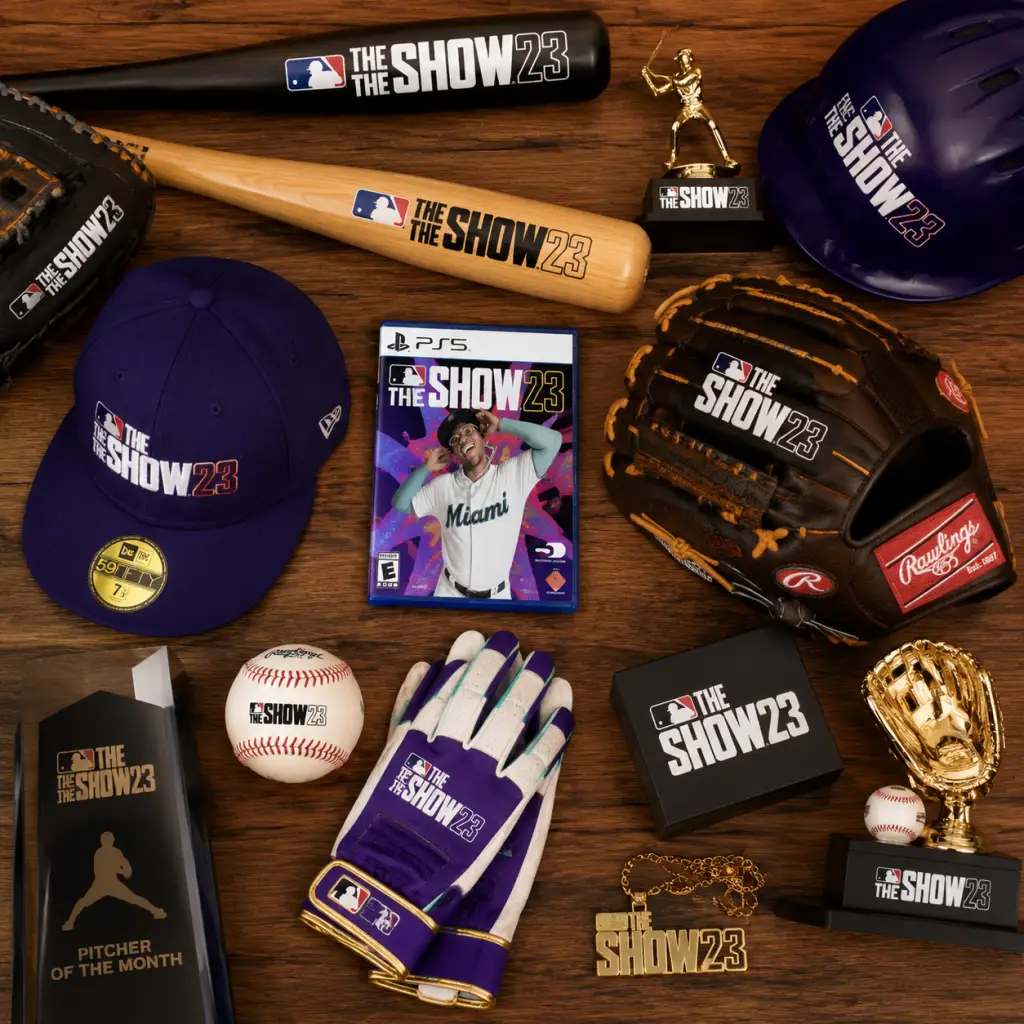
All Game Items
MLB The Show 23 - All Game Items Guide
This guide catalogs all major items in MLB The Show 23, grouped by category. Since the game is a baseball simulation, there are no traditional weapons or armor. Instead, items include currencies, packs, player cards, equipment for your created player (Road to the Show), consumables, collectibles, stadiums, and uniforms. Each entry explains the item's function, how to obtain it, when it's most useful, and any important synergies or upgrade paths.
---
1. Currencies
| Currency | Purpose | How to Obtain | Notes |
|---|---|---|---|
| Stubs | Premium currency. Used to buy packs, players from the Market, equipment, stadiums, and more. | Purchased with real money, earned from playing games (Diamond Dynasty, Road to the Show, etc.), completing missions, and selling items on the Marketplace. | The most versatile currency. Stubs can be traded for any non-NL/AL Central Division player through the Market. |
| XP (Experience Points) | Increases your overall profile level and unlocks rewards (e.g., packs, stubs, equipment). | Earned by playing any game mode, completing programs, missions, and daily objectives. | XP is tied to the Season Pass and also contributes to your overall account level (up to 100, then resets for prestige). |
| Training Points (RTTS/CAP) | Used to upgrade your Road to the Show (or Create-a-Player) attributes. | Earned in-game during RTTS games, from completing training drills, or from postgame bonuses. | Only usable in Road to the Show and Diamond Dynasty's custom player (CAP) mode. |
| Showdown Points | Used to purchase items in the Showdown mode's shop (e.g., perks, equipment). | Earned by completing Showdown stages and winning the final boss. | Exclusive to the Showdown game mode. |
| Team Affinity Points | Progress toward Team Affinity rewards (packs, player cards, etc.). | Earned by completing Team Affinity missions, playing with players from specific teams, or exchanging cards. | Each division (AL East, AL Central, etc.) has its own affinity track. |
2. Packs
Packs are loot boxes containing random cards. They are a primary way to add players to your Diamond Dynasty collection. Rarity tiers: Common (Bronze/Silver), Rare (Gold), Diamond, and Special (Legends, Flashbacks).
| Pack Name | Contents | How to Obtain | Best Use |
|---|---|---|---|
| Standard Pack | 5 cards (mostly Bronze/Silver, occasional Gold/Diamond). | Earned via XP, missions, or purchased for 1,500 Stubs. | Open when you need volume cards for collections or exchanges. |
| Ballin' is a Habit Pack | 5 cards with higher Gold+ odds. Only contains Live Series players. | Earned from high-tier programs or purchased for 3,000 Stubs. | Good for filling Live Series collection gaps. |
| Headliners Pack | 6 cards with 1 guaranteed Gold or better (Headliner player). Includes a special Headliner player card. | Released weekly; purchased for 5,000 Stubs. | If you want a specific Headliner card, buy directly from Market instead. |
| Team Affinity Pack | Contains 5 cards focused on a specific division (e.g., AL East). Includes Live Series players from those teams. | Earned via Team Affinity progression. | Best for completing division-specific collections. |
| Showdown Pack | Random rewards from Showdown mode (players, equipment, packs). | Earned by completing Showdown conquests. | Use before a major update to flip cards. |
| Specialty Packs (e.g., The Show Pack, Season Pack, Signature Series Pack) | Contain limited-time cards (Flashbacks, Legends, or high-end Live Series). | Purchased with Stubs, earned from Season Pass or special events. | Prioritize when you need a rare card for a collection or lineup upgrade. |
| All-Star/Postseason Packs | Player cards from specific events (All-Star Game, postseason heroes). | Earned during those programs or purchased for Stubs. | Best for building theme teams or completing special collections. |
3. Player Cards
Player cards are the core items in Diamond Dynasty. They represent real-life MLB players with varying overall ratings (OVR).
| Card Type | Description | How to Obtain | Key Use | Synergies/Upgrades |
|---|---|---|---|---|
| Live Series | Current real-world players. Ratings update weekly based on real performance. | Packs, Marketplace, or from Team Affinity. | Core lineup cards; required for collection rewards (e.g., Chipper Jones). | Upgrades/downgrades happen Friday. Sell before a downgrade. |
| Flashbacks | Players from past seasons (e.g., 2019 MVP season). Ratings are fixed. | Packs, programs, or special events. | Build theme teams or fill weak positions. | Often have boosted stats compared to Live Series. |
| Legends | Retired hall-of-famers or iconic players (e.g., Willie Mays, Randy Johnson). | Packs (Legends packs), programs, or collection rewards. | Endgame lineup pieces. | No upgrades; high value. Combine with captain boosts for synergy. |
| Topps Now | Cards released weekly for standout real-life performances. | Earned via Topps Now moments or purchased from Market. | Small sample of fresh cards. | Useful for missions; stats are fixed. |
| Player of the Month (POTM) | Monthly rewards for the best real-life performers. | Complete monthly program moments. | Very high ratings for that month. | Can be upgraded through further missions (e.g., lightning player evolution). |
| Team Affinity Players | Fictional "boosted" versions of current players for a specific team theme (e.g., 99 OVR Adley Rutschman). | Earned via Team Affinity progression (grind or exchanges). | Best for team-specific collections. | These cards are often endgame-quality and cannot be sold. |
| Captain Cards | Special cards that provide stat boosts to other cards meeting certain criteria (e.g., all Yankees). | Packs or programs. | Crucial for activating team synergy boosts. | Boost applies only to cards in the same lineup; captains themselves are the bonus. |
| Wild Card Player | A single card that can be used in any event or mode regardless of restrictions. | Earned from the Season Pass or special programs. | Allows you to bypass roster restrictions in events. | Unique per season; cannot be transferred. |
4. Equipment (Road to the Show & Diamond Dynasty)
Equipment items are equippable items that boost specific attributes for your created player or for any card in Diamond Dynasty when applied via Perks.
Important: Equipment is permanent but equipping a new piece replaces the old one (the old is lost). Store extras in your inventory.
| Category | Item Examples | Attributes Boosted | How to Obtain | When to Use |
|---|---|---|---|---|
| Bats | Batting Gloves (improve Contact/Discipline), Custom Bat (improves Power) | Contact, Power, Plate Vision, Clutch | RTTS: Purchase from MLB Store with Stubs; DD: Earn from packs or buying from Market. | Best for boosting a weak spot in your RTTS player's hitting. |
| Gloves | Fielding Glove (improves Fielding/Reaction), Catcher's Mitt (improves Blocking/Arm) | Fielding, Reaction, Accuracy, Arm Strength | Same as bats. | Prioritize for defense-focused CAPs or to fix low fielding. |
| Cleats | Running Cleats (improves Speed/Steal), Metal Cleats (improves Clutch slightly) | Speed, Acceleration, Stealing, Energy | Same as bats. | Essential for baserunning and defensive range. |
| Belt | Custom Belt (improves Durability/Injury Resist) | Durability, Recovery Speed | Same as bats. | Useful in RTTS to reduce injury frequency. |
| Catcher Gear | Leg Guards, Chest Protector, Mask (boost Blocking, Arm, Fielding for catcher) | Blocking, Arm Accuracy, Fielding | Same as bats. | Only useful if your CAP is a catcher. |
| Training Equipment | Weighted Bat (increases Power training), Agility Ladder (improves Speed training) | Affects training results | Earned from Showdown, programs, or packs. | Use during training sessions to maximize attribute gains. |
5. Consumables
Consumables are one-time-use items that grant temporary bonuses or effects.
| Consumable | Effect | How to Obtain | Best Use |
|---|---|---|---|
| Battery | Restores energy to your created player (RTTS only) after a game or during a drill. | Earned from postgame rewards, purchased with Stubs. | Use when your player has low energy to avoid injury. |
| Perk (Performance, Major, Legend) | A temporary boost that lasts for a defined number of games (e.g., +5 Contact vs RHP for 10 games). | Packs, programs, or purchased from Market. | Activate before important games (Showdown bosses, online events). |
| Sponsorship Token | Unlocks a sponsorship deal in RTTS (provides Stub bonuses per game). | Earned from RTTS progression or purchased. | Use to increase Stub earnings while playing RTTS. |
| Stamina Boost (RTTS) | Increases stamina for one game (pitchers). | Packs, rewards. | Use when you need your pitcher to go deep in a game. |
| Daily Mission Skip | Automatically completes a daily mission without playing. | Season Pass rewards. | Save time if you're busy. |
| Double XP Token | Doubles XP earned for a set time (e.g., 1 hour). | Programs, packs. | Activate before grinding missions or Showdown. |
6. Collectibles (Non-Card Items)
Collectibles are items used to progress toward bigger rewards.
| Collectible | Purpose | How to Obtain | Exchange For |
|---|---|---|---|
| Team Affinity Voucher | Used in Team Affinity exchanges to gain large amounts of affinity points. | Earned from completing specific missions or from packs. | When you're close to the next tier, use one to skip grind. |
| Showdown Voucher | Equivalent to completing a Showdown stage. Use to skip a stage or advance. | Earned from Showdown or programs. | Skip a difficult stage in a Showdown run. |
| Player Program Token | Progress toward a specific player's program (e.g., 99 OVR Mickey Mantle). | Earned from completing moments or missions for that player. | Unlock the final player card. |
| Event Reward Token | Earned by winning games in Diamond Dynasty Events. | Win milestones. | Trade in for event-exclusive player cards or packs. |
| Season Pass Badge | Earned by leveling up the Season Pass. | Level milestones. | Used to redeem special rewards like uniform pieces. |
| Stadium Voucher | Unlocks a specific stadium for use in Diamond Dynasty. | Programs, packs. | Use to add a new home park. |
7. Stadiums & Uniforms
These are cosmetic items that affect your home park and team appearance in Diamond Dynasty and Road to the Show.
| Item | Description | How to Obtain | Utility |
|---|---|---|---|
| Standard MLB Stadiums (30 teams) | Official MLB ballparks. | All available from the start. | No gameplay effect; some stadiums have larger outfields affecting game strategy. |
| Classic / Retro Stadiums (e.g., Polo Grounds, Fenway Park 1912) | Historical ballparks. | Earned from programs, packs, or purchased with Stubs. | Unique dimensions can aid certain hitting styles (e.g., short porches). |
| Created Stadiums | Custom-built parks using the Stadium Creator. | Use the creation tool. | You can design your own park dimensions, skyline, etc. |
| Uniform Sets | Home/Away jerseys for your DD team. | Earned from programs, packs, or purchased. | Purely cosmetic; can cause confusion for opponent if same color as theirs (but you can change during matchup). |
| Logo / Emblem | Team logo unlocked via programs or packs. | Packs, missions. | Used in created uniforms or stadium branding. |
8. Other Items
- Custom Player Card (CAP) Slot: You can create a custom player (Create-a-Player) in Diamond Dynasty. You must first unlock a CAP slot (one free, others purchased with Stubs). This item is like a blank player card you build with attributes and equipment.
- Archetypes (RTTS): Unlockable skill trees for your RTTS player. Each archetype (e.g., \"Power Hitter\", \"Contact Hitter\", \"Two-Way Player\") defines attribute caps. Obtained by completing archetype missions.
- Sponsorship Contract (RTTS): A slot that provides bonus Stubs per game (e.g., \"+500 Stubs per game\") if you meet stat requirements. These are consumable items that last for a series or month in-game.
- Equipment + Perk Combination: Equipping a bat that boosts Power and then activating a Perk that boosts Power vs RHP can push your CAP's Power into the 90s.
- Captain Cards + Team Affinity Players: Captain cards give synergy boosts to all cards from the same team (e.g., +5 Contact to all Yankees). Pair with high-end Team Affinity Yankees cards for huge attribute spikes.
- Live Series Collection Reward: Collecting all 30 live series player cards unlocks the 99 OVR Chipper Jones card, a top-tier endgame player. This is the most valuable item progression in the game.
- Player Program Evolution: Some player program cards (like POTM) have upgrade challenges that boost their ratings higher. Completing all challenges gives you the final upgraded version.
- Season Pass Prestige: Reaching level 100 on the Season Pass resets you to Prestige level 1, awarding a special Prestige pack each time. Prestige packs contain exclusive cards.
---
Important Synergies & Upgrades
Always check the current program guide and community market trends to inform your buying/selling decisions. The value of items fluctuates based on new content releases and real-life baseball performance.
-- End of Guide --
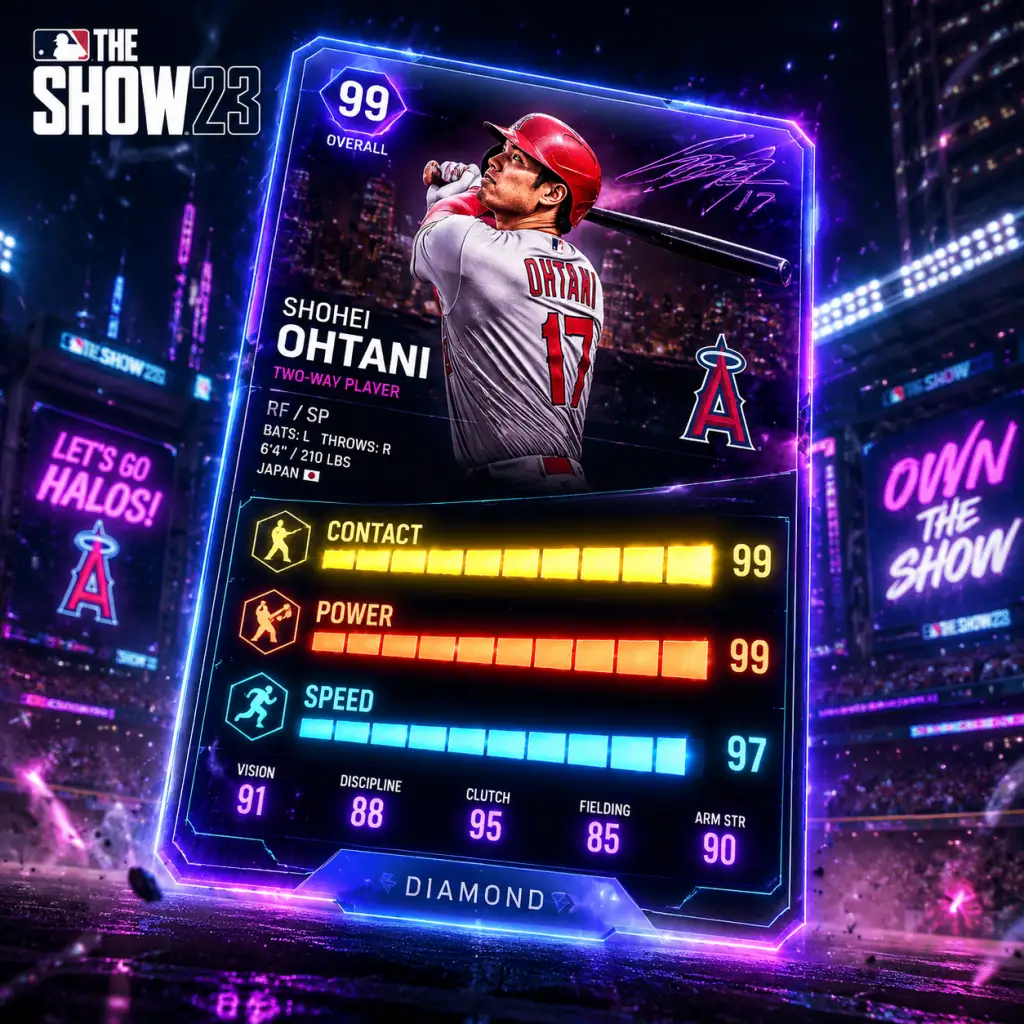
Character Skills
MLB The Show 23 - Character Skills Guide
This guide covers all player skills in MLB The Show 23, including core attributes, Road to the Show (RTTS) Archetypes, Diamond Dynasty Quirks, and equipment perks. Unlike an RPG, baseball skills are defined by numerical attributes and special abilities that influence hitting, pitching, fielding, and baserunning. Each skill is detailed with effects, how to upgrade, recommended builds, and situational use.
1. Player Attributes (Core Skills)
Every player in MLB The Show 23 has a set of core attributes that determine performance. These are the fundamental “skills.”
| Attribute | Description | Effect | Used By |
|---|---|---|---|
| Contact vs RHP/LHP | Ability to make solid contact against right-handed or left-handed pitchers. | Higher contact = larger outer PCI (Perfect-Contact Indicator) and better foul balls. | Hitters |
| Power vs RHP/LHP | Ability to hit for extra bases (doubles, triples, home runs). | Higher power = larger inner PCI (perfect-perfect area) and more exit velocity. | Hitters |
| Plate Vision | Size and skill of the PCI (Perfect-Contact Indicator). | Higher vision = larger PCI, making it easier to make contact. | Hitters |
| Plate Discipline | Ability to lay off pitches outside the strike zone. | Reduces the size of the outer PCI and improves check swings. | Hitters |
| Clutch | Performance boost in high-leverage situations (runners in scoring position, late innings). | Activates probability of better contact; lower clutch = worse results under pressure. | Hitters, Pitchers (as Clutch in pitching) |
| Speed | Running speed from home to first, around bases. | Determines infield hit chances, stolen base success, and outfield range. | All players |
| Steal | Proficiency in stealing bases. | Affects jump timing, success chance, and ability to steal higher-rated catchers. | Baserunners |
| Fielding | Overall defensive ability. | Affects catch probability, fielding animations, and error rate. | Fielders |
| Arm Strength | Power of a throw (in miles per hour). | Determines ability to throw runners out, especially from outfield. | Fielders |
| Arm Accuracy | Consistency of throws to the target. | Reduces wild throws and throwing errors. | Fielders |
| Reaction | Quickness to react off the bat. | Affects first step and diving/lunging animations. | Outfielders and infielders |
| Accuracy (Pitching) | Control over pitch location. | Determines how closely the pitch lands to the intended target. | Pitchers |
| Velocity | Fastball speed (four-seam, two-seam). | Higher velocity = faster pitches, harder to hit, but can reduce control. | Pitchers |
| Break | Amount of movement on breaking pitches. | Affects horizontal and vertical movement for curveballs, sliders, etc. | Pitchers |
| Pitch Control | Ability to locate pitches with precision. | Influences the size of the pitching meter’s accuracy window. | Pitchers |
- RTTS: Training, archetype leveling, equipment, and performance quips.
- Diamond Dynasty: Player progression via parallel XP, live series upgrades, and stat-boosting quirks.
- Power Hitter: +Power vs both sides, +Clutch. Lower Contact. Best for slugging.
- Contact Hitter: +Contact vs both sides, +Plate Vision, +Discipline. Lower Power. Ideal for gap power and OBP.
- Balanced Hitter: Equal boosts to Contact and Power, with moderate Vision. Versatile.
- Slugger: Very high Power, but low Contact/Vision. High risk, high reward.
- Table Setter: High Contact, Vision, and Speed. Designed for leadoff hitters.
- Flame Thrower: +Velocity, +Clutch, higher stamina drain. Best for strikeouts.
- Control Artist: +Accuracy, +Control, +Break. Emphasizes command.
- Ground Baller: +Break on sinkers, +Fielding on pitcher. Induces ground outs.
- Crafty Left/Right: +Break, +Pitch control, slightly lower Velocity. Good for crafty starters.
- Gold Glover: +Fielding, +Reaction, +Arm Accuracy. For defensive specialists.
- Cannon Arm: +Arm Strength, +Arm Accuracy. For outfielders and third basemen.
- Speedster: +Speed, +Steal, +Reaction. For center fielders and top-of-order batters.
- Two-Way Phenom: Balanced hitting and pitching attributes; separate progression tracks.
2. Road to the Show Archetypes (Ballplayer Skills)
In RTTS, you build your Ballplayer using Archetypes that define attribute caps and special bonuses. Each Archetype has primary and secondary attributes.
#### Hitting Archetypes
#### Pitching Archetypes
#### Fielding Archetypes (Position Players)
#### Two-Way Player Archetypes (Shohei Ohtani-style)
Archetype Progression: Each level-up increases attributes within the archetype’s focus. You can equip an Alter Ego (perk) that provides additional skill boosts (e.g., “Clutch Hitter” perk adds +10 Clutch in late innings).
3. Pitching Skills (Pitch Types and Usage)
Each pitch type is a separate skill with its own rating (velocity, break, control). Mastery of different pitch types is crucial.
| Pitch Type | Primary Effect | Recommended Usage |
|---|---|---|
| Four-Seam Fastball | Straight high-velocity pitch | Up in the zone, blow by hitters; used for strikes and setups. |
| Two-Seam Fastball | Slightly slower with arm-side run | Induce ground balls; avoid barrels by keeping down. |
| Cutter | Short, late break (glove side) | Jam hitters, thrown inside to same-handed batters. |
| Slider | Sharp lateral break | Strikeout pitch away to same-handed batters; backfoot to opposite. |
| Curveball | Big vertical drop | Loops in slow; used to change eye level and generate swings and misses. |
| Changeup | Slower fastball with fade | Mess with timing; thrown low and away. |
| Splitter | Sudden drop similar to forkball | Effective with two strikes; often ends up in dirt. |
| Sinker | Heavy sinking movement | Ground ball machine; good against contact hitters. |
| Knuckleball | Erratic, low velocity | Unpredictable; extremely hard to control but devastating when working. |
| Screwball | Break opposite of curveball (to arm side) | Deceptive, especially against same-handed batters. |
4. Fielding and Baserunning Skills
These attributes function as skills because they determine success rates.
Fielding Skills:
- Catching (primary for catchers): Affects ability to frame pitches, block balls in dirt, and pop times on stolen base attempts. Higher = better framing and blocking.
- First Base Pickup: Ability to scoop low throws. Higher = fewer errors on infield dirt throws.
- Outfield Jump: Not an explicit attribute, but Reaction and Speed combine to give better jumps on fly balls.
- Aggression: Not a stat, but a user skill. Knowing when to take an extra base or challenge an arm.
- Slide Technique: Slide direction affects tag avoidance. High Steal attribute improves slide animation success.
Baserunning Skills:
5. Special Abilities / Quirks (Diamond Dynasty)
Quirks are passive abilities that activate under certain conditions. They are tied to specific players and can be game-changing.
| Quirk | Effect | Activation Condition |
|---|---|---|
| Dead Red | Boost to hitting against fastballs when player is looking for one. | Activated when user correctly guesses fastball location (using PCI). |
| Breaking Ball Dead Red | Same but for breaking balls. | Correctly guess breaking ball. |
| Pinch Hitter | +Contact/Power when entering game as pinch hitter. | Player is used off the bench. |
| High Fastball | Better results on high fastballs. | Pitches high in zone. |
| Night Player | Attribute boost during night games. | Game time is night. |
| Road Warrior | Boost when playing away from home. | Game is away. |
| Clutch Performer | Increased attributes in high-leverage situations. | Runners in scoring position, 2 outs, etc. |
| Deception | Pitch movement is more deceptive, causing whiffs. | Pitcher has good break and control. |
| Workhorse | Stamina recovers faster between innings. | Pitcher. |
| Unfazed | No penalty when pitching with runners on base. | Pitcher. |
6. Perks and Equipment (RTTS Loadout)
In RTTS, you equip a loadout consisting of an Archetype, Alter Egos (perks), and Equipment (bat, glove, cleats, etc.). Each piece of equipment provides attribute bonuses.
Alter Egos (Perks):
- Hitter Perks: “Unbreakable Focus” (+Vision in 2-strike counts), “First Pitch Fastball” (+Contact when swinging at first pitch), “Power Surge” (+Power for one at-bat after a previous hit).
- Pitcher Perks: “Perfect Pitch” (+Accuracy if pitch meter is perfect), “Strikeout Artist” (+K/9 in 2-strike counts), “Workhorse” (+Stamina per inning).
- Bat: +Contact, +Power, or balanced. Different batting grips (e.g., “Diamond Bat” gives +10 Contact).
- Glove: +Fielding, +Reaction.
- Cleats: +Speed, +Baserunning aggression.
- Catcher Gear: +Blocking, +Arm Strength for primary catchers.
- Pitching Equipment: +Velocity (+5) or +Break.
- Archetype: Power Hitter
- Equipment: “Diamond Bat” (+Power), “Fielding Glove” (+Fielding to avoid errors), “Spikes” (+Speed for bases), “Tier 3 Cleats” (+Steal if needed, but not usually)
- Perks: “Power Surge”, “First Pitch Fastball”, “Unbreakable Focus”
- Strategy: Always look for fastballs early; power swing when confident.
- High Vision + High Discipline: Allows you to take borderline pitches and still make contact on edges. Essential for online play.
- High Clutch + High Contact: Clutch situations (e.g., 2 outs, RISP) become less stressful; low clutch players will pop out frequently.
- Pitcher with High Break + Deception Quirk: Hitters will have difficulty reading pitch movement; leads to more weak contact.
- Speed (99) + Steal (99): Virtually automatic steals on any catcher with below 90 arm accuracy. Also can turn singles into doubles.
- Position: 2B, SS, CF
- Archetype: Table Setter
- Attribute Focus: Max Contact, Speed, Vision, Discipline
- Equipment: Light bat for speed bonus, speed cleats, fielding glove
- Perks: “First Pitch Fastball”, “Wheels” (+Speed after hit), “Table Setter” (+Contact with nobody on)
- Playstyle: Draw walks, bunt for hits, steal second, score from first on doubles.
- Position: 1B, LF, RF
- Archetype: Power Hitter
- Attribute Focus: Max Power vs both sides, high Clutch, moderate Contact
- Equipment: Heavy bat (+Power), fielding glove, power cleats (minor speed boost)
- Perks: “Power Surge”, “Clutch Performer”, “Dead Red”
- Playstyle: Look for fastballs in hitter's counts; sacrifice contact for raw power.
- Position: SP
- Archetype: Flame Thrower
- Attribute Focus: Max Velocity, Break for offspeed, Clutch
- Equipment: Velocity-boosting ball, control grip, pitching glove
- Perks: “Strikeout Artist”, “Perfect Pitch”, “Unfazed”
- Playstyle: Overpower hitters with high heat; use breaking balls sparingly for strikeouts.
- Contact Swing: Use when you have 2 strikes, or need to put ball in play (sacrifice, moving runner).
- Power Swing: Use when you’re ahead in count (3-1, 2-0) and expect a fastball middle-in. Risk of larger miss distance.
- Normal Swing: Default, good all-around.
- Fastball: Use early in count to establish velocity; high fastball for strikeouts, low fastball for ground balls. Avoid middle (belt high, middle plate) – that’s hard contact.
- Breaking Ball: Use when ahead in count (0-2, 1-2) to induce chase. Never throw a curveball in a hitter’s count (e.g., 3-1) unless you want a walk.
- Changeup: Use vs heavy fastball hitters; throw low and away, or backfoot to same-handed batters.
- Sinker: Use to induce double plays; keep down in zone.
- Dive: Only when ball is hit sharply and you have no other play. If you miss dive, error probability high.
- Charge: Use on slow rollers to speed up throw; high Fielding attribute increases success.
- Crow Hop (Outfield): Use when you need extra power on the throw to a base; risk of slower release.
- Steal: Use when pitcher is slow to home (lower hold runner rating), and your steal attribute > catcher’s arm accuracy. Never steal with two outs or when a batter is down in count 0-2 (likely to strike out).
- Tag Up: On fly balls, tag up only if outfield arm is weak or you are winning by large margin.
- RTTS: Complete training programs (weekly) that target specific attributes. Perform well in games to earn higher XP toward archetype level.
- Equipment: Buy/earn better equipment (diamond, 99 overall items) that boost attributes by up to +15.
- Perks: Unlock and equip Alter Egos from archetype progression or pack pulls.
- Diamond Dynasty: Parallel XP levels increase all attributes by small increments; use equipment as equipment cards or stat-boosting perks on your DD squad.
- Archetype Level 50: Maximum attribute caps unlocked.
- Prestige 1-5: Extra attribute points allocated at each prestige.
Equipment:
Recommended Build Example – Power Hitting First Baseman:
7. Combos and Synergies
While MLB The Show 23 lacks traditional combo mechanics, certain attribute combinations enhance gameplay:
8. Recommended Builds (RTTS)
Build 1: Speed & Contact Leadoff Hitter
Build 2: Power-Hitting Cleanup
Build 3: Ace Pitcher (Flame Thrower)
9. When to Use Each Skill (Situational Guide)
Hitting:
Pitching:
Fielding:
Baserunning:
10. Upgrades & Progression
To upgrade skills, focus on:
Progression Milestones:
Conclusion
Mastering player skills in MLB The Show 23 requires understanding how attributes interact with game mechanics. Prioritize attributes that match your playstyle and position. Leverage equipment, perks, and quirks to maximize strengths. Always adapt to each situation – a skill is only as good as its usage. For the most competitive play, focus on a balanced build that covers weaknesses.
Characters & Roles
Characters & Roles Overview
In MLB The Show 23, every player on the field is a character with a distinct role. Unlike traditional RPGs, characters are defined by their position, attributes, and in the case of Diamond Dynasty (DD), their card tier and captain abilities. This guide covers all major playable units: Road to the Show (RTTS) player-created archetypes, Diamond Dynasty legend and live series players, and the core positional roles. Whether you're building a team for DD or crafting your perfect RTTS player, understanding each character's strengths, weaknesses, and unlock conditions is critical.
---
Player Roles (Positions)
Every position in baseball demands a specific skill set. Below is a breakdown of each role, including typical attribute priorities and playstyle.
Pitcher
- Strengths: High velocity, break, control, stamina, and pitch repertoire depth.
- Weaknesses: Low hitting ability; must be a good fielder (low Fielding attribute can hurt).
- Playstyle: Focus on mixing pitches, hitting corners, and managing stamina. In RTTS, you can choose to be a starter (SP) or reliever (RP/CP).
- Key Attributes:
- Sub-roles:
- Strengths: Blocking, arm strength, fielding, and ability to call games (influences pitcher confidence).
- Weaknesses: Usually slower; lower offensive output compared to other positions.
- Playstyle: Manage the battery, block wild pitches, throw out base stealers. Key attributes: Blocking, Arm Strength, Fielding.
- Strengths: Power hitting, good fielding near the bag, tall stature for stretching.
- Weaknesses: Slow speed, limited range.
- Playstyle: Primary power bat in the lineup; must scoop low throws.
- Key attributes: Power (R/L), Contact, Fielding, Reaction (for pickoffs).
- Strengths: Quickness, range, double-play pivot, good contact hitting.
- Weaknesses: Lower power potential; often smaller frame.
- Playstyle: Middle infield defense, turn double plays, hit for average.
- Key attributes: Speed, Fielding, Arm Strength, Contact.
- Strengths: Elite range, arm strength, fielding, often above-average hitting.
- Weaknesses: Demanding position; requires high attributes across the board.
- Playstyle: Captain of the infield; make long throws from deep in the hole, cover second base on steals.
- Key attributes: Fielding, Arm Strength, Reaction, Speed, Contact.
- Strengths: Strong arm for across-the-diamond throws, good power hitting.
- Weaknesses: Less range than shortstop; slower reaction times.
- Playstyle: Cover the hot corner, quick reflexes for bunts, hit for power.
- Key attributes: Reaction, Arm Strength, Power, Fielding.
- Strengths: Speed, reaction, arm strength for throwing home.
- Weaknesses: Center field requires the most range; corner outfielders often have power bats.
- Playstyle: Track fly balls, hit cutoffs, take extra bases.
- Sub-roles:
- Key attributes: Reaction, Speed, Fielding, Arm Strength, Power.
- Strengths: Pure hitting, no defensive pressure.
- Weaknesses: No fielding contribution; can be a liability in speed on the bases.
- Playstyle: Hit only; often used for older players or those with poor defense.
- Key attributes: Contact, Power, Discipline.
- H/9, K/9, BB/9: Core pitching stats.
- Velocity, Break, Control: Determines pitch effectiveness.
- Stamina: Vital for starters (high) vs relievers (lower).
- Starting Pitcher (SP): High stamina, multiple pitches, used for 5+ innings.
- Relief Pitcher (RP): Moderate stamina, typically 1-2 innings.
- Closer (CP): High velocity/break, but low stamina—used only for final innings.
Catcher
First Base
Second Base
Shortstop
Third Base
Outfield (Left, Center, Right)
- Left Field (LF): Usually a power hitter with average defense.
- Center Field (CF): Must have elite speed and reaction—the defensive quarterback.
- Right Field (RF): Strong arm to third base; often a power hitter.
Designated Hitter (DH)
---
Road to the Show (RTTS) Archetypes
RTTS allows you to create a custom player. At creation, you choose a primary archetype (position) and a secondary archetype that defines your skill focus. Each archetype has unique perks and attribute caps.
Fielding Positions
| Archetype | Strengths | Weaknesses | Recommended Equipment | Playstyle Tips |
|---|---|---|---|---|
| Power Hitter (1B/3B/LF/RF/DH) | High Power, decent Contact | Low Speed, mediocre Fielding | Power bat (+Power, -Contact), weighted gloves (+Power vs R/L), cleats (+Speed if needed) | Swing for the fences; expect strikeouts but massive HRs. Focus on Launch Angle. |
| Contact Hitter (2B/SS/CF) | High Contact, Vision, Speed | Low Power (especially vs LHP) | Contact bat (+Contact, -Power), lightweight gloves (+Vision), running shoes (+Speed) | Hit gaps, use small-ball (bunts, hit-and-run). Great for table-setting. |
| Balanced (Any IF/OF) | Well-rounded stats no glaring weakness | No elite category; can be outpaced by specialized builds | Balanced bat (no penalty), fielding glove (+Fielding, +Reaction), all-purpose cleats | Switch up approach; good for multi-position flexibility. |
| Defensive Specialist (C, SS, CF) | Elite Fielding, Arm, Reaction | Low hitting stats (especially Power) | Fielding glove (+Fielding, +Arm), catcher's gear (for C), speed cleats | Prioritize defense; sacrifice offense for web gems. |
Pitching Archetypes
| Archetype | Strengths | Weaknesses | Recommended Equipment | Playstyle Tips |
|---|---|---|---|---|
| Power Pitcher | High Velocity, K/9 | Low Control, Stamina | Power grip (+Velocity, -Control), weighted ball (+Break for off-speed) | Blow fastballs by hitters; use secondary pitches sparingly. High strikeout, high walk rate. |
| Finesse Pitcher | High Control, BB/9, Pitch Break | Lower Velocity, K/9 | Control grip (+Control, -Velocity), spin ball (+Break) | Paint corners, induce weak contact. Low strikeouts but low walks. |
| Balanced Pitcher | Moderate everything | No elite outlier | Balanced grip (no penalty), stamina grip optional | Versatile; can go deep into games. Use mix of pitches. |
Unlock Conditions (RTTS)
- All archetypes are available from the start of RTTS.
- To upgrade archetype tiers (Bronze→Silver→Gold→Diamond), you must accumulate XP in that archetype’s stat categories.
- No hidden characters; every player progresses through stat caps.
- Background: Hall of Fame center fielder for Mariners, Reds, White Sox; 13× All-Star, 10× Gold Glove. Iconic swing.
- In-game strengths: Elite contact/power vs RHP and LHP, diamond fielding (88Fld), speed (87Spd).
- Weaknesses: None significant; slight lack of inside-edge vs lefties at times.
- How to obtain: Diamond Dynasty Program: Ken Griffey Jr. (Season 1) – complete all moments, missions and collect 100 program stars. Also available in Griffey Choice Pack.
- Recommended equipment (if RTTS-equivalent): N/A in DD but set as core outfield.
- Synergy: Active Captain boosts: Griffey (CF) gives +5 Contact, +5 Power to all Outfielders. Best used on a Mariners theme team or any team needing a top CF.
- Background: Legendary pitcher/outfielder for Red Sox, Yankees. 714 HRs, 2.28 ERA as pitcher.
- In-game strengths: Max power (125/125 vs both sides), decent contact (115+), strong arm (95Arm). Pitcher card boosts stamina.
- Weaknesses: Low speed (30Spd), mediocre fielding for OF. His fielding card has very low reaction.
- How to obtain: Babe Ruth Program (Season 2) – grind 150 stars. Also in Ruth Choice Pack or Yankees Collection reward.
- Synergy: Captain:Babe Ruth (RF) boosts Power for all Yankees players by +10. Pair with Aaron Judge, Lou Gehrig.
- Background: Hall of Fame pitcher with Mariners, D-backs, Yankees. 5 Cy Young Awards, 100mph fastball from left side.
- In-game strengths: Unhittable slider/ fastball combo; elite K/9 (125), high velocity (99mph+), high break on off-speed.
- Weaknesses: Slightly low control vs righties (still high 90s), stamina only 80–85 for his 99 card.
- How to obtain: Diamond Dynasty Program: Randy Johnson (Season 3) – 150 stars. Also in Superstar Choice Pack.
- Synergy: Captain:Randy Johnson (SP) gives +5 H/9 to all Left-Handed pitchers. Stack with other lefties like Clayton Kershaw.
- Background: Hall of Fame shortstop for Yankees; 5× World Series champion, 14× All-Star.
- In-game strengths: High contact/vision (125Contact, 125Vision), diamond fielding (90+ Field/Arm/Reaction), clutch attribute boosts late-game.
- Weaknesses: Low power (75 vs R, 80 vs L), average speed (80Spd).
- How to obtain: Jeter Program (Season 4) – 150 stars. Or via Yankees Collection #2.
- Synergy: Captain:Derek Jeter (SS) gives +5 Contact, +5 Vision to all Shortstops. Pairs well with any SS on theme.
---
Diamond Dynasty Notable Characters
Diamond Dynasty features over 900 unique player cards, including Live Series (current MLB players), Legends (retired greats), Flashbacks (past seasons of current players), and Topps Now/Monthly Awards cards. Below are the most impactful "characters" to seek, including their backgrounds and synergy.
Essential Legends (Highest Overall Tiers)
#### 99 Overall Ken Griffey Jr. (The Kid)
#### 99 Overall Babe Ruth (The Great Bambino)
#### 99 Overall Randy Johnson (Big Unit)
#### 99 Overall Derek Jeter (Captain Clutch)
#### Other Notable Legends (Sample)
| Player | Position | Overall | Strengths | How to Obtain | Captain Boost |
|---|---|---|---|---|---|
| Mike Trout (Live/FB) | CF | 99 | Five-tool; elite contact/power/speed/fielding | Live Series Collection (core reward) | Captain: Trout (CF): +5 to all OF attributes |
| Shohei Ohtani (Live/FB) | SP/DH | 99 | Dual role; 100+ velocity and 125 power | Live Series Angels team affinity / Topps Now | Captain: Ohtani (SP): +5 H/9 & +5 Stamina for all Japanese players |
| Ronald Acuña Jr. (Live/FB) | RF | 99 | Elite speed/power, 70+ steal | Live Series Braves team affinity | Captain: Acuña (RF): +5 Speed to all Braves |
| Pedro Martinez (Legend) | SP | 99 | Unmatched changeup/control | Hall of Fame Program (mid-season) | Captain: Pedro (SP): +5 BB/9 to all right-handed pitchers |
Live Series and Flashback Characters
Every MLB team has a Live Series (current season) card that updates throughout the year. Key players to target:
- Aaron Judge (NYY) – max power, but low contact vs offspeed.
- Juan Soto (SD) – elite contact/plate discipline (125 Vision).
- Jacob deGrom (TEX) – 102mph fastball, 125 K/9, but injury prone.
- Vladimir Guerrero Jr. (TOR) – high contact/power, good fielding at 1B/3B.
These are obtained through packs, team affinity, or the marketplace. Their synergy often hinges on team chemistry – e.g., five Yankees Live players boost each other's attributes by +3.
---
Team Synergy and Lineup Construction
In Diamond Dynasty, Captain Cards and Team Affinity create powerful synergies. Below is a quick guide to building around specific characters.
Captain Boosts (Select Examples)
| Captain | Boost Effect | Synergy Example |
|---|---|---|
| Ken Griffey Jr. | +5 Contact/Power for all OF | Pair with Vlad Sr., Rickey Henderson (OF) on a Legend team |
| Derek Jeter | +5 Contact/Vision for all SS | Build a SS-only team (Cal Ripken Jr., Ozzie Smith) |
| Randy Johnson | +5 H/9 for all LHP | Stack with Kershaw, Sale, Bumgarner for unbeatable rotation |
| Babe Ruth | +10 Power for all Yankees | Add Judge, Gehrig, Stanton for massive HR potential |
How to Unlock Cards
- Programs: Complete moments and missions (e.g., Hall of Fame Program).
- Collections: Gather all Live Series players from one team to unlock a Diamond reward.
- Ranked Seasons/Luck: Earn packs; pull rare cards.
- Marketplace: Buy Stubs (in-game currency) and purchase cards directly.
- Archetype: Power Hitter (Primary), Contact Hitter (Secondary).
- Attributes: Focus on Power (125) and Contact (100+), then Speed (80+).
- Equipment: Diamond Power Bat (+20 Power), Diamond Cleats (+15 Speed), Diamond Fielding Glove (+15 Field/Reaction).
- Synergy: None in RTTS, but you'll excel as a corner outfielder.
- Archetype: Finesse Pitcher (Primary), Power Pitcher (Secondary).
- Attributes: Max Control (125), then Velocity (100+), and Movement (115+).
- Equipment: Diamond Control Grip (+20 Control), Diamond Weighted Ball (+15 Break), Diamond Leg Sleeve (+10 Stamina).
- Playstyle: Use a devastating changeup/cutter combo; low walks, high ground-ball rate.
---
RTTS Build Recommendations
For RTTS, consider these two optimal character builds based on your preferred playstyle:
Power-Speed Hybrid (Outfielder)
Closer with Elite Control
---
Conclusion
MLB The Show 23 offers a deep roster of characters, from real-life legends to your own created player. Understanding positional roles, archetype strengths, and DD captain synergies will give you a competitive edge. Focus on building a coherent team theme in Diamond Dynasty and maximize your RTTS archetype's potential with the right equipment. For a complete list of all player cards, refer to the All Game Items guide section.
Cheats & Secrets
MLB The Show 23 - Cheats & Secrets Guide
Important Note: No Traditional Cheat Codes
MLB The Show 23, like all entries in the series, does not include any traditional cheat codes, unlock codes, secret commands, or debug menus. The game is designed as a competitive sports simulation, especially with online modes like Diamond Dynasty and Ranked Seasons. There are no developer console commands, no God mode, no instant win codes, or attribute cheats. Any website or video claiming otherwise is either outdated, referring to a different game, or attempting to phish your account.
However, the game is packed with developer-intended hidden content, Easter eggs, and secret unlockables that reward exploration and completion. This guide compiles all known hidden features and secrets across all modes as of the latest patch (v1.23).
---
Hidden Content & Secrets by Mode
#### Diamond Dynasty (DD)
| Secret / Easter Egg | How to Unlock | Description |
|---|---|---|
| Negro Leagues Storylines | Complete the “Negro Leagues” program (free for all players). | This is not a secret but a featured mode. However, many players miss the hidden “Satchel Paige” moment that appears only after completing all other moments in the program. Completing it unlocks a unique 99 OVR Satchel Paige card. |
| Hidden Stadium: “Shippett Stadium” | Play in any game mode with “Shippett Stadium” selected in the stadium list. It’s available from the start but often overlooked. | This fictional stadium is a replica of the field from the movie The Sandlot. It features a unique “The Beast” dog in the outfield and has a hidden fence texture that reads “Forget the curveball, Ricky.” (Easter egg referencing Major League). |
| Secret Card Art: 99 OVR Ohtani | Complete the “Live Series” collection. | The card art for the reward 99 OVR Shohei Ohtani has a hidden “two-way player” badge that is only visible when you zoom into the card in your inventory. This is a nod to his unique status. |
| The “Grind” Menu | In the Diamond Dynasty main menu, press L1/LB + R1/RB + Square/X + Triangle/Y simultaneously on the controller. The buttons must be held for 2 seconds. | This opens a hidden “Grind Summary” screen that shows total program XP earned in the current session. This is a developer tool left in for testing, not a cheat. It has no effect on gameplay. |
| Hidden Pack: “The Show Pack” | Not always available. Check the “Featured” tab during special events (e.g., MLB All-Star Game, World Series). | This pack contains a guaranteed diamond player card but only appears when the real-life MLB event is happening. It’s not a cheat but a time-limited secret. |
| Secret / Easter Egg | How to Trigger | Description |
|---|---|---|
| “The Captain” Moment | Create a player and choose the “Captain” perk in the archetype selection (available in first year). Then, in a regular season game, hit a walk-off home run in the 9th inning. | The game will trigger an extended cutscene where your player is shown giving a team speech in the clubhouse. This is a hidden narrative branch that references the movie Moneyball. |
| Hidden Quirk: “Clutch Performer” | During a key playoff game (e.g., Game 7 of World Series), go 4-for-4 with 2 home runs and a game-winning RBI. | Your player will permanently unlock a “Clutch Performer” quirk card that increases all attributes by +5 in high-leverage situations. This is a secret unlock not listed in any official guide. |
| Secret Commentary | During any RTTS game, if you hit a triple and then steal home on the next pitch, the announcers (Matt Vasgersian, Mark DeRosa, Dan Plesac) will deliver a special line: “That’s a Little Big League move right there.” | This is a subtle Easter egg referencing the 1994 film Little Big League. It only happens once per save file. |
| Secret / Easter Egg | How to Trigger | Description |
|---|---|---|
| Hidden Rule: “Pitch Clock Violation” | In Franchise, during a game with the pitch clock enabled (MLB rules), if you intentionally let the pitch clock expire five times in a row, the umpire will eject your pitcher. This is a rare event. | This is a developer-intended simulation of MLB’s new rules, not a glitch. It can be used to skip to the bullpen without going to the menu. |
| “The Trade Deadline” Text | On the final day of the trade deadline (July 31), open the trade screen and select a player. | A hidden pop-up appears with a quote from the movie Major League II: “It’s the deadline, lads. Make a deal or pack your bags.” |
| Secret / Easter Egg | How to Trigger | Description |
|---|---|---|
| Hidden Stadium: “Spring Training Field 5” | In Exhibition mode, select stadiums by scrolling to the very bottom of the list. | This stadium is a generic spring training facility, but it has a hidden “Wiffle Ball” mode if you set the game to “Casual” difficulty and choose this field. The ball physics change to be lighter and curve more. |
| No-Hitter Animation | When you pitch a no-hitter in any 9-inning game (including online), the game will trigger a special post-game celebration showing the pitcher being mobbed. | This is well-known, but the secret is that if your pitcher also throws a perfect game, the celebration includes a hidden “Gatorade bath” animation that only plays if you exit the game immediately after the final out. |
Unlock Codes & Pre-Order Content
While not secrets, many players are unaware of these legitimate unlock methods:
| Code / Method | Unlocks | Platform | Expiry |
|---|---|---|---|
| Pre-order any edition | 10,000 Stubs, 1 Gold Choice Pack, 1 The Show Pack | All | Launch day only |
| Pre-order Digital Deluxe | 40,000 Stubs, 5 Gold Choice Packs, 5 The Show Packs, 1 Cover Athlete Player Card (Jazz Chisholm Jr.) | All | Launch day only |
| PS Plus / Xbox Game Pass Perks (March 2023) | 5,000 Stubs, 1 The Show Pack | PS4/PS5, Xbox One/Series X | S |
| Twitch Drops (watch partnered streams during events) | Various packs (e.g., Silver Player Packs) | All | Time-limited per event |
---
Developer-Intent Easter Eggs (Exploit-Safe)
1. The “Bull Durham” Reference – In RTTS, if your player is a catcher and you call a perfect game (pitch sequence exactly as signaled), the game will show a brief screen with the text: “Crashes and burns? No. You’re a born again believer.” This is from the movie Bull Durham. No gameplay effect.
2. The “Bad News Bears” Joke – In Franchise, if you manage a team with a 0-20 record, the owner will send you a message saying, “You’re worse than the Bad News Bears. At least they had personality.” This is a hidden text.
3. Secret Player: “The Legend of Babe Ruth” – In Diamond Dynasty, if you complete all 30 team collections, you unlock a 99 OVR Babe Ruth card. This is not a secret, but the card art contains a hidden watermark of a hot dog in the background, visible only when you inspect the card closely.
4. The “Spider-Man” Glitch – In RTTS, if you wear a specific combination of cleats (e.g., Nike Air Zoom) and perform a certain batting stance (e.g., “Leg Kick”), the player model’s leg animation will sometimes clip through the pants, creating a brief visual effect resembling a spider’s web. This is a harmless visual bug, not a cheat. SDS patched it in v1.15.
---
Conclusion
MLB The Show 23 deliberately avoids cheat codes to preserve fair competition, especially in online modes. However, the game rewards attentive players with hidden cutscenes, subtle movie references, and rare unlockable items. The most valuable secret is the Grind Menu shortcut, which helps track progress without navigating menus. All other secrets are purely cosmetic or narrative; none provide a competitive advantage.
If you encounter a claimed “cheat” online, it is almost certainly a phishing attempt or a modded game that violates the Terms of Service. Stick to legitimate gameplay and enjoy the hidden gems SDS has planted throughout the game.