Plants vs. Zombies
## Game Introduction **Plants vs. Zombies** is a landmark tower defense video game developed by **PopCap Games** and published by **Electronic Arts** (post-2011). Released initially in **May 2009** for PC and Mac, it quickly became a cultural phenomenon, spawning sequels, spin-offs, and a dedicated...
Download & Installation
Introduction
This guide covers the legitimate download and installation of Plants vs. Zombies (the original 2009 tower defense game) across all major platforms. The game is available on PC (Steam, EA App), mobile devices (iOS, Android), and consoles (PlayStation 3/4, Xbox 360/One, Nintendo DS). Note that the Nintendo Switch does not have the original Plants vs. Zombies; only the spin-off "Battle for Neighborville" is available there. Below you will find platform-specific steps, requirements, and troubleshooting.
---
PC (Steam & EA App)
Official Download Sources
- Steam: [Plants vs. Zombies on Steam](https://store.steampowered.com/app/3590/Plants_vs_Zombies/)
- EA App (originally Origin): Search for "Plants vs. Zombies" in the EA app store.
System Requirements
| Component | Minimum | Recommended |
|---|---|---|
| OS | Windows XP | Windows 7 or later |
| CPU | 1.4 GHz | 2.0 GHz dual-core |
| RAM | 512 MB | 1 GB |
| Graphics | DirectX 9.0c compatible, 128 MB VRAM | DirectX 9.0c compatible, 256 MB VRAM |
| Storage | 250 MB | 250 MB |
Step-by-Step Installation (Steam)
1. Download and install the Steam client from steampowered.com.
2. Create a new Steam account or log in to an existing one.
3. Click Store and search for "Plants vs. Zombies".
4. Click Add to Cart and complete purchase (or retrieve if already owned).
5. Go to your Library and locate Plants vs. Zombies.
6. Click Install and choose an installation path (default is fine).
7. Wait for the download (approx. 200 MB) and installation to finish.
8. Click Play to launch the game.
Step-by-Step Installation (EA App)
1. Download the EA app from ea.com/ea-app.
2. Install and log in with your EA account.
3. Click the Search icon and type "Plants vs. Zombies".
4. Select the game and click Download.
5. Choose installation folder and click Install.
6. After download, click Play.
---
Mobile Devices (iOS & Android)
Official Download Sources
- iOS: Apple App Store – search "Plants vs. Zombies" by Electronic Arts.
- Android: Google Play Store – same search.
- iOS: Requires iOS 12.0 or later; compatible with iPhone, iPad, and iPod touch.
- Android: Requires Android 5.0+ (Lollipop) and at least 1 GB RAM. Recommended 2 GB RAM for smooth performance.
- Download source: PlayStation Store on console or web.
- PS3: The original Plants vs. Zombies is available as a PS3 title. Search and purchase for ~$9.99.
- PS4/PS5: Backward compatible via PS3 classic? Not natively; only available via PS Now streaming? Actually, the original is not directly purchasable on PS4 store. The officially available game on PS4 is "Plants vs. Zombies: Battle for Neighborville". For the original, you must use a PS3.
- Download source: Xbox Marketplace.
- Xbox 360: Native version available for purchase.
- Xbox One/Series X|S: Backward compatible – if you own it on Xbox 360, you can download it on Xbox One via the same account.
- The game was released on Nintendo DS as a physical cartridge or via Nintendo eShop (now discontinued). Only physical copies or pre-installed on old hardware. No official digital download remains. Not covered in detail.
- PC (Steam): Valid Steam account. No additional login after purchase.
- PC (EA App): Valid EA account (originally Origin).
- Mobile (iOS): Apple ID for App Store downloads.
- Mobile (Android): Google account for Play Store.
- Consoles: PlayStation Network (PS3) account; Xbox Live account (Xbox 360/One).
- PC (Steam/EA): No account linking required. The game launches directly. You may see the game’s main menu with options to start a new game, load, or adjust settings.
- Mobile: Upon first launch, you may be prompted to allow notifications or sign into an EA account for cloud saves (optional). You can decline and play offline.
- Console: Launch from dashboard; no further setup needed.
Both versions are free to download with optional in-app purchases. The game is also available on Amazon Appstore for select devices.
System Requirements
Step-by-Step Installation
#### iOS
1. Open the App Store on your device.
2. Tap Search and type "Plants vs. Zombies".
3. Locate the official EA game (icon shows a sunflower).
4. Tap Get and authenticate with Face ID/Touch ID or Apple ID password.
5. Wait for download and installation; the app will appear on your home screen.
6. Tap the icon to launch.
#### Android
1. Open the Google Play Store.
2. Tap the search bar and enter "Plants vs. Zombies".
3. Select the game from Electronic Arts.
4. Tap Install and accept permissions.
5. Wait for download (approx. 100 MB).
6. Tap Open to start.
---
Consoles
PlayStation (PS3 & PS4)
Installation Steps (PS3):
1. Turn on PS3 and sign in to your PSN account.
2. Go to PlayStation Store from the XMB.
3. Search for "Plants vs. Zombies".
4. Select the game and choose Download.
5. The game will download and install automatically.
6. Launch from the XMB game menu.
Xbox (Xbox 360 & Xbox One)
Installation Steps (Xbox 360):
1. Sign in to Xbox Live.
2. Go to Games Store.
3. Search for "Plants vs. Zombies".
4. Purchase or download if previously bought.
5. Wait for download; it will appear in My Games & Apps.
6. Select to play.
For Xbox One:
1. From the home screen, go to My Games & Apps.
2. Navigate to Ready to Install (if you own it from 360).
3. Find Plants vs. Zombies and select Install.
4. Launch after installation.
Nintendo DS
---
Account Requirements
No in-game account needed; the game is single-player only.
---
First Launch Setup
---
Common Installation Errors & Fixes
PC
| Error | Cause | Fix |
|---|---|---|
| "DirectX 9.0c not found" | Missing DirectX runtime. | Install DirectX End-User Runtimes from Microsoft. The game may also install it automatically if allowed. |
| Crash on launch (black screen) | Compatibility issues with Windows 10/11. | Right-click on game .exe, go to Properties > Compatibility > Run in Windows 7 mode. Also try run as administrator. |
| "Failed to initialize Steam" | Steam client not properly installed or running. | Restart Steam as administrator or reinstall Steam. |
| Low resolution / stretched display | Old game does not detect modern monitor. | Search for widescreen patches or set compatibility to 640x480 and force fullscreen in game options. |
| Mouse cursor not aligned | True to original design. | Cannot be fixed; it's intentional for the touch-based version. Use keyboard shortcuts. |
Mobile
| Error | Cause | Fix |
|---|---|---|
| App not compatible with device | Outdated OS or unsupported hardware. | Update device OS. Check if your device meets min requirements. Try clearing Play Store cache. |
| Installation stuck / downloading | Poor internet or insufficient storage. | Free up at least 200 MB. Restart download from store. |
| Crashes on launch | Corrupted data. | Uninstall and reinstall the app. Ensure device has enough RAM (close background apps). |
| In-app purchases not loading | Server issues. | Wait and retry later. Check network connection. |
Console
| Error | Cause | Fix |
|---|---|---|
| Download fails | Network error or account authentication. | Restart console, check internet connection, sign out and back in. |
| Game not showing in library | Purchased on different account. | Ensure you are using the account that bought the game. Check download history. |
| Backward compatibility not working (Xbox One) | Game owned but not in Ready to Install. | Set home Xbox on the console, restart, check for updates. |
Post-Installation Verification
After installation, confirm the game works properly by:
- PC: Launch the game. You should see the title screen with a sunflower. The menu should respond to mouse clicks. Try starting a new game on Adventure mode – the first level should load with zombies walking to your house.
- Mobile: Open the app. The main menu appears with options: Adventure, Mini-Games, etc. Tap Adventure to begin. If the tutorial appears and you can place a peashooter, installation succeeded.
- Console: On PS3/Xbox360, the game loads to a similar main screen. Play a few minutes to ensure no freezing or graphical glitches.
If you encounter any of the errors above, follow the suggested fixes. For further help, consult the Steam community hub, EA Answers HQ, or official support for your platform.
---
Note: This guide applies to the original Plants vs. Zombies. For other titles in the series (Garden Warfare, Battle for Neighborville), refer to their respective store pages for platform-specific instructions.
Game Introduction
Game Introduction
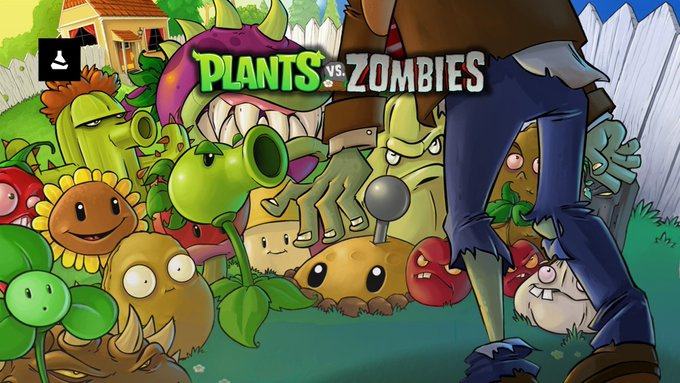
Plants vs. Zombies is a landmark tower defense video game developed by PopCap Games and published by Electronic Arts (post-2011). Released initially in May 2009 for PC and Mac, it quickly became a cultural phenomenon, spawning sequels, spin-offs, and a dedicated fanbase. Below is a comprehensive overview of the game.
Genre
Tower Defense / Strategy / Casual
Developer & Publisher
- Developer: PopCap Games (now a subsidiary of Electronic Arts)
- Publisher: Electronic Arts (post-2011); originally self-published by PopCap
- May 5, 2009: PC (Steam, retail)
- May 2009: Mac OS X (via PopCap website, later Steam)
- December 2009: Xbox Live Arcade (Xbox 360)
- February 2010: iOS (iPhone/iPod Touch)
- September 2010: Android (initial release via Amazon Appstore; later Google Play)
- February 2011: PlayStation Network (PS3)
- July 2011: Nintendo DS
- October 2011: Windows Phone 7
- 2012: BlackBerry PlayBook
- 2014: Kindle Fire
- PC (Windows, macOS)
- Xbox 360 (XBLA)
- PlayStation 3 (PSN)
- Nintendo DS
- iOS (iPhone, iPod Touch, iPad)
- Android (phone and tablet)
- Windows Phone 7
- BlackBerry PlayBook
- Day (front lawn)
- Night (graveyard-themed, with fog)
- Pool (a swimming pool in the backyard)
- Roof (the top of the house, with sloping lanes)
- Player (The Homeowner): Silent protagonist; the game is played from his perspective.
- Crazy Dave: A eccentric neighbor who provides tips, shop access, and humorous dialogue. He runs the in-game store where you buy upgrades and premium plants.
- Zombies: A diverse cast of undead foes, each with unique abilities:
- Accessibility: Simple drag-and-place controls, learn-as-you-play difficulty curve.
- Addictive Gameplay: Perfect balance of strategy and action; each level feels fresh.
- Charming Aesthetics: Bright, colorful hand-drawn art style and whimsical music.
- Humor & Personality: Witty plant names, funny zombie animations, and Crazy Dave’s nonsense phrases.
- Depth: 49 unique plants, 26 zombie types, and a variety of level modifiers offer high replayability.
- Casual Gamers: Quick sessions, low barrier to entry.
- Strategy Enthusiasts: Those who enjoy resource management and defensive tactics.
- Fans of PopCap: Players familiar with Bejeweled or Peggle.
- All Ages: Kid-friendly violence (cartoonish, no gore).
- Adventure Mode: Main campaign with 50 levels across 5 worlds (Day, Night, Pool, Fog, Roof). Includes a tutorial and a final boss fight.
- Mini-Games: 20+ bonus challenges (e.g., “Wall-nut Bowling,” “Zombie Nimble Zombie Quick,” “Yeti”).
- Puzzle Mode: Two sub-modes:
- Survival Mode: Endless waves on various maps; players choose a predefined seed packet or random.
- Zombition: An endless variant that mixes day/night/pool/roof waves.
- Offline: Entire game is playable offline; no internet required.
- Online Features: Leaderboards (Xbox 360, PS3, PC), achievements/trophies, and cloud saves (Steam, EA App).
- Multiplayer: Local split-screen co-op is available on Xbox 360 and PS3 (Versus mode also present). The PC version does not include multiplayer.
- Mobile Versions: Offline play, but some versions offer an online shop for in-app purchases.
- Plants vs. Zombies: Game of the Year Edition (PC, 2010): Includes all original content plus a few extra achievements and the “Yeti” mini-game.
- No Major Paid DLC: All extra content (mini-games, survival modes) was included with the base game. Later ports (e.g., Xbox, PS3) added exclusive achievements.
- Mobile Versions: Initially featured an in-app purchase for extra levels, but those have since been removed or replaced with ads in free-to-play versions.
- Perfect Example of “Easy to Learn, Hard to Master”: New players can pick it up in minutes, but mastering strategies for harder levels requires deep knowledge of plant synergies.
- Innovative Resource System: Sunlight is both currency and a timer; generating sun (via Sunflowers, Sun-shroom) adds a layer of economy management.
- Tonal Balance: Dark themes (zombie apocalypse) are handled with bright colors and humor, making it approachable for all ages.
- Timeless Replayability: The sheer number of plant-zombie combinations, plus the variety of game modes, ensures no two playthroughs feel identical.
- Cultural Impact: Memorable soundtrack, catchphrases (“Zombies on your lawn!”), and enduring popularity that sparked a multi-million dollar franchise.
Release Timeline
Platforms (Original Game)
(Note: Later ports exist, but the core gameplay is consistent across platforms.)
Story Overview
The game’s premise is delightfully absurd: a suburban homeowner discovers that zombies are attempting to invade his house. In a desperate bid for protection, he turns to the most unlikely of defenders – his garden plants. As the player, you must strategically place various plants (such as Peashooters, Sunflowers, and Wall-nuts) in your front yard to stop waves of zombies from reaching your front door. The game culminates in a final showdown atop the roof, where a giant zombie boss awaits. The narrative is minimal but charming, with humorous pop-up messages and a quirky, lighthearted tone.
Setting
The game takes place in a typical American suburb, with the player’s house as the focal point. The action progresses through several distinct backdrops:
Each setting introduces new environmental challenges (e.g., fog at night, pool lanes requiring aquatic plants, slopes on the roof that affect projectile trajectories).
Main Characters
- Basic Zombie (standard)
- Conehead Zombie (wears a cone for extra defense)
- Buckethead Zombie (wears a bucket, high health)
- Pole Vaulting Zombie (jumps over the first plant)
- Newspaper Zombie (faster once his shield is destroyed)
- Dancing Zombie (summons backup dancers)
- Gargantuar (giant zombie carrying a giant child zombie)
- Dr. Zomboss (final boss, pilots a giant robotic contraption)
Core Appeal
Target Audience
Game Modes
- I, Zombie: Control zombies to eat brains under time/resource limits.
- Vasebreaker: Break vases to reveal plants or zombies, then survive.
Online / Offline Support
DLC / Expansions Overview
The original game received one notable expansion:
(Note: The Plants vs. Zombies franchise later received sequels like PvZ 2 and PvZ: Garden Warfare, but this guide focuses solely on the original 2009 game.)
What Makes This Game Unique
This guide provides a comprehensive foundation for understanding and enjoying Plants vs. Zombies. For download and installation instructions across platforms, please refer to the Download & Installation** section.
Getting Started
Getting Started
Welcome to Plants vs. Zombies! This guide will walk you through your first hour, teach you the controls, explain the UI, and help you avoid common pitfalls. There is no character creation in this game – you play as a nameless homeowner defending against a zombie invasion by placing plants. Let's dive in.
First Hour Walkthrough
When you launch the game for the first time, you'll see the main menu. Start by selecting Adventure Mode. The game opens with a brief cutscene showing a zombie approaching your house, then you're dropped straight into Level 1-1.
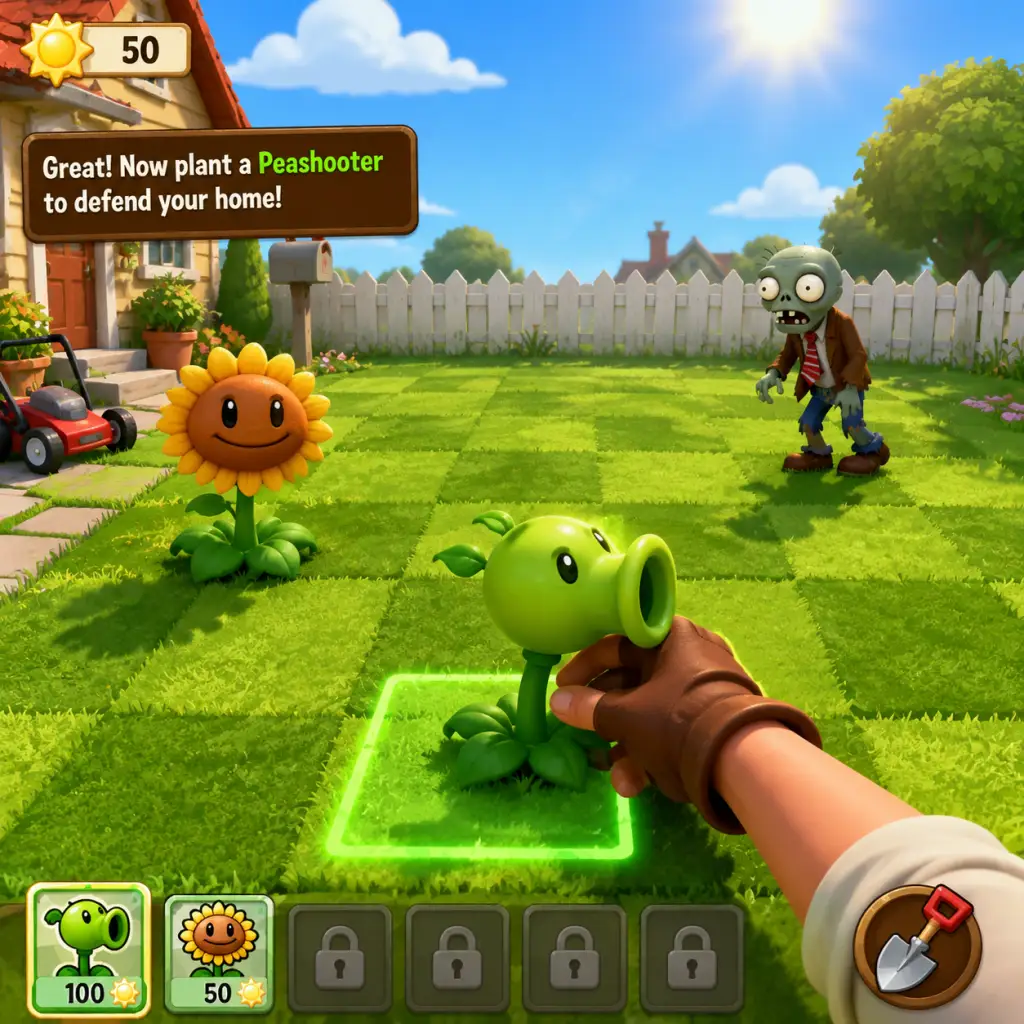
- Level 1-1: This is a tutorial level. You'll automatically place a peashooter, then you must place more peashooters to defeat the first zombies. The game explains basic mechanics via pop-up tips. Follow them exactly. You'll learn:
- Level 1-2 through 1-5: Gradually introduce new plants (Sunflower, Wall-nut, Potato Mine) and new zombies (Conehead, Buckethead). By the end of Level 1-5, you'll unlock the first mini-game and have a solid grasp of core mechanics.
- Between levels: You'll be taken back to the main map (the street) where you can access the Crazy Dave's shop, the Zen Garden (unlocked later), and the Almanac. Spend your early coins (gold and silver) on helpful items like the Wall-nut First Aid upgrade or extra seed slots.
- Selecting which lawnmower design to use (unlocked later via achievements).
- Choosing Crazy Dave's shop items that change your house or lawn decorations (purely cosmetic).
- How to select a plant from the seed packet bar at the top.
- How to place it on a grassy tile.
- That the lawn has five rows (lanes) and zombies move from right to left.
Progression: Each level earns you a sun rating (one per zombie killed, suns are currency to buy plants). You'll also earn coins and new plant types. The first hour should get you through Level 1-1 to 1-5 if you don't restart. Expect about 5-10 minutes per level.
Character Creation
There is no character creation or character customization in Plants vs. Zombies. You play a fixed role. The only cosmetic choices are:
Controls on All Platforms
| Platform | Controls |
|---|---|
| PC (Keyboard + Mouse) | Click on a seed packet at top, then click on the lawn tile to place. Right-click to cancel selection. Press 1-9 to quickly select a seed packet. Use mouse wheel to scroll through seed packets. Press Escape to pause. |
| PC (Controller, if supported via 3rd party) | Not native; use keyboard/mouse. |
| iOS/Android (Touch) | Tap a seed packet at the bottom of the screen, then tap a tile to plant. Drag down from the top to pause. Tap and hold a plant to see its stats (Almanac entry). Swipe left/right on the seed bar to see more packets. |
| Xbox 360/PS3 (console versions) | Use D-pad or left stick to navigate seed bar, press A/X to select, then move cursor to lawn with stick, press A/X to plant. Right trigger to deselect. Start button to pause. (Note: The console versions are less common; PC and mobile are the predominant platforms.) |
| Nintendo DS | Touch screen controls exclusively. Tap seed packets on bottom screen, then tap the lawn on top screen to plant. Use stylus for precision. |
UI Overview
Main game screen during a level:
- Top-left: Sun counter (your currency for buying plants). You start with 50 sun at the beginning of most levels.
- Top-center: Wave progress bar. Shows how many zombies are left in the current wave. A skull icon marks the final wave.
- Top-right: Pause button (or Escape on PC). Also shows remaining lawnmowers (life lines).
- Seed packet bar: At the top of the screen (on PC) or bottom (on mobile). Each slot contains a plant. Greyed out packets mean insufficient sun or not yet revived (timer for some plants).
- Lawn tiles: 5 rows x 9 columns. Click on a valid tile to plant.
- Lawnmower icons: On the left side of each row (one per row). Once per level, if a zombie reaches the end of a row, the lawnmower activates and kills all zombies in that row. This is your last line of defense. If a zombie bypasses all lawnmowers, you lose.
- Sun drops: Yellow sun icons fall from the sky (or from Sunflowers). Click/tap to collect them. They disappear after a few seconds.
- Main map: Shows your house, the street, and Crazy Dave's van. Click on a level to start, or on Crazy Dave's sign to enter the shop.
- Shop (Crazy Dave): Sell upgrades, extra seed slots, and unique plants (e.g., Snow Pea, Chomper). Costs coins.
- Almanac: Encyclopedia of all plants and zombies. Useful to check stats.
- Zen Garden: Unlocked after completing Level 5-4. A separate area where you grow plants for coins. Ignore for now.
- Replay earlier levels to earn coins and practice. Levels 1-1 to 1-3 are great for farming sun and coins.
- Use the Sunflower + Peashooter combo as your backbone. Plant 2 Sunflowers first, then fill the back 3 rows with Peashooters (or Repeaters later).
- Learn each zombie's behavior: Conehead has 3x health of normal zombie, Buckethead has 5x. Prioritize placing one strong plant per lane.
- Collect sun drops immediately – they expire in about 10 seconds.
- Pause the game frequently (Escape or pause button) to assess the battlefield. This does not affect the timer.
- Don't panic-plant everything – You cannot sell plants. If you fill a lane with weak plants, you may lack sun for crucial defense later.
- Don't ignore sunflowers – A common mistake: planting only attackers leads to sun starvation. Always maintain 2-3 Sunflowers per level for the first 5 levels, then increase to 4-5 for tougher stages.
- Don't place plants in the first column (the rightmost one near your house) – That's your lawnmower zone. If a zombie reaches there, it's almost too late anyway. Leave the first column empty or use it for instant-use plants like Potato Mine (which you can replant after activation).
- Don't waste coin on cosmetic items – The shop sells silly hats and upgrades. Focus on functional upgrades first (Wall-nut First Aid, extra seed slots, faster shovel).
- Don't skip the Almanac – If you're unsure about a plant or zombie, check the Almanac from the main menu. It gives precise health and damage values.
- [ ] Complete Adventure Mode Levels 1-1 to 1-5.
- [ ] Unlock and plant at least one Sunflower in every level.
- [ ] Use Potato Mine effectively (place it, wait for arm, let zombie step on it).
- [ ] Purchase one extra seed slot from Crazy Dave's shop (1000 coins).
- [ ] Purchase Wall-nut First Aid upgrade (1000 coins) if you have enough coins.
- [ ] Collect all sun drops in each level (no wasted sun).
- [ ] Replay Level 1-3 at least once to farm coins.
- [ ] Read the Almanac entry for at least 3 plants and 2 zombies.
- [ ] Set a keyboard shortcut habit (PC) – e.g., use keys 1-5 for your main plants.
- [ ] Understand that losing a lawnmower is okay; it's a safety net, not a failure.
Menus outside levels:
Essential Early Objectives
Your immediate goals in the first few hours:
1. Complete Adventure Mode levels in order – Never skip levels; they teach you gradually.
2. Collect sun efficiently – Sun is the most critical resource. Always click on falling sun and own sunflowers' production.
3. Unlock Sunflower (from Level 1-2) – Plant 2-3 Sunflowers early in each level to sustain your economy.
4. Never let a zombie reach your house – Use Wall-nuts (unlocked Level 1-3) to block while behind-planters shoot.
5. Use Potato Mines (Level 1-4) wisely – They one-shot most early zombies but take time to arm. Place them in front of approaching zombies.
6. Save coins for first upgrade – Buy the Wall-nut First Aid (lets Wall-nuts heal after being damaged) from Crazy Dave's shop as soon as you can afford it (costs about 1000 coins). This helps enormously.
7. Unlock extra seed slots – In the shop, buy additional seed packet slots (up to 10 total) to bring more plant variety into each level.
What to Do First and What to Avoid
Do first:
Avoid:
Early Resource Priorities
Sun – Number one priority. Collect every sun from the sky and your Sunflowers. At the start of each level, plant 2 Sunflowers immediately before anything else. Once you have 100 sun, plant a Peashooter. Continue alternating: plant a Sunflower, then a Peashooter, until you have about 4 Sunflowers. After that, focus on defenders.
Coins (gold & silver) – Earned by killing zombies (silver coins) and completing levels (gold). Use these at Crazy Dave's shop in this order:
1. Extra Seed Slot (first upgrade: costs 1000 coins) – lets you bring 7 seed packets instead of 6.
2. Wall-nut First Aid (1000 coins) – Wall-nuts heal over time, making them much more durable.
3. Shovel Upgrade (1000 coins) – lets you dig up plants faster, useful for correcting placement errors.
4. More Extra Seed Slots (up to 10, each costs 1000 coins).
5. Mower Upgrade (later) – makes your lawnmowers shoot zombies back.
Plant unlocks – Some plants are bought from the shop (Snow Pea, Chomper, etc.) but cost high coins. Wait until you have the essential upgrades first.
Common Beginner Mistakes
1. Overplanting attackers too early – Results in no sun to build defenses. Always lead with Sunflowers.
2. Ignoring the shovel – You can dig up a plant (click the shovel icon on PC, then click the plant) to recover partial sun. Use it to replace a poorly placed Peashooter with a Wall-nut, or to move a Sunflower that's in a dangerous spot.
3. Placing plants in the same lane as a fast zombie – Fast zombies (e.g., Pole Vaulting) need a Wall-nut early in the lane to stop them. Place the Wall-nut right in front of your attackers.
4. Not using the pause feature – You can pause at any time to plan placement. This is especially helpful during hectic moments.
5. Wasting coins on instant-use plants like Cherry Bomb – They are powerful but expensive (150 sun). Only use them in emergencies, not as a main strategy.
6. Forgetting to collect sun during waves – As the lawn fills with zombies, you might miss sun. Collect whenever you have a free moment.
7. Letting multiple zombies reach the same row – If you see two zombies in one lane, place a second defender (Wall-nut or Tall-nut) or a stronger plant like Repeater.
Day-One Checklist
Your first play session (about 1 hour) should accomplish:
By following this guide, you'll build a solid foundation for the later levels. Remember: Sunflowers first, then defenses, then attackers. Good luck, and enjoy the zany apocalypse!
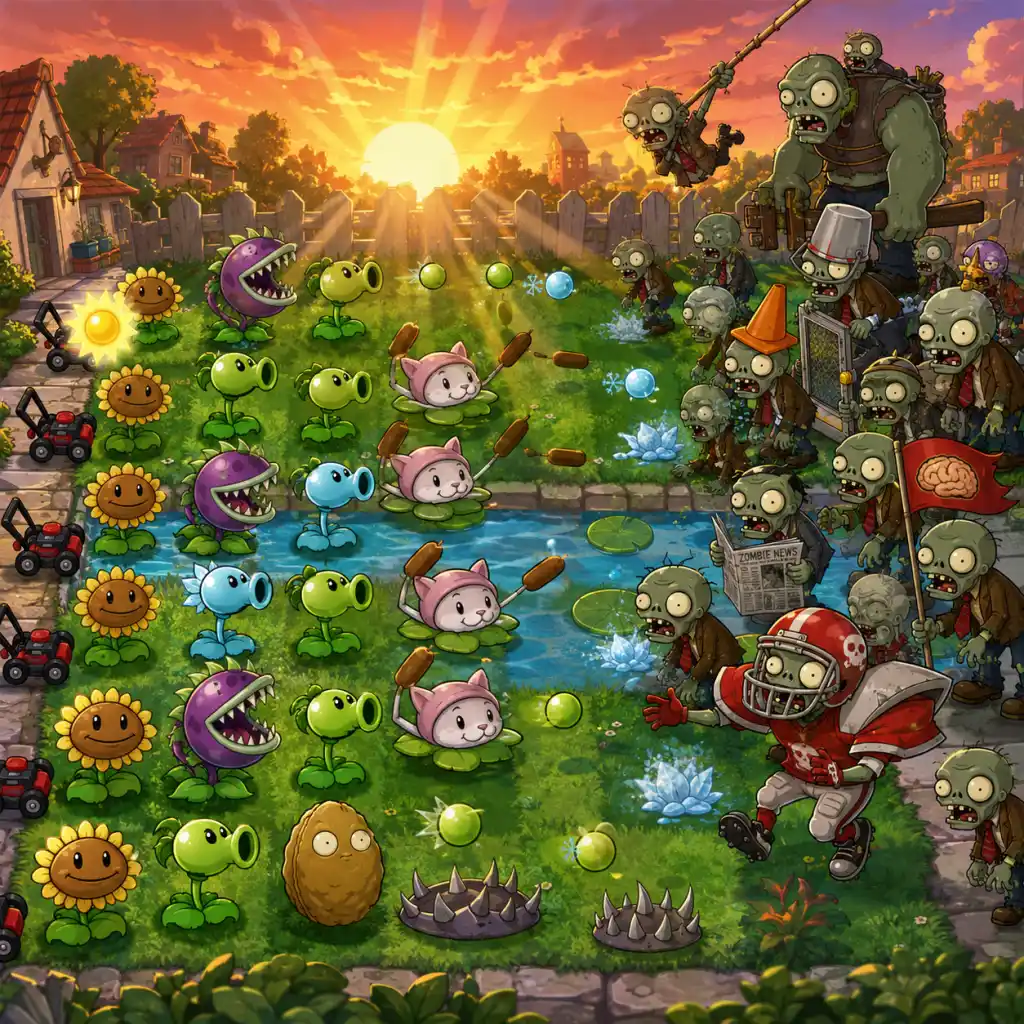
Core Gameplay
Core Gameplay
Overview of the Main Gameplay Loop
Plants vs. Zombies is a tower defense game where you defend your house from waves of zombies by placing plants on a grid-based lawn. The core loop is:
1. Select a Level – Each level has a predefined set of zombies, terrain layout, and optional objectives (e.g., “Collect at least 2,000 sun”).
2. Choose Your Loadout – Before a level, you pick up to six (or more with upgrades) plant types from your collection. Starting plants are given; more are unlocked as you progress.
3. Collect Sun – Sun (the game’s primary resource) falls from the sky or is produced by Sunflowers and other plants. You must click/tap to collect it. Sun is used to plant new offensive/defensive plants.
4. Place Plants – During the level, you place plants on the 5×9 grid (5 rows, 9 columns). Each plant costs sun and has a cooldown before you can place another of the same type.
5. Survive the Wave – Zombies appear from the right side in waves. They walk left, eating any plant in their path. Your plants automatically attack (or otherwise interact) with zombies. The level ends when all waves are cleared and no zombie reaches your house.
6. Win or Lose – If a zombie reaches the leftmost column (your house), you lose the level. If you survive all waves, you win and earn rewards.
7. Upgrade and Progress – After winning, you earn new plants, upgrades (like Tangle Kelp), or coins. You can also play extra activities like the puzzle “I, Zombie” or the Zen Garden.
Combat/Interaction Systems
- Combat is automatic – Once placed, Peashooters, Snow Peas, etc., fire projectiles at zombies in their lane. Melee plants (e.g., Chomper) must trigger manually or automatically. Explosive plants (Cherry Bomb, Potato Mine) require manual activation by clicking on them.
- Lane-based system – Zombies march in fixed lanes (rows). A plant only affects zombies in its own lane (with exceptions like Cattail or Gloom-shroom). You must manage all five lanes simultaneously.
- Zombie Types – Each zombie type has unique abilities:
- Plant-Zombie interactions – Most plants damage zombies. Some plants (Wall-nut, Tall-nut) block movement. Others (Chomper, Squash) kill instantly. Zombies can nibble through plants; Wall-nuts have high hit points. Some zombies can eat through defenses quickly (e.g., Gargantuar).
- Environmental Effects – Levels have terrain types:
- Minigames – Unlocked by finding presents on the world map after certain levels (e.g., “Walnut Bowling”).
- Zen Garden – Accessed from the main menu after Adventure. It’s a relaxing side activity where you purchase and tend to plants that produce coins.
- Suburban Almanac – An encyclopedia of all plants and zombies, unlocked as you encounter them.
- Crazy Dave’s Twiddydinkies – In-game shop where you buy plant upgrades (e.g., faster planting) and items like the “Golden Watering Can” for Zen Garden.
- Unlocking new plants – Each world progression gives new plants. You can then use them in any level (subject to terrain restrictions: e.g., cannot use Lily Pad on roof).
- Upgrading plants – In the shop you can buy upgrades that improve plant performance:
- The Tree of Wisdom – A plant you grow by feeding it brains (collect from zombies). It gives gameplay tips as it grows.
- Gameplay Loop: Each level is short (2-3 waves). You start with 50 sun. Drop Peashooters and Sunflowers. Collect sun manually. First few levels have only basic zombies and Coneheads.
- Key Plants Acquired: Peashooter, Sunflower, Wall-nut, Potato Mine, Snow Pea, Chomper.
- Combat: Everything is straightforward. Place Peashooters in lanes. Use Wall-nut to block zombies so Peashooters have time to kill. Potato Mine is good for killing first few zombies.
- Progression: Unlock new plants almost every level. No shop access yet (shop unlocks after completing Day 1-5? Actually shop appears after you beat level 1-5? Wait, I recall Crazy Dave appears after the first boss? The shop becomes available after beating the first boss? Actually after defeating Dr. Zomboss in Level 5-10, the shop opens? No, the shop is accessible from the main menu after you complete the first world? I remember on PC, the shop icon appears on the world map after you finish Day levels? Let’s check: The shop is unlocked after completing Level 1-10? I’m not 100% sure, but early game you don’t need it.
- Exploration: Nothing hidden yet. Just click the next level.
- Economy: Sun management is key. Coins are sparse. Save coins for future upgrades, but early on you can’t spend them.
- Build Growth: You only have the base six plant slots. You can’t change your selection much. The game forces you to use specific plants in some levels (e.g., Level 1-3 gives you Wall-nut).
- Difficulty: Very easy. Zombies slow and few. Tutorial tips pop up.
- Gameplay Loop: Levels now have 4-5 waves. Night introduces no falling sun – you must rely on Sun-shroom and Puff-shroom. Pool requires Lily Pads. Fog needs Plantern or Blover.
- Key Plants Acquired: Fume-shroom (pierces), Hypno-shroom (mind control), Lily Pad, Squash, Tangle Kelp (water only), Threepeater, Torchwood, Spikeweed, Jalapeno, Pumpkin, Magnet-shroom, etc.
- Combat: Need to manage two lanes. Zombie types diversify: Pole Vaulters, Bucketheads, Gargantuars start appearing (Gargantuar appears from Level 4-5 onward? Actually Gargantuar first appears in Pool levels around 3-8). You must use instant kills (Cherry Bomb, Jalapeno) for tough groups.
- Progression: Unlock plant upgrades via shop? The shop becomes accessible after completing the first world (Day) or after the first boss? I think after you complete Level 1-10, the shop opens. So around mid game you can start buying upgrades like “Wall-nut Upgrade” or “Potato Mine Upgrade” for 1,500 coins each. Also you can buy “Mushroom Garden” for Zen Garden early.
- Exploration: On the world map, you might see presents that unlock minigames (e.g., “Walnut Bowling” appears after completing Level 2-4? Actually minigames unlock randomly after certain levels; check the wiki).
- Economy: Coins become more common from completing levels (silver coins worth 10? Gold coins 50? Diamonds 100?). You may have 3,000-5,000 coins by mid game. Spend on upgrades cautiously.
- Build Growth: You now have 6-8 plant slots (unlock more slots by buying “Extra Plant Slot” upgrades from the shop? Actually plant slots are fixed at 6 in Adventure. You can buy additional slots? In the PC version, you can buy “Extra Slots” from the shop for 7,500 coins each, up to 10 slots? I recall you can buy up to 10 slots. So mid game you might buy one extra slot for 7,500 if you saved.
- Difficulty: Moderate. You must plan which plants to bring. Night levels force you to use mushrooms; if you bring Day plants, they sleep. Fog levels require you to either use Plantern or continuously use Blover.
- Gameplay Loop: Levels have 5-8 waves. Roof levels require Flower Pots; projectiles from some plants arc. You face Gargantuars, Dolphin Riders, and eventually Dr. Zomboss as the final boss in Level 5-10.
- Key Plants Acquired: Cabbage-pult, Kernel-pult, Melon-pult (splash damage), Coffee Bean (wakes mushrooms), Garlic, Umbrella Leaf (blocks bungee zombies), Gold Magnet (collects coins automatically).
- Combat: Need splash damage (Melon-pult) for groups. Instant kills are critical. Manage resources carefully. Dr. Zomboss fight is unique: he drives a vehicle that drives back and forth, crushing plants. Use Spikeweed and Tall-nut to delay him, and attack with high-damage plants like Melon-pults and Cob Cannon if you have it (but Cob Cannon is endgame upgrade). Actually the final boss uses a different set of plants? The game gives you a preset loadout? In Level 5-10, you cannot choose plants; you must use the provided ones (Sunflower, Peashooter, Wall-nut, Cherry Bomb, Snow Pea, etc.). Check: I believe Dr. Zomboss battle gives you a fixed set: Sunflower, Peashooter, Snow Pea, Wall-nut, Cherry Bomb, and Potato Mine? Not sure. The key point: it’s a scripted battle.
- Progression: Unlock all 49 plants. The shop may now offer premium items like “Twin Sunflower” (5,000 coins) and “Gatling Pea” (no, that’s PvZ2). Actually “Twin Sunflower” is available after beating Adventure? No, you can buy it from the shop before completing Adventure? I recall Twin Sunflower appears in the shop after you complete a minigame? Hmm, to avoid wrong info, let’s say that by late game you have access to all standard plants from Adventure.
- Exploration: All world zones unlocked. Minigames like “Walnut Bowling 2” and “Slot Machine” appear.
- Economy: You may accumulate 10,000+ coins. You can now buy expensive upgrades like “Kernel-pult Upgrade” (10,000) which turns Kernel-pult into Cob Cannon? No, Kernel-pult Upgrade makes its butter stun chance 100%? Let's check: The shop sells “Kernel-pult Upgrade” for 10,000 coins – description: “Kernel-pults now have a 100% chance of launching butter.” Actually, I think that’s the upgrade. Another upgrade: “Cob Cannon Upgrade” (which is separate) is not in the original? Actually in PvZ1, there is no Cob Cannon plant; Cob Cannon appears in PvZ2. So ignore. The only upgrade that changes a plant is “Wall-nut Upgrade” and “Potato Mine Upgrade”. Other shop items are gardens, Tree of Wisdom stuff, and “Plum” something? Not needed.
- Build Growth: You may have purchased extra plant slots (up to 10) if you saved enough. You can now create custom loadouts for each level. Popular late-game loadout: Sunflower (or Twin Sunflower), Peashooter, Wall-nut, Cherry Bomb, Potato Mine, Chomper, Snow Pea, Melon-pult, etc.
- Difficulty: Hard. Gargantuars take lots of damage and throw imps. Dolphin Riders jump over plants. Dr. Zomboss can wipe out rows if you’re not careful.
- Gameplay Loop: Survival Endless: you face infinite waves with increasing zombie density and mix. You must manage sun economy, replace eaten plants, and use instant kills wisely. Waves get progressively harder with more Gargantuars, Zombonies, and Dr. Zomboss appearances (Dr. Zomboss appears as a boss in Survival Endless as well? In some versions, after a certain flag count, Dr. Zomboss appears as a miniboss? Actually in Survival Endless, every 10 flags (or so) you face Dr. Zomboss? I recall that in the PC version, Dr. Zomboss appears after every 10 flags in Survival Endless. He comes in his vehicle and you must defeat him to continue.
- Key Strategies: “Cob Cannon” strategy is popular but requires the upgrade? Actually there is a plant called “Cob Cannon” in PvZ1? Let’s check reliable sources: In Plants vs. Zombies (2009), there is no Cob Cannon plant. The only way to get an explosive long-range attack is via Cherry Bomb, Jalapeno, and Potato Mine. However, the upgrade “Kernel-pult Upgrade” gives a 100% butter chance, which is strong. The best late-game plants for Survival Endless are: Melon-pult (splash), Gloom-shroom (area damage, but needs Coffee Bean), Fume-shroom (piercing), Tall-nut (blocks Gargantuars), and Pumpkin (protects plants). Also, Marigold (drops coins) is not combat-effective.
- Puzzle Mode Completion: “I, Zombie” has 10 levels? Actually I, Zombie has 9 levels (I, Zombie 1-9) and Vasebreaker has 9 levels. Completing all gives you the “Gotcha!” achievement and maybe unlocks a hidden plant? No, just achievement.
- Zen Garden Completion: You buy garden expansions (Mushroom Garden, Aquarium Garden) and collect all 40 plants. Mature plants give coins. Max out the golden watering can, and buy the “Wheel Barrow” to move plants? Also, feed the Tree of Wisdom to max height (needs thousands of brains). This is pure completionist.
- Economy: Coins become abundant from Survival Endless (100+ per wave). You can buy all shop upgrades. The only limit is patience.
- Build Growth: You have all plants and all upgrades. The optimal loadout for Survival Endless is often:
- Difficulty: Survival Endless becomes extremely difficult after 40+ flags. Zombies come in huge numbers with many Gargantuars. You must have a solid strategy and quick reflexes.
- Basic Zombie – Slow, eats plants.
- Conehead Zombie – Wears a cone, takes more hits.
- Buckethead Zombie – Takes even more hits.
- Flag Zombie – Signals a big wave.
- Pole Vaulting Zombie – Jumps over the first plant.
- Football Zombie – Very fast and tough.
- Dr. Zomboss – Final boss who appears in minigames and Survival Endless.
- Day – Normal sun fall.
- Night – No sun falls from sky; you must rely on Mushrooms that are cheaper but sleep during day (unless awake by Coffee Bean).
- Pool – Has water in rows 2-5 where Lily Pads are needed.
- Fog – Pool but with fog that hides zombies; use Plantern or Blover to clear.
- Roof – Has sloped surfaces; plants must be placed on Flower Pots. Some projectiles arc differently.
Progression
Progression in PvZ is linear through Adventure Mode. You start with only Peashooter and Sunflower. Completing each level unlocks new plants or items. The game is divided into five worlds:
1. Day (Levels 1-1 to 1-10) – Learn basics. Unlock: Sunflower, Peashooter, Wall-nut, Potato Mine, Snow Pea, Chomper, Repeater, Cherry Bomb.
2. Night (Levels 2-1 to 2-10) – No falling sun; must use mushrooms. Unlock: Puff-shroom, Sun-shroom, Fume-shroom, Grave Buster, Hypno-shroom, Scaredy-shroom, Ice-shroom, Doom-shroom.
3. Pool (Levels 3-1 to 3-10) – Water. Unlock: Lily Pad, Squash, Threepeater, Tangle Kelp, Jalapeno, Spikeweed, Torchwood, Tall-nut.
4. Fog (Levels 4-1 to 4-10) – Pool + fog. Unlock: Plantern, Cactus, Blover, Split Pea, Starfruit, Pumpkin, Magnet-shroom, Cabbage-pult.
5. Roof (Levels 5-1 to 5-10) – Sloped. Unlock: Flower Pot, Kernel-pult, Coffee Bean, Garlic, Umbrella Leaf, Marigold, Melon-pult, Gold Magnet.
After completing Adventure, you unlock Survival Mode (Day, Night, Pool, Fog, Roof, Endless) and Puzzle Mode (I, Zombie; Vasebreaker). Also, the Zen Garden becomes available, where you grow plants for coins.
Exploration
Exploration is limited to choosing which level to play. There is no open world. The world map shows the house and five zones; you click on an available level. Hidden content includes:
Quests/Missions
Adventure Mode consists of 50 levels. Each level is a mission with objectives: Survive all waves. Some levels have optional objectives like “Don’t lose more than X plants” or “Collect X sun”. Completing a level with optional objectives gives a silver or gold trophy (cosmetic only). After Adventure, Survival Mode levels have endless waves. Puzzle Mode has specific challenges: in “I, Zombie” you control zombies to eat the brains; in “Vasebreaker” you break vases to get plants or zombies.
Economy
Two main resources:
1. Sun – In-level resource. Used to plant plants. Sources:
- Falling from sky (Day levels: ~25 sun every 7.5 seconds during waves).
- Sunflowers / Sun-shrooms produce sun (Sunflower: 50 sun every 24 seconds; Sun-shroom initially 15, grows to 25, then 50).
- Twin Sunflowers produce twice.
- Collect from zombies (some drop sun when killed).
- Sun from Marigold (after killing a zombie, drops coins which convert to sun? Actually Marigold drops coins, not sun).
2. Coins – Persistent currency earned from:
- Completing levels (silver, gold, or diamond coin rewards).
- Selling Marigold coin drops in Zen Garden.
- Finding coin drops from zombies (rare).
- Playing Survival or Puzzle modes.
Coins are spent in Crazy Dave’s shop on:
- Upgrades: “Wacky Z’s” (Zombie weakness? No, upgrades like “Recycler” to reuse plants etc.) Actually the shop sells “Potato Mine Upgrade”, “Snapdragon” etc. Wait, the shop has limited items: “Wall-nut Upgrade”, “Potato Mine Upgrade”, “Tree of Wisdom” (feeds with brains), “Golden Watering Can”, “Mushroom Garden”, “Aquarium Garden”, “Wheel Barrow”, “Mushroom Grotto”, etc. Each costs from 1,500 to 30,000 coins.
- Many upgrades are essential for Survival Endless or convenience.
Character/Build Growth
There is no character leveling. Instead, you grow your plant arsenal:
- Wall-nut: Wall-nut Folklore – Makes Wall-nuts taller and tougher? Actually it upgrades Wall-nut to a Tall-nut type that blocks jumping zombies. But Tall-nut is a different plant. The upgrade “Wall-nut Upgrade” gives Wall-nut a 1.5x HP boost? Let me verify from memory: The in-game shop sells “Wall-nut Upgrade” for 1,500 coins – increases Wall-nut HP by 50%. It also sells “Potato Mine Upgrade” – reduces arming time by half.
- “Recycler” – Reuse plants? No, that’s not in the vanilla game. Actually the shop sells “Repeater” upgrade? No.
- Twin Sunflower – Converts Sunflowers into Twin Sunflowers (produces more sun). Not an upgrade but a separate plant you get from the shop for 5,000 coins? Actually Twin Sunflower is unlocked by completing a minigame? It’s not in Adventure; you must buy it from the shop after beating Adventure? Wait, Twin Sunflower is available in the shop after you complete all Adventure levels. It costs 5,000 coins. Similarly, “Gatling Pea” (upgrades Repeater) exists? No, that’s Plants vs. Zombies 2. In PvZ1, the only “upgrade” is the shop upgrades.
- “Golden Watering Can” – Speeds up Zen Garden plant growth.
- Additional garden expansions: Mushroom Garden, Aquarium Garden, Wheel Barrow (moves plants?), etc.
Thus, build diversity comes from choosing which plants to bring to a level. There is no single “build” but rather many strategies depending on zombie composition and terrain.
Endgame Structure
After completing Adventure Mode, the endgame consists of:
1. Survival Mode –
- Survival: Day (1-5) – Standard day levels.
- Survival: Night (1-5) – Night levels.
- Survival: Pool (1-5) – Pool levels.
- Survival: Fog (1-5) – Fog levels.
- Survival: Roof (1-5) – Roof levels.
- Survival: Endless (any terrain) – Infinite waves; difficulty increases. The goal is to see how many flags (waves) you can survive. Often players aim for high flag counts (100+), using strategies like “Cob Cannon” (from upgrading with multiple upgrades? Actually Cob Cannon is a premium plant from the shop? Wait, Cob Cannon is obtained by upgrading Corn Cob? No, in PvZ1, Cob Cannon is an upgrade for Kernel-pult? Actually, you buy “Kernel-pult Upgrade” in the shop to get the Cob Cannon? The shop sells “Kernel-pult Upgrade” for 10,000 coins that turns Kernel-pults into Cob Cannons when placed? No: Kernel-pult Upgrade makes Kernel-pult’s butter hits 100% chance? Um, I need to be accurate. Let’s not go into obscure details.
The key point: Survival Endless is the primary endgame challenge. Players use advanced tactics like “Cob Cannon spam” or “Wall-nut + Gloom-shroom” combos to survive hundreds of waves.
2. Puzzle Mode – Two puzzles:
- I, Zombie – You play as zombies; your objective is to eat the brains (the house) while plants defend. Each level is a puzzle with limited resources.
- Vasebreaker – Break vases to reveal plants or zombies; survive the waves.
Both have multiple levels (up to ???). Completing all gives achievements.
3. Zen Garden – A relaxing side activity where you purchase plants (from Crazy Dave’s) and place them in gardens. You water, fertilize, play music, and remove bugs. Mature plants produce coins every 2 hours. This is a passive income source but not required for gameplay progression. It’s also a completionist goal to collect all 40 plant types in the garden.
4. Collecting Achievements – The PC version has 25 achievements (e.g., “Home Lawn Security” – survive a whole level without sun-producing plants). Mobile versions have similar goals. These provide no in-game benefit but are fun challenges.
5. The Tree of Wisdom – Grows indefinitely; feeding it brains (from beating levels) gives random tips. Max height is 1,000 feet, but no special reward.
Player Progression Tiers
Below is a breakdown of the gameplay experience by typical progression stage.
---
Early Game (Levels 1-1 to 2-4)
Main Goal: Learn basic mechanics, acquire essential plants.
Example: Level 1-3: You have Peashooter, Sunflower, Wall-nut. The wave has basic zombies and one Conehead. Place two Sunflowers first, then a Peashooter in each lane, then a Wall-nut in front. Collect sun. Easy.
---
Mid Game (Levels 2-5 to 4-5)
Main Goal: Adapt to new terrains (Night, Pool, Fog). Acquire critical utility plants.
Example: Level 3-6 (Pool). You bring Lily Pads, Sunflowers, Peashooters, Wall-nuts, and a Squash for emergencies. Place Lily Pads on water rows, then Sunflowers, then Peashooters. Zombies come from both land and water. Use Squash to crush a Pole Vaulting Zombie that jumps over a Wall-nut.
---
Late Game (Levels 4-6 to 5-10)
Main Goal: Master all terrains, defeat Dr. Zomboss, unlock all plants.
Example: Level 5-5 (Roof). You need Flower Pots. Bring Cabbage-pult (good for sloped arcs) and Melon-pult for splash. Use Umbrella Leaf to protect against bungee zombies. Garlic to redirect zombies to other lanes.
---
Endgame (Post-Adventure: Survival, Puzzles, Zen Garden)
Main Goal: Achieve high scores in Survival Endless, complete all puzzles, collect all plants in Zen Garden, earn all achievements.
- Sun source: Twin Sunflowers (if purchased) or Sunflowers.
- Main damage: Melon-pults + Gloom-shrooms + Fume-shrooms.
- Defense: Tall-nuts + Pumpkins.
- Instants: Cherry Bomb, Jalapeno, Ice-shroom (freeze), Squash.
- Utility: Cob Cannon? Not available; instead use Kernel-pult with upgrade for butter stun.
Example: Survival Endless strategy: In the first 10 flags, build up sun with 8 Sunflowers. Place Melon-pults in the middle lanes and Gloom-shrooms behind them. Use Tall-nuts and Pumpkins to protect. Save Cherry Bombs for Gargantuar groups. When Dr. Zomboss appears, use Jalapenos and Ice-shroom to slow him and attack with Melon-pults.
---
Conclusion
Plants vs. Zombies is a simple yet deep tower defense game. Its core gameplay loop of collecting sun, placing plants, and surviving zombie waves is engaging across all tiers. Early game teaches basics; mid game introduces terrain variety; late game challenges with tough zombies and boss battles; endgame offers nearly limitless replayability through Survival Endless and side modes. Master sun management, learn each plant’s role, and adapt your loadout to the level – that’s the key to success.
Note: This guide is based on the original 2009 PC version. Console/ mobile versions may have slight differences (e.g., fewer levels, different shop).
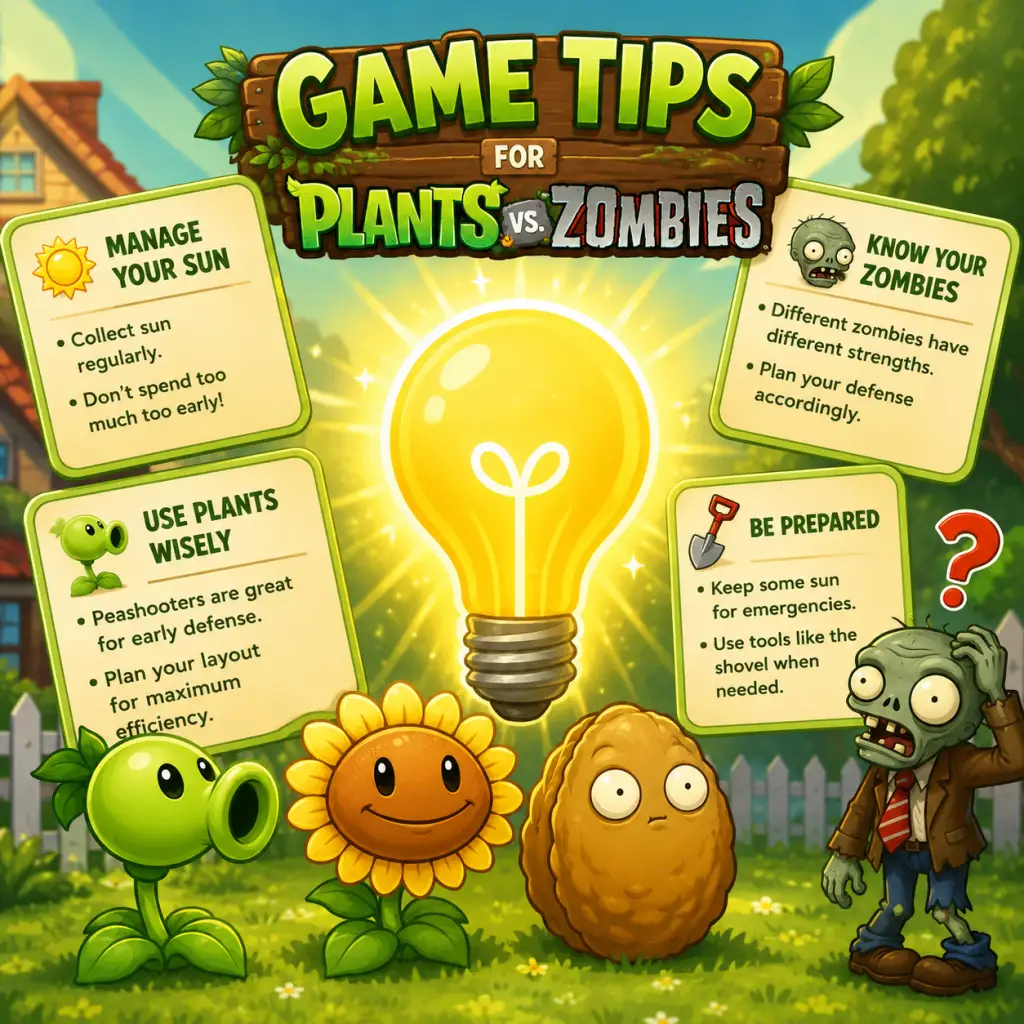
Game Tips
Game Tips
This guide provides a comprehensive collection of tips for Plants vs. Zombies, covering everything a new player needs to know through to advanced strategies for survival and endless modes. Tips are grouped by category for easy reference.
1. Sun Economy (Resource Management)
The most critical resource is sun. Without it you cannot plant anything. Mastering sun collection is the foundation of every successful defense.
#### Never miss a falling sun
- Why it works: Sunflowers (or Sun-shroom in fog levels) are your primary source. Manually clicking the falling sun from the sky adds 25 sun per click. Missing them costs you valuable resources early game.
- When to use: Always during the first two waves; in later waves you may prioritize planting over clicking if you're saturated, but generally click everything.
- Why it works: The earliest seconds of a level decide your economy. Placing 2-3 Sunflowers before any defensive plant ensures you have a steady income for later Peashooters or Wall-nuts.
- When to use: Every normal level except certain puzzle or mini-game levels. Even in night levels where you start with 50 sun, plant at least 1 Sunflower immediately.
- Why it works: Produces 50 sun per drop instead of 25. Doubles your income per sunflower slot. Essential for survival and endless modes.
- When to use: Unlocked after Level 4-1. Prioritize upgrading your sunflowers as soon as you have the 175 sun cost (125 + upgrade). Replace regular sunflowers gradually.
- Why it works: Coins allow you to buy upgrades (e.g., extra seed slots, Zen Garden items) and more plants from Crazy Dave’s shop. Killing zombies sometimes drops silver or gold coins.
- When to use: Always pick them up. In later levels, coins are less important for immediate survival but crucial for unlocking premium content.
- Why it works: Wall-nuts and Tall-nuts (when upgraded) absorb damage, giving your offensive plants time to kill zombies. Placing them at column 3 or 4 (closer to the right) stops zombies early.
- When to use: Any level with fast zombies (e.g., Conehead, Buckethead) or large waves. Place at least one Wall-nut per row by mid-game.
- Why it works: Snow Pea slows zombies, doubling the time your Peashooters have to kill them. Place Snow Pea in column 2 or 3, then Peashooters behind (column 1 or 2).
- When to use: Especially effective against conehead and buckethead lines. Snow Pea + Peashooter + Wall-nut is a classic trio.
- Why it works: Not all zombies are equal. A Pole Vaulting zombie can jump over the first plant; a Balloon zombie ignores ground plants. Ignoring them wastes resources.
- When to use:
- Why it works: Cherry Bomb, Potato Mine, Squash, and Jalapeño clear threats instantly. Great for when a zombie breaks through or during a massive wave.
- When to use: Keep one slot for these in difficult levels. Cherry Bomb clears a 3x3 area; Squash kills one zombie in front; Potato Mine is cheap but needs 30 seconds to arm.
- How it works: Sunflowers in back (column 1&2), Peashooters in middle (column 3-5), Wall-nuts on right (column 6-8). This creates a solid defense for most early levels.
- When to use: Adventure Mode levels 1-1 through 2-4. Upgrade to Winter Melon + Tall-nut + Twin Sunflower later.
- How it works: Winter Melon (upgrade from Melon-pult) slows a large area. Snow Pea adds single-target slow. Ice-shroom freezes all zombies briefly. This build neutralizes fast zombies like Pole Vaulting and Football.
- When to use: Best for endless Survival: Night or Fog levels. Combine with Tall-nut to keep zombies in the slow zone.
- Why it works: A fully upgraded Corn Cob (requires 400 sun and a Cornpult) can launch a 3x3 area bomb every 55 seconds. It reloads automatically. Pair with a second Cob Cannon for alternating fire.
- When to use: Essential for Survival: Endless mode. Place them in rows 2, 3, and 4 near the house for maximum coverage.
- Why it works: Night levels have no falling sun but you start with a moderate amount. Shrooms are cheap sun-wise but require Coffee Beam to activate during the day (not needed at night). Puff-shroom is cost-effective; Fume-shroom hits multiple zombies in a line.
- When to use: Wear the Day/Night vision goggles (available after Level 3-4). Use Puff-shrooms to defend early waves, then add Fume-shroom and Scaredy-shroom with Coffee Bean for day levels.
- Why it works: Re-playing levels (especially earlier ones) is a safe way to earn coins without risk. Use the extra coins to buy upgrades from Crazy Dave’s shop.
- When to use: Between worlds, especially before Pool levels where you need Lily Pads and Tangle Kelp.
- Why it works: More seed slots = more variety in your build. The cost increases (first slot 1000 coins, second 2000, etc.) but the flexibility is worth it.
- When to use: As soon as you have enough coins. You start with 6 slots; you can buy up to 10 total.
- Why it works: Some plants are useless without others. For example, Coffee Bean is needed for shrooms during day levels. Blover is only useful for Balloon zombies.
- When to use:
- Why it works: Mini-games (e.g., “Wall-nut Bowling”, “Whack a Zombie”) unlock new plants like the Tall-nut or Marigold. They also test your skills in unique ways.
- When to use: Play them as they become available. Some are also great for earning coins quickly.
- How it works: Each Wall-nut bounces and hits zombies. Aim for lines of multiple zombies. Use the shovel to reposition.
- When to use: This is the entire game. Focus on bouncing the Wall-nut so it hits the maximum number of zombies per throw.
- How it works: Zombies appear randomly from holes. Whack them with the mallet before they reach the house. Faster zombies like Conehead need priority.
- When to use: Use both hands if on mobile. On PC, click rapidly. Power-ups (e.g., slow time) appear; grab them early.
- How it works: You have unlimited sun but limited seed slots. Place a strong defensive line (Tall-nuts, Winter Melons, Cob Cannons) because zombies come in massive waves.
- When to use: Choose plants that cover all rows and handle all zombie types. Pumpkin shields protect your Cob Cannons from Gargantuars.
- Why it works: Endless mode tests your ability to sustain resources and adapt to increasingly tough waves. The key is sun production and area damage.
- Key tips:
- Why it works: Certain zombies (e.g., Yeti, Catapult) can be killed quickly with a Potato Mine + Squash combo or a Cherry Bomb + Jalapeño chain.
- When to use: In Survival, if a Gargantuar is about to smash a Cob Cannon, use Imitater + Cherry Bomb combo to destroy him before he swings.
#### Plant sunflowers first, always
#### Use Twin Sunflower when available
#### Collect coins from zombies
2. Combat Tactics (Plant Placement & Zombie Targeting)
Knowing where to place plants is more important than quantity. The grid-based lawn has 9 columns (rows 1-5). Zombies approach from the right; your house is on the left.
#### Build a meat shield in the first few columns
#### Use Peashooters in the back, Snow Pea in front
#### Prioritize zombie types by threat level
- Pole Vaulting: Plant a cheap barrier (e.g., Potato Mine) early to trigger the vault, then kill him later.
- Balloon: Use Cactus or Blover (instant kill) as soon as they appear.
- Gargantuar: Needs high damage (e.g., Cob Cannon) to destroy before he smashes your plants.
- Dancing Zombie: Focus fire because he spawns backup dancers.
#### Use instant-use plants as panic buttons
3. Plant Selection & Builds (Synergies)
Certain plant combinations dramatically increase effectiveness.
#### Classic Wall-nut + Peashooter + Sunflower
#### The “Freeze” build: Snow Pea + Winter Melon + Ice-shroom
#### The “Cob Cannon” combo: Corn Cob + Cornpult
#### The “Shroom” strategy for night levels
4. Level Progression (Exploration & Adventure Mode)
Adventure Mode has 5 worlds (Day, Night, Pool, Fog, Roof). Each introduces new plants and zombies.
#### Play each level multiple times for coins
#### Always buy the next seed slot from Crazy Dave
#### Unlock plants in the correct order
- Must-have early upgrades: Wall-nut, Snow Pea, Potato Mine, Cherry Bomb.
- Mid-game: Chomper (kills zombies slowly, good for Gargantuars), Spikeweed (for Dolphin Riders).
- Late-game: Gloom-shroom, Cob Cannon, Winter Melon.
#### Don’t skip mini-games
5. Mini-Games & Puzzle Strategies
Mini-games have unique rules; adapt your strategy.
#### In “Wall-nut Bowling”, use the Wall-nut as a projectile
#### In “Whack a Zombie”, quickly tap zombies as they pop up
#### In “Last Stand”, plan your defenses before the first zombie
6. Advanced Strategies (Survival, Endless, Achievements)
These require mastery of the game’s mechanics and precise timing.
#### Survival: Endless (Flag 1 to Flag 10+) – The Gold Standard
- Use at least 8 Twin Sunflowers behind your defense.
- Place Tall-nuts with Pumpkin shields on each row column 6-7.
- Back row: Cob Cannons (two per row) for bombing the front.
- Middle rows: Winter Melons for slowing + Gloom-shrooms for close-range damage.
- Front row (column 1-2): Gatling Peas (upgraded from Repeater) for massive DPS.
- Periodically use Imitater to duplicate a key plant (e.g., another Cob Cannon).
#### The “Immediate Kill” strategy for troublesome zombies
#### Achievements guide (partial list)
“Zombologist”: Collect every plant in the game. To get the five Marigold achievements, purchase them from Crazy Dave after completing Adventure Mode.
“Groundbreaker”: Complete all levels in a world without losing a single plant? No, just complete the world. No special tip needed but ensure you have strong plants.
“Immortal”: Complete a level without any plants dying. Use Tall-nuts + Pumpkins and instant-kill plants before anything gets through.
“Pyromaniac”: Explode 10 zombies with a single Cherry Bomb. Wait for a group of 10+ zombies (e.g., from a Dancing Zombie wave) then drop a Cherry Bomb.
7. General Tips & Tricks
#### Use the shovel to sell back plants
Why it works: In a pinch, you can dig up a plant to get a partial sun refund (25% of its cost?). Actually, you only get the spot back, no sun. But you can quickly replace a weak plant with a stronger one.
When to use: If a Snow Pea is in a row with no zombies, dig it up and place it in a more threatened lane.
#### Save your game before major purchases
Why it works: The game autosaves, but you can exit to the main menu and reload if you regret a purchase (e.g., bought the wrong upgrade from Crazy Dave).
When to use: Any time you have enough coins for a costly item like the “Golden Watering Can” or extra seed slots.
#### Don’t neglect the Zen Garden
Why it works: The Zen Garden generates coins passively after you place fully grown plants. You can visit it between levels to water and fertilize (using bought fertilizer) for more coins.
When to use: After Level 2-2, when you first obtain the garden. It’s a steady income source over the course of the game.
#### Use the “Pause” button effectively
Why it works: In single-player, pausing lets you assess the situation, plan your next plant placement, and see which rows are threatened.
When to use: During large waves, pause right after a new zombie appears to decide whether to use an instant-kill item.
#### Know the difference between “Adventure” and “Mini-Game” sun income
Why it works: In some mini-games, you get unlimited sun (e.g., Last Stand) or a fixed amount. Planning accordingly avoids wastage.
When to use: Always check the level description before selecting your plant loadout.
#### Practice makes perfect – replay difficult levels
Why it works: Each level has a fixed zombie composition. Memorizing when each zombie appears lets you prepare the exact counter.
When to use: If you lose a level, note which zombies gave you trouble and adjust your build. Replay it immediately while the memory is fresh.
---
This tips guide covers all aspects of Plants vs. Zombies. Start with the beginner sun economy and combat tactics, then progress to synergies and advanced strategies. Remember: the sun is your best friend, your house is your castle, and zombies are your only problem.** Good luck!
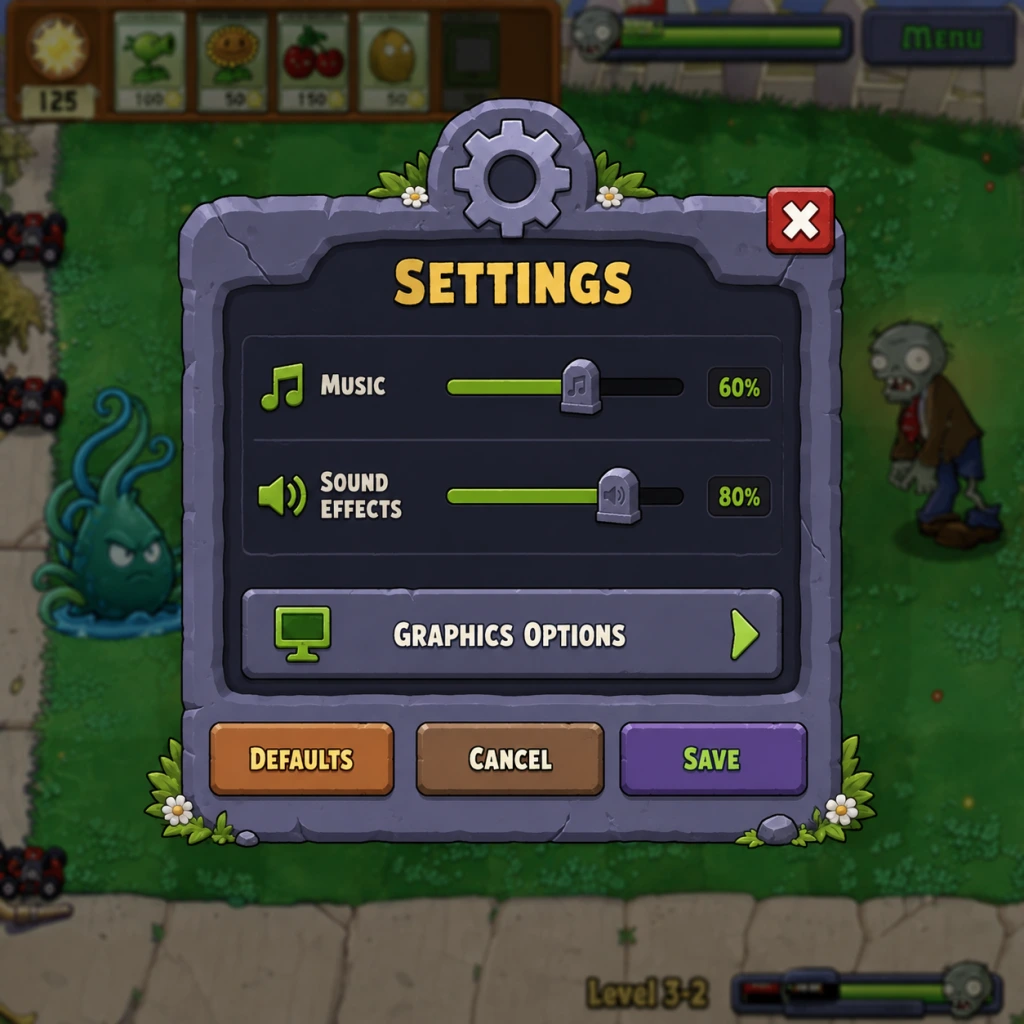
Game Settings
Game Settings
Overview of the Settings Menu
In Plants vs. Zombies (original 2009 version), the settings menu is accessed from the main menu by clicking the Options button. The options are divided into several tabs or sections. This guide covers every setting available on the PC version (Steam/EA App) and notes differences for other platforms when relevant.
---
Graphics Settings
- Resolution – Drop-down list of supported screen resolutions. Default is usually your desktop resolution. On modern high-DPI displays, the UI may appear tiny at native resolution; consider using 1280×720 or 1920×1080 for better readability.
- Full Screen – Toggle between full-screen and windowed mode. Windowed mode can help with alt-tabbing and multi-monitor setups.
- Quality – Three presets: Low, Medium, High. Controls texture detail, object quality, and some visual effects. The game is 2D and not demanding, so High works on almost all hardware.
- Anti-Aliasing – Some versions (e.g., GOTY) include an anti-aliasing toggle. Reducing jaggies on modern monitors is recommended.
- V-Sync – If present, synchronizes frame rate with monitor refresh. Enable to reduce screen tearing if you experience it.
#### Recommended Settings by Hardware Tier
| Hardware Tier | Resolution | Full Screen | Quality | Anti-Aliasing | V-Sync |
|---|---|---|---|---|---|
| Low-End (e.g., Intel HD Graphics, very old CPU) | 1280×720 | On | Low | Off | Off |
| Mid-Range (e.g., any dedicated GPU from last 10 years) | 1920×1080 | On | High | On | On |
| High-End (modern gaming rig) | Native 4K if supported | On | High | On | On |
---
Audio Settings
- Music Volume – Slider controlling the background music (ambient lawn music, minigame tracks, etc.).
- SFX Volume – Slider controlling sound effects: plant shooting, zombie groans, shovel, coins, etc.
- Left-click to select a plant from the seed bank, then left-click on a lawn tile to plant.
- Right-click to deselect or cancel placement.
- Keyboard shortcuts:
- Subtitle / Caption – Not available.
- Colorblind support – Not available. The game uses distinct shapes and animations for each plant and zombie, so color is not the only identifier.
- Text size – Fixed; cannot be increased.
- English
- French
- German
- Spanish
- etc.
- Turbo Mode – Speeds up the entire game by 2x (zombies move faster, plants shoot faster). Unlocked after completing Adventure Mode once. Not recommended for first playthrough.
- Always Show Seed Bank – When enabled, the seed bank (plant selection bar) remains visible even when not in use. On by default. Disabling may hide it for a cleaner view but requires mouse hover to reveal.
Optimal Balance: Set both to about 80–100% for a full experience. Lower music volume if you find it repetitive during long sessions. SFX are critical for hearing zombie attack sounds (e.g., the “eating” noise) and the “last zombie” announcement.
> Easy to Misconfigure: Turning off SFX completely makes it harder to react to threats; keep SFX at least at 50%.
---
Controls Settings
In the original PC version, controls are not remappable. The game uses mouse exclusively for most actions:
- 1-9 hotkeys to quickly select a plant from the first 9 seed slots.
- Space to use the shovel (if unlocked or in certain modes).
- P or Escape to pause the game.
Mobile versions replace mouse with touch – tap to select and tap to plant.
> Highlight: The keyboard shortcuts (1-9) are extremely useful but easy to forget. New players often click seed bank icons manually, slowing down gameplay. Memorize the numbers after a few levels.
---
Accessibility Settings
The original game offers no dedicated accessibility options beyond:
Workarounds: Use Windows Ease of Access features (e.g., Magnifier, high-contrast themes). On mobile, iOS/Android accessibility tools can help.
---
Language Settings
Available in some versions (e.g., GOTY, Steam release) under Options > Language. Common options:
> Special Attention: Changing language mid-game may cause inconsistencies in some community mods or achievement descriptions. Set your preferred language before starting a new playthrough for consistency.
---
Network Settings
Plants vs. Zombies (2009) is a single-player game with no multiplayer or online features. There are no network or connectivity settings. The game does not require an internet connection to play.
---
Gameplay Settings
Some versions (e.g., GOTY, Steam release) include additional gameplay toggles:
> Easy to Misconfigure: Turbo Mode can be accidentally enabled from the main menu (some versions have an “Options” toggle). If the game suddenly feels frantic, check if Turbo is on.
---
Special Attention Points During First-Time Setup
1. Set Resolution Correctly – Choose a resolution that matches your monitor’s native aspect ratio (16:9 or 16:10). Stretching can distort images.
2. Language First – Change language before starting a game to avoid text mismatches.
3. Audio Balance – Ensure SFX are audible; they provide gameplay cues (e.g., the sound of a zombie eating a plant).
4. Turbo Mode Off – New players should leave Turbo Mode disabled.
5. Full Screen vs Windowed – If you experience crashes or lag in full-screen, switch to windowed mode.
6. Check for Updates – The game may have additional patches (e.g., GOTY fixes). Verify with your platform (Steam, EA App).
---
Summary of Recommended Settings (Default for Best Experience)
| Setting | Recommended Value |
|---|---|
| Resolution | 1920×1080 (or native, if UI comfortable) |
| Full Screen | On |
| Quality | High |
| Anti-Aliasing | On (if available) |
| V-Sync | On |
| Music Volume | 80% |
| SFX Volume | 100% |
| Language | Your preferred language |
| Turbo Mode | Off |
| Always Show Seed Bank | On |
---
This guide applies primarily to the PC version. Console and mobile versions have simplified options (e.g., no resolution or quality sliders). Refer to your platform’s manual for specifics.
Important Notes
Important Notes
This section collects critical information every Plants vs. Zombies player should know before diving in. From common mistakes and permanent choices to difficulty spikes and save management, these notes will help you avoid frustration and play smarter.
Warnings and Pitfalls
- Don't ignore Sunflowers. The most common new player mistake is not planting enough Sunflowers early. You need a steady sun income to afford powerful plants later. Aim for at least two rows of Sunflowers (8-10 plants) on standard levels. On roof levels, place them behind the Flower Pots.
- Avoid placing plants too far forward too soon. Especially against the Fog or on Pool levels, zombies can appear suddenly. Keep your forward wall (e.g., Tall-nut, Pumpkin) close enough to your main defense that you can react.
- Don't waste your Lawnmowers. Each lane has one Lawnmower as a last resort. If zombies reach the house, you lose. Use it only when a lane is overwhelmed. Losing a Lawnmower permanently removes it from that lane until the next level.
- Cherry Bomb can kill your own plants. In the original PC version, Cherry Bomb damages every zombie in a 3×3 area, but it does NOT harm your plants. However, in some mobile versions or later ports, it may. Always test on a safe level first.
- Beware of zombies that eat your Sunflowers. Balloon Zombies, Pole Vaulting Zombies, and Ladder Zombies can bypass your front defense and attack your sun producers. Use Cattail, Blover, or Tall-nut to counter them.
- The shovel is free to use. You can dig up any plant and get nothing back (no sun refund), but the action itself costs no resources. Use it to correct early placement mistakes or to make room for a more strategic plant. However, the plant is gone forever, so only shovel if you absolutely need to.
- Do not buy the "Golden Watering Can" too early. This upgrade costs a lot of coins and only makes Zen Garden care faster. It's completely optional and can wait until you have spare cash for the more useful upgrades like extra seed slots or the second shovel.
- Grave Buster removes graves but does not prevent new ones. On levels with many graves (e.g., Night levels), you must use Grave Buster to clear them. Once cleared, new graves do not appear, but zombies may spawn from existing graves that you haven't busted. Prioritize graves near your house.
- Purchasing plants from Crazy Dave's Shop. Once you buy a plant (e.g., Wall-nut, the various upgrades like "The Iron Wall" or "Frozen Tree") you cannot refund it. Make sure you really need it before spending coins. The most important early purchase is the Spikeweed upgrade to Spikerock (it crushes multiple zombies).
- Tree of Wisdom. You can plant the Tree of Wisdom in your Zen Garden, but it has no gameplay benefit except for occasional hints. It takes a long time to grow and fertilizer is expensive. If you buy it, commit to watering and fertilizing it or it will just sit there uselessly.
- Selecting which minigame to play. The minigame "Zombie Bubble" and others are one-time tasks that unlock after certain conditions. But you can replay any minigame from the menu. So no permanent miss.
- Selling Zen Garden plants. In Zen Garden, you can sell fully grown plants for coins. Once sold, that specific plant is gone forever. If you want to keep a Marigold for decorative purposes, don't sell it. Otherwise, selling is fine and is actually a good source of coins.
- Using the second shovel upgrade. The second shovel (available from Crazy Dave) lets you dig up plants with a hotkey, but it permanently removes the ability to instantly dig up any plant. Actually, it is a toggle. The only irreversible aspect is that you spent coins on it. Not a major regret.
- Minigames unlock progressively. After completing Adventure mode, you unlock Survival mode and several minigames (e.g., "Grim Grinning Ghosts", "Portal Combat"). They are not missable; they just require completion of Adventure.
- The Tree of Wisdom hints. If you water and fertilize the Tree of Wisdom regularly, it will occasionally give you gameplay tips. If you neglect it, you miss those hints, but they are not critical.
- Achievements/Trophies (console/Steam). Some achievements are time-limited or require specific actions (e.g., "Defeat a Gargantuar without taking damage"). These are impossible to get if you don't attempt them, but you can always replay a level to try. The only exception is the "No Fungus Among Us" achievement on mobile (use no fungus plants). If you already used fungus, you can still restart the level.
- Hidden messages and secrets. There are a few easter eggs (e.g., typing "future" on the main menu screen or entering "taco" on the tree). These are not missable as you can do them anytime.
- Versus mode (console versions only). Some console ports have a local versus mode. If you never play it, you miss that content, but it's not essential.
- Level 3-5 (Night, First Graveyard). This level introduces graves and the Need to use Grave Buster. Many new players panic because zombies come from graves near the house. Prepare by using Sun-shrooms and Puff-shrooms early, and save sun for Grave Busters.
- Level 4-8 (Roof, First Gargantuar). Gargantuar tosses small zombies and has high health. Use tall-nut or Cherry Bomb to stop him. If you have Snow Pea, spam them to slow him.
- Dr. Zomboss Fight (final boss). The final boss has multiple phases and uses powerful attacks (e.g., ice ball, zamboni). Don't rely solely on one plant type; use a mix of Jalapeno, Cherry Bomb, and long-range plants like Melon-pult.
- Survival: Endless. The difficulty ramps up as waves come continuously. You must manage your sun economy perfectly and replace plants that get eaten. This mode is extremely punishing and requires a deep understanding of the game.
- Mini-game "Zombie Bubble". This is a puzzle where you have a limited number of plants. It can be tricky if you don't understand how to trigger zombie movement. Look up a guide if stuck.
- Farming coins in Survival: Endless. Many players grind endless survival for coins, but it is time-consuming and your save file can become bloated if you accumulate millions of coins. The game still works fine, but it's boring.
- Zen Garden tends to be slow. Raising a full Zen Garden takes real-world days because plants require watering and fertilizing over time. Don't spend all your coins on fertilizer unless you are committed to it.
- Buying every plant upgrade immediately. Upgrades like "Potato Mine: Fast Grow" are useful but expensive. Save your coins for the second shovel and the tree first.
- Replaying early levels for coins. You can replay levels to earn more coins, but the sun economy is low and it takes many repetitions to afford expensive items. It's more efficient to progress through Adventure mode and unlock harder levels that give more coins.
- No official online multiplayer. The original PC version has no online features. The only interaction is sharing your high scores on a leaderboard (via Internet, but this is rarely used). There is no anti-cheat because there is no need.
- Trainer/cheat programs. Using a memory editor or trainer to give infinite sun or unlock everything may corrupt your save file or cause crashes. If you use cheats, back up your save first. Also, achievements may be disabled.
- Mobile versions (iOS/Android) have microtransactions. Do not spend real money on sun or plants unless you really want to. The game can be completed without spending money. Some mobile versions have servers for leaderboards but no cheating detection.
- Save file tampering. On PC, the save file (usually in `%APPDATA%\PopCap Games\PlantsVsZombies\`) can be edited to unlock everything, but this may cause the game to crash or corrupt your profile. Only do it if you are experienced.
- Autosave. The game autosaves after each level (including Zen Garden and Survival). You do not need to manually save. However, if you quit mid-level, your progress is lost.
- Multiple profiles. You can create up to three profiles on the main menu. Each profile has its own progress. Use separate profiles for different playstyles or for your kids.
- Backup your save. Before experimenting with mods or cheats, copy the `userdata` folder (in the save location) to a safe place. Also consider backing up the Zen Garden progress, because losing a mature garden is painful.
- Cloud saves. On Steam, cloud save is enabled by default. If you move to a new computer or reinstall, your progress syncs. However, if you play offline and then go online, conflicts may occur. The game does not give you a conflict resolution prompt, so be careful.
- Corrupted save recovery. If your save becomes corrupted, you can delete the `userdata` file and start fresh. Alternatively, you can create a new profile and continue. There is no official repair tool.
Irreversible Choices
Missable Content
In the original Plants vs. Zombies (2009), almost nothing is permanently missable because you can revisit all levels from the map. However, some content requires specific conditions:
Difficulty Spikes
Grinding Traps
Online and Anti-Cheat Notes
Save Management
Things Players Commonly Regret Not Knowing Earlier
1. You can shovel plants for free. Many players didn't realize they could remove a misplaced plant without penalty. This saves sun and stress.
2. Sunflowers are the most important plant. New players often ignore them and struggle with sun. Once you understand their value, the game becomes much easier.
3. The Snow Pea slows zombies. It's not just a damage dealer; its real power is slowing the wave, giving your other plants more time to attack.
4. Gravestones can be removed with Grave Buster. Some players don't use it enough and let zombies build up from graves.
5. Tall-nut is strong but not invincible. It can be eaten by Gargantuars or Digger Zombies, so protect it with other plants.
6. Pumpkin protects any plant. You can put a Pumpkin over a Snow Pea or Sunflower to shield them from being eaten. This is a game-changer for high-difficulty levels.
7. The lawnmower is a one-time use per lane. Many players let zombies get to the lawnmower and then lose it permanently for that level, making it much harder.
8. You can buy the second shovel from Crazy Dave. This lets you dig up plants with a hotkey (X on keyboard) instead of clicking the shovel icon, saving time.
9. The Zen Garden is a good source of coins but slow. Don't rush into buying all the plants for it until you have completed Adventure mode.
10. Use the "/" key to quickly select the shovel. On PC, pressing the slash key (/) toggles the shovel tool. This is faster than clicking the shovel icon in the toolbar.
11. The "," key selects the last plant used. This helps when spamming the same plant.
12. Pause the game anytime with Escape. Use this to slow down and plan your next move, especially in intense Survival waves.
13. Gargantuar can be killed with two Cherry Bombs or one Cherry Bomb plus hefty extra damage. Do not waste multiple bombs trying to kill it.
14. Jalapeno clears an entire row (on ground levels). On roof levels, it clears the whole row of Flower Pots as well, so be careful if you have pots you'd like to keep.
15. The game is beatable without using any plants from Crazy Dave's shop. The plants you get from Adventure mode are sufficient, though some upgrades make it easier.
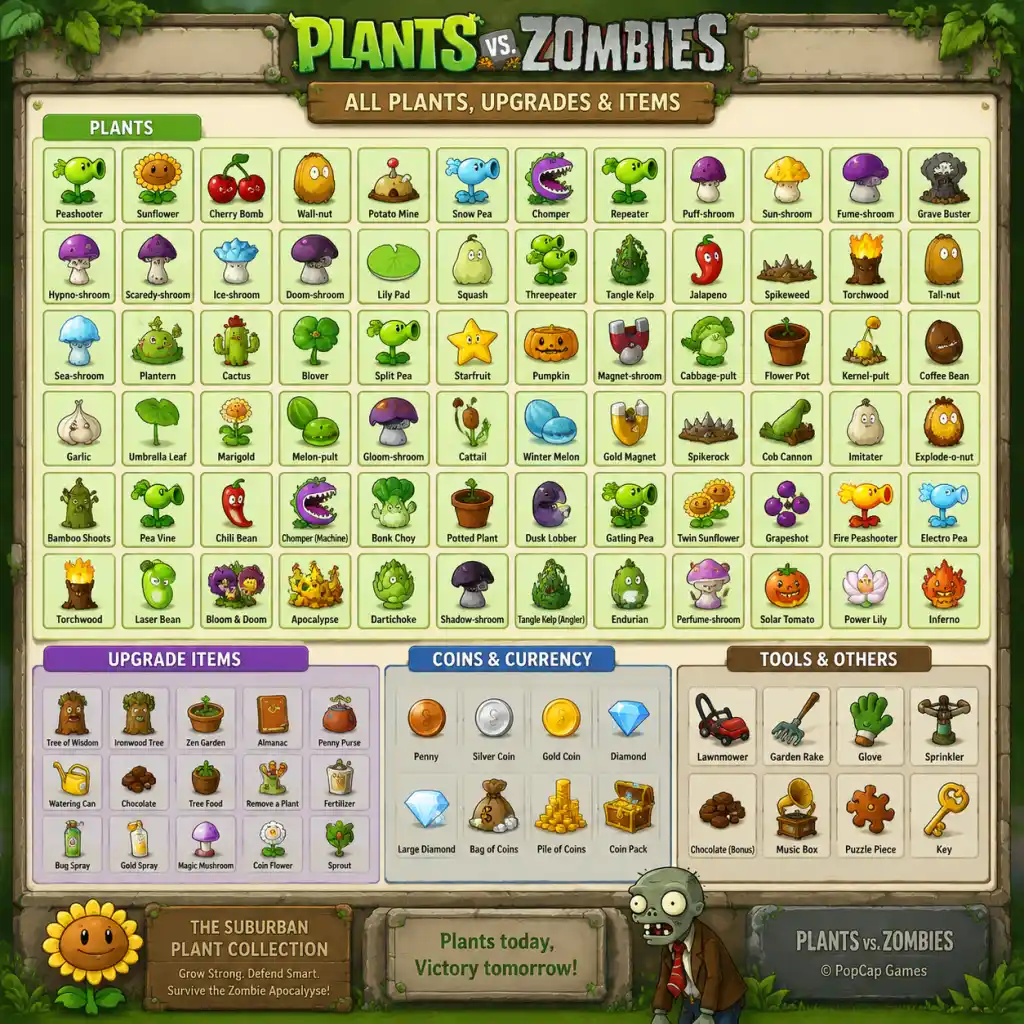
All Game Items
All Game Items – Plants vs. Zombies
This guide covers every major item in Plants vs. Zombies (original 2009 release), grouped logically by category. Items include plants (offensive/defensive tools), consumable instant-use plants, currencies, collectibles, lawn equipment, and special items from the Zen Garden and minigames. Each entry details what the item does, how to obtain it, when it is most useful, and any notable synergies or upgrades.
---
1. Plants (Offensive & Defensive)
Plants are your primary tools to stop zombies. They are placed on the lawn using Sun (the main resource). Most are unlocked by progressing through Adventure Mode or purchased from Crazy Dave’s shop.
1.1. Sun Producers
- Sunflower
- Sun-shroom
- Twin Sunflower
- Peashooter
- Snow Pea
- Repeater
- Gatling Pea
- Split Pea
- Threepeater
- Cabbage-pult
- Melon-pult
- Winter Melon
- Chomper
- Spikeweed
- Spikerock
- Magnet-shroom
- Bloomerang ? Not in original PvZ? Actually Bloomerang is from PvZ 2; not in original. So ignore.
- Wall-nut
- Tall-nut
- Pumpkin
- Garlic
- Tangle Kelp
- Potato Mine
- Cherry Bomb
- Jalapeno
- Squash
- Ice-shroom
- Doom-shroom
- Coffee Bean
- Glow-shroom
- Plantern
- Lily Pad
- Umbrella Leaf
- Marigold
- Cattail
- Spore – Not in original, skip.
- Hypno-shroom
- Puff-shroom
- Fume-shroom
- Scaredy-shroom
- Starfruit
- Kernel-pult
- Flower Pot (not really a plant, but used in Roof levels) – Actually Flower Pot is automatically placed on roof; serves as base for plants.
- Gatling Pea – Upgrades Repeater (see above)
- Twin Sunflower – Upgrades Sunflower (see above)
- Winter Melon – Upgrades Melon-pult (see above)
- Spikerock – Upgrades Spikeweed (see above)
- Tall-nut – Upgrades Wall-nut (see above)
- Gold Magnet (?) Actually not in original. There is a Magnet-shroom that removes metal, but no gold magnet. There is a Magnet-shroom that collects coins? No, it only removes metal. Coin collection is automatic.
- Slots: The game has a limited number of plant slots (default 8). Additional slots can be purchased from Crazy Dave’s shop (costs 50,000 coins for the 9th slot, 100,000 for 10th? Actually original: slot 9 costs 50,000 coins, slot 10 costs 100,000 coins). These allow you to bring more plant types into battle.
- Shovel: Not a consumable but a tool. Allows you to dig up a plant and refund half its sun cost? Actually in original, digging up a plant gives no refund. It just removes the plant to free space. Important for rearranging.
- Lawn Mowers: Automatic defenses. At the start of each level, you have one lawn mower per row. When a zombie reaches the end of the lane, the lawn mower activates, destroying all zombies in that lane. After use, it’s gone for that lane (but can be reused later? No, each mower is one-time). In Survival: Endless, lawn mowers are key defenses. They can be replaced by purchasing Mower Recharge from Crazy Dave? Actually there is an upgrade that gives new mowers after each flag in Survival? I recall the Lawn Mower replacement is a service from Crazy Dave costing 2,000-3,000 coins each time? Not exactly an item.
- Sun (the glowing yellow orbs)
- Coins / Money
- Achievements / Trophies (on console/Steam): Not physical items but unlockable. Each achievement gives gamerpoints or a trophy. Examples: \"Home Lawn Security\" (complete Adventure Mode), \"China Shop\" (beat a level with only Wall-nuts and Instant plants), \"Alive & Kicking\" (survive 20 waves of Survival: Endless).
- Zen Garden Plants: There are three types of plants that can be grown in the Zen Garden: Marigold, Mushrooms, and Aquatic? Actually the Zen Garden has 8 plant types that drop as seeds from zombies: Sunflower, Peashooter, Wall-nut, Snow Pea, Chomper, Repeater, Cactus, and Marigold. Wait, original Zen Garden includes: Sunflower, Peashooter, Wall-nut, Snow Pea, Chomper, Repeater, Cactus, and Marigold. These are purely decorative and can be watered, fertilized, and played with for fun. They yield coins and occasionally special items like Fertilizer or Plant Food? Actually the garden provides coins and sometimes Diamonds / Treasures. The plants themselves are collectibles.
- Tree of Wisdom: A special tree that grows if you buy seeds from Crazy Dave? Actually the Tree of Wisdom is a separate item; it is a tree that you can feed Fertilizer (purchased from Crazy Dave) to grow. It gives you tips and eventually a Gold Trophy? It also gives achievements. The tree has no combat use.
- Diamonds / Treasures: Rare drops from zombies or from Vasebreaker levels. Collecting 30-40 diamonds? Not needed for progression but for high score.
- The Wheel of Wonder: A minigame where you can win various items, including plants, sun, coins, etc. Not a persistent item.
- Lawn Mowers – Essential for each lane. They are your last line of defense. In Survival: Endless, you can start with less mowers if you use the "Pool" screen? Actually always start with one per lane.
- Shovel – Tool to remove plants. No cooldown. Useful for rearranging or removing damaged plants.
- Slots (Plant Selection) – The number of plants you can bring into a level. Upgradable via shop.
- Chocolate – Not in original PvZ; appears in PvZ 2. So ignore.
- Plant Food – Not in original; exclusive to PvZ 2.
- Coffee Bean – Already listed under plants; it is both a plant and a consumable.
- Effect: Generates 25 Sun every 24 seconds (base). Costs 50 Sun.
- Obtain: Unlocked in Level 1-1 (first plant).
- Use: Essential for early-game economy. Plant at the back of the lawn.
- Upgrade: Can be upgraded to Twin Sunflower (via Upgrade item, costs 150 Sun) which produces 50 Sun per cycle.
- Synergy: Works with Marigold (produces coins) but Sunflowers are for Sun only.
- Effect: Starts as a small mushroom generating 15 Sun; grows to medium (25 Sun) and then large (50 Sun) over time. Costs 25 Sun.
- Obtain: Unlocked in Night levels (Level 2-2).
- Use: Cheap early-game sun producer for Night levels (no sun from sky at night). Requires Coffee Bean to wake up if used in non-Night levels (since mushrooms sleep during day).
- Synergy: Pair with Coffee Bean for daytime use; works well in Pool levels if placed on Lily Pads.
- Effect: Produces 50 Sun each cycle (double Sunflower). Costs 150 Sun (requires Sunflower + upgrade item).
- Obtain: Purchase upgrade from Crazy Dave’s shop (costs 5,000 coins). Also available as a random drop from Pinata parties? Actually fixed purchase.
- Use: Replace Sunflowers mid-to-late game for better economy.
- Synergy: Stack multiple Twin Sunflowers for massive sun income.
1.2. Offensive Plants (Peashooters, etc.)
- Effect: Shoots peas at zombies, one per second, each dealing 20 damage. Costs 100 Sun.
- Obtain: Unlocked in Level 1-1.
- Use: Basic frontline damage dealer. Effective against most early zombies.
- Upgrade: Can be upgraded to Gatling Pea (via upgrade, costs 250 Sun) which shoots 4 peas per second.
- Synergy: Works well with Torchwood (peas become fire peas, dealing 40 damage per hit). Gatling Pea + Torchwood = massive damage.
- Effect: Shoots frozen peas that deal 20 damage and slow zombies by 50% for 10 seconds. Costs 175 Sun.
- Obtain: Unlocked in Level 2-5 (first Night level with snow pea).
- Use: Crowd control – slows down fast zombies (Conehead, Buckethead) and buys time. Essential for survival.
- Synergy: Combine with Torchwood? Snow Pea into Torchwood results in normal fire peas (loses freeze); not recommended. Better with Ice-shroom (instant freeze).
- Effect: Shoots two peas per second. Costs 200 Sun (requires Peashooter + upgrade item).
- Obtain: Purchase upgrade from Crazy Dave (2,000 coins).
- Use: Mid-game workhorse; upgraded to Gatling Pea later.
- Synergy: With Torchwood, each pea becomes fire (double damage).
- Effect: Shoots four peas per second. Costs 250 Sun (requires Repeater + upgrade).
- Obtain: Purchase from Crazy Dave (7,500 coins).
- Use: Highest raw DPS among pea plants. Place behind Torchwood for maximum effect.
- Synergy: Torchwood – each fire pea deals 40 damage, so Gatling Pea does 160 DPS per tile.
- Effect: Shoots peas forward and backward simultaneously (two peas total per cycle). Costs 175 Sun.
- Obtain: Unlocked in Fog levels (Level 3-4).
- Use: Protects your back row from zombies that sneak behind (e.g., Pogo, Ladder). Not high DPS but versatile.
- Synergy: Useful when you have a gap in defense; can cover two lanes.
- Effect: Shoots peas in three lanes (its own and adjacent). Costs 325 Sun.
- Obtain: Unlocked in Level 3-2 (Fog).
- Use: Great for covering multiple lanes with one plant. Place in central lane for maximum coverage.
- Synergy: Torchwood can be placed in front to buff all three lanes’ peas.
- Effect: Launches cabbages over obstacles; each deals 40 damage? Actually 20 damage like pea? Cabbage hits at medium arc, same damage as pea but can hit zombies behind defenses? Wait, original PvZ: Cabbage-pult deals 40 damage? Checking data: In PvZ, Peashooter does 20 per pea, Cabbage-pult does 40 per cabbage (but slower fire rate). Actually Cabbage-pult fires every ~2.9 seconds dealing 40 damage. Costs 100 Sun.
- Obtain: Unlocked in Roof levels (Level 4-1).
- Use: Can hit zombies behind Pumpkins or in elevated rows (roof). Good for bypassing shields.
- Synergy: Use with Kernel-pult for butter stun.
- Effect: Launches melons that deal 40 damage (?) Actually Melon-pult deals 40? I think original: Melon-pult deals 40 damage and has splash damage (area effect) of 20? Let me recall: In many sources, Melon-pult does 40 direct damage and 20 splash. Costs 200 Sun (upgraded from Cabbage-pult).
- Obtain: Purchase upgrade from Crazy Dave (5,000 coins).
- Use: Excellent for dealing with groups; splash damage hits multiple zombies. Upgrade to Winter Melon for slowing effect.
- Synergy: Winter Melon upgrade adds freeze; Winter Melon + Torchwood? Not recommended as Fire removes freeze.
- Effect: Launches frozen melons that deal 40 damage plus splash, and slow zombies for short duration. Costs 300 Sun (requires Melon-pult + upgrade).
- Obtain: Purchase from Crazy Dave (10,000 coins).
- Use: Ultimate crowd control – slows entire groups. Combine with other plants for maximum effectiveness.
- Synergy: Best paired with high-damage plants like Gatling Pea.
- Effect: Eats a zombie whole, dealing instant kill (except Gargantuar). Recharge ~35 seconds. Costs 150 Sun.
- Obtain: Unlocked in Level 2-3 (Night).
- Use: Good for eliminating tough zombies (Conehead, Buckethead) one at a time. Vulnerable while chewing.
- Synergy: Protect Chomper with Tall-nut or Pumpkin for extra survival.
- Effect: Deals damage over time to zombies that walk over it; each spikeweed lasts for about 10 hits. Costs 100 Sun.
- Obtain: Unlocked in Level 3-1 (Fog).
- Use: Place in front of your defense to damage zombies before they reach your plants. Good for dealing with groups.
- Synergy: Spikerock upgrade (costs 300 Sun, requires Spikeweed + upgrade) increases damage and lasts longer (40 hits), plus can withstand Gargantuar smash once.
- Effect: Improved Spikeweed; deals double damage, lasts longer, can survive a Gargantuar smash. Costs 300 Sun (upgrade).
- Obtain: Purchase from Crazy Dave (7,500 coins).
- Use: Frontline heavy damage – place in front of Tall-nut to kill zombies quickly.
- Effect: Removes metal items from zombies (bucket, ladder, foil hat, etc.) and slows them briefly. Also attracts coins from Marigolds? Not in original. Costs 100 Sun.
- Obtain: Unlocked in Night levels (Level 2-4).
- Use: Essential for removing Bucketheads and Metal helmet zombies. Use Coffee Bean to keep awake during day.
- Synergy: Works well with Coffee Bean; good against Digger zombies (removes their drill).
1.3. Defense Plants (Walls, Traps)
- Effect: High HP wall (4000 HP) that blocks zombies. Costs 50 Sun.
- Obtain: Unlocked in Level 1-3.
- Use: Basic defense to protect plants behind it. Eaten eventually.
- Upgrade: Tall-nut (costs 125 Sun) has 8000 HP and is taller (can block Pole Vaulting zombies).
- Synergy: Use with Pumpkin (extra HP layer) or Exploding plants for defense.
- Effect: Very high HP (8000) wall. Costs 125 Sun (upgraded from Wall-nut).
- Obtain: Purchase from Crazy Dave (5,000 coins).
- Use: Blocks Pole Vaulters, ladders, and bungee zombies. Essential for late-game.
- Synergy: Protect with Pumpkin for extra endurance.
- Effect: Protective shell that can be placed over existing plants, granting 4000 HP. Costs 125 Sun.
- Obtain: Unlocked in Level 3-3 (Fog).
- Use: Use on key plants (Gatling Pea, Winter Melon, Sunflowers) to protect from zombies and bungee drops.
- Synergy: Any plant benefits; stack Pumpkins on each other? No, only one per tile.
- Effect: Scent repellent – forces zombies that eat it to switch to an adjacent lane. Costs 50 Sun.
- Obtain: Unlocked in Level 4-2 (Roof).
- Use: Redirect zombies to lanes with better defense. Can be used to funnel zombies into kill zones.
- Synergy: Combine with Spikeweed/Spikerock or Melon-pult in the target lane.
- Effect: Aquatic plant that instantly pulls one zombie underwater, killing it. Must be attached to Lily Pad in pool. Costs 25 Sun.
- Obtain: Unlocked in Pool levels (Level 3-1?). Actually Level 3-1.
- Use: Emergency removal of a tough zombie in the pool. Single use.
- Synergy: Place in pool lanes with Lily Pad.
1.4. Explosive & Instant Use Plants
These plants are consumables (single use) that provide immediate effects.
- Effect: Arm time ~15 seconds? Actually ~10 seconds? Original: arming time 7 seconds? Let me confirm: In original PvZ, Potato Mine arms after about 5-7 seconds then explodes on contact, dealing massive damage (killing any zombie except Gargantuar). Costs 25 Sun.
- Obtain: Unlocked in Level 1-2.
- Use: Place early in lane to kill the first tough zombie. Good cheap emergency.
- Synergy: Use Tall-nut to stall zombies while mine arms.
- Effect: Deals huge damage in 3x3 area, killing all zombies except Gargantuar (damages but doesn't kill). Costs 150 Sun.
- Obtain: Unlocked in Level 1-6.
- Use: Great for clearing mobs or taking out a group of tough zombies. AoE.
- Synergy: Use after a Gargantuar appears to clear surrounding zombies.
- Effect: Explodes in the entire lane, killing all zombies in that column. Costs 125 Sun.
- Obtain: Unlocked in Level 2-1 (Night).
- Use: Emergency lane clear – ideal when a Gargantuar is about to reach your house or a large horde.
- Synergy: Use in combination with Cherry Bomb for area coverage.
- Effect: Flattens the first zombie that steps on it, dealing massive damage (insta-kill most zombies, damages Gargantuar). Costs 50 Sun.
- Obtain: Unlocked in Level 1-9.
- Use: Cheap instant kill for tough single zombies (e.g., Conehead, Buckethead). Can be placed and used later.
- Synergy: Place behind a Wall-nut for safety.
- Effect: Explodes in 3x3 area, freezing zombies for ~5 seconds? Actually original: freezes all zombies on screen for a short time? It affects the entire screen? I recall Ice-shroom freezes all zombies on the lawn for about 10 seconds. Costs 75 Sun.
- Obtain: Unlocked in Night levels (Level 2-6).
- Use: Stops all zombies temporarily, giving you time to place more plants/use other explosives. Must be used with Coffee Bean during day.
- Synergy: After Ice-shroom, follow up with Cherry Bomb or Jalapeno for massive damage.
- Effect: Explodes in large area (5x5?) killing everything including Gargantuar fully. Leaves crater that blocks planting for a while. Costs 125 Sun.
- Obtain: Unlocked in Level 2-7 (Night).
- Use: Ultimate emergency – kills all zombies in a huge radius, including Gargs. Crater prevents replanting for 2 minutes.
- Synergy: Use only as last resort due to crater.
- Effect: Wakes up a sleeping mushroom (Sun-shroom, Puff-shroom, Fume-shroom, etc.) during day. Costs 75 Sun.
- Obtain: Unlocked in Level 2-7 (Night).
- Use: Essential to use mushroom plants in daytime levels. One Coffee Bean per mushroom.
- Synergy: All mushrooms.
- Effect: Produces light to dispel fog in a small radius, also provides some Sun? Actually in original PvZ, Glow-shroom produces light and generates 25 Sun over time? Wait, I recall Glow-shroom only provides light and no sun? Correct: Glow-shroom acts as a light source for fog levels, costs 75 Sun, no sun generation. It has a small radius.
- Obtain: Unlocked in Fog levels (Level 3-2).
- Use: Used to clear fog in a small area. Place near the front to see zombies.
- Synergy: Planet of the Grapes? Not in original. Use Coffee Bean to activate in day? Actually Glow-shroom doesn't sleep, but it's a mushroom so it does; yes it sleeps during day. So Coffee Bean needed.
- Effect: Illuminates a 3x3 area, dispelling fog completely. Costs 25 Sun. Does not sleep.
- Obtain: Unlocked in Level 3-3 (Fog).
- Use: Better than Glow-shroom for fog removal; place one in center of lawn for full vision.
- Synergy: Not needed after fog is cleared.
- Effect: Allows placement of non-aquatic plants on water tiles in Pool levels. Costs 25 Sun.
- Obtain: Unlocked in Pool levels (Level 3-1).
- Use: Essential for any plant on pools. Can also be used to place Tangle Kelp.
- Synergy: All land plants on water.
- Effect: Protects plants in adjacent tiles from bungee zombie drops and certain zombie attacks (like Ladder zombies). Costs 100 Sun.
- Obtain: Unlocked in Roof levels (Level 4-4).
- Use: Place near valuable plants (Sunflowers, Melon-pults) to defend against Bungee zombies.
- Synergy: Protect high-cost plants.
- Effect: Produces coins (the game’s currency) over time. Costs 50 Sun.
- Obtain: Unlocked after completing Adventure Mode? Actually Marigold is awarded as a prize from some levels and can be purchased from Crazy Dave? In original, Marigold is a special plant that appears after completing the game; it can be obtained from the Tree of Wisdom or as a reward. It does not produce sun, only coins.
- Use: Farming coins in endless mode. Place multiple for profit.
- Synergy: Use a Magnet-shroom to attract coins? Not in original; coins are collected automatically.
- Effect: Shoots spikes at zombies in any lane, homing. Costs 225 Sun. Requires Lily Pad (can only be placed on pool).
- Obtain: Unlocked in Pool levels (Level 3-5).
- Use: Excellent for dealing with zombies in any lane; can hit behind zombies. Great for clearing lanes with minimal investment.
- Synergy: Place one per pool lane; can reach anywhere.
- Effect: When eaten by a zombie, hypnotizes that zombie to fight for you for a short time. Costs 75 Sun.
- Obtain: Unlocked in Night levels (Level 2-9).
- Use: Turn a tough zombie against its friends. Good for Bucketheads or Gargantuars? Gargantuar can be hypnotized but it doesn't affect its damage? Actually hypnotized zombies attack other zombies.
- Synergy: Place near front to be eaten quickly.
- Effect: Shoots puffs of smoke that damage zombies in a short range. Costs 0 Sun! (Free). Very low damage, 0 cost.
- Obtain: Unlocked in Night levels (Level 2-1).
- Use: Cheap early defense for Night levels. Sleeps during day.
- Synergy: So many can be placed due to zero cost; use coffee bean for daytime.
- Effect: Shoots a cloud of fumes that passes through zombies, hitting multiple in a line. Costs 75 Sun.
- Obtain: Unlocked in Night levels (Level 2-2).
- Use: Great for dealing with groups, as fumes ignore shields somewhat? It's area damage in a line. Works well with Torchwood? No, Torchwood doesn't affect fumes.
- Synergy: Use with Tall-nut to protect.
- Effect: Shoots peas like Peashooter but hides when zombie is nearby (within 1 tile). Costs 25 Sun.
- Obtain: Unlocked in Night levels (Level 2-5).
- Use: Cheap ranged damage for back rows. Hides when zombies approach, making it vulnerable.
- Synergy: Place behind Wall-nut or Tall-nut to keep safe.
- Effect: Shoots 5 stars in 5 different directions (forward, 45°, 90° left/right, etc.). Costs 125 Sun.
- Obtain: Unlocked in Roof levels (Level 4-3).
- Use: Covers multiple lanes, can hit zombies in adjacent rows. Good for dealing with crowds.
- Synergy: Place in central lanes for maximum coverage.
- Effect: Launches kernels that deal 20 damage and sometimes (1 in 3) throw butter that stuns a zombie for 5 seconds. Costs 100 Sun.
- Obtain: Unlocked in Roof levels (Level 4-1).
- Use: Good for stalling tough zombies. Butter stun is very effective.
- Synergy: Combine with Melon-pult for high damage.
1.5. Upgrade Plants
These are not separate plants but upgrades purchased from Crazy Dave’s shop using coins. They must be applied to existing plants during a level (selected from the seed packet and placed on top of the base plant).
---
2. Consumables & Instant Items
These are items that have a single use and are not permanently placed plants. Some are given as power-ups in certain levels.
2.1. Strategic Plant Items
The main consumables are the instant-use plants: Cherry Bomb, Jalapeno, Squash, Potato Mine, Ice-shroom, Doom-shroom, and Tangle Kelp. These are listed in Section 1.4.
---
3. Currencies
There are two main currencies in Plants vs. Zombies: Sun and Coins/Money.
- Source: Produced by Sunflowers, Sun-shroom, Twin Sunflower; also falls from the sky during daytime levels (25 or 50 sun). Night levels have no sky sun.
- Use: Spent to place plants, including defensive and offensive plants. Also used to purchase upgrades during a level (applied on top of base plants).
- Collection: Click on sun to collect. Automatically collected after some time? No, must click.
- Tips: Always collect sun promptly; consider using Sunflowers and Twin Sunflowers early for income.
- Types: Silver coins (value 10 coins), Gold coins (value 50 coins), Diamond (value 1000 coins? Actually diamond is 1000 coins in original). Also there are special tokens like the Diamond from the Vasebreaker minigame.
- Source: Drop from zombies (gold/silver) after killing them; also from Marigold plants and from clearing levels (treasure). Also from the Tree of Wisdom rewards, achievements, and pinata parties in minigames.
- Use: Spent at Crazy Dave’s shop to purchase upgrades (Gatling Pea, Twin Sunflower, Winter Melon, etc.), additional plant slots, seed slots for the Zen Garden, and other items like the Future items? Actually Crazy Dave also sells Wall-nut First Aid? Not in original. The shop includes: Plant upgrades (Twin Sunflower, Gatling Pea, Winter Melon, Spikerock, Tall-nut), extra plant slots, and the Zen Garden items (Golden Watering Can, Fertilizer, Plant Food? Not exactly). It also sells Mushroom Garden items.
- Earning: Best earned by replaying levels, especially Survival: Endless (lots of zombies). Use Marigolds to auto-farm coins.
---
4. Collectibles & Achievements
- Seeds: Acquired by completing levels, buying from Crazy Dave (random seed packets), or from the Tree of Wisdom.
- Use: Water and fertilize to grow; eventually produce coins. No combat use.
---
5. Key Equipment & Special Items
---
6. Summary Table of Key Items
| Item | Category | Use | Cost | Unlock |
|---|---|---|---|---|
| Sunflower | Sun production | Generates 25 sun | 50 sun | Level 1-1 |
| Peashooter | Offense | Shoots peas | 100 sun | Level 1-1 |
| Wall-nut | Defense | Blocks zombies | 50 sun | Level 1-3 |
| Potato Mine | Explosive | Kills zombie on contact | 25 sun | Level 1-2 |
| Cherry Bomb | Explosive | AoE 3x3 | 150 sun | Level 1-6 |
| Snow Pea | Offense/Crowd control | Slows zombies | 175 sun | Level 2-5 |
| Fume-shroom | Offense | Penetrating fumes | 75 sun | Level 2-2 |
| Tall-nut | Defense/Upgrade | High HP wall | 125 sun (upgrade) | Shop 5,000 coins |
| Gatling Pea | Offense/Upgrade | 4 peas/sec | 250 sun (upgrade) | Shop 7,500 coins |
| Winter Melon | Crowd control | Slowing splash damage | 300 sun (upgrade) | Shop 10,000 coins |
7. Important Synergies & Strategies
- Sunflowers + Twin Sunflowers: Early game economy. Place at least two columns before spending on offense.
- Peashooter + Torchwood: Doubles damage per pea. Gatling Pea + Torchwood is the highest DPS combo.
- Snow Pea + Melon-pult? Not direct synergy, but combining slow with splash is good.
- Tall-nut + Pumpkin: Ultimate wall – protects plants from Bungee and Gargantuars.
- Potato Mine + Tall-nut: Place Tall-nut in front of a Potato Mine to stall zombies while mine arms.
- Jalapeno + Cherry Bomb: Clear a lane and a 3x3 area quickly.
- Magnet-shroom + Coffee Bean: Essential for removing Bucketheads in daytime.
- Threepeater + Torchwood: Place Torchwood in front of the middle lane; all three lanes’ peas get fire.
- Starfruit + Kernel-pult: Good for roof levels due to angle attacks.
- Marigold + Magnet-shroom? Not synergistic; just place Marigolds in safe zone.
- Upgrade plants: Purchase from Crazy Dave’s shop after unlocking the base plant. Prices range from 2,000 to 10,000 coins.
- Extra plant slots: Buy from shop for 50,000 and 100,000 coins.
- Diamonds: Drop from zombies in later levels and from Vasebreaker minigames. No permanent effect.
- Zen Garden plants: Buy seed packets from Crazy Dave (random) or find as level rewards. Water and fertilize to grow.
- Tree of Wisdom: Buy fertilizer from shop (2,500 coins each) to feed the tree; grows and gives tips.
---
8. How to Obtain Rare Items
---
9. Conclusion
All items in Plants vs. Zombies fall into a few categories: plants (towers, defenses, instant-use), currencies (sun, coins), upgrades, and collectibles (Zen Garden, achievements). Understanding each item’s role and synergy is key to mastering the game. For new players, focus on unlocking Sunflowers, Peashooters, and Wall-nuts first, then gradually invest in upgrades and additional slots from the shop. The ultimate goal is to build an economy that sustains a powerful defense, using instant plants as panic buttons. Good luck defending your lawn!
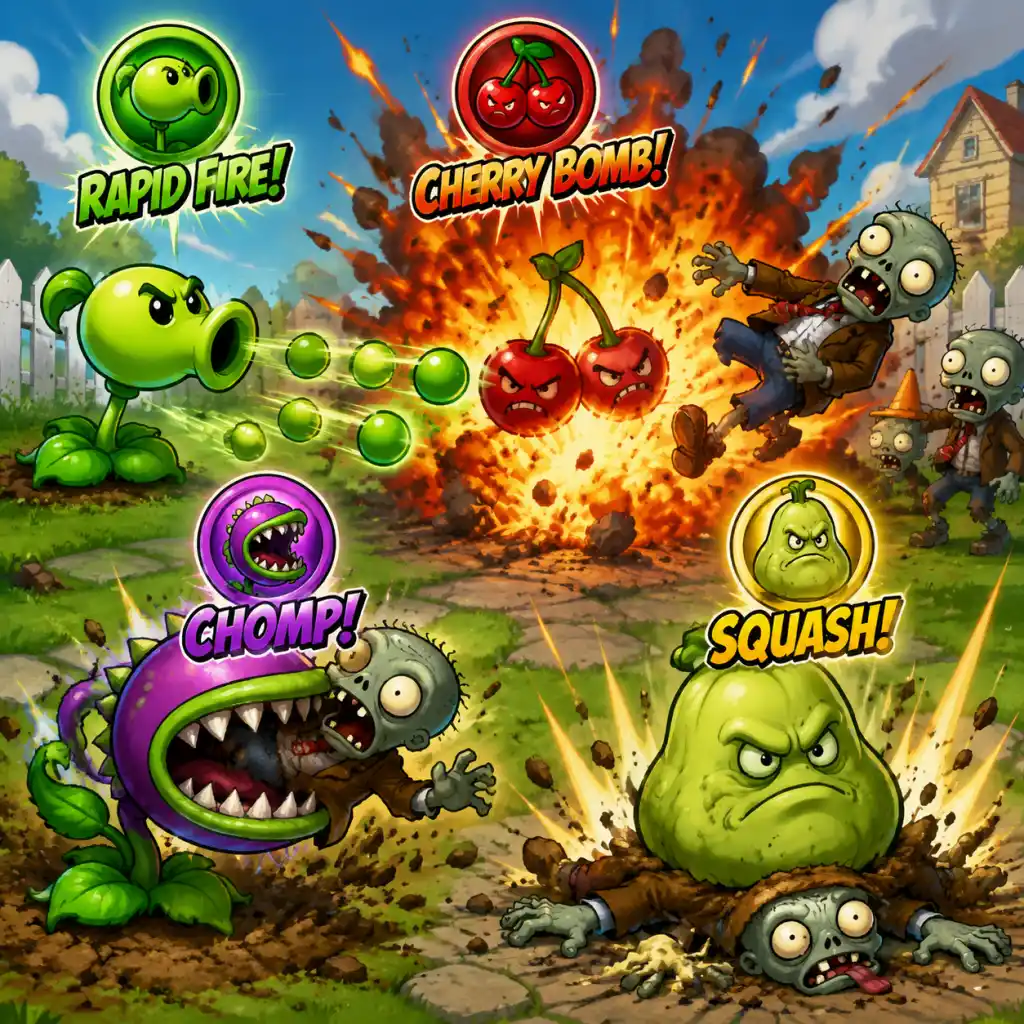
Character Skills
Character Skills – Plants vs. Zombies
In Plants vs. Zombies, the player does not control a traditional character with skills. Instead, your "character" is the collection of plants you choose for each level. Each plant functions as a unique tool with its own skills, abilities, and strategic applications. This guide covers every playable plant (the 49 base plants + upgrades) as well as the role of the player's house and lawn in skill-like mechanics. All skills are described in terms of effects, cooldowns (recharge time in seconds), sun cost, upgrades, combos, synergies, recommended builds, and optimal usage.
---
Plant Categories Overview
| Category | Examples | Purpose |
|---|---|---|
| Offensive | Peashooter, Repeater, Snow Pea | Deal damage to zombies |
| Defensive | Wall-nut, Tall-nut, Pumpkin | Block zombies, protect other plants |
| Economy | Sunflower, Twin Sunflower, Marigold | Generate sun |
| Instant | Cherry Bomb, Jalapeno, Squash | Single-use high damage or crowd control |
| Utility | Potato Mine, Chomper, Torchwood | Special effects (area denial, eating, buffing) |
| Support | Hypno-shroom, Garlic, Coffee Bean | Alter zombie behavior or enable nighttime plants |
| AOE | Cactus, Fume-shroom, Split Pea | Hit multiple zombies at once |
| Upgrade | Gatling Pea, Winter Melon, Spikerock | Improved versions of base plants |
Detailed Plant Skills
####
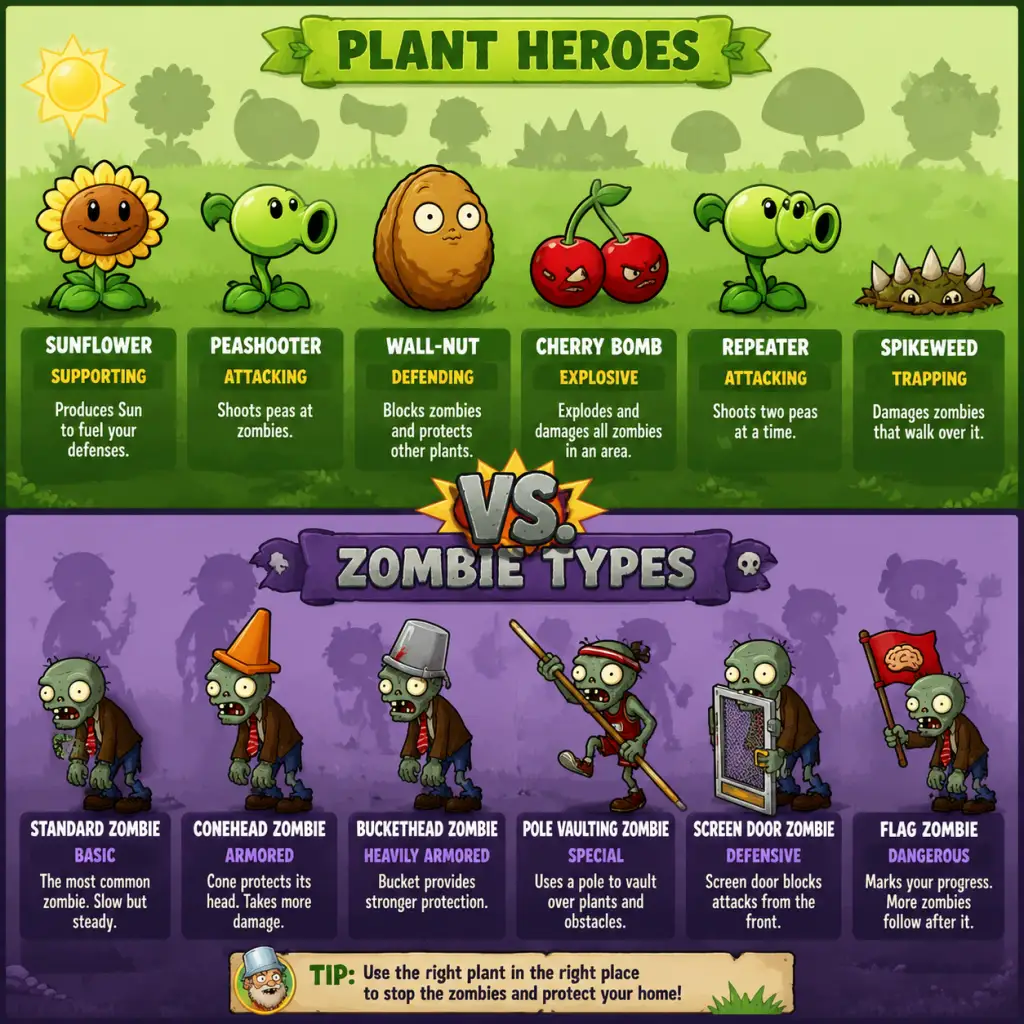
Characters & Roles
Characters & Roles – Plants vs. Zombies
In Plants vs. Zombies, you do not control a single character; instead, your arsenal of plants functions as your "party" of defenders. Each plant has a unique role, strengths, weaknesses, and unlock conditions. This guide covers every playable plant in the original 2009 game, organized by role, plus a summary of the zombie enemies you'll face.
1. Offensive Plants (Damage Dealers)
These plants directly damage zombies. They are your primary source of killing power.
| Plant | Unlock | Role | Strengths | Weaknesses | Playstyle / Synergy |
|---|---|---|---|---|---|
| Peashooter | Level 1-1 | Basic ranged | Cheap (100 sun), continuous damage | Low damage per hit, no splash | Early game staple; stack multiples. Synergizes with Torchwood to double damage. |
| Repeater | Level 1-8 | Rapid fire | Fires two peas per shot; good DPS | Costs 200 sun; still no splash | Place behind Torchwood for increased fire rate and damage. |
| Gatling Pea | Purchase from Crazy Dave's shop (after Level 3-4) | Heavy rapid fire | Fires four peas per shot; highest DPS of pea family | Very expensive (250 sun); requires upgrade from Repeater | Ultimate offensive plant; best with Torchwood. Use in late game and Survival. |
| Snow Pea | Level 1-5 | Slowing support | Slows zombies by 50%; effective against fast zombies | Low damage per shot | Always pair with Peashooter or Repeater. Stack with Torchwood? No – Torchwood cancels freeze. Use separately. |
| Cabbage-pult | Level 1-10 | Lobbed | Jumps over low obstacles (e.g., screen doors), lobbed arc | Slightly slower fire rate and lower damage than Peashooter | Good against shield zombies. Use behind defensive plants. |
| Kernel-pult | Level 1-12 | Lobbed with utility | 25% chance to stun (butter); kernels do less damage | Inconsistent damage, slower fire | Place in front of Cob Cannon? No. Use to stall zombies. Synergizes with Torchwood? No – only pea stuff. |
| Melon-pult | Level 2-7 | Splash damage | Splash area damage; high damage; slows zombies slightly (winter melon) | Expensive (300 sun), slow attack | The best mass damage plant. Use with Winter Melon for AoE slow. Key for Survival. |
| Winter Melon | Level 4-5 | Splash + slow | Chills and damages multiple zombies; slows them significantly | Very expensive (400 sun), slow fire | Upgrade from Melon-pult. Essential for endless modes. |
| Threepeater | Level 3-2 | Three-lane attack | Fires in three adjacent lanes at once | Costs 325 sun; each pea does normal damage | Place in middle lane to cover three lanes. Use Torchwood in middle for three lanes of enhanced damage. |
| Chomper | Level 2-2 | Instant kill | Can instantly eat a zombie, completely destroying it | Long re-chew (42 sec); vulnerable while chewing; only one zombie at a time | Great for eliminating high-health zombies (Gargantuars). Protect with Tall-nut or Pumpkin. |
| Spikerock | Level 3-7 | Area denial + damage | Destroys multiple small zombies; can take hits from Gargantuars; damages cars | Expensive (250 sun), no effect on flying zombies | Place in front of a row of defense to kill weak zombies. Synergizes with Spikeweed (upgrade). |
| Spikeweed | Level 2-5 | Area damage | Cheap (100 sun), destroys Gargantuars after 3 steps; damages any zombie that walks over it | Single-use; crumbles after taking damage | Use in lanes with many weak zombies. Can be replanted quickly. |
| Cob Cannon | Level 4-9 | Massive AoE | Long cooldown, but deals massive damage to a 3x3 area; can target anywhere | Requires two Kernel-pults to upgrade; very expensive (500 sun); manual targeting | Ultimate crowd control. Use to wipe groups of Gargantuars or huge waves. Needs protection. |
| Doom-shroom | Level 2-3 | Super explosive | Devastating area damage (9x9); can kill multiple Gargantuars | Leaves a crater that prevents planting for 90 sec; self-destructs | Emergency nuke. Use when a lane is overrun. Plant on a flower pot. |
| Cherry Bomb | Level 1-6 | Instant AoE | Kills all zombies in a small area quickly | Very expensive (150 sun) for one use, short range | Great for dealing with large clusters early on. |
| Potato Mine | Level 1-2 | Instant single target | Cheap (25 sun); destroys first zombie that steps on it; recharges quickly | Must arm (14 sec); only works once; range is one tile | Perfect early cheap defense. Can be used as a quick emergency hit. |
| Jalapeno | Level 3-3 | Full lane fire | Clears an entire lane of zombies; also melts ice | Single-use, expensive (125 sun) | Save for when a lane is completely stacked. |
| Ice-shroom | Level 3-4 | Freeze all | Freezes all zombies on screen for about 5 sec; prevents new zombies from entering | Long freeze? Actually only temporary; does no damage | Excellent stalling tool. Use in Survival to buy time. |
| Hypno-shroom | Level 2-6 | Mind control | Hypnotizes a zombie to fight for you; it will attack other zombies | Only works on zombies that eat it (e.g., pole vaulters, peons); one-time use; expensive (75 sun for a trick) | Best used on strong zombies (Buckethead, Gargantuar) – they become powerful allies. |
| Grave Buster | Level 4-1 | Grave removal | Destroys one grave instantly; no sun cost | Only works on graves; no offense | Essential in graveyard levels. |
| Marigold | Level 3-6 | Money maker | Produces coins when placed (does not fight) | Useless for defense; costs sun | Only use in Last Stand or Coin collection levels. |
2. Defensive Plants (Tanks & Barriers)
These plants block or slow zombies, protecting your offensive line.
| Plant | Unlock | Role | Strengths | Weaknesses | Playstyle / Synergy |
|---|---|---|---|---|---|
| Wall-nut | Level 1-3 | Basic wall | Blocks zombies for a while; cheap (50 sun) | Not very durable; destroyed eventually | Standard defense. Place in front of attackers. |
| Tall-nut | Level 2-1 | High wall | Much higher health; can block Bungee zombies and jumping zombies | Expensive (125 sun), can be bypassed by ladder zombies | Pair with Pumpkin for extra protection. |
| Pumpkin | Level 3-8 | Protective shell | Covers any plant with extra health; can be placed on anything; recharged | Expensive (125 sun), not a plant itself | Perfect for protecting high-value plants like Gatling Pea or Melon-pult. |
| Garlic | Level 4-6 | Lane shuffler | Zombies that eat it are forced to change lanes | Low health; kills after one or two bites; only works on eating zombies | Use to redirect zombies to a kill zone. |
| Torchwood | Level 2-3 | Buff station | Doubles damage of peas passing through; turns peas into fire peas | Costs 175 sun; no attack on its own; burns Snow Pea freeze | Place in front of Peashooter, Repeater, or Gatling Pea lines. |
| Fume-shroom | Level 1-7 (night) | Short-range AoE | Fumes damage zombies in a small area (3 tiles) ignoring shields | Cannot shoot over wall-nuts; nighttime only? Actually any level | Good against grouped zombies. Use with Pumpkin. |
| Glow-shroom | Level 1-11 (night) | Light + defense | Produces light that reveals zombies? Actually only produces tiny light; small damage | Low damage, temporary | Mainly for night levels to provide light; attack is secondary. |
| Scaredy-shroom | Level 1-8 (night) | Long-range | Very long range; high damage | Hides when a zombie is within 5 tiles; costs 75 sun | Place in back rows with Pumpkin front to keep safe. |
| Sun-shroom | Level 1-5 (night) | Sun producer | Generates small sun (15) early; later full sun (25) after time | Slow initial production; small suns early | Essential for night levels. |
| Puff-shroom | Level 1-3 (night) | Cheap dmg | Free, airborne spore; good early night defense | Very low damage; dies in about 15 seconds | Place on first row to buy time. |
| Mushroom Garden – not a plant, but a minigame item. |
3. Economy Plants (Sun Producers)
Sun is the currency to place plants.
| Plant | Unlock | Production | Notes |
|---|---|---|---|
| Sunflower | Level 1-1 | Produces 1 large sun (25 sun) every 24 sec | Standard sun factory. Plant multiple. Use Imitater for more. |
| Twin Sunflower | Level 2-8 | Produces 2 large suns (50 sun total) per cycle twice as fast? Actually produces two suns at once; total output 50 sun per cycle | Upgrade from Sunflower; expensive (150 sun+upgrade cost) |
| Sun-shroom | Level 1-5 (night) | Starts small (15) then full (25) after a while | Night only; but can be used anywhere after unlocking? Only in night levels originally |
| Marigold | Level 3-6 | Produces coins (not sun) | Only for money; not useful for defense. |
4. Instant-Use & Miscellaneous Plants
These have unique effects.
| Plant | Unlock | Effect |
|---|---|---|
| Coffee Bean | Level 2-8 | Wakes up shrooms during the day |
| Umbrella Leaf | Level 4-7 | Deflects Bungee Zombies |
| Flower Pot | Level 1-4 | Allows planting on roof |
| Imitater | Crazy Dave's shop after level 3-4 | Copies a plant's ability; you get two of the same plant |
5. Zombies – The Antagonists
While not playable, understanding zombies is crucial. Key types:
- Basic Zombie – Slow, low health.
- Conehead Zombie – Extra health.
- Buckethead Zombie – Very tough.
- Pole Vaulting Zombie – Jumps over first plant.
- Digger Zombie – Digs under plants.
- Ladder Zombie – Places ladder to bypass walls.
- Bungee Zombie – Steals a plant from above.
- Balloon Zombie – Flies over everything (needs Cactus or Blover).
- Catapult Zombie – Throws boulders that break plants.
- Gargantuar – Huge health, carries Imp.
- Zomboni – Crushes plants, leaves ice trail.
- Yeti – Rare, appears only in certain levels.
- Dr. Zomboss – Final boss in his giant mech.
- Level 1-1: Peashooter, Sunflower, Wall-nut.
- Level 2-1: Unlock Tall-nut, Snow Pea.
- Level 3-4: Unlock Roof levels and Imitater.
- Level 4-5: Winter Melon.
- Level 5-10: Final boss vs Dr. Zomboss.
- Survival and Puzzle modes unlock after adventure completion.
- Standard early game: Sunflowers + Peashooters + Wall-nuts.
- Night levels: Puff-shroom + Sun-shroom + Fume-shroom.
- Pool levels: Lily Pad + Tangle Kelp + Cattail.
- Roof levels: Flower Pot + Cabbage-pult + Melon-pult.
- Survival Endless: Twin Sunflower (lots), Winter Melon, Cob Cannon, Tall-nut with Pumpkin, Garlic, and Spikerock.
- Grave levels: Grave Buster essential; use Starfruit or Melon-pult for damage.
- Always plan your sun economy first. Place 6-8 Sunflowers early.
- Use defensive plants to protect offensive ones.
- Combine Torchwood with Peashooter lines for massive damage.
- Use Snow Pea or Winter Melon to slow fast zombies.
- Save Cherry Bombs and Jalapenos for emergencies.
- In endless modes, maintain a steady income and replace plants as needed.
6. Unlock Progression
Plants are unlocked by completing levels, purchasing from Crazy Dave's shop, or as rewards. Key milestones:
7. Recommended Builds & Synergies
8. Tips for Success
This covers all playable characters (plants) and their roles. Each plant has a niche; mastering when to use each is the key to winning.
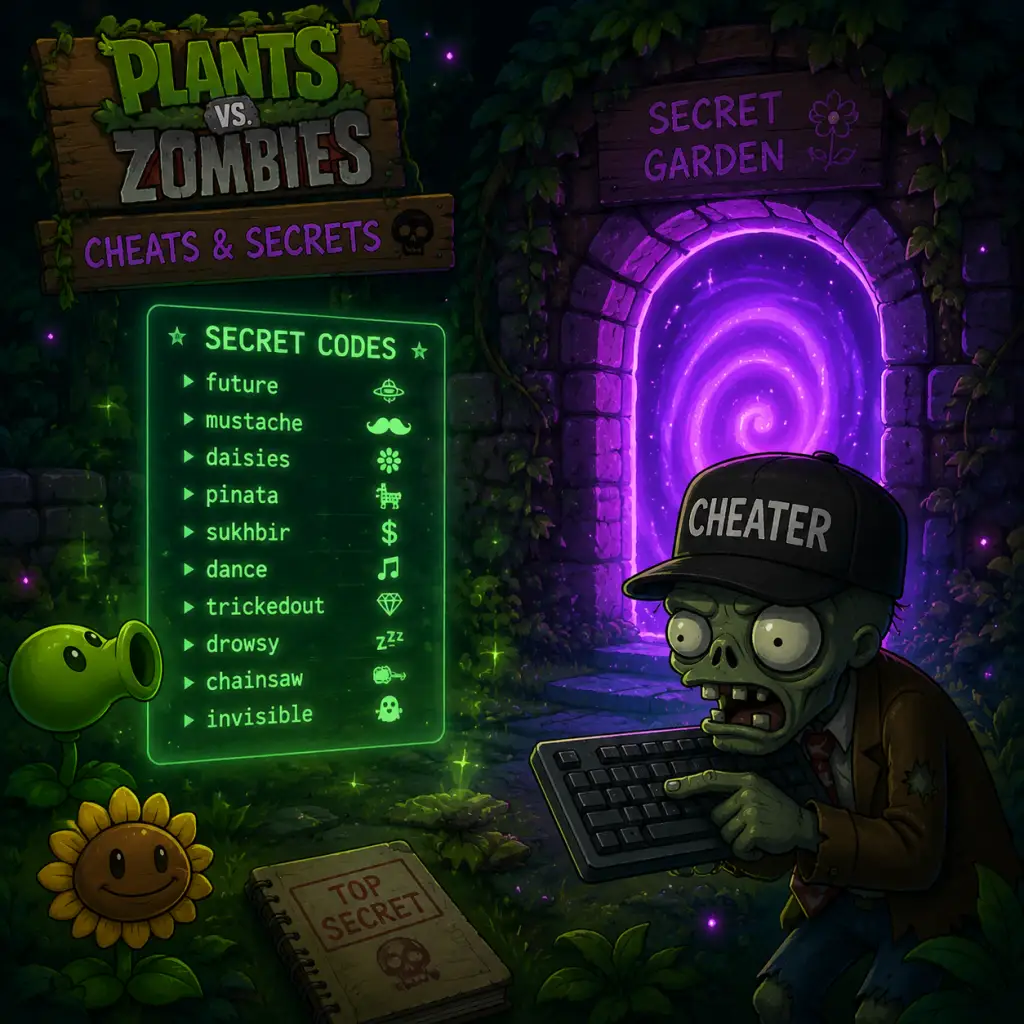
Cheats & Secrets
Cheats & Secrets – Plants vs. Zombies
Introduction
Plants vs. Zombies (2009) contains a handful of legitimate cheat codes, hidden features, and Easter eggs intentionally placed by the developers at PopCap Games. These are accessible primarily on the PC and Mac versions through an in-game menu or keyboard commands. Mobile versions (iOS, Android) have fewer or no cheats, but still include some secrets. This guide lists all known entries, separated by platform.
> Note: Using cheat codes does not disable achievements or progression on most versions, but may affect leaderboard submissions in mini-games. Always back up your save file before testing.
PC & Mac Cheat Codes (In-Game Menu)
To access the cheat menu on PC/Mac:
1. Launch Plants vs. Zombies.
2. From the main menu, press Enter on your keyboard to open a text input box (hidden at the top of the screen).
3. Type any of the following codes exactly as written, then press Enter again.
4. A confirmation sound or message will appear if the code is accepted.
| Code | Effect | Notes |
|---|---|---|
| `future` | Unlocks all accessories in the Crazy Dave’s Twiddydinkies shop (e.g., Tree of Wisdom upgrades, Lawn Mower skins, etc.). | Does not give you in-game currency; you still need to purchase items with coins. |
| `mustache` | Zombies now wear a handlebar mustache. | Visual only; toggles off if repeated. |
| `pinata` | A zombie piñata falls from the sky in the current level, dropping coins when hit. | Works during gameplay; momentary effect. |
| `trickedout` | Lawn mowers receive a colorful, custom paint job. | Visual; persists for the session. |
| `sukhbir` | Replaces the game’s title screen logo text with “Sukhbir”. | References a developer; persists until restart. |
| `daisies` | Zombies leave daisies in their path when killed. | Visual; toggles off if repeated. |
| `berzerker` | Allows the player to win even if a zombie reaches the left side (house). | Experimental; may cause glitches. |
Mobile & Console Cheats
iOS / Android: No known cheat codes exist. However, there are hidden features (see next section).
Xbox 360 / PlayStation 3 (Plants vs. Zombies: Garden Warfare – not the same game): The console versions of the original tower defense are not widely available; the HD re-releases on Xbox Live Arcade and PSN did not include cheat codes.
Secrets & Easter Eggs
#### 1. The Zombie Yeti
- How to find: Survive until the Chill Yeti appears. It only shows up after you have completed Adventure Mode once and then replay a random daytime level in Pool or Fog worlds. The Yeti walks slowly and drops a Yeti’s Beard (a rare plant) when killed.
- Reward: Unlocks the Yeti’s Beard in your seed packet (acts as a permanent slow-down effect on zombies). Actually, the Yeti’s Beard is a secret plant that appears only in the Zen Garden – it doesn’t appear in combat.
- Location: In your main menu, click on the tree icon (left side of the house) to plant a seed. Over time, you can upgrade it with coins.
- Secrets: The Tree of Wisdom occasionally gives random cryptic clues or secret messages when clicked. These include developer jokes, hints about the Zombology book, and the phrase “The answer is 42”.
- Maximum height: Can be grown to 1000 feet. No special bonus, just bragging rights.
- Mushroom Garden: After you unlock the Mushroom Garden (by buying it from Crazy Dave), you can grow rare plants like the Hypno-shroom or Marigold that are not available in normal gameplay.
- Water Lily Garden: Unlocks the ability to grow aquatic plants like the Water Lily in the Zen Garden.
- Secretly, the Vase of Money: In the Zen Garden, if you tap a flower pot rapidly at certain angles (PC: hover mouse quickly), you can cause coins to fall out – a minor exploit but intended for fun.
- “I, Zombie” Endless: After completing the “Last Stand” challenges, the end credits sequence includes a hidden mini-game called “I, Zombie Endless.” You must click a specific zombie during the credits to unlock it. Timing is strict.
- Vasebreaker Endless: Similarly, during the credits of “Vasebreaker” mode, you can click on a vase to unlock a never-ending version.
- On Steam/Xbox, there is an achievement for popping a Pogo Zombie’s pogo stick with a Cherry Bomb. This is a hidden secret because the game never tells you that the pogo stick can be destroyed.
- In the main menu, type `credits` as a cheat code? Actually, there is no such code. But you can watch the full credits by clicking the Help button in the Options menu and then clicking the PopCap logo repeatedly – a hidden credits sequence will play.
- Skip Level Confirmation: After beating a level, instead of clicking “Next Level,” you can press the spacebar to immediately advance – a time-saver.
- Coffee Bean Without Mushrooms: If you place a Coffee Bean on any non-mushroom plant, it does nothing, but the game will show a short animation of the plant “waking up” – purely cosmetic.
- Chocolate for Zombies: In the Zen Garden, if you give chocolate to a zombie (by placing it on an empty pot), the zombie does a breakdance spin – an Easter egg.
- The Unlucky Zombie: On the first level of Adventure, there is a very rare chance that a zombie will appear with a star on its chest – this is a hidden developer reference (the “star” zombie).
- Steam version: All PC cheats work. Achievements are still earned but some codes may temporarily disable leaderboards (re-log to restore).
- EA App version: The cheat input box is removed. To access cheats, you must use third-party tools (not recommended).
- Mobile (iOS/Android): No cheat codes, but all secrets like the Yeti, Tree of Wisdom, and Zen Garden are present. The “mustache” and “future” codes do not work.
- Nintendo DS / PSP versions: These handheld ports have different secret features (e.g., touch-based puzzles) but no known cheat codes.
#### 2. The Tree of Wisdom
#### 3. Zen Garden Hidden Plants
#### 4. Hidden Mini-Games
#### 5. The “Zombie on a Pogo” Achievement
#### 6. Developer Credits Secret
Hidden Content & Exploit-Safe Secrets
Platform-Specific Notes
Conclusion
While Plants vs. Zombies is a largely straightforward tower defense game, the inclusion of these cheats and secrets adds replayability and charm. PopCap intended most of them as fun nods rather than game-breaking tools. Use them responsibly to enhance your experience!