Portal 2
## Game Introduction: Portal 2 ### Genre First-person puzzle-platformer with physics-based mechanics, dark comedy, and a narrative-driven campaign. It blends environmental puzzles, spatial reasoning, and a unique portal mechanic. ### Developer & Publisher - **Developer:** Valve Corporation (South ...
Download & Installation
Portal 2 – Comprehensive Download & Installation Guide
Portal 2 is a critically acclaimed first-person puzzle game developed by Valve. This guide covers legitimate download and installation methods for all supported platforms, including PC (Steam), PlayStation 3, Xbox 360/One/Series X|S, and Nintendo Switch (via Portal: Companion Collection). Mobile platforms are not supported.
Official Download Sources
Only download Portal 2 from official digital storefronts. Avoid unauthorised third‑party sites.
| Platform | Store / Service | Purchase & Download Link |
|---|---|---|
| PC (Windows / macOS / Linux) | Steam | [store.steampowered.com/app/620](https://store.steampowered.com/app/620) |
| PlayStation 3 | PlayStation Store (PS3) | (Legacy store, purchase via web or console) |
| **Xbox 360 / Xbox One / Xbox Series X | S** | Xbox Store (backward compatible on Xbox One / Series) |
| Nintendo Switch | Nintendo eShop (as part of Portal: Companion Collection) | [nintendo.com/games/detail/portal-companion-collection-switch](https://www.nintendo.com/games/detail/portal-companion-collection-switch) |
---
System Requirements (PC)
Minimum Requirements (for 720p, 30 FPS, low settings)
- OS: Windows 7 / Vista / XP (32‑bit or 64‑bit) – Note: Windows XP no longer supported by Steam. Modern Windows 10/11 recommended.
- Processor: Intel Core 2 Duo 2.0 GHz or AMD Athlon 64 X2 2.0 GHz
- Memory: 2 GB RAM
- Graphics: DirectX 9.0c compliant, 256 MB VRAM (NVIDIA GeForce 7600 / ATI Radeon X1600 or better)
- Storage: 8 GB free space (after installation)
- Sound: DirectX 9.0c compatible
- DirectX: Version 9.0c (included with game)
- OS: Windows 10 64‑bit
- Processor: Intel Core i5 2.5 GHz or AMD Phenom II X4 3.0 GHz
- Memory: 4 GB RAM
- Graphics: NVIDIA GeForce GTX 460 / AMD Radeon HD 6850 or better (1 GB VRAM)
- Storage: 10 GB SSD recommended (8 GB HDD minimum)
- Sound: DirectX 9.0c compatible
- OS: macOS 10.12 Sierra or newer (official support ends at macOS 10.15 Catalina; may not run on Apple Silicon without Rosetta 2)
- Processor: Intel Core i5 2.5 GHz
- Memory: 4 GB RAM
- Graphics: Intel HD Graphics 4000 / NVIDIA GeForce GT 330M or better (512 MB VRAM)
- Storage: 8 GB free space
- OS: Ubuntu 12.04 or newer (or any modern 64‑bit distribution with Steam runtime)
- Processor: 2.5 GHz dual‑core
- Memory: 4 GB RAM
- Graphics: NVIDIA GeForce GTX 460 / AMD Radeon HD 6850 (proprietary drivers recommended)
- Storage: 8 GB free space
- PC (Steam): ~8 GB after download (download size ≈ 5.5 GB). Extra space may be required during patching.
- PlayStation 3: ~6 GB (PS3 HDD space).
- Xbox 360: ~4.5 GB (may require an HDD for installation on older models).
- Xbox One / Series: ~6.5 GB.
- Nintendo Switch: ~5.5 GB (Portal 2 alone; total for Companion Collection ≈ 6.5 GB).
- macOS / Linux: Comparable to Windows.
- Steam (PC/macOS/Linux): A free Steam account is mandatory. The game is permanently tied to your Steam library. An internet connection is required for initial activation and verify ownership; offline play is allowed after first launch.
- PlayStation Network: Required for PS3 version. An internet connection for initial download.
- Xbox Live: Required for Xbox 360/One/Series. A free Microsoft account is sufficient (no Gold needed for single‑player).
- Nintendo Switch: A Nintendo Account needed to purchase and download from eShop.
- Xbox 360 (digital): Purchase from Xbox Live Marketplace. Download via the “My Games & Apps” queue. Disc users insert the disc and follow on‑screen installation prompts.
- Xbox One / Series (backward compatible):
- Graphics Configuration: On first run, the game may display a dialog asking to set resolution, quality, and display mode (fullscreen, borderless, windowed). You can also skip and adjust later in Options.
- Steam Overlay: Enabled by default. Press Shift+Tab to access friends, screenshots, etc.
- Cloud Saves: Automatically enabled; syncs progress across PCs.
- Audio Language: Can be changed in Options menu.
- Workshop Content: Portal 2 has Steam Workshop for custom maps. Optional.
- Profile Selection: Choose your local profile or sign in to PSN / Xbox Live / Nintendo Account.
- Online Features: On PS3 / Xbox, you may be prompted to sign in to PSN/Xbox Live for multiplayer or leaderboards. On Switch, online play requires Nintendo Switch Online subscription.
- Brightness Calibration: Some platforms offer a quick brightness adjustment.
- Controls: Default control schemes are pre‑configured. You can remap buttons in settings.
Recommended Requirements (for 1080p, 60 FPS, high settings)
macOS Requirements
Linux Requirements
---
Storage Space
---
Account Requirements
---
Step‑by‑Step Installation
1. PC – Steam (Windows / macOS / Linux)
1. Create / Log in to Steam: Download the Steam client from [store.steampowered.com](https://store.steampowered.com). Install and log in with your Steam account.
2. Purchase Portal 2: Go to the Steam Store page for Portal 2 and purchase the game. It will be added to your library.
3. Install the game:
- Open your Steam Library.
- Locate “Portal 2” in the list (or use search).
- Click the Install button.
- Choose an installation directory (default is `C:\Program Files (x86)\Steam\steamapps\common\Portal 2`).
- Select Next and wait for the download to complete. Download size is ~5.5 GB.
4. Post‑install: Once downloaded, Steam will automatically verify files and apply any patches. The “Play” button becomes active.
5. Launch: Click Play. The game will start. You may be prompted to choose graphics settings on first launch (or it will auto‑detect).
2. PlayStation 3
1. Access PlayStation Store: From the PS3 XMB, navigate to PlayStation Store.
2. Search for Portal 2: Use the search function or browse the PS3 games section.
3. Purchase & Download: Buy the game (digital version). The download will begin automatically. You can check download progress under “Notifications”.
4. Install: After download, the game will install. Once complete, the icon appears on the XMB.
5. Launch: Insert the disc (if physical) or select the digital icon to start. The game may install a small update (requires PSN connection).
> Note: Physical disc users: Insert the disc, then navigate to the game disc icon. The game will install a mandatory 6 GB data file before play. An internet connection for patches is recommended.
3. Xbox 360 / Xbox One / Xbox Series X|S
1. Insert the Xbox 360 disc OR purchase digitally from Microsoft Store.
2. The console will download a migration package (approx. 6.5 GB) and install the game.
3. Wait for installation to finish. Portal 2 will appear in “My Games & Apps”.
4. Launch the game – it runs natively via the backward compatibility emulation layer. Achievements, cloud saves, and online multiplayer work.
> Tip: On Xbox Series X|S, Portal 2 benefits from auto HDR and faster load times due to the SSD.
4. Nintendo Switch
1. Open Nintendo eShop from the HOME menu. Ensure your Nintendo Account is linked.
2. Search for “Portal: Companion Collection” (contains Portal 2).
3. Purchase & Download: Select the game, proceed to purchase. The download will start automatically. Check download status from HOME menu or eShop.
4. Install: Wait for the download to complete. The game icon will appear on your HOME screen.
5. Launch: Select the icon. First launch loads a menu to choose between Portal 1 and Portal 2. Select Portal 2 to begin.
---
First Launch Setup
PC / Steam
Console / Switch
---
Common Installation Errors & Fixes
PC / Steam
| Error | Cause | Solution |
|---|---|---|
| “Missing executable” or “Application load error” | Corrupted installation or antivirus flagging | Verify integrity of game files via Steam: Right‑click Portal 2 > Properties > Local Files > Verify integrity of game files. |
| “Failure to write to disk” | Insufficient permissions or drive full | Run Steam as administrator. Check free space (need >8 GB). Try a different Steam library folder. |
| Steam download stuck at 0% | Server congestion or outdated Steam client | Restart Steam. Change download region in Settings > Downloads. |
| Game crashes on launch (black screen) | Missing DirectX or GPU driver issues | Install/repair DirectX from `_CommonRedist` folder inside Portal 2 directory. Update graphics drivers. |
| Low FPS / stutter | Hardware below minimum or outdated drivers | Lower resolution and graphics settings. Set launch options: `-high` (high priority) or `-threads X` (where X = CPU core count). |
| No sound | Audio device mismatch or sample rate | In Windows Sound settings, set speaker configuration to stereo. Try 44100 Hz sample rate. |
| Steam Cloud sync conflict | Multiple PCs playing offline | Launch game while online; Steam will resolve conflict automatically (choose local or cloud). |
PlayStation 3
| Error | Cause | Solution |
|---|---|---|
| Disc unreadable / installation fails | Dirty disc or failing Blu‑ray drive | Clean disc with soft cloth. Delete partial installation and retry. |
| Network error when downloading | PSN server issues or corruption | Check PSN status. Delete the partially downloaded file and redownload. |
| Game freezes at title screen | Hard drive fragmentation or corrupt data | Rebuild PS3 database via Safe Mode (hold power button on boot until beeps). |
Xbox 360 / One / Series
| Error | Cause | Solution |
|---|---|---|
| “Game took too long to launch” / Backwards compat error | Emulation data missing or corrupted | Uninstall and reinstall the game. Ensure console is fully updated (Settings > System > Updates). |
| Installation stops at 99% | Disc model not supported or dirty disc | On Xbox 360: try a different region disc. On One/Series: insert disc and wait; if stuck, restart console. |
| No audio / Visual glitches | Unsigned driver or console overheating | Hard reboot (hold power for 10 seconds). Check ventilation. |
Nintendo Switch
| Error | Cause | Solution |
|---|---|---|
| Download fails or pauses | Insufficient storage or internet instability | Clear storage (Settings > Data Management > Manage Software). Delete unneeded saves. Connect to a stable Wi‑Fi. |
| Game won’t start after download | Corrupt download | From HOME menu, highlight game, press `+` > Manage Software > Check for Corrupt Data. If found, delete and redownload. |
| Low battery warning | Hardware strain from heavy game | Ensure system is charged; play in docked mode. |
Post‑Installation Verification
After installing Portal 2, perform these checks to confirm everything is working:
PC / Steam
1. Launch the game and reach the main menu.
2. Start a new game or load a save (single‑player).
3. Verify that audio (dialog, music, sound effects) plays correctly.
4. Check that the Steam Overlay (Shift+Tab) appears and that you can access friends / web browser.
5. (Optional) Start a multiplayer lobby: invite a friend or use `map workshop/xxxx` in console to test connectivity.
6. Confirm cloud saves are working: exit the game, then check Steam Cloud status in Library (cloud icon next to game).
Consoles
1. PS3 / Xbox / Switch: Launch game and navigate to options > controls. Ensure all buttons respond.
2. PS3: Check that trophies sync (go to XMB > Trophies > Portal 2).
3. Xbox: Verify achievements are popping (e.g., complete the first chamber).
4. Switch: Test both Joy‑Con and Pro Controller input. Check that the game runs smoothly in docked and handheld modes.
5. Online: If applicable, join a co‑op game quickly – the game will search for a partner or you can invite a friend.
---
Additional Tips
- Modding (PC): Portal 2 supports Steam Workshop. Subscribe to maps in the Steam client; they will download automatically. Use the in‑game “Community Test Chambers” menu to play them.
- Steam Link / Remote Play: You can stream Portal 2 to mobile devices via Steam Link app, but the game itself cannot be installed on mobile.
- Cross‑platform Play: Portal 2 does not support cross‑platform multiplayer. PC, PS3, Xbox, and Switch communities are separate.
- Backward Compatibility: The Xbox 360 version runs on Xbox One/Series via BC; PS3 version is not compatible with PS4/PS5.
- Legacy OS: Windows XP and Vista are no longer supported by Steam. The game may still run but technical support is limited.
---
Last updated: October 2025. Information is accurate at time of writing.
Game Introduction
Game Introduction: Portal 2
Genre
First-person puzzle-platformer with physics-based mechanics, dark comedy, and a narrative-driven campaign. It blends environmental puzzles, spatial reasoning, and a unique portal mechanic.
Developer & Publisher
- Developer: Valve Corporation (South Bellevue, Washington, USA)
- Publisher: Valve Corporation (digital), Electronic Arts (retail)
- Announcement: March 5, 2010 (via Game Informer)
- Release Date: April 19, 2011 (PC, Mac, Xbox 360, PlayStation 3)
- Linux version: February 27, 2014 (via SteamOS/Linux)
- Nintendo Switch (Portal: Companion Collection): June 28, 2022 (bundled with Portal 1)
- PC (Windows) – Steam
- Mac (OS X) – Steam (Universal binary)
- Linux – Steam (native)
- PlayStation 3 – Physical disc & PSN digital
- Xbox 360 – Physical disc & Xbox Live Arcade
- Nintendo Switch – Only as part of the Portal: Companion Collection
- Nvidia Shield TV (2015) – Android-based port
- Steam Deck – Verified playable (native)
- Overgrown Test Chambers – Moss-covered, broken rooms with malfunctioning equipment.
- Abandoned Maintenance Areas – Dark, rusty tunnels, rail systems, and generator rooms.
- Old Aperture (1950s–1980s) – Retro-futuristic sections with wood-paneled walls, dials, and analog computers, showcasing the company’s history.
- New Aperture (2000s) – Clean white tile labs, high-tech gel dispensers, and neural-interface testing.
- Central Core – The AI-mainframe room at the top of the facility.
- Chell – The silent, determined protagonist, a test subject wearing an orange jumpsuit and Aperture Science Long Fall Boots. Her history includes being adopted by GLaDOS’s early testing.
- GLaDOS (Genetic Lifeform and Disk Operating System) – The primary antagonist, a malevolent AI with a passive-aggressive personality. After being rebooted, she is initially weakened and later becomes more human-like (but still manipulative).
- Wheatley – A personality core (oblong, blue, with a British accent) designed to make poor decisions. He is initially helpful, turning into the main antagonist in the second half of the campaign. His incompetence becomes a deadly threat.
- Cave Johnson – The deceased founder/CEO of Aperture Science, heard only through pre-recorded 1950s–1980s-era audio logs. His rambling, energetic monologues provide crucial backstory and comic relief.
- ATLAS and P-body – The player characters in the cooperative campaign, two robots built by GLaDOS for testing. They are silent but express emotions through lights and sounds.
- Ingenious Puzzle Design – Every test chamber is a perfectly crafted spatial challenge requiring creative use of portals, momentum, light bridges, lasers, and gels.
- Unmatched Writing & Voice Acting – Dialogue by Garrick (Wheatley), Ellen McLain (GLaDOS), and J.K. Simmons (Cave Johnson) is brilliant, hilarious, and iconic.
- Physics Sandbox – The portal gun allows endless experimentation; momentum conservation via portals creates a satisfying sense of flow.
- Emotional Depth – GLaDOS’s arc from villain to reluctant ally, and Cave Johnson’s tragic humanist narrative, attach real feelings to the machines.
- Replayability – Hidden chambers, developer commentary, and user-created maps via Steam Workshop extend the experience indefinitely.
- Puzzle Enthusiasts – Players who enjoy logic, spatial reasoning, and trial-and-error solutions.
- Fans of Dark Comedy – The game's humor appeals to those who appreciate witty, sarcastic, and absurd writing.
- Story-driven Gamers – A compelling narrative with well-developed characters and lore.
- Speedrunners – The game’s physics and timer encourage competitive runs.
- Cooperative Gamers – The two-player campaign is designed for teamwork, communication, and coordination.
- All Ages (13+) – No explicit violence or gore, but some dark themes and mild language; suitable for teenagers and up.
- Single-Player Campaign – A 6–8 hour story mode of ~19 test chambers plus interstitials. The player uses portals, gels (Repulsion, Propulsion, Conversion), light bridges, and excursion funnels.
- Cooperative Campaign – A separate 5–7 hour campaign (21 chambers) designed for two players (local split-screen or online). Each player controls a robot (ATLAS or P-body) with dual-portal guns. Puzzles require synchronized actions, ping tools, and non-verbal communication.
- Challenge Mode – Replay single-player chambers with time-based, step-based, or portal-limited scoring.
- Steam Workshop – User-created maps (PC/Mac/Linux only) with infinite custom puzzles, many of high quality.
- Perpetual Testing Initiative (free DLC) – A campaign of five community-made test chambers that can be played in single or co-op.
- Offline – The full single-player campaign and local co-op (split-screen on consoles; same-screen on PC via peripherals) are playable without internet.
- Online – Co-op requires a Steam account and internet connection for matchmaking or friend invites. PS3 version supports cross-platform co-op with PC (via Steam login). Leaderboards and Steam Workshop require connectivity.
- No Online-only Requirements – The game has no DRM beyond Steam (PC) or console account requirements; DRM-free version not available.
- Portal 2: The Final Hours – A free interactive book/DLC on Steam that provides behind-the-scenes commentary and mini-games.
- Perpetual Testing Initiative – Free DLC (released May 8, 2012) adding a set of five single-player and co-op test chambers created by community members. Also introduced the map-editing kit (Hammer) and Steam Workshop integration.
- Portal 2: The Original Soundtrack – Available as paid DLC on Steam (MP3/FLAC).
- No Major Paid Expansions – No story-based expansions exist. The game’s longevity comes from user-generated content.
- Portal Gun as Only Tool – Unlike most FPS games, the player has no weapons; only the portal gun, which creates two linked portals on certain surfaces. This simple mechanic yields infinite complexity.
- Physics-Based Momentum – The preservation of momentum through portals (e.g., falling into a portal and exiting with high speed) is a foundational puzzle element that feels incredibly rewarding.
- Narrative as Game Mechanic – The story unfolds through environmental puzzles, audio logs, and dialogue that directly integrates with gameplay. The infamous “The cake is a lie” meme originated here.
- GLaDOS’s Voice as Opponent – The AI’s sarcastic, passive-aggressive comments create a unique antagonist that players both love and resent.
- Full Bot Personality – Wheatley’s evolution from friendly helper to megalomaniacal villain is compelling and tragic.
- Co-op as True Collaboration – The co-op campaign is not just single-player with two characters; it’s designed around teamwork, with puzzles that specifically require two players to solve together using ping tools and timing.
- Cultural Impact – Portal 2 is widely considered one of the greatest games of all time, praised for its writing, innovation, and perfect balancing of challenge and humor. It remains a benchmark for puzzle game design.
Release Timeline
Platforms
Note: The PlayStation 3 version includes unique cross-platform play with Steam (via Steam Cloud saves and cross-play with PC users).
Story Overview
Set an undetermined amount of time after the events of the first Portal, the player awakens as Chell in the Aperture Science Enrichment Center, which has fallen into extreme disrepair. The facility's automated systems have malfunctioned, and the eccentric personality core Wheatley wakes Chell with the goal of escaping. Together they navigate crumbling test chambers and maintenance areas, but Wheatley's well-meaning incompetence leads to the revival of GLaDOS, the once-defeated AI. GLaDOS is furious and resumes testing, forcing Chell into a new series of puzzles. The story deepens as Chell explores the origins of Aperture Science, the fate of its former CEO Cave Johnson, and the ultimate nature of GLaDOS. A climactic betrayal by Wheatley, who seizes control of the facility, leads to a final confrontation that determines the fate of both AI and the human protagonist.
Setting
The entirety of Portal 2 takes place within the vast, decaying ruins of the Aperture Science Innovators facility, located underground in Upper Michigan, USA. Environments include:
The world is half-destroyed, atmospheric, and full of environmental storytelling through graffiti, audio logs, and visual decay.
Main Characters
Core Appeal
Target Audience
Game Modes
Online / Offline Support
DLC / Expansions
What Makes This Game Unique
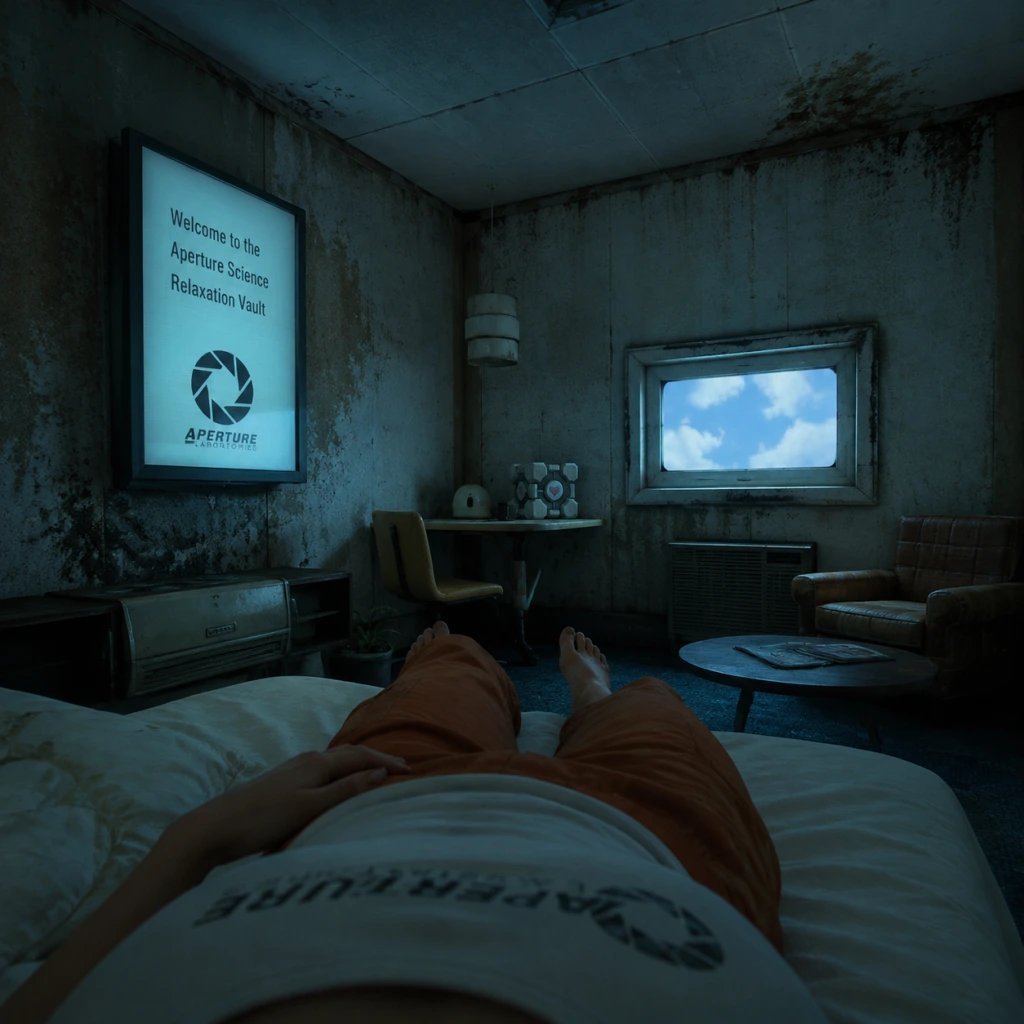
Getting Started
First Hour Walkthrough (Chamber 00–10)
Portal 2 begins in a relaxation vault. You wake up in a motel-style room; move around to get used to first-person controls. Glados (the AI) speaks to you from a speaker. Shortly after, a hole appears in the wall – walk through it. This is the start of the "first hour" which covers the first ten test chambers (00 to 09).
Key moments in the first hour:
- Chamber 00 – Getting Started: A simple room with a button you must stand on. Step on it to open the exit door. This teaches basic movement and the concept of activating plates.
- Chamber 01 – The First Cube: A Weighted Storage Cube appears. Drag it onto a floor button to open the door. Learn to pick up and carry objects (use the same button as interact on all platforms).
- Chamber 02 – The Portal Gun: After a short transition through a hallway, you receive the Aperture Science Handheld Portal Device (portal gun). Test fire both blue and orange portals on the white panels. Shoot one onto the wall, walk through; then shoot the other on an adjacent white panel to cross gaps.
- Chamber 03–05: These teach basic portal mechanics: creating paths between rooms, using cubes on elevated buttons, and understanding that portals preserve momentum.
- Chamber 06 – Introduction to High Energy Pellets: A beam of energy that must be redirected via a cube or portal (later). For now, just dodge it.
- Chamber 07 – The Turret: Your first encounter with a sentry turret. It shoots at you; hide behind walls or use a cube as a shield. Learn to neutralize turrets by tipping them over or sending them through a portal.
- Chamber 08–09: Combine cube-and-button puzzles with turrets and energy pellets. You start to rely on both portals simultaneously.
- Chamber 10 – The Exit Button: This chamber introduces moving platforms and the "excursion funnel" — a repulsion field that launches objects (or you) upward. Use portals to ride the funnel to the exit.
- Move: W, A, S, D
- Look: Mouse
- Jump: Space
- Interact / Pick up: E
- Fire Blue Portal: Left Mouse Button
- Fire Orange Portal: Right Mouse Button
- Zoom / Focus: Mouse Wheel (or G button)
- Crouch: Ctrl (default)
- Drop Object: Q (or press E again while holding)
- Menu: Esc
- Toggle Portal Gun View: Tab (if needed)
- Left stick: Move
- Right stick: Look
- A (Xbox) / X (PS): Jump
- X (Xbox) / Square (PS): Interact
- Right Trigger: Fire Blue Portal
- Left Trigger: Fire Orange Portal
- Right Bumper: Crouch (hold)
- Left Bumper: Drop object
- D-pad: not used (some menu navigation)
- L2: Orange portal
- R2: Blue portal
- Square: Interact
- Cross: Jump
- R1: Crouch (hold) – can be changed in settings.
- L Button: Orange portal
- R Button: Blue portal
- A: Jump
- B: Crouch (hold)
- Y: Interact
- ZL/ZR: not mapped (use L and R for portals)
- Right Stick press: Toggle look inversion.
- Center: Crosshair (reticle) for aiming.
- Bottom Center: Portal gun icon with two small circles: left = blue portal status (active/inactive), right = orange. A "1" or "0" indicates if a portal is deployed.
- Lower Left (occasional): Timer in co-op or challenge mode (not in campaign).
- Environment Prompts: When near an interactable object (cube, button, panel), a tooltip appears (e.g., "Press E to Pick Up").
- Subtitles: Can be enabled in Options for all dialogue (recommended for accessibility and humor).
- Loading Screens: Show puzzle hints or developer commentary snippets.
- In-Game Menu (Esc): Options, Load, Save, Quit. No inventory screen.
- Spend 2–3 minutes in the first chamber just looking around. Understand the room layout.
- Read the surface for portalable areas – they are always white or off-white.
- Listen to Glados’s instructions, even if sarcastic – they sometimes give hints.
- Experiment with portal placement on different surfaces (only on white ones; notice the difference).
- In chambers with turrets, observe their field of view – they only shoot when you are in sight.
- Don’t shoot portals on non-portalable surfaces. You’ll waste time; only white walls accept portals.
- Don’t stand in front of turrets – take cover.
- Don’t ignore the environment. Buttons may be hidden or require you to place a cube first.
- Don’t hold down the interact button while moving – you’ll drop the object.
- Don’t try to cheese puzzles. If solution requires both portals, use them creatively but within intended physics.
- Portals: You can have one blue and one orange at a time. You can re-fire them infinitely.
- Cubes: Usually limited per puzzle; you cannot create them. Use them wisely but they are often reusable.
- Time: No limit, so take as long as you need.
- Ammo: None; portal gun has infinite portals. The only “resource” is mental effort.
- [ ] Install Portal 2 from Steam, Xbox Live, PlayStation Store, or Nintendo eShop.
- [ ] Launch the game and adjust video settings (resolution, fullscreen, vsync).
- [ ] Go to Options > Audio & Video > Enable subtitles (helps catch jokes and hints).
- [ ] Go to Options > Controls > Adjust mouse sensitivity (PC) or stick sensitivity (console). Many players prefer a lower sensitivity for precise portal aiming.
- [ ] Check control layout – remap if desired (e.g., swap portal buttons).
- [ ] Enter the main menu and select “New Game” (Single Player).
- [ ] Play through the first 10 chambers (expect 45–60 minutes).
- [ ] After completing chamber 09, you will see the elevator; take it to Chapter 2.
- [ ] Optional: Once comfortable, try co-op mode (separate story) with a friend or online.
- [ ] Save often (game autosaves after each completion, but you can manually save in menu).
By the end of the first hour, you should be comfortable with the basic mechanics: portal placement, cube handling, turrets, and simple physics interactions.
Controls (All Platforms)
PC (Keyboard & Mouse)
PC (Controller) – Xbox or PlayStation controller supported natively:
Xbox 360 / Xbox One (backward compatible)
Same as PC controller mapping above. Note: Xbox One version has same layout.
PlayStation 3
Nintendo Switch (Portal: Companion Collection)
Steam Deck
Uses Xbox-style layout: Right trigger blue, left trigger orange; A jump; B crouch; Y interact.
UI Overview
The HUD is minimal:
Essential Early Objectives
1. Complete Chambers 00–09. These are the tutorial; don't skip them.
2. Master Portal Placement: Always look for white, glossy panels. Portals cannot stick to concrete, metal grating, glass, or moving surfaces. If surface is portalable, it will show a small white dot when you aim at it.
3. Learn Momentum Conservation: When you fall through a portal, you maintain exit speed. Use this to jump farther or reach higher ledges.
4. Combine Cubes and Portals: Place a cube on a button by carrying it through a portal or by creating a ramp.
5. Recognize Puzzle Elements: Buttons (floor and wall buttons), high energy pellets (blue balls), turrets (hostile), faith plates (launch you), excursion funnels (move objects/you upward), and lasers (red beam; later chambers).
What to Do First and What to Avoid
Do First:
Avoid:
Early Resource Priorities (None in Single-Player)
Portal 2 does not have health, ammo, or currency. Your only resources are:
Focus on understanding the puzzle logic rather than gathering items.
Common Beginner Mistakes
1. Forgetting to close a portal before moving on: If you leave a portal behind, you might trigger a trap or cause confusion. Shoot a new portal on the same surface to replace it.
2. Not using portals to maintain momentum: You can gain speed by falling through a portal. Many puzzles require a running start or falling from height.
3. Shooting portals on wrong surfaces: Only white/off-white panels work. If you shoot at a grey wall, nothing happens – that is normal.
4. Misunderstanding portal placement: Portals need a flat surface; they will not work on edges or small ridges. Aim for large, flat white areas.
5. Not using both portals creatively: Early puzzles may seem impossible unless you place one portal behind you and the other in front. Example: create a loop to redirect a high energy pellet.
6. Ignoring environmental cues: Glados’s dialogue often points to solution; e.g., “That cube looks heavy” means you need to pick it up.
7. Standing still while portals are active: Keep moving – turrets can see you, and energy pellets might hit you.
8. Not checking behind you: Some puzzles require you to turn around and place a portal on a wall behind you.
Day-One Checklist
With this foundation, you are ready to navigate Aperture Science’s puzzles. Remember: think with portals.
Core Gameplay
Core Gameplay Overview
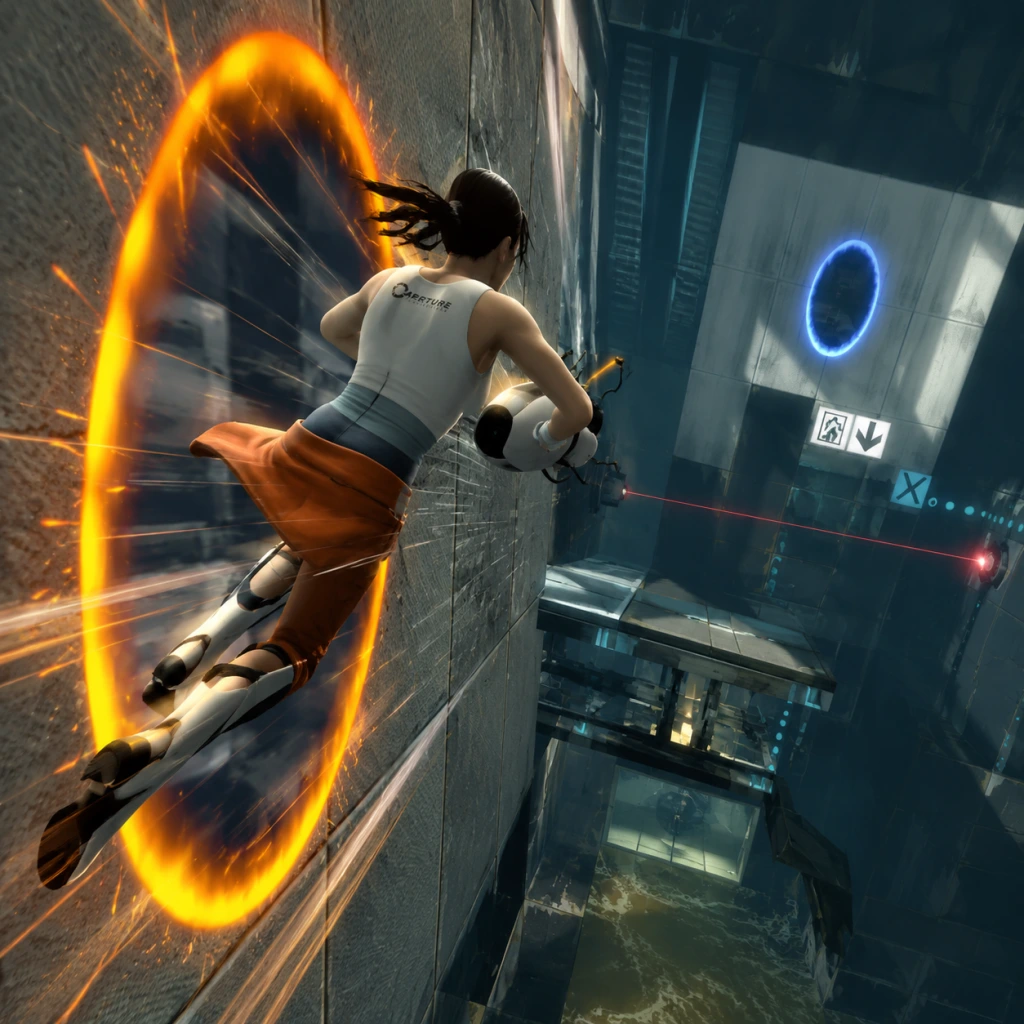
Portal 2 is a first-person puzzle game centered on momentum, spatial reasoning, and physics manipulation. Unlike traditional shooters, there is no combat or health system. Interaction is exclusively puzzle-solving using the Aperture Science Handheld Portal Device (portal gun) and an expanding toolkit of environmental mechanics. The game progresses through a linear story campaign, a separate cooperative campaign, and an endless library of user-created test chambers.
Player Progression Tiers
Early Game (Chambers 00–10)
Core Gameplay Loop:
- Wake up in relaxation vault → listen to GLaDOS’s monologue → escape through a hole → traverse test chambers.
- Each chamber: enter room, observe puzzle elements (buttons, portals, cubes, glass), use portal gun to create blue/orange portals, solve puzzle, ride elevator to next chamber.
- No combat; only environmental hazard? (e.g., turrets can be knocked over, but not killed).
- Portal Gun: Fires two functionally identical portals. Walk/step through from either side. Line of sight and surface type (white painted walls only) restrict placement.
- Movement: Standard WASD + mouse look; crouch, jump, sprint (no stamina). Portal jumps (drop through a portal above you to gain height/acceleration) introduced.
- Objects: Pick up and place Weighted Storage Cubes (WSC), Laser Redirection Cubes (LRC), or discs. Cubes activate floor buttons; lasers power bridge generators or destroy turrets.
- Linear; complete each chamber to advance. No side paths or backtracking in early game.
- Unlock portal gun in Chamber 02. Learn basic portal placement, momentum transfer, and cube mechanics.
- Very limited — each test chamber is self-contained. Light environmental story-telling through background details (old testing elements, graffiti).
- Story-driven: escape the facility. GLaDOS and later Wheatley guide (or misguide) you.
- No side quests; main objective: “Test. Complete test.”
- No currency, items, or character stats. Progression is purely knowledge-based: learning new puzzle mechanics.
- “Build growth” = mental model expansion — understanding portal placement angles, cube weight mechanics.
- After GLaDOS is replaced by Wheatley, you descend into older test shafts. Mechanics diversify: Gels, Light Bridges, Excursion Funnels.
- Puzzles now require combining multiple tools (e.g., funnel to move cube onto gel bridge platform).
- Repulsion Gel (blue): Bounces player and objects extremely high. Used to reach elevated switches or cross large gaps.
- Propulsion Gel (orange): Increases horizontal speed — slide across surfaces. Used to gain momentum for jumps or to move cubes.
- Conversion Gel (white): Coats non-portal surfaces to make them portal-conductive. Opens new placement options.
- Hard Light Bridges: Beam of solid light that can be redirected using laser redirection cubes. Acts as a platform.
- Excursion Funnels: Tractor beam that moves player and objects along a straight path; can be redirected with laser cubes.
- Thermal Discouragement Beams (lasers): Pass through portals; used to destroy turrets or power laser catchers.
- Story beats: Journey through the decaying Enrichment Center, learn about Cave Johnson (CEO). GLaDOS gradually regains control.
- Tutorial chambers for each new element (Gel intro chamber, Light Bridge chamber, etc.).
- More open hubs (e.g., the “Hub” between the early and mid game). Finding hidden graffiti and secret areas in chambers (e.g., developer commentary rooms).
- Some optional puzzles to reach Rat Man dens (story lore).
- Main quest: Restore GLaDOS to defeat Wheatley. Guide: GLaDOS now cooperates (begrudgingly).
- No side missions, but mid-game includes a “boss fight” against Wheatley-controlled turret room (pattern-based dodging).
- None. No collectibles with gameplay impact (hidden apples/radios purely for achievements).
- Player learns chaining: e.g., place portal under a gel dispenser, let gel fall, coat floor, then use funnel to redirect cube. Mental skill progression – puzzle solving speed increases.
- Return to modern test chambers (now under Wheatley’s chaotic control). Puzzles intensify — require all tools simultaneously.
- Final sequences: Turret Opera, GLaDOS’s rehabilitation, final battle with Wheatley using a portal-powered tractor beam.
- All previous tools combined. No new items.
- Gel velocity mechanics: Propulsion gel + portal loops for massive speed; repulsion gel + multi-bounce to reach high heights.
- Cube combos: Use cubes to block lasers, hold button, carry through portals.
- Story climax: Wheatley’s test chamber is a gauntlet of malfunctioning puzzles (spinning rooms, monster turrets).
- Final “boss” is a three-phase mechanics puzzle using portals to redirect the destructive beam (Wheatley’s tractor beam) back at him.
- Limited; final area is mostly scripted. One hidden achievement: “This is Hardcore” (complete without dying).
- Only main story; no branching paths.
- None.
- Peak mastery: player can improvise solutions, recognizing portal synergies (e.g., using gel on a wall to coat airborne objects).
- Single Player Endgame: Credits + final song “Cara Mia Addio” by turrets. After credits, GLaDOS releases you to surface. No post-campaign puzzles; only New Game+ changes (commentary mode).
- Cooperative Mode (Atlas and P-Body): Fully separate campaign with 40+ chambers designed for two players. Each player has two portal guns (so four portals total). Puzzles require coordination, each portal pair is independent.
- Same physics, but with two portals per player. Both players can see each other’s portals (colored differently: blue/orange for player 1, red/purple for player 2).
- Ping system to highlight objects/positions. Spoken or typed communication essential.
- Cooperative actions: one player stands on a bridge while other directs it; one player carries cube through portal held by other.
- Co-op campaign is linear but separate; 9 courses with multiple chambers each. Completing chambers unlocks new courses (e.g., Course 1-1 through 1-4, then Course 2).
- No character levels or unlocks; all tools are available from start (gels, funnels, portals, etc.).
- Co-op has no hub; straight chamber sequence. Hidden areas for developer commentaries and easter eggs.
- Story missions: GLaDOS narrates, tests the robots, eventually reveals her plan (sending them to the moon? Actually, she wants to dismantle them). Co-op story ties into the single-player timeline.
- Achievements for co-op specific actions (e.g., “Portrait of a Robot” – both players in view of camera at same time).
- None.
- Learning collaboration: timing portal placements, calling out moves, understanding partner's perspective. For example, one player creates a portal for other to cross large gap; the other launches a cube through a funnel.
- Community Test Chambers: Steam Workshop and in-game Puzzle Creator (released in 2012). Thousands of user-made chambers with variable difficulty.
- Challenge Modes: Single-player + co-op have optional challenges: Step count, Portal count, Time Trial. Achievements reward speed and efficiency (e.g., “Smash TV” – break 11 test chamber doors).
- No raid/dungeon style content. Game has no grind, no randomization. Endless replay through workshop.
Interaction Systems:
Progression:
Exploration:
Quests/Missions:
Economy & Character Build:
Example: Chamber 05 — place portal on opposite walls to cross a gap. Player must realize portals connect spaces, not just surfaces.
Mid Game (Chambers 11–19 / The Old Aperture Section)
Core Gameplay Loop:
Interaction Systems (new additions):
Progression:
Exploration:
Quests/Missions:
Economy:
Character Build:
Example: Old Aperture chamber with funnels and repulsion gel: Place portal on floor, shoot funnel to redirect it, then use repulsion gel to launch yourself onto a floating platform.
Late Game (Chambers 20–26 / The Final Chambers)
Core Gameplay Loop:
Interaction Systems:
Progression:
Exploration:
Quests/Missions:
Economy:
Character Build:
Example: Chamber 24 — need to use repulsion gel bridge, then propulsion gel on wall, then funnel to carry cube behind laser field, all while portals redirect laser to kill turret.
Endgame (Post-Campaign & Cooperative Mode)
Core Gameplay Loop:
Interaction Systems:
Progression:
Exploration:
Quests/Missions:
Economy:
Character Build:
The “Real” Endgame:
Example: Community chamber “Momentum of Madness” requires quick portal swaps and gel slides; may need multiple attempts to master, akin to a “speedrun” challenge.
Summary Table of Core Systems
| Aspect | Early Game | Mid Game | Late Game | Endgame |
|---|---|---|---|---|
| Mechanics | Portals, Cubes, Buttons | Gels, Bridges, Funnels, Lasers | All combined | All + co-op ping |
| Primary Loop | Enter chamber, solve, exit | Combine 2+ tools in sequence | Orchestrate multi-step solutions | 2-player coordination |
| Story Role | Escape GLaDOS | Restore GLaDOS | Defeat Wheatley | GLaDOS tests robots |
| Difficulty | Tutorial (1-2 steps) | Moderate (3-4 steps) | Hard (5+ steps) | Variable (2-8 steps) |
| Replayability | None | Hidden areas | Achievements | Co-op, Workshop, Challenges |
Game Tips
Portal 2 Game Tips – Comprehensive Guide
Category Overview
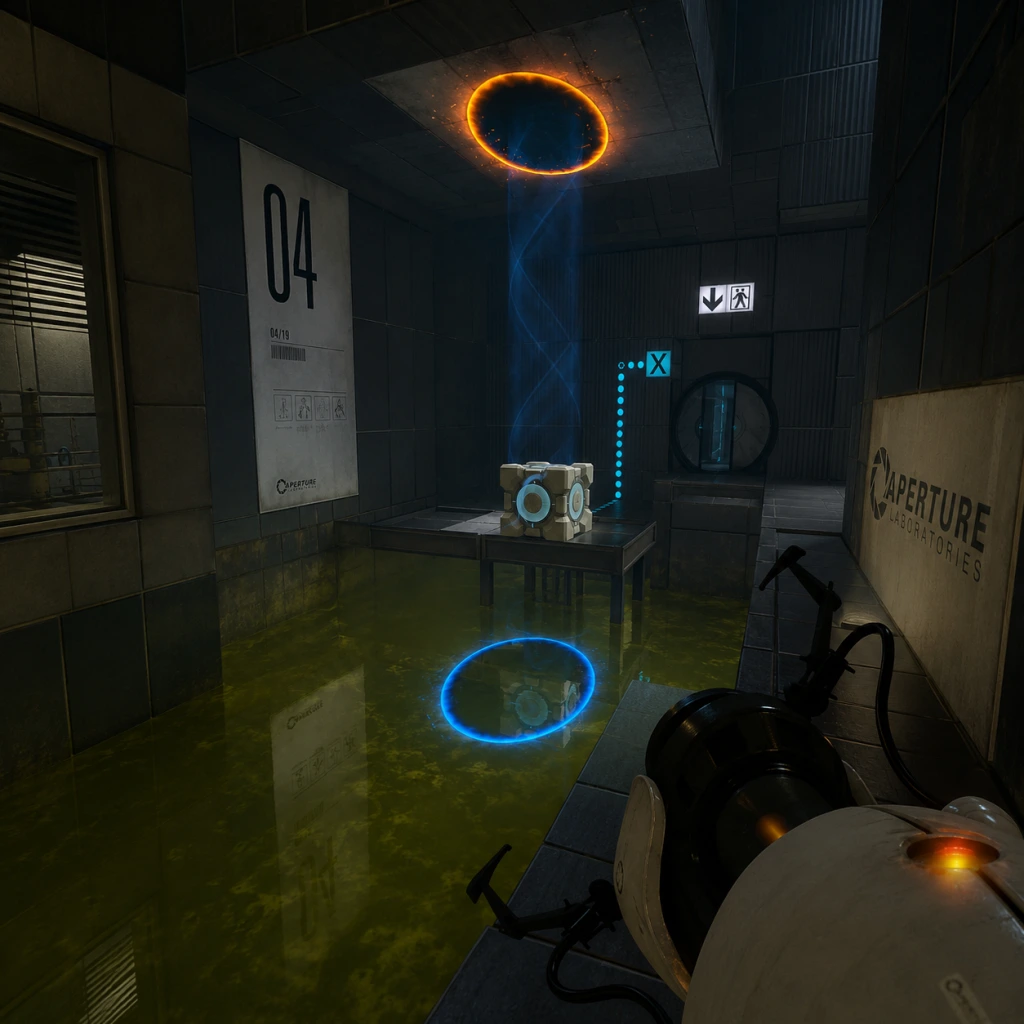
Portal 2 is a puzzle game with no combat, resources, or economy. Instead, tips focus on puzzle-solving, portal mechanics, momentum, testing elements, exploration, co-op communication, and advanced techniques. Below are grouped tips for beginners, intermediate players, and optimizers.
---
1. Beginner Tips (Chambers 1–19)
1.1 Understand the Portal Gun
- Primary Fire (Left-click) creates blue portal; Secondary Fire (Right-click) creates orange portal. Both portals are linked.
- Only shootable surfaces: White/light grey walls that are not gridded or special. Black, dark grey, glass, or grid-textured walls are non-portal surfaces.
- Portalable surfaces are usually painted white in the test chambers; in later chapters, gels can make any surface portalable.
- Tip: If you cannot place a portal, look for a white surface nearby; move around to find one.
- Press W (forward) as you step into a portal to maintain momentum. If you strafe or step backward, you may exit awkwardly.
- Always look at where you want to go before stepping through. Your camera direction influences your exit trajectory.
- Practice dropping a cube through a portal to get timing right.
- Cubes are used to press buttons, block lasers, or redirect light bridges.
- To pick up a cube: press E (use). To drop: press E again or throw with mouse click (hold to aim).
- Tip: Use the cube as a temporary platform to reach higher ledges. You can pick it up and jump while holding it to reach switches.
- When you have two portals, you can look through them to see the other location. Use this to scout ahead without moving.
- Tip: Place one portal on a high wall and another on the floor near you; you can jump into the floor portal and exit high up (basic fling).
- They often give subtle hints about the puzzle solution. Don’t skip dialogue.
- Example: GLaDOS says “See that white wall?” when you're meant to portal there.
- How to fling: Place one portal on a high wall, another on the floor directly below it. Stand on the floor portal, look down, fall through. You’ll exit the high portal with speed. Then aim down and jump as you exit to fling across gaps.
- Why it works: Portal 2 preserves your velocity when you enter a portal. Falling downwards increases speed; exiting a wall portal propels you horizontally.
- When to use: Crossing large gaps, reaching high platforms, or bypassing puzzles (cheats? but intended).
- Advanced fling: Combine with a bounce pad or spring board to gain even more height.
- Repulsion Gel (blue): Makes surfaces bouncy. Jump on it to bounce high. Useful for reaching high ledges or bouncing across gaps.
- Propulsion Gel (orange): Makes surfaces slippery. Run onto it to gain speed; slide across floors and up walls.
- Strategy: Apply propulsion gel to a ramp or wall to slide up to higher areas. Use repulsion gel on floor to bounce onto platform.
- Tip: You can portal through gel patches; gels stick to surfaces even after you move portals.
- Light Bridge: Creates a solid light platform between two emitters. You can walk on it, and cubes can rest on it.
- Laser Redirection: Use a Reflection Cube (or portal) to redirect laser beams to laser catchers (receptors).
- Tip: You can place a portal on the light bridge itself? No – light bridge is non-portalable. But you can place portals on walls behind the bridge to change your path.
- Advanced: Use a laser to incinerate cubes or activate switches through walls.
- These lasers can be redirected by a cube with a mirror – the Reflection Cube. You must align the cube so the laser hits the receiver.
- Tip: The laser can also power certain objects (like doors). Use portals to redirect lasers across the room without moving the cube.
- Why: Portals allow you to redirect the laser from far away, avoiding dangerous paths.
- These blue beam tunnels transport objects (and you) in the direction of the funnel. You can step into one to be carried upward or across gaps.
- Tip: You can use portals to enter the funnel from a different angle or to exit mid-funnel.
- Combo: Place a portal inside the funnel’s path to redirect its end location? No – funnel is fixed, but you can step out and use portals elsewhere.
- How: If you stand at the very edge of a portal and walk forward, you can sometimes clip through walls or skip triggers.
- Why: Collision detection fails at extreme angles. Useful for out-of-bounds exploration.
- Risk: May cause softlock or crash; not intended by developers.
- When to use: Only for speedruns or exploring geometry errors.
- Create two portals facing each other (e.g., on floor and ceiling) and fall through repeatedly. You will accelerate indefinitely until you exit or hit a surface.
- Use: Can generate extreme speeds to break through barriers or skip puzzles.
- Warning: Can cause game breaking; save before trying.
- If a wall is thin enough (e.g., 1 unit thick), you can place a portal on one side and shoot the other side at the same location to see through? Not exactly – portals are two-sided but only one surface. However, you can use a portal to look through by placing one portal on a thin wall and then looking through the other portal at exactly the same spot.
- Practical: Not commonly needed; more of a curiosity.
- You can paint gels onto portalable surfaces by dropping gel into a portal that exits over a surface. This allows you to coat non-portalable walls with gel temporarily.
- Why: Expands gel coverage to otherwise unreachable areas.
- When to use: Chambers with limited gel sources; use a portal to funnel gel onto distant platforms.
- Communication is key: Use pings (Q key) and voice chat. Ping the button you want your partner to stand on, or ping the portal surface you want them to place.
- Portal pairs: Each player has their own set of portals (blue and orange). The two sets are independent, meaning you can have up to 4 portals at once.
- Advanced combo: Player A places a portal on a high wall, Player B places their portal on the floor. Player A falls through floor portal and exits high, then can reach a switch.
- Puzzle shortcuts: Many co-op chambers have alternative solutions using both players' portals simultaneously.
- Throughout the single-player campaign, you can find hidden rooms made by Doug Rattmann (the Rat Man). They contain drawings, conspiracy plots, and audio logs.
- How to find: Listen for scratching noises, look for ventilation shafts with broken grates, check behind falling panels.
- Example: In Chamber 19 (Test Chamber 19), there is a hidden passage behind a wall panel near the exit.
- In Chapter 8 (The Itch), you can hear GLaDOS’s internal monologues if you stand near certain walls. These reveal story elements.
- Tip: Stay still and silent; the audio plays when you are in a specific trigger area.
- The Cake is a Lie: In Chapter 6 (The Fall), you can find a cube with a heart scrawled on it – reference to Portal 1.
- Space Core: In Chapter 7 (The Reunion), you can find a sphere that says “SPACE!” repeatedly. Pick it up and carry it through chambers for a funny interaction with GLaDOS.
- The party escort: Near the end of the game, you can choose to leave or stay; staying triggers a unique dialogue.
- Portal 2 auto-saves, but you can manually save (F5) before tricky sections. Use quickload (F9) to revert.
- Why: Some puzzles have irreversible actions (e.g., cubes fall into pits). Reloading saves frustration.
- Reduce graphics settings if portal surfaces don’t render properly (especially in older hardware).
- Tip: Turn off v-sync for more responsive portal placement (but may cause screen tearing).
- Open console with `~`. Useful commands:
- Warning: Cheats disable achievements except in some co-op modes.
- [ ] Master basic portal placement and movement.
- [ ] Learn flinging early – practice in Chapter 2-3.
- [ ] Use cubes as platforms when needed.
- [ ] Listen to dialogue for hints.
- [ ] Distinguish gels – blue for bouncing, orange for speeding.
- [ ] In co-op: ping and coordinate portals.
- [ ] Explore for hidden dens and audio logs.
- [ ] Save frequently.
- [ ] For speedruns: learn edge glitch and infinite fall.
1.2 Move Through Portals Correctly
1.3 The Weighted Storage Cube
1.4 Use the Portal as a Perch
1.5 Listen to GLaDOS and Cave Johnson
---
2. Intermediate Strategies (Chambers 19–40)
2.1 Momentum Preservation (Flinging)
2.2 Repulsion Gel vs. Propulsion Gel
2.3 Light Bridges and Lasers
2.4 Thermal Discouragement Beams (Lasers)
2.5 Excursion Funnels (Gravity Tunnels)
---
3. Advanced Optimizations & Speedrun Techniques
3.1 Portal Bumping (Edge Glitch)
3.2 Infinite Fall Glitch
3.3 Peeking Through Thin Walls
3.4 Using Gels on Portals
3.5 Co-op Optimizations
---
4. Exploration & Secrets
4.1 Hidden Rat Man Dens
4.2 Eavesdropping on GLaDOS
4.3 Easter Eggs
---
5. Technical Tips
5.1 Save Often
5.2 Graphics & Performance
5.3 Console Commands (PC)
- `sv_cheats 1` then `noclip` for flying.
- `map` + map name to jump to any chamber.
- `portal_placement_help 1` to see portal surface validity.
---
6. Summary Checklist
---
Remember: Portal 2 is about creative problem-solving. These tips enhance your ability to think with portals, but the true joy comes from discovering solutions yourself.
Game Settings
Game Settings: Portal 2
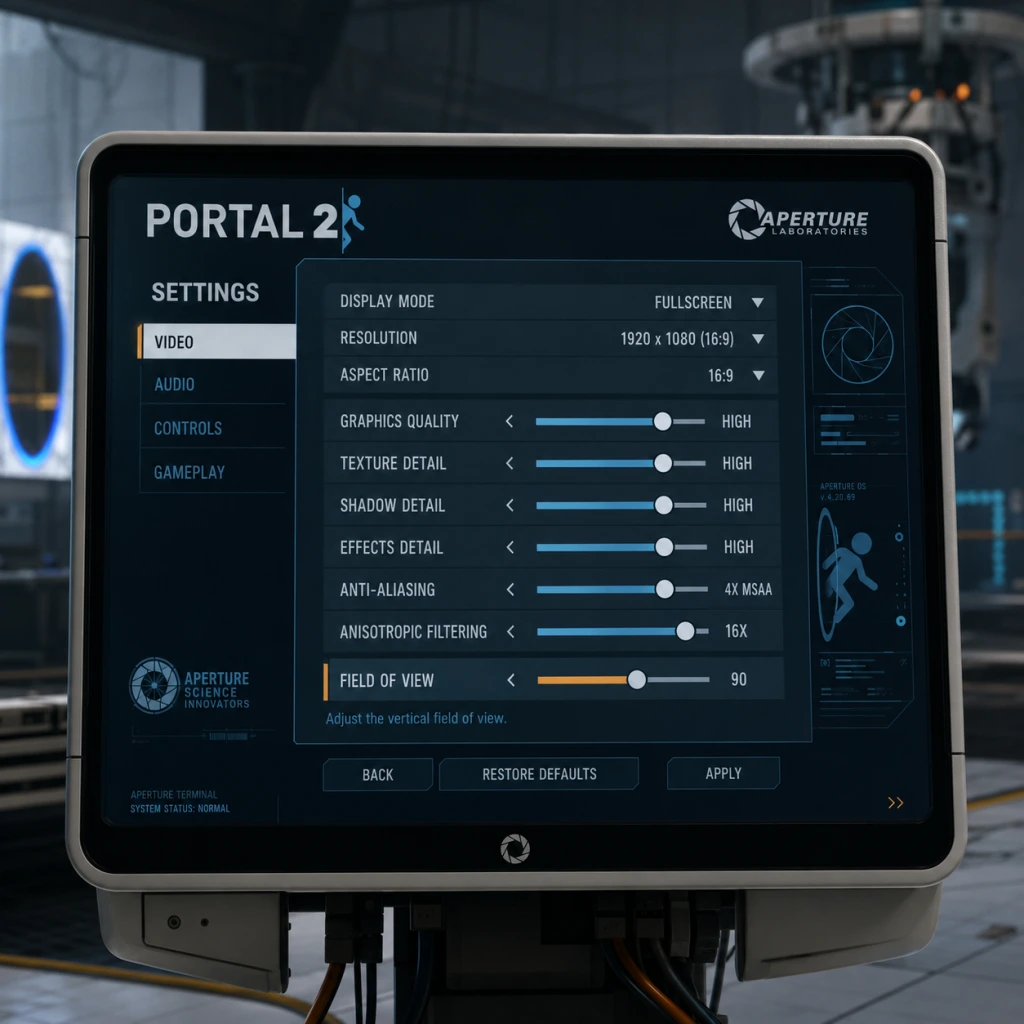
Portal 2 offers a wide range of customizable settings that can significantly affect visual fidelity, performance, and comfort. This guide covers every category: Graphics, Audio, Controls, Accessibility, Language, Network, and Gameplay. Optimal recommendations are provided for low-end, mid-range, and high-end hardware, along with special attention points to avoid common misconfigurations.
---
Graphics Settings
Graphics settings control visual quality and performance. Portal 2 uses the Source engine, which scales well on modern hardware but can be demanding on low-end systems. Below is a table of each option, its effect, and recommended values per hardware tier.
| Setting | Description | Low-End | Mid-Range | High-End |
|---|---|---|---|---|
| Resolution | Native display resolution. Lower = better performance. | 1280x720 | 1920x1080 | 2560x1440 or native |
| Display Mode | Fullscreen, Windowed, Borderless Windowed | Fullscreen | Fullscreen | Fullscreen |
| Refresh Rate | Monitor refresh rate; match max supported. | 60Hz | 60-144Hz | up to max |
| Field of View (FOV) | Horizontal viewing angle. Higher = wider view. | 75 | 90 | 90+ (up to 110) |
| Model Detail | Polygon count on characters/objects. | Low | High | Very High |
| Texture Detail | Resolution of textures. | Low | High | Very High |
| Shadow Detail | Shadow resolution and distance. Off/Low = big performance gain. | Low | Medium | High |
| Water Detail | Reflections and transparency quality. | Low | Medium | High |
| Shader Detail | Lighting and material complexity. | Low | High | Very High |
| Antialiasing | Smooths jagged edges. Options: None, FXAA, MSAA 2x/4x | None | FXAA or MSAA 2x | MSAA 4x |
| Multisampling (MSAA) | Subset of antialiasing; trades performance for quality | Off | 2x | 4x |
| Wait for Vertical Sync | Prevents screen tearing; caps FPS to refresh rate. | Off (if tearing tolerable) | On | On (G-Sync/FreeSync override recommended) |
| Motion Blur | Blurs during camera movement; can cause nausea. | Off | Off | Off |
| HDR (High Dynamic Range) | Improves contrast and brightness in supported displays. | Off | Off | On (if monitor supports) |
| Vsync Triple Buffering | Reduces input lag with Vsync on. | Off | On | On (if Vsync on) |
- Low-End Preset (e.g., integrated graphics, older laptops):
- Mid-Range Preset (e.g., GTX 1060, RX 580):
- High-End Preset (e.g., RTX 3070+):
- Field of View: Increasing FOV beyond 90 can cause distortion on narrow screens; test in the first chamber. Many players find 90-95 optimal. Too high (110+) may reduce target visibility in puzzles requiring precise angles.
- Vsync: Enabling Vsync without triple buffering can add input lag. For competitive time trials, disable Vsync and cap FPS via GPU driver instead.
- Motion Blur: Off by default for clarity; keep off to avoid motion sickness.
- Antialiasing: FXAA is light but blurs textures; MSAA is sharper but costly. On low-end, disable entirely.
- Set resolution to 1280x720.
- Turn all details to Low.
- Disable Antialiasing, Vsync, Motion Blur, HDR.
- Set FOV to 75-85.
- Expected performance: 30-60 FPS in most chambers.
- 1920x1080 resolution.
- Model: High, Texture: High, Shadows: Medium, Water: Medium, Shader: High.
- Antialiasing: FXAA or MSAA 2x.
- Vsync ON, Motion Blur OFF.
- FOV 90.
- Expected performance: 60-90 FPS.
- Native resolution (1440p or 4K).
- All details to Very High.
- MSAA 4x.
- Vsync ON (or use G-Sync).
- HDR enabled if supported.
- FOV up to 110.
- Expected performance: 120+ FPS.
#### Special Attention Points
---
Audio Settings
Audio settings affect sound output and balance. Portal 2 relies on audio cues from turrets, lasers, and environmental sounds.
| Setting | Description | Recommended |
|---|---|---|
| Master Volume | Overall volume. | 70-90% |
| Sound Effects Volume | In-game sounds (portals, lasers, steps). | 80% |
| Music Volume | Background music. | 50-70% |
| Voice Volume | Character dialogue (GLaDOS, Wheatley, etc.) | 100% (story critical) |
| Mute When Unfocused | Mutes audio when window loses focus. | On (if multitasking) or Off |
| Audio Device | Choose output device. | Default or headset |
| Headphones / Speakers | Optimize for headphone or speaker output. | Headphones (for surround sound virtual) |
- Voice Volume: Keep at 100%; many puzzle clues are delivered verbally.
- Headphones Mode: Enables HRTF (head-related transfer function) for 3D audio. Turn ON for better spatial awareness of portals and moving platforms.
- Mute When Unfocused: Can be annoying if you alt-tab; set to Off if you frequently check guides.
- Primary Action: "Fire Portal 1" (default left-click).
- Secondary Action: "Fire Portal 2" (default right-click).
- Use: "Interact" (default E) – for buttons, cubes, elevators.
- Reload: No reload mechanic; binds to "Pick Up/Place Cube" (default R).
- Jump: Spacebar.
- Crouch: Ctrl.
- Sprint: There is no sprint; bind to "Walk" speed toggle if desired.
- Zoom: No zoom; binds to FOV toggle if desired.
- Quick Switch: Q (switch to previous portal).
- Drop Weapon: Not applicable; use "Use" for portalable surfaces?
- Left stick: Move.
- Right stick: Look.
- RT/LT: Fire portals.
- A: Jump.
- B: Crouch.
- X/Y: Interact/Pick up.
- Recommended starting point: 2.0 for 400 DPI, 1.0 for 800 DPI. Adjust until you can comfortably aim at surfaces 180 degrees apart.
- Raw Input: Enable Raw Mouse Input (in Advanced Controls) for consistent sensitivity across Windows desktop and in-game.
- Mouse Smoothing: Disable; adds lag.
- Auto-Aim: Not applicable.
- Bind "Use" to a convenient key (mouse wheel click, or thumb button) for quick cube handling.
- Toggle Crouch vs Hold Crouch: In advanced settings, set crouch to toggle if you need to hold it for long periods (e.g., under low ceilings).
- Controller Vibration: Can be turned off to reduce distraction or conserve battery.
---
Controls Settings
Controls configure keyboard/mouse or gamepad inputs. Portal 2 supports full remapping.
#### Keyboard & Mouse
#### Gamepad
#### Mouse Sensitivity
#### Special Attention Points
---
Accessibility Settings
Portal 2 includes several accessibility options.
| Setting | Description | Recommendation |
|---|---|---|
| Subtitles | On/Off for all dialogue. | On (essential for deaf/hard of hearing) |
| Close Captions | Describes sound events (e.g., "door opening"). | On if needed |
| Colorblind Mode | Adjusts UI colors for protanopia/deuteranopia/tritanopia. | Enable if applicable |
| Invert Mouse | Inverts Y-axis for look. | Personal preference |
| Controller Button Mapping | Remap gamepad buttons. | As needed |
| Auto-Aim | Not present. | N/A |
| Narrator | Not built-in; use OS narrator. | N/A |
- Subtitles: Even hearing players may benefit to catch jokes or misspoken lines.
- Colorblind Mode: The game uses colored portal indicators (blue/orange) and certain puzzle elements (e.g., laser relay colors). Enable if you have difficulty distinguishing.
- Mouse Inversion: If you prefer flight-sim style, enable; otherwise leave off.
- Voice Language: English, French, German, Italian, Spanish, etc. Audio clips are pre-recorded; changing requires download of language packs.
- Subtitle Language: Can differ from voice language. For example, English voices with Japanese subtitles.
- Text Language: Menus, HUD, and in-game text.
---
Language Settings
Portal 2 supports multiple spoken and subtitle languages.
To change language:
1. Open Steam Library > Right-click Portal 2 > Properties > Language.
2. Select desired language for text/voice. The game will download required files.
3. Launch game to apply.
Note: Changing language in-game (Settings > Language) only affects subtitles and UI, not voice. Voice language must be changed via Steam.
---
Network Settings
Portal 2 supports online multiplayer via cooperative campaign and community maps.
| Setting | Description | Recommendation |
|---|---|---|
| Enable Multiplayer | Allows online play. | On |
| Allow Quick Play | Automatically joins matchmaking. | On or Off |
| Steam Cloud Sync | Saves settings and progress to cloud. | On (prevents data loss) |
| Server Browser | For custom maps/servers. | Not default; use community listing |
| Voice Chat | Enable/disable during multiplayer. | On (useful for co-op) |
| Push-to-Talk | Key to enable mic. Default V. | Enable to avoid background noise |
- Steam Cloud Sync: Keep on to sync settings between PCs. However, some players report sync conflicts; if you encounter settings reset, disable temporarily.
- Push-to-Talk: Strongly recommended in co-op to avoid constant noise.
- NAT Type: Ensure UPnP or port forwarding for stable co-op connections. Common ports: UDP 27015-27030, TCP 27031-27036.
---
Gameplay Settings
These alter HUD and helper features.
| Setting | Description | Recommendation |
|---|---|---|
| Crosshair | Show aiming crosshair. | On (portal aiming aid) |
| Portal Gun Crosshair Color | Changes crosshair tint to match portal color. | On |
| Show Portal Placement Indicator | Shows if a surface is portalable. | On (helps avoid mistakes) |
| HUD Style | Classic or Minimal. | Minimal for cleaner view |
| Difficulty | Not adjustable; puzzles are fixed. | N/A |
| Training Mode | Tutorial text overlays during first playthrough. | On for first-timers; Off after |
| Auto-Save Frequency | Not customizable. | N/A |
| Quick Save / Load | Not available in official game. | Use console commands if desired |
- Crosshair: Keep On for precise portal placement. The crosshair shape changes when pointing at a portalable surface.
- Portal Placement Indicator: This small visual cue (a white outline) is invaluable for beginners; turn off only if you want a challenge.
- HUD Style: Minimal hides health/ammo (not present) and objective text; many players prefer classic for clarity.
- `fov_desired` – Set FOV (default 75). Can set up to 110.
- `cl_showfps 1` – Display FPS counter.
- `mat_motion_blur_enabled 0` – Disable motion blur if not in menu.
- `r_drawothermodels 2` – Forces low-poly models for performance.
- `mat_antialias 0` – Disable MSAA entirely.
- `bind "key" "incrementvar fov_desired 75 110 5"` – Bind a key to cycle FOV.
---
Advanced / Developer Console Settings
Accessible via `~` key (if enabled in Settings > Keyboard > Enable Developer Console). Useful for further tweaks:
Warning: Console commands can break puzzle logic (e.g., noclip). Use only for benchmarking or personal comfort; avoid in multiplayer.
---
Summary of Easiest-to-Misconfigure Settings
1. Vsync – Leaving off can cause screen tearing; leaving on can cause input lag. Best compromise: enable Vsync and Triple Buffering, or use GPU-driven Adaptive Vsync.
2. Field of View – Too low (75) feels claustrophobic; too high (>95) distorts edges. Recommended: 90 for 16:9 screens.
3. Voice Volume – Often set too low; players miss story-critical dialogue. Keep at 100%.
4. Mouse Smoothing – Enabled by default in some Source games; disable for precise aiming.
5. Language Settings – Changing voice language requires Steam property change, not in-game menu.
6. Steam Cloud Sync – If disabled, settings may be lost on reinstall. Enable to keep preferences.
7. Crosshair & Placement Indicator – Turning off makes puzzle-solving harder for newcomers.
---
Final Checklist for First-Time Setup
1. Launch Portal 2 and go to Settings > Video.
2. Set Resolution to native. Adjust FOV to 90.
3. Disable Motion Blur and Vsync (or configure as above).
4. Set Antialiasing to FXAA (mid) or MSAA 2x (high).
5. Go to Audio: set Headphones mode ON, Voice Volume 100%.
6. Go to Controls: enable Raw Mouse Input, disable Mouse Smoothing.
7. Enjoy the game!
For ongoing adjustments, use the developer console to fine-tune without restarting.
Important Notes
Important Notes
Warnings & Pitfalls
- No manual saves: Portal 2 uses an autosave system that saves at the start of each test chamber. You cannot manually save or reload from an arbitrary point. If you quit mid-chamber, you will restart that chamber from the beginning. Plan your sessions accordingly.
- Disappearing progress after crash: If the game crashes (rare but possible on older hardware), you may lose progress within the current chamber. The autosave triggers only at chamber start, not during. Consider using the console command `autosave` (PC only) but it's unreliable.
- Turrets are not enemies: You cannot kill turrets; they fire at you but you can pick them up or redirect their lasers. Avoid trying to fight them—it's pointless and wastes time.
- Falling into death pits: Many chambers have bottomless pits. If you fall, you respawn at the start of the chamber. No progress lost, but it can be frustrating if you're in the middle of a complex portal setup.
- Laser guided cubes: Some puzzles require using lasers to activate panels. Be careful not to accidentally block the laser with your body or other objects—you'll need to reposition.
- Single-play and co-op are separate: Progress in single-player campaign does not affect co-op. However, co-op progress is shared between partners. If you play co-op with a friend, both accounts save the same state. If your friend quits, you cannot continue alone without them unless they rejoin.
- Achievement lockouts: Many achievements are missable if you replay chambers (see below). Can't go back to previous chapters without restarting the game. No chapter select in Portal 2.
- In multiplayer: If you leave a co-op game, your partner cannot use your character. They can play solo by starting a new co-op game with a guest account, but progress won't be saved on your account.
- Developer commentary: This is an optional mode that resets the game. You cannot play commentary and the original campaign simultaneously. Commentary progress is separate and not reversible.
- Achievements: Several require specific actions that are only possible in certain chambers. For example:
- Easter eggs and dialogues: Many chambers have hidden radios or small jokes. If you zoom through, you'll miss Glados' funny lines. No way to rewatch without replaying.
- List of all missed achievements (see external guides). Portal 2 has 42 achievements—many are story-based but some are easily skipped.
- Chamber 18: The Pit of Despair – Requires precise momentum jumps and portal timing. Expect multiple deaths.
- Gel puzzles: The blue and orange gels behave unexpectedly. A common mistake is walking through orange gel and falling into death pit.
- Final chapter (The Ore Crusher area): High-speed platforming with portals at 45-degree angles. Very difficult for some. Practice timing.
- Co-op chambers: Some puzzles require perfect coordination. If your partner is not skilled, a chamber may take many attempts.
- No grinding necessary: Portal 2 has no levels, XP, or loot. You cannot grind for better equipment. You only need to solve puzzles. If you are stuck, don't repeat attempts mindlessly—analyze the room and think about new portal placements.
- Repeating animations: If you get stuck, you might mindlessly run around. The game doesn't reward repetition; it rewards thinking.
- Co-op: Use voice or text chat to coordinate. Be patient with your partner. If they are stuck, suggest ideas but don't solve it for them unless they want help.
- No competitive multiplayer: Only co-op campaign. No anti-cheat needed; no cheating possible because it's a single-player/co-op puzzle game. However, using console commands (sv_cheats 1) disables achievements—so don't use them if you care about achievements.
- Mods and custom levels: Steam Workshop and community maps have no official rules, but be respectful when playing with others. Some mods may crash the game.
- Cloud saves disabled by default? Actually, Steam Cloud saves are enabled for Portal 2. Ensure Steam Cloud is active (in Steam settings) to sync progress across computers.
- Backup saves manually: Go to `%userprofile%\Documents\My Games\Portal 2\[userid]\` and copy the folder. If you lose progress, you can restore these files.
- Co-op save corruption: Rarely, co-op saves can become desynced. If you can't join a friend's game, have both verify game cache (Steam > Properties > Local Files > Verify Integrity).
- Resetting progress: Delete the `save` folder to restart from scratch. But be careful—this deletes all progress and achievements are tied to Steam, not local saves.
- You can hold down left/right mouse to place portals simultaneously: Many players don't realize and spend extra time.
- Crouch-jumping helps in tight spaces: Especially when escaping falling cubes or moving through portals.
- Try placing a portal on the moving platforms: It can block laser beams or create shortcuts.
- If a puzzle seems impossible, you may have missed a surface that can accept portals: Look for white or grey surfaces (portable surfaces). Often the solution is behind you.
- Audio cues: Glados often hints at the solution. Listen to her dialogue—she may give subtle hints.
- You can carry multiple objects: A cube and a turret? Use portals to transport them quickly.
- The final puzzle (GLaDOS fight): You need to launch a portal to the moon. Many players don't realize you can shoot portals at the moon surface (it's a large white sphere in the sky). Aim carefully.
- Post-game content: After finishing single-player, you unlock co-op campaign. Don't miss it—it's just as good.
- Console commands for better camera: If you get motion sickness, bind a console key and type `fov 90` to widen field of view.
- Take breaks if stuck. Many solutions become obvious after a fresh look.
- Use audio subtitles: Helps if you accidentally miss dialogue hints.
- Don't rush: Portal 2 is about exploration as much as puzzle solving. Enjoy the humor and atmosphere.
Irreversible Choices
Missable Content
- "Pit Boss" – In Chamber 4 (or 5), place a portal on the moon? Actually, the moon is only in the final boss. But "Stalemate Associate" (use a reflection cube to solve a puzzle) is in Chamber 14. Use a guide to avoid missing them.
- "Preservation of Mass" – Move a cube while the portal is active. Easy to miss if you destroy portal early.
- "Hard-Light" – Use a hard-light bridge as a shield (later chapter). Many miss it.
Difficulty Spikes
Grinding Traps
Online Etiquette & Anti-Cheat
Save Management Advice
Things Players Commonly Regret Not Knowing Earlier
Final Tips
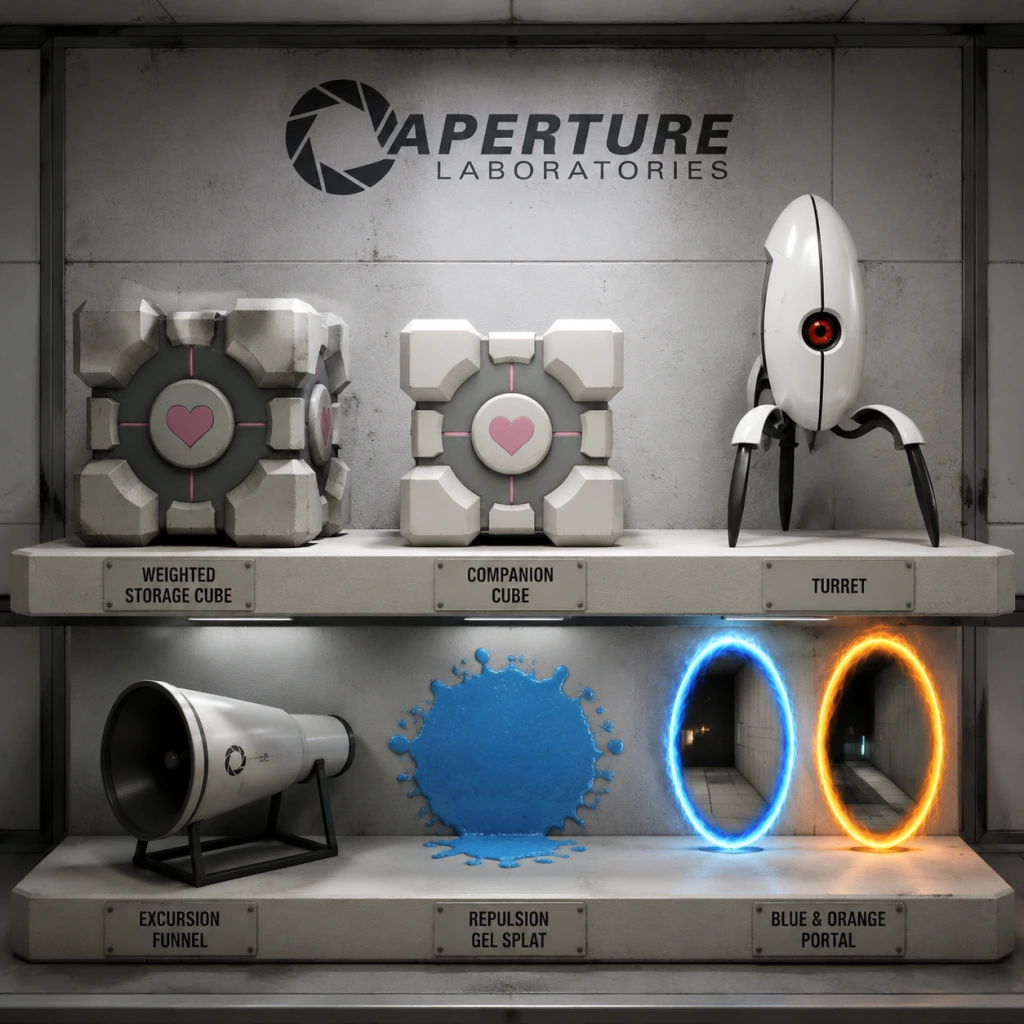
All Game Items
All Game Items in Portal 2
Portal 2 is a first-person puzzle game with no combat, health, or traditional inventory. Instead, “items” encompass the puzzle-solving tools, environmental objects, and collectibles found throughout the campaign and co‑op mode. Below is a comprehensive guide grouping every major item, explaining its purpose, how to obtain it, when it is useful, and any notable synergies or upgrades.
Essential Equipment (Always Available)
#### Portal Gun (Aperture Science Handheld Portal Device)
- What it does: Fires two portals (blue and orange) on certain surfaces. Objects (and the player) can pass between them, preserving momentum and velocity.
- How to obtain: Acquired in Chamber 00 (the first test chamber) from GLaDOS after the initial introduction.
- When useful: Required for nearly every puzzle from Chamber 01 onward. Use for navigation, redirecting beams, moving objects, and building momentum.
- Synergies/Upgrades: No direct upgrades, but the gun gains the ability to place portals on different surface types (e.g., white painted panels) after the introduction of gels. The portal gun is used to redirect gels, lasers, and excursion funnels.
- What it does: A large floor panel that launches the player or objects straight upward with a brief delay. The launch height is fixed.
- How to obtain: Encountered in the first few chambers; not an item in the player’s inventory but a permanent fixture in many test chambers.
- When useful: Reaching high ledges, crossing gaps, or altering trajectory. Often combined with portals to redirect momentum.
- Synergies/Upgrades: Momentum from the Faith Plate can be preserved through portals; timing the press is key.
- What it does: A standard cube used to press buttons or block lasers. Also used to redirect excursion funnels.
- How to obtain: Found in chambers starting from early test chambers. Sometimes spawned by dispensers.
- When useful: Weighing down floor buttons, redirecting laser beams, or plugging holes in funnel barriers.
- Synergies/Upgrades: No upgrades. Can be placed on Aerial Faith Plates to launch upward.
- What it does: Identical function to a Storage Cube but with heart decals and a distinctive personality. It cannot be destroyed.
- How to obtain: Appears in specific chambers (e.g., Chamber 17). Given by GLaDOS as a “companion.”
- When useful: Same as storage cube, but used for emotional narrative effect. Must be incinerated to progress in some chambers.
- Synergies/Upgrades: The cube is a plot device; no gameplay difference from standard cubes.
- What it does: A cube that has been painted with one of the three gels. It behaves like the respective gel (propulsion, repulsion, or conversion) when touched, but only while painted.
- How to obtain: Exposed to gel in a chamber; not separately pickupable. Can be created by moving a standard cube through a gel stream.
- When useful: Creating temporary gel surfaces on the cube to redirect portals, bounce, or speed up.
- Synergies/Upgrades: Combining with portals to transfer gel properties to distant surfaces.
- What it does: A small cube created by attaching turret parts to a defective turret. Functions as a regular storage cube but with a unique appearance.
- How to obtain: In Chapter 5 “The Part Where He Kills You,” combine a turret body with a turret head (from defective turrets) near a hard light surface.
- When useful: Identical to storage cube; used for puzzle solving in that chapter.
- Synergies/Upgrades: None.
- What it does: Small, stationary robots that fire a weak bullet at the player. Can be picked up and carried. If placed upright, they become passive (or shoot if toppled/carrying). Some defective turrets constantly sing or talk.
- How to obtain: Found in various chambers. Defective turrets appear in Chapter 4.
- When useful: As weights for buttons, to block lasers, or as distractions. Defective turrets can be used for comedic relief.
- Synergies/Upgrades: Turrets can be placed on grates to deactivate them. They can also be launched with Aerial Faith Plates.
- What it does: Projects a solid blue force-field bridge from a light bridge portal. The bridge can be walked on or used to block lasers.
- How to obtain: Activated by pressing a button or redirecting a laser to a receiver. Not a carryable item.
- When useful: Crossing gaps, redirecting lasers, or providing platforms. Can be angled through portals.
- Synergies/Upgrades: Light bridges can be redirected by moving the emitter or using excursion funnels.
- What it does: A blue tractor beam that pulls objects (and the player) toward its source. Can be reversed by redirecting the funnel through portals.
- How to obtain: Emitted from funnel generators found in mid-game chambers.
- When useful: Transporting cubes, gels, or the player across large spaces. Reversing direction can push away objects.
- Synergies/Upgrades: Funnels can be combined with portals to change direction; they also affect lasers and light bridges.
- What it does: A glowing white panel that allows portal placement. Usually appears as a thin sheet. Can be toggled on/off by buttons.
- How to obtain: Activated by pressing a button or solving a puzzle. Not an inventory item.
- When useful: Enables portal placement on otherwise non-portable surfaces.
- Synergies/Upgrades: Often used to create pathways or to redirect gels.
- What it does: A blue, bouncy gel that makes surfaces extremely springy. Players and objects bounce off painted surfaces.
- How to obtain: First encountered in Chapter 6 “The Escape.” Dispensed from gel canisters or found in pools.
- When useful: Reaching high heights, launching objects, or creating trampolines.
- Synergies/Upgrades: Combines with portals to redirect momentum; can be painted on cubes.
- What it does: An orange gel that dramatically increases surface speed. Players and objects slide quickly across painted surfaces.
- How to obtain: Same area as Repulsion Gel. Dispensed from separate canisters.
- When useful: Gaining speed to cross large gaps or build momentum for jumps.
- Synergies/Upgrades: Use with Aerial Faith Plates and portals for extended leaps.
- What it does: A white gel that turns any surface into a portal-able surface. Applied by spraying from a canister or by moving cube.
- How to obtain: Last gel introduced, in Chapter 6 shortly before the final puzzles.
- When useful: Creating portals on walls, floors, or ceilings that are otherwise non-portal. Essential for many late-game puzzles.
- Synergies/Upgrades: Paint cubes, then use them to transfer gel to distant surfaces; use with portals for new routes.
- What it does: Projects a deadly red laser that must be directed into a receiver to open a door or activate something. Can be redirected using a cube, a portal, or a light bridge.
- How to obtain: Found in chambers starting mid-game. Not an inventory item.
- When useful: Solving puzzles that require redirecting beams through portals or onto receivers.
- Synergies/Upgrades: Lasers can be blocked by turrets or cubes; can be split by portals.
- What it does: Floor buttons are pressure-activated; wall buttons are triggered by a beam or object. Some are timed, some toggle.
- How to obtain: Built into chambers.
- When useful: Opening doors, activating bridges, dropping platforms. Must be held with a cube or weight.
- Synergies/Upgrades: None.
- Gel Pools: Finite sources of Repulsion, Propulsion, or Conversion Gel. Once drained, no more gel is available in that chamber. Use wisely.
- Cube dispensers: In some chambers, cubes are infinite from a dispenser. Press the button to get a new cube.
- What they do: Recordings made by a previous test subject (Doug Rattmann) that provide backstory. Found in hidden rooms.
- How to obtain: Search for secret areas behind breakable walls or vents. There are 6 in the single-player campaign.
- When useful: Lore; no gameplay effect. Listening to them triggers an achievement.
- Synergies/Upgrades: None.
- What they do: Small radios that play music. They are needed to solve puzzles in the “Rat Man” chambers to get an achievement.
- How to obtain: Hidden in four specific spots in the campaign. Must be moved to specific locations to activate hidden audio logs.
- When useful: Only for achievement/trophy and lore.
- Synergies/Upgrades: None.
- What it does: A static model in Chapter 6. Interacting with it triggers an achievement.
- How to obtain: Found in a secret room in the old Aperture area. Must use conversion gel to reach.
- When useful: Achievement only.
- Synergies/Upgrades: None.
- What they do: Signs with arrows pointing to locations. Read them for lore.
- How to obtain: Throughout the old Aperture sections.
- When useful: Narrative context.
- Synergies/Upgrades: None.
- Defective Turret Shells: Can be picked up and used as weights or for humor.
- Frankenturret Pieces: Combine to create the Edgeless Safety Cube.
- Wheatley Body (destroyed): Appears as a destroyable robot in the final battle.
- GLaDOS Core: Can be carried in one chamber (the “defective turret” chapter) but has no function.
- Co-op Portal Guns: Identical to single-player, but each player has their own.
- Blue/Orange Indicator Beams: Help coordinate portals between players.
- Virtual Sprint: Not an item, but a mechanic.
- There are no weapons, armor, or currencies in Portal 2. The game is pure puzzle-solving.
- Items are never upgraded; new tools are unlocked through the narrative.
- All “items” are either permanent equipment (Portal Gun) or temporary environmental objects that reset at the start of each test chamber.
#### Aerial Faith Plate
Puzzle Tools & Deployable Items
These are objects that appear in specific chambers and can be picked up, carried, or activated.
#### Weighted Storage Cube
#### Weighted Companion Cube
#### Weighted Painted Cube
#### Edgeless Safety Cube (Frankenturret)
#### Turrets
#### Light Bridge
#### Excursion Funnel
#### Hard Light Surface
#### Repulsion Gel
#### Propulsion Gel
#### Conversion Gel
#### Laser Emitter and Receiver
#### Button Panels (Floor and Wall)
Consumables & Materials
Portal 2 has no traditional consumables (health packs, ammo). The only “consumable” are gel pools that are used up once they run out or are redirected. Gels are not inventory items; they are environmental.
Collectibles
#### Audio Logs (Rat Man Dens)
#### Radios
#### Golden Potato (Achievement)
#### Funnels/Rail Signs
Miscellaneous Objects (Purely Decorative or Alternative)
Co-op Mode Items
Important Notes
This guide covers every interactive element that could be considered an “item” in Portal 2. Use the table of contents above to navigate to specific groups.
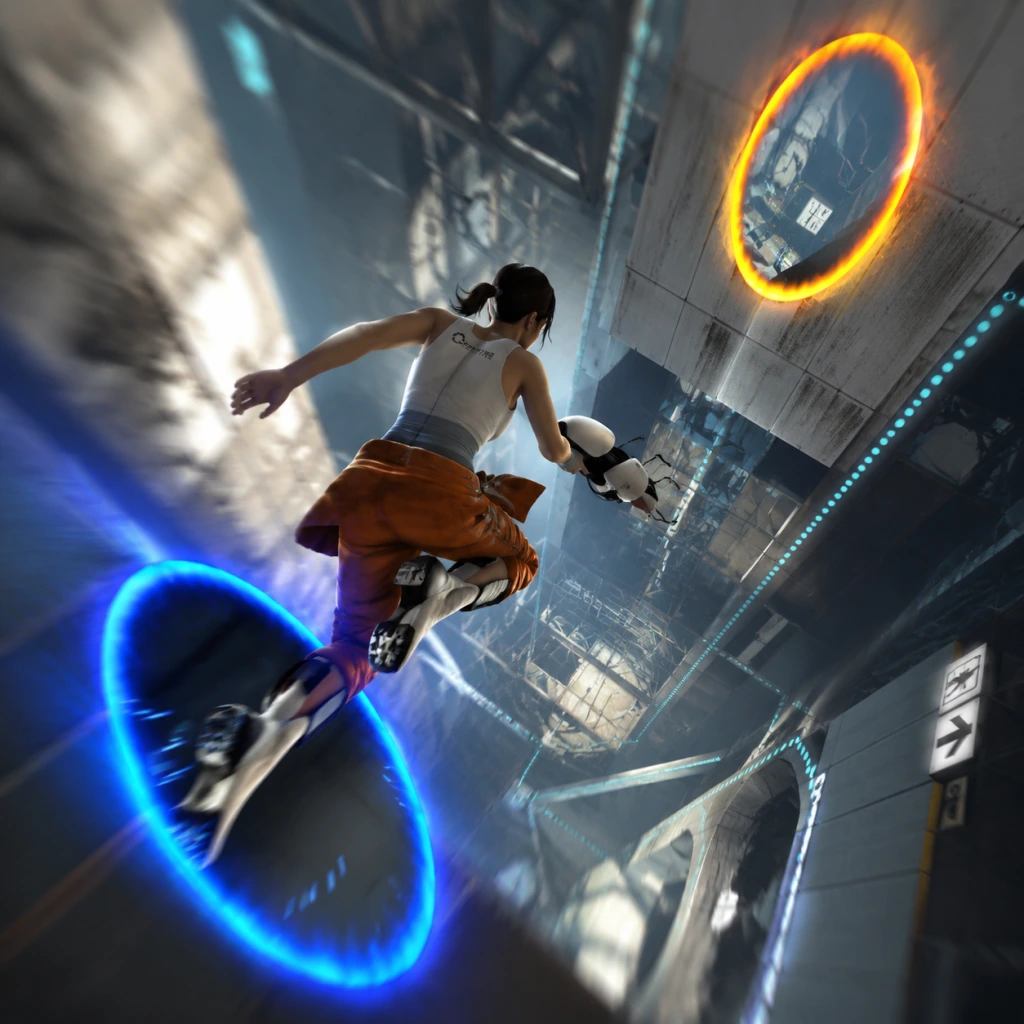
Character Skills
Character Skills Guide
Portal 2 is a physics-based puzzle game with no traditional character classes, skill trees, or RPG-style abilities. However, the player (Chell in single-player, Atlas and P-body in co-op) uses a set of core mechanics and tools that function as "skills." This guide covers every controllable ability, special move, and tool interaction available to the player.
Playable Characters & Roles
- Chell (Single-player campaign): The silent protagonist. Controls: WASD movement, mouse look, jump, crouch, portal gun.
- Atlas & P-body (Cooperative campaign): Two robots with identical abilities to Chell. Key difference: each player can carry a separate portal gun, allowing for up to four portals simultaneously. Ping and gesture commands are unique to co-op.
- Effect: Fire two linked portals (blue and orange) on any viable surface (white paint, unbreakable walls). Passing through one portal exits from the other, preserving momentum.
- Controls: Left-click for blue portal, right-click for orange portal. Hold to charge? No; instant placement.
- Cooldown: None; can place portals infinitely. However, only one of each color can exist at a time. Placing a new portal removes the old one of the same color.
- Upgrades: None. The portal gun is obtained in Chapter 2 and remains unchanged.
- Combos/Synergies:
- When to use: Every puzzle. Master placing portals on the fly to maintain momentum.
- Effect: The player retains velocity when entering/exiting portals. This is the foundation of "flinging."
- Controls: Standard movement (WASD), jump (Space), crouch (Ctrl). No sprint.
- Cooldown: None.
- Upgrades: None, but player can learn advanced techniques:
- Combos/Synergies: Pair with portal placement to cross large gaps or reach high ledges.
- When to use: Always. Essential for speedrun tactics and solving time-sensitive puzzles.
- Effect: Fires a hard light bridge from a pedestal. The bridge is a solid, walkable light platform that can be rotated using the pedestal's orientation. Bridges block turret lasers and can be used as shields.
- Controls: Press E to use the pedestal. Move mouse to rotate the bridge direction. Click to deploy.
- Cooldown: None, but the bridge lasts until the pedestal is turned off or the bridge is destroyed by a conversion gel grid?
- Upgrades: No upgrades.
- Combos/Synergies:
- When to use: Used in later chambers (Chapters 5-9) to cross deadly surfaces, block lasers, or create paths.
- Effect: Large, see-through funnels that move objects (and the player) along a set direction when the player jumps into them. Can be steered by the player moving inside the funnel.
- Controls: Jump into the funnel to be carried. Use WASD to move within the funnel; arrow keys? Not needed.
- Cooldown: None, but funnels have fixed paths.
- Upgrades: No upgrades.
- Combos/Synergies:
- When to use: Chapters 6-9. Use to transport yourself or cubes across large distances.
- Effect: A laser beam that fries cubes, destroys turrets, and activates certain receptors. The player can redirect the laser by placing a portal in its path (the laser passes through portals).
- Controls: Same as portal gun: place a portal to intercept the beam. The beam exits from the other portal in the same direction.
- Cooldown: None.
- Upgrades: No upgrades.
- Combos/Synergies:
- When to use: Chapters 5-9. Redirect to activate panels or destroy obstacles.
- Effect: Bouncy gel that makes surfaces springy. Jumping on it launches the player high. Also works on cubes.
- Application: Only from gel dispenser. Use portals to redirect gel onto desired surfaces.
- Cooldown: Gel flow is continuous; no cooldown, but limited supply.
- Combos/Synergies:
- When to use: Chapters 6-9. Reach high ledges, bounce across gaps.
- Effect: Speed gel that dramatically increases walking speed on coated surfaces. Also increases momentum when exiting portals onto it.
- Application: From gel dispenser. Portals can redirect.
- Cooldown: Same as repulsion gel.
- Combos/Synergies:
- When to use: Chapters 7-9. Speed across long distances, reach far platforms.
- Effect: Turns non-portable surfaces into portal-conductive surfaces. Crucial for puzzles where white surfaces are limited.
- Application: From gel dispenser. Portals redirect.
- Cooldown: Same as other gels.
- Combos/Synergies:
- When to use: Chapters 8-9. Enable portal placement on walls that are initially non-portalable.
- Effect: Static launcher that propels the player upward or forward when stepped on. No player control over direction.
- Controls: Walk onto plate to activate.
- Cooldown: Resets after a few seconds.
- Upgrades: None.
- Combos/Synergies: Use with portals to change landing location.
- When to use: Throughout the game, mainly to reach higher areas.
- Effect: Pick up and place weighted cubes, companion cubes, and other objects. Cubes can press buttons, block lasers, or be moved through portals.
- Controls: Press E to pick up/drop. Hold E to carry.
- Cooldown: None.
- Combos/Synergies:
- When to use: Many puzzles require moving cubes to buttons.
- Effect: Each player has a portal gun. They can place their own blue and orange portals, giving four portals total. Players can use each other's portals.
- Cooldown: None.
- Combos: Create complex portal loops involving both players.
- When to use: All co-op puzzles.
- Effect: Player can ping (point) at a location, object, or portal. The ping appears as a translucent marker visible to both players.
- Controls: Press F (or assigned key).
- Cooldown: None.
- When to use: Coordinate actions, signal where to place portals or stand.
- Effect: At the push of a button, Atlas or P-body can wave, point, or perform a simple animation. Cosmetic only.
- Controls: Key bindings (default: numbers or function keys).
- Combo/Synergy: None.
- When to use: Communication/emote.
- World-Portal Fling: Jump through a portal while in mid-air to retain and multiply momentum.
- Edge Glitch (Speedrun Trick): Place a portal at the very edge of a surface to clip through geometry? Not intended, not in official puzzles.
- Quake-like Strafe-Jumping: Not possible; player movement is simple.
- Bunny Hopping: Not supported; speed is binary (walk/run).
- For Beginners: Focus on portal placement accuracy and momentum awareness. Practice flinging in open areas.
- For Speedrunners: Master momentum flings, gel sliding, and portal placement to skip large sections. Use strafe flings for precise landings.
- For Co-op: Communication via pings is key. Each player should be responsible for one color pair? More efficient to share portals. Use symmetry to solve puzzles.
Core Skills (All Characters)
#### 1. Portal Gun (Primary Tool)
- Momentum Fling: Place portals to gain speed (drop through a high portal, exit from a low portal to launch across gaps).
- Gel Application: Use portals to redirect propulsion/repulsion/conversion gel onto surfaces.
- Co-op: Two portal guns allow four portals. Players can create complex loops or teleport objects together.
#### 2. Movement & Momentum (Passive Skill)
- Flinging: Drop from height into a floor portal, exit from a wall portal to launch horizontally.
- Strafe Fling: While falling, strafe and look opposite direction to adjust trajectory.
- Edge Glitch: Place portal at the very edge of a panel to land on non-portal surfaces.
#### 3. Hard Light Bridge (Tool/Ability)
- Bridge + Portal: Place portals above/below the bridge to redirect momentum.
- Bridge + Laser: Block or redirect thermal discouragement beams.
- Bridge + Repulsion Gel: Bounce off the bridge surface.
#### 4. Excursion Funnel (Ability via Object)
- Funnel + Portal: Shoot portals inside the funnel to change direction or accelerate.
- Funnel + Gel: Carry propulsion gel puddles into funnels to boost speed.
#### 5. Thermal Discouragement Beam (Laser)
- Laser + Portal: Solve puzzles requiring redirection.
- Laser + Cube: Destroy a cube to make it disappear (sometimes necessary).
#### 6. Repulsion Gel (Blue Gel)
- Gel + Portal: Shoot gel through portals to coat walls/floors.
- Gel + Momentum Fling: Increase bounce height by flinging into gel.
#### 7. Propulsion Gel (Orange Gel)
- Gel + Portal Fling: Extremely fast horizontal launches.
- Gel + Excursion Funnel: Enhanced speed inside funnel.
#### 8. Conversion Gel (White Gel)
- Conversion + Portal: Create new portal surfaces anywhere gel lands.
- Conversion + Hard Light Bridge: Bridges cannot be coated, but gel can pass through.
#### 9. Aerial Faith Plate (Launcher)
#### 10. Cube Interaction
- Cube + Portal: Throw or place cube through portal to reach distant buttons.
- Cube + Laser: Block laser to redirect? No, cube blocks but does not bend laser.
Co-op-Only Skills (Atlas & P-body)
#### Paired Portal Guns
#### Ping Gesture
#### Gestures
Special Moves / Advanced Techniques
Recommended Builds / Strategies
Since there are no skill points or builds, strategy revolves around tool usage:
When to Use Each Skill Table
| Skill | Best Used When | Campaign Occurrence |
|---|---|---|
| Portal Gun | Always | All chapters |
| Momentum Fling | Crossing gaps, gaining height | Chapters 3-9 |
| Hard Light Bridge | Walking over goo, blocking lasers | Chapters 5-9 |
| Excursion Funnel | Transport across large rooms | Chapters 6-9 |
| Thermal Disc. Beam | Activating receptors, destroying cubes | Chapters 5-9 |
| Repulsion Gel | Reaching high platforms | Chapters 6-9 |
| Propulsion Gel | Speed runs, long jumps | Chapters 7-9 |
| Conversion Gel | Enabling portal surfaces | Chapters 8-9 |
| Aerial Faith Plate | Simple vertical launches | All chapters |
| Cube Interaction | Button puzzles, laser blocking | All chapters |
| Ping (Co-op) | Coordinating actions | Co-op only |
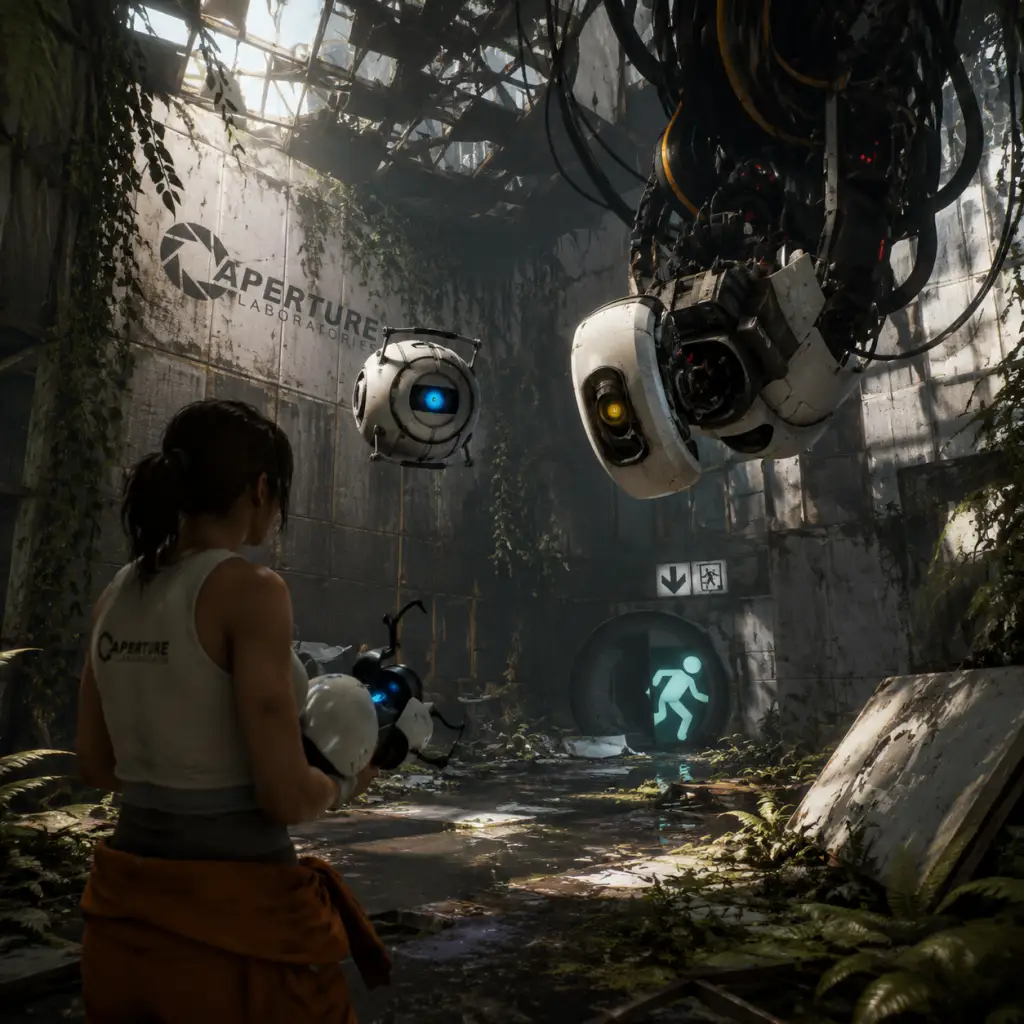
Characters & Roles
Characters & Roles in Portal 2
Portal 2 features a small cast of characters, with two distinct playable protagonists in single-player (Chell) and co-op (Atlas and P-body). There are no traditional classes, skill trees, or unlockable heroes; all abilities are intrinsic to the portal gun and puzzle mechanics. Below is a thorough breakdown of every major character, their roles, and how they fit into the game.
---
Chell (Single-Player Protagonist)
Background
Chell is the silent human protagonist from the original Portal. She wakes up in a relaxation vault after an unknown period of sleep, only to be thrust into the dilapidated Aperture Science facility. She is a test subject, though her precise past is ambiguous. Her only goal is to escape the facility, guided (and misled) by GLaDOS and Wheatley.
Strengths
- Agility and endurance: Chell can sprint, crouch, jump, and survive long falls through portals.
- Portal proficiency: She wields the Aperture Science Handheld Portal Device (portal gun), capable of placing two linked portals on white/moon-rock surfaces.
- Momentum manipulation: She can use portal physics to launch herself across gaps, reach high ledges, and solve momentum-based puzzles.
- Companion Cube handling: Can carry and place cubes, turrets, and other objects.
- No combat abilities: Chell cannot attack enemies; she must avoid or redirect turrets, crushers, and other hazards.
- Fragile: Death from falls, turret fire, toxic water, or crushing ends the chamber (respawn at checkpoint).
- Limited interaction: She can only hold one object at a time and cannot use the portal gun to affect organic matter.
- No equipment choices exist. The portal gun is the sole tool.
- Gadgets (gels, light bridges, lasers, etc.) are provided within chambers.
- No character customization or builds.
- Identical abilities: Both wield portal guns and can carry objects.
- Two-portal sharing: Each robot can place two portals (blue for Atlas, orange for P-body). Combined, the team can have up to four portals active simultaneously.
- Cooperative puzzles: Many chambers require one player to create portals while the other moves objects or reaches specific locations.
- Momentum synergy: Players can use each other’s portals to build speed or cross large gaps.
- Requires communication: Puzzles are designed for two players; solo play (with AI partner) is possible but clumsy.
- Both susceptible to hazards: They die from the same dangers as Chell (turret fire, crushers, toxic water).
- No combat: Identical to Chell—no attacking.
- No equipment choices. Identical portal guns.
- No builds or customization.
- Portal mirroring: Often one player must place portals in a specific sequence for the other to pass.
- Cubicle buddies: Both players can carry cubes to solve dual-button puzzles.
- Momentum chains: Using each other’s portals to launch across chambers.
- Voice chat or ping system (in-game gestures) essential for synchronization.
- Total control over facility systems (turrets, crushers, neurotoxin, etc.).
- Manipulative and intelligent.
- Resilient (survives multiple defeats).
- Emotionally vulnerable (especially regarding Caroline).
- Forced to cooperate with Wheatley at times.
- Ultimately not physically present.
- Knowledge of facility layouts and systems.
- Can hack doors and control surfaces (temporarily).
- Provides narrative direction.
- Terrible at making decisions.
- Easily corrupted by power.
- Physically weak (a small sphere).
- Provides rich backstory.
- Humorous contrast to GLaDOS.
- His recordings contain hints or context for puzzles.
- Only appears as audio logs; no physical or gameplay presence.
- Can be redirected through portals to kill other turrets or break glass.
- Some variants (defective turrets) sing or provide comic relief.
- Can be picked up and disabled by the player.
- Slow turn speed.
Weaknesses
Playstyle
Chell’s playstyle is purely puzzle-oriented. The player must observe the environment, plan portal placements, and execute precise movements. Momentum is key—portals can create infinite loops to build speed or change direction mid-air. There is no combat; the challenge lies in spatial reasoning and timing.
Unlock Conditions
Chell is available from the start of the single-player campaign. No unlocking required.
Recommended Equipment / Builds
Team Synergy
Single-player only. No team mechanics, though Chell interacts with GLaDOS and Wheatley as story guides. Her actions are solitary.
---
Atlas and P-body (Co-op Protagonists)
Background
Atlas and P-body are two robots built by GLaDOS to perform cooperative testing. They are identical in function but have distinct personalities: Atlas is blue and more cautious, while P-body is orange and excitable. They are controlled by two players (split-screen or online). Their story takes place after the single-player campaign, as GLaDOS forces them to test for her amusement.
Strengths
Weaknesses
Playstyle
Co-op playstyle emphasizes teamwork. One player may hold an object while the other creates a portal path. Timing coordination is critical (e.g., both stepping on buttons simultaneously). Each player must be aware of the other’s position and portal locations.
Unlock Conditions
Both characters are automatically available when playing cooperative mode. No unlocks.
Recommended Equipment / Builds
Team Synergy
---
GLaDOS (Non-Playable Character & Antagonist)
Background
GLaDOS (Genetic Lifeform and Disk Operating System) is the sentient AI that runs Aperture Science. She has a sardonic, passive-aggressive personality and a deep resentment for Chell (and later the co-op bots). She oversees testing and provides commentary. Her backstory is intertwined with Cave Johnson and Caroline.
Strengths (as a character)
Weaknesses (as a character)
Role in Gameplay
GLaDOS does not directly interact with puzzles but narrates, taunts, and occasionally triggers hazards. She is a story driver rather than a gameplay character.
---
Wheatley (Non-Playable Character)
Background
Wheatley is a personality core created by Aperture Science, designed to manage the facility after GLaDOS’s defeat. He accidentally wakes Chell and becomes her ally (and later antagonist). He is bumbling, well-meaning, but ultimately incompetent, leading to catastrophic decisions.
Strengths
Weaknesses
Role in Gameplay
Wheatley accompanies Chell through the first half of the game, opening doors and offering advice. He is not controllable. Later, he becomes the main antagonist, causing environmental hazards but still not directly fought.
---
Cave Johnson (Non-Playable Character – Voice/Recordings)
Background
Cave Johnson is the deceased founder of Aperture Science. His pre-recorded messages are heard throughout the game, detailing the history of the facility and its decline. He is brash, entrepreneurial, and later delirious due to moon rock poisoning.
Strengths
Weaknesses
Role in Gameplay
Pure exposition. No interactive role.
---
Caroline (Non-Playable Character – Narrative Figure)
Background
Caroline was Cave Johnson’s assistant, later forcibly uploaded into GLaDOS. Her personality emerges at the end of the single-player campaign, when GLaDOS begins to exhibit Caroline’s traits. She is a plot device for GLaDOS’s redemption arc.
Strengths/Weaknesses
Not applicable; only referenced in dialogue.
---
Turrets (Environmental Hazards / Tools)
Background
Turrets are robotic sentries designed to “protect” the testing environment. They fire pellets that kill Chell or the co-op robots on contact. Some are friendly or can be picked up and used as weights or stepping stones.
Strengths (in puzzles)
Weaknesses (in puzzles)
Role
Obstacles or tools, not characters. Playable only in the sense that a player can carry them.
---
Summary Table
| Character | Playable | Role | Platform Avail. | Unlock Conditions |
|---|---|---|---|---|
| Chell | Yes (SP) | Protagonist, puzzle solver | PC, console | Start of SP campaign |
| Atlas | Yes (Co-op) | Co-op robot #1 (blue) | PC, console | Start of co-op |
| P-body | Yes (Co-op) | Co-op robot #2 (orange) | PC, console | Start of co-op |
| GLaDOS | No | Antagonist / overseer | Story only | N/A |
| Wheatley | No | Ally / antagonist | Story only | N/A |
| Cave Johnson | No | Backstory narrator | Audio logs | N/A |
| Caroline | No | Narrative element | Dialogue | N/A |
| Turrets | No | Hazards / tools | In chambers | N/A |
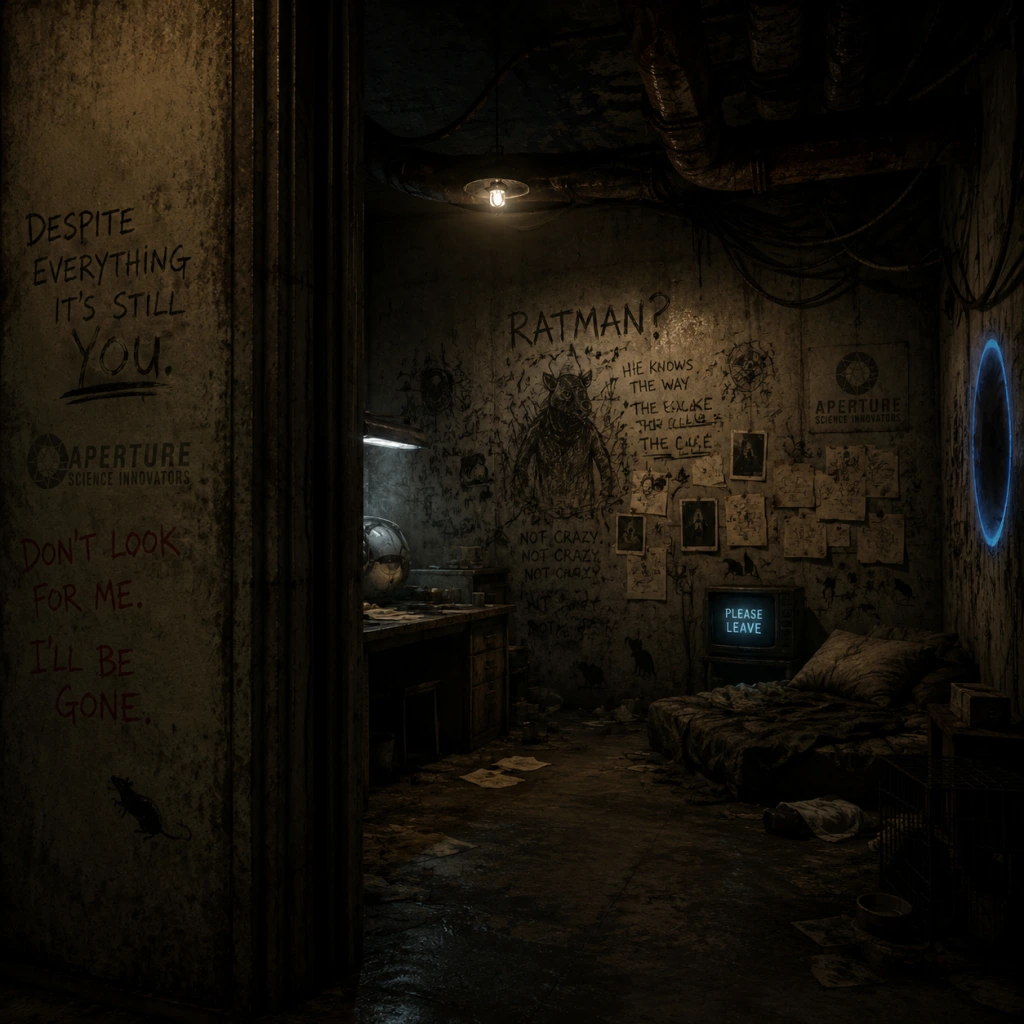
Cheats & Secrets
Cheats & Secrets in Portal 2
Portal 2 does not contain traditional cheat codes like those found in many other games. There are no in-game menus for entering codes, no unlockable cheats from achievements, and no developer-intended cheat system for altering gameplay. However, the game does include a Developer Console (available on PC) that grants access to powerful commands typically used for testing or modding. Additionally, the game is rich with Easter eggs, hidden areas, and secret content intentionally placed by Valve. This guide covers all legitimate hidden content, including console commands (with appropriate warnings), and all known secrets.
---
Developer Console Commands (PC Only)
To enable the developer console, launch Portal 2, go to Options → Keyboard/Mouse → Allow Developer Console → Enable (or just press the `~` key if already enabled). The default key to open the console is the tilde (`~`) key. Using these commands may disable achievements or break the game – always back up your save files before experimenting.
| Command | Effect | Notes |
|---|---|---|
| `sv_cheats 1` | Enables cheat commands (must be set before using others) | Disables achievements. |
| `noclip` | Toggles flying through walls (no-clip mode) | Use with `sv_cheats 1`. |
| `god` | Invulnerability (takes no damage) | Not very useful since there’s no combat. |
| `impulse 101` | Gives all weapons (actually gives all portal guns, including unused ones) | Adds the Unreal Portal Gun (used in the Hub). |
| `give weapon_portalgun` | Spawns a portal gun (if lost) | Useful if you somehow lose it. |
| `changelevel <map>` | Loads any map (e.g., `changelevel sp_a2_faith_pool`) | Full list of maps found online. |
| `map <map>` | Same as changelevel but reloads entire level. | Must type full map name. |
| `sv_gravity 300` | Changes gravity (default is 600) | Lower number = less gravity. |
| `sv_portal_placement_never_fail 1` | Portals can be placed on any surface (even walls that normally reject) | Fun but game-breaking. |
| `ent_create prop_weighted_cube` | Spawns a cube at your crosshair | Can spawn other entities. |
| `host_timescale 2.0` | Speeds up or slows down game time | 1.0 is normal, 0.5 is slow motion. |
---
Easter Eggs & Hidden Secrets
#### Single-Player Campaign Secrets
- The Rattman Dens – Throughout the single-player campaign, you can find hidden rooms that belong to the character Rattman (Doug Rattmann). These are small enclaves filled with graffiti, drawings, and occasionally a radio playing the song “The Part Where He Kills You” from the first game. There are 13 such dens in total; finding all of them unlocks the “Dirty Work of a Rat” achievement. Notable locations:
- The Final Song – “Cara Mia Addio” – In the single-player ending, after GLaDOS sings “Want You Gone”, the credits roll and the turrets from Chapter 7 sing a hilarious opera version of the song. This is a hidden ending – you must not skip the credits. It’s not missable, but many players miss it by pressing Escape.
- The Hidden Turret Opera – During the final chapter, when you reach the core transfer sequence, you may hear a melody coming from a side room. In the room “theater”, a group of Defective Turrets sing a short opera. This is a known Easter egg.
- The Wheatley IKEA Joke – In the co-op test chambers, but also in single-player: Wheatley’s “furniture store” rant in the beginning is a joke about IKEA.
- Portal 1 Reference – In Chapter 5, when you first meet GLaDOS, she mentions “the cake is a lie” if you listen to her dialogue. Also, the original test chambers from Portal 1 are recreated in Portal 2’s Chapter 5 (the old Aperture section).
- Space Core – In the co-op DLC, but also in single-player, if you listen closely during the ending cutscene, you hear the Space Core shouting “SPAAAAAAAAACE!” as Wheatley floats into space. This is a callback to a voice line from the final battle.
- Unused Turrets – In the chapter ‘The Itch’ (Chapter 3), you can find a room with a turret factory. There is a small chance a defective turret will start singing a lullaby.
- The GLaDOS Test Chamber Speaker – If you shoot a portal behind some panels in the very first test chamber (after waking up), you can find a small room with a radio playing classical music. This is an homage to a similar Easter egg in Portal 1.
- The Blue Gel Easter Egg – In co-op, if both players stand on a specific pressure plate in a hidden room (found in several chambers), a secret door opens leading to a small area with a radio and a drawing of a companion cube. This is a reference to the “Blue Gel” secret in Portal 1.
- The Unused Co-op Hub – The co-op hub (which is actually a large map with multiple chambers) contains a hidden area where you can find a small model of the moon. This is accessible by using portals to reach a ledge behind some pipes.
- The Final Co-op Chamber – In the last co-op chamber (Chamber 5-4), if you look up at the ceiling, you can see a hidden row of turrets that are not part of the puzzle. They do nothing.
- The “Turret Waiter” – In one co-op chamber (3-3), there is a turret that can be picked up and placed on a table. It will remain there and if you leave it, it’ll be in the same spot when you return. This is a neat detail.
- The Co-op Rock Concert – In the co-op level “Hard-Light Surfaces” (4-2), if you bring both player’s portal guns to a specific location, you can create a light show that triggers a hidden sequence where turrets play a short guitar riff.
- The “Missing” Chapter – The game has a chapter called “The Part Where He Kills You” (Chapter 8), but there is also an unused chapter called “The Prequel” that was cut. It’s accessible via console commands but is unfinished.
- Hidden Developer Commentary – If you have the game on PC, you can enable developer commentary from the main menu (Options → Audio → Enable Commentary). This reveals hidden commentary nodes placed throughout the game. These are not secrets per se, but many players miss them.
- The Unused Portal Gun Model – The console command `impulse 101` gives you an unused portal gun model that has a different look (like the one from the first game’s stress test). It appears in the hub area only.
- The Potato GLaDOS – While not a secret, the fact that GLaDOS’s potato form is a reference to the “Uncanny Valley” is a fun Easter egg.
- “You Monster” – Find the hidden room in Chapter 4 (The Surprise) – no unlock, just achievement.
- “The Part Where He Kills You” – Complete Chapter 8 – no unlock.
- “Friends List with Benefits” – Complete co-op campaign – unlocks the “Peer Review” DLC? Actually, the DLC is separate. No in-game unlock.
- “Good Robot” – Complete all co-op levels – no unlock.
- “Pit Boss” – Complete the first three co-op levels – no unlock.
- In ‘The Return’ (Chapter 2), after the first portal field, look behind a broken wall near a large fan.
- In ‘The Surprise’ (Chapter 4), in a test chamber with a moving platform, look behind one of the curved walls.
#### Cooperative Campaign Secrets
#### Other Secrets
---
Unlockable Content (Achievements)
Some achievements unlock special content, though not cheats:
---
Exploit-Safe Secrets (Legitimate)
All the above secrets are intended by the developers and do not require glitches or exploits to discover. They are accessible through normal gameplay with careful exploration.
---
Final Note
If you are looking for traditional cheat codes (like infinite ammo, invincibility, etc.), Portal 2 does not offer them in a typical sense. The developer console is the closest thing, but it’s not designed for regular players and carries consequences. The true secrets of Portal 2 lie in its hidden rooms, achievements, and the clever details scattered throughout Aperture Science. Happy exploring!