Roblox
## Game Overview ### Genre Roblox is a massively multiplayer online (MMO) platform and game creation system that spans virtually every genre imaginable. It is best described as a **social meta-platform** where users play, create, and share games built with Roblox Studio. Genres range from role-play...
Download & Installation
Download & Installation Guide for Roblox
This guide covers the official and legitimate methods to download and install Roblox on all major supported platforms. Roblox is not available on Steam, Epic Games Store, or Nintendo Switch. Always download from official sources to ensure security and compatibility.
PC (Windows & macOS)
Download Source
- Official website: [roblox.com](https://www.roblox.com) — Click "Play" on any game, then download the installer.
- Direct link: [https://www.roblox.com/download](https://www.roblox.com/download)
Step-by-Step Installation
1. Visit roblox.com and create an account (or log in).
2. Navigate to any experience (game) and click the green "Play" button.
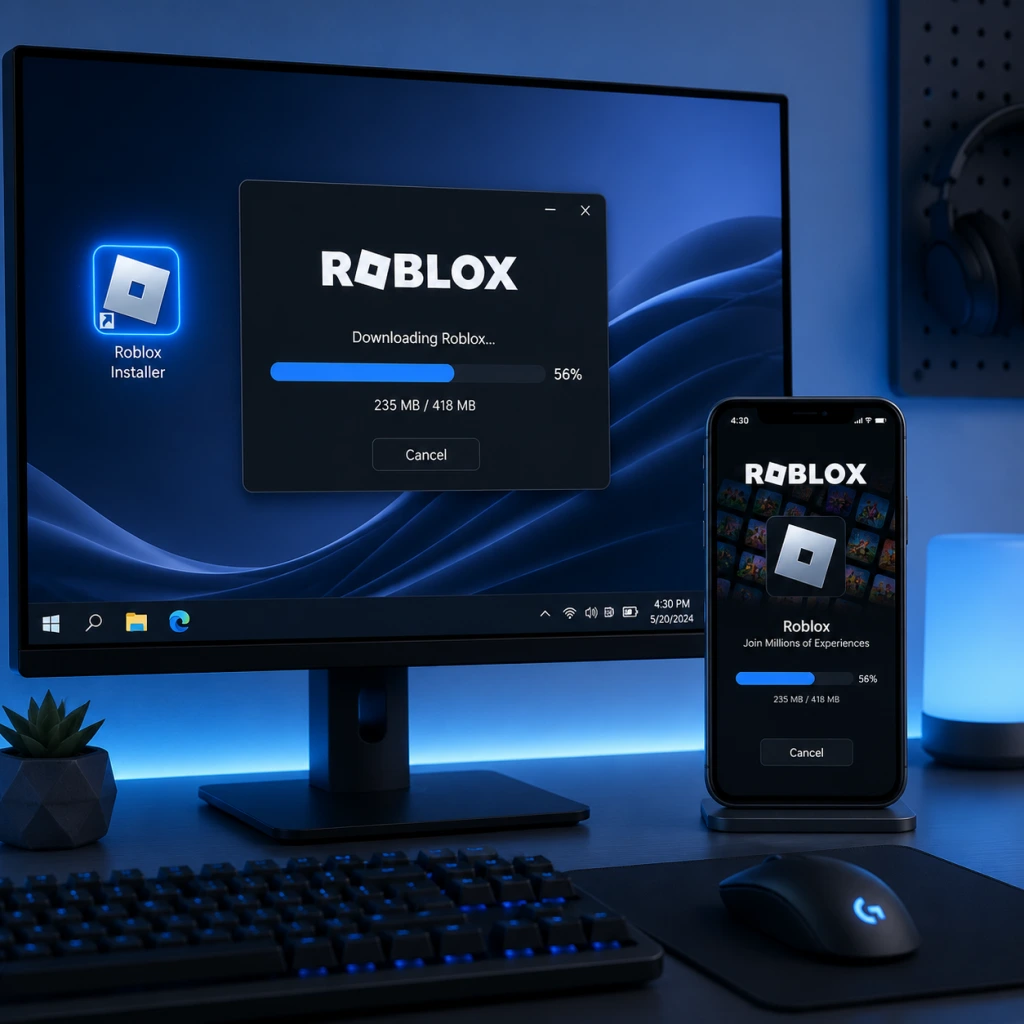
3. A dialog will prompt you to download the Roblox Player installer (e.g., `RobloxPlayerInstaller.exe` for Windows, `Roblox.dmg` for macOS).
4. Run the downloaded installer file:
- Windows: Double-click the EXE. If prompted by User Account Control, click "Yes".
- macOS: Open the DMG and drag the Roblox app into the Applications folder.
5. The installer will download and install the Roblox Player and Roblox Studio (optional). Wait for completion.
6. Once installed, the game you selected will launch automatically in your browser or via the Roblox app.
System Requirements
| Component | Minimum | Recommended |
|---|---|---|
| OS | Windows 7 (64-bit) / macOS 10.10 | Windows 10/11 (64-bit) / macOS 11+ |
| Processor | 1.6 GHz dual-core | 2.0 GHz quad-core or better |
| RAM | 4 GB | 8 GB |
| Graphics | DirectX 10 compatible (Intel HD 2000 or better) | DirectX 11 compatible dedicated GPU (NVIDIA GeForce 400 series / AMD Radeon HD 5000 or newer) |
| Storage | 500 MB free | 1 GB free (recommended for updates) |
| Internet | Broadband (1 Mbps or faster) | Broadband (4 Mbps or faster for smooth gameplay) |
Storage Space
- The installer is small (~5 MB), but the game data expands to ~500 MB to 1 GB after installation, plus additional space for cached content.
- iOS: Apple App Store – search "Roblox" or use direct link: [https://apps.apple.com/app/roblox/id431946152](https://apps.apple.com/app/roblox/id431946152)
- Android: Google Play Store – search "Roblox" or use direct link: [https://play.google.com/store/apps/details?id=com.roblox.client](https://play.google.com/store/apps/details?id=com.roblox.client)
- iOS: Requires iOS 11.0 or later. Compatible with iPhone, iPad, and iPod touch.
- Android: Requires Android 5.0 (Lollipop) or later, with at least 2 GB RAM recommended.
- Storage: ~200 MB initial download, plus additional space for game data (varies by usage).
- Microsoft Store: Search for "Roblox" or use [https://www.xbox.com/en-US/games/roblox](https://www.xbox.com/en-US/games/roblox)
- Xbox One: All models (Original, S, X). Requires an active Xbox Live Gold subscription for online multiplayer (Roblox is free-to-play but Gold is needed for multiplayer on Xbox).
- Xbox Series X|S: Fully compatible. No extra requirements beyond Gold/Game Pass Core.
- Storage: ~500 MB initial install size.
- PlayStation Store: Search "Roblox" or access via console store.
- PS4: PS4 firmware 6.0 or higher. Storage space ~1 GB.
- PS5: Fully backwards compatible. Storage ~1 GB (or more after updates).
- A free Roblox account is required on all platforms to save progress and access online features.
- On Xbox, you also need an Xbox Live Gold or Game Pass Core subscription to play online multiplayer.
- On PlayStation, no additional subscription is needed for online play.
- Parental Controls: Roblox offers account restrictions (PIN, age filters). Set these during first login if needed.
Mobile (iOS & Android)
Download Sources
Step-by-Step Installation
1. Open the App Store or Google Play Store on your device.
2. Search for "Roblox" and select the official app by Roblox Corporation.
3. Tap "Install" (iOS) or "Install" (Android).
4. Wait for the download and automatic installation.
5. After installation, open the app and log in or create an account.
Requirements
Xbox (Xbox One, Xbox Series X|S)
Download Source
Step-by-Step Installation
1. Turn on your Xbox and sign in to your Microsoft account.
2. Press the Xbox button to open the guide, then navigate to Microsoft Store.
3. Search for "Roblox" and select the result from Roblox Corporation.
4. Click Get or Install (the game is free to download).
5. The download will begin automatically. You can monitor progress in My games & apps > Queue.
6. Once installed, launch Roblox from the dashboard. You'll need to log in with your Roblox account or create one.
Requirements
PlayStation (PS4 & PS5)
Download Source
Step-by-Step Installation
1. On your PS4 or PS5, go to PlayStation Store from the home screen.
2. Search for "Roblox" in the store.
3. Select the app (published by Roblox Corporation).
4. Click Download (the app is free).
5. The download and installation will proceed automatically. Check progress under Downloads.
6. Once installed, launch Roblox. You must log in with your Roblox account. A PlayStation Network account is required but no extra subscription is needed for online play on PlayStation (unlike Xbox).
Requirements
Account Requirements
First Launch Setup
1. Login: Enter your Roblox username and password. If new, tap "Sign Up" and follow the on-screen instructions (date of birth, username, password).
2. Avatar Customization: You'll be prompted to customize your avatar (optional).
3. Notification Permissions: Mobile apps may ask for permissions (contacts, notifications). Deny if not needed; it does not affect gameplay.
4. Parental PIN: If setting up a child account, you may be asked to create a 4-digit PIN.
5. Tutorial Quest: The game may offer a short tutorial. You can skip it and explore freely.
Common Installation Errors & Fixes
| Error / Issue | Platform | Cause | Solution |
|---|---|---|---|
| "Roblox Updater Stuck" (stuck at 99%) | PC | Corrupted cache or permissions | Close Roblox, delete `%localappdata%\Roblox\logs` and `%temp%\Roblox`, then restart installer. Run as Administrator. |
| "Failed to Update Roblox" | PC | Antivirus blocking | Temporarily disable antivirus, reinstall. Add Roblox folder to exclusions. |
| "Download Failed" in App Store | iOS/Android | Insufficient storage or network | Free up space (at least 1 GB), switch to stable Wi-Fi, restart device. |
| "Roblox is not responding" after install | PC | Outdated drivers or DirectX | Update graphics drivers. Install latest DirectX runtime from Microsoft. |
| "Your system is not supported" | macOS | Outdated macOS version | Upgrade to macOS 10.10 or later. On very old Macs, Roblox may not run. |
| Installation stuck on Xbox | Xbox | Server overload or corrupt download | Restart console, clear local saved games (Settings > System > Storage > Clear local saved games). |
| PS4/PS5 error CE-xxxxx | PlayStation | Corrupt install data | Delete the app, rebuild database (Safe Mode > Rebuild Database), then reinstall. |
| Crashes on launch | All | Corrupt game files or insufficient memory | Reinstall the app. On mobile, restart phone. On PC, run as admin. |
Post-Installation Verification
1. Launch the game: Open Roblox from your device.
2. Login successfully: Ensure you can sign in without errors.
3. Load an experience: Click on any popular game (e.g., "Adopt Me!" or "Brookhaven"). If it loads within 30 seconds, installation is successful.
4. Check for updates: Roblox updates automatically. If you see a spinning loader, wait a few minutes.
5. Test controls: On PC, use WASD and mouse; on console, use controller; on mobile, touch controls.
6. Verify storage: Check that the app uses no more than ~1.5 GB for base files (excluding cache).
Conclusion
Roblox is easy to install on all supported platforms. Always use official storefronts or the Roblox website to avoid malware. If you encounter issues, consult the Common Errors table above or visit the official Roblox Help Center at [https://en.help.roblox.com](https://en.help.roblox.com). Enjoy your adventures in the metaverse!
Game Introduction
Game Overview
Genre
Roblox is a massively multiplayer online (MMO) platform and game creation system that spans virtually every genre imaginable. It is best described as a social meta-platform where users play, create, and share games built with Roblox Studio. Genres range from role-playing, simulation, obstacle courses (obby), horror, racing, fighting, tycoon, puzzle, adventure, and more.
Developer & Publisher
- Developer: Roblox Corporation
- Publisher: Roblox Corporation (self-published)
- Beta launch: 2004 (as DynaBlocks)
- Official release: September 1, 2006 (as Roblox)
- Continuous updates: Regular updates every few weeks with new features, events, and user-created content.
- Windows (PC)
- macOS
- iOS (iPhone, iPad)
- Android (phones, tablets)
- Xbox One and Xbox Series X|S
- Meta Quest 2, Quest Pro, Quest 3 (VR)
- Amazon Fire devices (limited)
- PlayStation 4 & 5 (added September 2023)
- Nintendo Switch: NOT supported
- Steam/Epic Games Store: NOT available (must install from official website)
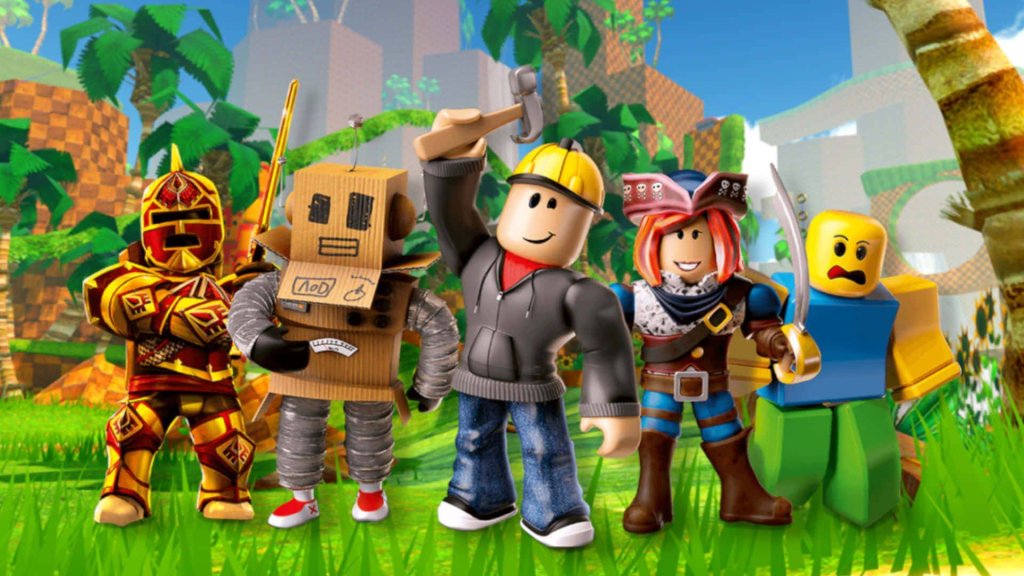
- Noob – A default, blocky avatar representing a new player.
- Builderman – Roblox's mascot, a friendly construction worker.
- Erik.cassel – Co-creator (deceased) honored in-game.
- Guest – Legacy characters (Guest 666, 123, etc.) for guests.
- User-Generated Content: Anyone can create and publish games using Roblox Studio (free, powerful, Lua-scripting).
- Social Interaction: Chat, friend lists, groups, and virtual hangouts; Roblox is a social network in game form.
- Endless Variety: With over 40 million experiences, players never run out of new games to try.
- Creativity & Learning: Teaches basic programming, 3D design, and game economy through hands-on creation.
- Monetization: Players can earn and spend Robux to purchase items, game passes, and developer products.
- Cross-Platform Play: Seamless progression and play across PC, mobile, console, and VR.
- Primary: Children and teenagers aged 8–16, but players of all ages enjoy it.
- Creators: Aspiring game developers, scripters, 3D modelers, and UI designers.
- Social Players: Those who enjoy virtual hangouts, roleplay, and chatting.
- Collectors: Players who enjoy customizing avatars and collecting limited items.
- Roleplay (RP): Simulate real-life or fantasy roles (e.g., Brookhaven RP, Adopt Me!).
- Obstacle Course (Obby): Navigate jumps, traps, and puzzles (The Floor is Lava).
- Tycoon: Manage a business, build an empire (Theme Park Tycoon 2).
- FPS / Shooting: Competitive or cooperative shooters (Arsenal, Phantom Forces).
- Horror: Survival horror experiences (The Mimic, Doors).
- Simulation: Simulate jobs, pets, or vehicles (MeepCity, Vehicle Simulator).
- Adventure / RPG: Quests, leveling, open worlds (World // Zero).
- Fighting: Melee combat games (Strongest Battlegrounds).
- Racing: Car or hoverboard racing (Jailbreak).
- Educational: Coding games, math challenges.
- Online Only: Roblox requires a persistent internet connection to play. There is no offline mode. However, Roblox Studio can be used offline for creation, but publishing and testing require internet.
- Multiplayer: All experiences are online multiplayer by default, with support for private servers (paid feature for some games).
- No Traditional DLC: Roblox does not offer downloadable content packs in the traditional sense. Instead, it has:
- Seasons/Updates: Many popular games have their own battle passes and seasonal content updates.
Release Timeline
Platforms
Roblox is available on a wide range of platforms:
Story Overview
Roblox does not have a single overarching narrative. Instead, the platform is a vast collection of user-created worlds, each with its own stories, quests, and lore. The "story" of Roblox is emergent: it's about the creativity of its community, the virtual economy driven by Robux (premium currency), and the social interactions within millions of experiences. Some popular user-created games have their own narratives (e.g., Adopt Me!, Brookhaven), but the platform itself is a sandbox for storytelling.
Setting
The setting is a virtual universe composed of millions of 3D worlds, each with unique themes and environments. The default Roblox avatar world is a stylized, blocky, Lego-like aesthetic with low-poly characters. Settings range from realistic cityscapes to fantasy kingdoms, outer space, historical periods, and abstract obstacle courses. The platform's "hub" is the Roblox website/app interface where users browse, chat, and join games.
Main Characters
Roblox does not have fixed main characters. Instead, each user creates and customizes their own avatar using a vast catalog of clothing, accessories, body parts, and animations. Avatars can be humanoid, animal-like, or entirely original. Some notable official Roblox characters (used in events and promotions) include:
But the real "characters" are the millions of players and the iconic avatars of popular developers.
Core Appeal
Target Audience
Game Modes
Since Roblox is a platform, "game modes" are defined by the user-created experiences. Common categories include:
Online/Offline Support
DLC/Expansion Overview
- Game Passes: One-time purchases within specific games (e.g., double jump, VIP status).
- Developer Products: Consumable items like in-game currency, keys, or boosts.
- Avatar Shop Items: Millions of hats, faces, outfits, etc., sold individually or via bundles.
- Premium Subscription: $4.99–$19.99/month for Robux stipend, trading access, and premium perks.
- Robux: Virtual currency used for purchases (purchased with real money or earned via creation).
- Events & Limiteds: Time-limited items and experiences, often tied to real-world holidays or collaborations.
What Makes Roblox Unique
1. User-Generated Economy: A fully functioning virtual economy where developers can earn real money through Robux-to-USD conversion (Developer Exchange).
2. In-Game Creation Tools: Roblox Studio is a complete 3D game engine with Lua scripting, physics, lighting, and networking, accessible to novices and professionals.
3. Massive Scale: Over 200 million monthly active users and millions of developers.
4. Safety & Moderation: Advanced chat filters, parental controls, and a team of moderators to keep young users safe.
5. Cross-Platform & VR: The same account works on almost any device, including VR headsets.
6. Ever-Evolving: Roblox is never "finished"; it receives constant updates from the company and its community.
Getting Started
Getting Started with Roblox: A Beginner's Guide
Welcome to Roblox! This guide will walk you through your first hour, explain controls across all platforms, decode the user interface, and set you on a path to avoid common pitfalls. Roblox is a massive platform of millions of games, so the goal is to get you comfortable navigating, customizing your avatar, and playing your first experiences.
First Hour Walkthrough: From Account Creation to First Game
1. Create Your Account (if you haven't already)
- Go to roblox.com or open the app.
- Use a valid email, choose a unique username (your display name), and set a secure password. Your username is permanent, so pick something you'll like for years.
- Verify your email after sign-up to unlock trading and other features.
2. Customize Your Avatar (Character Creation)
- Roblox does not have a traditional character creation screen at start. Instead, you get a default avatar (usually a blocky yellow figure).
- To customize: Click the Avatar icon (a shirt/hanger) in the left sidebar or top navigation.
- You can change:
- Body parts (head, torso, legs) – many are free.
- Clothing (shirts, pants, t-shirts) – hundreds of free items exist.
- Accessories (hats, hair, glasses) – some free, most cost Robux (premium currency).
- Pro tip: Search the Marketplace for “free” items to build a unique look without spending money.
- You can also buy clothing from the Catalog using your free starter items or earned in-game currency (Roblox does not give free Robux easily; only real money purchases or limited events).
3. Explore the Home Page
- After login, you see the Home tab. It shows:
- Featured and popular games (called “experiences”).
- A search bar at the top.
- Quick links: Avatar, Marketplace, Chat, Build, etc.
- The left sidebar has: Home, Discover, Create, Avatar Shop, Chat, Groups, etc.
4. Play Your First Game
- Click on a game tile that looks appealing (e.g., “Adopt Me!”, “Brookhaven”, “Tower of Hell”).
- Click the green Play button. The Roblox Player will launch (a separate app).
- Wait for loading, then you're in! Follow on-screen prompts.
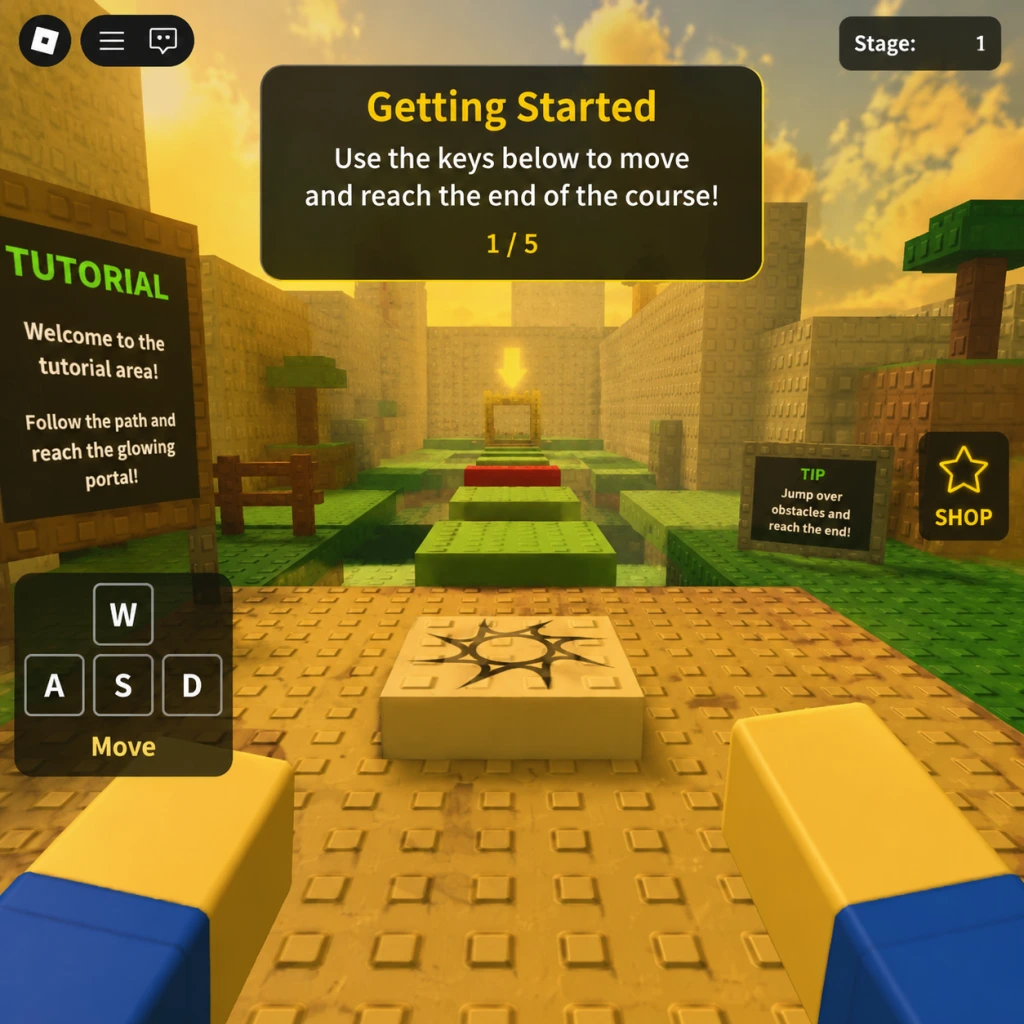
- First 10 minutes in a game: Walk around, find other players, try interacting (use chat or emotes). Many games have a tutorial area – follow it.
Controls Across All Platforms
Roblox adapts to each device. Here are the basics:
| Platform | Movement | Camera | Interaction | Jump | Other |
|---|---|---|---|---|---|
| PC (Keyboard + Mouse) | W/A/S/D or Arrow Keys | Mouse move (look), hold right-click + move to rotate | Click on objects/players | Spacebar | E to equip/use items, R to reload (if applicable), Shift to sprint (many games), Q to drop, Tab to toggle inventory, 1-9 for hotbar, F to toggle fullscreen |
| Mobile (iOS/Android) | Touch joystick (left side) | Swipe anywhere on screen (right side) | Tap objects/buttons | Tap jump button (usually bottom right) | On-screen buttons for actions, inventory (backpack icon), chat (bubble icon) |
| Console (Xbox One/Series X | S, PlayStation 4/5) | Left analog stick | Right analog stick | A button (Xbox) / X button (PlayStation) | Y (Xbox) / Triangle (PlayStation) |
| VR (Meta Quest, PC VR) | Move with thumbsticks or teleport (if enabled) | Head movement + right stick rotation | Trigger buttons to grab/interact | A or Y button to jump | Grip buttons to hold items. Gestures for emotes. |
UI Overview: The Roblox Interface
Main Menu (Home Page):
- Top Bar: Roblox logo, search bar, friend requests, notifications (bell), messages (envelope), and your avatar with Robux balance.
- Left Sidebar: Quick links to: Home, Discover (browse games), Create (Roblox Studio), Avatar Shop, Marketplace, Chat, Groups, etc.
- Central Area: Featured games, sponsored content, and recommendations based on what you play.
- Top-left corner: Game title, leaderboard (can be toggled via Tab on PC or gear icon)
- Bottom of screen: Toolbar – typically chat box (click to type), inventory/backpack, emotes (if enabled), and health/action bars (game-dependent).
- Esc (PC): Opens the game menu – options to leave, settings, report player, and return to home.
- Top-right: In-game currency display (Robux or game-specific currency), friend list, notifications.
- Don't click suspicious links – Scammers often send messages promising free Robux. Never click external links. Report these users.
- Don't share your password – Roblox staff will never ask for your password. Even friends should not know it.
- Don't buy items without checking the price – Some items are extremely rare and expensive. Stick to free items until you understand the economy.
- Don't clog your inventory with junk – You can only have a limited number of items? Actually, inventory is unlimited, but many items are useless. Focus on items you like.
- Don't waste Robux on overpowered gear in games that reset – Many games wipe data periodically. Spend Robux only on games you plan to play long-term.
- Avoid griefers – In many games, trolls try to ruin your experience. Simply leave the server or block the player.
- Time: Your best resource. Use it to learn the game mechanics rather than grinding for currency immediately.
- In-game currency (e.g., coins, cash) – Prioritize earning the first few tens of thousands to unlock basic tools/pets/items in your chosen game.
- Trading (if allowed): Many games have trading. Start by trading duplicates or low-value items to learn the market before trading high-value ones.
- Robux: Do not buy Robux right away unless you plan to invest in premium features. Many games are fully playable without spending money.
- [ ] Create and verify your Roblox account
- [ ] Customize your avatar with free items (at least one shirt/pants)
- [ ] Play 3 different games for at least 10 minutes each (try Brookhaven, Adopt Me!, and a popular obby like Tower of Hell)
- [ ] Add at least one friend (a real-life friend or someone you meet in a game)
- [ ] Learn the basic controls on your platform
- [ ] Turn on 2-factor authentication (Settings > Security > 2FA) for safety
- [ ] Complete any tutorial in each game you try
- [ ] Explore the Avatar Shop and Marketplace to see what free items exist
- [ ] Set your privacy settings to your comfort level (Settings > Privacy – limit who can message/trade/join you)
- [ ] Have fun and don't be afraid to lose – it's a sandbox of possibilities!
Roblox Player (In-Game):
Essential Early Objectives (What to Do First)
1. Complete Tutorials – Many popular games (e.g., Adopt Me!, Brookhaven) have built-in tutorials. Do them to understand the game loop.
2. Earn Your First In-Game Currency – Most games have a free currency (e.g., coins, cash) earned by completing simple tasks, minigames, or just playing.
3. Connect with Friends – Use the Chat function (desktop: click chat icon in lower right; mobile: bottom icon) to add friends. Playing with friends is more fun and safer.
4. Explore Different Genres – Roblox has obbies (obstacle courses), roleplay, racing, simulators, shooters, etc. Try at least 3-4 games to see what you like.
5. Learn to Report Abuse – If you encounter inappropriate behavior, use the Report button (usually found in a player's menu or via Esc > Report). Keep yourself safe.
What to Avoid (Common Beginner Mistakes)
Early Resource Priorities
Day-One Checklist
Roblox is a social, creative platform. Your first day is about exploration. With this guide, you'll avoid the most common pitfalls and quickly find games you love. Welcome to the Metaverse!
Core Gameplay
Core Gameplay Overview
Roblox is a dynamic platform where gameplay varies wildly between experiences, but a universal meta-loop governs player progression and engagement. At its heart, Roblox is a social creation ecosystem—you play games made by others, earn virtual currencies (both free and premium), customize your avatar, and optionally build your own games. The platform itself acts as a hub; your progress (level, badges, friend network) persists across games, but each experience has its own unique gameplay systems.
Main Gameplay Loop
The core loop across most Roblox experiences follows a pattern:
1. Enter an experience (game) from the Roblox website or app.
2. Learn the experience's mechanics (e.g., how to move, interact, earn currency).
3. Complete activities (quests, chores, battles, puzzles) to earn experience points (XP) and in-game currency (e.g., coins, gems, cash).
4. Spend currency on upgrades (tools, weapons, pets, vehicles, cosmetics) to become more efficient or powerful.
5. Repeat with harder challenges or new content, often scaling difficulty or introducing competitive modes.
6. Socialize – trade, chat, team up, or compete with other players.
This loop is amplified by the platform's level system (account-wide, 0–100) which rewards you with cosmetics and unlocks for your avatar as you play more games.
Player Progression Tiers
Early Game (Levels 0–10, First 10 Hours)
Focus: Familiarization, account setup, and basic interaction.
- Account Creation & Avatar Setup: Create a Roblox account (free). Your avatar starts with default clothing and a few basic items from the Catalog. You can change skin tone, hair, face, and clothes for free using the Avatar Editor (available in the website or mobile app). No experience required.
- First Experiences: Join popular, beginner-friendly games:
- Controls & Interaction:
- Platform Progression: The Roblox Level (found in your profile) increases by playing games (roughly 1 level per hour in early game). Each level up gives you a few hundred robux? No – only tix (Tickets) were removed; now you earn nothing from leveling except Cosmetic Unlocks (e.g., hats, gear) every 5 levels. These items are tradable and can be sold for Robux (premium currency).
- Currency Systems:
- Brookhaven – a roleplay city with no goals; learn walking, chatting, and using emotes (E key).
- Adopt Me! – a pet-raising game with simple tasks (feeding, growing pets).
- Jailbreak – a cops-and-robbers game where you learn basic robbery mechanics (breaking into banks).
- Tower of Hell – an obby (obstacle course) to practice jumping and sprinting.
- Keyboard/Mouse: WASD movement, Space to jump, Shift to sprint (in most games), Left Mouse to interact (pick up, use tools), E to sit/ride, R to reload in shooters.
- Mobile: Virtual joystick for movement, buttons for jump and action.
- Console (Xbox/PlayStation): Use gamepad; controls vary per game but typically left stick moves, right stick looks, A jumps, X interacts.
- Robux (R$): Premium currency bought with real money. Used to purchase avatar items (clothing, accessories, game passes), developer products, and trade with other players.
- In-game currencies: Each experience has its own free currency (e.g., Cash in Jailbreak, Bucks in Adopt Me, Coins in BedWars). Earned through gameplay; cannot be transferred between games.
No real combat yet – Early games are mostly non-violent. If you try a shooter like Arsenal or Phantom Forces, you’ll learn simple aiming (click) and movement (strafe, jump).
Quests & Missions: Most early games have tutorial quests (e.g., Adopt Me! tasks: “Feed your pet”, “Go to school”). Completion gives small currency rewards.
Known Pitfalls: Avoid “free Robux” scams, never trust trades that seem too good, and don’t spend Robux on unknown items.
Mid Game (Levels 10–50, 10–50 Hours)
Focus: Mastery of specific game loops, deeper progression, and social competition.
Choose a main game(s): You’ll likely settle into a few experiences that match your interests:
- Simulators: Like Pet Simulator X – grind coins to buy eggs to hatch pets, merge pets for stronger stats, unlock areas. Here you learn about afk farming and trading economy.
- RPGs: Blox Fruits (One Piece inspired) – level up (stats: melee, defense, sword, gun, fruit), learn combos, grind bosses, defeat other players in PvP. This game has a quest system (kill NPCs, collect items) and skill trees.
- Competitive games: Arsenal (gun-based) – unlock new weapons by earning kills, understand weapon rotations, map control. BedWars (block-busting) – learn resource management, PvP, and base defense.
Interactive Systems: Many games introduce character builds: allocate stat points (e.g., Blox Fruits), equip gear with rarity tiers (Common, Uncommon, Rare, Legendary, Mythic), or evolve pets. Progression becomes exponential: you invest time to get better tools, then use them to earn faster.
Exploration: Mid-game experiences often have large maps with hidden areas, secret bosses, or teleporters. Jailbreak robbery routes, Adopt Me! neighborhoods, and Blox Fruits islands reward exploration with rare loot.
Economy & Trading:
- Cross-game economy: The Avatar Shop (catalog) allows trading of limited items (hats, faces, etc.) for Robux. You can also sell gamepasses or developer products if you create games.
- In-game trading: Adopt Me! has a robust pet trading system. Pet Simulator X has trading plazas. Learn values – use external websites (e.g., Adopt Me Trading Values).
Social Groups: Join groups related to your favorite game. Groups can have ranks, membership fees (payed to group fund), and unlock in-game perks.
Quests & Events: Many games run limited-time events (e.g., Halloween, Christmas) with special quests that reward exclusive items. Mid-game players should prioritize these.
Roblox Platform Activities: Participate in Roblox events like the Bloxy Awards (voting), or Developer Forum giveaways.
Common Mistakes: Over-spending Robux on temporary boosts; not using the trade function to get better deals; ignoring the inventory system (know what you own).
Late Game (Levels 50–100+, 50+ Hours in Specific Experiences)
Focus: Optimization, endgame content, and competitive play.
Mastery of mechanics: In Blox Fruits, you’ll have max level (currently 2600+), all fighting styles mastered, and several legendary fruits. You engage in PvP wars against other high-level players or Sea of Thieves-style raids. In Arsenal, you’ll know every map’s spawn points and weapon spawn times, often top-fragging in almost every lobby.
Endgame Systems:
- Raids & Dungeons: Games like World of Wonder or Dungeon Quest have hard-mode dungeons that require a coordinated team and max gear.
- Leaderboards: Compete for top ranks in games: fastest time, most kills, highest level. Tower of Hell has a leaderboard for fastest completions.
- Clan Wars/Guilds: Join or form a clan for BedWars, Phantom Forces, or Arsenal. Compete in tournaments for in-game currency and bragging rights.
Character Build Optimization: Late-game builds are heavily refined. In Blox Fruits, you choose a specific stat distribution (e.g., 3000 melee, 2500 defense, rest in fruit) and use the best accessories. In Pet Simulator X, you aim for a team of rainbow-starred huges (exclusive pets).
Economy & Rare Collections:
- Limited Items: Collect rare limited hats/faces that appreciate in value. Examples: Red Domino (worth millions of Robux). Trade wisely.
- In-game Rarities: Own the top-tier items: Legendary Cat Prince in Adopt Me, Eternal Cane in Jailbreak, Huge Cat in Pet Simulator X. These often require months of grinding or large trades.
Exploration & Secrets: Late-game players often discover hidden developer Easter eggs or glitches that give advantage. Some games have secret ending rooms (e.g., The Place).
Missions & Achievements: Many games have badge challenges (e.g., “Obtain 50 unique weapons”), which appear on your Roblox profile. Collecting badges is a side goal.
RobUX Spending: At this stage, you’ll likely have spent real money or earned Robux from trading. You can sell gamepasses if you’re a developer, or use Robux to buy premium items from the Avatar Shop to boost your unique look.
Endgame (100+ Hours, Top 1% in Popular Experiences)
Focus: Ultimate goals, community influence, and creation.
Become a Top Player: Consistently rank in the top 100 of a competitive game’s leaderboard or speedrun records. Example: Top 10 in Arsenal kills on the global leaderboard (requires thousands of hours).
Game Creation & Monetization: Many endgame players transition to building their own experiences using Roblox Studio. This is the true endgame: you can earn substantial Robux from Game Passes, Developer Products, and Premium Payouts (based on player engagement). You’ll learn scripting (Lua), modeling, and game design.
Limited Item Mogul: Collect and invest in rare limited items worth tens of thousands of Robux. Attend trading plaza events where high-rollers trade. Some players accumulate billions of Robux in item value (e.g., SirBlaze or TanqR).
Community Leadership: Become an admin in large groups (e.g., Robloxian News), host events, or run tournaments. You might become a Developer Ambassador (“Star Creator” program) recognized by Roblox.
Exploiters & Countermeasures: Beware of exploiters (cheaters) who ruin games. Report them; advanced players help moderate games.
Endgame Quests/Missions: Some games offer infinite challenge modes (e.g., Survive the Night endless waves, Dungeon Quest infinite floors). Completionists aim for 100% badge completion across all experiences.
Economy Mastery: Control supply/demand of certain in-game items; run cross-trading* (though against ToS) or legal flipping. Understand the Robux-to-item value exchange.
Conclusion
Roblox’s core gameplay is not linear—it’s a galaxy of experiences. Your journey depends on which worlds you choose to inhabit. From a simple avatar in Brookhaven to a godlike pirate in Blox Fruits* or a billionaire trader in the Avatar Shop, the possibilities are endless. Remember: the platform rewards creativity, persistence, and social connections. Start early, play responsibly, and have fun building your legacy.
Game Tips
Game Tips for Roblox
This guide covers universal tips that apply across the majority of Roblox experiences. Whether you're a new player or a seasoned veteran, these strategies will help you perform better, progress faster, and enjoy the platform safely.
Beginner Tips (Foundation)
#### 1. Always Check the Game's Description and Rules
- Explanation: Before diving into any game, read the description, rules, and any linked tutorials. Many experiences have unique mechanics, controls, or starter guides written by the developer.
- Why it works: Avoids confusion, teaches basic objectives, and prevents accidental rule-breaking. For example, in Jailbreak, the description explains the role of cops and criminals; in Adopt Me!, the starter guide shows how to take care of pets.
- When to use: Every time you join a new game for the first time.
- Explanation: Learn to use the third-person camera controls (right-click and drag, scroll wheel to zoom, or pinch on mobile). In many games, camera positioning is crucial for spotting enemies, navigating obstacles, or finding resources.
- Why it works: Better situational awareness. In Tower of Hell, a good camera angle helps you see upcoming jumps. In Arsenal, a zoomed-out view reveals enemy positions.
- When to use: Constantly during gameplay, especially in movement-heavy or PvP games.
- Explanation: Press `/` to open chat. Use abbreviations like `t` for team chat (if supported). Learn common acronyms: `gg` (good game), `brb` (be right back), `afk` (away from keyboard).
- Why it works: Quick communication improves teamwork. In Jailbreak, criminals can coordinate escapes. In Phantom Forces, call out enemy locations.
- When to use: In multiplayer experiences where coordination matters.
- Explanation: Your avatar's appearance can affect gameplay in some experiences (e.g., hitbox size in Natural Disaster Survival). Use smaller hats or no bulky accessories to reduce your visual footprint.
- Why it works: Certain games calculate collision based on avatar accessories. A smaller avatar can fit through tight gaps. In The Maze, smaller avatars might avoid detection.
- When to use: In games where hitbox matters; otherwise, cosmetic preferences are fine.
- Explanation: While shooting, move left and right (strafe) rather than standing still. Combine with jumping occasionally to throw off enemy aim.
- Why it works: Movement makes you a harder target. Most Roblox shooters have projectile-based weapons (bullets travel with delay) or hitscan (instant). Strafe pattern disrupts prediction.
- When to use: Almost any PvP game (Arsenal, Phantom Forces, Bad Business). Adjust strafe speed according to weapon type (slow strafe for snipers, fast for SMGs).
- Explanation: Different weapons have different accuracy patterns. For example, in Phantom Forces, the AK-12 has high first-shot accuracy but significant recoil. Wait for the crosshair to reset between shots for burst firing.
- Why it works: Controlled bursts increase hit probability at medium to long range. Spraying leads to wasted bullets and reveal your position.
- When to use: Learn recoil patterns in the game's shooting range or practice mode. Apply in combat based on distance.
- Explanation: Always stay near walls, crates, or obstacles. When engaging, pop out quickly, fire a burst, and return to cover. This minimizes exposure time.
- Why it works: Peeker's advantage: the player who peeks first sees the enemy slightly before the enemy sees them due to latency. Use this to pre-fire common angles.
- When to use: In any shooter with fast TTK (time-to-kill). Works well on defense in Arsenal or Counter Blox.
- Explanation: Melee attacks in games like Murder Mystery 2 or The Strongest Battlegrounds have windup animations and hitboxes. Practice the delay to land hits reliably.
- Why it works: Many players panic-swing. By counting the animation timing (e.g., 0.5 seconds before hit registers), you can attack just as the enemy enters your range.
- When to use: In any game with a melee weapon or skill. Essential for stealth kills in MM2.
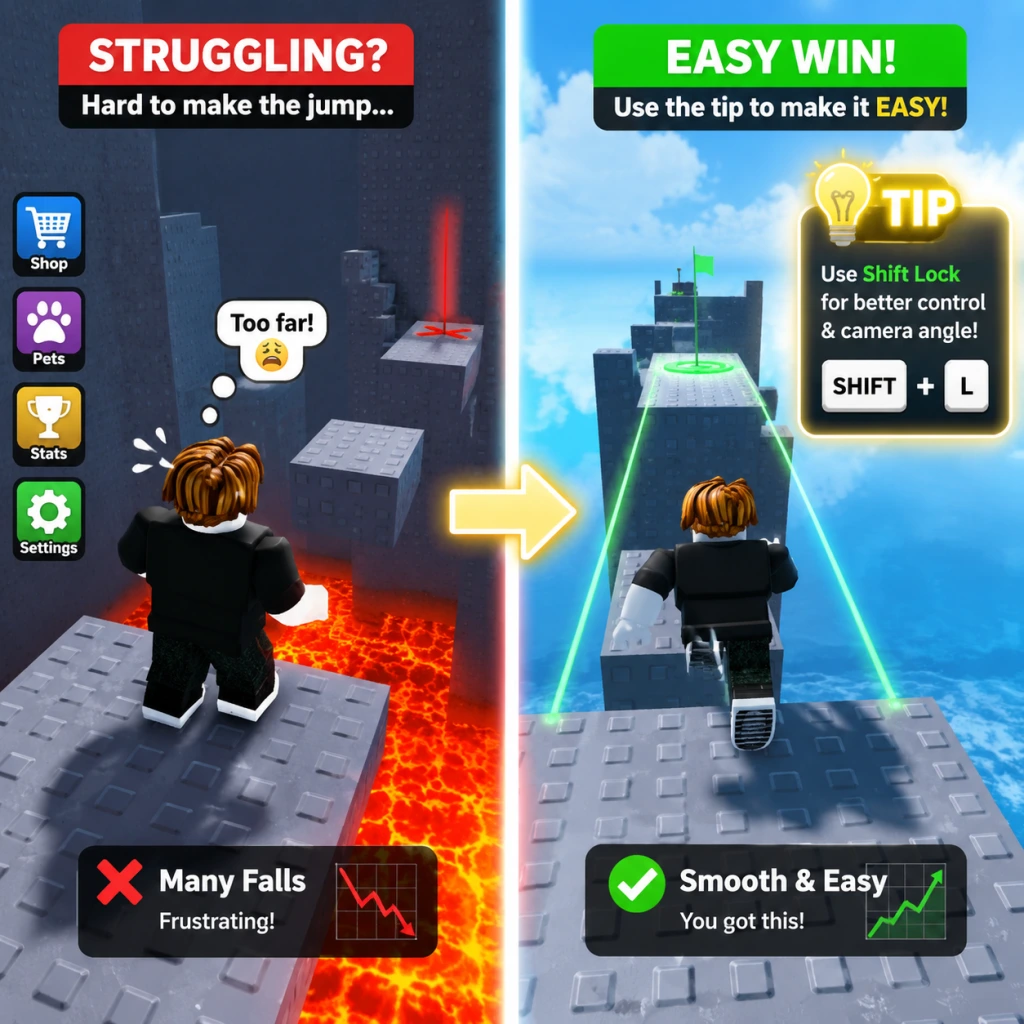
- Explanation: Press `Shift` to lock your camera behind your character, allowing movement-based aiming. This is critical in parkour and some PvP games.
- Why it works: Improves directional control. In Tower of Hell, shift lock makes bhopping (holding shift and jumping repeatedly) easier. In Jailbreak, it helps when driving.
- When to use: Whenever you need precise forward movement while looking around (e.g., climbing, driving).
- Explanation: Jump repeatedly while holding the forward key and strafing slightly. In many Roblox games, this preserves momentum and increases speed.
- Why it works: Roblox's physics engine doesn't apply friction when landing a perfectly timed jump. This allows faster traversal than running.
- When to use: In movement-based games (Tower of Hell, Parkour, Flood Escape 2). Not effective in games that cap speed or have no momentum mechanics.
- Explanation: Many games (e.g., Jailbreak, Adopt Me!) include a minimap. Learn to read it to find key locations, objectives, or teammates. Some games allow you to place waypoints.
- Why it works: Reduces confusion and travel time. In Jailbreak, the minimap shows nearby police and escape routes. In Adopt Me!, it helps locate the toy shop or nursery.
- When to use: Always keep an eye on the minimap; use markers to coordinate with friends.
- Explanation: Some games allow wall jumping (jumping off walls) or have variable jump heights. Test the limits of your character's jump in a safe area.
- Why it works: Knowing exact jump distances helps avoid falling into pitfalls. In Ninja Legends, wall jumping is essential for progression.
- When to use: At the start of any platforming game, practice jumps on easy obstacles.
- Explanation: In games with economies (e.g., Mining Simulator, Bee Swarm Simulator), spend the first few minutes collecting basic resources before attempting challenges.
- Why it works: Upgrading tools and equipment early gives a multiplicative return on time investment. A better pickaxe in Mining Simulator increases ore value per hit.
- When to use: Immediately after spawning. Use the collected resources to buy speed, strength, or luck upgrades first.
- Explanation: As you progress, low-tier tasks become inefficient. For example, in Bee Swarm Simulator, collecting from basic flowers after the first upgrade yields diminishing returns.
- Why it works: Time is better spent on mid-tier activities that unlock new abilities. Use an opportunity cost mindset: focus on the highest EXP or currency per minute.
- When to use: Once you unlock a new area or tool that provides significantly better rewards.
- Explanation: Many games have limited inventory (e.g., Jailbreak: only 4 items as a criminal). Keep essential tools (keycard, weapon, grapple) and drop duplicates.
- Why it works: Prevents missed opportunities. In Jailbreak, if you pick up a second weapon, you might lose the keycard needed for the bank.
- When to use: Continuously while looting. Learn which items are critical for the current objective.
- Explanation: When building your own game or place, enable snapping (View → Snap to Grid) and use constraints (e.g., hinges, motors) for moving parts.
- Why it works: Grid snapping ensures alignment and prevents gaps. Constraints make interactive builds like doors or elevators possible without scripting every detail.
- When to use: Any time you build structures or vehicles in Studio. Also applicable in Theme Park Tycoon or Restaurant Tycoon.
- Explanation: Use `BasePart` for simple blocks, `MeshPart` for complex shapes (imported models), and `UnionOperation` to combine parts subtractively.
- Why it works: Union operations reduce polygon count and improve performance. For example, carving a window out of a wall using `Negate` creates a single part instead of multiple.
- When to use: Optimizing your build for performance. Use unions sparingly on static objects.
- Explanation: Scripts are essential for interactivity. Start with `ClickDetector` to make a block that gives coins on click, or `TouchTransmitter` for triggers.
- Why it works: Minimal scripting knowledge lets you add functionality without relying on external codes. Prevents common bugs like infinite loops (always use `wait()`).
- When to use: When you need simple mechanics like a teleporter, shop, or NPC dialog.
- Explanation: Robux is the premium currency. Limited items (e.g., limited hats or faces) can be bought from the catalog and resold. Prices fluctuate based on supply and rarity.
- Why it works: Buying limiteds at release or during low-demand periods then selling later can yield profit. Use third-party sites (like Rolimon's) to track price history.
- When to use: Only if you have spare Robux and understand the risks. Treat it like real stock investing—diversify and avoid hype trains.
- Explanation: These games have internal trading systems. Learn the values of items/pets through community tier lists or in-game demand.
- Why it works: Trading allows you to get rare items without grinding. For example, in Adopt Me!, a fly potion might buy a common pet, but a neon legendary trades for multiple legendaries.
- When to use: When you have duplicate rare items or want to upgrade. Always check the trade window carefully to prevent scams.
- Explanation: Never click links promising free Robux, never trade items outside the official systems, and be wary of "trust trades" (giving an item first expecting return).
- Why it works: Most scams rely on social engineering. Roblox's economy is secure if you stay within the game's trade interface. Scammers often use fake websites or impersonators.
- When to use: Always follow this rule. If an offer seems too good to be true, it is.
- Explanation: Add friends you enjoy playing with. Join groups related to your favorite games for exclusive builds, private servers, or community events.
- Why it works: Playing with friends increases enjoyment and coordination. Many games reward group play (bonus XP, shared loot). In MM2, a friend can be a trusted bystander.
- When to use: Actively invite friends to private servers for grinding or practice. Use groups to find like-minded players.
- Explanation: If a player is spamming, harassing, or breaking rules, mute them (click their name in chat → Mute Player). For severe violations (scamming, exploiting), report via the in-game menu.
- Why it works: Preserves your enjoyment. Roblox moderation may take action on reports, keeping the community safer.
- When to use: Immediately when you encounter toxicity; don't engage.
- Explanation: In games like Jailbreak (police vs criminals) or Phantom Forces (attack vs defend), assign roles: a driver, a scout, a support. Use voice chat (Discord) if possible.
- Why it works: Specialization increases efficiency. A dedicated driver in Jailbreak can escape faster. In Arsenal, a support player watches the flank while others push.
- When to use: Before the round starts; agree on a simple plan.
- Explanation: In Roblox settings (Esc → Settings → Graphics), set auto quality on or manually adjust to 2-5. Disable shadows, smooth terrain, and particle effects.
- Why it works: Roblox's engine is CPU-heavy. Reducing graphics lowers lag, especially in complex games like Royale High or Adopt Me! with many players.
- When to use: If you experience stuttering. For competitive shooters, lower settings for smoother frame rates.
- Explanation: Common shortcuts: `Shift` (lock camera), `Ctrl+D` (duplicate in Studio), `Ctrl+G` (group parts), `F` (toggle full screen). In many games, `M` mutes sound, `L` opens leaderboard.
- Why it works: Faster actions reduce downtime. In Studio, Ctrl+D copies immediately. In gameplay, quick mute prevents distractions.
- When to use: Learn them gradually. Start with camera and chat shortcuts.
- Explanation: Roblox caches game assets locally. If games fail to load or update, clear cache by deleting the `Roblox` folder (appdata/local/robles). Reinstall if needed.
- Why it works: Corrupted cache files cause loading errors. Fresh installation resolves version conflicts.
- When to use: After major updates or if a specific game crashes repeatedly.
- Explanation: Roblox will never ask for your password outside the login page. Two-factor authentication (2FA) codes are for logins only. Scammers may impersonate staff.
- Why it works: Accounts are stolen when users share credentials. Enable 2FA in account settings for extra protection.
- When to use: Always. If someone asks for your password in-game, report them immediately.
- Explanation: Set a parent PIN (or account pin) to prevent changes to settings, including password resets and privacy settings.
- Why it works: If someone gains access to your account, the pin blocks them from locking you out. It's an additional barrier.
- When to use: Setup once when you create the account. Do not use the same pin as other services.
- Explanation: In account settings, restrict who can message, invite, or join your games. Set inventory to private to hide friends and items.
- Why it works: Limits exposure to strangers. Especially important for children. Prevents stalkers or scammers from gathering personal info.
- When to use: Configure before playing; adjust as needed.
- Explanation: Time the bank robbery with others. One person opens the vault (requires keycard from a police officer), another watches for cops. Use the getaway vehicle (preferably a fast car like the Ferrari or the Jet).
- Why it works: Splits the risk. More players mean faster bag filling and more eyes on incoming cops. The jet is the fastest escape.
- When to use: When you have at least one teammate. Always check the bank's security level first.
- Explanation: To age pets faster, sit in a vehicle with your pet (pet automatically gains XP). Use age-up potions from tasks. Focus on one neon/mega pet at a time.
- Why it works: Vehicle aging bypasses manual interaction. Stacking age-up potions on a single pet reduces total time to neon.
- When to use: While doing other activities (like taking care of in-game tasks). Prioritize common and uncommon pets first for easier trades.
- Explanation: Practice each tower's jumps individually. Focus on completing a tower without falling, even if slow. Speed comes with muscle memory.
- Why it works: Rushing causes mistakes. Many obstacles are about timing (e.g., spinning platforms). Learning the sequence reduces failure.
- When to use: When you first encounter a new tower or after failing multiple times. Use practice mode (if available) or join on a private server.
- Explanation: Learn the effective ranges of each weapon. Use automatic weapons for close quarters, burst-fire for midrange, and snipers for long range. Swap weapons to match the map.
- Why it works: Correct weapon choice reduces time-to-kill. For example, on map "Metro" (close quarters), use SMGs; on "Highway" (long sightlines), use assault rifles or snipers.
- When to use: At the start of each round, adjust based on the map name shown.
#### 2. Master the Camera Controls
#### 3. Use the Roblox Chat Efficiently
#### 4. Customize Your Avatar for Utility
Combat Tips (Intermediate)
#### 5. Master the Strafe-and-Shoot Technique
#### 6. Understand Weapon Spread and Recoil
#### 7. Use Cover and Peeker's Advantage
#### 8. Learn Melee Timing
Exploration & Movement Tips (All Levels)
#### 9. Master the Shift Lock (PC)
#### 10. Learn Bhopping (Bunny Hopping)
#### 11. Use the Minimap and Markers
#### 12. Understand the Jump Gap and Wall Jumping
Resource Management Tips (Intermediate)
#### 13. Prioritize Early-Game Resource Gathering
#### 14. Avoid Over-Grinding Low-Reward Activities
#### 15. Manage Your Inventory Space
Building & Creation Tips (Advanced)
#### 16. Use Roblox Studio's Snap-to- Grid and Constraints
#### 17. Understand Part Roles (BaseParts, MeshParts, Unions)
#### 18. Learn Basic Lua Scripting for Gameplay
Economy & Trading Tips (Advanced)
#### 19. Understand Roblox's Premium and Limited Items Market
#### 20. Use Trading in Games like Adopt Me! or Pet Simulator X
#### 21. Avoid Common Scams
Social & Multiplayer Tips (All Levels)
#### 22. Use the Friend and Group System Effectively
#### 23. Mute Toxic Players and Use Report
#### 24. Coordinate Roles in Team Games
Advanced Optimization Tips
#### 25. Optimize Graphics Settings for Performance
#### 26. Use Keyboard Shortcuts for Efficiency
#### 27. Clear Cache and Reinstall If Issues Persist
Safety & Security Tips (Essential)
#### 28. Never Share Your Password or 2FA Codes
#### 29. Use a Secure Pin for Account Settings
#### 30. Understand Privacy Settings for Younger Players
Specific Game Examples
#### 31. Jailbreak: Bank Heist Strategy
#### 32. Adopt Me!: Pet Aging Strategy
#### 33. Tower of Hell: Consistency Over Speed
#### 34. Arsenal: Weapon Prioritization
Conclusion
These tips cover a broad spectrum of Roblox gameplay. The key is to adapt general strategies to the specific game you're playing. Practice movement, learn economy systems, and always prioritize safety. Remember that Roblox is a platform of endless variety—experiment and have fun!
Last updated: 2025
Game Settings
Game Settings Guide for Roblox
Roblox offers a variety of settings accessible from the main menu (gear icon) or by pressing the `Esc` key in-game. The settings are split into several tabs: Graphics, Audio, Controls, Accessibility, Language, and Network & Performance (partly within Graphics). Gameplay settings are often per-experience. This guide covers each section with optimal configurations for different hardware levels.
Graphics Settings
Found under Settings > Graphics. Adjusting these can dramatically affect performance and visual quality.
| Setting | Description | Recommended Value |
|---|---|---|
| Graphics Quality | Renders visual detail (shadows, textures, effects). Slider from 1 (low) to 10 (max). | See table below. |
| Mode | Windowed or Fullscreen. Fullscreen reduces input lag. | Fullscreen (if possible) |
| Fullscreen | Enable/disable borderless fullscreen. | On |
| Resolution | Display resolution. Lower = better performance. | Native for quality, 720p for low-end |
| Enable 3D Touch | Skip? Not used on PC. | Off |
| Hardware Tier | Graphics Quality | Resolution | Notes |
|---|---|---|---|
| Low-end (e.g., integrated graphics, 4GB RAM) | 1–3 | 1280x720 or lower | Disable shadows and anti-aliasing via experience settings if possible. Close other apps. |
| Mid-range (e.g., GTX 1050, 8GB RAM) | 5–7 | 1920x1080 | Balanced performance and visuals. Set quality to auto unless experiencing lag. |
| High-end (e.g., RTX 3060+, 16GB RAM) | 8–10 | 1920x1080 or higher | Enable max quality. If using high refresh rate monitor, experiment with lower quality for higher FPS. |
Audio Settings
Located under Settings > Audio. Controls all in-game sounds.
- Master Volume: Overall volume (0–10).
- SFX Volume: Sound effects (gunshots, footsteps, etc.).
- Music Volume: Background music in experiences.
- Voice Chat Volume: Only appears if you have verified voice chat. Adjust separately.
- Jump: Default Space.
- Move: W/A/S/D.
- Camera: Mouse movement. You can invert Y-axis.
- Shift Lock: Toggle between walking and sprinting (default: hold Shift). Many players accidentally enable Shift Lock when trying to sprint, changing camera behavior. Important: Shift Lock toggles the camera from “Classic” to “Follow” mode in some experiences. Disable it if you prefer classic mouse control.
- Q/E for Rotate: In building games, Q and E rotate objects.
- Controller Support: Connect a controller and remap buttons via Controller Settings. Useful for driving or platformer experiences.
- Colorblind Mode: Protanopia, Deuteranopia, Tritanopia filters. Enable if you have difficulty distinguishing colors in experiences (e.g., team colors in shooters).
- Text-to-Speech: Reads chat aloud. Adjust speed.
- Subtitles: For voice chat audio (if supported by the experience).
- Screen Reader Support: Works with NVDA/JAWS on Windows.
- Reduce Motion: Minimizes camera shake and transitions. Helps with motion sickness.
- Headbob: Some experiences have headbob effects – disable in Accessibility if it causes nausea.
- FPS Counter: Press `Shift+F5` to show frames per second and ping.
- Network Graph: Press `F8` (or `Shift+F8` on some keyboards) to view latency and packet loss.
- Reduce Effects: In Graphics settings, disabling Shadows and Terrain Details can reduce load on internet-dependent assets.
- Use a wired Ethernet connection for lower ping.
- Close bandwidth-heavy apps (streaming, downloads) while playing.
- In experiences with heavy server load, switch to a less populated server (click the server list button if available).
- Camera Mode: Classic (free cam) vs. Follow (camera behind character). In shooters, Classic is better for aiming; in platformers, Follow is more natural.
- Auto-rotate Camera: On by default in many experiences. Disable if you want manual control.
- Sensitivity: Mouse look speed. Start at 50% and adjust.
- Graphics Quality Override: Some experiences allow you to set graphics quality independently of the main Roblox setting.
Recommendations: Keep Master at 8, SFX at 10 (important for gameplay cues), Music at 5–6 (can be distracting). Voice chat volume should be balanced so you can hear teammates without overpowering game sounds.
⚠️ Easy to Misconfigure: Accidentally muting SFX or Music entirely. Check all sliders if you hear no sound. Also, some experiences have their own audio settings – look for a volume icon in the experience’s HUD.
Controls Settings
Found under Settings > Controls (PC) or similar on console/mobile. Customize keybindings for your playstyle.
⚠️ Easy to Misconfigure: Rebinding a movement key to a non-functional key (e.g., binding “Move Forward” to a number key). Reset to default if unsure. Also, on mobile, touch controls can be resized – avoid making them too small.
Accessibility Settings
Under Settings > Accessibility. Roblox includes several features for players with disabilities.
Recommendation: Enable Reduce Motion if you experience dizziness. Always test Colorblind Mode in a busy environment like “Adopt Me!” to see if it helps.
Language Settings
Accessible from the main menu Settings > Language. Roblox interface languages include English, Spanish, Portuguese, French, German, etc. Changing this does not affect in-experience text unless the experience supports localization.
Note: Some experiences automatically detect browser language, but others require you to switch via the in-experience settings. If text appears garbled, check that the language selected matches your region.
Network & Performance
There is no dedicated Network Settings tab, but you can monitor performance:
Optimization Tips:
⚠️ Easy to Misconfigure: Not realizing that Graphics Quality Auto can sometimes lower quality too much if your FPS target is set too low (default 60 FPS). Adjust the target FPS if you prefer visual quality over frame rate.
Gameplay Settings (Per-Experience)
Many experiences have their own settings menu, accessed via the Roblox menu (Esc) > Experience Settings or a gear icon in the HUD. These vary widely but commonly include:
⚠️ Easy to Misconfigure: Accidentally toggling Auto-rotate Camera in a game that requires precise aim (e.g., “Arsenal”) can cause disorientation. Also, some experiences lock settings after you start a round – adjust before joining a match.
Final Recommendations
1. Start with Auto Graphics – Let Roblox adjust quality. If FPS drops below 30, manually set quality lower.
2. Audio Balance – Keep SFX high, music low for competitive games.
3. Shift Lock – Disable if you don’t want the camera mode to change.
4. Test Accessibility – Enable Reduce Motion and Colorblind Mode if needed.
5. Keyboard Shortcuts – Get used to Shift+F5 for FPS and F5 for fullscreen toggle.
Different experiences may have unique settings; always check the in-experience menu for fine-tuning performance and comfort.
Important Notes
Important Notes for Roblox
⚠️ Account Security and Warnings
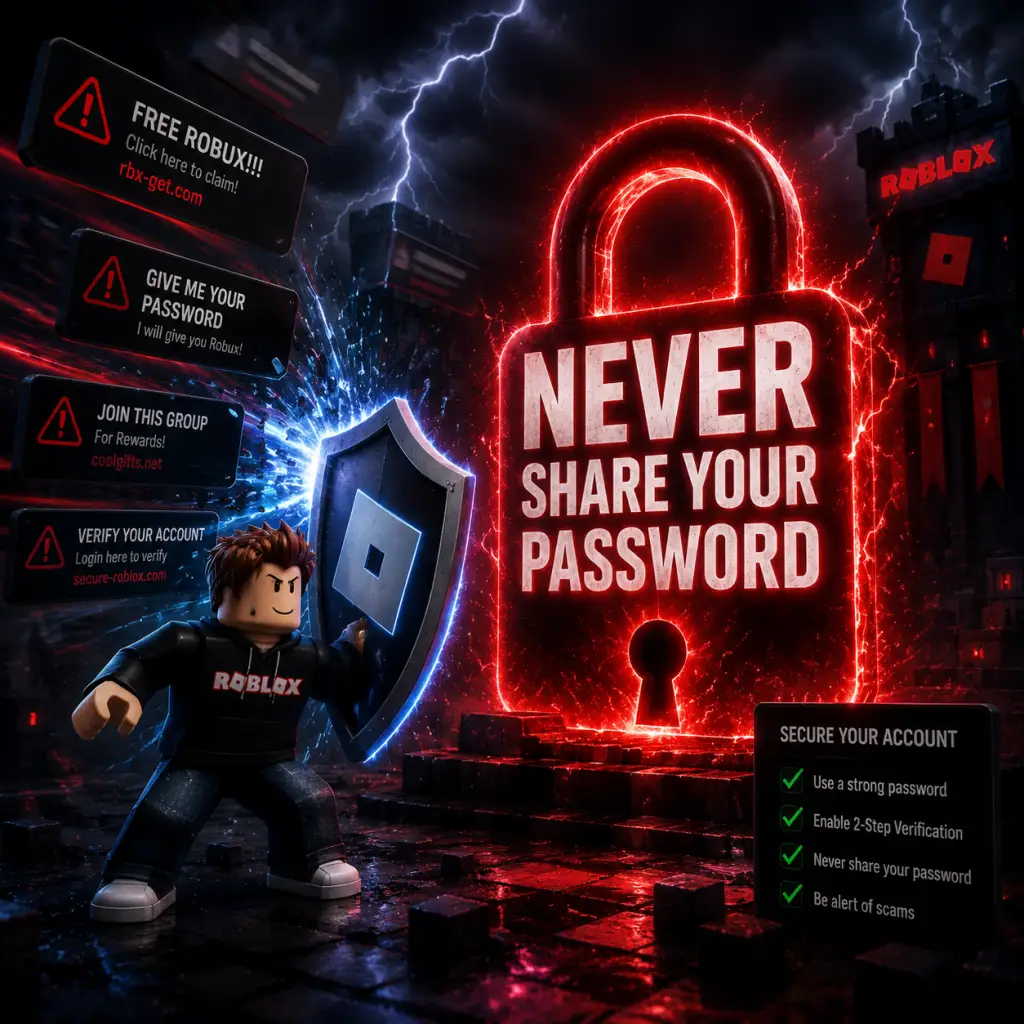
- Never share your password, cookie, or 2FA codes. Roblox staff will never ask for these. Any message claiming otherwise is a scam.
- Enable 2-Step Verification (2FA) under Account Settings → Security. This prevents unauthorized access even if your password is leaked.
- Beware of phishing links disguised as free Robux, premium memberships, or “game passes.” Official Roblox URLs always start with `https://www.roblox.com/`.
- Do not fall for “free Robux” generators or surveys. They are scams designed to steal your account or personal info.
- Never trade items or Robux outside the official Trading System. Off-platform trades (Discord, in-game chat) are unprotected and often scams.
###
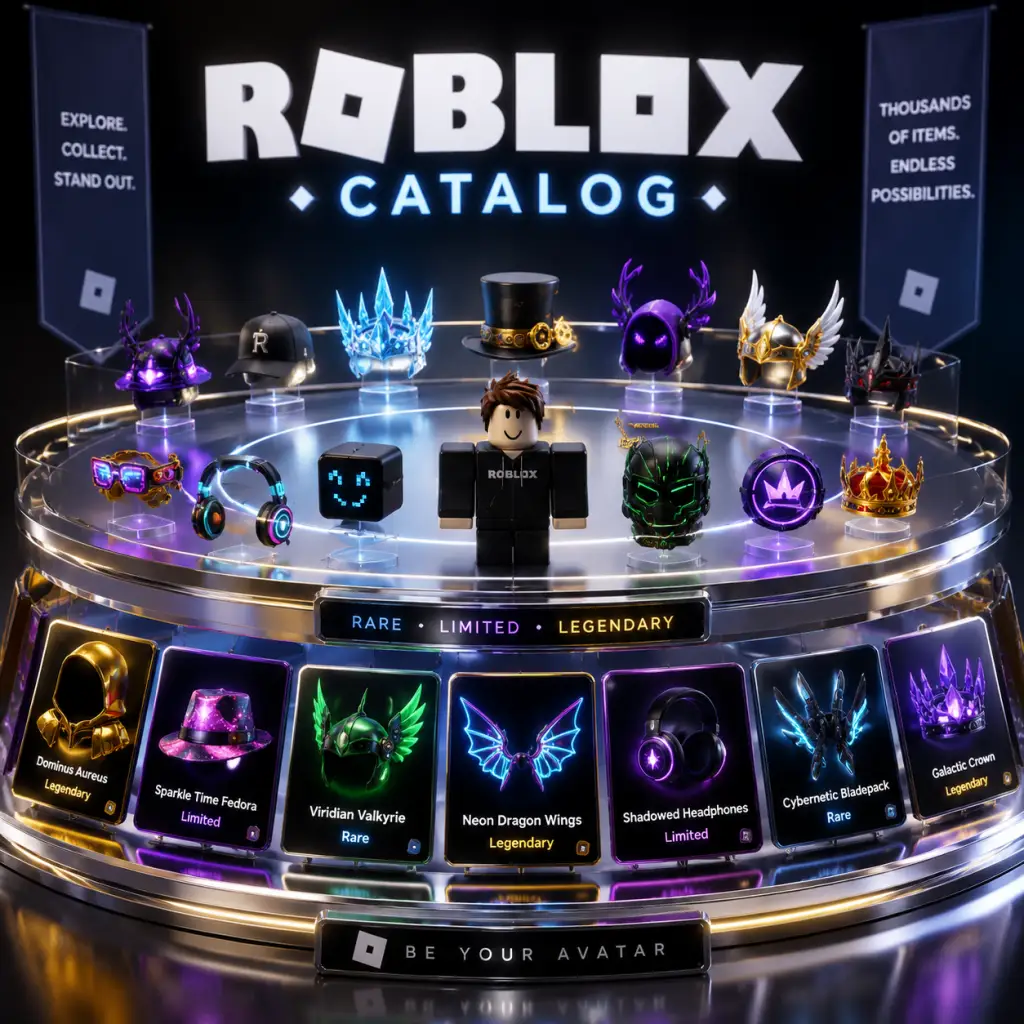
All Game Items
Roblox Platform Items Guide
Since Roblox is a vast platform with millions of user-created experiences, there is no single universal set of items. Instead, items exist at two levels: platform-wide items (currencies, avatar items, collectibles, gamepasses, developer products) and experience-specific items (weapons, armor, consumables unique to each game). This guide covers the platform-level items that are consistent across all of Roblox. For experience-specific items, refer to individual game guides.
1. Currencies
#### Robux (R$)
- Description: The premium currency of Roblox. Used to purchase avatar items (catalog), gamepasses, developer products, advertisements, and more. Also used to tip creators and trade limited items.
- How to Obtain:
- When Useful: Always. Robux is the primary currency for almost all transactions on the platform.
- Synergies: Premium membership gives a 10% bonus when purchasing Robux, plus access to trading limited items (requires Premium for trading).
- Description: Former secondary currency removed in 2016. Could be earned by logging in daily, creating games, or other activities. No longer exists in the economy. Items that were bought with Tix are now free or rare.
- Categories: Hats, Hair, Faces, Accessories (Neck, Waist, Front, Back), Shirts, Pants, T-Shirts, Animations, Bodies, Heads, Bundles (pre-made outfits).
- How to Obtain: Purchase from the Avatar Shop (catalog.roblox.com) with Robux. Some items are free or promotional.
- When Useful: Personalization of your avatar. No mechanical effect in most games, though some experiences use avatar items as cosmetics.
- Rarity: Not explicitly shown, but community assigns value based on age, scarcity, and demand.
- Description: Catalog items with a fixed quantity (Limited) or only one copy (Limited Unique – L/U). They are tradable between players (if both have Premium) and can appreciate in value.
- Examples: Dominus series (Dominus Empyreus, Dominus Messor), Sparkle Time Fedora, Clockwork Shades.
- How to Obtain: Originally bought from the catalog at a set price; now only obtainable through trading with other players or purchasing from resellers via Robux. Some are given out via events.
- When Useful: Status symbol, investment/trading opportunity. Some limiteds can be used as collateral in trades.
- Synergies: Premium required for trading; knowledge of market trends is important.
- Examples: Builderman’s Hard Hat, Egg Hunt 2024 items, Bloxy Awards items.
- How to Obtain: Log in during a limited-time event, follow Roblox social media for codes, or participate in community contests.
- When Useful: Cosmetic value, sometimes locked to accounts as proof of participation.
- Description: Weapons, tools, and usable items that work across many experiences (if the game supports gear). Examples: Swords, Potions, Grappling Hook, Rocket Launcher.
- How to Obtain: Purchase from catalog with Robux; some are free.
- When Useful: In experiences that permit gear usage (marked with gear icon). Can provide combat, utility, or cosmetic effects.
- Note: Many modern experiences disable gear and use their own item systems.
- Description: One-time purchases within a specific experience that grant permanent perks or abilities (e.g., Double Coins, VIP Room Access, Extra Inventory Slots).
- How to Obtain: Buy with Robux inside the experience’s shop or through the gamepass listing.
- When Useful: If you play that experience frequently and want a specific advantage or convenience.
- Synergies: Often stack with developer products or other gamepasses within the same game.
- Description: Recurring consumable purchases within an experience (e.g., 1,000 Coins, Speed Boost 1-Hour). Unlike gamepasses, they can be bought multiple times.
- How to Obtain: Purchase with Robux in the experience.
- When Useful: To quickly gain in-game currency, temporary power-ups, or unlock limited content.
- Description: Codes included with physical Roblox toys (action figures, playsets). Redeem for a virtual item in the catalog (often a virtual version of the toy).
- How to Obtain: Buy official Roblox toys; code is inside the packaging.
- When Useful: To obtain exclusive limited-edition virtual items that are often highly prized.
- Examples: Pets from Egg Hunts, trophies from Bloxcon, badges from The Hunt Mega Edition.
- How to Obtain: Complete challenges or participate in official Roblox events.
- When Useful: Bragging rights, aesthetic value, sometimes tradeable.
- Description: Daily allotment of Robux given to Premium members (varies by tier). Not a separate item, but a recurring benefit.
- How to Obtain: Subscribe to Roblox Premium.
- When Useful: Provides a steady income of Robux without additional purchases.
- Most experiences have their own consumables (e.g., potions, ammo, food). These are not universal and are covered in individual game guides.
- Premium: Unlocks trading of limited items (requires active Premium subscription), gives 10% bonus Robux on purchases, and monthly stipend. Essential for serious collectors.
- Trading: Trading limiteds can be profitable if you buy low and sell high. Use third-party sites like Rolimon’s or RBXValues for price checks.
- Gamepass Stacking: Some experiences allow multiple gamepasses to stack effects (e.g., Double Coins + Triple Coins = 6x coins). Always check the experience description.
- Developer Products: Often have bulk discounts (e.g., 1,000 coins for 10 R$, 10,000 coins for 80 R$).
- Direct purchase with real money ($0.99 for 80 R$ up to $199.99 for 22,500 R$).
- Roblox Premium monthly stipend (450–2,200 R$ per month depending on tier).
- Selling avatar items (catalog items, limiteds) to other players.
- Selling gamepasses or developer products in your own experiences (if you are a developer).
- Participating in developer exchange (DevEx) for real currency.
- Earning through affiliate/referral programs (limited).
#### Tickets (Tix) – Retired
2. Avatar Items
#### Catalog Items
#### Limited & Limited Unique Items
#### Free & Promotional Items
#### Gear (Universal)
3. Gamepasses & Developer Products
#### Gamepasses
#### Developer Products
4. Collectibles
#### Limiteds (Covered above in Avatar Items)
#### Unique Deletion Codes (UDCs)
#### Event Items
5. Consumables (Platform-Wide)
#### Premium Stipend
#### Experience-Specific Consumables
6. Materials & Crafting
There are no platform-wide materials or crafting items. Some experiences (e.g., skyblock, tycoons) have their own materials (e.g., wood, stone, ores). These are experience-specific.
7. Keys & Equipment
No universal keys exist. Gift cards (physical or digital) are purchased with real money and redeemed for Robux, sometimes with an exclusive virtual item.
Important Synergies & Upgrades
Conclusion
Roblox’s item ecosystem revolves around Robux as the central currency, with a vast catalog of avatar items, collectibles, and experience-specific purchases. Understanding the platform-wide items—especially Robux, limiteds, and Premium—will enhance your overall Roblox experience. For specific items within a game, consult that game’s item guide.
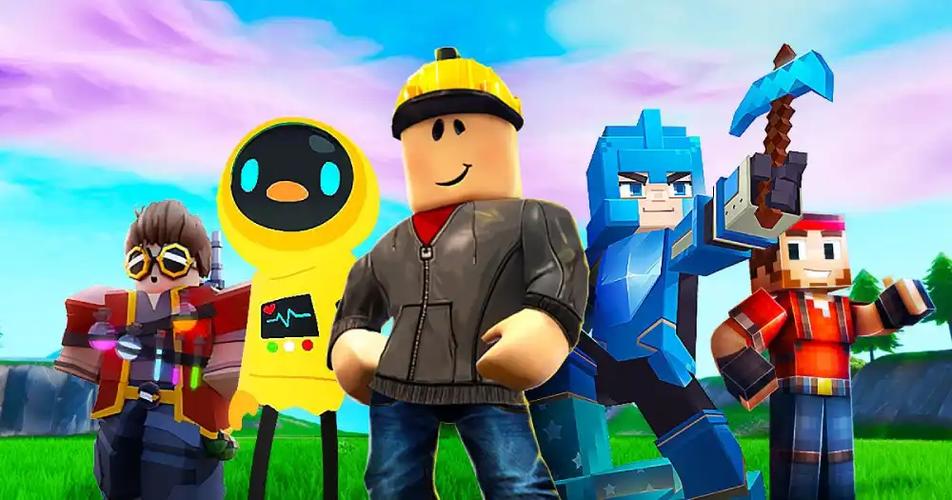
Character Skills
Character Skills Guide for Roblox
Since Roblox is a vast platform with millions of diverse experiences, there is no single set of characters or skills that applies to every game. However, most popular Roblox games feature character roles (often called classes or builds) and recurring skill types (movement, combat, utility, passive). This guide covers the most common archetypes and skill categories you'll encounter, with detailed examples from top Roblox games. Use this as a universal reference to understand and master skills across the platform.
Character Archetypes (Common Roles)
| Archetype | Description | Popular Games |
|---|---|---|
| Warrior/Melee | Close-range fighter with high damage and durability. Skills include sword combos, ground slams, and defensive stances. | Blox Fruits, Dungeon Quest, King Legacy |
| Mage/Ranged | Long-range damage dealer with elemental spells, area-of-effect attacks, and crowd control. | World // Zero, Arcane Adventures, Skybound |
| Healer/Support | Focuses on restoring health, removing debuffs, and granting buffs to allies. Often has low personal offense. | Adopt Me! (doctor role), Dungeon Quest, Work at a Pizza Place (medic) |
| Thief/Stealth | Specializes in evasion, lockpicking, pickpocketing, and surprise attacks. Common in roleplay and heist games. | Jailbreak, Mad City, Murder Mystery 2 |
| Builder/Trader | Constructs structures, crafts items, or manages economies. Skills often involve placing blocks, trading, or resource conversion. | Robloxian Highschool, Welcome to Bloxburg, Theme Park Tycoon 2 |
| Speedster/Parkour | Extremely agile with dashes, wall jumps, and speed boosts. Essential for obstacle courses and racing. | Tower of Hell, The Floor is Lava, Speed Run 4 |
Common Skill Categories
Skills in Roblox typically fall into one of these categories:
1. Movement Abilities
- Dash – Quick forward burst. Cooldown 2-8 seconds. Often upgradable to longer distance or multiple charges.
- Double Jump – Allows an extra jump in midair. Many games have limited charges.
- Wall Jump – Jump off walls to reach higher ledges.
- Teleport – Instant relocation to a target area. High cooldown.
- Glide – Slow descent with directional control. Often tied to wing or umbrella cosmetics.
- Melee Combo – Sequence of punches or sword swings. Some have knockback or stun.
- Ranged Attack – Projectile (bullet, arrow, energy orb) with varying speed and damage.
- Special Move – High-damage attack with a unique animation (e.g., “Dragon Rush” in Blox Fruits).
- AOE (Area of Effect) – Damages multiple enemies in a radius. Often slows or burns.
- Ultimate Ability – Powerful, long-cooldown ability that can turn the tide of a fight (e.g., “Super Saiyan” mode).
- Build – Place blocks or furniture (common in tycoon and roleplay games).
- Lockpick – Open locked doors or safes (stealth games).
- Heal – Restore HP to self or others. Often channeled or with a cooldown.
- Buff/Debuff – Temporarily increase stats or weaken enemies.
- Craft – Combine resources to create items.
- Speed Boost – Permanent movement increase (e.g., from a gamepass).
- Luck – Higher chance of rare drops.
- Regeneration – Auto-heal over time when out of combat.
- Resistance – Reduced damage from a specific type (e.g., fire resistance).
- Type: Melee Combat
- Effect: A rapid five-hit combo ending with a knockback punch. Each hit deals moderate damage. The final hit can stun enemies for 1 second.
- Cooldown: 3 seconds (no upgrade available, but mastery reduces startup lag).
- Upgrades: Learning Superhuman requires leveling other fighting styles. No direct upgrades, but can be enhanced by accessories.
- Combos: Use after a dash-in (e.g., Flash Step) to close gap. Follow with a rage move like `Dragon Talon` for extra damage.
- Synergies: Works well with Observation Haki (increases hit accuracy). Pair with `Dark Step` for mobility.
- Recommended Builds: Full melee build with high strength and stamina. Equip accessories like `Swan Glasses` for damage bonus.
- When to Use: Use as your primary damage dealer in close range. Excellent for interrupting enemy combos due to fast startup.
- Type: Support
- Effect: Restores 50 HP to a target player. Can heal self if no target selected. No cooldown but requires “Medic” role to be active.
- Cooldown: None (but limited by animation length ~2 seconds).
- Upgrades: None directly, but you can buy better medical supplies from in-game shop (e.g., advanced bandages heal 75 HP).
- Combos: Heal then buff with “Vitamins” for temporary speed boost.
- Synergies: Works perfectly with the “Doctor” outfit (unlocks extra healing range). Combine with a tank build in minigames.
- Recommended Builds: Full support: wear medic gear, carry multiple bandages. Focus on stamina to run between patients.
- When to Use: After a fight or when an ally’s health drops below 50%. Keep healing on cooldown during boss battles.
- Type: Mobility / Utility
- Effect: Fires a hook that attaches to surfaces, pulling the player towards it. Can swing if not pulled fully. Maximum range ~100 studs.
- Cooldown: 10 seconds (can be reduced to 7 with gamepass).
- Upgrades: Gamepass gives faster retraction and longer range. Some vehicles allow dual hooks.
- Combos: Use after a nitro boost from a car to extend flight. Release hook early for a parkour jump.
- Synergies: Highly effective with the `Jetpack` (allows temporary hover then grapple). Pairs with armored vehicles for escape.
- Recommended Builds: Stealth thief: carry grappler + keycard + flashlight. Wear dark clothes for camouflage.
- When to Use: Use to escape police, reach rooftops, or climb the prison walls. Save for emergency getaways.
- Type: Movement
- Effect: Instant forward boost of 15 studs. Can be used in midair. Single charge, regenerates on ground contact.
- Cooldown: 1 second after landing (no charge system).
- Upgrades: Some obstacle course games allow triple dash via power-ups.
- Combos: Wall jump → dash → jump to cross large gaps. Use to correct off-course jumps.
- Synergies: Combine with `Double Jump` gamepass for extra air control.
- Recommended Builds: Minimize accessories that cause drag. Use speed-enhancing gear if available.
- When to Use: Use for every gap that exceeds normal jump distance. Essential for speedruns.
- Type: Combat (Explosive)
- Effect: Throws a bomb that explodes after 3 seconds, damaging all players in a 10-stud radius (40 damage). Can stick to surfaces.
- Cooldown: 8 seconds (shared with other throwables like flashbang).
- Upgrades: No direct upgrade, but you can carry multiple bombs with certain backpacks.
- Combos: Throw bomb → shoot with gun to detonate instantly (requires precise timing).
- Synergies: Use with `Smoke Screen` to obscure vision then bomb. Good with trap placement.
- Recommended Builds: Survivor build: carry bombs + medkit + lockpick. In Piggy: protect doors with bombs.
- When to Use: Use to clear groups of infected, destroy obstacles, or create diversions. Avoid close range to prevent self-damage.
- Skill Trees: Many RPG games (e.g., World // Zero) have skill trees where you spend points to unlock and upgrade abilities. Example: Warrior tree may unlock `Cleave` then `Whirlwind`.
- Cooldown Reduction: Accessories, leveling, or gamepasses can reduce cooldowns. In Blox Fruits, the `Dark Coat` reduces all cooldowns by 10%.
- Status Effects: Common effects include:
- Ultimate Abilities: Long-cooldown (60-180s) powerful moves. Example: `Super Saiyan` in Blox Fruits grants massive damage boost and flight for 30 seconds.
2. Combat Abilities
3. Utility Abilities
4. Passive Abilities
Detailed Skill Examples (from Popular Roblox Games)
"Superhuman" (Blox Fruits – Fighting Style)
"Medic Heal" (Adopt Me! – Roleplay)
"Grappler" (Jailbreak – Grappling Hook)
"Dash" (Tower of Hell – Default Ability)
"Bomb" (Piggy – Weapon)
Advanced Mechanics
- Burn: Tick damage over time.
- Slow: Reduced movement speed.
- Stun: Temporary inability to act.
- Poison: Damage over time that stacks.
Recommended Builds (General)
| Build | Focus | Key Skills | Ideal For |
|---|---|---|---|
| PvP | High burst damage + mobility | Dash, Superhuman, Ranged Stun | Showdowns, arena games |
| PvE | Sustain and crowd control | Heal, AOE attacks, Shield | Grinding, boss raids |
| Support | Healing and buffing | Heal, Buff, Revive (if any) | Team games, roleplay |
| Speedrun | Max movement speed | Double jump, Dash, Glide | Obstacle courses, racing |
Skill Usage Tips
1. Timing is everything: Use Dash to dodge projectiles, not just to move forward. Wait for enemy attacks to miss before countering.
2. Resource management: Many skills consume stamina, mana, or charges. Don't spam; conserve for escapes.
3. Positioning: Stay at max effective range for your skill. Melee users should close distance, mages stay back.
4. Learn cooldowns: Know your cooldowns and those of common enemies. Punish when theirs are down.
5. Combine skills: Use movement to set up combat skills (e.g., dash → melee combo). Chain utility with offensive for maximum effect.
Remember: Each Roblox game defines its own skill system. This guide provides the universal framework—always check the in-game tutorial or skill menu for exact details. Master these concepts, and you'll adapt quickly to any new experience!
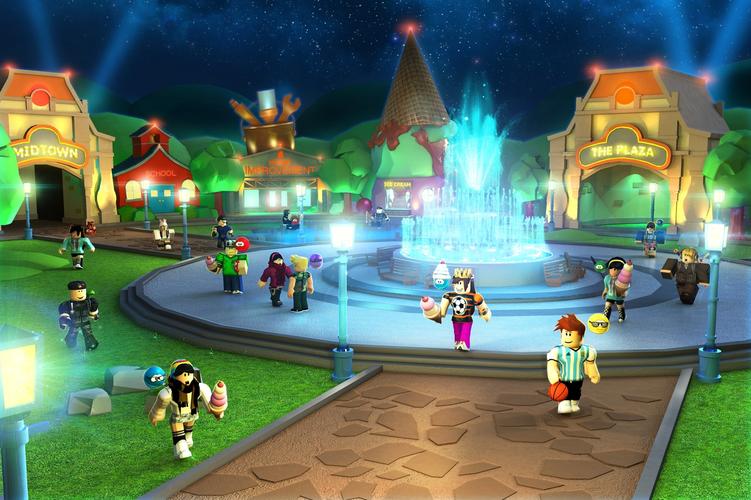
Characters & Roles
Characters & Roles Guide for Roblox
Since Roblox is not a single game but a vast platform of user-created experiences, there is no universal set of characters, classes, or heroes. Instead, each game within Roblox defines its own roles, abilities, and progression systems. This guide covers the concept of character roles on the platform, explains how to identify them in any game, and profiles the most common archetypes found across popular Roblox experiences.
Understanding Characters on Roblox
Your avatar is your permanent character on Roblox—it can be customized with thousands of items (hats, shirts, pants, accessories) but does not possess built‑in skills or stats. When you enter a specific game, the avatar may temporarily gain role‑specific abilities based on the game's mechanics.
- No universal classes: Each game has its own roles (e.g., Cop vs. Criminal, Pet Owner, Builder).
- Skills are game‑specific: A skill in one game (e.g., flying in "Jailbreak") does not transfer to another.
- Roles often determine playstyle: Some games grant different tools, weapons, or movement modes to different roles.
Common Character Archetypes Across Roblox
While roles vary, these archetypes appear in many experiences:
| Archetype | Typical Responsibilities | Example Games |
|---|---|---|
| Law Enforcer | Maintain order, arrest players, protect property | Jailbreak, Brookhaven, Natural Disaster Survival |
| Criminal/Outlaw | Break rules, steal, combat | Jailbreak, Mad City, Prison Life |
| Roleplayer (Civilian) | Simulate daily life, socialize, build stories | Adopt Me!, Brookhaven, Bloxburg |
| Builder/Creator | Construct buildings, vehicles, or worlds | Bloxburg, Theme Park Tycoon 2, Welcome to Bloxburg |
| Survivor | Endure waves, collect resources, avoid hazards | Natural Disaster Survival, The Maze, Flood Escape 2 |
| Racer | Compete in vehicles, time trials | Vehicle Simulator, Jailbreak (racing), Driving Empire |
| Competitor (PVP) | Fight other players in arenas | Arsenal, BedWars, Phantom Forces |
Detailed Role Profiles for Top Roblox Games
Below are the most prominent roles in the platform’s most‑played experiences. Each profile describes the role’s objective, strengths, weaknesses, unlock conditions, recommended equipment, and how it fits into team synergy.
#### 1. Jailbreak
- Game Type: Police vs. criminals open‑world.
- Roles:
- Game Type: Family/roleplay simulator.
- Roles:
- Game Type: Open‑world roleplay.
- Roles:
- Game Type: Life simulation and building.
- Roles:
- Game Type: First‑person shooter.
- Characters: No fixed characters; players pick a skin (cosmetic only). Roles are determined by game mode:
- Loading screen tips: Often mention role types.
- Game UI: Selector menu with "Police" / "Criminal" buttons.
- In‑game shop: Items that grant specific abilities (e.g., wings for flying, keys for doors).
- Official game description: Read on the game page under “About”.
- Tutorials: Many games include a tutorial that teaches role mechanics.
- Read the game’s wiki or Discord: Many top games have dedicated communities explaining role strategies.
- Communicate: Use chat or voice (if available) to coordinate with teammates.
- Experiment: Don't stick to one role—try different ones to understand the full game.
- Leverage role synergy: For example, in Jailbreak, one criminal drives while another shoots; in Bloxburg, builders can hire workers to earn money faster.
- Police Officer: Enforce law, arrest criminals, guard prison.
- Strengths: Access to police vehicles, taser (immobilizes), ability to arrest.
- Weaknesses: Outnumbered, slower reaction time to chases.
- Unlock: Free role selected at start.
- Recommended Gear: Spark Plug (faster car upgrades), donut (speed boost).
- Synergy: Pair with other officers for roadblocks; use helicopter to spot suspects.
- Criminal: Escape prison, rob banks, jewelry stores, etc.
- Strengths: Can use weapons, drive any vehicle, stealth options.
- Weaknesses: Arrested if caught; police have tasers; wanted level increases difficulty.
- Unlock: Free role selected at start.
- Recommended Gear: Key card (open doors), crowbar (break into stores), rocket launcher (PvP).
- Team Synergy: Criminals often work together to distract police; police coordinate to trap escape routes.
#### 2. Adopt Me!
- Parent/Guardian: Takes care of pets and children.
- Strengths: Can feed, bathe, and play with babies/pets; earns Bucks faster by completing tasks.
- Weaknesses: Requires constant attention; babies can be demanding.
- Unlock: Start as a baby; must be adopted to become a parent. Any player can become a parent by adopting a baby (cost: 0 Bucks).
- Recommended Items: Baby bottle, pet food, toys, stroller.
- Baby: Needs care to grow.
- Strengths: Can cry to attract parents; earns age points for transformations.
- Weaknesses: Cannot earn Bucks alone; relies on parent.
- Unlock: Start as a baby. Can become parent after aging up.
- Pet Owner: Collect and trade pets.
- Strengths: Pets grant ride/fly abilities; rare pets have high trade value.
- Weaknesses: Pets need constant care (hunger, thirst, energy).
- Unlock: Purchase a pet egg from shop (Bucks or Robux).
- Recommended Items: Pet food, vehicle (for travel), pet bed.
#### 3. Brookhaven
- Resident: Lives in a house, can own vehicles, jobs, and families.
- Strengths: Complete freedom to roleplay; access to many mini‑jobs (firefighter, police, mechanic).
- Weaknesses: No competitive PvP; limited to social interactions.
- Unlock: Free. Requires purchasing a house (in‑game currency) to fully utilize.
- Recommended Items: House furniture, car, pet (if available).
- Police: Enforce server rules (often player‑decided).
- Strengths: Siren car, handcuffs, arrest animation.
- Weaknesses: No weapons; depends on roleplay consent.
- Unlock: Visit police station and click on uniform.
- Criminal: (Optional role decided by players) Can roleplay robberies.
- Strengths: Breaks out of jail quickly; can be chased.
- Weaknesses: Others may ignore or report.
#### 4. Bloxburg (Welcome to Bloxburg)
- Builder: Constructs and decorates houses.
- Strengths: Creative control; can earn money by building for others.
- Weaknesses: High skill cap; expensive materials.
- Unlock: Purchase house plot (cost: ~$40,000 in‑game).
- Recommended Skills: Building, programming (advanced). Items: Workbench, various blocks.
- Worker: Performs jobs to earn money.
- Strengths: Steady income; variety of jobs (pizza delivery, cashier, babysitter).
- Weaknesses: Repetitive tasks; low earnings per hour without high level.
- Unlock: Hire at job board (requires no house).
- Recommended Items: None required; high energy (sleep) for longer shifts.
- Homeowner: Lives in a house (build or buy).
- Strengths: Passive income from roommates; storage and customization.
- Weaknesses: Must maintain house (pay bills).
- Unlock: Own a house plot.
#### 5. Arsenal
- Standard Player: Eliminate enemies, earn kills to cycle weapons.
- Strengths: Access to random weapons from a large pool; killstreaks grant special weapons (e.g., golden gun).
- Weaknesses: Random weapon order can be disadvantageous; no class customization.
- Unlock: Free; skins from crates or trade.
- Recommended Items: None; skill depends on aim and movement.
- Team Player (in Team modes): Coordinate for objectives (e.g., capture the flag).
- Strengths: Respawn; team map awareness.
- Weaknesses: Teamkill penalties; lack of communication may hurt.
How to Discover Roles in Any Roblox Game
When you join a new experience, look for these indicators to understand its roles:
Best Practices for Playing Roles Effectively
Conclusion
Roblox does not have a single set of characters; its strength lies in the diversity of roles across millions of experiences. By understanding the common archetypes and researching each game's unique system, you can quickly adapt and excel. Use this guide as a framework to analyze any new Roblox game you discover.
Cheats & Secrets
Cheats & Secrets Guide for Roblox
Introduction
Roblox is a vast platform with millions of user-created experiences, so there is no single set of universal cheat codes like in traditional games. However, there are plenty of developer-intended secrets, Easter eggs, hidden features, and legitimate commands built into the platform itself and certain official Roblox games. This guide covers only safe, non-exploit content that enhances your experience without violating Roblox's Terms of Service.
> Warning: Using third-party exploits, cheat scripts, or injectors will result in a ban. Roblox actively detects and removes such tools. The content below is 100% legitimate and allowed.
---
Platform-Wide Hidden Features & Commands
Chat Commands (Type in chat box)
These are built-in commands recognized by most experiences:
| Command | Effect |
|---|---|
| `/reset` | Respawns your character instantly. Useful when stuck. |
| `/mute [username]` | Mutes another player's chat. |
| `/unmute [username]` | Unmutes a previously muted player. |
| `/e [emote name]` | Plays an emote (e.g., `/e dance`, `/e wave`, `/e point`). Full list: dance, wave, point, cheer, laugh, clap, confetti, salute, idle, shout, cry, flip, dodge, etc. |
| `/sit` | Sits your character on the ground. |
| `/follow [username]` | Makes your character follow another player (if enabled). |
| `/unfollow` | Stops following. |
| `/t [message]` | Whispers to the nearest player. |
| `/w [username] [message]` | Sends a private message to a specific player. |
| `/cape [ID]` | Changes your character's cape (if the experience supports it). |
Developer Console (Hidden Debug Tools)
Press F9 (or `Fn+F9` on some laptops) to open the Developer Console. This shows real-time performance stats (FPS, memory usage, network traffic) and script warnings. It’s intended for developers, but players can monitor performance. Close with F9 again.
Camera Controls
- Right mouse button drag – Rotate camera (if unlocked).
- Middle mouse scroll – Zoom in/out.
- Shift + Scroll – Adjust camera distance.
- Ctrl + Shift + F7 – Toggle between first-person and third-person (works in many games).
- Edit Place – The `.rbxl` file format can be opened in Roblox Studio, but players can’t access source code of other’s games legitimately.
- Cmd bar cheat – In Roblox Studio, press `F9` to open output, then type commands like `game.Players.LocalPlayer.Character.Humanoid.WalkSpeed = 100` to test speed changes. This only affects your own test session, not published games.
- Secret Pet “Shadow”: In the “Hunt” lobby, there’s a hidden room behind a waterfall. Enter the room, and you’ll get the “Shadow” pet. No cheat code required – just exploration.
- Hidden Coin: In the “Alto” game inside the Ready Player Two experience, type `/coin` in chat – a golden coin appears (limited time event). This was an official dev command.
- Secret Avatar Items: The “Space” exhibit had a hidden “Astronaut Helmet” behind a fake wall. Breaking the wall with a hammer tool (obtained nearby) revealed it.
- Easter egg music: If you type `/e dance` while standing on the halfpipe, a special remix of “Dance Monkey” plays (unlisted in official documentation).
- Respawn Glitch (not exploit): Pressing `/reset` immediately after falling into void can sometimes spawn you on a safe platform instead of a checkpoint – commonly used in parkour games to skip sections. This is a design feature of the respawn logic, not a cheat.
- Type in the search bar on the Avatar Shop: “Test” to find items marked for testing (some are free). These are often hidden from normal browsing.
- Search: “UGC” then filter by “Free” – many limited items are unobtainable normally.
- `/e confetti` + `/e cheer` – some games spawn a unique particle effect (e.g., in “MeepCity”).
- `/e dance` while wearing “Korblox” items may trigger a special dance style (community discovered).
- Complete achievements like “Find 10 secrets in Roblox Worlds” to unlock profile badges. No codes needed – just exploration.
- In Roblox Studio, create a part and name it “SecretPart”. Insert a script with: `game.Workspace.SecretPart.BrickColor = BrickColor.new(“Really red”)` – this is not hidden, but many studios hide items this way.
- In the Command Bar, type `print(“Hello, World!”)` – not secret, but a tradition.
- No actual cheat codes exist that give infinite health, speed, or items in all games. Any site claiming otherwise is a scam.
- Respect other players – using chat commands like `/mute` is for your comfort, not harassment.
- Game-specific secrets vary wildly; check each experience’s wiki or Discord for hidden content.
- Easter eggs are meant to be found, not exploited. Share them respectfully.
Roblox Studio Secrets (For Creators)
---
Easter Eggs & Hidden Content in Official Roblox Experiences
Roblox.com Website Easter Egg
1. Visit [https://www.roblox.com](https://www.roblox.com).
2. Press Ctrl+Shift+I to open Developer Tools.
3. Go to the Console tab.
4. Type: `document.designMode='on'` (makes the page editable, allows pranks).
5. But the real secret: type `alert('roblox')` and press Enter – nothing official, but you can inspect the page’s hidden functions.
6. Actual official Easter egg: On the old 2008 site (through Wayback Machine), clicking the “Build” logo 10 times would display “You found me!” – now deprecated.
The Hunt: Mega Edition (2021)
Ready Player Two (2020)
Roblox World’s Fair (2021)
Roblox Meta-Skate (2022)
The Classic (2023)
---
Hidden Settings & Unlock Codes
Developer Settings Menu
In some official games (e.g., “Robloxian Adventures”), typing “/devmode” in chat unlocks a hidden settings panel that lets you toggle particles and physics debug. This is developer-intended for testing.
UGC (User Generated Content) Hidden Catalog
Secret Emote Combos
---
Exploit-Safe Secrets & Out-of-Game Hidden Content
Roblox Badge Hunt (Official)
Hidden Achievements on Roblox
Example: In “Welcome to Bloxburg”, reach 1000 blocks without using the build tool – unlocks “Builder’s Block” badge. Not a cheat, but a hidden requirement.
Lua Scripting Easter Eggs (For Developers)
---
Important Notes
---
Conclusion
While Roblox lacks traditional cheat codes, its platform is filled with hidden features, secret commands, and easter eggs designed by developers for curious players. Use the commands and secrets above to enhance your experience without risking your account. Happy exploring!