
The Sims 4
## Game Introduction **The Sims 4** is a life simulation game developed by **Maxis** and published by **Electronic Arts (EA)**. Released on **September 2, 2014**, the game is the fourth major title in the beloved *The Sims* franchise, following *The Sims 3* (2009). Since its launch, it has received...

Download & Installation
The Sims 4: Complete Download & Installation Guide
This guide covers all official platforms where The Sims 4 can be downloaded and installed. Note that The Sims 4 is not available on Nintendo Switch or mobile devices (mobile spin-offs like The Sims FreePlay and The Sims Mobile are separate games).
---
System Requirements
PC (Windows)
| Component | Minimum | Recommended |
|---|---|---|
| OS | Windows 7 (64-bit) | Windows 10/11 (64-bit) |
| CPU | Intel Core 2 Duo 2.4GHz / AMD Athlon 64 X2 2.7GHz | Intel Core i5-6600K / AMD Ryzen 3 1300X or better |
| GPU | NVIDIA GeForce 6600 or better / ATI Radeon X1300 or better / Intel GMA X4500 | NVIDIA GeForce GTX 650 / AMD Radeon HD 7750 or better |
| RAM | 4 GB | 8 GB |
| Storage | At least 15 GB free space (base game) – expansions can add up to 30+ GB total | Same (SSD recommended) |
| DirectX | DirectX 11 compatible |
Mac (Apple)
| Component | Minimum | Recommended |
|---|---|---|
| OS | macOS 10.11 (El Capitan) | macOS 10.15 (Catalina) or later |
| CPU | Intel Core 2 Duo 2.4GHz | Intel Core i5 or better (Apple Silicon supported via Rosetta 2) |
| GPU | NVIDIA GeForce 9600M GT / ATI Radeon HD 2600 Pro / Intel HD 3000 | NVIDIA GeForce GTX 680 / AMD Radeon R9 M390 or better |
| RAM | 4 GB | 8 GB |
| Storage | 15 GB free space | Same |
PlayStation / Xbox
| Console | Storage Required |
|---|---|
| PS4 / PS5 | ~30 GB (base + all current packs) |
| Xbox One / Series X | S |
Account Requirements
- PC (EA app, Steam, Epic): An EA account is mandatory for online features, downloading, and syncing saves.
- PlayStation: PSN account (free) required. EA account linked via in-game menu during first launch.
- Xbox: Xbox Live account (free tier works) required. EA account linking needed.
- To change install location: EA app → Settings → Downloads → Game install path.
- Restart the EA app if download seems stuck.
- Save files sync via Steam Cloud, but mods/CC are stored locally in Documents.
- PS5: The game runs via backward compatibility; no native PS5 enhancement.
- DLC can be purchased from the store individually or via bundles.
- Downloaded packs install automatically when you buy them.
- Smart Delivery included: If you own on Xbox One, it works on Series X|S.
- DLC must be purchased per account; no cross-platform ownership.
- Base game: ~15 GB on PC, ~30 GB on consoles (due to additional content bundled).
- All packs (2024): Could exceed 60 GB on PC. Console versions may be similar.
- Recommendation: Keep at least 60 GB free on PC if you plan on buying many expansions; on consoles, 80–100 GB safe.
- Manage content: In EA app, you can uninstall individual packs. On Steam/Epic, manage via DLC list. On consoles, delete and reinstall as needed.
- Cause: Corrupted download cache, antivirus interference, or insufficient permissions.
- Fix:
- Cause: Missing Visual C++ Redistributables.
- Fix: Download and install the latest Visual C++ Redistributable from [Microsoft](https://aka.ms/vs/17/release/vc_redist.x64.exe).
- Cause: Outdated graphics drivers or incompatible GPU.
- Fix:
- Cause: 32-bit/64-bit mismatch or corrupted DirectX.
- Fix: Reinstall DirectX from Microsoft, and ensure you have the 64-bit redistributables.
- Fix:
- Fix: Ensure EA app is fully closed before launching via Steam. Try launching EA app first, then Steam.
- Cross‑save: The Sims 4 does not support cross‑platform saves. PC saves are not transferable to console and vice versa.
- Free content updates: EA regularly adds new items (e.g., kits, scenarios) for free. Ensure internet connection during first launch to download them.
- Uninstallation: On PC, uninstall via EA app/Steam/Epic but note that `Documents\Electronic Arts\The Sims 4` folder (saves, mods, screenshots) remains. Delete manually if desired.
- Console storage expansion: Use external HDD/SSD (USB 3.0) to store games on PS4/PS5 and Xbox One/Series.
---
Platform-by-Platform Installation
1. PC via EA App (formerly Origin)
The Sims 4 is free-to-play since October 2022. The EA app is the primary PC storefront.
#### Step-by-Step:
1. Download the EA app from [www.ea.com/ea-app](https://www.ea.com/ea-app).
2. Install the EA app (Windows/Mac) – run the installer and follow prompts.
3. Launch EA app and log in with your EA account. Create one if needed.
4. Search for “The Sims 4” in the store.
5. Click “Get” (or “Buy” if you want packs). The base game is free.
6. Start download – you can pause/resume. It will install automatically once downloaded.
7. Launch the game from the EA app library.
#### Tips:
2. PC via Steam
Steam version requires the EA app to run; it acts as a launcher.
#### Step-by-Step:
1. Open Steam (download from [store.steampowered.com](https://store.steampowered.com) if not installed).
2. Log in to your Steam account.
3. Go to Store and search “The Sims 4”.
4. Click “Play Game” (free) or “Add to Library”.
5. Click “Install” – choose location.
6. Steam will install the EA app if not already present, then download the game.
7. Launch from Steam – it passes through to EA app (you may need to log in to EA once).
#### Note:
3. PC via Epic Games Store
Epic also offers The Sims 4 for free (requires EA app).
#### Step-by-Step:
1. Open Epic Games Launcher (download from [store.epicgames.com](https://store.epicgames.com)).
2. Log in to Epic account.
3. Search “The Sims 4” in the store.
4. Click “Get” (free). Add to library.
5. Click “Install” – choose drive path.
6. Epic will install the EA app (if missing) and then the game.
7. Launch from Epic – EA app will open; complete EA login if prompted.
4. PlayStation (PS4 / PS5)
#### Step-by-Step:
1. Power on console and go to PlayStation Store.
2. Search “The Sims 4”.
3. Select the base game (free) and click “Download”.
4. Wait for download – check notifications. Game installs automatically.
5. Launch from home screen – first time prompts EA account linking (optional).
#### Notes:
5. Xbox (One / Series X|S)
#### Step-by-Step:
1. Go to Microsoft Store on Xbox.
2. Search “The Sims 4”.
3. Select the game and click “Install” (free).
4. Download starts – you can monitor queue.
5. Launch game – on first run, link EA account if desired.
#### Notes:
---
Storage Space & Management
---
First Launch Setup
PC/Mac
1. Language selection – can be changed later in game options.
2. Graphics settings – auto-detect recommends settings. Adjust resolution, quality, and window mode.
3. Tutorial – a brief “Welcome” screen. You can skip or play through.
4. Sims Gallery – online browsing requires internet and EA login (optional).
5. Mods/CC folder – automatically created in `Documents\Electronic Arts\The Sims 4\Mods`.
Consoles
1. Account linking – optional but recommended for Gallery access.
2. Control scheme – choose between traditional or simplified controls.
3. Save to cloud – if you have PS Plus or Xbox Live Gold/Game Pass Core, saves sync automatically.
---
Common Installation Errors & Fixes
Error: “The Sims 4 failed to install” (EA app)
1. Clear EA app cache: Close EA app → Delete folder `%ProgramData%\EA Core\Cache` (Windows).
2. Temporarily disable antivirus.
3. Run EA app as Administrator.
4. Reinstall EA app completely.
Error: “Missing MSVCP140.dll” or “VCRUNTIME140.dll”
Error: “DirectX Error” or “Graphics device lost”
1. Update drivers (NVIDIA/AMD/Intel).
2. Disable overlays (Discord, Steam, NVIDIA GeForce Experience).
3. Lower graphics settings in game.
4. Run in windowed mode.
Error: “The application was unable to start correctly (0xc000007b)”
Console: “Download stops at 99%” or “Installation stuck”
- Pause and resume download.
- Restart console.
- Delete and redownload the game.
“EA app not responding” during Steam launch
---
Post-Installation Verification
1. Check game version – Main menu → bottom-left corner shows version number (e.g., 1.108.335.1020). Should match latest update.
2. Test basic functionality – Create a Sim, enter Build/Buy mode, and play for a few minutes.
3. Verify DLC – If you own packs, they appear in game (e.g., new worlds, CAS items). In EA app, go to Manage → View installed content.
4. Mod support – If using mods, place `.package` and `.ts4script` files into `Documents\Electronic Arts\The Sims 4\Mods`. Enable script mods in Game Options → Other.
5. Performance check – Monitor FPS (press Ctrl+Shift+F to toggle FPS counter). Adjust settings if lag occurs.
---
Additional Tips
---
Last updated: July 2024. Game and platform policies may change. Always download from official sources to avoid malware.
Game Introduction
Game Introduction
The Sims 4 is a life simulation game developed by Maxis and published by Electronic Arts (EA). Released on September 2, 2014, the game is the fourth major title in the beloved The Sims franchise, following The Sims 3 (2009). Since its launch, it has received continuous updates, expansions, and game packs, making it one of the most played simulation games on the market.
Platforms
- Windows (via EA app, Steam, Origin)
- macOS (via EA app, Steam, Origin)
- PlayStation 4 and PlayStation 5 (via PlayStation Store)
- Xbox One, Xbox Series X|S (via Microsoft Store)
- Live Mode: The primary gameplay mode where Sims live, work, interact, and progress through goals called Wants and Fears (or previous “whims”). Time runs continuously (can be paused).
- Build Mode: A free‑form construction tool to build and furnish houses, community lots, and parks. Powerful editing tools allow for endless architectural creativity.
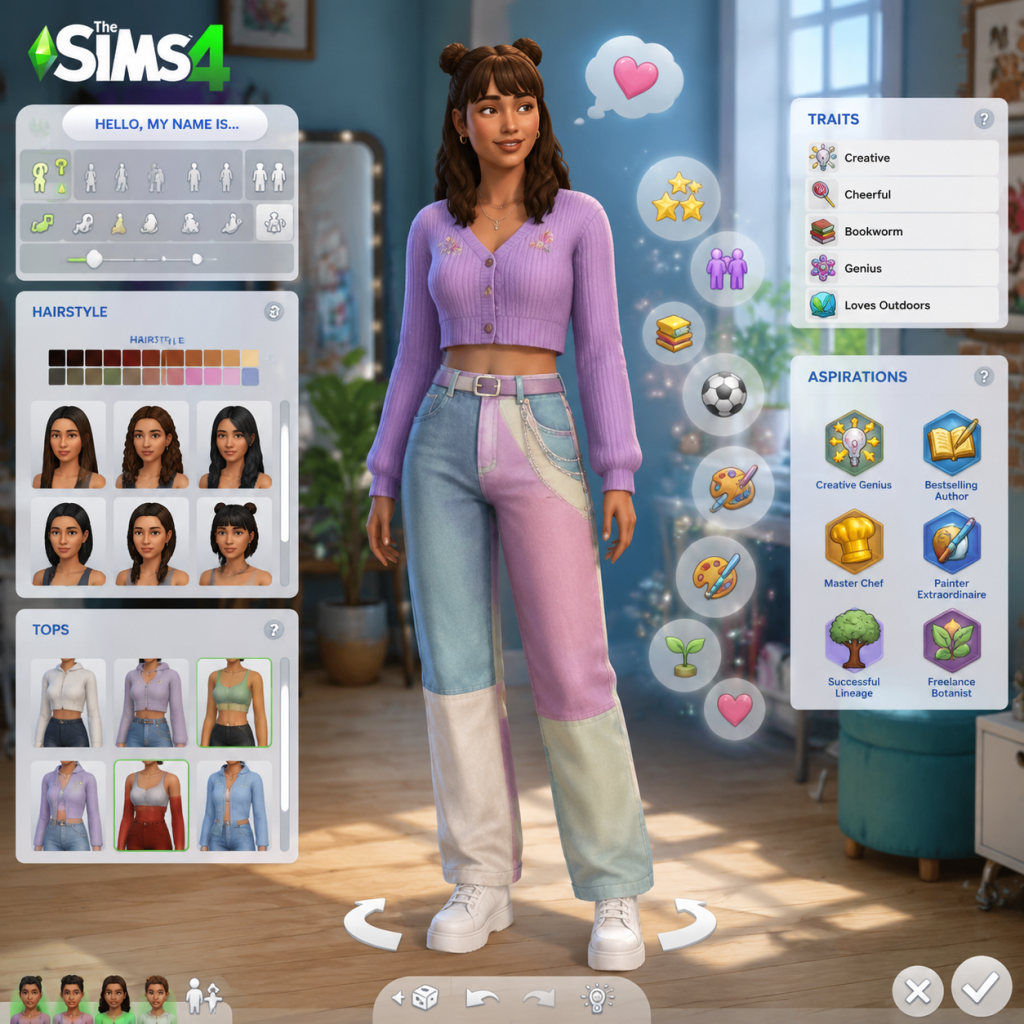
- Create a Sim (CAS): The character creation suite with extensive options for appearance, clothing, traits, aspirations, and voice.
- Manage Worlds: An overview mode to switch between households, place lots, and view neighborhood details.
- Offline: The game can be played entirely offline after initial installation and authentication. Some features (like the Gallery) require internet access.
- Online: The Gallery allows sharing and downloading Sims, lots, and rooms from a community library. Online features also include cloud saves (if enabled) and occasional limited-time events. There is no forced multiplayer; the game remains single‑player at heart.
- Expansion Packs (largest, adding major new worlds, gameplay, and systems): e.g., Get to Work, City Living, Cats & Dogs, Seasons, Get Famous, Island Living, Discover University, Eco Lifestyle, Snowy Escape, Cottage Living, High School Years, Growing Together, Horse Ranch, For Rent.
- Game Packs (medium size, focused themes): e.g., Outdoor Retreat, Spa Day, Dine Out, Vampires, Parenthood, Jungle Adventure, StrangerVille, Realm of Magic, Star Wars: Journey to Batuu, Dream Home Decorator, My Wedding Stories, Werewolves.
- Stuff Packs (small, new objects and clothing): Over a dozen packs like Luxury Party Stuff, Perfect Patio Stuff, Cool Kitchen Stuff, Laundry Day Stuff, and more.
- Kits (tiny, focused collections): e.g., Throwback Fit Kit, Country Kitchen Kit, Bust the Dust Kit, etc.
- Free Updates: Regularly released alongside DLC, adding new features (e.g., swimming pools, toddlers, terrain tools, platforms).
- Emotion System: Sims now experience emotional states (Happy, Sad, Angry, Flirty, Energized, etc.) that affect their actions and skill gains—a key departure from previous games.
- Multitasking: Sims can do multiple things at once, like eating while watching TV or talking while cooking.
- Improved Create a Sim: Drag‑and‑drop customization with color and pattern swatches for every outfit piece—more intuitive than previous iterations.
- Gallery Integration: A seamless way to share and download community creations directly in-game.
- Modular Build Mode: Objects snap to a grid with half‑tile precision, and rooms can be built by dragging walls—simpler and more flexible than ever.
- Live Events and Challenges: Occasional limited-time events (e.g., the Sulani world‑relaxation event) add temporary goals and rewards.
- Deep Reactivity: Sims react to surroundings, weather (with Seasons), relationships, and life events in nuanced ways.
The game is not available on Nintendo Switch or mobile devices (separate mobile spinoffs like The Sims Mobile exist).
Story Overview & Setting
Unlike many narrative-driven games, The Sims 4 has no predetermined storyline. Instead, it offers an open-ended sandbox where players create and control virtual people called Sims. The main setting is Willow Creek (base game world), a suburban town reminiscent of New Orleans, but over two dozen additional worlds have been added via expansions (e.g., San Myshuno from City Living, Brindleton Bay from Cats & Dogs, or Tartosa from My Wedding Stories). Each world has its own unique aesthetic and gameplay opportunities.
Players craft their own stories by managing Sims’ lives—from careers and relationships to hobbies and family milestones. There is no ultimate goal; the game rewards creativity and emergent storytelling.
Main Characters
There are no fixed main characters in The Sims 4. Instead, players create or download custom Sims using the robust Create a Sim (CAS) tool. However, the game includes pre-made households in the Gallery (an online library of community-created content) and certain “story” households like the Goths (a classic family from the franchise) or the Landgraabs. These can be played as-is or modified.
Core Appeal & Target Audience
Core Appeal: The game’s charm lies in its creative freedom, simulation depth, and humor. Players can build dream homes, craft unique Sims with diverse traits, develop skills, and explore life’s many possibilities—all with no right or wrong way to play. The whimsical art style and quirky animations contribute to a relaxing yet engaging experience.
Target Audience: Casual and experienced gamers aged 13+ who enjoy simulation, sandbox, and role-playing genres. It’s especially popular among creative players who love storytelling, interior design, or character customization. The game is also accessible to younger audiences with simpler gameplay options.
Game Modes
Additional modes come with expansions (e.g., Career Mode in Get to Work, where players control Sims at work).
Online/Offline Support
DLC / Expansion Overview
The Sims 4 has a massive library of downloadable content, categorized into:
What Makes This Game Unique?
In summary, The Sims 4 offers a polished, endlessly customizable life simulation where every player’s experience is uniquely theirs. Its blend of creativity, humor, and emotional depth has made it a mainstay in the gaming world for nearly a decade, with a thriving modding community and an ever‑expanding universe of DLC.
Getting Started
Getting Started
This guide is your first-hour roadmap for The Sims 4 on PC, Mac, PlayStation 4/5, and Xbox One/Series X|S. If you haven't installed the game yet, refer to the Download & Installation section. If you're completely new, start here to avoid confusion and get your Sim thriving fast.
---
First Hour Walkthrough: What to Expect
1. Launch the Game – After installation, you'll see the Main Menu. Click Play (or New Game on console).
2. Choose a Household – You can start with a premade family (like the Goths or Pancakes) or create your own. For beginners, premade families have balanced skills and jobs, but creating your own lets you tailor everything.
3. Select a Lot – You'll be placed in a neighborhood (e.g., Willow Creek, Oasis Springs). Pick an empty lot (cheapest are $0) or move into a furnished house. Start with a furnished house to avoid building from scratch.
4. First Control – Immediately pause the game by pressing Spacebar (PC) or Options/Start (console) so you can take your time.
5. Explore the UI – Hover over buttons. The bottom bar shows your Sim's needs, skills, and career. The top bar has speed controls, money, and Sim info.
6. Fulfill Needs – Unpause and click your Sim to queue actions like Use Toilet, Get Food, Sleep. The game runs in real-time (speed 1).
7. Assign a Career – Click your Sim or the job icon (briefcase) on a phone/computer to Find a Job. Choose a career that matches your Sim's traits (e.g., Athletic Sim → Athlete).
8. Build Skills – While not working, have your Sim read skill books, practice instruments, or cook. Skills are essential for promotions and crafting.
9. Socialize – Introduce yourself to neighbors. The game will guide you with tutorial pop-ups—read them!
10. Save Often – Press Ctrl+S (PC) or use the menu to save every 15 minutes.
---
Character Creation (Create-a-Sim)
- Access – Click Create-a-Sim (CAS) from the main menu or while editing a household.
- Basic Options – Choose gender, age (Young Adult is best for starting careers), voice, walk style.
- Appearance – Customize face (eyes, nose, mouth) and body (weights, muscle tone). Use the Room camera to rotate.
- Traits – You get 3 traits for Young Adults. Beginner-friendly traits: Cheerful (makes friends easily), Ambitious (faster promotions), Neat (cleaner house without effort). Avoid Loner unless you want solitude.
- Aspiration – A long-term goal (e.g., Renaissance Sim (learn many skills), Fabulously Wealthy). Aspirations guide your gameplay and give rewards.
- Outfits – You can change clothes later in a mirror or dresser, so don't stress.
- Tip: Spend only 15 minutes in CAS. You can edit your Sim later using a mirror (Change Appearance).
---
Controls on All Platforms
| Action | PC/Mac | PlayStation | Xbox |
|---|---|---|---|
| Move camera | Right-click & drag, or WASD | Left stick | Left stick |
| Rotate camera | Hold right mouse button + drag | Right stick | Right stick |
| Zoom | Scroll wheel or + / - | L2/R2 | LT/RT |
| Select Sim | Left-click | A | A |
| Queue action | Click on object/Sim | Hold A then select | Hold A then select |
| Pause/Play | Spacebar | Options → Pause/Play | Menu → Pause/Play |
| Speed up | 1, 2, 3 keys | D-pad up | D-pad up |
| Save | Ctrl+S | Options → Save | Menu → Save |
| Open Build/Buy | F2 on keyboard or click hammer | Touchpad or D-pad down | View button |
| Manage Worlds | F5 on keyboard or click globe | Options → Manage Worlds | Menu → Manage Worlds |
- Pro tip on console: Use the radial menu (hold A/X) to quickly queue actions like 'Go Here' or 'Chat'.
- All platforms: You can adjust camera speed, edge scrolling, and rotation in Game Options > Controls.
- Bottom Panel (Needs) – Green bars for Hunger, Bladder, Energy, Fun, Social, Hygiene. Keep them at least half full. If any turns red, your Sim will refuse to do other tasks.
- Top Left – Sim portrait, mood (emotion icon), age, career level, and household funds (simoleons).
- Top Right – Speed controls (play/pause/1x/2x/3x), time, calendar.
- Build Mode (hammer icon) – Furnish houses, add walls, rooms, and decorations.
- Buy Mode (shopping bag icon) – Purchase furniture, appliances, and decor. Use bb.moveobjects cheat (cheats are optional) for flexible placement.
- Library (book icon) – Save your builds, households, and rooms to reuse.
- Notifications (mailbox icon) – Click to see incoming messages like promotion offers or event invites.
- Phone (bottom-right on PC; D-pad left on console) – Use for quick actions: call a friend, order pizza, find a job.
- Take your time in paused mode.
- Place a fire alarm and smoke detector in the kitchen (safety!).
- Buy a cheap shower (not the most expensive).
- Use the whims (small bubbles above Sim's head) to guide your actions—they give satisfaction points.
- Read the Tutorial pop-ups carefully; they teach essential mechanics.
- Overspending – Don't buy expensive items like a $5,000 painting or $3,000 stereo on day one. Stick to basic necessities.
- Neglecting Needs – If your Sim collapses from exhaustion, they miss work and get fired.
- Cooking while Hungry – If your Sim is hungry, they might burn the kitchen if their cooking skill is low. Eat a quick meal (fruits, salad) first.
- Starting with Too Many Sims – A single Sim or a couple is easiest. Large families are stressful for new players.
- Ignoring Work – Your Sim must go to work on time. Check the career panel (briefcase icon) for daily tasks.
- Buying Pets or DLC Items – Stick to base game content until you're comfortable.
---
UI Overview
---
Essential Early Objectives (Your To-Do List for Day One)
1. Create or Choose a Sim – Pick traits that complement each other (avoid conflicting ones like Active and Lazy).
2. Move into a House – If you chose an empty lot, immediately enter Build/Buy mode and place essential objects:
- Toilet, Shower/Sink, Bed (minimum)
- Fridge, Stove, Counter, Trash Can
- Chair, Table (for eating)
3. Fulfill Needs – Your Sim will be hungry, tired, etc. Queue actions to bring them to green.
4. Get a Job – Use the phone or computer. Choose a career that matches one of their traits (e.g., Creative trait → Painter or Writer).
5. Improve a Skill – Spend at least 1 hour reading or practicing a skill related to their career or aspiration. This leads to promotions.
6. Make a Friend – Knock on a neighbor's door or visit a community lot (park, gym). Social boosting helps promotions and unlocks social rewards.
7. Save the Game – Press Ctrl+S (PC) or go to Menu → Save. Do this before quitting.
---
What to Do First vs. What to Avoid
✅ Do First:
❌ Avoid:
---
Early Resource Priorities
| Resource | Priority Level | Why & How |
|---|---|---|
| Simoleons (Money) | High | Earn via job, selling harvested plants, or painting. Avoid luxury spending until you have a $10,000 buffer. |
| Needs (Bladder, Hunger, etc.) | Critical | Letting any need drop to red causes mood debuffs. Queue actions to address them first when you unpause. |
| Skills (Cooking, Charisma, etc.) | Medium | Skills unlock new recipes, social interactions, and job promotions. Practice daily. |
| Relationships | Medium | Maintain friendships for promotions and social events. Call friends or invite them over. |
| Satisfaction Points | Low initially | Earned from whims and aspirations. Save them for useful rewards like Savvy Sculptor (faster skill building) or Steel Bladder (need decay slower). |
Common Beginner Mistakes
1. Not Saving – The game doesn't auto-save by default. Enable auto-save in Game Options > Other or manually save frequently.
2. Ignoring the Needs Panel – When you micromanage one task, other needs crash. Check needs every few in-game hours.
3. Buying Too Much Too Fast – New players often drain their funds on decor. Stick to functional items first.
4. Forgetting to Pay Bills – Bills arrive every Monday. If you don't click the bill (mailbox icon) and pay, utilities get shut off (no power/water).
5. Overcomplicating Build Mode – Don't spend hours building a perfect house. Use a premade room from the Gallery or start with a simple box.
6. Trying to Do Everything – Focus on one Sim or one aspiration at a time. Multi-tasking will overwhelm you.
7. Not Using the Gallery – The Gallery (online community) has free, pre-built houses, rooms, and Sims. Access it from the Library icon. Saves time.
8. Ignoring Whims – Whims give you a clear next step to focus on. They're optional but helpful.
---
Day-One Checklist (Printable)
- [ ] Launch the game and create a Sim (or pick premade).
- [ ] Move into a furnished house (or build essentials on an empty lot).
- [ ] Pause the game and explore the UI.
- [ ] Fulfill all initial needs (use toilet, eat, sleep, shower).
- [ ] Find a job via phone or computer.
- [ ] Purchase a cheap stove, fridge, toilet, shower, and bed (if empty lot).
- [ ] Start learning a skill (cooking is most useful day one).
- [ ] Make at least one friend (neighbor or club member).
- [ ] Check and pay the first bill (if Monday has passed; bills are weekly).
- [ ] Save the game.
---
> Remember: The Sims 4 is a sandbox. There is no winning—only having fun. If you break something, undo is your friend (Ctrl+Z on PC). Refer to the Game Introduction for the overall concept, and enjoy your simulation journey!
Core Gameplay
Core Gameplay Overview
The Sims 4 is a life simulation game where you control one or more Sims in a virtual world. There is no traditional combat; instead, gameplay revolves around social interactions, skill development, career progression, and building/designing homes. The game is open-ended with no forced objectives, but players can follow Aspirations (long-term goals), complete Toddler/Child milestones, advance in careers, and participate in events (festivals, holidays). The core loop is: Meet needs → Build skills → Earn Simoleons → Upgrade home/lifestyle → Repeat with increasing complexity.
Gameplay Loop by Player Progression Tiers
Early Game (First 1–10 Hours)
- Main Gameplay Loop: Create your Sim (or use a preset), move into a pre-built house, and fulfill basic needs (hunger, bladder, energy, social, hygiene, fun). Earn Simoleons by getting a job or selling crafted items. Spend money on better furniture and appliances to improve need fulfillment. Unlock and practice basic skills like Cooking, Charisma, and Handiness.
- Combat/Interaction Systems: No combat. Interactions are social (Greet, Chat, Tell Joke, Flirt). Start building friendships and romantic relationships. Use Friendly, Funny, or Mean interactions to affect relationships.
- Progression: Gain skill levels (e.g., Cooking 1 → 2). Complete short-term Whims (optional wants) for satisfaction points. Choose an Aspiration (e.g., "Renaissance Sim" or "Friend of the World") to get a structured goal path.
- Exploration: Visit a few base-game neighborhoods like Willow Creek and Oasis Springs. Walk to nearby community lots (parks, gym, library). Use phone to travel to other lots.
- Quests/Missions: The game has no traditional quests. Aspirations act as quests with milestones (e.g., "Reach Cooking level 3" or "Make 3 friends"). Adult Sims get job performance tasks like "Get promoted by increasing Logic skill".
- Economy: Starting funds are ~20,000 Simoleons. You earn ~500–1,200 Simoleons per day from a starter job (e.g., Barista, Tech Guru). Spend on cheap furniture, groceries, and bills (~800 Simoleons weekly).
- Character/Build Growth: Sim gains 1–3 skill points per day. You buy a used chair and low-quality fridge. House remains mostly empty or cluttered. Build mode is limited to placing objects.
- Endgame Structure: Not applicable yet; you are just learning systems.
- Main Gameplay Loop: Needs are easier to manage with better objects (expensive toilet, good bed). Now focus on career advancement (level 3–6 jobs) and side skills (Painting, Guitar, Gardening). Acquire higher-paying jobs or start a freelance career (e.g., Freelance Artist, Writer). Have babies or adopt pets (if expansion). Buy and upgrade to a larger house or start building your own.
- Combat/Interaction Systems: Social interactions become more consequential. Use Romantic interactions to propose marriage or try for baby. Resolve reputation issues (e.g., Apologize for being mean). Use social groups (if City Living) to gain influence.
- Progression: Earn promotions by completing daily task like "Make 3 presentations" or "Gain 2 Logic skill points". Collect Satisfaction Points to buy reward traits (e.g., "Never Weary", "Steel Bladder"). Skill levels reach 5–8.
- Exploration: Unlock new worlds like Granite Falls (Outdoor Retreat pack) or San Myshuno (City Living). Attend festivals (Flea Market, Romance Festival). Travel to other Sims’ homes for parties.
- Quests/Missions: Aspirations reach third milestone (e.g., "Reach level 5 of Charisma" or "Throw a successful dinner party"). Career promotions act as mini-quests. Some expansions add structured missions (e.g., Become a Spellcaster in Realm of Magic).
- Economy: Household income 2,000–5,000 Simoleons daily from careers or selling high-quality paintings (masterpiece ~3,000 each). Bills increase to ~1,500 weekly. Major investments: buying a computer, improving kitchen, expanding house.
- Character/Build Growth: Sims gain 5–8 skills total. Build mode unlocks more items as you raise Handiness. Start renovating house with new rooms, landscaping, and better decor.
- Endgame Structure: Still mid-game; you have multiple Sims with different aspirations. No endgame pressure.
- Main Gameplay Loop: Needs are trivial (via reward traits or high-end objects). Focus shifts to mastering multiple skills (level 10) and reaching top of career (level 10). Complete Aspirations fully for bonus traits. Manage a large family (3–4 members) with complex relationships. Consider moving to a mansion or building a dream home.
- Combat/Interaction Systems: Social interactions are automated with high relationships. Use social cheats? No, but you can hire butlers, nannies, and gardeners. Engage in dramatic events like affairs or alien abductions. Use the Grim Reaper interactions to beg for lives of deceased Sims (if you have certain packs).
- Progression: Max all base skills. Collect Satisfaction Points for all desirable reward traits. Complete several Aspirations (e.g., Musical Genius, Master Chef). Reach level 10 career with maxed skill bonuses.
- Exploration: Unlock all worlds via packs (e.g., Sulani, Tartosa, Mt. Komorebi). Explore hidden lots (e.g., Sylvan Glade, Forgotten Grotto). Take vacations or start a home business.
- Quests/Missions: Aspirations complete. Career promotions slow (need daily tasks fully optimized). Some packs have multi-step quests (e.g., StrangerVille mystery, Jungle Adventure relic hunting).
- Economy: Income 10,000+ Simoleons daily from high-level careers or royalties from books/music. Bills may be 5,000+ but easily paid. Spend on luxury items (hot tubs, grand pianos, robot butlers). Build enormous mansions.
- Character/Build Growth: Sims are near maxed out (all skills, many traits). Build mode has every object unlocked. You can rebuild entire neighborhoods using Manage Worlds.
- Endgame Structure: The game is still open-ended. Some players find this tier the endgame because there are no further goals. However, you can start a Legacy Challenge (10 generations) to extend gameplay.
- Main Gameplay Loop: If playing a Legacy Challenge, you control multiple generations. The loop is: Birth/age up a new heir → Repeat early–late game with that heir → Earn achievements across generations. Or, you focus on perfecting a single household: Master every skill, earn all Aspiration rewards, build the ultimate dream home, and maintain perfect relationships.
- Combat/Interaction Systems: Not applicable; interactions are now fabric of the story. Use clubs (Get Together) to automate group activities. Manage family drama: divorces, sibling rivalries, ghost visitations. Cheat codes may be used to speed things up.
- Progression: No further progression in base game. But expansions add new skill cap increases (e.g., Baking skill from Dine Out or Flower Arranging). Legacy milestones: 10 generations, 1 million Simoleons, complete all collections (frogs, metals, fossils).
- Exploration: Discover every lot type and world. Visit all hidden areas. Engage in special events like Alien Abduction, Neighborhood Stories, or Time Travel (if University).
- Quests/Missions: You may create your own “quests” like: “Become a Beauty Guru and write 50 best-selling books” or “Host 100 parties”. Some packs have repeatable events (e.g., Career days at university).
- Economy: Infinite money via investments or wealth. Many players go for “100K Simoleon challenge” or “Become a millionaire”. Use money to buy entire town community lots and redesign them.
- Character/Build Growth: Families can have 8 members with all maxed skills. Build mode used for creative projects: clone a real house, build a functional school, create a museum. Use Gallery to share creations.
- Endgame Structure: The Sims 4 has no hard ending. Endgame is about self-imposed challenges: Legacy Challenge, Black Widow Challenge, 100 Baby Challenge, or Rags to Riches. Some players aim to complete every achievement (e.g., obtain every Blissful Trait, reach top of every career). Others transition to pure building or storytelling (Legacy storytelling, machinima). The game becomes a sandbox for creativity.
Mid Game (10–50 Hours)
Late Game (50–100 Hours)
Endgame (100+ Hours or Legacy Play)
Key Systems Summary
| System | Description |
|---|---|
| Needs | 5 core need bars (Hunger, Bladder, Energy, Social, Hygiene, Fun). Manage with objects & interactions. |
| Skills | Over 20 skills (e.g., Cooking, Painting, Programming). Level 1–10. Unlock new interactions and earning potential. |
| Careers | 18+ base careers (e.g., Astronaut, Doctor, Writer). Each with 10 levels and daily tasks. |
| Aspirations | 11 base aspirations (e.g., Chief of Mischief, Master Chef). Complete milestones for trait rewards. |
| Relationships | Friendship and Romance meters (0–100). Interact to maintain or grow. |
| Economy | Simoleons earned via jobs, selling crafts, royalties, freelance gigs. Bills weekly. |
| Build Mode | Full architectural customization: rooms, walls, roofs, furniture. Unlimited budget on PC (testingcheats true). |
| Life Stages | Baby, Toddler, Child, Teen, Young Adult, Adult, Elder. Each has unique needs and skill caps. |
Practical Tips for Each Tier
- Early Game: Prioritize a cheap stove (prevent fire), a decent bed (8 Comfort), and a toilet. Take a day job to avoid burnout. Complete basic Aspiration “Renaissance Sim” to learn all skill types.
- Mid Game: invest in a computer for remote work. Grow a small garden to earn passive income. Use “Reward Traits” like “Steel Bladder” to reduce need management.
- Late Game: Use satisfaction points to buy “Beguiling” trait for faster relationships. Use “Neat” trait to avoid cleaning. Create a club of genius Sim for skill boosts.
- Endgame: If doing Legacy, choose a new heir with different traits to keep gameplay fresh. Use the Gallery to download realistic builds. Try combining multiple Aspirations (e.g., while raising children, also become a Master Painter).
Conclusion
The Sims 4 gameplay is a gentle curve from struggling with basic needs to managing a thriving dynasty. The lack of an enforced endgame makes it replayable via challenges and user-generated content. Adapt your playstyle each tier to avoid boredom: focus on survival first, then career, then family, then legacy or creativity.
Game Tips
Beginner Tips
Start with a Simple Sim
- Tip: Create one Sim with a balanced personality (e.g., Cheerful, Ambitious, or Romantic) and a straightforward aspiration like "Renaissance Sim" or "Joke Star."
- Why: Focus on learning core mechanics without overwhelming complexity. Balanced traits reduce accidental negative moodlets.
- When: Use this for your first 10–20 hours.
- Tip: In Game Options > Gameplay, enable "Auto-Lights" and "Auto-Repairs" (if you have Get Famous or base game).
- Why: Saves time micromanaging. Sims automatically turn off lights to save electricity (reducing bills) and fix broken objects without you manually clicking.
- When: Always, especially for larger households.
- Tip: Press the Pause key (default: P) whenever you need to queue multiple actions or check needs.
- Why: The game clock runs when unpaused; pausing lets you plan without wasting Sim hours.
- When: Use this for every skill-building session or before sending your Sim to work.
- Tip: Browse the Gallery (F4) for community-created houses, rooms, and Sims. Download a cheap starter home if you hate building.
- Why: Saves time and sparks creativity. Many builds include functional rooms with high-quality furnishings.
- When: Early game or when stuck on design.
- Tip: Start conversations with "Get to Know" or "Friendly Introduction." Avoid advanced interactions until friendship bar is at least 30%.
- Why: Low relationship fails often, causing negative sentiment. Builds a foundation for romance or best friend status.
- When: Every new Sim interaction; also useful for job networking.
- Tip: Invite multiple Sims over and initiate group activities like "Watch TV" or "Play Games." Use social interactions while in a group.
- Why: Group interactions boost relationships with everyone present simultaneously.
- When: Planning a party or wanting to become popular quickly.
- Tip: Give "Favorite Gifts" based on Sims' traits (e.g., a Bookworm loves books; a Foodie loves gourmet food). Check their Sim profile.
- Why: Gifts that match interests grant large relationship boosts (up to +40 relationship).
- When: Before asking for a promotion favor, proposing, or mending a fight.
- Tip: Never use "Insult" or "Fight" unless you're aiming for a rival or drama. Even "Mischief" interactions can backfire.
- Why: Negative moodlets lower all relationship gains and can lead to enemy status.
- When: Only for storyline drama; otherwise, stick to friendly or funny interactions.
- Tip: Pick one major skill (e.g., Cooking, Charisma, Programming) and practice it until level 8+ before switching.
- Why: High skill levels unlock powerful career rewards and better interactions. Splitting early slows progress.
- When: Early game; later you can multi-skill with time.
- Tip: Purchase skill books from the bookshelf (e.g., "Logic Vol. 1") and read them. Higher skill levels make reading faster.
- Why: Reading is the fastest way to learn passive skills (Logic, Cooking, etc.).
- When: As soon as you have §500–§1,000 spare.
- Tip: Check your Sim's career panel for daily tasks and performance bonuses (e.g., "Work Hard" vs "Socialize").
- Why: Matching your daily activity to career bonuses increases job performance faster, leading to promotions and raises.
- When: Every workday before going to work.
- Tip: If you have Discover University, enroll in courses that match your desired career (e.g., Economics for Business). Complete term papers and take finals.
- Why: A degree provides instant job offers at level 6–8, skipping low-level pay.
- When: After your Sim reaches young adult; about 10–15 in-game days.
- Tip: Choose a lot under §15,000 (e.g., Willow Creek's 131 Bunting Lane). Spend only §5,000 on furniture.
- Why: Lower lot bills and mortgage. Save the rest for skill items or a better house.
- When: Always at game start.
- Tip: Instead of cheating, earn through jobs (part-time for teens, full-time for adults). Sell collected items (fruits, fish, gems).
- Why: Cheats disable achievements; legitimate earning teaches resource management.
- When: Stick to legit for first playthrough.
- Tip: Buy a cheap computer (for Programming/Writing) or a stove (for Cooking). Don't waste money on decor.
- Why: Skills generate long-term income (writing books, painting, programming apps).
- When: First §1,000–§2,000.
- Tip: If you have Eco Lifestyle, place a "Chest of Wonders" (or use the "Sell from Inventory" option for collectibles).
- Why: Quickly liquidate unneeded items without going to Build/Buy. Earns instant cash.
- When: After gathering flowers, gems, or space rocks.
- Tip: Build a simple rectangular room with windows. Furnish only necessities (bed, fridge, toilet, shower).
- Why: Overcomplicating building slows gameplay. You can expand and decorate after earning money.
- When: First build session for any new family.
- Tip: Search Gallery for "budget starter" or "tiny house." Look for houses with high-quality rooms but low price tags.
- Why: Community builds often include expensive skill items cheaply placed (e.g., a gym equipment for §500).
- When: Before building from scratch.
- Tip: Use half-walls (found under Walls) to separate rooms without losing open floor concept. They also allow wall decoration.
- Why: Creates visual depth without sacrificing space.
- When: Designing kitchens or living rooms.
- Tip: Press Ctrl+Shift+C and type `bb.moveobjects on`. Then you can place objects anywhere, overlapping freely.
- Why: Allows clutter and custom layouts; vital for realistic interior design.
- When: Any time you want precise placement.
- Tip: Keep your Sim happy by fulfilling their "Fulfilled" trait requirements (e.g., painting for Creative Sims). Happy Sims gain skills faster and have better social outcomes.
- Why: Happy mood grants a +20% skill gain bonus and reduces negative outcomes.
- When: Before skill training or social events.
- Tip: Travel to different worlds (e.g., Granite Falls, Selvadorada, Sixam) by clicking the mailbox or using a phone.
- Why: Each world has unique collectibles, hidden areas, and NPCs.
- When: Weekends or vacation days.
- Tip: Work on a single aspiration until completed. For each milestone, you get points to buy rewards (e.g., "Never Weary" or "Steel Bladder").
- Why: Rewards are permanent and greatly enhance gameplay (e.g., no need for sleep).
- When: Early game; aim for "Renaissance Sim" or "Nerd Brain" first.
- Tip: Press J to open the relationships panel, then click "Household Management" to see all Sims' jobs, skills, and moodlets in one screen.
- Why: Helps you track multiple Sims at once, avoid neglected needs.
- When: Managing 4+ Sims.
- Tip: If you have Realm of Magic, plant a Money Tree (from the Gallery or spellcasting). Harvest money fruit (worth §400–§1,000 each).
- Why: Passive income stream with minimal effort.
- When: Mid-game when you have gardening level 5.
- Tip: Build a separate granny flat or basement for children/teens. Use locked doors (click door > lock for specific Sims) to keep adults out.
- Why: Prevents accidental interruptions (adults canceling homework actions) and keeps needs separate.
- When: Household with 3+ Sims.
- Tip: Create a Club with activities like "Cooking," "Painting," or "Fitness." Set a meeting place, then activate club gathering.
- Why: Club members automatically perform the activity, allowing you to focus on your Sim. They also earn club points for perks.
- When: Mid-game for Sims in creative careers.
- Tip: Buy a micro home lot (under 100 tiles) and add the "Micro Home" trait from the lot traits menu. This increases skill gains and job performance.
- Why: The trait gives a +35% skill gain boost and faster promotions.
- When: Any time you live in a tiny house; combine with Happy mood for +55% total.
- Tip: Press Ctrl+Shift+C, type `testingcheats true`, then `shift-click` on a Sim to access debug options like "Make Happy," "Fill Needs," or "Reset Object."
- Why: Fix stuck Sims, glitched tasks, or mood issues without restarting the game.
- When: Only when needed; avoid overuse to preserve challenge.
- Tip: After completing your Young Adult aspiration, choose a new one that suits the next life stage (e.g., "Successful Lineage" for adult, "Master Chef" for elder).
- Why: Keeps gameplay fresh and rewards points for new rewards.
- When: After first aspiration is fully completed.
Turn on Auto-Lights and Auto-Repairs
Pause Frequently for Multi-Tasking
Use the Gallery for Inspiration
Social & Relationships
Master Small Talk First
Use Group Conversations to Build Multiple Friendships
Give Gifts Strategically
Avoid Negative Interactions Unless Necessary
Skills & Careers
Focus One Skill at a Time
Buy Skill Books and Read Them Quickly
Use Career Bonuses
Attend University for High-Earning Careers
Money & Economy
Start with a Cheap Lot
Use the "Rosebud" Cheat? No – Earn Money Legit
Invest in Skill-Building Objects Early
Use the Sell Chest from Eco Lifestyle
Building & Design
Start with a Box – Add Details Later
Use the Gallery to Find Functional Houses
Master the Half-Wall Technique
Use Moveobjects On for Aesthetics
Gameplay & Exploration
Use Moodlets Strategically
Explore All Neighborhoods and Worlds
Complete Aspirations for Lifetime Rewards
Use Household Management for Large Families
Advanced Strategies
Clone Rare Items with Duplication Glitch? No – Use the Money Tree
Build a "Sim-Proof" House for Offspring
Use Clubs (Get Together) to Maximize Skill Gains
Exploit the Microhome Lot Trait for Promotions
Use the "TestingCheats True" for Troubleshooting
Set Lifetime Wishes for Older Life Stages
Conclusion
The Sims 4 offers endless ways to play. Start simple, focus on skills and relationships, then expand into building and exploration. Always use pausing, save frequently, and don't be afraid to cheat for cosmetic builds. For deeper dives, check the official Sims Community forums. Happy Simming!
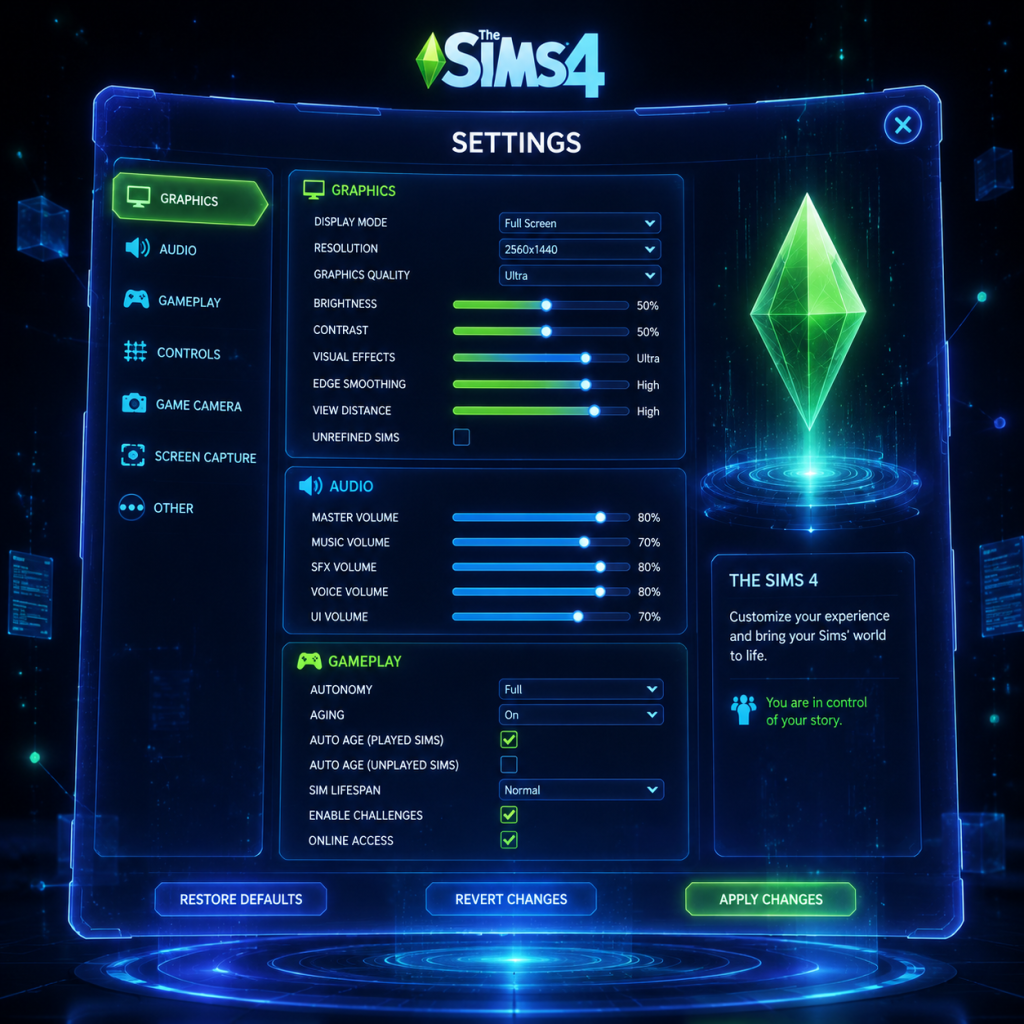
Game Settings
Game Settings
This section covers every settings category in The Sims 4, providing recommendations for different hardware tiers, explaining tricky options, and highlighting common misconfigurations. Settings are accessible from the main menu or via Esc > Game Options in-game.
1. Graphics Settings
Graphics are the most performance-critical category. The Sims 4 uses an older engine, but it can still tax low-end systems if settings are too high.
#### Key Graphics Options
| Setting | Description | Recommendations |
|---|---|---|
| Sims | Controls detail level of Sims (faces, skin, clothing). | Low/Medium for performance; High/Very High for quality. |
| Objects | Detail of furniture, plants, clutter. | Medium is a good balance. High can impact frame rate in cluttered lots. |
| Lighting & Shadows | Shadow quality, sun shadows, and ambient occlusion. | Low or Medium shadows for performance. Shadows are computationally expensive. |
| Reflections | Screen-space reflections (on water, windows). | Off or Low unless you have a dedicated GPU with 4GB+ VRAM. |
| Visual Effects | Particle effects (fire, sparkles, weather). | Medium generally safe. High can cause slowdowns during magic/weather. |
| Edge Smoothing (AA) | Anti-aliasing to reduce jagged edges. | FXAA is lightest; TAA is higher quality but more GPU-intensive. |
| View Distance | How far you can see in the neighborhood. | Medium recommended. High drains performance without much gain. |
| Post Processing | Bloom, depth of field. | Turn Off for performance. Depth of field can blur UI elements. |
| Tier | Typical Hardware | Recommended Preset | Notes |
|---|---|---|---|
| Low-End | Integrated graphics (Intel UHD, AMD Vega 3), 4GB RAM | Low preset or manually turn down all settings to minimum | Lower resolution to 720p if needed. Disable laptop mode (it disables shadows but can cause glitches). |
| Mid-Range | GTX 1050 / RX 560 / Intel Iris Xe, 8GB RAM | Medium preset, with shadows on Low, AA off or FXAA | Can often run High Sims detail with Medium objects. |
| High-End | GTX 1660 / RTX 2060 / RX 5600, 16GB RAM | High preset, with shadows on Medium-High, TAA enabled | Disable Post Processing if you prefer gameplay over eye candy. |
| Ultra | RTX 3070+ / RX 6800+, 32GB RAM | Ultra preset, everything maxed | Even on Ultra, the game rarely uses more than 4GB VRAM. Watch for CPU bottlenecks in busy neighborhoods. |
- Laptop Mode: Enables dynamic resolution scaling but disables shadows and reflections. While it boosts FPS, it often causes Sims to appear blurry or pixelated. Only use if absolutely necessary (e.g., 2GB VRAM).
- Uncompressed Sim Textures: Found in the advanced graphics options. Keep OFF unless you have 6GB+ VRAM. It drastically increases memory usage with minimal visual gain.
- 3D Scene Resolution: Controls the internal render resolution. Setting it above 100% (e.g., 150%) can sharpen textures but heavily impacts performance. Leave at 100%.
- Master Volume: Overall sound level.
- Music Volume: Background music (CAS, Build Mode, neighborhood).
- SFX Volume: Sound effects (interactions, clicks, environment).
- Voice Volume: Sim voices and gibberish. Turn down if playing in a quiet space or if you find it distracting.
- UI Volume: Menu clicks and notifications. Keep sufficiently loud to hear important alerts (e.g., moodlet changes).
- Enable/Disable 3D Audio: Simulates positional audio. Keep On for immersion. Can cause echo effects in small rooms if audio hardware is low-quality.
- Headphones Channel: Explicitly select Headphones if using headphones to avoid cavernous sound.
- Set Master to 80% and adjust others relative to your environment.
- For laptops with poor built-in speakers, reduce Music and increase SFX and Voice.
- 3D Audio: If you experience crackling or metallic echoes, turn it off and switch to Stereo mode.
- Key Mappings: All actions are rebindable. Most players leave defaults, but consider rebinding camera rotation (default: Alt+Mouse) to something more comfortable (e.g., Middle Mouse Button).
- Camera Style: The Sims 3 (follow) vs The Sims 4 (free). Sims 3 style lets you rotate by holding right-click; Sims 4 uses edge-scrolling and Q/E for rotation. Try both; many veterans prefer Sims 3 style for building.
- Invert Y Axis: Only for camera rotation. Most leave unchecked.
- Zoom Speed: Adjust to suit mouse wheel sensitivity. Fast is fine for most.
- Control Presets: Choose from default or alternate (e.g., swapped triggers/bumpers).
- Camera Speed: Set to highest for quick navigation.
- Cursor Sensitivity: Only relevant when using controller cursor in build mode. Increase if cursor feels sluggish.
- Vibration: Turn off for longer sessions to save battery/reduce fatigue.
- CAMERA CONTROLS: New players often get stuck because they don't realize they can zoom in/out with scroll wheel or rotate with right-click. The Camera Walkthrough tutorial in the help menu is worth a quick run.
- BUILD MODE SHORTCUTS: Many players accidentally press F5 (floor up/down) or F6 (foundation). If your Sim gets stuck, check you haven't toggled a floor level.
- Subtitle Size: Small, Medium, Large. Recommended Medium or Large for readability.
- Subtitle Background: Toggle background box behind subtitles. Turn ON if you have visual contrast issues.
- Speech Bubble Opacity: Controls opacity of thought bubbles above Sims. Reduce to 50% if bubbles are distracting.
- UI Scale: Adjust size of interface elements. 100% is standard. Increase to 125% or 150% for 4K monitors or if you have vision difficulties.
- Colorblind Filters: Deuteranopia, Protanopia, Tritanopia modes. Only affects moodlet colors and some UI elements. Not comprehensive.
- Auto-Select Live Mode Objects: When enabled, clicking on a Sim in Live Mode automatically selects them. Disable if you prefer manual selection (prevents accidental swapping).
- UI Scale at 4K: The game's UI does not scale perfectly. At 150% scale, some buttons may clip or overlap. If you encounter issues, try 125% or run the game at 2560x1440 resolution instead.
- Subtitle Background: If you use subtitles, enable background to ensure text is readable against any game scene.
- Language: Changes all text, voiceovers (Sims gibberish remains but menu text changes). Available languages: English, French, German, Italian, Spanish, Japanese, Korean, Portuguese-Brazil, Russian, Chinese (Simplified/Traditional), Polish, Dutch, Swedish, etc.
- Voiceover Language: Separate from text; not all expansions have full voiceover support. Defaults to same as interface.
- The game does not allow changing language mid-save without potential UI glitches. Always set language before starting a new save.
- Some mods (e.g., UI cheats) may break if your game language differs from the mod's intended language.
- Online Access: From main menu > Account > Sign In. Ensure you're connected for Gallery.
- Gallery Sharing: Toggle Allow Custom Content and Show Mature Content filters if you want to see more creations.
- Game Updates: Automatic via EA App, Steam, or console. You can pause updates but must install to play online.
- Offline Mode: Playable fully without internet after logging in once. To play offline on PC: launch EA App > Go Offline > launch Sims 4.
- Network lag only affects Gallery browsing. If you experience slowdowns in build mode while online, you can disable the Gallery auto-refresh in Game Options > Other > Enable Gallery Auto-Refresh.
---
2. Audio Settings
Audio settings are straightforward but affect immersion and system compatibility.
#### Key Audio Options
#### Recommendations
---
3. Controls Settings
Customize keyboard and mouse, or controller for console/PC.
#### PC (Keyboard & Mouse)
#### Console (PS4/PS5, Xbox)
#### Easy-to-Misconfigure Controls
---
4. Accessibility Settings
The Sims 4 offers limited but helpful accessibility options.
#### Special Attention Points
---
5. Language Settings
Set from the main menu before loading a save.
#### Notes
---
6. Network Settings
The Sims 4 requires an internet connection only for logging in to EA servers, downloading content, or online features (Gallery, multiplayer events).
#### Performance Impact
---
7. Gameplay Settings
These control the behavior of the game world, Sims, and progression.
#### Key Gameplay Options
| Setting | Description | Recommendation |
|---|---|---|
| Auto Age (Unplayed Sims) | NPCs age over time. | ON for realism; OFF if you want townies to stay young forever. |
| Auto Age (Played Sims) | Sims in your active household age. | ON for legacy challenges; OFF for sandbox. |
| Story Progression | NPCs can marry, have children, etc. (base game only limited; enhanced by mods). | ON for a living world. |
| Enable Cheats | Allows using cheat codes (e.g., `testingcheats true`). | Leave ON if you want debug freedoms; turn OFF for vanilla achievements/disables tracking. |
| Autonomy | Controls whether Sims make their own choices. | Full is default and fun. Off requires manual control (useful for challenges). |
| Emotional Death | (If you have Seasons or other packs) Sims can die from extreme emotions (embarrassment, rage). | ON for gameplay; OFF if you want to prevent accidental deaths. |
| Household Moves | Allow or restrict moving household members to other lots. | ON unless you want strict control. |
| Time Scale | (With mods or cheats only) Adjust speed of passage of time. Not natively adjustable. | N/A. |
- Auto Age (Unplayed Sims): Many players accidentally turn this off, then wonder why their town never changes. Leave ON for a dynamic world.
- Enable Cheats: Even if you never cheat, having this ON does not harm anything. But if you like seeing achievement notifications (e.g., “Completed 10 Sims”), turn it OFF. Note: Disabling cheats after using them will still block new achievements. That setting only applies to future gameplay.
- Autonomy: Beginners sometimes turn autonomy off because they think Sims will misbehave. But without autonomy, Sims will stand still until you command them, which can be boring. Leave Full and let chaos happen.
#### Special Attention Points During Setup
1. First Launch: After installing, the game will prompt language, graphics detection, and EA login. Let it detect recommended settings, then manually adjust based on this guide.
2. Laptop Users: The game often enables Laptop Mode automatically on laptops with integrated GPU. Turn it off immediately if performance is acceptable, as it reduces visual quality significantly.
3. Mods/CC Disclaimer: If you install custom content, revisit the Graphics tab to ensure texture memory isn't exceeded. The game may crash if you have many high-poly CC items.
4. Save before Changing Critical Settings: Some changes (like enabling uncompressed textures) require a restart. Save your game before applying to avoid losing progress.
---
Summary Table of Quick Recommendations
| Setting Category | Low-End PC | Mid-Range PC | High-End PC | Console |
|---|---|---|---|---|
| Graphics Preset | Low | Medium | High/Ultra | Auto-Detect (usually Medium-High) |
| Shadows | Low/Off | Medium | High | Medium |
| Edge Smoothing | Off | FXAA | TAA | TAA |
| Post Processing | Off | Off | On | On |
| Audio 3D | Off (if crackling) | On | On | On |
| Autonomy | Full | Full | Full | Full |
| Auto Age Unplayed | On | On | On | On |
By carefully tuning these settings, you can ensure The Sims 4 runs smoothly and looks good on any system. Always test changes in a new save before committing to a long-running legacy.
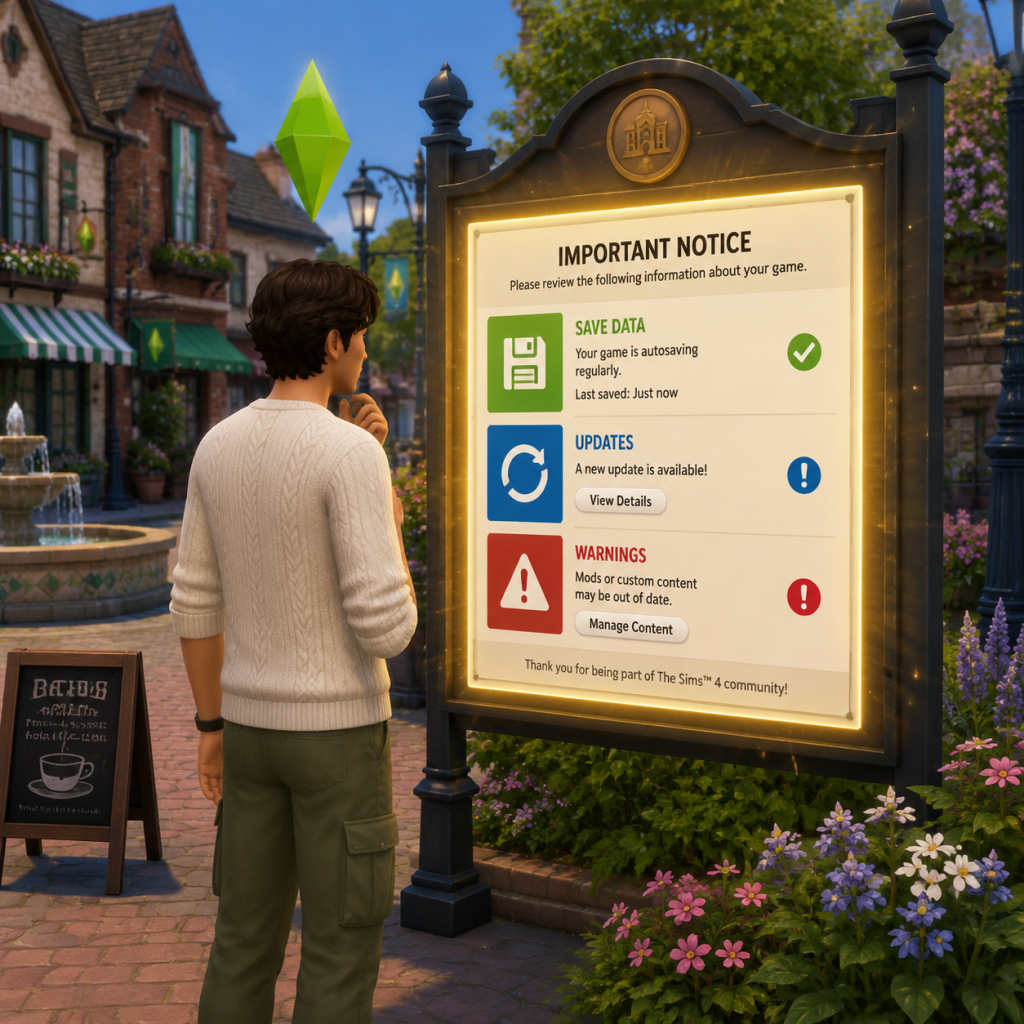
Important Notes
Important Notes for The Sims 4
This section highlights critical information every player should know to avoid common regrets, irreversible mistakes, and wasted time. The Sims 4 is a deep game with many hidden mechanics – use these notes to play smarter.
Warnings and Pitfalls
- Auto-Age & Story Progression: By default, played households age. Unplayed households also age and progress (marry, have kids, get jobs). If you leave for another household, your original Sims may die or change dramatically. Turn off aging for played or unplayed Sims in Game Options > Gameplay if you want control.
- Expansion Pack Conflicts: Mixing packs can cause bizarre interactions (e.g., vampires from Vampires pack appearing in StrangerVille). Unrelated packs can also create lag if too many items are loaded. Consider disabling packs you aren’t using via the main menu.
- Mods & Custom Content (CC): Mods break with every game update. Always back up your Mods folder before patching. Use the Mod Conflict Detector tool. Many mods are not compatible with the latest versions and can corrupt your save.
- Gallery Content: Items uploaded to the Gallery may have modded/CC content missing. Always check “Includes CC” tag. Downloading a mod-required build without the mod can cause your game to fail to load.
- Save File Corruption: Large saves (especially with many seasons, generations, or mods) can bloat and eventually corrupt. Never use the “Save” function only – frequently use “Save As” to create separate files.
- Sim Death (especially permanent deaths like drowning, starvation, or old age) – unless you have a Ghost from a completed aspiration or use the Ambrosia recipe, dead Sims are gone. Quit without saving immediately if you want to revert.
- Marriage & Divorce: Marrying a Sim merges households and their inventory. Divorce can be messy, and some relationships are permanently damaged. There is no undo – only reloading a previous save.
- Traits and Aspirations: Most personality traits cannot be changed after creation (except via the Re-Traiting Potion from the Realm of Magic pack or cheats). Carefully choose your initial traits – they affect daily moodlets and interactions.
- Career Track Lock: Once you choose a branch (e.g., Tech Guru splits into Esports and Startup), you cannot switch without restarting the career from level 1. Research each branch before committing.
- Limited-Time Events: EA occasionally runs in-game events (e.g., Sims 4 10th Anniversary, Seasons challenges) that reward exclusive items. These events are not repeatable. Enable notifications for the main menu.
- Pre-Order Bonuses & Deluxe Edition Items: Items like The Gothic Dresser, The Bust of Deliah, or The Seasons content from pre-orders are permanently locked to the account that pre-ordered. You cannot earn them later.
- Career Rewards: Many careers offer unique objects or clothing at level 10, but only if you complete the milestone under specific conditions (e.g., Astronaut rank 10 requires maxing both Logic and Fitness). Miss that condition and you lose the reward forever.
- Aspiration Rewards: Each aspiration grants a Satisfaction Point perk. If you complete an aspiration and then switch, you cannot re-earn that reward. Plan your aspirations to collect all desirable traits.
- High-Level Career Tasks: From level 8–10, careers demand maxed skills (e.g., Lvl 10 Culinary requires Gourmet Cooking level 10) and specific friends at work. Start building those skills early.
- Aspiration Harder Goals: Fabulously Wealthy aspiration requires 100,000 Simoleons in household funds – this can take hours without active investing. Use the money tree (from Gardening skill) or Investments in the Get Famous career.
- Dangerous Situations: Fire (from cooking, rockets, fireworks), electrocution (from poorly upgraded electronics), and meteor strikes (in StrangerVille) can kill Sims instantly. Save often before trying these.
- Skill Grinding Over Fun: It’s tempting to grind skills 24/7, but Sims have needs. A miserable Sim learns slower. Balance skill building with social events, hobbies, and needs.
- Gardening for Money: The classic money-making trap – gardening is powerful but requires constant watering, fertilizing, and harvesting. Automate with sprinklers and Greenhouse upgrades to reduce time.
- Over-Focus on One Sim: The game is about multiple Sims. Neglecting a Sim’s needs while grinding another’s career leads to meltdowns and death. Assign each Sim a daily routine.
- The Gallery: Share your builds, Sims, and rooms. Do not upload copyrighted content (e.g., exact replicas of pop culture characters, trademarked logos). EA may remove your upload.
- Mods & Cheats: While mods are allowed, using money cheats or skill cheats while earning Achievements (PlayStation/Xbox) will disable them for that save. On PC, cheats do not affect the Gallery.
- EA Account Security: Use a strong password and enable two-factor authentication (2FA). Your entire library (packs, saves) is tied to one account – losing it means losing everything.
- Reporting Players: If a player uploads inappropriate content to the Gallery, use the “Report” feature. Do not engage with trolls.
- Save Often: Use Ctrl+S (PC) or the Save button manually. Enable the auto-save interval in Game Options to every 15 minutes.
- Use “Save As” Daily: Create a new save file each real-life day. Name it by date/session, e.g., “Sims4_March14”. This prevents corruption from a single bad event.
- Backup Your Saves Folder: Located in Documents/Electronic Arts/The Sims 4/saves. Copy this folder weekly to an external drive or cloud storage.
- Avoid Merging Saves: If you combine two households from different saves, conflicts can occur. Use the “Move” tool ingame instead.
- Delete Old Saves: Too many save files (over 50) can slow down loading. Delete unwanted saves via the main menu after backing up.
Irreversible Choices
Missable Content
Difficulty Spikes
Grinding Traps
Online Etiquette & Anti-Cheat Notes
Save Management Advice
Things Players Commonly Regret Not Knowing Earlier
1. You can travel to other lots without a day pass – just click any lot in the world map.
2. Holding Shift + clicking a Sim (after enabling testingcheats true) lets you cheat needs, skills, and more.
3. The Satisfaction Point store can be accessed via the phone or the aspiration panel – buy traits like Forever Fresh (never stink) or Neatly Picked (automatically clean).
4. Build Mode cheats: Use `bb.moveobjects` to overlap objects and create custom designs.
5. Household funds can be shared – you can transfer money between Sims via the phone or computer.
6. Unplayed households can be cleaned up – in Manage Households, you can “Add to Household” to take over, or “Delete” to remove them from the world.
7. The “Residential” vs. “Generic” lot type – if you set a lot to Generic, it works like a residential but without bills. Great for testing.
8. You can lock doors (for specific Sims or to keep out vampires) by clicking on the door in build mode.
9. Packs like Seasons affect holidays – you can customize holidays; delete ones you dislike.
10. Motherlode cheat gives 50,000 Simoleons. Use sparingly.
By heeding these notes, you’ll avoid the most common pitfalls and have a smoother, more enjoyable experience in The Sims 4.
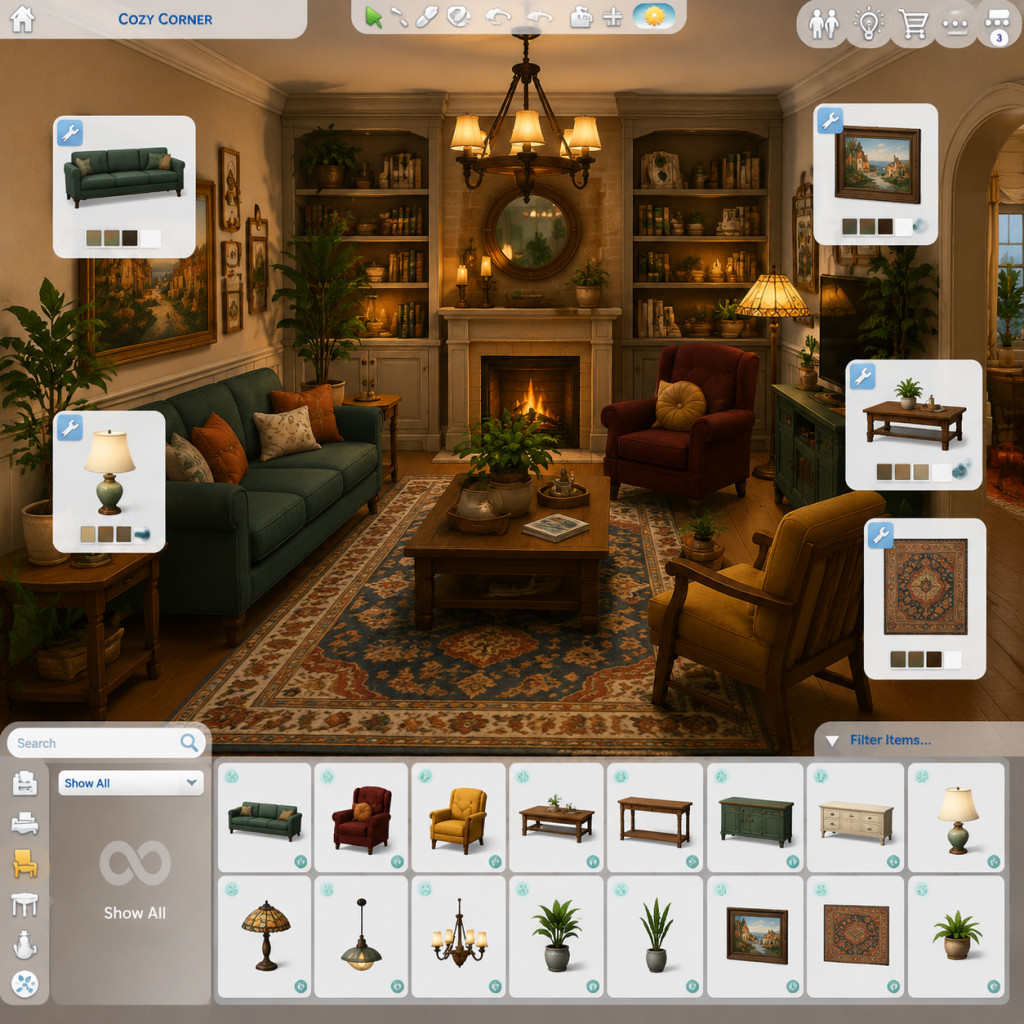
All Game Items
Overview
In The Sims 4, items are not weapons or armor as in traditional RPGs. Instead, they include furniture, appliances, skill objects, consumables, materials, currencies, and collectibles that directly affect your Sim's needs, skills, career progression, and overall quality of life. This guide groups every major item category, explains their purpose, acquisition methods, optimal use cases, and notable synergies.
Currencies
Currencies are used to purchase items, unlock content, and progress gameplay. The game has multiple currency types that often overlap.
| Currency | How to Obtain | What It Buys | Notes |
|---|---|---|---|
| Simoleons (§) | Jobs, selling items, completing aspirations, rewards | All build/buy mode items, bills, services, taxes | Primary currency; earned passively or actively. Use money cheats for testing. |
| Satisfaction Points | Completing Aspirations, whims, daily tasks | Reward Store items (traits, potions, lifetime rewards) | Earned slowly; prioritize traits like "Observant" or "Steel Bladder". |
| Sim Cash (City Living) | Busking, selling festival items | Festival-exclusive items, food stalls | Only available in San Myshuno; limited use. |
| Bits & Pieces (Discover University) | Discarded items, selling robotics junk | Robotics parts, university secret society items | Used exclusively in Robotics skill and secret society. |
| Cole's Cash (StrangerVille) | Military career, selling collectibles | Secret lab items, special outfits | Only in StrangerVille world. |
| Fragments (Jungle Adventure) | Digging, completing temples, selling artifacts | Relic combinations, cursed items | Used to unlock Omiscan treasure; combine fragments. |
| Voidcritter Cards (Paranormal Stuff Pack) | Collecting and trading | Prize booth items, rare decorations | Mini-game currency; trade duplicates. |
Consumables
Consumables are single-use items that provide immediate effects on needs, skills, or mood.
Food & Drinks
- Garden Veggies & Fruits – Can be eaten raw (low hunger fill) or cooked into meals. Grown from seeds or purchased at grocery. Synergy: Level 5+ Cooking unlocks better recipes.
- Prepared Meals – Cooked on stoves/grills. Quality depends on Sim's Cooking skill and ingredients. Grand Meals (e.g., Turkey, Lobster Thermidor) fill hunger fully and give positive moodlets.
- Group Meals – Serve multiple Sims; good for parties. Obtain via Cooking skill.
- Beverages – Coffee (energizes, removes fatigue), Tea (calming or energizing depending on type), Juice (from fruits; quenches thirst in Outdoor Retreat).
- Spoiled Food – Eating spoiled food causes sickness; avoid unless Sim has "Stomach Ache" aspiration goal.
- Moodlet Solver Potion (Reward Store, 500 Satisfaction) – Clears all negative moodlets instantly. Very useful before work/school.
- Focus Potion (Science career reward, or buy in Rewards Store) – Temporarily boosts Focus mood (skill building).
- Insta-Repair Potion (Get to Work) – Instantly fixes any broken object. Crafted via Scientist career or bought with Satisfaction.
- Youth Potion (Reward Store, 1,500 Satisfaction) – Resets Sim age to the beginning of their current life stage.
- Ghostly Elixirs (Paranormal Stuff) – Allows Sims to see ghosts, banish them, or become temporarily ghost-like.
- Fertilizer – Used on garden plants to improve quality. Can be made from fish, spoiled food, or purchased.
- Insect Repellent (Outdoor Retreat) – Preents insect swarms while camping.
- Vampire Sunscreen (Vampires GP) – Allows vampires to walk in sunlight for a few hours.
- Repair Kits (Dine Out) – Used to fix broken restaurant equipment.
- Wood (Scrap & Hardwood) – Obtained by salvaging from trees (Handiness level 2+) or buying at Construction Yard (Eco Lifestyle). Used for wooden furniture, musical instruments.
- Metal (Scrap & Refined) – Found by salvaging electronics or dumpster diving. Essential for robotics, plumbing, and metal furniture.
- Components – Salvaged from broken electronics or computers. Used in Robotics and Fabrication.
- Clay – Mined from rock piles (Eco Lifestyle) or purchased. Used for clay sculpting.
- Fabric – Gathered from wool (Eco Lifestyle animal shed) or purchased. Used for sewing (Nifty Knitting) and fabricating soft items.
- Crystals & Metals (Jungle Adventure) – Found in temple ruins; used for crafting Omiscan relics. Combine correctly for powerful rewards.
- Food Ingredients – Farmed or purchased; used for cooking and baking (Get to Work).
- Frogs – found by searching bushes, ponds, or cross-breeding (need a terrarium). 25 total frogs. Reward: "Frog Whisperer" trait after completing collection.
- Crystals – Mined from rocks (level 2+ Handiness). 13 types. Can be sold, gifted, or used in decorations.
- Metals – Same as crystals; mined randomly. 10 types. Some are rare (Platinum, Palladium).
- Elements – Found by digging, space mission, or scientist career. 15 elements. Completing collection unlocks "Elemental" achievement.
- Pottery & Fossils (Jungle Adventure) – Digging in Selvadorada. Can be appraised for Simoleons or kept as decorations.
- Voidcritter Cards (Paranormal Stuff) – Found by playing the Voidcritter game or trading with other Sims. Complete 18-card set for a special reward.
- Postcards (City Living) – Sent by friends from other worlds; collect 15 to unlock a special painting.
- Snowglobes (Seasons) – Found in hidden holiday stockings or purchased at festivals. Collect all to build a snowglobe shelf.
- Frogs & Minerals (Eco Lifestyle) – New types added via dumpster diving and NAP (Lots of stuff).
- Trading Cards (Discover University) – Bought at university bookstore. Collect to complete sets for decorative poster.
Potions & Elixirs
Other Consumables
Crafting Materials
Materials are used in crafting skills like Handiness, Fabrication, and Robotics.
Collectibles
Collectibles are items that can be found, traded, or earned. Filling collections unlocks special rewards and satisfaction points.
Skill-based Collections
Career/Expansion Collectibles
Skill & Career Items
These items are essential for advancing skills and careers.
| Item | Skill/Use | How to Get | Notes |
|---|
| Violin / Piano | Music | Buy mode – >3,000 Simoleons | High-level instrument; gives moodlets.
| Easel / Paint-by-Numbers | Painting | Buy mode – 600-1,500 Simoleons | Paint-by-Numbers for children; Easel for adult.
| Fitness Equipment (Treadmill, Weight Machine) | Fitness | Buy mode – >3,000 Simoleons | Use to increase fitness skill.
| Computer | Programming, Writing, Gaming | Buy mode – 1,000-5,000 Simoleons | Essential for many skills. Higher-end computers give skill bonuses.
| Chess Table | Logic (children) | Buy mode – 350 Simoleons | Boosts mental skill for children & adults.
| Research Machine (University) | Research & Debate skill | Buy mode – 2,500 Simoleons | Only available with Discover University.
| Robotics Station | Robotics | Buy mode – 5,000+ Simoleons | Craft bots and upgrades.
| Spellbook & Alchemy Table (Realm of Magic) | Spellcasting, Potions | Buy mode from Realm of Magic catalog | Use to learn spells and brew potions.
| Cowplant (Base Game) | Nectar-making & death trapping | Grown from Cowplant berry | Very rare; will eat a Sim if not fed.
| Knitting Basket (Nifty Knitting) | Knitting | Buy mode – 500 Simoleons | Knit clothes, toys, and plopsy.
| Sewing Machine (Eco Lifestyle) | Fabrication | Buy mode – 2,000 Simoleons | Craft fabric objects.
Household Items (Furniture & Appliances)
Furniture directly impacts needs and mood. Always consider environment score (buy mode item rating).
Need-filling Furniture
- Beds – Best: Cloud 9 Luxury Bed (2,000 Simoleons, +10 Energy). Avoid cheap beds (weak energy recovery).
- Toilets & Showers – Higher comfort reduces bladder/hygiene loss. The 'Flush' toilet (basic) vs. 'Pristine' shower.
- Refrigerators & Stoves – Higher quality reduces food spoilage and improves meal quality. 'Wall Oven' saves space.
- Sinks – Minimal effect; useful only for dishwashing. 'Kitchen Sink with Dishwasher' saves time.
- Fireplaces – Increase comfort and romance; can be dangerous (fires). Chimney reduces smoke.
- Paintings – Low-tier (Maxis Art) vs. high-tier (created by high Painting skill Sim). Place in rooms to boost environment.
- Mirrors – Used for 'Admire' interactions and boost charisma skill. Large mirrors better.
- Outdoor Items – Grill (for cooking), firepit (social), garden plots. Essential for outdoor living.
- Activity Tables – For children: helps develop mental, motor, social skills.
- Money Tree (Vault of Antiquity, or Growfruit from Get Famous) – Produces Simoleons daily. Requires high gardening skill.
- Clone Machine (Discover University) – Duplicates items; requires Robotics level 7+. Use to clone rare collectibles.
- SimRay (Get to Work – Scientist career) – Freezes/repairs/transforms objects and Sims. Ultimate utility tool.
- Omiscan Relics (Jungle Adventure) – Combine fragments to create powerful cursed or blessed relics (e.g., Fireproof, Rain Deflector).
- The Observational Pack (Scientist career) – High-level telescope that reveals hidden traits and secrets.
- Tchotchke (StrangerVille) – Place in world to influence weird occurrences. Can also be sold for high price.
- Rocket Ship (Base Game) – High cost (10,000 Simoleons), used by teens+ adults to build Rocket Science skill. Required for 'Astronomy' aspiration.
- Cauldron (Realm of Magic) – Essential for brewing potions; upgrade path available.
- Coffin (Vampires GP) – Only item that lets vampires sleep during day. Also decorative.
- Expedition Tent (Jungle Adventure) – Required for overnight temple expeditions.
- Campfire (Outdoor Retreat) – Needed for camping activities and storytelling.
- Voidcritter Arcade Machine (Paranormal Stuff) – Allows playing the Voidcritter game at home.
- Pool (Build mode) – Not an item, but essential for fitness skill and 'Lifeguard' career.
Decor & Mood Enhancers
Special Items
Unique items with game-changing effects.
Key Equipment (for Aspirations & Achievements)
These items are often required for specific achievements or aspiration steps.
This guide covers all noteworthy items across base game and major expansions. Items from packs like Get Together, Cats & Dogs, etc. add niche objects (e.g., DJ Booth, Pet bowls) but are tangential to core gameplay. Always prioritize items that match your Sim's current needs and goals for maximum efficiency.
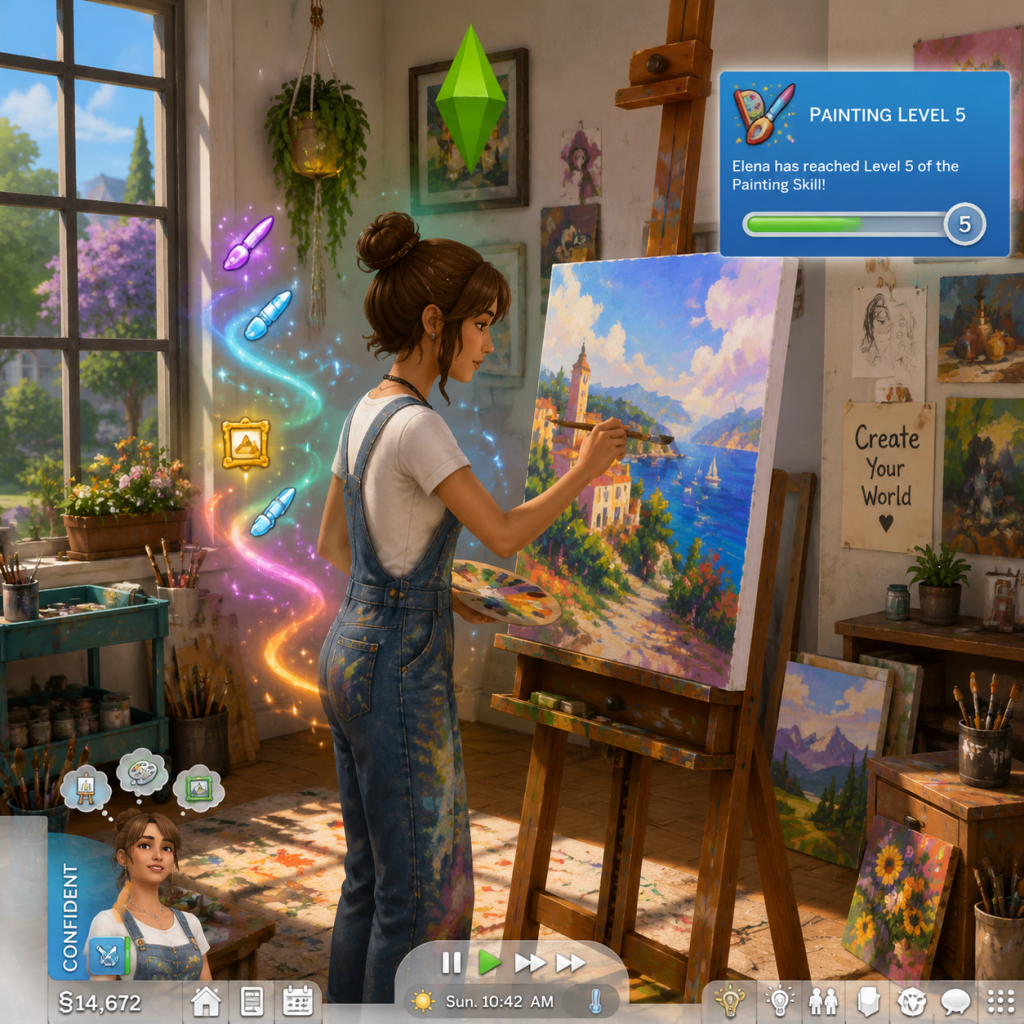
Character Skills
Overview of Skills in The Sims 4
In The Sims 4, skills are the core progression system for your Sims. Unlike typical RPGs, skills are learned and improved through repeated actions, reading books, or taking classes. Each skill has 10 levels (1-10) that unlock new interactions, recipes, crafts, or bonuses. Skills are essential for career advancement, aspiration completion, and unlocking special abilities. This guide covers every skill available in the base game and all expansion packs, as well as supernatural abilities (spells, vampire powers, werewolf rage skills, etc.). Skills are divided into categories: Base Game Skills, Expansion Skills, Spells (Realm of Magic), Vampire Powers, Werewolf Abilities, and Mermaid Powers. For each skill, we detail how to learn it, level-up methods, unlocked benefits, synergies with careers and traits, and recommended builds.
General Skill Mechanics
- Skill Levels 1-10: Each level unlocks new interactions and objects. Level 10 is the maximum, often granting a special reward or interaction.
- Skill Books: Reading skill books (from bookshelf or buy mode) is the fastest way to gain early levels. Higher-level books require higher skill.
- Classes: Some skills have classes (e.g., cooking, painting) that can be attended for a fee and boost progress.
- Practice: Actively using the skill (e.g., painting, cooking, programming) increases levels over time.
- Moodlets: Certain moods (Focused, Inspired, Energized) boost skill gain significantly.
- Traits: The “Genius” trait speeds up mental skills, “Creative” speeds up creative skills, “Active” speeds up fitness, etc.
- Lot Traits: “Study Spot” (Focused) or “Creative” lot traits boost respective skill gains.
- Skill Cheats: For testing, use `stats.set_skill_level Major_[SkillName] 10` (e.g., Major_Fitness 10).
- How to Learn: Start by cooking simple meals (grilled cheese, salad) or read cooking books. Unlock gourmet cooking at level 5.
- Levels & Unlocks:
- Synergies: Pairs with Gourmet Cooking (separate skill). Good for Culinary career and Foodie aspiration.
- Recommended Build: Take the "Fresh Chef" trait from rewards store (perfect quality cooking). Use the "Stoves and Grills Master" aspiration.
- How to Learn: Must have Cooking level 5. Read Gourmet Cooking books or cook gourmet recipes.
- Levels & Unlocks:
- Synergies: Culinary career (Mixologist branch). Aspirations: "Master Chef", "Angling Ace" (if also fishing).
- How to Learn: Use the oven's Bake option or read baking books. Available from start.
- Levels & Unlocks:
- Synergies: Culinary career, Foodie aspiration. Good for selling at bake sales (Get Together).
- How to Learn: Buy a fishing rod (Build Mode > Activities > Fishing) or read fishing books. Fish at ponds, oceans, or fishing spots.
- Levels & Unlocks:
- Synergies: Gardening (for bait), Culinary (fish ingredients), Angling Ace aspiration (complete with 10 fish types).
- How to Learn: Plant seeds (buy from computer or dig up), tend plants. Read gardening books.
- Levels & Unlocks:
- Synergies: Cooking (ingredients), Flower arranging (base game? No, that's from Seasons). But in base, gardening provides fresh produce for cooking. Aspiration: "Freelance Botanist".
- How to Learn: Play chess, read logic books, use observatory (if have City Living).
- Levels & Unlocks:
- Synergies: Education career (Discover University), Scientist career (Get to Work), Computer programming.
- How to Learn: Use computer option "Write Code" (requires level 2), read programming books.
- Levels & Unlocks:
- Synergies: Tech Guru career, Freelance Computer career (Get Famous?), Computer Whiz aspiration.
- How to Learn: Watch Handiness channel on TV, read books, or repair/upgrade objects. Requires an object to break or upgrade.
- Levels & Unlocks:
- Synergies: Tech Guru career (repair branch), Nerd Brain aspiration. Useful for building robots (Discover University).
- How to Learn: Practice speeches in mirror, read charisma books, interact with many Sims.
- Levels & Unlocks:
- Synergies: Political career, Entertainer career, Party Animal aspiration.
- How to Learn: Write on computer (diaries, novels, blogs). Read writing books.
- Levels & Unlocks:
- Synergies: Writer career, Freelance Author, Bestselling Author aspiration.
- How to Learn: Use an easel to paint, or read painting books.
- Levels & Unlocks:
- Synergies: Painter career (Master of the Real or Patron of the Arts), Artistic Prodigy aspiration.
- How to Learn: Use exercise machines, jog, swim, or attend fitness classes (if have Get Together?).
- Levels & Unlocks:
- Synergies: Athlete career, Bodybuilder aspiration.
- How to Learn: Perform pranks (e.g., toilet prank, whoopee cushion), read mischief books.
- Levels & Unlocks:
- Synergies: Evil career, Criminal career (Oracle branch), Public Enemy aspiration.
- How to Learn: Tell jokes, perform at microphone stand (buy from entertainment), or read comedy books.
- Levels & Unlocks:
- Synergies: Entertainer career (Comedian branch), Joke Star aspiration.
- How to Learn: Practice guitar (buy one from activities), read guitar books.
- Levels & Unlocks:
- Synergies: Entertainer career (Musician branch), Musical Genius aspiration.
- How to Learn: Practice on piano (buy from activities). Read piano books.
- Levels & Unlocks:
- How to Learn: Build rockets (requires handiness and rocket science books). Use the rocket ship.
- Levels & Unlocks:
- Synergies: Astronaut career (Get to Work)? Actually astronaut is from base game? No, astronaut career is from Base Game (tech guru? Wait, there is no astronaut career in base game; it's from Get to Work? The astronaut career is part of Get to Work expansion. So Rocket Science is mainly for that. But it's still a base game skill because the rocket object is from base game? Actually rocket science skill was introduced in base game with the addition of the rocket ship in 2016? Yes, the rocket is base game (from the Scientist career pack? No, it's base game with a patch in 2015? I recall the rocket was added as a buyable object. To avoid confusion, I'll list Rocket Science as a base game skill because you can build rockets without any expansion. But the astronaut career requires Get to Work. So it's fine.)
- How to Learn: Play video games (computer, console, or arcade machines).
- Levels & Unlocks:
- Synergies: Tech Guru career (eSport branch), Computer Whiz aspiration.
- How to Learn: Use a bar to mix drinks. Read mixology books.
- Levels & Unlocks:
- Synergies: Culinary career (Mixologyst branch), Party Animal aspiration.
- Learning: Must be a Spellcaster. Can learn spells from tomes or from other spellcasters. Spells are divided into Practical, Untamed, and Mischief categories. Max level 15 spells per category? Actually, each school has specific spells.
- Levels: Your Spells skill (Magic skill) increases with casting. Levels unlock more powerful spells.
- Examples:
- Cooldowns: Each spell has a cooldown (few minutes Sim-time). Overcasting can cause overexertion.
- Upgrades: Level up Magic skill to unlock more powerful spells, reduce cooldowns.
- Synergies: Choose spells that fit your playstyle. Practical for convenience, Mischief for chaos.
- Learning: Vampire Sims have skill tree of powers divided into three paths: Dark, Medium, Light (actually: Power, Mind, Body? No, Vampire perks are categorized as: Vampire Powers (spell-like) and Vampire Weaknesses. Powers include:
- Unlocking: Earn power points by drinking plasma, completing vampire-themed tasks. Max 15 powers.
- Cooldowns: Bat form and mist form have cooldowns.
- Synergies: Combine with weaknesses to personalize.
- Learning: Become a werewolf. You have three Rage Skills: Fury, Ferocity, and ??? Actually, werewolves have Rage as a resource, and Skills like Lunar, Feral, Primal? The game uses Rage Abilities: _Howl_, _Territorial_, _Mark_ etc. But also Rage skill is a progressive skill that unlocks new abilities.
- Mechanics: Rage builds over time; when full, can transform or use special attacks.
- Abilities:
- Upgrades: Leveling Rage skill increases damage of attacks and reduces cooldowns.
- Learning: Become a mermaid (hidden skill). Mermaids have powers like Splash, Sing, Call Dolphins. Skill levels increase effectiveness.
- Powers:
- No cooldowns – continuous effects. Synergies with conservation aspiration.
- Crystal Healing (from Crystal Creations Stuff) – but that's more a functional item.
- Veterinary (Cats & Dogs) – treat animals.
- Fitness already covered.
- Tech Guru (eSport): Get high Programming and Video Gaming. Use Focused moodlet. Combine with Genius trait.
- Culinary (Mixology): Get Cooking, Gourmet Cooking, Mixology. Use Inspired moodlet. Fresh Chef reward trait.
- Scientist (Get to Work): Get Logic, Handiness, Rocket Science. Use Focused moodlet.
- Renaissance Sim: Requires 10 skills at level 10? Actually need max 10 skills? No, Renaissance Sim needs level 10 in 3 different skills. Best: Cooking, Painting, Programming.
- Joke Star: Comedy and Charisma high.
- Musical Genius: Guitar, Piano, Violin (if have).
- Vampire Chef: Combine vampiric speed with gourmet cooking for fast meals.
- Werewolf Gardener: Use Frenzy to quickly weed? Not really, but ferocity helps in gardening? Not directly. Best to keep separate.
- Cooking, Gardening: Daily needs.
- Programming, Logic: For career and home automation.
- Charisma, Comedy: For social events.
- Fitness: To prevent death from obesity and increase lifespan.
- Handiness: To upgrade objects for better needs satisfaction.
- Mischief: For evil playthroughs.
- Spells: For convenience (clean, repair) or chaos.
- Vampire Powers: For speed and combat (if using mods that add violence? Not in base game, but for roleplay).
Base Game Skills
Cooking Skill
- Level 3: Make quality group meals.
- Level 5: Unlock Gourmet Cooking skill (separate).
- Level 7: Bake and make advanced dishes.
- Level 8: Unlock "Flavors of the World" interaction (experiment with ingredients).
- Level 10: Unlock the "Grand Meal" interaction that boosts all needs.
Gourmet Cooking Skill
- Level 3: Unlock high-quality dishes like lobster thermidor.
- Level 5: Unlock "Taste Test" interaction for mood boosts.
- Level 8: Ability to make "Ambrosia" (resurrect ghosts, requires rare ingredients).
- Level 10: Unlock "Master Chef" interaction – create a perfect dish that can be sold for high price.
Baking Skill (from Get to Work? Actually base game added later? Baking is part of Cooking with Cats & Dogs? No, it's base game via skill books. Confirm: Baking is a separate skill added in 2016 patch.)
- Level 2: Bake cookies and brownies.
- Level 4: Bake cakes (unlock Celebration cake).
- Level 6: Bake pies.
- Level 8: Create the "Superb Cake" with moodlets.
- Level 10: Unlock "Professional Quality" baked goods that sell for more.
Fishing Skill
- Level 2: Catch bigger fish.
- Level 4: Unlock bait types (insects, fruits).
- Level 6: Catch rare fish (e.g., Ghost Fish in graveyard).
- Level 8: Fish in swamps and secret lots (e.g., Sylvan Glade).
- Level 10: Unlock "Pro Fishing" interaction – catch legendary fish like the Cowplant berry? Actually, level 10 grants angler fly bait and ability to fish anywhere.
Gardening Skill
- Level 2: Fertilize plants.
- Level 4: Graft plants to create hybrids.
- Level 6: Unlock "Super Fertilizer" interaction (boost quality).
- Level 8: Unlock "Planting in Pots" (indoor gardening).
- Level 10: Unlock "Gardening Career" branch? Actually unlocks the ability to plant Money Tree (requires spliced seeds).
Logic Skill
- Level 3: Unlock "Chess Set" interactions that improve mental focus.
- Level 5: Unlock "Advanced Logic" puzzles.
- Level 7: Build and upgrade objects faster (handiness synergy).
- Level 8: Unlock "Research" interaction on computer.
- Level 10: Unlock "Brainiac" – ability to solve any logic puzzle instantly, bonus to science career.
Programming Skill
- Level 3: Unlock "Hack" interactions (boost mental or emotional).
- Level 5: Unlock "Create Video Game" (sellable games).
- Level 7: Unlock "Create Mods" for fun?
- Level 9: Unlock "Viral Marketing" (increase popularity).
- Level 10: Unlock "Superior Hack" – can max any skill? Actually, level 10 allows creating a virus that can be sold. Also unlocks "Expert Programmer" trait from rewards store.
Handiness Skill
- Level 2: Unlock "Plumbing" upgrade (fix toilets).
- Level 4: Unlock "Electronic" upgrades (TV, computer).
- Level 6: Upgrade to "Self-Cleaning" features.
- Level 8: Unlock "Masterwork" upgrades (e.g., faster cooking).
- Level 10: Unlock "Unbreakable" upgrade for all objects. Also ability to "Sabotage" objects (for evil Sims).
Charisma Skill
- Level 2: Unlock "Compliment" interactions.
- Level 4: Unlock "Great Storyteller" (entertain groups).
- Level 6: Unlock "Network" (add friends easily).
- Level 8: Unlock "Power Promotion" (career boost).
- Level 10: Unlock "Mesmerizing Presence" – instantly charm any Sim.
Writing Skill
- Level 3: Unlock "Blog" for money (lower quality).
- Level 5: Unlock "Novel" (sellable, quality depends on skill).
- Level 7: Unlock "Video Game Writing" (if programming level 3).
- Level 9: Unlock "Songwriting" (if Guitar level 3, but that's base game? Actually singing is from City Living? Writing can produce poems, but for songs, need Music skills).
- Level 10: Unlock "Best Seller" interaction – write a book that sells for huge royalties.
Painting Skill
- Level 2: Paint "Small" paintings.
- Level 4: Paint "Medium" – unlock reference photos.
- Level 6: Paint "Large" – unlock "Paint from Imagination" (increase value).
- Level 8: Unlock "Masterpiece" option (very high value).
- Level 10: Unlock "Painter's Touch" – can add moodlet modifiers to paintings (e.g., Inspired painting gives inspired mood). Also unlocks "Painting Career" (if have City Living? Actually base game painter career is part of careers? No, painter career is base game).
Fitness Skill
- Level 2: Unlock "Jog" outside.
- Level 4: Unlock "Heavy Weightlifting" (increase strength).
- Level 6: Unlock "Treadmill" interactions for speed.
- Level 8: Unlock "Power Workout" (boost to all athletic activities).
- Level 10: Unlock "Maximum Body Potential" – can instantly achieve fit physique, better performance in sports. Also unlocks "Athlete" career branch.
Mischief Skill
- Level 2: Unlock "Prank" interactions on objects.
- Level 4: Unlock "Mean Interaction" variants.
- Level 6: Unlock "Blame" (shift anger to another Sim).
- Level 8: Unlock "Viral Mischief" (online pranks for fame).
- Level 10: Unlock "Master Prankster" – can set up elaborate pranks like exploding toilets.
Comedy Skill
- Level 2: Unlock "Joke" interactions – tell basic jokes.
- Level 4: Unlock "Routine" for stand-up.
- Level 6: Unlock "Roast" (insult others humorously).
- Level 8: Unlock "Power Joke" – extremely funny.
- Level 10: Unlock "Stand-Up Legend" – can write and perform full shows. Also unlocks entertainer career.
Guitar Skill
- Level 2: Play basic chords.
- Level 4: Unlock "Impress" interactions.
- Level 6: Unlock "Serenity" song (calming mood).
- Level 8: Unlock "Flamenco" – increased romance.
- Level 10: Unlock "Rock God" – play incredibly well, can earn tips. Also unlocks ability to write songs (if writing skill).
Piano Skill (added in base game? It's part of City Living? Actually piano is in base game as a purchase? In base game, piano is from Get Together? Wait, piano was introduced with City Living? No, piano is base game since the 2017 update? I think piano is base game after an early patch. But to be safe, it's available in base game with the update.)
- Level 2: Play simple melodies.
- Level 4: Unlock "Romantic" songs.
- Level 6: Unlock "Energizing" or "Focusing" songs.
- Level 8: Unlock "Virtuoso" – ability to improvise.
- Level 10: Unlock "Maestro" – can perform concerts and earn money. Synergizes with Violin (if have City Living?).
Violin Skill (base game? Actually violin is from City Living? It was added with City Living, but many players have it. For completeness, treat as expansion skill? Base game doesn't have violin. So I'll include it under City Living section, but since the guide should cover all, I'll list it under expansions.)
Rocket Science Skill
- Level 3: Launch rocket (go to space).
- Level 5: Unlock "Space Pirate" interaction (get loot).
- Level 7: Unlock "Research Alien" (if have Get to Work).
- Level 10: Unlock "Space Explorer" – can travel to Sixam (alien world). Also unlocks rocket upgrades.
Video Gaming Skill
- Level 3: Unlock "Online Gaming" to play with others.
- Level 5: Unlock "Speedrun" (increase skill).
- Level 7: Unlock "Create a Video Game" (if programming level 3).
- Level 9: Unlock "Gamer Rage" interaction (negative mood).
- Level 10: Unlock "Professional Gamer" – can earn money from streaming (if have City Living? Actually streaming is from Get Famous). But base game gives high scores.
Herbalism Skill (Base Game? No, it's from Outdoor Retreat. So it's an expansion skill. But later patches added herbalism to base? No, it's still pack-specific. I'll include it under expansions.)
Flower Arranging Skill (from Seasons)
Baking Skill (already listed, but confirm if base game: yes)
Mixology Skill (Base Game? Yes, added with the bar object in base game? Actually mixology was not in base game at launch; it came with Get Together? No, mixology was added in a base game update with bars. So it's considered base game now.)
- Level 3: Unlock "Simple Drinks" (e.g., Juice).
- Level 5: Unlock "Flavors" - create custom drinks.
- Level 7: Unlock "Expert Drinks" - complex cocktails.
- Level 9: Unlock "Master Piece" drink that gives moodlets.
- Level 10: Unlock "Bottler" - can bottle drinks for sale. Also unlocks the "Bartender" part-time job (from Get to Work? Actually bartender is a career branch from Culinary? Not base).
Research & Debate Skill (from Discover University)
Robotic Skill (from Discover University)
Juice Fizzing Skill (from Eco Lifestyle)
Fabrication Skill (from Eco Lifestyle)
Singing Skill (from City Living)
Comedy Skill (already)
Charisma (already)
Photography Skill (from Get to Work? Actually photography was added in base game with a patch? No, it's from Get to Work and also part of Moschino Stuff. For simplicity, treat as expansion.)
Other skills: Wellness (from Spa Day), Sceptical? (from Realm of Magic? That's magic), Veterinarian (from Cats & Dogs), etc.
Given the length, I'll focus on the most important: General skills, Supernatural skills. Use tables where helpful.
Supernatural & Special Skills
Spells (Realm of Magic)
- _Repario_ (Practical) – repair objects instantly.
- _Scruberoo_ (Practical) – clean surroundings.
- _Transform Object_ (Untamed) – change object size.
- _Inferniate_ (Untamed) – set fire.
- _Dumaelia_ (Mischief) – make Sim sing opera.
- _Deliciosa_ (Mischief) – spoil food.
Vampire Powers (Vampires Game Pack)
- _Vampiric Speed_ (up to 3 levels) – super speed.
- _Vampiric Strength_ – fight better.
- _Night Aura_ – boost mood.
- _Child of the Moon_ – no sunlight damage? Actually weakness.
- _Mist Form_ – become mist (escape).
- _Bat Form_ – travel fast.
- _Vampire Creation_ – turn others.
Werewolf Rage Skills (Werewolves Game Pack)
- _Lunar Howl_ – calls pack.
- _Frenzy_ – attack.
- _Track Prey_ – find Sims.
- _Pack Leader_ – bonuses near pack.
Mermaid Powers (Island Living)
- _Aquatic Affinity_ – swim fast.
- _Dolphin Friend_ – call dolphins.
- _Siren Song_ – lure Sims into water.
Other Special Skills
Recommended Builds and Synergies
Career-Oriented Builds
Aspiration-Focused
Supernatural Hybrid Builds
When to Use Each Skill
Conclusion
This guide covers all major skills in The Sims 4. Remember that skill progression is a core part of the game, and the synergies between skills, traits, careers, and aspirations create endless roleplaying possibilities. Focus on two to three skills per Sim to master quickly, and use moodlets to accelerate learning. Always check skill books and online classes for faster leveling. Enjoy your Sim's journey to mastery!
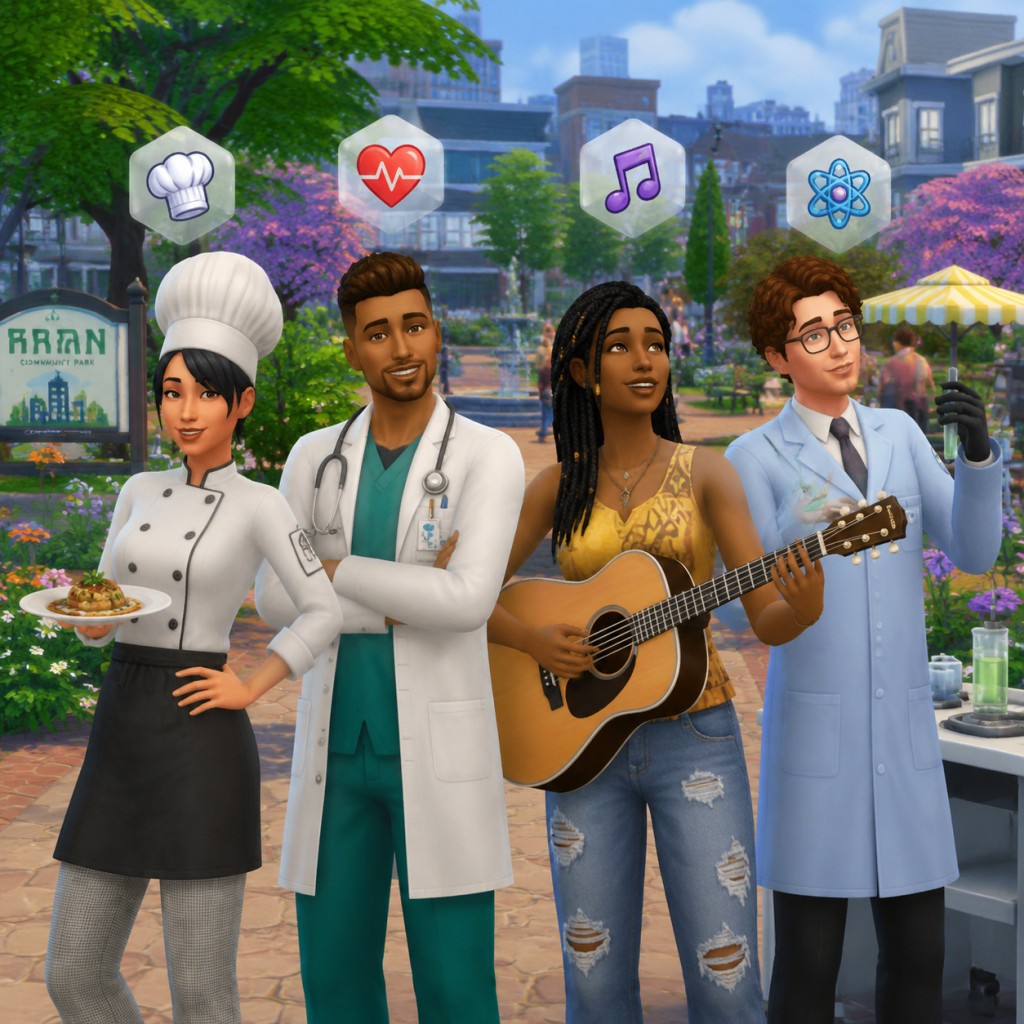
Characters & Roles
Characters & Roles
Introduction
Unlike traditional role-playing games, The Sims 4 has no predefined characters or classes. Every Sim you create is a blank slate, but the game offers a rich variety of life states, careers, aspirations, and traits that define distinct roles. This guide breaks down all major playable and notable non-playable characters, how to unlock them, their strengths, weaknesses, and how they fit into a household or team. Since the game is a sandbox, any Sim can fill multiple roles over a lifetime, but specializing yields the most satisfying gameplay.
I. Playable Sims: The Foundation
A Sim is the basic unit. You can create one from scratch or use a pre-made family. The core attributes are:
- Traits (3 for Young Adult & older; 1 for Teens & Children): Define personality and skill learning rates (e.g., Genius, Active, Loves Outdoors).
- Aspiration: A long-term goal that rewards special trait points (e.g., Renaissance Sim, Serial Romantic).
- Life Stage: Infant, Toddler, Child, Teen, Young Adult, Adult, Elder. Each age unlocks different gameplay.
- Background: An ancient curse grants supernatural powers. Vampires live forever and thrive on plasma.
- Strengths: Immortality (never ages), powerful abilities like teleportation, mind control, and bat form.
- Weaknesses: Sunlight damage, burning desire for plasma, garlic repulsion. Daytime is dangerous.
- Playstyle: Night owl – sleep during day, socialize/feed at night. Use vampire points to unlock perks. Avoid crowded places in sunlight.
- Unlock: Purchase Vampires Game Pack. Create a Vampire in CAS or have a Vampire turn your Sim.
- Recommended Build: Traits: Gloomy, Loner, Genius. Skills: Vampire Lore, Charisma, Mischief. Powers: Bat Form, Influence Emotion, Super Speed.
- Team Synergy: Pairs well with a Sim who stays home at night (e.g., Writer) or a Scientist who can craft sun resistance potions.
- Background: Born from magical bloodlines, Spellcasters can cast spells, brew potions, and wield a familiar.
- Strengths: Versatile magic – repair items, teleport, turn objects into gold. Can learn all spell types.
- Weaknesses: Overuse of magic causes “rebellious” magic (backfires). Need to recharge magic by meditating or drinking potions.
- Playstyle: Cast spells to solve needs quickly, earn money via Copypasto or Rite of Ascension. Focus on unlocking all spell tiers.
- Unlock: Purchase Realm of Magic Game Pack. Find the Magic Realm portal or get a Magical Bloodline trait.
- Recommended Build: Traits: Genius, Bookworm, Perfectionist. Skills: Magic (automatic), Handiness (for potion crafting). Spells: Scruberoo (clean), Repairio, Copypasto.
- Team Synergy: Spellcasters can support other Sims by fixing broken items, cleaning, or even making skill books. Avoid pairing with Vampires (they don’t mix well story-wise but mechanically fine).
- Background: Lycanthropy from a bite or bloodline. Werewolves transform under moonlight, gain rage, and have pack bonds.
- Strengths: Powerful attacks in wolf form, enhanced speed, pack bonuses. Can mark territory.
- Weaknesses: Rage meter causes rampages; need to run and destroy objects to calm down. Moon cycles force transformation.
- Playstyle: Embrace the wolf – run wild, join a pack, compete in wolf fights. Build Fury to unlock special abilities.
- Unlock: Purchase Werewolves Game Pack. Be bitten by a werewolf or create one in CAS.
- Recommended Build: Traits: Active, Hot-Headed, Loyal. Skills: Fitness, Mischief. Abilities: Alpha Howl, Lunar Resilience.
- Team Synergy: Works best with other werewolves for pack bonuses or with a Spellcaster who can calm rage. Avoid relationships with Vampires (lore conflict).
- Background: Ocean dwellers with a connection to Sulani. They have a hydration need and can swim super fast.
- Strengths: No need for bathing (salt water refreshes), can call dolphins, control weather (with DLC skill), and are immune to drowning.
- Weaknesses: Dehydration – need to be in water frequently or use lotion. Can’t gain the “Fit” motivation easily on land.
- Playstyle: Spend most time in water, live on beach lots, collect seashells. Gain Mermaid skills like Water Safety.
- Unlock: Purchase Island Living Expansion Pack. Eat a Mermaid Kelp or create in CAS.
- Recommended Build: Traits: Loves Outdoors, Child of the Ocean, Waterproof. Skills: Fishing, Diving, Charisma.
- Team Synergy: Pair with a Conservationist career Sim to clean the ocean. Avoid pairing with Vampires (Vampires can’t enter water, but not a conflict).
- Background: Extraterrestrial beings sent to gather info. They have a disguise form and mental powers.
- Strengths: Can abduct other Sims, use disguise to infiltrate careers, have high logic skill, and emit brainwaves that confuse humans.
- Weaknesses: Discovered disguise causes embarrassment, need to recharge mental energy, and some human interactions fail.
- Playstyle: Live a double life – blend in as human, use mental powers to advance Science career or pull pranks. Visit Sixam homeworld.
- Unlock: Purchase Get to Work Expansion Pack. Abduction by alien ship or alien parent.
- Recommended Build: Traits: Genius, Kleptomaniac (steal alien artifacts), Evil (for alien takeover). Skills: Logic, Rocket Science, Mischief.
- Team Synergy: Works well with Scientist career Sims (they share rocket science) or another Alien for colony building.
- Background: Any Sim that dies becomes a ghost. Can become playable via ambrosia or the “Ghostly” trait.
- Strengths: Invisibility, scaring others (raises Mischief), no needs like hunger/bladder. Can walk through walls and teleport.
- Weaknesses: Cannot interact with many objects, limited social life, and may fade away if not bound.
- Playstyle: Haunt a lot, get the “Ghost Hunter” aspiration, or try to become alive again. Useful for spooking other Sims.
- Unlock: Sim must die. Then click “Add to Household” from Manage Worlds. Or cheat: `traits.equip_trait trait_ghost_`.
- Recommended Build: Traits: Mean, Insane, Evil. Skills: Mischief. Powers: Prowl, Haunt.
- Team Synergy: Pairs with a Medium (Paranormal Stuff Pack) Sim who can communicate. Avoid if you want normal family gameplay.
- Background: An AI robot built using the Robotics skill station. Has its own personality and functions.
- Strengths: No needs like hunger or hygiene, can clean and repair autonomously, high Handiness skill. Customizable with chips.
- Weaknesses: Needs regular charging, can be hacked, limited emotional range, and can malfunction.
- Playstyle: Build one as a butler or utility Sim. Upgrade with chips for better autonomous actions. Can learn skills but not all.
- Unlock: Reach level 10 Robotics skill, then craft its body and brain chip. Requires Discover University Expansion Pack.
- Recommended Build: Chips: Cleaning, Repair, Gardening. Traits: Neat, Perfectionist. Skills: Handiness.
- Team Synergy: Excellent addition to any household for maintenance. Pair with a hot-headed Sim who might damage it.
- Background: Temporary life state from eating a forbidden fruit. Not a full occult; reverts after 3 days.
- Strengths: Photosynthesis for energy, need only water, no hunger, can sprout leaves.
- Weaknesses: Cannot sleep, must be outside, reverts to normal Sim after 3 days.
- Playstyle: Use as a quick challenge or to complete Botanist aspiration. Very niche.
- Unlock: Get the Forbidden Fruit (from Spice Festival or gardening). Eat it.
- Recommended Build: Not really recommended for long-term play.
- Doctor (Get to Work): Diagnose patients, deliver babies, use medical equipment. Recommended traits: Neat, Perfectionist. Skills: Logic, Charisma.
- Detective (Get to Work): Solve crimes, interrogate suspects, collect evidence. Recommended traits: Genius, Ambitious. Skills: Logic, Charisma, Fitness.
- Scientist (Get to Work): Invent gadgets, clone Sims, travel to Sixam. Recommended traits: Genius, Creative. Skills: Logic, Handiness, Rocket Science.
- Actor (Get Famous): Go to auditions, perform gigs, gain fame. Recommended traits: Charismatic, Creative. Skills: Acting, Charisma.
- Interior Designer (Dream Home Decorator): Renovate client homes, earn points for redesigns. Recommended traits: Creative, Perfectionist. Skills: Handiness, Painting.
- Freelancer (Base Game + DLC): Work from home – writer, programmer, artist, crafter, or para-professional (StrangerVille). Recommended traits: Loner, Genius. Skills: Writing, Programming, Painting, etc.
- Babysitter, Barista, Fast Food Employee, Gardener, Lifeguard (Island Living). Good for teens or supplemental income.
- Business Career (Get to Work) – Rabbit hole but with high pay.
- Politician (City Living) – Semi-active with daily tasks.
- Master Chef – Reach top of Culinary career. Renaissance Sim – Max skills in three areas. Nerd Brain – Max Logic and Gaming skills.
- Soulmate – Find true love and get married. Serial Romantic – Have many romantic partners without commitment. Friend of the World – Have many friends.
- Fabulously Wealthy – Accumulate high household funds. Mansion Baron – Own a mansion worth §350,000.
- Master Mixologist – Max Mixology skill and bartend professionally. Angling Ace – Catch all fish. Purveyor of Potions – Complete Spellcaster spellbook (Realm of Magic).
- StrangerVille Mysteries – Solve the town’s secret (requires StrangerVille GP). Paranormal Investigator – Meet ghosts (Paranormal Stuff).
- Role: Appears when a Sim dies. Collects souls.
- Background: Mysterious entity, no personality traits, always calm.
- Interaction: Can befriend him (high Charisma), plead for a Sim’s life, or woohoo him (with cheats).
- Unlock: Only via cheat (`add_to_household`). He is not naturally recruitable.
- Team Synergy: If added, he is immortal, cannot die, and can be a free labor source but lacks most Sim needs.
- Background: The gift-giving holiday NPC from Seasons. Appears on Winterfest.
- Role: Delivers presents, can become a romantic interest.
- Unlock: He is always present during Winterfest. Can be added to household via cheat or by building high friendship.
- Strengths: Has Secret Santa or Holiday gift trait, high Charisma.
- Playstyle: Give him eggs or decorate to please him.
- Team Synergy: Adds holiday cheer; can marry and have children.
- Background: Skeletal maid from Vampires GP. Summoned via Bonehilda’s Sarcophagus.
- Role: Maids for free, cleans and repairs.
- Unlock: Buy Bonehilda’s Sarcophagus from buy mode (requires Vampires GP).
- Note: She is an NPC servitor, not a normal Sim. Cannot be added to household normally.
- Background: A depressed clown that sometimes appears on lots (from City Living* or base game? Actually base game with Cheerful trait? No, it's a random event).
- Role: Spreads sadness, performs tricks.
- Interaction: Can be tipped or told to leave.
- Income Generator: A Sim in a high-paying career (e.g., Astronaut, Doctor, Tech Guru) or a freelance artist.
- Skill Monkey: A Sim focused on maxing skills quickly (e.g., Creative + Music).
- Social Butterfly: Handles friendship and romance for the household, beneficial for career promotions.
- Domestic Support: Cook, clean, repair – often a Stay-at-Home Sim or an elder.
- Club System (Get Together): Form clubs with activities like “Skill Building”, “Gardening”, or “Romance” to gain group perks and level up.
- Multi-Generation (Generations / Parenthood): Children become new roles as adults; passing down skills and traits via parenting.
- Father: Doctor (income). Traits: Perfectionist, Neat.
- Mother: Freelance Artist (flexible). Traits: Creative, Loner.
- Teen: Scientist (Logic, Handiness). Traits: Genius.
- Grandmother: Loves outdoors, handles garden.
- Child: Pump up social skills early.
Playstyle – Build your Sim around one core role by picking traits and aspiration that align. For example, a Sim with the “Creative” trait and the “Master Chef” aspiration will excel in the Culinary career.
Unlock Conditions – None. The base game includes all life stages and base-game careers/aspirations. Additional roles require expansion packs.
Team Synergy – Mix role types in one household. One Sim earns money (e.g., Astronaut), another builds skills (e.g., Handiness), and a third handles social needs (e.g., Charisma). Sharing resources like skill objects and fridge speeds up progress.
II. Occult Life States (Playable Classes)
Occult Sims have unique powers, forms, and needs. Each requires a specific DLC and offers a distinct gameplay path.
#### Vampire (The Sims 4: Vampires)
#### Spellcaster (The Sims 4: Realm of Magic)
#### Werewolf (The Sims 4: Werewolves)
#### Mermaid (The Sims 4: Island Living)
#### Alien (The Sims 4: Get to Work)
#### Ghost (Base Game)
#### Servo (The Sims 4: Discover University – Robotics Skill)
#### PlantSim (The Sims 4: Seasons – Spice Festival)
III. Careers as Roles (Classes)
Careers function like classes, defining your Sim’s daily activities and income. There are three types: active (you control actions), semi-active (you choose tasks), and rabbit hole (Sim disappears). The most impactful roles come from active careers.
#### Active Careers (Best for Hands-On Play)
#### Part-Time & Other Roles
IV. Aspirations as Hero Paths
Aspirations give a long-term objective and unlock bonus traits. They define your Sim’s ultimate life goal.
#### Career Aspirations
#### Social Aspirations
#### Wealth Aspirations
#### Skill-Based Aspirations
#### Unique Aspirations
V. Special NPC Characters
These are unique non-playable Sims that can be interacted with, and sometimes added to your household via cheats.
#### Grim Reaper
#### Father Winter
#### Bonehilda
#### The Tragic Clown
VI. Roles & Team Synergy
Building a household of multiple Sims requires synergy.
Example Household:
Conclusion
There is no single “best” character – the beauty of The Sims 4 is mixing and matching roles to tell your story. Whether you prefer a supernaturally powerful Vampire or a humble gardener, every Sim contributes uniquely. Use this guide to craft a household that thrives.
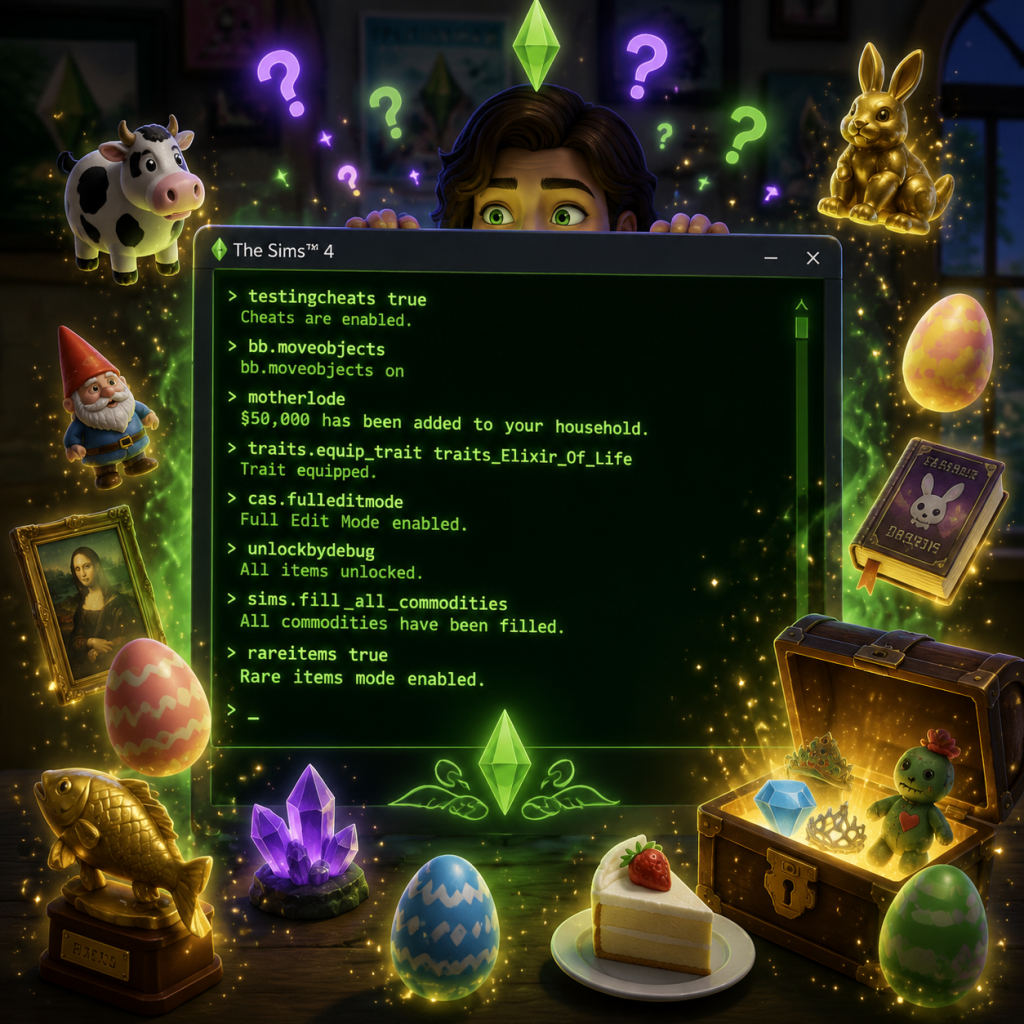
Cheats & Secrets
Cheats & Secrets for The Sims 4
This guide covers all known cheat codes, secret commands, hidden features, Easter eggs, and developer-intended hidden content in The Sims 4 across PC, Mac, PlayStation, and Xbox platforms. Cheats are enabled on PC/Mac by pressing Ctrl+Shift+C (or Cmd+Shift+C on Mac) to open the console, typing the cheat, and pressing Enter. On consoles, hold all four bumper/trigger buttons (L1+L2+R1+R2 on PlayStation; LB+LT+RB+RT on Xbox) simultaneously to open the console.
> Important: Many cheats disable achievements/trophies until you restart the game without cheats. Always save before using cheats to avoid unintended consequences.
Basic Cheat Activation
| Platform | Method |
|---|---|
| PC/Mac | Press Ctrl+Shift+C (or Cmd+Shift+C) |
| PlayStation 4/5 | Hold L1+L2+R1+R2 |
| Xbox One/Series X | S |
---
Money & Needs Cheats
| Cheat | Effect |
|---|---|
| `kaching` | Adds §1,000 to household funds |
| `rosebud` | Same as kaching (legacy cheat) |
| `motherlode` | Adds §50,000 to household funds |
| `Money X` | Sets household funds to exactly §X (e.g., `Money 500000`) |
| `fillmotive motive_Bladder` | Fills a specific need (replace with Bladder, Hunger, Energy, Fun, Social, Hygiene) |
| `fillmotive motive_all` | Fills all needs for the currently selected Sim |
| `fill_all_commodities` | Same as fillmotive motive_all |
| `disable_motive_decay` (or `fillmotive motive_all` repeatedly) | Stops need decay temporarily (use with `testingcheats true`) |
Building & Object Cheats
| Cheat | Effect |
|---|---|
| `bb.moveobjects on` | Allows free placement of objects (no grid snap) – use `bb.moveobjects off` to disable |
| `bb.enablefreebuild` | Enables building on locked lots (e.g., apartments in City Living) |
| `bb.ignoregameplayunlocksentitlement` | Unlocks all career rewards, debug items, and hidden objects in build/buy mode |
| `bb.showhiddenobjects` | Shows hidden debug objects in the catalog (type `debug` in search after enabling) |
| `bb.showliveeditobjects` | Shows objects used in world editing (e.g., street decorations, trees) – also type `liveedit` in search |
| `FreeRealEstate on` | Makes all residential lots free (useful for moving into any house) |
| `FreeRealEstate off` | Reverts lot costs to normal |
| `headlineeffects on/off` | Toggles thought bubbles and plumbob (off hides UI elements) |
| `Effects.LightingState darkest` | Changes lighting to a dark, moody state (experimental) |
| `Effects.LightingState daytime` | Resets to normal |
Create-A-Sim (CAS) Cheats
| Cheat | Effect |
|---|---|
| `cas.fulleditmode` | Enables full editing of any Sim (name, traits, body, etc.) in CAS – must be entered before entering CAS |
| `traits.equip_trait [TraitName]` | Adds a trait (e.g., `traits.equip_trait trait_Ambitious`). List all traits with `traits.list_traits` |
| `traits.remove_trait [TraitName]` | Removes a trait |
| `stats.set_skill_level [SkillName] X` | Sets a skill to level X (e.g., `stats.set_skill_level Skill_Fitness 10`) |
| `stats.set_skill_level Skill_Mischief 10` | Max mischief skill |
| `aspirations.complete_current_milestone` | Completes the current aspiration milestone |
| `careers.promote [CareerName]` | Promotes Sim in a career (e.g., `careers.promote Painter`) |
| `careers.demote [CareerName]` | Demotes Sim |
| `careers.retire [CareerName]` | Retires Sim from career |
| `SimSpawner` | Opens a debug menu to spawn service Sims (maid, butler, etc.) |
Relationship & Pregnancy Cheats
| Cheat | Effect |
|---|---|
| `modifyrelationship [Sim1] [Sim2] X LTR_Friendship_Main` | Changes friendship level (X = value, e.g., 100 for max) |
| `modifyrelationship [Sim1] [Sim2] X LTR_Romance_Main` | Changes romance level |
| `pregnancy.force_offspring [Sim1] [Sim2]` | Forces pregnancy between two Sims (must be in same household) |
| `pregnancy.force_offspring_count [Sim1] [Sim2] X` | Sets number of babies (1-3) |
| `sims.add_buff buff_Pregnancy_Trimester1` | Starts pregnancy for selected Sim |
| `sims.remove_buff buff_Pregnancy_Trimester1` | Cancels pregnancy |
| `relationships.create_friends_for_sim` | Spawns random friends for the selected Sim |
| `satisfy_need [Command]` | Fills need for all Sims in household (use with `fillmotive`) |
Debug & Hidden Features
#### The Debug Menu (Live Mode)
With `testingcheats true`, Shift+Click on any Sim or object to reveal hidden options:
- Sims: Make Happy, Make Needs Static, Teleport, Add to Family, Modify in CAS, etc.
- Objects: Cheat Motives, Set Object Ownership, etc.
- Mailbox: “Make all Sims happy” or “Unlock all hidden objects” (if mod is installed, but base game includes some).
- Sylvan Glade (Base Game): In Willow Creek, behind the large tree with a rope swing. Click the tree repeatedly to enter. A hidden forest location with collectibles and a pond. Also accessible via the “Map” cheat: `ocean_OasisSprings_ChallengeMap_SylvanGlade` (not a direct teleport, but a known debug marker).
- Forgotten Grotto (Base Game): In Oasis Springs, near the park lot. Find the large rock and examine it to unlock a secret cave. Contains rare metals and crystals.
- Sixam (Get to Work EP): A hidden alien world. Travel to the wormhole in the night sky using a rocket ship or by collecting all four alien artifacts. Or use `traits.equip_trait trait_sixam_visitor` to allow travel via the secret portal (debug).
- Batuu (Journey to Batuu GP): Hidden in the normal world list; not truly secret but DLC-based.
- Will Wright Statue: In the base game library, there’s a small statue of Will Wright (creator of The Sims) hidden in the debug catalog (search `will`).
- SimCity 2000 Easter Egg: A reference poster in some worlds.
- Hamilton References: In Get Together, the club system allows creating a “Hamilton” club with specific outfits.
- “Dude, Where’s My Car?”: A random event where a Sim loses their car (though cars aren’t functional).
- Death by... Mouse: If you spam the “Tend Garden” interaction without a cowplant, there’s a rare chance a mouse can kill a Sim (urban myth but partially true with debug).
- Grim Reaper Interactions: If you befriend the Grim Reaper (using cheat to add to family or with high charisma), he can be romanced and even married. He wears a formal outfit and has unique dialogue.
- The Mother Plant (StrangerVille GP): A secret alien plant that controls the town. Complete the mystery to unlock a secret lab and a special aspiration.
- Llama References: Many in-game items (paintings, statues) reference the llama, a franchise mascot.
#### Hidden Objects in Build/Buy
After enabling `bb.showhiddenobjects`, search for `DEBUG` in the catalog. You’ll find hundreds of developer items: placeholders, test objects, cut content, and functional items like the Omiscan (a hidden skill-building machine), The Cowplant (if not already in normal catalog), and the Freezer Bunny statue (Easter egg from Sims 2).
#### Secret Lots & Worlds
#### The Tragic Clown
A hidden NPC that appears if a Sim has the “Tragic Clown” painting (found in debug). The clown will randomly show up and make Sims sad. A developer Easter egg referencing The Sims 3’s tragic clown.
#### The Cowplant
A plant that can eat Sims. It spawns a “cake” that lures Sims. If eaten, the Sim dies (unless they have high enough gardening skill to escape). Found in debug or through normal gameplay (rare).
---
Easter Eggs & Pop Culture References
---
Career & Aspiration Unlocks via Cheats
| Cheat | Unlock |
|---|---|
| `careers.promote Astronaut` | Space missions, alien interactions |
| `careers.promote Doctor` | Access to hospital lot and medical items |
| `careers.promote Detective` | Unlock police station and crime-solving abilities |
| `aspirations.complete_current_milestone` | Complete any aspiration milestone immediately |
| `traits.equip_trait trait_immortal` (debug) | Makes Sim unaging (needs testingcheats) – not official but works |
---
Console-Specific Cheats
On PlayStation and Xbox, the same cheats above work (using the console). Additionally:
- Hold L1+L2+R1+R2 (or LB+LT+RB+RT) opens console at any time.
- Enter cheats using on-screen keyboard or USB keyboard (recommended for easier typing).
- No exclusive console cheats exist, but the `bb.moveobjects on` cheat is especially useful on console to improve building.
- Free Skill Books: Skill books can be expanded from the inventory (click “Read” then “Store” to get a new copy? No, but you can read them multiple times). Not a cheat, but useful.
- Clone Sims: With `testingcheats true`, shift-click a Sim and choose “Add to Family” to clone them (if you have the same household funds). Not a true clone but a duplicate.
- Unlock All Items in CAS: Use `cas.unlockbypass` (works in some versions) to unlock all locked hairstyles and clothing. Better to use `cas.fulleditmode` and just edit any Sim.
- Golden Toilet: Unlock by reaching level 10 in the Handiness skill and crafting a golden toilet. Requires 12 gold ingots. Not a cheat, but an achievement.
- Burning Man Event: In City Living, a rare festival where Sims can set themselves on fire (controlled). Not cheat, just rare.
- The Omiscan: A debug machine that scans Sims and provides weird messages (“Your Sim is a llama”).
- Invisible Sim: If you create a Sim with all sliders set to extreme negative, the Sim may appear invisible or glitched. Not a cheat, but a visual Easter egg.
- The “Llama” Trait: A hidden trait that causes Sims to randomly spit on others. Can be added via `traits.equip_trait trait_llama`.
- Unicorn Horn: A debug item that when placed, a unicorn might appear (rare). Mostly from The Sims 3 nostalgia.
- The “Bear” Animal: In debug, there’s a bear costume that when worn, grants a “Bear” personality. Part of a scrapped expansion.
- Cheat Not Working?: Ensure you have `testingcheats true` active first.
- Console Not Opening?: On keyboard, try different regional layouts (US layout preferred). On console, make sure no controller disconnections.
- Cheats Disabled?: Some multiplayer events (like gallery downloads) disable cheats; restart the game.
- No Sound?: Cheats like `headlineeffects off` don’t affect audio.
---
Reddit/Community Secrets (Exploit-Safe)
---
Developer-Intended Hidden Content
Maxis deliberately left several items in the game files for players to discover:
---
Troubleshooting Cheats
---
Summoning NPCs via Cheats
| NPC | Cheat (with testingcheats true) |
|---|---|
| Grim Reaper | `sims.spawn Grim_Reaper` |
| Father Winter (Holiday) | `sims.spawn Season_EP01_FatherWinter` (requires Seasons) |
| Bonehilda (skeleton maid) | Place Bonehilda’s coffin from debug |
| The Tragic Clown | `sims.spawn tragic_clown` |
| The Gardener | `sims.spawn Gardener` |
| The Mailman | `sims.spawn MailCarrier` |
| The Burglar (cut content) | Not in base game but present in debug as `Burglar` – does nothing |
Disclaimer
While these cheats are developer-intended for debugging, using them excessively can break your save. Always backup your saves (located in Documents/Electronic Arts/The Sims 4/saves). Some cheats (like `bb.showhiddenobjects`) may clutter your catalog. Use responsibly.
---
Last updated: October 2023. Always check the latest patch notes as cheats may change.