Warframe
## Game Introduction: Warframe ### Genre & Developer Warframe is a **free-to-play, cooperative third-person shooter** with heavy RPG, looting, and sci-fi action elements. It is developed and published by **Digital Extremes**, an independent Canadian studio known for its commitment to community-driv...
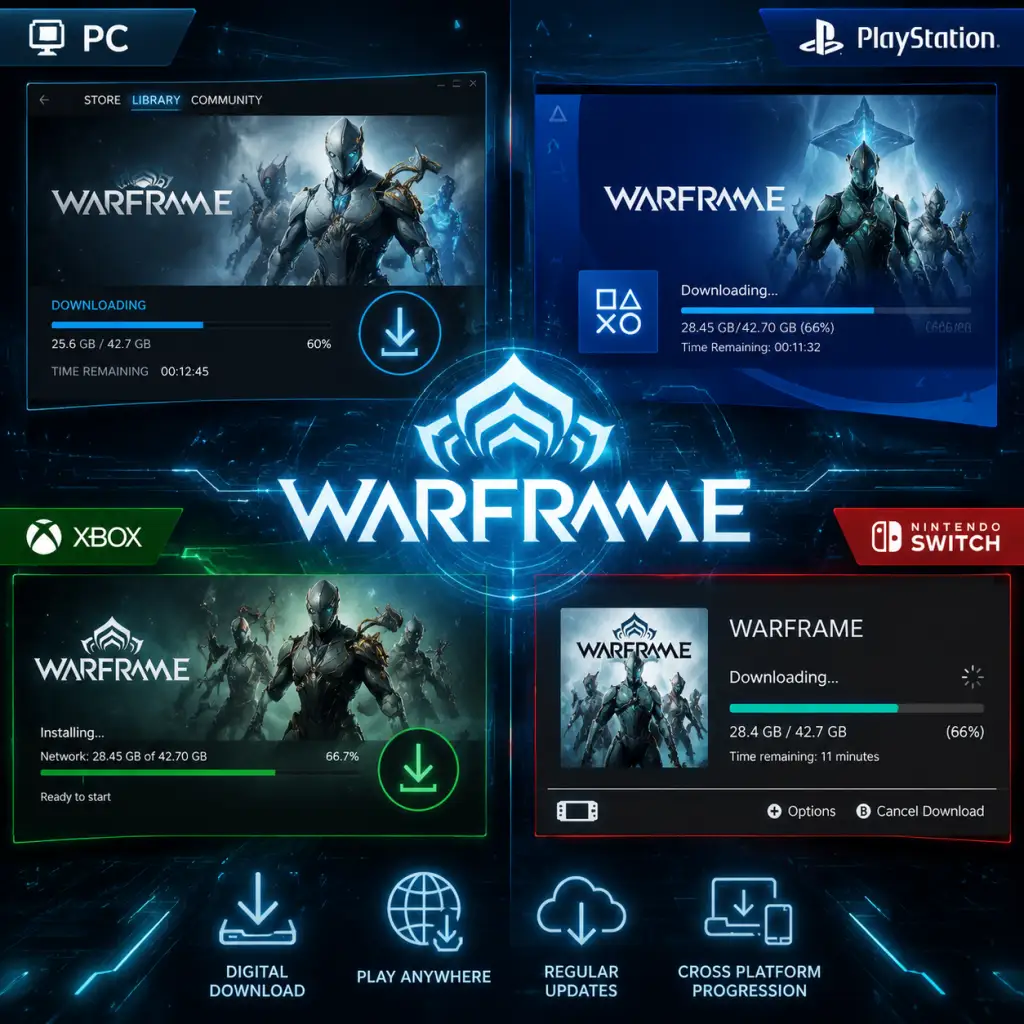
Download & Installation
Download & Installation Guide for Warframe
This guide covers every major platform: PC (Steam, Epic Games Store, and official standalone launcher), PlayStation (4/5), Xbox (One/Series X|S), Nintendo Switch, and mobile (iOS/Android). Follow the steps specific to your device to get Warframe up and running.
---
System Requirements
#### PC (Windows)
- OS: Windows 7 64-bit (Windows 10/11 recommended)
- CPU:
- GPU:
- RAM: 8 GB (minimum), 16 GB (recommended)
- Storage: 60 GB free space (SSD strongly recommended)
- DirectX: Version 11 or 12
- Network: Broadband internet connection
- PS4: Requires 70 GB free space. Internet connection for download and updates.
- PS5: Requires 70 GB free space (SSD). Takes advantage of faster load times with PS5’s SSD.
- Xbox One: 70 GB free space. Internet connection required.
- Xbox Series X|S: 70 GB free space. Optimized for faster loading and 120 FPS on Series X|S.
- Storage: 28 GB free space (internal or microSD). Internet connection required.
- Performance: 30 FPS, lower resolution textures. Requires Nintendo Switch Online only for co-op (not mandatory for solo play).
- iOS: iPhone XS or newer, iOS 16.0+, 8 GB RAM (recommended). Requires at least 10 GB free space.
- Android: Snapdragon 845 / Exynos 9810 or better, 6 GB RAM (recommended), Android 11+. Requires at least 10 GB free space.
- Note: Mobile version streams some content; stable Wi-Fi or 5G connection recommended.
- Creating a DE account: Go to the official website, click "Play Now" → "Sign Up". Enter email, username, password. Verify email.
- Linking accounts (for cross-save): After first launch, go to Options → Account Management → Link Account. You can link your platform accounts to a single DE account.
- PC: Set shadows to Medium, turn off motion blur, cap FPS to 60 if not using a high-refresh monitor.
- Console: Usually runs at 30-60 FPS. On PS5/Xbox Series X, enable 120 Hz mode if supported.
- Mobile: Lower graphics quality to save battery and prevent overheating.
- Fix: Run launcher as Administrator. On Steam, verify game files (Steam → Library → Warframe → Properties → Local Files → Verify Integrity). For standalone, delete `%localappdata%\Warframe\Downloaded` folder and relaunch.
- Fix: The game requires 60+ GB (PC/console). Free up space or use external drive (NTFS for PC). On Switch, move game to microSD.
- Fix: Update GPU drivers. Launch with `-dx10` or `-dx9` as a command-line argument in launcher settings.
- Fix: Update graphics drivers. Ensure anti-virus isn’t blocking. Temporarily disable overlay apps (Discord, MSI Afterburner).
- Fix: Check internet, restart router. If using VPN, try disabling it. Set date/time correctly. On console, test network connection.
- Fix: Reboot console, clear cache (PS4: power off fully, wait 30 sec; Xbox: hold power button 10 sec). Re-download update.
- Fix: Ensure device meets minimum specs. For Android, manually install APK from official site? Not recommended; use Google Play.
- Preloading: On PC, you can preload major updates via Steam or launcher before release day.
- Modding: Warframe is frequently updated (every 2-4 weeks). Keep the game updated to access new content.
- Support: If issues persist, contact [Warframe Support](https://support.warframe.com) with a screenshot of the error.
- Language Packs: On PC, you can download additional voice packs from the launcher (Options → Language).
- Minimum: Intel Core i7 860 / AMD Ryzen 5 1600
- Recommended: Intel Core i5 8400 / AMD Ryzen 5 2600
- Minimum: NVIDIA GeForce GTX 660 / AMD Radeon HD 7870 (2GB VRAM)
- Recommended: NVIDIA GeForce GTX 1060 / AMD Radeon RX 580 (4GB VRAM)
#### PlayStation 4 / PlayStation 5
#### Xbox One / Xbox Series X|S
#### Nintendo Switch
#### Mobile (iOS / Android)
---
Account Requirements
Warframe requires a free Digital Extremes (DE) account or you can sign in using your platform account (Steam, PSN, Xbox Live, Nintendo Account, or Epic Games). However, cross-save requires a unified DE account. It is highly recommended to create a DE account at [warframe.com](https://www.warframe.com) before starting the game, especially if you plan to play on multiple platforms.
---
Step-by-Step Installation by Platform
#### PC (Windows)
##### Option 1: Steam (Recommended)
1. Install and open Steam client. Log in to your Steam account.
2. Go to Store tab, search for "Warframe".
3. Click Play Game (free) → Add to Library.
4. Go to your Library, find Warframe, click Install.
5. Choose installation folder (default: `C:\Program Files (x86)\Steam\steamapps\common\Warframe`).
6. Wait for download (approx. 40-60 GB depending on updates) and auto-install.
7. Click Play once ready.
##### Option 2: Epic Games Store
1. Install and open Epic Games Launcher.
2. Go to Store → search "Warframe".
3. Click Get → Install.
4. Choose installation directory (at least 60 GB free).
5. Download and install. Launch from Epic Library.
##### Option 3: Official Launcher (Standalone)
1. Go to [warframe.com/download](https://www.warframe.com/download).
2. Click Download for PC (Windows).
3. Run the installer (`WarframeSetup.exe`).
4. Choose language, accept EULA, select install location.
5. The launcher will download the full game files. This can take a while.
6. Launch Warframe from the launcher shortcut.
#### PlayStation 4 / PlayStation 5
1. Turn on console, sign in to PlayStation Network (PSN).
2. Go to PlayStation Store (PS4/PS5).
3. Search for "Warframe".
4. Select the game and click Download (it is free).
5. Wait for download to complete (~70 GB). You can play during partial download on PS5.
6. After installation, launch from the home screen.
7. On first launch, choose to Link with PSN or use an existing DE account.
#### Xbox One / Xbox Series X|S
1. Sign in to Xbox Live.
2. Open Microsoft Store (or My Games & Apps → Install).
3. Search for "Warframe".
4. Select Install (free).
5. Download may be paused/resumed. Ensure sufficient storage.
6. Once installed, launch from My Games & Apps.
7. On start, sign in with Xbox Live or link DE account.
#### Nintendo Switch
1. Turn on Switch, connect to internet.
2. Open Nintendo eShop.
3. Search for "Warframe".
4. Select Free Download → Download.
5. Storage: Ensure at least 28 GB free (internal or microSD).
6. Download will begin. You can play after installation completes.
7. Launch and sign in with Nintendo Account or link DE account.
#### Mobile (iOS / Android)
1. iOS: Open App Store, search "Warframe Mobile", tap Get.
2. Android: Open Google Play Store, search "Warframe Mobile", tap Install.
3. After download (approx. 8-10 GB), launch the app.
4. Sign in with your DE account. Cross-save: Your PC/console progress can sync if linked.
5. Important: Mobile version is still in beta; you need a DE account. Platform linking may not be fully available yet.
---
First Launch Setup
After installation, the game will start with:
1. Language Selection: Choose your preferred language.
2. Display Settings: Auto-detect will pick your monitor’s resolution. Adjust quality (Low/Medium/High/Custom) on PC/mobile.
3. Login: Sign in using your DE account or platform account.
4. Tutorial: You start as an Excalibur (or other starter Warframe) in an intro mission. Follow on-screen prompts.
5. Check Updates: The launcher may apply additional patches. Be patient.
#### Recommended Settings (for performance)
---
Common Installation Errors & Fixes
#### Error: “Warframe launcher not responding” or “Update failed”
#### Error: “Insufficient disk space”
#### Error: “DirectX 11 not supported” (PC)
#### Error: “Failed to initialize renderer” (PC)
#### Error: “Connection timeout” / “Login failed”
#### Error: “Patch failed” on PlayStation/Xbox
#### Mobile: “App not compatible”
---
Post-Installation Verification
After installing, verify that the game works correctly:
1. Check Launcher Version: On PC, the launcher should show version numbers (e.g., Update 36.0.0). On console/mobile, check in-game options.
2. Test Login: Try to log in and see if you can access the Orbiter.
3. Verify File Integrity (PC only):
- Steam: Properties → Local Files → Verify Integrity.
- Epic: Click three dots on Warframe → Manage → Verify.
- Standalone: Run `Warframe.exe` with `/verify` command or wait for launcher auto-check.
4. Check Storage:
- PC: Game folder should be ~50-70 GB.
- PS5: Settings → Storage → Warframe.
- Switch: Data Management → Quick Archive to check size.
5. Test Performance: Do an easy mission (e.g., Earth Exterminate) to ensure no crashes or freezes.
6. Connect Accounts (Cross-Save): Log in to [warframe.com](https://www.warframe.com) and link your platform accounts to enable cross-progression.
---
Additional Tips
---
Now you are ready to begin your journey as a Tenno. Good luck, and may the Lotus guide you.

Game Introduction
Game Introduction: Warframe
Genre & Developer
Warframe is a free-to-play, cooperative third-person shooter with heavy RPG, looting, and sci-fi action elements. It is developed and published by Digital Extremes, an independent Canadian studio known for its commitment to community-driven development and long-term live service.
Release Timeline & Platforms
- Initial Release: March 25, 2013 (PC) via open beta.
- Console Releases:
- Mobile Release: Early 2024 (iOS and Android, cross-save included).
- The Tenno (player character) – ancient, void-touched child warriors who control Warframes from their personal ships, the Orbiter.
- The Lotus – a mysterious AI-like figure who serves as the Tenno’s mission coordinator and mother figure.
- Ordis – the ship’s Cephalon (AI), a quirky and sometimes malfunctioning assistant.
- Teshin – a stoic Dax warrior who trains Tenno in combat and the Conclave.
- Ballas – a complex antagonist; a former Orokin Executor with deep ties to the Tenno’s origins.
- Numerous other quest-specific characters such as the Ostrons, Solaris United, Entrati, and Kahl-175.
- Fast-paced, fluid movement – wall-running, bullet-jumping, gliding, and sliding create a unique “space ninja” feel.
- Deep customization – thousands of mods, weapons, Warframes, companions, and fashion options.
- Cooperative PvE gameplay – missions are designed for teams of up to 4 players.
- Endless progression – rank up your account (Mastery Rank), collect and upgrade gear, complete challenges.
- Rich, mysterious lore – uncovered through quests, codex entries, and planetary nodes.
- Standard Missions: Exterminate, Capture, Rescue, Sabotage, Spy, Defense, Survival, Interception, Mobile Defense, Hijack, and more.
- Open World Areas: Plains of Eidolon (Earth), Orb Vallis (Venus), and Cambion Drift (Deimos) – free-roam zones with dynamic day/night cycles, bounties, fishing, mining, conservation, and world bosses.
- Raid-like Trials: Temporarily removed from the active pool; replaced by Eidolon Hunts, Orb Vallis Heists, and Operations.
- The Conclave: Player-versus-player combat (optional, small community).
- Lunaro: A sports mode (also PvP).
- Railjack: Ship-to-ship space combat and boarding actions.
- Archwing: Underwater and space flight combat.
- Duviri Paradox: A roguelike open-world expansion with nonlinear progression.
- The New War: A cinematic, story-driven expansion spanning multiple playable characters.
- Echoes of the Sentients / The Second Dream – Introduced the Tenno’s true nature.
- The War Within – Expanded story and introduced the Operator form.
- Plains of Eidolon – First open-world area.
- Fortuna – Venus open world with hoverboards (K-Drives).
- The Jovian Concord – Added Jupiter rework and Wisp Warframe.
- Empyrean – Railjack space combat.
- The Old Blood – Kuva Liches system.
- The New War – Epic three-part cinematic quest.
- Angst, Veilbreaker – New playable character Kahl.
- Duviri Paradox – Open-world roguelike expansion (2023).
- Whispers in the Walls – 2023/2024 quest linking to the Sentient threat.
- PlayStation 4: November 2014
- Xbox One: September 2015
- Nintendo Switch: November 2018
- PlayStation 5 / Xbox Series X|S: November 2020 (enhanced versions)
Warframe remains in continuous development, with major content updates released every few months. The game is fully cross-platform with cross-save and cross-play (as of 2024).
Story Overview & Setting
Set in the Origin System – a far-future solar system colonized by humans – Warframe depicts a universe where an ancient, technologically advanced empire (the Orokin) has fallen. Two major factions, the militaristic Grineer and the merchant-led Corpus, now vie for control. A parasitic Infestation threatens all organic life, while the mysterious Sentients – an adaptive machine race – return from the outer reaches to destroy what remains of Orokin civilization.
You play as a Tenno, a reawakened warrior from cryosleep who wields powerful exo-armors called Warframes. Each Warframe grants unique supernatural abilities. Guided by the enigma known as The Lotus, you fight to unite the system, uncover the secrets of your past, and stop the Sentient threat. The story unfolds through cinematic quests, lore fragments, and evolving world events.
Main Characters
Core Appeal & Target Audience
Warframe appeals to players who enjoy:
The target audience is mature (rated for 17+) due to violence and gore. It draws fans of loot shooters (Destiny, The Division), third-person action games (Vanquish, Devil May Cry), and sci-fi MMO-lites.
Game Modes
Warframe offers a huge variety of mission types:
Online / Offline Support
Warframe is online-only. A persistent internet connection is required even for solo play. The game features dedicated servers for matchmaking, inventory, and quest progression, though mission hosting is peer-to-peer (P2P). Cross-play and cross-save are fully implemented across PC, consoles, and mobile.
DLC / Expansions (All Free)
Warframe’s business model is content-first monetization. All major gameplay expansions are free of charge. Key updates include:
Additionally, Prime Access and Prime Vault offer optional cosmetic and convenience bundles, but all gameplay content is permanently earnable through gameplay.
What Makes Warframe Unique?
1. Fluid movement system – unmatched in third-person shooters; often called “space ninja parkour”.
2. Over 50 unique Warframes – each with four distinct abilities, encouraging diverse playstyles.
3. Full free-to-play with no pay-to-win – almost everything can be earned in-game through farming and trading (Premium currency, Platinum, is also tradable between players).
4. Community-driven development – Digital Extremes regularly polls players, hosts live streams, and adjusts content based on feedback (e.g., Railjack revamp, cross-save demands).
5. Procedural variety – endless combinations of missions, factions, and modifiers via the Starchart, Fissures, and Nightwave.
6. Lore depth – the story is delivered gradually through quests, hidden lore items, and environmental storytelling, rewarding dedicated players.
7. Constant evolution – the game has grown from a simple corridor shooter to a sprawling space opera with multiple open worlds, spaceships, and even a roguelike mode.
In summary, Warframe is a vast, generous, and deeply engaging experience that respects player time and rewards exploration. Its blend of fast combat, deep customization, and a living story make it one of the most successful free-to-play games ever created.
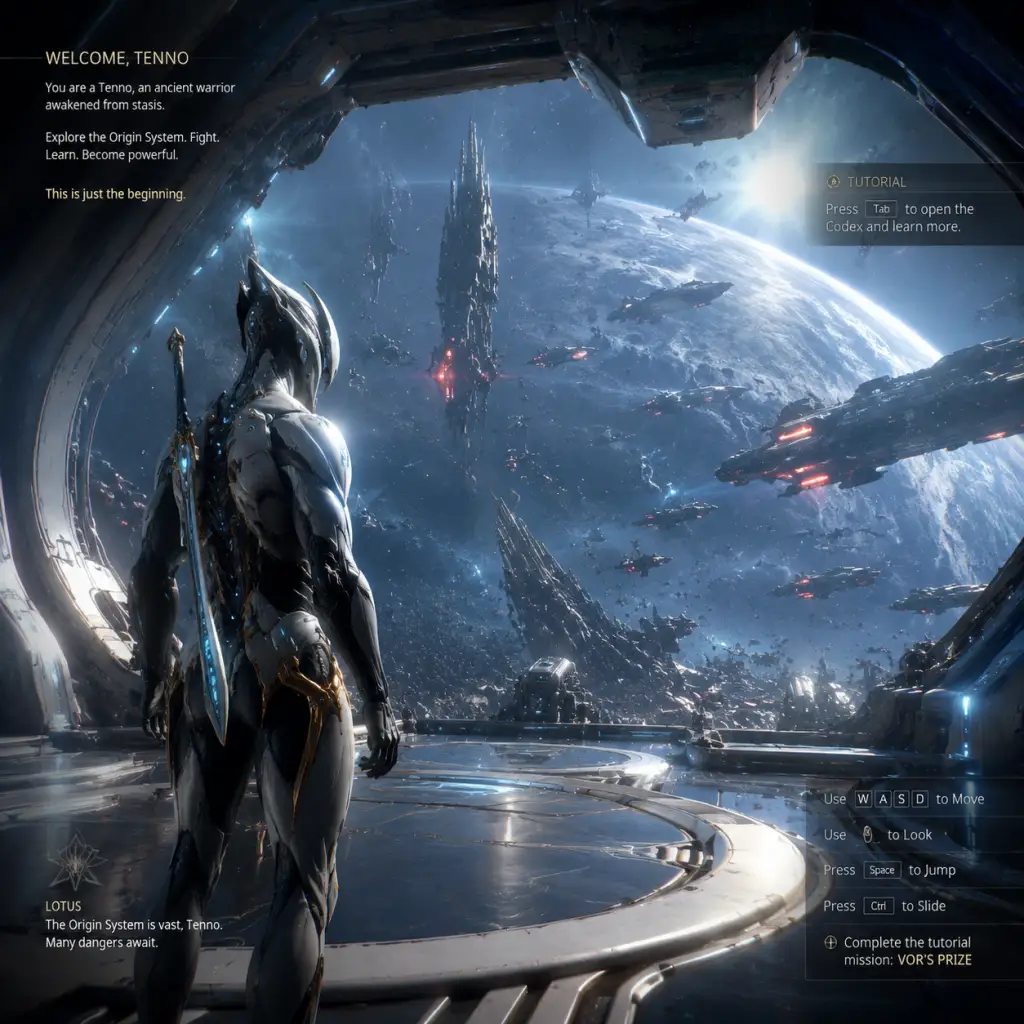
Getting Started
Getting Started: Your First Day in Warframe
Welcome, Tenno! Warframe is a massive free-to-play game with a steep learning curve. This guide will get you through your first hour, explain the UI, controls, and essential early goals, and help you avoid common pitfalls. Follow this roadmap to start on the right foot.
First Hour Walkthrough
1. Launch and Login – After downloading (see the Download & Installation guide), create an account or log in. You'll be thrown straight into a tutorial cinematic.
2. Select Your Starter Warframe – You have three choices:
- Excalibur (balanced, sword-focused, beginner-friendly)
- Mag (shield-based, crowd control, good for later)
- Volt (electric, fast, great for mobility)
Recommendation: Excalibur is the most straightforward for new players. Don't worry – you can craft the other frames later.
3. Select Your Starter Weapons – You'll also pick a primary (rifle/bow), secondary (pistol), and melee weapon. Choose what looks fun; all are viable early.
4. The Tutorial (Vor's Prize) – The game guides you through basic movement (sprint, slide, jump, bullet jump), shooting, melee, and using your Warframe’s abilities. Follow the on-screen prompts. This quest takes about 15–20 minutes and teaches you the core mechanics.
5. Arrive at the Orbiter – After the tutorial, you’ll be in your personal spaceship (the Orbiter). From here, you access all game systems.
Character Creation (Warframe Selection)
Warframe has no traditional character creator. Your identity comes from your Warframe – a biomechanical suit with unique powers. The starter choice is permanent for that account (though you can later craft or buy other Warframes). Your gear also includes weapons, a landing craft, and cosmetic items (syandanas, helmets, armor) that can be customized from the Arsenal.
Controls on All Platforms
Below are default controls. You can rebind most options in Settings > Controls.
| Action | PC (Keyboard + Mouse) | PlayStation | Xbox | Nintendo Switch | Mobile (Touch) |
|---|---|---|---|---|---|
| Move | WASD | Left Stick | Left Stick | Left Stick | Virtual Joystick (left) |
| Look | Mouse | Right Stick | Right Stick | Right Stick | Virtual Joystick (right) |
| Shoot | Left Mouse Button | R2 | RT | ZR | Tap right side |
| Aim Down Sights | Right Mouse Button | L2 | LT | ZL | Tap and hold right side |
| Melee Attack | E | R1 | RB | R | Tap melee button |
| Quick Melee | F (hold to equip) | R1 (tap) | RB (tap) | R (tap) | Double-tap melee |
| Ability 1/2/3/4 | 1,2,3,4 | L1+Face Buttons | LB+Face Buttons | L+Face Buttons | Ability buttons on screen |
| Sprint | Left Shift | L3 | L3 | L3 | Sprint toggle button |
| Crouch | Ctrl | Circle | B | B | Crouch button |
| Jump | Space | X | A | A | Jump button |
| Bullet Jump | Crouch + Jump while sprinting | Same | Same | Same | Swipe up while sprinting |
| Interact/Reload | R | Square | X | Y | Tap reload icon |
UI Overview
Your Orbiter has several key consoles:
- Navigation (Globe icon at front) – Select planets, missions, and star chart nodes. Follow the blinking blue nodes for the main quest.
- Arsenal (weapon rack, left side) – Equip Warframes, weapons, companions, and appearance. Upgrade mods here.
- Mods (console behind Navigation) – Equip and upgrade mods that boost your Warframe and weapons.
- Foundry (center console) – Craft Warframes, weapons, items, and blueprints. Requires resources and time.
- Market (console to the right of Navigation) – Buy blueprints, weapons, Warframes, and cosmetics with Credits (in-game currency) or Platinum (premium). Avoid buying most things with Platinum – many blueprints are free with Credits.
- Codex (computer screen near the front) – View quests, enemies, and lore.
- Syndicates (console left of Market) – Join factions to earn special rewards later.
- Relay Access (after unlocking) – Visit social hubs with other players.
- Follow the main quest line (Vor's Prize) until you can freely navigate the star chart.
- Always equip the best mods you have, even if unupgraded.
- Use your abilities – each Warframe has 4; learn what they do.
- Collect resources: Credits, Ferrite, Alloy Plate, Polymer Bundle, Salvage, Nano Spores.
- Join a clan early (or start your own) – clans offer powerful gear blueprints and a community.
- Check the Foundry often to start crafting (long timers will complete while you play).
- Spending platinum on cosmetics or weapons – Platinum is premium currency. Spend it on inventory slots (Warframes slots cost 20p, weapon slots cost 12p for 2) and reactors/catalysts (to supercharge gear). Never buy weapons with plat from the Market unless you have excess.
- Selling weapons too early – You need weapons to level Mastery Rank. Always level a weapon to rank 30 before selling it.
- Ignoring mods – Mods are the core of your power. Even common mods make a huge difference.
- Trying to solo hard content – Use public matchmaking for missions beyond Earth. The game scales difficulty.
- Rushing foundry items – Spending platinum to speed up crafting is rarely worth it for early items.
- Overextending in the star chart – Unlock planets step by step; don't skip to high-level nodes.
Essential Early Objectives
1. Complete the Vor's Prize quest – This unlocks Navigation and the full star chart.
2. Clear the first few nodes on Earth (e.g., Mantle, Mariana) to unlock the Venus junction.
3. Unlock Venus – Do the Earth-to-Venus junction requirements (usually a simple task like killing X enemies or completing a specific mission type).
4. Reach Mercury – Complete the Venus junction tasks, then move to Mercury. At Mercury, you can farm for the component blueprints of Rhino (a tanky Warframe very useful for beginners).
5. Build the first weapon from blueprints – e.g., the Mk1-Braton (starter) can be replaced with the Braton (buy blueprint from Market for Credits).
6. Upgrade your mods – Focus on modding your primary weapon with damage mods like Serration (or Pressure Point for melee) and your Warframe with Vitality and Redirection (shields).
What to Do First and What to Avoid
DO:
AVOID:
Early Resource Priorities
Resources are used in the Foundry. Early priorities:
| Resource | Use Cases | Where to Farm |
|---|---|---|
| Credits | Crafting, buying blueprints, trading | Any mission, especially Dark Sectors on Earth and Venus |
| Ferrite | Weapon blueprints, Warframe components | Earth (Survival or Exterminate) |
| Alloy Plate | Warframe components, weapons | Venus (Excavation or Survival) |
| Polymer Bundle | Warframes like Rhino, weapons, gear | Venus (Sabotage or Capture) |
| Salvage | Warframe components, squad consumables | Mars (Excavation or Survival) |
| Nano Spores | Early Warframes, weapons (e.g., Rhino systems) | – Not available early; comes from Saturn. Don't worry yet. |
| Plastids | Later Warframes, dojo building | Phobos, Uranus – mid-game. |
| Neurodes | Warframe sensors, early quests | Earth (Cetus bounties) – after completing Once Awake quest. |
Common Beginner Mistakes
1. Not upgrading mods – A rank 5 Serration doubles your damage. Even rank 3 is a huge boost. Don't sell mods; fuse dupes to upgrade.
2. Selling your starter Warframe – Cannot be recovered easily. Keep it until you craft a new one.
3. Ignoring melee – Melee is powerful and regenerates energy via some combos. Practice bullet jump + melee slam.
4. Spending Platinum on revives – Never spend plat on revives. You have 4 free revives per day per Warframe (shared pool). If you die, wait or use a teammate.
5. Not using abilities – Each Warframe has a powerful ultimate (4th ability). Use it! But be mindful of energy management.
6. Skipping junction requirements – Junctions unlock new planets. Read the requirements and complete them – many are simple (e.g., kill 150 enemies with slash damage).
7. Building too many things at once – The Foundry queue limits you to one item per tab. Prioritize a new Warframe (Rhino) and weapon for mastery.
8. Not joining a clan – Clans provide access to dojo-only blueprints (like the Dragon Nikana, Ignis Wraith, and Warframe blueprints). Ask for an invite in Recruiting chat.
Day-One Checklist
Complete these tasks on your first day to set a strong foundation:
- [ ] Finish Vor's Prize quest (main quest).
- [ ] Equip your starter weapons and Warframe; practice bullet jumping (crouch + jump while sprinting).
- [ ] Run 3–5 missions on Earth (e.g., Mariana, Monté) to collect Ferrite and Credits.
- [ ] Purchase the Braton blueprint from the Market for 25,000 Credits (if you have enough) and start building it in the Foundry (takes 12 hours).
- [ ] Open the Codex and accept the Once Awake quest (prerequisite for later content).
- [ ] Visit the Arsenal and add any mods you have to your gear. Upgrade one damage mod (e.g., Serration for primary, Hornet Strike for secondary, Pressure Point for melee) to rank 3.
- [ ] Unlock the Venus junction (check Navigation for requirements). Complete it to reach Venus.
- [ ] On Venus, run the Fossa node (Assassination boss fight) at least once to start collecting Rhino parts (Neuroptics, Chassis, Systems blueprints). You can do this solo or in a group.
- [ ] Check the Foundry and start crafting Rhino Warframe components (takes 12 hours each).
- [ ] Join a clan (type /join clan in Recruiting chat, or ask for a starter clan).
- [ ] Watch a 5-minute beginner modding guide on YouTube (e.g., Brozime or iFlynn).
- [ ] Do NOT spend any Platinum yet. Save it for Warframe/weapon slots.
Follow this checklist and you’ll avoid the most common pitfalls. Warframe is a marathon, not a sprint – take your time, explore, and enjoy the power fantasy. Good luck, Tenno!
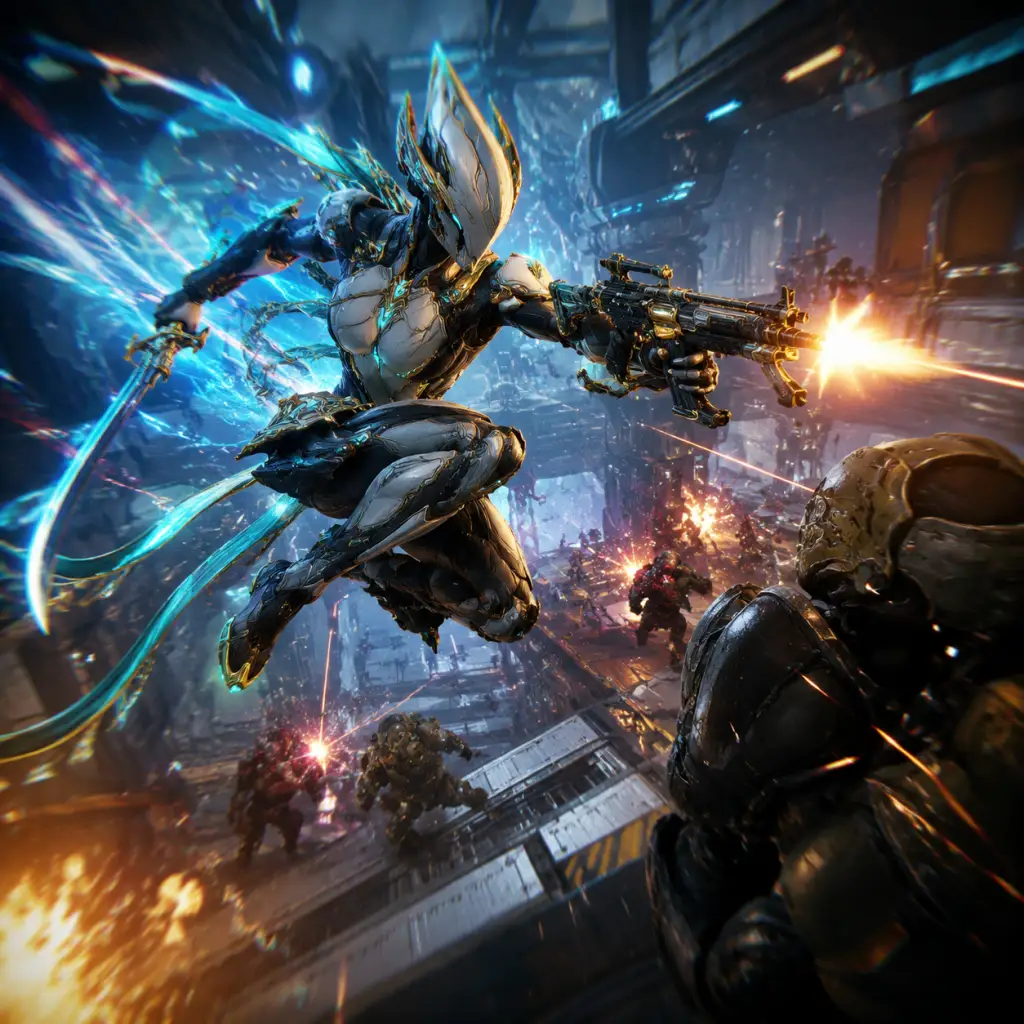
Core Gameplay
Core Gameplay Overview
Warframe's core gameplay revolves around fast-paced third-person shooting, melee combat, and ability use as a Tenno (ancient warrior) piloting a Warframe. You'll fight through procedurally generated tilesets, complete mission objectives (extermination, spy, capture, defense, etc.), and loot resources, mods, and blueprints to craft more weapons, Warframes, and gear. The main gameplay loop is: Select Mission → Fight → Loot → Upgrade → Repeat.
Main Gameplay Loop
1. Choose a mission from the Star Chart (or Navigation) based on what you need (resources, affinity, mods).
2. Squad up with up to three other players (matchmaking or invite).
3. Complete objectives while using parkour (bullet jumps, wall runs, slides) and abilities.
4. Extract with rewards (affinity/XP, resources, mods, blueprints, credit bundles).
5. Upgrade gear in the Orbiter (Foundry, Mods, Arsenal).
6. Repeat on higher-level planets or different mission types.
Progression Systems
- Mastery Rank (MR): Account-wide level that increases by leveling weapons, Warframes, companions, vehicles, and completing Star Chart nodes. Higher MR unlocks more weapons, riven mod capacity, daily trade limits, and Loadout slots.
- Affinity (XP): Earned by killing enemies with weapons/frames and completing objectives. Affinity levels up equipment to rank 30 (formatted versions go beyond).
- Star Chart: The main map of planets and nodes. Completing all nodes on a planet unlocks an Assassination (boss) and eventually junction requirements to the next planet.
- Quests: Story-driven missions (Main, Side, and Cinematic) that unlock planets, quest-specific Warframes, and major features (Operator, Focus, Railjack, etc.).
- Weapons: Primary, Secondary, Melee. Each has base stats (damage, crit, status, fire rate). Mods massively amplify them.
- Warframes: Each has four abilities (1-4). Abilities scale with Ability Strength, Duration, Efficiency, Range mods.
- Parkour: Bullet jump (crouch+jump), double jump, roll, slide, wall latch, and aim glide. Essential for speed and survivability.
- Damage Types: Physical (Impact, Puncture, Slash) and Elemental (Heat, Cold, Toxin, Electric, plus combined like Corrosive, Viral, etc.). Slash procs deal true Damage over Time; Viral boosts all damage; Corrosive strips armor.
- Status Effects: Each element has a unique proc (e.g., Heat: panic + DoT; Cold: slow; Radiation: confusion).
- Mods: Placed in mod slots (weapons, frames, companions). They increase damage (Serration, Hornet Strike, Pressure Point), multishot, elemental damage, crit chance, etc. Endo and Credits upgrade mods.
- Transference: After completing The Second Dream, you can switch to your Operator (human form) to void dash, void beam, and use Focus schools.
- Open Worlds: Plains of Eidolon (Earth), Orb Vallis (Venus), Cambion Drift (Deimos). These offer free-roam bounties, fishing, mining, conservation, and special enemies.
- Corpus/Grineer/Infested/Sentient tilesets: Each faction has distinct enemy behavior and weaknesses.
- Mission Types: 30+ types, but common are Exterminate (kill all), Spy (hack vaults), Capture (apprehend target), Defense (escort objective), Survival (survive while life support decays), Interception (hold points), and Sabotage (disable something).
- Void Fissures: Corrupted missions where you collect reactant to open Relics for prime parts.
- Platinum: Premium currency. Tradeable between players. Buy slots, cosmetics, Potatoes (Orokin Catalyst/Reactor), formas, and boosters.
- Credits: Regular currency for crafting, buying blueprints, trading tax.
- Resources: Common (ferrite, polymer bundle, nano spores), rare (orokin cell, neural sensor, argon crystal), and special (ayatan sculptures, endo).
- Trading: Maroo's Bazaar or Dojo Trading Posts. Sell prime parts, mods, rivens, and ayatans for platinum.
- Warframes: Farm from bosses, quests, clan dojo (Tenno Lab), or relic packs. Build requires neuroptics, chassis, systems, and main blueprint. Some primes require vaulted relics.
- Weapons: Many blueprints from Market or research. Level to 30, then forma to polarize slots for more mod capacity (adds a polarity matching bonus).
- Forma & Potatoes: Forma adds a polarity to a slot (costs 30% of XP to rank again). Orokin Reactor (frame) / Catalyst (weapon) double mod capacity.
- Mods: Farm for rare mods (e.g., Condition Overload, Adaptation, Galvanized mods). Upgrade with Endo and Credits.
- Operator/Focus: Unlocks after Second Dream. Level Focus schools (Madurai, Zenurik, etc.) via lenses earned in bounties. Operator Amps (weapons) crafted from Quills (Eidolon parts).
- Railjack & Necramech: Advanced vehicles/weapons for Veil Proxima missions and open worlds.
- Steel Path: Harder version of Star Chart after completing normal mode. Enemies have +100 levels and adapt to damage. Rewards include Steel Essence for rare goods (adapters, cosmetics).
- Eidolons: Giant sentient bosses on Plains of Night. Teralyst, Gantulyst, Hydrolyst. Reward brilliant shards for Focus and arcanes.
- Profit-Taker Orb / Exploiter Orb: Bosses on Orb Vallis. Reward Toroid materials and Debt-Bonds.
- Arbitrations: Endless missions (Defense, Survival, etc.) with modified enemies. Drop Vitus Essence for Galvanized mods and adaptation.
- Archon Hunts: Weekly assassination missions from Narmer bounties. Archon Shards (helmintch) for Warframe stat boosts.
- Sorties: Daily three-mission chain with high-level enemies and modifiers. Reward Rivens, Endo, Credit caches, or legendary cores.
- Netracells: Newest endgame on Deimos. Four-player co-op survival-style with necramechs. Drop Melee Arcanes and Archon Shard blueprints.
- Deep Archimedea: Elite weekly mission mode on Deimos with escalating difficulty and modifiers. High-tier rewards.
- Kuva Liches / Sisters of Parvos: Nemesis system. Generate a Lich/Sister by killing a larvaling. Fight them to obtain their weapon (Kuva/Tenet) with bonus 60% element damage.
- Duviri Paradox: Rogue-lite open world with Drifter (non-Warframe) focus. Earn Duviri resources for Incarnon Genesis adapters (upgrade old weapons).
- Conclave (PvP): Optional, small community. Separate mode for competitive play.
- Fashion Frame: The true endgame. Collect skins, syandanas, ephemeras, and color palettes to customize your look.
- Complete Vor's Prize quest → get your first Warframe (Excalibur / Mag / Volt from starter choice).
- Unlock the first few planets (Earth, Venus, Mercury, Mars, Phobos).
- Level your starter gear to rank 30.
- Learn basic movement, modding, and mission types.
- Obtain Rhino from the Jackal (Venus boss) – a strong early tank frame.
- Build first primary weapon: Hek (shotgun) or Boltor (rifle). Mod them with base damage mods (Serration, Point Blank).
- Complete the quest "Once Awake" to unlock the Infested faction and basic story.
- Join a Clan to get access to research BPs (like Dragon Nikana, Baza, etc.).
- Enemies are level 1–20. Your starting gear deals enough damage with unranked mods.
- Use parkour to dodge and reposition. Use Warframe abilities (Excalibur's Slash Dash is strong; Mag's Magnetize can group enemies).
- Melee is very strong: slide attacks, ground finishers. Use mods like Pressure Point and Fury.
- Helpful weapons: Braton (starting rifle), Strun (shotgun), Lex (pistol), Skana (sword).
- Mods: Farm Endo from Maroo's Ayatan Treasure (weekly) and from rescuing Ayatan Sculptures. Upgrade Serration, Hornet Strike, and Melee mods to rank 8-10.
- Resources: Run missions on Venus (Alloy Plate, Polymer Bundle), Earth (Ferrite, Neurodes).
- Star Chart: Clear nodes to unlock junctions. Junction tasks include scanning enemies, killing certain types, collecting mods, etc. Each junction gives a blueprint.
- Helminth: Unlocks later (MR8+). Not needed early.
- Relics: Start farming Lith and Meso relics from low-level missions. Open them in Void Fissures to get prime parts (sell for Platinum or build).
- Rhino mods: Vitality, Steel Fiber, Intensify, Streamline, Stretch, Continuity (all unranked or rank 5).
- Hek mods: Point Blank (rank 5), Hell’s Chamber (multishot), Scattered Justice (Syndicate augment; buy from Steel Meridian). Add element mods (Toxic + Electric = Corrosive).
- Pistol: Lex with Hornet Strike, Barrel Diffusion, Pistol Pestilence.
- Melee: Skana with Pressure Point, Fury, Molten/Shocking Touch.
- Unlock all planets up to Eris, Neptune, Pluto.
- Complete The Second Dream (Mr 3+ but usually later) → unlock Operator and Focus.
- Complete The War Within → unlock Focus 2.0, Operator Amp, and Riven mods.
- Build your first Prime Warframe (e.g., Rhino Prime, Octavia Prime) if you have relics.
- Get a solid loadout (frame, weapon set) to handle Sortie-level enemies (level 50-60).
- Start Eidolon hunts (casual) for Focus lenses and Arcanes.
- Obtain the Soma Prime or Broken War (from Second Dream) – strong mid-game weapons.
- Open all Star Chart nodes for Sortie access.
- Enemies level 20–60. You need modded gear: Hek modded properly can one-shot through level 40.
- Use Corrosive Projection (Aura) or Enemy Radar. Radial weapons (Ignis Wraith, Atomos) clear rooms.
- Warframes like Wukong (immortal), Nezha (tank + speed), or Octavia (invisible + scaling damage) shine.
- Operator mode: Use Void Dash to stealth, especially in Spy missions. Focus school Zenurik gives energy regen.
- Melee: Condition Overload builds shred armor. Build a Zaw (modular melee) from Cetus bounties.
- Mods: Farm Galvanized mods (from Arbitrations; but Arbs are unlocked after all nodes). Alternative: Farm Prime mods (e.g., Primed Continuity from Baro Ki'Teer).
- Prime Parts: Run Vaulted relics (Traders). Use warframe.market to sell sets for Platinum.
- Focus: Equip a lens (Lua, Plains) to convert affinity into Focus points. Unlock at least Way-Bound passives (e.g., Void Dash distance).
- Riven Mods: Unlock after War Within. Do Sorties to get a riven mod. Cycle (re-roll) with Kuva from Siphons / Floods. Rivens can massively boost specific weapons.
- Arcanes: Farm Eidolons (Teralyst) for Brilliant Shards (used to unbind Focus nodes) and Arcanes like Energize (expensive).
- Syndicates: Level three allied Syndicates (e.g., Steel Meridian + Red Veil, or Arbiters of Hexis + Cephalon Suda). Get augment mods and weapons for their standing.
- Wukong: Umbra mods (from Sacrifice quest) + Adaptation, Hunter Adrenaline, Rage – energy income from health loss. Use Arcanes: Guardian + Grace (expensive, but any secondary arcane works).
- Ignis Wraith: Serration, Heavy Caliber (rifle), High Voltage (crit), Malignant Force (status) → Viral/corrosive. Add Hunter Munitions for slash procs (crit).
- Melee: Zaw (Plague Kripath) with Condition Overload, Weeping Wounds, Blood Rush, Organ Shatter – stacking crit and status. Use a 12x combo multiplier.
- Operator: 2-2-2 Amp. Focus school: Zenurik (Energy Pulse) for energy regen.
- Complete the Star Chart in Steel Path (hard mode).
- Full build for all content: Arbitrations, Eidolon tri-caps, Profit-Taker, Exploiter, Kuva Liches, Sisters of Parvos.
- Unlock and max Railjack (all intrinsics, MK III parts).
- Complete The New War and Whispers in the Walls (high MR requirements, but MR 12+ is fine).
- Obtain powerful Incarnon weapons (via Duviri Circuit or Steel Path Honor).
- Min-max builds: Primed/Umbra mods, max rank Arcanes, Rivens.
- Steel Path enemies: +100 levels over normal (e.g., Earth is level 30-40 instead of 1-8). Armor scaling is brutal. You need armor stripping (Corrosive mods, Shattering Impact, or abilities like Terrify) or Slash procs (viral + slash).
- Warframes: Revenant (mesmer skin – invulnerable), Octavia (invis + scaling damage), Mesa (mass damage + tank), Khora (Strangledome for group control + whipclaw scaling), Wisp (health mote + speed + shock), Garuda (infinite damage scaling).
- Weapons: Incarnon versions (e.g., Braton Incarnon, Torid Incarnon, Strun Incarnon) with Incarnon Genesis adapters from Steel Path Circuit. Also Kuva/Tenet weapons (e.g., Kuva Bramma, Tenet Envoy) – these have bonus elemental damage.
- Primary Arcanes: Equip Primary Merciless (from Zariman) or Primary Deadhead (headshots) for +360% damage. They drop from Steel Path Acolytes or Zariman bounties.
- Melee Arcanes: Exodia Contagion (Zaw arcane for ranged melee), or Viral/heat for status spread.
- Operator: Maxed Focus schools, best Amp (e.g., 7-7-7 or 1-7-7), Virtuous Shadow arcane (crit on void damage).
- Steel Essence: Farm Acolytes (appear every 5 mins in endless Steel Path). Turn in at Teshin for Galvanized mods, rivens, and cosmetics.
- Arcanes: Eidolons (hunt tri-caps efficiently) for Arcanes like Energize, Grace, Barrier, Avenger, Aegis, etc.
- Kuva Lich / Sister of Parvos: Spawn a Lich by killing level 20+ Grineer (Cassini, Saturn) with a Kuva weapon equipped? Actually need to use a Warframe with a Parazon mod that allows Lich spawn after killing a larvaling. Sisters from Corpus (Hydra, Pluto). Each gives a unique weapon with 60% bonus. Fusion progress reduces element bonus to 60.
- Incarnon Adapters: Earn from Steel Path Circuit (weekly rotation) or from Duviri Cave (spiral rewards). You need Pathos Clamps from Duviri Experience. These adapters turn old weapons (e.g., Braton, Latron, Strun, Soma, Boltor) into powerful incarnon forms with massive stat boosts and special alt-fire.
- Archon Shards: Weekly Archon Hunt (Narmer bounties) gives Tauforged (rare) or regular shards. Install into Warframes for stat boosts (like +25% ability strength, +75% health, etc.).
- Helminth: subsume Warframes to transfer abilities (e.g., Wukong subsumed? Actually Wukong is not subsumable; but many frames like Rhino (Roar), Mirage (Eclipse), Banshee (Sonar), etc., are. Use Helminth to put Roar on any frame for extra damage.
- Mesa Prime: Max Duration (Primed Continuity), Efficiency (Streamline), Strength (Umbral Intensify, Blind Rage), Range (Stretch/Overextended). Subsumed ability: Roar (from Rhino). Arcanes: Velocity (pistol fire rate) + Precision (headshot multiplier) or Molt Augmented (power strength).
- Kuva Nukor: Mod for viral + magnetic (for shield stripping). Use crit mods (Pistol Gambit, Target Cracker). Add Secondary Arcane: Cascadia Flare (heat damage boost) or Secondary Encumber (status spreading).
- Melee: Dokrahm (heavy blade Zaw) with Exodia Contagion: Primed Reach, Primed Pressure Point, Sacrificial Steel, Organ Shatter, Killing Blow, Corrupt Charge (for 2x combo). Smash heavy attacks for AoE.
- Operator: 7-7-7 Amp (Raplak Prism, Propa Scaffold, Certus Brace). Max Madurai (void strike) for burst damage.
- All Story Quests complete (including Whisper in the Walls and upcoming).
- Full Mastery Rank 30+ (note: MR30 grants the first Legendary Core and some perks).
- All Focus trees maxed (all passives unlocked).
- All Arcanes maxed (at least Energize, Grace, Barrier, Molt Augmented, Merciless, etc.).
- Multiple full builds for different content (Eidolon solo, profit-taker speedrun, Steel Path endurance, SP circuit, etc.).
- Fashion is the ultimate goal – many players spend hours customizing their Warframes, Operators, Drifters, Orbiter, and Railjack.
- Steel Path Endurance: Survive for hours (2-8 hours) in survival or disruption. Enemies reach level 9999. Requires perfect synergy (e.g., Octavia, Frost, Gara, Nekros, Vauban). Use armor/shield gating mechanics, invisibility, and scaling damage (Slash procs, ability damage).
- Deep Archimedea: Elite weekly mission with three stages and escalating difficulty. Use a wide roster (owned frames, weapons, and companions). Modifiers include elemental resistances, reduced energy, etc. Reward: 50 Shards per week + cosmetic.
- Eidolon Solo Tri-caps: Capture all three Eidolons in a single night cycle (approx 50 mins). Requires optimized setups: Volt (shield), Rubico Prime (sniper), maxed Madurai, and perfect timing.
- Profit-Taker Speedrunning: Kill Profit-Taker in ~2-3 minutes for Credit farming (often with Chroma + Soma Incarnon). Uses damage type rotation (the orb cycles through all 13 damage types).
- Railjack Veil Proxima / Corpus Railjack: Maxed MK III zetki or Vidar parts. Use elite crew with maxed stats. Clear missions in under 5 mins.
- Kuva Lich / Sister Farming: Generates very strong weapons (Kuva Hek, Kuva Chakkhurr, Tenet Arca Plasmor). Trade sets for Platinum. Also, Lich ephemeras are rare drops.
- Archon Shard Min-Maxing: Equip Tauforged shards (rare, +50% boost over regular). Many players aim for aesthetic builds or maximum stats (e.g., +75% ability strength from three red shards).
- Incarnon Weapon Fine-tuning: Obtain every Incarnon adapter and build them with Rivens to push damage past 100,000 per shot.
- Fashion Frame Contests: In-game competitions, community events (e.g., Tennocon contest).
- Platinum Mastery: Use market trading to accumulate thousands of Plat. Sell fully built primes, rare rivens (e.g., for Rubico, Boltor, Tigris), arcane sets (Energize set = 1500-2000p).
- Riven Market: Buy cheap rivens for popular weapons, roll them for perfect stats (e.g., critical chance, critical damage, multishot, negative impact to reduce stat cap), then sell at high price.
- Index: Credit farm for millions of credits per hour using Rhino or Revenant + Profit-Taker.
- Resource Stockpiling: Build massive amounts of materials (e.g., over 100 Orokin Cells) for crafting Forma that are always needed. Forma Blueprints are cheap to craft (1 Forma per 23hr).
- Octavia: Max Duration (Primed Continuity, Constitution, Narrow Minded), Efficiency (Streamline), No Range needed. Mallet + Metronome + Resonator. Invisibility from Metronome. Arcanes: Energize + Molt Efficiency. Go for 4+ hours.
- Weapons: any explosive (Kuva Bramma) or melee heavy attack (Vitrica). Actually a silent weapon is better. Use Baza Prime for accuracy.
- Companion: Carrier Prime (Ammo mutation) or Smeeta Kavat (resource buff).
- Chroma: Max Strength (Umbral Intensify, Blind Rage, Transient Fortitude), Duration, Efficiency. Vex Armor. Subsumed: Null Star (from Nova) for extra ability damage reduction.
- Soma Incarnon: Mod for viral + heat for slash procs. Use Incarnon form to cycle through damage types. Alternate between Radiation, Magnetic, Gas, etc.
- Pistol: Tenet Diplos or any secondary for magnetic / toxin.
- Melee: Heavy attack build with Corrosive (for armor stripping if needed).
- Volt: Shield (capsule) – Strength around 150-200, max Duration. Use a Rubico Prime with crit build (Serration, Point Strike, Vital Sense, Split Chamber, Hammer Shot, Stormbringer+Infected Clip for Corrosive). Add Arcanes: Momentum for fire rate.
- Operator: 7-7-7 Amp with Virtuous Shadow. Madurai for Void Strike (max charge). Unbind all defensive Way-Bounds.
- Use Volt’s shields to cap all shields, Void Strike to clip, then snipe limbs.
Combat & Interaction Systems
Exploration & Missions
Economy
Character / Build Growth
Quests & Story
Mainly: Awakening → Vor's Prize → Once Awake → The Second Dream → The War Within → Chains of Harrow → Apostasy Prologue → The Sacrifice → The New War → Whispers in the Walls. Cinematic quests unlock major gameplay mechanics (Operator, Focus, Sentient enemies, etc.).
Endgame Structure
---
The sections below break the game into four progression tiers. Adjust these boundaries as you play; Warframe's content is non-linear in many ways.
---
Early Game (Mastery Rank 0–5, First Planets: Earth to Mars)
Goal
Combat in Early Game
Progression Focus
Early Game Activities Checklist
1. Do Vor’s Prize: Tutorial quest – get your frame, weapons, and Skana. Learn to craft a weapon.
2. Complete all nodes on Venus → boss Jackal → farm Rhino (Neuroptics, Chassis, Systems).
3. Build Rhino (takes 72 hours per component). While waiting, level other frames from Quests (Koumei from Duviri? Actually Duviri is later; better to stick with starter).
4. Farm mods: Equilibrium (Vault), Stretch, Intensify, Flow (rare from containers).
5. Join a Clan: Ask in recruiting chat. Get Blueprints for weapons like the Hek (shotgun), and later frames like Wukong or Nezha (research).
6. Complete Maroo’s Bazaar weekly: Get an Ayatan Sculpture to fill with stars for Endo.
7. Do Nightwave Acts: Earn standing to buy slots, Potatoes, weapons (e.g., Cerata, Gammacor).
8. Farm Orokin Cells: Run Ceres (Exta) or Saturn (Titan). Needed for many builds.
Example Early Game Build: Rhino with Hek
---
Mid Game (Mastery Rank 5–12, Unlocked Jupiter through Eris, Main Quests through The Second Dream & The War Within)
Goal
Combat in Mid Game
Progression Focus
Mid Game Activities Checklist
1. Complete The Second Dream (MR3, quest from codex). After that, The War Within (MR5, codex). Unlocks Operator.
2. Build a proper Amp: Start with Mote Amp, then upgrade to 1-1-1 or 2-2-2 (Prism, Scaffold, Brace) from Quills reputation. Essential for Eidolons.
3. Farm Arbitrations: Unlock all planets → talk to Arbiters of Hexis → get Vitus Essence. Buy Galvanized mods (Galvanized Chamber, Galvanized Aptitude, etc.) and Adaptation.
4. Do Sorties daily: 3 missions, high level. Rewards: Rivens, Endo, Credit caches, Legendary Cores (rare).
5. Build your first Necramech: Requires isolation vault bounties on Deimos. Necramech is used in Railjack and later New War.
6. Get a Railjack: Complete Rising Tide quest. Build the Railjack (expensive resource cost). Essential for Veil Proxima and later quests.
7. Farm Kuva: Do Kuva Siphons on planets (e.g., Saturn, Uranus). Convert to reroll Rivens. Kuva also needed for Tenet weapons.
8. Join an Eidolon hunting group: Use Recruiting chat. At least capture Teralyst for cores and arcanes.
9. Upgrade Mods: Primed mods from Baro (every 2 weeks) – buy Primed Continuity, Primed Flow, Primed Point Blank.
Example Mid Game Build: Wukong (Prime) + Ignis Wraith + Condition Overload Melee
---
Late Game (Mastery Rank 12–20+ / Steel Path Completion)
Goal
Combat in Late Game
Progression Focus
Late Game Activities Checklist
1. Complete Steel Path: All nodes → get Teshin's offerings and unlock Steel Path dailies.
2. Hunt Liches/Sisters: Get a Kuva weapon (Bramma, Nukor, Ogris) or Tenet (Envoy, Arca Plasmor). Valence fusion to 60%.
3. Unlock Zariman: After completing The New War. Farm Bounties for weapon blueprints (e.g., Incarnon Phenmor, Laetum), primary/secondary arcanes (Merciless, Deadhead, Cascadia Flare).
4. Duviri Circuit: Rotating rewards. Get Incarnon adapters for the best weapons (Torid, Strun, Boar, Prisma/Lex Prime, etc.). Each week, 5 adapters available.
5. Do Netracells: Unlocked after Whispers in the Walls. Weekly 5 runs. Drop Melee Arcanes, Archon Shard Blueprints, Rivens.
6. Efficient Eidolons: Hunt tri-caps (Teralyst, Gantulyst, Hydrolyst) in one night cycle. Use Volt or Trinity setups.
7. Profit-Taker/Orb mother: Assassination on Orb Vallis. Use Chroma for credit farm (drops lots of credits).
8. Railjack: Max all intrinsic trees (tactical, gunnery, etc.). Farm Veil Proxima for MK III parts, Shedu parts, and Railjack mods. Use Seeker Volley to clear fighters quickly.
9. Archon Hunts: Every Sunday (reset). Use specific damage types to counter damage attenuation.
10. Fashion Frame: Collect ephemeras (from Liches, Sisters, Lich hunting). Buy cosmetics from Market with Platinum.
Example Late Game Build: Mesa Prime + Kuva Nukor + Dokrahm Heavy Attack Zaw
---
Endgame (Mastery Rank 20–30+ / True Min-Maxing)
What Defines Endgame
The transition to endgame is subjective – some say it starts when you can handle all content with ease, others when you've completed all story quests. For this guide, endgame means:
Endgame Content
Endgame Economy
Endgame Builds (Examples)
#### Steel Path Endurance: Octavia for Survival
#### Solo Profit-Taker: Chroma + Soma Incarnon
#### Solo Eidolon Tri-cap: Volt
Final Notes: The Journey Continues
Warframe’s endgame is self-driven. Digital Extremes constantly adds new content: the next mainline update, new Warframes (e.g., Dagath, Qorvex), new weapons, and events. Stay updated via patch notes and forums. The community is large; join a clan for help, trading, and fun.
Remember: Warframe is a marathon, not a sprint. Enjoy the progression, experiment with builds, and don’t burn out. The game is free, but investing time (or money for cosmetics/slots) is the real currency. Good luck, Tenno!
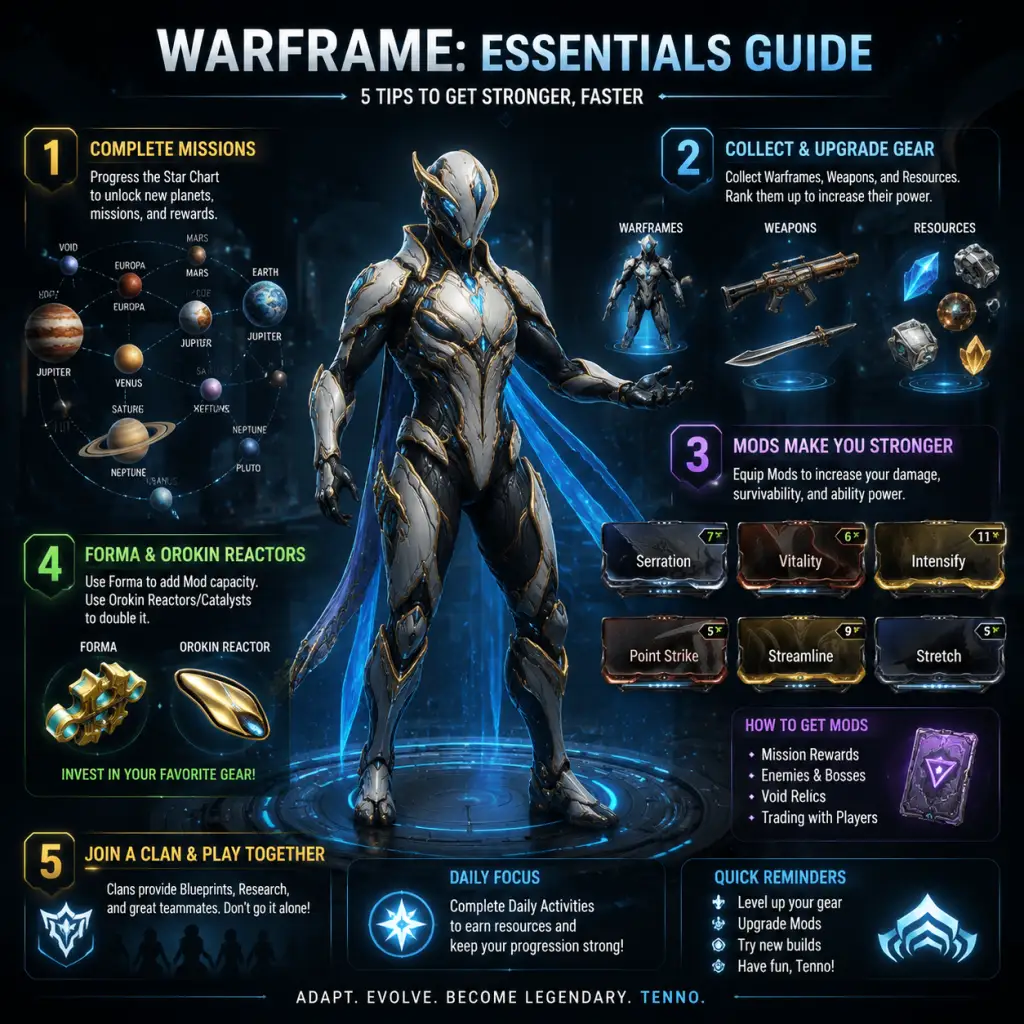
Game Tips
Game Tips for Warframe
This guide compiles essential tips for Tenno of all skill levels, from fresh recruits to veteran leaders. Tips are organized by category with clear explanations and strategic rationale.
---
Beginner Tips
1. Spend your starting Platinum wisely.
- Tip: Buy Warframe and weapon slots with your initial 50 Platinum. Do not spend it on cosmetics, resources, or rushing build timers.
- Why: Slots are the only essential item you cannot earn for free forever. You need slots to expand your collection; other resources can be farmed quickly.
- When: Use immediately on one Warframe slot (20p) and two weapon slots (12p each) for the best value.
2. Complete the star chart first.
- Tip: Unlock every node on Earth, Venus, Mercury, etc., before diving into endless farming or relics.
- Why: Junctions grant crucial quests, mods, and frame parts. Unlocking nodes also increases your Mastery Rank (MR) and access to better rewards.
- When: Always come back to complete the star chart in order. Do not skip nodes—they connect to harder missions later.
3. Always level a weapon to 30 before selling or using Forma.
- Tip: Each weapon and frame grants Mastery XP only once. Equip new gear and level it to max (level 30) before discarding it.
- Why: Mastery Rank is required to unlock better gear, more daily standing, and increased mod capacity for unranked gear.
- When: After finishing a weapon, either keep it (if you enjoy it) or sell it if MR fodder. Never use Forma on an unmastered item.
4. Join a clan early.
- Tip: Search for a newbie-friendly clan through Recruitment chat or the Warframe forum.
- Why: Clans provide access to essential blueprints (e.g., Dragon Key, many warframes, Archwing launcher) and research labs. Solo building these items takes weeks.
- When: Do this after the first few planets. A good clan will help with resource and mod sharing.
5. Use the Codex and Market to find drop locations.
- Tip: In the Orbiter, use the Codex (left of Navigation) to search for any mod, relic, or blueprint. The Market shows you where to buy or earn items.
- Why: Warframe's wiki is external; in-game data avoids confusion.
- When: Before farming a specific mod or frame, check its drop table to pick the right mission.
---
Combat Tips
#### General Combat
1. Always aim for headshots (or weak points).
- Tip: Many weapons gain bonus critical damage on headshots. Use precise aim with weapons like the Braton or Lato early on.
- Why: Headshot kills drop extra energy orbs and can trigger Combos for more damage. This scales into endgame builds.
- When: Every mission where you are shooting. For melee, aim for a unit's head with slide attacks.
2. Use melee for energy regeneration.
- Tip: Equip the "Energy Siphon" aura mod or use a weapon with the "Energy Generator" arcane. Or simply channel melee kills (if you have the "Hunter Adrenaline" or "Rage" mod).
- Why: Many warframe abilities rely on energy. Hunter Adrenaline converts health damage to energy early game.
- When: When your frame has low energy pool, keep melee near enemies to sustain abilities.
3. Master the movement system (bullet jump).
- Tip: Sprint → Crouch + Jump → Aim Glide. This is your primary mobility tool. Add rolling mid-air for direction changes.
- Why: Warframe is about speed. Bullet jumps maintain momentum, dodge bullets, and help traverse large tilesets quickly.
- When: Practice in the Orbiter or open world. Use it to avoid damage in combat and to parkour through missions.
4. Use the right elemental mods for enemies.
- Tip: Check the enemy faction. Grineer are weak to Corrosive (Electric + Toxin) or Radiation. Corpus weak to Magnetic (Cold + Electric) and Toxin bypass shields. Infested weak to Gas or Heat.
- Why: Elemental damage multipliers can triple your effective DPS.
- When: Always mod your primary weapon for the faction you are fighting. A single 90% elemental mod can be stronger than a flat damage mod.
#### Ability Usage
5. Build for ability synergy.
- Tip: Do not just mod for damage; consider Duration, Efficiency, Range, and Strength according to the warframe's kit.
- Example: For Rhino, Strength and Duration boost Iron Skin and Roar. For Nova, Range and Strength speed up molecular prime.
- Why: Balanced modding makes abilities usable in more situations.
- When: After acquiring basic mods like Streamline (efficiency), Continuity (duration), and Stretch (range).
6. Use crowd-control abilities before reviving.
- Tip: Stomp (Rhino), Bastille (Vauban), or sleep (Equinox) to clear enemies around a downed teammate.
- Why: Reviving without enemies hitting you saves time and prevents death.
- When: Anytime a teammate is down in high-level content. It's safer than face-tanking damage.
#### Stealth
7. Stealth multipliers can XP farm.
- Tip: Kill enemies without being detected using a silent weapon (e.g., bow, throwing knife). Melee finishers from behind give 5x affinity.
- Why: Stealth kills grant bonus affinity per kill, especially if you kill a whole group without alerting others. Ideal for leveling new gear.
- When: Early game on Spy missions or Solo exterminations with Ivara, Loki, or Ash.
---
Exploration & Navigation
1. Always loot containers and lockers.
- Tip: Smash crates with melee or use abilities like Thief's Wit mod to highlight loot. Rare mods and credits often spawn in containers.
- Why: Many blueprints (e.g., for crafting weapons) require common materials like Ferrite or Salvage. Container farming is faster than mission-only drops.
- When: On any mission you are not speedrunning. On defense missions, loot between waves.
2. Use the minimap to find caches.
- Tip: In sabotage or survival missions, the minimap shows hidden rooms. Look for white circular icons—those are caches.
- Why: Caches reward rare mods, relics, and sometimes special weapon parts (e.g., from Lua Sabotage).
- When: Endless missions or when you have a key (e.g., Derelict vaults).
3. Open world resources are time-gated.
- Tip: On Plains of Eidolon, Orb Vallis, and Cambion Drift, certain resources (like Sentient Cores or Fish Parts) are only obtainable at night.
- Why: Nighttime spawns unique enemies and fishing spots. Check world state in your star map.
- When: When you need specific resources for crafting (e.g., Eidolon shards for focus lenses).
4. Complete Maroo's weekly Ayatan hunt.
- Tip: Maroo (in the Relay) offers a weekly mission to find a treasure. The Ayatan sculpture can be sold for Endo.
- Why: Endo is crucial for high-rank mods. This is the best early source of Endo.
- When: Every week after unlocking Mars.
---
Resources & Credits Farming
1. Farm credits on Dark Sector missions.
- Tip: Nodes like Seimeni (Ceres) or Gabii (Ceres) have a bonus credit multiplier. Use a credit booster or Chroma's Effigy for extra.
- Why: Credits are needed for mod fusion, traded items, and building costs. A single run can net 25k credits with booster.
- When: Whenever you are low on credits (common early game).
2. Use the Index for mid-game credits.
- Tip: The Index (Neptune) is a PvE event where you deposit points. Easy mode gives 150k credits per success with a booster.
- Why: Much higher credit per time than normal missions. Risk: enemy level 30+.
- When: After you can handle level 30 enemies. Use Rhino or Mesa for safety.
3. Farm Void Relics on Heiracon (Pluto).
- Tip: This Dark Sector Survival drops relics frequently. Use a Farming frame (Nekros, Khora) to increase drops.
- Why: Relics are the only way to get Prime parts. You need many for ducats or trading.
- When: Always run this for relic stockpile.
4. Extractors for passive resources.
- Tip: Build Titans Extractors (foundry) and deploy them on planets. They farm resources while you are offline.
- Why: Get passive Polymers, Alloy, Salvage without playing.
- When: Unlock extractors after Earth-to-Mars junctions. Deploy on planets you need rare materials (e.g., Plastids on Saturn).
---
Build Optimization
1. Use "Corrosive Projection" as your aura for Grineer missions.
- Tip: This aura strips enemy armor. Pair it with "Growing Power" for ability damage.
- Why: Armor reduction massively increases damage against high-level Grineer.
- When: Any mission with heavy Grineer presence (level 50+).
2. Mod for the 60/60 elemental mods early.
- Tip: Viral status (Cold + Toxin) is the best all-around. Use 60% status chance mods like Pathogen Rounds to proc Viral, which halves enemy max HP.
- Why: Viral damage + Slash procs (from weapons like Braton Prime) can kill even level 100 enemies.
- When: As soon as you get one 60/60 mod, use it on your primary weapon.
3. Forma is your best friend.
- Tip: Use a Forma on a weapon or frame after leveling it to 30. This adds a polarity slot, halving mod drain for certain mod types.
- Why: You can fit more high-rank mods, unlocking true potential. Each forma adds 10 affinity level, so you can level it again.
- When: After you have a well-rounded set of mods and want to invest in a weapon you like.
4. Do not use multiple damage mods of the same type.
- Tip: Base damage mods (Serration, Hornet Strike) and elemental mods stack multiplicatively. Adding a second +damage% like Heavy Caliber is often worse than a 90% elemental.
- Why: Diminishing returns—a single Serration (+165%) is enough; adding another +damage% gives less benefit than elemental multis.
- When: For most weapons, one raw damage mod, one multishot, two elementals, and crit mods (if crit is good) are optimal.
5. Use the Warframe Builder website.
- Tip: Before spending Forma, simulate builds at Overframe.gg or Warframe Builder.
- Why: Avoid wasted resources. See exactly how mods interact.
- When: For any major investment like a prime weapon or warframe.
---
Economy & Trading
1. Use Warframe.market for trading.
- Tip: This third-party site lists current player buy/sell orders for almost every tradable item. Set up a seller profile with in-game name.
- Why: Avoid overpriced Trade Chat scams. Get fair prices.
- When: Before any trade, check the site for median price.
2. Never buy mods from Baro Ki'Teer with ducats unless they are rare.
- Tip: Baro brings mods and weapons every two weeks. Prioritize Primed mods (e.g., Primed Continuity, Primed Pressure Point) over cosmetics.
- Why: Primed mods are huge power boosts and only available from Baro. Cosmetics return frequently.
- When: When you have enough ducats (Prime parts converted) and credits.
3. Farming prime parts for ducats.
- Tip: Use relics in Void Fissures to get forma blueprints and prime parts. Sell common parts for ducats; rare parts for platinum on Warframe.market.
- Why: Ducats are the currency for Baro. Platinum is the premium currency.
- When: Always run fissures when you can. Prioritize relics that contain items in high demand (e.g., Rubico Prime).
4. Sell Syndicate mods and weapons.
- Tip: Max your standing with a syndicate (e.g., Steel Meridian) and sell their exclusive mods for 15-20 platinum each.
- Why: Syndicate items are not farmable elsewhere. New players buy them.
- When: After reaching max rank in a syndicate (rank 5).
5. Riven mods: roll only if you have plenty of Kuva.
- Tip: Use Rivens to boost weak weapons, but never spend hundreds of Kuva rolling a mediocre riven. Instead, sell unrolled rivens for platinum.
- Why: Riven market is volatile. New players can profit by selling veiled rivens (from sorties) for 20-40p each.
- When: After unlocking Sortie access. Sell veiled rivens if you lack resources to reveal them.
---
Advanced Strategies
1. Eidolon Hunting: use a Chroma or Volt.
- Tip: For Teralyst, Gauntylst, and Hydrolyst caps, Chroma's Vex Armor boosts damage and Volt's shield provides critical damage. Use the 111 Amp (Mote Amp) until you farm a better one.
- Why: Eidolons drop Arcanes and Focus. A coordinated squad can cap multiple per night.
- When: After completing The Second Dream quest. Start with Teralyst solo.
2. Profit-Taker (Orb Vallis) build for credit farm.
- Tip: Use a Chroma tank-buff build with a radiation/corrosive damage weapon (e.g., Catchmoon). The Profit-Taker drops credits and debt bonds.
- Why: One run yields ~200k credits plus Toroids .
- When: After reaching rank 5 with Solaris United and having strong weapon.
3. Steel Path: use Shield-gating mods.
- Tip: For level 100+ enemies, build frames like Hildryn or use Mods like Augur Set and Brief Respite to gain shields on ability cast. This grants invincibility frames.
- Why: Shields grant a brief invulnerability. Vital for survival where one hit would kill.
- When: Any Steel Path mission with frame that cannot tank.
4. Railjack: get the void hole tactical.
- Tip: Use vortex avionics (like Void Hole) to group enemies. Then use a Tycho Seeker missile to clear them.
- Why: Fast clearing of crewships and fighters.
- When: Grinding Veil Proxima missions for Quellor parts.
5. Focus farming: stealth runs are best.
- Tip: Use a banshee with Savage Silence augment and a covert lethality dagger on Adaro (Sedna) exterminate. Kill enemies while cloaked for focus points.
- Why: Stealth kills give 5x affinity towards lens capacity. You can max focus daily quickly.
- When: After unlocking Focus from The Second Dream. Use a lens on an item.
---
Quality of Life / Interface Tips
1. Customize the UI scaling.
- Tip: In Options → Interface, set UI scale to 140% for readability. Enable "Show Ability Stats" and "Advanced Tooltips".
- Why: Makes mod stats and ability descriptions clearer.
- When: Immediately.
2. Use the Equipment menu to plan loadouts.
- Tip: Create loadouts for different missions (e.g., "Spy", "Eidolon", "Index"). That includes frame, weapons, companions, and gear items.
- Why: Prevents modding mistakes and saves time.
- When: After acquiring multiple frames and weapons.
3. Mark items on the map for team.
- Tip: Press G (default) to place a waypoint on interesting loot or extraction. Double-tap for danger.
- Why: Helps teammates find caches or avoid traps.
- When: Always in squad play.
4. Buy the atomos blueprint from market.
- Tip: Atomos is one of the best beam secondaries early game. It costs 15000 credits. Build it.
- Why: Its chaining beam melts crowds. Pairs well with any primary.
- When: After completing Earth's boss (Captain Vor).
5. Turn on FPS display.
- Tip: In Options → Video → Show FPS. Also turn off Motion Blur and Depth of Field for clarity.
- Why: Helps spot performance drops.
- When: Always.
---
This guide is not exhaustive. Warframe evolves with every update, but these tips will serve you well from your first mission to your thousandth.*
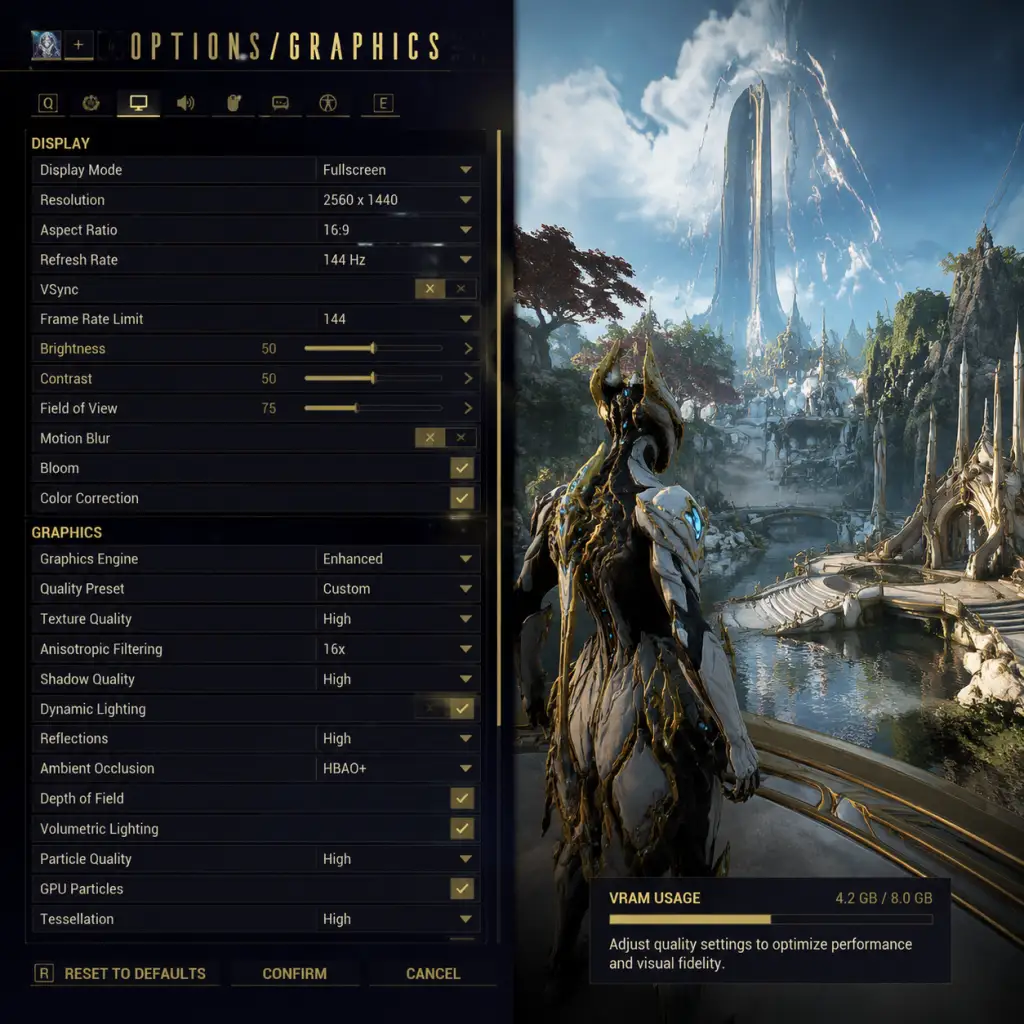
Game Settings
Game Settings Guide for Warframe
This guide covers every settings category in Warframe. Proper configuration can significantly improve performance, readability, and combat responsiveness. Recommendations are provided for low-end, mid-range, and high-end hardware, along with notes on settings that are frequently misconfigured.
---
1. Graphics Settings
Graphics settings are found under Options > Video.
#### Display & Resolution
- Display Mode: Choose Fullscreen for best performance. Borderless Fullscreen is convenient for alt-tabbing but may introduce input lag on some systems. Windowed is only for troubleshooting.
- Resolution: Set to your monitor’s native resolution. On weaker hardware, lowering resolution (e.g., 1600×900 or 1366×768) yields the largest performance gain.
- Refresh Rate: Match your monitor’s native rate (e.g., 60Hz, 144Hz). Warframe supports high refresh rates.
- VSync: Turn off unless you experience screen tearing. If you must enable it, use Fast VSync (Nvidia) or Enhanced Sync (AMD) if available in your driver.
#### Quality Presets
Warframe offers presets: Low, Medium, High, and Custom. Start with Custom for fine-grained control.
| Setting | Low-End (e.g., iGPU, GT 1030) | Mid-Range (GTX 1060 / RX 580) | High-End (RTX 3070+) | Notes |
|---|---|---|---|---|
| Texture Quality | Low (0.5) | Medium (1.0) | High (2.0) | Uses VRAM; Low reduces crashes on 2GB cards. |
| Shadow Quality | Off | Medium | High | Shadows tank FPS; Off is recommended for competitive play (visibility). |
| Volumetric Fog | Off | Off | On (if FPS >120) | Extremely demanding; minor visual gain. |
| Volumetric Lighting | Off | Low | High | Heavy performance hit; keep Low if above 60 FPS target. |
| Ambient Occlusion | Off | Off | High (SSAO or HBAO+) | Adds depth; costs ~10-15% FPS. |
| Depth of Field | Off | Off | On (cinematic) | Blurs background; harmful for aiming. Keep Off for gameplay. |
| Motion Blur | Off | Off | Off | Always Off – impairs visibility in fast combat. |
| Bloom | Off | Low | On | Can obscure enemies; Off recommended for PvP or serious play. |
| Anti-Aliasing | FXAA | TAA (low) | TAA (high) or SMAA | FXAA is sharpest but jagged; TAA blurs slightly. |
| Particle Quality | Low | Medium | High | Affects ability effects; High can be distracting. |
| Decals | Low | Medium | High | Bullet holes, blood; minimal performance impact. |
| Anisotropic Filtering | 4x | 8x | 16x | Free performance – always set to 16x if possible. |
| Dynamic Resolution | On (target 30–45 FPS) | Off | Off | Automatically lowers resolution to maintain FPS target. Helpful on low-end. |
| Local Reflections | Off | Off | On | Heavy; water effects only. |
| Triple Buffering | On if VSync forced | Off | Off | Only useful with VSync. |
| GPU Particles | Off | On | On | Transfers particle physics to GPU; reduces CPU load. |
| NVIDIA Reflex | N/A | On (if supported) | On + Boost | Reduces input latency. Requires RTX 20xx+ or GTX 900+. |
- Default: 78. Increase to 85–95 for better peripheral awareness. Lower values improve FPS slightly but feel claustrophobic.
- Dynamic Resolution – If enabled, the game may look very blurry in busy scenes. Disable it unless you desperately need frames.
- Motion Blur and Depth of Field – Both are notoriously detrimental to gameplay clarity. Always turn them Off.
- Volumetric Fog – A massive FPS killer in open areas (Orb Vallis, Plains of Eidolon). Keep Off.
- Anisotropic Filtering – Nearly zero performance cost; cranking it to 16x improves distant texture sharpness dramatically. Many players leave it low by mistake.
- Master Volume: 100% (adjust OS volume separately).
- SFX Volume: 100% – all gameplay sounds.
- Music Volume: 50–70% – music is atmospheric but can drown out cues.
- Voice Volume: 100% – operator, lotus, and transmissions.
- Ambient Volume: 80% – background noises; lower to hear footsteps.
- Dialogue Volume: 100% – quest and hub dialogue.
- UI Volume: 50% – button clicks and menu sounds; not critical.
- Use Spatial Audio: On (Windows Sonic / Dolby Atmos / DTS Headphone:X). Essential for directional awareness, especially in stealth or PvP (Conclave).
- Enable Microphone: Off if not using voice chat.
- Input/Output Device: Select your correct audio device.
- Spatial Audio must be enabled in Windows Sound settings (Spatial Sound format) AND in Warframe. Many players miss the Windows side – check both.
- If you experience crackling or audio desync, try lowering the Sample Rate in Windows (24-bit, 44100 Hz) and ensure no other apps use exclusive mode.
- Key Binding: Use the built-in remapping. Important binds to consider:
- Mouse Sensitivity: Start at 10–15 (in-game) with 800 DPI. Adjust for comfortable 180-degree turn in one swipe. Higher sensitivity for twitch aiming in PvP.
- Invert Mouse: Off unless you prefer flight-sim style.
- Controller: If using gamepad, enable Context Action for contextual interactions.
- Controller Type: Auto-detect works for most. Manually set if stick mapping is wrong.
- Vibration: On for immersion, Off for competitive edge (reduces distraction).
- Trigger Dead Zone: Default 0.25. Lower if triggers are too sensitive.
- Aim Assist: On (especially for new players). Off for precise manual aim.
- Button Layout: Customize as needed. Many PC players use keyboard + mouse for Warframe due to ability spam.
- Toggle Sprint – The default hold-to-sprint can cause fatigue. Enable toggle in Controls > Toggle Sprint. Your fingers will thank you.
- Scroll Wheel for Weapon Swap – Some players accidently scroll and swap weapons mid-fight. Consider disabling the scroll wheel for weapon swap and using number keys instead.
- Controller Aim Sensitivity – Default is often too high; lower to 3–5 for better tracking.
- Colorblind Mode: Found under Options > Gameplay > Color Blind Mode. Options: Protanopia, Deuteranopia, Tritanopia. Changes energy colors, minimap icons, and damage numbers. If you have any form of color vision deficiency, enable this immediately – default red/green can be lost in particle effects.
- Subtitle Size: Under Options > Audio > Subtitle Size. Options: Small, Medium, Large. Large is recommended for better readability in cutscenes.
- HUD Scale: Under Options > HUD > HUD Scale. Adjust from 50% to 200%. Useful for 4K monitors where HUD can be tiny.
- UI Opacity: Under Options > HUD > UI Opacity. Default 80%. Increase to 100% for clarity, or reduce for immersion.
- Screen Shake: Under Options > Gameplay > Screen Shake Intensity. Default 100%. Reduce to 0% if you suffer from motion sickness or want maximum stability during explosions.
- Auto-Melee: No native toggle. Use macro software if needed.
- Toggle Crouch: Enable under Controls > Toggle Crouch (instead of hold).
- Colorblind Mode affects energy color – if you have normal vision, leave it Off because it desaturates some elements.
- Screen Shake reduction is highly recommended even without motion sickness – it improves aiming during chaotic moments.
- Text Language: Choose your preferred UI language. Changing this restarts the game.
- Voice Language: Sets voiceover language (e.g., English, French, Japanese). Separate from text.
- Subtitle Language: Defaults to text language. Can be set to a different language for learning purposes.
- Voice and Text languages can be mixed. Some players set text to English but voice to Japanese for the anime appeal. Be aware that not all content is voiced in all languages (older quests may lack Japanese voice).
- Changing voice language requires a restart; plan ahead.
- Region: Choose the closest server region for lowest latency. Options: North America, Europe, Asia, Oceania, South America. Changing requires a restart.
- Port Forwarding: Not set in-game. If you experience constant disconnects, forward UDP ports 4950 & 4955 (official recommendations) on your router.
- UDP Port: Default 4950. Only change if conflict with another service.
- Maximum Transmission Unit (MTU): Leave at 0 (auto). Only adjust if you have a known MTU issue.
- Network Aggressiveness: Default is Medium. Set to High if you have stable wired internet (reduces matchmaking wait times). Set to Low if on Wi-Fi or mobile hotspot to avoid timeouts.
- NAT Punchthrough: Always enabled.
- Ping Limit: Default 350 ms. Lower to 200 ms for better match quality, but you may have longer wait times. Set to 300 if you play from regions with sparse playerbase.
- Voice Chat: Disable if you use third-party chat (Discord). If you use in-game voice, set Push-to-Talk and assign a key.
- Region selection is often misconfigured by players who travel or use VPNs. Always match your actual geographical region for stable connections.
- Ping limit – Setting it too low (e.g., 100 ms) can prevent you from finding any public games in less populated regions. Start with 250 and lower gradually.
- Network Aggressiveness – Setting to High on unstable connections (Wi-Fi) can cause frequent disconnects. Stick to Medium unless you are wired.
- Sprint Interrupts Reload: On by default. Keep On – it prevents accidental reload cancels.
- Auto-Use Key on Press: Off. Having it Off means you hold the interact key; On means a single tap activates. Personal preference.
- Show Damage Numbers: On (recommended for feedback). Off for cleaner HUD.
- Show Status Effects: On (shows debuffs on enemies).
- Show Objective Marker: On.
- Show Ability HUD: On (displays ability timers and energy).
- Minimap Rotation: Rotating (default) or Fixed. Rotating follows your orientation; Fixed is static north-up. Personal preference.
- Screen Shake Intensity: Already covered in Accessibility.
- Color Blind Mode: Already covered.
- Chat Window Duration: Default 8 seconds. Can be extended to 15 for easier reading during combat.
- Auto-Repair Orbital Extractors: Off – do repairs manually only when needed.
- Enable Context Action: On for contextual interact prompts (e.g., Hack console vs Pick up item).
- Pause on Menu: Off (Warframe is online-only; cannot truly pause).
- Show Clan/Guild Invites: On.
- Enable Loot Radar: On – highlights resources and mods through walls.
- Show Tutorials: Off after you complete the tutorial.
- Companion: Show Companion Nameplates – On.
- UI Settings:
- Matchmaking Privacy: Public, Friends Only, Invite Only, Solo. Set to Public for co-op, Solo for farm runs with pause (only real pause in Solo mode).
- Auto-Use Key on Press – Many new players leave it Off and then wonder why they can’t rapidly hack consoles. Set to On for faster interactions.
- Sprint Interrupts Reload – If Off, you can start reloading and sprint without cancelling. However, if you accidentally hit reload while sprinting, it will cancel. Most veterans leave it On.
- Show Damage Numbers – In high-level content with millions of damage, numbers can clutter. Consider turning Off after you’ve learned enemy scaling.
#### Special Attention Points
---
2. Audio Settings
Found under Options > Audio. Proper audio is crucial for detecting enemy footsteps, ability sounds, and environmental cues.
Special Attention:
---
3. Controls Settings
Located under Options > Controls. Warframe supports keyboard & mouse, gamepad (Xbox/PlayStation/Switch Pro), and joysticks.
#### Keyboard & Mouse
- Ability 1–4: Default 1–4. Many players rebind to Q/E/R/F for easier access during movement.
- Melee Attack: Default E (or mouse button). Remap to a side mouse button for smoother flow.
- Sprint: Default Shift. Toggle Sprint recommended to avoid holding shift constantly.
- Roll/Dodge: Default Ctrl/Shift. Remap to a thumb button on mouse if possible.
- Reload: Default R. Keep accessible.
- Use/Interact: Default X.
#### Gamepad (Controller)
#### Special Attention
---
4. Accessibility Settings
Accessibility options are sparse in Warframe but improving.
Special Attention:
---
5. Language Settings
Under Options > Language. Warframe supports multiple text and voice languages.
Special Attention:
---
6. Network Settings
Under Options > Network. Proper configuration reduces lag and disconnects.
Special Attention:
---
7. Gameplay Settings
Under Options > Gameplay.
- HUD Scale: Adjust as per accessibility.
- UI Opacity: 100% for clarity.
- Show Extraction Timer: On.
- Show Ability Prompt: On.
Special Attention:
---
Summary of Optimal Settings by Hardware
| Hardware Tier | Graphics Preset (Custom) | Resolution | Key Tweaks |
|---|---|---|---|
| Low-End (e.g., Intel HD 620, GT 1030) | Textures Low, Shadows Off, Volumetric Fog Off, AA FXAA, Dynamic Res On (target 30 FPS) | 720p or 900p | Disable all post-processing; reflection off; use low particles. |
| Mid-Range (e.g., GTX 1060, RX 580, GTX 1660) | Textures Medium, Shadows Medium, Volumetric Off, AA TAA Low, Dynamic Res Off | 1080p | Keep fog and reflections off; enable NVIDIA Reflex (if Nvidia). |
| High-End (e.g., RTX 3060+, RX 6700 XT+) | Textures High, Shadows High, Volumetric On, AA TAA High, Depth of Field Off, Motion Blur Off | 1440p or 4K | Enable NVIDIA Reflex + Boost; can try ray tracing (if supported, though Warframe has no RT) – instead use highest settings. |
| Console (PS5/XSX) | Dynamic 4K, high-quality shadows, ambient occlusion | 4K (upscaled) | Motion blur off; depth of field off; fov 85. |
| Console (PS4/XO) | 1080p, medium shadows, volumetric fog off | 1080p | Same as low-end PC recommendations. |
| Nintendo Switch | Docked: 720p, low textures, shadows off; Handheld: 720p dynamic | 720p | Reduce effects to minimum; turn off dynamic resolution if blur bothers you. |
| Mobile (iOS/Android) | Graphics options limited; set Quality to Performance | Native | Disable bloom and shadows if available; lock 30 FPS. |
Final Setup Checklist
Before launching into your first mission, verify these settings:
- [ ] Graphics: Motion Blur OFF, Depth of Field OFF, Volumetric Fog OFF, Field of View 85+.
- [ ] Audio: Spatial Audio ON, Music at 50–70%.
- [ ] Controls: Toggle Sprint ON, sensitivity comfortable, keybinds personalized.
- [ ] Accessibility: Subtitle size Large, screen shake 0% (if desired).
- [ ] Network: Region correct, ping limit 250 ms, NAT aggressive High (wired) or Low (Wi-Fi).
- [ ] Gameplay: Auto-Use Key on Press ON, Sprint Interrupts Reload ON, Show Damage Numbers ON.
Taking these five minutes to configure Warframe will drastically improve your gameplay experience and performance. Adjust each setting to your personal preference and hardware, especially the graphics options that are commonly misconfigured (motion blur, dynamic resolution, volumetric fog). Happy hunting, Tenno!
Important Notes
Important Notes for Warframe
This section covers critical warnings, irreversible choices, missable content, difficulty spikes, grinding traps, online etiquette, anti-cheat notes, and common regrets. Reading this can save you hours of frustration.
Warnings & Pitfalls
- Platinum Scams: Never accept unsolicited trade requests in Region or Squad chat. Legitimate trades occur through the trading post in Maroo's Bazaar or via direct invites to your dojo (if you have permission). If someone offers to "mod your weapon" or asks for your account details, it's a scam.
- Trade Tax: Trading requires credits as tax. The amount scales with the item's rarity (Prime parts, mods, etc.). Always check your credit balance before big trades—being short can waste everyone's time.
- Market Purchases: Warframe blueprints, weapon blueprints, and resource packs on the Market can often be built for credits or farmed. The only items that must be bought with Platinum are cosmetics, slots, potatoes (Orokin Reactors/Catalysts), and certain limited-time bundles. Never spend Platinum on resources; they are easily farmable.
- Accidental Purchases: The Market has a confirmation window, but double-clicking may bypass it. Enable confirmations in Options > Interface if you have fat-finger concerns.
- Clan Leeching: Joining a clan just to leech research blueprints without contributing to the vault is frowned upon. Most clans have kick policies for inactivity or non-contribution.
- Syndicates: You can support up to four syndicates (three allied, one neutral, three hostile). Once you max standing with one, its enemies will attack you on sight. Switching syndicates later is possible but requires grinding negative standing back to neutral (costly). Plan your syndicate(s) early—the Arbiters of Hexis/Cephalon Suda pair well with Steel Meridian/Red Veil, while Perrin Sequence and New Loka are hostile to the former.
- Kuva Lich & Sister of Parvos: When you create a Lich/Sister by killing a Kuva Larvaling or candidate in a Granum Void, you must choose whether to convert or vanquish. Converting gives a Ephemera (if they have one) and allows trading the Lich, but you lose the weapon. Vanquishing gives the weapon but you lose the Lich. This choice is permanent per Lich. Additionally, the element of the weapon is determined by the Warframe's equipped abilities at the moment of creation—if you later change your mind, you cannot undo it.
- Focus School: You unlock a Operator Focus school during The Second Dream. You can change schools later, but the initial choice does not lock you out; however, unlocking all trees requires massive Focus farming. The starting school (Zenurik is highly recommended for energy regeneration) makes early Operator use much smoother.
- Railjack Intrinsics: Points spent in Intrinsic trees (Command, Gunnery, etc.) can be refunded only once via a special token from Veil Proxima missions. Use it wisely. For example, don't heavily invest in Engineering if you play solo; Command is top priority for crew.
- Operator Appearance: Your Operator's gender, hairstyle, face blend, and features are reversible with Platinum (for cosmetics) or by replaying quests that alter appearance (e.g., The Sacrifice). However, the initial cosmetic choices from the default face presets cannot be changed without spending platinum.
- Teshin's Steel Path Honor: Weekly Steel Path missions reward a limited number of Steel Essence (used for exclusive cosmetics and Umbral Forma). The reward is consumed weekly; you cannot bank multiple weeklies. Plan to do them.
- Prime Vault: Primes are periodically removed from the drop tables (and available only through Relic packs or other players' vaulted relics). When a Prime Access ends, the relics for those parts become vaulted. You can still use existing relics, but you cannot get new ones. Farm parts before they enter the vault if you want them.
- Tactical Alerts & Operations: Limited-time events often reward exclusive weapons, mods, or cosmetics—e.g., Operation: Scarlet Spear (Basmu, Shedu), Operation: Plague Star (Plague Kripath, Exodia Arcanes), and various Tac Alerts like the one for the Synoid Gammacor. These may return rarely. Always participate when active.
- Baro Ki'Teer Exclusives: Baro appears every two weeks in the Relay. He sells Prime mods, weapons, and cosmetics that may not return for months (or ever). If you see a mod like Primed Ravage, Primed Continuity, or Primed Morphic Transformer, buy them—you will regret missing them. He also sells Ayr sculpture and special Sands of Inaros blueprints.
- Login Rewards: Consecutive daily login rewards up to day 50, 100, 200, etc., give exclusive mods (e.g., Primed Shred, Primed Fury, Primed Vigor) and weapon blueprints (the Azima, Zenistar, Sigma & Octantis). Missing a day resets the counter to the next tier—you lose progress. Use the Warframe mobile app to log in if you can't play.
- Twitch Drops: Digital Extremes occasionally gives Twitch drop cosmetics and items. These are often time-limited and not re-obtainable. Check Warframe's Twitch channel for announcements.
- Duviri Intrinsics: The Drifter's Intrinsics in Duviri are earnable only through Duviri gameplay. Rotations may reward exclusive mods like the Duviri-specific ones. If you skip Duviri entirely, you miss those mods.
- The Second Dream & The War Within: The transition to Operator combat is a massive spike. You must learn to manage a fragile Operator who can void dash, void mode, and use amp. Prepare by leveling a good amp and focusing on survivability mods for your Warframe.
- Archwing: Space combat is entirely different mechanics: 3D movement, fragile Archwing, limited mods. Many new players struggle. Complete the Archwing quest early and consider building the Amesha Archwing (healer) for easy survival.
- Early Duviri: The Under-Under mode where you have no Warframe and must use random melee weapons can be disorienting. With the Drifter, you have no shield, limited health, and must rely on parrying and abilities. Build up your Intrinsics in normal Duviri first.
- Steel Path: Unlocks after completing all Star Chart nodes. Enemies are +100 levels with armor scaling. You need fully modded weapons and Warframes (Forma, Potatoes, Rivens) to survive. Do not jump into Steel Path without at least one loadout capable of Sortie 3.
- Nightmare Mode: Random modifiers (no shields, negative energy, etc.) can make even early nodes hard. Check the modifier icon before starting.
- Elite Sanctuary Onslaught (ESO): Waves of fast-spawning, high-level enemies. You need AoE nuke frames (Saryn, Volt, Equinox) or a strong weapon to maintain efficiency. Leeching (not killing) will fail the mission.
- Building Forma: Forma costs 10,000 credits + 1 Neurodes, 1 Orokin Cell, 1 Morphics, 1 Plastids. Many players rush Forma in the Foundry for Platinum—don't. Set it building and wait 23 hours. You can have multiple Forma building at once (as many blueprints as you own).
- Relic Cracking: Running endless fissures without a plan can waste time. Use Recruiting chat for Radiant shares to increase rare drop chances. Don't open relics solo unless you need a quick trace farm.
- Buying Mods from Market: The Market sells common mods like Pressure Point, Serration, etc., for Credits. But many rare mods (e.g., Blind Rage, Transient Fortitude) can be bought from other players for less Platinum than the Market's standing cost. Always check Warframe.market before buying.
- Endo Management: Convert duplicate mods to Endo via the Mod station. Don't dissolve rare mods you might need later. Also, Ayatan Sculptures are the best source of Endo after maxing Maroo's weekly—sell them filled with stars.
- Farming Specific Rare Mods: Some mods have abysmal drop rates (e.g., Condition Overload from Drekar Butchers). It's often faster to farm Platinum via relics and buy the mod from another player. Use the wiki to check drop rates before committing hours.
- Kuva Lich/Sister Farming: Creating a Lich just to farm one weapon is inefficient if you don't have the correct requiem mods. Wait until you have the necessary Parazon mods. Also, ranking a Lich (Kill their Thralls to anger them) takes time; consider using Oull mod to skip requiem guessing.
- Trade Chat: Be respectful. List your WTB/WTS with correct tags [WTB], [WTS]. Use price checks sparingly. Don't spam. Use trading post or relay for actual business.
- Region Chat: No LFG in region. Use Recruiting. Keep region chat for general questions. Harassment or inappropriate talk can get you muted or banned.
- Squad Etiquette: In public matchmaking, try not to extract early if others need resources or affinity. Wait for the timer. In endless missions, communicate if you want to stay or leave. Do not use life support capsules in Survival unless below 70% (let them drop to 60-70% if you want to stay longer).
- Leeching: Standing idle during missions and not contributing is rude. You may get reported. If you need to AFK, tell your squad or run solo.
- Anti-Cheat: Warframe uses a combination of server-side detection and Easy Anti-Cheat (EAC) on PC. Using third-party tools like cheat engines, macros that automate gameplay, or bot accounts results in a permanent ban. Even using software to change FOV or remove bloom can be flagged. Stick to the in-game settings.
- Account Security: Enable two-factor authentication (2FA) on your Warframe account. Never share your password. Many players lose thousands of hours when their account is hacked and traded away items.
- If you lose access: Contact Warframe Support with proof of account ownership (e.g., screenshots of purchases). Recovery is possible but time-consuming.
- Cross-save: As of 2024, cross-save is available for PC, consoles, and mobile. You can merge accounts (once) or link platforms. Choose carefully—merging combines inventories from multiple accounts into one; linking allows you to play the same account on different platforms. You cannot reverse a merge.
- Loadout Slots: You start with limited loadout slots (3-4). You can buy more with Platinum. Delete old loadouts you don't use. Also, Warframe and weapon slots are premium; never sell a Warframe or weapon you might want to use again (unless you plan to rebuild it from blueprints).
- Spend First 50 Platinum on Warframe Slots: Your starter 50 Platinum is best used for a Warframe slot (20p) and two weapon slots (12p each). This lets you keep your starter 'frame and weapons while building new ones.
- You Can Buy Weapons for Credits: The Market has many weapon blueprints (e.g., Braton, Lex, Strun) for Credits—not Platinum. Don't waste Plat to skip the build timer.
- Syndicate Standing Cap: Your daily standing gain is capped based on Mastery Rank. Always turn in daily missions to max standing. Use syndicate medallions to boost.
- Simaris Scanning: The Sanctuary scanner from Cephalon Simaris can scan enemies to fill out the Codex and gain standing for Simaris mods. Also, scanning synthesis targets (with his special gear item) yields rewards and is required for certain quests.
- Codex Scanner & Helios: Equipping the Codex Scanner or using a Helios Sentinel will automatically scan enemies, completing their entry without manual effort. This also counts towards Simaris standing if you turn in the codex entries.
- Use the Wiki: Warframe is notorious for unhelpful in-game tutorials. The Warframe Wiki is your best friend for drop tables, quest walkthroughs, and mechanic explanations.
- Ayatan Sculptures: Don't sell filled sculptures for credits. They are the most efficient Endo source when filled with stars. Maroo's weekly mission gives one sculpture and a bounty.
- Nightwave Credits: Nightwave standing can be used to buy rare items like Orokin Reactors/Catalysts, Nitain Extract, and Umbral Forma. Prioritize these over cosmetics. Nitain is otherwise locked behind Nightwave (or rare if from Kela De Thaym).
- Corrupted Mods: These mods (from Orokin Derelict vaults) are essential for min-maxing builds. They have a significant downside (e.g., +damage -efficiency). Get them early—they are tradeable and cheap.
- Forma Polarization: Adding a polarity to a slot doubles its capacity for the matching mod's cost. Plan your builds: don't add a polarity that only benefits one mod you might replace. Use forma only on gear you're sure you'll keep.
- Focus Lens: Apply a Focus Lens to a Warframe or weapon to convert excess affinity into Focus points. Lenses drop from Lua spy missions and can be bought from the Market. Use them on your most-used gear.
- Void Relics: Don't crack relics in the Void Fissure missions unless you have multiple refined relics. Doing solo fissures yields fewer traces. Join public radshares to maximize rare drops.
- Specters: Build and use squad specters (like Clem, Corrupted Lancer) for tough missions. They draw aggro and deal decent damage. You can craft them from the Gear menu.
Irreversible Choices
Missable Content
Difficulty Spikes
Grinding Traps
Online Etiquette & Anti-Cheat Notes
Save Management (Server-Side)
Warframe saves everything server-side—there is no local save file to backup. Your progress, inventory, and purchases are tied to your account.
Things Players Commonly Regret Not Knowing Earlier
This list is not exhaustive, but internalizing these points will prevent many common frustrations. Always check the Warframe Wiki for the latest updates—Digital Extremes frequently changes systems.

All Game Items
Introduction
Warframe features a vast array of items—Warframes, weapons, consumables, resources, currencies, and collectibles—that form the backbone of its progression and customization. This guide categorizes every major item type, explaining their function, acquisition, and optimal usage.
---
Warframes (Armor / Frames)
Warframes are the battle suits piloted by the Tenno. Each has unique abilities, stats, and a passive. They are the closest thing to “armor” in Warframe.
Normal vs. Prime
- Normal Warframes: Base versions obtainable from Planet bosses, quests, or Clan Dojo research.
- Prime Warframes: Enhanced versions with slightly better stats and unique polarities. Acquired by opening Void Relics. They also grant additional Mastery Rank.
- Blueprint from boss assassination missions (e.g., Jackal drops Rhino parts).
- Component blueprints (Neuroptics, Chassis, Systems) are crafted from resources.
- Prime parts come from Void Relics (Lith, Meso, Neo, Axi).
- Syndicates (e.g., Arbiters of Hexis) sell certain Warframe augment mods.
- Quests reward specific Warframes (e.g., Limbo from The Limbo Theorem).
- Helminth System: Once you obtain a Warframe, you can subsume it into the Helminth to unlock its first ability for use on other Warframes (requires the Helminth Segment, bought from Son in Deimos).
- Rhino: Tanky, good for new players. Synergy with abilities that boost armor (e.g., Ironclad Charge mod).
- Wukong: High survivability with Celestial Twin. Excellent for speed runs.
- Saryn: Extreme damage with spore spreading. Works with weapons that cause viral/gas procs.
- Octavia: Invisibility and damage buffs via metronome. Hard to obtain (quest and music puzzles).
- Trinity: Healer/support. Combos with energy-heavy frames.
- Nekros: Desecrate increases loot drops. Essential for farming resources.
- Orokin Reactors: Double mod capacity (up to 60 at rank 30). Needed for endgame builds.
- Forma: Add or change a polarity slot to reduce cost of matching mods. Required for polarized builds.
- Exilus Adapter: Unlocks the Exilus mod slot for utility mods (e.g., Handspring, Cunning Drift).
- Helminth Infusion: Subsume abilities to customize your kit.
- Rifles (e.g., Braton, Rubico, Ignis Wraith)
- Shotguns (e.g., Hek, Corinth, Tigris Prime)
- Bows (e.g., Dread, Paris Prime, Bramma)
- Launchers (e.g., Tonkor, Ogris, Zarr)
- Assault Rifles / Beam Weapons (e.g., Amprex, Quanta, Opticor)
- Pistols (e.g., Lato, Lex Prime)
- Machine Pistols (e.g., Akstiletto Prime)
- Throwing Weapons (e.g., Spira, Hikou, Kunai)
- Beam Secondaries (e.g., Gammacor, Nukor)
- Swords (e.g., Skana, Broken War)
- Dual Swords (e.g., Dual Kamas Prime)
- Heavy Blades (e.g., Gram Prime, Galatine)
- Polearms (e.g., Orthos Prime, Lesion)
- Fist/Spared weapons (e.g., Hirudo, Tekko Prime)
- Rapiers (e.g., Destreza)
- Staves (e.g., Amphis, Bo)
- Blade & Whip (e.g., Lacera)
- Scythes (e.g., Hate, Reaper Prime)
- Tonfas (e.g., Ohma, Kronen Prime)
- Blueprints: Market (Credits/Platinum), Dojo research, quests, enemy drops, alarms.
- Prime weapons: Void Relics (like Warframes).
- Special variants: Wraith (clan dojo), Vandal (event/alert), Prisma (Baro Ki'Teer), Tenet (Sisters of Parvos), Kuva (Lich system).
- Mastery Rank locked: Some weapons require higher MR (e.g., Bramma MR 12).
- Orokin Catalyst: Doubles mod capacity (up to 60). Essential for all endgame builds.
- Forma: Add polarities to reduce mod cost.
- Exilus Weapon Adapter: Unlocks an Exilus mod slot (e.g., Terminal Velocity, Vigilante Supplies).
- Riven Mods: Randomized mods for specific weapons. Can drastically boost stats. Acquired from Sorties, Teshin, or trade.
- Arcane Enhancements: On some weapons (e.g., Primary Arcanes from Orphix missions).
- Base damage: Serration (rifle), Hornet Strike (pistol), Pressure Point (melee).
- Elemental mods: Heat, Cold, Toxin, Electricity; combine for blast, corrosive, gas, magnetic, radiation, viral.
- Critical and Status: Point Strike, Vital Sense, etc.
- Condition Overload: Melee damage per status type on enemy.
- Galvanized Mods: Endgame mods from Arbitration that stack on kill (e.g., Galvanized Chamber).
- Weapons: Rifle, shotgun, beam (e.g., Deth Machine Rifle, Sweeper Prime).
- Pets: Kubrows, Kavats, Vulpaphylas, Predasites.
- MOA: Robotic companion built from parts.
- Sisters of Parvos hounds: Programmable pets that can hold weapons.
- All companions have their own mods (e.g., Animal Instinct, Fetch, Medi-Pet Kit).
- Fetch (Kubrow/Kavat) or Vacuum (Sentinel) automatically collects loot in a radius up to 12m (with mod). Essential for efficiency.
- Health Restores: Small, Medium, Large (use for healing outside of abilities).
- Energy Restores: Same tiers; energy pad is crucial for caster frames.
- Ammo Restores: Team ammo restores (pistol, rifle, shotgun, sniper). Rarely used.
- Ciphers: Instantly hack consoles (Normal or Hard). Good for spy missions.
- Specters: Summon AI allies (e.g., Vapor Specter, Clem, Warframe Specters). Useful for solo difficulty.
- Scanner: Codex/Synthesis scanner for scanning enemies, plants, and fragments.
- Synthesis Trap: Imobilize synthesis target.
- Air Support Charges: Summon Liset to hack alarms or restore shields.
- Consumable Gear Items: K Drive launcher, Archwing launcher, Fishing spear, Mining laser, Necramech summon.
- Ferrite: Used in many weapons and Warframes. Farm from Venus/Mercury.
- Nano Spores: Common on Deimos/Phobos. Used in large quantities.
- Alloy Plate: From Venus/Earth. Used in armor components.
- Polymer Bundle: From Uranus/Venus. Used for energy restores and weapons.
- Circuits: From Venus/Mars. Used in defense drones and weapons.
- Control Module: From Neptune/Void. Used for prime frames and weapons.
- Orokin Cell: Rare from Saturn/Ceres; needed for many high-tier items.
- Argon Crystal: From Void; decays after daily reset. Used for several prime weapons (e.g., Arca Plasmor).
- Morphics: From Mars/Mercury.
- Rubedo: From Phobos/Europa.
- Plastids: From Saturn/Uranus.
- Tellurium: Rare from Archwing missions.
- Cryotic: From Excavation missions.
- Oxium: From Corpus Oxium Ospreys; needed for some weapons.
- Nitain Extract: From Nightwave Acts or Ghoul Purge bounties.
- Kuva: From Kuva Siphons/Floods on Saturn/Kuva Fortress; used to reroll Riven mods and for Kuva Lich weapons.
- Void Traces: From Void Relic fissure missions; used to refine relics.
- Sentient Animus and Anomaly Shards: From Sentient enemies (used in some weapons and Arcanes).
- Hexenon: From Jupiter (Corpus Gas City).
- Lightsource / Thermal Sludge / etc. (specific to open worlds)
- Acanthus Extract / Xiphos Plastids (baro items)
- Crafting weapons, Warframes, Forma, Dojo decorations, consumables, and keys.
- Trading: Some resources can be traded (e.g., Kuva, Nightwave Cred).
- Platinum: Can be bought with real money or traded between players. Used to buy slots, cosmetics, boosters, blueprints, and to rush builds.
- Credits: Main in-game currency. Earned from missions, alerts, and trading. Used for blueprint purchase, trading tax, and crafting.
- Endo: Used to upgrade mods. Obtained from mod dismantling, rewards, Ayatan sculptures.
- Mastery Rank Points: Not a currency but progression system. Increases daily standing cap, loadout capacity, and unlocks weapons.
- Ducats: Trade with Baro Ki'Teer (Void trader) by selling prime parts. Used to buy rare mods and cosmetics.
- Standing: For each syndicate (6 main + 3 open world + 2 special). Earned by wearing sigils or doing missions. Used to buy syndicate weapons, mods, and cosmetics.
- Nightwave Cred: Earned from Nightwave series ranks. Spend on rotating items in the Cred store (Nitain Extract, alternate helmets, potatoes).
- Focus (Lens): Earned from Eidolon hunts or converted from excess affinity. Used to unlock Focus schools (Zenurik, Madurai, etc.).
- Kuva: As above; needed for Riven rolling.
- Void Traces: As above; needed for relic refinement.
- Solar Rails / Corrupted Keys: Rarely used currently.
- Warframe Mods: Vitality, Redirection, Intensify, Continuity, Stretch, Flow.
- Weapon Mods: Serration, Split Chamber, Point Strike, Elemental mods.
- Stance Mods: For melee weapons, granting stances and capacity bonus.
- Aura Mods: Slot into Warframe Aura mod slot; affect team (e.g., Energy Siphon, Corrosive Projection).
- Riven Mods: Random rolls; tradeable.
- Set Mods: Synergize with others from same set (e.g., Vigilante set for primary crits; Augur set for shields/energy).
- Corrupted Mods: Dual-stat with negative effect (e.g., Fleeting Expertise). From Orokin Vault runs.
- Nightmare Mods: Two positive stats (e.g., Vigor). From Nightmare missions.
- Lith, Meso, Neo, Axi: Void relics containing prime parts. Refined with Void Traces to increase drop rarity. Opened in Fissure missions.
- Requiem Relics: For Kuva Liches; include Requiem mods that are used to kill the Lich.
- Decorative items that can be slotted with Ayatan Stars (Cyan, Amber). Filled sculptures can be traded for Endo and standing. Found in missions or as rewards.
- Hidden collectibles in syndicate missions that can be exchanged for standing.
- Collectible musical tones found on specific tilesets (e.g., Lua). Used to unlock Somachord tones in orbiter.
- Lore fragments scanned to complete Cephalon Simaris’s codex. Reward: standing and lore.
- Tiny poems hidden across the solar system (10 per planet). Collect all to unlock a decoration.
- From scanning certain Scan target enemies.
- Helminth Segment: Allows ability subsuming.
- Incubator Segment: Breed Kubrows/Kavats.
- Personal Quarters: Decorative.
- Mandachord: Music composer (Octavia related).
- Codex Scanner: Use to scan enemies/objects. Upgrade to Synthesis Scanner (from Simaris) for additional rewards.
- Archwing Launcher: Allows Archwing deployment in open worlds. Must be crafted.
- Mining Laser: For mining gems in open worlds (e.g., Sunpoint Plasma Drill).
- Fishing Spear: For catching fish.
- Bait: Crafted from resources to attract specific fish.
- K-Drive: Hoverboard. Built from Ventkids standing.
- Necramech Summon: Deploy Necramech in open worlds. Built from Deimos resources.
- Affinity Booster: Double experience gain.
- Resource Booster: Double resource drops.
- Credit Booster: Double credit rewards.
- Resource Drop Chance Booster: Increase drop rates.
- Buy with Platinum or obtain from Sorties/Events.
- Dragon Key: Used in Orokin Derelict Vaults to unlock corrupted mods (there are 4 types). Must be equipped in gear wheel.
- Tears of the Void: Used in certain quests.
- Distilling Extractor / Titan Extractor: Deploy to automatically gather resources from planets.
How to Obtain
Notable Warframes and Synergies
Upgrades
---
Weapons
Warframe has three weapon slots: Primary, Secondary, Melee (plus Archgun, Archmelee, and Heavy Weapon slots for Necramechs/Archwing).
Primary Weapons
Secondary Weapons
Melee Weapons
Acquisition
Weapon Upgrades
Mods and Damage Types
---
Companion Equipment
Sentinels (robotic companions)
Vacuum Charm
---
Consumables (Gear Wheel)
---
Resources and Materials
Common Resources
Rare Materials
Use Cases
---
Currencies
Premium Currency
Standard Currencies
Special Currencies
---
Collectibles
Mods
Relics
Ayatan Sculptures
Syndicate Medallions
Somachord Fragments
Cephalon Fragments
Kuria
Frame Fighter Glyphs
---
Key Equipment and Upgrades
Orbiter Equipment
Tools
Boosters (Consumable but temporary)
Special Keys and Artifacts
---
Final Notes
This guide covers the essential items in Warframe. Due to the game’s constant updates, always check the wiki for the latest additions and changes. Master the synergies between Warframes, weapons, and mods to dominate the Origin System.
---
Item locations and drop rates are subject to change. Consult the in-game Market and Codex for current details.

Character Skills
"content": "## Character Skills Guide for Warframe
Warframe’s ability system is the core of combat. Each Warframe has four unique abilities (1–4) and a passive trait. Abilities consume Energy, which regenerates slowly or is replenished via Energy Orbs, abilities (e.g., Trinity’s Energy Vampire), or gear. Mods (Intensify, Continuity, Stretch, Streamline, etc.) modify Strength, Duration, Range, and Efficiency. The Helminth Infirmary allows subsuming one ability from another frame onto your current frame (after sacrificing that frame). Augment mods (from Syndicates) add new effects or alter abilities. This guide covers every Warframe (as of Update 38) with detailed descriptions, synergies, recommended builds, and usage tips.
---
Ability System Overview
Warframe’s ability system is the core of combat. Each Warframe has four unique abilities (1–4) and a passive trait. Abilities consume Energy, which regenerates slowly or is replenished via Energy Orbs, abilities (e.g., Trinity’s Energy Vampire), or gear. Mods (Intensify, Continuity, Stretch, Streamline, etc.) modify Strength, Duration, Range, and Efficiency. The Helminth Infirmary allows subsuming one ability from another frame onto your current frame (after sacrificing that frame). Augment mods (from Syndicates) add new effects or alter abilities. This guide covers every Warframe (as of Update 38) with detailed descriptions, synergies, recommended builds, and usage tips.
---
Ash – Stealth Assassin
- Passive: Slash procs from any source deal +25% damage.
- 1 – Shuriken: Throws two homing shuriken that deal Slash damage. Augment (Seeking Shuriken): Removes enemy armor on hit. Cooldown: none (Energy cost). Use: Stripping armor or quick damage.
- 2 – Smoke Screen: Drops a smoke bomb, becoming invisible for a duration and stunning nearby enemies. Augment (Smoke Shadow): Grants invisibility to nearby allies. Use: Emergency invisibility, reviving teammates, or opening enemies to finishers.
- 3 – Teleport: Instantly teleports to a target enemy, leaving a decoy. Augment (Fatal Teleport): Auto-performs a finisher on teleport. Use: Mobility, long-range execution.
- 4 – Blade Storm: Marks enemies in sight; clones appear and perform lethal finishers. Augment (Rising Storm): Increases combo counter duration. Synergy: Use 2 to cloak, then 4 to mark without being hit. Build: Duration + Strength for 2 and 4; or Range for mark spread. Strength for armor strip (1). When to use: High-level Grineer (armor strip), stealth missions, Eximus units.
- Passive: Immune to knockdown while on the ground.
- 1 – Landslide: Charges forward with a devastating punch that scales with melee mods. Combo: follow-up hits get faster. Augment (Kneel to the Landslide): Increases damage after each kill. Use: Primary damage ability, scaling infinitely.
- 2 – Tectonics: Creates a stone wall; reactivate to shatter it into projectiles. Augment (Path of Statues): Wall leaves a petrified trail. Use: Defense, crowd control, or providing cover.
- 3 – Petrify: Turns enemies to stone, increasing their damage vulnerability. Augment (Ore Gaze): Petrified enemies drop extra loot. Use: CC + damage boost, farming.
- 4 – Rumblers: Summons two stone allies that taunt and attack. Augment (Titanic Rumbler): One big rumbler with explosive death. Use: Distraction, extra damage.
- Synergy: Petrify enemies before using Landslide for bonus damage. Build: Strength + Duration for Landslide and Petrify. Melee mods affect Landslide. When to use: High-level endurance, solo missions (defense/ excavation).
- Passive: All weapon attacks are silent.
- 1 – Sonic Boom: Shockwave that knocks back enemies. Augment (Resonating Quake): Augment for 4. Use: Crowd control.
- 2 – Sonar: Highlights weak spots; hitting them deals bonus damage (scales with Strength). Stackable on same enemy. Augment (Resonance): Sonar has a chance to spawn additional weak spots on death. Use: Massive damage multiplier against tough enemies.
- 3 – Silence: Stuns enemies in a radius, prevents them from using special attacks. Augment (Savage Silence): Enemies are open to finishers. Use: Stealth, CC, opening finishers.
- 4 – Sound Quake: Continuous area damage and stun. Augment (Resonating Quake) (actually Augmet for 1? Check). – Actually Augment for 4 is Resonance? Wait: Banshee Augments: Sonic Fracture (1 strips armor), Sonar Resonance (2 causes chain weak spots), Silence Savage (3 opens finishers), Quake Resonance (4 increases range on kill). Use: Area lockdown.
- Synergy: Sonar + high damage weapon. Build: Range + Duration for Sonar and Silence; Strength for multiplier. When to use: Interception, high-level survival with Sonar.
- Passive: Restraint meter; using non-offensive abilities lowers it, taking damage raises it. At zero Restraint, Serene Storm (4) is unleashed.
- 1 – Elude: Evasive dance; dodge chance increases as Restraint lowers. Augment (Desolate Silence?) – none relevant. Use: Survivability.
- 2 – Lull: Sleep aura that pacifies enemies. Augment (Lull) no augment. Use: CC, lowering Restraint.
- 3 – Desolate Hands: Sends out daggers that disarm enemies and reduce their accuracy. Augment (Reactive Storm): Daggers can also heal allies. Use: CC, disarm, Restraint reduction.
- 4 – Serene Storm: Builds up as Restraint depletes; gives Baruuk powerful fist projectiles that scale with melee mods and combo counter. Augment (Endless Lullaby): Lull can spread on kill. Use: Primary damage. Synergy: Spam 2 and 3 to deplete Restraint, then unleash 4. Build: Duration + Efficiency for Restraint management; Strength for 4 damage. When to use: High-level missions where CC and massive single-target/ AoE damage needed.
- Passive: 50% resistance to all damage types after status proc.
- 1 – Razor Gyre: Spin attack that pulls enemies in, deals damage and heals. Augment: None yet. Use: AoE damage, sustain.
- 2 – Sentient Wrath: Summons a vortex that lifts enemies and deals damage. Augment: None. Use: CC, grouping.
- 3 – Lethal Progeny: Spawns up to 3 Conculysts that fight for you; each increases Caliban’s damage. Augment: None. Use: Summon, damage buff.
- 4 – Fusion Strike: AoE blast that strips armor and shields, leaves a healing zone. Augment: None. Use: Armor/shield strip, healing.
- Synergy: Summon minions, then use 4 to debuff; use 1 to heal. Build: Strength + Duration for minions and debuff. When to use: General missions, good for Sentient factions.
- Passive: Customizable energy color determines element (Heat, Electric, Cold, Toxin).
- 1 – Spectral Scream: Breath attack dealing element; mobile while channeling. Augment (Afterburn): Leaves a damaging trail. Use: Status spread.
- 2 – Elemental Ward: Gives nearby allies a buff based on element (Heat: health, Electric: shield, Cold: armor, Toxin: reload speed). Augment (Everlasting Ward): Increases duration. Use: Team buff.
- 3 – Vex Armor: Buffs armor and weapon damage based on damage taken (scales with Strength). Augment (Vexing Retaliation): Reflects damage. Use: Main survivability + damage buff.
- 4 – Effigy: Deploys a pelt that attacks and provides credit multiplier. Augment (Guardian Effigy): Pelt gives allies overshields. Use: Area denial, credit farm.
- Synergy: Activate 3, let enemies hit to max buffs; use 2 for additional stat. Build: Strength + Duration for 3 and 2. When to use: Eidolon hunts (use Electric), high-level missions (Toxin for reload? Actually Cold for armor).
- Passive: Nearby teammates take 10% reduced damage; Citrine heals from crystallized enemies.
- 1 – Fractured Blast: Fires crystal shards that inflict Slash and Puncture; hitting enemies in ‘Crystallize’ (from 2) causes explosions. Augment: None. Use: Damage, synergy.
- 2 – Crystallize: AoE that encases enemies in crystal, increasing crit chance on them and providing energy regen on kill. Augment: None. Use: CC, crit support.
- 3 – Preserving Shell: Reduces damage to team by 75% and reflects 25% damage back. Augment: None. Use: Damage reduction.
- 4 – Gem of Beauty: Stationary crystal that pulses healing and status immunity; can be shattered for massive AoE heal. Augment: None. Use: Team healing, control.
- Synergy: Use 2 then 1 for explosions; maintain 3 for tankiness. Build: Range + Duration for 2 and 4; Strength for damage. When to use: Defense, Survival with team.
- Passive: Attacks fear enemies on kill; health orbs drop more frequently.
- 1 – Dread Mirror: Absorbs enemy attacks and returns a projectile; can charge. Augment: None. Use: Damage, taunt.
- 2 – Soul Well: Spawns a pool that deals damage over time and procs Viral; enemies killed in it drop energy. Augment: None. Use: Area damage, energy sustain.
- 3 – Embrace of the Grave: Summons a spectral horse (Kaithe) for increased mobility; when dismounted, releases Viral. Augment: None. Use: Movement, Viral spreading.
- 4 – Wraith of the Deads: Deploys a wave of spectral warriors that seek enemies and cause Slash procs. Augment: None. Use: AoE damage, slash status.
- Synergy: 2 and 4 create viral+slash combo. Build: Strength + Duration for 2 and 4; Range for wave. When to use: High-level Grineer (slash/viral immunity).
- Passive: Ability kills increase fire damage by 5% up to 50%.
- 1 – Fireball: Launches a heat projectile that leaves a DoT zone. Augment (Fireball Frenzy): Adds heat damage to your weapons for a duration. Use: Damage, augment for team.
- 2 – Accelerant: Stuns enemies and increases heat damage they take. Augment (Flash Accelerant): Also increases fire rate for allies. Use: CC, heat damage boost.
- 3 – Fire Blast: AoE heat damage that strips armor and removes fire from allies. Augment (Healing Flame): Heals allies in blast. Use: Armor strip, cleanse.
- 4 – Inferno: AoE heat damage over time; enemies killed spread fire. Augment (Exothermic): Fire kills drop energy orbs. Use: Massive AoE damage, energy sustain.
- Synergy: Use 2 to boost heat damage, then 4. Build: Range + Strength for Inferno; Duration for 2. When to use: Infested missions, low-to-mid level clearing.
- Passive: Switching forms grants different buffs (Day: +damage, Night: +armor).
- 1 – Metamorphosis: Switch between Day and Night forms; Day boosts damage, Night boosts shields/armor. Augment (Duality): Creates a specter that mimics your actions. Use: Form switching.
- 2 – Rest & Rage: Night form puts enemies to sleep; Day form increases damage taken and speed. Augment (Calm & Frenzy): Patience and others. Use: CC (Night) or debuff (Day).
- 3 – Pacify & Provoke: Night form reduces enemy damage; Day form increases ability strength of allies. Augment (Peaceful Provocation): Night pacify stuns, Day provoke slows. Use: Team support or enemy debuff.
- 4 – Mend & Maim: Night form accumulates healing power from kills, then releases as massive heal; Day form accumulates damage from kills, then releases as massive slash AoE. Augment (Energy Transfer): Switching forms retains some charge. Use: Nuke (Day) or burst heal (Night).
- Synergy: Build for range + strength for 4 nuke; day 4 is a room clearer. When to use: High-level defense (Day nuke), or healing heavy missions (Night mend).
- Passive: +10% damage with swords and +10% attack speed.
- 1 – Slash Dash: Dash forward slashing enemies. Augment (Surging Dash): Increases combo counter. Use: Mobility, damage.
- 2 – Radial Blind: AoE blind that opens enemies to finishers. Augment (Radial Javelin replacement? Actually no augment for 2; Radiant Finish augment for 4). Use: CC, finishers.
- 3 – Radial Javelin: Throws javelins in all directions, dealing damage and pinning enemies. Augment (Furious Javelin): Each hit increases ability strength. Use: AoE damage, strength buff.
- 4 – Exalted Blade: Summons a sword of light that shoots energy waves; scales with melee mods. Augment (Chromatic Blade): Adds elemental damage based on energy color. Use: Primary damage.
- Synergy: Blind then exalted blade finisher; use 3 to buff 4. Build: Strength + Duration for 4; use melee mods on exalted. When to use: General missions, boss fights, melee focus.
- Passive: Melee attacks freeze enemies.
- 1 – Freeze: Launches an ice projectile that chills and can freeze. Augment (Freeze Force): Adds cold damage to weapons. Use: Single-target CC, augment.
- 2 – Ice Wave: Ice wave extending from Frost slows and damages. Augment (Ice Wave Impedance): Leaves ice patches that slow. Use: AoE slow.
- 3 – Snow Globe: Deploys a snow globe that blocks enemy fire; enemies inside are slowed. Augment (Chilling Globe): Globe explodes when cast again. Use: Defense, area denial.
- 4 – Avalanche: AoE freeze and damage; strips armor at high strength. Augment (Excavator not augment; actually no augment). Use: Crowd control, armor strip.
- Synergy: Snow globe for defense, then Avalanche to freeze enemies inside. Build: Range + Strength for Avalanche; Duration for globe. When to use: Defense, Mobile Defense, excavation.
- Passive: Standing still increases damage reduction but reduces movement.
- 1 – Shattered Lash: Whip attack that can scale with melee mods. Augment (Shattered Storm): Lash can break glass from 2 to spread damage. Use: Damage.
- 2 – Splinter Storm: Gives damage reduction to self and allies; also deals damage over time to nearby enemies. Augment (N/A). Use: Survivability, degen.
- 3 – Vitrify: Creates a glass wall that grows outwards; can be shattered to deal damage. Augment (Explosive Legerdemain): Vitrify shards cause status. Use: Area denial, mass damage.
- 4 – Mass Vitrify: Encases area in glass; if Shattered Lash hits glass, it spreads in a line. Augment (??). Use: Lockdown, damage combo.
- Synergy: Cast 2 for DR, then cast 3 and break with 1 for massive damage. Build: Duration + Strength for 2 and 3; Range for 4. When to use: High-level missions, especially for team DR.
- Passive: Melee attacks deal more damage as health gets lower; +25% health orb drops.
- 1 – Dread Mirror: Stores a shield that absorbs damage and can be thrown as a projectile. Augment (Dreadful Mirror): Shield thrown homes and returns health. Use: Defense, offense.
- 2 – Blood Altar: Places an altar that drains enemy health and heals allies; can also be used to inflict self-damage. Augment (Blood Forge): Altar reloads weapon on kill? Actually no augment. Use: Healing, energy generation.
- 3 – Bloodletting: Converts health into energy; synergizes with passive. Augment (Bloodletting surge): increases duration. Use: Energy management.
- 4 – Seeking Talons: Marks enemies; Garuda slams down talons that cause slash procs based on damage stored. Augment (Seeking Talons augment)?? Not sure. Use: Massive slash damage, status.
- Synergy: Use 3 to gain energy, then 1 for shield, then 4. Build: Strength + Range for 4; Duration for 2. When to use: High single-target damage, survival (self-heal).
- Passive: Max battery gauge that increases with movement and abilities; battery improves abilities and reduces shield recharge delay.
- 1 – Mach Rush: Runs at super speed, knocking over and damaging enemies; can charge into a ball of energy. Augment (Rush of the Volt? Actually no augment). Use: Mobility, damage.
- 2 – Kinematic Plating: Reduces damage taken and converts part of damage to energy; Redline gauge increases resistance. Augment (Thermal Transfer? Actually no). Use: Survivability.
- 3 – Thermal Sunder: Heat or cold based; hot deals damage, cold slows; when both active create blast procs. Augment (Thermal Transfer? Wait, augment is called Thermal Transfer? Actually no, there is thermal sunder augment that increases status). Use: AoE damage, CC.
- 4 – Redline: Increases max battery, gives infinite ammo/energy for abilities, and boosts attack speed; abilities get enhanced effects. Augment (Redline augment? No). Use: Ultimate buff.
- Synergy: Stay moving to keep battery high; use 1 to build battery. Build: Duration for 4; Range for 3. When to use: Speed missions, nuke with 3 combo.
- Passive: Immune to knockdown; eating enemies restores health.
- 1 – Feast: Gulps an enemy into his stomach; eating more gives buffs. Augment (Gourmand): Increases duration of buffs. Use: Crowd control, self-buff.
- 2 – Nourish: Vomits bile that strips armor and buffs allies with Viral damage on weapons. Augment (Nourish augment? Maybe not). Use: Support, armor strip.
- 3 – Pulverize: Rolls around in a ball, crushing enemies and restoring energy. Augment (Pulverize Augment: Catapult) – increases jump. Use: Mobility, damage.
- 4 – Regurgitate: Spits out the eaten enemy as a meatball that explodes in a toxin AoE. Augment (Regurgitate augment? Not sure). Use: AoE damage.
- Synergy: Eat enemies (1), then use 4 to clear. Build: Strength + Range for damage; Duration for buffs. When to use: High-level missions, especially when armor strip is needed.
- Passive: Electric procs from abilities cause chain lightning to nearby enemies.
- 1 – Rotorswell: Creates a ring of sparks that stuns and damages enemies while granting energy. Augment (??). Use: CC, energy regen.
- 2 – Coil Horizon: Throws a grenade that pulls enemies in and deals electric damage. Augment (??). Use: Grouping.
- 3 – Cathode Current: On kill, creates an electric pulse that spreads status. Augment (??). Use: Status spread.
- 4 – Supercharge: Becomes a mobile lightning storm; melee attacks send arcs. Augment (??). Use: Massive AoE electric damage.
- Synergy: Use 2 to group, then 4. Build: Range + Strength for 4. When to use: Large groups, especially Corpus robotic enemies.
- Passive: Overshields cap at 2400; shields recharge 50% faster.
- 1 – Condemn: Casts chains that stun enemies and grant overshields to allies. Augment (Warding Penance): Condemn also provides healing? Actually no augment. Use: CC, overshields.
- 2 – Penance: Inflicts self-damage, granting fire rate, reload speed, and healing to allies. Augment (Penance Augment: Soothing Penance? Not sure). Use: Team buff.
- 3 – Thurible: Charges a bell; kills fill it with energy for the team. Augment (Thurible Augment: Lasting Covenant? No). Use: Energy regeneration.
- 4 – Covenant: Grants invulnerability to team; damage taken is converted to crit chance when invuln ends. Augment (Covenant Augment: Warding Covenant? no). Use: Team survivability, crit boost.
- Synergy: Use 4 then 2 after enemy fire for big crit. Build: Duration for 4; Strength for 2. When to use: High-level missions for team support, Red Crit builds.
- Passive: Uses shields for abilities; shields recharge quickly; can consume overshields for more energy.
- 1 – Balefire: Chargeable projectile weapon that deals radiation damage. Augment (Balefire Aegis): While charging, block damage. Use: Damage, defense.
- 2 – Pillage: Strips enemy shields/armor and heals own shields. Augment (Pillage Augment: ?). Use: Shield restoration, debuff.
- 3 – Haven: Deploys a shield that surrounds herself and allies; regenerates shields and deals damage to enemies inside. Augment (Haven Augment: ?). Use: Area denial, shield regen.
- 4 – Aegis Storm: Lifts enemies and strips their shields/armor; enemies killed drop energy orbs. Augment (Aegis Storm Augment: ?). Use: Crowd control, overshield farm.
- Synergy: Use 2 to strip, then 4 to lift. Build: Strength + Range for 2/4. When to use: Corpus missions (shield stripper), high-level endurance.
- Passive: Melee attacks can summon tentacles from puddles.
- 1 – Tempest Barrage: Area-of-effect rain that knocks down enemies. Augment (Corrosive Barrage): Removes armor on hit. Use: CC, armor strip.
- 2 – Tidal Surge: Turns into a wave that moves forward ragdolling enemies. Augment (Tidal Impunity): Removes status effects and grants immunity. Use: Mobility, cleansing.
- 3 – Undertow: Turns into a puddle that drowns enemies; not commonly used. Augment (Puddle Augment: Curative Undertow): Heals allies in puddle. Use: CC (limited).
- 4 – Tentacle Swarm: Summons tentacles that grab and slam enemies; drops extra loot. Augment (Pilfering Swarm): Tentacles increase loot drops. Use: Farming, AoE damage.
- Synergy: Barrage for CC, then swarm for damage. Build: Range for 4; Strength for 1 augmentation. When to use: Farming missions, especially resources.
- Passive: Finishers restore health; can be revived by sarcophagus (plays dead).
- 1 – Desiccation: Throws sand that blinds enemies and steals health. Augment (Desiccation’s Curse): Increases range and damage. Use: CC, health steal.
- 2 – Devour: Burrows into ground, heals, and can spawn sand shadows. Augment (Devouring Howl): Increased speed. Use: Self-heal, spawning minions.
- 3 – Sandstorm: Dust tornado that ragdolls enemies and drains health. Augment (Sandstorm Augment: ?). Use: CC, health drain.
- 4 – Scarab Swarm: Charges armor by sacrificing health; active release slows enemies and controls. Augment (Scarab Swarm Augment: ?). Use: Armor boost, CC.
- Synergy: Build for max health and armor; use 4 for armor. Build: Health + Armor mods; Duration for 1. When to use: Solo tanking, survival.
- Passive: Arrow shots are silent.
- 1 – Quiver: Selects arrow type (Cloak, Dashwire, Sleep, Noise). Augment (Quiver Augment: ?). Use: Versatile utility.
- 2 – Navigator: Controls an arrow in flight; headshots increase damage. Augment (Navigator Augment: ?). Use: Precision damage, bypassing obstacles.
- 3 – Prowl: Invisibility; moving slowly keeps stealth; can pickpocket enemies. Augment (Prowl Augment: Infiltrate): Allows moving through lasers. Use: Stealth, pickpocket for loot.
- 4 – Artemis Bow: Summons a powerful bow that fires multiple arrows; scales with mods. Augment (Artemis Bow Augment: ?). Use: Primary damage.
- Synergy: Use 3 to steal mods, 1 sleep arrow for finishers then 4. Build: Duration + Efficiency for 3; Strength for 4. When to use: Spy missions, stealth farming, single-target DPS.
- Passive: Moving while airborne leaves a damage trail.
- 1 – Illuminated Lash: Whip attack that blinds enemies and leaves a light zone. Augment: None yet. Use: CC, area damage.
- 2 – Solar Flare: AoE damage over time that blinds; can be detonated for burst. Augment: None. Use: AoE damage.
- 3 – Prismatic Guard: Creates a dome that damages and blinds enemies, shields allies. Augment: None. Use: Defense, CC.
- 4 – Laser Lotus: Fires a continuous beam that scans enemies, marking them for extra damage. Augment: None. Use: Single-target DPS, damage amplification.
- Synergy: Use 3 for defense, 1 and 2 for AoE. Build: Strength + Duration. When to use: General missions, especially Sentient enemies.
- Passive: Venari (cat) has three forms; can increase loot drop chance if equipped.
- 1 – Whipclaw: A powerful whip strike that scales with melee mods. Augment (Accumulating Whipclaw): Increases damage as you chain kills. Use: Primary damage.
- 2 – Ensnare: Summons vines that immobilize enemies and spread to others. Augment (Ensnare Augment: ?). Use: CC, grouping.
- 3 – Venari: Summons/sends Venari to attack, heal, or protect. Augment (Venari Augment: Tie the Rank? no). Use: Companion utility.
- 4 – Strangledome: Creates a dome of chain that traps enemies and deals damage. Augment (Strangledome Augment: Pilfering Strangledome): Increases loot drops. Use: Area denial, farming, CC.
- Synergy: Use 2 to group, then 1 for damage; dome for defense. Build: Range + Strength for 1/2; Duration for dome. When to use: Farming (dome + whipclaw), defense.
- Passive: Heavy attacks restore 5% health and grant overguard.
- 1 – Wrathful Advance: Teleports to enemy and strikes with massive damage. Augment: None. Use: Gap closer, heavy damage.
- 2 – Recompense: Stabs himself, dealing damage to nearby enemies and restoring health. Augment: None. Use: Self-heal, AoE damage.
- 3 – Collective Curse: Links enemies; damage dealt to one spreads to linked. Augment: None. Use: Damage multiplication.
- 4 – Storm of Ukko: Rains down knives that cause slash procs. Augment: None. Use: Massive slash AoE.
- Synergy: Use 3 to link, then 4 or 1. Build: Strength + Duration for 4; Range for 3. When to use: High-level Grineer, slash proc abuse.
- Passive: Status effects from abilities spread to nearby enemies; cooldowns instead of energy.
- 1 – Vial Rush: Slams cask that leaves different elemental puddles based on infused element. Augment
---
Atlas – Earth Brawler
---
Banshee – Sound Banshee
---
Baruuk – Pacifist Monk
---
Caliban – Sentient Hybrid
---
Chroma – Elemental Dragon
---
Citrine – Crystal Guardian
---
Dagath – Death Knight (Horsewoman)
---
Ember – Fire Caster
---
Equinox – Day/Night Dualist
---
Excalibur – The Swordman (Starter)
---
Frost – Ice Tank
---
Gara – Glass Warrior
---
Garuda – Blood Priestess
---
Gauss – Speedster
---
Grendel – Hungry Tank
---
Gyre – Electric Whirlwind
---
Harrow – Twilight Priest
---
Hildryn – Shield Queen
---
Hydroid – Pirate Kraken
---
Inaros – Sand Tank
---
Ivara – Master Archer
---
Jade – Light Bender (Newer Frame)
---
Khora – Beast Tamer
---
Kullervo – Warden of Pain
---
Lavos – Alchemist

Characters & Roles
Characters & Roles
Overview
Warframe\'s playable characters are called Warframes – bio-mechanical suits of immense power piloted by the Tenno, ancient warriors awakened from cryosleep. Each Warframe is a unique character with distinct abilities, stats, and playstyle. In addition to Warframes, the game features several key non-playable characters (NPCs) that drive the story and provide services.
---
Non-Playable Characters (NPCs)
| NPC | Role | Description |
|---|---|---|
| Lotus | Mission Control | Guide and mentor to the Tenno; provides mission briefings and lore. Initially assumed to be a benevolent AI, later revealed to be the Sentient Natah. |
| Ordis | Orbiter AI | The ship\'s Cephalon (AI) that manages systems, foundry, and navigation. Offers quirky dialogue and essential services. |
| Teshin | Dax Warrior | Overseer of Conclave (PvP) and The Steel Path. Provides guidance in The War Within quest. |
| Maroo | Treasure Hunter | Runs Maroo\'s Bazaar for Ayatan Sculpture trading and weekly Ayatan mission. |
| Baro Ki\'Teer | Void Trader | Appears every two weeks to sell exclusive prime parts, mods, and cosmetics for Ducats. |
| Cephalon Simaris | Sanctuary | The Synthesis target collector; grants quests to scan enemies for lore and rewards. |
| Loid (Otak) | Necraloid | Necralisk (Deimos) faction; handles Necramech components and Isolation Vaults. |
| Hok (Arcane) | Evolution Engine | Focuses on Operator Amps and Arcanes (Cetus). |
| Saya & Onkko | Quills | Operator upgrades (Amps, Arcanes) and Quills reputation. |
| Little Duck | Vox Solaris | Fortuna\'s sumarai; offers Operator Amps and Vox Solaris upgrades. |
| The Ventkids | K-Drives | Fortuna\'s racing faction; provides K-Drive parts and mods. |
| Eudico | Solaris United | Leader of the Solaris United faction; provides bounties and reputation. |
| Grandmother | Entrati Family | Necralisk resident; trades Entrati tokens for family standing. |
| Father | Entrati Family | Offers Bonewidow Necramech parts and Entrati home key. |
| Mother | Entrati Family | Provides Necraloid bounties and token conversion. |
| Son | Entrati Family | Conservation token vendor. |
| Daughter | Entrati Family | Fishing token vendor. |
Playable Characters: Warframes
Warframes are categorized by their primary role in a squad. While many can fill multiple roles, the following breakdown helps identify their core function.
| Role | Description | Example Warframes |
|---|---|---|
| Tank | High survivability, crowd control, and damage reduction. | Rhino, Inaros, Nidus, Grendel, Atlas |
| Damage Dealer (DPS) | High burst or sustained damage, often AoE. | Saryn, Mesa, Volt, Ember, Nova, Mirage |
| Support | Healing, energy regeneration, buffs, or debuffs. | Trinity, Wisp, Oberon, Harrow, Citrine |
| Stealth | Invisibility, crowd control, finisher damage. | Loki, Ivara, Ash, Wukong |
| Controller | Lockdown, area denial, enemy manipulation. | Vauban, Frost, Limbo, Khora, Nidus |
| Versatile | Jack-of-all-trades, can adapt to many roles. | Excalibur, Octavia, Gauss, Protea |
| Specialist | Unique mechanics (e.g., Necramech piloting, wall latch). | Sevagoth, Xaku, Lavos, Gyre, Qorvex |
Comprehensive Warframe List
Below is every warframe currently in the game (as of Update 37). For each, you\'ll find their role, unlock method, strengths/weaknesses, recommended equipment, and team synergy.
| Warframe | Role | Unlock Method | Strengths | Weaknesses | Recommended Build Focus | Team Synergy |
|---|---|---|---|---|---|---|
| Ash | Stealth/DPS | Clan Research (Tenno Lab) or Market purchase | High single-target damage (Bladestorm), invisibility, teleport | Low survivability without mods; energy hungry | Duration + Efficiency for permanent invisibility; Strength for Bladestorm | Works with stealth buffs (Ivara, Loki) and damage buffers |
| Atlas | Tank/Melee | The Jordas Precept quest | Immunity to knockdown, high armor, petrify enemies, landslide punch | Slow movement, dependent on melee mods | Strength + Range for landslide; armor mods | Ore Gaze augment helps farming; synergizes with status gunners |
| Banshee | DPS/Control | Tenno Lab research | Huge damage vulnerability on Sonar, AoE silence, massive sound quake | Very fragile, requires careful positioning | Range + Duration for Sonar coverage; Efficiency for sustained casting | Perfect with any high-damage weapon; Vauban for vortex grouping |
| Baruuk | Tank/Control | Vox Solaris (Fortuna) | High damage reduction, disarm, sleep, rest ability | Requires building restraint meter; slow early game | Duration + Strength for Desert Wind; defensive mods | Invisibility frames help build restraint faster |
| Caliban | Tank/Summoner | Narmer bounties (Plains of Eidolon) | Summon sentient allies, armor strip, self-shield | Low base energy, abilities require positioning | Strength + Range for Sentient Wrath and armor strip | Works with energy generators (Trinity, Harrow) |
| Chroma | Tank/DPS | The New Strange quest | Elemental weapon buff, massive damage reduction, self-revive via Vex Armor | Energy management; requires precise timing | Strength + Duration for Vex Armor; armor mods | Pairs with status primers for fire/corrosive |
| Citrine | Support/DPS | Tyana Pass (Mars) | Healing, status immunity, critical chance buff, gem explosions | Moderate survivability; requires team to benefit | Strength + Range for buffs; duration for crystal shield | Excellent with any squad; especially crit allies |
| Dagath | DPS/CC | Necralisk (Deimos) | Viral procs, doom stacking, horse-like dash | Fragile; requires ability synergy | Strength + Duration for Doom spread; range for affinity | Works with viral primers (Saryn) |
| Ember | DPS | Saturn boss (General Sargas Ruk) | Heat procs, armor strip, AoE damage, passive energy gain | Low shields; needs careful heat management | Range + Strength for Inferno; Adaptation for survivability | Synergizes with heat-based weapons and Nova for speed |
| Equinox | Versatile | Uranus boss (Tyl Regor) | Dual forms: night (support/CC) and day (DPS/buffs) | Complex ability rotation; mods needed for both forms | Strength + Duration for Mend & Maim; augments for specialization | Can fill any role; complements frame weaknesses |
| Excalibur | Starter/DPS | Starter choice or Mars boss | Slash dash, radial blind, Exalted Blade with waves | Low survivability in high levels | Strength + Efficiency for Exalted Blade; Umbral set | Works with any squad; especially with Nidus for energy |
| Frost | Control/Defense | Ceres boss (Lech Kril) | Snow globe defense, freeze, AoE damage | Low mobility; globe can obstruct allies | Range + Strength for globe and avalanche; Overextended for range | Vauban for grouping; any objective defense |
| Gara | Tank/Defense | Plains of Eidolon bounties | Damage reduction wall, glass shards, massive AoE explosion | Requires careful ability rotation to stack glass | Duration + Strength for Splinter Storm stacking; augments | Works with mass damage dealers; Nidus for energy |
| Garuda | DPS/Support | Clan Research (Tenno Lab) | Blood altar healing, shield removal, massive slash damage | Energy hungry; low shields | Strength + Duration for Blood Altar and Seeking Talons | Pairs with Saryn for slash/viral |
| Gauss | DPS/Speed | Kelpie, Sedna (Kela De Thaym) | Fast movement, damage reduction, fire rate/melee speed buff | Requires redline timing; energy management | Duration + Strength for Redline; range for thermal sunder | Works with weapon buffers (Mirage, Octavia) |
| Grendel | Tank/Control | Vay Hek (Earth) mission | Eat enemies, roll for damage, massive armor, energy regen | Slow; requires enemies to eat | Armor + Ability Strength for meatball; range for pulverize | Energy generators help; good with AoE weapons |
| Gyre | DPS | The War Within quest | Electric procs, chain lightning, passive crit chance | Fragile; needs ability kills for synergy | Strength + Range for Rotorswell; efficiency | Synergizes with electric status weapons |
| Harrow | Support | Chains of Harrow quest | Energy generation, healing, invulnerability, damage buff | Requires headshots for energy; low base shields | Duration + Strength for Penance; range for Condemn | Best with headshot-dependent weapons and crit frames |
| Hildryn | Tank/Support | Vox Solaris (Fortuna) | Shield-based tank, energy regeneration, crowd control | No natural energy; shields only | Shield capacity + recharge; range for Pillage | Works with shield-restoring frames (Trinity) |
| Hydroid | Control | Earth boss (Vay Hek) | Area denial with tentacles, pilfering swarms, puddle | Slow abilities; low damage | Duration + Range for tentacles; Pilfering Swarm augment | Loot frames (Nekros, Khora) for farming |
| Inaros | Tank | Relics (Requiem obelisks) or quest | Highest health pool, self-healing, pocket sand blind | No shields; energy hungry | Health + Armor mods; Adaptation; Arcane Grace | Works with any; excellent for solo endurance |
| Ivara | Stealth | Spy missions (Lua) | Permanent invisibility with augment, sleep arrows, prowl | Slow movement while cloaked; energy drain | Duration + Efficiency for Prowl; augment for permanent invis | Stealth affinity farm; combo with Banshee for sonar |
| Khora | Control/DPS | Sanctuary Onslaught | Whipclaw damage, cage crowd control, pilfering dome | Complex ability management; needs stat sticks | Strength + Range for Whipclaw; Pilfering Strangledome augment | Loot farming; Nekros for extra drops |
| Lavos | Specialist/DPS | Deimos vaults (Necraloid) | Status infusions, status removal, AoE attacks | No energy; cooldowns; requires planning | Ability Strength + Range; status duration | Synergizes with weapon status primers |
| Limbo | Control | Limbo Theorem quest | Rift plane: invulnerability and CC, stasis | Can grief teammates in rift; low damage | Duration + Range for Cataclysm and Stasis | Vazarin polarity for instant revive; Nova for speed |
| Loki | Stealth/Support | Neptune boss (Hyena Pack) | Permanent invisibility, decoy, radial disarm, teleport swap | No damage abilities; low survivability | Duration + Efficiency for invisibility; Irradiating Disarm augment | CP aura; works with any squad |
| Mag | Support/DPS | Venus boss (Jackal) | Magnetize bubble, armor strip, damage amp, pulling enemies | Low health; requires energy | Range + Strength for Magnetize and Polarize | Synergizes with puncture weapons and Vauban |
| Mesa | DPS | Mutalist Alad V (Eris) | Peacemaker auto-aim, damage reduction, gun jamming | Stationary while using Peacemaker; low mobility | Strength + Duration for Peacemaker; augment for health | Rhino (Roar) or Chroma (Vex Armor) for damage |
| Mirage | DPS/Support | Hidden Messages quest | Hall of Mirrors clones, Eclipse damage/DR, prism | Hall of destruction can be inconsistent; energy drain | Strength + Duration for Eclipse; range for Prism | Works with AoE weapons; Nezha for damage vulnerability |
| Nekros | Support/Tank | Lephantis (Orokin Derelict) | Desecrate loot, shadows of dead, fear, health conversion | Shadows require upkeep; energy heavy | Efficiency + Range for Desecrate; Health Conversion mod | Loot farming; with Khora, Ivara, Hydroid |
| Nezha | Tank/Speed | Clan Research (Tenno Lab) | Damage reduction halo, fire trail, teleport, crowd control | Halo may break; low shield | Strength + Duration for Halo; Health mods | Fire proc frames; works as speed or tank |
| Nidus | Tank/DPS | The Glast Gambit quest | Mutation stacks, infested growth, healing pulsing, synergy | Needs enemies to build stacks; slow start | Strength + Range for Virulence; adaptation | Squad with frame that provides energy or grouping |
| Nova | Control/DPS | Europa boss (Raptor) | Molecular prime (slow/explosion), null star, wormhole teleport | Antimatter drop requires manual damage; low health | Duration + Range for Molecular Prime; strength for speed | Trinity for energy; any DPS squad |
| Nyx | Control | Phorid (Infested Assassination) | Mind control, chaos, psychic bolts, absorb | Outclassed in many roles; low damage | Range + Duration for Chaos; augment for armor strip | Works with frames that reset aggro (Ivara) |
| Oberon | Support | Lua spy missions | Healing, armor buff, AoE radiation, grass proc | Requires extra mods for good healing | Strength + Duration for Renewal; range for Smite | Perfect with Inaros or health-missing frames |
| Octavia | Support/DPS | Octavia\'s Anthem quest | Permanent damage buff, invisibility, music notes, mallet | Requires ability synergy and timing; complex | Duration + Strength for damage buff; range for Mallet | Works with any; especially crit weapons |
| Protea | Versatile | Protea\'s quest | Dispensary (energy/health), shield grenades, time-based burst | High energy needs; requires modded duration | Duration + Strength for Dispensary; augments for Grenade fan | Energy support; good with Desecrate frames |
| Qorvex | Specialist/Tank | The War Within quest | Passive status resistance, radiation walls, concrete beam | Slow movement; abilities need range | Strength + Range for Contamination Beam; armor mods | Synergizes with radiation primers |
| Revenant | Tank/Control | Plains of Eidolon bounties | Thrall mind control, reave heal, mesmer skin invulnerability | Thrall limited; requires movement | Strength + Duration for Mesmer Skin; range for Enthrall | Works with any; excellent solo tank |
| Rhino | Tank/Support | Venus boss (Jackal) | Iron skin invulnerability, roar damage buff, stomp CC | Iron skin scales with armor; roar energy cost | Strength + Armor mods; duration for roar | Roar buffer for any DPS; Nezha for speed |
| Saryn | DPS | Sedna boss (Kela De Thaym) | Spores viral spread, molt decoy, toxic lash, miasma | Complex rotation; needs energy | Range + Strength for spores; duration for molt | Perfect with Nidus or Harrow for energy |
| Sevagoth | Specialist/DPS | The Last Epitaph (quest) | Shadow form, healing, sleep, gloom slow, death well | Energy hungry; shadow form modding | Strength + Duration for Gloom; augments for shadow | Works with status frames; Gloom supports CC |
| Styanax | Support/DPS | The War Within (quest) | Javelin throw, rally point (energy), shield covering, damage | Fragile base stats; ability synergy | Strength + Duration for Rally Point; range for Javelin | Energy battery for squad; good with airborne frames |
| Titania | Stealth/DPS | Silver Grove quest | Razorwing flight, passive evasion, dust, dex pixia | Small hitbox in Razorwing; needs energy | Duration + Strength for Razorwing; augment for efficiency | Works with stealth buffs; excellent for capture missions |
| Trinity | Support | Pluto boss (Ambulas) | Energy vampire, blessing healing/damage reduction, link | No damage abilities; requires line of sight | Strength + Duration for EV; range for Blessing | Essential for any energy-hungry squad |
| Valkyr | Tank/DPS | Jupiter boss (Alad V) | Invulnerability with Hysteria, grapple, warcry buff | Hysteria drains energy; melee locked | Strength + Duration for Warcry; armor mods | Melee squad; works with speed frames |
| Vauban | Control | Nightwave or alerts (farm) | Bastille vortex, tesla, orbital strike | Low damage; ability strength needed for damage | Range + Duration for Bastille; augments for defense | Loot frames (Nekros) for farming; any squad |
| Volt | DPS/Speed | Uranus boss (Tyl Regor) | Speed buff, electric shield, discharge, passive | Low survivability; energy hungry | Duration + Strength for discharge; range for shield | Speed buffer; works with any weapon, especially projectile |
| Voruna | Stealth/DPS | The Zariman Ten Zero | Invisibility on kill, status spread, bite attack | Energy management; low shields | Strength + Duration for pelt; range for status spread | Stealth affinity farm; works with viral weapons |
| Wisp | Support | The Ropalolyst (Jupiter) | Health mote, haste mote, shock mote, invisibility, solar gate | Motes require placement; energy cost for sun gate | Strength + Duration for motes; range for breach | Essential in any squad; health/energy regen |
| Wukong | Stealth/Speed | Clan Research (Tenno Lab) | Cloud walk, clone, staff, cloud evasion | Clone can be slow; low damage without mods | Duration + Strength for cloud; augment for clone | Stealth spy missions; solo carry |
| Xaku | Specialist/DPS | The Lost (Cetus bounties) | Gaze armor strip, grasp damage reduction, void damage | Complex ability stacking; energy hungry | Strength + Range for grasp; duration for abilities | Works with void damage buffs |
| Yareli | DPS/Support | Ropa (Jupiter) | Merulina surfboard, secondary weapon buff, water slash, bubble cc | Low survivability off board; requires secondary | Strength + Duration for ability; secondary mods | Secondary weapon crit builds; works with Wisp |
| Zephyr | Control/Speed | Clan Research (Tenno Lab) | Tornado crowd control, turbulence deflection, hover, tail wind | Low damage without jet stream augment; slow abilities | Duration + Range for tornado; augment for projectile buff | Works with projectile weapons; Nova for speed |
How to Obtain Warframes
Most warframes are acquired by defeating specific boss nodes on the star chart (components drop as blueprints). Prime warframes come from relic missions. Some require quest completion (e.g., Chains of Harrow for Harrow). A few are from open world bounties (Plains, Vallis, Deimos) or syndicate offerings. Always check the in-game codex for acquisition details.
---
General Tips for Roles
- Tank Frames: Use Adaptation, Vitality, Umbral Fiber, and armor arcanes. Examples: Rhino, Inaros, Revenant.
- DPS Frames: Maximize ability strength and range. Use energy efficiency mods and energy regeneration arcanes. Examples: Saryn, Mesa, Ember.
- Support Frames: Focus on duration and range for buffs/heals. Use Energy Siphon or Zenurik focus school. Examples: Trinity, Wisp, Harrow.
- Stealth Frames: Build for duration and efficiency. Use Primed Sure Footed to avoid knockdown. Examples: Loki, Ivara, Ash.
- Controller Frames: Maximize range and duration. Use Overextended and Stretch. Examples: Vauban, Limbo, Khora.
- Roar Rhino + Duration Nova + Mesa: Rhino buffs, Nova slows enemies, Mesa kills.
- Trinity EV + Saryn: Trinity provides endless energy for Saryn spore spread.
- Wisp Motes + Inaros: Wisp heals and buffs Inaros, who tanks aggro.
- Vauban Vortex + Banshee Sonar: Vortex groups enemies for Sonar weak points.
- Nekros Desecrate + Khora Pilfering Strangledome: Double loot drop chance.
- Harrow Covenant + Citrine Healing: Infinite energy and damage invulnerability.
---
Team Synergy Examples
---
This covers every major character and role in Warframe. For current meta builds, always refer to community sites like Overframe.gg or Warframe Forums after updates.
Cheats & Secrets
Cheats & Secrets Guide for Warframe
Important Note on Cheats
Warframe is an online-only, free-to-play cooperative game with a strict anti-cheat policy. Digital Extremes actively bans accounts for using unauthorized third-party programs, exploits, or cheat codes. There are no traditional cheat codes (e.g., entering “god mode” or “unlock all weapons”) that work in the live game. This guide focuses on legitimate secrets, Easter eggs, hidden content, and developer-intended hidden features that you can safely discover and enjoy without risking your account.
---
Known Hidden Content & Secrets
#### 1. Secret Rooms and Lore Holograms
- Hidden Caches: Many missions (especially Spy, Sabotage, and Exterminate) contain secret rooms with hidden loot caches. These appear on the minimap as small white diamonds or are marked by unusual geometry (e.g., breakable walls, vents). Opening them yields bonus rewards like resources, mods, or even rare items.
- Lore Holograms (Somachord Tones): Found in various tilesets, these floating musical notes can be collected to unlock lore entries in your Orbiter’s Somachord. They are often hidden behind cracked walls, under water, or in unreachable areas requiring precise parkour.
- Apostasy Prologue/New War Hints: During certain quests, the Ordis fragment secret scenes and hidden transmissions can be triggered by returning to specific locations. These are missable but not required for quest completion.
- Wyrmius: A classic space-shooter mini-game (similar to Asteroids) accessible from some Data Hubs in Grineer tilesets. Interact with the green Data Hub terminal to play. You pilot a Wyrm sentinel. High scores are tracked but have no reward.
- Flappy Zephyr: A Flappy Bird‑style mini-game found in the Orb Vallis. Seek out a small poster of Zephyr near some caves or on certain structures. Interact to launch the mini-game. Again, only for fun.
- Frame Fighter: A fighting game mini-game purchasable from the Market in your Orbiter. You can challenge NPCs or other players. Unlockable fighters include Warframes and enemies. It is a legitimate secret feature that many players miss.
- Ordis Dialogues: If you wait idle in your Orbiter for a few minutes, Ordis will randomly start talking about his past or make meta‑humorous comments. Some dialogues are only triggered by specific Warframe skins or standing next to certain items.
- Transference Room Mirror: In the Orbiter’s Transference room (near the ramp leading to the Personal Quarters), you can sometimes see a brief reflection of a mysterious figure. This is an Easter egg referencing the Man in the Wall (Wally) from the Chains of Harrow quest.
- Kahl-175’s Hidden Stashes: During the Veilbreaker quest, Kahl can find hidden crates in various mission objectives. Destroying them yields extra resources and lore items.
- Bullet Jump Boost: Using specific terrain features (slopes, ramps, edges) can give you extra momentum. This is intentional and used by speedrunners. For example, on the Grineer Shipyards tile, the large elevators can be wall‑latched to launch across gaps.
- Void Dash Through Portals: In the Void tileset, you can use Void Dash (Operator ability) to skip certain locked doors by aiming for ceiling vents or tiny openings. This is an intended parkour shortcut.
- Safespots: Some Defense missions (e.g., on the Corpus Ice Planet) have small ledges where enemies cannot reach you. These are not exploits but rather map design quirks that players have memorized.
- Kyta Raknoid: A rare enemy in Orb Vallis that has a unique drop (the Kyta Raknoid Trophy). It only spawns under specific temperature conditions and areas. Finding it is a community “secret” but has no special reward except a decoration.
- Rare Containers: Every tileset has a rare resource container (e.g., “Rare reinforced Grineer container”). They are almost invisible, emit a faint sound, and drop exclusive temporary boosters. Their locations are secret but data‑mined.
- Requiem Ultimatums: During Kuva Lich hunts, interacting with certain items in the Kuva Fortress tileset (like a glowing needle) triggers a hidden transmission from the Lich. No gameplay effect, but adds narrative depth.
- After completing the Chains of Harrow quest, you may randomly encounter a mysterious, tall, grinning figure in your Orbiter or during missions (especially in the Void). He will sometimes appear in the Reflection area or near your foundry. This is a deliberate Easter egg that references the game’s main antagonist. No action required; just a spooky moment.
- Warframe has a list of hidden Steam achievements that are not shown in the game client. Examples:
- These are story-related and not truly secret, but they are not displayed as available until earned.
- While not a secret, it’s a well-known hidden aspect: Excalibur Prime, Skana Prime, and Lato Prime were exclusive to Founders who purchased the highest-tier pack before 2013. They are now permanently unobtainable—a deliberate developer choice. Some veteran players consider this the ultimate “secret” only known to early supporters.
#### 2. Easter Egg Mini-Games
#### 3. Hidden Interaction Quirks
#### 4. Developer-Designed Speedrun Exploits (Safe)
#### 5. Hidden Lore Collectibles
#### 6. The Man in the Wall (Wally) Encounters
#### 7. Hidden Achievements (Steam/Consoles)
- “The Sacrifice” – Complete the quest of the same name.
- “The Second Dream” – Complete the quest.
- “Saya’s Vigil” – Complete the quest.
#### 8. The Koboh Matter / Excalibur Prime Exclusion
---
Final Words
Warframe’s secrets are designed to reward exploration and community knowledge. There are no cheat codes that break the game, but hidden mini-games, lore artifacts, and developer‑planted Easter eggs abound. Enjoy hunting them down—they add depth and fun to your journey as a Tenno.
---
If you suspect a cheat is being used (e.g., infinite ammo, instant kills), report the player via in‑game menu. Digital Extremes actively monitors and bans offenders.