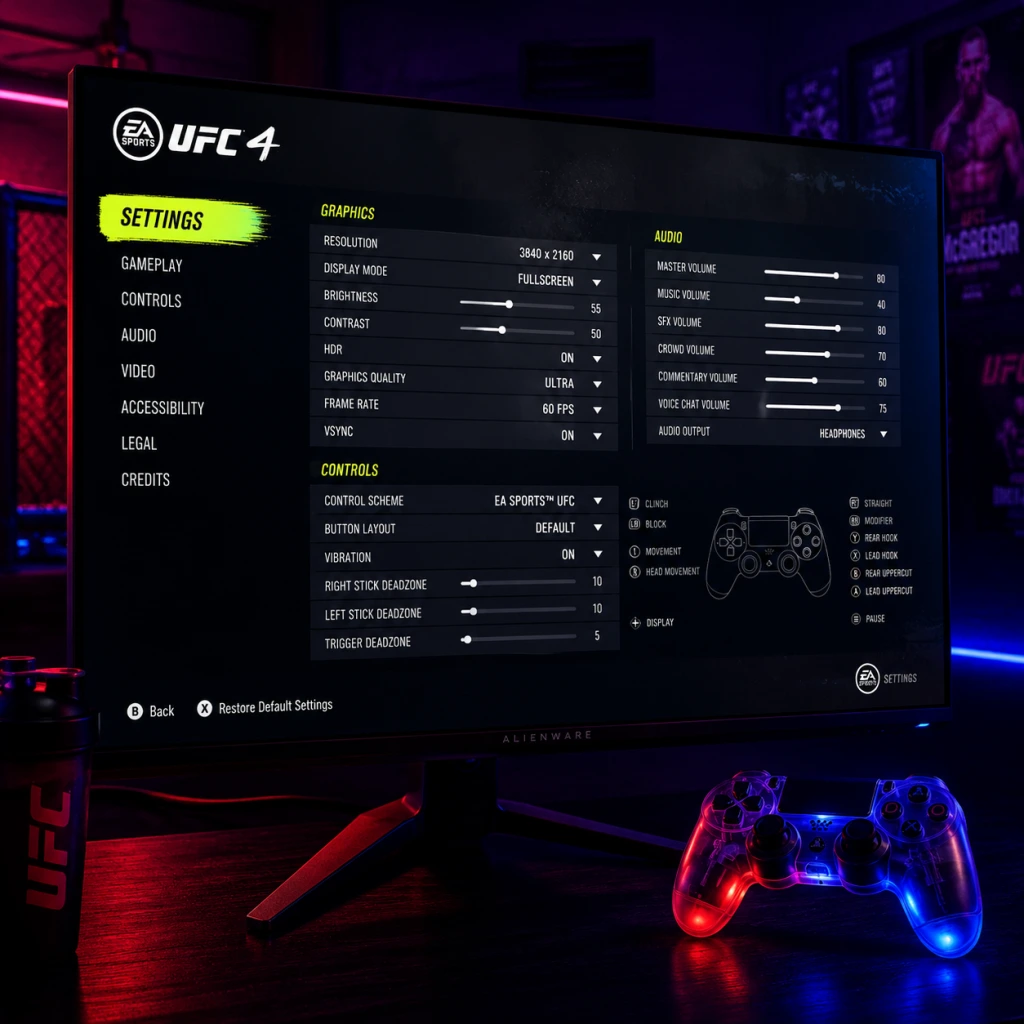
Game Settings
EA Sports UFC 4 – Game Settings Guide
Properly configuring your game settings is essential for an optimal experience in EA Sports UFC 4. This guide covers all major settings categories: Graphics, Audio, Controls, Accessibility, Language, Network, and Gameplay. We also provide platform-specific recommendations for performance vs. quality and highlight settings that are easy to misconfigure.
1. Graphics Settings
UFC 4 is a console-only title (PlayStation 4, PlayStation 5, Xbox One, Xbox Series X|S) and offers limited graphical adjustments directly in-game. Most settings are tied to your console’s display and performance modes.
#### Display Options
- Brightness & Contrast: Adjust these to ensure the Octagon and fighters are clearly visible. Increase brightness slightly if you play in a bright room.
- HDR: If your TV supports HDR, enable it in the console’s system settings. UFC 4 applies HDR automatically when available. The in-game HUD will look more vibrant.
- Dynamic Resolution Scaling: The game automatically scales resolution to maintain a stable frame rate. This cannot be changed manually.
#### Performance & Quality Modes
UFC 4 offers a single “Graphic Mode” option on PS4 Pro and Xbox One X consoles. On base PS4/Xbox One and PS5/Xbox Series X|S, the mode is fixed.
| Platform | Available Mode | Target Resolution | Frame Rate |
|---|
| PS4 Pro / Xbox One X | Resolution (default) | 1440p – 1800p (dynamic)<br>Upscaled to 4K | 30 FPS (stable)
| PS4 Pro / Xbox One X | Performance | 1080p – 1440p | 60 FPS (mostly stable)
| PS5 / Xbox Series X | No choice – fixed | 4K (dynamic, ~1800p average) | 60 FPS (smooth)
| Xbox Series S | No choice – fixed | 1440p (dynamic) | 60 FPS (smooth)
Recommendation:
- For competitive online play on PS4 Pro/Xbox One X, choose Performance mode. The smoother 60 FPS input is more responsive and reduces motion blur.
- For high-resolution replays/screenshots on PS4 Pro/Xbox One X, choose Resolution mode.
- On PS5/Xbox Series X|S, you automatically get 60 FPS; no adjustment needed.
- Master Volume: Set comfortably loud for your environment.
- Music Volume: Reduces during fights, but controls menu/entrance music. (Set to 70% for atmosphere.)
- Sound Effects (SFX): Punch/kick impacts, crowd reactions. (Set to 100% – critical for timing combos.)
- Commentary Volume: Joe Rogan, Daniel Cormier, etc. (Set to 60–80% for fight analysis, but lower if distracting.)
- Fighter Voices: Grunts, taunts. (Default 100% is fine.)
- Announcer Volume: Bruce Buffer’s introductions and Octagon announcements. (Set to 100% for hype.)
- Legacy (recommended for competitive players): Uses face buttons for different strike types (e.g., X = jab, Y = hook, A = body kick, B = head kick) plus right stick directions for modifiers. Offers full move pool.
- Simplified (beginner-friendly): Single button combos for preset strike sequences. Locks many advanced strikes and precision. Hard to counter specific attacks.
- Legacy: Uses right stick for takedown/denial directions and ground transitions. Requires practice but gives full control.
- Simplified: One-button takedowns and automatic transitions. Less control over fakes, submissions, and top/bottom position changes.
- All players should use Legacy for both striking and grappling if they plan to play online. Simplified will severely limit your options and make you predictable.
- If you are brand new to MMA games, start with Legacy on Striking and Simplified on Grappling temporarily. Switch to Legacy Grappling once you understand the ground game basics.
- Camera Angle: Default (dynamic behind fighter) or Fixed. Most prefer Default to keep opponent in view.
- Control Sensitivity: Adjusts stick dead zone. Leave at 0 unless you experience drift. Increase to 2–3 if your controller has worn sticks.
- Rumble: On/Off. Many pros turn off rumble to reduce distractions during critical moments.
- Subtitles: ON/OFF. Provides spoken dialogue text.
- Subtitle Size & Color: Options for readability.
- Colorblind Mode: Deuteranopia, Protanopia, Tritanopia presets. Changes health bars, stun icons, and fighter gloves to distinguishable colors.
- Camera Shake Reduction: Reduces screen shake on heavy impacts. Recommended for sensitive players (set to 60–70%).
- Button Mapping: Fully customizable. Re-map any action (e.g., swap jab and kick). Useful for players with one-handed controllers or specific preferences.
- If you have difficulty seeing the stamina bar or “hurt” flash, enable a colorblind mode even if you are not colorblind – it may increase contrast.
- Use button mapping to place frequently used actions on paddle or bumper buttons if your controller supports back paddles.
- Commentary Language: Available in English, French, German, Spanish, Italian, Brazilian Portuguese (depending on game region). Change independently from system language.
- UI/Menu Language: Matches system language by default but can be overridden.
- Text Language: Same as UI.
- Connection Type: Wired vs. wireless recommendation? Use wired for consistent latency.
- Bandwidth Test: Built-in test will show your upload/download speeds and NAT type. NAT Type 2 (Open) is best for matchmaking.
- Server Region: Auto-connects based on IP. No manual override.
- Use a wired Ethernet connection.
- Close background applications (Netflix, YouTube) while playing.
- Ensure your router’s UPnP is enabled for Open NAT.
- If you experience lag, check the game’s Display Settings for any frame rate limitation – although network lag is usually ISP-related.
- Difficulty: Rookie – Professional – Legendary (CPU aggression and reaction times scale).
- Round Length: 3×3, 3×5, 5×3, 5×5 minutes. Standard UFC fights are 5×5 for championships, but shorter rounds for regular bouts.
- Decision Type: Judges’ scoring strictness – Normal, Generous, Strict. (Strict gives more 10-8 rounds.)
- Stamina: On/Off – Turning off makes unlimited stamina (for practice).
- Health: On/Off – Invulnerability mode for training.
- Speed Boost: On/Off – Increases movement speed.
- No Grappling: On/Off – Disables all clinch and takedown attempts.
- No Submission: On/Off – Removes submission minigame.
- Takedown and Submission Difficulty: Adjust CPU proficiency.
- To practice combos, turn Stamina Off and Health Off so you can focus without penalty.
- For realistic career mode, keep all settings default (Normal Accuracy, Normal Damage).
- HUD Style: Default or Simplified (shows less information – no stamina/health bars). Use Default for learning.
- Replay Camera: Auto or Manual.
Note: On base last-gen consoles, the 30 FPS cap is fixed. Consider turning off motion blur in the console’s video settings if available (some TVs offer that) to reduce blur.
2. Audio Settings
Customize volume levels to hear important fight cues without being overwhelmed.
Special Tip: Many players find that lowering commentary helps them focus on audio feedback from strikes and takedowns. Try muting commentary entirely for a more arcade-like experience.
3. Controls Settings
This is the most commonly misconfigured section in UFC 4. Two key toggles determine how you fight: Striking Control and Grappling Control. Each can be set to Legacy (classic button combos) or Simplified (one-button actions).
#### Striking Control
#### Grappling Control
Recommendation:
#### Other Control Options
4. Accessibility Settings
EA Sports UFC 4 includes several options to accommodate different needs.
Tips:
5. Language Settings
Special Note: If you want the original English commentary but a different menu language, you must set commentary language manually inside the game’s audio options. This is often overlooked.
6. Network Settings
UFC 4 does not support cross-play between platforms. Network options are limited to:
To optimize online performance:
7. Gameplay Settings (Custom Matches & Career)
These settings only affect single-player modes (Quick Fight, Career, Tournament) unless you are hosting a private match.
#### AI Difficulty & Affecting Options
#### Gameplay Modifiers
Recommendation:
#### Camera & HUD
8. Special Attention Points During Setup
1. Striking Control Default: The first time you start the game, a tutorial will ask you to choose between Legacy and Simplified controls. If you mistakenly select Simplified, you can change it later in Settings > Controls. Many beginners keep Simplified and then wonder why they cannot do spinning kicks or elbows. Change to Legacy immediately.
2. Grappling Control: Simplified may cause you to accidentally transition or give up dominant positions. Spend 15 minutes in practice mode to learn Legacy grappling.
3. Graphic Mode on PS4 Pro/Xbox One X: The game does not label which “Graphic Mode” is which inside the menu. “Performance” is the second option (right side). If you leave it on “Resolution” and play online, you will be at 30 FPS vs. opponents at 60 FPS – a major disadvantage.
4. Audio Commentary: Mutung commentary does not affect the announcer volume (Bruce Buffer). Lower the Commentary slider separately if you want only Buffer’s intros.
5. Network NAT Type: If you get “NAT Type Strict” (3), you may have difficulty finding matches. Test in-game and follow your console’s network troubleshooting steps (port forwarding or enable DMZ as last resort).
9. Summary of Optimal Settings
| Setting Category | Recommended Value | Notes |
|---|---|---|
| Striking Control | Legacy | Unlocks full moveset. |
| Grappling Control | Legacy | Essential for competitive play. |
| Graphic Mode (Pro consoles) | Performance | 60 FPS for smoother gameplay. |
| AI Difficulty | Professional (Career) or Legendary (for challenge) | |
| Round Length | 5×5 for championship, 3×3 for quicker fights | |
| Stamina/Health Modifiers | ON for real fights, OFF for practice | |
| Colorblind Mode | OFF unless needed, but could boost contrast | |
| Network | Wired connection, Open NAT | |
| Rumble | OFF for competition |