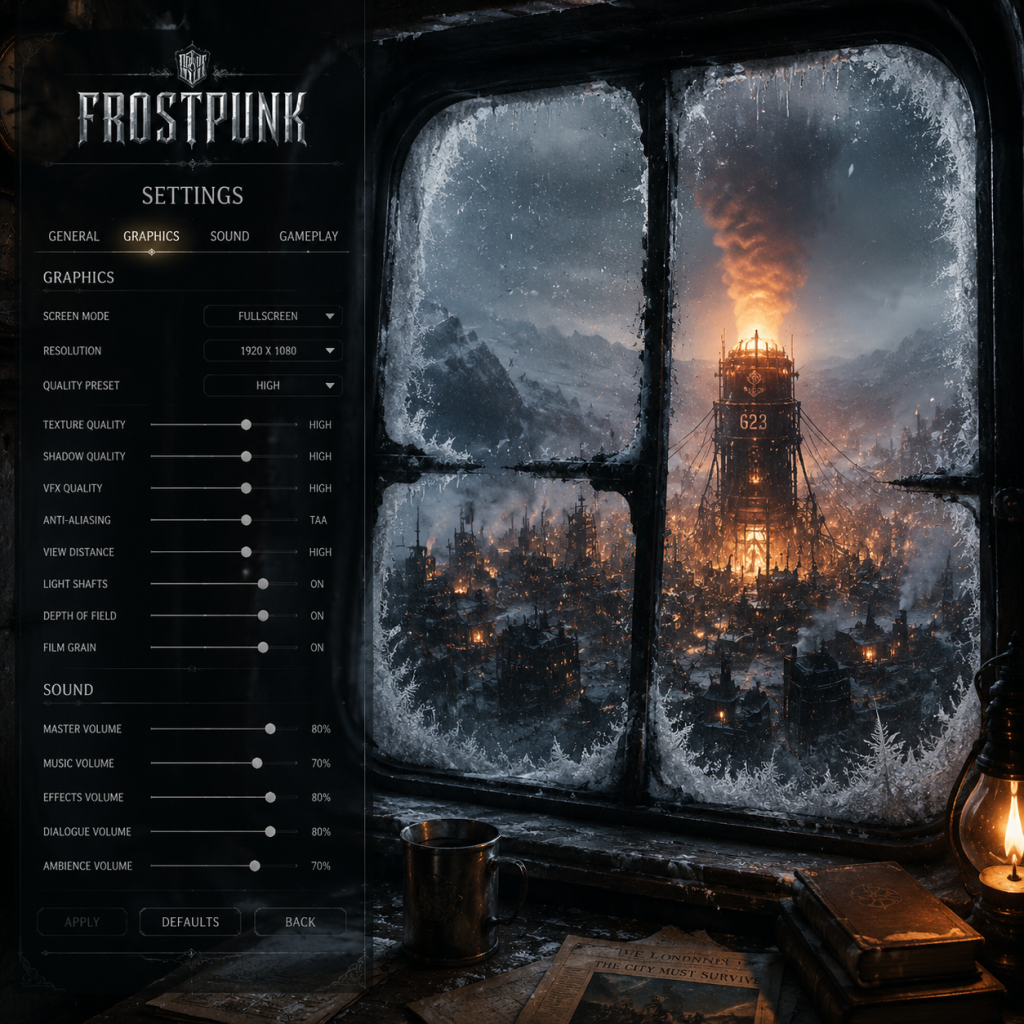
Game Settings
Game Settings: Frostpunk
This guide covers all settings available in Frostpunk, providing recommendations for optimal performance and quality across different hardware tiers. It also highlights commonly misconfigured settings and special attention points during setup.
Graphics Settings
Resolution & Display
- Resolution: Set to your monitor's native resolution for best clarity. If using a lower-resolution display, match it exactly to avoid scaling artifacts.
- Display Mode: Fullscreen (exclusive) provides the best performance; Borderless is useful for multitasking but may introduce slight input lag.
- Vsync: Disable if you experience input lag or have a high-refresh-rate monitor (e.g., 144Hz) to avoid frame rate capping. Enable only if you notice screen tearing.
- Resolution Scaling: Default 100%. Reducing this (e.g., 75%) can boost performance significantly on low-end hardware, but will reduce image sharpness. This is commonly misconfigured: many players leave it at 100% not knowing it's a performance slider.
- Anti-Aliasing (TAA, SMAA, FXAA, Off): TAA offers the best image stability but may cause slight blurring. SMAA is sharper but less effective. FXAA is lightweight. For low-end, use FXAA or Off; for mid/high, use TAA or SMAA.
- Shadows: High settings add realistic soft shadows. Medium is a good balance. Low disables dynamic shadows, improving performance significantly. Shadows are a major performance drain on integrated GPUs.
- Reflections: Screen Space Reflections (SSR) on High can reduce FPS heavily. Set to Medium or Low on mid-range systems.
- Ambient Occlusion (SSAO, HBAO+): HBAO+ provides more realistic shading but is demanding. SSAO is lighter. Off saves performance. This setting is often overlooked but can cause 10-15% FPS difference.
- Post-processing (Bloom, Depth of Field, Motion Blur): These are mostly aesthetic. Disable all for performance. Many players turn these off to avoid visual clutter.
- Texture Quality: Affects memory usage. Set to High if you have 4GB+ VRAM. Low textures reduce visual fidelity but are rarely a bottleneck except on very old GPUs.
- Terrain Quality: Controls detail of ground and ice. Low helps performance in zoomed-out views.
- Foliage (Snow Density): Set to Low on weak GPUs; it reduces particle count.
- Volumetric Lighting: Very demanding. Off or Low on low/mid hardware.
Quality Presets
Frostpunk offers four presets: Low, Medium, High, and Very High. For a custom balance, adjust individual settings below.
Individual Options
Recommended Settings by Hardware Level
| Hardware Tier | Resolution | Shadows | Reflections | Anti-Aliasing | Ambient Occlusion | Post-Processing | Volumetric Lighting | Additional Tips |
|---|---|---|---|---|---|---|---|---|
| Low-End (e.g., Intel UHD 620, AMD Vega 3) | 1280x720 | Low/Off | Off | FXAA/Off | Off | All Off | Off | Use 75% resolution scaling if needed; lower texture quality to Low |
| Mid-Range (e.g., GTX 1060, RX 580) | 1920x1080 | Medium | Low | SMAA | SSAO | Bloom On, others Off | Low | Keep texture and terrain at High; Vsync Off for >60 fps |
| High-End (e.g., RTX 3060 Ti, RX 6700 XT) | 1920x1080 / 2560x1440 | High | High | TAA | HBAO+ | All On (Depth of Field: Off if you dislike blur) | Medium | Resolution scaling 100%; enable Vsync only if tearing occurs |
| Ultra (e.g., RTX 3080, RX 6800 XT) | 2560x1440 / 4K | Very High | Very High | TAA | HBAO+ | All On | High | For 4K, reduce to Medium shadows if below 60 fps |
Audio Settings
- Master Volume: Set between 70-100%. Lower if using loud speakers.
- Music Volume: 50% is typical; increases dramatic tension.
- SFX Volume: Keep high (80-100%) to hear critical alerts (e.g., cold snaps, generator warnings).
- Voice Volume: Important for story events and worker reports. Set to 100%.
- Ambient Volume: Controls wind, machinery hum. Personal preference.
- Key Bindings: Fully customizable. Defaults are intuitive (WASD camera, Space to pause, 1-9 for building menus).
- Camera Controls: Scroll speed can be adjusted. Default is fine, but increase if you feel sluggish.
- Edge Scrolling: Enabled by default. Disable if you use two monitors to prevent cursor drift.
- Middle Mouse Button: Drag to rotate camera. Some players prefer to rebind rotation to Q/E.
- Enable Autopause: Very important early game! This pauses the game when a new law, exploration event, or critical alert appears. Prevents mistakes during fast-forward.
- Toggle HUD: Default F1. Useful for screenshots or immersion.
- Colorblind Mode: Offers three presets (Protanopia, Deuteranopia, Tritanopia). Primarily affects resource icons and temperature overlays. If you have color vision deficiency, test with the temperature map (overlay key `Z`).
- Subtitles (Cinematics): On by default. Useful for hearing impaired or when playing in noisy environments.
- Text Size: Not adjustable in base game. Subtitles and UI text are fixed. If you struggle to read, try increasing your display resolution or using Windows Magnifier.
- UI Scaling: Only available via editing configuration files (advanced). Not recommended.
- Auto-Aim: Not applicable.
- Text Language: Choose from English, French, German, Spanish, Polish, Russian, Chinese (Simplified), Japanese, Korean, and more. Changes all menus, tooltips, and UI text.
- Audio Language: Only English voice acting is available in the original release. Some language packs (e.g., German, French) add localized audio for certain versions. Check your platform's options.
- Subtitle Language: Independent of audio language. For example, you can have English audio with German subtitles.
- Cloud Saves (Steam/GOG): Enable to synchronize your progress across devices. Default on. Disable if experiencing cloud sync conflicts or to keep manual backups.
- Mod Support: Not accessed through in-game settings. Mods are managed via Steam Workshop (PC) or Nexus Mods. Enable workshop mods from the main menu's 'Mods' button after subscribing.
- Allow Anonymous Data: Option to send usage data to 11 bit studios. Completely optional; does not affect gameplay.
- Difficulty: Choices: Easy, Medium, Hard, Survival. Survival is brutal – no reloads, longer build times, harsher weather. Recommended for experienced players only.
- Game Speed: Pause, Normal (1x), Fast (2x), Very Fast (3x). You can toggle between them. Autopause recommended (see Controls).
- Auto-Save Frequency: Default every 10 minutes. Change to 5 minutes on Survival/No Reload mode to avoid losing progress.
- Number of Auto-Saves: Keep at least 5 to roll back if a crisis occurs.
- Show Tutorial Pop-ups: Enable for first playthrough. Disable to speed up replays.
- Show Hints: Similar to tutorials; can be disabled after learning basics.
- Tooltip Delay: Adjust how fast tooltips appear. Default is fine; increase if they distract you.
- Fog of War Overlay: Toggle with `Z`. No setting to change opacity, but useful for planning.
- Temperature Map: Toggle with `C` – not a setting but good to know.
- Set display mode to Fullscreen.
- Enable Autopause.
- Choose Medium difficulty for a balanced experience.
- Enable subtitles if needed.
- Set graphics preset to Medium and adjust shadows/reflections down if FPS drops below 30.
- Turn off motion blur and depth of field for clarity.
- Save manually every 30 minutes until you get comfortable.
No separate spatial audio or 3D options – Frostpunk uses standard stereo. If you use surround sound, set your system to stereo mode or enable virtual surround in drivers.
Controls Settings
Keyboard & Mouse
Controller Support
Frostpunk has native Xbox controller support. All functions are mapped, but navigating complex menus is slower. For precise building placement, stick with mouse and keyboard.
Special Attention: Autopause on Event
Accessibility Settings
Language Settings
Note: Changing language may require restarting the game for full effect.
Network Settings
Frostpunk is a single-player game with no online multiplayer. Network settings are minimal:
Gameplay Settings
Special Attention Points During Setup
1. Fullscreen vs Borderless: Borderless can cause erratic FPS on multi-monitor setups. Use Fullscreen (exclusive) for consistent performance.
2. Cloud Saves vs Local Saves: If you play on multiple PCs, enable cloud saves. But if you experience save corruption (rare), disable cloud saves and use manual backups (`%USERPROFILE%\AppData\Local\Frostpunk\Saved\SaveGames`).
3. Resolution Scaling Below 100%: This is often confused with render resolution. Reducing it to 75% gives a significant FPS boost with only minor blur. Do not set below 50% unless absolutely necessary.
4. Autopause: Forgetting to enable autopause is the #1 cause of early game deaths. Always enable it in Controls -> Autopause on Event.
5. Controller vs Keyboard: Frostpunk's UI is not fully optimized for controllers; building placement is finicky. Use keyboard and mouse for serious play.
6. Mod Compatibility: Some mods change game files. Always back up your save folder before installing mods. Disable all mods if you encounter crashes.
7. Hardware Overlays (Discord, Steam): If you experience stuttering, turn off overlays. Frostpunk's engine (Unity) can conflict with them.
8. Windows Graphics Settings: For laptops, ensure Frostpunk uses your dedicated GPU (Nvidia/AMD) instead of integrated graphics. Check in Windows Graphics Settings or respective control panels.
Final Checklist for a Smooth First Game
With these settings, you are prepared to face the frost. Good luck, Captain.