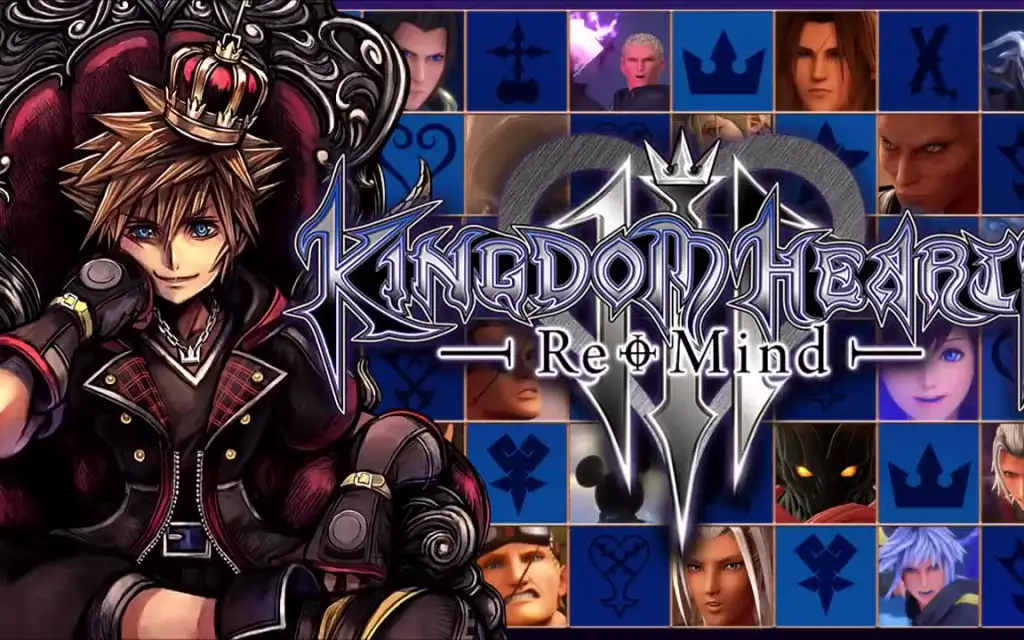
Download & Installation
Kingdom Hearts III – Download & Installation Guide
Kingdom Hearts III is available on PlayStation 4, PlayStation 5 (via backward compatibility), Xbox One, Xbox Series X|S (via backward compatibility), and PC (Windows) via the Epic Games Store. It is not officially available on Nintendo Switch or mobile devices.
---
1. Platform Availability & Official Sources
| Platform | Store / Method | Region / Notes |
|---|---|---|
| PC (Windows) | Epic Games Store | Digital only. Requires Epic Games account. Supports all DLC. |
| PlayStation 4 / PS4 Pro | PlayStation Store (digital) or physical disc | Disc requires PS4. Digital works on PS5 via backward compatibility. |
| PlayStation 5 | PlayStation Store (PS4 version) or physical disc (PS4) | No native PS5 version; runs in backward compatibility mode with performance improvements. |
| Xbox One | Microsoft Store (digital) or physical disc | Disc required for Xbox One, digital works on Xbox Series. |
| **Xbox Series X | S** | Microsoft Store (Xbox One version) or physical disc |
---
2. System Requirements (PC Only)
Minimum Requirements:
- OS: Windows 10 64-bit (version 1909 or higher)
- Processor: Intel Core i3-3210 / AMD A8-7650K
- Memory: 8 GB RAM
- Graphics: NVIDIA GeForce GTX 750 Ti / AMD Radeon R7 260X (2 GB VRAM)
- DirectX: Version 11
- Storage: 75 GB available space (SSD recommended)
- Additional Notes: 1280×720 screen resolution, Low graphics preset
- OS: Windows 10 64-bit (version 1909 or higher)
- Processor: Intel Core i5-2400 / AMD FX-8350 or better
- Memory: 8 GB RAM
- Graphics: NVIDIA GeForce GTX 1060 (3 GB) / AMD Radeon RX 580 (4 GB) or better
- DirectX: Version 11
- Storage: 75 GB available space (SSD required for optimal load times)
- Additional Notes: 1920×1080 screen resolution, High graphics preset
- PC (Epic Games Store): ~75 GB (exact size may vary with updates/DLC).
- PlayStation 4 / PS5: ~50 GB (base game) + ~12 GB (patch/Re Mind DLC).
- Xbox One / Series X|S: ~50 GB (base game) + similar patch size.
- PC (Epic Games Store): Free Epic Games account required. No subscription needed.
- PlayStation: PSN account (free). PS Plus not required for single-player.
- Xbox: Microsoft account (free). Xbox Game Pass Core/Ultimate not required.
- The PS4 disc/digital version works, but you must select the “PS4” version in your library.
- No separate PS5 version exists.
- Language Selection: The game will auto‑detect system language. If needed, you can change language in the launcher settings (PC) or via console system settings.
- Graphic Settings (PC): On first run, the game detects hardware and suggests presets. You can adjust resolution, VSync, and quality from the Options > Graphics menu.
- Save Data: Ensure enough free space for auto‑save. The game uses separate slots for manual saves.
- DLC Access: The “Re Mind” DLC appears as a separate mode from the main menu (choose “Re Mind” after loading a cleared save).
- Epic Games Launcher Overlay (PC): You may need to allow or disable the overlay. It is enabled by default.
Recommended Requirements:
> Note: The PC version is capped at 60 FPS. 4K resolution requires a powerful GPU (GTX 1080 or better).
---
3. Storage Space Requirements
Always ensure at least 100 GB free before installation to accommodate temporary files and patches.
---
4. Account Requirements
---
5. Step-by-Step Installation
5.1 PC – Epic Games Store
1. Create/Login to Epic Games Account at [store.epicgames.com](https://store.epicgames.com).
2. Install Epic Games Launcher from the site; run the installer.
3. Launch the Epic Games Launcher and log in.
4. Search for “Kingdom Hearts III” in the store.
5. Purchase or redeem the game (if already owned).
6. Click “Install” – choose installation directory (SSD recommended) and language.
7. Wait for download – this may take 2–5 hours depending on internet speed.
8. Optional: Install the “Re Mind” DLC from the Manage DLC menu (if purchased separately).
9. Launch the game from the library.
5.2 PlayStation 4 / PS5
Digital Version:
1. Ensure your console is connected to the internet.
2. Open PlayStation Store from the home screen.
3. Search for “Kingdom Hearts III”.
4. Purchase (or redeem code) and select “Download”.
5. The game will download in the background. You can check progress from Notifications > Downloads.
6. Once installed, the game appears on your home screen. Insert disc (if physical) or launch.
Physical Disc (PS4):
1. Insert the game disc into your PS4 (or PS5 via disc drive).
2. A prompt will appear to install; confirm.
3. Follow on-screen instructions. Installation takes ~15–30 minutes.
4. Download any required patches (usually ~12 GB). Keep console connected.
5. Launch game from the home screen.
On PS5:
5.3 Xbox One / Xbox Series X|S
Digital Version:
1. Turn on your console and sign in to your Microsoft account.
2. Open Microsoft Store (or search from dashboard).
3. Search for “Kingdom Hearts III”.
4. Purchase (or redeem code) and select “Install”.
5. Choose where to install (internal or external drive).
6. The download begins; you can monitor progress in My Games & Apps > Queue.
7. Once completed, launch from My Games & Apps.
Physical Disc:
1. Insert the disc into your Xbox One or Series X|S.
2. Follow prompts to install. The console will prompt to copy data from disc.
3. After disc installation, download any updates (may be large).
4. Launch game.
---
6. First Launch Setup
---
7. Common Installation Errors & Fixes
7.1 PC
| Error | Cause | Fix |
|---|---|---|
| “Installation failed” / “Corrupt” | Antivirus blocking download or hard drive error. | Temporarily disable antivirus during download. Run Epic Games Launcher as Admin. Verify file integrity (right‑click game in library > Manage > Verify). |
| “Not enough space” | Temporary files fill drive. | Free at least 100 GB. Clear Epic’s cache (close launcher, delete `%LOCALAPPDATA%\EpicGamesLauncher\Saved\webcache`). |
| “Missing DLL” | Outdated DirectX or Visual C++ redistributables. | Install/update DirectX from Microsoft, and Visual C++ 2015‑2022 Redistributable. Restart PC. |
| “Game won’t launch” / Black screen | GPU driver issues or conflicting software. | Update GPU drivers (NVIDIA/AMD). Disable overlays (Discord, MSI Afterburner). Run game in windowed mode by adding `-windowed` to launch options (right‑click game in Epic library > Additional Command Line Arguments). |
| “Epic Online Services error” | Connection issues. | Check internet connection. Disable VPN. Reinstall Epic Online Services (located in launcher installation folder). |
7.2 PlayStation
| Error | Cause | Fix |
|---|---|---|
| CE-30022-7 / Corrupted data | Disc read error or incomplete download. | Delete game and reinstall. For digital, try rebuilding database (Safe Mode > Rebuild Database). Cleaning disc if physical. |
| Download stuck at 99% | Network congestion or PSN issue. | Pause and resume download. Restart console. Check PSN status. |
| “Cannot start application” | Missing patch. | Ensure latest update is installed. Check Notifications > Downloads for pending update. |
7.3 Xbox
| Error | Cause | Fix |
|---|---|---|
| 0x87e0000d / Installation stopped | Storage full or connection drop. | Free space (minimum 100 GB). Go to My Games & Apps > Queue and retry. Hard restart console. |
| “Disc error” | Dirty disc or drive issue. | Clean disc with soft cloth. Try inserting another game to test drive. |
| Game requires update but won’t download | Server issue or cache problem. | Clear Xbox cache (Settings > System > Storage > Clear local saved games). Then restart and try update. |
8. Post-Installation Verification
8.1 Check Game Version
- PC: From Epic Games Library, right‑click game > “Manage” > see version number (e.g., 1.0.0.8).
- PlayStation: Highlight game tile > press Options > “Information” > see version.
- Xbox: Go to My Games & Apps > highlight game > press Menu > “Manage game & add‑ons” > see version.
- From the main menu, look for “Re Mind” option. If it is grayed out, ensure the DLC is installed.
- PC: In Epic Launcher, go to Manage Game > check “Re Mind” under Add‑ons. Install if missing.
- Consoles: Go to the store page for the DLC and download it separately. It may appear as a small file (~2 GB).
- Low FPS (PC): Reduce shadow quality, reflections, and disable AA. Ensure the game is using your dedicated GPU (check Windows Graphics Settings).
- No audio (PC): Set default audio device to stereo or headphones. Disable enhancements in Windows Sound settings.
- Stuttering (PC): Cap FPS to 60 via in‑game settings or using external tools (RivaTuner). Install on SSD.
- Save data not syncing (PC): Ensure Epic Games Launcher is running and logged in. Check cloud save status in library.
- Controller issues (PC): Use an Xbox or PlayStation controller via USB. For third‑party controllers, download compatibility software (e.g., DS4Windows).
- Updates: Always install the latest patches before starting.
- Backup Saves: On PC, save files are located in `%LOCALAPPDATA%\KH3\Saved\SaveGames`. Copy to a safe location.
- Refund Policy: Check platform policy (Epic: 14 days / under 2 hours playtime; PlayStation/Xbox: subject to store rules).
8.2 Verify File Integrity (PC only)
1. In Epic Games Launcher, go to Library.
2. Click the three dots next to Kingdom Hearts III > Manage.
3. Click Verify button. This may take 20–30 minutes. Corrects corrupt files automatically.
8.3 Test Launch
1. Launch the game from the appropriate platform.
2. A splash screen should appear (Square Enix / Disney logos).
3. If the game opens to a title screen, installation is successful.
4. Play the first mission briefly to confirm saves work.
8.4 Check Re Mind DLC (if purchased)
---
9. Troubleshooting After Installation
---
10. Final Checks
Enjoy your journey through the heart of Kingdom Hearts III!