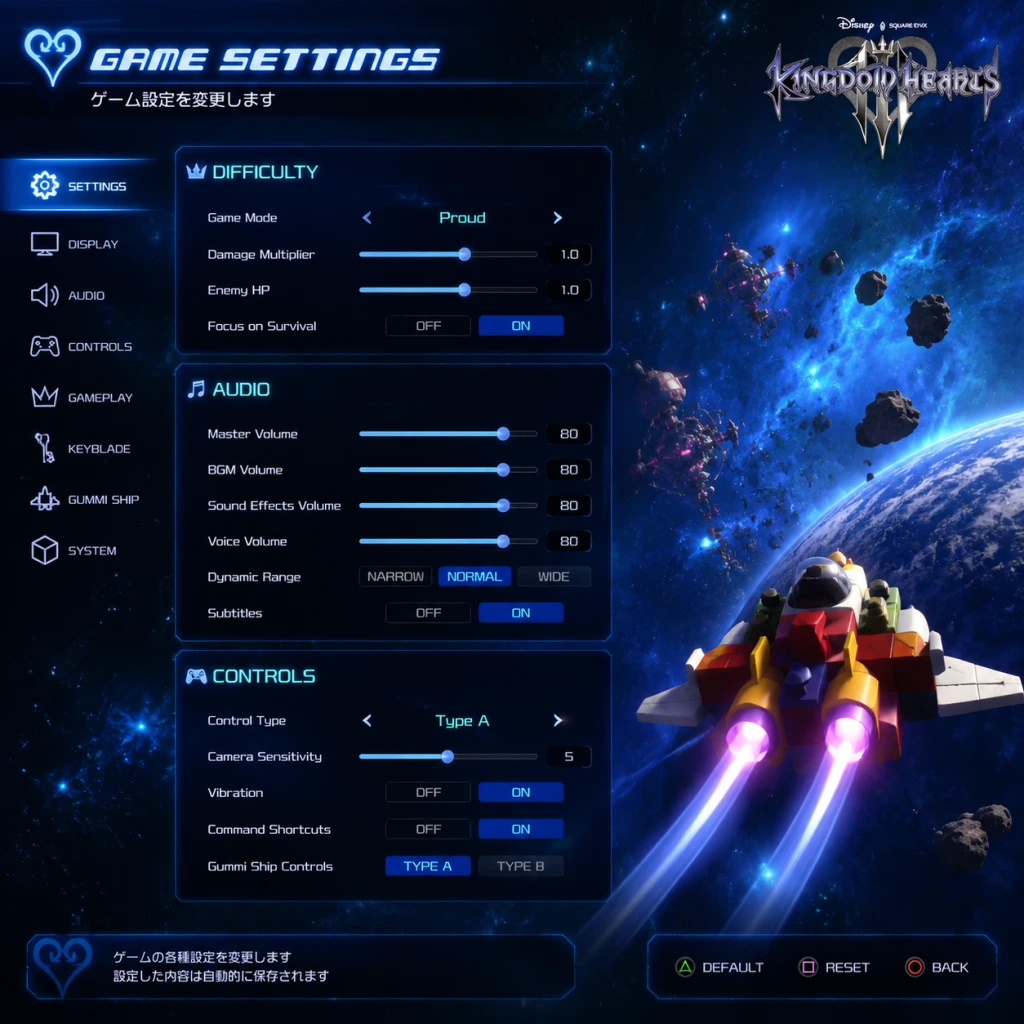
Game Settings
Kingdom Hearts III – Game Settings
This guide covers all configurable settings in Kingdom Hearts III across platforms (PS4, PS5, Xbox One, Xbox Series X|S, and PC). It provides recommendations for performance versus quality based on your hardware, highlights commonly misconfigured options, and explains special setup considerations.
---
1. Graphics Settings
#### Platform Differences
- PC: Full suite of graphics options (see table below).
- PS4 / PS4 Pro / PS5: No in-game graphics menu; performance and resolution are fixed per platform. PS4 runs at 900p/30fps; PS4 Pro offers 1080p/60fps or 4K/30fps (via system settings); PS5 benefits from backward compatibility patches (up to 4K/60fps).
- Xbox One / One X / Series X|S: Similar to PlayStation – Xbox One S targets 900p/30fps; One X targets 4K/30fps; Series X|S (backward compatible) can achieve 4K/60fps.
#### PC Graphics Settings Table
| Setting | Options | Recommendation | Notes |
|---|---|---|---|
| Display Mode | Fullscreen, Borderless, Windowed | Fullscreen for best performance; Borderless for easy alt+tab | Misconfigure: Using windowed mode caps FPS to monitor refresh rate even if uncapped elsewhere |
| Resolution | Native monitor resolutions | Match your monitor's native resolution | Turning down resolution provides massive FPS boost |
| Frame Rate Limit | 30, 60, 120, Unlimited | 60 for most; 120 for high-refresh (144Hz+) monitors; Unlimited only if you can sustain >120 FPS | Misconfigure: Cap at 30 if your system cannot maintain 60 – stuttering is worse than 30fps lock |
| Graphics Quality Preset | Low, Medium, High, Ultra | See hardware level table below | Starting from Medium is safe; fine-tune individual settings |
| Texture Quality | Low, Medium, High, Ultra | High for 4GB+ VRAM; Ultra for 6GB+ | Low textures look blurry; VRAM overflow causes stutter |
| Shadow Quality | Low, Medium, High, Ultra | Medium on mid-range; High on high-end | Shadows are expensive; low causes jagged edges |
| Anti-Aliasing | Off, FXAA, TAA, SMAA | TAA for quality; FXAA for performance | TAA may cause slight blur; SMAA is sharp but heavier |
| Post-Processing | On/Off | On for bloom/glow effects; Off for extra FPS | Subtle difference; turn off only on very low-end PCs |
| Ambient Occlusion | Off, SSAO, HBAO+ | SSAO for performance; HBAO+ for quality | Adds depth to scenes; notable FPS cost |
| Motion Blur | On/Off | Off for competitive clarity; On for cinematic feel | Misconfigure: Many prefer off to reduce motion sickness |
| V-Sync | On/Off/Borderless | Off if using G-Sync/FreeSync; On to eliminate screen tearing | Misconfigure: Never enable V-Sync if you have variable refresh rate monitor – use in-game frame limit instead |
| Anisotropic Filtering | 1x to 16x | 16x (negligible performance impact) | Always max this – improves texture sharpness at angles |
| HDR (High Dynamic Range) | On/Off | On if your monitor supports HDR and you prefer vivid colors | Required: Windows HDR must also be enabled; may affect brightness/contrast in non-HDR menus |
- Low-end (GTX 1050 / RX 560, 8GB RAM): Resolution 1080p, Preset Low, Frame Rate 30, V-Sync Off. Turn off Motion Blur, Post-Processing, and Ambient Occlusion. Shadow Quality Low, Texture Medium.
- Mid-range (GTX 1660 / RX 580, 16GB RAM): Resolution 1080p, Preset Medium, Frame Rate 60, Anti-Aliasing FXAA, Ambient Occlusion SSAO, Shadow Medium, Texture High.
- High-end (RTX 3060 / RX 6600 XT, 16GB RAM): Resolution 1440p, Preset High, Frame Rate 60–120, Anti-Aliasing TAA, Ambient Occlusion HBAO+, Shadow High, Texture Ultra.
- Ultra (RTX 3080 / RX 6800 XT, 16GB+ RAM): Resolution 4K, Preset Ultra, Frame Rate 60–120, Anti-Aliasing TAA, Ambient Occlusion HBAO+, Shadow Ultra, Texture Ultra.
---
2. Audio Settings
| Setting | Options | Notes |
|---|---|---|
| Master Volume | 0–100 | Default 80; lower if using headphones |
| Music Volume | 0–100 | Generally leave at 100 for full orchestral experience |
| Sound Effects Volume | 0–100 | Balance with music – default is fine |
| Voice Volume | 0–100 | Keep high for dialogue clarity |
| Subtitles | On/Off | Recommended ON for story – many lines are easy to miss during combat |
| Audio Language | English, Japanese | Available on all platforms; no in-game option to switch – must change via platform language or PC launcher |
---
3. Controls
#### Controller Layout (Default)
- Light Attack: Square (PS), X (Xbox)
- Jump: Cross (PS), A (Xbox)
- Guard/Dodge: Circle (PS), B (Xbox)
- Magic Menu: Triangle (PS), Y (Xbox)
- Shortcut Menu: L1 (hold)
- Lock On/Off: R1 (toggle)/R3 (click right stick)
- Camera: Right stick
- Action/Contextual: Circle (PS), B (Xbox) – e.g., opening chests, riding attractions
- PC: Full keybind remapping in the settings menu. Recommended to map Guard to a convenient key (e.g., right mouse button) if using keyboard+mouse.
- Console: No button remapping available. You can only swap the functions of L1 and R1 (in Controls submenu).
- Camera Sensitivity: 1–10. Default is 5. Increase to 7–8 for quicker enemy tracking; decrease if you feel motion sickness.
- Invert Y Axis: On/Off. Typically off; turn on for flight segments if needed.
- Subtitles: Enabled by default. Can be turned off.
- Menu Background Transparency: Adjustable from 0% (opaque) to 100% (transparent). Default is 50%. Recommended to keep at 100% for readability if you have visual impairments.
- Speaker Name Display: Shows which character is speaking alongside subtitles.
- Button Input Display: Shows button prompts on screen (e.g., for reaction commands). Always on.
- Text Language: Determined by platform language (PC uses Epic Games Store language setting). English, French, Italian, German, Spanish, Japanese, etc., are available depending on region.
- Audio Language: Can be set to English or Japanese on all platforms. On consoles, audio language matches the system language (e.g., system in Japanese → Japanese audio). On PC, you must purchase or download the Japanese voice pack from the store (free) and then set the game to Japanese audio via the Epic launcher (this changes text to Japanese as well – workaround requires editing game files, not recommended).
- Online Data Sharing: Toggle ON/OFF – allows sending of in‑game achievements and statistics to Square Enix servers. No effect on gameplay.
- Moogle Shop Sharing: Option to view other players' purchases in the Moogle Shop (PC only?). This is not essential.
#### Customization
Misconfigurable Item: The “Auto-Target” option (under Controls) is ON by default. This automatically locks onto the nearest enemy after you defeat your current target. Some players find it disorienting – turn it OFF if you prefer manual targeting.
---
4. Accessibility Settings
Kingdom Hearts III has limited built‑in accessibility options. The following are available:
No color blindness or high-contrast modes exist. If you have difficulty distinguishing colors, consider enabling the “Color Coded” UI option (though minimal impact). For hearing impairments, ensure subtitles are on and voice volume is high.
---
5. Language Settings
Special Attention: If you want English text with Japanese audio on PC, set the Epic launcher to English (for text) but the game will still use English audio. There is no official split; you must replace the sound files manually (see community guides). On consoles, this is impossible unless you change the whole system language.
---
6. Network Settings
Kingdom Hearts III is primarily a single‑player game. Network features are minimal:
No multiplayer, no trophies/achievements require an online connection. You can safely disable network features for faster menu loading.
---
7. Gameplay Settings
| Setting | Options | Recommendation | Notes |
|---|---|---|---|
| Difficulty | Beginner, Standard, Proud, Critical | Choose according to experience. Critical is available from the start (added in a free update). | Misconfigure: If you choose Beginner, you cannot change to a higher difficulty mid‑game. Start with Standard for balanced first playthrough. Critical is extremely punishing – enemies hit harder, Sora has less HP, and some abilities are disabled. |
| Auto-Magic | On/Off | Off – manual magic use is more strategic | Automatically uses cure spells when HP is low; can waste MP |
| Auto-Items | On/Off | Off – prevents wasteful potion use | Automatically uses healing items from inventory; can deplete stock |
| Auto-Target | On/Off | Off for precise control | See Controls section for details |
| Shortcut Menu | Customize | Assign most‑used magic, items, or abilities to Shortcut slots (hold L1 then press face button) | Set at least Cure, Fire, Thunder, and a Potion for quick access |
| Camera Behavior | Normal, Reverse | Normal – left/right controls standard; Reverse inverts horizontal | Experiment in first world to choose preference |
| Lock-On Type | Manual, Auto | Auto – targets enemy nearest to crosshair; Manual – you must press R1 to lock | Auto is easier for beginners; Manual gives better control in crowds |
| Guard Timing | Normal, Early, Late | Normal – default reaction window | Changing to “Early” makes guarding easier; “Late” is for challenge runs |
---
Recommended Optimal Settings by Platform
#### PlayStation 4 (Base) & Xbox One (Base)
- No graphical adjustments available.
- Gameplay: Set Auto-Magic/Items OFF, Camera Sensitivity to 7, Lock-On to Auto.
- Audio: Subtitles ON.
- System Level: Set console resolution to 1080p for 60fps (performance mode) or 4K for 30fps (quality mode). Default is often 4K/30. Many prefer 60fps for smoother combat.
- In-Game: Same as base consoles.
- Backward Compatibility: No specific in‑game settings, but the hardware provides up to 4K/60fps native (with dynamic resolution). No choice between performance and quality – it's automatically optimized.
- In-Game Settings: As above.
- Optimal for Balanced 60fps @ 1080p: Preset High, Texture High, Shadow High, Anti-Aliasing TAA, V-Sync Off (use frame limit 60), Motion Blur Off.
- Optimal for 60fps @ 1440p: Preset High, Texture Ultra, Shadow High, Anti-Aliasing FXAA, Ambient Occlusion SSAO.
- Optimal for 60fps @ 4K: Preset High, Texture High, Shadow Medium, Anti-Aliasing FXAA, Ambient Occlusion Off. (Requires at least RTX 3080/ RX 6800 XT.)
- Important: If you have a G-Sync/FreeSync monitor, disable V-Sync in-game and set a frame rate limit 3–5 below your monitor's max refresh rate (e.g., 141fps for 144Hz) to minimize tearing without input lag.
#### PlayStation 4 Pro & Xbox One X
#### PlayStation 5 & Xbox Series X|S
#### PC (Windows)
---
Settings That Are Easy to Misconfigure
1. Auto-Magic and Auto-Items – Default ON. They will deplete your resources automatically. Always turn them OFF for manual control.
2. V-Sync (PC) – If enabled alongside a frame rate limit, it can cause inconsistent frame pacing. For variable refresh rate monitors, keep V-Sync OFF.
3. Frame Rate Limit (PC) – Setting to “Unlimited” without proper cooling or GPU headroom can lead to overheating. Cap at 60 or 120 depending on your hardware capabilities.
4. Motion Blur – Personal preference, but many players find it makes movement feel sluggish. Turn it OFF.
5. Audio Language – On PC, changing the language through the launcher may reset your entire UI language. Back up your save before attempting workarounds.
6. Difficulty Selection – Once chosen, cannot be changed. Beginner locks you out of the harder modes permanently on that save. Save before selecting.
---
First-Time Setup Checklist
1. Launch the game.
2. Go to Settings > Gameplay. Turn Auto-Magic and Auto-Items to OFF.
3. Set difficulty to Standard (or Proud if you have experience).
4. In Controls, set Camera Sensitivity to 7, Invert Y (if needed), and Auto-Target to OFF.
5. In Audio, enable Subtitles, leave volumes at default.
6. In Graphics (PC only), choose your preset based on hardware table above; cap frame rate; disable motion blur.
7. Save settings and start a New Game.
By following these recommendations, you will have an optimized, personally tailored experience in Kingdom Hearts III.