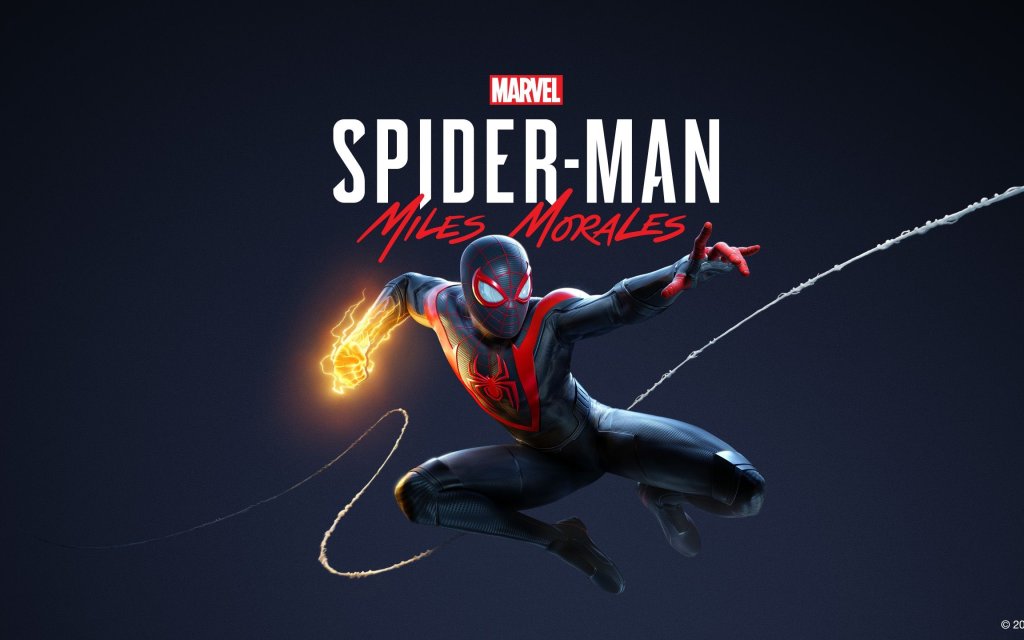
Download & Installation
Introduction
This guide covers the official download and installation of Marvel's Spider-Man (including the original 2018 release and the Remastered version) across all supported platforms. The game is available exclusively on PlayStation (PS4, PS5) and PC (Steam, Epic Games Store). There is no native Xbox, Nintendo Switch, or mobile version. Follow the instructions below for a smooth installation experience.
Platform Availability
| Platform | Versions Available | Store / Source |
|---|---|---|
| PC | Marvel's Spider-Man Remastered<br>Marvel's Spider-Man: Miles Morales (separate purchase) | Steam<br>Epic Games Store |
| PlayStation 4 | Marvel's Spider-Man (original)<br>Marvel's Spider-Man: Miles Morales (if purchased) | PlayStation Store (digital)<br>Retail disc |
| PlayStation 5 | Marvel's Spider-Man Remastered (standalone or via Miles Morales Ultimate Edition)<br>Marvel's Spider-Man: Miles Morales | PlayStation Store (digital)<br>Retail disc |
Step-by-Step Installation
PC Installation (Steam)
1. Ensure you have a Steam account. If not, create one at [store.steampowered.com](https://store.steampowered.com).
2. Install the Steam client from the official website and log in.
3. Purchase or redeem a key for Marvel's Spider-Man Remastered on Steam.
4. Start the download:
- Open your Steam Library.
- Find "Marvel's Spider-Man Remastered" in the list.
- Click “Install”.
- Choose the installation directory (at least 110 GB free space recommended).
- Select “Next” and wait for the download and installation to complete.
5. Launch the game from your Library when ready.
PC Installation (Epic Games Store)
1. Create or log in to your Epic Games account at [store.epicgames.com](https://store.epicgames.com).
2. Download and install the Epic Games Launcher from the official site.
3. Purchase Marvel's Spider-Man Remastered via the store.
4. Initiate download:
- Open the Epic Games Launcher.
- Go to “Library”.
- Locate the game and click “Install”.
- Choose installation path and a component (default is fine).
- The launcher will handle the rest.
5. Launch from the Library after installation.
PlayStation 4 Installation
Digital download:
1. Power on your PS4 and sign in to your PlayStation Network account.
2. Go to the PlayStation Store from the main menu.
3. Search for “Marvel’s Spider-Man”.
4. Select “Download”. The game will begin downloading to your system storage.
5. Once downloaded, the game icon appears on your home screen. Insert the disc if you have a physical copy, then follow the on‑screen prompts to install.
Physical disc:
1. Insert the game disc into the PS4.
2. An installation prompt appears – follow the instructions.
3. The game and any required patches will install. Ensure you have at least 50 GB free space.
PlayStation 5 Installation
Digital download:
1. Sign in to your PSN account on your PS5.
2. Open the PlayStation Store.
3. Find “Marvel’s Spider-Man Remastered” (or the Miles Morales Ultimate Edition which includes the Remaster).
4. Click “Download” and choose which version (PS5 or PS4) you want (PS5 recommended for best performance).
5. The game installs automatically. You can monitor progress in the Downloads/Uploads area.
Physical disc:
1. Insert the PS5 disc (or PS4 disc if you own the backward‑compatible version).
2. The console will prompt you to install. Follow the on‑screen steps.
3. For PS4 disc on PS5, you may need to download a free PS5 upgrade patch if available (check store).
System Requirements (PC)
Minimum Requirements (720p, Low settings, ~30 FPS)
- OS: Windows 10 64-bit (version 1909 or later)
- CPU: Intel Core i3-4160 / AMD Ryzen 3 1200
- RAM: 8 GB
- GPU: NVIDIA GeForce GTX 950 / AMD Radeon RX 470 (4 GB VRAM)
- DirectX: Version 12
- Storage: 75 GB SSD (HDD supported but may cause stuttering)
- OS: Windows 10 64-bit (version 1909 or later)
- CPU: Intel Core i5-4670 / AMD Ryzen 5 1600
- RAM: 16 GB
- GPU: NVIDIA GeForce GTX 1060 (6 GB) / AMD Radeon RX 580 (8 GB)
- DirectX: Version 12
- Storage: 75 GB SSD
- OS: Windows 10 64-bit (version 1909 or later)
- CPU: Intel Core i7-8700K / AMD Ryzen 7 3700X
- RAM: 16 GB
- GPU: NVIDIA GeForce RTX 3080 / AMD Radeon RX 6800 XT (10+ GB VRAM)
- DirectX: Version 12
- Storage: 75 GB NVMe SSD
- PC (Remastered): ~75 GB (install size). An additional 10–15 GB may be required during patching.
- PS4 (original): ~50 GB.
- PS5 (Remastered): ~70 GB (with optional high‑resolution texture pack).
- Always ensure your drive has at least 20% extra free space beyond the minimum to avoid installation errors.
- PC: A valid Steam account or Epic Games account is required to purchase, download, and activate the game. No additional subscription is needed for single‑player.
- PlayStation (all): A PlayStation Network (PSN) account is mandatory for digital purchases, patches, and online features (photo mode sharing, updates). A PS Plus subscription is not required for the single‑player campaign.
Recommended Requirements (1080p, High settings, ~60 FPS)
Ultra Requirements (4K, Very High, ~60 FPS)
Storage Space
Account Requirements
First Launch Setup
After installation, launch the game. You will be prompted to:
1. Accept the End User License Agreement (EULA) and any privacy policies.
2. Choose an audio language (English, French, German, etc.) – this can be changed later in settings.
3. Set graphics preferences (PC only):
- The game automatically detects your hardware and suggests presets (Low, Medium, High, Very High).
- Adjust as needed. Options include resolution, refresh rate, V‑Sync, ray tracing (if supported), and upscaling (DLSS, FSR, etc.).
4. Configure controller settings:
- The game supports DualShock 4, DualSense, Xbox controllers, and keyboard/mouse.
- You can recalibrate stick dead zones, vibration intensity, and button mapping.
5. HDR calibration (if your display supports HDR): Adjust brightness, paper white, and HDR luminance.
6. Create or load a save file. If you have no prior save, select “New Game”.
Tip: Run the built‑in benchmark tool (Options > Graphics > Benchmark) to verify performance before diving into the main story.
Common Installation Errors and Fixes
PC Errors
| Error / Issue | Possible Cause | Solution |
|---|---|---|
| “Missing MSVC DLL” (e.g., ```vcruntime140.dll```) | Visual C++ Redistributables not installed | Install the latest Microsoft Visual C++ Redistributables (x64) from Microsoft’s official website. Also install DirectX End‑User Runtimes. |
| “Failed to write to disk” | Insufficient write permissions or disk full | Run Steam/Epic Launcher as Administrator. Free up space (at least 80 GB). Ensure drive is NTFS. |
| “Corrupted game files” or crash on launch | Antivirus quarantined files or download error | Verify integrity of game files (Steam: right‑click game > Properties > Local Files > Verify integrity…). For Epic: click the three dots in Library > Verify. Temporarily disable antivirus. |
| “GPU driver outdated” | Old graphics driver | Update NVIDIA/AMD driver to the latest Game Ready driver. |
| “Not enough video memory” (0x887A0005) | GPU doesn’t meet 4 GB VRAM minimum for certain settings | Lower texture quality to Medium or use upscaling (DLSS/FSR). |
| Game stuck at “Preparing” or “Downloading” | Launcher cache issue | Restart the launcher. Clear Steam download cache (Settings > Downloads > Clear Cache). For Epic, exit launcher and delete the ```webcache``` folder in ```%localappdata%\EpicGamesLauncher\Saved```. |
| Black screen on launch (PC) | Incompatible overlay or HDR mismatch | Disable overlays (Discord, etc.). Switch to windowed mode in config file. Turn off HDR temporarily. |
PlayStation Errors
| Error Code / Issue | Cause | Solution |
|---|---|---|
| CE-30005-8 | Corrupted game data or installation error | Delete the game and reinstall. Check for system updates. |
| CE-34878-0 | Application crash | Rebuild PS4 database (Safe Mode > Option 5) or reinstall. Update system software. |
| Insufficient storage | Not enough free space | Delete unwanted games/saves. External storage may transfer but won’t run the game (PS5 requires internal for PS5 games). |
| Download stuck or slow | PSN server issues or network congestion | Pause and resume download. Use wired connection. Change DNS to Google (8.8.8.8 / 8.8.4.4) on console. |
| Disc not recognized | Dirty disc or drive issue | Clean disc with soft cloth. Check for scratches. If PS5, ensure PS4 disc is inserted for backward compatibility. |
| PS5 upgrade not appearing | Licencing issue | Restore licenses: Settings > Users and Accounts > Other > Restore Licenses. |
Post-Installation Verification
After installation, perform these checks to confirm everything is working:
1. File integrity scan (PC):
- Steam: Right‑click game > Properties > Local Files > “Verify integrity of game files”.
- Epic: Click the three dots on the game tile in Library > “Manage” > “Verify”.
2. Launch the game and play for at least 5 minutes. If it crashes, check error logs.
3. Run the in‑game benchmark (PC): Go to Settings > Graphics > Benchmark. Aim for stable FPS without stutters.
4. Check for patches: On PlayStation, if connected online, automatic updates will download. On PC, Steam/Epic handle updates automatically. Manually check by right‑clicking the game > Properties > Updates.
5. Load an existing save (if you have one) to ensure save data is compatible. If you transferred a save from PS4 to PS5, use the built‑in save transfer tool via the main menu.
6. Test controller functionality: Swinging, combat, and web should respond without input lag. Recalibrate if needed in the controller settings.
If everything passes, you are ready to experience Marvel’s Spider-Man. If you encounter persistent issues, consult the official support pages:
- PC (Steam): [Steam Help](https://help.steampowered.com)
- PC (Epic): [Epic Games Support](https://www.epicgames.com/help)
- PlayStation: [PlayStation Support](https://www.playstation.com/support/)
- Nixxes (PC developer): [Nixxes Support](https://nixxes.com/support/)