Game Settings
Graphics Settings
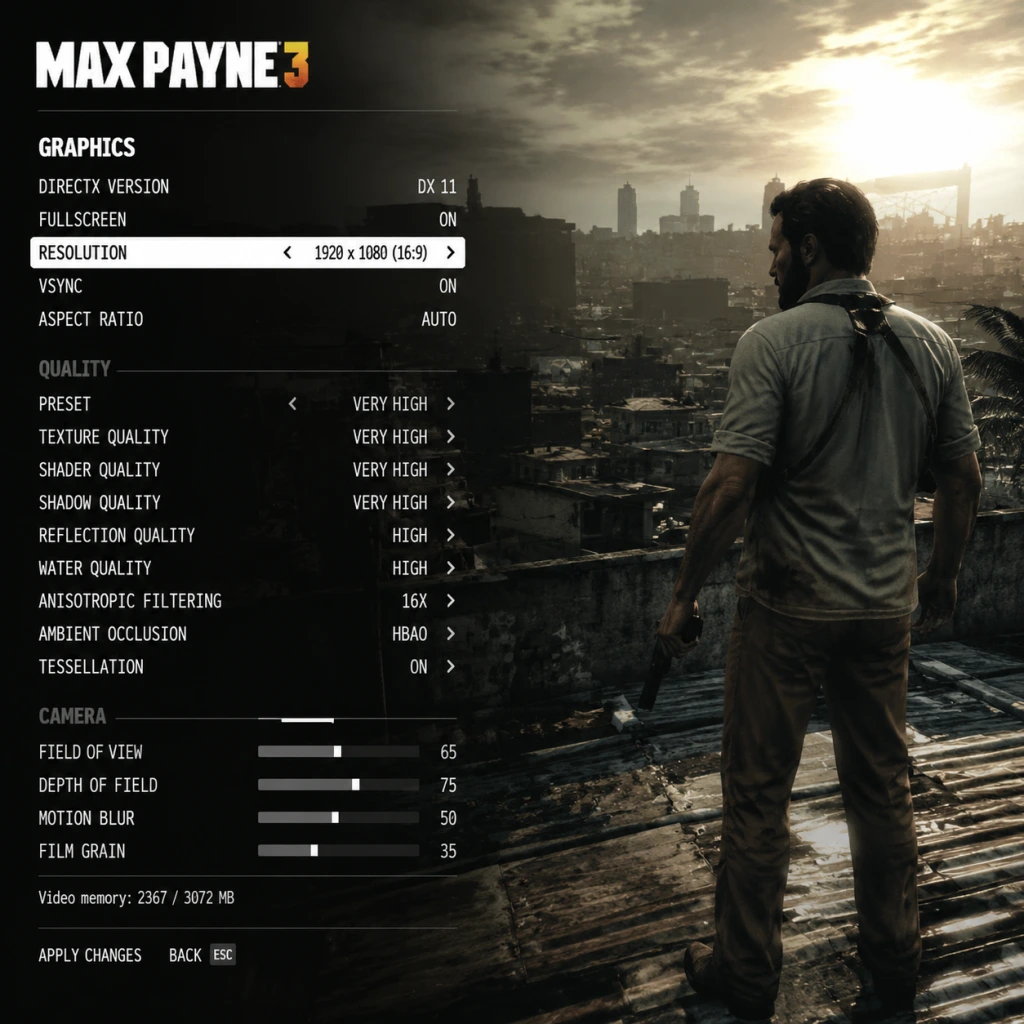
Graphics settings in Max Payne 3 have a significant impact on both visual fidelity and performance. The game uses the Rockstar Advanced Game Engine (RAGE) and can be demanding, especially with MSAA enabled. Below is a breakdown of each setting, followed by recommended presets for different hardware levels.
Key Graphics Options
- Resolution: Set to your monitor's native resolution. Lower resolutions improve performance but reduce clarity.
- Refresh Rate: Match your monitor's refresh rate (e.g., 60 Hz, 144 Hz). Higher rates reduce input lag if your GPU can maintain high FPS.
- VSync: Enable to eliminate screen tearing, but it caps FPS to your refresh rate. Disable for lower input lag (but possible tearing). Consider using Fast Sync or G-Sync/FreeSync instead.
- Triple Buffering: Only effective when VSync is on. Reduces stutter but increases input lag slightly. Leave Off if VSync is Off.
- Anti-Aliasing: Options: Off, FXAA, MSAA 2x, 4x, 8x. FXAA is light on performance but blurry. MSAA is sharp but very demanding. For high performance, use FXAA or Off. For quality, use MSAA 2x or 4x. Avoid 8x on most hardware.
- Texture Quality: Low, Medium, High, Very High. Affects VRAM usage. Very High requires 2+ GB VRAM. High works on most modern GPUs.
- Shadow Quality: Low, Medium, High. High adds softer, more realistic shadows but costs performance. Medium is a good balance.
- Water Quality: Low, Medium, High. High adds reflections and transparency. Low is fine for competitive play.
- Shader Quality: Low, Medium, High. Affects lighting and bloom. Medium or High recommended for visual clarity.
- Post FX: Off, Low, Medium, High. Controls motion blur, depth of field, and color grading. High adds heavy motion blur which can disorient. Set to Low or Off for competitive advantage.
- Reflection Quality: Low, Medium, High. Reflections on shiny surfaces. Low reduces performance cost.
- Sub-Surface Scattering: On/Off. Makes skin look more realistic. Off slightly improves performance.
- Anisotropic Filtering: 1x–16x. Improves texture clarity at angles. 4x is enough; 16x minimal performance cost on modern cards.
- DirectX 10.1 / 11 Switch: The game automatically uses DX10 or DX11 based on OS. No user toggle.
Recommended Settings by Hardware Tier
| Tier | Example Hardware | Resolution | Anti-Aliasing | Texture | Shadows | Post FX | Target FPS |
|---|---|---|---|---|---|---|---|
| Low | Intel UHD Graphics 620, GT 1030 | 1280x720 | Off | Low | Low | Off | 30–50 |
| Mid | GTX 1050 Ti, RX 570, GTX 1650 | 1920x1080 | FXAA | High | Medium | Low | 60 |
| High | GTX 1060, RX 580 | 1920x1080 | MSAA 2x | Very High | High | Medium | 60 |
| Ultra | RTX 2060, RX 5700 XT | 1920x1080 or 2560x1440 | MSAA 4x | Very High | High | High | 60+ |
| Extreme | RTX 3070+, RX 6800+ | 2560x1440 or 4K | MSAA 4x or 8x | Very High | High | High | 60+ |
- MSAA is the most performance-heavy setting. Start with Off or FXAA, then increase carefully.
- Post FX at High introduces strong motion blur that can be disorienting. Many players prefer Low or Off for clearer aiming.
- Texture Quality crashes if VRAM is exceeded. If you see texture pop-in or stutters, lower this setting.
- VSync with Triple Buffering can add input lag. Disable both if you have G-Sync/FreeSync.
- Master Volume: Set to comfortable level (70-80%).
- Music Volume: Keep high (80-100%) to enjoy the soundtrack, but can be lowered for competitive play.
- SFX Volume: Keep at 100% for clear gunshot and bullet impact cues.
- Dialogue Volume: 100% to hear story and combat callouts.
- Voice Chat Volume: Adjust for multiplayer. Default 100%.
- Sound Device: Select your output (speakers or headphones). The game does not have specific spatial audio options; rely on Windows Sonic or Dolby Atmos.
- Audio Output Mode: Options: TV, Stereo, Headphones. Set to Headphones for better positional audio with stereo headsets. TV mode adds simulated surround.
- If audio crackles or stutters, reduce sample rate in Windows settings (e.g., from 48000 Hz to 44100 Hz). Also disable any audio enhancements in Windows.
- The Headphones mode is recommended for all players, as it provides clearer directional cues for enemy gunfire.
- Mouse Sensitivity: Start at 50 and adjust based on your DPI. High sensitivity for quick 180 turns, low for precision aiming. Many competitive players use 400-800 DPI with in-game 30-50.
- Mouse Smoothing: On by default. Turn this Off – it adds acceleration and reduces precision. Locate under "Controls > Mouse" and set Smoothing to 0.
- Invert Mouse: Optional.
- Key Bindings: All actions are rebindable. Consider remapping:
- Controller Support: Full Xbox 360/Xbox One/PS4 controller support. The game auto-detects and shows button prompts. You can switch between keyboard and controller seamlessly.
- Left Stick: Movement.
- Right Stick: Aim/Look. Sensitivity can be adjusted in Controls menu (separate slider).
- A: Jump / Shootdodge.
- RT: Shoot.
- LB: Bullet time.
- RB: Cover.
- D-Pad: Weapon selection (up/down/left/right).
- Start: Pause.
- Mouse Smoothing Off is critical for aiming precision. The default On setting makes mouse movements feel floaty and inconsistent.
- If using a controller, adjust Aim Assist Strength (separate slider) to your preference. High helps in single-player but can be detrimental in multiplayer vs human opponents.
- Shootdodge requires a jump button. On keyboard, try remapping Jump to a side mouse button (e.g., MB4) to avoid taking your hand off movement keys.
- Subtitle Options: On/Off. Turn On – provides subtitles for all dialogue and cinematics. Also includes speaker name and bullet hit indicators.
- Mini-Map: Cannot be changed, but it's always visible. Has moderate contrast.
- Color Blindness: None. No specific colorblind modes. Workaround: Use Windows color filters.
- Text Size: Fixed, small. Not customizable.
- Difficulty Options: Three levels (Easy, Medium, Hard). Easy reduces enemy damage and awareness; Hard increases them. No separate sliders for health or damage.
- Auto-Aim: Present on controller. Not recommended for multiplayer but helpful for single-player story.
- Checkpoint Frequency: Fixed. The game auto-saves frequently, so no manual save option. Accessibility: Cannot adjust checkpoint density.
- Turn on Subtitles to avoid missing story cues.
- If you have difficulty seeing subtitles, consider lowering brightness in the display menu to increase contrast.
- There is no option to skip cutscenes on first playthrough, which can be repetitive on replays.
- Audio Language: Options vary by region: English, French, German, Italian, Spanish, etc. English is the original. Changing audio language may affect lip-sync (pre-made in English).
- Subtitles Language: Can be set independently. E.g., English audio with French subtitles.
- Menu Language: Determined by system locale or Rockstar Social Club settings. Can be changed in the game's language file manually (advanced).
- Text Language: Same as subtitle language.
- If you are not using English audio, note that lip movements are synced only to English, so cutscenes may appear unsynced.
- Changing language via in-game options may require restart. For console, set system language before launching.
- PC: You can force a specific language by editing the steam_api.ini or using launch arguments, but this is not officially supported.
- Connection Type: Wired recommended for stable ping.
- Matchmaking Region: Auto-select or manually pick a region close to you to reduce latency.
- Voice Chat: On/Off. Can be set to Team only or All.
- Network Quality: No in-game adjustment. The game uses Rockstar's peer-to-peer hybrid system. High ping is noticeable.
- NAT Type: Ensure strict NAT is resolved via router port forwarding (ports: 443, 3022, 3032, 3052, 4052, 6050, 9325, 9330, 9340).
- Bandwidth Limitation: No setting; ensure your internet has at least 5 Mbps download.
- Multiplayer servers are low population as of 2025. Matchmaking may take long; consider joining community Discord groups for arranged games.
- If you experience rubber-banding or lag, close background applications that use bandwidth (e.g., streaming, downloads).
- Port forwarding is essential for hosting matches.
- Auto-Aim (Aim Assist): On/Off. When enabled, crosshair slightly sticks to enemies. Recommended Off for PC mouse and keyboard, On for controller in single-player.
- Lock-On Target: On/Off. When aiming, pressing shoot can lock onto nearest enemy (for controllers). Disable for more precise control.
- Auto-Cycle Weapons: On/Off. When On, empty weapon automatically switches to next. Off gives you manual control. Turn Off to avoid unexpected swaps.
- Quick Equip: Default is D-Pad left/right. No further settings.
- Walk/Run Toggle: Default is T on keyboard. No alternative.
- Tutorial Prompts: On/Off. Keep On for first playthrough. Off removes on-screen hints.
- Gore Level: Not configurable. Game has high gore content by default.
- HUD Opacity: Not adjustable. HUD is always fully opaque.
- Crosshair Style: Fixed. No changes.
- Auto-Cycle Weapons can be deadly if it switches to an undesirable weapon mid-fight. Turn it Off to always control your weapon wheel.
- Auto-Aim should be Off for competitive multiplayer as it can lead you off target against moving players.
- Tutorial prompts: If you want a cleaner screen, disable after the first few missions.
---
Audio Settings
Audio settings affect immersion and gameplay awareness. Max Payne 3 has a dynamic soundtrack and clear weapon sounds. Default mix is fine but can be tuned.
Special Attention:
---
Controls Settings
Controls in Max Payne 3 are fully customizable on PC. The game uses a standard third-person shooter layout but includes unique mechanics like shootdodge and bullet time.
Keyboard & Mouse
- Shootdodge (Jump + Shoot): Default is Space + Left Click. Some players prefer rebinding Jump to a thumb mouse button or Shift for easier shootdodge while moving.
- Bullet Time (Slow Motion): Default is Right-click. This works well.
- Cover: Default is Q. Can be moved to a side mouse button for faster access.
Controller (Recommended Layout)
Special Attention:
---
Accessibility Settings
Max Payne 3 includes limited but important accessibility features.
Special Attention:
---
Language Settings
Max Payne 3 supports multiple languages for audio, subtitles, and menus.
Special Attention:
---
Network Settings
Network settings mainly apply to multiplayer (Max Payne 3 has a multiplayer mode called "Gang Wars" and others). Single-player is unaffected.
Special Attention:
---
Gameplay Settings
These settings modify the experience beyond pure visuals and audio.
Special Attention:
---
Conclusion
Max Payne 3's settings menu is moderately deep. The most impactful optimizations for performance are lowering MSAA and Shadow Quality. For competitive play, disable Mouse Smoothing and Post FX motion blur. Always use wired internet for multiplayer. With these recommendations, you can tailor the game to your hardware and playstyle.