Game Settings
Game Settings
This guide covers every setting category in V Rising, from graphics and audio to controls and network options. Use the sections below to optimize your experience, whether you are on a low-end laptop or a high-end desktop. Pay special attention to the misconfiguration warnings — certain settings can drastically affect performance or gameplay if set incorrectly.
---
Graphics Settings
Graphics are the most impactful category for performance and visual fidelity. V Rising uses a bright, stylized art style with dynamic lighting and shadows. Adjust the following settings based on your hardware.
Recommended Settings by Hardware Level
| Setting | Low (Integrated GPU) | Medium (GTX 1060 / RX 580) | High (RTX 2060 / RX 5700) | Ultra (RTX 3070+ / RX 6800+) |
|---|---|---|---|---|
| Resolution | 1280×720 | 1920×1080 | 2560×1440 | 3840×2160 |
| Display Mode | Fullscreen | Fullscreen | Fullscreen | Fullscreen |
| VSync | Off | Off | Off | Off (use if screen tearing) |
| Frame Rate Limit | 30 FPS | 60 FPS | 60 FPS | 120+ FPS (set to monitor max) |
| Overall Quality Preset | Low | Medium | High | Ultra |
| Texture Quality | Low | Medium | Ultra | Ultra |
| Shadow Quality | Low | Medium | High | Ultra |
| Anti-Aliasing | Off or FXAA | FXAA | TAA (High) | TAA (Ultra) |
| Ambient Occlusion | Off | Off | Low | High |
| Reflection Quality | Off | Low | Medium | High |
| Post-Processing | Low | Medium | High | Ultra |
| Foliage Quality | Low | Medium | High | Ultra |
| Terrain Quality | Low | Medium | High | Ultra |
| Water Quality | Off | Low | Medium | High |
| Bloom | Off | Off | On | On |
| Motion Blur | Off | Off | Off | Off (personal preference) |
| Depth of Field | Off | Off | Off | Off (can be distracting) |
| Subsurface Scattering | Off | Off | On | On |
| View Distance | Low | Medium | High | Ultra |
| Foliage Density | Low | Medium | High | Ultra |
Individual Setting Details
- Resolution & Display Mode: Always use Fullscreen for best performance. Borderless Windowed may reduce FPS by 5–10%.
- VSync: Turn off unless you experience screen tearing. If you get tearing, enable VSync or use a frame rate cap slightly below your monitor’s refresh rate.
- Frame Rate Limit: Capping at 60 FPS is recommended for most setups. On low-end hardware, 30 FPS provides a smoother experience than fluctuating higher numbers.
- Overall Quality Preset: Start with Medium and adjust individual settings up/down. The preset is a good baseline but not fully optimized.
- Anti-Aliasing: FXAA is lightweight but blurs textures. TAA is sharper but more costly. On low-end, FXAA is fine; on high-end, use TAA.
- Shadow Quality: Has a major performance impact. Set to Low on weak GPUs; shadows still appear acceptable.
- Ambient Occlusion: Adds depth but costs performance. Leave Off on low-end; High on high-end.
- Reflection Quality: Minimal visual gain; set to Off or Low for FPS boost.
- Post-Processing: Includes effects like lens flare and color grading. Low saves performance with little visual loss.
- Foliage Quality & Density: Heavy on CPU/GPU in forest areas. Set to Low if you see stuttering in wooded zones.
- Bloom & Motion Blur: Personal preference; turn Off for clarity and performance.
- Subsurface Scattering: Makes skin look realistic. Almost no performance hit on modern GPUs; keep On if available.
- Shadow Quality set to High on low-end GPUs can halve FPS. Always start with Low or Medium.
- Foliage Density at Ultra combined with View Distance at Ultra may cause stuttering even on mid-range PCs. Tune down if you experience dips in open fields.
- Frame Rate Limit set higher than your monitor’s refresh rate wastes power and can cause screen tearing without VSync. Match to monitor (e.g., 60, 144).
- Display Mode: Never use Windowed if you need full screen; it reduces FPS and adds input lag.
⚠️ Misconfiguration Warnings
---
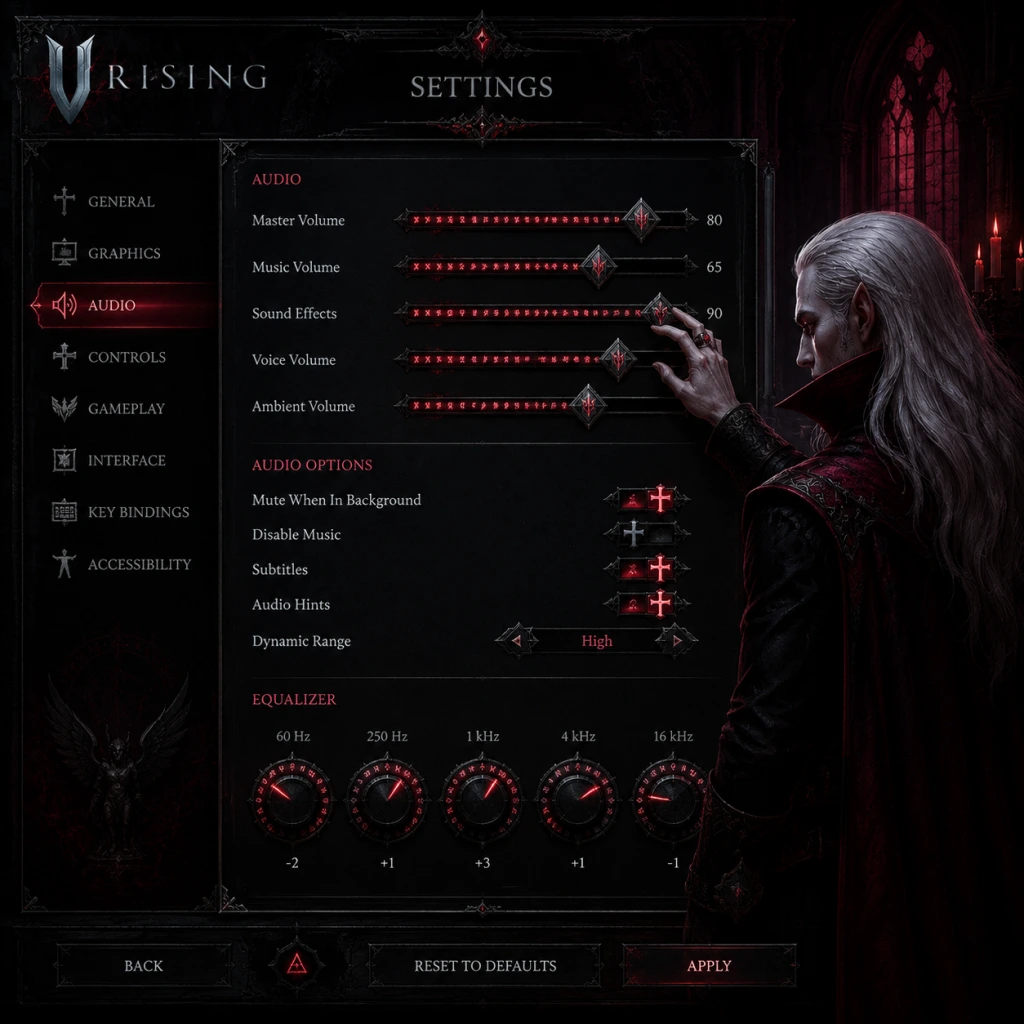
Audio Settings
Audio settings are straightforward but can impact gameplay (e.g., hearing enemy footsteps).
| Setting | Recommended Value | Notes |
|---|---|---|
| Master Volume | 80–100% | Adjust to comfort |
| SFX Volume | 100% | Combat sounds, footsteps |
| Music Volume | 50% | Background music (can be lower if distracting) |
| Voice Volume | 100% | NPC dialogues, quest prompts |
| Ambient Volume | 80% | Wind, animals, environment |
| UI Volume | 100% | Inventory clicks, alerts |
| Audio Device | Default System | Ensure correct output, e.g., headphones |
| Sound Mode | Stereo / Headphones | Choose based on setup; Headphones for directional audio |
| Spatial Audio | On (if supported) | Improves awareness of enemy direction |
Special Attention
- Sound Mode: Setting to Headphones when using speakers can make audio tinny. Match your hardware.
- Spatial Audio: Turn Off if you experience echo or distortion; it works best with surround sound systems or dedicated headphone 7.1.
- Camera Rotation: Mouse wheel click + drag or hold Middle Mouse Button. Default is fine.
- Ability Keys: Q, E, R, F, 1–5. You will use these frequently.
- Dodge: Spacebar. Important for survivability.
- Attack: Left Click. Hold for charged attack (on weapons that support it).
- Interact: F.
- Jump: Spacebar (same as dodge? No – there is no jump in V Rising; dodge is standard). Note: There is no jump. Spacebar performs dodge roll or dash.
- WASD for movement. Tip: Enable Click-to-Move in Gameplay Settings if you prefer point-and-click movement.
- Quick Slot Hotkeys: 1–0 for inventory items. Assign health potions to 1 for quick access.
- Left Stick: Movement
- Right Stick: Camera rotation
- Face Buttons: A – Interact, B – Back/Cancel, X – Primary Attack, Y – Secondary Attack
- Bumpers/Triggers: LB – Ability 1, RB – Ability 2, LT – Dodge (recommended remap?), RT – Use Quick Slot
- D-Pad: Left/Right – Cycle Quick Slots, Up/Down – Inventory shortcuts
- Start: Pause Menu, Select: Map
- Keybind for Ultimate Ability: Default is R. Many players rebind to something easier to reach during combat, like a mouse side button.
- Dodge on Mouse: Some rebind dodge to a thumb button. Useful for fast combat.
- Toggle Walk: Default by pressing the movement key lightly? Actually, there is no dedicated walk toggle; movement speed is always run. Use Shift to sneak? No sneaking – but you can use C to toggle crouch? No crouch. Consider this: There is no walk toggle. You are always running. But you can use C to change to a slower movement? No. So ignore.
---
Controls Settings
V Rising supports keyboard & mouse, gamepad (Xbox, PlayStation, Switch Pro), and custom keybindings.
Keyboard & Mouse
Gamepad (Controller)
Customization Tips
---
Accessibility Settings
V Rising offers several options to make the game more accessible.
| Setting | Recommended | Purpose |
|---|---|---|
| Subtitles | On | Display NPC dialogue text |
| Subtitle Background | On | Improves readability |
| Colorblind Mode | Off | Choose from Protanopia, Deuteranopia, Tritanopia |
| Screen Shake | Off (if prone to motion sickness) | Reduces camera shake |
| Head Bobbing | Off | First-person-like movement bob in third-person; turn off for comfort |
| Auto-Aim (Melee) | On (if struggling with aiming) | Helps lock onto enemies |
| Auto-Aim (Ranged) | On (if using ranged weapons) | Mild aiming assistance |
| Invert Camera Y-Axis | Off | Personal preference |
| Camera Sensitivity | 50% | Adjust mouse/controller camera speed |
⚠️ Misconfiguration Warnings
- Auto-Aim set to High can makeaiming too sticky, leading to missed opportunities for headshots or precise hits. Start with Low or Off and increase only if needed.
- Screen Shake and Head Bobbing should be turned off if you experience nausea or dizziness. They add no gameplay benefit.
- Language: Choose from available languages (English, French, German, Spanish, Russian, Chinese, Japanese, Korean, etc.). This affects all UI text, subtitles, and voiceovers.
- Voiceover Language: Separate from text language. Some players prefer English VO with another language text.
- Note: Changing language restarts the game. Save progress first.
---
Language Settings
---
Network Settings
These settings affect online connectivity for both Online (PvE/PvP) and Private/LAN gameplay.
| Setting | Recommended | Explanation |
|---|---|---|
| Region | Auto (or closest region) | Choose the server region nearest to you for lowest ping. |
| Server Browser Filter | Various | Use to filter by game mode (PvP, PvE, Solo, Duo, Squad, etc.), ping, population, and name. |
| Connection Type | Direct Connection | For joining via IP address in private lobbies. |
| LAN Games | On or Off | Toggle visibility of local network servers. |
| Online Connection | Always | You can choose to play offline (solo) or online. |
| Show Online Status | On | Lets friends see you are playing. |
| Communication Method | Push-to-Talk or Voice Activity | Options for in-game voice chat (if enabled on server). |
| Push-to-Talk Key | V (default) | Change if you prefer another key. |
| Voice Chat Volume | 100% | Adjust volume of other players. |
| Server Timers | N/A | Not a setting; depends on server rules. |
Special Attention
- Region Selection: If you join a server far from your region, you will experience high ping (200+ ms). This makes combat very frustrating, especially in PvP. Always check the server's ping before joining.
- Voice Chat: Many players disable voice chat due to toxicity or background noise. Use Push-to-Talk to avoid accidental broadcasting.
---
Gameplay Settings
These settings alter how the game plays and interacts with you.
| Setting | Recommended | Description |
|---|---|---|
| Movement Mode | WASD (default) or Click-to-Move | Choose your preferred control style. WASD is faster for combat. |
| Camera Mode | Locked or Unlocked | Locked keeps camera behind character; Unlocked allows free rotation. Unlocked is better for situational awareness. |
| Auto-Move | Off | Auto-run feature; bind to a key if used often. |
| Quick Slot Behavior | Hold/On | Set to Hold to use quick bar items without consuming immediately? Actually, behavior is single press. Just leave default. |
| Pickup Mode | Gather All or Individual | Gather All picks up everything; Individual requires clicking each item. Use Gather All for efficiency. |
| Auto-Equip Weapons/Armor | Off | Prevents accidentally equipping low-tier loot. |
| Show Tutorial Tips | Off (after first hour) | Disable once you know basics. |
| Minimap Rotation | Fixed or Rotating | Rotating aligns minimap with camera direction; Fixed keeps north up. Fixed is easier for navigation. |
| Damage Numbers | On | Show floating damage numbers. |
| Health Bars | Always On | See enemy health even when not targeting. |
| Player Nameplates | Always On | Identify other players. |
| Show World Markers | On | Icons for quests, resources, points of interest. |
| Cast On Release | Off | For abilities that charge; if On, ability fires when you release the key. Off = fires on press. |
| Target Lock | Toggle or Hold | Toggle locks target until unlocked; Hold requires holding key. Choose based on preference. |
⚠️ Misconfiguration Warnings
- Movement Mode – Click-to-Move can feel unresponsive in combat. Stick to WASD for precise dodging.
- Pickup Mode set to Individual will slow you down dramatically. Always use Gather All.
- Cast On Release – If set to On, you may accidentally hold an ability too long and miss the timing. Off is more responsive.
- Target Lock – Novices may accidentally lock onto an enemy while trying to escape. Bind the lock key to a less intrusive button, or use Toggle with a clear unbind key.
---
Summary of Performance vs. Quality Priorities
| Goal | Settings to Adjust |
|---|---|
| Maximum FPS (e.g., competitive PvP) | Overall Preset: Low; Disable Shadows, Reflections, Ambient Occlusion, Bloom, Motion Blur, Depth of Field; Texture Quality: Low; View Distance: Low; Foliage: Low; Resolution Scale: 100% (do not lower below 100% as it causes blur) |
| Single-Player / Co-op Quality | Overall Preset: High; Shadows: High; Textures: Ultra; Anti-Aliasing: TAA; Ambient Occlusion: On; Foliage: High; View Distance: High |
| Balanced (recommended) | Overall Preset: Medium; Shadows: Medium; Textures: High; Anti-Aliasing: FXAA or TAA Low; Ambient Occlusion: Off; Foliage: Medium; View Distance: Medium |
| 4K / Ultra Settings | Preset: Ultra; Res: 3840×2160; TAA Ultra; All shadows/reflections on; Bloom On; Expect 30–60 FPS on high-end cards. Use DLSS/FSR if available (V Rising does not support DLSS officially; use upscaling via GPU driver). |
Final Setup Checklist
Before starting, launch the game and go to Options and verify:
1. [ ] Display Mode: Fullscreen
2. [ ] Resolution: Native to monitor
3. [ ] Frame Rate Limit: Matches monitor refresh rate (e.g., 60, 144)
4. [ ] Overall Quality Preset: As per hardware level
5. [ ] Audio Sound Mode: Headphones/headset if using one
6. [ ] Controls: Rebinded dodge and abilities to comfortable keys
7. [ ] Accessibility: Subtitles On, Screen Shake Off
8. [ ] Gameplay: Movement Mode WASD, Pickup Mode Gather All, Target Lock off or toggle
9. [ ] Network: Region selected manually if auto gives high ping
Now you are ready to rise as an optimized vampire lord. Happy hunting!