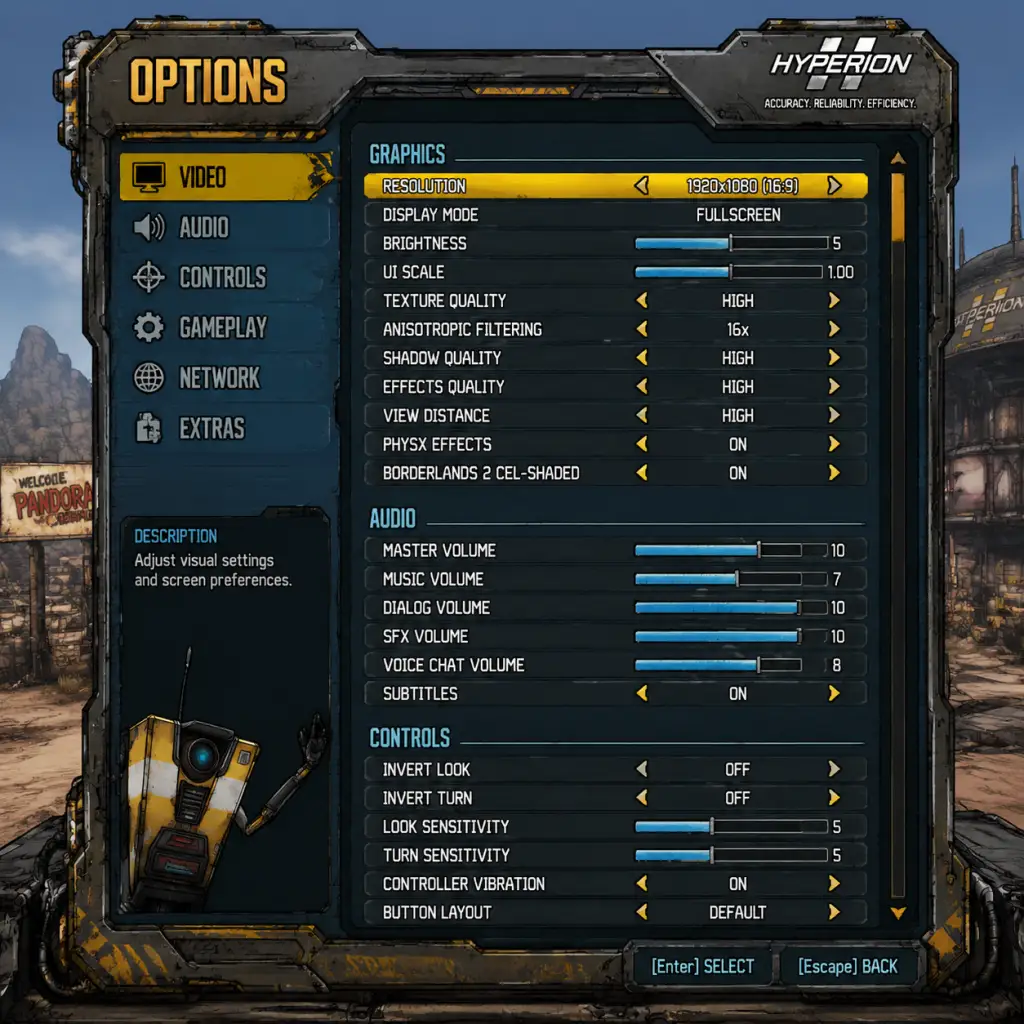
Game Settings
Borderlands 2 – Game Settings Guide
This guide covers every settings category in Borderlands 2. Whether you’re on PC, PlayStation, or Xbox, you’ll find recommended defaults, performance/quality trade‑offs, and pitfalls to avoid. Settings are presented in the order they appear in the game menu.
---
1. Graphics Settings
Video / Display
| Setting | Description | Recommendation |
|---|---|---|
| Resolution | Native monitor or TV resolution. | Set to your display’s native resolution (e.g., 1920×1080, 2560×1440). |
| Display Mode | Fullscreen, Windowed, Borderless. | Fullscreen for best performance; Borderless reduces alt‑tab stutter but may lower FPS slightly. |
| VSync | Synchronizes frame rate to monitor refresh. | Off for lower input lag (unless screen tearing bothers you). On PCs with G‑Sync/FreeSync, leave off and cap FPS slightly below refresh rate. |
| Frame Rate Cap | Limits maximum FPS. | Set to your monitor’s refresh rate (60, 120, 144, etc.). On low‑end hardware, cap at 30 or 60 for consistent performance. |
| Field of View (FOV) | Controls horizontal viewing angle. | Default 70 is narrow. Increase up to 90–110 for wider vision, but may reduce performance slightly. FOV is hidden from in‑game menu on PC – you must edit `WillowInput.ini` in `Documents/My Games/Borderlands 2/WillowGame/Config`. Find `FOV=70` and change it. |
Advanced Graphics Options
| Setting | Description | Low‑End | Mid‑Range | High‑End | Ultra |
|---|---|---|---|---|---|
| Texture Quality | Resolution of textures. | Low (saves VRAM) | Medium | High | High (Ultra setting is identical to High in this game) |
| Anisotropic Filtering | Sharpens textures at angles. | 4x | 8x | 16x | 16x |
| Shadow Quality | Shadow resolution and smoothness. | Low | Medium | High | High |
| Ambient Occlusion | Soft shadowing near contacts. | Off | Low | Medium | High (little visual gain beyond Medium) |
| Depth of Field | Blurred background when aiming. | Off | Off | On | On |
| Foliage Distance | Draw distance for grass and small objects. | Low | Medium | High | High |
| PhysX | NVIDIA PhysX particle effects (debris, fluid). | Off – can cause massive frame drops even on high‑end GPUs. | Off | Off or Low | Low (only if CPU is very strong) |
| Game Detail | LOD and overall geometry complexity. | Low | Medium | High | High |
| Motion Blur | Blur during movement. | Off (preferred by most) | Off | Off | Off |
- PhysX is the #1 performance killer. Defaults to ‘Low’ or ‘High’ – always set to Off unless you have a dedicated PhysX card and don’t mind inconsistent FPS.
- FOV change requires manual .ini tweak. Many players miss this and suffer motion sickness from narrow FOV.
- VSync can introduce input lag; if you notice mouse delay, turn it off and cap FPS in driver control panel instead.
---
2. Audio Settings
| Setting | Description | Recommendation |
|---|---|---|
| Master Volume | Overall volume. | 70–100% as preferred. |
| Music Volume | Background music. | 60% (music is good but can be overwhelming during dialogue). |
| SFX Volume | Sound effects (guns, explosions). | 100% |
| Voice Volume | NPC and character speech. | 100% – important for quest hints. |
| Subtitles | Displays spoken dialogue text. | On – helps with background noise or hearing impairment. |
| Closed Captioning | Also shows sound description (e.g., “gunshot”). | On for accessibility. |
| Audio Language | Voiceover language. | Set to your preferred language. Important: Changing this also changes subtitles language separately. |
- Subtitles and audio language are independent. If you want English voices with non‑English subtitles, set Audio Language to English and Subtitle Language to your desired one. This is easy to misconfigure.
- For multiplayer, ensure voice chat volume is balanced – the game uses push‑to‑talk by default on PC.
---
3. Controls
Keyboard & Mouse (PC)
| Setting | Recommendation |
|---|---|
| Mouse Sensitivity | Start with 10–15. Adjust based on DPI (e.g., 800 DPI → 12 sensitivity is common). |
| Mouse Smoothing | Off – adds input lag and floaty aim. |
| Invert Mouse | Off (unless you prefer inverted Y). |
| Zoom Sensitivity | Leave at default (1.0) – too high can make sniping twitchy. |
| Controller/Steering Wheel | N/A for this game – ignore. |
| Setting | Description | Recommendation |
|---|---|---|
| Vibration | Rumble on damage or events. | On (provides tactile feedback) – off to save battery. |
| Left Stick Dead Zone | How far you must move stick before character moves. | Default (0.15) – increase if stick drift occurs. |
| Right Stick Dead Zone | For aiming. | Default (0.15) – increase if aiming drifts. |
| Look Sensitivity | Vertical/horizontal speed. | 6–8 (on a scale of 1–10). |
| Aim Sensitivity | Scoped sensitivity. | Set slightly lower than look sensitivity (e.g., 5). |
- Mouse Smoothing is often enabled by default on PC. Turn it Off immediately – it causes unresponsive aim.
- Zoom Sensitivity multiplier: if you set it above 1.0, scoped aim becomes overly sensitive; keep 1.0 or lower.
- Controller dead zones: if your controller has minor stick drift, increase dead zone slightly to avoid unwanted movement.
---
4. Accessibility
| Feature | Availability | Recommendation |
|---|---|---|
| Subtitles | Always on (as above). | On. |
| Closed Captioning | Yes (audio cues). | On. |
| Colorblind Modes | None in base game. | Workaround: adjust monitor color temperature or use third‑party overlays. |
| Button Remapping | Full on PC, limited on consoles (preset layouts). | Remap keys to your preference – especially important for skills (F), grenade (G), and Action Skill (Q). |
| Text Size | Not adjustable. | – |
| Screen Shake | Disabled by turning off “Head Bob” or “Motion Blur”. | Turn off camera bob if you are prone to motion sickness. |
- Borderlands 2 has no in‑game colorblind options. Red‑green colorblind players may struggle with loot rarity colors (e.g., legendary orange vs. purple). Use a community mod or Windows color filters.
- Text size is tiny for quest logs – PC users can use UI scaling via .ini edits but it’s not recommended as it can break menus.
---
5. Language Settings
| Setting | Location | Details |
|---|---|---|
| Audio Language | Options > Audio | Changes voices only. |
| Subtitle Language | Options > Audio | Changes subtitle text only. These are independent. |
| Interface Language | PC: Steam/EGS properties, or config file | Not changeable in game. On PC, you must set Steam/Epic/GOG client language. On consoles, set system language. |
- If you change audio language to Japanese (for example), the subtitles remain English unless you also change subtitle language. Many players expect subtitles to follow audio language – they do not.
- Interface text language is tied to the store platform’s locale; you cannot switch it in game. To play with a different menu language, launch the game through the platform with the desired language selected.
---
6. Network / Multiplayer
| Setting | Description | Recommendation |
|---|---|---|
| Network Type | Online, LAN, or Offline. | Online (for public) or LAN (for local co‑op). |
| Matchmaking | Quick Join, Friends Only, Invite Only. | Set to “Friends Only” to avoid random joiners. |
| Bandwidth / Data Rate | Limit to prevent lag in large lobbies. | Default is fine. If you have a slow connection, reduce to “Low”. |
| Voice Chat | Enable/Disable, Push‑to‑Talk. | On with Push‑to‑Talk (PC default V key). Disable if you don’t use it. |
| Show Network Info | Displays ping and packet loss during gameplay. | On – helps diagnose lag. |
- Borderlands 2 uses peer‑to‑peer networking. Always check your NAT type (Open/Moderate/Strict). Strict NAT will prevent joining or hosting public games. If you have issues, enable UPnP on your router or port forward (UDP 7777, 28900–28902).
- Cross‑play is not supported – PC/PlayStation/Xbox cannot play together.
---
7. Gameplay Settings
| Setting | Description | Recommendation |
|---|---|---|
| Difficulty | Normal and True Vault Hunter Mode (TVHM), and Ultimate Vault Hunter Mode (UVHM). | Start on Normal for first playthrough. TVHM after level 30. UVHM after completing TVHM – enemies scale to your level. |
| Auto‑Aim (PC) | Aim assist for controller. | Off (if using mouse). On for controller. |
| Aim Down Sights (ADS) Sensitivity | Separate slider for scoped sensitivity. | Leave at 1.0 – too high makes sniping jittery. |
| Crosshair Style | Dot, cross, circle, plus. | Dot or small cross – big crosshairs obscure targets. |
| Head Bob | Camera sway during movement. | Off – reduces motion sickness. |
| Show Friendly Health Bars | Display health of party members above their heads. | On – crucial for co‑op healing. |
| Auto Reload | Automatically reload when magazine is empty and you stop firing. | On – saves a button press. |
| Weapon Zoom | Sets button to zoom (Hold or Toggle). | Toggle for quicker aiming (PC). Hold is default on consoles. |
- Auto‑Aim is only for controller users on PC; it is not present in the menu for keyboard users. If you plug in a controller, ensure auto‑aim is set to your preference – many players accidentally leave it on when switching from keyboard to controller.
- Head Bob is enabled by default and can cause nausea. Turn it off immediately if you are sensitive.
- Crosshair Style: circle is the default but covers a lot of the screen; dot is recommended for precision.
---
8. Optimal Presets for Different Hardware
PC – Performance vs. Quality
| Component | Low Spec (e.g., Intel HD 4000, 4GB RAM) | Mid Spec (e.g., GTX 960, 8GB RAM) | High Spec (e.g., RTX 2060, 16GB RAM) | Ultra Spec (e.g., RTX 3080, 16GB RAM) |
|---|---|---|---|---|
| Resolution | 1280×720 | 1920×1080 | 2560×1440 or 1920×1080 @144Hz | 4K or 1440p@144Hz |
| Texture Quality | Low | Medium | High | High |
| Shadow Quality | Low | Medium | High | High |
| Ambient Occlusion | Off | Off | Medium | High |
| PhysX | Off | Off | Off | Off |
| Foliage Distance | Low | Medium | High | High |
| Frame Rate Target | 30 FPS (cap to 30) | 60 FPS | 120 FPS (cap to 120) | 144+ FPS |
| VSync | Off | Off | Off (use G‑Sync) | Off (use G‑Sync) |
Consoles
| Platform | Default Settings | Tweaks |
|---|---|---|
| PS3 / Xbox 360 | 720p, 30 FPS, shadows medium. | Nothing available – run as is. |
| PS4 / Xbox One | 1080p@30 FPS (PS4 Pro: 4K upscale). | Ensure “Boost Mode” is on (PS4 Pro) for slightly better frame pacing. |
| **PS5 / Xbox Series X\ | S** | 60 FPS via backward compatibility (FPS Boost on Xbox). |
9. Common Misconfiguration Pitfalls
1. PhysX left on “High” – Most common complaint; drops FPS by 50% or more randomly. Always set to Off.
2. FOV left at 70 – Causes discomfort for many players. Edit the .ini file to increase to 90–100.
3. Mouse Smoothing enabled – Creates input lag. Turn it off in Controls.
4. Audio & Subtitle language mismatch – Voices in one language, subtitles in another. Check both dropdowns.
5. Network NAT type Strict – Prevents online play. Configure router or use a VPN if needed.
6. VSync on with high refresh monitor – Introduces significant input lag. Use a frame cap instead.
7. Head Bob on – Can induce motion sickness; disable in Gameplay settings.
---
10. Settings for Console Users (Important Notes)
- Console versions do not have an FOV slider (locked at ~70). You cannot change it.
- No keyboard and mouse support on consoles (except for PS4/Xbox One with adapters, but in-game menus are controller-only).
- Frame rate is capped at 30 FPS on PS3/Xbox 360, 30 FPS on base PS4/Xbox One, and 60 FPS on PS5/Series X|S (with FPS Boost on Xbox).
- To reduce motion blur on consoles, turn off “Motion Blur” in the Video settings (if available).
---
By configuring your settings properly, you’ll enjoy Borderlands 2 with smooth performance, clear audio, and responsive controls. Double‑check the highlighted “special attention” points to avoid common headaches. Happy hunting, Vault Hunter!