Game Settings
Game Settings Overview
Call of Duty 4: Modern Warfare (2007) offers settings menus that vary slightly between PC, Xbox 360, and PlayStation 3. Most settings are accessible from the Main Menu → Options (or pause menu in-game). On PC, you can also edit advanced configuration files (e.g., `config_mp.cfg` for multiplayer). This guide covers every major category, recommends optimal configurations for different hardware, and highlights settings that are easy to misconfigure.
---
1. Graphics Settings
Available Options
- Video Mode: Only adjustable on PC. Options: Resolution (e.g., 1920×1080), Refresh Rate (60 Hz, 120 Hz), and Display Mode (Fullscreen, Windowed, Borderless).
- Aspect Ratio: Auto-detected but may need manual selection (e.g., 16:9, 4:3).
- Texture Quality: Low, Medium, High.
- Anisotropic Filtering: Off, 2x, 4x, 8x, 16x.
- Anti-Aliasing: None, 2x, 4x.
- Shadow Detail: Low or High.
- Shadow Quality: Low or High (controls shadow resolution).
- Specular Map: On/Off.
- Dynamic Lights: On/Off (affects lighting on moving objects).
- Depth of Field: On/Off (blurs background when aiming down sights).
- Glow: On/Off (bloom effect).
- Motion Blur: On/Off.
- Texture Filtering: (PC) may be combined with anisotropic.
Performance vs. Quality Recommendations
| Hardware Level | Target Resolution | Key Settings | Notes |
|---|---|---|---|
| Low-End (e.g., Intel HD Graphics, older APUs) | 1366×768 or 1280×720 | Texture: Low, Shadows: Low, AA: Off, Depth of Field: Off, Motion Blur: Off, Dynamic Lights: Off | Expect 30–60 FPS. Reduce resolution further if needed. |
| Mid-Range (e.g., GTX 660, RX 560, modern iGPUs) | 1920×1080 | Texture: High, Shadows: High, AA: 2x, Depth of Field: Off, Motion Blur: Off, Anisotropic: 4x | Target 60+ FPS. Leave dynamic lights on for visual clarity. |
| High-End (e.g., RTX 2060+, RX 5700+) | 2560×1440 or 4K | Max everything: Texture High, Shadows High, AA: 4x, Anisotropic: 16x, all effects ON | 100+ FPS possible. For competitive multiplayer, disable Depth of Field and Motion Blur to reduce visual obstruction. |
Easy-to-Misconfigure Settings
- Texture Quality: Setting to High on GPUs with less than 1 GB VRAM may cause stuttering or crashes. If you notice slowdowns, drop to Medium.
- Anti-Aliasing: 4x is heavy; 2x provides a good balance. On low-end systems, disable it entirely.
- Shadow Detail: High shadows impact FPS significantly. On PC, shadows also affect visibility in multiplayer – some players prefer Low for better spotting of enemies.
- Depth of Field & Motion Blur: These are personal preference, but in competitive multiplayer, turning them OFF improves visibility and reduces motion sickness.
- Refresh Rate: On PC, ensure the refresh rate matches your monitor (e.g., 144 Hz). If the game limits to 60 Hz, you may need to force it via config file (`seta r_displayRefresh "144"`).
- Borderless Windowed: Offers faster alt-tabbing but may introduce input lag. Use Fullscreen for best performance.
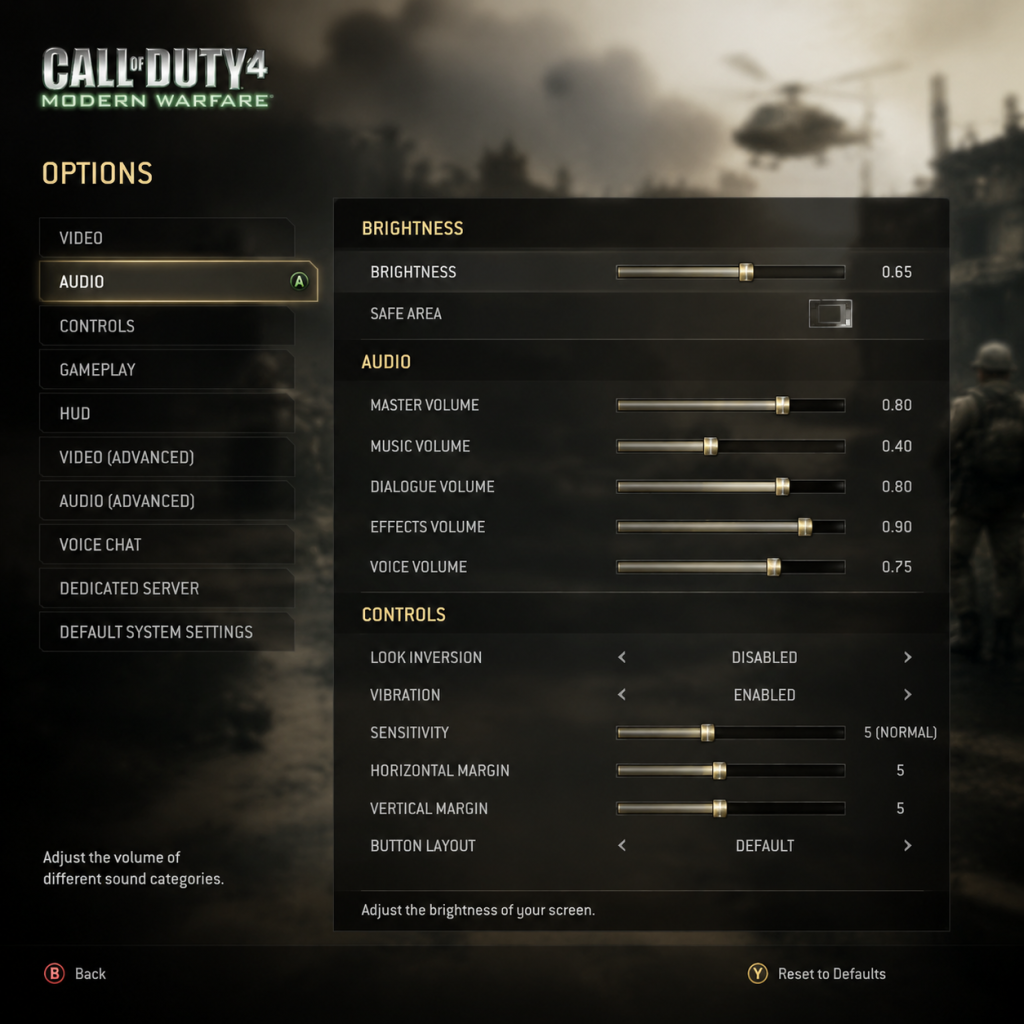
- Master Volume: 0–100.
- SFX Volume: Sound effects (gunshots, footsteps, explosions).
- Music Volume: Background music during campaign and menus.
- Dialogue Volume: Character speech.
- Voice Chat Volume: Incoming voice from other players (multiplayer).
- Sound Output: Stereo, 5.1, 7.1 (PC).
- Subtitles: On/Off (campaign only).
- Competitive Multiplayer: SFX 100%, Music 0%, Dialogue 0% (or low), Voice Chat adjustable. Use a headset with Stereo output for best directional audio.
- Single Player: Keep all around 80–100% with subtitles ON for story clarity.
- Sound Output: If you select 5.1 or 7.1 but don’t have a multi-channel speaker system, audio may sound hollow or missing channels. Stick to Stereo unless you have proper surround hardware.
- Voice Chat Volume: Often left too high, causing distraction; reduce to 50% and adjust from there.
- Invert Y-Axis: On/Off.
- Controller Sensitivity (console) / Mouse Sensitivity (PC): Slider.
- Aim Sensitivity: Separate slider for when aiming down sights (ADSing).
- Vibration (console): On/Off.
- Controller Layout (console): Default, Tactical (melee on right stick), etc.
- Key Bindings (PC): Full customizable for movement, actions, weapons, grenades, etc.
- Toggle vs Hold: Crouch, Prone, Sprint, Aim Down Sights, Lean (PC).
- Aim Assist (console): On/Off (allows slight auto-aim).
- PC Competitive: Lower mouse sensitivity (e.g., 3–6 in-game at 800 DPI) and 1.0x Aim Sensitivity. Use Toggle ADS for consistency, Toggle Sprint to reduce finger fatigue, and Toggle Crouch/Prone for easier movement.
- Console Competitive: Sensitivity 5–7 (out of 10), Tactical controller layout (melee on R3), Aim Assist ON.
- General: Disable vibration to save battery and improve aim. Invert Y only if you prefer flight-stick style.
- Toggle vs Hold: The default for ADS is hold (console) or might vary. Many players prefer Toggle to avoid holding the trigger. Change this in Controls → ADS.
- Sensitivity: Too high causes overshooting; too low makes turning slow. Spend time in a custom game to find your sweet spot.
- Aim Assist (console): If you turn it OFF, be prepared for tougher tracking. Keep ON for casual play.
- Subtitles: On/Off (campaign cinematics and dialogue).
- Invert Y-Axis: On/Off.
- Controller Vibration: On/Off.
- Toggle/Hold for Crouch, Prone, Sprint.
- Aim Assist (console).
- Subtitles: Always ON if you have hearing difficulties or play in a noisy environment.
- Toggle Crouch & Prone: Enables easier camping or peeking without holding the button.
- Aim Assist: ON for console users to reduce difficulty.
- Call of Duty 4 does not have colorblind modes or advanced HUD scaling. If you have visual impairments, adjust your TV/display brightness and contrast instead.
- Text Language: Set during installation or via launcher (PC). In-game options limited.
- Audio Language: Usually only English (original) on all platforms. Some international versions may include dubbing.
- Subtitles: Available in multiple languages if the game language is set correctly.
- On PC, changing language post-install often requires editing the `config` file or reinstalling with the desired language pack. Default English is safest.
- If subtitles don’t match spoken words (e.g., English audio with French subtitles), check the system language settings outside the game.
- Network Type: LAN (local) or Internet.
- Server Browser: Filter by game mode, map, ping, player count, etc.
- Connect to Friends: Via in-game friends list (requires Activision account on PC or Xbox LIVE/PSN).
- NAT Type: Not adjustable in-game; set via your router (Open, Moderate, Strict).
- `rate`: Default 25000. Increase to 25000 (max) for cable connections.
- `cl_maxpackets`: Default 30. Set to 100 for smoother gameplay (only if your connection can handle it).
- `snaps`: Default 20. Set to 20 or 30 (higher for better hit registration).
- Network Type: If you want online multiplayer, ensure Internet is selected (not LAN).
- Ping Filter: In the server browser, set a max ping (e.g., 80–120) to avoid laggy servers. Many players forget to do this and wonder why they lag.
- NAT Strict/Moderate: Can cause connection issues with friends. Make sure your console/PC is in the router’s DMZ or have ports forwarded (UDP 3074 for Xbox, UDP 3658 for PS3, PC ports vary).
- Difficulty (Single Player): Recruit, Regular, Hardened, Veteran.
- Controller Settings: Already covered.
- Crosshair: Color (only available via PC config editing; default white).
- HUD Opacity: Not directly adjustable in game (fixed).
- Minimap Rotation: Fixed (north always up) or Rotating (player facing up). In Multiplayer Options.
- Hardcore Mode: Not a setting – it’s a server-side game mode.
- Single Player Difficulty: Start with Regular if new to FPS, Hardened for challenge, Veteran only if you enjoy masochism.
- Minimap: Most players prefer Rotating for easier orientation, but Fixed may help with map memory.
- Crosshair: No in-game color change; on PC you can edit `cg_crosshairColor` in the console (values: 0=white, 1=red, etc.). This can help visibility.
- Difficulty selection is permanent for that save slot – you cannot change mid-campaign.
- Minimap Rotation: If you rely on cardinal directions (N,S,E,W), keep Fixed. Most players use Rotating for instinctive navigation.
Special Attention Points During Setup
---
2. Audio Settings
Available Options
Optimal Settings
Easy-to-Misconfigure Settings
---
3. Controls Settings
Available Options
Optimal Settings
Easy-to-Misconfigure Settings
---
4. Accessibility Settings
Available Options
Recommendations
Special Attention Points
---
5. Language Settings
Available Options
Misconfiguration
---
6. Network Settings
Available Options (Multiplayer Only)
Advanced Settings (PC: Config File Modifications)
Easy-to-Misconfigure Settings
---
7. Gameplay Settings
Available Options
Optimal Settings
Special Attention Points
---
Final Checklist Before Playing
1. Graphics: Match your hardware level. Test in a private match for FPS stability.
2. Audio: Set SFX high, music low. Use stereo headset.
3. Controls: Customize toggle/hold preferences. Adjust sensitivity in a custom game.
4. Network: Select Internet type, filter servers by ping.
5. Gameplay: Set minimap rotation. Choose a difficulty that matches your skill.
For advanced tweaks (FOV, registry edits), see the PC-specific community guides. Happy fragging!