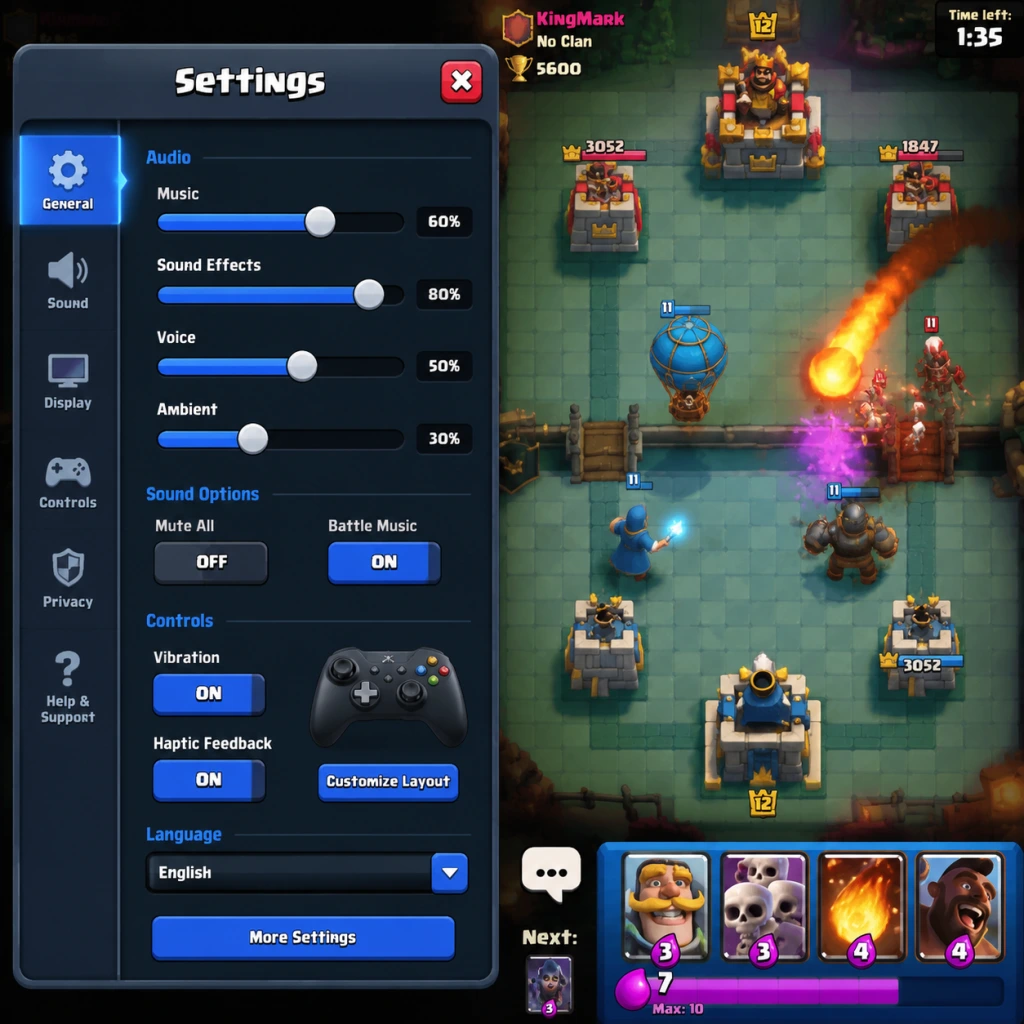
Game Settings
Overview
Properly configuring your Clash Royale settings can significantly impact your gameplay experience, from visual clarity and performance to audio feedback and competitive advantages. This guide covers all available settings across mobile and PC (Epic Games Store) versions, explains their effects, and provides recommendations for different hardware capabilities.
Graphics Settings
Graphics settings affect how the game looks and performs. On mobile, you can choose between Low, Medium, and High quality presets. The PC version offers more granular controls.
Quality Presets (Mobile & PC)
- Low: Reduces resolution, disables shadows, lowers particle effects. Best for older devices or when saving battery. Minimal visual distractions but can make some cards harder to see in heavy action.
- Medium: Balanced visuals with moderate effects. Recommended for most mid-range devices and PCs.
- High: Full resolution, shadows, particle effects, and smooth lines. Ideal for high-end devices and PCs. Enhances visual feedback but may cause overheating or frame drops on weaker hardware.
Advanced Graphics Options (PC Only)
| Setting | Effect | Recommendation |
|---|---|---|
| Resolution | Native, 1440p, 1080p, etc. | Set to monitor’s native resolution for sharpest image. Lower if performance issues arise. |
| Frame Rate | 30 FPS, 60 FPS, Auto (unlimited) | Always choose 60 FPS or Auto for competitive play. Smooth animations improve reaction time. |
| Smooth Line | Smooths edges (anti-aliasing) | Enable on high-end systems. Disable on low-end to boost FPS. |
| Shadows | Toggle shadows on/off | Shadows add depth but cost performance. Disable for competitive play (reduces visual noise). |
| Particle Effects | Controls explosion, spell, and death effects | High can obscure gameplay during intense battles. Set to Medium or Low for clarity. |
Optimal Settings by Hardware Level
- Low-End (e.g., iPhone 6, Android with 2GB RAM, low-budget PC): Graphics Quality Low, Resolution 720p, Frame Rate 30 FPS, Shadows Off, Particle Effects Low. Aim for stable 30 FPS.
- Mid-Range (e.g., iPhone XR, Android with 4GB RAM, average laptop): Graphics Quality Medium, Resolution native, Frame Rate 60 FPS, Shadows Off, Particle Effects Medium.
- High-End (e.g., iPhone 14 Pro, flagship Android, gaming PC): Graphics Quality High, Resolution native, Frame Rate 60 FPS or Auto, Shadows On, Particle Effects High. Disable Smooth Line if performance dips.
- Frame Rate: Crucial for competitive play. Ensure it's set to at least 60 FPS on capable devices. Many players leave it on 30 FPS, which can delay their reactions.
- Particle Effects: On High, spells like Rocket or Lightning can create large visual explosions that hide enemy placements. Lower to Medium to maintain battlefield awareness.
Easy-to-Misconfigure Settings
Audio Settings
Audio provides critical feedback for card deployment, tower damage, and spell activation. Even if you play muted, consider enabling sound effects for key notifications.
| Setting | Description | Recommendation |
|---|---|---|
| Master Volume | Overall audio output | Adjust to comfortable level. Keep it low if playing in public. |
| Sound Effects | Card sounds, battle noises, tower warnings | Enable. Critical for hearing card drops (e.g., Hog Rider splashing, Miner popping). |
| Music | Background battle music | Optional. Can be distracting; many pros disable it. |
| Voice | Announcer lines (e.g., “Triple Elixir!”) | Keep enabled for important game-state notifications. |
| Vibration | Phone vibrates on hits | Disable to save battery. Not essential. |
Special Attention
- Sound Effects help you react to off-screen card placements. A Goblin Barrel dropping makes a distinct sound—enable sound for better defense.
- Music can be turned off without loss of competitive edge.
- Button Size (if available): Larger buttons reduce mis-taps. Not present in current version.
- “Quick Launch”: Some launchers have it; not in-game.
- Mouse: Left-click to select/place a card, right-click to cancel.
- Keyboard: Number keys 1-8 to quickly select a card (1-8 correspond to card slots). Spacebar or Enter can be used to confirm placement (customizable in some versions).
- Key Bindings: In settings, you can reassign hotkeys for each card slot. F1-F8 are alternatives.
- Show Card Levels: Toggle to display card levels in battle. Enable to see opponent card levels during match (useful for elixir counting).
- “Decorate Mode”: Enables placing emotes and tower skins. Disable during battles to keep interface minimal.
- “Battle Log” & “Replay”: Not settings but part of interface; no configuration needed.
- Key Bindings: On PC, if you accidentally rebind a key, you may struggle to select cards quickly. Reset to default before tweaking.
- “Decorate Mode” can clutter the screen; turn off for matches.
- Colorblind Mode: Found under Settings → Graphics. Options for Protanopia, Deuteranopia, Tritanopia. Adjusts card rarity colors and elixir color (elixir is normally pink; colorblind modes shift to distinguishable hues). Highly recommended if you have any color vision deficiency.
- Text Size: Not adjustable in-game. Use device-level accessibility (e.g., iOS Display & Text Size).
- Screen Reader Support: Not built-in. Relies on OS-level accessibility.
- “High Contrast” Mode: Some devices offer it, but not in-game setting.
- Colorblind Mode should be enabled even if you don’t think you’re colorblind? Rarely beneficial. Only use if needed.
- No “Font” or “Button Size” adjustments exist. For vision impaired players, use system zoom.
- Game Language: Automatically detected from device/system language. Can be changed in Settings → Language. Supports many languages (English, Spanish, French, Chinese, etc.).
- Region: Not separately selectable; may affect clan search and time zone display.
- Changing language resets certain tutorial pop-ups? No, but card names will be in the new language, which can confuse interactions in international clans. If you play with English-speaking players, keep language as English for consistency.
Controls & Interface
Controls differ between mobile and PC.
Mobile Touch Controls
Clash Royale uses drag-and-drop to deploy cards, tap on towers to activate spells. There are no alternate control schemes. The only relevant settings are:
PC Keyboard & Mouse Controls
Interface Customization
Easy-to-Misconfigure
Accessibility Settings
Clash Royale offers limited accessibility options, but some are available:
Special Attention
Language Settings
Easy to Misconfigure
Network & Data Usage
Clash Royale is an online-only game. These settings affect connection stability and data consumption.
| Setting | Description | Recommendation |
|---|---|---|
| Wi-Fi Only | Blocks cellular data | Enable if you have limited data plan. Disable if you want to play on mobile internet. |
| “Low Data Mode” | Reduces background data usage | Not present. Instead, reduce graphics to save data? Graphics don’t affect data usage; only battle data (small packets). |
| “Continue Play” on Connection Loss | Automatically reconnects | Always enable; it can save you from accidental disconnects. |
| “Bandwidth Saver” | Compresses textures, reduces animation quality | Not available in Clash Royale. |
Special Attention
- Wi-Fi vs Cellular: Playing on unstable Wi-Fi may cause lag spikes. Cellular 4G/5G is often more consistent. Never play on high-latency connections.
- No frame-rate sync over network – your frame rate is independent. Don’t worry about “network packets per second”.
Gameplay & Notification Settings
These aren’t visual but affect your in-game experience.
| Setting | Description | Recommendation |
|---|---|---|
| “Auto-Deploy” or “Quick Deploy” | Not present. | – |
| “Do Not Disturb” (DND) | Mutes notifications during battle | Enable to avoid interruptions. |
| “Show Crown Level in Battle” | Displays opponent crown level (clan war) | Enable for psychological insight. |
| “Opponent Mute” | Mutes opponent emotes | Highly recommended to avoid tilt. |
| “Team Mute” (2v2) | Mutes teammate emotes | Use if you find them distracting. |
| “Battle Enter Animation” | Plays animation when match starts | Disable to save precious seconds? Not possible. |
| “Start Battle Button” placement | Not configurable. | – |
| “Clan Chat Notifications” | Alerts for clan messages | Personal preference. Disable if too frequent. |
| “Tournament/Chest Notifications” | Reminders for wars, chests | Enable to maximize progression. |
Easy to Misconfigure
- Opponent Mute: Many beginners leave it on and get tilted by emotes. Turn it off in settings if you find it annoying.
- Clan Chat Notifications: Can be overwhelming in large clans; disable if you only check manually.
- Graphics: Medium/High with 60 FPS, shadows off, particle effects medium.
- Audio: Sound Effects on, Music off.
- Controls: Use keyboard shortcuts on PC; default card slot order (1-8).
- Accessibility: Enable colorblind mode if needed.
- Network: Ensure stable connection; enable Wi-Fi only on limited data.
- Gameplay: Mute opponents, enable 60 FPS, and adjust notifications to your liking.
Conclusion
To get the best competitive experience:
Regularly review settings after updates, as new options may appear. Optimize for clarity and performance above all.