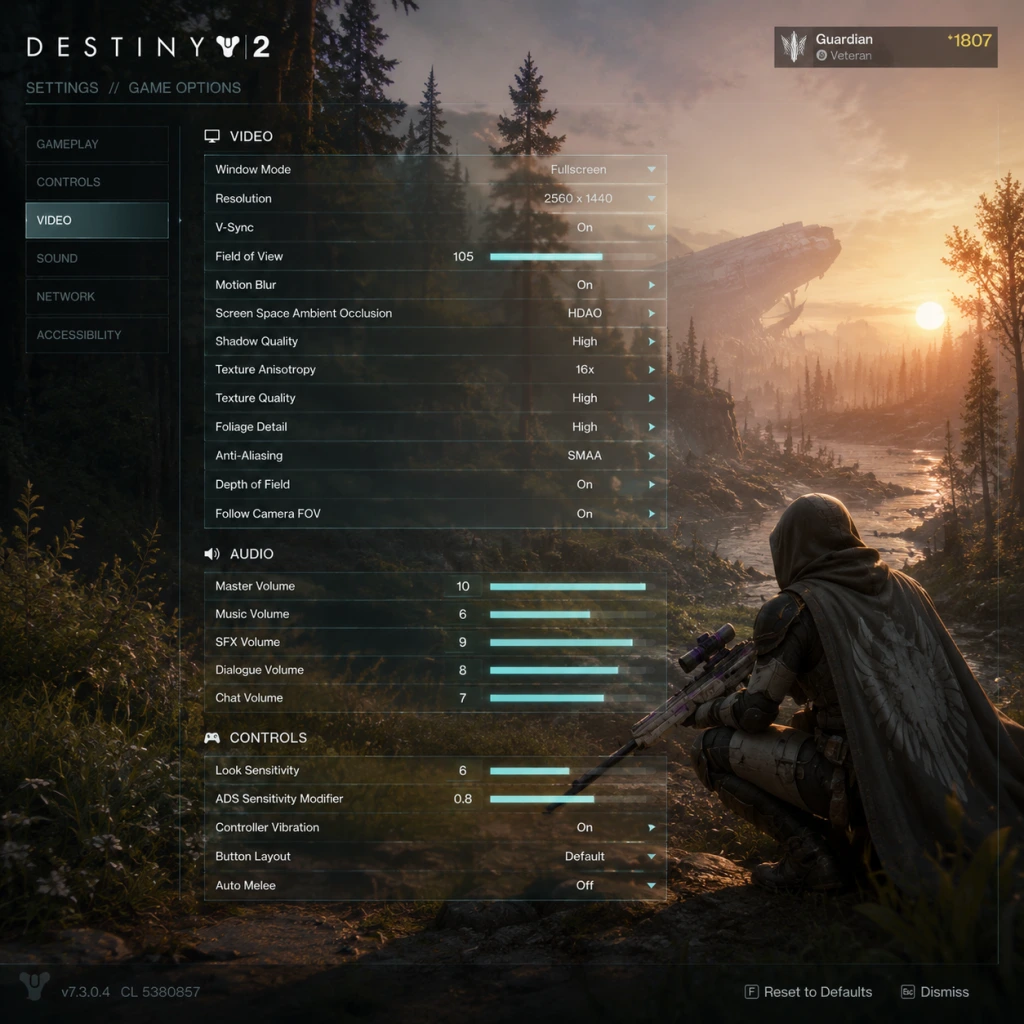
Game Settings
Overview
Destiny 2 offers a deep set of settings across graphics, audio, controls, accessibility, language, network, and gameplay. Properly configuring these can significantly improve your performance, visual clarity, and comfort. This guide covers every setting category, recommends optimal values for different hardware levels, and highlights potential pitfalls that can hinder gameplay.
---
Graphics Settings
Display & Video
- Display Mode: Fullscreen (exclusive) for best performance; Windowed Fullscreen for quick alt-tabbing but may introduce slight input lag.
- Resolution: Native monitor resolution (e.g., 1920x1080, 2560x1440, 3840x2160). Lowering resolution can boost FPS but makes UI small.
- FOV (Field of View): Slider from 55–105. Important: A higher FOV (85–105) gives better peripheral vision, especially in PvP and fast-paced activities. Most players prefer 90–105. Low FOV can cause motion sickness for some.
- Brightness: Calibrate so the Destiny logo is barely visible during the test screen. This ensures correct black levels.
- HDR: If your monitor supports HDR, enable it for more vibrant colors. Disable if you notice washed-out visuals or banding.
- Render Resolution: 100% is native. Lower (e.g., 75%) improves performance but reduces clarity. For very low-end PCs, 50% can be used but will look blurry.
- Texture Quality: Affects weapon, armor, and environment detail. Low (minimum VRAM) to Ultra (high VRAM). Recommendation: Set to High if you have 4+ GB VRAM, Medium for 2-3 GB, Low for less. Ultra only for 8+ GB VRAM.
- Shadow Quality: Shadows from characters and objects. Low provides blocky shadows but big performance gain. Medium is a good balance. High/Ultra for high-end PCs.
- Ambient Occlusion: Adds realistic contact shadows. SSAO (low), HBAO+ (medium/high). Performance hit: Significant. Disable on low-end, use SSAO on mid, HBAO+ on high.
- Depth of Field: Blurs distant objects when aiming or in cutscenes. Recommendation: Off for competitive play; can be left on for cinematic feel.
- Motion Blur: Blurs image during movement. Recommendation: Off – reduces visual clarity and can cause nausea in some players.
- Chromatic Aberration: Adds lens-like color fringing. Recommendation: Off – no gameplay benefit, reduces image sharpness.
- Film Grain: Adds noise. Recommendation: Off – purely aesthetic and lowers visual fidelity.
- Anti-Aliasing: FXAA (light), SMAA (medium), MSAA (heavy). Recommendation: SMAA for best quality/performance balance. MSAA is resource-intensive. FXAA blurs edges slightly.
- Texture Anisotropic Filtering: 1x–16x. Recommendation: 16x – negligible performance cost on modern GPUs.
- LOD (Level of Detail): Determines object draw distance. Ultra for long-range visibility (important for sniping/scouting). Low can cause pop-in.
- Foliage Quality: Affects grass and bushes. Recommendation: Medium – grass can hide enemy players, but very high density costs FPS.
- Wind-Affected Foliage: Toggle. Recommendation: Off – purely cosmetic.
- Screen Space Reflections: Reflections on water, metal surfaces. Recommendation: Low or Off on low-end; High on mid/high.
- NVIDIA Reflex: Reduces system latency. Recommendation: On + Boost if available (NVIDIA GPUs only).
- AMD FSR / Intel XeSS: Upscaling technologies. Use if you need higher FPS; Quality preset preserves image well.
- Render Resolution Scale %: Overrides internal resolution. See above.
- Dual Monitor Fix: If you have multiple monitors, set to Fullscreen and adjust resolution to avoid cursor drifting.
- Performance Mode: On PS5/Xbox Series X|S, choose between 60 FPS (Performance) or 30 FPS with higher visual settings (Quality). Recommendation: 60 FPS for smoother gameplay.
- 120 Hz Mode: Available on next-gen consoles with a 120 Hz display. Enables up to 120 FPS in Crucible and Gambit. Important: Requires a compatible display and HDMI 2.1 cable.
- Field of View: Only adjustable on next-gen consoles. Set to 90–95 for wider view.
- Master Volume: Set to comfortable level.
- Music Volume: 100% for immersion; reduce if you prefer to hear footsteps.
- SFX Volume: 100% – crucial for hearing weapon sounds, ability cues, and environmental audio.
- Dialogue Volume: 100% – important for story and callouts.
- Voice Chat Volume: Adjust based on your team.
- Audio Language: Choose English for voice acting or original Japanese (if available) with subtitles.
- Audio Output: Headphones (for 3D audio), Stereo, 5.1, 7.1. Recommendation: Headphones if using a headset to improve spatial awareness. 5.1/7.1 for home theater.
- Enable 3D Audio (Headphones): On – provides accurate directional audio for footsteps, gunshots, and enemy abilities. Must be enabled for competitive advantage.
- Controller Vibration: On – adds immersion but can be disabled to reduce distraction.
- Sprint: Default Shift. Change if uncomfortable.
- Crouch/Slide: Default C. Many players change to Ctrl or a mouse side button for easier slide-cancelling.
- Class Ability: Default (for Hunters: Shift+Ctrl? Actually default is B for class ability). Rebind to a comfortable key like Q or mouse thumb button.
- Melee: Default V (or mouse 4). Change to mouse wheel down or side button for faster use.
- Grenade: Default Q. Keep or move to mouse side button.
- Super: Default F. Keep.
- Reload: Default R. Keep.
- Interact: Default E. Keep.
- Weapon Swap: Default 1,2,3. Many use mouse wheel or press to swap.
- Air Move: Default Space (double-tap). Can rebind to a separate key.
- Ability Charge: Not present in default – but you can bind finisher or emote.
- Mouse Sensitivity: Start around 6–8 (in-game) with 800 DPI. Adjust until you can do a 180° turn easily.
- ADS Sensitivity Modifier: Critical setting. Lower this (e.g., 0.7x) for finer aiming down sights. Common range: 0.5–0.8.
- Controller Aim Assist: Aim assist is strong on PC with controller. Use if you prefer controller.
- Default, Puppeteer, etc. Puppeteer maps crouch to right stick click for easier slide-cancelling (popular).
- Button Layout: Many PvP players use Puppeteer or Bumper Jumper (jump with L1/LB) for better vertical mobility.
- Stick Deadzone: Lower (0.05–0.15) for more precise aiming; higher reduces stick drift.
- Vibration: See Audio section.
- Subtitle Size: Available in three sizes (Small, Medium, Large). Recommendation: Large for readability.
- Subtitle Background: Opacity slider – set to high if you want subtitles easily readable.
- Speaker Names: Show/Hide speaker names in subtitles.
- Text-to-Speech (TTS): Reads chat and social messages aloud. On if needed.
- Speech-to-Text (STT): Transcribes voice chat to text. Helpful for hearing-impaired players.
- Colorblind Modes: Protanopia, Deuteranopia, Tritanopia – affects reticle colors, radar, and UI elements. Highly recommended to enable if you have color vision deficiency. Try all three to see which improves visibility.
- Screen Shake: Slider 0–100%. Recommendation: 0% – eliminates camera shake from explosions, improving aim and reducing motion sickness.
- Camera Shake (similar to Screen Shake): Also set to 0%.
- Menu Cursor Speed: For menus using analog stick or mouse. Adjust to taste.
- Auto-Equip Gear: When opening engrams, auto-equip if higher power. Toggle off if you prefer manual control.
- Hold vs Toggle: Sprint, Crouch, ADS. Recommendation: Set to Toggle for Sprint (hold to run) and Toggle for Crouch (tap to go prone? No, Destiny 2 has only crouch/slide). Many players prefer Hold for ADS for finer control. Choose what feels natural.
- Text Language: Choose preferred language (English, French, German, Italian, Spanish, Japanese, etc.). This changes all UI text, descriptions, and subtitles.
- Voice Language: Separate from text. You can have English text with Japanese voice, for example.
- Audio Language: Same as voice. Some languages are only available in certain regions due to licensing. Note: Changing voice language requires a restart.
- Network MTU: Leave as default (1500).
- Proxy Settings: None required.
- Bandwidth Limit: No in-game setting; manage via router QoS.
- Platform Network: Ensure your platform (Steam, Epic, Xbox, PlayStation) has NAT Type Open for best matchmaking.
- Wired Connection: Strongly recommended over Wi-Fi to reduce latency and packet loss.
- Firewall/Port Forwarding: Destiny 2 requires UDP ports 3074 (Xbox), 9308 (PS), 27000–27009 (Steam). Open these if you experience connection errors.
- HUD Scale: Adjust size of health bar, ammo counter, abilities. Recommendation: Scale up if playing on high resolutions or far from screen.
- HUD Opacity: Affects transparency. Set to 100% for clarity.
- Radar Always On: Toggle. Important: Leave On – radar is crucial for detecting enemy proximity.
- Weapon Reticle: You can choose crosshair style (Default, Circle, Crosshairs, Dot). Recommendation: Dot for precision weapons, Circle for shotguns. You can toggle per weapon type.
- Show Weapon Reticle Always: On – shows reticle even when not aiming down sights.
- Glint Effects: Visual effects for Supers and abilities. Recommendation: On (informative) but may be distracting.
- Quest Tracker: Show on screen or hide. Use minimal to reduce clutter.
- Auto-Fire (Trigger Mode): For controller, you can set to Auto, Semi, or Hold. Recommendation: Semi for most weapons, Auto for only fully automatic weapons (but can be toggled per weapon in game).
- Aim Assist (Controller): Cannot be turned off entirely in Destiny 2; it's built-in for controller users. Note: PC with controller gets moderate aim assist; MNK gets no bullet magnetism but does have reticle friction? Actually Destiny 2 removes bullet magnetism for mouse on PC. Use controller if you want assist.
- Finisher Keybind: Bind to a convenient key (e.g., T or mouse button). No in-game auto-finisher, but you can hold interact on downed enemies.
- Ghost Interaction: Press and hold to ping/scan objectives. Default key.
- Fireteam Privacy: Open, Friends Only, Closed. Set accordingly.
- Voice Chat Modes: Push to Talk (keyboard) or Open Mic. Recommendation: Push to Talk to avoid background noise.
- Text Chat: Show/Hide. Can be filtered to party, fireteam, or local. Useful for LFG.
- Emotes/Actions: Bind favorite emotes for quick use.
- Inactivity Timeout: Game disconnects after 5 minutes of inactivity if in orbit. Not configurable.
- Screen Effects: Can disable some visual effects in settings (e.g., Stasis slow effects) – check under Accessibility.
- Resolution: 1080p (or 720p if needed)
- Render Resolution: 75%
- Texture Quality: Low or Medium
- Shadow Quality: Off or Low
- Ambient Occlusion: Off
- Depth of Field: Off
- Motion Blur: Off
- Chromatic Aberration: Off
- Film Grain: Off
- Anti-Aliasing: FXAA or SMAA (try FXAA for performance)
- Texture Anisotropic Filtering: 4x
- Foliage Quality: Low
- Screen Space Reflections: Off
- LOD: Low
- NVIDIA Reflex: On (if supported)
- FOV: 90 (lower FOV can boost FPS slightly)
- Target FPS: 30–60
- Resolution: 1080p
- Render Resolution: 100%
- Texture Quality: High
- Shadow Quality: Medium
- Ambient Occlusion: SSAO
- Depth of Field: Off
- Motion Blur: Off
- Chromatic Aberration: Off
- Film Grain: Off
- Anti-Aliasing: SMAA
- Texture Anisotropic Filtering: 8x
- Foliage Quality: Medium
- Screen Space Reflections: Low
- LOD: High
- NVIDIA Reflex: On + Boost
- FOV: 95
- Target FPS: 60–90
- Resolution: 1440p or 4K
- Render Resolution: 100%
- Texture Quality: Ultra
- Shadow Quality: High
- Ambient Occlusion: HBAO+
- Depth of Field: Off (competitive) or On (casual)
- Motion Blur: Off
- Chromatic Aberration: Off
- Film Grain: Off
- Anti-Aliasing: SMAA (MSAA 4x if performance allows)
- Texture Anisotropic Filtering: 16x
- Foliage Quality: High
- Screen Space Reflections: High
- LOD: High
- NVIDIA Reflex: On + Boost
- FOV: 105
- Target FPS: 120 or 144 (depending on monitor)
- Performance Mode (next-gen): 60 FPS (or 120 Hz if available)
- FOV: 90–95
- Motion Blur: Off
- Screen Shake: 0%
- Controller Layout: Puppeteer or Bumper Jumper
- Aim Assist: Default (on for controller)
Rendering Quality
Destiny 2 uses a scale from Low to Ultra for most options. Here's the breakdown:
Advanced Graphics (PC Only)
Console-Specific Graphics
---
Audio Settings
---
Controls Settings
Keybindings (Keyboard & Mouse)
Destiny 2 allows rebinding almost every action. Here are critical ones to customize:
Important: Under Controller: you can invert look, adjust stick dead zones, and swap trigger buttons. For mouse:
Controller Layouts
---
Accessibility Settings
---
Language Settings
---
Network Settings
Destiny 2 is an online-only game. The network settings are minimal:
Special Attention: The game does not have a network bandwidth slider. If you experience lag spikes, check your ISP or use a wired connection. In-game network diagnostics (Options > Settings > Network) show your connection quality.
---
Gameplay Settings
HUD & UI
Combat & Movement
Social & Matchmaking
Other
---
Optimal Settings by Hardware Level
Low-End PC (e.g., GTX 1050 Ti, 8GB RAM, HDD)
Mid-Range PC (e.g., GTX 1660 Super, 16GB RAM, SSD)
High-End PC (e.g., RTX 3070, 32GB RAM, NVMe SSD)
Console Settings (All)
---
Settings That Are Easy to Misconfigure
1. FOV: Too low causes tunnel vision; too high can distort UI and decrease FPS. Best: 90–105.
2. ADS Sensitivity Modifier: Leaving at 1.0 makes aiming too twitchy. Best: 0.5–0.8.
3. Motion Blur / Chromatic Aberration / Film Grain: On by default for some presets; turn off for clarity.
4. Screen Shake: Default often at 100%; reduce to 0% for better aim.
5. Hold vs Toggle: Many players accidentally set Sprint/Crouch to Hold causing discomfort. Test both.
6. Colorblind Modes: Even if not colorblind, some modes may improve radar visibility (e.g., Tritanopia makes radar more vibrant). Experiment.
7. Network: Not checking NAT Type can cause matchmaking failures. Open NAT is essential.
8. Controller Deadzones: Default often too high; lowering improves fine aim but may introduce drift.
9. Audio Output Mode: Setting to Stereo instead of Headphones loses 3D spatial audio. Important for PvP.
---
Conclusion
Take time to adjust each setting, especially graphics and controls, to match your hardware and playstyle. Use the recommendations above as a starting point and tweak based on personal preference. Destiny 2 rewards clarity and responsiveness—settings that reduce distractions (motion blur, screen shake) and improve awareness (FOV, audio 3D) will give you an edge. Revisit settings after major updates, as Bungie sometimes changes defaults or adds new options.
For further help, use the in-game Settings menu > Help section or consult the official Bungie Help forums.