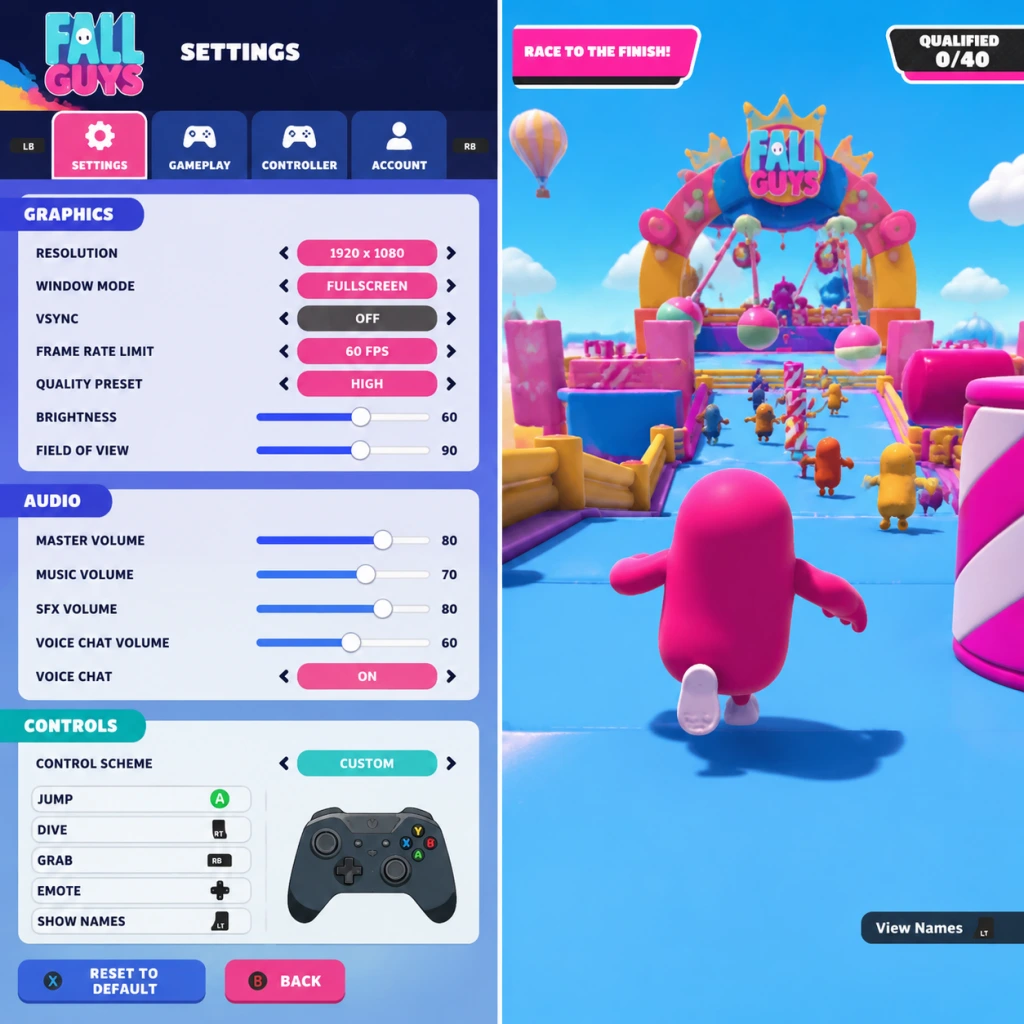
Game Settings
Game Settings Guide for Fall Guys
This guide covers all configurable settings in Fall Guys, including graphics, audio, controls, accessibility, language, network, and gameplay options. It provides optimal recommendations for different hardware levels and highlights settings that are easy to misconfigure.
Overview of the Settings Menu
Fall Guys settings are accessible from the main menu via the gear icon (Settings). The menu is organized into tabs: Graphics, Audio, Controls, Accessibility, Language, Network, and Gameplay. Most settings change in real-time; some require a restart (e.g., resolution, fullscreen mode).
Platform-Specific Settings Locations
- PC (Steam / Epic Games Store): Full settings menu available. Graphics settings are exclusive to PC.
- PlayStation 4/5: Limited graphics options (brightness, HDR). Main settings relate to controls, audio, and accessibility.
- Xbox One / Series X|S: Similar to PlayStation – no in-game graphics tweaks beyond brightness/HDR.
- Nintendo Switch: Minimal settings: audio, controls, accessibility, language. No graphics/network options.
---
Graphics Settings (PC Only)
These settings affect visual quality and performance. Fall Guys is not graphically demanding, but optimising framerate is crucial for smooth platforming.
| Setting | Description | Low-End (60 FPS target) | Mid-Range (60-144 FPS) | High-End (144+ FPS) | Notes |
|---|---|---|---|---|---|
| Display Mode | Fullscreen, Windowed, Borderless Windowed | Fullscreen | Fullscreen or Borderless | Borderless (for alt-tabbing) | Fullscreen gives best performance. Windowed modes may add input lag. |
| Resolution | Native resolution of your monitor | 1280x720 or 1600x900 | 1920x1080 | 2560x1440 or 3840x2160 | Keep at 100% scaling. Downscaling outside 100% blurs image. |
| VSync | Synchronises frame rate with monitor refresh | Off | Off (use G-Sync/FreeSync if available) | Off | Easily misconfigured: VSync on adds noticeable input lag. Turn off for competitive play. |
| Frame Rate Limit | Caps max FPS | 60 or 90 | 144 | 144+ (unlimited) | Set to your monitor's refresh rate to avoid tearing if VSync off. |
| Quality Preset | Overall quality (Low, Medium, High, Ultra) | Low | Medium | High | Custom overrides parts. Many players forget to switch back to custom after changing presets – double-check advanced settings. |
| Texture Quality | Detail of surfaces | Low | Medium | High | Low helps VRAM; medium is fine for most. |
| Shadow Quality | Detail and distance of shadows | Off or Low | Low | Medium | Shadows have minimal gameplay impact; keep low for performance. |
| Anti-Aliasing | Smooths jagged edges | Off or FXAA | FXAA or TAA | TAA or SMAA | FXAA has low performance cost. TAA may cause slight blur. |
| Post-Processing | Bloom, motion blur, depth of field | Off | Off | Off | Off for clarity and performance. Motion blur can disorient during fast movement. |
| Effects | Particle effects, confetti density | Low | Medium | High | High settings can create visual clutter during final rounds (e.g., Fall Ball). Recommend Medium. |
- Resolution Scaling in Graphics > Advanced (e.g., 50%-150%): Keep at 100% unless you are deliberately downscaling for performance. Below 100% makes the game blurry; above 100% is supersampling (very heavy). Misconfiguring this is a common mistake.
- Performance Tip: For competitive play, set everything to Low except Texture Quality (Medium) and turn VSync OFF. This ensures maximum, stable framerate and minimal input lag.
- Master Volume: Overall game loudness. Check your system volume – don't leave this at 100% if speakers are loud.
- SFX Volume: Sound effects (jumps, obstacles, grabbing). Keep high (80-100%) to hear approaching hazards or teammate actions.
- Music Volume: Background music. Lower or mute if you prefer to focus on SFX.
- Voice Chat Volume: For PC/console voice chat. Set to comfortable level; mute if not used.
- Subtitle Language & Size: PC only for now; toggle subtitles for voice lines (e.g., commentary).
- In team rounds (e.g., Hoopsie Daisy), hearing teammate callouts is valuable. Keep voice chat volume balanced with SFX.
- Music can mask important sounds; many players set Music to 20-30%.
- Movement Sensitivity: Mouse sensitivity for camera control. Default is fine; lower sensitivity reduces overshoot.
- Invert Y-Axis: Toggle for camera pitch. Rarely needed in Fall Guys.
- Key Bindings: Remap jump (Space default), dive (Ctrl), grab (E), emote (T), etc. Misconfiguration: If you reassign jump to an awkward key, you'll miss jumps. Keep default or map to comfortable layout (e.g., jump on mouse side button).
- Controller Vibration: On/Off. Off recommended to avoid distraction and save battery.
- Stick Sensitivity: (Gear) Controls turn speed. Default 80% is balanced. Higher = faster spin, risk of overshooting; Lower = slower, may need faster arm movement.
- Dead Zone: Minimum stick movement before input registers. Default 0.10. If you experience stick drift, increase to 0.15-0.20.
- Button Mapping: (Console/PC) Swap jump (X/A) and dive (Circle/B)? Doesn't change functionality. Pro tip: Map jump to R1/RB for quicker presses?
- Sensitivity too high: Common mistake – players set it to 100% and can't aim their dive. Stick to 70-90%.
- Dead Zone too low: Drift causes accidental inputs (dive off edges). Increase if needed.
- Colorblind Mode: Off, Protanopia, Deuteranopia, Tritanopia. Critical setting – it changes team colors (e.g., yellow vs pink to blue vs orange?) in rounds like Perfect Match (fruit patterns) or Team Tail Tag. Even if not colourblind, some players use it for contrast. Misconfiguration: If you enable a mode, colors shift; if you then see a team color as green, you may confuse teammates. Test in Quick Play to adjust.
- Subtitle Size: Small/Medium/Large. Helps readability.
- Camera Shake: Reduce or disable to avoid discomfort.
- Screen Flash: Reduce or disable (strobe effects).
- Menu Narrator (Console): Toggle for text-to-speech.
- High Contrast UI: (PC only) Increases outline visibility on text and icons.
- Colorblind mode is one of the most misconfigured settings in Fall Guys. Players accidentally enable it and then cannot figure out why team colors look odd. Double-check it's Off unless needed.
- Region: Choose preferred server region (e.g., Europe, North America, Asia, Oceania). Misconfiguration: Leaving on "Automatic" may connect to a far-away server if you travel or VPN. Switch to your closest region for lowest ping. High ping causes rubber-banding and missed grabs.
- Cross-Platform Play: On/Off. On by default – includes all console and PC players. Misconfiguration: Turning it off significantly reduces matchmaking pool, especially on less populated platforms (Switch, Oceania). Keep On unless you have specific reasons (e.g., avoiding PC players with m&kb).
- Region selection is often overlooked. After a long queue, you may get placed in a different region. Manually set to your closest region.
- Crossplay OFF can increase queue times to 5+ minutes on some platforms.
- Quick Chat Messages: Customise 4 messages (PC/Console). Choose useful callouts like "This way!", "Grab them!", "Watch out!".
- Nameplate Icon: Off/Default/Only Crowns. Controls display of your crown rank near name.
- Emote Wheel: Assign emotes to d-pad directions (console) or number keys (PC).
- Auto-Ready: Toggle to automatically ready up after a match. Speeds up play.
- Show Player Names: Always/Team Only/Off. For streaming/privacy, hide names.
- Crown Shine Animation: Toggle the victory fanfare animation. Minimal impact.
- Quick Chat messages are easily set to something non-useful. Consider using "Great!", "Sorry!", "Go!", "Help!" for team rounds.
- Auto-Ready can be annoying if you want to change costume between matches; turn off if you like customising.
- Resolution: 1280x720
- Graphics Preset: Low (then adjust Anti-Aliasing Off, Shadows Off)
- VSync: Off
- Frame Rate Limit: 60
- Effects: Low
- Texture Quality: Low
- Resolution Scaling: 100%
- Resolution: 1920x1080
- Graphics Preset: Medium (then set Shadows Low, Anti-aliasing FXAA, Post-Processing Off)
- VSync: Off (or G-Sync/FreeSync)
- Frame Rate Limit: 144 (if monitor supports)
- Texture Quality: Medium
- Effects: Medium
- Resolution: 2560x1440 or 3840x2160
- Graphics Preset: High (then adjust Anti-aliasing TAA, Shadows Medium)
- VSync: Off
- Frame Rate Limit: 144+ (or unlimited)
- Texture Quality: High
- Effects: Medium (to avoid visual clutter)
- PS4 / Xbox One: Fixed 60 FPS at dynamic 1080p. No in-game graphics options. Adjust only audio, controls, accessibility, and network.
- PS5 / Xbox Series X|S: Typically runs at 60 FPS with dynamic resolution up to 4K. No custom graphics settings.
- Nintendo Switch: 30 FPS target, dynamic resolution 720p (docked 1080p?). Minimal settings. Disable vibration to save battery.
Audio Settings
Available on all platforms. Adjust volumes to hear important game cues.
Special Attention:
Controls Settings
Customise input devices. Available on all platforms with varying depth.
#### Keyboard & Mouse (PC)
#### Controller (PC & Console)
Special Attention:
Accessibility Settings
Important for inclusive play. Available on all platforms with slight differences.
Special Attention:
Language Settings
Simple dropdown to choose game text language. On console, often tied to system language; may require restart. No performance impact. Only note: some cosmetic names may differ between languages (e.g., "Fall Mountain" vs local translation).
Network Settings
Special Attention:
Gameplay Settings
Personalization options that don't affect performance.
Special Attention:
---
Optimal Settings Recommendations by Hardware
#### Low-End PC (e.g., Intel UHD 620, Ryzen 3 2200G, 8GB RAM)
#### Mid-Range PC (e.g., GTX 1060, RX 580, 16GB RAM)
#### High-End PC (e.g., RTX 3070, Ryzen 5 5600X, 16+GB RAM)
#### Consoles
---
Special Attention Points During Setup
1. VSync: Always OFF for competitive play. Enable only if you have severe screen tearing and cannot tolerate it.
2. Resolution Scaling: Keep at 100%. Anything below makes the game blurry; above 100% is redundant on low-end hardware.
3. Colorblind Mode: Double-check it is Off if you don't need it. Many players accidentally turn it on and wonder why team colors look different.
4. Region Selection: Manually set to your closest server to avoid high ping.
5. Controller Dead Zone: If you experience unintentional movement, increase dead zone. Default 0.10 is fine for most controllers.
6. Cross-Platform Play: Keep On to ensure healthy matchmaking. Turn off only if you want to avoid PC players or if you experience long queue times (rare).
7. Audio Balancing: Set Music low (20-30%), SFX high (90-100%) to hear important gameplay cues.
8. Quick Chat: For team rounds, use callouts like \"Go!\", \"Defend\", \"Attack\". Avoid spamming.
---
By configuring these settings carefully, you'll enjoy smoother performance, better awareness, and a more comfortable experience in Fall Guys.