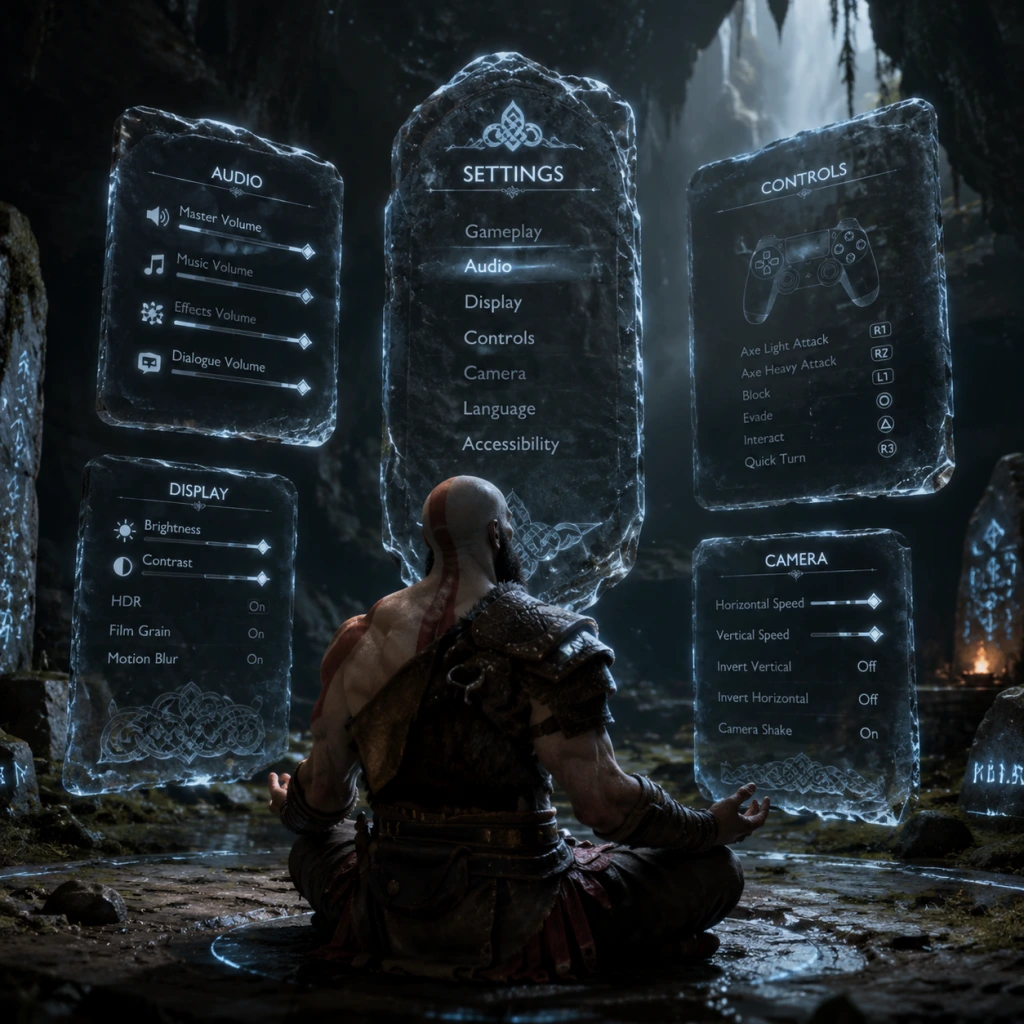
Game Settings
Game Settings Guide for God of War (2018)
This guide covers every settings menu in God of War (2018) across all platforms (PC and PlayStation). It provides optimal recommendations for different hardware tiers, explains misconfiguration pitfalls, and highlights special attention points during setup.
---
1. Graphics Settings (PC Only)
God of War (2018) on PC offers a wide range of graphics options. Settings are accessed from the main menu under Settings > Graphics.
#### Display & Resolution
- Display Mode: Choose between Fullscreen, Borderless Windowed, and Windowed. Fullscreen provides best performance; Borderless is better for alt-tabbing but can introduce input lag.
- Resolution: Set to your monitor’s native resolution (e.g., 1920x1080, 2560x1440, 3840x2160). Lower resolutions improve performance but reduce clarity.
- Refresh Rate: Match your monitor’s refresh rate (e.g., 60Hz, 144Hz). Enable VSync if you experience screen tearing; otherwise disable to reduce input lag.
- Graphics Preset: Choose from Low, Medium, High, Ultra, or Custom. Presets adjust all sub-settings automatically.
#### Advanced Graphics Options
| Setting | Recommendation | Hardware Tier Notes |
|---|---|---|
| Texture Quality | High or Ultra | Low VRAM (≤4 GB): Medium; 6 GB: High; 8+ GB: Ultra |
| Model Quality | High | High on all tiers; minor impact on FPS |
| Anisotropic Filtering | 16x | Negligible performance cost, sharpens distant textures |
| Lighting Quality | High | Medium on lower-end GPUs (e.g., GTX 1060) |
| Shadow Quality | High | Low or Medium for significant FPS gains on weaker hardware |
| Reflections | High | Medium or Low to boost FPS; very demanding on water surfaces |
| Atmospherics | High | High creates beautiful fog/particles; Medium if FPS struggles |
| Ambient Occlusion | SSAO (Low) | HBAO+ is more accurate but costs ~10% FPS; disable if needed |
| Anti-Aliasing | DLSS Quality (Nvidia) / FSR Quality (AMD) | TAA is default; use upscalers for best performance/quality balance |
- NVIDIA DLSS (20 series+): DLSS Quality is recommended for RTX cards. Balanced or Performance for higher FPS.
- AMD FSR (all GPUs): FSR Quality at 1440p or Ultra Quality at 1080p. FSR can cause slight ghosting.
- Intel XeSS (Arc GPUs): XeSS Quality for best visuals.
- Render Scale: Manual scaling (e.g., 80%) can improve performance but looks worse than DLSS/FSR.
- VRAM Management: God of War is VRAM hungry. If your GPU has 4GB VRAM or less, set Texture Quality to Low and reduce Model/Lighting Quality. The game may stutter if VRAM overflows.
- Shadow Quality: Very taxing on CPU as well. Lowering it can help on quad-core processors.
- DLSS vs FSR: DLSS generally provides better image stability. FSR tends to produce shimmering on foliage.
- Disable Motion Blur if you dislike the effect; it’s purely aesthetic.
- Master Volume: Set to 100% and adjust via system volume.
- Music Volume: 80-100%; the soundtrack is immersive.
- SFX Volume: 100% to hear combat cues.
- Dialogue Volume: 100% — critical for story and hints from Atreus & Mimir.
- Speaker Configuration: Choose Stereo for headphones or 5.1/7.1 for surround systems. The game supports Dolby Atmos on PC.
- Dynamic Range: Default (Wide) works for most setups. Reduce to Medium or Narrow if using TV speakers to avoid quiet dialogue.
- Dialogue Balance: God of War (2018) has many environmental whispers and atmospheric sounds that can mask dialogue. Ensure Dialogue Volume is not lower than SFX.
- Headphone Mode: Some players report that 5.1 emulation on stereo headphones sounds hollow. Use stereo if you prefer crisp soundstage.
- Invert Y Axis: Off by default; enable if you prefer inverted look.
- Look Sensitivity: Start at 50% and adjust. Higher sensitivity helps with quick camera turns during combat.
- Aim Sensitivity: Lower (30-40%) for precise aiming of Leviathan Axe throws.
- Controller Vibration: On for immersion; off for competitive precision.
- Preset Layouts: Default, Alternate, or Custom. Default is optimized for the game’s combat (R1 for light attacks, R2 for heavy).
- Custom Mapping: Use on PC to assign actions to mouse buttons or keyboard. Recommended: Map “Block/Parry” (L1) to an easily reachable key like C or side mouse button.
- Auto-Sprint: Off by default. Enabling it makes Kratos sprint automatically when moving forward. Some players find it helpful; others lose control during combat. Try both.
- Quick Turn: Default is down on D-pad. Muscle memory is essential; practice using it to face enemies quickly.
- PC Specific: The game shows controller prompts by default. To switch to keyboard prompts, go to Settings > Gamepad/Keyboard > Input Device Icon. Misconfiguration here can confuse new players.
- Subtitles: On by default. Choose from Small, Medium, or Large text size. Large recommended for readability.
- Subtitle Background: Enable to improve contrast against bright scenes.
- Closed Captions: Describes sound effects (e.g., “door creaking”). Helpful for hearing-impaired players.
- Colorblind Modes: Protanopia, Deuteranopia, Tritanopia filters apply to UI elements and enemy indicators.
- High Contrast Display: Increases contrast on characters and enemies; useful for low vision.
- Mono Audio: Combine left/right channels for single-ear headphone users.
- Audio Cues for Puzzles: Some puzzles provide audio hints (e.g., wind chimes). Leave on.
- Hold vs Toggle: Many actions (e.g., sprint, crouch) can be set to toggle instead of hold. Recommended for players with reduced grip strength.
- Combat Assist (Auto-Aim): On by default for axe throws. Increases lock-on assist. Turn off for manual control.
- Accessibility Controller Support: Compatible with PlayStation Access controller and Xbox Adaptive Controller on PC.
- Subtitle Background: Without it, white subtitles can be invisible against snow/winter environments (common in God of War). Enable it.
- Combat Assist: Can interfere with intended throws (e.g., aiming at specific rune puzzles). Temporarily disable it during puzzle sections.
- Spoken Language: English (default), French, German, Spanish, Italian, Portuguese, Russian, etc. The English voice acting is exceptional (Christopher Judge as Kratos).
- Subtitles Language: Choose any supported language. If playing in a language you don’t understand, set subtitles to your native tongue.
- Menu Text Language: Changes UI text. Must match your desired interface language.
- Dual Audio: No option for Japanese voiceovers in the 2018 version (only in God of War Ragnarök).
- Language reset: Changing spoken language restarts the game. Do it before starting a playthrough to avoid confusion.
- Steam Cloud Saves: Enable to sync progress across devices. Disable if you prefer manual backups (saves are also locally stored).
- Epic Online Services: Used for cross-save? Not applicable for this game. Leave as default.
- Network Permissions: Ensure the game has internet access for achievements and updates. Offline mode works fine for gameplay.
- Difficulty Level: Choose at start – Give Me a Story (Easiest), Give Me a Balanced Experience (Normal), Give Me a Challenge (Hard), Give Me God of War (Very Hard). You cannot change later except downgrading from Give Me God of War? Actually, only Give Me God of War locks the difficulty; others can be changed in settings at any time.
- Auto Pick Up: On by default. Off requires pressing a button to collect loot. Keep on to avoid missing items.
- Auto Sheathe Weapon: Off by default. When On, Kratos automatically puts away the Leviathan Axe after a few seconds of non-combat. Off gives more control for puzzles.
- HUD Visibility: Choose from On, Off, or Auto-Hide. Auto-Hide is recommended for immersion; health and runic cooldowns appear only during combat.
- Mini-map Exploration Style: Default shows discovered areas. No alternative style.
- Camera Sensitivity: Separate from Look Sensitivity? Not in this game; it’s unified. Adjust as per Controls section.
- Difficulty Lock: If you choose “Give Me God of War”, you cannot reduce difficulty later. Only choose it if you are experienced with action games.
- Auto Pick Up: Turning it off in a game where gear shards burst from enemies can be annoying; keep on.
- Auto Sheathe: If On, you cannot quickly throw the axe after combat ends. Off ensures readiness.
- Preset: Custom
- Resolution: 1920x1080
- DLSS/FSR: FSR Ultra Quality or Quality
- Texture Quality: Medium
- Model Quality: Medium
- Shadows: Low
- Reflections: Low
- Lighting: Medium
- Atmospherics: Medium
- Ambient Occlusion: Off
- Anti-Aliasing: TAA (or FSR)
- Preset: High
- Resolution: 2560x1440
- DLSS/FSR: DLSS Quality or FSR Quality
- Texture Quality: High
- Model Quality: High
- Shadows: High
- Reflections: High
- Lighting: High
- Atmospherics: High
- Ambient Occlusion: HBAO+
- Anti-Aliasing: DLSS (Quality)
- Preset: Ultra
- Resolution: 3840x2160
- DLSS/FSR: DLSS Performance or FSR Balanced
- Texture Quality: Ultra
- Model Quality: Ultra
- Shadows: Ultra
- Reflections: Ultra
- Lighting: Ultra
- Atmospherics: Ultra
- Ambient Occlusion: HBAO+
- Anti-Aliasing: DLSS (Performance)
- Default settings; no user-adjustable graphics. Turn off Motion Blur if desired.
- No adjustable graphics; performance mode gave higher FPS? Actually, God of War 2018 on PS4 Pro targets 30 FPS at 4K checkerboard. No performance toggle.
- The PS5 version (God of War Ragnarök? Wait, 2018 version runs via backwards compatibility on PS5 with dynamic 4K 60 FPS. No settings menu on PS5.
- [ ] Graphics preset matches your hardware capability.
- [ ] Upscaling enabled if needed (DLSS/FSR).
- [ ] VRAM not overloaded.
- [ ] Audio balance – dialogue clearly audible.
- [ ] Subtitle background enabled.
- [ ] Controls comfortable – test in the opening tutorial area.
- [ ] Difficulty set to your preference (can change later except hardest).
#### Special Attention Points
---
2. Audio Settings
Available on all platforms under Settings > Audio.
#### General Audio
#### Speaker/Headphone Configuration
#### Special Attention Points
---
3. Controls Settings
Platform-specific: PC keyboard/mouse and controller; PlayStation controller.
#### General Controls
#### Button Mapping (PC & PlayStation)
#### Special Attention Points
---
4. Accessibility Settings
God of War (2018) includes robust accessibility options accessed via Settings > Accessibility.
#### Visual Accessibility
#### Audio Accessibility
#### Motor Accessibility
#### Special Attention Points
---
5. Language Settings
Change language for audio and text independently under Settings > Language.
#### Special Attention Points
---
6. Network Settings
God of War (2018) is single-player with no multiplayer. Network settings are minimal but present on PC via platforms (Steam/Epic).
---
7. Gameplay Settings
Located under Settings > Gameplay on all platforms.
#### Combat & Difficulty
#### HUD & Camera
#### Special Attention Points
---
8. Recommended Settings for Common Hardware
#### Low-End PC (e.g., GTX 1060 6GB, Ryzen 5 1600, 16GB RAM) – Target 1080p 60 FPS
#### Mid-Range PC (e.g., RTX 3070, Ryzen 5 5600X, 16GB RAM) – Target 1440p 60 FPS
#### High-End PC (e.g., RTX 4080, Ryzen 7 7800X3D, 32GB RAM) – Target 4K 120 FPS
#### PlayStation 4 (Original/Slim) – 1080p 30 FPS
#### PlayStation 4 Pro – 1080p/1440p up to 30 FPS with checkerboarding
#### PlayStation 5 – 60 FPS at 4K via BC or native PS5 version
---
9. Misconfiguration Pitfalls & Special Attention Points
1. VRAM Overflow: Setting Texture Quality to Ultra on a 4GB GPU causes stuttering. Always check VRAM usage warning (displayed in bottom-left of Advanced Graphics).
2. DLSS/FSR Sharpness: Default sharpness may be too high causing artifacts. Set to 0.2-0.5 on PC.
3. VSync & Frame Rate Cap: If VSync is Off, enable an in-game frame rate cap (e.g., 60 FPS) to prevent tearing without input lag. On PC, use the cap in settings (not external tools) to avoid stutter.
4. Audio Output Device: On PC, ensure the correct device is selected under Audio settings – default may be a different device (e.g., HDMI vs. headphones).
5. Controller Detection: If using a PlayStation controller on PC, the game may show Xbox button prompts. Install DS4Windows (third-party) or use Steam Input to show PlayStation glyphs. In-game, set Controller Icon to
6. Accessibility Settings Overlooked: Many players skip the Accessibility menu, but enabling Subtitle Background and High Contrast Display can significantly improve gameplay for all users.
7. Difficulty Change Lock: As mentioned, “Give Me God of War” cannot be lowered. Double-check before committing.
---
10. Final Setup Checklist
Before starting your playthrough, verify these settings:
Adjust settings with the in-game benchmark? God of War (2018) has no built-in benchmark. Use the first large combat area (e.g., River Pass) to test FPS stability.
With these settings optimized, you are ready to embark on Kratos and Atreus’s journey through Midgard and beyond.