Game Settings
Game Settings Guide for God of War Ragnarök
This guide covers every setting category in God of War Ragnarök across PlayStation 4, PlayStation 5, and PC. Recommended options for performance vs quality are provided per hardware level, along with pitfalls to avoid.
---
1. Graphics Settings
#### PlayStation 5
- Display Mode:
- HDR Calibration: In-game HDR setup is basic. Use system HDR calibration first, then adjust paper white and brightness in-game.
- Film Grain / Chromatic Aberration / Motion Blur: Disable for a cleaner image; motion blur can disorient during fast camera turns.
- Resolution: On PS4 Pro, choose Performance (~1080p-1440p, 45-60 FPS) or Quality (native 4K checkerboard, 30 FPS). Base PS4 runs ~1080p 30 FPS locked; no option.
- Field of View (FOV): Not adjustable on console (PC-only).
- Favor Performance: Targets 60 FPS (dynamic resolution, ~1440p-2160p). Best for smooth combat.
- Favor Quality: 30 FPS native 4K, higher shadow/reflection detail. Use for screenshots or cinematic play.
- Favor Performance (High Frame Rate): Requires 120 Hz display. Unlocks up to 120 FPS with lower resolution/visuals. Only on PS5.
#### PlayStation 4 / PS4 Pro
#### PC (Recommended Settings per Hardware Tier)
| Tier | GPU Equivalent | Preset | Key Tweak | Expected Experience |
|---|---|---|---|---|
| Low | GTX 1060 6GB / RX 580 | Low | 1080p, 60 FPS with FSR Balanced | Stable 60 FPS, medium-low textures, no ray tracing |
| Medium | RTX 2060 / RX 5700 | Medium | 1440p, 60 FPS with DLSS Quality / FSR Quality | High textures, medium shadows, no ray tracing |
| High | RTX 3070 / RX 6800 | High | 1440p, 60 FPS native or DLSS Quality. Enable ray tracing (reflections medium, shadows low) | Mostly 60 FPS with RT, some dips in busy areas |
| Ultra | RTX 4080 / RX 7900 XTX | Ultra + Custom | 4K, 60 FPS with DLSS Performance if needed. Max RT, high textures | 60+ FPS, full ray tracing, heavy GPU load |
- Upscaling: Use DLSS (Nvidia), FSR (AMD/any), or XeSS (Intel). DLSS Quality > FSR Quality for image stability. For best image at lower resolutions, avoid FSR Performance unless needed.
- Ray Tracing: Separate toggles for Reflections and Shadows. RT Reflections is the most impactful; turn off if below 30 FPS. RT Shadows subtle — set to low or off for performance.
- Texture Quality: High/Ultra requires 8-12 GB VRAM. Reduce to medium if stuttering occurs.
- Ambient Occlusion: SSAO (low cost) vs GTAO (better but heavier). On low-end, use SSAO.
- View Distance & Foliage: Medium is fine; high/ultra consumes VRAM with minimal visual gain during gameplay.
- Frame Generation: (DLSS 3 / FSR 3) Only if you have a 40-series Nvidia GPU or RDNA 3+ AMD. Adds input latency; turn off for competitive reaction times.
- Shader Compilation Stutter: First launch after driver update will stutter. Let the game run through all shaders in the menu before playing.
- VRAM Overflow: If you exceed VRAM, expect micro-stutters. Lower texture quality or resolution.
- Windows Settings: Disable Hardware-accelerated GPU scheduling if you encounter latency issues (uncommon).
- Master Volume: Set to comfortable level. Test with a loud combat sequence.
- Music Volume: Keep at 100% for immersive score. Lower if competing with dialogue.
- SFX Volume: 100% recommended. Reduce if explosions mask voice lines.
- Dialogue Volume: 100% essential. Subtitles can help if you lower this.
- Dynamic Range (PS5/PC): Choose Wide for home theater, Wind (Limiting) for small speakers/headphones. Wide sounds more cinematic but may lose quiet details near other sounds.
- 3D Audio (PS5 Tempest 3D / PC Spatial): Enable for directional awareness (footsteps, projectiles). For PS5, calibrate with system 3D audio. For PC, use Dolby Atmos for Headphones or Windows Sonic.
- Controller Speaker (PS5): Use for game sounds; can be distracting in quiet moments. Disable if you prefer all audio through main output.
- Invert Y: For both camera and aiming axes. Default is non-inverted.
- Horizontal/Vertical Sensitivity: Start at 5/5 (default). Increase to 7-8 for faster camera turning. Decrease if precision aiming too twitchy.
- Aim Assist (Ranged Combat): Full assist for casual play; turn off for challenge archery only.
- Vibration: Haptic feedback on PS5 DualSense is nuanced; keep on. On PC with Xbox controller, vibration is generic — reduce or off to save battery.
- Trigger Effect Intensity (PS5): Adaptive triggers for bow draw and heavy attacks. Set to High for immersion, Low if they fatigue your fingers.
- Preset Layouts: Default, Classic (closer to 2018), and Custom. Classic moves R1/R2 for light/heavy attacks, L1/L2 for shield/runic. Try both.
- Custom Mapping (Accessibility): Remap any action. Good for players with limited mobility — e.g., move Attack to L1, Sprint to R3.
- Quick Turn: Double-tap Down on D-pad. Very useful in combat — practice it.
- Sprint & Climb Controls: Default press L3 twice to sprint; can be changed to hold L3 or a different button. Many players accidentally sprint when aiming — set to toggle or hold.
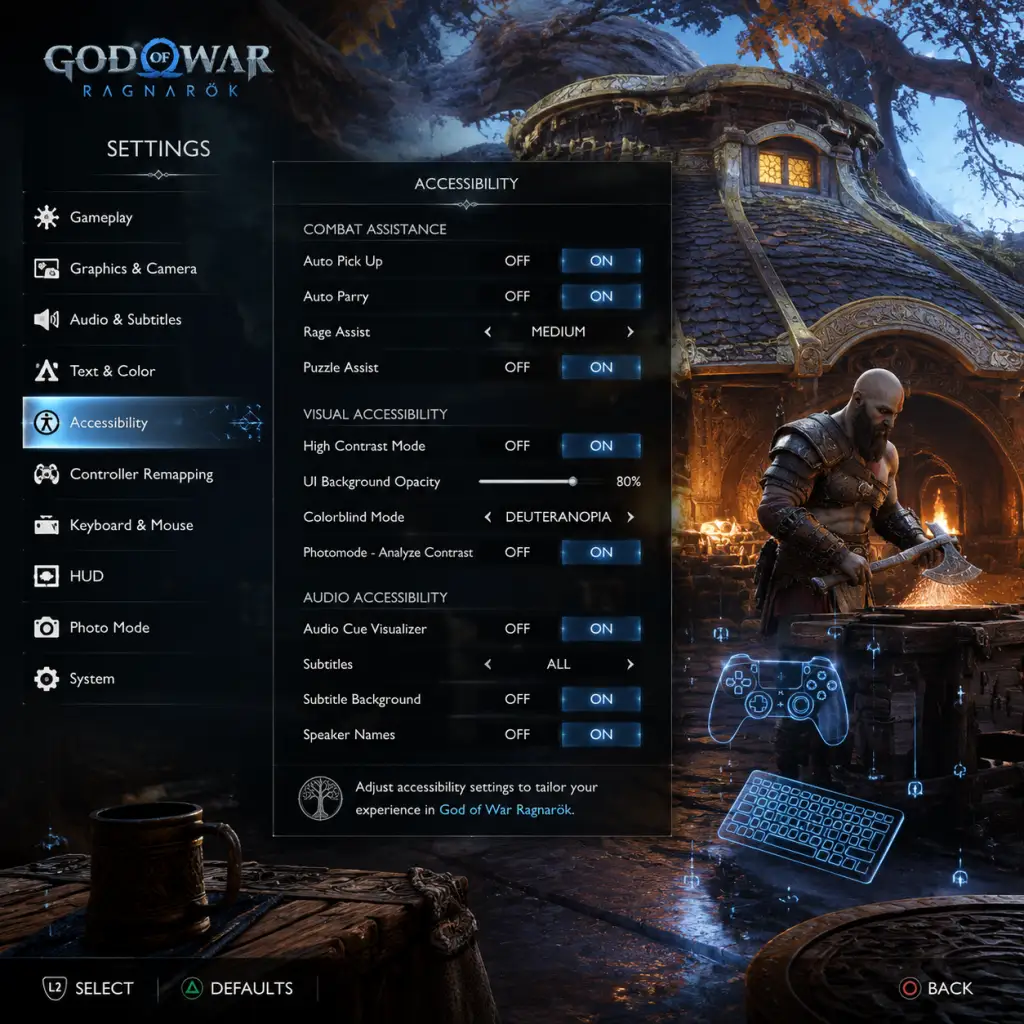
- Auto-Pickup: Enable to automatically collect loot when walking near. Less frantic — you don't miss items.
- Subtitles: Always on with speaker names. Adjust size (small/medium/large) and background opacity (dark, light, transparent).
- Captions: Include audio cues (footsteps, explosions). Good for deaf/hard-of-hearing players.
- Hearing Impaired Mode: Adds visual cues for important sounds (e.g., enemy attacks, treasure prompts).
- High Contrast Mode: Highlights interactive objects and enemies with bright outlines. Essential for low-vision players or chaotic battles.
- Aim Assist Locks: Can be set to full lock-on (snap to nearest enemy) or reduced. Full lock-on trivializes some fights; use as needed.
- Traversal Assist: Automatically parkour over obstacles when running. Enable to reduce thumb strain.
- QTE Timing: If quick-time events are difficult, change to Hold instead of Tap, or extend the timing window.
- Camera Shake & Motion Blur: Reduce or disable for motion sickness sufferers.
- Subtitle Background: Avoid transparent if you have visual difficulties — set to dark for readability.
- Navigation Aiming Assist: When enabled, the camera snaps to enemy direction during combat. Great for beginners but can disorient experienced players. Turn off if you want manual aim.
- Auto-pickup vs Manual: Some players prefer manual to avoid collecting unwanted items (e.g., resources when trying to run).
- Voice Language: Separate from text. Choose from English, French, German, Spanish, etc. (varies by region). The game supports multiple dubs and subtitles.
- Subtitle Language: Independent of voice. Set to match your UI language or a different one for learning.
- Menu Language: System language by default. Change from system settings if needed (e.g., on PC you can override in config file; easier to adjust in-game).
- Auto-Upload Saves (PS5/PS4): Enable to sync saves to cloud. Disable if you don't have Plus or limited data.
- Share Data: Send anonymous gameplay data to Sony. Turn off for privacy.
- Connect My Account (PSN): Optional for bonuses on PC (e.g., early armor). Toggle on if you have an account.
- Photo Mode Uploads: Can share screenshots directly to social media. Requires network permission.
- Difficulty Level: Choose from Give Me Story (very easy), Give Me Grace (easy), Give Me Balance (normal), Give Me No Mercy (hard), Give Me God of War (very hard). You can change in settings at any time (except for God of War mode, which is locked once selected — warning!).
- Auto-Sprint: Useful for exploration — toggle on to sprint automatically after a short run. Combat remains manual.
- Auto-Loot on Aiming: When aiming with the bow, nearby loot highlighted. Enable if you want quick collection.
- Lock-On Targeting: Snap to enemies. Recommended for single-target fights; turn off for crowd control (you can toggle mid-combat).
- Attack Toggle: Hold vs Tap for light/heavy attacks. Most players prefer Tap for responsiveness.
- Quick Turn Sensitivity: Adjust angle or use default.
- Difficulty Change: On Give Me God of War, you cannot lower it. If you start on that difficulty and find it too punishing, you must restart a new game. Choose wisely.
- Combat Cursor Speed (PC Only): For mouse and keyboard, adjust cursor speed for menu navigation. Set lower to avoid accidental selections.
- HUD Opacity: Default 100%. Reduce to 50% or lower for immersion. Critical info (health/rage) can be set to always show or auto-hide during combat.
- Minimap Rotation: Fixed or Follow direction. Follow is more intuitive.
- Objective Marker: Enable always, or only when at a distance. Turn off for exploration.
- Damage Numbers: Toggle on for feedback (default). Off for cleaner screen.
- Compass & Nav Trail: Enable for co-op play (though no co-op). Disable for full immersion.
- PS5: Choose Favor Performance for best gameplay experience. HDR calibration done in system settings first. Subtitles on.
- PS4 Pro: Use Performance Mode if you have a 4K TV; resolution difference is negligible in motion.
- PC (High-End): Ultra preset with DLSS Quality, RT Reflections on medium, RT Shadows off. V-Sync off (use G-Sync/FreeSync).
- PC (Mid-Range): High preset, FSR/DLSS Balanced, no RT. Lock FPS to 60.
- PC (Low-End): Low preset, FSR Performance, 720p/900p, 30 FPS target.
Attention Points (PC):
---
2. Audio Settings
---
3. Controls & Input Settings
#### General Layout
#### Button Mapping
Special Attention:
---
4. Accessibility Settings
God of War Ragnarök offers extensive accessibility options (one of the best in the industry).
Special Attention:
---
5. Language Settings
Attention: On PS4/PS5, voice and subtitle languages are tied to system language unless you download language packs from the store. On PC, you can select from a dropdown in the launcher or config.
---
6. Network & Online Settings
God of War Ragnarök is a single-player game with no multiplayer. Network settings are minimal.
Note: No multiplayer, so no ping or bandwidth concerns.
---
7. Gameplay Settings
Special Attention:
---
8. HUD & Display Settings
---
9. Performance vs Quality Decision Tree
| If you have... | Use this mode...
|---|---|
| 60 Hz display, want smooth gameplay | Performance (console) or Medium/High 60 FPS (PC) |
| 120 Hz display, strong PC | High Frame Rate (PS5) or Ultra with FPS cap 120 (PC) |
| Want prettier screenshots, don't mind 30 FPS | Quality (console) or Ultra with RT (PC) |
| Motion sickness | Disable camera shake, motion blur, lower FOV (PC only) |
| Limited VRAM (PC) | Lower texture quality, disable ray tracing, use upscaling |
---
10. Settings That Are Often Misconfigured
1. Ray Tracing on PC: Set it too high and FPS tanks. Start with Off, then enable Reflections only (medium) if you have RTX 3070+.
2. FOV on PC: Default is very narrow. Increasing to 95-110° drastically changes gameplay feel. Too wide causes fisheye; 90-100 is sweet spot.
3. Motion Blur: Disabling improves clarity during combat — many keep it on by default.
4. Automatic Pickup: Off by default, but most players prefer On to avoid spamming pickups.
5. Difficulty Lock on God of War: New players accidentally choose this and suffer. Read the warning carefully.
6. Aim Assist Lock: Full lock-on can make ranged combat too easy. Try "Partial" for balance.
7. Controller Vibrations on PC: Xbox controllers will rumble with generic feel — turn off if it distracts or kills battery.
---
Final Recommendations Summary
Take time to adjust controls and accessibility features to your comfort — they greatly impact enjoyment.