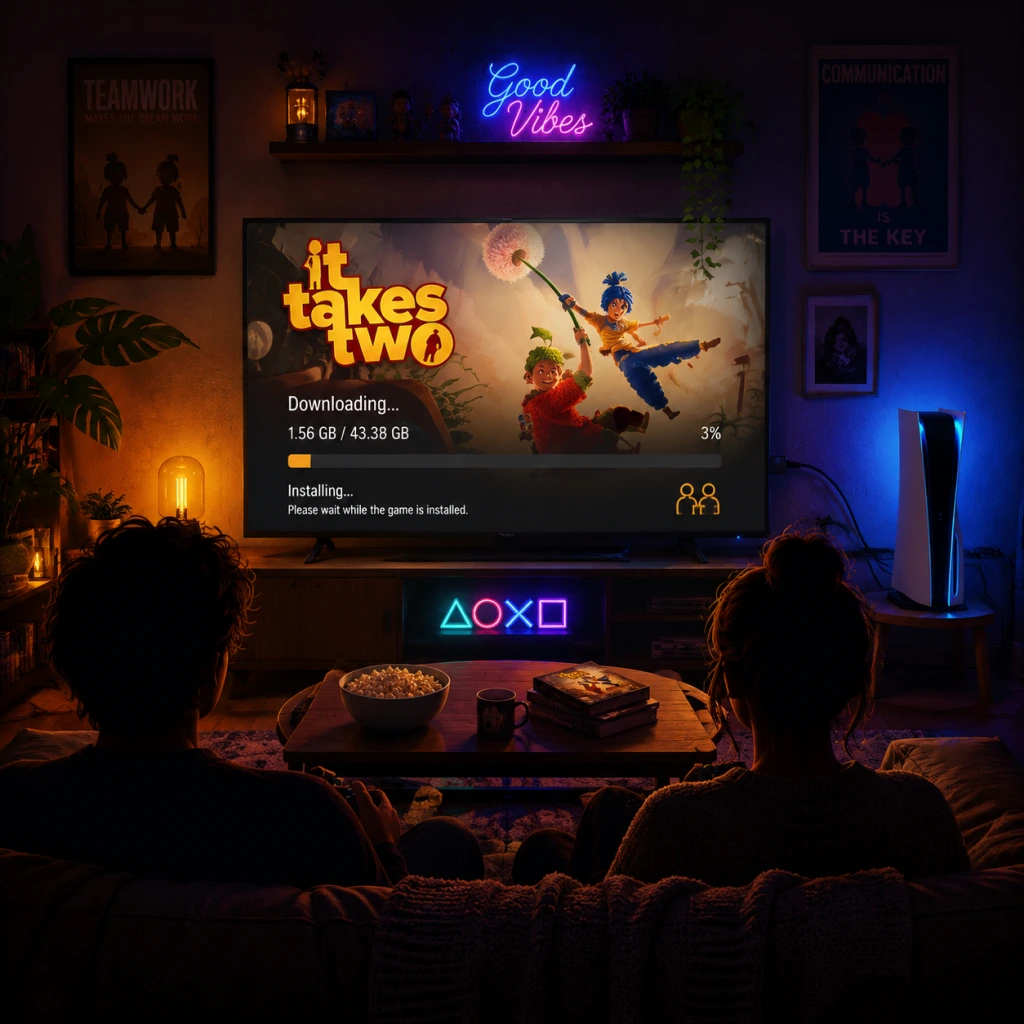
Download & Installation
Download & Installation Guide for It Takes Two
This guide covers the official, legitimate methods to download and install It Takes Two on all supported platforms. The game requires a constant internet connection and a linked EA Account (even on console) for online co-op. Cross-play is supported between all platforms except Nintendo Switch.
---
System Requirements (PC)
Minimum Requirements (1080p, 30 FPS, Low Settings)
- OS: Windows 8.1 64-bit or Windows 10 64-bit
- CPU: Intel Core i3-2100T / AMD FX 6100
- RAM: 8 GB
- GPU: NVIDIA GeForce GTX 660 (2GB) / AMD Radeon HD 7870 (2GB)
- DirectX: Version 11
- Storage: 50 GB free space (SSD recommended)
- Internet: Broadband connection (for Friend’s Pass and updates)
- OS: Windows 10 64-bit
- CPU: Intel Core i5-3570K / AMD Ryzen 3 1300X
- RAM: 16 GB
- GPU: NVIDIA GeForce GTX 970 (4GB) / AMD Radeon R9 290 (4GB)
- DirectX: Version 11
- Storage: 50 GB SSD
- Internet: Broadband connection
Recommended Requirements (1080p, 60 FPS, High Settings)
Note: The game uses the Frostbite engine and is optimised for dual‑core and quad‑core CPUs. Higher core counts do not significantly improve performance.
---
Platform Availability & Official Sources
| Platform | Digital Storefront | Account Requires | Notes |
|---|---|---|---|
| PC – Steam | Steam Store | Steam account | + EA Account (linked on launch) |
| PC – Epic Games | Epic Games Store | Epic account | + EA Account (linked on launch) |
| PC – EA App | EA app (Windows) | EA Account | Only via EA Desktop or Origin |
| PlayStation 4/5 | PlayStation Store | PSN account | + EA Account for online co‑op |
| **Xbox One / Series X | S** | Microsoft Store | Xbox Live account |
| Nintendo Switch | Nintendo eShop (cloud version) | Nintendo Account | Cloud streaming only (no local install; requires stable internet 10+ Mbps). Not available in all regions. |
---
Installation Steps for Each Platform
PC – Steam
1. Create/Log in to your Steam account (if not already).
2. Purchase It Takes Two from the Steam Store (or redeem a key).
3. Click Install on the game’s library page. Choose a destination drive (ensure 50 GB free).
4. Steam will download the installer and then the game data. Wait for completion.
5. First Launch: The game will prompt you to link a free EA Account. Follow the on‑screen instructions (this is mandatory).
6. After linking, the game will download a small EA app overlay update and then start.
PC – Epic Games Store
1. Open Epic Games Launcher (download from [epicgames.com](https://epicgames.com) if needed).
2. Purchase the game from the Epic Store or claim it if free.
3. Go to your Library, locate It Takes Two, and click Install.
4. Choose installation path (50 GB free).
5. First Launch: Same EA Account linking as Steam. Enter your EA credentials when prompted.
6. The game will then run via the EA app integration.
PC – EA App (Origin) – Direct Purchase
1. Install the EA app from [ea.com/ea-app](https://www.ea.com/ea-app) (or use Origin if you still have it; EA app is recommended).
2. Log in with your EA Account.
3. Search for It Takes Two and purchase or locate it in your library.
4. Click Download and select installation folder (50 GB free).
5. After download, the game is ready. Launch from the EA app.
PlayStation 4 & PlayStation 5
1. On your console, go to the PlayStation Store.
2. Search for It Takes Two. Purchase and download (or redeem code).
3. The download will install automatically. Ensure at least 50 GB free on internal storage or an extended drive.
4. Once installed, launch the game.
5. First Launch: You will be asked to sign in to an EA Account (or create one). Use a web browser link or on‑screen code. This is required for online co‑op and Friend’s Pass.
6. After linking, you can play single‑player, couch co‑op (split‑screen on same console), or online co‑op.
Xbox One / Xbox Series X|S
1. Turn on your console and sign in to your Xbox Live profile.
2. Navigate to the Microsoft Store (or “Store” on Xbox).
3. Search for It Takes Two. Purchase and Install.
4. The game requires approximately 50 GB of storage. Choose where to install (internal or external).
5. After installation, launch the game.
6. First Launch: Link your EA Account. On Xbox, this is done by scanning a QR code or entering a code on [ea.com/activate](https://ea.com/activate).
7. Note: Xbox Live Gold is required for online multiplayer (even with Friend’s Pass). The game does not require Gold for local split‑screen.
Nintendo Switch (Cloud Version)
1. Open the Nintendo eShop from the home menu.
2. Search for It Takes Two. The game appears as a Cloud Version (streaming). Purchase or redeem a code.
3. Once purchased, the eShop will automatically start downloading a small launch app (approx. 100 MB). The actual game is streamed.
4. After the launcher is installed, launch it from the home menu.
5. First Launch: You must have a stable internet connection (minimum 10 Mbps download, wired connection recommended). Link your Nintendo Account and EA Account.
6. The game will stream the full experience – no game data is stored locally beyond the launcher.
7. Important: The Switch Cloud version is not cross‑play with other platforms. Only Switch cloud players can play together.
---
Storage Space Details
- PC: ~45–50 GB installation size. Additional space may be needed for patches (2–5 GB). Recommend 60 GB free to be safe.
- PlayStation 4: 48.2 GB (base install). Patches up to ~5 GB.
- PlayStation 5: Same as PS4 but with faster SSD loading. Size ~46 GB.
- Xbox One/Series X|S: ~50 GB.
- Switch (Cloud): Only the launcher (~100 MB) is installed on the console. No game data stored locally.
---
Account Requirements – Detailed
| Requirement | Details |
|---|---|
| EA Account | Mandatory on all platforms to play the full game. Free to create. Must be linked once. If you already have an account (e.g., for FIFA or Apex), use that. |
| Platform Account | Steam / Epic / PSN / Xbox Live / Nintendo Account – required for store and basic functionality. |
| Friend’s Pass | The co‑op partner (who does not own the game) must also have a platform account and an EA Account. They download the It Takes Two Friend’s Pass from the same store (free). They must be invited by the owner and both must be online. |
| Online Multiplayer | On Xbox, an Xbox Live Gold subscription is required for the online co‑op mode (including Friend’s Pass). On PlayStation, no PS Plus is needed for the game’s online co‑op (unique to this title). On PC, no subscription needed. On Switch, a Nintendo Switch Online membership is not required for the cloud version? Actually, due to the nature of streaming, no NSO needed – but check official sources. |
First Launch Setup & Tips
1. Language & Region: The game will detect your system language. You can change audio (English, French, German, etc.) and subtitle languages from the in‑game options.
2. Control Customisation: Remap buttons on all platforms. Recommended: adjust sensitivity if playing on controller.
3. Graphics Settings (PC): On launch, the game sets automatic presets based on hardware. For best performance, turn down Shadow Quality and Post‑Processing if you experience frame drops. Enable VSync to avoid tearing.
4. EA Account Linking: If you encounter a blank browser window on PC, copy the URL manually and open in an external browser. On consoles, use the provided code on [ea.com/activate](https://ea.com/activate).
5. Friend’s Pass Invite: From the main menu, select “Play Online” and invite a friend. The friend must have the Friend’s Pass installed (search in their store). They do not need to own the full game.
6. Cross‑Play: Ensure all players have cross‑play enabled in the game’s settings (on by default).
---
Common Installation Errors & Fixes
1. “EA app failed to install” or “Unable to link account” (PC)
- Cause: Anti‑virus or firewall blocking the EA app helper.
- Fix: Temporarily disable antivirus during installation. Also, run the EA app as administrator. If using Steam/Epic, ensure the EA background service is running.
- Cause: Corrupted cache or network issue.
- Fix: Pause and resume the download. Restart the store launcher. On Steam, verify integrity of game files (right-click game > Properties > Local Files > Verify). On EA app, clear cache: close app, navigate to `%localappdata%\Electronic Arts\EA Desktop\cache` and delete contents.
- Cause: Console reserves space for system updates or the game’s patch.
- Fix: Free up additional space (at least 60 GB for safety). On PS4, rebuild database (Safe Mode > option 5).
- Cause: Partner is trying to download from wrong store.
- Fix: The Friend’s Pass must be downloaded from the same storefront as the full game owner. For example, if owner bought on Steam, the friend must download the Steam Friend’s Pass (not Epic). Also, ensure region matches.
- Cause: EA Account not linked on both sides, or one player is on Switch.
- Fix: Verify both players have linked EA Accounts. Switch cloud version is isolated – cross‑play only with other Switch cloud players.
- Cause: Outdated graphics drivers or conflicting overlays (Discord, Nvidia GeForce Experience).
- Fix: Update drivers (NVIDIA / AMD). Disable overlays for the game executable. Also, run the game in windowed mode by adding `-windowed` to launch options (Steam: Properties > General > Launch Options).
- Cause: EA server timeout during account link.
- Fix: Wait a few minutes and retry. If persistent, restart console and router.
- Cause: Dynamic resolution scaling.
- Fix: Go to Display settings and turn off “Dynamic Resolution” or set a fixed resolution. Also check that the Windows display scaling is set to 100%.
- Official EA Help: [help.ea.com](https://help.ea.com)
- It Takes Two Known Issues: [EA Answers HQ](https://answers.ea.com)
- Steam Community Hub: [Steam Community](https://steamcommunity.com/app/1426210)
- Friend’s Pass download links:
2. “Download stuck at X%” (PC)
3. “Insufficient storage” despite having free space (Console)
4. “Friend’s Pass not showing in library”
5. “Cross‑play not working”
6. “Game crashes on launch” (PC)
7. “Error code: 10011” (console)
8. “Game is blurry or low resolution” (PC)
---
Post‑Installation Verification
After installation, confirm the game works correctly:
1. Launch the game – it should reach the title screen without errors.
2. Check for updates – the game may download a small patch on first run. Do not skip it.
3. Test audio and video – ensure both channels work. If no sound, check your default audio device.
4. Verify account linking – try accessing the online menu. If it asks for EA login again, link successfully.
5. Test Friend’s Pass – if possible, invite a friend to verify co‑op works.
6. On PC, run the built‑in benchmark (found in Settings > Graphics > Benchmark) to ensure stable performance. Target 30+ FPS.
7. On consoles, check that the game has installed all required files (no “installation incomplete” messages).
If everything works, you are ready to play It Takes Two with a partner!
---
Additional Resources
- [Epic Friend’s Pass](https://store.epicgames.com/en-US/p/it-takes-two)
- [PlayStation Friend’s Pass](https://store.playstation.com/product/EP0006-CUSA25204_00-ITTWO00000000000)
- [Xbox Friend’s Pass](https://www.microsoft.com/store/productId/9N6DZ8DM5K7P)
- [Switch eShop](https://ec.nintendo.com/ES/ec/titles/70010000047123) (cloud version)
Note: The Friend’s Pass allows the invited player to experience the entire game with the owner, but only while they are invited. Progress is saved only for the owner (if hosting) or separately? Actually, each player’s progress is saved individually – the invited player can keep their collectibles if they later buy the game.
---
Last updated: October 2023. Ensure your platform store is up to date.