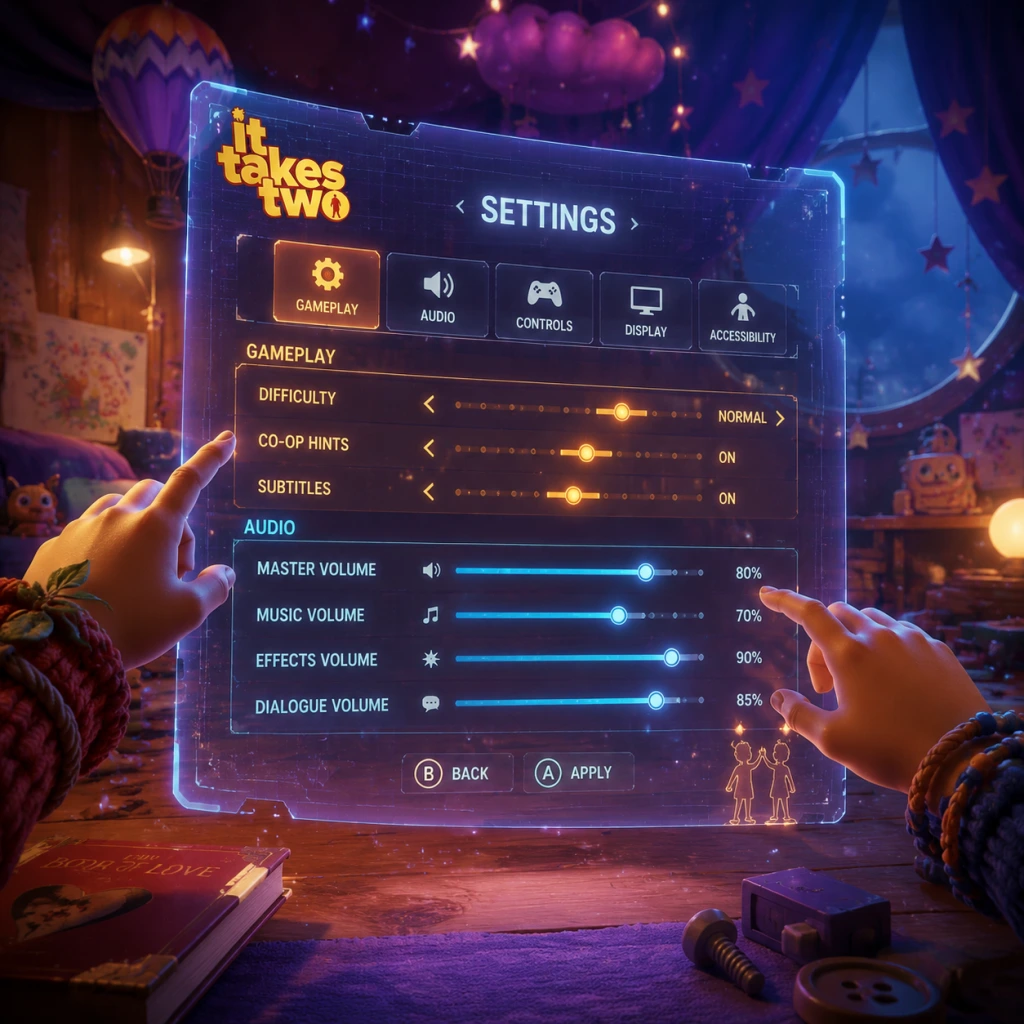
Game Settings
Game Settings Guide for It Takes Two
This guide covers every adjustable setting in It Takes Two across PC and console platforms. We explain what each option does, recommend optimal values for different hardware tiers, and point out settings that are easy to misconfigure or cause performance issues.
Platform Overview
It Takes Two is available on:
- PC (Steam, EA App, Epic Games Store)
- PlayStation 4 & PlayStation 5
- Xbox One, Xbox Series X|S
- Mandatory Internet Connection: Even for local co-op (couch co-op), the game requires online authentication via an EA Account. All settings can be adjusted before starting a game.
- Friend's Pass: The co-op partner who does not own the game must install the Friend's Pass version. Settings on the pass version are identical to the full game.
- Cross-Platform Co-Op: Works across PC, PlayStation, Xbox, but not Nintendo Switch (game not released there). Settings are independent per platform, but network quality affects cross-play.
The game does not support keyboard-and-mouse on consoles; only controllers are used. PC players can freely switch between controller and keyboard/mouse.
Important Setup Notes
---
Graphics Settings (PC)
All graphics settings can be changed from the main menu or during gameplay (press Escape > Options > Graphics). Options range from Low to Ultra (or specific sliders). The game uses Unreal Engine 4 and is well-optimized.
Graphics Presets
| Preset | Description | Best for |
|---|---|---|
| Low | Minimizes quality for maximum FPS. Disables many effects. | Low-end systems, laptops with integrated GPUs |
| Medium | Balanced quality/performance. Good for high FPS on mid-range PCs. | e.g., GTX 1060, RX 580 |
| High | High-quality textures and effects. Targets 60 FPS on decent hardware. | e.g., RTX 2060, RX 5600 XT |
| Ultra | Maximum visual fidelity. Heavy on GPU and VRAM. | High-end GPUs (RTX 3060 Ti+, RX 6700 XT+) |
| Custom | Manually adjust all options below. | Enthusiasts |
Detailed Graphics Options
| Setting | Options | Performance Impact | Recommendation |
|---|---|---|---|
| Resolution | Native (e.g., 1920x1080, 2560x1440, 3840x2160) | High (more pixels = more GPU load) | Set to monitor's native resolution. If struggling, lower to 900p or 720p with upscaling. |
| Display Mode | Fullscreen, Windowed, Borderless | Low | Use Fullscreen for best performance. Borderless for alt-tab convenience. |
| V-Sync | On/Off | Medium (limits FPS to refresh rate) | Off if you have G-Sync/Freesync. On to eliminate screen tearing. |
| FPS Cap | 30, 60, 120, 144, Unlimited | Low | Cap to your monitor's refresh rate (e.g., 60 or 144) to reduce GPU load and input lag. |
| Texture Quality | Low, Medium, High, Ultra | Medium (VRAM dependent) | Set to High or Ultra if you have 4GB+ VRAM. Low reduces quality but frees VRAM. |
| Shadow Quality | Low, Medium, High, Ultra | Medium-High | Medium for slight drop in quality but big FPS gain. High/Ultra only with strong GPU. |
| Post Processing | Low, Medium, High, Ultra | Medium | Affects bloom, depth of field, motion blur. Personal preference; High is good for aesthetics. |
| Anti-Aliasing | Off, FXAA, TAA, MSAA 2x/4x | Varies (MSAA heavy) | TAA is best balance of quality and performance. Off causes jagged edges. |
| Ambient Occlusion | Off, SSAO, HBAO+ | Medium | HBAO+ looks better but costs FPS. SSAO is good. Off for performance. |
| Reflections | Low, Medium, High, Ultra | Medium-High | Screen-space reflections; Ultra uses ray-traced (if available? No RTX in this game). High is fine. |
| Effects Quality | Low, Medium, High, Ultra | Medium | Controls particle density, lighting effects. High recommended. |
| View Distance | Low, Medium, High, Ultra | Medium | Higher values draw distant objects. Medium is safe. |
| Foliage Quality | Low, Medium, High, Ultra | Medium | Affects grass/leaves density. Low for FPS boost in forest areas. |
| Motion Blur | Off, Per Object, Full | Low | Personal preference; many turn Off for clarity. |
| Depth of Field | Off, On | Low | Cinematic blur; can be distracting. Off for competitive clarity. |
| Chromatic Aberration | Off, On | Low | Adds tiny color fringing; turn Off if you dislike it. |
| Film Grain | Off, On | Negligible | Adds noise; Off for cleaner image. |
Hardware Tier Recommendations (60 FPS Target)
Low-End PC (e.g., GTX 960, Ryzen 3)
- Use Low Preset, then adjust:
- Expected FPS: 40–60, possibly with occasional dips.
- Use Medium Preset or High with adjustments:
- Expected FPS: 60 stable.
- Use Ultra Preset at 1440p or 4K.
- Disable Motion Blur, Depth of Field if you want competitive clarity.
- Expected FPS: 60+ at 4K, 120+ at 1440p.
- VRAM Overload: The “Texture Quality” setting can exceed VRAM limits, causing stuttering. Monitor VRAM usage with MSI Afterburner. If you see high usage, lower texture quality.
- V-Sync + Frame Cap: Enable V-Sync only if you experience tearing. For adaptive sync monitors, disable V-Sync and set FPS cap slightly below refresh rate (e.g., 140 for 144Hz).
- Windowed Mode Performance: Playing in windowed mode may decrease FPS due to desktop compositing. Use Fullscreen for best performance.
- PlayStation 4 / Xbox One: 1080p, 30 FPS (dynamic resolution)
- PlayStation 4 Pro / Xbox One X: 1440p upscaled to 4K, 30 FPS (or 1080p 60 FPS on certain modes? Actually It Takes Two on these consoles targets 30 FPS only; no performance mode. Check updates).
- PlayStation 5 / Xbox Series X|S: Native 4K at 60 FPS (performance mode) or 1440p upscaled? It has a “Performance Mode” option in the console settings menu? Wait — It Takes Two on PS5/XSX runs at 4K 60 FPS dynamically. There is a toggle for “Graphics Mode” (Quality vs Performance) in the game's options? Actually, the game does not have a performance/quality toggle on console; it runs at 4K 60 FPS on PS5/XSX (dynamic). But confirm: On PS5 it's 4K 60 FPS. On Series S, 1440p 60 FPS. On Series X, 4K 60 FPS. No user adjustable settings beyond brightness and audio.
- Resolution: 1920x1080 (or 1600x900 if needed)
- Shadows: Low
- Anti-Aliasing: FXAA
- Ambient Occlusion: Off
Mid-Range PC (e.g., GTX 1060, RX 580)
- Shadows: Medium
- Reflections: Medium
- Anti-Aliasing: TAA
High-End PC (e.g., RTX 3070, RX 6800)
Special Attention Points
Console Graphics
Consoles have no detailed graphics options. The game runs at:
Recommendation: For console, ensure your system is set to 60Hz or 120Hz if display supports; input latency may benefit from game mode on TV.
---
Audio Settings
Access from Menu > Options > Audio.
| Setting | Description | Recommendation |
|---|---|---|
| Master Volume | Overall game volume | 70–80% to hear game but avoid ear fatigue |
| Music Volume | Background music | 80% (music is fantastic) |
| SFX Volume | Sound effects, footsteps, explosions | 100% |
| Dialogue Volume | Voice lines from characters | 100% (critical for story and gameplay hints) |
| Cinematic Volume | Cutscene audio (separate from dialogue?) | 100% |
| Dynamic Range | Full, Night Mode | Night Mode for late-night play to compress loud sounds. Full for immersive experience. |
| Subtitles | On/Off | On to never miss dialogue. Also available in different languages. |
| Subtitle Size | Small, Medium, Large | Medium or Large for readability on TV. |
Special Attention
- Dialogue vs Music Balance: Keep Dialogue volume equal or higher than Music. Key story hints are given audibly.
- Night Mode: Useful for apartment living. Avoids complaints from neighbors.
- Voice Chat (Co-op): The game has built-in voice chat (PC and console). Adjust your OS-level microphone volume separately. In-game, you can mute the other player or adjust their volume via the in-game overlay (Press ESC > Social > Player Volume).
- Movement: WASD
- Camera: Mouse
- Jump: Space
- Interact/Action 1: E
- Action 2: Q
- Sprint: Left Shift
- Crouch: X / C
- Inventory: Tab
- Use Item: F
- Drop Item: G
- Special Ability (unique per character): Right Mouse Button + LMB? Actually each character has distinct abilities. Check in-game controls.
- Left Stick: Move
- Right Stick: Camera
- A (Xbox) / X (PS): Jump
- B (Xbox) / Circle (PS): Crouch/Slide
- X (Xbox) / Square (PS): Interact
- Y (Xbox) / Triangle (PS): Inventory/Ability Wheel
- Left Trigger: Action 1 (often utility)
- Right Trigger: Action 2 (often attack/use)
- Left Bumper: Sprint
- Right Bumper: Use item (or special)
- D-Pad Up: Switch item
- Select/Back: Map
- Start: Pause menu
- Jump on Space (PC) or A (Xbox) – do not change, it's intuitive.
- Swap triggers/bumpers if you prefer to use bumpers for actions (many FPS players).
- Crouch to ‘C’ on PC for easier sliding (hold).
- Change “Use Item” to Mouse Wheel Click if you frequently switch gadgets.
---
Controls Settings
Controls can be remapped on all platforms. On PC, both keyboard/mouse and controller can be fully customized. On consoles, only controller.
Keyboard & Mouse (PC Defaults)
Controller Layout
Both Xbox and PlayStation controllers are supported. Default layout:
Remapping Tips
Sensitivity Settings
| Setting | Range | Recommendation |
|---|---|---|
| Camera Sensitivity (Controller) | 1–20 | 5–8 for precise aiming; higher for quick turns |
| Camera Sensitivity (Mouse) | 1–100 | Convert your usual eDPI; start at 60 and adjust |
| Aim Sensitivity (Controller) | 1–20 | Same as camera or slightly lower (10) for better control |
| Vertical Sensitivity Multiplier | 0.5–2.0 | 1.0 default; lower if you overshoot vertically |
| Invert Y-Axis | Off/On | Off unless you are a flight simmer |
| Vibration | On/Off | Off for reduced input lag (subjective) |
| Trigger Effect (PS5 only) | On/Off | On for haptic feedback; Off if it's distracting |
Special Attention Points
- Trigger Effects on PS5: Some players find the adaptive triggers tiring during extended play. You can disable them in settings.
- Controller Dead Zone: Not adjustable in-game. If stick drift occurs, increase dead zone via platform settings (PS5: Accessories > Controller > Dead Zone, Xbox: Accessories app).
- Keyboard vs Controller: The game is designed with controller in mind; certain sections (e.g., aiming with Cody's sap gun) are easier with a mouse. Switch mid-game if needed.
---
Accessibility Settings
It Takes Two includes several accessibility options to accommodate different needs.
| Feature | Options | Details |
|---|---|---|
| Subtitle Size | Small, Medium, Large | Larger for easier reading. |
| Subtitle Background | Default, High Contrast, Black Box | High contrast helps readability. |
| Speaker Name | On/Off | Shows who is speaking. |
| Directional Subtitles | On/Off | Subtitles indicate sound direction (left/right). |
| Screen Shake | On/Off | Disable for motion sickness. |
| Camera Shake | On/Off | Same as above. |
| Motion Blur | On/Off | Disable for clarity and nausea reduction. |
| Color Blind Mode | Off, Protanopia, Deuteranopia, Tritanopia | Adjusts UI colors for better visibility. |
| High Contrast UI | On/Off | Bolder outlines for HUD elements. |
| Text Chat | On/Off (PC) | Allows typing to partner (no voice). |
| Voice Chat Mix | In-Game, Party Chat (console) | Choose where voice audio comes from. |
| Narration for UI | On/Off (PC) | Screen reader for menus. |
| Auto-Aim (Controller) | On/Off | Slight aim assist for easier targeting. |
Special Attention Points
- Motion Sickness: Many players report nausea from camera movement. Disable Camera Shake and Motion Blur immediately. Also set FOV to higher value if available (no FOV slider in this game? Actually check – It Takes Two does not have a FOV slider. There is no adjustable FOV in the options. That's a known missing setting. Players cannot change FOV. This can be a problem for motion sickness. The only workaround is sitting farther from screen or using smaller window. We must mention this limitation.)
- Color Blind Mode: Test each mode; the game uses many color-coded abilities. This is critical.
- Audio Language: English, French, German, Italian, Spanish, Japanese, Korean, Polish, Portuguese, Russian, Chinese (Simplified), etc. (Subtitles remain in selected text language.)
- Text Language: Same set as above.
- Subtitle Override: You can keep audio in original language while subtitles in another.
- Voice Chat Language: Does not affect voice chat; you speak your own language.
- Cross-Platform Play: Language settings are client-side only; they won't affect what the other player hears in voice.
- Voice Chat Device (PC): Choose microphone.
- Voice Chat Toggle (PC): Push-to-talk or always-on.
- Voice Chat Volume (per player): Adjust volume of co-op partner.
- Push-to-Talk Key (PC): Default ‘V’.
- Cross-Play (On/Off): Toggle with ‘Host Game’. If you have trouble connecting to friends on another platform, ensure cross-play is enabled.
- Invite Friends (via platform overlay): Use platform's friend list (Steam, EA App, Xbox Live, PSN).
- Bandwidth: The game uses minimal bandwidth (< 100 MB/hour). Stable 1 Mbps connection is sufficient.
- Latency: The game is playable up to ~200 ms ping, but high latency causes input delay and desync. Aim for < 100 ms for best experience.
- NAT Type: Strict NAT may prevent connecting. Open NAT recommended. Use UPnP or port forwarding if issues. Ports: TCP 443, 80, 3659 (EA games).
- Packet Loss: Even 1% packet loss can cause teleportation. Use Ethernet or strong Wi-Fi.
- Friend's Pass Issues: If you own the full game and invite a friend with Friend's Pass, both players must have the same region settings for language? Not needed, but both must be online and have EA accounts linked.
- Disconnection During Game: If network drops, you'll be kicked to the main menu. Auto-rejoin is not available; you must re-invite. Save progress is checkpoint-based (frequent).
- PC Firewall: Add executable `ItTakesTwo.exe` (and `EADesktop.exe` if using EA App) to firewall exceptions to prevent connectivity issues.
---
Language Settings
Language can be changed from the main menu or in Options > Language.
Recommendation: Play with original English voice acting if possible; the performances are top-notch. If using Japanese dubbing, enable subtitles to understand story.
Special Attention
---
Network Settings
It Takes Two requires constant online connectivity even for local play. Network settings are mostly limited but important for smooth co-op.
In-Game Network Options
Performance Considerations
Special Attention Points
---
Gameplay Settings
These settings affect how the game plays, beyond graphics and controls.
| Setting | Options | Description | Recommendation |
|---|
| Quick Time Events | On/Off | QTEs are possible in cutscenes? No separate toggle. They are always on.
| Skip Cutscenes | Hold button | Skip cinematic after first playthrough. | Use for replays.
| Auto-Equip Items | On/Off | Automatically switch to newly acquired items. | Off to manually choose what you want.
| Item Wheel Speed | Normal, Fast | How quickly the weapon wheel appears. | Fast for quicker switching. |
| Hint Frequency | Minimal, Normal, Verbose | Controls in-game tutorial pop-ups. | Verbose for first-time; Minimal for returning players. |
| Pause When One Player Opens Menu | On/Off | If both players are online, should the game pause when one opens menu? | On to prevent missing progress. Off if you want uninterrupted action. |
| Camera Lock-On | On/Off | Toggle auto-lock to enemies (without manual targeting). | Off for more control; On for easier aiming. |
| Conversation Auto-Advance | On/Off | Subtitles advance without button press in cinematics. | Off to allow reading at your own pace. |
| Skip Death Animations | On/Off | After dying, skip respawn animation. | On to reduce downtime. |
Special Attention Points
- Pause on Menu: In online co-op, if you turn this off and your partner opens the map, you can still move. This can be confusing. Keep it On.
- Item Wheel Speed: Fast allows you to switch tools quickly in combat. Essential for advanced gameplay.
---
Summary of Optimal Settings
| Platform | Graphics Target | Key Settings |
|---|---|---|
| Low-End PC | 1080p 30–60 FPS | Low preset, shadows low, FXAA, motion blur off |
| Mid-Range PC | 1080p 60 FPS | High preset with shadows medium, reflections medium, TAA |
| High-End PC | 4K 60+ FPS | Ultra preset, disable motion blur/depth of field if desired |
| PS5/XSX | 4K 60 FPS (fixed) | – |
| PS4/Xbox One | 1080p 30 FPS (fixed) | – |
For a list of all other options like subtitles see Accessibility section.
Note: Some settings like FOV are unavailable in this game, which may cause motion issues for some players. In that case, try sitting farther from the screen or use smaller display.