Download & Installation
Introduction
Madden NFL 24 is the latest installment in EA Sports' long-running football simulation series. This guide covers everything you need to download and install the game on all supported platforms, including PC (Steam and Epic Games Store), PlayStation (PS4 and PS5), Xbox (One and Series X|S), and mobile devices (iOS and Android). Follow the steps carefully to ensure a smooth installation and first launch.
Official Sources & Platforms
| Platform | Official Digital Store(s) | Physical Disc? |
|---|---|---|
| PC | Steam, Epic Games Store | No |
| PlayStation 4 | PlayStation Store | Yes (disc) |
| PlayStation 5 | PlayStation Store | Yes (disc) |
| Xbox One | Microsoft Store | Yes (disc) |
| Xbox Series X/S | Microsoft Store | Yes (disc) |
| Mobile (iOS) | App Store | No |
| Mobile (Android) | Google Play Store | No |
System Requirements (PC)
Minimum Requirements (for 1080p / 30fps on Low settings)
- OS: Windows 10 64-bit
- CPU: Intel Core i3-6100 @ 3.7GHz or AMD Ryzen 3 1200 @ 3.1GHz
- RAM: 8 GB
- GPU: NVIDIA GeForce GTX 1050 Ti (4GB) or AMD Radeon RX 460 (4GB) or Intel Arc A380
- DirectX: Version 12
- Storage: 50 GB available space (HDD)
- Network: Broadband internet connection
- Sound Card: DirectX-compatible
- OS: Windows 10 64-bit
- CPU: Intel Core i7-6700 @ 3.4GHz or AMD Ryzen 5 2600X @ 3.6GHz
- RAM: 16 GB
- GPU: NVIDIA GeForce GTX 1660 (6GB) or AMD Radeon RX 5600 XT (6GB) or Intel Arc A580
- DirectX: Version 12
- Storage: 50 GB available space (SSD)
- Network: Broadband internet connection
- Sound Card: DirectX-compatible
Recommended Requirements (for 1080p / 60fps on High settings)
Storage Space
| Platform | Installation Size (approx.) | Notes |
|---|---|---|
| PC (Steam/Epic) | 50 GB (SSD recommended) | Additional space for updates |
| PlayStation 4 | 45 GB | Disc version also requires full install |
| PlayStation 5 | 45 GB | PS5 SSD required |
| Xbox One | 50 GB | Slow HDD install times |
| Xbox Series X/S | 45 GB | Quick Resume supported |
| Mobile (iOS/Android) | 4-6 GB | Varies by device; requires constant internet |
Account Requirements
- EA Account: Essential for all platforms. PC players need an EA account via Origin or EA app. Console and mobile players also need an EA account linked to their platform ID.
- Platform Accounts:
- Subscription: For console online multiplayer, an active subscription is required (PlayStation Plus on PS4/PS5; Xbox Game Pass Core or Ultimate on Xbox). PC online play does not require a subscription.
- Steam: Steam account
- Epic: Epic Games Store account
- PlayStation: PlayStation Network account (PSN)
- Xbox: Microsoft Account / Xbox Live Gold (online modes require Xbox Game Pass Core or Ultimate)
- Mobile: Apple ID or Google account
Step-by-Step Installation
PC – Steam
1. Install Steam: Download and install Steam from [store.steampowered.com](https://store.steampowered.com).
2. Create/Log in to Steam account.
3. Purchase Madden NFL 24 from the Steam store (or redeem a key).
4. Install the game:
- Go to your Library → find Madden NFL 24.
- Click "Install."
- Choose installation location (ensure at least 50 GB free).
- Optionally, select which packs to install (language packs, HD textures).
- Click "Next" → "Install."
5. Wait for download and installation (Steam will automatically download and install).
6. First Launch: After completion, click "Play."
- Steam will prompt you to install the EA app (if not already installed).
- Follow prompts to link EA account and complete setup.
PC – Epic Games Store
1. Install Epic Games Launcher from [store.epicgames.com](https://store.epicgames.com).
2. Log in to your Epic account.
3. Purchase or claim Madden NFL 24 from the Epic store.
4. Install:
- Go to Library → Madden NFL 24 → Install.
- Choose install location (needs 50 GB+).
- Click "Install."
5. Wait for download (Epic will handle installation).
6. First Launch: Click "Play."
- The EA app will install if missing.
- Link EA account and proceed.
Note: On both PC stores, the EA app manages the actual game client. Ensure you have an active EA account.
PlayStation 4 & 5
Digital version:
1. Go to PlayStation Store on your console.
2. Search for "Madden NFL 24."
3. Purchase and download.
4. The download will start automatically. You can check progress under Notifications > Downloads.
5. Once downloaded, the game will install. Wait for the icon to appear on the home screen.
6. Launch the game. You will be prompted to sign in to PSN and link EA account (if not already linked).
Disc version:
1. Insert the disc into the console.
2. The game installer will launch. Follow on-screen prompts to copy the game to the hard drive.
3. Optional: Install any required updates (internet connection needed).
4. After copying, start the game. Online features require EA account linking.
Xbox One / Series X|S
Digital version:
1. Press the Xbox button → go to Microsoft Store.
2. Search for Madden NFL 24 and purchase.
3. The download will begin automatically. Monitor progress in My games & apps → Queue.
4. After download, the tile will appear in your library.
5. Launch the game. Sign in to your Microsoft account and then to EA account (if prompted).
Disc version:
1. Insert the disc.
2. The console will recognize it and start installation.
3. Follow on-screen instructions to copy data.
4. Once done, the game is ready to play. Updates may be required.
Xbox Smart Delivery: Madden NFL 24 supports Smart Delivery, so if you own the game on Xbox One, you automatically get the Xbox Series X/S version when playing on newer hardware. Ensure your console is online and that you're signed in with the same account.
Mobile (iOS & Android)
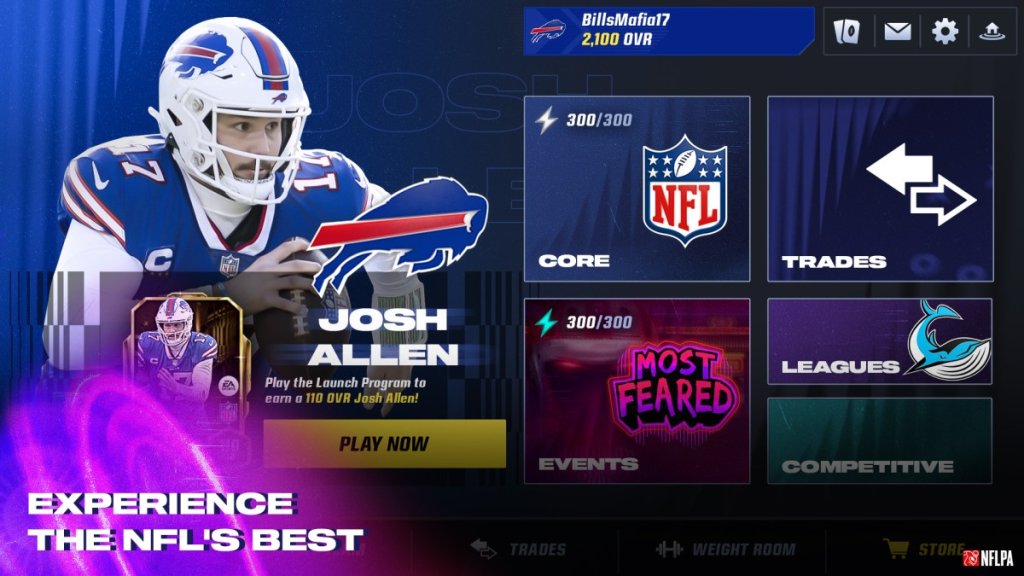
Note: The mobile version is a separate free-to-play title called Madden NFL 24 Mobile. It is not the full console/PC game.
1. Open the App Store (iOS) or Google Play Store (Android).
2. Search for "Madden NFL 24 Mobile."
3. Tap "Get" or "Install."
4. Wait for download (approx. 4-6 GB). May require Wi-Fi for large download.
5. After installation, open the app.
6. Sign in with your EA account or create a new one. You may also connect with Facebook or Google to save progress.
7. The game will download additional assets on first launch. Ensure stable internet connection.
First Launch Setup
After installation, the first launch will guide you through:
1. EA Account Login: You must log in with an EA account or create one. This is required for online features and saving progress.
2. Language Selection: Choose your preferred language and audio language (commentaries).
3. Accessibility Settings: Options for subtitles, colorblind modes, controller remapping, etc.
4. Graphics Settings (PC): Auto-detected; you can adjust resolution, quality preset, V-Sync, frame rate cap, etc.
5. Controller Calibration (console): Ensure controller is recognized. For PS5 DualSense features (adaptive triggers, haptics) are supported.
6. Online Connection Test: The game will check internet connectivity for online modes.
7. Tutorial: You can skip or play the tutorial.
8. Download Updates: If any day-one patch exists, it will download automatically on first launch. Keep your console/PC online.
Tip: On PC, if you encounter the "EA app not launching" error, try running it as administrator or reinstalling the EA app from [ea.com/ea-app](https://www.ea.com/ea-app).
Common Installation Errors & Fixes
| Error | Cause | Fix |
|---|---|---|
| "Game failed to install" (PC Steam) | Corrupt download or antivirus interference | Verify game files: Right-click Madden NFL 24 in Library → Properties → Local Files → Verify Integrity. Disable antivirus temporarily. |
| "DirectX error" on launch (PC) | Missing DirectX or outdated drivers | Install the latest DirectX from Microsoft. Update GPU drivers from NVIDIA/AMD/Intel. |
| "EA app not installed" loop (PC) | Steam/Epic failing to link EA app | Manually download and install the EA app from [ea.com/ea-app](https://www.ea.com/ea-app). Then restart Steam/Epic and launch. |
| "Disk write error" (Steam) | Insufficient permissions or disk space | Run Steam as administrator. Free up space. Change download region in Steam Settings → Downloads. |
| PlayStation “Cannot install” (CE-30002-5) | Corrupted database | Restart console in Safe Mode and rebuild database. |
| Xbox “Installation stopped” | Network issues or disc read error | Check network connection. For disc, clean the disc. Power cycle console (hold power button for 10 sec). |
| Mobile “Download failed” (iOS/Android) | Insufficient storage or unstable connection | Free up space (delete unused apps). Use Wi-Fi. Clear cache in settings. |
| Controller not working (PC) | Game not using correct controller type | Ensure controller drivers are installed. For PS5 DualSense, use wired or Bluetooth. For Xbox controller, use official dongle. In Steam, enable controller support. |
Post-Installation Verification
After installation, follow these steps to ensure everything is working:
1. Check Game Version:
- On console: Highlight game tile → press Options (PS) or Menu (Xbox) → select "Manage game & add-ons" → look at version number.
- On PC: In Steam Library → right-click Madden NFL 24 → Properties → Updates. The version appears at the top. Latest version should be 1.0.x.x (post-launch).
2. Verify Integrity of Game Files (PC only):
- Steam: Right-click game → Properties → Local Files → “Verify integrity of game files…”.
- Epic: In Library, click three dots on Madden NFL 24 → Manage → Verify.
3. Test Launch: Start the game. It should reach the main menu without crash. If you see an error, refer to the Common Errors section.
4. Check for Updates: Connect to internet; the game will prompt for any missing updates. On PlayStation, go to the game icon, press Options and select "Check for Update." On Xbox, the update should occur automatically when you start the game.
5. Graphics & Performance (PC): Run through the first intro sequence or a quick exhibition match. Monitor frame rate using built-in overlay (Steam has FPS counter). Adjust settings if needed.
6. Audio & Controller: Ensure sound works (headset/speakers) and all buttons respond correctly. In Settings, you can test the controller.
7. Online Connectivity: Go to the Online/Multiplayer menu. If you see a message about not being connected, check your internet and EA account status (help.ea.com).
Conclusion
With this guide, you should be able to download and install Madden NFL 24 on your preferred platform without issues. Whether you're playing on a high-end PC, the latest console, or on the go with your phone, the steps are straightforward. Always keep your system drivers, OS, and gaming stores updated to avoid compatibility problems. If you encounter persistent errors, visit EA Help (help.ea.com) or the official Madden NFL forums. Good luck and enjoy the game!