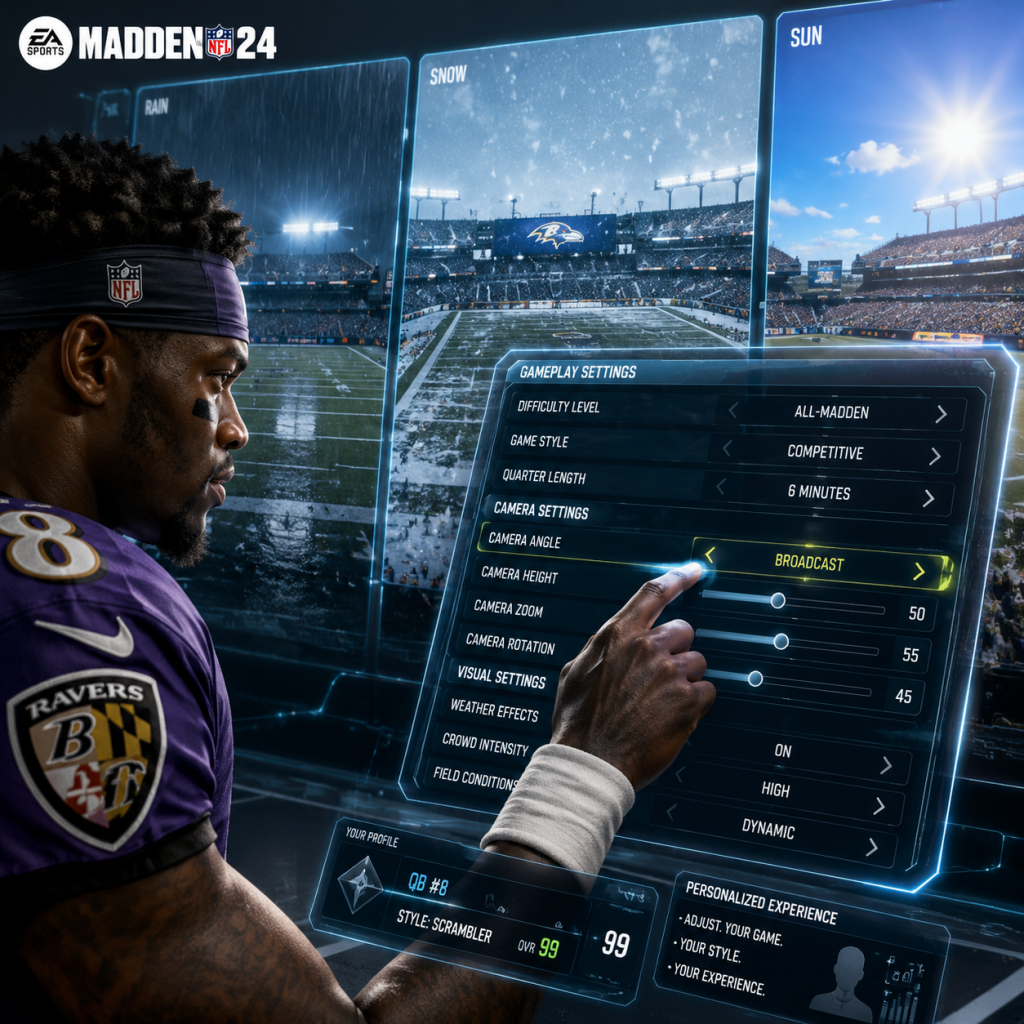
Game Settings
Madden NFL 24 Game Settings Guide
This guide covers every settings menu in Madden NFL 24 and provides recommendations for optimal performance (especially on PC) and the best visual fidelity depending on your hardware. We’ll also highlight settings that are easy to misconfigure or that require special attention.
1. Graphics Settings (PC Only – Not present on consoles)
PC players can adjust these in the `Settings > Graphics` menu. Console versions are fixed to the hardware profile.
#### 1.1 Basic Graphics Options
| Setting | Low-End PC (e.g., GTX 1650 / Ryzen 5) | Mid-Range PC (e.g., RTX 3060 / i5-11400) | High-End PC (e.g., RTX 4080 / Ryzen 9) | Notes |
|---|---|---|---|---|
| Display Mode | Fullscreen (for best performance) | Fullscreen | Fullscreen | Windowed and Borderless cause slight input lag. Always use Fullscreen. |
| Resolution | Native (e.g., 1920x1080) | Native or 1440p | 4K (3840x2160) | Match your monitor’s native resolution. Higher = sharper but heavier. |
| VSync | Off (if screen tearing bothers you, On) | Off | Off | VSync adds input lag. Disable unless tearing is severe. Use G-Sync/FreeSync if available. |
| Frame Rate Limit | 60 FPS | 90–144 FPS (depending on monitor) | 144+ FPS (unlocked) | Set to your monitor’s refresh rate or a stable target. Uncapped can cause stuttering. |
| Graphics Quality Preset | Low | Medium-High | Ultra | Start with the preset, then tweak individual settings below. |
These matter more for visual fidelity than competitive advantage. The game engine (Frostbite) is CPU-intensive for crowd/animation, but GPU matters for shadows, textures, and lighting.
Important: The settings marked with ⚠️ are easy to misconfigure and often have big performance impacts.
- Resolution Scale – Keep at 100%. Lowering can make the game blurry. Only use Dynamic Resolution if struggling on consoles (not a PC setting here).
- Texture Quality – High on 6+ GB VRAM, Medium on 4 GB, Low on 2 GB. Affects player models, uniforms, and field detail. Small FPS impact.
- Shadow Quality – Medium is a good balance. High/Ultra use significant GPU power for long shadows. ⚠️ Misconfiguration: Many players set this to Ultra and lose 15–20 FPS for minimal visual gain.
- Lighting Quality – Medium to High. Ultra adds expensive global illumination. Low makes field look flat.
- Post-Process Quality – Controls bloom, depth of field, motion blur. Set to Low if you dislike blur. Medium is safe. ⚠️ Motion Blur inside this preset can cause nausea for some – turn it off in Gameplay Settings if you dislike it.
- Anti-Aliasing (AA) – TAA (default) is fine. FXAA is lighter but blurs. MSAA is very heavy (not recommended). Set to TAA Low or TAA High depending on performance.
- Ambient Occlusion – Off or SSAO (low). HBAO+ is heavy. Small visual improvement.
- Crowd Quality – Low (stable FPS) or Medium. Crowd has minimal effect on gameplay. ⚠️ Easy to misconfigure: Setting to Ultra on a mid-range PC can drop FPS by 5–10 in stadiums.
- Strand Based Hair – Off. It’s a gimmick and heavy on GPU. Players look fine without it.
- Reflections – Off or Low. Screen-space reflections on wet fields are expensive. Turn off for competitive play.
- Terrain Quality – Medium. Affects grass detail. Low can miss tackle markers (minor).
- Particle Quality – Low. Dust, dirt, confetti have no gameplay impact.
- Dynamic Resolution Target – Only for consoles. On PC, keep disabled.
- Use NVIDIA DLSS or AMD FSR if available. Set to Quality for best image clarity, Performance for FPS boost.
- CPU-bound? Lower crowd quality and post-process.
- GPU-bound? Lower shadow quality, reflections, and AA.
Performance Tips (PC):
2. Audio Settings
Access via `Settings > Audio`. Adjust to your preference; no major performance impact.
| Setting | Recommendation | Why |
|---|---|---|
| Master Volume | 70–80% | Avoid clipping. Keep headroom for dynamic sounds. |
| Music Volume | 30–50% | Background music can distract from in-game audio cues (audibles, play call countdown). |
| SFX Volume | 100% | All footstep, tackle, whistle, and menu sounds. Crucial for awareness. |
| Commentary Volume | 60–80% | Informative but can be repetitive. Lower if you want to focus. |
| Stadium Ambience | 80–100% | Helps immersion; crowd roar can mask opponent’s audibles in online play. |
| 3D Headphones | On (if using headphones) | Enables binaural audio for directional awareness (e.g., hearing which side a blitz is coming from). ⚠️ Easy to misconfigure: Leave Off if using speakers – it will sound hollow. |
| Dynamic Range | Wide (for headphones) / Normal (TV speakers) | Wide enhances small sounds; Normal flattens. |
| Controller Speaker | On or Off (personal) | On PS5/Xbox, small plays sounds through controller. Can be distracting. Off to save battery. |
3. Control Settings
Access via `Settings > Controls`. Two main submenus: Controller Configuration and Virtual Controls (for mobile/remote play).
#### 3.1 Controller Configuration
- Control Schemes – Options: Classic, Competitive, Arcade, All-Madden.
- Pass Type – Placement + Accuracy (default) vs. Placement only. The default gives more control but requires timing. For beginners, switch to “Placement Only” to avoid inaccurate throws.
- Ball Carrier Control – Precise (default) vs. Fight for Yards. Precise gives juke/spin control; Fight for Yards trades moves for strength. Use Precise.
- Auto Sprint – Off (recommended). Manual sprint gives better stamina management. ⚠️ Misconfiguration: Leaving On may cause you to sprint when you don’t want to (e.g., pass rush overrun).
- Auto Strafe – Off. Manual strafe on defense gives better lane control.
- Heat Seeker Assist (Tackling) – Off for competitive play (you control hit stick), On for casual.
- Switch Player Assistance – Classic (click stick) or Switch on Ball Throw (auto). Use Classic for defender control near catch point.
- Vibration – On (haptic feedback for hits) or Off (save battery, no distraction).
- Classic is default (face buttons for throw, stick for ball carrier).
- Competitive is recommended for online play: uses triggers for sprint/modifiers, reduces button press errors.
- ⚠️ Easy to misconfigure: Switching schemes without practice can ruin your muscle memory. Stick with one and learn it.
#### 3.2 Button Mapping
You can remap every button from `Settings > Controls > Button Mapping`. This is useful for accessibility or if you prefer a layout from other games (e.g., switching L2/L1 for sprint). ⚠️ Caution: Resetting to defaults may be needed if you experiment too much.
4. Accessibility Settings
Madden NFL 24 has a dedicated `Accessibility` tab under `Settings`. These help players with disabilities or preferences.
| Setting | Recommendation | Notes |
|---|---|---|
| Subtitle Size | Large | Makes dialogue/commentary readable. |
| Subtitle Background | Opaque | Better contrast against bright sky. |
| High Contrast Mode | Off | If you have vision issues, On can outline players/ball. Can be jarring for others. |
| Color Blind Mode | Off / Deuteranopia / Protanopia / Tritanopia | Adjusts team colors, route colors, and UI elements. Enable if you have difficulty distinguishing red/green or blue/yellow. |
| Controller Sounds | On | Provides audio cues for menu navigation. |
| Narrator (Text-to-Speech) | Off | Reads menus aloud. On for visually impaired. |
| Reaction Time Assist (Defense) | Off / Low / Medium / High | Slows down opponent’s decision-making in single-player only (affects difficulty). Leave Off for realistic challenge. |
| Auto-Play Offense / Defense | Off | Allows CPU to control side while you watch. Not for competitive. |
| Visual Indicator for Play Clock | On | Adds a non-verbal flash when play clock is winding down. Helpful if you miss audio warnings. |
5. Language Settings
- Voice Language – English (default), Spanish, French, German, Italian, Portuguese (Brazilian). Choose your preferred commentary team. ⚠️ Misconfiguration: If you accidentally set to a language you don’t understand, you may miss key information like injury updates or play call hints.
- Text Language – Same options. Menu text, player names, and menus change accordingly. Revert if you want English.
- Audio Language for play-by-play – Separate from Voice Language. Ensure both match unless you want multilingual.
6. Network & Online Settings
These affect online modes (Head-to-Head, Ultimate Team, etc.). Access via `Settings > Online`.
| Setting | Recommendation | Explanation |
|---|---|---|
| Connection Type | Wired (if possible) | Reduces latency and jitter compared to Wi-Fi. |
| Bandwidth Test | Run at first setup | Helps EA servers optimize matchmaking. It’s a quick speed test. |
| Cross-Play | On | Enables matching with players on other consoles (PS5/PS4 with Xbox? Check EA’s latest). ⚠️ Misconfiguration: If you turn Off, matchmaking pools shrink, increasing wait times. |
| Matchmaking Region | Auto | If you live far from servers, manually select closest region to reduce ping. |
| NAT Type | Open (recommended) | Strict or Moderate can prevent voice chat/party invites. Troubleshoot router if needed. |
| Voice Chat Settings | Push-to-talk (PC) or Mute when not speaking | Avoid background noise annoys teammates. Can set volume per player. |
- Use a wired ethernet connection for the lowest ping.
- Close other bandwidth-heavy apps (streaming, downloads) before a ranked game.
- Turn off dynamic resolution to avoid sudden FPS drops during online matches.
7. Gameplay Settings (In-Game & Menu)
These settings change how the game plays on the field, AI behavior, and rules. Access from `Settings > Game Options`.
#### 7.1 Difficulty
| Difficulty | Description | Recommended For |
|---|---|---|
| Rookie | Very easy, CPU rarely scores | Brand new players, kids |
| Pro | Balanced, forgiving AI | Casual players, learning plays |
| All-Pro | Challenging, realistic AI | Experienced players, online play is usually All-Pro |
| All-Madden | Very hard, CPU cheats | Expert players seeking ultimate challenge |
#### 7.2 Game Options (In-Game)
- Quarter Length – Default 6 minutes (for a ~45 min game). Adjust: 5 min (faster), 8 min (more stats). Online sets 4 min (ranked) or 6 min (unranked).
- Play Clock – On (default). Off only for practice.
- Injuries – On for realism. Off for arcade.
- Fatigue – On. Off makes players never tire (unrealistic).
- Penalties – All On for simulation. You can turn off specific ones (e.g., Offsides – 5 yards) if you want less whistles. ⚠️ Misconfiguration: Turning off penalties can ruin the simulation feel and affect AI discipline.
- Ball Placement on Kickoff – Manual or Automatic. Manual allows you to control where the kick goes.
- Kick Meter Type – Classic (push up/down) or Precision (rotating needle). Precision is more difficult but realistic.
- Auto-Replay – Cinematic or Off. Cinematic shows big plays. Off saves time.
- Game Speed – Normal (default). Slow or Fast alter gameplay pace. Fast can make players feel slippery. Use Normal for consistency online.
- Tackle Assist – On (casual), Off (pro). Off forces you to manually break tackles with stick.
- Minimap – On (shows coverage, receivers). Keep On.
- Play Art – On (shows routes, blocking). Critical for offense.
- Audible Menu Display – On. Shows pre-play adjustments.
- Defensive Hot Route / Shift – Visual aids helpful.
- Passing Arrow – On (shows trajectory, receiver timing). ⚠️ Misconfiguration: Turning Off makes passing much harder, especially for under-pressure throws.
- Receiver Catch Buttons – On (shows which button for each receiver). Helpful for beginners.
- Stats Overlay – On (shows player ratings on field). Useful for identifying mismatches.
#### 7.3 Visual & HUD Settings
8. Optimal Settings by Hardware Level (PC)
Use these as starting points. Always test in a quick exhibition game.
| Tier | Graphics Preset | Resolution | Target FPS | Key Tweaks |
|---|---|---|---|---|
| Low-End (GTX 1650 / RX 570 / 8GB RAM) | Low / Custom | 1080p | 60 | Shadows Low, Crowd Low, AA TAA Low, Reflections Off, Hair Off, DLSS/FSR Off (use if available). |
| Mid-Range (RTX 3060 / RX 6600 / 16GB) | High | 1080p or 1440p | 60–90 | Shadows Medium, Crowd Medium, AA TAA High, Reflections Off, Ambient Occlusion SSAO, Hair Off. |
| High-End (RTX 4080 / RX 7900 XTX / 32GB) | Ultra | 1440p or 4K | 144+ | All max except Hair Off, Ambient Occlusion HBAO+, Reflections On, DLSS Quality if needed. |
9. Settings That Require Special Attention During Setup
1. Control Scheme – Choosing the wrong scheme can make the game frustrating. Spend 10 minutes in Practice Mode testing Classic vs. Competitive.
2. Pass Type – “Placement + Accuracy” is the intended way but requires practice. If you miss many throws, switch to “Placement Only” temporarily.
3. Auto Sprint & Auto Strafe – Both should be OFF for manual control. Many new players leave them on and wonder why their players slip or overrun.
4. 3D Headphones – Only enable if you use stereo headphones. Otherwise, the sound will be unnatural.
5. Language Settings – If you accidentally set to a language you don’t understand, the entire menu will be in that language. Find the gear icon (settings) and look for the language option (usually a “A” icon with a globe).
6. Dynamic Resolution – Leave disabled on PC. On consoles, it can cause blur during crowded plays. Consider turning off if you notice visual quality drops.
7. Strand Based Hair – Subtle visual upgrade with a large FPS hit. Turn off unless you have a top-tier GPU and want perfect replays.
8. Heat Seeker Assist (Tackling) – In online play, this is usually off. Practicing manual hit sticks is better.
9. Penalties – In Franchise mode, turn off “Unrelated” penalties (like Illegal Contact) to avoid excessive flags, but keep Holding, False Start, Offsides on for realism.
10. Cross-Play – If you have friends on different consoles, ensure it’s On. But be aware of potential ping differences between platforms.
10. Final Tips
- Save your settings after adjusting – some options don’t auto-save.
- Use Practice Mode to test new control schemes or pass types before committing to a game.
- For PC, update your graphics drivers before playing. NVIDIA GeForce Experience may have optimized settings for Madden NFL 24 – those are a good starting point but not always ideal.
- For consoles, the graphics settings are locked, but you can adjust gameplay and controls freely. Don’t overlook the Accessibility and Audio tabs.
With the right settings, Madden NFL 24 becomes a smoother, more responsive, and enjoyable simulation football experience.