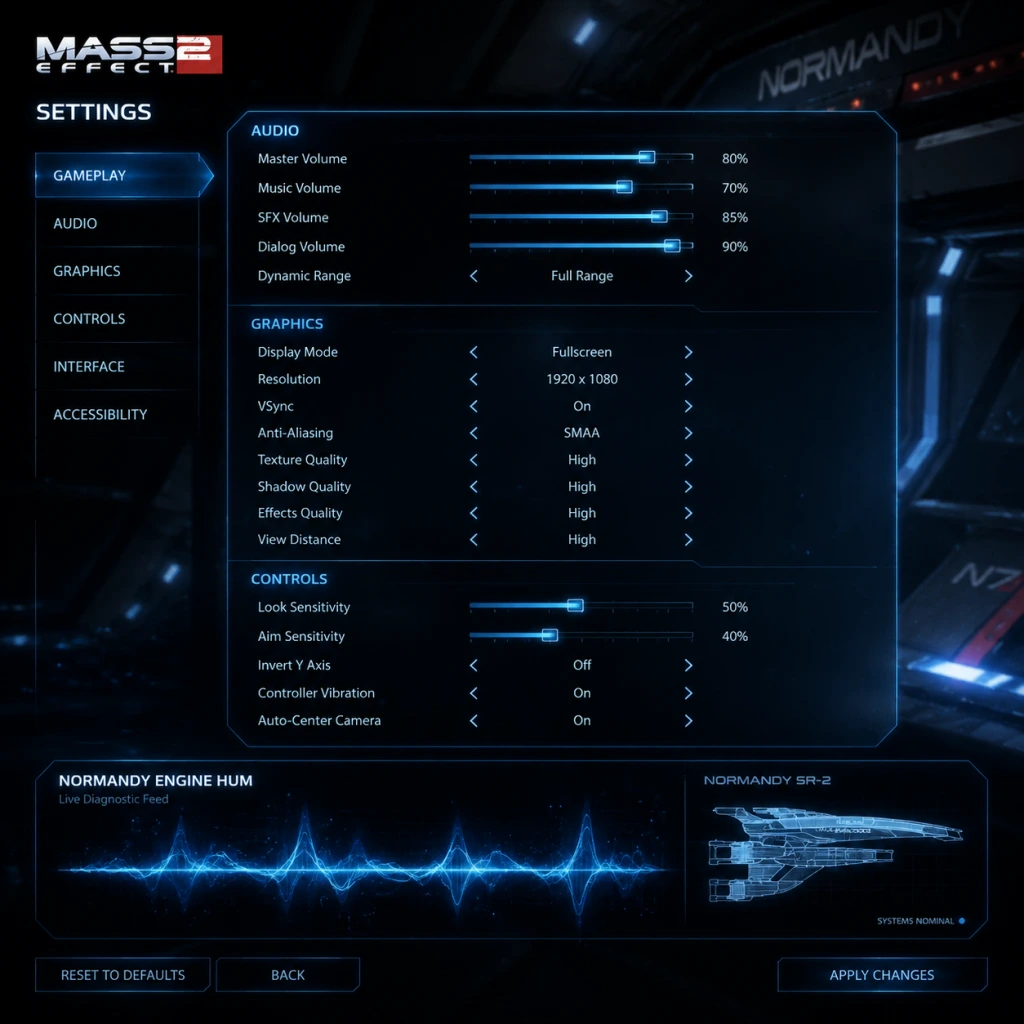
Game Settings
Game Settings Guide for Mass Effect 2
This guide covers every setting category in Mass Effect 2 (both the original 2010 release and the Legendary Edition, where noted). Optimize performance, tailor controls, and avoid common pitfalls.
---
Graphics Settings
Mass Effect 2 is not demanding by modern standards, but fine-tuning can improve visual fidelity or frame rate on older hardware. The Legendary Edition uses an updated Unreal Engine 3 with higher-resolution textures, improved lighting, and 60+ FPS support.
#### Recommended Graphics Settings by Hardware Tier
| Setting | Low-End (GTX 960 / Ryzen 3) | Mid-Range (GTX 1060 / i5) | High-End (RTX 2060 / Ryzen 5) | Maxed (RTX 3070+) |
|---|---|---|---|---|
| Resolution | 1280x720 | 1920x1080 | 2560x1440 | 3840x2160 |
| Display Mode | Fullscreen | Fullscreen | Fullscreen | Fullscreen |
| V-Sync | Off | Off | On (if tearing) | On |
| Frame Rate Limit | 60 | 120 | 144+ | Unlimited |
| Texture Quality | Low | Medium | High | Ultra |
| Shadow Quality | Low | Medium | High | Ultra |
| Post-Processing | Low | Medium | High | Ultra |
| Anti-Aliasing | FXAA | Temporal (Low) | Temporal (High) | Temporal (Ultra) |
| Ambient Occlusion | Off | SSAO | HBAO | HBAO |
| Motion Blur | Off | Off | On | On |
| Depth of Field | Off | Low | Medium | High |
| Detail Density | Low | Medium | High | Ultra |
| Effects Quality | Low | Medium | High | Ultra |
#### Important Graphics Tweak: Field of View (FOV)
- Both versions default to a narrow FOV (about 70°). For a wider view, especially on ultrawide monitors, edit the `Coalesced.bin` (original) or use the in-game slider (Legendary Edition). Recommended FOV: 90°-100°.
---
Audio Settings
| Setting | Recommendation | Notes |
|---|---|---|
| Master Volume | 80% (adjust per environment) | Avoid 100% to prevent clipping |
| Music Volume | 60% | Enhances atmosphere without drowning dialogue |
| SFX Volume | 100% | Combat cues are important |
| Dialogue Volume | 100% | Critical for story understanding |
| Voice Chat Volume | N/A (no multiplayer) | Ignore for single-player |
| Sound Output | Surround (5.1/7.1) or Headphones | Headphones give best directional awareness |
| Dynamic Range | Medium | High can make quiet lines hard to hear; Low compresses |
| Subtitles | ON | Prevents missing dialogue during combat |
---
Controls Settings
#### Keyboard & Mouse (KBM)
- Sensitivity: Start at 4.0 (default). Adjust by 0.5 increments; too high causes overshooting, too low makes turning sluggish.
- Invert Y-Axis: Off (unless you prefer flight-sim style).
- Mouse Smoothing: Off (adds input lag).
- Auto-Aim Assist: Off (interferes with precise aiming).
- Key Bindings: Remap powers to comfortable keys (e.g., Q, E, 1-4). The default number row is fine, but consider using mouse buttons for biotics.
- Aim Assist: Medium (helps on consoles; PC players may prefer Low).
- Look Sensitivity: 5/10 for balanced response.
- Vibration: On (adds immersion for weapon feedback and biotic pulses).
- Control Scheme: Use “Soldier” or “Adept” preset – the only difference is the default power mapping.
#### Controller (Xbox / PlayStation)
Special Attention: In the Legendary Edition, the controller aim assist is stronger than the original. If you feel it pulling your crosshair too much, set to Low or Off.
---
Accessibility Settings
| Feature | Recommended Setting | Benefit |
|---|---|---|
| Subtitles | On + display speaker name | Helps hearing-impaired players and those playing in noisy environments |
| Large Subtitles | On (if available) | Improves readability on small screens |
| Colorblind Mode | Protanopia / Deuteranopia / Tritanopia (select as needed) | Alters UI colors for radar, health bars, and mission markers |
| Auto-Save Frequency | Every critical point (default) | Prevents loss of progress – cannot be changed |
| Quick-Time Event (QTE) Difficulty | Easy (if needed) | Slower QTE prompts; only in the Legendary Edition |
| Screen Shake | Reduce or Off | Helps players prone to motion sickness |
| Text-to-Speech | Not available natively | Use third-party overlays if needed |
---
Language Settings
- Text Language: Choose from English, French, German, Italian, Spanish, Polish, Russian, Japanese, Chinese (Simplified), Korean. This menu appears before launching the game on Origin/Steam, or can be changed in the game’s properties (right-click in library).
- Audio Language: Typically locked to the same as text, but some versions allow separate spoken language (e.g., English text with Japanese audio). This is only available in the original 2010 disc release or non-Steam versions; the Legendary Edition forces dialogue to match your system language.
- Cerberus Network (original 2010 version): Requires an online connection to receive DLC and special messages. This is handled via the in-game “Extras” menu – no configurable settings.
- Legendary Edition: All DLC is included offline. No network settings exist.
- Steam/Origin Overlay: You can disable it if it causes crashes or input lag (bypass the launcher or turn off overlay in platform settings).
Easy to Misconfigure: If you change language mid-playthrough, all subtitles and menus update instantly, but saved game names remain in the original language. Always set language before starting a new game to avoid confusion.
---
Network Settings
Mass Effect 2 is exclusively single-player. There are no multiplayer or network settings in either version. However:
---
Gameplay Settings
| Setting | Recommendation | Explanation |
|---|---|---|
| Difficulty | Normal (first playthrough) | Veteran and Insanity require deep knowledge of class and squad synergy |
| Auto-Level Up | Off | Manually assign skill points for optimal builds |
| Squad Power Usage | Activate Power (not Ask) | Prevents needing to confirm every order during combat |
| Hold to Cover | Off (switch to Toggle) | Toggle is less fatiguing for long play sessions |
| Automatically Sheath Weapon | On | Sheaths weapon when out of combat; more immersive |
| Auto-Move | Off (default) | On can cause unwanted movement |
| Conversation Auto-Advance | Off | Ensures you read every dialogue option before proceeding |
| HUD Visibility | Always On | Critical for health, ammo, and cooldown awareness |
| Reticle | Default (or + shape) | Crosshair type is purely cosmetic; pick what you see most clearly |
---
Settings That Are Easy to Misconfigure
1. Mouse Smoothing (Graphics > Advanced) – Often left on by default, it adds dreaded input lag. Turn it off.
2. Aim Assist (Controls) – On PC with KBM, leaving it on will cause your crosshair to stick to enemies, even through walls. Set to Off.
3. Invert Y-Axis – Accidentally toggling this will make aiming up feel like down. Check before combat.
4. Hold to Cover vs Toggle – If you find your character constantly sticking to walls, you may be pressing the cover button too long. Switch to “Toggle” in Controls.
5. Subtitle Background – Some versions default to transparent subtitles; change to “Solid” (if available) for better readability.
6. Resolution Scaling (Legendary Edition only) – Setting it above 100% (e.g., 200%) tanks performance even on high-end hardware. Leave at 100% unless you have an RTX 3080 or better.
---
Special Attention Points During Setup
- First Launch Graphics Detection: The game auto-detects your system and sets a preset (“Low”, “Medium”, “High”, “Ultra”). Do not trust it blindly – it often selects higher than your hardware can maintain. Start one tier lower and test in the opening combat sequence on Omega.
- Windowed vs Fullscreen: Always use Fullscreen for the lowest input lag. Borderless Windowed can cause stutter on some systems (especially the original 2010 version due to DirectX 9 limitations).
- Save Profiles: Both versions allow multiple graphics profiles. Label them clearly (e.g., “Desktop 1080p” vs “Laptop Battery”).
- Cloud Saves: On Steam/Origin, ensure cloud sync is enabled to carry your settings between computers. However, note that performance config files are not always synced – you may need to reapply graphics settings on a new PC.
- Config File Edits (advanced): For the original 2010 version, edit `%USERPROFILE%\Documents\BioWare\Mass Effect 2\Config\BioEngine.ini` to force higher texture pool sizes or disable post-processing. In Legendary Edition, the file is in `Documents\BioWare\Mass Effect Legendary Edition\Config\MassEffect2`. Most settings can be changed in-game now, so manual edits are rarely needed.
- [ ] Set resolution to native monitor.
- [ ] Turn off Mouse Smoothing and Auto-Aim.
- [ ] Enable Subtitles (with speaker name).
- [ ] Adjust FOV to 90° (if available).
- [ ] Set Difficulty to Normal.
- [ ] Change Cover to Toggle.
- [ ] Disable Motion Blur (unless you enjoy cinematic feel).
- [ ] Test audio with an early combat scene; adjust mix if dialogue is lost.
---
Final Quick-Start Checklist
With these settings, you’ll enjoy Mass Effect 2 at its best—visually crisp, responsive, and immersive. Adjust per your hardware and personal preference as you play.