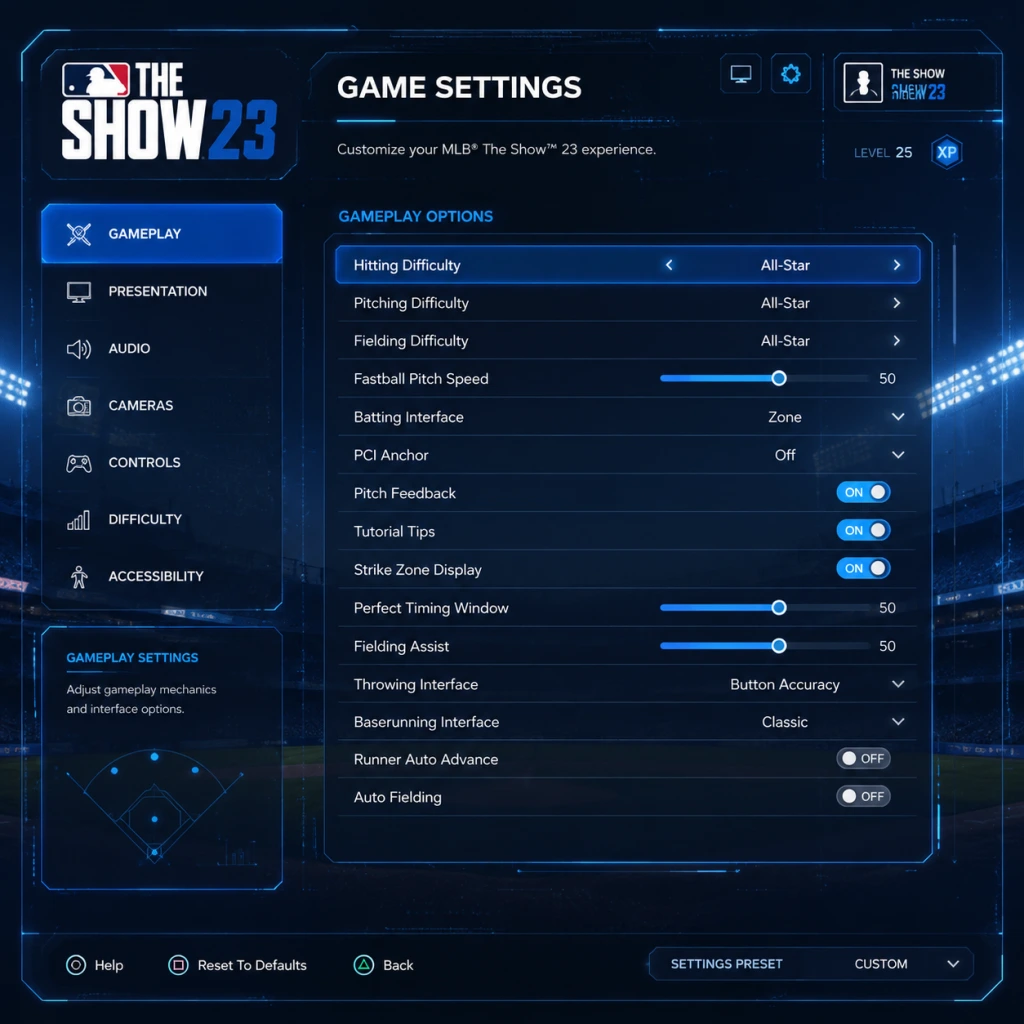
Game Settings
MLB The Show 23 - Game Settings Guide
This guide covers every settings category in MLB The Show 23, with recommended configurations for performance vs. quality on PlayStation 4, PlayStation 5, Xbox One, Xbox Series X|S, and Nintendo Switch (cloud version). Special attention is given to settings that players commonly misconfigure, which can negatively impact gameplay, readability, or online stability.
---
Graphics Settings
Graphics settings affect visual fidelity, frame rate, and input responsiveness. The game automatically detects your platform but allows manual overrides where hardware supports it.
| Setting | High-End (PS5, Xbox Series X) | Standard (PS4 Pro, Xbox One X) | Budget (PS4 Slim, Xbox One S, Switch) | Notes |
|---|---|---|---|---|
| Display Mode | Performance (60 fps) | Performance | Performance | Prioritize 60 fps for smoother pitching/batting. Quality mode (30 fps) introduces noticeable input lag. |
| Resolution | 4K (Upscaled or Native) | 1080p | 720p | Higher resolution improves clarity but may reduce frame rate on weaker hardware. |
| Field of View (FOV) | Default or +5 | Default | Default | Wider FOV can help track pop-ups but may distort peripheral vision. |
| Stadium Detail | High | Medium | Low | High detail can cause framerate dips during rain or crowd animations. |
| Shadow Quality | High | Medium | Low | Shadows have minimal impact on gameplay; lower for stability. |
| Texture Quality | High | Medium | Low | Affects player uniforms and grass textures. Low is acceptable. |
| Motion Blur | Off | Off | Off | Blur reduces clarity during fast camera pans; turn off for better reaction time. |
| Depth of Field | Off | Off | Off | Can obscure background fielders; disabling helps read batted balls. |
---
Audio Settings
Audio settings impact immersion, spatial awareness, and online communication.
| Setting | Recommended | Notes |
|---|---|---|
| Master Volume | 70–80% | Avoid 100% – compressed audio can mask cues like bat crack or catcher talk. |
| Sound Effects | 100% | Covers bat contact, ball hitting glove, and umpire calls. Crucial for timing. |
| Music Volume | 50% or Off | In-game music can distract during pitching. Many players mute it entirely. |
| Ambient Volume | 50–60% | Stadium noise (organ, crowd) adds atmosphere but can mask audio cues. |
| Commentary Volume | 30% or Off | Commentary is repetitive and can be distracting during online play. |
| Pitcher/Catcher Chatter | 100% | In online modes, you can hear the opponent’s pitcher call; this gives you a split-second hint on pitch type if you learn the codes. |
| Voice Chat (In Game) | Push-to-Talk | Avoid open mic to prevent background noise. |
| Broadcast Mix | Dynamic or Stereo | Choose Stereo for headphones; Dynamic for TV speakers. |
---
Controls Settings
Control schemes drastically affect your performance. MLB The Show 23 offers multiple presets for hitting, pitching, fielding, and baserunning.
#### Hitting Interface
| Control Type | Best For | Recommendation |
|---|---|---|
| Zone | Advanced players | Most precise: use a PCI (Plate Coverage Indicator) to aim contact. |
| Directional | Casual/Arcade | Simpler: only choose swing type. Less reward but more forgiving. |
| Timing | Beginners | No PCI – just time your swing. Easiest but lowest ceiling. |
| Analog | Veteran players | Uses right stick to control bat path. Highly skilled but can be inconsistent. |
#### Pitching Interface
| Control Type | Best For | Recommendation |
|---|---|---|
| Meter | Most players | Classic timing bar. Good balance of control and stress. |
| Pulse | Casual | Simplify: time a shrinking circle. Less accurate but easy. |
| Analog | Veteran players | Use right stick to simulate throwing motion. Highest skill gap. |
| Classic | Old-school | Only button presses; least realistic. |
#### Fielding & Baserunning
- Fielding: Set to Buttons (precise) or Analog (directional throws). Buttons are easier for beginners.
- Baserunning: Buttons (tap to advance/retreat) or Sliding Stick (right stick). Buttons are more reliable.
- Throwing Accuracy: Buttons (pre-set to bases) vs. Meter (timing based). Most players use Buttons for consistency.
- Recommendation: Off – Vibration can interfere with delicate control on pitching meter timing and swinging. Turn it off for competitive play.
#### Controller Vibration
---
Accessibility Settings
The Show 23 offers extensive accessibility options for visual, hearing, and motor impairments.
| Option | Recommended | Explanation |
|---|---|---|
| Text-to-Speech | On if needed | Reads menus and status messages. |
| Subtitle Size | Large | For dialogue and tutorial prompts. |
| Closed Captions | On | Shows spoken lines during story modes (e.g., Road to the Show). |
| Colorblind Modes | 4 options | Tritanopia, Deuteranopia, Protanopia, Achromatopsia. Adjustable UI colors. |
| High Contrast Mode | Off (or On if needed) | Changes background to solid colors for readability. |
| Screen Narration | On if vision impaired | Reads all interactive elements. |
| Controller Scheme | Customizable | Remap buttons individually. |
| Auto-Run / Auto-Field | Off for skilled players | Auto-field can take you out of position; manual fielding is better. |
| Pitch Trail | On (for beginners) | Shows a faint line of where the ball will go – helps read pitches, but advanced players turn it off because it’s unrealistic online. |
---
Language Settings
- Game Language: Choose from English, French, Spanish, Portuguese, etc. This affects menus, commentary, and subtitles.
- Commentary Team: English (Matt Vasgersian, Dan Plesac, Mark DeRosa) or alternate language packs. Commentators talk about real-world players and storylines – you may miss contextual hints in other languages.
- Audio Language: Separate from text. Keep the same language for consistency, or mix (e.g., English commentary with Japanese subtitles).
Recommendation: Leave on your native language to benefit from in-game tips mentioned by the broadcast team.
---
Network Settings
For online stability and performance.
| Setting | Recommendation |
|---|---|
| Network Connection | Wired Ethernet preferred over Wi-Fi. Wi-Fi can cause lag spikes. |
| Port Forwarding | If using console, forward TCP/UDP ports 80, 443, 3659, 3660, 4656, 9296-9299 to improve matchmaking. |
| Online Squads | Invite-only for friends; avoid open lobbies to reduce lag from distant hosts. |
| Cross-Play | Enable (if you want larger player pool) – but matchmaking may pair you with players on different hardware; performance delta is minimal. |
| Controller Vibration Online | Off – retains battery and prevents accidental inputs. |
| Connection Quality Display | Turn On – shows ping and packet loss overlay during games. If ping >80ms or packet loss >2%, consider restarting your network. |
---
Gameplay Settings
These affect in-game rules, difficulty, and presentational features.
| Setting | Description | Recommendation |
|---|---|---|
| Difficulty | Rookie to Legend | Start on Veteran (standard) – it balances challenge and fun. Do not start on Rookie; you’ll develop bad habits. |
| Batting Camera | Multiple angles | Default Zoom: Gives good view of strike zone. |
| Pitching Camera | Multiple angles | Broadcast or Behind Pitcher: best for seeing batter timing. |
| Fielding Camera | Showtime or Standard | Showtime: zoomed out for better range awareness. |
| Baserunning Camera | Follow Runner or Broadcast | Follow Runner feels more natural. |
| Strike Zone Display | On | Shows the strike zone outline – essential for umpire judgement. |
| Pitch Call Display | On | Shows the selected pitch before throw (only in offline modes – hidden online). |
| Batting Stats Display | On | Shows pitcher tendencies and hitter stats when at bat. |
| Umpire Ball/Strike Consistency | Accurate or Balanced | Accurate: More realistic variability. Balanced: More fair to players. Choose Accurate for simulation. |
| Game Speed | Normal | Do not increase speed; it shortens animation windows and makes timing harder. |
| Quick Counts | Off for full experience | Quick counts (e.g., 1-1 count) are for grinding Diamond Dynasty offline; turn off for realistic games. |
Additional Tips for First-Time Setup
1. Reset to Defaults First: If you’ve been changing settings randomly, go to Settings → Reset All. Then apply the recommendations above.
2. Test in Practice Mode: Before entering a game, go to Practice (Home Screen → Play → Practice) and try a few swings/pitches with your chosen control scheme.
3. Adjust Camera Height: In setting menus, camera angles often have sub-settings like height and zoom. Slightly lowering the batting camera can help you see low pitches.
4. Save Profile: The game saves settings per console user – not per profile. If you play on multiple systems, you’ll need to reapply.
5. Online vs. Offline Differences: Some settings (like Pitch Trail, Pitch Call Display, and Quick Counts) are forced off in online play. Practice with those off even in offline modes to avoid bad habits.
---
Summary: Quick Start Settings for Best Performance
| Category | Quick Recommendation |
|---|---|
| Graphics | Performance mode (60 fps), Motion Blur Off, Shadows Low |
| Audio | Chatter ON (100%), Music OFF, Commentary 30% |
| Controls | Zone hitting, Meter pitching, Button fielding, Vibration OFF |
| Accessibility | Pitch Trail OFF, Subtitle Size Large if needed |
| Network | Wired, Enable Connection Quality Display |
| Gameplay | Veteran difficulty, Default Zoom batting camera, Umpire Accurate |