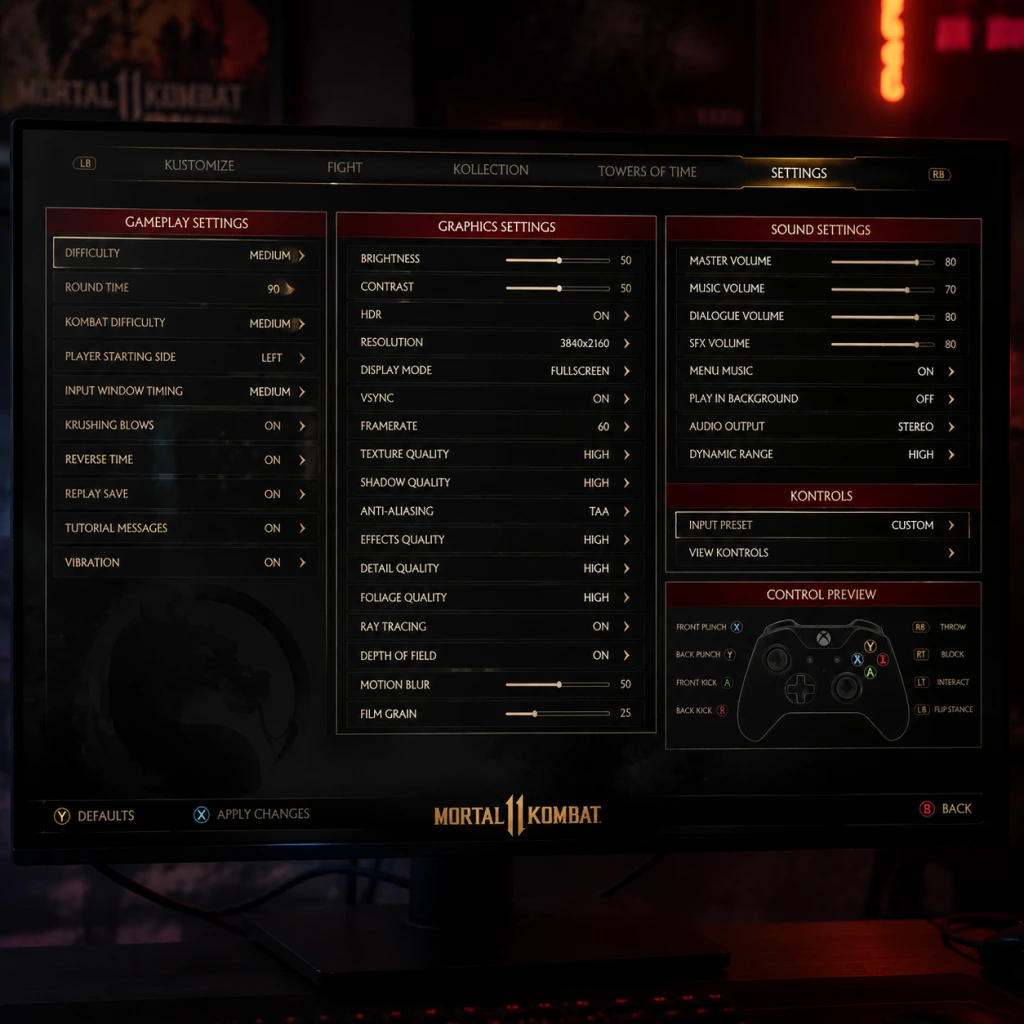
Game Settings
Game Settings Guide for Mortal Kombat 11
This guide provides a comprehensive overview of all major settings in Mortal Kombat 11 across platforms (PC, PlayStation 4/5, Xbox One/Series X|S, Nintendo Switch). It covers Graphics, Audio, Controls, Accessibility, Language, Network, and Gameplay options. Recommendations are given for low-end, mid-range, and high-end hardware to balance performance and visual quality. Settings that are easy to misconfigure are highlighted.
---
Graphics Settings (PC Only)
Access via: Main Menu > Options > Graphics
#### Display & Resolution
- Display Mode: Fullscreen (best performance), Borderless Windowed (alt-tab friendly), Windowed.
- Resolution: Set to your monitor’s native resolution for sharpness. Lower only if performance is poor.
- Refresh Rate: Match your monitor’s max refresh rate (e.g., 60Hz, 144Hz).
- V-Sync: Disabled for lowest input lag (recommended); enable to prevent screen tearing if you experience it.
- Frame Rate Limit: Off (unlocked), 30 FPS, 60 FPS, 120 FPS. Set to 60 FPS for consistency; unlock only on high-end systems.
- Global Quality Preset: Low, Medium, High, Ultra. Start with Auto-detect or set manually.
- Anti-aliasing: FXAA (fast, blurry), SMAA (better quality), TAA (best for stills but can blur motion). Recommendation: SMAA or TAA on mid/high; disable on low-end.
- Texture Quality: Low (lower VRAM), Medium, High, Ultra. High/Ultra require 4GB+ VRAM. Potentially misconfigured: Setting too high for VRAM causes stuttering; check VRAM usage in the in-game bar.
- Shadow Quality: Low (flat shadows), Medium, High, Ultra. Shadows have low performance impact; set to Medium or High.
- Post Processing: Bloom, Depth of Field, Motion Blur. Disable all for competitive play (reduces visual clutter). Easy to misconfigure: Motion Blur can obscure quick movements; turn off in fighting games.
- Effects Detail: Low, Medium, High, Ultra. Controls particle effects. Low for performance.
- Model Quality: Low, Medium, High, Ultra. Affects character models and stages. High/Ultra are visually rich.
- Ambient Occlusion: Off, SSAO, HBAO+. Off on low-end; HBAO+ on high-end.
#### Quality Presets
#### Per-Hardware Recommendations
| Hardware Tier | CPU/GPU Examples | Recommended Settings |
|---|---|---|
| Low-end | GTX 1050 / RX 560 / Ryzen 3 | 720p resolution; Low preset; disable anti-aliasing, shadows Low, effects Low; V-Sync off; frame rate cap 30 FPS (if needed) |
| Mid-range | GTX 1660 / RTX 2060 / Ryzen 5 | 1080p; High preset; SMAA; shadows High; textures High; post-processing off; V-Sync off; frame rate cap 60 FPS |
| High-end | RTX 3080 / RX 6800 XT / i7-11700K | 1440p/4K; Ultra preset; TAA; shadows Ultra; textures Ultra; ambient occlusion HBAO+; V-Sync off; frame rate unlimited (up to monitor refresh) |
---
Audio Settings
Access via: Options > Audio
- Master Volume: 100% (adjust based on system).
- Music Volume: 100% (keep high for atmosphere).
- SFX Volume: 100% (important for hit sounds and audio cues).
- Voice Volume: 100% (announcer, character dialogue).
- Cutscene Volume: 100% (for story mode).
- Sound Mode: Stereo, 5.1 Surround, 7.1 Surround. Select according to your setup. Potentially misconfigured: If you use stereo headphones but set to 7.1, audio may sound hollow or quiet. Always match your hardware.
- Audio Dynamic Range: Headphones, TV, speakers. Choose “Headphones” for a compressed dynamic range that makes quiet sounds louder — helpful for hearing footstep queues. Easy to misconfigure: Leaving on “TV” with headphones can cause too loud/too quiet extremes.
- Damage Feedback Sound: On/Off. Off disables the hit sound for taking damage – not recommended as audio cues are vital.
- Input Audio: On/Off (for microphone inputs in online lobbies). Set to Off if you don’t use voice chat.
- Standard: Default layout (A/X punch, B/Y kick, etc.).
- Alternative: Switches face buttons (e.g., punch/kick reversed).
- Custom: Fully remap every button.
- Front Punch, Back Punch, Front Kick, Back Kick
- Block, Throw, Interact, Flip Stance, Amplify, Grab
- Shortcut buttons for Konsumables, Fatal Blow, etc.
- Vibration: On/Off. Off reduces distraction and can improve precision for some players.
- Trigger Deadzone: Adjust if you feel triggers too sensitive (range 0-100%). Default 30%.
- Stick Deadzone: Similar adjustment for analog sticks. Increase if you experience stick drift.
- D-Pad vs Analog: Fighting games are best played with D-Pad for precise directional inputs. If your controller’s D-Pad is inaccurate, consider analog stick but increase deadzone slightly.
- Subtitles: On/Off. Turn on for story mode.
- Subtitle Background: Dark/light/transparent. Choose dark for readability.
- Color Blind Mode: Deuteranopia, Protanopia, Tritanopia, Off. Adjusts UI colors for health bars, meters, and combo timing indicators. Easy to misconfigure: Selecting the wrong type can make things worse; test versus a known colorblind test chart.
- High Contrast Mode: On/Off. Increases contrast of UI elements and character outlines. Helpful for low vision.
- Screen Narrator: On/Off (reads menu text aloud). Only on Xbox and PC (Windows Narrator).
- Auto-Attacks: On/Off. When enabled, repeated button presses auto-execute basic combos. Good for beginners but must be turned off for competitive play.
- Input Shortcuts: On/Off. Allows simpler inputs for special moves (e.g., down-down instead of quarter-circle). Potential misconfigure: Turning this on will change move execution and may prevent advanced techniques; keep Off for serious play.
- Release Check: On/Off. When enabled, special moves execute on button release rather than press. Can help if timing is difficult, but changes muscle memory. Default Off.
- Alternate Controls: On/Off. Switches to a simplified control scheme for moves (e.g., one button per special). Recommended only for absolute beginners.
- Button Hold Remap: Allows holding a button to trigger a different action (e.g., hold block to amplify). Not recommended for precise gameplay.
- Text Language: English, French, German, Spanish, Italian, Portuguese, Japanese, Korean, Chinese (Simplified/Traditional), etc.
- Audio Language: English, Japanese, etc. (character voices, announcer).
- Subtitles Language: Select independently from audio.
- Connection Type: Wired vs Wi-Fi (in-game doesn’t change this, but advises using wired).
- Network Quality Indicator: On/Off (displays ping and frame delay during matchmaking). Keep On.
- Matchmaking Region: Automatic or manual (e.g., North America, Europe). Set to your region for lower latency. If queuing with friends elsewhere, manual may be needed.
- Crossplay: On/Off (between PS, Xbox, PC). Enable for larger player pool; disable if you prefer only your platform.
- Krossplay Indicator: On/Off (shows platform icon in opponent card).
- Connection Filter: Any, Good Only, Perfect. Choose “Good Only” to filter out bad connections. Easy to misconfigure: Setting to “Any” will match with laggy players.
- Frame Delay Input: Adjusts input lag compensation. Default is 0; increase by 1-2 if you experience constant lag spikes (can cause more input delay, so cautious).
- Voice Chat: On/Off, Push to Talk, Open Mic. Set to Push to Talk to avoid accidental noise.
- Teabagging Filter: On/Off (hides teabagging animations). Not essential but can reduce tilt.
- Difficulty: Easy, Medium, Hard, Very Hard. Affects AI opponents in Story, Towers, and Klassic Tower. Adjust per mode.
- Timer: 30/60/90/120 seconds or Infinite. Competitive default is 90 seconds.
- Health: Normal, Double, Triple. For casual play only; competitive uses Normal.
- Stage Fatalities: On/Off. Keep On; turning off removes environmental finishers.
- Klose Kombat (Clash): On/Off. Turn Off to remove comeback mechanic (for custom variations).
- Fatal Blow: On/Off. Keep On; many rely on it.
- Auto-Move: On/Off (AI performs movement). Turn Off for manual control.
- Auto-Combos: On/Off. Off for normal play; On for assist mode.
- Stage Interactions: On/Off. Keep On for standard play.
- Rollback Netcode: Not toggleable; always on in MK11.
---
Controls Settings
Access via: Options > Controls
#### Button Configuration (Pre-defined Layouts)
#### Key Bindings (PC Keyboard)
You can rebind:
Potentially misconfigured: Ensure “Interact” is on a comfortable key (often space or E). Many players accidentally map Amplify over a Punch — keep default or test in Practice.
#### Controller Specific
---
Accessibility Settings
Access via: Options > Accessibility
---
Language Settings
Access via: Options > Language
Potentially misconfigured: If you set text to a language you don’t understand, you might not be able to navigate back to change it. Most menus have a language icon; note the position of your selection to revert.
---
Network Settings
Access via: Options > Network (or Online Settings)
---
Gameplay Settings
Access via: Options > Gameplay (or under “Fight Options” in the pause menu during a match)
These settings affect in-match behavior and tutorials.
Easy to misconfigure: Many players accidentally set “Auto-Combos” to On in the options and wonder why combos feel wrong. Always check this before going online.
---
Special Attention Points During Setup
1. Graphics VRAM Meter: Always monitor the VRAM usage bar when changing textures/shadows. Exceeding VRAM causes micro-stutters.
2. Audio Dynamic Range: If using headphones, select “Headphones” immediately; otherwise sound may be too quiet for important audio queues.
3. Accessibility – Auto-Attacks & Input Shortcuts: These are designed for casual/assist mode but will cripple your ability to perform advanced combos. Turn them Off for proper play.
4. Controls – D-Pad vs Stick: For fighting games, D-Pad is nearly mandatory. If your controller’s D-Pad is poor, consider a fightstick or a pad with a better D-Pad (like Hori Fighting Commander).
5. Network – Frame Delay Input: Increasing this adds input latency. Only use if you have constant high ping; otherwise leave at 0.
6. Language Selection: If you accidentally change text to an unknown language, look for the Earth icon (language) in the options menu to revert.
7. Release Check: This setting is often confused. Leave it Off unless you specifically need it for a disability; it changes input timing and will mess up your muscle memory.
---
Summary Table: Quick-Start Settings
| Setting Category | Recommended Default for Competitive Play |
|---|---|
| Graphics (PC) | 1080p, High preset, SMAA, V-Sync Off, 60 FPS cap |
| Audio | SFX 100%, Music 100%, Dynamic Range = Headphones |
| Controls | Default layout, D-Pad, Vibration Off |
| Accessibility | Auto-Attacks Off, Input Shortcuts Off, Release Check Off |
| Language | English / Preferred |
| Network | Wired, Region = Auto, Connection Filter = Good Only |
| Gameplay | Auto-Combos Off, Auto-Move Off, Fatal Blow On |