Game Settings
Game Settings
Overview of the Settings Menu
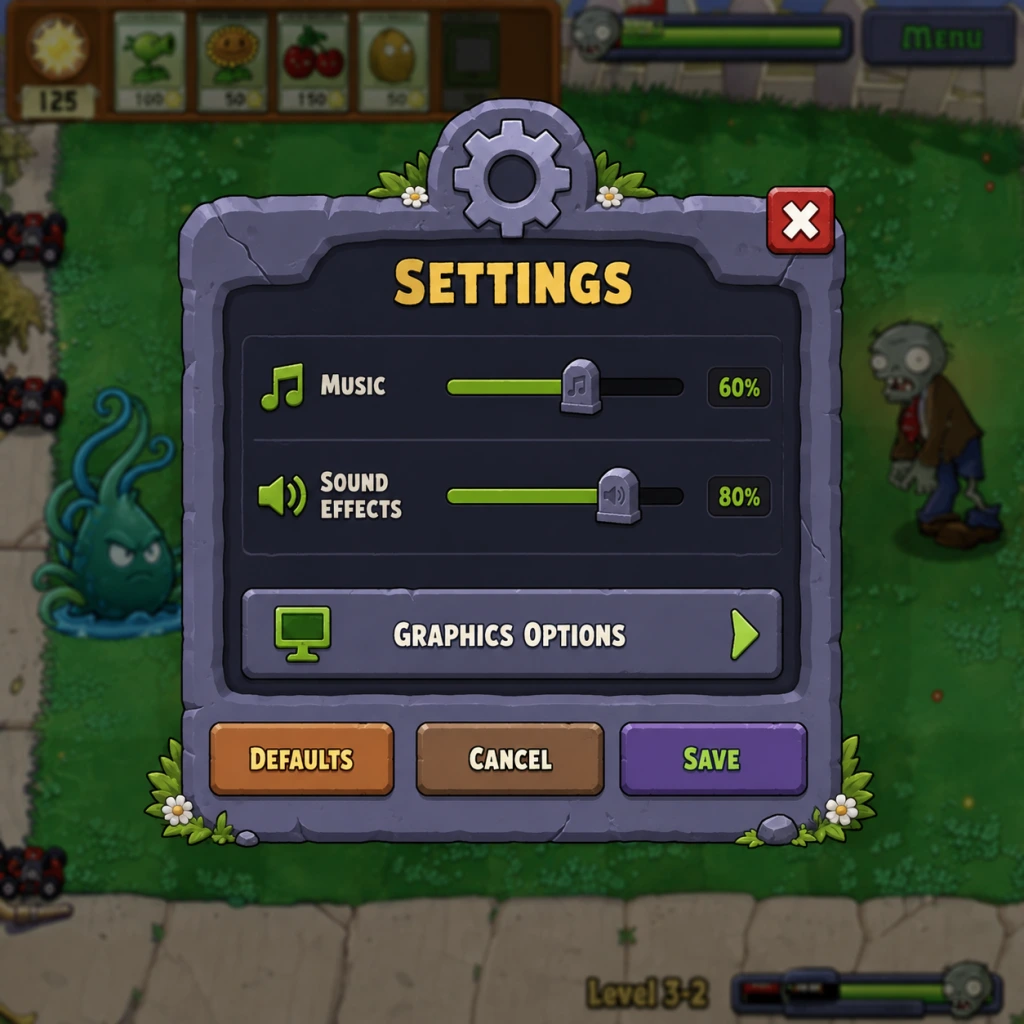
In Plants vs. Zombies (original 2009 version), the settings menu is accessed from the main menu by clicking the Options button. The options are divided into several tabs or sections. This guide covers every setting available on the PC version (Steam/EA App) and notes differences for other platforms when relevant.
---
Graphics Settings
- Resolution – Drop-down list of supported screen resolutions. Default is usually your desktop resolution. On modern high-DPI displays, the UI may appear tiny at native resolution; consider using 1280×720 or 1920×1080 for better readability.
- Full Screen – Toggle between full-screen and windowed mode. Windowed mode can help with alt-tabbing and multi-monitor setups.
- Quality – Three presets: Low, Medium, High. Controls texture detail, object quality, and some visual effects. The game is 2D and not demanding, so High works on almost all hardware.
- Anti-Aliasing – Some versions (e.g., GOTY) include an anti-aliasing toggle. Reducing jaggies on modern monitors is recommended.
- V-Sync – If present, synchronizes frame rate with monitor refresh. Enable to reduce screen tearing if you experience it.
#### Recommended Settings by Hardware Tier
| Hardware Tier | Resolution | Full Screen | Quality | Anti-Aliasing | V-Sync |
|---|---|---|---|---|---|
| Low-End (e.g., Intel HD Graphics, very old CPU) | 1280×720 | On | Low | Off | Off |
| Mid-Range (e.g., any dedicated GPU from last 10 years) | 1920×1080 | On | High | On | On |
| High-End (modern gaming rig) | Native 4K if supported | On | High | On | On |
---
Audio Settings
- Music Volume – Slider controlling the background music (ambient lawn music, minigame tracks, etc.).
- SFX Volume – Slider controlling sound effects: plant shooting, zombie groans, shovel, coins, etc.
- Left-click to select a plant from the seed bank, then left-click on a lawn tile to plant.
- Right-click to deselect or cancel placement.
- Keyboard shortcuts:
- Subtitle / Caption – Not available.
- Colorblind support – Not available. The game uses distinct shapes and animations for each plant and zombie, so color is not the only identifier.
- Text size – Fixed; cannot be increased.
- English
- French
- German
- Spanish
- etc.
- Turbo Mode – Speeds up the entire game by 2x (zombies move faster, plants shoot faster). Unlocked after completing Adventure Mode once. Not recommended for first playthrough.
- Always Show Seed Bank – When enabled, the seed bank (plant selection bar) remains visible even when not in use. On by default. Disabling may hide it for a cleaner view but requires mouse hover to reveal.
Optimal Balance: Set both to about 80–100% for a full experience. Lower music volume if you find it repetitive during long sessions. SFX are critical for hearing zombie attack sounds (e.g., the “eating” noise) and the “last zombie” announcement.
> Easy to Misconfigure: Turning off SFX completely makes it harder to react to threats; keep SFX at least at 50%.
---
Controls Settings
In the original PC version, controls are not remappable. The game uses mouse exclusively for most actions:
- 1-9 hotkeys to quickly select a plant from the first 9 seed slots.
- Space to use the shovel (if unlocked or in certain modes).
- P or Escape to pause the game.
Mobile versions replace mouse with touch – tap to select and tap to plant.
> Highlight: The keyboard shortcuts (1-9) are extremely useful but easy to forget. New players often click seed bank icons manually, slowing down gameplay. Memorize the numbers after a few levels.
---
Accessibility Settings
The original game offers no dedicated accessibility options beyond:
Workarounds: Use Windows Ease of Access features (e.g., Magnifier, high-contrast themes). On mobile, iOS/Android accessibility tools can help.
---
Language Settings
Available in some versions (e.g., GOTY, Steam release) under Options > Language. Common options:
> Special Attention: Changing language mid-game may cause inconsistencies in some community mods or achievement descriptions. Set your preferred language before starting a new playthrough for consistency.
---
Network Settings
Plants vs. Zombies (2009) is a single-player game with no multiplayer or online features. There are no network or connectivity settings. The game does not require an internet connection to play.
---
Gameplay Settings
Some versions (e.g., GOTY, Steam release) include additional gameplay toggles:
> Easy to Misconfigure: Turbo Mode can be accidentally enabled from the main menu (some versions have an “Options” toggle). If the game suddenly feels frantic, check if Turbo is on.
---
Special Attention Points During First-Time Setup
1. Set Resolution Correctly – Choose a resolution that matches your monitor’s native aspect ratio (16:9 or 16:10). Stretching can distort images.
2. Language First – Change language before starting a game to avoid text mismatches.
3. Audio Balance – Ensure SFX are audible; they provide gameplay cues (e.g., the sound of a zombie eating a plant).
4. Turbo Mode Off – New players should leave Turbo Mode disabled.
5. Full Screen vs Windowed – If you experience crashes or lag in full-screen, switch to windowed mode.
6. Check for Updates – The game may have additional patches (e.g., GOTY fixes). Verify with your platform (Steam, EA App).
---
Summary of Recommended Settings (Default for Best Experience)
| Setting | Recommended Value |
|---|---|
| Resolution | 1920×1080 (or native, if UI comfortable) |
| Full Screen | On |
| Quality | High |
| Anti-Aliasing | On (if available) |
| V-Sync | On |
| Music Volume | 80% |
| SFX Volume | 100% |
| Language | Your preferred language |
| Turbo Mode | Off |
| Always Show Seed Bank | On |
---
This guide applies primarily to the PC version. Console and mobile versions have simplified options (e.g., no resolution or quality sliders). Refer to your platform’s manual for specifics.