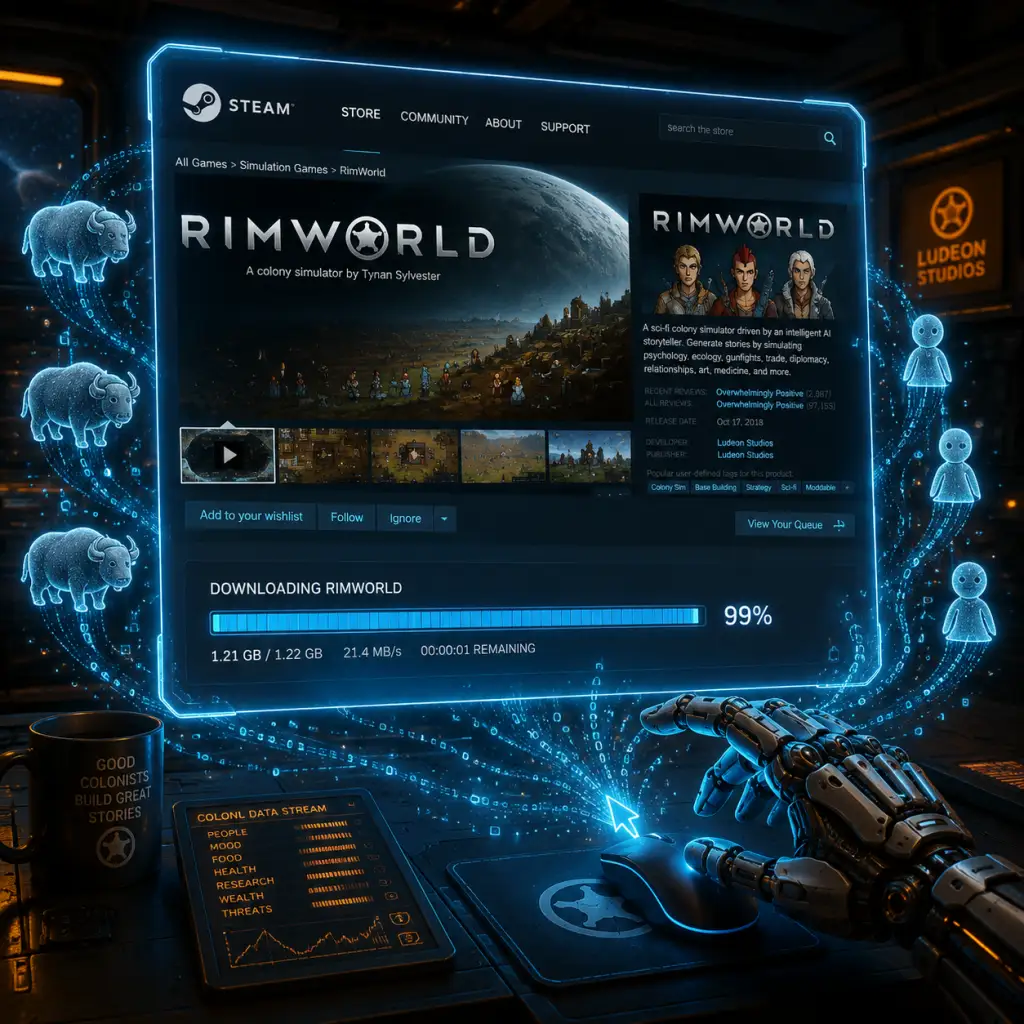
Download & Installation
RimWorld Download & Installation Guide
This guide covers official, legitimate ways to download and install RimWorld on all supported platforms. RimWorld is available on PC (Steam, GOG, Microsoft Store), macOS, Linux, Xbox One, Xbox Series X|S, PlayStation 4, and PlayStation 5. It is not available on Nintendo Switch, mobile devices, or the Epic Games Store.
---
System Requirements
Minimum Requirements
| Component | Requirement |
|---|---|
| OS | Windows 7 64-bit / macOS 10.12+ / Linux Ubuntu 16.04+ |
| CPU | Intel Core 2 Duo or AMD equivalent (2.0 GHz dual-core) |
| RAM | 4 GB |
| GPU | Intel HD Graphics 3000 or better, 1 GB VRAM |
| Storage | 2 GB free space |
| DirectX | Version 9.0c or higher (Windows only) |
| Internet | Not required for single-player, needed for Steam Workshop mods |
Recommended Requirements
| Component | Requirement |
|---|---|
| OS | Windows 10 64-bit / macOS 10.14+ / Linux Ubuntu 20.04+ |
| CPU | Intel Core i5 3.0 GHz or AMD equivalent |
| RAM | 8 GB |
| GPU | NVIDIA GTX 660 / AMD Radeon HD 7850 or better, 2 GB VRAM |
| Storage | 4 GB free space (including mods) |
| DirectX | Version 11 (Windows only) |
---
Platform-Specific Installation Guides
1. PC/Mac/Linux – Steam
1. Create a Steam account at [store.steampowered.com](https://store.steampowered.com) (or log in if you already have one).
2. Download and install the Steam client from the website.
3. Launch Steam and log in.
4. Purchase RimWorld via the Steam Store (search \"RimWorld\") or redeem a Steam key if you bought it elsewhere.
5. In your Steam Library, find RimWorld and click Install.
6. Choose installation directory (default is fine) and ensure sufficient disk space.
7. Wait for download and installation to complete.
8. First Launch: Click Play in Steam. The game will launch with the Unity engine initialization. After the splash screen, the main menu appears. You may need to adjust resolution and language settings.
2. PC/Mac/Linux – GOG (DRM-Free)
1. Create a GOG account at [gog.com](https://www.gog.com).
2. Purchase RimWorld from the GOG store.
3. Download the GOG Galaxy client (optional, but recommended for automatic updates) or download the offline installer directly.
4. Using GOG Galaxy:
- Install and log in.
- Go to your Library → RimWorld → Install.
5. Using offline installer:
- Download the installer file (a single .exe or .sh file).
- Double-click to run. Follow the setup wizard, choosing destination folder.
- After installation, launch via the created shortcut or the .exe in the game folder.
6. First Launch: Same as Steam version. No DRM; runs directly.
3. Windows 10/11 – Microsoft Store (Also Includes Console Versions via Xbox Play Anywhere)
Note: RimWorld on Microsoft Store is a different purchase than Steam/GOG. It supports cross-save with Xbox consoles if you own both.
1. Open the Microsoft Store on your Windows PC.
2. Search for \"RimWorld\" and select the game.
3. Purchase or Install (if you own it via an Xbox Game Pass subscription? RimWorld is not on Game Pass at this time; you must buy it).
4. Click Install – ensure you are logged in with your Microsoft account.
5. The game installs to your default WindowsApps folder (managed by Xbox app, not manually accessible).
6. First Launch: Click Launch from the Store or find it in the Start menu. It will open like any UWP app.
4. Xbox One / Xbox Series X|S
1. Turn on your Xbox console and connect to the internet.
2. Go to Store (Microsoft Store) on the dashboard.
3. Search for RimWorld.
4. Buy the game (price varies by region).
5. After purchase, the game will automatically start downloading. You can also initiate download from My Games & Apps → Ready to Install.
6. Wait for download (approx. 1–2 GB).
7. First Launch: Launch from Home or My Games & Apps. The Xbox interface handles sign-in, and the game will present controller-friendly menus.
5. PlayStation 4 / PlayStation 5
1. Turn on your PS4 or PS5 and sign in to your PSN account.
2. Open the PlayStation Store.
3. Search for RimWorld.
4. Purchase the game.
5. Select Download (or set to auto-download).
6. The game will install automatically. You can monitor progress from Notifications → Downloads.
7. First Launch: Go to your game library and select RimWorld. The game supports DualShock 4 / DualSense controllers natively.
---
Account Requirements
- Steam: Steam account (free) + purchase.
- GOG: GOG account (free) + purchase.
- Microsoft Store (PC/Xbox): Microsoft account (free) + purchase. Xbox Game Pass does not include RimWorld.
- PlayStation: PSN account (free) + purchase.
- Game install size: ~1.5–2 GB (base game). Mods can add 500 MB–2 GB each.
- Save files:
- Backup your saves regularly, especially before adding mods.
- Cause: Outdated graphics drivers or incompatible GPU.
- Fix: Update GPU drivers (NVIDIA, AMD, Intel) to latest version. For integrated Intel HD Graphics, ensure the game is set to run on the dedicated GPU (not CPU-integrated).
- Cause: Missing Visual C++ Redistributables or .NET Framework.
- Fix: Install both x86 and x64 versions of [Visual C++ Redistributable](https://aka.ms/vs/17/release/vc_redist.x64.exe) (2015-2022). Also install [.NET Framework 4.7.2](https://dotnet.microsoft.com/en-us/download/dotnet-framework/net472) or later.
- Cause: Permissions issue with WindowsApps folder.
- Fix: Run the Store as administrator, or install to a secondary drive via Store settings. Do not manually move the game folder.
- Cause: Steam requires extra space for caching.
- Fix: Free up more space (at least 4 GB) or change Steam library folder to a drive with more capacity.
- Cause: macOS security Gatekeeper blocking the app.
- Fix: Right-click the RimWorld.app → Open (the first time). After that, it will be trusted. Alternatively, disable Gatekeeper (temporarily) via Terminal: `sudo spctl --master-disable`.
- Cause: Usually a corrupted install or Bluetooth interference (PS5).
- Fix: Reinstall the game from the console store. For PS5, ensure controller firmware is updated.
- Cause: Internet connection or Steam client issue.
- Fix: Verify internet, restart Steam, log out/in. Check if Steam is in offline mode – switch to online.
- 64-bit OS required: RimWorld does not support 32-bit Windows.
- Antivirus exclusions: Add the game folder (`%ProgramFiles(x86)%\\Steam\\steamapps\\common\\RimWorld` on Steam) to your antivirus exceptions to avoid false positives.
- Mod safety: Always back up your saves before adding mods, and check mod compatibility with your game version.
- Console versions: Console editions may lack some mods and have a slightly different UI but receive parity updates.
No subscription is required for online play because RimWorld is offline single-player. However, to download mods (on PC) you need internet connectivity and a Steam/GOG account (for Workshop access only on Steam; GOG mods are manual).
---
First Launch Setup
After installation, follow these steps:
1. Language Selection: RimWorld defaults to English. You can change language from the main menu → Options → Language.
2. Resolution & Fullscreen: Options → Display → set resolution, windowed/borderless/fullscreen.
3. Controls: If on PC, keyboard + mouse. On console, controller setup is automatic.
4. Tutorial: The game offers a tutorial scenario (\"Crashlanded\") which is highly recommended for new players.
5. Mods (PC only): From the main menu, click Mods to enable/disable. Steam Workshop mods are automatically downloaded when subscribed; manually installed mods go in the `RimWorld/Mods` folder.
6. Quick Performance Check: Before starting a colony, go to Options → Gameplay → change \"Allow auto-save interval\" to 15 minutes if you have a slower hard drive.
---
Storage Space & Save Game Locations
- Steam: `%appdata%\\..\\LocalLow\\Ludeon Studios\\RimWorld by Ludeon Studios\\Saves` (Windows) / `~/Library/Application Support/RimWorld/Saves` (macOS) / `${XDG_DATA_HOME}/RimWorld/Saves` (Linux)
- GOG: Same as Steam (saved in the same Unity persistent data folder).
- Microsoft Store / Xbox / PlayStation: Managed by the OS; no direct file access without developer tools.
---
Common Installation Errors & Fixes
Error: \"Failed to initialize renderer\" (PC)
Error: \"Unity Player : Unable to load mono\" or \"DLL not found\"
Error: \"Access denied\" when installing on Windows (Microsoft Store only)
Error: \"Not enough disk space\" even if free space is available (Steam)
Error: Game crashes on launch on macOS
Error: Controller not working on console versions
Error: \"Can't connect to Steam Workshop\" (PC)
---
Post-Installation Verification
1. Launch the game and confirm you see the main menu with the "RimWorld" title and the game's distinctive pixel-art style.
2. Check version number (bottom left of main menu). The latest version is usually 1.5 (as of 2025) – note that RimWorld is still being updated.
3. Create a new colony with default settings – if the game loads into the map with colonists, installation is successful.
4. Test mod loading (if installed): Go to Mods screen → enable all desired mods → sort according to load order recommendations (use RimPy Mod Manager for complex setups).
5. Save & load test: Press ESC → Save → give a name → exit to main menu → Load → select the save. If it loads correctly, save function works.
---
Additional Tips
---
Troubleshooting Checklist
1. Verify game files (Steam: right-click → Properties → Local Files → Verify integrity...; GOG: Galaxy → Manage Installation → Verify).
2. Run the game as administrator (Windows) if crash on launch.
3. Disable overlays (Steam, Discord) as they can interfere.
4. Check Windows Event Viewer for detailed crash logs.
5. Visit the [RimWorld official forums](https://ludeon.com/forums/) or [RimWorld subreddit](https://reddit.com/r/RimWorld) for community help.
---
This guide covers all legitimate methods to obtain and install RimWorld. Remember to only download from official stores to avoid malware. Enjoy building your colony!