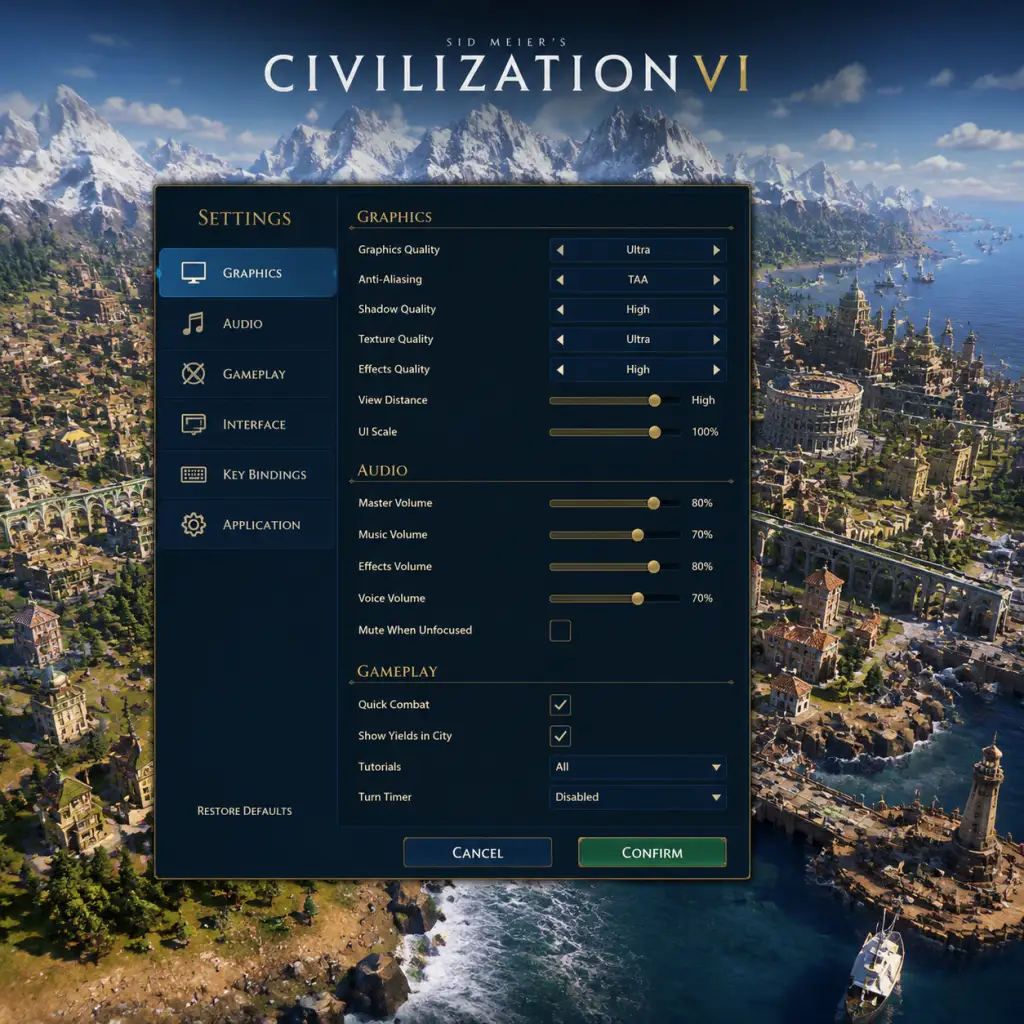
Game Settings
Game Settings
Overview
Civilization VI offers extensive settings across Graphics, Audio, Controls, Accessibility, Language, Network, and Gameplay. Proper configuration enhances both visual quality and performance, especially crucial in the late game when turn times increase. Settings are saved per profile and can be accessed from the Main Menu or in-game pause menu. On PC, the configuration file is located at `Documents/My Games/Sid Meier's Civilization VI/AppOptions.txt`.
Graphics Settings
#### Display Options
- Resolution: Match your monitor’s native resolution. Dropping to 1080p from 1440p/4K can significantly boost FPS on weaker GPUs.
- Fullscreen vs. Borderless Windowed: Fullscreen offers slightly better performance; borderless helpful for multi-monitor setups.
- Video Quality Preset: Low, Medium, High, Ultra. Custom overrides per option below.
- V-Sync: On prevents screen tearing but adds input lag. Off for competitive multiplayer or if frame rate is already stable.
- Frame Rate Cap: Limits max FPS. Useful for thermal management on laptops.
#### Advanced Graphics
| Setting | Impact | Recommendation |
|---|---|---|
| Anti-Aliasing (AA) | Smooths edges. FXAA is light; MSAA 4x/8x heavy. | Low/medium systems: FXAA. High: MSAA 2x. Ultra: MSAA 4x or TAA. |
| Shadow Quality | High hits FPS. Low turns shadows into blobs. | Low-end: Medium. Mid: High. High: Ultra. |
| Texture Quality | VRAM usage. Low blurs terrain/wonders. | 2GB VRAM: Medium. 4GB: High. 6GB+: Ultra. |
| Water Quality | Reflections and transparency heavy on GPU. | Medium or High; Ultra only for strong GPUs. |
| Terrain Quality | Distant view detail. | Medium is a good balance. |
| Leaf Quality | Tree/foliage detail. | Medium unless you love forests. |
| Cloud Quality | Extremely heavy. Low turns clouds off. | Off for performance; High looks nice but costs 5–10 FPS. |
| Leader Animation | Character model quality and diplomacy scenes. | Can be set to Full, Minimal (static image), or None. Turning off speeds up diplomacy. |
| Screen Space Reflections | Real-time reflections on water/wet surfaces. | Off on low/mid systems. |
| Hardware Tier | Expected GPU | Ideal Settings |
|---|---|---|
| Low-end | Integrated Intel UHD 630 / Vega 8 | 720p or 1080p, Low preset, Anti-Aliasing FXAA, Shadows Low, Clouds Off, Leader Animation Minimal, V-Sync Off. |
| Mid-range | GTX 1060 / RX 580 | 1080p, High preset, Shadows High, Water High, Clouds Medium, Leader Animation Full or Minimal (depending on preference). |
| High-end | RTX 2070 / RX 5700 | 1440p or 1080p, Ultra preset, TAA, Shadows Ultra, Water Ultra, Clouds High. |
| Ultra | RTX 3080 + / RX 6800 XT + | 4K, Ultra preset, MSAA 4x, everything maxed. Alternatively, use Dynamic Resolution Scaling for smooth 4K. |
- Dynamic Resolution Scaling (DRS): Found under Advanced Graphics. When enabled, the game automatically lowers internal resolution during heavy scenes to maintain FPS. This can cause sudden blurriness; disable if you notice pop-in.
- Graphics API: Options include DirectX 12 (default), DirectX 11, or Vulkan (Linux/Mac). DX12 is best for Windows, but if you experience crashes, switch to DX11. Vulkan is optimal for Linux. Changing API requires restart.
- Leader Animation: Many new players leave it on by default. Set to "Minimal" or "None" to drastically speed up AI turns and diplomacy interruptions.
- Quick Combat / Quick Movement: Located in Gameplay settings, not Graphics. Enabling both massively speeds up late-game turns (especially on low-end CPUs) but removes visual feedback. Recommended for multiplayer.
- Master Volume: Overall sound level.
- Music Volume: Background soundtrack.
- Effects Volume: Unit sounds, explosions, city noises.
- Voice Volume: Leaders speaking, narrator.
- UI Volume: Menu clicks, notifications.
- Loudness Equalization: Use in-game only if your system lacks it. Avoids sudden loud music after quiet moments.
- Hotkeys: All actions can be rebound. Open Controls > Change Key Bindings. Common shortcuts:
- Camera Controls: Middle mouse button pan, scroll to zoom, hold right mouse to rotate. Customize in the camera section.
- Controller Support (Consoles & PC): Full gamepad support with custom button mapping. On PC, you can switch freely between mouse and controller.
- Auto Unit Cycle: On by default; if you prefer manual control, set "Automatically Cycle to Next Unit" to Off.
- Quick Save / Load: Default keys F8 (quick save) and F9 (quick load). Very useful in Civ VI.
- UI Scale: Adjusts the size of all interface elements. Essential for 4K displays or HDTVs. Set to 100% for 1080p, 125% or 150% for 1440p/4K. Too small makes text unreadable.
- Colorblind Mode: Three presets (Protanopia, Deuteranopia, Tritanopia) modify map colors and indicators.
- Tooltip Delay: How long before a tooltip appears. Set to 0 for instant info.
- Subtitle Display: Enable to see spoken dialogue as text.
- High Contrast Mode: Improves readability of text and icons.
- Auto-End Turn: Automatically ends your turn after all units move (can be dangerous). Use with caution.
- Game Text: Choose from 14+ languages including English, French, German, Italian, Japanese, Korean, Polish, Portuguese, Russian, Spanish, Swedish, Turkish, Chinese (Simplified/Traditional).
- Audio Language: Often locked to text language; some versions allow separate audio track (e.g., English voices with Japanese text).
- Important: Changing language may require downloading additional files and restarting the game.
- Internet vs LAN: Select connection type. Internet is default; LAN reduces latency for local games.
- Port Forwarding: Civ VI uses UDP ports 20581-20585 for direct connections. If playing with friends, ensure these ports are open in your firewall.
- Cloud Saves: Enable in Settings > Network to sync saves across platforms. Requires a 2K Account or Steam Cloud.
- NAT Type: Show in the multiplayer lobby. Strict NAT may cause connection issues.
- Voice Chat: In-game voice available on PC (uses peer-to-peer). You can mute individual players.
- Multiplayer Options:
- Quick Combat: Disables combat animations. Crucial for speed – see Graphics section.
- Quick Movement: Disables movement animations. Both recommendations: Enable for multiplayer and late-game solo sessions.
- Show Yields: Toggles resource yields icon overlay on map tiles. On by default; recommended to keep on.
- Show Resources: Highlights strategic/luxury resources.
- Show Trade Routes: Displays active trade route paths.
- Tile Grid: Turns on a grid overlay for better city planning.
- Hex Coordinates: Shows coordinates on each tile (debugging or coordinated play).
- Lens Presets: Quick toggles (found in bottom-left of map) for Settler, Military, Religion, etc. Not in settings but useful.
- Auto-Explore: Unit will automatically uncover fog of war. Available per unit by pressing E.
- Auto-Save Frequency: Sets intervals for autosaves (1–50 turns). Recommended every 10 turns to avoid losing progress.
Audio Settings
Special Note: If you play with the game window unfocused (e.g., browsing between turns), enable "Play Audio When Game is in Background" – located in the Audio tab.
Controls (Keyboard & Mouse / Controller)
- `E` : set unit to explore.
- `N` : next unit.
- `W` : wait.
- `F` : found city.
- `Shift + Enter` : force end turn.
Misconfiguration Tip: The "Quick Course" option (Controls tab) enables mouse-over tooltips. Disabling it removes extra information windows – not recommended for beginners.
Accessibility
Language
Network & Multiplayer
- Timer Turn: Set per-turn time limits (Blitz, Quick, etc.) to prevent slow play.
- Simultaneous Turns: All players move at once (fast) vs. sequential (slower but fair).
- Allow Teams: Enable allied victories.
Gameplay Settings
Misconfiguration Warning: Turning off Show Yields can hide vital information, making it hard to evaluate tile improvements. Turn off only if you know the map well.
Special Attention Points During Setup
1. First Launch: Always update your GPU drivers. Civ VI is particularly sensitive to outdated drivers, causing random crashes.
2. DirectX Version: If you encounter black screens or crashes on launch, start the game with `-dx11` command line (Steam: Properties > Launch Options) to force DX11.
3. Leader Animations: Consider turning off or to minimal even on high-end systems – saves minutes per game.
4. Save Files: Enabled cloud saves cause sync delays. Disable if you prefer manual backups.
5. Resolution Scaling: On low-end GPUs, keep render resolution at 100% or lower – never go above 100% unless you have spare GPU power.
6. Controller vs. Keyboard: Civ VI is best played with keyboard + mouse. Controller is supported but slower for precise map actions.
7. Benchmark Mode: Not built-in, but you can use quick start (new game with all default settings) to test FPS. Use MSI Afterburner for detailed metrics.
By fine-tuning these settings, you can enjoy a smoother, visually pleasing, and strategically clear Civilization VI experience tailored to your hardware.