Game Settings
Street Fighter 6 – Game Settings Guide
This guide covers every option in Street Fighter 6’s settings menu, from graphics to network, and explains the best choices for performance, quality, and comfort. Whether you’re on a low-end PC, a high-end rig, or a console, you’ll find optimized presets and critical tips.
Graphics Settings
Navigate to Options > Graphics to adjust visual quality. Settings are per profile but can be changed at any time.
Recommended Presets by Hardware
| Hardware Level | Preset | Additional Tweaks |
|---|---|---|
| Low-end PC | Performance (Low) | Resolution Scale 70% (or lower if below 60 FPS), VSync Off, Motion Blur Off. |
| Mid-range PC | Balanced (Medium) | Resolution Scale 100%, Textures High, Shadows Medium, Post-Processing Low. |
| High-end PC | Quality (High) | Resolution Scale 100%, Textures Ultra, Shadows High, Post-Processing High, 4K. |
| PS5/Xbox SX | Resolution Mode (4K/60) | If you prefer smoothness, switch to Performance Mode (1440p/120Hz on 120Hz display). |
| PS4/ Xbox One | Default recommended. | Turn off Motion Blur, set Resolution Scale to 100% if you can stay at 60 FPS. |
- Resolution Scale: Percentage of render resolution. Lower to boost FPS without changing UI sharpness. Easy to misconfigure: setting it below 50% makes the game very blurry; 70-85% is a good compromise on weaker hardware.
- VSync: On = eliminates screen tearing but adds input lag. Off + G-Sync/Freesync (or capping FPS) is better for competitive play.
- Frame Rate: 60 FPS is mandatory for consistent timing. If you can’t hold 60, lower other settings first.
- Shadows & Post-Processing: Shadows have minimal gameplay impact; set to Medium or Low on lower-end PCs. Post-Processing includes bloom and depth of field – turn off for clarity.
- Motion Blur: Disable immediately for competitive edge. It obscures motion in fights.
- Texture Quality: Affects character detail and backgrounds. High settings use VRAM – if you have less than 4GB, stick to Medium.
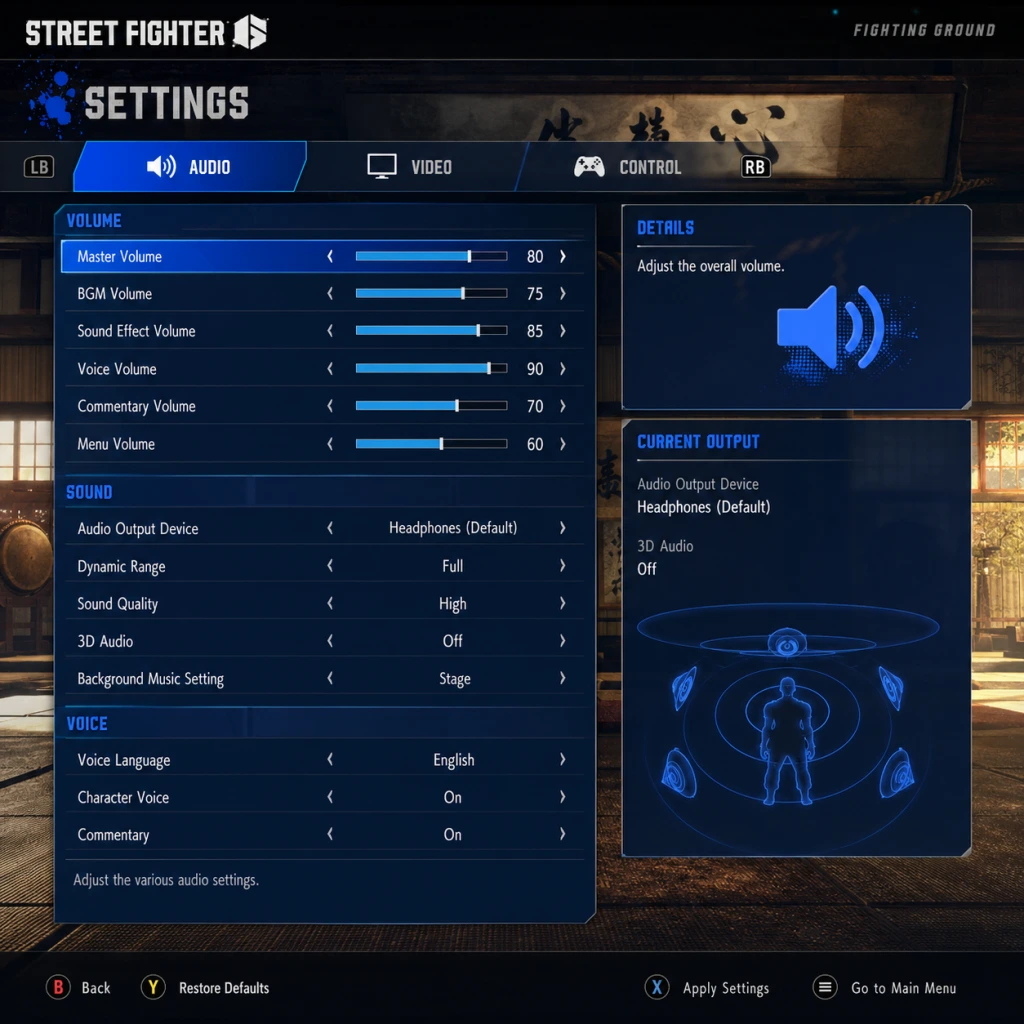
- Master Volume: Set to comfortable level (70-80%).
- Music Volume: Leave at 100% for energy; lower if you prefer sound effects over music.
- SFX Volume: Keep at 100% – crucial for hearing hit confirmations and audio cues.
- Voice Volume: 100% for announcer and character voices (helpful in tutorials and World Tour).
- Character Voice: “Battle” (English or Japanese). Many players prefer Japanese for authenticity.
- Audio Output: Choose Stereo (best for standard speakers/headphones) or Surround (if you have 5.1/7.1).
Special Attention Point: The World Tour mode’s open world areas are more demanding than the Battle Hub or Fighting Ground. If you experience stutters in World Tour, reduce Resolution Scale and Texture Quality by one step.
Audio Settings
Located under Options > Audio. Adjust for clarity and immersion.
Easy to Misconfigure: Audio Output set to Surround on stereo headphones can muddy audio. Stick to Stereo unless you have proper surround setup.
Controls Settings
Options > Controls is critical for competitive play. Customize button mapping, assist shortcuts, and controller options.
Button Layout (Modern, Classic, Dynamic)
| Style | Description | Recommended For |
|---|---|---|
| Classic | Six attack buttons (LP, MP, HP, LK, MK, HK). Full control. | Experienced players, execution practice. |
| Modern | Simplified: one button for Special, auto combos. | Beginners, players with disabilities. |
| Dynamic | One-button “smash” style – mostly for fun. | Casual, party play. |
Custom Button Mapping
- Controller Type: Select either Fighting Stick, Pad, or Keyboard.
- Assist Buttons: For Classic, assign Dash, Throw, Drive Impact, Drive Rush, etc. to shoulder buttons.
- Important: Map Drive Impact to an easily accessible button (e.g., R1 or right bumper) – it’s a critical mechanic.
- Keyboard Users: Default keys are scattered. Recommended mapping: WASD for movement, U/I/O/P for LP/MP/HP/LK, J/K/L for MK/HK/Throw. Enable Simultaneous Input if you have a mechanical keyboard.
- Vibration: On (adds immersion) – but many competitive players turn it off to reduce distraction.
- Trigger Effects (PS5/Xbox): On for tension; no performance impact.
- Color Blind Mode: Choose Protanopia, Deuteranopia, or Tritanopia. Adjusts UI colors and outlines.
- Screen Reader (PC only): Reads menu text aloud. Enable from Windows settings (Narrator).
- Visual Feedback: “On” shows button prompts during combos – helps for learning.
- Timing Assistance (Easy Input): Lengthens input windows for specials. Useful for beginners.
- Subtitles: Always On – beneficial for story and World Tour dialog.
- SFX Subtitles: Shows “Critical Art!” text when super is used – useful if sound is low.
- Controller Vibration Warning: Helps notice when you’re low on health.
- Text Language: Select your preferred language for menus and subtitles.
- Voice Language: English, Japanese, French, and more. Japanese voice acting is widely considered superior for character authenticity.
- Subtitle Language: Independent from text – set to English if you choose Japanese voices.
- Connection Type: Wired is strongly recommended over Wi-Fi. Wi-Fi adds latency and packet loss.
- Cross-Platform Play: Enable if you want to face players on other consoles/PC. Disable if you prefer same-platform (rarely needed).
- Matchmaking Region: Choose your region (e.g., “North America”, “Europe”). Set to “All” only if you want longer queues but more variety.
- Connection Speed Display: On – shows your connection quality during matchmaking.
- Allow Autosave in Online: Enable – automatically saves replay data.
- Fight Request (World Tour/Battle Hub): Set to “Auto-Reply” or “Manual”. Manual prevents interruptions.
- Battle Settings:
- Input Settings:
- Replay & Training:
- World Tour Settings:
- Performance First: For any hardware, target stable 60 FPS over visual fidelity. Use Resolution Scale and Shadows as the first knobs to turn.
- Accessibility: Spend 5 minutes to adjust color blindness, subtitles, and control scheme – they dramatically improve comfort.
- Network: Always use a wired connection and keep cross-play enabled unless you experience severe lag.
- Controls: Bind Drive Impact and Drive Rush to shoulder buttons. Practice Modern vs Classic in Training Mode before committing.
Vibration & Haptic Feedback
Accessibility Settings
Capcom includes extensive accessibility options under Options > Accessibility. These settings are easy to overlook but vital for inclusive play.
Special Attention Point: Timing Assistance is a training tool. Turn it off when you move to competitive play; it masks bad habits.
Language Settings
Options > Language controls voice, text, and subtitle languages.
Easy to Misconfigure: Setting Voice Language to Japanese but leaving Subtitles off will leave cinematics untranslated. Keep Subtitles On if using non-native voice.
Network Settings
Options > Network – essential for smooth online play.
Special Attention Point: Cross-Platform Play is on by default but can cause longer load times when connecting to PC players with slower hardware. If you notice lag spikes, try disabling it, but generally keep on for larger player pool.
Gameplay Settings
Located in Options > Game Settings – affects behavior during battles.
- Timer: Default 99 seconds. Competitive matches use this.
- Round Count: Best of 3 for ranked. Practice 3 rounds for tournament settings.
- Life Recovery (VS Mode): Usually off for competitive; on for casual fun.
- Input Delay Reduction (PC): Set to “Low” to minimize lag. May cause screen tearing if VSync is off – cap FPS instead.
- Asynchronous Input (PC): Enable if you use multiple controllers or fighting sticks. Disable if only one controller.
- Auto-Record Replays: Enable – invaluable for reviewing matches.
- Training Mode Reset: “Hold Button” is fastest.
- Camera Auto-Adjust: On – helps in crowded areas.
- Auto-Run: On – saves time traversing Metro City.
Easy to Misconfigure: Input Delay Reduction can cause instability on low-end PCs. Test in Training Mode; if you see random slowdowns, revert to default.
Final Recommendations
Now that you’ve configured your settings, jump into Training Mode to test everything. Adjust anything that feels off – the goal is to make the game invisible so you can focus on the fight.