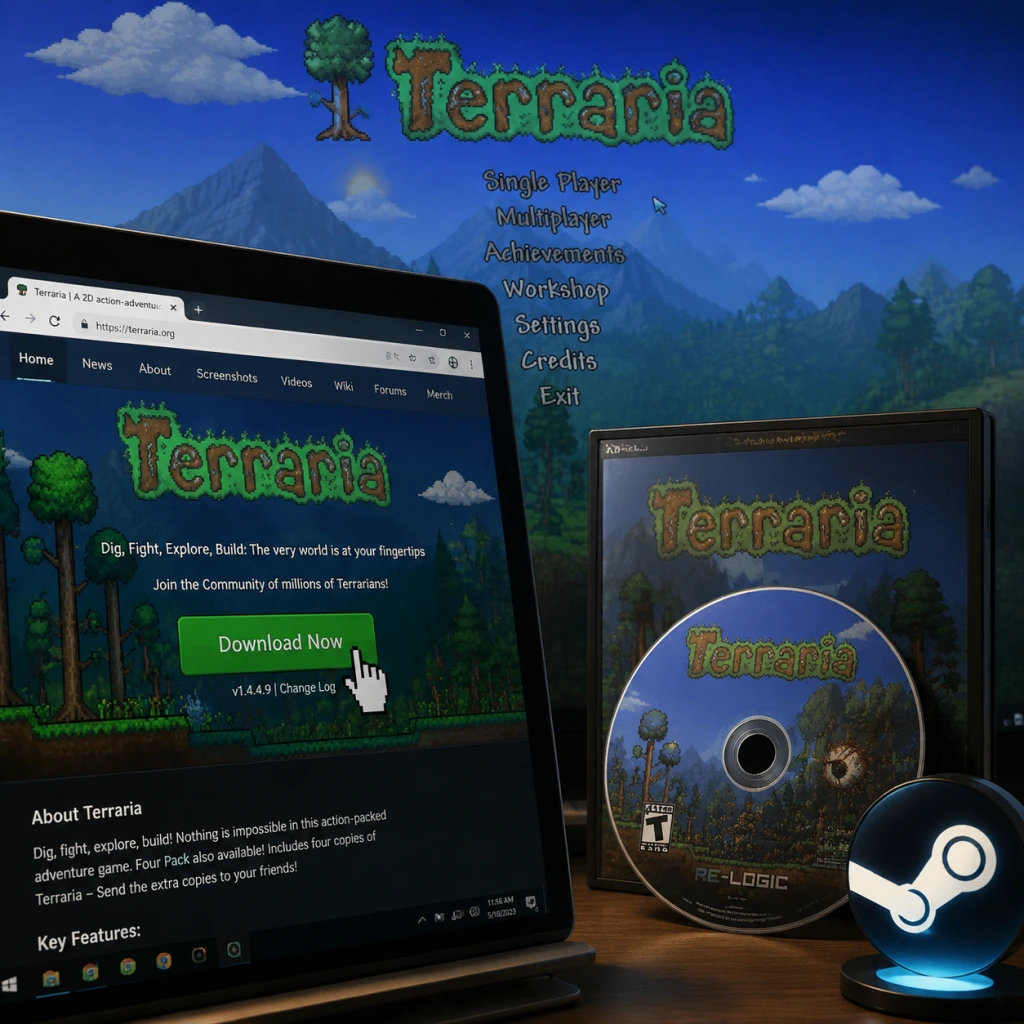
Download & Installation
Terraria: Comprehensive Download & Installation Guide
Overview
Terraria is a 2D sandbox adventure game with exploration, building, crafting, and combat. It is available on nearly every major platform. This guide covers official download sources and step-by-step installation for PC (Steam, Epic Games Store, GOG, Microsoft Store), PlayStation 4/5, Xbox One/Series X|S, Nintendo Switch, and Mobile (iOS/Android).
---
System Requirements (PC)
#### Minimum (for stable 30 FPS at 720p, low settings)
- OS: Windows 7, Mac OS X 10.8, Ubuntu 14.04+ (64-bit)
- CPU: Intel Core 2 Duo 2.0 GHz or equivalent
- RAM: 2 GB
- GPU: 128 MB video memory (supporting Shader Model 2.0+)
- DirectX: Version 9.0c
- Storage: 500 MB free space
- Sound: DirectX compatible
- OS: Windows 10/11, macOS 10.12+, Ubuntu 20.04+ (64-bit)
- CPU: Intel Core i5 3.0 GHz or equivalent
- RAM: 4 GB
- GPU: 256 MB video memory (supporting Shader Model 3.0+)
- DirectX: Version 11
- Storage: 1 GB free space (includes mods/saves)
- Sound: DirectX compatible
- iOS: [App Store](https://apps.apple.com/app/terraria/id640364616) (paid app)
- Android: [Google Play Store](https://play.google.com/store/apps/details?id=com.and.games505.terraria) (paid app)
#### Recommended (for 60 FPS at 1080p, high settings)
> Note for console/mobile: Requirements are fixed by the hardware; ensure your system’s firmware is up to date.
---
Platform-Specific Download & Installation
---
#### 1. PC (Steam)
Official Source: [Steam Store](https://store.steampowered.com/app/105600/Terraria)
Requirements: Steam account (free) & internet connection.
Steps:
1. Download and install the Steam client from [steampowered.com](https://store.steampowered.com/about/).
2. Create or log into your Steam account.
3. Search for “Terraria” in the Steam Store.
4. Click Add to Cart and complete purchase (or install if already owned).
5. Go to your Library, find Terraria, and click Install.
6. Choose installation directory (default is fine) and wait for download (~200 MB).
7. Launch from Library or desktop shortcut.
---
#### 2. PC (Epic Games Store)
Official Source: [Epic Games Store](https://store.epicgames.com/en-US/p/terraria)
Requirements: Epic Games account & Epic Games Launcher.
Steps:
1. Install the Epic Games Launcher from [epicgames.com](https://store.epicgames.com/).
2. Log into your Epic account.
3. In the store, search “Terraria” and click Get (free if claimed) or Buy.
4. Click Add to Library then Install.
5. Select installation path and confirm.
6. Launch from Epic Library.
---
#### 3. PC (GOG / DRM-Free)
Official Source: [GOG.com](https://www.gog.com/game/terraria)
Requirements: GOG account & GOG Galaxy (optional).
Steps:
1. Purchase Terraria on GOG.com.
2. Download the offline installer from your account’s Library (or use GOG Galaxy).
3. Run the `.exe` installer – no launcher needed during play.
4. Follow on-screen prompts (default install location recommended).
5. Launch via desktop shortcut or game folder.
---
#### 4. PC (Microsoft Store / Xbox Game Pass)
Official Source: Microsoft Store (search “Terraria”)
Requirements: Microsoft account & active Game Pass subscription (if using Game Pass).
Steps:
1. Open Microsoft Store on Windows 10/11.
2. Search for “Terraria” and select the correct title (published by 505 Games).
3. Click Install (or Get with Game Pass).
4. The download will start automatically. You can track progress in the Microsoft Store library.
5. Launch from Start Menu or the Store.
---
#### 5. PlayStation 4 / PlayStation 5
Official Source: PlayStation Store (via console or web)
Requirements: PlayStation Network account (PSN), internet connection, sufficient storage (~500 MB).
Steps:
1. On your PS4/PS5, go to PlayStation Store.
2. Search for “Terraria”.
3. Select Download (if purchased) or Add to Cart → Purchase.
4. Once downloaded, the game appears in your Games library.
5. Launch and enjoy.
> Cross-buy note: PS5 version includes the PS4 version and supports cloud saves with PS Plus.
---
#### 6. Xbox One / Xbox Series X|S
Official Source: Microsoft Store (via console), also available on Xbox Game Pass.
Requirements: Xbox Live account (free/silver), Game Pass subscription optional.
Steps:
1. Press the Xbox button → Microsoft Store.
2. Search “Terraria”.
3. Click Install (or Get if Game Pass).
4. The game will download and appear in My games & apps.
5. Launch from there.
> Note: Supports Quick Resume on Series X|S. Save data syncs via Xbox Live.
---
#### 7. Nintendo Switch
Official Source: Nintendo eShop
Requirements: Nintendo Account, internet connection, storage (approx. 500 MB on SD card or internal).
Steps:
1. From the Home menu, open Nintendo eShop.
2. Search for “Terraria”.
3. Select Proceed to Purchase / Download (if already bought).
4. Complete payment (if needed) and confirm download.
5. The game will install to your system/SD card automatically.
6. Launch from the Home screen.
> Note: Terraria on Switch supports both docked and handheld modes. Update to the latest version via the + button menu.
---
#### 8. Mobile (iOS / Android)
Official Sources:
Requirements: Apple ID or Google account, internet connection for initial download.
Steps (iOS):
1. Open the App Store and sign in with your Apple ID.
2. Search “Terraria” (by 505 Games).
3. Tap the price button → Buy (or Get if previously purchased).
4. Authenticate with Face ID / Touch ID / password.
5. Download begins; app icon appears on home screen.
6. Tap to launch (no additional setup required).
Steps (Android):
1. Open Google Play Store and sign in.
2. Search for “Terraria”.
3. Tap Install (or the price if not already owned).
4. Accept permissions as prompted.
5. After download, tap Open or find it in the app drawer.
> Note: Mobile version uses touch controls but also supports MFi controllers (iOS) and Bluetooth controllers (Android). Save data can be backed up via iCloud or Google Drive.
---
Storage Space Requirements (Approximate)
| Platform | Base Game Size | with Updates/Saves |
|---|---|---|
| PC (all stores) | 200–300 MB | ~500 MB – 1 GB |
| PlayStation 4/5 | 500 MB | ~700 MB |
| Xbox One/Series | 600 MB | ~800 MB |
| Nintendo Switch | 500 MB | ~600 MB |
| Mobile (iOS/Android) | 150 MB | ~300 MB |
---
Account Requirements Summary
| Platform | Required Account | Cost to Play |
|---|---|---|
| PC (Steam) | Steam account (free) | Purchase game |
| PC (Epic) | Epic Games account (free) | Purchase game |
| PC (GOG) | GOG account (free) | Purchase game (DRM-free) |
| PC (Microsoft Store) | Microsoft account (free) | Purchase or Game Pass |
| PlayStation | PlayStation Network account (free) | Purchase game |
| Xbox | Xbox Live account (free) | Purchase or Game Pass |
| Nintendo Switch | Nintendo Account (free) | Purchase game |
| iOS | Apple ID | Purchase game |
| Android | Google Account | Purchase game |
---
First Launch Setup
When you first start Terraria:
1. Language Selection: Choose your preferred language (English, Spanish, German, French, etc.).
2. Resolution & Window Mode: Adjust to your display (fullscreen, windowed, borderless).
3. Sound & Music: Set volume levels (default is fine).
4. Auto-Save: Always enabled (can be toggled in settings).
5. Character Creation: Tap or click “New Character” → select appearance, name, difficulty (Softcore recommended for beginners).
6. World Creation: Choose world size (Small/Medium/Large) and difficulty (Normal/Expert/Master). Medium is balanced for first play.
7. Begin Playing: Your character will spawn near the center of the world.
Recommended First Actions (tutorial):
- Move with WASD (PC) / left stick (console) / touch (mobile).
- Chop trees and gather wood.
- Build a shelter before nightfall (zombies spawn).
- Craft tools and a workbench.
---
Common Installation Errors & Fixes
#### PC (All Stores)
| Error / Issue | Solution |
|---|---|
| “Insufficient disk space” | Free up space (Uninstall unused apps, clean temp files). Terraria needs at least 500 MB. |
Epic: Library → Terraria → three dots → Verify.
GOG: Re-run offline installer or use GOG Galaxy → Manage → Verify/Repair.
MS Store: Settings → Apps → Terraria → Advanced Options → Repair or Reset. |
| “Antivirus blocking installation” | Temporarily disable real-time protection during install; add Terraria folder to exclusions. |
| “Game won’t launch (no error)” | Update graphics drivers, run as administrator, disable overlay apps (Discord, Xbox Game Bar). |
| “Missing DLL/API-ms-win” | Install/update DirectX and Visual C++ Redistributables (Steam installs these automatically, but reinstall if broken). |
| “Save data not syncing” (Steam Cloud) | Right-click Terraria → Properties → Cloud → disable/enable cloud sync. Ensure internet is stable. |
#### PlayStation / Xbox
| Error | Fix |
|---|---|
| “Cannot download” (insufficient space) | Delete old games or add external storage. |
| “Corrupted data” | Go to Settings → Storage → Delete game data (save files remain) and reinstall. |
| “License not found” | Restore licenses: Settings → Account Management → Restore Licenses (PS). On Xbox, sign out and back in. |
| “Game crashes at logo” | Restart console, ensure system software is updated. |
| Error | Fix |
|---|---|
| “Error code 2005-0001” (corrupted update) | Delete game and redownload. Update via System Settings → Data Management → Software Updates. |
| “Not enough storage” | Archive other games or insert an SD card (up to 2 TB). |
| “Stuck at loading screen” | Press Home → close software → reopen. If persistent, check for corrupt data via System Settings → Data Management → Manage Software → Check for Corrupt Data. |
| Error | Fix |
|---|---|
| “App Not Installed” (insufficient space) | Free up space (iPhone: iTunes, Android: move files to SD or delete apps). |
| “Download stuck or fails” | Check internet, restart the device, clear Play Store cache (Android: Settings → Apps → Google Play Store → Storage → Clear cache). |
| “Game won’t launch / crashes on start” | Update app via store, restart device, reinstall if necessary (back up saves first via cloud). |
| “Touch controls unresponsive” | Restart game; if persists, check for updates. On Android, close other apps consuming RAM. |
Post-Installation Verification
After installation completes, perform these checks to ensure everything is working:
1. Launch the game – should reach the title screen without errors.
2. Check version number – on PC, visible in lower-left corner of main menu. Should match the latest (currently 1.4.4.9 or later). On consoles/mobile, version is shown in system settings or about screen.
3. Test basic input – move character, jump, open inventory (E on PC, Y on Xbox, etc.).
4. Play for 5 minutes – confirm no crashes, frame drops, or audio issues.
5. Save and exit – ensure save data is created (look for a world and player file in the appropriate folder).
6. Cloud save verification (if applicable): On PC, close game, restart Steam/Epic, launch again and check that world is present. On console, ensure save icon appears.
7. Update drivers if you experience graphical glitches (PC).
> If you encounter any persistent issues, check the official [Terraria Wiki](https://terraria.fandom.com/wiki/Terraria_Wiki) or the [Terraria Forums](https://forums.terraria.org/).
---
Additional Tips
- Modding (PC only): Use tModLoader (free on Steam) to install mods. Requires separate installation.
- Multiplayer: Ensure all players have the same game version. Use platform-specific friends lists or join via IP (PC).
- Backups (all platforms): Manually copy save files from:
- PlayStation/Xbox: Cloud save via subscription; manual copy to USB not officially supported.
- Switch: Cloud saves via Nintendo Switch Online.
- Mobile: iCloud (iOS) or Google Drive (Android) – enable in app settings.
---
Enjoy your adventure in Terraria! The game offers endless possibilities – happy building and exploring.