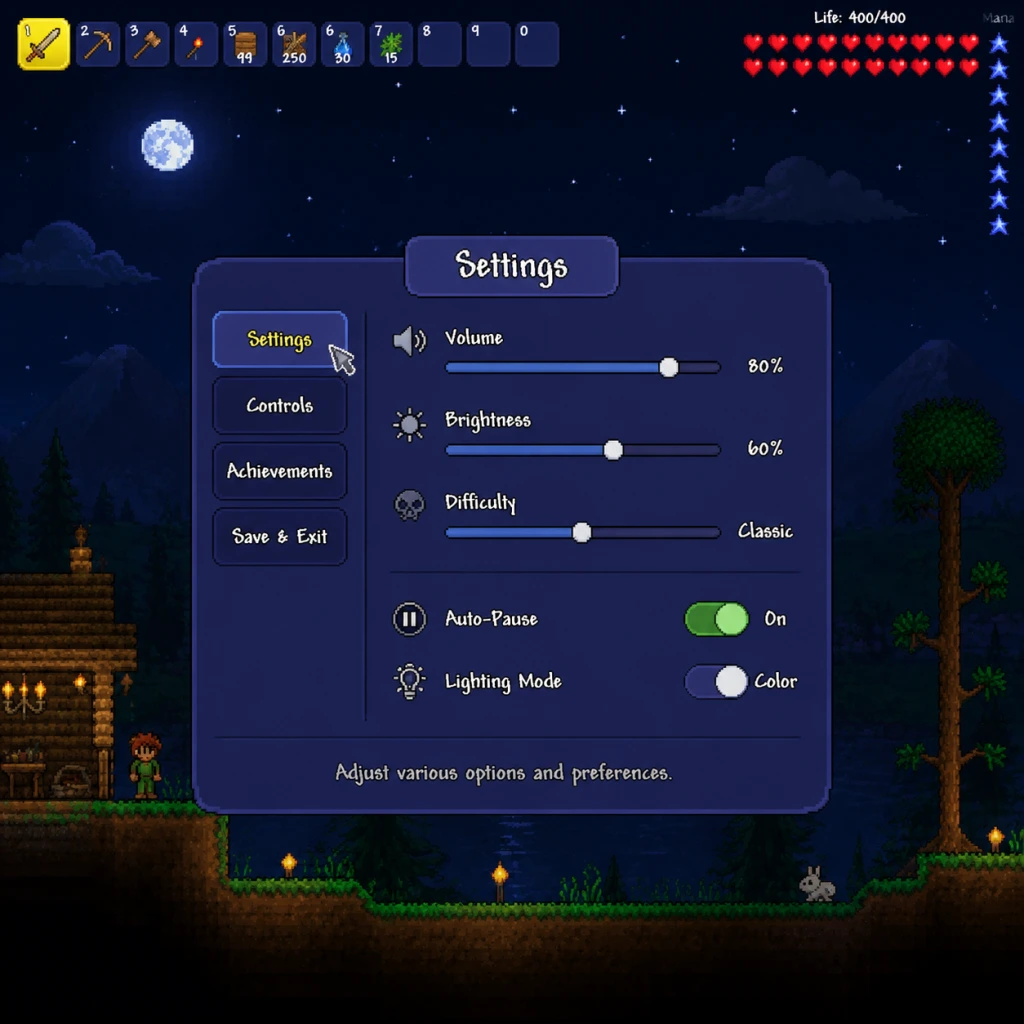
Game Settings
Game Settings
Overview
Terraria offers a wide range of settings to customize your experience, from visual fidelity and audio balance to control schemes and accessibility features. This guide explains every setting category, recommends optimal configurations for different hardware tiers, and flags common setup pitfalls. Settings vary slightly between platforms (PC, console, mobile), but core options remain consistent.
---
Graphics Settings
Graphics settings heavily impact both performance and visual clarity. Terraria uses a 2D sprite-based engine but still benefits from proper configuration.
| Setting | Description | Recommendations |
|---|---|---|
| Frame Skip | Controls how the game handles lag. Options: Subtle, Off, On. Subtle (default) smooths movement but can cause dropped frames. On skips frames to keep speed. Off reduces tearing but may cause speed slowdowns. | Low-end PC: On (maximizes smoothness). Mid-range: Subtle. High-end: Off (best visual sync). Console: Leave as default. |
| Lighting Mode | Affects how light is rendered. Options: Color (full RGB lighting), White (monochrome), Retro (chunky pixel shadows), Trippy (distorted). Color is standard. | All hardware: Color (if performance allows). Use White or Retro for a slight performance boost. |
| Background | Toggles animated parallax backgrounds. Can be set to On, Off, or Retro (lower detail). | Low-end: Off or Retro. Mid/High: On. |
| Wind | Controls wind motion on background foliage. Low impact. | Low-end: Off. Others: On. |
| Blood and Gore | Toggles gore effects. Performance-neutral but can be disabled for less distraction. | Personal preference. |
| Tile Grid | Shows a grid over blocks when placing. No performance cost. | Optional. |
| Heat Distortion | Adds shimmer effect near heat sources (lava, torches). Minor performance hit. | Low-end: Off. Mid/High: On. |
| Parallax | Controls background layer movement intensity. Low values (0-10%) reduce visual depth but improve performance slightly. | Low-end: 0%. Medium: 50%. High: 100%. |
| Quality | Only on console/mobile: Low/Medium/High preset. | Match to device specs. Low saves battery on mobile. |
- Frame Skip: Setting to "Off" on a low-end PC causes the game to run slower in heavy areas, making movement sluggish. Always test after changing.
- Lighting Mode: Retro mode disables colored light, making caves harder to navigate. Trippy mode can cause dizziness.
- Parallax: Setting to 0% removes background depth, but some players prefer it for performance.
---
Audio Settings
| Setting | Description |
|---|---|
| Master Volume | Overall sound level. |
| Music Volume | Affects background music. |
| Sound Effects Volume | Combat, item use, environment sounds. |
| Ambient Volume | Environmental sounds (wind, rain, water). |
| Voice Chat Volume | (PC) In-game voice chat. |
| Title Music | Toggle music on the main menu. |
| Sound Mode | (PC) Stereo vs Surround. Surround can improve directional awareness. |
| Disabled Sounds | List of specific sound effects you can mute individually (e.g., pickaxe, death). |
---
Controls Settings
Controls are highly customizable, especially on PC.
#### PC
- Key Bindings: Every action can be remapped. Commonly changed keys: Quick Buff (default B), Quick Heal (default H), Quick Mana (default M), Grapple (default E/Mouse thumb).
- Smart Cursor: When toggled on, automatically selects the best tool for the block you're aiming at. Can be set to toggle or hold.
- Auto-Select: Cycles through available tools in your hotbar. Usually bound to left Ctrl.
- Inventory: Can be set to pause the game when opened (Auto Pause option in Gameplay).
- Aim Mode: (On console) Stick sensitivity, deadzone, aim assist strength.
- Cursor: Adjustable size and color for accessibility.
- Controller Layouts: Several presets (Classic, Modern, etc.). Modern allows mapping hotkeys to D-pad.
- Sensitivity: Horizontal/Vertical camera speed.
- Trigger Deadzone: Adjust to prevent accidental activations.
- Vibration: On/Off, intensity.
- Touch Controls: Positions and sizes of buttons can be customized. There are also preset layouts.
- Tap to Move vs Joystick: Choose movement style.
- Auto-Swing: Toggle automatic melee attack when holding attack button.
- Smart Cursor: Leaving it on while building can accidentally mine blocks. Many players set it to a toggle key (e.g., Left Ctrl) and only enable it during combat/mining.
- Auto-Pause: If disabled, inventory management while enemies are nearby can get you killed. Recommended to enable Auto Pause in singleplayer.
- Controller Deadzone: Too low causes stick drift; too high reduces precision.
#### Console (Xbox/PlayStation/Switch)
#### Mobile (iOS/Android)
Easy to misconfigure:
---
Accessibility Settings
Terraria includes several accessibility options to accommodate various needs.
| Setting | Description | Notes |
|---|---|---|
| Zoom | Adjusts the camera zoom level (0% to 200%). Zooming out gives a wider view but makes everything smaller. | Crucial for players with visual impairments. On 4K monitors, zoom out more to see more area. |
| Cursor Scale | Enlarges the cursor. | Helpful for visibility. |
| FPS Counter | Displays frames per second. Useful for diagnostics. | No performance cost. |
| Colorblind Modes | Not natively available as a toggle, but you can change the color of wires, team indicators, and item tooltips via settings. | For true colorblind support, community mods like "Colorblind Mod" are available. |
| Text Readability | Font size options (if any). Can also be improved by UI scale. | |
Special attention: On console and mobile, UI scale options are limited; you may need to adjust system-level display scaling.
---
Language Settings
The game menu allows you to change the interface language. Available languages include English, French, German, Italian, Spanish, Chinese (Simplified/Traditional), Japanese, Korean, Portuguese (Brazilian), Russian, Polish, Turkish, and more. Language selection only changes text, not audio. Note that mods may require you to set the game back to English for proper compatibility.
---
Network Settings
Settings related to multiplayer:
| Setting | Description |
|---|---|
| Server List | Browse or add servers by IP address. |
| Host & Play | Host a game from your PC/console. Configure password, player limit, and difficulty. |
| Invite Friends | Platform-specific invite systems (Steam friends list, PSN, Xbox Live, Nintendo Switch Online). |
| Port Forwarding | Required for dedicated servers that need external connections. Terraria uses port 7777 by default (UDP). |
| Network Mode | (PC) Choose between Steam, IP, or LAN. |
| Frame Skip in Multiplayer | Set to On (or Subtle) to reduce lag-induced speed variations. |
| Latency Settings | Some versions have a "Interpolation" option to smooth other players' movement. |
---
Gameplay Settings
This section fine-tunes how the game behaves during play.
| Setting | Description | Recommendation |
|---|---|---|
| Auto Pause | When toggled on, opening any inventory menu pauses the game. Essential for singleplayer. | Singleplayer: On. Multiplayer: Off (pausing only affects you). |
| Auto Save | Automatically saves the world every few minutes. | Recommend On to prevent data loss. |
| Difficulty | Journey, Classic, Mediumcore, Hardcore (per character and world separately). | New players: Classic. |
| Journey Mode Customization | Enemy spawn rate, time freeze, god mode, etc. Only available in Journey worlds. | Experiment freely. |
| Display Name Tags | Show player names above characters. | On in multiplayer. |
| Health Bars | Show HP of enemies and NPCs. Toggleable. | On for easier combat. |
| Damage Text | Floating damage numbers. Helpful for measuring DPS. | On. |
| Map | Minimap and fullscreen map options. | Fullscreen map is useful for navigation. |
| Lock Joypad Cursor | (Console) Forces cursor to snap to grid when placing blocks. | On for precision building. |
- Auto Pause: Forgetting to enable it can lead to deaths while sorting inventory. Many deaths in Terraria happen exactly when the inventory is open.
- Journey Mode vs Classic: If you create a Journey character and join a Classic world, you lose Journey powers but keep the duplication menu. It can confuse new players.
---
Optimal Settings Recommendations
These tables provide starting points for different hardware levels. Adjust as needed.
#### Low-End Hardware (e.g., 10-year-old PC, integrated graphics, low-end laptops)
| Category | Setting | Recommendation |
|---|---|---|
| Graphics | Frame Skip | On |
| Graphics | Lighting Mode | White (or Color if playable) |
| Graphics | Background | Off |
| Graphics | Wind | Off |
| Graphics | Heat Distortion | Off |
| Graphics | Parallax | 0% |
| Graphics | Tile Grid | Off |
| Audio | Master/SFX/Ambient | Reduce to 70% to reduce CPU load (minor) |
| Controls | Auto Pause | On |
| Accessibility | UI Scale | 100% (or higher if text is too small) |
#### Mid-Range Hardware (e.g., modern laptop with dedicated GPU, desktop with GTX 1050 or equivalent)
| Category | Setting | Recommendation |
|---|---|---|
| Graphics | Frame Skip | Subtle |
| Graphics | Lighting Mode | Color |
| Graphics | Background | On |
| Graphics | Wind | On |
| Graphics | Heat Distortion | On |
| Graphics | Parallax | 75% |
| Audio | All | 100% |
#### High-End Hardware (e.g., RTX 3060+, high-refresh monitor)
| Category | Setting | Recommendation |
|---|---|---|
| Graphics | Frame Skip | Off |
| Graphics | Lighting Mode | Color |
| Graphics | Background | On |
| Graphics | Wind | On |
| Graphics | Heat Distortion | On |
| Graphics | Parallax | 100% |
| Audio | All | 100% |
| Network | Interpolation | On |
| Controls | Cursor Smoothing | (if available) On for pinpoint building |
#### Mobile Devices
- Low-end phone: Set Quality to Low, Lighting Mode to Retro or White, Background Off, Frame Skip On.
- High-end phone: Set Quality to High, Lighting Mode Color, Background On, Frame Skip Subtle. Reduce UI scale if needed.
- Xbox Series / PS5: Use default settings; they usually run at a locked 60 FPS.
- Nintendo Switch: May need Lighting Mode Retro for better performance in complex biomes. Set Frame Skip to On if slowdown occurs.
- PS4 / Xbox One: Similar to mid-range PC; keep Background On but reduce Parallax to 50% if FPS drops.
- Frame Skip Off with low FPS: The game runs in slow motion instead of stuttering. This can actually be beneficial for precise builds but makes combat harder. Only use if you consistently get 60 FPS.
- Lighting Mode Retro: Makes dark areas completely black unless you have a light source nearby. Can be frustrating in caves.
- Auto Pause Off in Singleplayer: You will die. Enable it.
- Smart Cursor Always On: Makes mining/building infuriating. Use toggle.
- UI Scale Too Small: On 1440p/4K screens, UI elements may be tiny. Increase UI Scale to at least 125% (if available) or 150%.
- Multiplayer Frame Skip: If you are experiencing rubberbanding, try setting Frame Skip to On even if you have a good PC. The host's settings often affect all players.
- Controller Stick Deadzone: Too low leads to drift; too high makes fine aiming difficult. Set to about 10-15% as a baseline.
#### Console
---
Settings to Watch Out For
---
Conclusion
Taking time to adjust settings properly can dramatically improve your Terraria experience, whether you're on a low-budget laptop or a high-end gaming rig. Start with the recommended settings for your hardware tier, then tweak individual options based on personal preference. Remember that some settings (like Frame Skip and Lighting Mode) can fundamentally change how the game feels, so experiment cautiously. For multiplayer, ensure everyone has compatible settings, especially Frame Skip and network modes, to avoid desync issues.