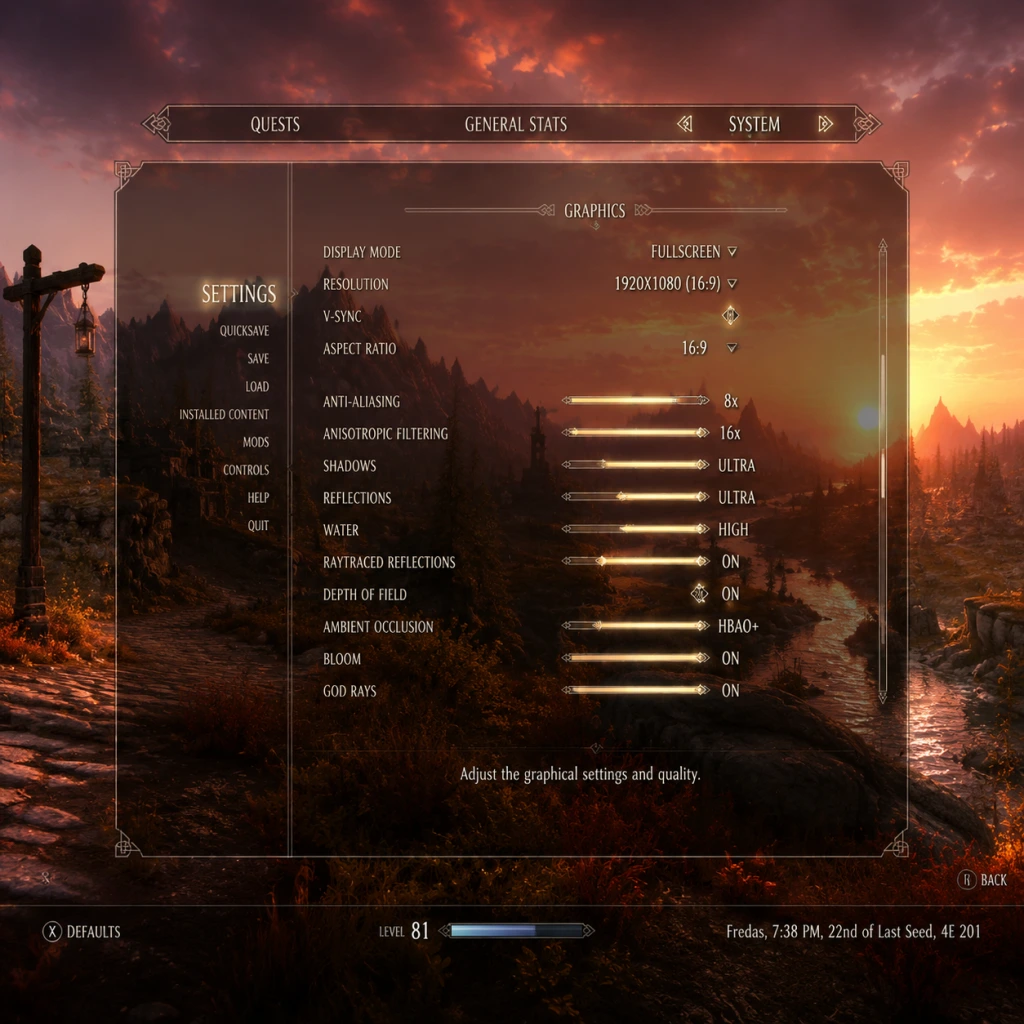
Game Settings
Introduction
Configuring the settings in The Elder Scrolls V: Skyrim can drastically affect your performance, visual fidelity, and overall enjoyment. This guide covers all major settings categories: Graphics, Audio, Controls, Accessibility, Language, Network, and Gameplay. We'll recommend optimal settings for different hardware levels (low-end, mid-range, high-end) and highlight settings that are easy to misconfigure, such as field of view, vsync, and autosave intervals. The instructions apply primarily to the Skyrim Special Edition (and Anniversary Edition), with notes for the original 2011 release and console platforms where applicable.
Graphics Settings
PC Graphics Options (Launcher + In-Game)
The launcher provides a quick preset (Low, Medium, High, Ultra) and advanced options. For precise control, use the in-game menu (Skyrim SE and AE).
| Setting | Low-End Hardware | Mid-Range Hardware | High-End Hardware | Notes |
|---|---|---|---|---|
| Preset | Custom (Low) | Custom (Medium/High) | Custom (Ultra) | Start with a preset and adjust. |
| Resolution | 1280x720 or 1600x900 | 1920x1080 | 2560x1440 or 4K | Match native monitor resolution. |
| Aspect Ratio | Auto | Auto | Auto | Typically 16:9. |
| Anti-Aliasing | FXAA (or Off) | SMAA / TAA | TAA | FXAA blurs; TAA is sharper but costs performance. |
| Anisotropic Filtering | 4x | 8x | 16x | Improves texture sharpness at angles. |
| Texture Quality | Low | Medium | High / Ultra | VRAM dependent (2GB+ for Ultra). |
| Shadow Resolution | Low (512) | Medium (1024) | High (2048) / Ultra (4096) | High impact on performance. |
| Draw Distance | Low (~70%) | Medium (~85%) | High / Ultra (100%) | Controls object fade-in. |
| Decal Quantity | Low | Medium | High | Number of blood/burn decals. |
| Water Reflection | Low | Medium | High | Can be performance heavy. |
| God Rays | Off | On (low resolution) | On (high resolution) | Volumetric lighting; taxing. |
| Depth of Field | Off | Off | On | Blurs distant objects; personal preference. |
| Screen Space Reflections | Off | Off / On | On | Reflections on water and shiny surfaces. |
| Rain Occlusion | Off | On | On | Subtle effect. |
| Lens Flare | Off | On | On | Artistic effect. |
| VSync | Off (if no screen tearing) | Off or On | Off (use adaptive) | Common misconfiguration – VSync adds input lag. Use Fast Sync or VRR if available. Recommend turning off VSync and capping FPS to 60 via Skyrim.ini or driver. |
| Frame Rate Limit | 30 FPS (if struggling) | 60 FPS | 60+ FPS | Skyrim engine has physics issues above 60 FPS. Do not exceed 60 FPS without the SSE Display Tweaks mod. |
Important Tweaks for PC
- Field of View (FOV): Default is 65, which can cause motion sickness. To change: open `Documents/My Games/Skyrim Special Edition/Skyrim.ini`, under `[Display]` add `fDefaultWorldFOV=90` and `fDefault1stPersonFOV=90`. Start with 85–95. This is easily overlooked.
- Windowed Mode vs. Fullscreen: Borderless windowed (alt-tab friendly) can be set in `SkyrimPrefs.ini` under `[Display]`: `bFull Screen=0`, `bBorderless=1`. Otherwise, use exclusive fullscreen for slightly lower input lag.
- SSD vs HDD: Install on SSD to drastically reduce loading screens and stuttering.
- Xbox One / PS4 – Fixed 30 FPS, 1080p (boosted on One X/PS4 Pro to 4K upscaled with 30 FPS).
- Xbox Series X|S / PS5 – Backward compatible; use FPS Boost (Xbox) to unlock 60 FPS. No in-game graphics options.
- Nintendo Switch – 30 FPS, dynamic resolution (720p handheld, 900p docked). No settings.
- Master Volume: 80–100%. Turn down if using headphones.
- Music Volume: 50–70% – Skyrim's soundtrack is immersive; keep it noticeable.
- Sound Effects Volume: 70–100% – Important for combat cues.
- Voice Volume: 90–100% – Don't miss dialogue.
- Footsteps Volume: 50–70% – Helps with stealth awareness.
- Key Bindings: Rebindable via System -> Controls. Common changes:
- Mouse Sensitivity: Start at 0.5–0.7 and adjust. Lower is better for aiming bows.
- Invert Y Axis: Optional.
- Auto Run: Caps Lock toggles auto-run. If you accidentally toggle it, press Caps Lock again.
- The Sprint key is also used for Sneak when holding (if toggle is off). Check Sneak Toggle setting – if set to Hold, you must hold the button. Recommended to set to Toggle for ease.
- Power Attack: Mouse button or left/right attack with weapon swinging? Check if you have `bForceFullscreen` issues causing input lag.
- Button Mapping: Fixed on consoles; PC allows remapping via mods (e.g., Controlmap.txt editing).
- Invert Y Axis: On/Off.
- Vibration: On (recommended for immersion) – can be turned off to extend gamepad battery.
- Sneak Toggle: Default on controller is click left stick – same as Sprint? On Xbox, A is jump, X is attack, B is crouch (toggle). PlayStation uses Circle/A.
- Subtitles: Enable (under Audio). Also set Background Opacity to at least 50% for readability.
- Difficulty: System -> Gameplay -> Difficulty. Options: Novice, Apprentice, Adept, Expert, Master, Legendary. Beginner – Novice; experienced – Adept. The game scales enemies, so difficulty affects damage multipliers: on Novice you deal 2x damage and take 0.5x; on Legendary you deal 0.25x and take 4x.
- Quest Markers: System -> Display -> Show Quest Markers – Keep On for guidance; turn Off for immersion.
- Brightness: Calibrate so the Skyrim logo (in settings) is barely visible. If you can't see the shadow detail, increase.
- Closed Captions: Only subtitles for dialogue and key sounds (not environment).
- Text Language: Set in the launcher (PC) or console system language. Skyrim SE supports: English, French, German, Italian, Spanish, Japanese (subtitles), Russian, Polish, Czech, and more.
- Voice Language: For PC, you must download separate voice packs via Steam (right-click Skyrim SE -> Properties -> Language). Changing language downloads the entire voiced dialogue (~6GB).
- Original 2011 vs SE: Language options are the same. Anniversary Edition adds creation club content in the same language as the base game.
- Mod Download: Via Steam Workshop (older) or Nexus Mod Manager/in-game mod menu (SE/AE). Requires internet connection to browse and download.
- Creation Club: Anniversary Edition's paid content; requires signing in with Bethesda.net. Save game integrity – using CC mods may break saves if CC is disabled later.
- Steam Cloud Saves: Enable/disable in Steam properties. Recommended On to backup saves, but may cause conflicts if you play on multiple PCs.
- Update Settings: In Steam, set to “Only update this game when I launch it” to avoid unexpected updates breaking mods.
Console Graphics Settings
Consoles have limited options:
For console players: simply adjust brightness and subtitles. Use the Special Edition version for optimal stability.
Audio Settings
Access via System -> Audio in-game.
Advice: Use stereo headphones; the game supports 5.1/7.1 but mixing can be uneven. If using speakers, enable Dolby Digital if available in console settings. No special misconfigurations here, but ensure your OS sound device is set to 48 kHz (or higher) for best quality.
Controls Settings
Keyboard & Mouse (PC)
- Sprint: Change from Alt to Left Shift (more natural).
- Shout: Z is default, but many prefer Q or a mouse thumb button.
- Quicksave: F5 (keep). Quickload: F9 (beware of overwrites).
Easy to misconfigure:
Controller (PC & Console)
Advice: For PC, use an Xbox controller for native support; PS controllers may require third-party software. Increase stick dead zone if you experience drift.
Accessibility Settings
Skyrim's built-in accessibility is minimal, but adjust what's available:
Missing features: No colorblind mode, no text size adjuster. On PC, mods like SkyrimSE Accessibility Mod can help.
Language Settings
Caution: Changing language mid-playthrough may cause mod conflicts (especially if using text-modifying mods). Always set before starting a new save.
Network Settings
Skyrim is a single-player game with no online multiplayer. The only network-related settings are:
No misconfigurations, but note that Skyrim does NOT require internet to play.
Gameplay Settings
System -> Gameplay menu (in-game):
| Setting | Recommended | Notes |
|---|---|---|
| Difficulty | Adept (or your preference) | Change anytime. |
| Crosshair | On | Bow aiming – turn off for immersion. |
| Auto-Aim (aim assist) | On (controller) / Off (KB+M) | Console/controller only. |
| Kill Cam | On | Dramatic slow-motion on final blow. Can be disabled if it causes stutter. |
| Slow Time on Power Attack | On | Helpful for melee. |
| Show Floating Text (e.g. damage numbers) | Off | Mods can add them. Native only for pickpocket chance. |
| HUD Opacity | 100% | Lower if using transparency mods. |
| Compass (top HUD) | On | Shows direction and marker. |
| Health/Magicka/Stamina Bars | Always Visible | Can set to “Auto Hide” but distracting. |
| Active Effects | Show when affected | Useful for knowing poison/frost. |
| Autosave Interval | Every 5 minutes | Critical – Skyrim is crash-prone. Set to 5, 10, or 15 minutes. Do not rely on quicksave only. |
| Wait Menu | Hotkey T (PC) | Useful for time passing. |
- Autosave – If the game crashes, you lose progress. Set interval to 5 minutes. Also manually save often (F5 + F9). The game keeps 3 autosave slots by default; you can increase with mods.
- Difficulty – Enemies scale with your level. Changing difficulty mid-game is safe, but some players find it cheap. Choose a difficulty that lets you enjoy combat without frustration.
- Show Floating Text – Only enabled for pickpocket (chance) and skill ups. Can cause screen clutter; disable if annoying.
- Resolution: 1366x768 or 1600x900
- Preset: Low
- Disable God Rays, Depth of Field, Screen Space Reflections, Rain Occlusion
- Set Shadow Resolution to Low (512)
- Use FXAA (or Off, then use external Reshade sharpening)
- VSync Off, cap FPS to 30 via driver
- Reduce Draw Distance to <70%
- Resolution: 1920x1080
- Preset: Custom (High textures, Medium shadows)
- Enable God Rays (low), Depth of Field (if desired), Screen Space Reflections (low)
- Anti-aliasing: TAA
- Anisotropic Filtering: 8x
- Shadows: 1024–2048
- VSync Off, use adaptive vsync or cap at 60 FPS
- Draw Distance: 85%
- Resolution: 2560x1440 or 3840x2160
- Preset: Ultra (then tweak)
- All settings maxed
- Anti-aliasing: TAA (if you dislike blur, use SMAA via mod)
- Shadows: 4096 (Ultra) – beware VRAM usage
- Enable all effects: God Rays (high), Depth of Field, Lens Flare, Rain Occlusion
- VSync Off (cap at 60 FPS via driver – 120 FPS supported with mod)
- Draw Distance: 100%
- Consider installing SSE Display Tweaks and BethINI for fine-tuning.
General Recommendations by Hardware Level
Low-End (e.g., Intel UHD 620, GT 1030, Ryzen Vega 8)
Mid-Range (e.g., GTX 1060, RX 580, RTX 2050)
High-End (e.g., RTX 3060, RX 6700 XT, RTX 4080)
Conclusion
Skyrim's settings are straightforward once you know the pitfalls. The most common misconfigurations are: field of view too low (causes nausea), vsync enabled without a FPS cap (input lag), autosave interval too long (progress loss), and sprint/sneak toggle confusion. Console players have fewer options but can adjust brightness, subtitles, and difficulty. For the best experience, invest time in the ini tweaks for PC and always keep the game's engine limitations in mind (60 FPS cap unless modded). Refer to the table above for a quick start based on your hardware, and enjoy the province of Skyrim!