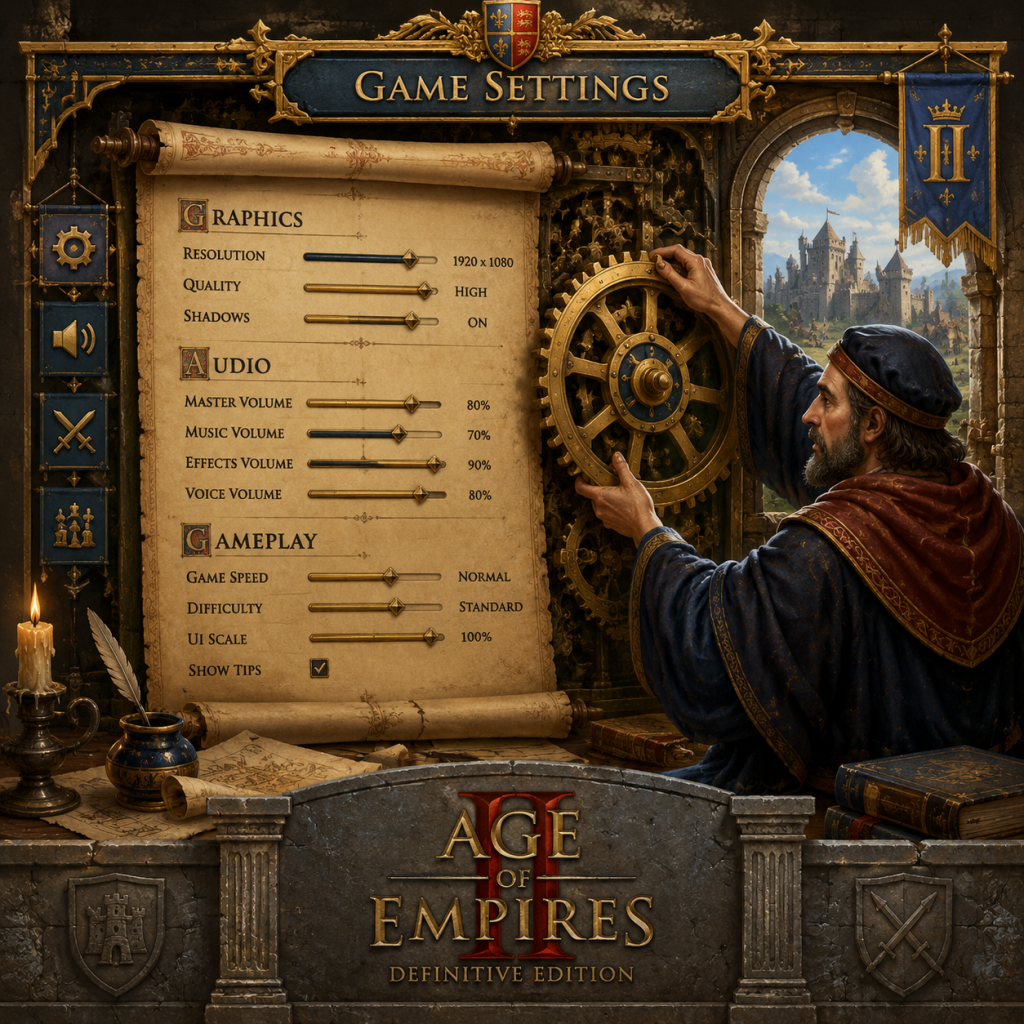
Game Settings
Game Settings Guide for Age of Empires II: Definitive Edition
Configuring the right settings in Age of Empires II: Definitive Edition (AoE2:DE) can drastically improve your experience, whether you're playing a single-player campaign, a ranked multiplayer match, or a custom scenario. This guide covers every major settings category—Graphics, Audio, Controls, Accessibility, Language, Network, and Gameplay—with recommendations for different hardware levels and special attention points to avoid common pitfalls.
---
Graphics Settings
Graphics settings affect visual fidelity and performance. AoE2:DE uses the Genie Engine (original) combined with modern enhancements like 4K support, dynamic lighting, and enhanced units. The game offers both low-level and high-level options.
1. Resolution and Display Mode
- Display Mode: Choose between Fullscreen, Windowed, and Borderless. Borderless is recommended for multitasking; Fullscreen gives slightly better performance.
- Resolution: Match your monitor's native resolution for best clarity. At 1080p or lower, consider lowering if you have a low-end GPU.
- Refresh Rate: Auto-detect or set to your monitor's max. Not crucial for an RTS, but smoother UI feels nicer.
- Very Low: For integrated graphics or very old PCs. Disables almost all enhancements. Minimal visual feedback.
- Low: Good for stable 60 FPS on low-end hardware. Reduces shadow quality, unit details, and terrain textures.
- Medium: Balanced. Recommended for mid-range PCs (GTX 1050 / RX 560 level).
- High: Best for modern GPUs. Enables full unit shadows, dynamic lighting, and high-res textures.
- Ultra: For high-end systems (RTX series or equivalent) at 1440p or 4K. Introduces subtle effects like enhanced water reflections and unit shadows.
2. Graphics Quality Presets
3. Advanced Graphics Options
These fine-tune performance. Change individually if presets are too aggressive.
| Setting | Description | Low-End | Mid-Range | High-End |
|---|---|---|---|---|
| Texture Quality | Resolution of textures on units, buildings, terrain. | Very Low | Low | High/Ultra |
| Shadow Quality | Detail and distance of shadows. | Off | Low (static) | High (dynamic) |
| Terrain Quality | Heightmap detail and detail terrain objects (grass, rocks). | Low | Medium | High |
| Unit Detail | Lod (level of detail) for units. Lower = less detail at distance. | Low | Medium | High |
| Water Quality | Reflection and refraction on water. | Low | Medium | High (reflections) |
| Vsync | Synchronizes frame rate with monitor refresh to eliminate tearing. Disable if you experience input lag; enable if you see tearing. | Off | Off or On | On (if tearing bothers you) |
| Gamma Correction | Brightness adjustment. Default 1.0 is fine; adjust if map looks too dark or bright. | Default | Default | Default |
| Enable Particle Effects | Explosions, smoke, fire. Can tank FPS in big battles. | Off | On (reduce via Particle Density) | On |
| Particle Density | Number of particles per effect. Low for performance; high for spectacle. | Low | Medium | High |
| Enable Dynamic Lighting | Light from fires, trebuchets. Visually rich but performance heavy. | Off | Off | On |
| Enable Self Shadow | Units cast shadows on themselves. Expensive. | Off | Off | On (only if FPS > 60) |
| Enable Ambient Occlusion | Adds depth to corners. Minimal impact, but can cause flickering on some GPUs. | Off | Off | On |
4. Recommended Presets by Hardware
- Low-End (e.g., Intel HD Graphics, 4GB RAM)
- Mid-Range (e.g., GTX 1050, 8GB RAM)
- High-End (e.g., RTX 3060 Ti, 16GB RAM)
- Master Volume: Overall sound level. Keep comfortable.
- Music: Background music. Many players lower or mute it during ranked games to focus on game sounds.
- Sound Effects: Essential for hearing attack alerts, resource gathering, and unit commands. Keep high.
- Ambient: Environmental sounds (birds, water). Minimal gameplay impact; can be reduced.
- UI Sounds: Menu clicks and button sounds. Personal preference.
- Voiceover: Unit responses (e.g., \"Yes, my lord\"). Disabling can reduce clutter, but some use it for recognition.
- Select your output device (speakers, headphones). Ensure correct sample rate if using external DAC.
- Be sure to enable custom hotkeys; AoE2:DE includes a robust hotkey editor.
- Important hotkeys to customize:
- Tip: Many top players use the \"TheViper\" hotkey setup; you can import it from the hotkey menu.
- Mouse Sensitivity: In-game slider for camera scrolling speed. Adjust so you can smoothly scroll across the map without overcorrecting.
- Middle Click Drag Scrolling: Enable to use middle mouse button for panning. Very smooth.
- Edge Scrolling: Move mouse to screen edges to pan. Default ON. Some prefer to disable and use keyboard for precision.
- Disable Mouse Acceleration in OS settings for consistent pointer movement.
- Invert Y Axis: Off by default. Only enable if you prefer inverted flight controls.
- Zoom Speed: How fast mouse wheel zooms. Medium is balanced; lower for precise zoom.
- Enable Smooth Zoom: Adds interpolation. ON for fluid zoom, OFF for snappier.
- Not recommended for competitive play; keyboard and mouse are superior. But if you use a controller, you can map buttons in Settings > Controls > Gamepad.
- Adjust the size of the user interface (menus, buttons, resource bar). Essential for high-resolution monitors (4K) to make text readable. Range from 50% (small) to 200% (large).
- Recommendation: 100% at 1080p, 150% at 1440p, 200% at 4K.
- Enables a color palette that differentiates units and resources for protanopia (red-green), deuteranopia, or tritanopia. Found in Gameplay settings section.
- Test: After enabling, look at the mini-map and unit health bars to ensure you can distinguish ally/enemy/neutral.
- Enable subtitles for cutscenes and campaign dialogues. Not used in multiplayer, but helpful for story.
- Separate from UI scale, this affects the bottom panel where unit commands appear. Increase if you have difficulty clicking small icons.
- Not in-game, but ensure Windows accessibility features don't interfere with RTS gameplay (e.g., Filter Keys can slow repeated key presses).
- Choose your preferred language for menus, tooltips, and campaign dialog. Available languages: English, French, German, Spanish, Italian, Japanese, Korean, Chinese (Simplified/Traditional), Russian, Turkish, Vietnamese, and more.
- Note: The game uses the selected language for all text; you cannot mix (e.g., English menus with Japanese voices).
- Some languages have separate voice packs (e.g., English, French, German). You can set the voice language independently of the text language in some versions? Actually, it's tied to the selected language. Check if a separate "Voice Language" dropdown exists (it did in some DE updates). If present, you can set voices e.g., English while text is Chinese.
- For non-English keyboards, ensure input method is correctly detected. The game supports QWERTY, AZERTY, QWERTZ, etc. Hotkeys may shift positions; you may need to rebind if physical key locations differ.
- Choose the closest server region to minimize ping. Available: US East, US West, Europe West, Europe East, Asia, Australia, South America, etc.
- Recommendation: Set to your geographic region. For faster matchmaking, you can enable \"Allow cross-region matchmaking\" but expect higher latency.
- AoE2:DE uses peer-to-peer for custom lobbies and some multiplayer features. Ensure UPnP is enabled in your router if you host games. If not, manually forward port 3478 (UDP) for better connectivity.
- Note: Ranked matchmaking uses official servers, so UPnP is less critical.
- No explicit controls in-game. However, ensure no other high-bandwidth activities during play (streaming, downloads).
- In-game voice chat is available. Can be disabled in Audio settings to reduce background noise.
- Tip: Many players use Discord instead; disable in-game voice to avoid overlap.
- Enable network statistics (FPS and ping overlay) by pressing F1 during a match? Actually, in settings you can toggle \"Show Network Performance\" to see ping and packet loss on screen. Useful for diagnosing lag.
- Game Speed: Found in the lobby. Default for multiplayer is 1.5 (Normal) or 2.0 (Fast) for casuals. Top competitive games are played on Normal (1.5). You can set a custom speed in single-player from 0.5 to 2.0.
- UI Speed: Separate from game speed; affects menu animations. Keep at Default.
- In single-player, you can set the map to:
- Multiplayer: Normal is standard; all maps start with fog of war.
- In custom games, you can set starting resources: Standard (200 food, 200 wood, 100 gold, 50 stone) or Low/High/Infinite. Not relevant for ranked.
- Standard: Conquest (destroy all enemy units/buildings). Also can set to Regicide, Wonder, King of the Hill, etc. For multiplayer, ensure all agree.
- Max number of units you can train. 75 (small), 100 (medium), 125 (large), 150 (standard competitive), 200 (maximum), 250 (custom mod). Ranked uses 200. Higher pop = more lag on low-end PCs.
- Show Resource Calculator: Hover over resource to see total gather rate. Enable for efficiency.
- Show Multi Queue: Display multiple production queues (e.g., from multiple barracks). Very helpful.
- Show Attack/Defense Grounds: Visual indicator of attack radius of ranged units. Useful for micro.
- Show Idle Villager Count: Highly recommended—always check for idle vills.
- Auto Scout: Automatically moves scout at start. Turn off for competitive play; manual scouting is better.
- Auto Farm Queue: Automatically reseeds farms when they expire. Enable to avoid idle farms.
- Auto Go to Idle Villager: Actually a hotkey—make sure you map it.
- Record Game: Automatically save replays. Enable to review matches.
- Spectator Delay: In multiplayer, you can set a delay (2-5 minutes) to prevent stream sniping. Default 0 for personal games.
- Always test settings in a versus AI match before ranked play, especially graphics and hotkeys.
- Back up your hotkey profile (located in Documents > Age of Empires 2 DE > hotkeys.json). Copy to cloud storage.
- Run the in-game benchmark (Settings > Graphics > Benchmark) to gauge performance before tweaking.
- For competitive play, minimize all graphics overhead: start with preset Low and gradually increase until you hit your target FPS (min 60, ideally 100+).
- Disable Vsync and enable Reduce Input Lag if available in GPU driver.
- Preset: Very Low
- Custom: Vsync Off, Resolution 720p or lower, Texture Quality Very Low, Shadows Off, Water Low, Particles Off.
- Preset: Medium
- Custom: Shadows Low, Dynamic Lighting Off, Vsync Off. Target stable 60 FPS at 1080p.
- Preset: High or Ultra
- Custom: Enable Dynamic Lighting and Self Shadow if FPS > 120. Vsync Off or use Fast Sync via GPU driver.
---
Audio Settings
Audio affects immersion, unit response feedback, and even competitive awareness (e.g., hearing enemy army sounds).
1. Master Volume and Individual Sliders
2. Audio Output Device
3. Mute When Game is Minimized
Enable to avoid lingering sounds when alt-tabbing.
4. Special Attention Point
Sound Effects volume should not be too low; important audio cues like the enemy town bell or the sound of a mangonel shot can be missed. Also, if you use voice chat (e.g., Discord), lower game music to avoid interference.
---
Controls Settings
Controls settings allow you to customize keyboard shortcuts, mouse behavior, and camera controls.
1. Keyboard Shortcuts (Hotkeys)
- Q, W, E, A, S, D for building grids (e.g., Grid hotkeys).
- H: Go to Town Center
- B: Build menu
- Z, X, C, V for unit commands like Move, Stop, Attack.
- Ctrl+1...9 for control groups.
- ` (tilde) for idle villager. Rebinding to Space is common.
2. Mouse Settings
3. Camera Controls
4. Gamepad Support
Special Attention Point: Edge scrolling sensitivity is often set too high, causing the camera to jerk. Reduce it to 50% or lower. Also, rebinding idle villager to spacebar is nearly universal—do not miss this. Finally, check that your hotkeys don't conflict (e.g., Ctrl+Shift+[key] for building shortcuts might overlap with Windows shortcuts).
---
Accessibility Settings
AoE2:DE includes several options to assist players with visual, hearing, or motor impairments.
1. UI Scale
2. Color Blind Mode
3. Subtitles
4. Command Panel Size
5. Sticky Keys / Toggle Keys (via Windows)
Special Attention Point: UI Scale is often overlooked; players on 4K monitors may have unreadable text and tiny buttons. Set it appropriately before playing. Also, color blind mode may not correctly differentiate all units; combine with friendly/foe colors in the mini-map settings.
---
Language Settings
Language settings affect text, speech, and unit voice lines.
1. Language Selection
2. Unit Voice Language
3. Keyboard Layout
Special Attention Point: If you use a non-US keyboard, the default hotkeys may assume US layout. For example, the ` key (idle villager) is located differently on AZERTY. Remap hotkeys to comfortable physical keys regardless of layout.
---
Network Settings
Network settings impact multiplayer connection quality, matchmaking, and data usage.
1. Game Server Region
2. UPnP / Port Forwarding
3. Bandwidth Limits
4. Voice Chat
5. Connection Stats (Display)
Special Attention Point: Server Region misconfiguration is common; players in Europe may forget to change from US East and experience 150+ ms ping. Always verify before queuing. Also, UPnP not working may prevent you from joining custom lobbies; enabling port forwarding fixed this for many users.
---
Gameplay Settings
Gameplay settings cover game rules, automation, and interface preferences. These are crucial for both single-player and multiplayer.
1. Game Speed Settings
2. Map Reveal Settings
- Explored: Entire map visible (no fog).
- Normal: Fog of war covers unexplored areas.
- All Visible: Reveals everything including units and buildings (cheat).
3. Starting Resources
4. Victory Conditions
5. Population Limit
6. Game Interface Options
7. Game Recording and Spectator Settings
Special Attention Point: Auto Scout is a trap—it wastes valuable early seconds and often scouts inefficiently. Disable it immediately. Auto Farm Queue is fine, but some players prefer manual control to manage wood allocation. Also, Population Limit settings in custom games must match the intended gameplay; a 75-pop boom game plays very differently from 200.
---
Final Tips for Configuration
By carefully configuring each category, you'll have a smooth, responsive, and enjoyable experience in Age of Empires II: Definitive Edition, whether you're a casual builder or a ranked tryhard.